Unveil the exclusive features of Viggle.ai and generate powerful AI-driven videos to animate your characters. Discover how Viggle.ai’s innovative platform can be a game-changer for your business needs:
Animation isn’t child’s play. For a long time, it was a job exclusively meant for professional animators and artists. This is no longer the case today, thanks to the plethora of AI-powered video generators that have flooded the online realm recently.
Imagine being able to create stunning animations with a simple text prompt and image upload alone. Such AI-powered tools afford many this privilege. This article will concentrate on a software solution that makes creating captivating animations effortlessly. Let’s talk about Viggle AI, a software that is gaining popularity over time.
Getting Started With Viggle AI: Best AI-Powered Video Generator
I’ve been monitoring Viggle AI for a while, and I finally got to test it out. This article will chronicle my experience using the tool. I’ll cover both the positives and negatives of it.
So without much further ado, here is my review of Viggle AI.
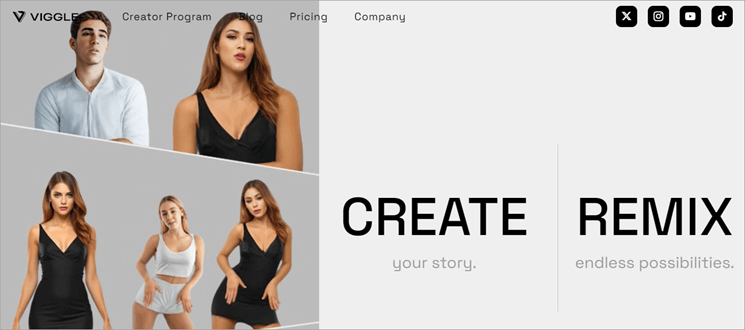
Viggle AI is software you can use to create animated videos or GIFs with just a couple of clicks. You don’t need to be a skilled animator or be privy to advanced video-editing skills. Upload any picture to the tool’s advanced AI and watch it seamlessly merge into an existing animation. It will analyze the motions in a video and apply it to a still picture you want to animate.
Viggle is incredibly easy to use. You can download the app on your Apple or Android device, using the web-based version, or by simply joining its Discord server.
Now that you have a basic gist of what Viggle AI entails, let’s delve deeper into each of its fundamental aspects, starting with its UI.
Here is a video for your reference:
Also Read => Wondershare Anireel Review
Simple AI Interface
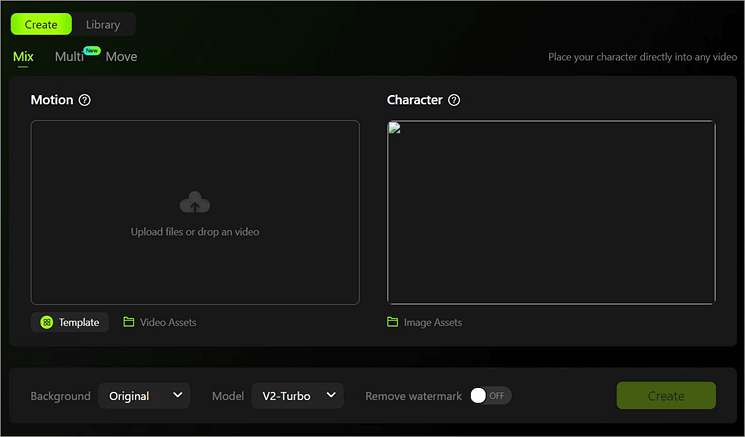
Viggle AI’s UI is its strongest USP. It makes the software easier to use and navigate. Its look is very sleek, with the main processing interface available in the center. You upload the image or video here with a single click and hit the “Create” button. The interface immediately displays the results on the right-hand side.
You can see a “share” prompt right underneath each result, allowing you to share the animated video that you just generated with your friends via a link. You’ll also find options to modify the background of your file or remove the watermark on it below the main processing interface.
Viggle AI Video Generator’s Top Features
As an AI-powered video generator, Viggle performs three key tasks. It can blend photos with videos, create basic animations, and generate animations based on simple text prompts. Here are the features that will let you accomplish these tasks:
#1) Mix
One of Viggle AI’s most appealing features is the tool’s ability to blend a photo with your chosen video clip. Once these two mediums come together, the tool animates the subject within the still photo to mimic the motion depicted in the chosen video. Viggle AI leverages the advanced JST-1 machine learning model to make this possible.
Thanks to this ML model, Viggle AI analyzes motion in the video uploaded and uses it to breathe life into a photo.
How to use Viggle AI to “Mix” and Create Animations
Blending visuals with Viggle AI is simple. All you need is a picture that you wish to animate. To create an animation, I’ll show you step-by-step how to merge a still picture with a template video sourced from Viggle’s library in this guide.
1. Sign up and log into your Viggle AI account on your web browser.
2. Upload the image you wish to animate.
3. Upload the video you want the image to mimic. You can choose any video found in Viggle’s library.
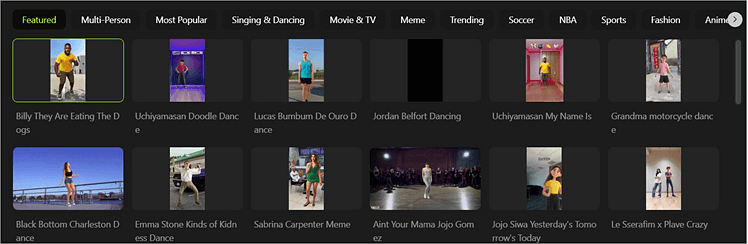
4. Once you have both uploaded, simply hit the “Create” button.
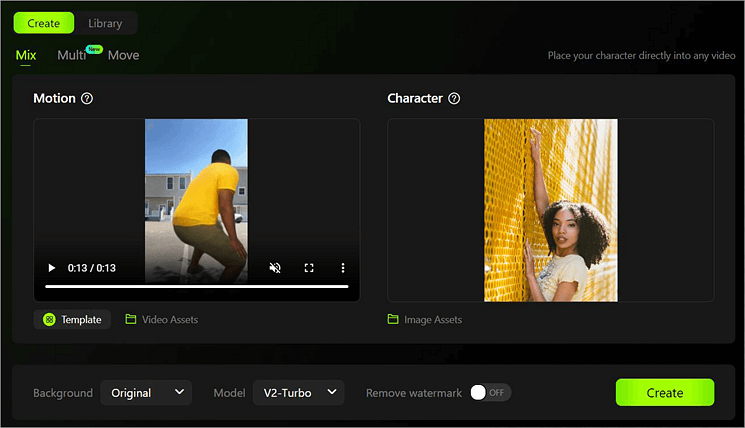
5. The result will be displayed on the right-hand side of your screen.

You can download the animated result with a single click. Alternatively, you also have the option to create a link to this video, which you can then share with your friends online.
If you wish to do a lot more with Viggle, then I suggest you join its Discord server. I’ll now walk you through some of Viggle’s intriguing features, as you can use them on Discord.
#2) Animate
While the “Mix” feature makes animation simple, it is also limited in its scope. What if you want to animate the photo in a certain way but don’t have the appropriate video prompt to achieve it? Fortunately, video prompts aren’t the only way Viggle AI can animate your photo. You can get the exact animation you desire by feeding the software with precisely descriptive text prompts.
Here’s how you do it:
1. Join Viggle AI’s Discord Server.
2. On the right-hand side of the Discord server, choose one of the “Animate” channels that you’ll find on the left-hand side of your interface.
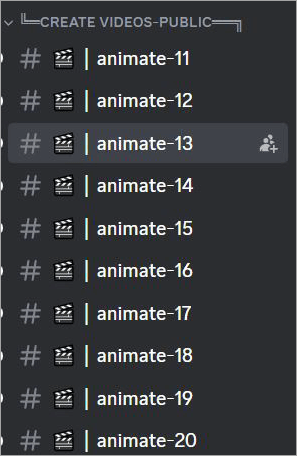
3. Now type “/animate”, and select the animate option.

4. Upload the image of the character you wish to animate.
5. Once the image is uploaded, describe the movement you wish the character to mimic in the “motion prompt” section.

6. Choose whether the background should be black, white, green, etc.
7. Press enter and wait for Viggle to generate your animation.
I simply typed “running” to make the character run. You could be more elaborate when describing your desired motion prompt. With Viggle AI, dance is the most popular motion prompt being used. You could have your character dance, spin, perform an intense acrobatic feat, and much more with a text prompt.
Suggested Read => Resolve the Discord Not Opening Error
#3) Ideate
Viggle AI features some of the same generative capabilities that popular tools like Chat GPT possess. This means that you can generate entire videos without any videos or photos to rely on. Your imagination is all you’ll need. You can create an animated video by typing in a text prompt that explains your wishes.
To get the best results, you’ll need to be as eloquent and precise as possible with your written words. The AI here is intelligent enough to generate an animation that more or less replicates the idea you have in mind.
Also Read => How to Access ChatGPT in Hong Kong
Here’s how you do it:
1. Join Viggle AI’s Discord Server.
2. On the right-hand side of the Discord server, choose one of the “Animate” channels that you’ll find on the left-hand side of your interface.
3. Type in “/ideate”.

4. In the “Image Prompt” describe the type of image you want. In the “Motion prompt” describe the type of motion you want the character in that image to perform.
5. Choose the background and hit the enter button.
#4) Stylize
This feature allows you to create 4 versions of a character that’s depicted in the photo you’ve uploaded. You select one of these 4 versions and then animate it using a preferred text prompt.
Here’s how:
- Upload an image with a clear character.
- Describe how you would like to modify the character’s appearance.
- Viggle AI will process this description and present you with 4 sample versions.
- Pick one and describe the motion you want the character to perform.
#5) The Character and Prompt Library
If you don’t have a character image to animate, you can select one from a dozen or so image samples available in Viggle AI’s library. There are a plethora of images and videos to choose from. You could simply use these videos to animate your picture with ease.
Besides the character samples, you also have over 100 pre-configured audio prompts to choose from. Some of these prompts are based on the reels and Tik-Toks that are going viral online. So if you aren’t sure what prompts to use when animating an image, you could simply rely on the pre-configured ones that are already available to you.
Suggested Reading => Best Whiteboard Animation Software Tools
Support
If you ever find yourself confused or lost when using the feature, you’ll find Viggle AI’s technical support team more than helpful. You can chat live with a support agent to get your queries resolved. You can easily report an issue. There are also feedback suggestion bots that you could use to shed light on an issue you are facing.
While Viggle AI’s technical support is praiseworthy, the software especially shines with its community support. In my estimate, there are about 4 million members in Viggle’s Discord community. You could reach out to one of these community members and have your issue resolved or your queries addressed in no time.
Security
Data privacy and safety is another area where Viggle AI impresses. Whether you are using the app, the website, or the Discord server, Viggle AI makes use of SSL encryption to keep your data safe and away from prying eyes. If there is an attempt at stealing your content on Discord, you can immediately complain to one of the moderators and get things sorted out.
That said, if you are creating videos on Discord, know that it will be public and others may download it. I would suggest not adding or using any personal information when using Viggle’s Discord server to be safe.
Further Reading => Check our Review of getimg.ai Here
Price
Now Viggle is completely free to use. However, there are some limitations. You can only generate 10 videos daily. You can also only process videos that do not exceed 60 seconds in duration. For additional benefits, you have the option to upgrade to the Pro version at a monthly cost of $9.99.
Some of these perks include:
- Unlimited video generation in slow mode
- No duration limits
- The ability to remove watermarks
- Run 10 tasks simultaneously.
In essence, I think Viggle’s free version is excellent if you wish to create small bite-sized animated videos that’ll eventually go on Instagram or TikTok. For lengthier videos, you can opt for the pro version, which is also quite affordable.
Pros and Cons
| Pros | Cons |
| Large character and video template library | Animating on Discord does make your generated videos public. |
| Over 100 pre-configured prompts to choose from | |
| Sleek and User-friendly UI | |
| Free plan | |
| Community support | |
| Fast processing |
Target Audience (Use Cases)
The following professionals and individuals could benefit immensely by using the Viggle AI video generator:
1. Students
Students can rely on Viggle AI to breathe life into their presentations and assignments. Students could create stunning visual presentations using Viggle AI that has the potential to captivate their teachers and peers.
2. Social Media Managers
Social Media Managers can have a field day with Viggle AI. Viggle AI can generate animated videos that can be used for both marketing and entertainment. As I mentioned before, the video templates in Viggle’s library are based on some of the most popular trends going viral on social media.
Social media manager could use Viggle to quickly cook up an animated video that helps them grab the attention of their target audience.
3. Graphic Designers
Viggle AI is a delight for graphic designers and makes their job 100 times easier. Graphic designers can save a lot of time creating graphics or visuals by using Viggle AI as the tool can create visuals with simple text prompts alone. This could be a tool that graphic designers can use to quickly cook up something when they are running short on time.
4. Teachers
Besides students, teachers too can benefit immensely from Viggle AI’s generative abilities. They could use the tool to create animated videos that could make teaching fun and engaging. Teachers could also use the tool and take their teaching gig online. They could create educational material using Viggle AI and upload it on their YouTube channel.
Viggle AI Alternatives
Viggle AI isn’t the only tool of its kind out there. Here are a few other alternatives you could also give a shot:
Steve AI

Steve AI is a tool similar to Viggle, as it can create videos based on text prompts. Besides text prompts, you can use Steve AI to generate videos from full blogs and audio clips as well. Steve AI grants you the privilege of writing scripts in multiple different languages. You also have the option to edit the video that has been generated.
Website: https://www.steve.ai/
Visla
Like Steve, Visla can also generate videos via multiple different methods. You can rely on the tool to create videos out of text, audio, and complete blogs. The software offers a massive library replete with stock media files that can aid you in your creative endeavors. Visla can also come in handy when generating subtitles for videos.
Website: https://www.visla.us/
Animaker

Animaker helps you create visually stunning animated videos that accurately mimic the text you feed it. It can also generate natural-sounding voiceovers that could go well with your generated video. You get to play with over 100 million or so stock files. Like Visla, you can also use Animaker to generate subtitles for videos.
Website: https://www.animaker.com/
HeyGen

HeyGen is an excellent video generator if you wish to create animations that feature talking avatars. It leverages the advanced GPT writer, which you can leverage to write detailed scripts that dictate what you want in the animated video. HeyGen also features a massive library that contains over 300 natural-sounding AI voices.
Website: https://www.heygen.com/
Frequently Asked Questions
1. What is Viggle AI?
Viggle AI is an AI-powered video generator. It can animate a still photo with the help of text prompts. Alternatively, it can also animate photos by analyzing movement patterns in a video.
2. Is Viggle AI free?
Yes, Viggle AI is free to use. However, there are some limitations. You are only allowed to generate 10 videos daily. The duration of each video cannot exceed 60 seconds. You can only run 3 jobs simultaneously.
3. How does Viggle AI work?
Viggle AI generates animated videos based on text prompts and uploaded character images. It utilizes the JST-1 machine learning model to analyze the movement patterns in a particular video. It then applies these movements to the character in a still image to animate it.
4. What are some of Viggle AI’s most prominent features?
Viggle AI can perform three key tasks:
1. Blending pictures with video clips
2. Create animated videos using basic text prompts.
3. Generate animations with an image and motion prompt.
5. How to get credits in Viggle AI?
If you are using the free service, then you’ll be provided with a limited number of credits that’ll let you create a certain amount of videos. With the pro version, you are provided with 80 credits per month. These credits can create 20-minute videos briskly.
Conclusion
Viggle AI is a great addition to the long line of AI video generators that have been popping up recently. It is free to use, user-friendly, and works well on the web, as an app, and on the Discord server. You don’t need to be a skilled animator to use this tool. Viggle AI’s got you covered with hundreds of video templates and pre-configured prompts.
I would recommend Viggle AI to anyone who wants to up their game on social media. Professional designers and marketers can also find the tool immensely beneficial. For creating catchy social media videos, captivating marketing material, or just having fun, Viggle AI is the go-to tool.
You can try the tool for yourself from Viggle AI.
Our Rating
Viggle AI Review: Is It The Best AI Video Generator of 2024

Thoroughly explore the various aspects of Viggle AI video generator. Viggle.ai is an excellent solution for anyone looking to make stunning videos without any hassle.
Price: 9.99
Price Currency: $
Operating System: Windows, iOS, Android
Application Category: MultimediaApplication
5
Pros
- Free plan
- Community support
- User Friendly AI
Cons
- Animating on Discord does make your generated videos public.
Was this helpful?
Recommended Reading
-

A comprehensive review of the Winxvideo AI tool with specifications, features, and pricing. Quickly revitalize your videos/images with this excellent enhancer, converter, and downloader: Winxvideo AI is a comprehensive toolkit powered by AI to help enhance video/image quality, stabilize videos, and boost video FPS. Also, it can convert, compress, record,…
-

List of the Best Artificial Intelligence AI Software With Reviews And Comparison. What is AI Software? Artificial Intelligence (AI) Software is a computer program which mimics human behavior by learning various data patterns and insights. Top features of AI software include Machine Learning, Speech & Voice Recognition, Virtual Assistant etc.…
-
Select the best AI Voice Generator from the list of many computer voice generators available in the market today for amazing results: Voice cloning technology has been around for a while now and has undergone several impressive changes since its initial years. It was once a tool used vehemently for…
-
Quickly evaluate the Top Generative AI Security Solutions that enable businesses to maximize the advantages of GenAI thereby ensuring protection against data leaks: Generative AI is ripe with opportunities for enterprises. However, the explosion of generative AI has also introduced new risks to organizations. This is not necessarily due to…
-
This tutorial is a complete guide to AVCLabs Video Enhancer AI. Understand the features and implement them to upscale your videos: The visual enhancement market is an ever-expanding space, with new apps and services cropping up every day. Notably, many of these services are AI-powered software that promises to make…
-
Read this review if you're looking for a Photo Enhancer AI to Make Blurry Pictures Clear and look crisper as well as sharper than ever. A blurry picture is the worst nightmare for everyone. However, with Photo Enhance AI technology, you now know how to transform your blurry photos into…
-
Read this Comprehensive Review of the Top AI Chatbots with Pricing, Features & Comparison to Select the Best AI Chatbot for your Requirements: What Are Chatbots? Artificial Intelligence (AI) chatbots use machine learning to converse with people. The first-ever AI chatbot was developed in the 1960s by Joseph Weizenbaum, a…
-
A complete guide to Image Processing. Get to know what is Image Processing and understand the benefits, applications, components, etc. of digital image processing: Deep learning had a deep impact on technology over the last few years. One of the hottest topics in today’s industry is computer vision. We define…