Let us review the top Dogecoin (DOGE) Wallets along with features and comparisons to find the best wallet for Dogecoin:
Dogecoin wallets can be in the form of web apps, mobile (Android and iOS apps), desktop apps, VPS installations, or extensions. These are used to store Dogecoins but can also be used to send and receive crypto.
Some have extra functionality, including crypto exchanges, swapping, or buying with fiat.
This tutorial discusses Dogecoin wallets, how they operate, and their features.
Let us begin!
Table of Contents:
Dogecoin (DOGE) Wallets – Review

Market Trends:
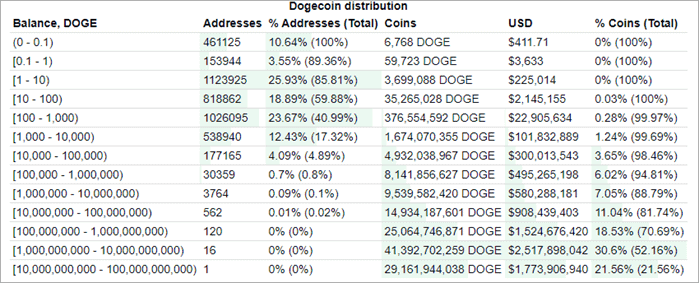
- As seen from the table below, most Dogecoin wallets hold between 100–1,000 Doge.
- Doge wallets can be Dogecoin mining clients that download a full or part of the Dogecoin blockchain or mere software meant to facilitate sending, receiving, holding, exchanging, and buying Dogecoin.
- Dogecoin wallets, like other wallets, can be installed on a desktop computer, mobile devices, as extensions on browsers, or just be hosted wallets on crypto exchanges and other services run online or via apps. Some can be installed via VPS.
Dogecoin distribution in top wallets:
[image source]
Expert Advice:
- Non-custodial Doge wallets allow you to secure private keys offline and away from the device with the app in case the app or computer crashes, the device is lost, or in case you forget the pin. Make sure you back up the passphrase when creating the Doge wallet or backup the software file from the settings and keep the file offline. This is essential to avoid losing cryptocurrencies unrecoverably.
- Custodial or hosted crypto wallets for Dogecoin can be recovered by contacting the company in case there is no option for backing up the private keys or .dat file.
- Advanced hardware wallets are commonly utilized for holding and transacting large sums of crypto for individuals while many companies also use custom cold vaults.
- Different Dogecoin wallets have different features and it depends on what you really are looking for. Some of the best crypto wallets for Dogecoin are those with in-app buying, selling, swapping, staking, lending, and others.
List of Top Dogecoin Wallets
Popularly known best wallet for Dogecoin list:
- Tangem
- Uphold
- Cypherock X1
- Exodus
- Atomic
- Guarda
- Ledger Nano S
- Trezor Model One
- Ledger Nano X
- Trezor Modal T
- Dogecoin Core
- KeepKey
- Dogecoin Wallet (Android)
Comparison Table of Some Best Wallets for Dogecoin
| Name of wallet | Type of wallet | Cryptocurrencies supported | Pricing |
|---|---|---|---|
| Tangem | Hardware | Dogecoin and 6000+ cryptocurrencies | $54.90 |
| Exodus | Software/hot/online wallet | 200+ cryptocurrencies including Dogecoin. | Free |
| Cypherock X1 | Hardware and open-source based | Over 3000 digital assets supported | $159 |
| Atomic | Software/hot/online wallet | 500+ cryptocurrencies and tokens including Dogecoin. | Free |
| Guarda | Software/hot/online wallet | 4000+ crypto assets including Dogecoin. | Free |
| Ledger Nano S | Hardware wallet/cold wallet | 1,800+ cryptocurrencies including Dogecoin. | $59 |
| Trezor Model One | Hardware wallet/cold wallet | 1,600+ cryptocurrencies | 69 Euros |
Detailed review:
#1) Tangem

The Tangem Wallet has the highest level of security for a cold wallet and comes with a variety of features. It utilizes anti-counterfeit protection to verify the authenticity of the secure element chip and firmware.
It offers CC EAL6+ level security, providing exceptional defense against all types of attacks. Kudelski Security and Riscure thoroughly audited the wallet’s firmware, ensuring the absence of any backdoors or vulnerabilities.
The Tangem app’s open-source code on GitHub further enhances transparency. Furthermore, the smart backup system securely transfers private keys between cards, while access code protection prevents unauthorized entry, securing the wallet against brute-force attacks. Made of monolithic plastic, Tangem Wallet cards are tamper-proof, safeguarding stored cryptocurrencies against physical and supply chain attacks.
How to Use on Tangem Dogecoin Wallet:
To use Dogecoin on Tangem Wallet, you need a smartphone with full NFC support and the official Tangem app.
- Download the app from the app store or Google Play
- Scan the card to create a wallet by generating private keys
- You can also import your wallet with a seed phrase during the setup process.
- Set an access code and add backup cards.
- Enter the wallet and tap Manage tokens.
- Search for Dogecoin and enable it on its native network or any other network you prefer.
- Tap Save changes, enter your access code and tap your card on your phone.
- To buy Dogecoin, tap the Buy button and go to the Mercuryo Widget to complete this transaction.
- Swap Dogecoin with any other token in your wallet via the Swap button, powered by integrated third-party services such as Changelly.
Features:
- Buy, sell, swap, store, send, and receive Dogecoin and 6000+ cryptocurrencies on over 50 blockchain networks.
- IP68 certified — resistant to dust and water. The wallet can operate between -25°C to +50°C.
- Protected against EMP, ESD, and X-rays per ISO 7816-1 standard.
- NFC functionality
- Connects to dApps and DeFi protocols via WalletConnect.
- Staking coming soon.
Price: $54.90 on official website
#2) Uphold
Best for converting Dogecoin to stocks, precious metals, and fiat.

Uphold is rated one of the best Dogecoin wallets due to its feature that allows users to quickly and easily inter-convert/trade cryptos, fiat, stocks, and precious metals without requiring third-party intermediary conversion tools that would normally be needed to exchange one asset for another.
Other than that, Uphold lets users buy and sell Dogecoin instantly with credit/debit cards, Google Pay, and Apple Pay. It also supports bank transactions. Uphold also allows users to spend crypto – including Dogecoin – easily with the Uphold Card at Visa and merchant stores.
You can hold Dogecoin, trade it actively (including automated trading), send it to or receive it from other wallets, or invest it in other assets including popular stocks and precious metals. It is thus one of the best wallets to consider for fractioned stocks and precious metal investments using crypto such as Doge.
Apart from Dogecoin, it supports 210+ cryptocurrencies.
How to use the Dogecoin Uphold Wallet:
Step 1: Sign up on the website or mobile app. It doesn’t work in all jurisdictions. You may also require verifying details to use it.
Step 2: Buy Doge using fiat currency. From the dashboard’s Transact Panel, click/tap From and select a deposit or payment method. Enter the amount. Click/tap To and select Doge. Proceed to buy.
To deposit Doge directly or other cryptos you want to exchange with Doge, click Transact from the menu. Choose Dogecoin beneath the Crypto Networks from the drop-down menu, and copy the QR code or the receiving wallet address where the doge will be sent.
Other Features:
- Crypto staking. Earn APYs as high as 25%.
- Cashback rewards when spending from the Uphold Card.
Pros:
- 0% trading commission. Spreads for crypto vary from 0.9% – 1.95%. Higher for low-liquidity coins such as Doge.
- $0.99 transaction fee when trading between assets and the amount is under $100 USD. This applies to Uphold Cards and automated transactions.
Cons:
- Custodial wallet
Cryptocurrencies Supported: 210+
Verdict: Uphold is most suitable for converting assets seamlessly from one form to another without expensive middlemen. You can easily swap between stocks, crypto, precious metals, and fiat currencies easily and quickly.
Pricing: $0
#3) Cypherock X1
Best for: No seed phrase backup
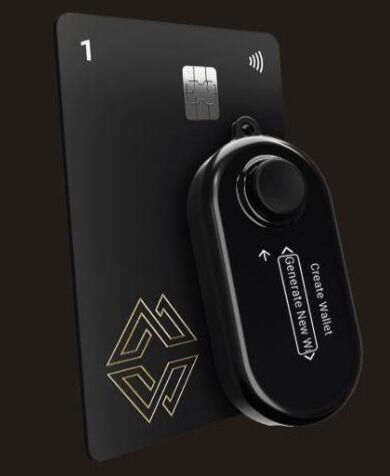
Cypherock X1 makes it to our list because of its unique sharding capabilities. This wallet can distribute your private keys into 5 cryptographic parts. Each of these parts is then stored in a separate tamper- proof hardware. You only need any 2 of the 5 parts to make a transaction. This allows the wallet to protect your funds against loss and theft more adequately.
What makes the wallet even more secure is the fact that is one of the first of its kind to not require a seed phrase backup. The low Shamir threshold is another highlight of this wallet. You get 4 NFC cards. If you lose two, you can still access the funds with the other 2. The wallet makes managing crypto-currencies simple with a sturdy hardware and a comprehensive open source.
How to use Cypherock X1:
- Log into your Cypherock X1 Vault
- Authenticate your card to make the wallet accessible.
- To send funds, hit the ‘Send Crypto’ button, choose the token, and enter the recipient’s address.
- To receive funds, hit the ‘Receive Crypto’ button, select the token you wish to receive, and generate a receiving address.
Features:
- Open Source
- More than 3000 digital assets supported
- No seed phrase backup
- Store multiple wallet accounts
- EAL6+ Secure element
Pros:
- Small and sturdy hardware
- 4 NFC cards included
- Easy Shamir set-up
Cons:
- Limited software compatibility
Verdict: There are a lot of things that make Cypherock X1 great. The two things that convinced us to mention it on this list are its trustless recovery and no seed phrase backup capabilities.
Price: $159
#4) Exodus
Best for regular crypto traders and portfolio managers.
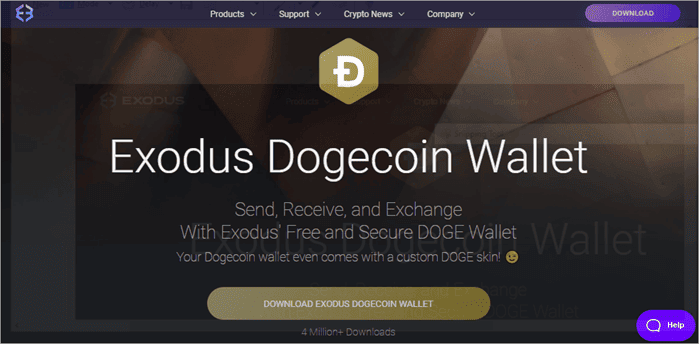
Exodus is a desktop and mobile cryptocurrency wallet used to store, send, receive, trade, deposit, and withdraw 200+ cryptocurrencies including Dogecoin. It supports buying cryptocurrencies using credit cards, debit cards, bank transfers, or Apple Pay.
It also incorporates portfolio tracking features and live charts for traders. It is categorized as the best crypto wallet for Dogecoin due to its rich features and the fact that it can sync with hardware wallets.
You can buy Dogecoin with credit/debit card and bank transfers, trade it for other cryptocurrencies, or send/receive it directly to peers and other wallets.
How to use Exodus Dogecoin wallet:
- Visit the wallet’s website and download and install it on a computer or mobile, or use it as an extension on the browser (search for Exodus extension and install).
- Create a password and write down the passphrase as you install it. Keep it safe and offline. You can also restore an existing wallet from the passphrase.
- Access the Wallet, Exchange, Portfolio, and Transactions tab and select Dogecoin to send/receive/deposit/withdraw/trade Dogecoins and other listed cryptos.
Other features:
- Can sync with Trezor hardware wallet for storage and exchange of all supported cryptos.
- Stake crypto in your wallet to earn passive income.
- It works as a Dogecoin online wallet or hot Dogecoin wallet app because it must be connected to the wallet.
Pros:
- Users can increase security by integrating hardware wallets.
- A detailed set of features – trade, swap crypto, buy, hold, track portfolio, etc.
- Easy to use and multiplatform support – mobile, desktop, and extension.
- Staking.
- Buy crypto at 0% or no additional platform fees using credit and debit cards – bank charges may apply.
Cons:
- Not open-source and lacks custom network fees.
Cryptocurrencies Supported: 200+ cryptocurrencies, including Dogecoin.
Verdict: The software wallet is one of the best in terms of having a complete crypto ecosystem that includes Dogecoin. Users can buy crypto with fiat via credit card and trade crypto for each other.
Pricing/Charges: $0 to use.
Website: https://www.exodus.com/dogecoin-wallet
#5) Atomic
Best for regular cryptocurrency traders.
Atomic wallet is a desktop and mobile (iOS and Android) wallet that lets you store, send, receive, deposit, withdraw, and trade 500+ cryptocurrencies and tokens, as well as stake 11 cryptocurrencies, to earn passive income by just holding them.
It gives 1% cash back for buying $50 to $20,000 worth of Dogecoin and other cryptos daily using credit cards and you can do that in 100+ countries.
How to use Atomic Dogecoin wallet:
- Download and install on mobile or desktop. Launch app.
- Choose a new wallet or restore from a backup to restore an existing one whose passphrase you have previously written down and kept somewhere. Set a password. If creating a new one, write down or copy the passphrase for it and store it safely. Restoring requires you to write down the previously backed-up passphrase. Click continue if that is done.
- The Wallet tab allows you to send, receive, deposit, withdraw, and track Dogecoin balances by selecting Dogecoin from the list.
The Buy crypto tap lets you buy Dogecoin and other cryptos, and the Exchange tap exchanges one coin into another. You can track transaction history from the History tab and stake coins from the Staking tab even though Dogecoin is not supported. The Settings tab allows you to change passwords, see private keys or create backups.
Other features:
- No KYC or AML checks. It’s yours and it’s peer-to-peer.
- 24/7 live support.
- In-built free atomic crypto swaps.
- It works as a Dogecoin online wallet or hot Dogecoin wallet app.
Pros:
- Easy to use for beginners. There is also a free Dogecoin wallet app.
- Lightweight.
- A huge range of cryptos are supported.
Cons:
- No support for hardware wallet integration.
- Credit card purchases have hefty fees – 2% and a minimum of $10. Up to 5% credit card processing fees.
Cryptocurrencies Supported: 500+ cryptocurrencies including Dogecoin, BTC, and ETH.
Verdict: With credit card purchases, in-app trading, cash back for crypto purchases, and support for over 500 cryptos, it makes it one of the best apps for Dogecoin transactions for those who don’t mind extensive features in a wallet.
Pricing/Charges: Free to use and install. Trading and staking fees apply.
Website: https://atomicwallet.io/dogecoin-wallet
#6) Guarda
Best for diversified crypto traders, investors, and developers with crypto loans, staking, and development tools.

Guarda is a desktop, web, Chrome extension, and mobile (iOS and Android) app that lets you send, receive, deposit, withdraw, exchange crypto, buy as little as $50 worth of Dogecoin using credit/debit card and SEPA, stake to earn cryptos (Dogecoin not supported), get instant USDC/USDT loans against your Dogecoin and other crypto collateral at 10% APR, and trade 4000+ other crypto assets.
How to use Guarda Dogecoin wallet:
- Download and install Guarda wallet on your desktop, mobile, or browser as an extension.
- Click/tap Import/restore to restore an old wallet from a backed-up passphrase or Create a new wallet. Set a password, write the passphrase down and keep the write-up safe and securely offline, and proceed to create the wallet. You can also save/download a backup of the .dat file and save it offline.
- Click Add new wallet or select Dogecoin to receive the coins. The other tabs are Exchange, Buy, Send, and History. From each, you can select Dogecoin to do those respective things. For instance, Exchange lets you swap cryptos with each other.
Other features:
- Developer tools – Payment Deeplink, Mnemonic Converter, Backup Decoder, Extension API.
- Token generator to create ERC-20 tokens or HBAR tokens, list on Uniswap, and token management including issuance/distribution, and Etherscan-ready smart contracts.
- It works as a Dogecoin online wallet or hot Dogecoin wallet.
Pros:
- Multiplatform allows for flexibility of use as per user needs.
- Light wallets, which means you do not have to run a full version of the blockchain.
- Custody-free. Also, a free Dogecoin wallet.
- Simplex integration allows purchasing crypto.
Cons:
- 5.5% crypto purchase fee through Simplex integration is high.
- No hardware wallet integration.
Cryptocurrencies Supported: 4000+ other crypto assets, including BTC and ETH.
Verdict: Guarda comes with developer tools to allow developers to extend the crypto ecosystem on the software, in addition to its aggressive token issuance and management for token issuers. This, in addition to its rich features, makes it one of the best crypto wallets for Dogecoin.
Pricing/Charges: Free to download and use. Trading, exchange, and staking fees apply.
Website: https://guarda.com/coins/dogecoin-wallet/
#7) Ledger Nano S
Best for cryptocurrency and Doge holders and corporations who also trade crypto.
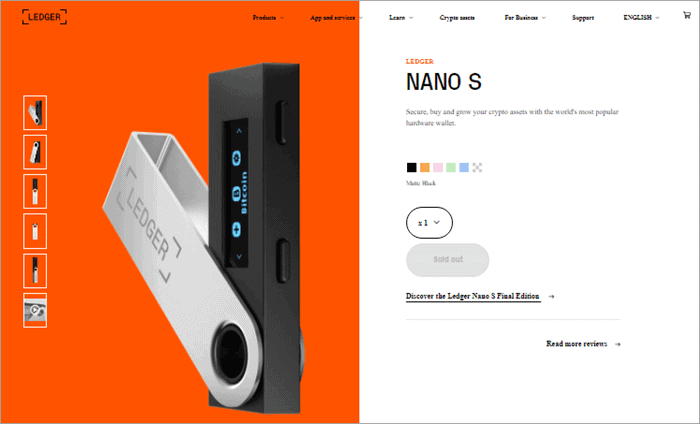
Ledger Nano is a hardware cold storage wallet that lets you buy, exchange, and hold 1,800+ cryptocurrencies in addition to the normal sending, receiving, depositing, and withdrawing to other wallets.
The wallet connects to a computer (Windows 64-bit and macOS or Linux devices) and Android 7+ devices through a USB Type Micro-B connector and OTG for mobile phones.
The device hardware weighs 16.2g and 4.1 inches in length and 2.3 inches in width. Nano S features an ST31H320 secure chip separate from the other STM32F042. It has a CC EAL5+ standard certification for the chip. The device syncs with the Ledger Live App, which is also compatible with Chromebooks.
Through the Live App, you can buy Dogecoin and other cryptos. Ledger has other hardware wallets – Nano S Plus and Nano X. The main drawback for Nano S in comparison is that it holds just six crypto apps and you must delete existing ones to add new ones. X holds up to 100 and the S Plus 100 apps.
How to use Dogecoin Ledger Nano S wallet:
- Buy a device and download the Ledger Live app for Android and iOS. The app will help you set up the device.
- Connect the device to a mobile (OTG) or desktop (USB). Install the Ledger Live app on mobile and desktop and set up its pin. This may require downloading and/or installing device drivers on your computer to have it recognized by the system. If on a computer, it will later show a welcome screen and other on-screen instructions. Press the two buttons simultaneously to begin. Press the left or right button on the Nano S device to navigate through the on-screen instructions. These buttons are also used to confirm sent transactions when the device is offline to increase crypto security. Press the two buttons simultaneously to choose the option you need. If the device asks for a PIN, contact support.
- Choose Configure a new device or restore an existing one. If new, choose a PIN. Press the right or left button to choose the first digit of the Pin code, then press both buttons simultaneously to enter the first digit. Proceed until you enter 4-8 digits. Select the checkmark and press both buttons to check the box and confirm the PIN code. You can use the backspace icon to erase the digits.
- Confirm the PIN.
- Write down the passphrase (the device comes with a piece of paper to write it down) shown on the device screen word to word while scrolling with the physical buttons on the device to show all of them from 1 to 24 as you write each after the other following each other on a piece of paper. Keep the write-up safely and securely offline. Proceed to verify having noted down the passphrase. Confirm the passphrase written by pressing both buttons simultaneously. Once the processing is done, it will be ready to use.
- Access the dashboard by pressing the two buttons simultaneously. It has apps that you have installed or which come pre-installed.
- When connected to a computer, you can open the Chrome browser and install the Ledger Manager app to add Dogecoin and other coins or Ledger Bitcoin to add Bitcoin or Bitcoin Cash extensions downloaded through the Ledger website. Install the extension. Launch it and scroll through the list of coins and when you click on the Dogecoin app it will be added to your Ledger Nano S. Click and install.
- To send, click Send from the Ledger Live or extension and fill in the details of the amount and address and click Send from the extension or Ledger Live app. If the device is connected, it will indicate the transaction on the device. Enter your pin if required and click Accept and send.
- To add accounts to Ledger Live, click/tap Accounts then Add Account button. Choose Dogecoin from the list and click/tap Continue. Connect and unlock the device with a previously set PIN. Select existing accounts and you will see accounts that already have blockchain transactions. In the Add a new account, you can add a new account to Dogecoin. Accounts already in the portfolio section lists accounts already in the portfolio.
- Click/tap Continue to add the account selected. It will be added to the portfolio. Click/tap Add more to continue adding accounts.
Other features:
- Install the Exchange app to sell crypto via Ledger Live. Check the Sell Crypto tab on the app after installation. Verify the transaction details and confirm the transaction from your Nano S.
- The Buy Crypto feature on Ledger Live lets you buy through third parties (Coinfy, Wyre, MoonPay) using credit/debit cards. The swap feature lets you swap crypto for another.
- Lend Crypto lets you lend crypto and earn passive income.
- Manage lets you track asset allocations, crypto prices, and balances.
- NFT collection feature lets you collect, send, display, and manage your collections.
- Staking lets you earn passive income by holding onto your crypto.
Pros:
- Securely hold large sums of cryptocurrencies for companies, individuals, etc.
- Diverse features – stake, buy, exchange, etc.
- Easy to carry around and set up.
- Bluetooth is optional.
- Durable steel case.
Cons:
- It has a cost attached to using it, unlike most software wallets.
- No touch screen.
- Closed-source.
- Holds up to 6 apps and you need to uninstall the existing ones to add new ones.
Cryptocurrencies Supported: 1,800+ cryptocurrencies including Doge, Bitcoin, Ethereum, Ripple, etc.
Verdict: No doubt one of the cheapest hardware wallets available in the market at just $59. For that cost, you get some of the top-notch security a hardware wallet can provide. Besides, it provides the best features, like in-app trading, that match software wallets.
Pricing: $59. Buying, staking, and exchange fees may also apply separately.
Website: https://www.ledgerwallet.com/products/ledger-nano-s
Further Reading => List of the TOP and BEST Monero Wallets
#8) Trezor Model One
Best for cryptocurrency and Doge holders and traders.
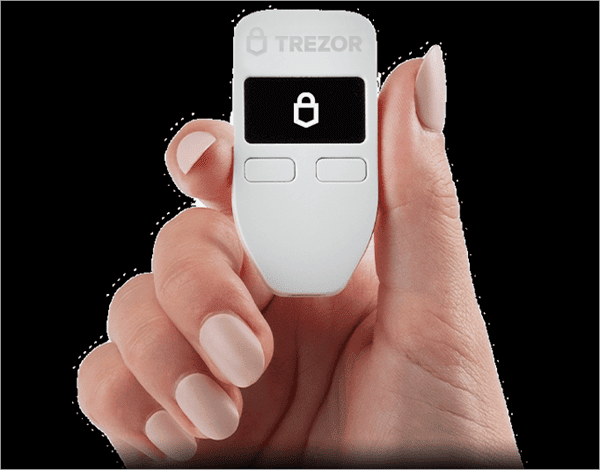
Trezor Model One is a hardware wallet that not only lets you store and manage 1,600+ cryptocurrencies offline, but also verifies and signs transactions offline when sending. Like Ledger Nano S, it is much more secure than hot and/or software-only and extension-only crypto wallets.
Furthermore, it is accompanied by a desktop and browser app that adds to exchanging, buying, and spending crypto through the device.
How to use Dogecoin Trezor Model One wallet:
- Connect the device to a computer using a USB cable.
- Visit https://wallet.trezor.io/ website if not directed to install Trezor Chrome Extension, the Trezor Suit or Trezor Bridge on your computer.
- Install the latest firmware after connecting the device to a computer.
- Cross-check firmware fingerprints on the browser screen against the ones on the Trezor device and make sure they match before clicking Continue on the Trezor device. Plug the device out and in again and go to https://wallet.trezor.io/.
- Give the device a unique name, and set up a Pin (a 3×3 dot grid is displayed on the website corresponding with a 3×3 number grid on your device). Hit the sequence of the pin you want on the device by looking at that sequence on the device and clicking those corresponding dots on the website. Confirm the PIN.
- Write down the 24-word passphrase and keep the write-up safe and secure. Enter Pin to access your wallet.
- From the extension or Bridge wallet, you can see the Wallet tab from where you can access your current account, add new crypto accounts, customize your home screen, enable and disable passphrase and PIN, change PIN, lock device, forget device, change fiat currency, connect the device to drop-box to access extra features like rename account and label receiving addresses.
- The Wallet features also allow you to Add Accounts or add legacy accounts before SegWit.
- For buying and selling Dogecoin and other cryptos, visit suit.trezor.io and download and install. The app syncs with the connected device. From the dashboard, you can get portfolio tracker, balance and assets you have, security management, and Trezor news and guides. The Accounts tab allows you to receive, send transactions, trade, buy through an exchange partner using credit cards and other methods, as well as add more accounts through public keys. To verify and confirm a sent transaction, simply click on the Wallet tab from the app, select Dogecoin, Click Send to send crypto if that is the need, and enter transaction details as you make sure the Trezor Model One device is connected to the same machine. You will be asked to confirm the transaction on the Trezor Model One. Go to see the reflected transaction and verify that the details appearing on the screen are the same way shown on the app. Click the checkmark to confirm.
Other features:
- Small – 60 mm by 30 mm.
- Buy and sell crypto with credit cards and other methods via Trezor Suite for Windows, Mac, and Linux or as a web interface.
Pros:
- Color touchscreen is available.
- Open-source.
- Shamir backup was offered.
- Detailed features – buying, selling, and management.
Cons:
- No mobile app, no Bluetooth.
- The case is plastic.
- Reported hacking incidences.
Cryptocurrencies Supported: 1,600+ cryptocurrencies including Doge, BTC, Eth, etc.
Verdict: Not the cheapest hardware wallet on the market, but definitely one of the most affordable. Although marred with issues of hacking in the past, it offers competitive security for small to large-sized crypto transactions without letting out too much security and privacy.
Pricing: 69 Euros.
Website: https://shop.trezor.io/product/trezor-one-white
#9) Ledger Nano X
Best for cryptocurrency and Doge holders and corporations who also trade crypto.
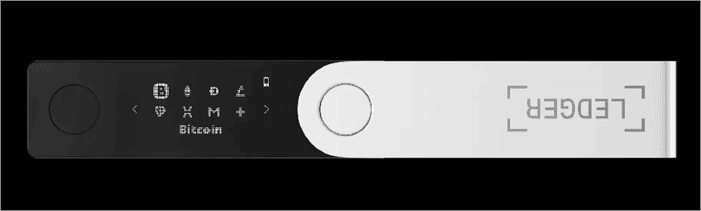
Ledger Nano X is another hardware wallet from Ledger that lets people securely hold, manage, and trade/exchange their 5,500+ cryptocurrencies, tokens, and NFTs securely. Other features include staking, although this does not support Dogecoin.
Lend feature allows users to lend USDT, DAI, and USDC, and earn passive income on crypto. Users can actually convert their Dogecoin to stablecoins through the Live app and lend or to other cryptos for staking.
Ledger Nano X measures 72mm by 18.6 mm Nano S and features two physical buttons and 1 screen for verifying and confirming transactions. The device uses a CC EAL5+ certified secure chip.
How to use the Dogecoin Ledger Nano X wallet:
- Connect the device to a computer or smartphone via USB or OTG. Install the Ledger Live app. Install drivers if they are not installed automatically.
- Press the button next to the USB port until the Ledger Logo appears on the screen. Use the right button to proceed or the left one to go back. Press both simultaneously when the device displays Set up as a new device. Use the right button to proceed.
- Press both buttons when the Choose pin code appears on the screen. This tick is used to validate the digit selection and the cross to delete a digit. Repeat the code to confirm.
- Press both buttons when the Write down your recovery phrase is displayed. Save the recovery phrase one word displayed after the other in the recovery sheet sold with the device. Scroll through the words until the 24 words are shown as you list them on the paper in the order shown. Secure the paper. Press both buttons on the final screen to continue. Press both buttons when the Confirm your recovery phrase is shown. Re-enter the words one by one as asked on the screen and validate each by pressing both buttons.
- Your device is now ready. Press both buttons when the Access dashboard appears. The Ledger Live app will also sync to the device. Click/tap Continue from the app. Choose a password and continue.
- Open the Ledger Live app. Click Get started. Connect the Ledger Nano X. Choose either Set up a new device or Restore the device from the recovery phase. Use a previously saved passphrase to recover the wallet, otherwise set up a new device. Set up a pin, copy the passphrase on paper, and store it securely. After setting it up, you can access different tabs including Portfolio and Accounts to add new accounts and manage existing ones, Discover to browse through web3 apps from the catalog, Send Crypto, Receive, Buy/Sell to buy or swap Dogecoin and other cryptos, and Manager to manage the Ledger device. The Settings app allows you to change the Security Pin, save passphrase, and adjust other setup features.
Other features:
- Bluetooth connectivity.
- USB-C connector.
- Install up to 100 apps.
Pros:
- Install up to 100 apps without deleting existing ones.
- NFT management added.
- Manage easily from a mobile device.
- Comfortable design, easy to carry and use as you go.
- Over 15 secure payment methods are supported for buying crypto.
Cons:
- Relatively expensive compared to Nano S or S Plus.
- No touch-screen.
Cryptocurrencies Supported: 5,500+ cryptocurrencies, tokens, and NFTs.
Verdict: Nano X is a top-notch security hardware wallet for crypto lovers who value trading and transacting securely. It supports over 15 payment methods, fiat buying of Dogecoin, and other cryptos, and unlike the Nano S, you can install up to 100 apps without having to worry about uninstalling previous apps.
Pricing: $119.
Website: https://shop.ledger.com/products/ledger-nano-x
#10) Trezor Model T
Best for cryptocurrency and Doge holders who also trade crypto.
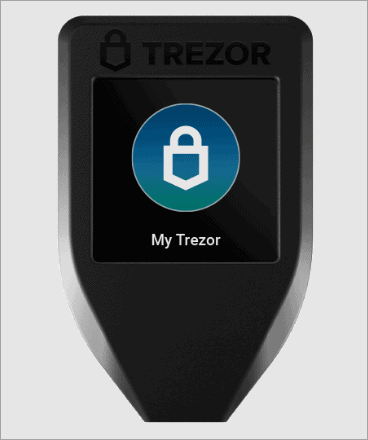
Trezor Model T is more advanced than earlier Trezor devices like Trezor Model One. It supports Windows, MacOS, and Linux, but does not support Android or iOS devices. It supports managing and trading of 1,200+ cryptocurrencies and tokens including Dogecoin. This is in addition to acting as a password manager, SSH login authenticator, GPG generator, wallet, and U2F.
The device measures 2.52 inches by 1.54 inches by 0.39 inches and weighs 22 grams. It connects to a computer and phone via the USB-C connector. It is also sold with 2 recovery seed card Trezor stickers to write a 12-word passphrase for secure storage in case the device is lost or damaged.
How to use the Dogecoin Trezor Model T wallet:
- The device works with Trezor Suite (Windows, Linux, and macOS), Trezor Bridge, and Trezor Chrome Extension. Trezor Suite helps users send, receive, as well as buy/sell cryptocurrencies and further manage accounts.
- Connect Trezor Model T to a computer via USB and follow prompts on the screen. Visit trezor.io/start if not prompted to install firmware and/or the wallet does not recognize your connected hardware. Choose Trezor Model T as your device on the website, install the bridge and refresh the page.
- Select Create a new wallet. Click Create a backup. Copy all the words in their respective order and secure the write-up. Scroll down by swiping up to see all the words.
- Click the checkmark against Do you really want to set a new pin and continue to set a PIN. This will be needed every time you reconnect the device to a computer. Continue to finish.
- On the Trezor Suite, it will show the connected device’s name. At the top-left dropdown menu, you can select Dogecoin or other cryptos you want to send or receive. The Wallet tab also allows you to Send, Receive, and Exchange. Select Dogecoin and select the appropriate tab to send, receive, exchange, etc.
- Send transactions that are verified and signed on to the hardware Model T device. Once you click send, enter the details of the transaction. Just ensure the device is connected and unlocked with a PIN. After entering the details on the app and clicking Continue, the transaction is also reflected in the device and you can confirm the address and other details to verify that they are similar on the app as they are on the device. Click the checkmark to confirm.
Other features:
- Act as a Universal Second Factor (U2F) security token to approve authentication requests as you see them on the screen.
- Shamir backup SLIP39 for even greater security.
- 12-word recovery phrase.
Pros:
- Touchscreen support is a huge plus to avoid button entry hassles.
- Easy to set up.
- Multiplatform support.
- crypto-fiat exchange in the Trezor Suite.
- A wide range of cryptos is supported.
Cons:
- The screen is too small to type in stuff.
- Only a few cryptos can be bought with fiat on the app.
- More expensive than many hardware wallets and software wallets.
Cryptocurrencies Supported: 1,200+ cryptocurrencies and tokens including Dogecoin.
Verdict: Though Trezor has had security breaches reported, the device is one of the top hardware wallets with trading supported. It scores much better in terms of securing crypto than most software wallets.
Pricing: $125.
Website: https://shop.trezor.io/product/trezor-model-t
#11) Dogecoin Core
Best for Doge supporters who hold and mine Doge.

Dogecoin Core is formerly Dogecoin Wallet. Dogecoin Core comes in two versions – Dogecoin Core which syncs the entire blockchain and MultiDoge which is a light wallet that syncs with the blockchain by way of skimming it.
It is the best wallet for Dogecoin if looking for a Dogecoin mining client on your computer. There is also an Android client called Dogecoin Wallet forked from Bitcoin Wallet, but it does not support mining.
The former works on Windows and Linux 64 and 32 devices as well as MacOS. The latter works on Windows, Linux, and MacOS.
How to use the Dogecoin Core wallet:
- Download it for and install it on your device.
- Wait to sync with blockchain for about 20 hours.
- Create a new wallet or recover an existing one from a previously saved seed passphrase or QR code.
- Back up the wallet by saving the QR code. You can also back up the .dat file from the settings.
- Access features – receive, send, history, etc.
Other features:
- Open-source software.
- History of transactions, balances, addresses as contacts.
- Export data.
Pros:
- Highly secure with private keys kept by the user.
- It can be used for mining Dogecoin easily and support the network.
- It can suit personal and anonymous transactions. Peer-to-peer transactions without middlemen or third parties.
- Multi-platform support, including Android support.
- It is also a free Dogecoin wallet.
Cons:
- Not many other features beyond sending, receiving and holding Dogecoin. No other cryptos are supported. No buying and no selling cryptos. No fiat support.
- Difficult to use and installation takes a lot of time.
Cryptocurrencies Supported: Just Dogecoin.
Verdict: This wallet is recommended for people who deal only in Doge and not for any other cryptocurrencies. If you are a hardcore Doge supporter, this could be the best wallet for you as it supports mining.
Pricing: Free to use and transact.
Website: https://dogecoin.com/
#12) KeepKey
Best for cryptocurrency and Doge holders and corporations who also trade crypto.
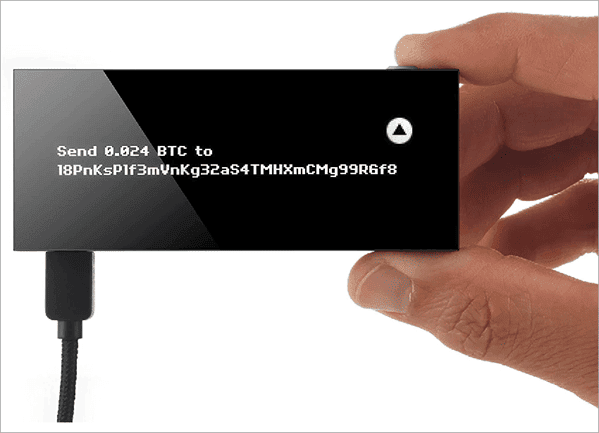
KeepKey wallet by ShapeShift enables users to store, manage, as well as exchange 40+ cryptocurrencies (including Dogecoin) securely through a hardware platform. The hardware wallet is considered more secure than software wallets because users can confirm and sign transactions offline with physical buttons and screens.
The exchange integrated is the ShapeShift exchange that allows users to buy and sell, as well as swap crypto easily and quickly into each other. Besides, it can be secured with a PIN and the 12-word passphrase backup enables quick recovery in case the device is lost or damaged.
How to use the Dogecoin KeepKey wallet:
- Buy the device and connect it to the computer using USB. Install the KeepKey Updater app.
- Open or sign up for a ShapeShift account on the auth.shapeshift.io website. Log in.
- On the default dashboard screen, click Connect a wallet. Click on the KeepKey option, agree to terms, then Pair KeepKey, then select the device from the popup and click Connect. It may need you to update firmware by downloading the KeepKey Updater if you did not run it before. Click Download Updater app. On the next screen, choose the platform. Click Update Now. Click on This KeepKey is New if it is, otherwise choose I’ve set up this KeepKey before. Disconnect and reconnect the KeepKey while holding the button. You can also follow the animated on-screen directions. Once done, click Head over to ShapeShift. After this, you must go to step one on the dashboard and click Connect a wallet to begin all over again until this next step.
- Click Initialize KeepKey or Recover Wallet from a previously backed up passphrase, if new, proceed with the former option. Read the next screen and select the number of words you want for the passphrase to be shown next. Click Continue, enter the name of the device and click on the Set label.
- It will prompt you to set up a Pin. On the web, it will show a 3×3 dot matrix corresponding to a 3×3 number matrix on the KeepKey device. Decide on the numbers for your pin for the device as you look at the sequence of those numbers on the KeepKey device. After this, press the corresponding dots for those numbers on the web in the sequence they follow each other in your decided Pin as presented on the device. Re-enter the pin and confirm. On the next screen, the device will reveal your recovery passphrase and save it or back it up by writing it down on a piece of paper and keeping it safe. Scroll down with the device button to reveal all the words. Use the button to continue and it will show an update.
- From there, you can access all the features of the app. Receive, send, buy/sell Dogecoin and other cryptos from the app. Confirm and verify sent transactions from the device. Buying crypto is done through Banxa integration. You can also Trade to trade Dogecoin for other cryptos.
Other features:
- Choose from customizable transaction speeds when sending crypto.
- ShapeShift exchange also syncs with Ledger, Portis, and Trezor hardware wallets.
Pros:
- Large elongated screen for easy entry.
- Fiat crypto purchases via credit card support. Convert Dogecoins and other cryptos to stablecoins instantly.
- Multicurrency and support with a wide range of crypto supported.
- Uncomplicated and intuitive to set up.
- Easy to carry and do on-the-go transactions, portfolio tracking, etc.
- Most affordable hardware wallet.
Cons:
- Fewer coins (40+) are supported compared to competitor apps.
Cryptocurrencies Supported: 40+ cryptocurrencies, including Dogecoin.
Verdict: For those who love ShapeShift for its great features like free or low-cost crypto swaps, buying, and trading, this is one of the best and low-cost hardware wallets with which to secure your cryptocurrencies.
Pricing: $49.
Website: https://keepkey.myshopify.com/
#13) Dogecoin Wallet (Android)
Best for Doge supporters who hold and mine Doge.
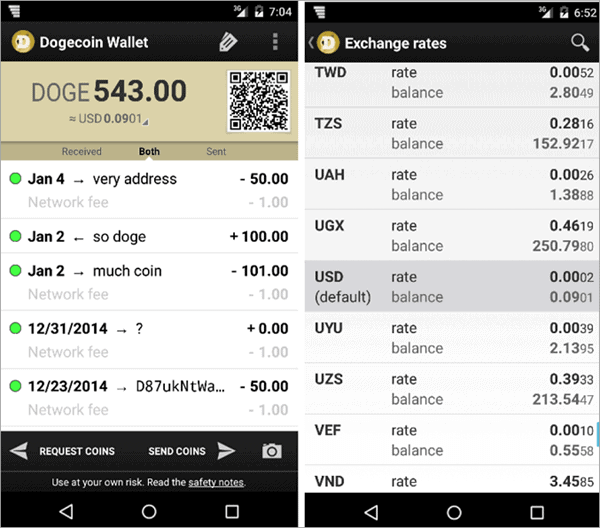
Dogecoin Wallet is a fork of the popular Bitcoin Wallet and is an Android client that lets users store, send, and receive Dogecoin. It does not download the entire Dogecoin blockchain like the Bitcoin Core. It is certainly listed as the best wallet for Dogecoin for those wanting to make transactions on the go.
How to use Dogecoin Wallet:
- Access it from the Play Store on your device with the below link. Download and install.
- Launch the wallet.
- Access the Request Coins and Send Coins feature at the very bottom of the app. Other features include Address Book, Settings, wallet address in QR code, and wallet address in text. It also reveals your balance and received and sent transactions.
Other features:
- Track transaction history.
- Save QR and do any other backup from the app.
Pros:
- Do on-the-go transactions.
- Easy and quick to use than the Dogecoin Core. It is also a free Dogecoin wallet.
- Secure – keep your private key and there is no middlemen software.
Cons:
- It’s simple in terms of features, with no fiat trading support and no other coins can be traded.
Cryptocurrencies Supported: Only Doge.
Verdict: This mobile wallet is for Dogecoin lovers, supporters and people who would rather deal with Doge and no other crypto. It supports buying as well as holding Doge.
Pricing: Free to install and use.
Website: https://play.google.com/store/apps/details?id=de.langerhans.wallet&hl=en_US&gl=US
Frequently Asked Questions
Which wallet can hold Dogecoin?
Binance, Exodus, Atomic, crypto.com, Ledger, Coinbase, Trezor, Guarda, KeepKey, Dogecoin Wallet, and MultiDoge provide a crypto wallet for Dogecoins in addition to many other coins. Dogecoin Core and MultiDoge is an exclusive wallet for Dogecoin only but are scanty in features.
Different wallets have different features, including in-built exchange, buying with fiat, swapping of crypto for another, staking, mining, portfolio tracking, and others. Best Dogecoin wallets ensure this is done securely.
Is there an official Dogecoin wallet?
The official Dogecoin wallet is known as Dogecoin Core. The Dogecoin foundation maintains it. Wallet is a full client and downloads the full Dogecoin blockchain and will thus take up a lot of space.
Unlike many other Dogecoin wallets that are hosted on centralized exchanges or service providers, Dogecoin Core is one of the best Dogecoin wallets. It is decentralized and peer-to-peer and the user keeps their private keys to the crypto wallet for Dogecoin.
How do I make a Dogecoin wallet?
It depends on the software/platform/website you are using to make the Dogecoin wallet. You might need to download the software and install it on a computer or mobile phone, or just create an account with a website or app service providing hosted wallet over the web or through an app, or just install via command line on a VPS.
Hardware wallets, which are standalone devices configurable to a computer or mobile device, can also store Dogecoin. These may be connected physically to a computer or configured through mobile apps.
The official Dogecoin Wallet is a software client that can be downloaded and installed on a desktop computer (supports Windows 32 and 64; Linux 32 and 64; macOS) but you must create a backup (or print a QR code and public address) and keep it off of that computer just in case you reinstall the operating system, say, after a crash.
The wallet needs to synchronize with the main chain and this will take about or over 20 hours. You can then restore your existing wallet using a previously backed up private key or QR code or just click Create a new wallet to create a new wallet with send and receive features.
The best Dogecoin wallets in this review tutorial do not need to download the full blockchain. Furthermore, they can secure multiple cryptocurrencies besides Dogecoin.
Is the Dogecoin wallet safe?
Dogecoin wallets listed in this Dogecoin tutorial are used to secure multiple assets besides Dogecoin and are safe to use. Not all wallets are safe and hence it is crucial to confirm that the one you are using has the required security features.
Some of these features include the ability to keep, control, and backup your private keys, PIN, password, and inbuilt security protocols.
Does Elon Musk own Dogecoin?
Elon Musk has already revealed that he owns Dogecoin in addition to Bitcoin and Ethereum. There is no way to know for sure how many Dogecoins he has but a wallet suspected to belong to him by looking at the transactions owned over 2.5 million Dogecoins as of 2021.
Not only did he mention owning Dogecoin but also said he was working with Dogecoin developers to better the network. He has also continued to tweet about the cryptocurrency over the years since 2019.
Further Reading => Most Popular Cardano Wallets To Look For
What types of Dogecoin wallets are there?
They can be categorized as Dogecoin desktop wallets, mobile Dogecoin wallets, hot wallets (online Dogecoin wallets), VPS crypto wallets for Dogecoin, and hardware Dogecoin wallets. Hardware wallets are the best crypto wallet for Dogecoin for security features for securing large sums of crypto.
However, they are costly starting at around $60. Otherwise, mobile wallets are also the best crypto wallets for Dogecoin when looking for on-the-go transacting and monitoring transactions.
What is the safest Dogecoin wallet?
The safest Dogecoin wallets are the hardware wallets including Ledger Nano S and KeepKey, which have reported no hacking interference. These wallets not only include secure chips that meet recognizable security standards technologically, but also ensure crypto storage and transacting offline, unlike software and hot wallets.
Also called cold wallets, they include physical features like buttons and screens to confirm and verify a sent transaction. Therefore, they lessen the possibility of malware-based modification of wallet addresses as the user copies them. Offline verification also lessens hacking, sniffing attacks, DNS spoofing, and other online financial insecurity incidences.
Conclusion
The Dogecoin wallet tutorial looked at crypto wallets for use in storing, sending, receiving, trading, buying, and mining Dogecoin. For mining, try Dogecoin Core; for extra security, Ledger, KeepKey, and Trezor are considerate.
To make quick Doge send, receive, payments, withdrawals, and deposits into a wallet, you might want a mobile-only Dogecoin Wallet app; for buying and selling Exodus, Atomic, Guarda, Ledger Nano S, KeepKey, and Trezor will be favorites.
Research process:
- Wallets considered for review: 15.
- Wallets reviewed: 10.
- Time taken to research and write a tutorial: 24 hours.
Was this helpful?
Recommended Reading
-

Learn How to Mine Dogecoins. Also, review the top Dogecoin Cloud Mining Websites, Mining Hardware, Software, Mining Pools, etc: Dogecoin is one of the high return coins to mine in 2021, having returned 59033% on investment as of the end of October 2021, beating Bitcoin and Ethereum. You get rewarded 10,000…
-
Review and compare the best Crypto Wallets with features to find the best Bitcoin Wallet for sending and receiving Bitcoins: Crypto wallets allow you to generate unique addresses with which you receive crypto. They also allow users to send crypto to other wallet addresses over the blockchain and on a…
-
This tutorial delves into how to develop a crypto wallet and enlists top Cryptocurrency Wallet Development Companies or services you can rely upon to deliver a custom solution at a cheaper price. Cryptocurrency wallet development was not popular in the public domain until about 2020 and 2021. In 2022, there…
-
Here, we will review and compare the top Crypto Hardware Wallets to identify the best Bitcoin Hardware Wallet for storing cryptocurrencies: Proper storage of private keys used to secure cryptocurrency is a major concern for preventing hacking and theft of digital assets. Digital assets are made in a way that…
-
Review and compare the XRP Wallet Apps to select the best XRP or Ripple wallet to purchase and store XRP cryptocurrency: XRP is one of the top 10 digital currencies by market capitalization. It serves as an intermediary of exchange when Ripple users exchanges value from one fiat or other…
-
Here you will find a list of the top Crypto Wallet UK with comparisons. Also, learn how to use a cryptocurrency wallet on each platform: Modern cryptocurrency wallets let you earn crypto from within them by staking, mining, or investing crypto in other ways. The best crypto wallets let you…
-

This Tutorial Explains What is Blockchain Wallet, its Types & How Does it Work? You will also learn about Blockchain Wallet Address & how to Generate it?. In the previous Blockchain Application tutorial of the Blockchain Tutorial Series, we have seen different steps for integrating Blockchain in Organizational settings. A…