


A Comprehensive List & Comparison of the Top Java IDEs & Online Java Compilers with Pricing & Features. Select the Best Java IDE & Compiler from this list:
As a developer, we always need a programming editor or Integrated Development Environment (IDE) that can assist us with writing Java or using frameworks and class libraries.
There are various Java IDEs and programming editors available in the market today.
Introduction to Java IDE

Java is one of the most popular and powerful programming languages as well as a platform. It is a high-level and secure programming language that is used across several platforms in the world like Web applications, Android, Big Data, Banking Domain, Information Technology, Financial Services, etc.
To implement Java programming language we need certain environments where the user can develop codes and applications. Here comes the role of Java Integrated Development Environment (Java IDE). The need for Java IDE was felt as developers were facing issues while coding a huge application.
Huge applications will have a lot of classes & files, and thus, it gets difficult to debug them. With IDE, proper project management can be maintained. It provides hints on code completion, syntax errors, etc.
The Integrated Development Environment (IDE) is a software application that provides developers with a platform with many features & facilities to develop Computer applications, Web pages, Tools, Services, etc.
The IDE tool will include text editors, debuggers, compilers, some features, and tools that will help in the automation, testing, and analyzing of an application development flow.
In simple terms, IDE allows developers to convert their logical code into useful software applications.
Working Principle of IDE
IDE follows a simple working principle that allows the developers to write logical code in its environment editor. Its compiler feature tells where all the errors are. The debug feature helps to debug the complete code and rectify errors.
Lastly, it helps in automating some parts and also assists in building a whole new software application. It is capable of supporting Model-Driven Development as well.
Core Functions of IDE
- IDE should possess code completion capability for identifying the Java language functions and keywords.
- It should have strong resource management that helps to identify missing resources, headers, libraries, etc.
- A good debugging tool to test the developed application completely.
- Compile and build features.
Advantages:
- IDE takes very minimal time and effort as the entire concept of IDE is to make development easier and faster.
- It follows certain company standards, hence the working principle will be the same throughout and helps the coders.
- It comes with good project management tools and documents to automate many things.
- Useful in simplifying the development of database applications.
- It has features to develop a good user interface with text boxes, buttons, etc.
Disadvantages:
- IDE comes with a complex learning curve, thus having some expertise in these tools will not be easy.
- It is not capable of removing bad code, design, and errors on its own. So the developer needs to be very careful while coding.
- It requires more memory as it uses the graphical user interface.
- It also has a restriction to interact with the database directly.
How to Select a Java IDE
Deciding which IDE or editor suits our needs depends on various factors including the nature of the projects or applications being developed, the process used by the development team, individual level and skills as a programmer as well as the role in the organization.
Personal preferences and standardization of tools also play an important part in the selection of IDE or editor.
The major advantage of using an IDE for development is when a compiler is integrated with IDE, we get the entire package at one place so that we can complete the code, compile, debug, and execute the program in the same software.
IDEs have an attractive user interface and come packaged with all the elements of software development that we can use to develop software applications.
In this tutorial, we will discuss some of the IDE used for Java development along with the Compilers/IDEs that we can use for Java programming. For developing server-side Java applications, we use three IDEs often i.e. IntelliJ IDEA, Eclipse, and NetBeans.
We will review these three IDEs along with a few other popular ones.
Graph of the Top 5 Java IDE Software
The graph below shows the popularity of the top 5 Java IDEs.

List of the Best Java IDE
- Eclipse
- IntelliJ Idea
- NetBeans
- BLUEJ
- JDeveloper
- DrJava
- Greenfoot
- JGrasp
- Android Studio
- JCreator
Comparing the Top Java IDE Tools
| Java IDE | User Rating | User Satisfaction | Learning Curve Scale | Syntax Highlighting | Performance |
|---|---|---|---|---|---|
| Eclipse | 4.8/5 | 92 % | Easy | Yes | Good |
| IntelliJ Idea | 4.3/5 | 89 % | Medium | Yes | Average |
| NetBeans | 4.1/5 | 85 % | Medium | No | Average |
| JDeveloper | 4/5 | 80 % | Easy | Yes | Average |
| Android Studio | 4.3/5 | 90 % | Steep | No | Good |
| BLUEJ | 4.1 | 82 % | Medium | Yes | Average |
IDE Used For Java Development
#1) IntelliJ IDEA
Price:
- Community Edition: Free (open source)
- Ultimate Edition:
- US $499.00 /user 1st year
- US $399.00/2nd year
- US $299.00/3rd year onwards

IntelliJ IDEA is an IDE for developing software applications using Java. IntelliJ IDEA was developed by JetBrains. It is available as an Apache 2 Licensed community edition and in a proprietary commercial edition. Both the editions can be used for commercial development.
It gives suggestions on code completion, code analysis, and reliable refactoring tools. It has mission-critical tools like a version control system and support for many languages and frameworks. It is capable of following the developer’s context and brings up the corresponding tools automatically.
Features:
- Smart completion: It gives a list of the most relevant symbols that apply to the current context. It constantly moves the most recently used classes, methods, etc. to the top of the suggestions list. Thus code completion is faster.
- Data flow analysis: IntelliJ can analyze the data flow and guess the possible symbol at runtime.
- Language Injection: You can easily include fragments of another language like – SQL into Java code.
- IntelliJ offers thorough and effective refactoring as it knows everything about symbol usage.
- IntelliJ Idea comes with a wide variety of built-in tools like GIT, Version Control, De-compiler, Coverage, Database SQL, etc.
- It has a powerful compiler that is capable of detecting duplicates, code smells, etc.
- It has strong integration with application servers.
Pros:
- IntelliJ Idea is good at finding repetitive code blocks and showing errors before compiling.
- It has a strong customization feature to change project structure as per the user’s need.
- Good interface with a lot of theme options.
Cons:
- The learning curve is not easy and tool documentation needs to be improved.
- High price for enterprise edition and sometimes IDE crashes if it’s a huge application.
Developed by: Jet Brains
Platform Supported: Windows, Linux, Android, and Mac.
Customer Types: Small, Medium, and Large Scale.
Cross-Platform Support: Yes.
Deployment Type: On-Premise.
Language Supported: English
Website: https://www.jetbrains.com/idea/
#2) Eclipse IDE
Price: Open-source
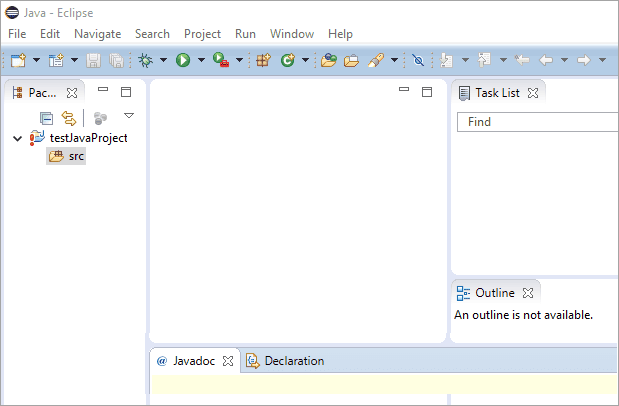
Eclipse is an open-source, full-featured, powerful Java IDE that is widely used for Java Application Development. Eclipse is equipped with a base workspace and extensible plug-in system using which we can customize the environment. It is written mostly in Java.
As it is open-source, it helps the developers customize the solutions and make the application more robust. It is based on the core foundation of Java, and thus it makes itself highly extensible, flexible and compatible with many languages like C++, Groovy, Python, Perl, C#, etc. This makes it the developers’ top choice.
Features:
- Eclipse is cross-platform and runs on Linux, Mac OS, and Windows.
- Extensible tools support.
- Editing, browsing, refactoring, and debugging: Eclipse provides all these features and makes it easy for programmers to develop applications.
- Eclipse supports debugging both locally and remotely, assuming that you are using a JVM that supports remote debugging.
- Eclipse has extensive help and documentation.
- Eclipse has a marketplace that allows the user to download client solutions.
- It has a good workspace which allows developers to identify projects, folders, and files easily.
- It has a strong recommendation and debugging feature for errors.
- It allows integration with Apache Maven server and Git version control.
- It is a standard widget tool with Gradle support.
Pros:
- Eclipse has a good integration facility to build tools like ANT and Maven.
- Users can develop different applications on the same platform like web and standalone applications, web services, etc.
- Strong code recommendations and debuggers are built in Eclipse.
Cons:
- Eclipse comes with a lot of validation for JSP and HTML files.
- Initial setup becomes difficult at times without proper guidelines and documentation.
Developed by: Eclipse Foundation.
Platform Supported: Windows, Linux, Solaris, and Mac.
Customer Types: Small, Medium, and Large Scale.
Cross-Platform Support: Yes.
Deployment Type: On-Premise.
Language Supported: English.
Website: https://www.eclipse.org/
#3) NetBeans
Price: Free

NetBeans is a free open-source integrated development environment that is governed by Apache Software Foundation. It is useful to develop Web applications, Desktop, Mobile, C++, HTML 5, etc. NetBeans allows applications to be developed from a set of modular software components called modules. NetBeans runs on Windows, Mac OS, Linux, and Solaris.
Further reading =>> Getting started with NetBeans IDE for Java
It comes along with good architecture and inbuilt tools that add value to the complete SDLC right from project requirements to deployment. It has an active community of users and developers worldwide. It contains different modules through which functions execute well. It offers smooth and quick code editing.
Features:
- NetBeans is a language-aware editor i.e. it detects errors while the programmer types and assists with documentation popups from time to time and smart code completion.
- The refactoring tool of NetBeans allows the programmer to restructure code without breaking it.
- NetBeans also performs source code analysis and provides an extensive set of hints to enhance the code or quickly fix it.
- It includes a design tool for Swing GUIs, previously known as “Project Matisse.”
- It also has good built-in support for Maven and Ant, and a plugin for Gradle.
- NetBeans offers good cross-platform and multi-language support.
- It has a rich set of community that provides plugins.
- It has a very simple and easy project management feature, so developers make full use of it.
- Its console offers very fast and smart editing of code in its development environment.
- It also comes with a static analysis tool and code converters.
Pros:
- NetBeans allows the developers to deploy the code from its environment.
- Users can format and define rules for all languages.
- It also has side by side code comparison feature through which similar pages can be written simultaneously.
Cons:
- Due to the large size of the tool, sometimes it gets slow in processing. So it is advisable to have a lighter version.
- Plugins provided by NetBeans for the development of IOS and Android can be improved.
Developed by: Apache Software Foundation.
Platform Supported: Windows, Solaris, Linux, and Mac.
Customer Types: Small, Medium, and Large Scale.
Cross-Platform Support: Yes.
Deployment Type: On-Premise.
Language Supported: English, Chinese, Japanese, and Russian.
Website: https://netbeans.apache.org/
#4) JDeveloper
Price: Free, Open Source

JDeveloper is an open-source integrated development environment provided by Oracle Corporation. It offers features for development in Java, XML, SQL, PL/SQL, HTML, JavaScript, BPEL, and PHP. JDeveloper covers the full development lifecycle from design through coding, debugging, optimization, and profiling to deploying.
It is designed in such a way that it provides end-to-end implementation for Oracle applications and platforms.
As it’s built-in with a multi-layer framework, it is easier for developers to increase their productivity because less coding is required. It has inbuilt visual and declarative editors as well as drag-and-drop editors.
Features:
- Free Application: It is free to use the software, thus it is a cost-effective platform.
- Comprehensive Tool: JDeveloper IDE offers tools for creating Java, web & mobile, web services, and database applications.
- Full Lifecycle Management: Users can manage the entire development life cycle if their applications are within the interface using JDeveloper right from building & testing to deployment.
- Visual & Declarative Editors: JDeveloper has appealing visual and declarative editors that make definitions of elements simpler and easier. It also enables programmers to directly edit the application from its coding document.
- Drag-and-Drop Editor: JDeveloper has a web application development environment that includes a drag-and-drop functionality that makes application design easier. You can move elements from one design to another with a simple click-and-drag option.
- JDeveloper supports the complete development life cycle management of the application.
- It supports Java SE, Java EE, and complete database environments for an application to build.
- It has the latest visual HTML 5 editor on the UI side working.
Pros:
- JDeveloper IDE has a strong integration mechanism with agile development applications and software versioning components.
- It also has good customer support for all users worldwide.
- Good connection with the database and the user can execute the SQL queries as well.
Cons:
- The learning curve of JDeveloper is very steep and difficult. It will require a lot of guidance to use it.
- It turns very slow when the user is trying to implement the business process as it takes huge RAM.
Developed by: Oracle Corporation
Platform Supported: Windows, Linux, and Mac.
Customer Types: Small, Medium, Large Scale, and Freelancers as well.
Cross-Platform Support: Yes
Deployment Type: On-Premise
Language Supported: English
Website: https://www.oracle.com/tools/downloads/Jdeveloper-12c-downloads.html
#5) DrJava
Price: Free

DrJava is a free lightweight integrated development environment under the BSD license, where the user can write Java programs. It was mainly developed for the students and trainers to provide them with an attractive interface and allow them to check and evaluate the Java code written.
It comes along with inbuilt debuggers and good support for testing through Junit. It’s an ongoing project at Rice University, Texas which is developed and maintained by students. Dr.Java has an interface that has been developed using Sun Microsystems’ Swing toolkit and thus it has a consistent appearance on different platforms.
Features:
- Lightweight Java IDE.
- Has a consistent appearance on different platforms.
- JavaDoc feature allows generating documentation.
- Has a debugger feature that allows suspending and resuming debugging as per the requirements.
- Dr.Java offers a JUnit test facility for the applications.
- DrJava has a unique feature for the read-eval-print loop (REPL) that is used for evaluating Java expressions and statements interactively.
- It has an interactions pane that keeps records for comfortably re-collecting the already inserted commands that result in a decrease in typing when going for experimental evaluations.
- It also has the feature to bring up the current interactions to definition command copies so that the test cases can be moved to Junit to make them reusable.
- It has a good and interactive user interface.
Pros:
- DrJava is a very lightweight IDE with a faster execution process.
- As it is designed for students, no initial setup is required.
- Its interaction features allow the execution of each class independently, so it’s good for quick troubleshooting and testing.
Cons:
- It is a very basic IDE tool with minimal features like auto-completion is restricted to the class name.
- Not good for big real-time applications as it becomes very slow in execution.
Developed by: JavaPLT Group at Rice University.
Platform Supported: Windows. Linux and Mac.
Customer Types: Small Scale.
Cross-Platform Support: Yes.
Deployment Type: On-Premise.
Language Supported: English.
Website: http://www.drjava.org/
#6) BlueJ
Price: Free, Open Source

BlueJ is an open-source Java integrated development environment that is mainly developed for educational purposes for beginners who have started with programming. It is mainly used in small-scale industries. It runs with the help of JDK.
It has a good user interface and tools that help developers to develop a fast and robust application. It was initially developed for learning and training. It allows the users to create the objects as well as test the objects. It is portable and also supports many operating systems.
Features:
- Simple: The BlueJ interface is smaller, simpler, and attractive.
- Interactive: BlueJ allows interaction with objects, inspects their values, and also uses them as method parameters to call methods.
- Portable: Runs on any operating system like Windows, Mac OS, or Linux that has Java installed on it. It can also run without installation using a USB stick.
- Innovative: BlueJ has many features like object bench, code pad, and scope coloring which are not a part of the other IDEs.
- It comes with the BlueJ textbook and teaching resources that are portable.
Pros:
- BlueJ is a good IDE for beginners and is very easy to learn.
- It is capable of showing the UML view of one’s project making it easy to find the classes for users.
- It allows the user to directly invoke the Java expression without compiling the code which makes BlueJ REPL for Java.
Cons:
- BlueJ is suitable for beginners and lacks many features that the developers would require to develop a robust application.
- It uses its own Java dialect and is not good for big projects as it crashes in between.
Developed By: Michael Kolling and John Rosenberg
Platform Supported: Windows, Linux, and Mac.
Customer Types: Small Scale and Freelancers.
Cross-Platform Support: Yes
Deployment Type: Open API and On-Premise
Language Supported: English
Website: https://www.bluej.org/
#7) jCreator
Price: USD $35 to USD $725 per annum. (30-day trial period).

JCreator is a Java IDE created by Xinox Software. Its interface is similar to that of Microsoft’s Visual Studio. As it is programmed entirely in C++, Xinox Software has asserted that JCreator is faster than competing Java-based Java IDEs.
It gives a feel of Microsoft Visual Studio due to its similar interface. It is purely a development tool designed for developers who love to code. It is robust and reliable. It is capable of handling various JDK profiles for many projects.
It comes with good API guidelines that help the developers to make any custom connections anytime. It is suitable for beginners and has a superb user interface that makes navigation very user-friendly.
Features:
- JCreator is a powerful Java IDE.
- JCreator provides the user with functionalities such as project templates, project management, code completion, debugger, syntax highlighting, wizards, etc.
- Programmers can directly compile or run Java programs without activating the main document. JCreator automatically finds the file containing the main method or the applet file and proceeds accordingly.
- JCreator is written in C++ and thus it is faster and more efficient when compared to other JAVA IDEs.
- It has a powerful user interface which makes source code navigation very easy.
Pros:
- JCreator makes the code auto-indent thereby increasing the readability of the user.
- Good working mechanism for code completion, spell check, word wrap, etc.
- Within the tool itself, the developer can build and execute the project which saves a lot of time.
Cons:
- It only supports Windows OS, and integration with other OS like Linux or Mac would be great.
- Poor plugin architecture, so the extension of new features becomes very difficult for developers.
Developed by: Xinox Software
Platform Supported: Windows, Linux, and Mac.
Customer Types: Small, Medium, Large Scale and Freelancers.
Cross-Platform Support: No.
Deployment Type: On-Premise, Open API.
Language Supported: English.
Website: http://www.jcreator.org/download.htm
#8) Android Studio
Price: Freeware, +Source Code.

Android Studio is the IDE for Google’s Android operating system. Android Studio is built on JetBrains’ IntelliJ IDEA software and is specifically developed for Android development. Android Studio is available for Windows, Mac OS, and Linux-based operating systems.
As the brand “Google” is attached to its name, reliability and quality are not compromised. It has many inbuilt tools to make Android development much faster.
Features:
- Visual layout editor: Allows creating complex layouts with “ConstraintLayout” by adding constraints from each view to other views and guidelines.
- Fast emulator: Allows to simulate different configurations and features as well as installs and runs apps faster.
- Intelligent code editor: Intelligent code editor that allows auto-completion for Java, C/C++, and Kotlin so that we can write better, and simpler code that can run faster. Thereby increasing the productivity and efficiency of the developer.
- Flexible build system: Allows customizing builds to generate multiple build variants.
- Real-time profilers: Provide real-time statistics for the app’s CPU time, memory, and network activity.
- It has a unique feature called APK analyzer which is good for reducing Android app size by checking the contents.
Pros:
- Android Studio has a flexible build system with which the user can customize its build.
- It has features that can identify performance bottlenecks so that it can be improved.
- It has a strong code editor that provides code completion for Kotlin, Java, C++, etc.
Cons:
- Android Studio requires high memory which makes it costlier.
- It has many errors that are difficult to resolve like layout, reinstall repository, render problems, etc.
Developed By: Google, JetBrains.
Platform Supported: Windows, Linux, Mac, and Chrome OS.
Customer Types: Small Scale, Medium, and Large Scale.
Cross-Platform Support: Yes
Deployment Type: Open API and On-Premise.
Language Supported: English.
Website: https://developer.android.com/studio
#9) Greenfoot
Price: Open Source

Greenfoot is an educational Java integrated development environment designed mainly to make learning programming easy and fun. It’s a great platform for trainers to interact worldwide, and discuss real-time programming.
Greenfoot is good at creating two-dimensional software like interactive games and simulations. With hundreds of teachers and resources, it becomes the treasure love for teaching ideas. As it’s a visual and interactive tool, it attracts a lot of trainers and students to share their ideas and thoughts online worldwide.
Features:
- Greenfoot is designed for educational purposes and has good online tutorials.
- It makes the development of two-dimensional applications very easy.
- The features are developed in standard text Java code that gives real-time programming experience in traditional text and visual view as well.
- It also supports project management, code completion, syntax high lighting, etc.
Pros:
- It is free and excellent for beginners to learn Java real-time programming.
- It has good online community support that allows developers worldwide to participate in a single platform.
- Its learning curve is very simple and easy.
Cons:
- It cannot be used for developing huge applications as it lacks many features.
- The UI is old-fashioned and needs to be improved.
Developed by: Michael Kolling, King’s College London.
Platform Supported: Windows.
Customer Types: Small Scale.
Cross-Platform Support: No.
Deployment Type: On-Premise.
Language Supported: English.
Official URL: https://www.greenfoot.org/
#10) JGrasp
Price: Licensed.

JGrasp is a simple lightweight integrated development environment with visualizations for improving software comprehensibility. It is capable of automatic generations of software visualizations. It is developed on the base of Java programming language, thus it is platform-independent and runs on all platforms with Java Virtual Machine.
It is used to provide the control structure for many programming languages like Python, Java, C++, C, VHDL, etc. It also has a mechanism that is capable of recognizing a table, queues, stacks, and trees for presentations.
Features:
- It has a strong mechanism for the visualization of software applications.
- The UML class diagram is a powerful tool for understanding the dependencies among classes.
- It provides dynamic views for objects and primitives.
- It comes with a string debugger that provides an easy way for the user to examine the code step by step.
- It has a powerful integration that allows the developers to add code and execute it immediately.
Pros:
- It’s a multi-layer IDE that provides an automatic generation of software visualization.
- It has plugins for check style, Junit, Find Bugs, DCD, etc.
- A good learning curve with complete documentation.
Cons:
- The user interface is not good and lacks a navigation mechanism.
- When it comes to huge applications with a lot of coding and classes, it becomes slow in execution.
Developed by: Auburn University
Platform Supported: Windows, Mac, Linux, and Chrome OS.
Customer Types: Small Scale, Medium, and Large Scale.
Cross-Platform Support: Yes.
Deployment Type: On-Premise.
Language Supported: English.
Official URL: https://www.jgrasp.org/
#11) MyEclipse
Price:
- Standard Edition: $31.75 per user per year.
- Secure Edition: $75.00 per user per year (30-day trial period).
Platform Support: Linux, Windows, Mac OS.

MyEclipse is a Java EE IDE that is commercially available, being developed and maintained by the company Genuitec, a founding member of the Eclipse Foundation. It is built upon the Eclipse platform and integrates both proprietary and open-source code into the development environment.
MyEclipse is a strong IDE that helps to combine the development process in a single Java IDE along with many useful tools and features. It helps to develop dynamic, powerful frontend and backend respectively.
Features:
- It has commercial-grade tools that are built upon the latest Eclipse Java EE.
- Enhanced coding support for Spring and Maven.
- Coding and development support for Superior Angular & TypeScript.
- Seamless development support for popular app servers and databases.
- Supports CodeLive with Live Preview for faster HTML & CSS changes.
- Has a JSjet feature for exceptional JavaScript coding and debugging.
Website: https://www.genuitec.com/products/myeclipse/
#12) JEdit
Price: Free
Platform Support: Mac OS X, OS/2, Unix, VMS, and Windows.

JEdit is a free software text editor available under the GNU General Public License version 2.0. It is written in Java and runs on any operating system with Java support, including BSD, Linux, Mac OS, and Windows.
It is highly configurable and customizable for developers. It is becoming popular among coders nowadays.
Features:
- Written in Java, and runs on Mac OS X, OS/2, UNIX, VMS, and Windows.
- Has a built-in macro language and extensible plugin architecture.The
- “Plugin Manager” feature allows for plugins by downloaded and installed from within jEdit.
- Supports syntax highlighting and Auto indent, for more than 200 languages.
- Supports UTF8 and Unicode.
- JEdit IDE is highly configurable and customizable.
Website: http://www.jedit.org/
Online Java Compilers
#1) OnlinedGdb
Price: Free
Platform Support: Windows
Online compiler and debugger tool for various languages including C/C++, Java, etc. It has an embedded gdb debugger.

Features:
- Supports various languages including C/C++, Java, Python, C#, VB, etc.
- First online IDE that gives debugging facility with embedded gdb debugger.
- Allows specifying command-line arguments.
Website: https://www.onlinegdb.com/online_java_compiler
#2) Jdoodle
Price: Free
Platform Support: Windows
Jdoodle is an online compiler developed to help students learn programming languages. It is an online tool to compile and execute programs in Java, C/C++, PHP, Perl, Python, Ruby, HTML, and many more.

Features:
- It provides a quick and easy way to compile and execute a few lines of code online.
- It provides a feature to save and share programs.
- Supports almost all the Java libraries.
Website: https://www.jdoodle.com/online-java-compiler/
#3) Codechef
Price: Free
Platform Support: Windows
This online IDE supports multiple languages such as Java, C, C++, Python, Ruby, etc. Suitable for various levels of programming and also contains a lot of tutorials using which a programmer can improve his/her skills.


Features:
- Supports multiple languages.
- Includes various difficulty levels for programming practice like beginner, medium, hard, etc.
- Can open already existing programs in this editor.
- Has solid community support for programmers.
Website: https://www.codechef.com/ide
#4) Repl
Price: Free
Platform Support: Windows
A typical Repl online IDE will look as shown below:

Repl is a Powerful and simple online compiler, IDE, and interpreter that is capable of developing programs in 50+ languages including Java, Python, C, C++, JavaScript, etc.
Also read =>> Major differences between Compiler Vs Interpreter
Features:
- Interactive and Open-source IDE.
- IDE is cloud-based.
- Has powerful tools to learn and teach programming languages.
- We can share the code.
Website: https://repl.it/languages/java10
#5) CompileJava
Price: Free
Platform Support: Windows
This is a fast and functional online Java compiler that always has the latest version of Java.

Features:
- Multiple themes that ensure ease of coding.
- Support for Optional command-line arguments.
- Multiple public classes are split automatically into files.
- Provides Applet support, including JPanel.
- The submissions made by the programmer are deleted within 5 minutes of execution (to accommodate applets) and are not stored for any other purpose.
Website: https://www.compilejava.net/
Conclusion
In this tutorial, we explored the various IDEs/compilers and online compilers that we can use for Java programming.
We walked through the detailed information about IDE – features, pros, and cons, where it was developed, its pricing, how it looks, languages and platform supported, etc. Now we know how important the IDE is for developers and how it can make the development easier.
IDE gives the developer a platform to polish their coding skills with code completion, code suggestion, and error highlighting features. It increases efficiency with faster coding and minimal effort. It allows collaboration among developers to work together on a single platform. Good project management feature.
IntelliJ IDEA, Eclipse, and NetBeans are the top three IDEs that are used extensively for Java programming today. Similarly, we can use the top 5 online compilers that we discussed for not-so-advanced Java programming.
Small Scale and Learning Universities: BlueJ, JGrasp, Greenfoot, DrJava are some of the Java IDE that are best for this small scale due to their cost and community support.
Medium and Large Scale Industries: Eclipse, IntelliJ Idea, NetBeans, and JDeveloper are good for large scale due to their advanced features and performance.
In our subsequent tutorials, we will learn Eclipse Java IDE in detail as this is the most widely used and popular IDE among Java programmers.
Was this helpful?
Recommended Reading
-

Explore the top Python IDEs and Code Editors along with their Pros and Cons. Choose the best Python IDE / Code Editor from the list provided: Python is one of the famous high-level programming languages that was developed in 1991. Python is mainly used for server-side web development, development of…
-
This Tutorial Explains How to Integrate Eclipse with Maven, How to Create New Maven Projects and Enhance the Existing Projects to have Maven Capabilities: Debugging Your Code in Eclipse was explained in detail in our previous tutorial. Eclipse is a very strong IDE for Java and other languages. Along with…
-
This Detailed Tutorial Explains All About Integration of TestNG in Eclipse. It Also Shows How to Find Other Plugins Through the Marketplace and Install Them: In this In-Depth Eclipse Training Tutorials For All, we learned about Configuring Maven and SVN with Eclipse in our previous tutorials. These tools will help…
-

In This Tutorial, we will Explain the Features, Installation, and Working of IntelliJ IDEA - an Integrated Development Environment (IDE) for Java: IntelliJ IDEA is one of the most popular and powerful IDEs for Java development. IntelliJ IDEA is developed and maintained by JetBrains. Introduction To IntelliJ IDEA The IntelliJ…
-
This Tutorial Explains How To Use The Eclipse IDE for Java Development: We will discuss all about the download, installation, development and all other operations that we can perform as far as Java development is concerned. Eclipse is a widely used IDE primarily for Java development. Eclipse is used for C…
-
Hands-on Java Tutorial Series for Beginners: Learn Java Online from Scratch Learn Core Java Programming with the help of this hands-on free Java training course. List of Java Video Tutorials for Beginners to learn Java language from scratch with examples. Get ready to learn Java online with our range of…


