


This step-by-step tutorial will educate you on how to scan QR code on Computer or Laptop. Discover the easy methods to read QR code on your Windows or Mac PC:
There are several ways or methods to scan a QR code directly on your computer. They include using QR code scanning apps installed on your Windows PC that can decode the QR codes using the QR code image or webcam, or a camera mounted on the PC.
Methods also include websites that allow uploading the QR code image and scanning it to reveal the hidden verification code, and using the Windows webcam or the USB camera mounted on the USB ports.
Scan QR Code on Laptop or Desktop: Easy Methods for Windows & Mac

Scanning QR codes is a necessity nowadays, and we do it easily through our phones, but what if we need to scan a QR code on our laptop or computer? Through this detailed guide, I will walk you through the various methods to scan a QR code on Windows and Mac PCs.
Suggested Read => Comparison of the Top Barcode Scanners

How to Scan QR Code on Computer
Here is the video guide on how to scan a QR code on a computer:
Method #1: Using the Built-in Windows Camera
The Windows Camera, which is native to the Microsoft Operating System, for mid to higher-end devices that come with a camera or those on which a camera can be mounted, can scan QR codes in addition to taking pictures.
Steps for scanning QR codes with the Windows Camera:
Step 1: Open the App: Press the Windows button on the bottom left edge of the screen and, using the search menu, search for camera. Click the Camera app that appears in the search items.
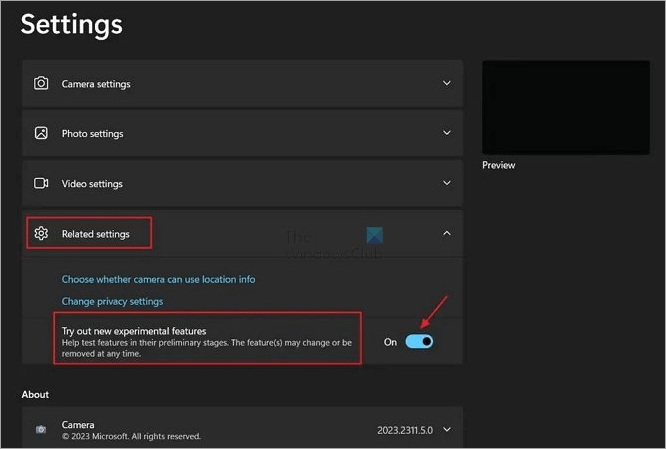
Step 2: Enable QR code on the Camera App: Click the gear icon located in the upper left corner of the Camera App to open Settings of the camera, and from the Related Settings drop-down menu, enable the Try out new experimental features option. Close and restart the Camera App.
[Via thewindowsclub]
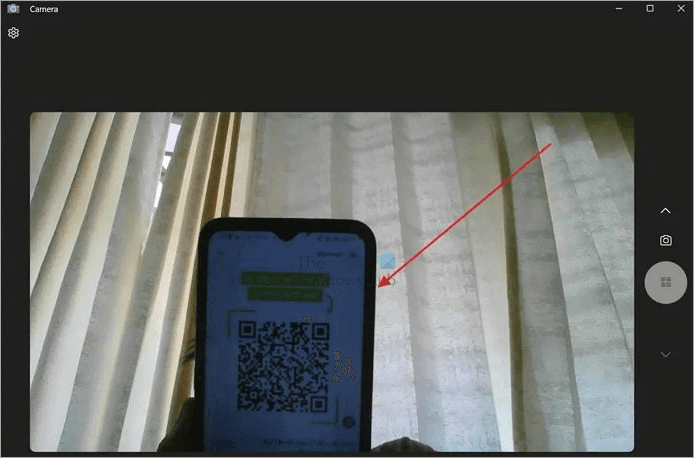
Step 3: Scan your QR Code: The QR scanning feature, represented by an icon with a barcode in a circle, is located on the right side of the screen. Click this feature to scan the QR code and put it in the camera view, then tap the app to scan. It will direct you to an external website or landing page, email, or social media handle.
Method #2: Using a USB Camera (so-called Webcam) Mounted on the USB Port or Bluetooth-linked Camera
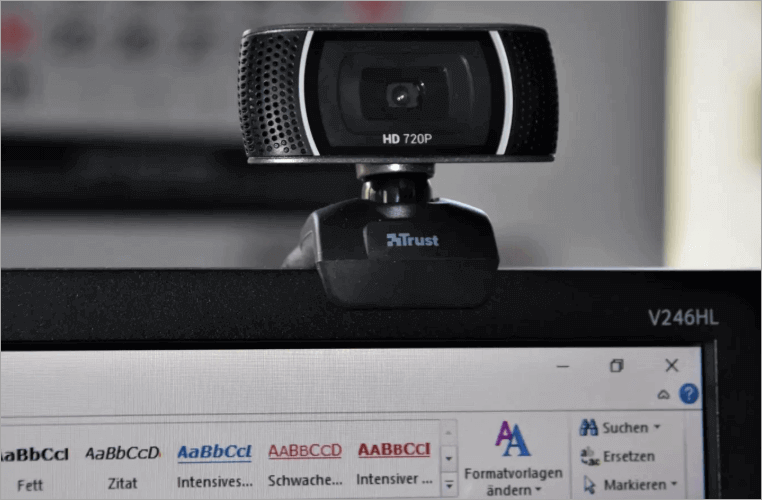
This method is for older Windows and computers that do not have an in-built web camera. There are plug-and-play cameras or those that come with installable software.
Further Reading => Best Webcam Software of the Year
Install the camera on your device, as well as any related or compatible camera app, where necessary, if the Windows OS on your computer does not have a necessary proprietary option. Some cameras can be synced with a computer via Bluetooth or other methods and be used to scan QR codes.
[Via popsci]
How to scan a QR code using a webcam on a PC and a web browser
Step 1: Open the website you want to log in to using a QR code or verification code. The websites will allow you to open an installed camera to scan the QR code.
Before opening the camera, take a picture of the QR code shown on the website, by using a camera on a separate device, e.g., your mobile phone, or save the QR code on your computer and send it to your mobile phone as a file.
Suggested Read => Types of USB Ports
Step 2: On the website asking you to log in with a QR code, click on that option to scan the QR code. Point the QR code (either while opened on another device, such as a phone or as an image on paper) at the installed camera and scan it on the said website.
Method #3: Using Google Lens in Chrome Browser
1. Scanning in a web browser without a camera or separate authenticator app:

QR Scanner website – https://qrscanner.net/ for uploading QR codes
Some websites allow you to receive a verification code on a computer by scanning a QR code. The QR code is scanned on the website.
An example of this is done using the iCloud Passwords in iCloud for Windows: iCloud Passwords is available for Windows only and needs to be activated on your computer; otherwise, the Passwords app on Mac can play that role.
Also Read => Best iCloud Bypass Tools
How to scan a QR code using Google Lens in the Chrome Browser
Step 1: Go to a website that allows you to receive a verification code by scanning a QR code.
Open the QR code that you are shown to scan to log into a website. This is an option in some cases for services that ask for verification codes to log in.
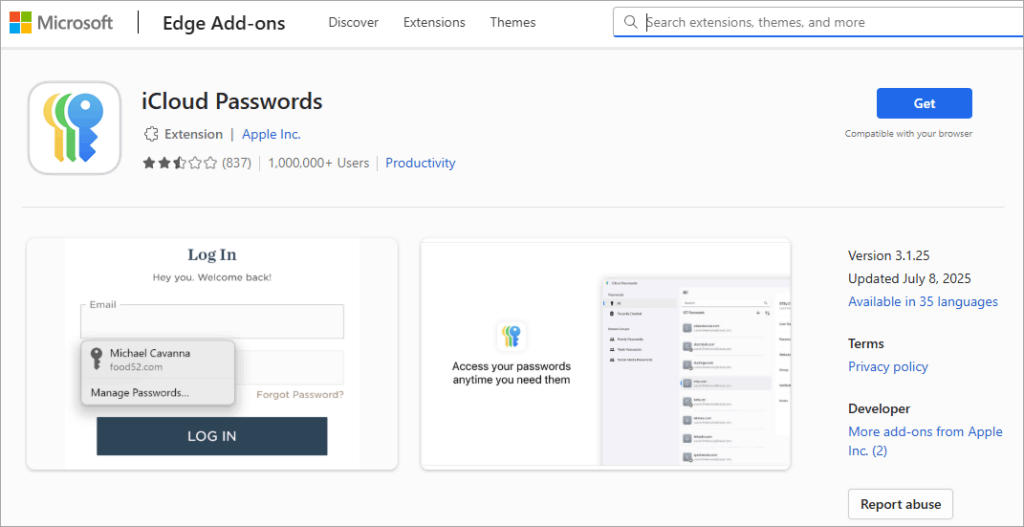
Step 2: Download and activate the iCloud Passwords extension: If the extension is active, the three keys icon is not crossed with a single line.
[Via Microsoftedge]
Step 3: Right-click on the QR code. Click Set Up Verification Code. Click the iCloud Passwords button in the browser’s toolbar and choose your account below the “Set Up verification code for” option.
An iCloud Passwords app window will appear, and once this happens, sign in if necessary – you will need to sign in to the iCloud Passwords app to see your passwords. After signing in on Windows, choose the account for the website and click “Add Verification Code.”
Step 4: Go back to the website that allows you to receive a verification code by scanning a QR code. Click the verification code field, then choose the verification code and enter it.
[Via Scanqr]
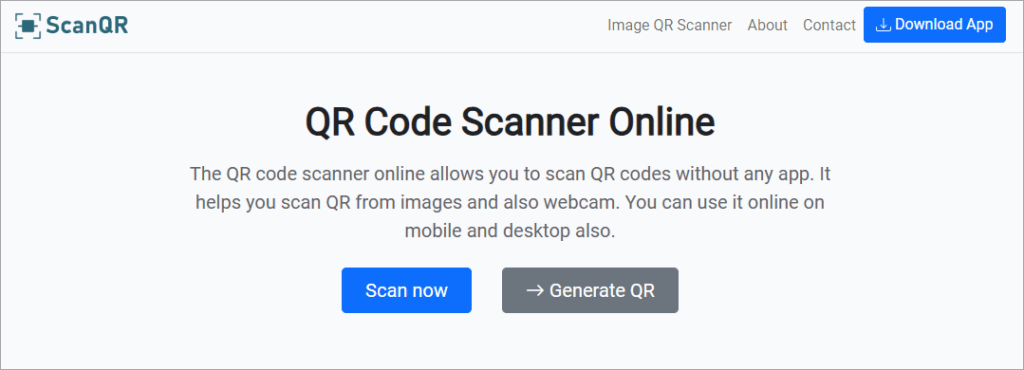
You can also save the cropped image or screenshot of the QR code and save it on a computer device. Open websites that allow you to upload an image of a QR code and then scan the QR code to retrieve the hidden codes in it, such as the Barcode Scanner, QR code Reader, and scanqr.org.
Open any of these websites and upload the QR code to scan it. Once the content is revealed, go back to the website that you want to sign in with a QR code, and instead of using the verification code and enter the code revealed from the QR code.
Method #4: Using QR Code Key Instead of Scanning the QR Code
This option will not require you to scan the QR code. If the QR code offers the option to display its key, then you can enter that key on iCloud Passwords app for the account for the website that asks for the QR code.
Step 1: On any browser, open the website that asks you to scan a QR code to verify or log in. Copy the QR code key, which is a long string of numbers and letters.
Step 2: Open the iCloud Passwords app and sign in if necessary. Click your account for the website, then click the edit button represented by a pen icon. Paste the key into the setup key field and then click Save.
Back to the website that asks for the QR code scanning, click in the verification code field, and choose the verification code.
Here is the video on security risks associated with QR codes:
How to Scan a QR Code on a Mac PC
Method #1: Using Built-in Camera
There are three ways to scan a QR code on a Mac PC, and none of them is straightforward despite Mac having a built-in camera: you can utilize a third-party app, a web-based QR reader, optical character recognition tools, or Apple’s Continuity features on iPhone and access the link on a Mac PC.
Note that macOS requires that every app that is to be used with the camera have camera access permissions enabled. All the apps mentioned below, therefore, need to have these permissions enabled.
You may also need to allow your mic, screen recording, folders, and other parts of the Mac to access the camera. The protection feature in CleanMyMac keeps track of all the apps and their camera access permission status.
Method #2: Using a Scanner App
There is no shortage of third-party apps for scanning QR codes on Mac. Besides, you can download them from the Mac Apple App Store or search directly from the browser and download them in a file format that can be installed on the device.
These apps include QR Capture, which is free to download and use on the App Store. It can also decipher codes in QR codes and check the Mac clipboard for QR codes.
A second option is the Code Reader – QR Scanner, which automatically detects and utilizes the Mac’s built-in or connected/installed camera. If you are using it to read a URL in code, a new browser will open for you to access the website.
If you are reading an email address from the QR code, the app will scan and open a new message window for you to message the recipient. If the app is being used to read Wi-Fi network details on a QR code, it will connect the device to that network.
The app can generate QR codes and share them for use elsewhere. Other apps for use include QR Journal.
Follow the steps below to scan QR codes on a Mac using third-party apps:
Step 1: Open the app and choose the option to scan the code.
Step 2: Once the device camera is triggered, hold the QR code image (taken using a phone or printed on paper) in front of the camera.
Step 3: Adjust the distance to get a clear focus on the code, and it will scan the QR code.
Method #3: Using Safari Browser
Using extensions on the Safari browser:
To install QR code scanning extensions in the Safari browser, open the browser and navigate to Safari Extensions in the menu bar. Search for the extension(s), click or tap on them, and click or tap Get or the price to install.
Click Open once the installation is done. Once installed, navigate to Choose Safari>Settings (or Preferences) from the menu -> Extensions to access the list of installed extensions and select the checkbox next to an extension to enable it.
Once installed, follow the rest of the steps in the sub-section to open the extension and scan a QR code using a camera or by scanning from an image or screenshot.
Suggested Read => Best Chrome Extensions
Method #4: Using Both a Browser & an iPhone
Step 1: Connect both the iPhone and Mac to the same Apple ID and Wi-Fi network.
Step 2: On your iPhone, open the Camera app. Open the browser and navigate to the web service that is displaying the QR code. Point the camera at the QR code.
If a link appears in yellow on the phone, the device is ready. Tap it to open. The Mac device will also display the Safari icon with an iPhone in the corner of the Dock. Click this icon to open the QR code on the Mac device.
Method #5: Using Browsers
A. How to scan a QR code on a Windows or Mac PC using the Microsoft Edge browser:
Mac OS supports several browsers on PCs, and therefore, users can open web services that allow them to scan and read data on QR codes. You will obviously need to first install your favorite browser, including Firefox, Chrome, Microsoft Edge, Safari, and others.
Here are the exact steps to follow when scanning QR codes using web browsers on Mac and Windows.
Using QR Code Scanning and Reading Extensions:
Remember, Mac, iPhone, and iPad devices can share extensions between them if you are using macOS Ventura 13, iOS 16, and iPadOS 16 and later versions.
Open Mac and then on the Safari browser, navigate to Settings -> Extensions -> Share across devices at the bottom of the window. On iPhone, navigate to Settings -> Apps -> Safari-> Extensions and select Share across devices.
Step 1: Open the Microsoft Edge browser on your PC and navigate to Extensions -> Find new extensions -> Get Extensions option from the Settings menu of the Microsoft Edge browser.
Step 2: Search for QR Code scanning extensions from the Productivity category to find relevant QR Code extensions. Once found, install it on the browser.
You can install multiple extensions and manage them as required from the Extensions menu settings or directly from edge://extensions. For instance, you can delete or deactivate any of the extensions as required.
You can also directly search extensions using relevant search terms or keywords on search engines such as Bing, and this makes it possible to navigate to the direct extension URL and install it without having to go to the Settings menu.
Step 3: On the browser, visit Settings -> Extensions to open the installed extension or click its icon on the default browser home page if you have activated the extension’s icon to appear there.
Step 4: On the extension, open the setting that allows scanning QR codes on the extension and point the QR code image to the camera once the extension opens a window to access the installed or built-in camera on Mac.
For some extensions, the QR code is read directly from the website on which it is displayed, without having the user do anything other than install and activate the extension.
Therefore, all you need to do is open the website on which the code is displayed and install and activate the extension, and it will show the contents of the code when the website is opened.
B. How to scan a QR code on a Mac PC using Mozilla Firefox browser:
There are two methods: either using an in-built or installed device camera or taking a screenshot using a third-party screenshot tool that has OCR support, such as CleanShot X.
Using a web browser via the built-in or connected camera.
Step 1: Install the browser of your choice. Open it. If opened, navigate to a new window and type the exact website address of the website. Alternatively, if you do not have a particular website service to use, search using search engines, e.g., and open the web service.
Make sure the camera is working or connected, and installed.
Step 2: On the website service, click or tap the Start camera scanning option. It will activate the camera on the device.
Step 3: Point the QR code image in front of the camera to scan it.
A new window will open showing the information hidden on the QR code. You can copy that information for further use on other services that ask for the QR code information, or if it is a browser, paste it into a new browser tab to open, or if it is an email address, proceed to email the recipient.
Using a website and third-party screenshot-taking tools with OCR support:
Step 1: Open the browser and navigate to the website service that allows you to scan and read data from QR codes.
Open the website that displays the QR code, click the CleanShot X icon (or icon of another tool), choose the option to capture details on the QR code on the tool (e.g., choose the Capture Text (OCR) option on CleanShot X), and drag the selection marquee over the QR code.
Choose the option to open the link in a browser or email the address, etc. A pop-up appears, allowing you to carry on the next requested service.
Top QR Code Reader PC Chrome Extensions
#1) QR Code Reader
The QR Code Reader enables users to read QR codes on websites. It is easy and fast to use once installed, but it cannot read multiple QR codes on one tab. It uses the ZBar c-library, which can detect multiple QR codes and bar codes in a single frame.
Features:
- Supported types of bar codes: EAN-13/UPC-A, UPC-E, EAN-8, Code 128, Code 39, Codabar, Interleaved 2 of 5, and QR Code symbologies.
- Scan from local images.
- Save the history of scanned QR Codes.
- Read multiple QR codes on one image.
How to install:
Step 1: Navigate to Chrome Settings -> Extensions on the Chrome Web Store and search for the QR Code Reader extension. Once found, click to open its page and click the “Add to Chrome” option to download and install it on Chrome.
On your browser, go to chrome://extensions to see extensions and manage them. Alternatively, search for this extension directly on the search engine like Bing on your browser and open the link to download and install. Activate the extension. The browser will display an icon for the extension on the browser’s default page.
Step 2: Open the website on which a QR code is displayed and tap or click the QR Code Reader extension icon on the browser to scan the QR code.
It will display in a new window the data contained in the extension.
Security Considerations: The QR code reader is highly regarded, with multiple reviews coming from a trusted developer.
Chrome Web Store extensions are also assessed for privacy and safety concerns before developers are allowed to list them on the Web Store. Before installing an extension, you may read and review the permissions needed for the extension to work.
Website/URL: https://chromewebstore.google.com/detail/qr-code-reader/jhigigpkpbeofhknomiadocogenlpcde
#2) QR Code Reader (Offline)
This QR code instantly scans QR codes from any web page once it is opened, although users can also upload QR code images for decoding.
Features:
- Manage QR code scan history data.
- Instant right-click scanning of QR codes. Right-click on a QR code on an open website and scan it immediately.
- Drag and drop QR code images from your device to scan them.
How to install:
To install QR Code Reader (Offline), navigate to Chrome Settings -> Extensions on Chrome Web Store and search for the QR Code Reader (Offline) extension, then tap Download and Install.
Security Considerations: The plugin is considered safe to install as it is verified by third parties.
Website: https://chromewebstore.google.com/detail/qr-code-reader-offline/iijjeeipjfmhbmnanmmggfpalbeeacdl
Troubleshooting: Here is the video guide on how to fix the Scanner not working in Windows 10:
FAQs on QR Code Scanner for PC
1. How to scan a QR code on PC line?
You can scan a QR code on a PC using either an inbuilt camera app, third-party apps, or websites that use in-built or installed camera hardware on Windows or Mac, or which scan to decode data on a QR code without using a camera. The method depends on which tools you have.
2. Is it possible to scan a QR code through a screenshot on a PC?
The Snipping Tool on Windows 11 has a built-in QR code scanning feature, which can be used to automatically scan a QR code on a screenshot file. Click Open file and select the QR code screenshot. The tool automatically scans the code once the file is opened.
3. Can I scan a QR code from a computer screen?
There are many options for scanning QR codes on computer and laptop screens with or without a camera device or app.
Google Lens can be used on a browser like Chrome to scan a QR code, as can websites that allow users to decode data from the QR codes, or websites that allow users to upload a QR code image to then decode the data therein.
4. How do I open a QR code in Chrome?
To open a QR code in Chrome, right-click on it and choose Search image with Google. This opens a Google Lens to the right of the browser window, and at the top, you will see your image.
Below this is the text decode of the QR code that reveals the content of the QR code. Chrome can also open the websites on which you can upload the QR code and decode the data.
5. Can you scan the QR code on a PC?
Open the Search feature from the PC’s Start button to open the search menu and search for the camera app, and open it.
Click the arrow to reveal the Barcode below the shutter button (in Photo mode), and place the QR code in front of the computer’s camera. The QR code will be scanned automatically.
Conclusion
There are multiple methods for scanning QR codes on a computer, so you will not necessarily need a mobile phone or other device to scan them.
The website method, which allows you to use the computer device’s webcam, is by far the easiest and quickest and if the device does not have a webcam, you can take a picture with a mobile device and send it to the computer, then upload it to a website on which you can upload a QR code to then decode the data in it.
The most secure method of scanning QR codes is to use the offline QR code reader extensions and tools, such as apps.
Time taken for review: 3 days
Was this helpful?
Recommended Reading
-

In this review, we will compare the Top Online Application Scanners that detect security vulnerabilities and suggest actions to fix them: No sane person can dispute the role that web applications play in our day-to-day lives. They are such an integral part of our modern lifestyles that it is impossible…
-
This is a review and comparison of the top Barcode Scanners to help you select the best barcode reader per your requirements: A barcode scanner, also known as a Point-Of-Sale (POS) scanner or a price scanner, is a device that captures and reads data from barcodes. A light source, a…
-
In this step-by-step guide on how to Scan Multiple Pages into One PDF file, learn to scan multiple pages using various tools in Windows, Mac, Android, iOS: You will often need to scan several pages and it’s annoying when you get separate PDFs while you wanted it all in one…
-

Explore the top Portable Scanners with features, pricing, technical specifications, and comparisons to select the best mini scanner: Is it getting too difficult to go to your static printer to scan your documents every time? You need a Portable Scanner that will help you in scanning documents instantly. These devices…


