


Do your apps keep crashing often on your iPhone or Android? Read our quick guide to learn how to stop Apps from crashing with simple, proven fixes from our experts and avoid unwanted app freezes:
Imagine you are on your phone, streaming a show on Netflix, only for it to stop working suddenly. Now, say you are on a very important Zoom video call with your family, and the app just crashes without warning. I’ve experienced both of these instances, and as you guessed, my frustration knew no bounds.
App crashes like these are common on both iOS and Android devices. While you trace the issue to multiple reasons, there are also several measures you can take to fix it.
How to Resolve Apps That Keep Crashing: Quick Steps
That’s exactly what I am about to do with this article. Consider this piece your comprehensive guide to understanding why apps keep crashing, how to stop it, and precautions to ensure it never happens again.
[via Pexels]
Here is the video guide on how to fix apps crashing on Android:
Why Does My App Keep Crashing?
Your app could crash for several reasons. It could be because the app you are using is out of date. Skipping updates means missing out on crucial security and bug patches. Therefore, it is highly recommended to always keep your apps updated to the latest version.
Another reason apps crash is insufficient RAM or storage. Most apps need enough memory and space to perform their functions. If you have limited RAM or storage space on your phone, apps on your device are bound to crash.
Corrupted cache and data are another major cause of app crashes. Besides these issues, malware can also plague your app’s performance. Some of the most notorious malware injects malicious code into your app, causing it to malfunction. Experts also know that malware discreetly consumes a device’s RAM and storage space.
Your phone’s outdated OS and system components could also turn out to be a major cause. Finally, most apps rely on a stable and fast internet connection to run. As such, if your internet is unstable, flaky, or slow, there is a good chance of your apps crashing constantly.
If your phone overheats, its system will automatically start shutting down certain resource-intensive apps to cool it down. So, this could be another reason why an app suddenly crashed on your phone.
Another reason could also pertain to way too many apps being open on your phone at the same time. Apps consume a lot of your phone’s RAM and processing power. Your phone may end up killing certain apps to conserve system resources.
Finally, I would suggest checking your app’s permissions. Most apps seek permission to access your phone’s location, camera, or phone contacts. Providing them with the access they seek can sometimes lead to issues that result in app cache.
I would suggest navigating to Settings > Apps > Permissions to check the permissions you’ve granted the app. Only grant permissions that the app actually needs to function.
Quick Summary: How to Fix Apps That Keep Crashing
App crashes are common on both iPhone and Android devices. An outdated app, an outdated OS, corrupted data, insufficient RAM or storage space, poor internet connectivity, or a malware infestation can cause them.
Fortunately, there are several tricks you can employ to breathe new life into an app that crashes randomly. You can start by keeping your phone’s OS and the app itself up-to-date. You could try force-quitting and restarting the app.
Rebooting your device entirely, uninstalling and reinstalling the app, or clearing the app cache are other options you could consider. If all else fails, you should contact the app’s developers and seek a permanent resolution from them.
Android Apps Keep Crashing: Solutions to Stop
Now that you know what can cause an app to crash, let’s focus on the solutions you can try immediately.
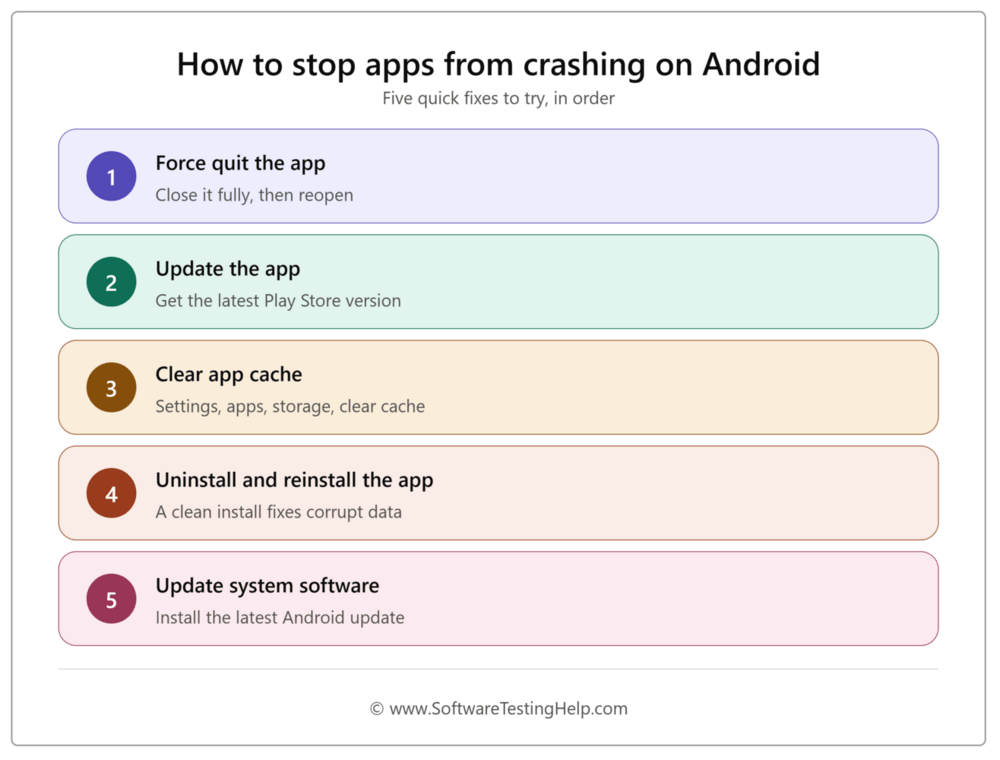
#1) Force Quit the App
If an Android app keeps crashing, this is arguably the best solution to your problem. There are two ways to force quit a problematic app on Android:
First, you hit the home button to open App-Previews, tap on the app you wish to shut down, and swipe up.
The other long-winded method would entail the following steps:
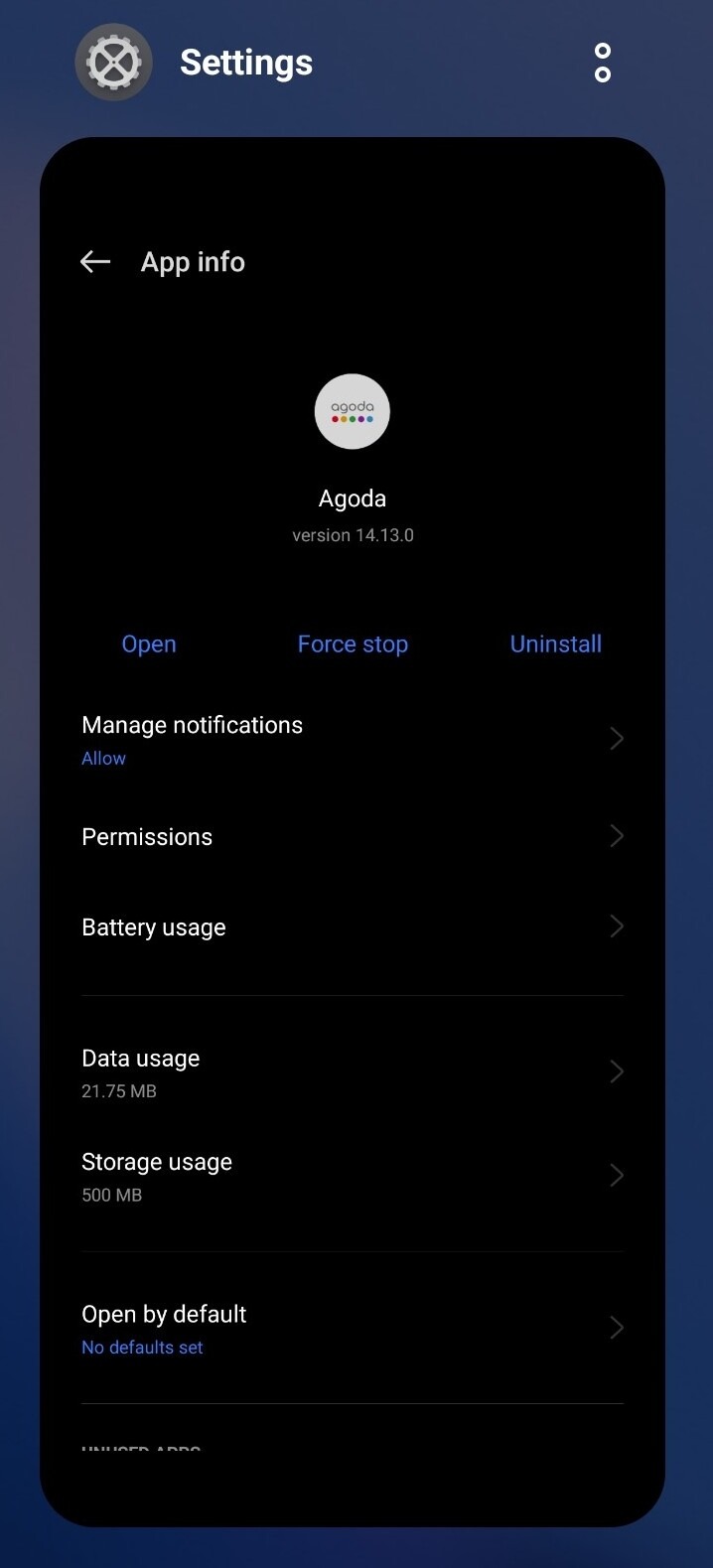
- Go to Settings
- Select Apps > App Management

- Select the app that’s crashing.
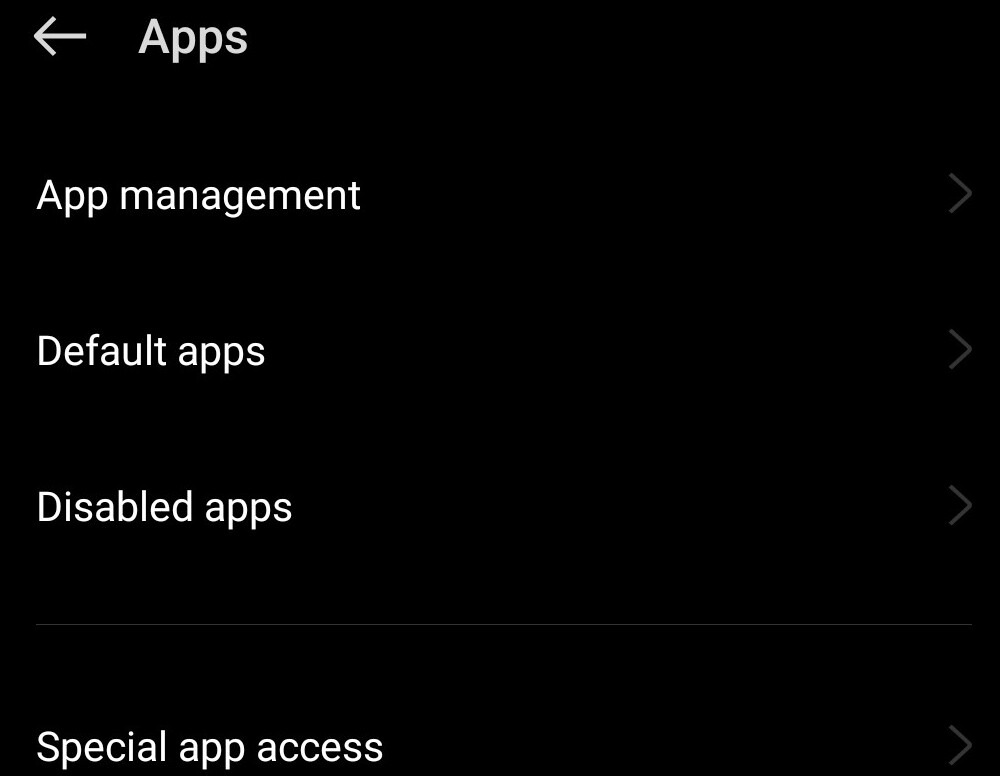
- Hit the “Force Quit” button.
#2) Update the App
Most apps crash because of a bug or glitch. App developers release patches with regular updates to fix the issue. As such, updating the app could end up resolving this problem.
To update an app, do the following:
- Open the Google Play Store.
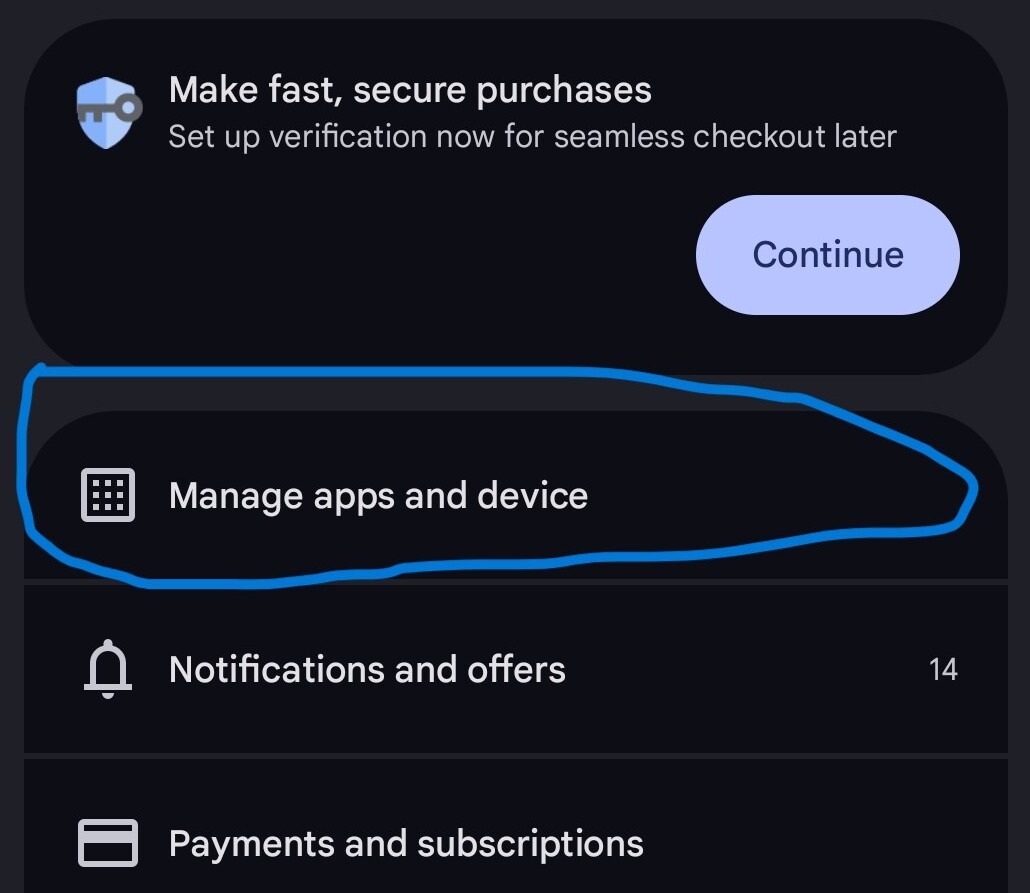
- Tap on your profile icon in the top-right corner of your screen.
- Tap on “Manage Apps and Devices” > Updates
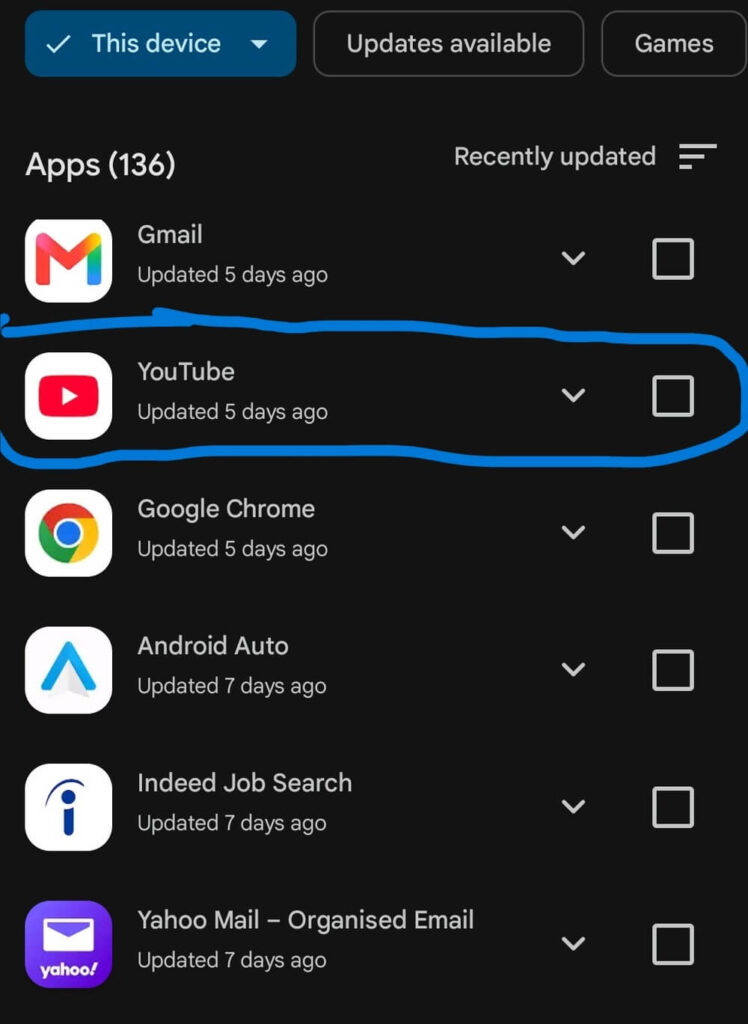
- Check if there is an update for your app.
- Tap on the “Update” button next to the app if you see one.
#3) Clear App Cache
As I said before, a corrupted cache or data can result in your app misbehaving over time. Thankfully, it is very simple to clear the app cache on an Android device.
Just follow these steps:
- Go to Settings
- Tap on App > App Management
- Select the App > Tap on Storage
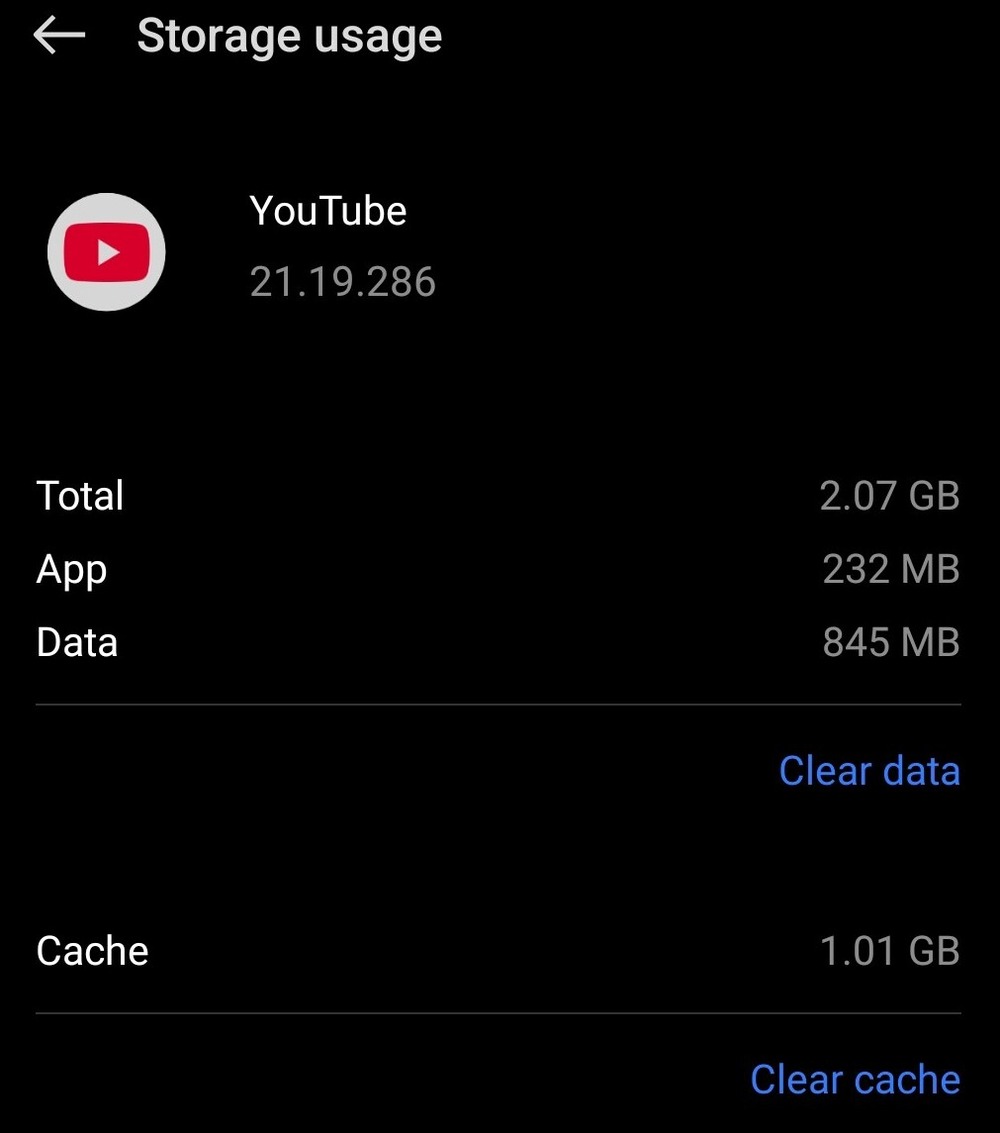
- You’ll now see options to clear cache and data.
- Tap on them.
#4) Uninstall and Reinstall the App
Uninstalling and reinstalling the app is perhaps the most commonly employed solution to this problem. Uninstalling an app is simple on an Android device. Tap and hold the app that you wish to uninstall until you see an option to uninstall. Tap on Uninstall to remove the app completely from your device.
Once uninstalled, go to the Google Play Store and reinstall the app.
Similarly, I would also uninstall apps you rarely use from your phone, as this will free up the RAM and storage space on your device. This will provide your app with enough RAM and space to execute its functions without crashing.
#5) Update System Software
Besides your app, your phone’s OS also needs to be up-to-date for everything to run smoothly. You ensure this by checking for recent updates on your phone.
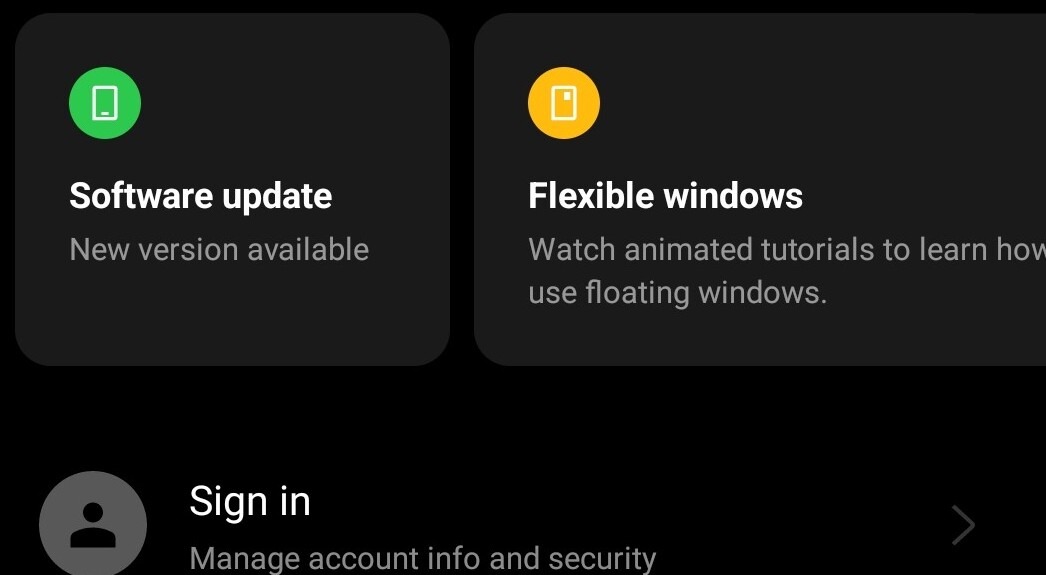
Simply tap on Settings > System Update and check if there is a new update available. If there is, download and install it.
How to Stop Apps From Crashing on iPhone
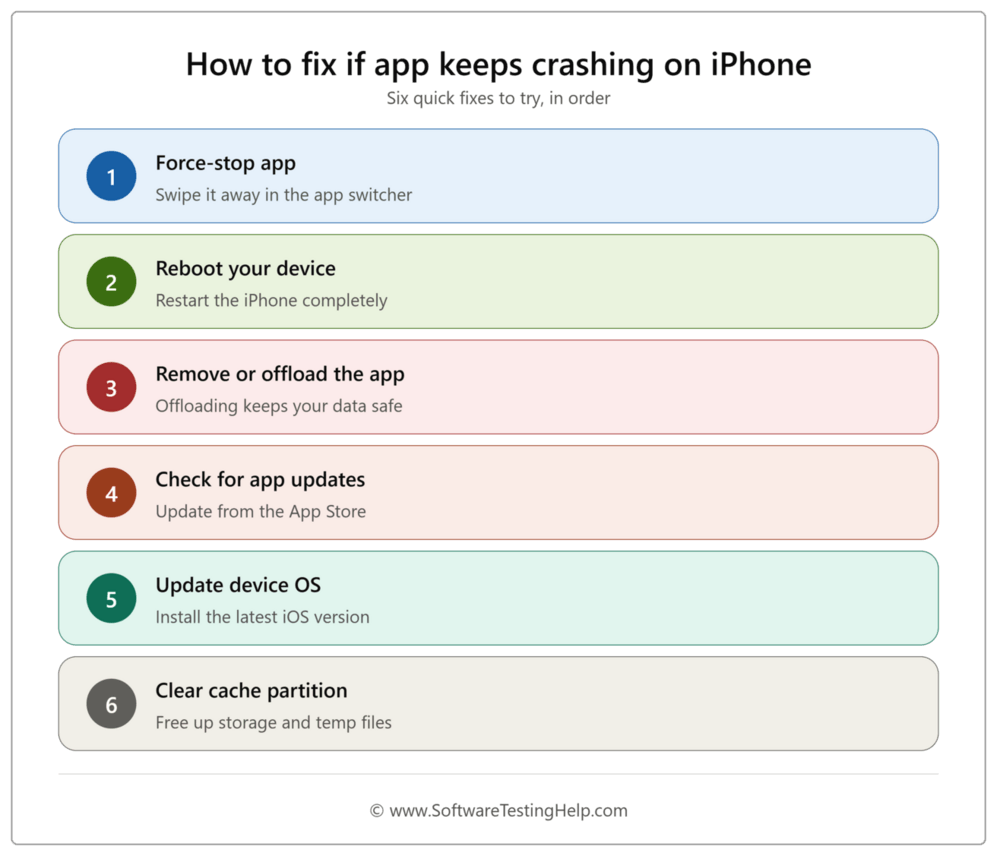
#1) Force-Stop App
If you are using an iPhone X or a later version of the device, simply swipe up to open previews for all recently used apps. Swipe right or left to find the app you wish to shut down, tap on it, and swipe up to force-stop it.

On earlier versions of iPhone, simply tap on the Home button twice to open previews for all recently used apps and follow the process as discussed above.
#2) Reboot Your Device
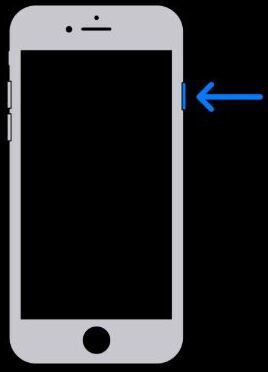
Depending on the model you are using, press and hold the side or top button on your iPhone until the power-off slider appears. Drag the slider until your iPhone or iPad shuts down.
If your device has frozen, you’ll need to force-restart your phone.
Here’s how you do it:
- Press and release the volume-up button.
- Press and release the volume-down button.
- Press and hold the side button until the Apple logo appears.
#3) Remove or Offload the App
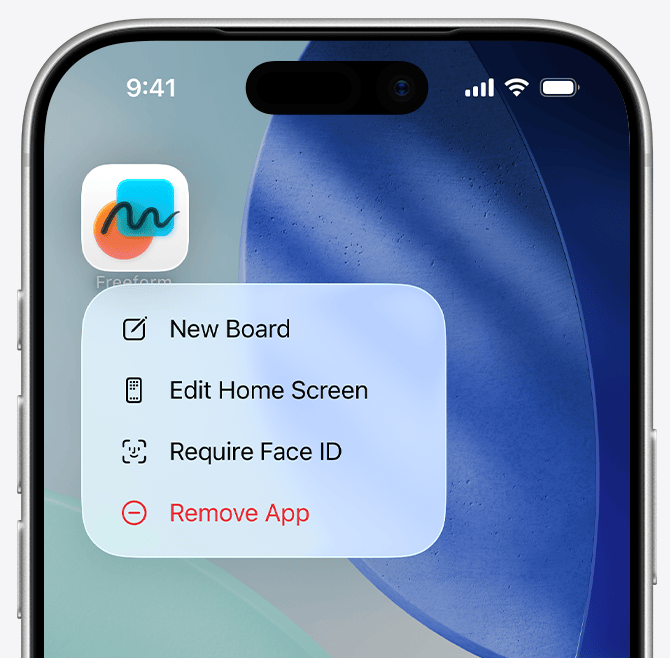
As is the case with Android, deleting and reinstalling a problematic app can fix almost all issues plaguing it. To remove an app, simply tap on the app’s icon and hold until a menu appears. First, select “Remove App” from the menu. Then, tap “Delete App,” followed by tapping “Delete” again to confirm.
It is important to note that the iPhone doesn’t offer a feature that lets you clear app cache. You’ll need to uninstall or offload an app and reinstall it to clear the app of all corrupted data. Once deleted, reinstall the app from the App Store and reopen it to see if everything is fine.
#4) Check for App Updates
App updates can bring important security patches to fix bugs and glitches, causing the app to crash.
Here’s how you update an app on an iPhone:
- Open App Store
- Tap on the Profile icon > Tap on App Updates
- Check if there is an update available for that specific app.
- Click on Update to download and install the latest version.
#5) Update Device OS
If there are no app updates available, check for OS updates.
- Go to Settings
- Tap on General > Software Updates and check for updates.
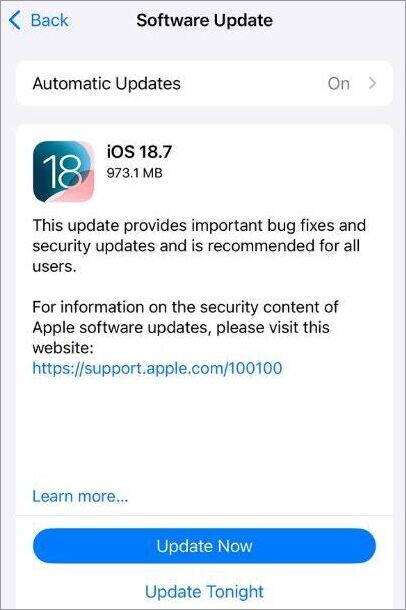
- If an update is available, tap on Update Now.
#6) Clear Cache Partition
Clearing data in the cache partition should be the action you take before deciding to hit the factory reset button. Data in the cache partition isn’t the same as your app cache. It entails system-related files like logs and temporary data.
If kept over time, this data is bound to become corrupted and result in your app crashing or even your phone freezing. As such, clearing the cache partition may help you stop apps from crashing.
Here’s how you do it:
- First, shut down your phone.
- Hold the volume up button while holding the power button to start your phone in recovery mode.
- You can scroll through recovery mode via your phone’s volume buttons.
- Scroll until you find the Wipe Cache Partition option and press the power button to select it.
- Select “Yes” to confirm the action and hit the power button again.
Few Perfect Fixes if iPhone or Android App Keeps Crashing
Enlisted below are some of the quick fixes for app crashing on iPhone or Android.
#1) Reboot Phone: If an app crashes, your phone will stop responding as well. Your best bet in this situation would be a hard reset. Press and hold the side button of your phone until the option to shut down or restart appears on your phone’s screen.
Hit the restart button and wait until your phone reboots. On an iPhone, the reboot button will either be on the side or top of your device, depending on the model you are using. This trick works almost all the time.
#2) Check Your Internet Connection: An unstable, slow, or flaky internet connection can also result in your app crashing. Apps that consume a lot of bandwidth are typically affected by this issue. A simple fix for this issue is to restart your router or upgrade to a faster internet plan with more bandwidth.
#3) Factory Reset: This is the most extreme measure I would suggest you take if the problem affects multiple apps on your phone, not just one. A factory reset will return your phone to its original state when it was bought. After completing the factory reset, try to reinstall the app and check if it is working properly.
#4) Call Support: This should be considered a last resort after you’ve exhausted all the above options. Try to contact the app’s developers and explain the problem to them. Hopefully, they can resolve the issue for you.
#5) Turn Off Background App Refresh on iOS: Background App Refresh is a feature on iPhone that lets an app update and check for content in the background. As it keeps an app running in the background, the feature can drain your phone’s battery and cellular data.
Your best bet would be to disable this feature completely with a single tap from the quick access menu on your phone.
#6) Check App Compatibility: An app might crash because it isn’t compatible with your phone. Before you download an app, check its specifications and verify whether your phone can meet those requirements.
#7) Disabling Automatic Updates: Sometimes an update may end up breaking an already stable app. As such, disabling auto-updates on your iOS and Android can help a problematic app revert to its previously stable version. You can simply select “Don’t Auto-Update App” inside the Google Play Store.
Specific App Troubleshooting Steps
If you are having problems with specific apps, then I would suggest employing the following troubleshooting tactics to stop them from crashing.
| App | Solution |
|---|---|
| Instagram Keeps Crashing | • Force-Quit and Restart App • Call Instagram Support • Clear App Cache • Update Instagram to the latest version • Delete apps not in use to save RAM and storage space. |
| Snapchat Keeps Crashing | • Force quit and restart the app • Clear app cache • Call Snapchat Support • Update app |
| TikTok Keeps Crashing | • Force quit and restart app • Clear App cache • Update app • Delete and reinstall app |
| Google Maps/Chrome Crashing | • Clear browser cache • Restart the device or update the device OS • Factory reset the device • Monitor RAM usage and storage space |
| YouTube app crashing | • Check internet speed and stability • Clear App cache • Update app • Update Phone OS • Reboot the device. |
How to Prevent Apps from Crashing
You must have heard of the age-old saying that goes something like, Prevention is better than cure. That is true for our particular conundrum here as well. There are several things you can do to make sure none of your mobile apps ever crash.
For starters, always check the system and app updates. This will ensure you are not missing out on important updates, bug fixes, and patches.
Always monitor your system’s storage space and RAM usage. I would recommend keeping at least 5-10 GB of space on your phone completely free. Also, if there is an app you aren’t using, just delete it to provide enough room for your chosen app to perform without hassle.
Also, visit the Google Play Store to make sure your system’s core components are up-to-date. You’d want both Google Play Services and System WebView updated to the latest versions.
Finally, regularly clear the app cache and data. This periodic cleanse will ensure that your phone flushes out any corrupted data before it can cause any irreversible damage.
Frequently Asked Questions
1. Why are all my apps crashing?
Apps on your phone can crash for multiple reasons.
The most prominent causes of this problem are as follows:
• Outdated app
• Outdated System OS
• Malware or Virus
• App bug or glitch
• Corrupted data and cache
• Poor Internet Connectivity
• Insufficient RAM and storage space.
2. How do I stop an app from constantly crashing?
You can stop an app from constantly crashing by taking some precautionary measures, such as:
• Update phone OS and apps
• Clearing app cache
• Deleting apps you aren’t using
• Monitoring your device’s RAM usage
3. Can a virus cause an app to crash?
Yes, some malware can cause an app to crash and misbehave. They can inject code into the app that causes it to malfunction. Malware is also known to consume your device’s RAM and storage space, thus affecting your app’s performance as well.
4. How to fix auto-closing apps on iPhone?
The best way to fix auto-closing apps on an iPhone would be to:
• Update the app
• Update iPhone
• Offload and reinstall the app
• Reboot the phone
• Force-close and re-open the app.
5. How to check which app is crashing on my Android phone?
You can check which app is constantly crashing on your Android and get a hint of what is causing it by using Google’s Play Console.
• First, launch the Play Console
• Sign in with your Google account
• Select an app
• Select Monitor and Improve > Android Vitals > Crashes and ANRs.
You’ll now see details about the ANR errors or crashes your device has faced. You’ll also find the option to diagnose the issue.
6. How to know why an app crashed?
On iOS, you can know how an app crashed by navigating to the phone’s Analytics Data and checking logs that start with the crashed app’s name.
On Android, you can check Usage and Diagnostics or access Bug Report via Developer Options.
There are several third-party apps like AVG that can also help you find out the exact reason for an app crash via comprehensive reports.
Conclusion
Crashing apps on an iPhone or Android device isn’t a rare occurrence. It is a common problem with several easy fixes. I’ve shared all possible solutions to this problem, and hopefully, you can employ them to get your apps working just fine.
That said, remember that it is best to take some precautionary measures straight away to make sure these crashes don’t become a constant in your life.
Monitor your phone’s RAM usage, free up some storage space, clear app cache, and update your phone’s OS to ensure you are not rudely interrupted by a sudden crash while using any app on your phone or tablet.
Research Process: The total time involved in completing and publishing this article is approximately 39 hours. This content was created through a structured research approach to ensure accuracy and reliability.
For more-related guides, you can explore our range of tutorials below:
- Fix for Android Email App Keeps Stopping
- [Fixed] Message+ Keeps Stopping – 7 Effective Methods
- How to Fix Windows Stop Code Memory Management BSOD Error
- Why Mobile App Testing on Low-end Devices is Important
Was this helpful?
Recommended Reading
-

Comparison of the Best Free Android and iOS Mobile App Development Software Tools and Platforms to create stunning high-quality Mobile Apps for Your Business: App development software is an application that helps with the app development process by providing functionalities like IDE, code-free development, templates, API, data synchronization, and Analytics.…
-

Through this tutorial, explore different ways to Fix for Android Email App Keeps Stopping issues with the steps: With our smartphones getting smarter each day, we, well, most of us have started using them for most things we previously did on our laptops. We browse, maintain our social media, shop,…
-

This is an in-depth review of Global App Testing: A Remote On-Demand QA Testing, Web And App Testing service in your workflow at speed: If your organization develops any sort of software application or web or mobile apps, then you already know the many hurdles you have to get over…
-

This Tutorial Explains the Step-by-Step Process to Automate Web Applications on the Chrome Browser in an Android device with Screenshots and Examples: To automate a Web Application on Android device, follow the steps listed below: Connect the mobile device or Create an Emulator Get details of the mobile device ChromeDriver…