Is your PC or Computer not recognizing the USB drive? Discover the quick troubleshooting steps to fix USB drive not showing up issue and get your flash drive working again without data loss:
USB is an accepted technology that allows you to plug in various devices, such as external disk drives, mice, video game controllers, and many other USB-enabled devices, into your Windows 11 computer. Still, when a USB drive does not appear on your computer, it can be frustrating, especially when it contains very important files.
Faulty USB ports, driver issues, file system corruption, update issues, misconfiguration, or device compatibility can cause this issue.
USB Not Recognized: Troubleshooting Guide
Quick Solutions: Why USB Drive Not Showing Up
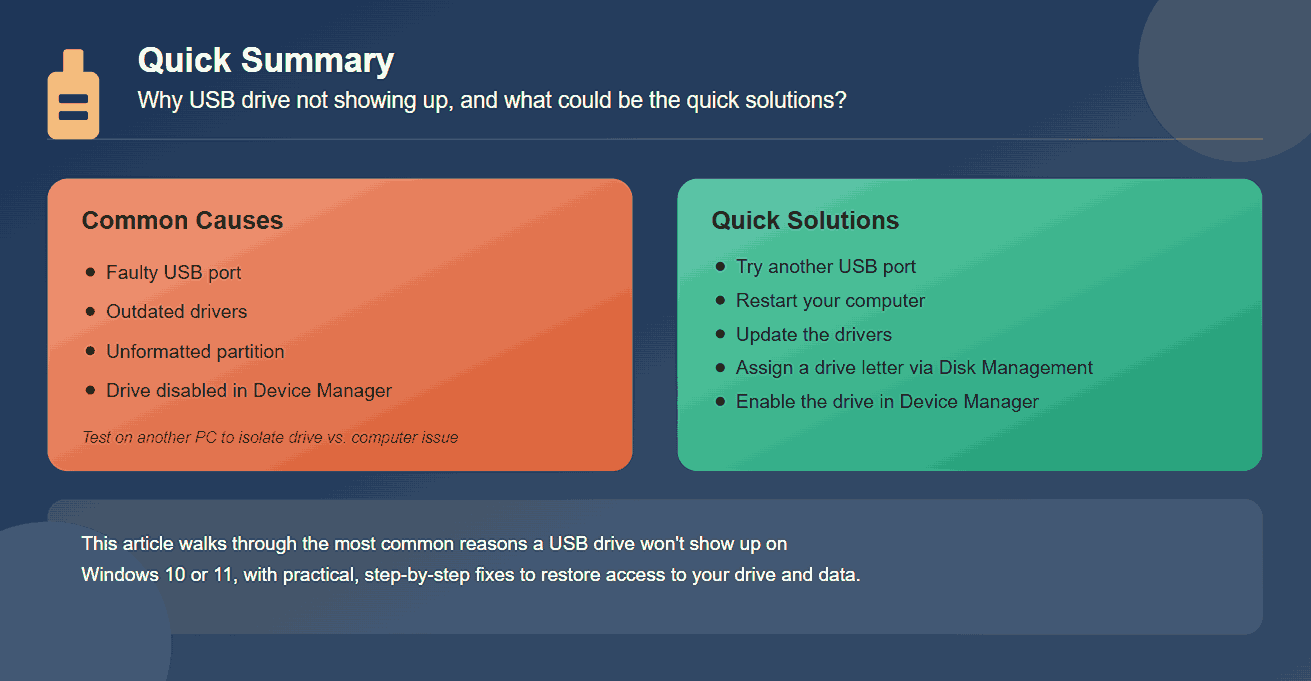
A USB drive may not show up because of a faulty port, outdated drivers, an unformatted partition, or a disabled device in the Device Manager. A quick solution will be to try another USB port, quickly restart your computer, update drivers, check Disk Management to assign a drive letter, and use Device Manager to enable the drive.
You may also want to test the drive on another computer to determine if it’s the USB drive or a computer issue.
But with simple troubleshooting steps outlined in this article, you can explore the most common reasons for a USB drive not showing up on your Windows 10 or 11 and walk through practical solutions to restore access to your USB drive and data.
How to Fix a USB Flash Drive That Is Not Recognized
Here are some of the quick methods to fix when a USB drive is not showing up.
Method 1: Updating the Windows Operating System
Sometimes, some important files that support USB devices may be missing, causing connection issues on your system. The quickest fix for this issue is to update your computer’s operating system.
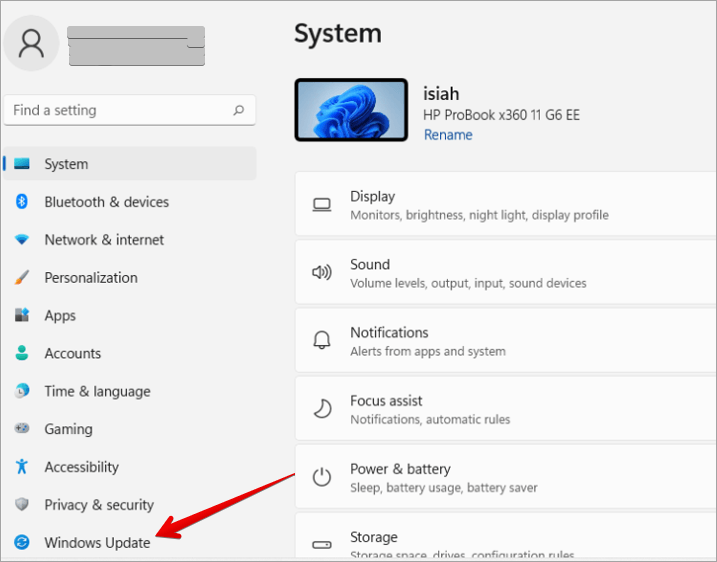
Step 1: Open System Settings.
Step 2: Click Windows Update
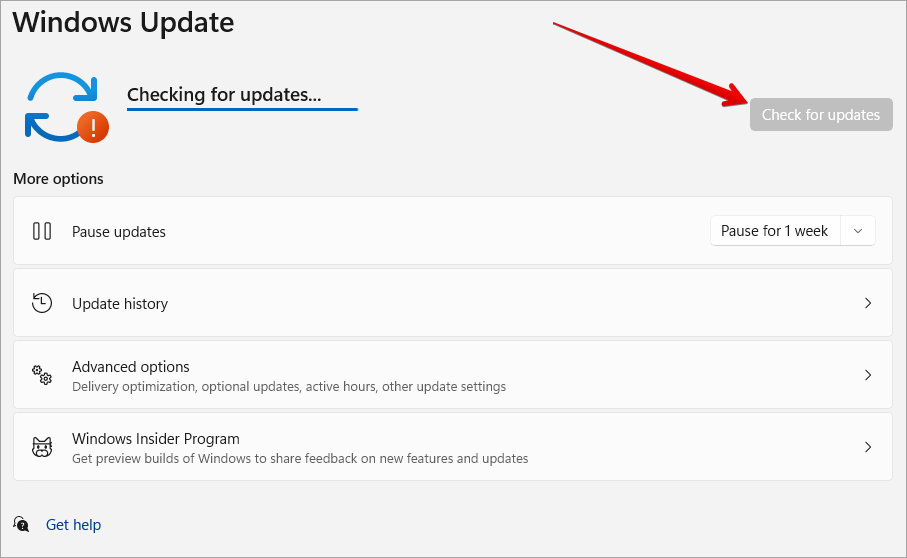
Step 3: Ensure you are connected to the internet and click on Check for updates. After checking for updates, check for USB-related updates and download and install them.
Method 2: Check Device Manager
Sometimes another computer may detect your USB, but when you plug it into your own computer, it is not detected. When this occurs, you will need to open Device Manager to check whether the USB driver is OK.
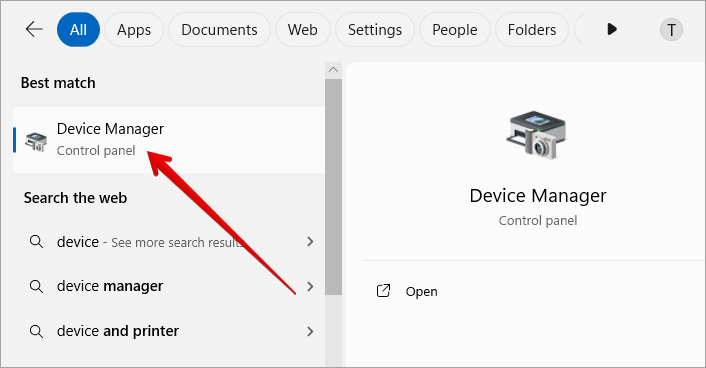
Step 1: Open Device Manager.
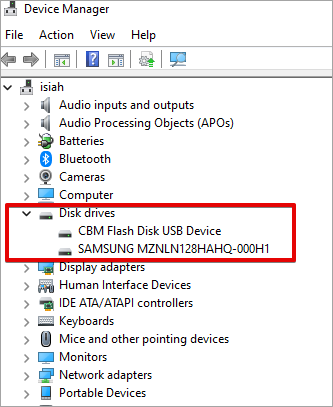
Step 2: Please navigate to Disk drives and expand it. Check for a yellow sign on any of the listed devices. If you find any device with this yellow sign, it means that the device has a driver issue.
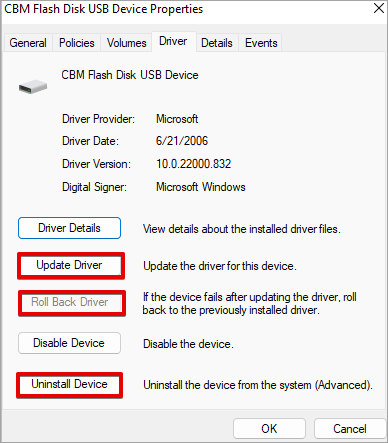
Step 3: The next step is to right-click on the specific device with the issue and select Properties. Check the Device status. If the status is not ok, you will click on the Driver tab.
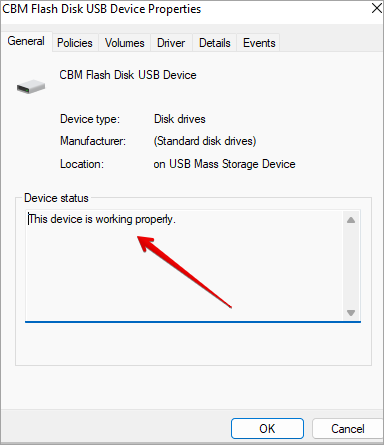
Step 4: The next step is to right-click on the specific device with the issue and select Properties to see the related error message.
Try the following solutions to resolve driver issues causing the flash drive not to show up:
- Click on the Update Driver Button: You can search automatically for drivers or browse your computer for drivers if they are saved, then follow the prompts.
- Click on the Roll Back Driver Button: This will revert to recent driver updates and restore the device to a time when it was working perfectly.
- Click on the Uninstall Device Button: This will remove the device from your computer, and you can now reinstall it with the correct driver. The USB drives may require specific manufacturer drivers to be installed before the USB drives will work well. Sometimes when you purchase these USB Drives, they may come with their own drivers, and sometimes you may just need to download an updated version of the driver from the manufacturer’s website.
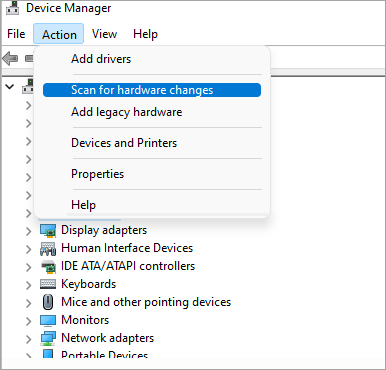
- Scanning For Hardware Changes.
Step 1: Open Device Manager.
Step 2: Click Action > Scan for hardware changes. Windows will try to find if there are any hardware changes on the system and will try to resolve any issues with them.
Method 3: Check Device Compatibility
With advances made in technology, some USB 3 devices may not work on some systems when you insert them into a USB 2 port.
So what you need to do is check if your USB is compatible with the ports on your current computer, but on Windows computers, most USB 3 devices can connect to USB 2 ports.
Method 4: Check Disk Management
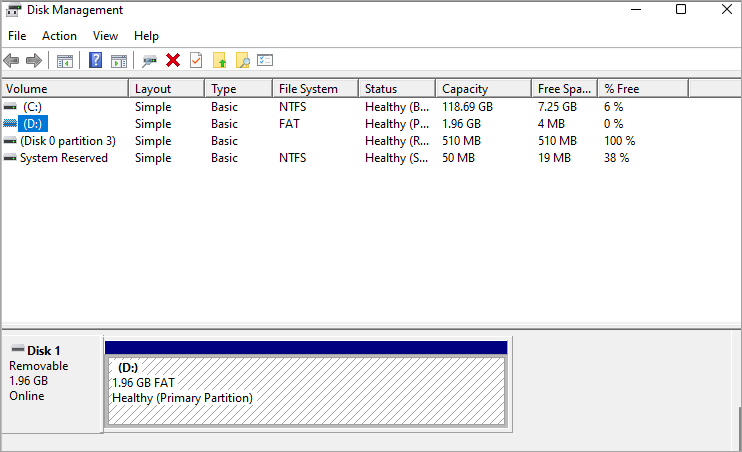
The Disk Management tool displays all hard disks connected to your computer, where you can manage disk information like the disk size, partitions, and much more.
Step 1: Ensure that the USB drive is inserted into your computer. Search for and open Disk Management.
Step 2: When the USB drive is not partitioned, it will display as Removable. If you want to make it easily detectable on your computer, then you can create a new volume for it, format and partition it. After doing all this, if your USB is still not detected, then the USB device may be bad.
Method 5: Configuring Drive Letter
Another thing you need to check under Disk Management is that it has not been assigned a drive letter. Sometimes the device may be detected by Windows and visible in Disk Management, but remain inaccessible to users without assigning a drive letter.
This problem can happen due to system conflicts, configuration changes, or errors during setup. The fast solution approach is to assign a new drive letter through Disk Management, which often resolves the issue and makes the USB drive visible and accessible.
Method 6: Initialize a Disk
When your USB drive is showing as Not Initialized in Disk Management, it means Windows cannot recognize the partition structure. The usual suspects are file system corruption, partition table damage, or issues with a new drive yet to be configured.
Follow these steps to resolve this issue:
- Open Disk Management
- Right-click the bad disk
- Select Initialize Disk
- Choose either MBR or GPT as the partition style
- Create a new volume and format the drive
Method 7: Run the CHKDSK Command
When there is a file system error, corrupted sectors, or consistent improper removal of the USB drive, it can prevent the drive from showing on your computer. The CHKDSK command is a Windows utility command that can be used to correct this error.
When you run this command, it can help you correct or fix logical file system issues. Sometimes the system will detect this drive, but the drive cannot be opened. This command can repair the USB drive.
Method 8: Check BIOS/UEFI USB Settings
Sometimes your system’s USB ports may be disabled in the BIOS or UEFI firmware, which will automatically prevent the USB device from being detected by the computer.
This change to the firmware can occur as a result of system configuration changes, security policies, or accidental changes. If this setting is disabled, you will need to access the BIOS/UEFI settings to adjust the configuration, restart your system, and try reconnecting again.
Method 9: Disable USB Selective Suspend Setting
This feature is used for power-saving to reduce the amount of battery power consumed whenever a USB is connected. The cutting of power to the USB controller may cause it to malfunction, which may result in a USB not recognized error.
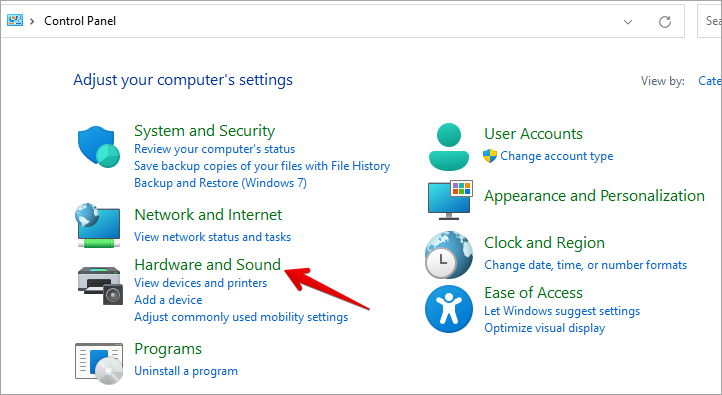
Step 1: Open Control Panel
Step 2: Click Hardware and Sound
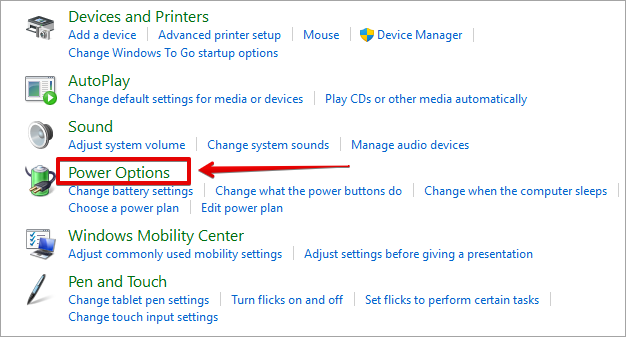
Step 3: Click Power Options > Change plan settings
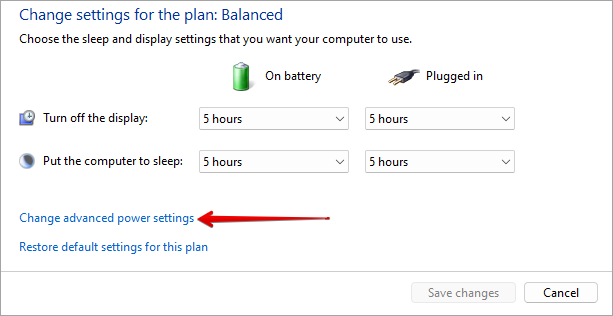
Step 4: Click Change advanced power settings.
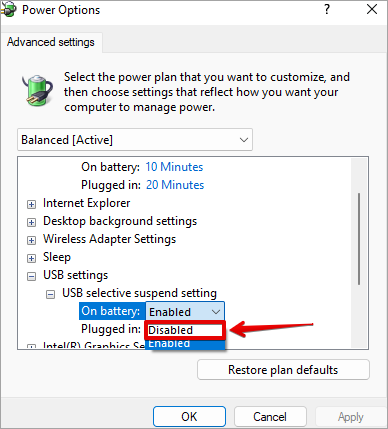
Step 5: Navigate to USB settings and expand them. Select USB suspend settings, and change both the On battery and Plugged in drop-down menus to Disabled.
Step 6: Click OK and Restart the Computer.
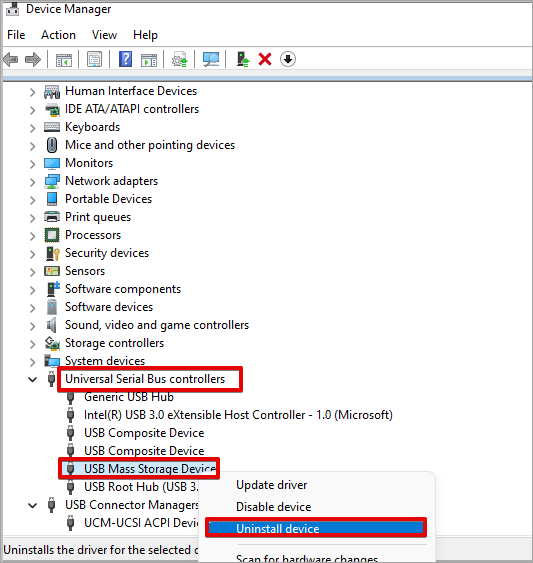
Method 10: Uninstall and Reinstall USB Controllers
You can use this method when you notice the issue of the computer not recognizing USB may be coming from the USB Controllers. This process will first uninstall the USB Controllers and complete the process by reinstalling them.
Step 1: Open Device Manager
Step 2: Click on the Universal Serial Bus controllers; this will expand the list.
Step 3: Right-click on your USB device, click Uninstall device, and then restart your computer to reinstall the USB controllers automatically.
Here is the video guide on how to fix a USB Drive not showing up on a Mac:
Frequently Asked Questions
1. Why is my USB disk not seen?
Many reasons could cause this issue of the USB drive not being seen or not showing up. The USB port, the connecting wire, or the device itself may be damaged. It is also possible that the USB controller is not receiving adequate power.
2. How do I force my computer to recognize a USB?
You can try to see if there is a specific manufacturer driver for it. Try connecting the USB to another port and updating the USB device drivers.
3. Why is my USB not showing up in File Explorer?
This is a very common issue on Windows systems. This could mean that Windows does not recognize the drive’s file system, or that the drive has not been partitioned yet. To resolve this issue, use the Disk Management tool to format and create a new partition on the drive.
4. How do I fix an undetected USB?
When your system shows a “USB device not recognized” error, quick troubleshooting steps include checking that the USB port is functional, using Device Manager to update or reinstall the USB driver, and verifying that USB ports are enabled in the BIOS.
5. Is there a way to reset USB ports?
Doing any of the following can reset USB ports:
• You can uninstall the USB controllers through the Device Manager.
• You can use the Registry Editor to reset the USB ports.
• You can disable and re-enable the USB controller in Power settings.
6. How to repair a malfunctioning USB drive?
• Insert the USB device into your computer.
• Open File Explorer.
• Right-click the USB icon and click Format.
• Select your desired file system: NTFS, FAT (Default), FAT32, or exFAT.
• Give the USB device a Volume label.
• Click Start.
7. What causes a USB port to stop working?
• Due to physical damage.
• Due to outdated or corrupt driver issues.
• Due to the power-saving settings enabled.
• Due to software conflicts.
• Due to BIOS/UEFI wrong settings.
• Due to Windows Update.
8. What is the lifespan of a USB stick?
The life expectancy of a USB Flash Drive sometimes depends on the manufacturer and the type of memory technology used; it can also be measured by the number of write or erase cycles.
9. How much does it cost to fix a USB drive?
It depends on the type of issue the USB drive may be having. If it is a software issue, it may be easy to fix, but if it is physical damage to the USB flash drive, it may need a replacement.
10. When I plug in my USB, nothing happens.
If your computer has multiple USB ports, try all the ports. By doing this, you may discover the specific port having an issue. You can also try using another USB cable, and also try using the USB on another computer.
11. How do I update my USB drivers?
• Open Device Manager
• Right-click on the desired device.
• Click on the Update driver button.
• You can search automatically for drivers or browse your computer for drivers if they are saved, then follow the prompts.
12. Is there a difference between a USB stick and a flash drive?
Both a flash drive and a USB drive refer to the same device with flash memory and a USB interface. A USB drive or stick is broader because it refers to any storage device with a USB connection, while a flash drive refers to flash memory.
13. How to fix an unresponsive USB drive?
When you notice that your computer won’t recognize the USB, try ejecting and unplugging the USB drive. Restart the system and insert the USB drive again, and check if it responds this time.
14. How to tell if a USB is damaged?
To confirm if the USB device is faulty, you can first unplug the USB drive from your system and insert it into another computer. But after inserting it into another computer, if it still does not show up, it means the USB drive is damaged.
Conclusion
A USB drive not showing up on your Windows 11 system can result from different issues like missing drive letters, corrupted file systems, outdated drivers, uninitialized disks, disabled USB ports, misconfiguration, and others. Fortunately, there is a solution to most of these issues through the troubleshooting steps outlined above.
I want to believe you now know what to do when your USB drive is not working when connected to your computer. But after using the above steps, your computer still fails to show up, then the last option will be to replace the USB device.
Research Process: The total time involved to complete and publish this article is approximately 42 hours. This content was created through a structured research approach to ensure accuracy and reliability.
For more USB Drive-related guides, you can explore our range of tutorials below:
- The 14 Top USB Flash Drives (Top Bestsellers)
- USB Device Not Recognized Error: Fixed (8 Possible Solutions)
- How To Boot Windows 10 From USB: Create A Bootable USB
- How To Create Windows 10 Recovery USB: Top Tools
- How to Repair Windows 10 from a USB Drive Without Data Loss
Was this helpful?
Recommended Reading
-

For maximum security of your Mac device from data leakage and data theft, opt for the best USB Security Software for Mac from this exclusive list: Digital transformation of businesses has undoubtedly increased efficiency in operations. Businesses can save much of their time, costs, and other resources, and have seen…
-
Explore the methods to understand How to Create Windows 10 Recovery USB. Also, review the top tools to Create Windows 10 Recovery Disk: Losing data while booting a different version of Windows or resetting the system is a common issue faced by most users. But there is yet another risk…
-
Explore the most prominent ways to repair Windows 10 from USB drive without any damage. Quickly fix boot errors, startup issues, and crashes to restore your PC efficiently in no time: The Windows operating system will be available in all homes used by students for studies, gaming, and web search,…
-
Are you looking for the best thumb drive to transfer bigger files on your PC or laptop? Read this review of the Top Flash Drives to compare and pick the Best USB Flash Drive in the market: Transferring bigger files takes a lot of time and a bigger space. The…