Is your Incognito history still showing up? Quickly learn how to delete Incognito history permanently from any browser or device with our complete step-by-step guide:
If you want to know how to delete Incognito History, well, you’ve come to the right place.
As someone who values his privacy whenever online, I am glad that almost all the browsers I use offer this little feature called Incognito mode. Incognito mode basically prevents your browser or device from saving your browsing history. An excellent feature, if you ask me, especially if you are sharing your computer with others.
That said, there is a misconception regarding Incognito mode’s abilities. Although Incognito mode hides your browsing history and cookies, your system still leaves other traces of your incognito history, such as the DNS cache.
Erase All Incognito History in Minutes: Quick Guide
Now you really don’t need to delete the local incognito history, as your browser will automatically discard it when you close it. This guide is for those who suspect that someone will snoop into their device’s DNS cache.
If you wish to foolproof your online privacy, you must learn how to delete Incognito history. That is exactly what I’ll be showing you in this article.
Here is the video guide on how to delete Chrome’s Incognito history on Android:
Does Incognito Mode Actually Save Browsing History
Let’s get right to the point. No, Incognito Mode does not save your browsing history, and that is why it is also known as “Private Browsing” mode. With incognito mode enabled, your browsing history won’t show up. It also prevents your browser from saving other types of tracking data, like cookies and website login info.
This is precisely why I use incognito mode whenever I am online shopping or net banking. It is a measure I recommend if there is a computer in your house being used by multiple people.
Although it doesn’t save your browsing history, it doesn’t provide an ironclad way to protect online privacy. For starters, it is ineffective at preventing your browsing history from being accessed by external parties, such as your ISP or the websites you’ve visited.
Incognito mode also doesn’t erase all traces of your internet activity. If someone really wants to get their hands on your incognito history, they might succeed by querying DNS records or using a third-party app.
Here’s a table that tells you what to expect from Incognito mode:
| What Incognito Mode Hides | What Incognito Mode Doesn’t Hide |
|---|---|
| Browsing History | IP Address and Location |
| Saved Cookies | Real-Time Cookies |
| Auto-Fill Data | Search history from websites and ISPs |
| Bookmarks | |
| Downloads | |
| Wi-Fi Activity |
With that out of the way, allow me to show you how to flush Incognito history across operating systems truly.
How to Delete Incognito Search History
Here is the step-by-step guide to delete Incognito Search history on various browsers or devices:
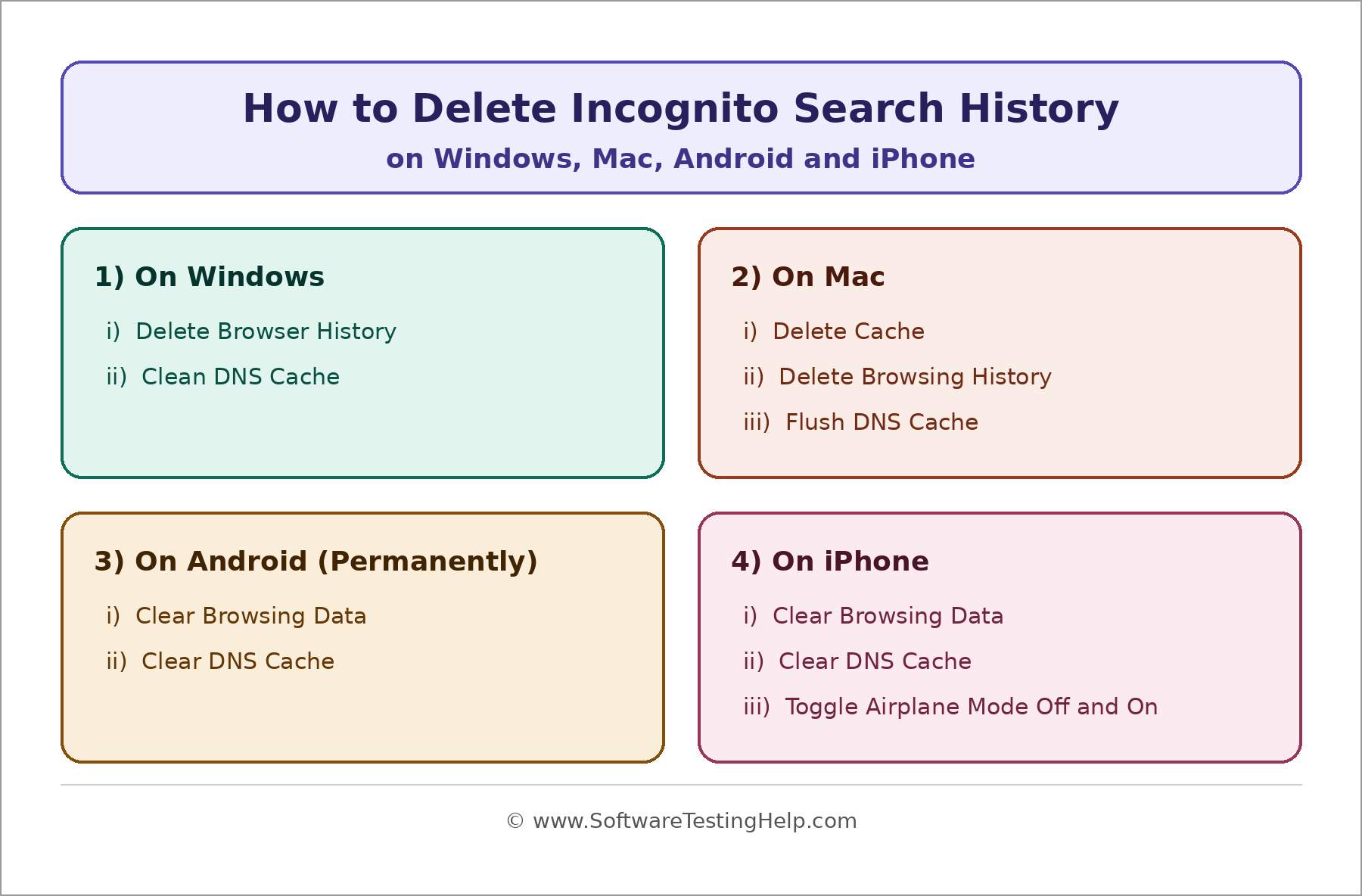
On Windows
#1) Delete Browser History
On Chrome and Edge
- Open your Chrome or Edge browser
- Click on the three dots you see at the top-right corner of your screen.
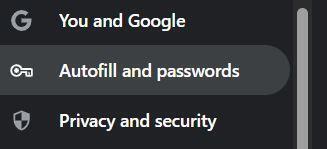
- Select Settings > Privacy and Security in Chrome. Select “Privacy, Search, and Services” in Edge.
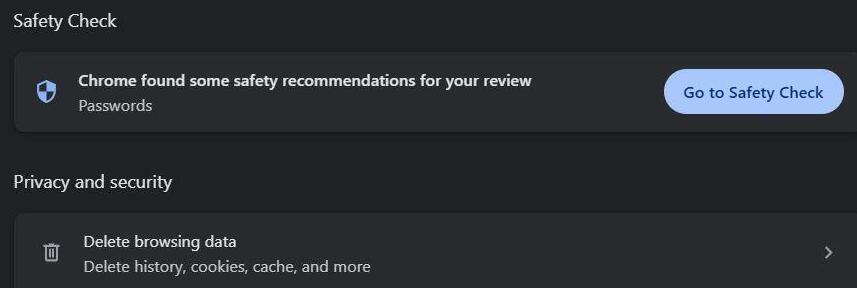
- Select Delete browsing data
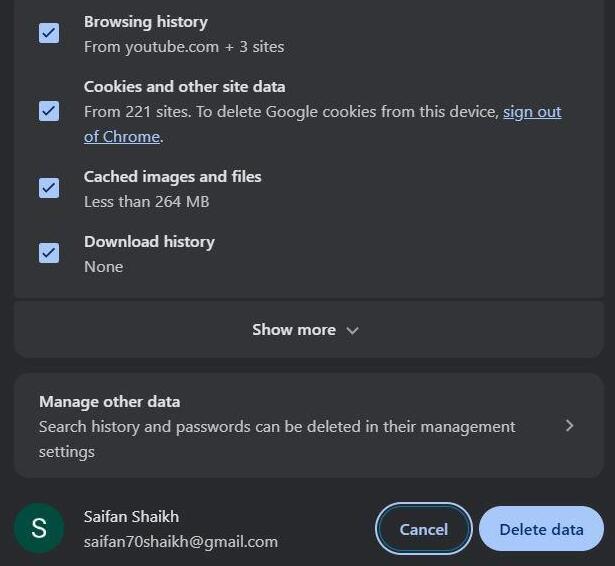
- Select “All Time” and hit the Delete data button.
On Firefox
The path to deleting browsing data is a bit different in Firefox.
- Open Firefox and click the three horizontal lines (☰) “menu button”.
- Select Settings > Privacy and Security
- Select Clear Browsing Data.
You’ll also see the option to clear cookies and data for specific sites here.
#2) Clean DNS Cache
- Press the Windows and R keys on your keyboard together.
- Enter “cmd” and click “OK”.
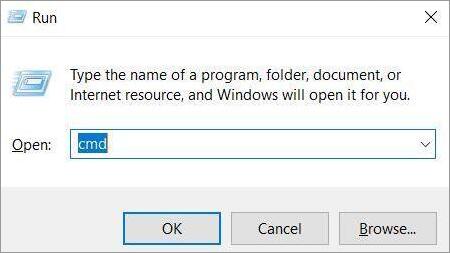
- Type the following command prompt – ipconfig/ flushdns
- Press enter
This will flush out your DNS records and the incognito history within.
Besides the above two things, I would also recommend deleting temporary browsing history to leave no stone unturned.
- Press the Windows and R keys on your keyboard together.
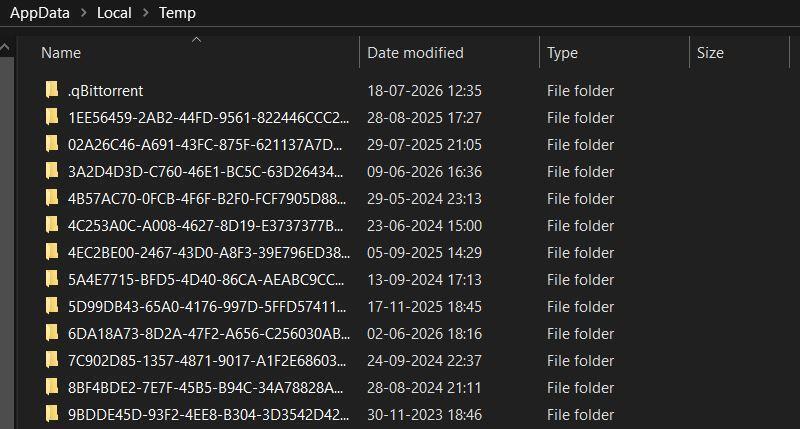
- Enter “%temp%” and click “OK”.
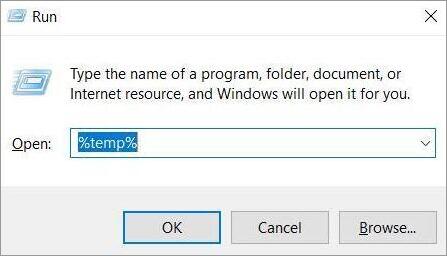
- Select all files and delete them.
On Mac
#1) Delete Cache
- Open the Safari browser
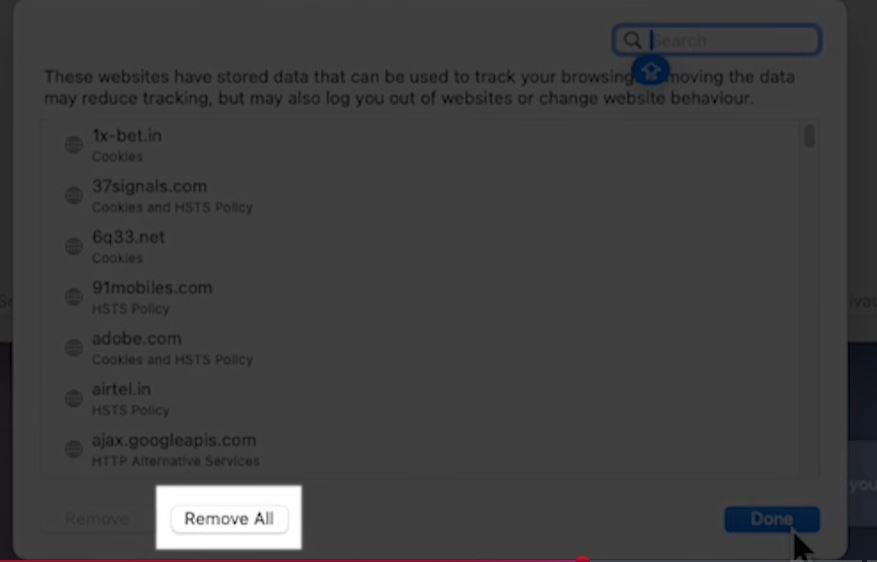
- Go to Preferences > Privacy > Manage Website Data
[via GuidingTech]
- Click on “Remove All” to completely wipe out your search data.
#2) Delete Browsing History
- Open Safari
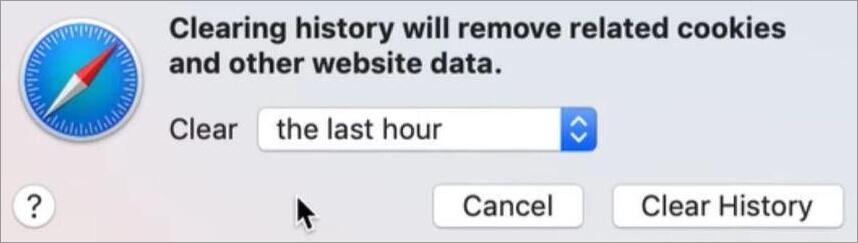
- Click on Clear History from the menu bar.
[via GuideRealm]
- Choose “All History” and confirm to delete.
#3) Flush DNS Cache
- Go to Applications > Utilities > Open Terminal.
- Type the following command: sudo dscacheeutil -flushcache; sudo killall – HUP mDNSResponder and hit Enter.

Here is a video for your reference:
- Enter the password when prompted.
- This will clear out the DNS cache.
On Android
Learn how to remove or delete incognito browser history on Android from the quick steps given below:
#1) Clear Browsing Data
- On your Android phone, select Settings
- In Settings, select Apps and choose your browser (Chrome, Opera, etc.) app.
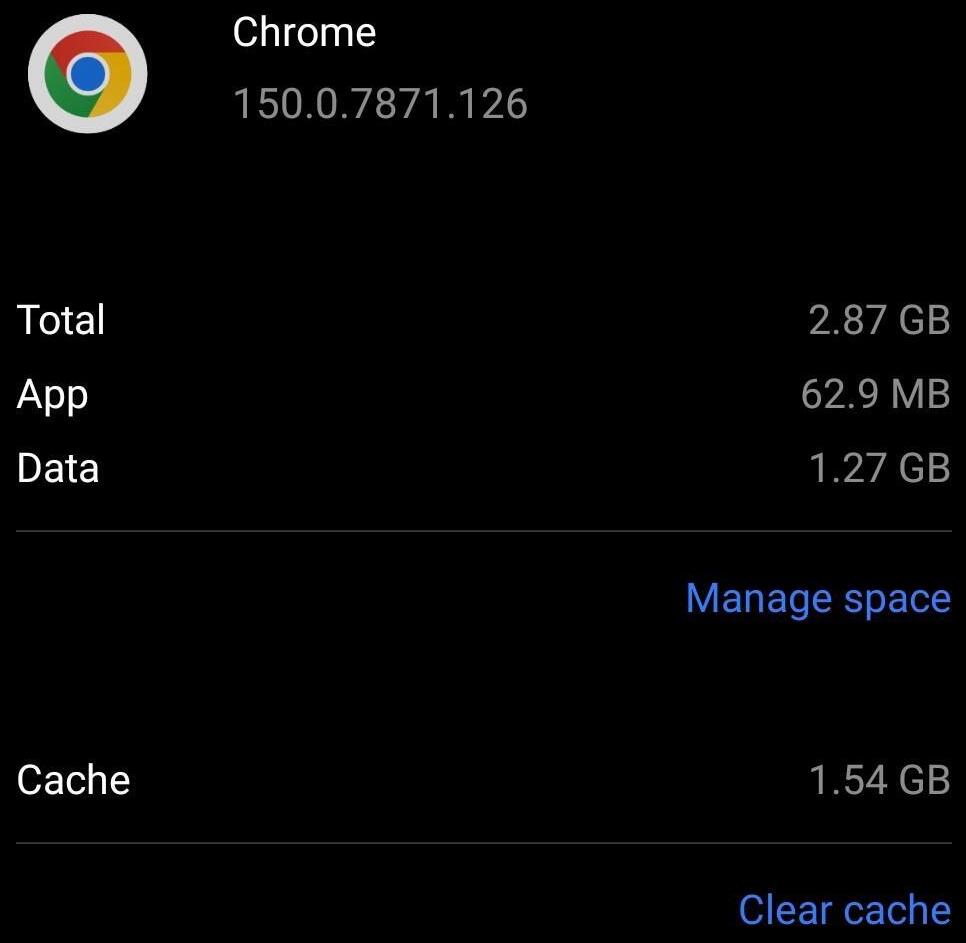
- Once opened, tap on Storage and Cache and select Clear Storage or Data.
#2) Clear DNS Cache
- Open the browser you are using on the phone and enter the following in its address bar: chrome://net-internals/#dns
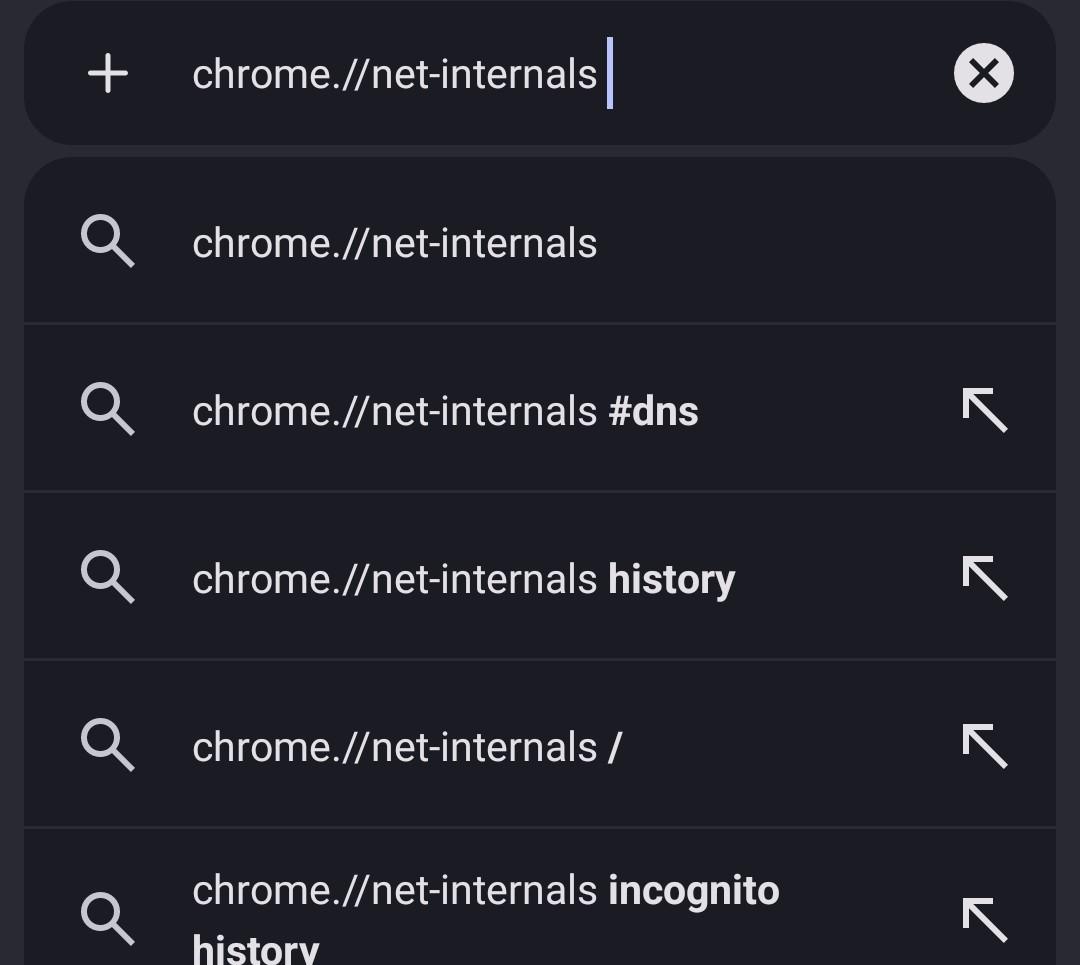
- Now tap on Clear host cache.
This will ensure all cache records that may hold traces of your incognito sessions are erased.
On iPhone
This section explains how to delete incognito history on iPhone.
#1) Clear Browsing Data
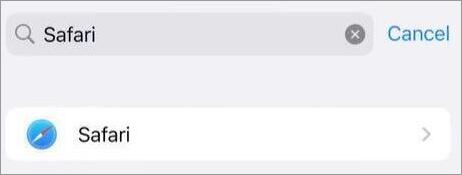
- Go to Settings > Apps > Safari.
[via Apple Support]
- Find and tap on “Clear History and Website Data”.
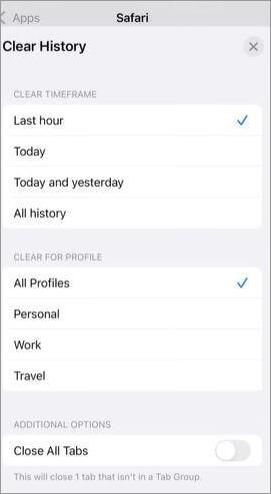
- Select a Timeframe and tap on “Clear History”.
#2) Clear DNS Cache
To clear the DNS cache on an iOS system, you’ll need to reset the device’s network settings.
Here’s how you do it:
- Go to Settings > General > Transfer or Reset iPhone.
- Select Reset and then choose “Reset Network Settings”.
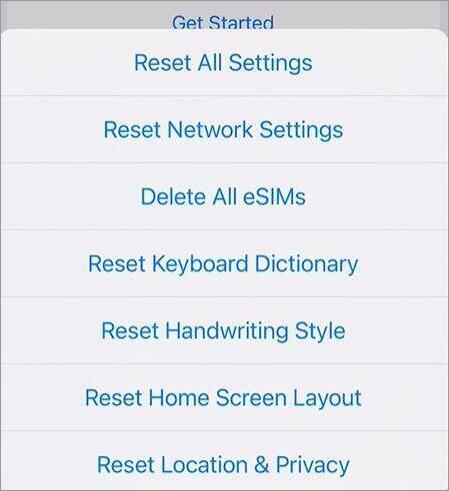
- When your device restarts, all DNS records associated with your browsing will be cleared.
#3) Toggle Airplane Mode Off and On
An iOS device is known to natively drop DNS cache whenever you toggle its Airplane Mode off and on.
By toggling Airplane mode, you are basically forcing your iPhone to drop all established network connections. This completely wipes out temporary DNS records. Just wait for at least 30 seconds to switch Airplane mode off once you’ve enabled it for better results.
Can You View Incognito History Before Deleting It?
Yes, you can view incognito history before deleting it. In fact, I would recommend you review your incognito history to know exactly what you are getting rid of.
Here’s how you can view incognito history across different devices:
#1) Mac
- Go to Applications > Utilities > Console.
- In the search field, enter – any:mdnsresponder and click on Start.
- Go back to Utilities and open Terminal.
- Enter:sudo killall – INFO mDNSResponder
- Enter the password when prompted.
- Now go back and reopen Console. You’ll see your incognito history there.
Make sure you haven’t deleted your browsing data or restarted your Mac before trying this.
#2) Windows
- Press the Windows and R keys together
- Type cmd and hit OK.
- Now type ipconfig/displaydns and hit Enter.
- You’ll now see the entire list of all the domains you’ve visited recently.
#3) Android and iOS
- Open Settings > Wi-Fi or Network.
- Find your connected network and tap on it to note your router’s IP address.
- Type that IP address in your browser’s address bar.
- Use your credentials to log in.
- You’ll need to look for the connected devices, logs, or history section here.
#4) Using Browser Extensions
There are browser-specific extensions out there that exist with the sole purpose of helping you view and delete incognito history. A good example of this would be History Trends Unlimited for Chrome.
Here’s how you can use these extensions to view incognito history. I am using Chrome for the sake of this demonstration:
- In the Chrome Web Store, look for extensions that’ll help you view incognito history.
- If you find one that fits the bill, hit the “Add to Chrome” button.

- In your Chrome browser, click on the three dots you see on the top-right corner of your screen, then select Extensions > Manage Extensions.
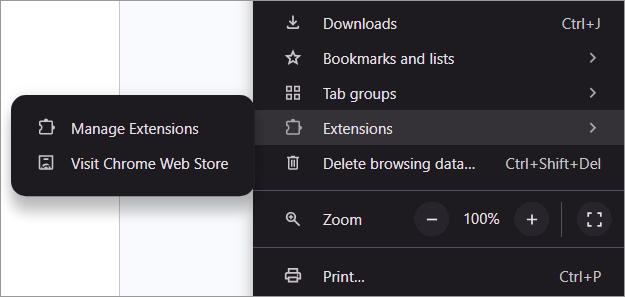
- Enable Allow Incognito for the added tool.
This extension will start recording your browsing history, even when your browser is in Incognito mode. You can view the record later in the extension’s dashboard.
Can Someone See Your Incognito History Through Router or Wi-Fi Network?
Yes, even with Incognito mode on, your browsing history isn’t hidden from a network’s administrator or owner. Incognito mode only prevents your device from saving browsing history. It doesn’t stop your internet traffic from being logged by the router it is passing through.
Here’s a clear look at what a network administrator can and cannot see through router logs:
| What Can be Seen | What Remains Hidden |
|---|---|
| Visited Domains | Specific pages, search queries, and exact URLs |
| Exact volume of data spent | Encrypted content. |
| At what time and date the websites were visited |
How to Make Incognito Mode Private From Now
As I said before, one of the biggest misconceptions people harbor is considering Incognito mode to be an iron-clad way to protect your privacy online. In reality, it is only effective at not storing any browsing data on your device. It does not mask your browsing history from visited websites or your ISP.
There are measures you can take to make your private browsing sessions, well… more private. The most effective way of doing so would be to regularly flush out your system’s DNS records. I’ve already mentioned the instructions to do so on Android, iOS, Mac, and Windows devices.
Another thing I would recommend you do is use a VPN every time you connect to the internet. Unlike Incognito mode, your VPN hides browsing data from ISPs or other external entities.
Also, make sure to clear out your browser’s history and cache data regularly. This will not only bolster your online security but also keep your system immune from performance issues.
Finally, use a browser that was specifically designed for extra security online. Chrome, Safari, and Edge are great, but if you really want peace of mind, go with the Tor Browser.
Also, learn when to accept cookies and when to deny them when visiting websites. A combination of all these tips will help you achieve the internet privacy you so desperately seek.
Frequently Asked Questions
1. Can you permanently delete Incognito history?
Yes, it is possible to permanently erase any traces of your Incognito history from your phone and computer device by flushing out your DNS records. Unbeknownst to many, traces of your browsing history end up getting saved within your system’s DNS records.
Therefore, the only way to ensure your history doesn’t get exposed to anybody else is to clean up your DNS records. You’ll find a detailed guide on how to accomplish this above.
2. How do I find Incognito history?
You can find or view your entire incognito history through your system’s DNS cache or router logs. You can also make use of third-party applications or browser extensions to view incognito history.
3. Does Incognito mode delete your history?
Incognito mode does not delete your history. As a matter of fact, it just does not save it. Incognito mode will hide your browsing history so anybody else using the same system won’t go to the history section and find the domains you’ve visited in the logs.
4. Is Incognito mode 100% private?
No, Incognito mode is not 100% private. It can hide your IP address and auto-fill data.
However, it cannot:
• Hide your IP address or browsing activity from visited websites
• Hide your downloads and bookmarks
• Hide your browsing activity from ISPs, employers, and school administrations.
To ensure 100% privacy, you’ll need to either use a VPN or switch to a browser like Tor.
5. Can Incognito mode be used for illegal activity?
Incognito mode should definitely not be used for illegal activity, as it does not make browsing sessions 100% private. Websites, ISPs, employers, school administrators, and law-enforcement agencies can easily pull up your browsing history and find any illegal acts you’ve committed online.
Even with a VPN connection, I suggest refraining from illegal activities online and using the internet safely.
Conclusion
So, there you have it, a complete guide on how to not only delete your Incognito history but also how to keep tabs on it. I hope this can ease any concerns or clear up any misconceptions you’ve held about Incognito mode. This mode is great, especially if you are using a phone or computer shared with others.
It is also important to note that Incognito mode was never meant to be a solid measure for online privacy and security. Hopefully, by following the guide above, you can keep your Incognito history hidden across systems, be it Mac, Windows, iOS, or Android.
Keep tabs on your DNS records and flush them out if necessary if you intend to truly delete your Incognito history. You’ll find the easiest guide to follow in the article above.
Research Process: The total time involved to complete and publish this article is approximately 38 hours. This content was created through a structured research approach to ensure accuracy and reliability.
For more quick-related guides, you can explore our range of tutorials below:
- How to Open Incognito Tab On Different Browsers And OS
- How to Turn Off Incognito Mode on iPhone, Chrome, Android
- [Quick Fix] How to Open Recently Closed Tabs in Chrome
- Top 10 Private Browsers for iOS & Android [SECURE]
- How to Clear Cache for Chrome, Firefox And Other Browsers
- 6 Easy Methods To Recover Deleted Files On Windows 10
- How to Completely Uninstall or Delete Apps on Mac [5 Ways]
Was this helpful?
Recommended Reading
-
![How to Open Recently Closed Tabs in Chrome[Quick Fix] (1)](data:image/svg+xml,%3Csvg%20xmlns='http://www.w3.org/2000/svg'%20viewBox='0%200%20240%20135'%3E%3C/svg%3E)
Here we will explore multiple effective methods to understand How to Open Recently Closed Tabs in Chrome on various devices: Have you ever accidentally closed a tab or a window while working on multiple ones? Happens to me all the time. And trust me, it can be horrifying to lose…
-
Explore different methods to understand How to Open Clipboard in Windows 10 or Android: Windows clipboard allows you to see all the items you have copied in one place. You can copy or cut and paste multiple items from the Clipboard. In this article, we are going to introduce you…
-
This tutorial is a step-by-step guide with screenshots that will explain the top 11 methods to fix the ‘Err_Connection_Timed_Out' Error: The Internet has evolved to become one of the largest networks that have connected the entire globe and facilitated data sharing. However, there are a few errors that hinder the…
-
Do you want to know how to disable Incognito mode on your device or browser? This step-by-step guide will help you to turn off Incognito mode or private browsing across all major browsers and devices. Incognito Mode is designed to offer private browsing, but there are situations where you may…
![How to Open Recently Closed Tabs in Chrome[Quick Fix] (1)](https://www.softwaretestinghelp.com/wp-content/qa/uploads/2021/10/How-to-Open-Recently-Closed-Tabs-in-ChromeQuick-Fix-1.png)