Learn how to remove background music from video without losing voice or video quality. Follow this guide to compare the top background music removers to delete unwanted music in minutes:
Do you want to keep the dialogue or original audio in a video but get rid of the background music?
Well, this is one of the most common requirements when editing clips, tutorials or presentations. The best part is that you do not need to record the video again or spend hours separating audio from video.
Depending on how the music or audio was added, you can remove the background music in a few different ways.
Remove Music From Video: Top Music Removers
However, this all depends on how the audio was mixed into the given video track. If the music tends to be on a separate audio track, you can remove it without affecting the dialogue.
However, if someone combines the music and audio into a single track, they might need to use an audio separation tool to distinguish between them. Since voice and music can overlap sometimes, the separation might not be perfect.
In this blog, we will cover how to remove background music from video with the aid of different methods, along with a few other intricacies for hassle-free work.
Quick Ways to Remove Background Audio From Video
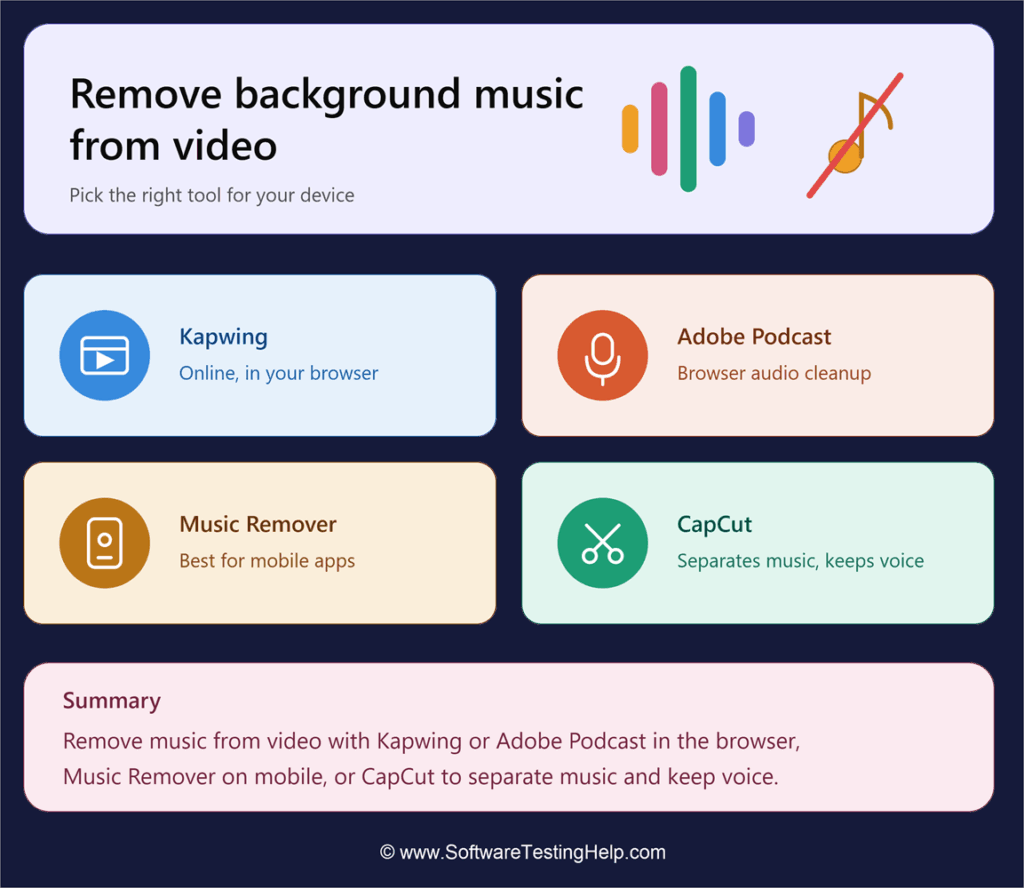
There exist numerous methods and tools by which you can remove background music from video, depending on your needs. You can do so by using online or browser options like Kapwing, or other tools such as Adobe Podcast.
Simultaneously, Music Remover is a good option for you if you want to remove the music from a mobile app. CapCut is another viable option if you wish to separate background music while preserving voice.
Here is the video guide on how to remove background music from a video by keeping vocals in CapCut Pro Desktop:
How to Remove Background Music From Video
There are various ways to remove audio from video, ranging from browser tools, desktop software, or mobile apps.
Let’s have a look at each closely:
#1) With Online or Browser Tools
You can remove background music from video with various browser tools. Here, we have taken an example of Kapwing. A browser- based solution, it is an easy-to-use music remover that can make your editing tasks simpler.
- Go to the official website of Kapwing.
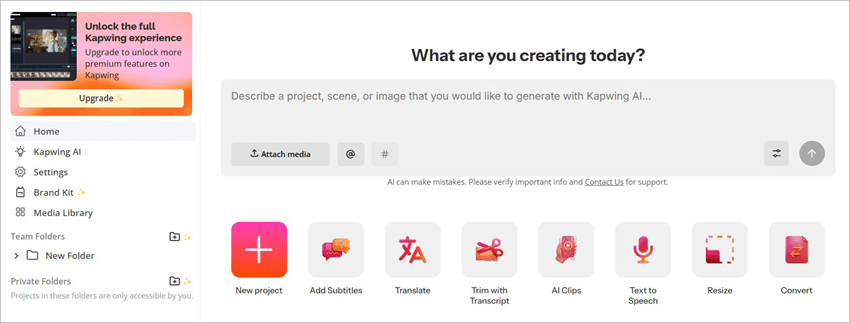
- Now, upload the video of your choice with the New Project option. You can also paste the video’s URL after clicking on the New Project button if you have an upgraded plan.

- Tap on your video clip in the given editing timeline, which will open the editing menu.

- In order to remove background music while keeping the voice, click on Split Vocals option, which will separate the speech and background music into individual tracks.
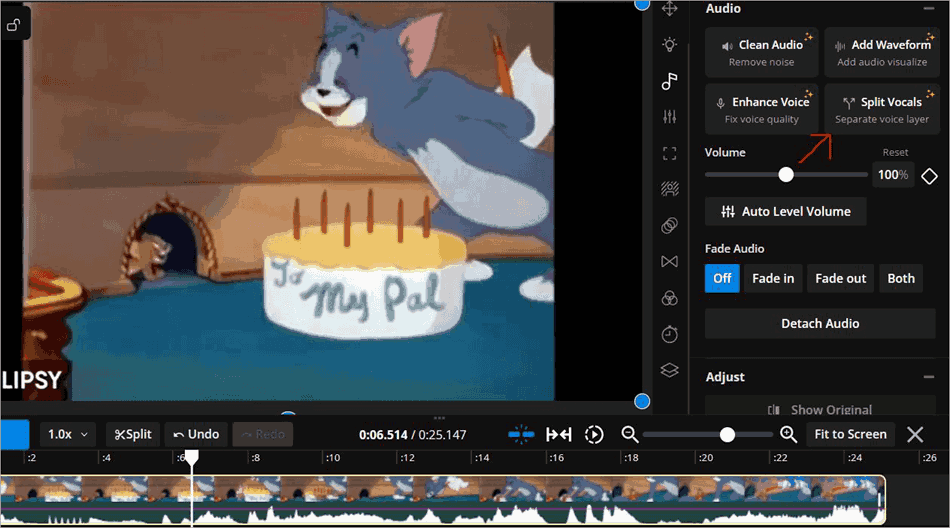
- Choose the separated music clip and press Delete to remove the background music. Alternatively, you can also drag the volume slider to zero while keeping the given dialogues intact.
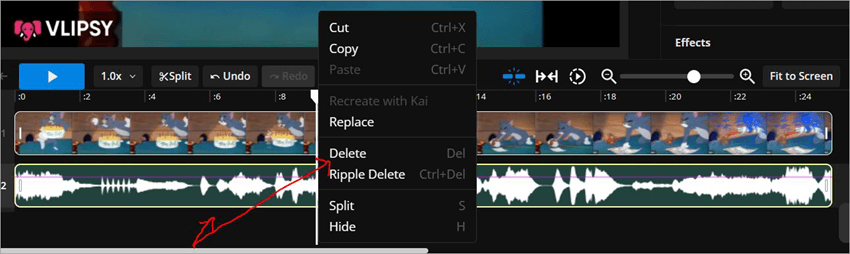
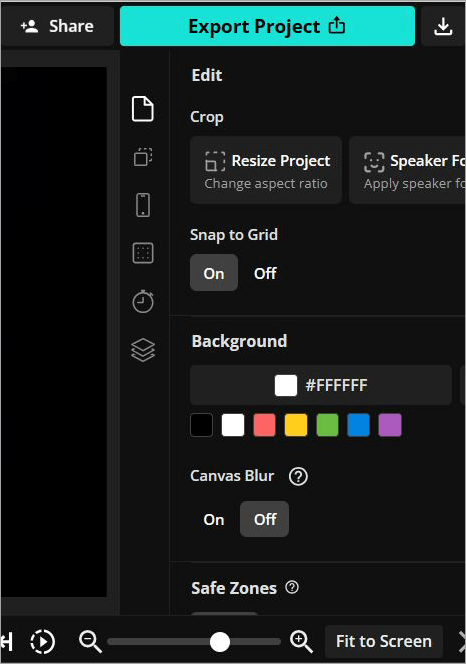
- Finally, click on the Export Project option and download the video without the background music.
#2) On Desktop
There are several background music removers available for the desktop that you can choose from. One of them is Adobe Podcast, which is easy to use.
- Go to the official website of Adobe Podcast.
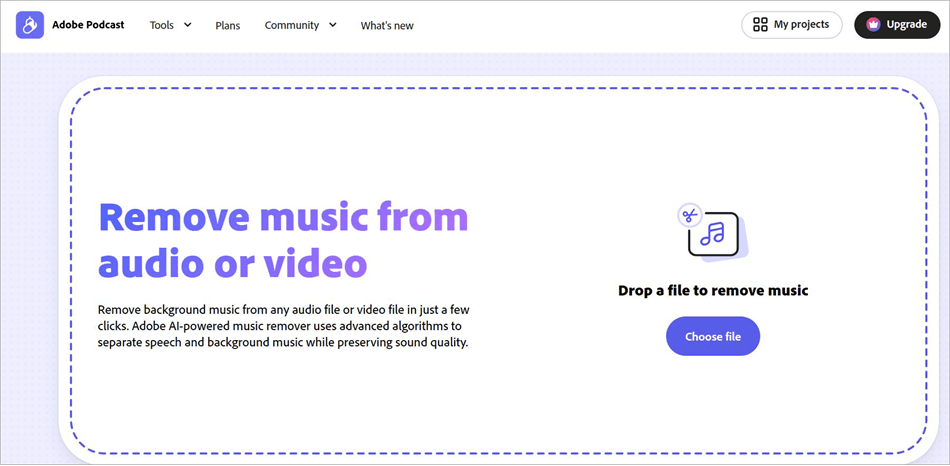
- Now, click on the Upload audio or video icon and upload the video of your choice. The AI will separate the speech, music, and ambient track.
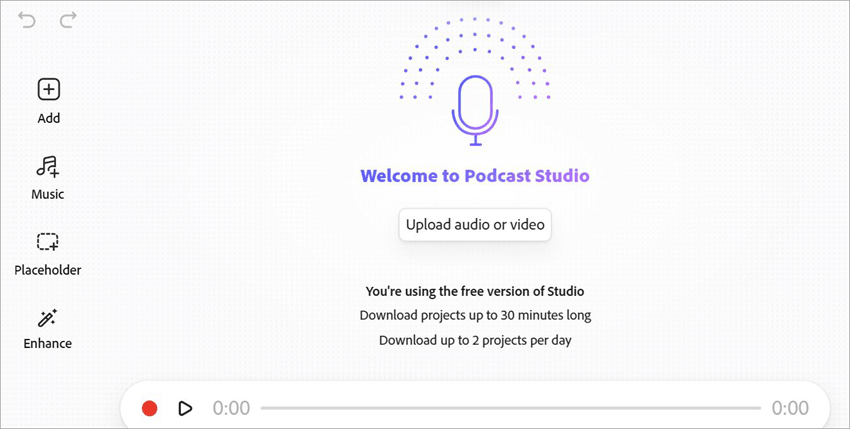
- Once the video is uploaded, scroll down to see the different speech sliders. Move the background track slider to mute the background sound.
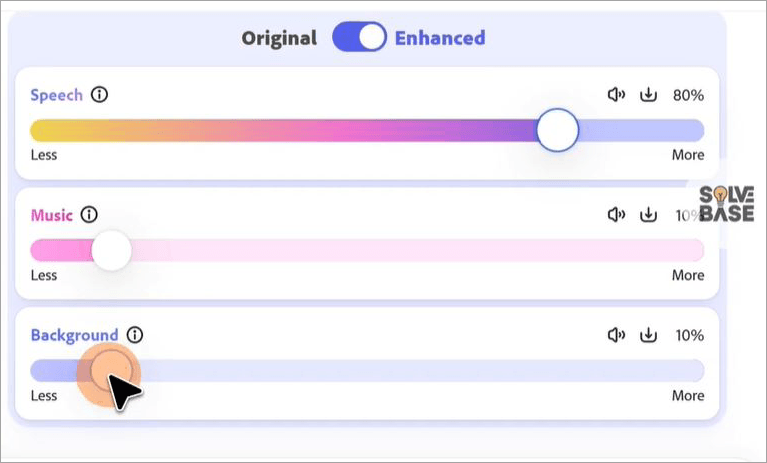
- Finally, download the file as an MP4 video or any other format of your choice.
#3) From Mobile Browsers
This section explains how to remove background music from mobile browsers.
Another way to remove music from video online is through mobile browser websites like Music Remover AI.
- Open Music Remover AI in your mobile browser and upload the video that you want to edit.
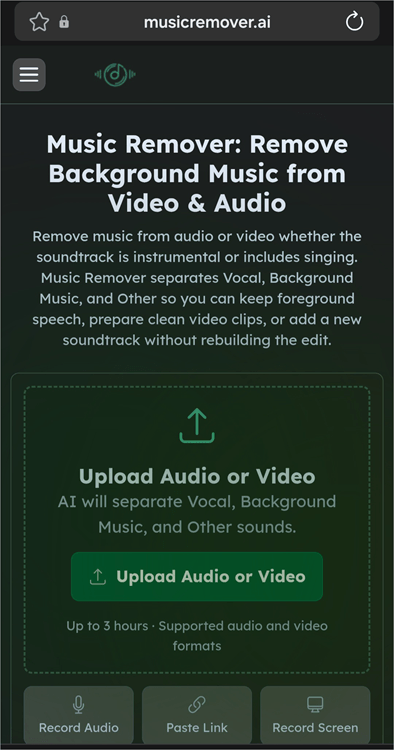
- Once uploaded, you can remove the music, vocals, and other noises per your choice.
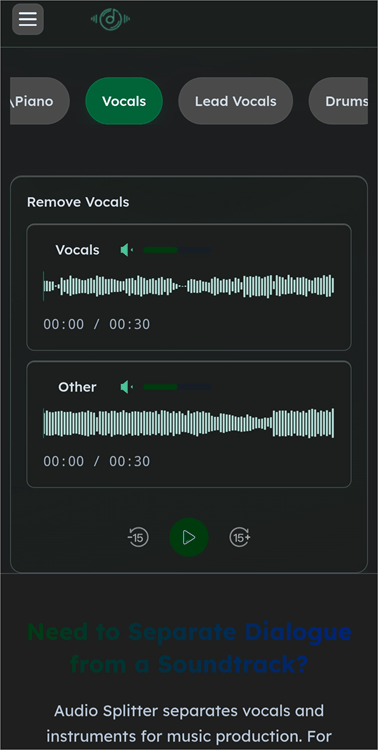
- Finally, preview the result and download the processed file with a clean video clip.
#4) Without Losing Voice
Another method to remove sound from video online without losing voice is by using apps like CapCut.
- Open the app on your mobile and tap New Project to upload the video of your choice.

- Once uploaded, click on the video clip available on the timeline.
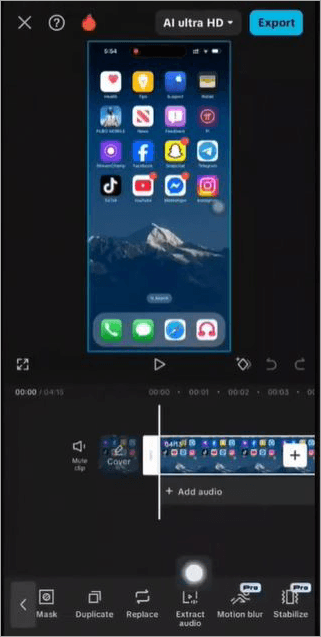
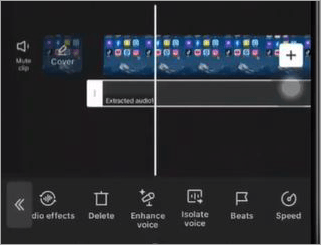
- Now, scroll and tap the bottom toolbar toward the right side and select Isolate Voice.
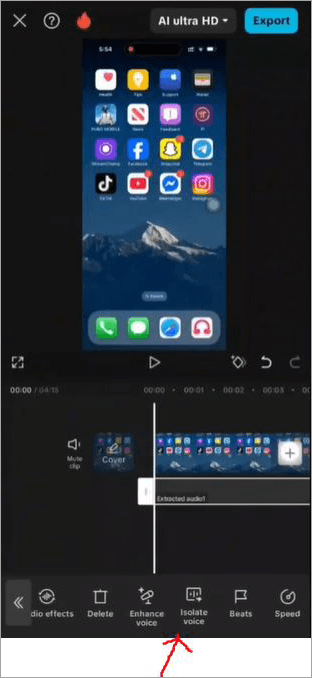
- Choose the Keep Voice option (This feature is available only in CapCut Pro).
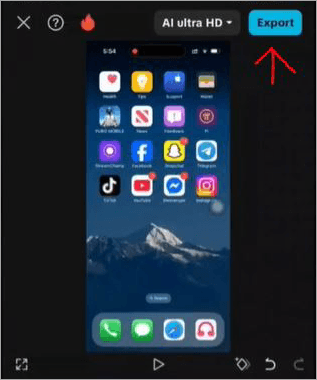
- Check your video and click Export to save the file.
#5) With Desktop Software
You can remove background music from video with desktop software through various options like DaVinci Resolve, Premiere Pro, and Final Cut Pro. Right now, we have taken an example of DaVinci Resolve.
- Open DaVinci Resolve and import the video. Make sure your audio is on the timeline.
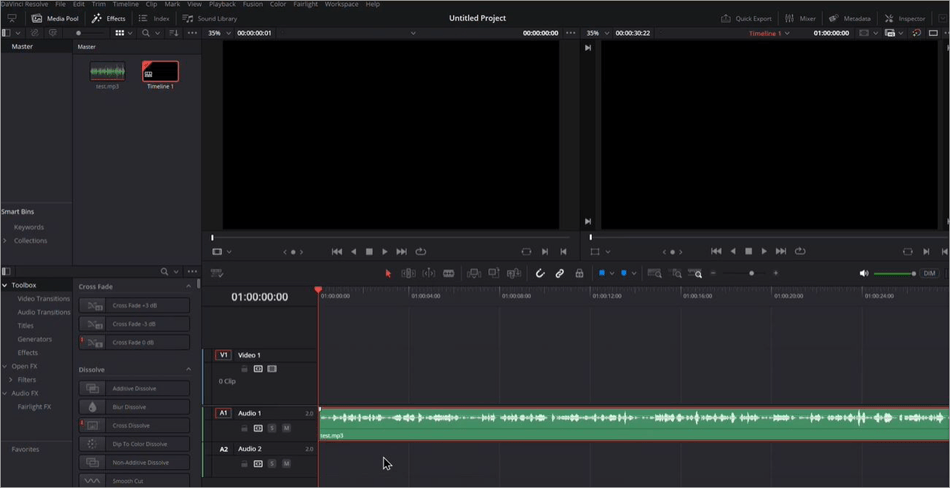
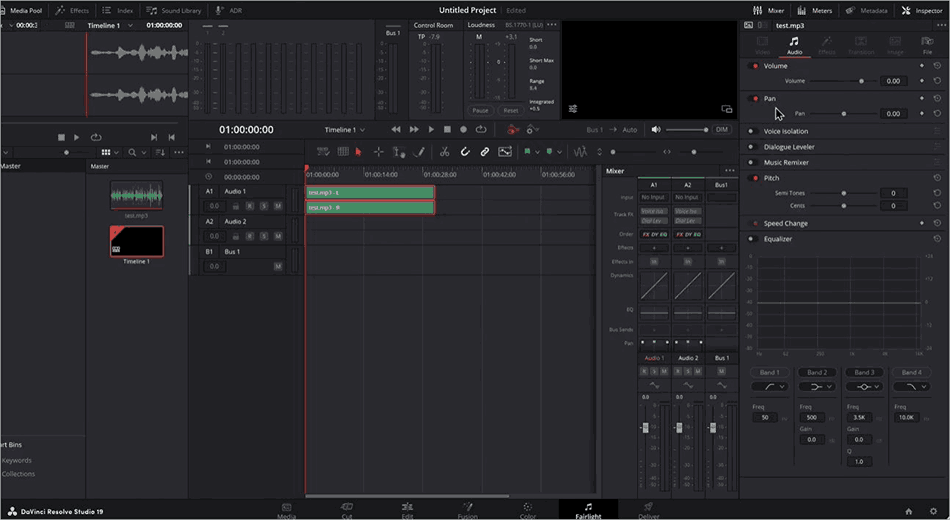
- Now, choose the Fairlight tab at the bottom.
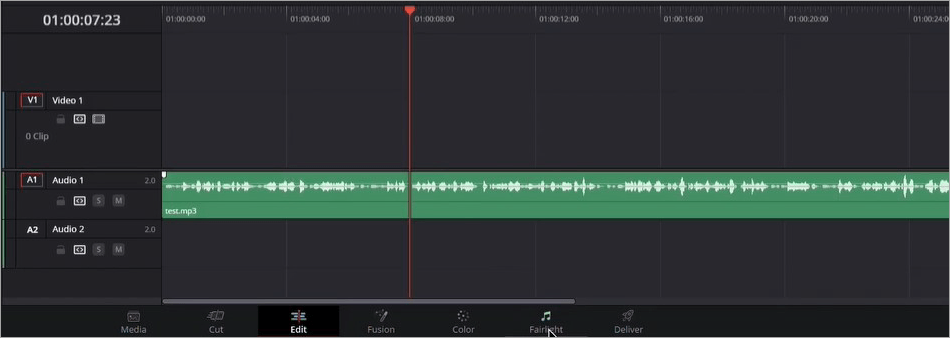
- Once you click on the Fairlight option, a series of audio editing tools will appear. Finally, choose the Voice isolation option. You can adjust this option with the help of a slider if you do not wish to remove the background music completely by moving the slider down so that the voice becomes faint.
Note on Copyright and Legality
Removing music from someone else’s video does not give you the right to reuse, redistribute or republish that video and audio.
Ensure that you have taken the necessary rights or permissions to use the content before sharing or repurposing it. Failing to do so can lead to legal consequences and copyright claims.
Comparing Top Background Music Remover Tools
| Tool | Platform | How the music is removed | Best suited for |
| Kapwing | Online browser | Detach the audio track and delete or mute the music | Quick browser-based editing |
| Adobe Podcast | Desktop | AI separates speech, music, and ambient sound | Separating mixed audio while retaining speech |
| Music Remover AI | Mobile browser | AI-based audio separation | Editing videos directly from a phone |
| CapCut | Mobile app | Uses Isolate Voice to separate and retain audio | Removing music while preserving dialogue |
Pricing Comparison of Background Video Sound Remover
| Tool | Free Plan | Paid Plan | Limitations of the free version |
| Kapwing | $0 | Pro: $16 per member/month (billed annually) or $24 per member/month (billed monthly). Business: $50 per member/month (billed annually) or $64 per member/month (billed monthly). Enterprise Plan: Custom pricing | Includes watermark with export quality limited to SD (720p). Videos are limited to 4 minutes, and older projects get deleted after 3 days. Access is limited to 3 projects per folder. Maximum upload size is 250MB. Limited to 50 AI lifetime credits. |
| Adobe Podcast | $0 (with limited features) | Starts at: $19.99 | Supports only audio formats with file size up to 500 MB. Processing is limited to 30 minutes per file, with a daily time limit up to 1 hr. Provides 2 project downloads per day. |
| Music Remover AI | $0 | Starts at $4.9, with the most popular being $18.9, followed by $10.9 monthly | Multiple voices are difficult to separate. |
| CapCut | $0 | Standard plan: $9.99/month, Pro Plan: $19.99/month | Certain advanced tools and features contain watermarks or require an upgrade. |
Frequently Asked Questions
1. Can I remove background music from a video without losing the voice?
Yes, you can remove background music from a video without losing the voice by using CapCut. Open the app on your mobile and tap New Project to upload the video of your choice. Once uploaded, click on the video clip available on the timeline.
Now, scroll and tap the bottom toolbar toward the right side and select Isolate Voice. Choose the Keep Voice option (but this feature is available only in CapCut Pro). Check your video and click Export to save the file.
2. Can Adobe Podcast remove background music from a video?
Yes, Adobe Podcast can seamlessly remove background music from a video. Go to the official website of Adobe Podcast. Now, click on the Upload audio or video icon and upload the video of your choice. The AI will separate the speech, music, and ambient track.
Once the video is uploaded, scroll down to see the different speech sliders. Move the background track slider to mute the background sound. Finally, download the file as an MP4 video or any other format of your choice.
3. How do I remove background music from a video on my iPhone?
You can remove background music from a video on your iPhone using the Music Remover AI app. For this, open the app in your mobile browser and upload the video that you want to edit. Once uploaded, you can remove the music, vocals, and other noises per your choice. Finally, preview the result and download the processed file with a clean video clip.
4. Can I remove background music from a video without downloading software?
Yes, you can remove background music from a video without downloading software with the help of certain editing tools like Kapwing, Adobe Podcast, or Music remover AI. However, the best option depends on your needs and preferences.
5. Is it legal to remove music from a YouTube video?
Removing music from a YouTube video is not always legal. Whether it is permitted depends on copyright ownership, permission to use the music and other applicable legal exceptions or restrictions. If your uploaded video has a copyright claim, you might be able to remove the claimed background music directly with the aid of YouTube Studio without uploading the video again. You can trim out segments, replace songs or erase songs.
The Erase song option tries to remove only the claimed music while preserving dialogue and sound effects. However, YouTube states that this might not work if the song tends to be difficult to remove. If this fails, you can try muting all audio in the claimed section or trimming that part from the video. Replacing the song from the YouTube library is yet another option for you.
In all this, it is important to understand that the feature is applicable for videos with existing copyright claims. Edits that are saved in YouTube Studio cannot be reverted using the revert to original feature. Therefore, it is important to review your changes carefully before saving.
Conclusion
To remove music from video, you do not require advanced editing skills. Depending on the type of device being used and the kind of audio in your video, you can make use of browser-based tools, desktop solutions, or mobile browser solutions.
No matter the choice, you can always follow the steps mentioned above to remove unwanted background music while editing your video efficiently without recreating the entire recording again.
Research Process: The total time involved to complete and publish this article is approximately 30 hours. This content was created through a structured research approach to ensure accuracy and reliability.
For more-related guides, you can explore our range of tutorials below:
- How to Remove Background Noise from Audio (Top 10 Tools)
- 10 Best Free Video Maker Tools & Apps for Stunning Video
- 15+ Best Audio Editing Software (Audio Editor Review)
- 12 Best YouTube Audio Ripper to Rip Audio from YouTube
- Wondershare UniConverter 15 Fastest Video Converter Review
Was this helpful?
Recommended Reading
-

Review and compare the best video, film, and music production management software to manage the projects: Film and Music Production Management refers to the process of managing the work, task, or the entire process of creation of music or a film or a video up to its successful completion. There…
-
Review and comparison of the Best Music Visualization Software with pricing and features to help you select the right music visualizer tool: The music industry has grown by leaps and bounds in recent years. Recent advancements in technology have helped many artists realize their dreams of becoming popular musicians with…
-
Are back-to-back ads ruining your playlist and looking for Ad-free Music Players for your android or iOS then here is the list of best tested 6 Ad-free Music Players. Are back-to-back ads ruining your playlist? Are you looking for Ad-free Music Players for your android or iOS then here is…
-
Review of the top Music Boxing Machine Brands for adults and kids. Compare their features and pricing along with buying Tips from experts. Music boxing machines are exploding in popularity, but are they actually worth it, or just another fitness trend? If you're looking for the best music boxing machine…