Are you looking for the best password manager for iPhone? In this article we have did the manual testing and comparison of the best password managers regarding Face ID support, Safari autofill performance, security, and value.
Picking the best password manager is one the crucial task for protecting your online accounts, passwords, personal data, and identity.
We have manually tested and compared some of the best password managers for iPhone in the following section according to their security, pricing, iOS compatibility, face ID support, and Safari autofill performance to recommend the best ones among them.
iPhone Password Managers: Hand-Picked List
So in this article, we have tried to ease the task of securing your apps with passwords. This is done with the help of Password Management apps.
These apps provide users with several useful features such as:
- They remember the passwords for you.
- They can generate complex passwords quickly.
- They can auto-fill your passwords and forms.
- The saved passwords and credentials data sync across your devices.
- You can securely share the saved passwords and credentials.
- You can even get password health reports that give you insights about weak passwords.
- You get centralized control of all credentials.
Best Free Password Managers for iPhone (Tested and Compared)
- Bitwarden: If you are looking for a feature-loaded and free pass manager application that allows syncing an unlimited number of passwords and passkeys on an unlimited number of devices then Bitwarden is the best free solution. Bitwarden adopts zero-knowledge architecture that makes it safe and reliable.
- Apple Passwords: One of the best free pass manager app is Apple passwords to store passwords and passkeys securely as it is the most trusted and user-friendly application.
- NordPass: The NordPass Free account allows storing unlimited number of passwords and passkeys but can be accessed from only one device at once. It has very simple interface which is easy for beginners. It uses advanced encryption methods such as XChaCha20 and can be unlocked via Face ID technology.
- RoboForm: RoboForm Password Manager free version fills up web forms easily and also stores unlimited passwords and passkeys but it is restricted to only one device.
Apple Built-In Password Manager Vs. Third-Party Password Managers
Apple Passwords – Apple’s built-in password manager app (iCloud Keychain) Vs. Third-Party Password Managers
| Apple Passwords (or iCloud Keychain) | Third-party Password Managers |
| Always Free | Most of them have a free version with limited features. For premium features, you need to buy a plan. |
| In-built app | You either need to download an app or create a browser extension |
| Weak on cross-platform support | They provide seamless syncing across platforms |
| Basic Password Management features | Offer advanced password management tools |
| Suitable for iPhone users for personal use | Suitable for cross-platform functioning, business purposes |
| Weak/Compromised passwords detection tools | Advanced security tools like dark web monitoring, VPN, secure file sharing, and more. |
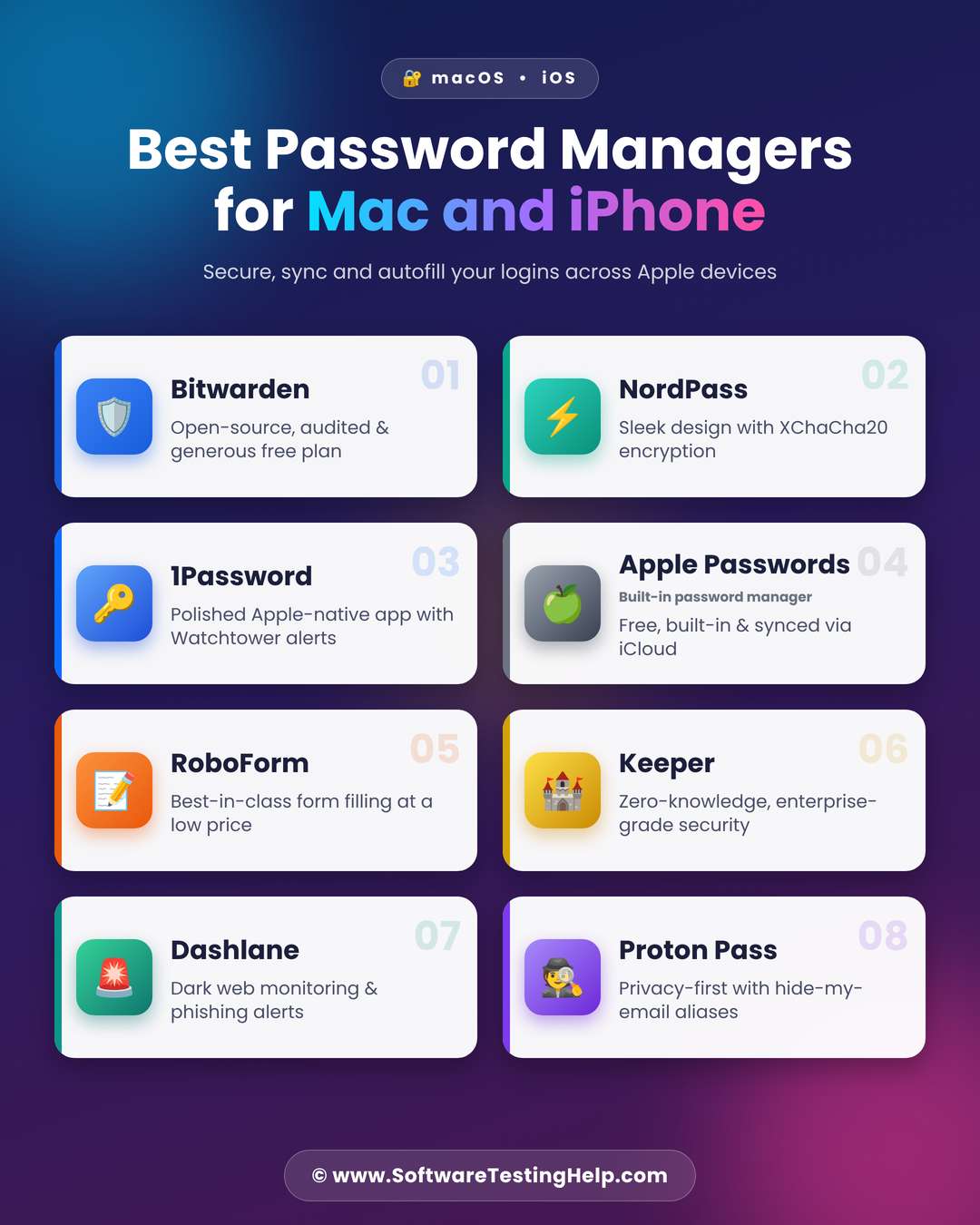
Best Password Manager for iPhone and Mac
We have reviewed some of the Best Password Manager tools for iPhone here for you to choose from.
- Bitwarden
- NordPass
- 1Password
- Apple Passwords (Built-in password manager)
- RoboForm
- Keeper
- Dashlane
- Proton Pass
Comparing the Top Password Manager Apps for iPhone
| App | Best for | Prices | Free Plan & Free Trial | App Store rating |
|---|---|---|---|---|
| Bitwarden | Being a feature-rich, secure, affordable and dedicated Password Management tool. | Start at $1.65 per month | A free version is available. Free trial is also offered for some plane. | 4.8/5 stars |
| NordPass | Being secure, easy to use and feature-rich. | Start at $1.99 per month | A free plan and a free trial are available. | 4.6/5 stars |
| 1Password | Dual layer encryption of data, travel mode, family sharing, intuitive UI. | Start at $2.99 per month | There’s no free plan. A free trial is available. | 4.7/5 stars |
| Apple Passwords | Being a free, built-in, reliable password app for iPhones. | Free | Always free | 4.7/5 stars |
| RoboForm | Its simple interface and affordable pricing. | Start at $1.66 per month | A free plan and a free trial are available. | 4.8/5 stars |
Detailed Review of Password Managers for Apple iPhone
#1) Bitwarden
Best for being a feature-rich, secure and affordable, dedicated Password Management tool.
Ratings: ⭐⭐⭐⭐⭐
How Bitwarden performs on iPhone: Bitwarden has 4.8/5 star ratings on the App Store. Users appreciate the security, feature set, free version, customer support, and other features.
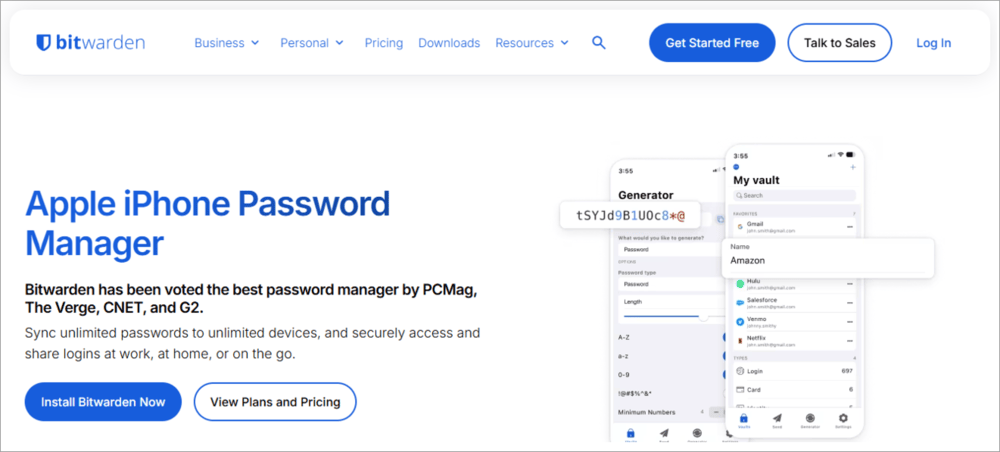
Bitwarden has been voted the best available Password Management tool by PCMag, The Verge, CNET, and G2. It is a feature-rich password manager with a free version, end-to-end zero-knowledge encryption, and many more beneficial features.
The platform allows users to synchronize or even share their passwords across multiple devices – at home, at work, or anywhere else.
Features:
- Lets you store passwords on your iPhone and access them whenever you want.
- Can be used to fill in passwords on any device, even if it’s not your own Apple device.
- A safe and secure platform with end-to-end zero-knowledge encryption can be used to share your passwords.
- You even get password security reports to find out weak passwords and the possibilities of a breach.
| Pros | Cons |
| You can sync passwords across devices | The auto-fill feature may face trouble sometimes when you are dealing with complex web pages. |
| End-to-end zero-knowledge encryption, two-factor authentication | |
| You can share your passwords securely across devices | |
| Flexible pricing structure | |
| A useful free version | |
| Praiseworthy customer service |
Recent Updates: Bitwarden has improved its capabilities, and a new UI is in progress.
Technical Specifications:
| Password sharing | Two-factor authentication | Form Filler | Compatibility | iOS Compatibility | Password Generator |
| Yes | Yes | Yes | Windows, macOS, Android, iOS, Linux, Web Browsers | Yes | Yes |
Who is this best for? Individuals as well as businesses of all sizes.
Pricing: Their basic features are available with an always-free plan.
Bitwarden has several paid plans for premium features. For personal use, they offer 2 plans, and for business purposes, you get 3 plans.
For Personal use:
- Premium: $1.65 per month (or $19.80 per annum)
- Families: $3.99 per month (or $47.88 per annum)
For Businesses:
- Teams: $4 per month per user billed annually
- Enterprise: $6 per month per user billed annually
- Tailored plan: Custom pricing. You can request a quote.
How to set up Bitwarden on iPhone:
- First of all, download the app from the App Store
- Now open the app and sign up with your email account
- Once done with the sign-up process, open the Settings option in the app (denoted with the ⚙️ icon)
- Go to Security (or Unlock with Biometrics)
- Set up Face ID or Touch ID for quick unlocking.
- Now open iPhone Settings
- Tap on General
- Select AutoFill & Passwords (or Passwords)
- Enable AutoFill Passwords and Passkeys.
- From here, under the heading AutoFill Form, tick Bitwarden and uncheck other AutoFill tools.
Website: https://bitwarden.com/download/apple-iphone-password-manager/
#2) NordPass
Best for being secure, easy to use, and feature-rich.
Ratings: ⭐⭐⭐⭐⭐
How does NordPass perform on iPhone: NordPass has got 4.6/5 star ratings on the App Store. iOS users have praised the ease of use, UI, and security tools.
This password manager is known for having a modern-looking user interface. It has tools for storing, sharing, and managing passwords, a password generator, account auto-locking tools, security features like two-factor authentication and a data breach scanner, and much more.
NordPass is the best free password manager for iPhone, Mac, Android, and desktop users. Along with the password management tools, it offers a dedicated, encrypted vault to store digital copies of important, sensitive documents. It is also used for setting reminders for important events.
Features:
- Password Generator, safe password sharing and password strength monitoring tools.
- Lets you access your credentials offline.
- Lets you import passwords from browsers and other password manager tools.
- Access controls and multi-factor authentication features.
- Offers a xChaCha20-encrypted vault.
| Pros | Cons |
| Offers a free trial for 14 days. | The browser extension would sometimes (though rarely) not autofill passwords due to bugs. |
| ISO/IEC 27001 certification, HIPAA, AICPA SOC 2 TYPE II compliance | Due to zero-knowledge encryption, if you forget your master password as well as the emergency recovery key, you can lose your data forever. |
| A 30-day money-back guarantee | |
| Useful integrations | |
| Multi-factor authentication | |
| SSO login with Google Workspace | |
| Provides centralized control of shared credentials | |
| Works as a browser extension on Chrome, Firefox, Opera, Safari and Edge. | |
| Mobile apps available for iOS and Android users | |
| 24/7 live customer service, customized onboarding and training |
Recent Updates: NordPass has made a few updates to its iOS app in Q2 of 2026, for example.
- A fresh look for the vault
- Redesign of the navigation bar
- Refined extension pop-ups.
Technical Specifications:
| Password sharing | Two-factor authentication | Form Filler | Compatibility | iOS Compatibility | Password Generator |
| Yes | Yes | Yes | Windows, Mac, Linux, Android, iOS, Web Browsers | Yes | Yes |
Who is this best for? Individuals as well as businesses of all sizes. You can request a demo to see if it suits your business.
Pricing: NordPass has a free plan that offers password autosaving and auto-filling, along with security tools. It offers paid plans for personal as well as business use.
Plans for Personal use are:
- Premium: $1.99 per month (For 1 user account), paid annually
- Family: $3.59 per month (For 6 user accounts), paid annually
Plans for Business use are as follows:
- Teams: $2.49 per user per month (billed monthly)
- Business: $5.99 per user per month (billed monthly)
- Enterprise: $7.99 per user per month (billed monthly)
Please note that the prices go down if you buy the 1-year or 2-year plans.
How to use NordPass on iPhone:
Watch this insightful video to learn how to set up and use NordPass on various devices.
Website: https://nordpass.com/
#3) 1Password
Best for dual layer encryption of data, travel mode, family sharing and an intuitive UI.
Ratings: ⭐⭐⭐⭐1/2
How does 1Password perform on iPhone: 1Password has a 4.7/5 star rating on the App Store. iOS users have praised the platform for its feature set. However, a few users have reported that the 1Password update from version 7 to 8 caused some trouble.
1Password helps businesses as well as individuals in securing human, machine, and agent credentials.
The platform has access control features, secure vaults, zero-knowledge encryption, credentials auto-filling, and more useful tools. You can request a customized demo of 1Password from their site.
Features:
- Tools for saving and auto-filling passwords, credit cards, addresses, and more.
- Allows users to save their passwords, SSH keys, API tokens, developer secrets, and AI agent credentials.
- Credentials auto-filling across different browsers, pipelines, and workflows
- Zero-knowledge encryption of your data
- Provides encrypted vaults as a centralized place for storing and safeguarding your passwords, passkeys, and secrets.
- Users can access the saved data any time, from anywhere across their Mac, Windows and Linux PCs, iPhones, iPads, Android phones and tablets.
- 1Password has a Travel mode- it removes the sensitive vaults from the device when you are travelling.
| Pros | Cons |
| A free trial of 14 days | No free plan |
| Password Generator, Credentials auto-filling, auto-saving, and more useful tools | |
| Browser extensions for Chrome, Microsoft Edge, Firefox, Safari, and more. | |
| Granular permission controls | |
| Audit-ready activity logs | |
| 400+ integrations |
Recent Updates: They have recently fixed the issue where the password field would be hidden by the keyboard when the user would go to unlock the 1Password browser extension in Safari. Some bugs have also been fixed.
Technical Specifications:
| Password sharing | Two-factor authentication | Form Filler | Compatibility | iOS Compatibility | Password Generator |
| Yes | Yes | Yes | Mac, iOS, Android, Web browser, Windows, Linux, CLI (An Apple Watch app is also available) | Yes | Yes |
Who is this best for? The platform is best for Families (because of its Family plan that allows up to 5 users) as well as businesses of all sizes.
Pricing:
1Password offers the following price plans:
- For Personal use:
- Individual: $4.99 per month (billed monthly)
- Families: $7.99 per month (billed monthly)
- For Businesses:
- Teams Starter Pack: $29.95 for 10 members per month
- Business: $10.99 per user per month
- For Enterprises: Custom pricing.
Please note that prices go down significantly when you buy an annual subscription instead of paying monthly.
How to set up 1Password on iPhone:
Check the YouTube video tutorial below for setting up 1Password.
Website: https://1password.com/product/password-manager
#4) Apple Passwords (Built-in Password Manager)
Best for being a free, built-in, reliable password app for iPhones.
Ratings: ⭐⭐⭐⭐
How the Passwords app performs on the iPhone: The Passwords app has received amazing reviews from its users. It has a clean, simple UI. The performance is appreciable.
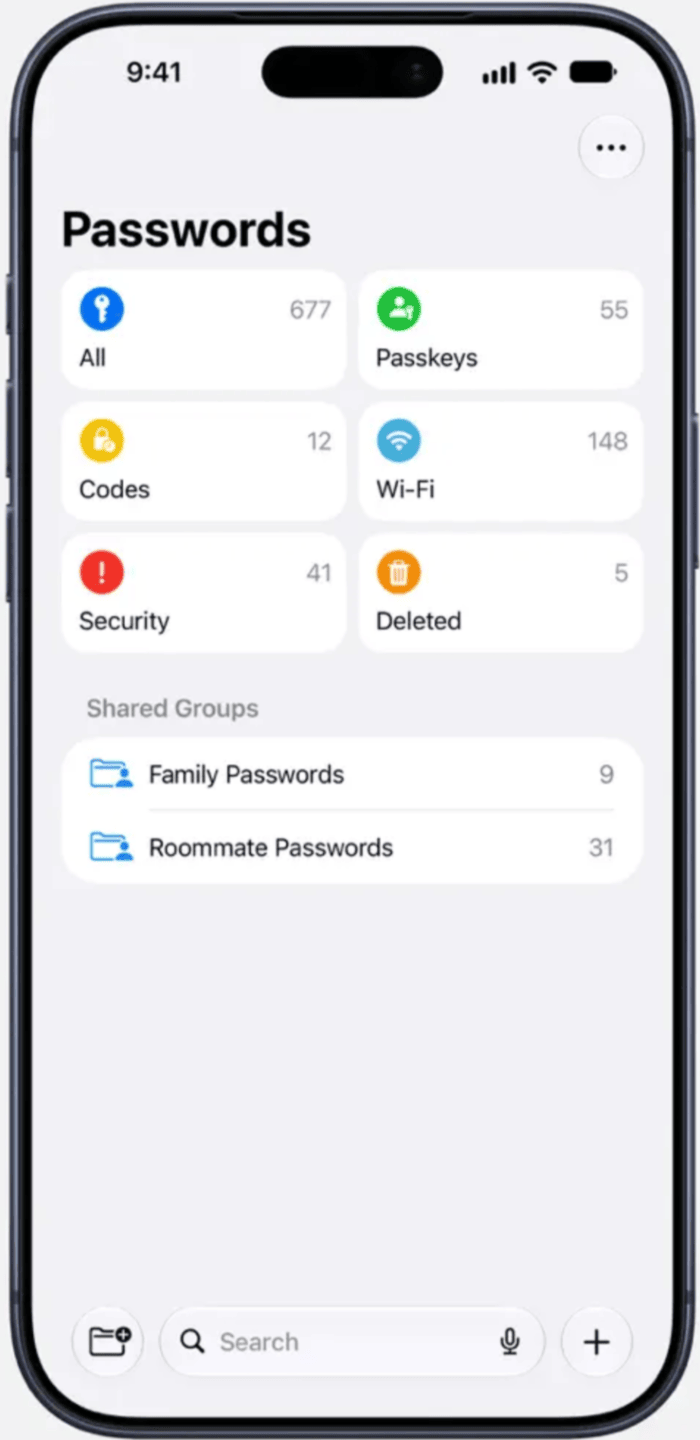
This built-in, free password manager app is used for generating, creating, saving, managing, auto-filling and sharing passwords on Apple devices. Apple Passwords even alerts you when your password is too weak and is prone to breaches. The application allows users to set complex passwords, and the app will then auto-fill them when needed.
If you turn on iCloud Keychain, then the password information will be synced across all of your Apple devices with the same iCloud account.
To turn on iCloud Keychain, follow these steps on your iPhone:
- Go to Settings
- Tap on your name
- Choose iCloud
- Go to Passwords
- Now select Keychain
- Enable iCloud Keychain
Make sure you enable iCloud Keychain on all of your Apple devices for syncing your credentials across all devices.
Go through this YouTube video tutorial for using the Apple Passwords app.
Features:
- Saves and autofills passwords across different applications, websites, and synced Apple or Windows devices via iCloud Keychain.
- Alerts you about weak passwords.
- Two-factor authentication
- You can share the saved credentials with your contacts.
| Pros | Cons |
| No need to download another app | If someone knows your device passcode, he/she can easily access all saved credentials. |
| Easy to use | |
| Secure and reliable | |
| Available for free | |
| You can set up two-factor authentication for any website | |
| Users can check who has access to the password | |
| You can change the password for any app or website quickly through the app |
Recent Updates: In the updated version, users can see the newly generated passwords.
Technical Specifications:
| Password sharing | Two-factor authentication | Form Filler | Compatibility | iOS Compatibility | Password Generator |
| Yes | Yes | Yes | iOS 18, iPadOS 18, macOS Sequoia, or lat | Yes | Yes |
Who is this best for? Personal use
Pricing: Free
How to set up Apple Passwords on iPhone:
- The Apple Passwords app comes pre-installed in iOS 18 and later versions. If you don’t have one, download it from the App Store. There’s no need to sign up if your device is logged in with your Apple ID.
- You would need to turn on the AutoFill Passwords and Passkeys setting on your iPhone, using these steps:
- On your iPhone, go to Settings
- Select General
- Now tap on AutoFill & Passwords
- Turn on the AutoFill Passwords and Passkeys option.
- If you have multiple devices with the same iCloud ID, you would want to sync the saved passwords across your devices. Password sync setting needs to be enabled using these steps.
- Go to Settings on your iPhone
- Tap on your name
- Tap on iCloud
- Tap on See All / Show All
- Now select the option – Passwords
- Now enable Sync This iPhone
Website: https://apps.apple.com/us/app/passwords/id6473799789
#5) RoboForm
Best for its simple interface and affordable pricing.
Ratings: ⭐⭐⭐⭐⭐
RoboForm’s performance on iPhone: RoboForm has a 4.8/5 star rating on the App Store. Users appreciate the ease of use, intuitive UI, and customer support services.
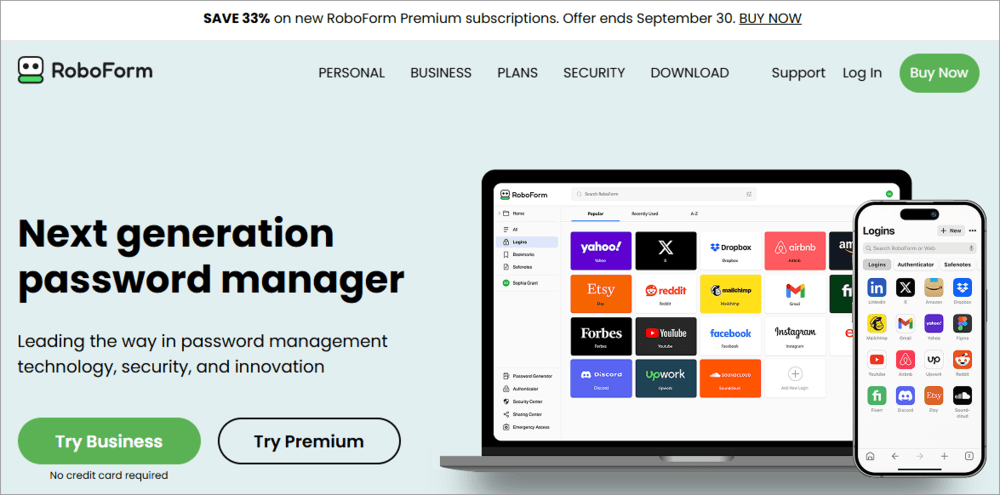
RoboForm is trusted by individuals and organisations of all sizes for keeping, protecting, auto-filling, and generating passwords. The platform is packed with a good range of features and comes at surprisingly low prices.
Features:
- You can create separate vaults to save passwords for your personal use as well as for work.
- Offers secure password sharing tools, a password generator, form filling, and more tools.
- Role-based access control features.
- Detailed activity logs.
- Monitors and alerts you about compromised passwords.
| Pros | Cons |
| Offers a free version with advanced tools like password-less unlock, 2-factor authentication, compromised passwords monitoring, and Cloud backup. | Users need to pay annually. There’s no option to buy RoboForm for a month. |
| AES 256 encryption | |
| Unlimited passwords storage | |
| Offline access | |
| Form auto-filling | |
| 24/7 support | |
| A free trial is also available |
Recent Updates: A built-in ad blocker, Reader mode and Private mode.
Technical Specifications:
| Password sharing | Two-factor authentication | Form Filler | Compatibility | iOS Compatibility | Password Generator |
| Yes | Yes | Yes | Windows, Mac, Linux, Android, iOS, Web Browsers | Yes | Yes |
Who is this best for? Individuals as well as businesses.
Pricing: RoboForm has a free version. Its paid plans are as stated below.
Personal & Family Plans:
- Premium: $1.66 per month, billed annually
- Family: $2.66 per month, billed annually (For up to 5 accounts)
Business Plans:
- Business: $3.33 per user per month, billed annually.
- Enterprise: Custom pricing.
How to set up RoboForm on iPhone: Go through their site to find the complete guide for setting up RoboForm on your iOS device.
Website: https://www.roboform.com/
#6) Keeper
Best for being a highly secure platform.
Ratings: ⭐⭐⭐⭐1/2
How Keeper performs on iPhone: Keeper has 4.9/5 star ratings on the App Store. More than 20 million people use this app. The app is safe and user-friendly and has good customer service.
Keeper is trusted by more than 93k businesses from all over the world. It has been termed the ‘Enterprise Leader’ by G2, 7 years in a row. The platform is packed with a number of useful features, along with enterprise-grade security.
Features:
- Credentials saving, auto-filling, and sharing tools.
- An encrypted vault, admin console, and a vault transfer tool.
- Two-factor authentication, Time-limited access and self-destructing records, Single Sign-On (SAML 2.0) authentication, and more useful features.
- Zero-knowledge encryption, Forcefield™ memory attack protection, Activity reporting features.
| Pros | Cons |
| Zero-knowledge and zero-trust architecture | Paid add-ons |
| FedRAMP High and GovRAMP High Authorized; FIPS 140-3 validated; ISO 27001, 27017 and 27018 certified; PCI DSS certified and certified by TrustArc for privacy | |
| A free trial is available | |
| Advanced integrations | |
| A free version is also available. |
Recent Updates: Notification Center Improvements (the notification icon will pulse when you need to approve a request) and PAM Cloud Records.
Technical Specifications:
| Password sharing | Two-factor authentication | Form Filler | Compatibility | iOS Compatibility | Password Generator |
| Yes | Yes | Yes | Web browsers, Android, iOS, Windows, Mac, Linux, Apple Watch | Yes | Yes |
Who is this best for? Businesses of all sizes.
Pricing:
Here is a list of the price plans offered by Keeper:
- Business Starter Password Manager: $2 per user per month, billed annually
- Business Password Manager: $4 per user per month, billed annually
- Enterprise: $6 per user per month, billed annually
Website: https://www.keepersecurity.com/
#7) Dashlane
Best for risk detection and useful integrations.
Ratings: ⭐⭐⭐⭐1/2
How Dashlane performs on iPhone: Dashlane has been named the ‘App of the Day’ on the App Store. The iPhone app is easy to use and delivers constant improvements, as per the users’ requirements. It has a 4.8/5 star rating on the App Store.
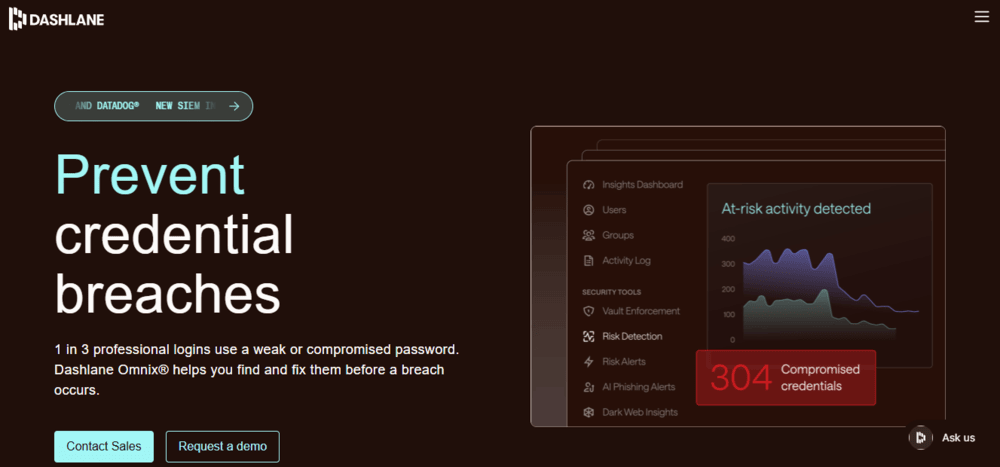
Dashlane provides passwordless login while reducing phishing risks. The platform claims that it’s securing over 2.5 billion credentials currently. Businesses from the Automotive, Education, Financial Services, Healthcare, and Technology industries are their customers.
Features:
- Passwordless login and secure password sharing.
- Secure vaults and access control features.
- Auto-filling, Password generator, Secure sharing, Password health dashboard, and many more useful features.
- Credentials risk detection.
| Pros | Cons |
| Free Trial for 14 days | Absence of a native desktop application (Works as a browser extension on PC) |
| Useful integrations including SSO, SCIM, SIEM tools and more | |
| Phone, email, chat support, onboarding support, customer success manager | |
| Password health score scanning |
Recent Updates: Bug fixes and stability improvements.
Technical Specifications:
| Password sharing | Two-factor authentication | Form Filler | Compatibility | iOS Compatibility | Password Generator |
| Yes | Yes | Yes | iOS, Android, Web Browsers (Chrome, Brave, Opera, Edge, Firefox, Safari) | Yes | Yes |
Who is this best for? Families and businesses of all sizes.
Pricing:
The pricing structure of Dashlane is as follows:
For Personal use:
- Premium: $5.42 per month, billed annually.
- Friends & Family: $8.13 per month for 10 members, billed annually.
For Business use:
- Enterprise: Custom pricing
- Password Management: $8 per user per month, billed annually.
- Credentials Protection: $4 per user per month, billed annually.
Website: https://www.dashlane.com/
#8) Proton Pass
Best for offering a wide range of features.
Ratings: ⭐⭐⭐⭐1/2
How Proton Pass performs on iPhone: Proton Pass has a 4.9/5 star rating on the App Store. Users appreciate the set of features and the data security it offers.
[via proton]
Proton Pass is the best free password manager for iPhone, Android, Mac, Windows, Linux and Web. It even offers F-Droid support for open-source users.
Proton Pass is trusted by more than 100 million users and organisations. It offers browser, mobile, and desktop apps with tools for password generation, digital vaults, dark web monitoring, and much more.
Features:
- Unlimited logins, notes, and credit cards.
- Secure vault, item and link sharing.
- Password health check, advanced account protection.
- Lets you manage user permissions and access controls.
- AI Assistant, VPN, Storage, Video Conferencing, and more useful features.
- Hide-my-email feature to protect your email from getting exposed.
| Pros | Cons |
| A free version with a good range of features. | There would be rare occasions of auto-fill inconsistency. |
| A 30-day money-back guarantee | |
| End-to-end encryption | |
| Seamless integration with Proton Mail and Proton VPN. | |
| Advanced features like Password health check, Dark web monitoring, Unlimited hide-my-email aliases, and more. | |
| Offline vault access |
Recent Updates: Bug fixes, added support for folders (behind feature flag), and more.
Technical Specifications:
| Password sharing | Two-factor authentication | Form Filler | Compatibility | iOS Compatibility | Password Generator |
| Yes | Yes | Yes | Windows, Mac, Linux, iOS, Android, Web Browsers (F-Droid is also supported for open source users) | Yes | Yes |
Who is this best for? Businesses who want a unified platform for tools like password protection, vaults, secure sharing, VPN, Password Health Check, and more.
Pricing: Proton Pass has a free plan.
Its paid plans are as stated below:
For Individuals:
- Pass Plus: $2.99 per month, billed annually
- Proton Unlimited: $9.99 per month, billed annually
For Businesses:
- Password Essentials: $1.99 per user per month
- Password Professional: $4.49 per user per month
- VPN and Password Professional: $10.99 per user per month
- Workspace Standard: $12.99 per user per month
Website: https://proton.me/pass
How We Tested the Best Password Managers for iPhone
We tested more than a dozen password managers on iPhones having the latest version of the iOS operating system.
The following are the parameters that we have tested during this process:
- iOS AutoFill & Face ID Compatibility Test: The tests that we conducted involved logging into different websites through the Safari browser, Chrome browser, and third-party mobile applications. Time taken during each operation was recorded.
- Security: All password managers were tested for end-to-end zero-knowledge encryption such as AES-256/XChaCha20, hashing algorithms for master passwords, multi-factor authentication and third-party security audit history.
- Cross-Platform Sync: We have synchronized sample password vaults among iPhone, Macbook, and Windows PC devices containing passwords, payment cards, and passkeys.
- Passkeys and 2FA: We checked whether each password manager could generate, save and synchronize passkeys.
Frequently Asked Questions
1. Can I see all my passwords?
Yes, if you use a password manager app, you can see and manage all of your passwords from one place.
To see all passwords on your Apple Passwords app, follow these steps:
Open the Passwords app.
You will have to enter the passcode or use Face ID to open the app.
Tap on Passkeys (or Family Passwords or Roommate Passwords if the password you want to see is saved in a specific category).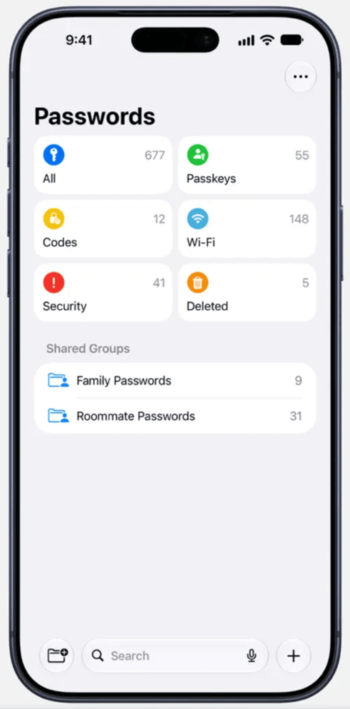
[via Apple]
Now tap on the website/application whose password you want to see.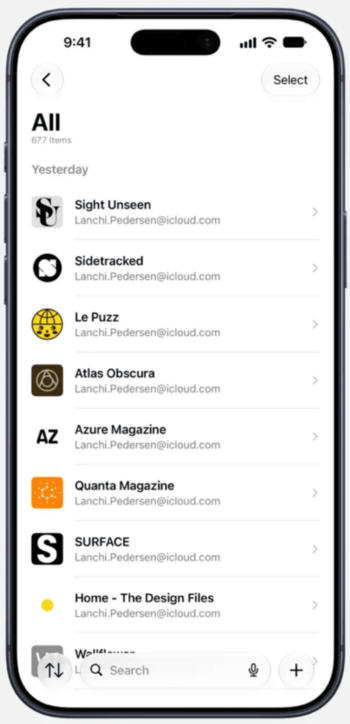
Now you will be able to see all information about it.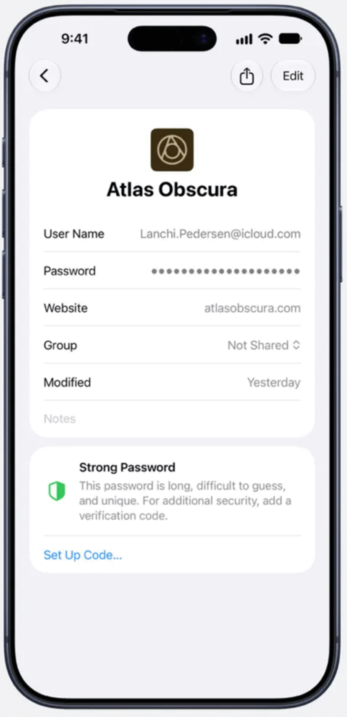
2. Does Apple have a built-in password app?
Yes. Apple has a built-in password app with the name Passwords. It can be used to save passwords, view them, edit them, share them, auto-fill credentials, and more.
It is an always-free password manager, suitable for personal use.
3. Can the Apple Passwords app generate passwords?
Yes. iCloud Keychain automatically creates strong and unique passwords whenever you sign up or change a password on your iPhone, iPad, or Mac. The automatically created password will have 20 characters by default. But the password won’t be saved in iCloud Keychain unless it’s turned on.
To turn on iCloud Keychain, follow these steps on your iPhone:
• Go to Settings
• Tap on your name
• Choose iCloud
• Go to Passwords
• Now select Keychain
• Enable iCloud Keychain
4. Which is better, Apple Passwords or 1Password?
Apple Passwords and 1Password have different pros and cons.
Have a look at this table to get a clear idea of which app will suit you:
| Apple Passwords | 1Password |
|---|---|
| Good for iPhone users who want a password manager for their Apple devices | Good for cross-platform password management |
| Works on Apple devices only | Compatible with Mac, iOS, Android, Web browser, Windows, Linux, CLI (An Apple Watch app is also available) |
| Absolutely free | No free version |
| Basic Password Management features | Advanced features and integrations. |
5. What is the best free password manager app for iPhone?
If you want to know the best free password manager for Mac and iPhone, go through these points:
• Pick Bitwarden for a highly useful free version.
• For iPhone and Mac users with basic Password Management needs, Apple Password is the best.
• 1Password has the best set of features including travel mode, dual-layer encryption, and an intuitive UI.
• Proton Pass has a built-in hide my email feature, VPN and more useful features.
• NordPass would be the best if you are a beginner and want a simple app for password management across devices.
• RoboForm has affordable plans and can fill long forms with ease.
• Keeper is the best in terms of providing security to your data.
• Dashlane is best for its family plan, risk detection tools and ease of use.
6. Is Apple’s Passwords app better than third-party password managers?
The Apple Passwords is a better choice for iOS users seeking a password management solution without paying any amount or even making a setup at all. Third party password manager solutions such as Bitwarden or 1Password prove better when users possess an Android or PC-based device.
7. Are password manager apps safe to use on iPhone?
Yes. Leading password managers support zero-knowledge encryption, i.e., they apply AES-256 encryption algorithm or XChaCha20 before transmitting vault data to the server.
8. Can password managers work with Face ID?
Almost all leading password manager applications for iPhones come natively integrated with Face ID and Touch ID support.
9. What is the difference between Apple Passwords and iCloud Keychain?
ICloud Keychain is a secure storage system provided by Apple Inc., which encrypts and stores credentials. Apple Passwords refers to the new-age interface of iCloud Keychains launched as a separate app in iOS 18.
10. Can I transfer passwords from Apple Passwords to another password manager?
Yes. You can simply export your saved passwords from Apple Passwords in form of .CSV files and then import them into any third party manager.
Conclusion
Without a doubt, I can say that all of the platforms we discussed in the article are great innovations that save users from password-related troubles.
Most of these platforms allow users to lock all the passwords with a master password, so that they would need to remember only 1 Master password; and this master password is always encrypted with zero-knowledge security, which means that even the security-providing service won’t have any access to your Master Password.
But that too is quite risky, because you can forget the master password, and you can lose all of your data stored in your vaults. If you face such a case, you can contact the service provider to check if something can be done.
Research Process: The total time involved to complete and publish this article is approximately 40 hours. This content was created through a structured research approach to ensure accuracy and reliability.
For more-related guides, you can explore our range of tutorials below:
- Best Password Strength Tester & Checker Tools
- How To Reset Admin Password On Windows 10 [Top Methods]
- How to Change or Reset Your Instagram Password [EASY STEPS]
- Unlock PDF Files: How To Remove Password From PDF [5 Ways]
- How to Find WiFi Password on Windows 10
- Top-Rated Password Cracker Tools (Best Rankings)
Was this helpful?
Recommended Reading
-

This tutorial explains the best Network Security Policy Management NSPM tools that will perfectly cater to your specific requirements: Network Security Policy Management tools are nothing short of a godsend for system administrators. These tools empower admins with the ability to enforce and manage device settings as well as configurations…
-

Evaluate and compare the top Password Strength Checkers with features. Pick the best Password Strength Tester of your choice for securely creating a distinct set of passwords: A Password Strength Tester is a tool that enables you to know the time-to-crack your password by a computer and lets you know…
-
Reset MacBook Air to Factory settings in minutes with this step-by-step guide. Learn how to Factory Reset MacBook Air to erase and restore your Mac even without a password: Struggling with a slow-running MacBook Air, or perhaps you are thinking of selling it? These are both situations that warrant a…
-
This Tutorial Provides a List, Comparison, Features, and Price of the Top Password Managers. Select the Best Password Manager Based on this In-depth Review: A Password Manager is an application that stores your login credentials and will help you through the auto-login facility for various websites and applications. It can…