


Is your Apple Watch screen frozen or unresponsive? Our step-by-step troubleshooting guide will help you fix the Apple Watch screen not working issue and get your display back to normal instantly:
“Jack of all trades” is perhaps how I would describe an Apple Watch. You have one intelligent piece of tech helping you out in several ways. This device allows you to make quick calls, enjoy music, or monitor your fitness. You can also use it for sleep tracking and monitoring your heart health.
I would crown these watches as one of the most innovative pieces of technology to come out of the 21st century yet. That said, these watches aren’t perfect.
Apple Watch Screen Doesn’t Work: Proven Fixes to Try
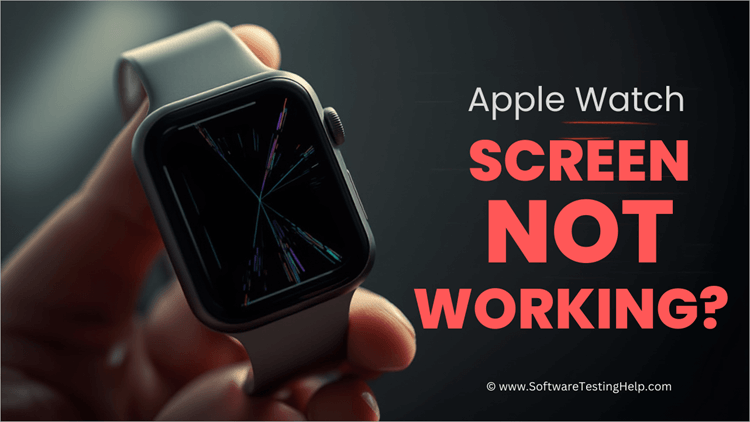
Over the years, there have been instances of users complaining about their Apple Watch’s screen glitching, becoming unresponsive, or simply not functioning as it should.
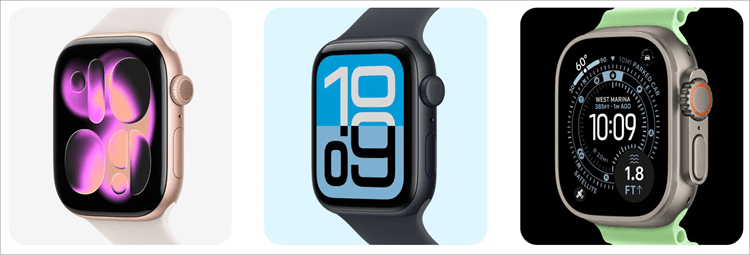
[Via Apple]
If you are encountering this problem, don’t contact the support or give up on your watch just yet. The issue is more than likely not very serious, and a simple troubleshooting trick is all you’ll need to make your watch work again. Instead of searching online for an “Apple Watch Black Screen of Death fix”, I would suggest you simply follow the tips I’ll be sharing here.
So, without much further ado, allow me to share some troubleshooting tips you can employ if your Apple Watch screen is not working.
Why is My Apple Watch Screen Not Working: Common Causes
Why isn’t the Apple Watch touchscreen functioning?” I decided to write this article and share my expertise after coming across the above question on one of the online forums I frequently visit.
People often go to those forums when they need a rapid solution for their “Apple Watch Black Screen of Death.” A wise man once said that to fix a problem, you must first understand what caused that problem.
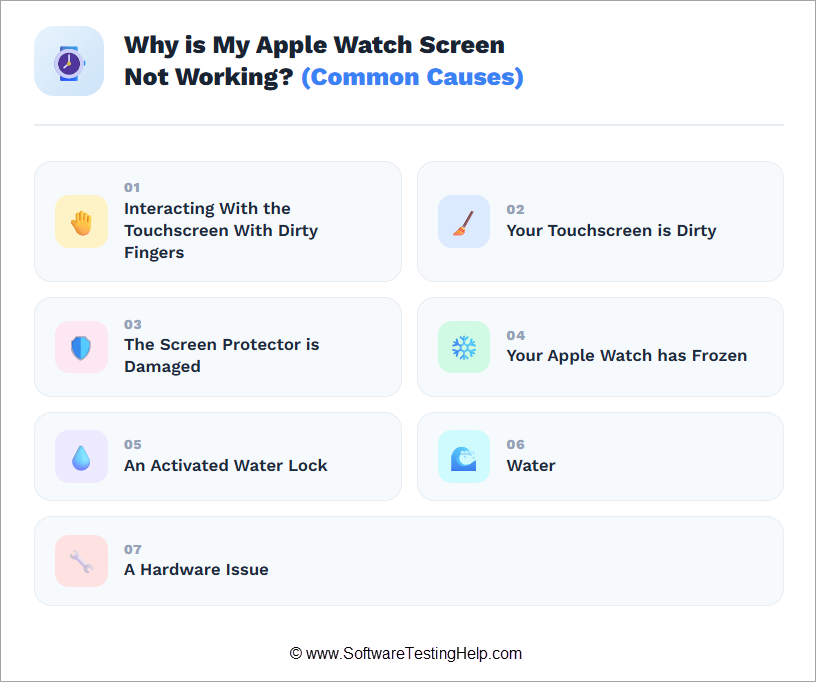
That’s what we’ll be doing right now. Below are a few well-known reasons that can result in your Apple Watch’s touchscreen becoming unresponsive.
#1) Touchscreen Interaction With Dirty Fingers
Apple Watches have a rather sensitive touchscreen. As such, one should be very careful when interacting with such a screen. One thing you don’t want to do is touch that screen with filthy hands or hands covered in something.
For instance, never touch your watch’s screen with hands glazed in Cheetos crumbs. Not only is that unhygienic, but the touchscreen won’t respond to those filthy fingers. So, make sure your hands are clean and not covered in any foreign substance before you interact with your Apple Watch.
#2) Your Touchscreen is Dirty
A touchscreen can become oily, wet, or dirty after repeated use. It is important to maintain and regularly clean your Apple Watch’s screen to ensure it works just fine every time. The best way to clean a touchscreen is by wiping it gently using a clean cloth.
Do not use water. That would only make the situation worse. There’s a good chance that the problem with your watch is just a dirty screen and not something serious related to its software. So, try to give your watch’s screen a good wipe.
#3) Screen Protector is Damaged
It is quite common for people to use screen protectors to keep their Apple Watch’s touchscreen safe. However, these screen protectors might end up having the opposite effect, especially if you are using one that’s damaged or of poor quality.
A cheap, poor-quality screen protector can compromise the performance and functionality of your Apple Watch. I would recommend only using the best quality screen protectors for your Apple Watch.
#4) Your Apple Watch is Frozen
Software freezes are quite common. So, it shouldn’t come as a surprise to you that something like that can happen to your Apple Watch as well. Fortunately, this isn’t a serious issue and usually gets fixed with a quick reboot of your watch.
As for why an Apple Watch would freeze. Well, it could be because of too many apps being open on your Watch at the same time or because your watch is running on an outdated OS.
#5) Activated Water Lock
An Apple Watch user can willfully render their device’s touchscreen unresponsive by activating the Water Lock. If your watch fails to respond to swipes, check if you have enabled the Water Lock on your device.
It will resemble a water drop and is located at the top of an Apple Watch’s screen. Tapping on the water drop icon will disable the lock.
#6) Not Waterproof
Regardless of their quality, your Apple Watches aren’t waterproof. Sure, they’re water-resistant. This means a splash or drop of water won’t affect your touch screen. However, that does not mean you take a swim wearing it.
I’ve heard many people crying over how their Apple Watch touchscreen was not working after swimming. That’s because water has seeped deep into the device’s hardware, requiring serious repair work.
There are newer models out there that claim it is safe to swim with those watches. In my experience, it is best to remove your watch before you take a dip.
#7) Hardware Issue
There is a chance that the issue with your watch is a manufacturing defect. For instance, users reported a defect with the 40mm Apple Watch Series 6 models. Manufactured between April 2021 and September 2021, it was found that some of these watches would display a black screen.
To counter this issue, Apple launched a repair program, which allowed buyers of these watches to get the watches fixed at their nearby Apple Authorised Service provider for free. The devices were only eligible for repair for two years after their initial retail sale.
This is just one example of an Apple Watch making it to the market with a defect. Although rare, there could be a similar issue with your Watch, which would warrant a visit to an Apple authorized store.
Apple Watch Screen Not Working: How to Fix
Most of the time, an Apple Watch Screen not working isn’t a serious issue that warrants an elaborate troubleshooting plan.
Below are a few quick Apple Watch Black Screen of Death fixes I suggest you try first:
#1) Clean Your Watch’s Screen
As I mentioned earlier, the issue may be related to the physical condition of your touchscreen.
So, before you take any drastic measures, take a clean cloth and give it a thorough wipe, gently, of course. Make sure your touch screen is free from any dirt or moisture. Try to use your screen after cleaning it.
#2) Change the Phone’s Screen Protector
This is yet another issue that doesn’t demand any elaborate action from you. Check whether your phone’s screen protector is in good condition.
Replace the screen protector with one that’s known for its good quality. Shop online for a protector with the highest user score. Avoid cheaper products, as they’ll end up costing you more down the line.
#3) Force Restart Your Phone
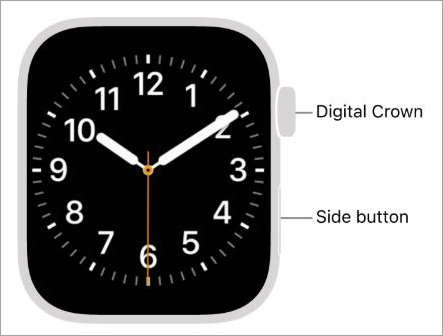
Force restarts or reboots can fix just about any issue a device has. So, once you’ve concluded that the problem isn’t with the condition of your touchscreen but rather with the watch itself, you should immediately force restart your watch. Force restarting an Apple Watch is easy.
[Via Apple Support]
Hold the side button alongside the Digital Crown until you see the Apple logo on the screen. Hopefully, your screen will respond as usual once the watch is back on.
#4) Check your Watch’s Brightness Settings
Almost all recent Apple Watches come with automatic brightness adjustment that responds to our surroundings.
You cannot disable it on your watch as its ambient light sensor is always active. If the screen appears too dark, I first suggest going to your Watch’s Display and Brightness settings and maximizing the brightness.
Fix Apple Watch Touch Screen Not Working (Step-By-Step Guide)
It is time for some elaborate troubleshooting tricks if the quick Apple Watch Black Screen of Death fixes I suggested above didn’t work.
#1) Close Apps on Your Phone
Your touchscreen might freeze due to a single affected app or because there are too many apps open at the same time. Naturally, your device may find relief if you shut these apps down.
Here’s how you can do that:
a) First, open the app that isn’t working on the Watch.
b) Hold the watch’s side button until you are presented with the following options:
- Power Off
- Medical ID
- Compass Backtrack
- Emergency SOS
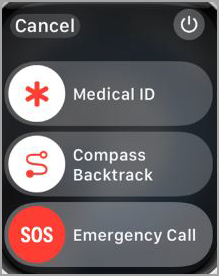
c) Now, press and hold the Digital Crown on your Watch until you return to the home screen.
d) Reopen the app to see whether the problem was fixed.
Close All Active Apps
a) Open the Dock on your watch. You can do so by pressing the side button on your watch (For WatchOS 9) or tapping the Digital Crown twice (for WatchOS 10 and above).
b) You’ll now see a list of all recently opened apps.
c) Simply swipe left on the app displayed on your Watch’s Dock to close it.
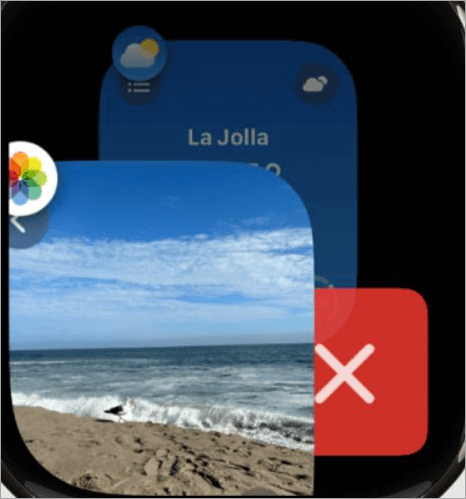
d) You can also tap the “X” button beside the app to close it.
It is that simple.
#2) Resync Your Watch to Your Phone
If the app shut down didn’t work, perhaps unpairing and repairing your watch from your iPhone might do the trick.
Here’s how you do it:
a) Go to your iPhone and open the Apple Watch app.
b) Go to My Watch > All Watches
c) Now, tap on the orange info icon right next to your displayed Apple Watch.
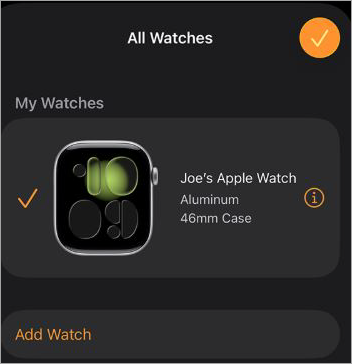
d) In the next window, tap on Unpair Apple Watch.
e) You might need to enter your Apple ID password to confirm the unpairing.
Once unpaired, it is time to re-sync both devices.
Here’s how you do it:
a) Turn on your Apple Watch. Make sure it is next to the iPhone you wish to pair it with.
b) A prompt with the option to set up your watch should appear on your phone. Tap on Continue.
c) Next, tap on “Set Up for Myself”.
d) Now, hold your Apple Watch up to the phone’s camera. Select “Pair Apple Watch Manually” if the phone doesn’t respond.
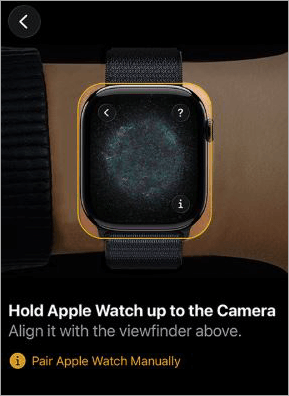
e) Once paired, you’ll now be presented with the option to “Restore from Backup” or “Set Up as New Apple Watch”.
f) Choose either option as per your wish and agree to the terms and conditions.
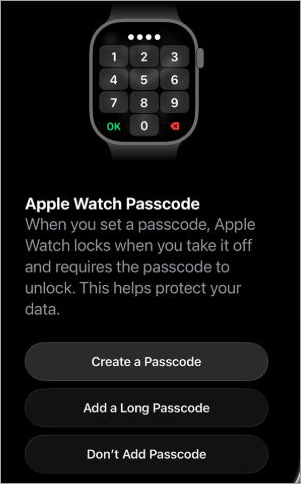
g) Finally, you’ll be required to create a passcode. You can skip this step.
You’ll now have to perform some basic setup configurations. You can skip this step as well by tapping on the “Set Up Later in the Apple Watch App” option.
Note: The restore to backup option will only be available to you if you have created an iCloud backup of your device previously.
#3) Update Apple WatchOS
It is important to always update your Apple Watch, regardless of whether your touchscreen is working or not. New updates bring new security features that easily get rid of bugs and glitches affecting your device. Updating an Apple Watch’s OS is simple.
Here’s how you do it:
Without iPhone
a) Go to Settings on your Apple Watch.
b) Select “General”.
c) Under General, find and tap on “Software Update”.
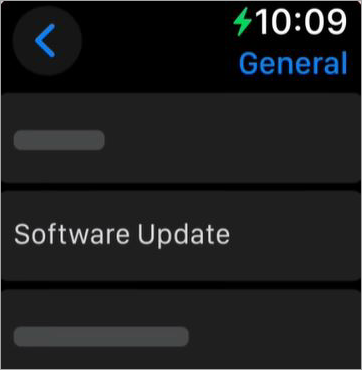
d) If an OS update is available, you’ll see it here. Simply tap on Install.
e) Now, just follow the instructions to install the update.
With iPhone
a) Make sure the iPhone paired to your Watch is running on iOS 26. Also, make sure it is at least 50% charged.
b) Now, open the Watch app on the phone.
c) Tap on General > Software Update.
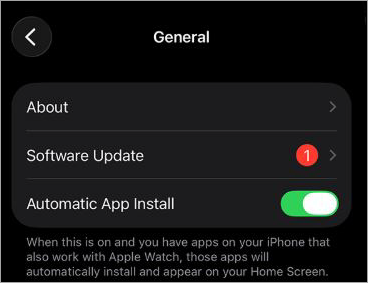
d) Select Install.
e) You may be required to enter a passcode.
f) You’ll also be presented with Terms and Conditions. Just tap on “Agree”.
g) A progress wheel will be on your watch’s screen. Just wait and don’t do anything until the wheel disappears.
h) The watch will restart automatically when the update is complete. Your iPhone will notify you of the update.
#4) Factory Reset
This is a measure I suggest you only take when everything else fails. A factory reset means all of your watch’s settings, apps, and data will be erased. This should resolve any issues your Watch is experiencing.
Here’s how you Factory Reset an Apple Watch:
a) Open Settings on your Watch
b) Go to General > Reset.
c) Tap on Erase All Content and Settings.
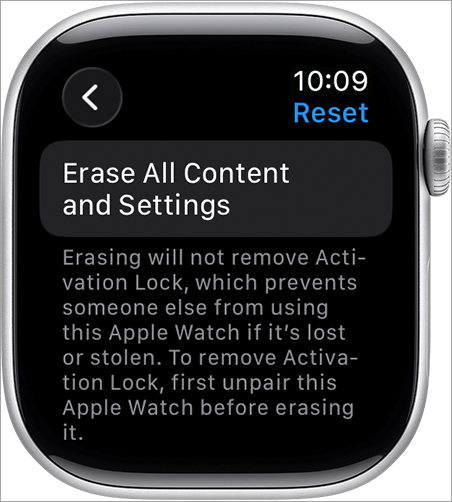
d) Now, enter your Apple Watch passcode to confirm the reset.
Built-In Features to Check When Screen is Not Working
Your Apple Watch comes with many features. If enabled unintentionally, some of them can make you think something’s wrong with your screen. Those features are as follows:
#1) Screen Curtain Feature
This is a privacy feature that works hand in hand with VoiceOver. If enabled, it will turn off your Apple Watch’s screen display. However, your watch remains active.
So, before you try any of the above troubleshooting tips, find out whether the Screen Curtain feature on your watch is enabled.
If it is, turn it off by doing the following:
- Tap the Digital Crown thrice in rapid succession.
- Go to your Apple Watch app on your iPhone, navigate to Accessibility > VoiceOver > Screen Curtain, and disable it.
- Triple-tapping on the screen can also result in this feature turning off.
#2) Power Reserve
Your watch can go into power mode if its battery is low. Alternatively, you can turn it on manually. Whatever the case, your watch will only display time and become unresponsive to user input in this mode.
You can turn off this mode by doing the following:
- Hold the side button for at least 10 seconds to restart the watch.
- Charge the watch to get it out of the mode.
#3) Theatre Mode
Theatre Mode is another feature that can turn your watch’s screen dark. Think of it as your watch’s silent mode. The screen will turn on if you turn the digital crown or tap on it once. It is still best to ensure this mode isn’t switched on unintentionally.
To turn it off, all you need to do is press the side button on your watch and open the Control Centre. Find the comedy/tragedy twin masks. If those masks appear orange, it means that the mode is on.
Simply tap on them to turn the mode off.
Symptom-Based Scenarios
Enlisted below are some symptom-based scenarios when the Apple Watch screen is not working.
#1) Apple Watch Screen Black but Vibrates
If you see a black screen on your watch, but it is still vibrating, then the issue is probably not that serious. A black-screened Apple watch that still vibrates could mean that the theater mode on that watch is on. Turn it off.
This scenario could also mean that your screen’s brightness is too dim. Try adjusting your screen’s brightness from your watch’s Display and Brightness settings.
If the issue persists, try to force restart your watch. I’ve already discussed how you force-reboot an Apple Watch above. If none of these methods work, I would suggest unpairing and re-pairing the watch with your iPhone.
#2) Apple Watch Won’t Turn on After Charging
A fully charged Apple Watch should respond to you instantly. If it isn’t working, try to force-reboot your Apple Watch. If that doesn’t work, try pressing the Digital Crown and the side button multiple times in rapid succession. This should give your device the jolt it needs to work again.
#3) Apple Watch Stuck on Apple Logo
One could attribute multiple reasons for this issue. It could be due to a drained battery or a stuck button. It could also be because your watch is in the Power Reserve mode.
Make sure your watch is fully charged, and its buttons are in good condition. Then, try to either force-reboot the watch or press the digital crown and side button multiple times rapidly.
#4) Apple Watch Screen Flickering or Glitching
A glitching or flickering issue can be fixed by force-rebooting the watch or re-pairing it with your iPhone. Another thing you can do is drain the watch’s battery completely and charge it again. Also, make sure your watch is updated. Most updates can fix bugs that cause glitches.
A flickering screen, especially one that flashes colours, can be a serious problem. It could mean your screen or sensor is damaged. So, try to first use the troubleshooting tips I’ve suggested. If none of those steps work, it is time to call a professional to fix the watch.
When to Contact Apple Support?
If you’ve exhausted all the tips I’ve suggested above, then the problem is serious and demands expert intervention. This is when you’ll need to reach out to the Apple customer support team. If the problem is related to the device’s software, then they may walk you through the troubleshooting process on the phone.
However, if the problem is with the device’s hardware, you’ll need to send the device for servicing. You could raise the issue via the Apple support app. Help will be provided to you via chat or call.
Touch Screen on Apple Watch Not Working: Preventive Measures
The most effective “Apple Watch Black Screen of Death fix” is prevention. Prevention is better than a cure. You won’t have to go through this frustrating problem if you know how to take care of your Apple Watch.
Here are some suggestions:
- Update your Watch regularly. A quick update can resolve any bugs or glitches affecting your device.
- Clean your Watch’s screen regularly, preferably with a lint-free, clean cloth. Keep your watch dirt and moisture-free.
- Use a good-quality screen protector that fits your Apple Watch well.
- Ensure your fingers are clean before touching the Apple screen.
- Do not swim with your Apple Watch or submerge it in water. Your device is water-resistant, not waterproof.
- Check your device’s battery. If you notice a swollen battery, replace it immediately.
- Do not subject your Watch’s touchscreen to excessive force.
Frequently Asked Questions
1. How do I fix an unresponsive Apple Watch screen?
Here are measures you can take as an effective Apple Watch Black Screen of Death fix:
• Replace the screen protector
• Wipe the touch screen clean.
• Update WatchOS
• Force shut down the affected app
• Resync the watch with the iPhone.
• Factory reset Apple Watch.
2. How do I know if my Apple Watch screen is broken?
You can tell whether your Apple Watch screen is broken by noticing cracks and chips on it. An unresponsive screen, discoloration, or a distorted display are other signs that obviously indicate a damaged Apple Watch screen.
3. What is the lifespan of an Apple Watch?
An Apple Watch can last you a good 3-5 years. Those who take good care of their watch, update it regularly, and do not subject it to excessive force can use the watch for more than 6 years. The health of your device’s battery and your usage will largely determine an Apple Watch’s lifespan.
4. How do I unfreeze an Apple Watch?
Force restarting your Apple Watch is the best and quickest way to unfreeze an app. To make sure your Apple Watch never freezes again, I also suggest keeping it up-to-date with the latest WatchOS.
5. How to fix the “Apple Watch screen not working but vibrates” issue?
This issue likely occurs because of a problem with your display or because of a software bug/glitch. First, try to force restart your watch. Try to unpair or repair your device. Finally, try to update your WatchOS via the paired iPhone.
6. Is the Apple Black Screen of Death fixable?
Yes, the Apple Black Screen of Death is usually a fixable issue, and you can employ any of the above troubleshooting tips I’ve provided to take care of it. That said, this issue could also be a sign of something serious. If that is the case, you’ll need to have the watch supervised by an Apple technician or replace it entirely.
Conclusion
I am a fan of Apple Watches. I’ve had a version of them since they were first launched. I consider them my prized possessions. So, it can be frustrating when its touchscreen doesn’t function as it should. As frustrating as this issue is, it is usually not that serious.
Something as simple as wiping your touchscreen with a clean cloth, a forced reboot, or an update can fix the problem.
So, before you decide to contact support or throw out your watch in rage. Take a deep breath, go through the Apple Watch Black Screen of Death fixing tips I’ve laid out in this article, and try them one by one. Surely, one of them will do the trick for you. If not, try reaching out to Apple’s support and pray to God that they can fix it.
Research Process: The total time involved to complete and publish this article is approximately 42 hours. This content was created through a structured research approach to ensure accuracy and reliability.
For more Watch-related guides, check our range of tutorials below:
- The Top 20+ Apple Watch Apps (Latest Top Sellers)
- How to Fix Apple Watch Won’t Charge
- How to Ping iPhone from Apple Watch and Vice Versa
- 10 Best Smartwatches in India (Bestsellers)
- The 12 Best Smartwatches To Monitor Health And Fitness
- The 12 Best Fitbit for Men estseller Smart Watches)
- The 16 Best Android Smartwatches (Review & Comparison)
Was this helpful?
Recommended Reading
-

Failing to keep track of your health and physical condition daily? Read this review to compare and select the Best Fitbit for Men: Are you thinking about a device that will do the health and activity tracking job easily for you? It's time to switch over to the best Fitbit…
-
This is an in-depth review and comparison of the top Smartwatches. Take a closer look and choose the best smartwatch to track your fitness: Do you want to keep a constant update on your health and fitness? If you have a smartwatch, you can do it by just staying at…
-
Review and comparison of the top smartwatches in India with technical specifications and prices for you to choose from the best smartwatches available: Are you willing to keep a tab on your health while working? Bring in the best smartwatches and make our daily life simple. This interesting guide will…
-
Are you willing to keep track of your health and fitness needs? Read this review to compare and select the best Fitbit Watches for Women: Going to the doctor every week is never an easy thing to ask for. So why not keep a fitness tracker that does the job…


