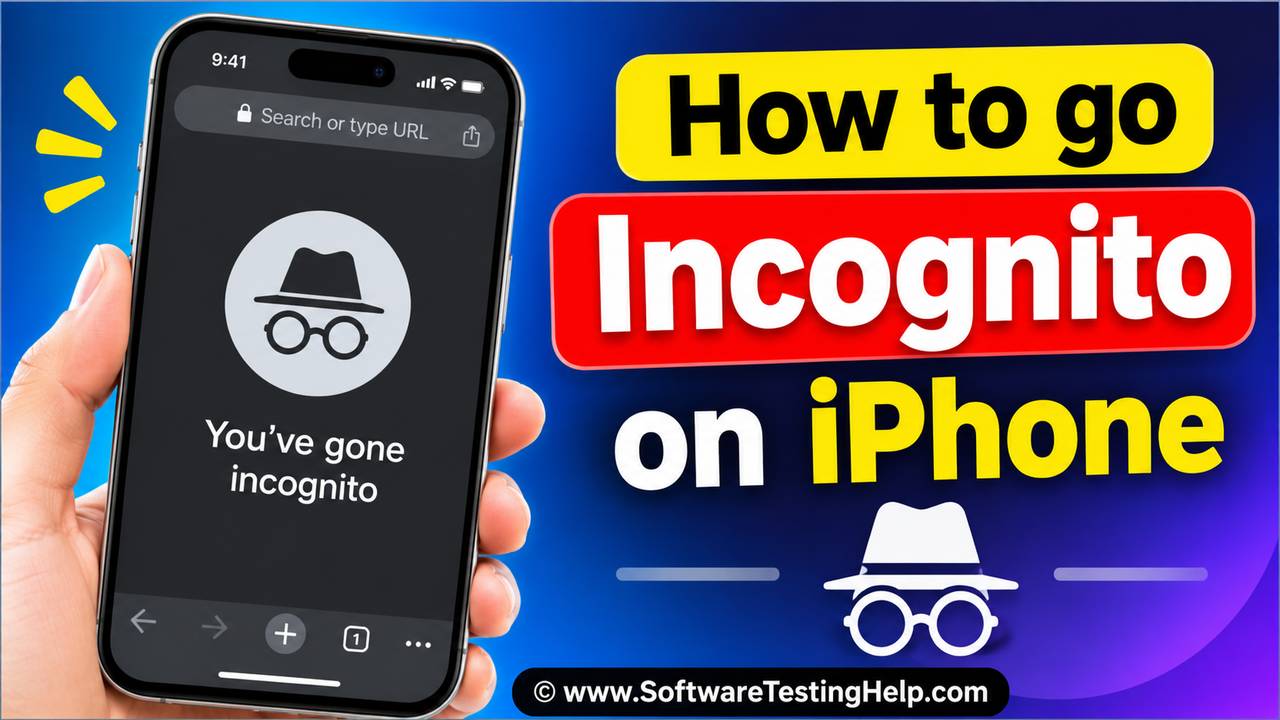
Browse privately on Safari or Chrome without saving history on iPhone. Follow our quick private browsing guide to learn how to go Incognito mode on iPhone to keep your searches hidden:
Incognito mode (or Private Browsing) is used for browsing the internet while making sure no browsing history is saved. Plus, it doesn’t save website cookies on your phone, thus saving you from being tracked (to some extent).
If you are a new iPhone user and you want to go incognito while using the Safari browser, but can’t find the feature anywhere, then let me tell you: incognito mode is available under the name ‘Private Browsing’ on the iPhone’s Safari browser.
Incognito Mode iPhone: Quick Private Browsing Guide
Private Browsing (or Incognito) mode gives its users the following benefits:
- No browsing history is saved.
- You can log in to a website with different usernames without having to log out.
- No cookies are saved on your phone after you close the private tabs.
- The websites you visited earlier will see you as a new user.
Smartphone users must be aware that even if they go incognito, the websites they visit can still track your IP address. For better privacy, use a VPN, an Advanced Tracking & Fingerprinting Protection tool (available on iPhones), or other security tools.
In this article, we have provided step-by-step guidance on how to go incognito on an iPhone, how to exit incognito mode on an iPhone, what additional features you can use to get maximum security, and much more.
How to Go Incognito on iPhone on Various Browsers
| Safari | Long press the Safari icon on your Home Screen ➡️ select New Private Tab |
| Chrome | Long-press the Chrome icon on your Home Screen ➡️ select Incognito search |
| Firefox | Open Firefox ➡️ Tap on the Mask icon |
| DuckDuckGo | DuckDuckGo is a Private Browser by default. It doesn’t save your browser history. While browsing, you can just press the Fire icon to instantly clear the session data. |
| Brave | Open Brave browser ➡️ Tabs icon ➡️ Private tab ➡️ + |
What is Private Browsing on an iPhone?
The popular incognito feature available on Google Chrome is known by different names on other browsers. On iPhone’s Safari browser, it’s available under the name Private Browsing.
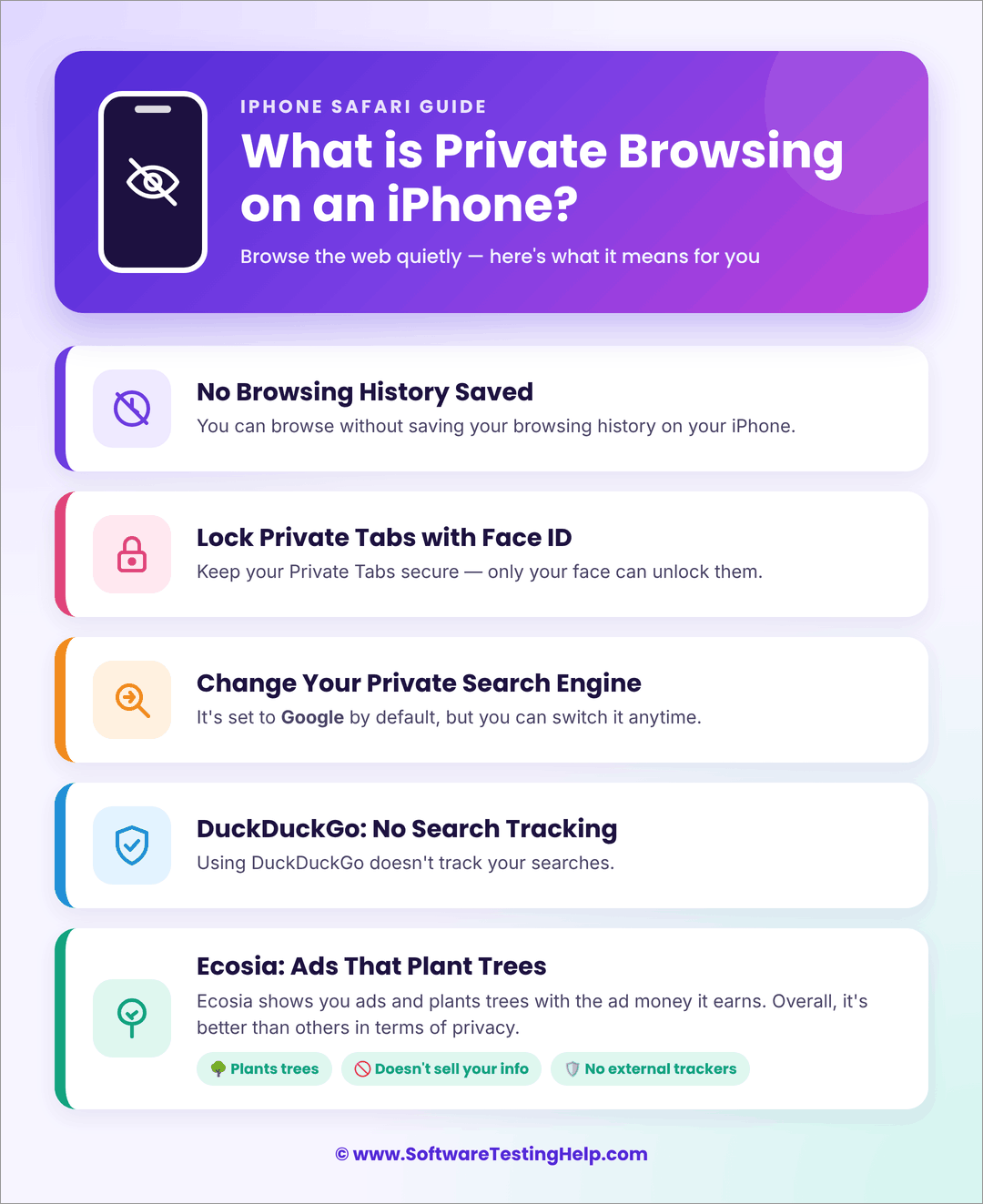
iPhone’s Private Browsing means:
- You can browse without saving your browsing history.
- You can lock your Private Tabs with Face ID.
- You can change your Private Search Engine, which is set to Google by default.
- Using DuckDuckGo doesn’t track your searches.
- Ecosia browser shows you ads and plants trees with the ad money it gets. Plus, it doesn’t sell your information to third parties, does not use external trackers, and is overall better than others in terms of privacy.
You can change the Search Engine (or Private Search Engine) on your iPhone using these steps:
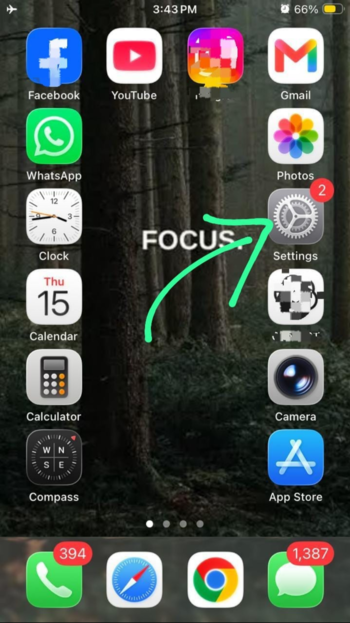
- Go to Settings
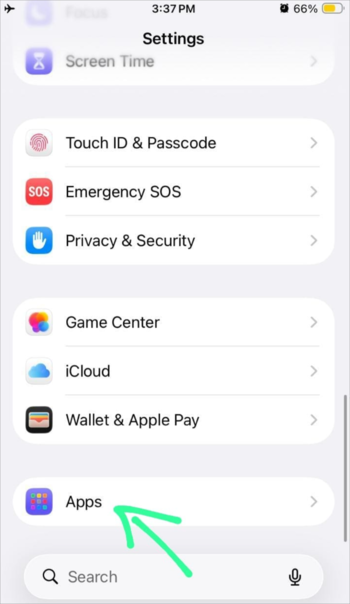
- Select Apps
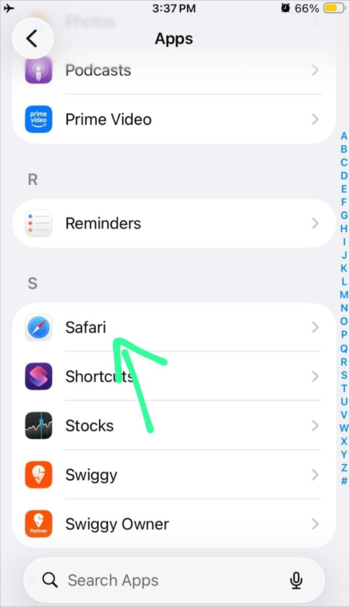
- Tap on Safari
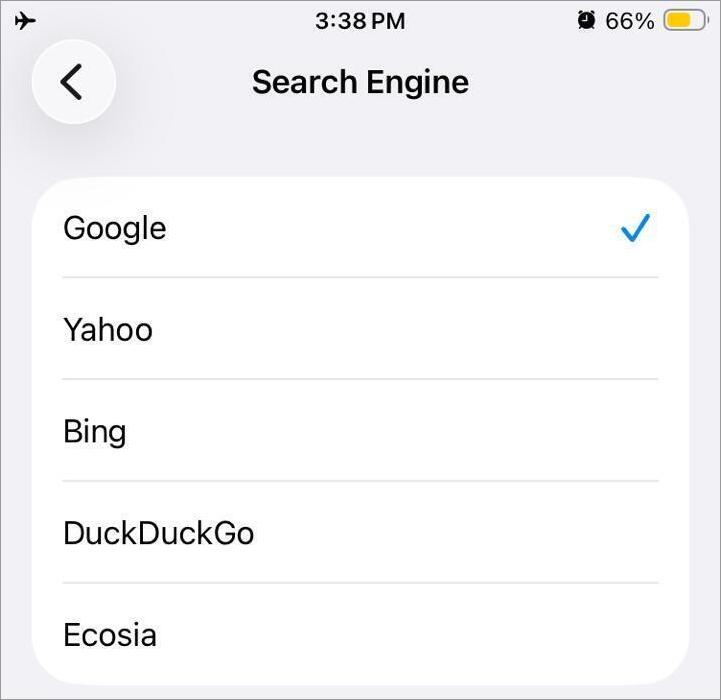
- Select Search Engine
- Now choose any of the available 5 search engines for your Safari browser.
- Press the Back button
- Toggle on Also Use in Private Browsing
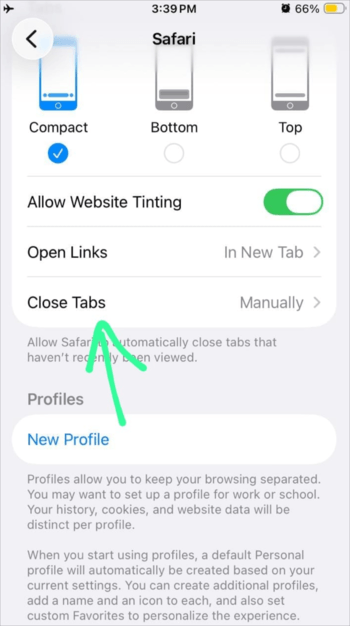
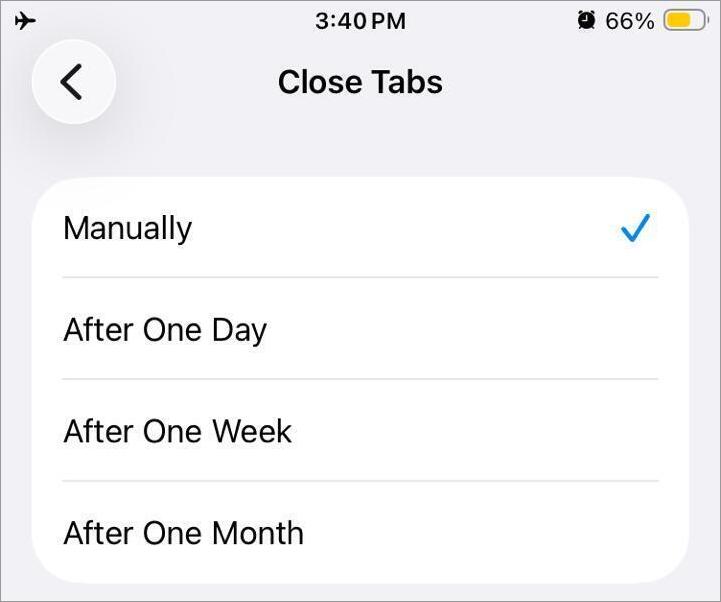
- You can choose to automatically close the Private tabs after One Day / Week / Month.
Change this setting by following these steps:
- Go to Settings
- Select Apps
- Go to Safari
- Choose Close Tabs
- Now choose After One Day / Week / Month.
- The iCloud Private Relay feature is iPhone’s built-in VPN. It hides your IP address from the websites you visit.
You can enable this feature using these steps:
- Go to Settings
- Tap on your name
- Choose iCloud
- Tap on Private Relay
- Turn it ON.
How to Go Incognito on iPhone
If you are looking for the steps for ‘How to turn on Incognito mode on iPhone’, then here you go:
In Safari
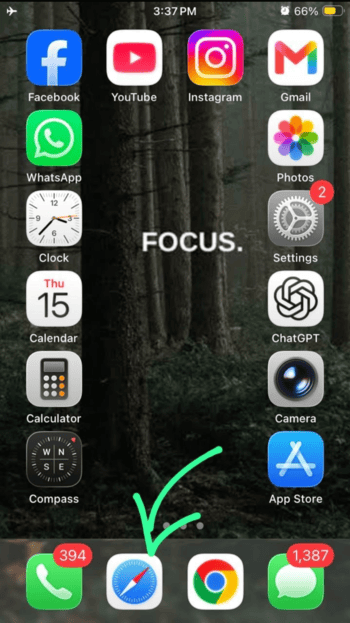
- Open the Safari browser
- Tap on Private
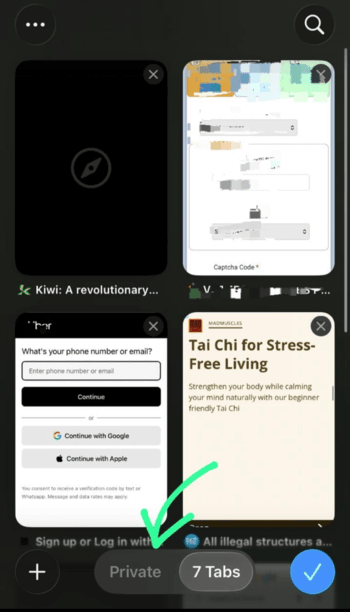
- Now tap on the + icon to open a new private tab.
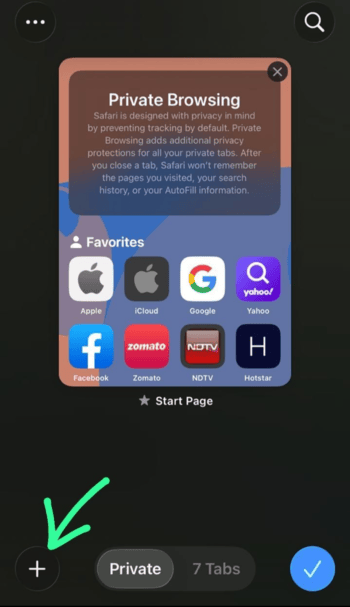
- Private mode will be enabled. You will see that the Safari address bar turns black (or dark) in Private mode and remains white (or gray) when it’s off.
Faster method to go incognito on Safari while browsing: While browsing on Safari, press the Tabs icon (2 overlapping boxes) for 2-3 seconds, and then select New Private Tab. Safari will now switch to Private mode.
Users can switch to Private mode for browsing even from their Home Screen.
That’s another way to open Safari in Private mode:
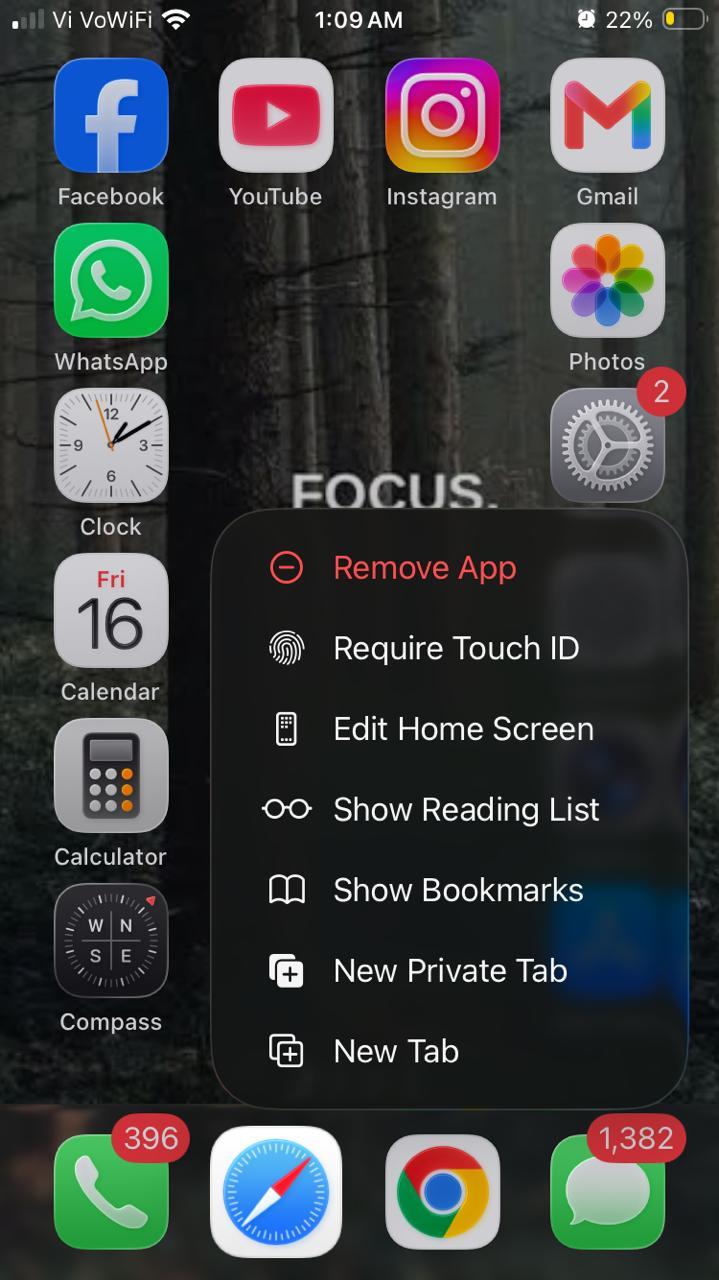
- Find the Safari icon on your iPhone’s home screen and press the icon for 2-3 seconds
- Tap on New Private Tab
In Chrome
Here are the steps for ‘how to go incognito on iPhone Google Chrome’.
- Open Chrome
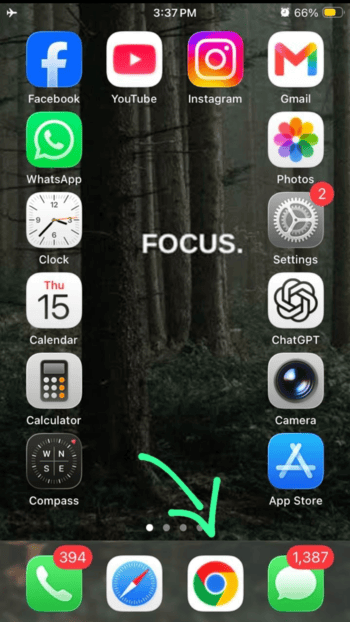
- Now tap on the Incognito option.
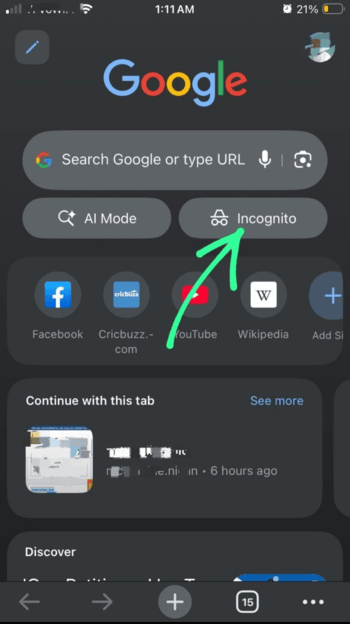
- The Incognito mode will now be enabled, and your screen will look like this.
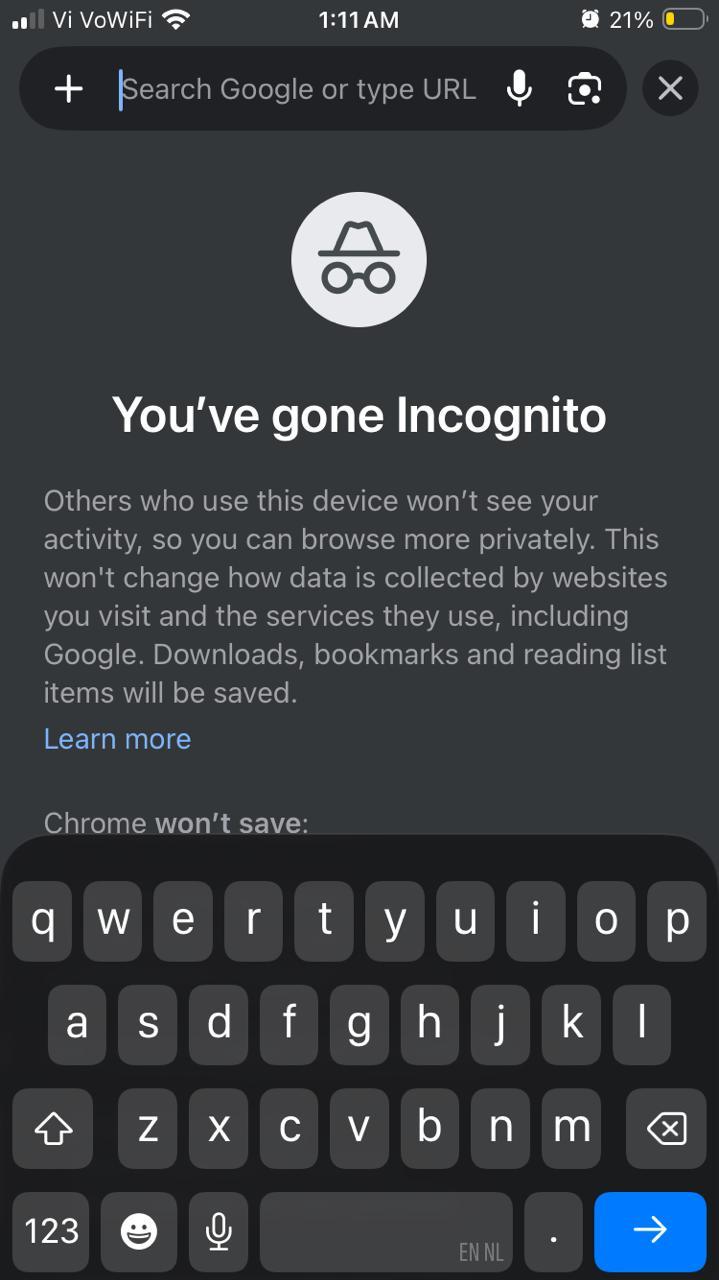
Here’s another way to go incognito on Chrome:
- Find the Chrome icon on your iPhone screen and press it for 2-3 seconds.
- Now tap on the Incognito search option.
How to Lock Your Private Tabs With Face ID or Passcode
This can be done with the following steps:
- Go to Settings
- Select Apps
- Choose Safari
- Now enable: Require Face ID to Unlock Private Browsing
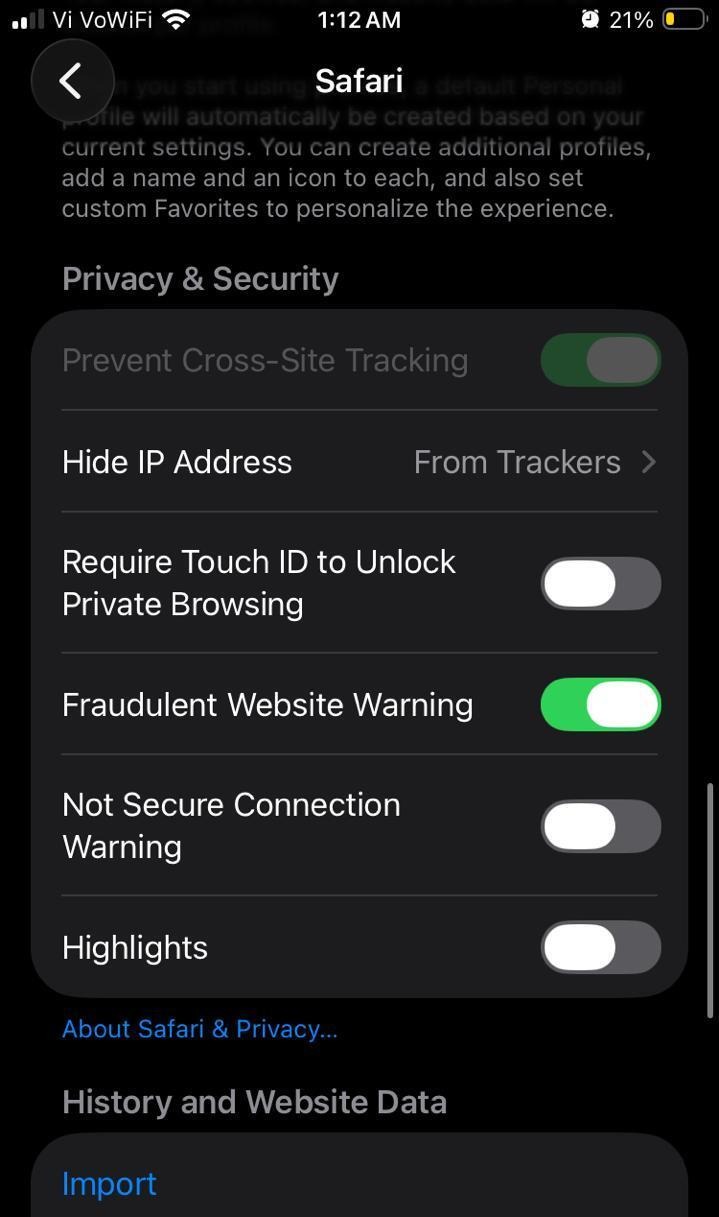
When you have done your browsing, you may feel stuck in Private mode if you are a new user because, unlike Google Chrome, Private Browsing in Safari doesn’t get automatically turned off unless you close all tabs. Here is the guide for ‘how to go off incognito on iPhone’.
How to Turn off Private Mode on iPhone
Here are the quick steps to turn off Private Mode in Safari or Chrome browsers.
In Safari
- While you are browsing in Private mode, tap on the 3-dot icon.
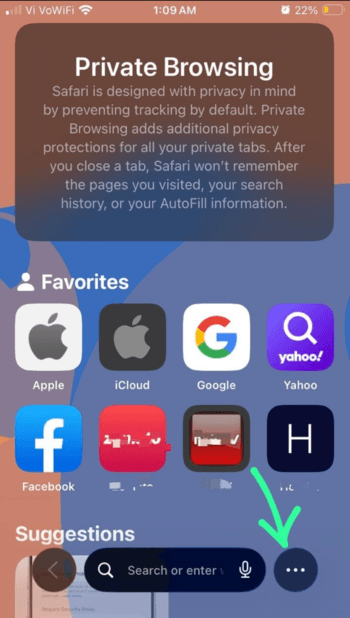
- Now tap on All Tabs
- Tap on Start Page
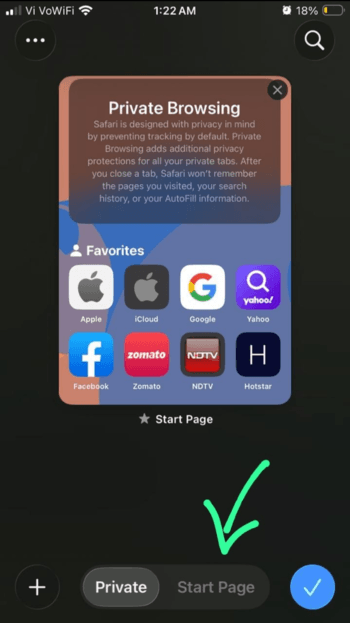
- Tap on the Tick icon.
- This way, you will move to Normal browsing mode.
Now, to delete the history of Private Browsing properly, you will need to close all tabs, and here are the steps for doing so:
- Tap on the 3-dot menu icon
- Select All Tabs
- Tap on Private
- Close the tabs (by tapping on the X icon on each tab).
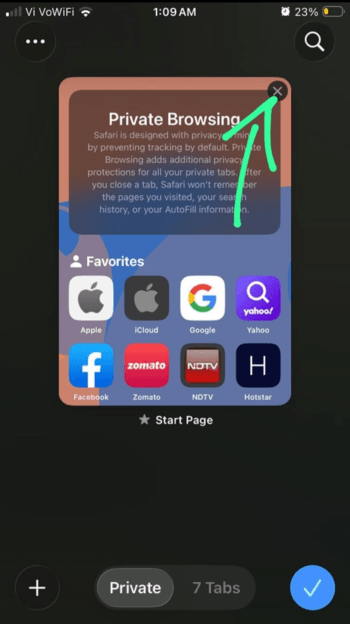
- Tap on Start Page (or 7 Tabs – this denotes the number of tabs open in the Normal Browsing mode).
In Chrome
- While you are using Chrome in Incognito mode, tap on the 3-dot menu icon.
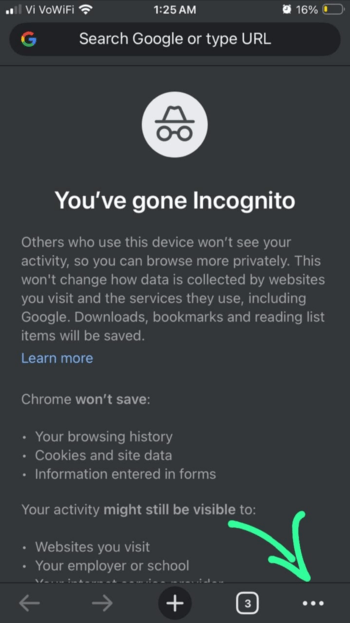
- Select New Tab
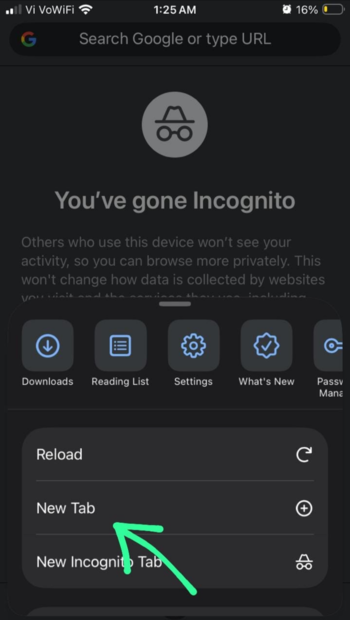
- This will close Private mode and will open a New Tab in Normal Browsing mode.
Another method to exit Incognito mode on iPhone Chrome is to exit Chrome and then close the app from App Switcher.
Can You Make Private Browsing Default on iPhone?
As of yet, iPhones do not have the feature to set Private Browsing as default.
But if you leave Safari without switching off Private mode, then when you open Safari next time, it will open in Private mode. But the Private Tabs will be locked with Face ID or passcode (if the feature is enabled).
Going Incognito on iPhone: Troubleshooting Common Issues
Here are some of the common troubleshooting issues to be followed while going incognito on iPhone.
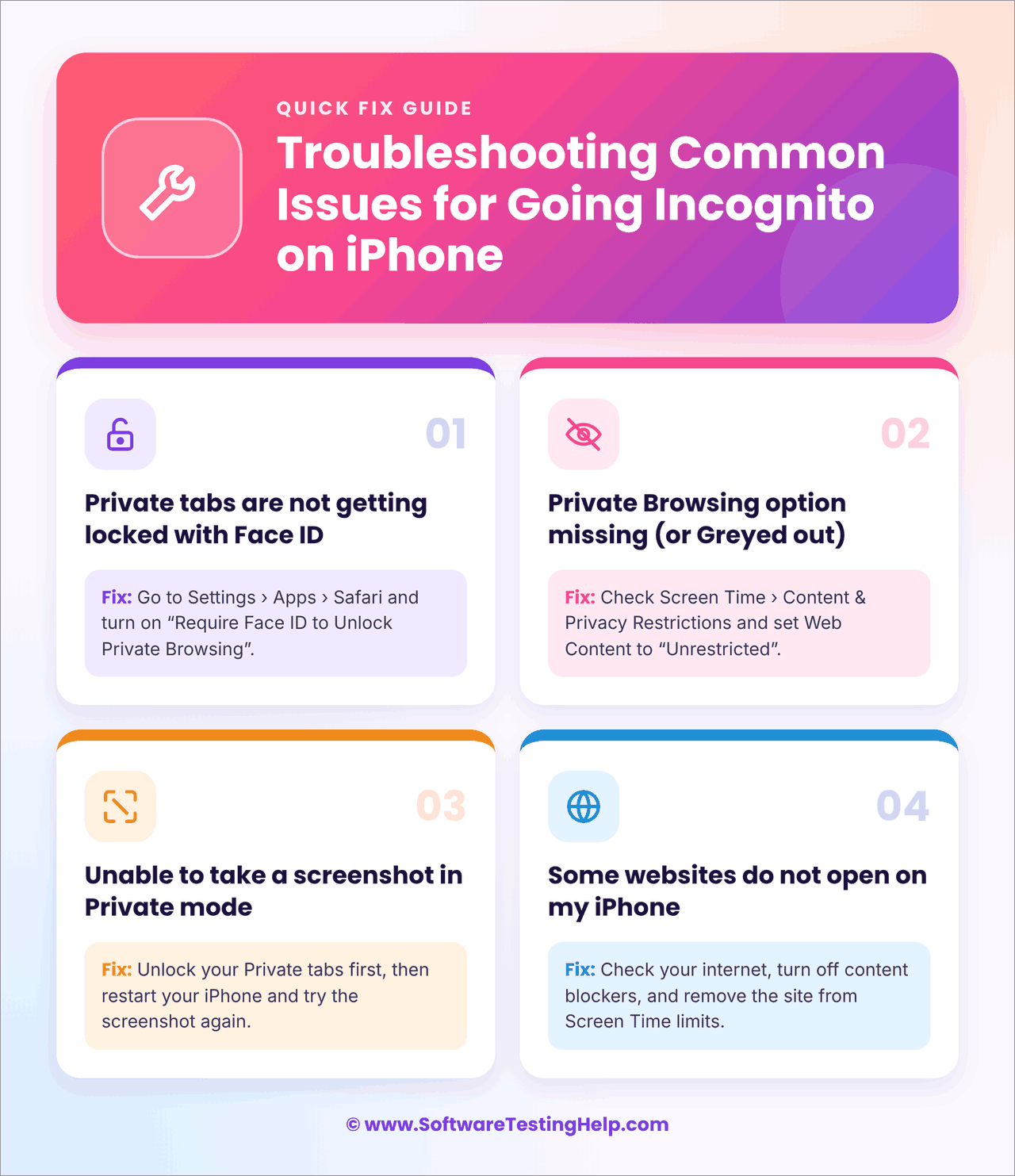
#1) Private Tabs Not Getting Locked With Face ID
iPhone users can lock Private Tabs with Face ID. But if you quickly switch between apps, then your private tabs won’t get locked. The feature locks the Private tabs only when you leave Safari for a while.
So if you are wondering why the Private tabs are not getting locked with Face ID, I would say it would most probably be because you are switching between apps too quickly.
#2) Private Browsing Option Missing (or Greyed out)
This will most probably happen because of the Content and Privacy Restrictions setting. If you have enabled the Limit Adult Websites setting, then it will hinder Private Browsing.
You can change the setting using these steps:
- On your iPhone, go to Settings.
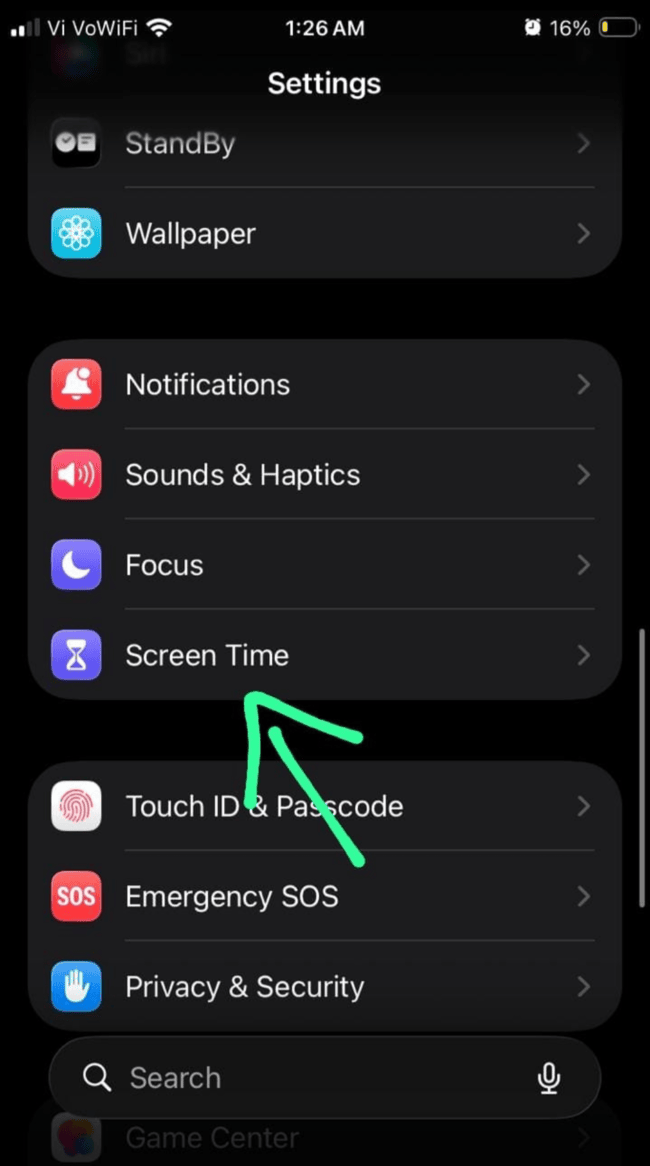
- Select Screen Time
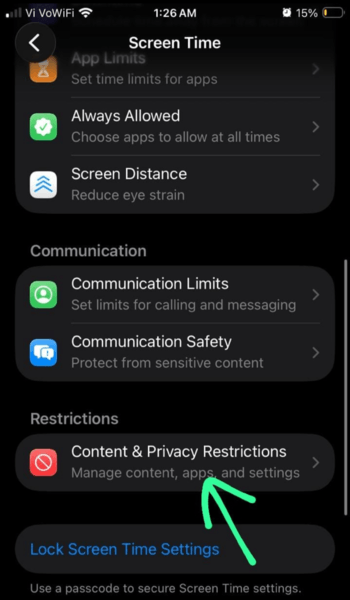
- Now go to Content & Privacy Restrictions
- Choose App Store, Media, Web & Games (or Content Restrictions)
- Go to Web Content
- Select Unrestricted.
Moreover, if Safari is not allowed in the Content & Privacy Restrictions settings, then change the setting to allow it:
- Go to Settings
- Select Screen Time
- Tap on Content & Privacy Restrictions
- You can either turn Content & Privacy Restrictions off, or go to Allowed Apps and enable Safari (if Content & Privacy Restrictions is enabled).
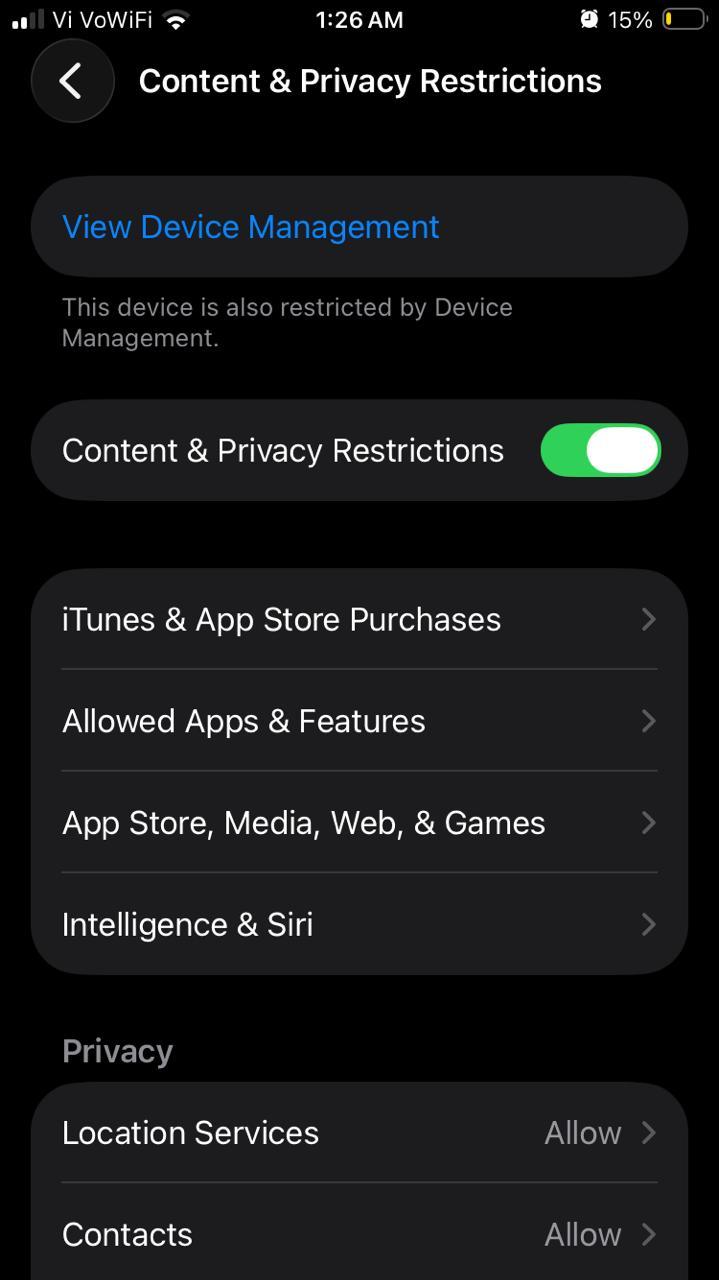
This will fix Private Browsing.
#3) Unable to Take a Screenshot in Private Mode
Most of the iPhone users are unaware of the fact that, if you are browsing in Private mode and you have enabled the Face ID lock feature for Private tabs, then you won’t be able to take screenshots in Private mode.
So, if you are also facing this issue, then turn off the Require Face ID to Unlock Private Browsing feature, so that you can take screenshots in Private mode.
#4) Some Websites Do Not Open on My iPhone
If that’s the case, then I would say the iCloud Private Relay feature would be the cause, because the feature is like a VPN, and with this feature turned on, the websites won’t be able to detect your exact location. And ultimately, you will be blocked. Plus, many of the government sites and bank websites do not work when you use a VPN.
You can turn this feature off using these steps:
- Go to Settings
- Tap on your name
- Tap on iCloud
- Select Private Relay
- Turn it off
Or, you can turn off the Hide IP address feature for one specific website using these steps:
- When a website doesn’t load in Private Browsing, tap on the aA icon
- Tap on Manage Website Settings (or Privacy Settings)
- Turn off the Hide IP address feature.
Summary of Enhanced Private Browsing Feature
Over the years, iPhones’ Private Browsing has advanced from just ‘not saving the browsing history’ to advanced protection tools like:
- Protection from Link Trackers: You may not be aware that some links contain tracking codes like fbclid or gclid. If you open links containing such trackers using Safari, then Safari will automatically remove the tracking parts from the URL, so that the website you are visiting won’t be able to track you.
- Advanced Fingerprinting Protection: This is a great enhancement in Safari Private Browsing. Websites that try to identify you using your details like GPU, fonts, screen size, etc., can no longer track your details. This feature is enabled on iOS 26 devices by default.
- Blocks Extensions that track your history: During Private mode, the extensions that can read your website data and history are also blocked automatically.
Hence, Safari browsing has enhanced its capabilities in order to provide its users with advanced privacy tools, so that they can’t be tracked.
Users may look for more Browser features like ad-blocking, email protection, and more. For this purpose, they can switch to a Private Browser.
Best Private Browsers for iPhone
Many private browsers can be used for their awesome benefits, for example:
- Ghostery Private Browser: It is a free app (with in-app purchases) that blocks all ads, trackers and pop-ups on Safari. It has over 100 million downloads and a 4.3/5 star rating on the App Store.
- DuckDuckGo: This browser has a search engine, and whatever you browse on it remains untracked. Plus, it offers email protection, ad blocker, and more useful privacy tools.
- Brave: This privacy browser offers tools like Voice-to-text search, Face ID locking, blocking ads and trackers, a secure VPN, and an AI assistant. It is quite a popular browser with 4.7/5 star ratings on the App Store and more than 125 million users.
These browsers cover up many of the limitations of the iOS browser:
- Private browsing in Safari does not save your browsing history, which is good for safeguarding your personal browsing data from people you live with (who can take your phone and go through your history), or from those with whom your device is in sync. But it still has a drawback – the websites you visit can still access your IP address and can track your activities. This limitation can be tackled with the help of one of the privacy browsers stated above.
- There is no ad blocker on Safari.
- Your internet service provider or your organisation would still be able to see your browsing data even if you browse in Private mode.
So, if you use the Safari browser, here is a list of additional privacy tips that can be used for enhancing security:
- You can use a VPN to protect your privacy. iPhones have a feature named Private Relay that works as a VPN, but you must have an iCloud+ subscription to use it. If you don’t want to buy the subscription, you can use a free VPN for the security of your data.
- Use the Hide IP address feature that comes built-in in iOS 15 and later versions.
- You can apply the Advanced Tracking & Fingerprinting Protection setting so that websites can’t track your device model and other details. This setting is enabled this way: Go to Settings > Apps > Safari > Advanced > Advanced Tracking and Fingerprinting Protection > Turn it ON. (This feature is applied by default to all browsing on iOS 26. In earlier versions, it was available for Private Browsing only).
- You can use a privacy app like Ghostery that blocks ads, pop-ups, and trackers while you browse on Safari.
Frequently Asked Questions
1. Is incognito mode on the iPhone really private?
Incognito mode on iPhones can save you from unwanted access to your browsing history. But the websites you visit can still track you, and you will still see ads. Using the Private Relay feature or a VPN is suggested for advanced privacy. You can use Privacy Browsers like Ghostery Private Browser or Brave or DuckDuckGo for enhanced privacy protection and ad-free browsing.
2. Does incognito save downloads or bookmarks?
Yes. Downloads as well as bookmarks can be saved during Incognito sessions. Only your browsing history won’t be saved.
3. Can I go incognito in other apps like Google or Find My?
Many of the iPhone apps have got incognito feature. For example, you can go incognito on Google, YouTube, Google Maps, Mozilla Firefox, Brave, and Edge.
This means that your search history won’t be saved in these apps if you use them in incognito. But the Find My app does not have incognito mode. You can only pause sharing your location on the Find My app, and the other person would be notified when you stop sharing your location.
4. Does Safari Private Browsing sync to iCloud?
No. Safari Private Browsing does not sync to iCloud. If it did, it would give the people with the same iCloud ID access to your browsing history, which is eventually against the concept of Private Browsing.
5. What are the disadvantages of incognito mode?
Incognito mode has the following drawbacks:
• Your IP address will still be visible to the websites you visit
• Your browser history can still be accessed by your internet service provider or your organisation.
• You will still see ads
• Incognito mode does not protect you from cyber fraud.
6. How long does incognito mode last?
There is no time limit for using incognito mode. You can browse in private mode for as long as you want. If you want, you can lock the Private tabs with Face ID, or set a setting to automatically delete all incognito tabs after 1 day / 1 week / 1 month.
Conclusion
Incognito mode is a popular tool for browsing without saving your history.
It is highly useful in situations like:
- You have borrowed someone’s phone, and you want to check your Facebook or Instagram account.
- You fear someone may take your phone and get access to your private information from the browser history.
Many people think that incognito mode saves them from being tracked by websites. But that’s not true. You need to use some additional features like Hide my IP address, iCloud Private Relay, or a Private Browser in order to get the utmost privacy from trackers on Safari.
Research Process: The total time involved to complete and publish this article is approximately 41 hours. This content was created through a structured research approach to ensure accuracy and reliability.
For more-related guides, you can explore our range of tutorials below:
- How to Open Incognito Tab On Different Browsers And OS
- How to Turn Off Incognito Mode on iPhone, Chrome, Android
- How to Turn Off Location on iPhone Without Notifying
- How To Delete Incognito History On Any Browser (Quick Steps)
- Top 10 Private Browsers for iOS & Android [SECURE]
- Most Secure Browsers: Tested and Compared
- Top 10 Private Search Engines: Secure Anonymous Search
Was this helpful?
Recommended Reading
-

Is your Incognito history still showing up? Quickly learn how to delete Incognito history permanently from any browser or device with our complete step-by-step guide: If you want to know how to delete Incognito History, well, you’ve come to the right place. As someone who values his privacy whenever online,…
-
Review this tutorial to learn all about Incognito mode. Learn to Open Incognito Tab on various browsers and different operating systems: Private browsing, or going Incognito, as we know it today, is not a new concept. It has been around since 2005. But it took some time for every browser…
-
Do you want to know how to disable Incognito mode on your device or browser? This step-by-step guide will help you to turn off Incognito mode or private browsing across all major browsers and devices. Incognito Mode is designed to offer private browsing, but there are situations where you may…
-
Compare the top Private Browsers for iOS and Android to identify the best private browsing apps as per the requirements: Private browsing refers to the use of browsers or surfing the web in a way to not get tracked and traced. It erases the history & cookies of the sites…