Are you struggling to connect AirPods to Windows 10 PC or Laptop? Follow our quick guide with troubleshooting tips from experts to pair AirPods to a Windows PC effortlessly in minutes:
When pairing AirPods to your Windows computer, it may not be as simple as with an iOS device. This is because AirPods are specifically designed to work seamlessly with Apple products, including iPhones, MacBooks, and other Apple devices.
But with the Bluetooth feature on this device, it is now very easy to connect AirPods to a Windows system. Connecting AirPods to Windows 10 or 11 PCs is straightforward with these steps, and they can be readily unpaired.
Pair AirPods With PC: Quick Windows 10 Guide
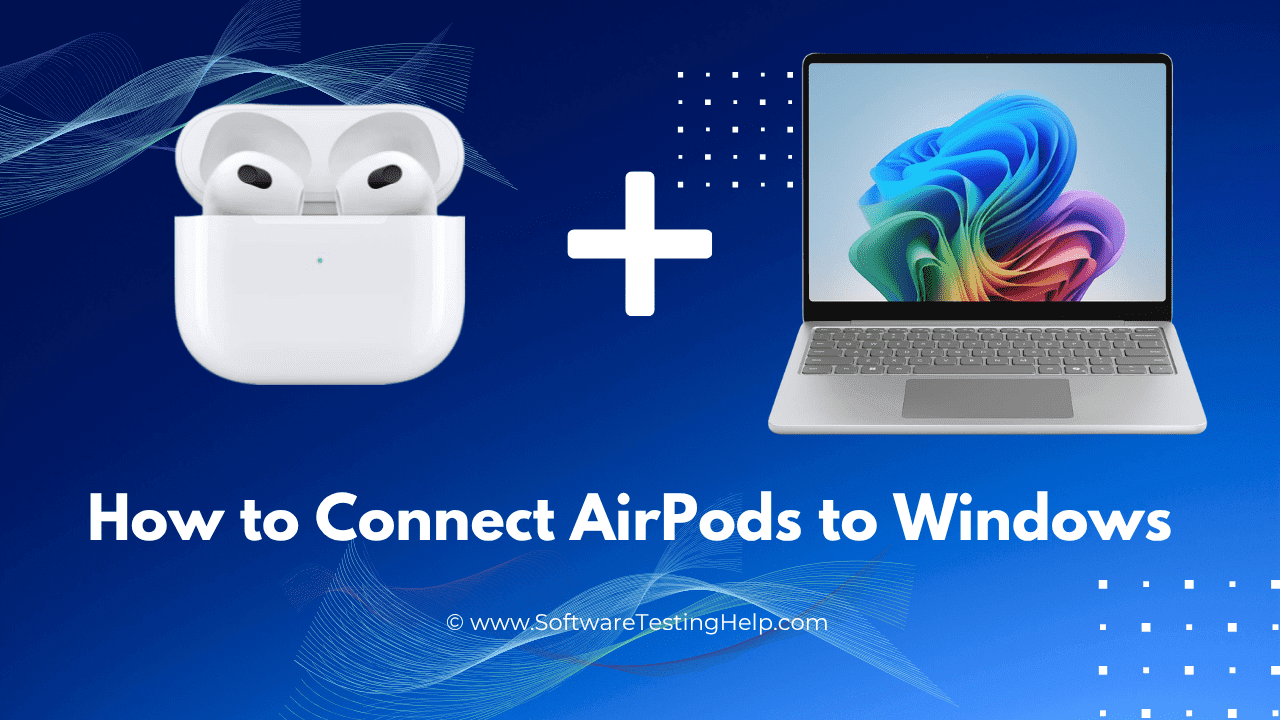
If you want to connect your AirPods to your computer, place them in the case and press and hold the small button on the back of the case until the light starts blinking. If you don’t do this, your AirPods device will not be discovered and displayed in the Add Bluetooth or other device section in your computer’s Bluetooth settings.
Here is a video guide on how to connect AirPods to a Windows PC:
How to Connect AirPods to Windows 10
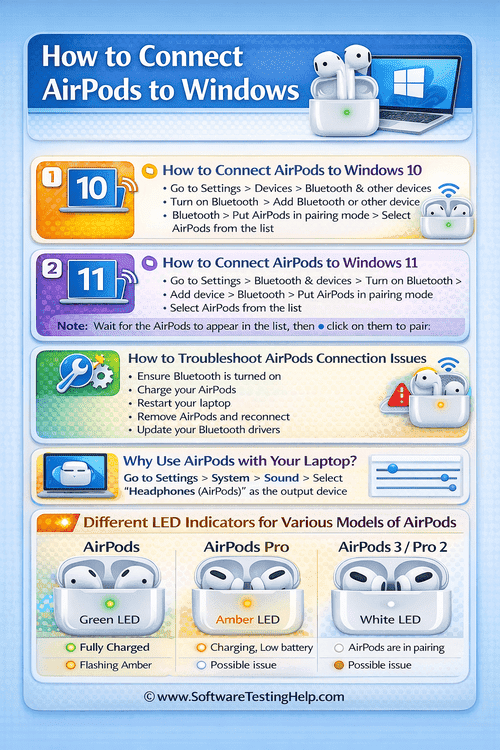
Follow the steps below on how to pair AirPods to Windows 10:
- Place the AirPods in the case and make sure they are charging.
- Open Settings on your computer by typing Settings in the Start menu search box.
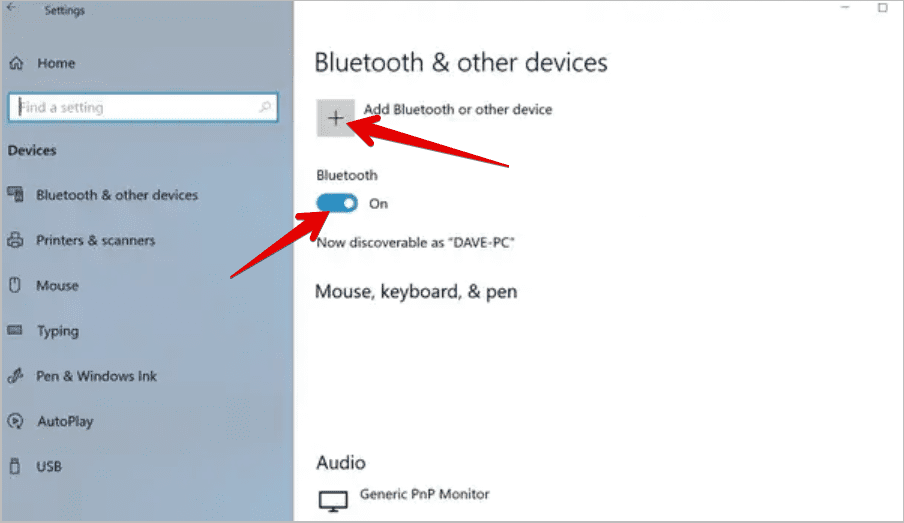
- Ensure your system Bluetooth is toggled ON.
- Click + Add Bluetooth or other device as shown in the image below.
- In the Add a device window, click Bluetooth.
- Open the AirPods case and press and hold the small power button on the back for a few seconds until it blinks.
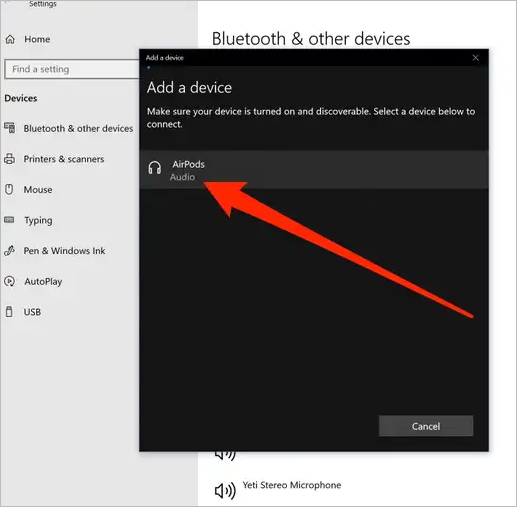
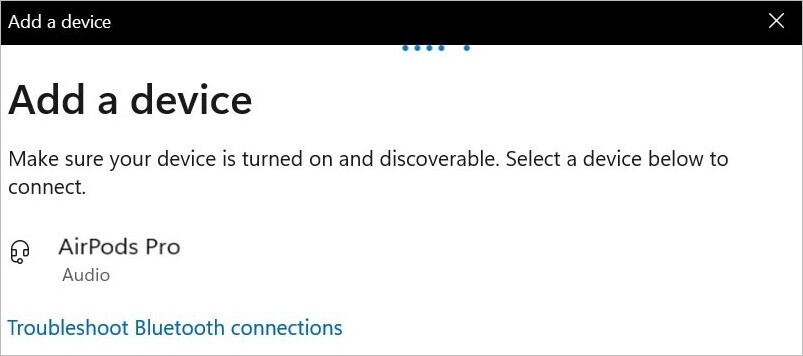
- You notice the AirPods will now appear in the list of devices available for pairing on your PC.
- Click AirPods as depicted below, and you will discover your AirPods connecting to your computer.
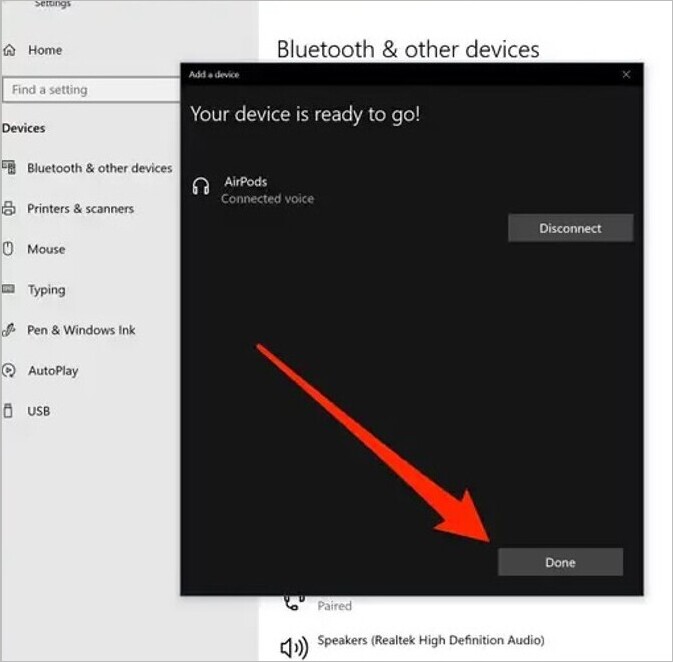
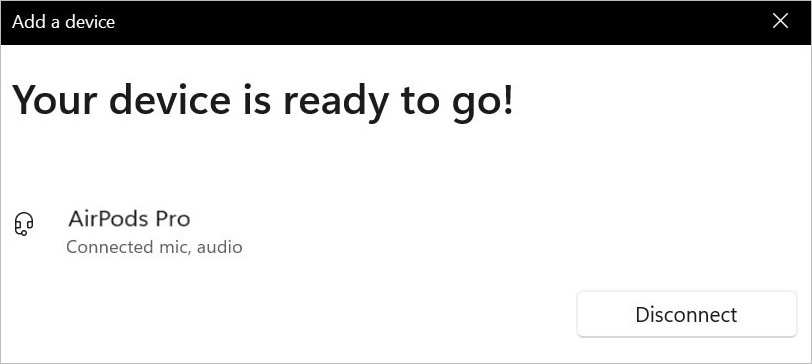
- The next message you will receive is a success message: “Your device is ready to go!”. Click Done as shown below, and you can start listening to sound from your computer via the AirPods.
Steps to Connect AirPods to Windows 11
Follow the steps below on how to pair AirPods to Windows 11:
- Place the AirPods or AirPods Pro in the case and make sure they are charging. To make it discoverable, keep the case’s lid open. On the back of the case, press and hold the Setup button.
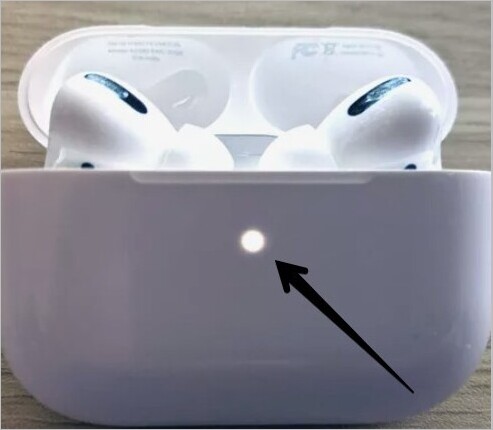
- The light on your AirPods case will flash white as shown below, indicating that the AirPods are ready to pair with your computer.
- Open Settings on your computer by typing Settings in the Start menu search box.
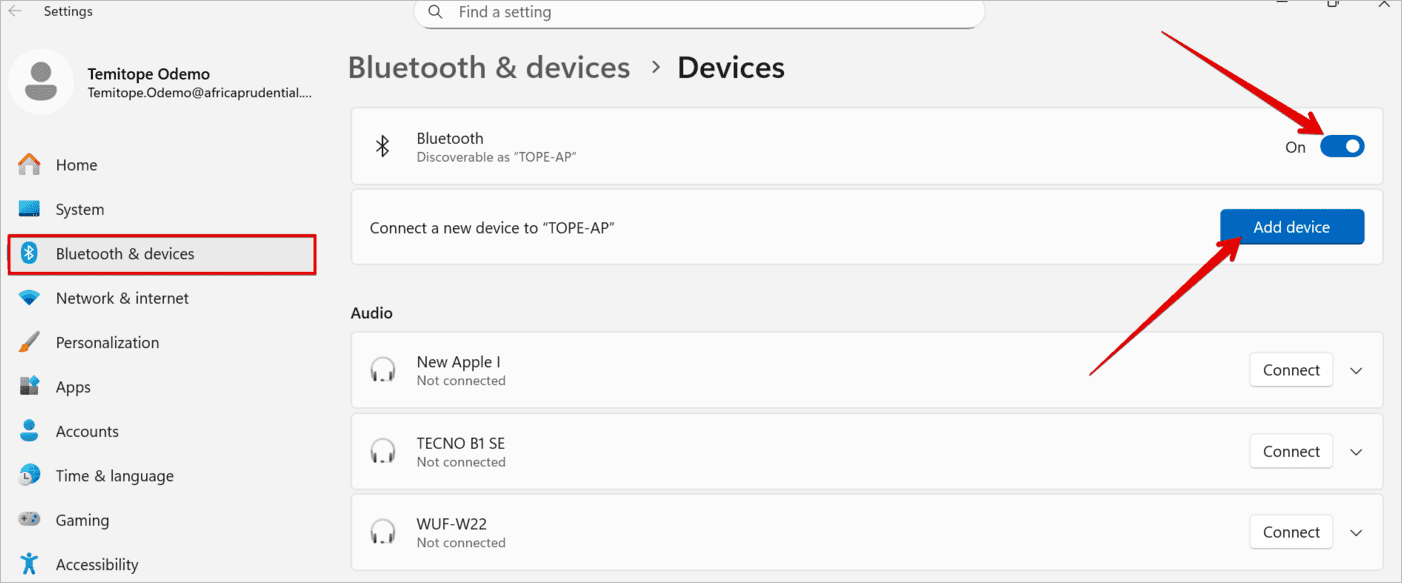
- Click Bluetooth & devices.
- Ensure your system Bluetooth is toggled ON.
- Click the Add device button.
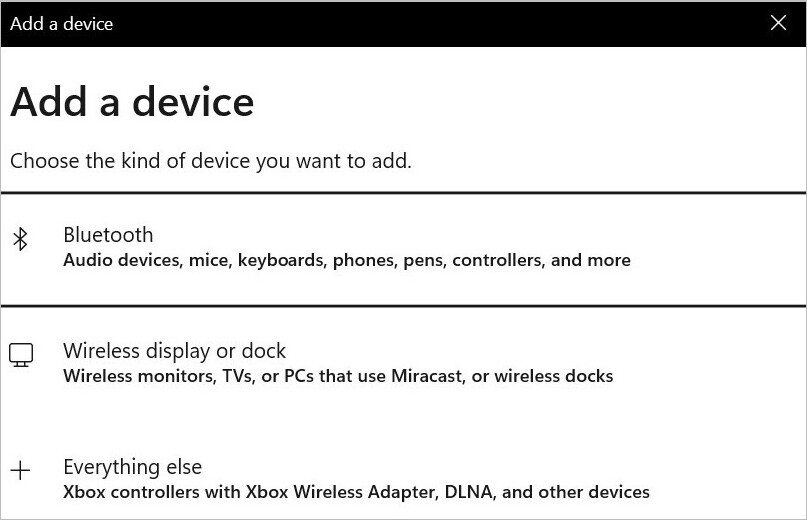
- Under the Add a device section, choose Bluetooth.
- If you turn on your AirPods or AirPods Pro, your computer will discover them and list them among the devices below. Tap on it to connect to the AirPods.
- The next message you will receive is a success message: “Your device is ready to go!”. If you wish to disconnect, you can click Disconnect. If not, click Cancel, and you can start listening to sound from your computer via the AirPods.
AirPods Connection Issues: Troubleshooting Steps
Just as easy as this connection can be, you can easily encounter or face problems connecting your AirPods to your computer.
Follow the steps below to correct the issue:
- Reset the AirPods by holding down the setup button for 5-10 seconds until the white light turns amber.
- In the Bluetooth settings, you can erase the connection by removing the AirPods and trying to add the device to your laptop again. You can also click on the disconnect button and try connecting again.
- Make sure the Bluetooth drivers are updated via Device Manager. Confirm that the Windows OS is fully updated and use the latest Intel or Qualcomm Bluetooth and audio drivers.
- Make sure your laptop has Bluetooth capability and can connect with Bluetooth devices.
- Restart the laptop when you have tried all other options and still not working.
- When Power management settings are affecting connection stability on your Windows system, you may temporarily turn off Bluetooth or USB devices to save power on the system, which usually affects the AirPods’ connection. So what you need to do is to disable Bluetooth Power Saving and USB Power Management.
Why Use AirPods With Your Laptop?
There is usually an argument surrounding whether a wireless or wired network is the best, but in this article, I will state some benefits of connecting AirPods to your laptop.
- It brings convenience to the users because they will not need to carry a wire around.
- All Apple’s audio products are built with highly innovative technology, and AirPods are not an exception, as they give you very good sound quality.
- It is very good for conference meetings organized online and any other virtual meetings or internet calls because of its hands-free nature.
- It has a very long battery life, and you can use it on your laptop for a very long period.
- It is very light and comfortable when you compare it to heavy headsets.
- It is a cross-platform device that can work on any Bluetooth-enabled device.
How to Configure AirPods as the Default Audio Device
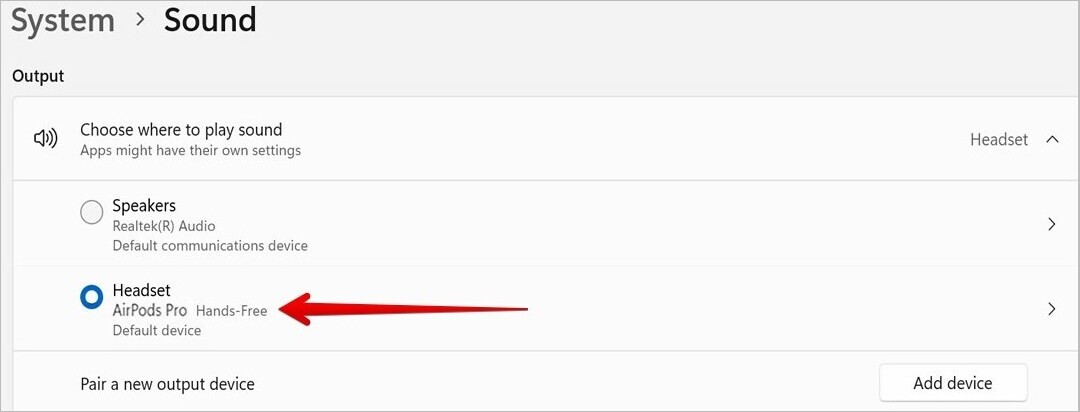
Open your sound settings on Windows and navigate to the Output section, where you choose where to play sound, while the Input section is where you choose a device for speaking or recording.
Given below is an image of the input section in the Sound settings of Windows 10.
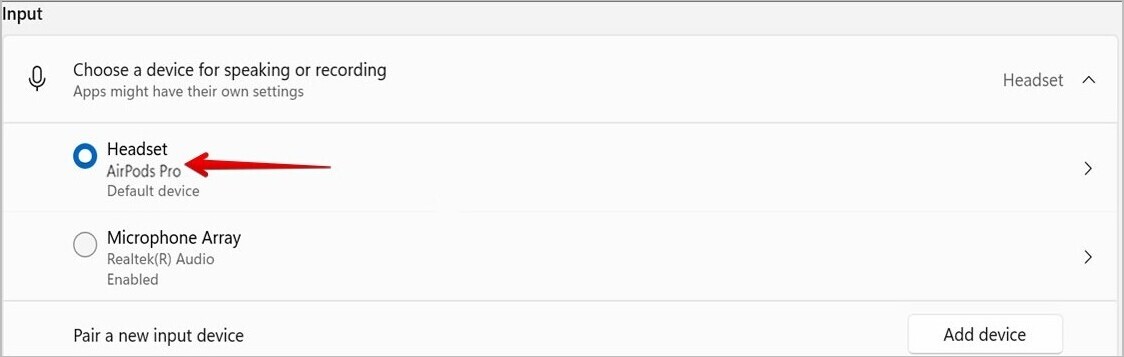
Set the AirPods as the default for both audio output and microphone input. If this is not done, Windows will default to the system’s built-in speakers.
Ways to Disable Hands-Free AG Audio
When your Hands-free AG Audio is enabled, Windows will treat your headset as a microphone with a low-quality speaker, which can affect the sound quality of music or video. So, what you can do is to disable it and use only the Stereo by following the steps below:
- Right-click the sound icon in your taskbar and click Sound settings.
- Scroll down and click More sound settings
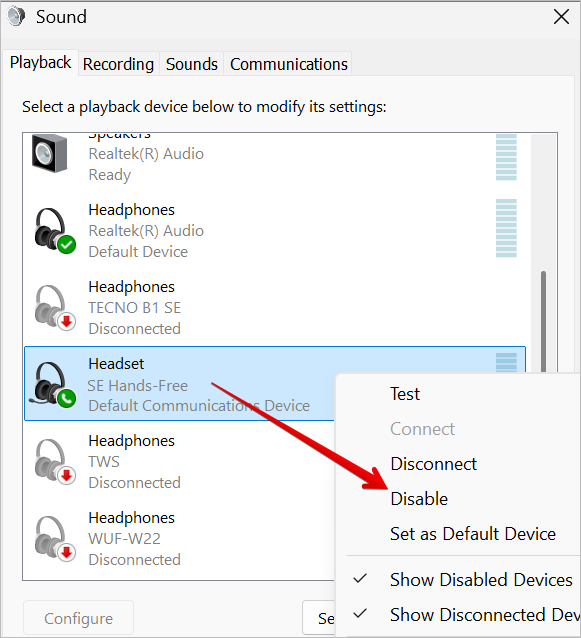
- You will see two entries: the Headphones and the Headset, which is the Hands-Free AG Audio
- Right-click “Hands-Free AG Audio” and click Disable.
How to Disable the Microphone Through Control Panel
Follow these steps:
- Open Control Panel
- Navigate to Hardware and Sound -> Sound
- Click on Sound to open the Sound settings window.
- In the Sound settings, click on the Recording Tab.
- This tab shows all audio input devices connected to your computer, including microphones.
- Search for the microphone you want to disable from the list.
- Right-click on the microphone and select Disable from the context menu.
- Click OK to close the Sound settings window.
- Your microphone will not function again until you enable it.
Steps to Switch Between Headphones (Stereo) and Headset (Hands-Free)
Here is how to do it:
- Right-click your System Sound icon and click Sound Settings.
- Under Output and Input, you will see these modes:
- Headphones (Stereo) with High quality
- Headset (Hands-Free AG Audio) with mic
- You can select and switch between the ones you need, whether Headphones (Stereo) for music or Headset (Hands-Free) for calls.
How to Disable Audio Enhancements and Spatial Sound Features
Here are some of the prominent ways to disable Audio enhancements.
#1) Using System Settings
Sometimes, the audio enhancement features can bring about some issues with the audio and sound. Whenever you experience an audio or sound problem, you can try disabling the audio enhancements and spatial sound features to fix the issue.
- Open Settings
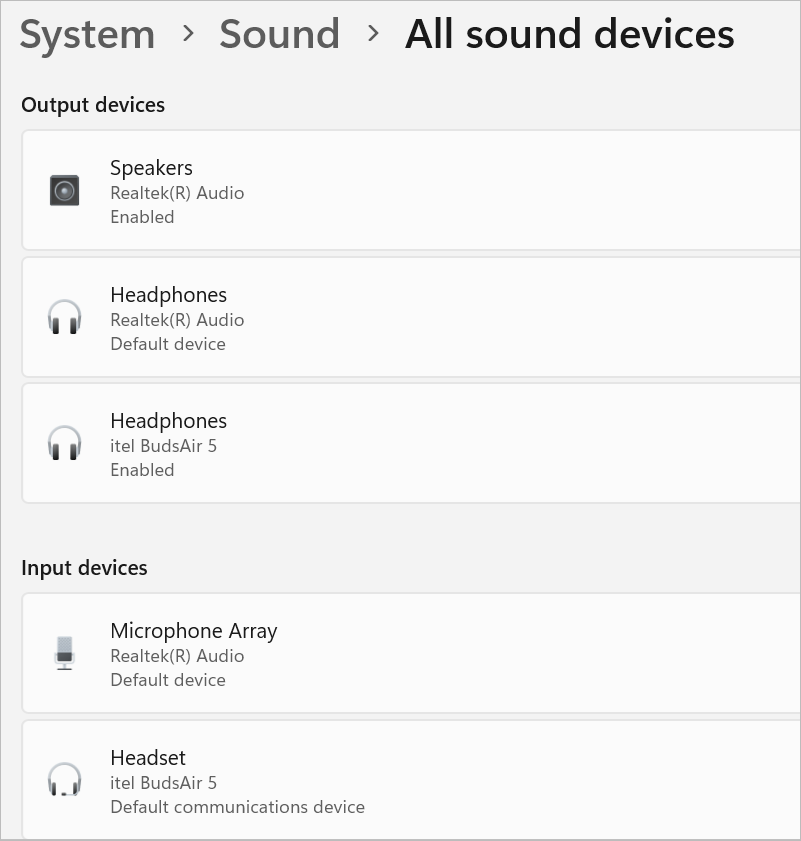
- Navigate to System > Sound > All sound devices
- You can click on the output or input sound device for which you want to enable or disable the audio enhancements.
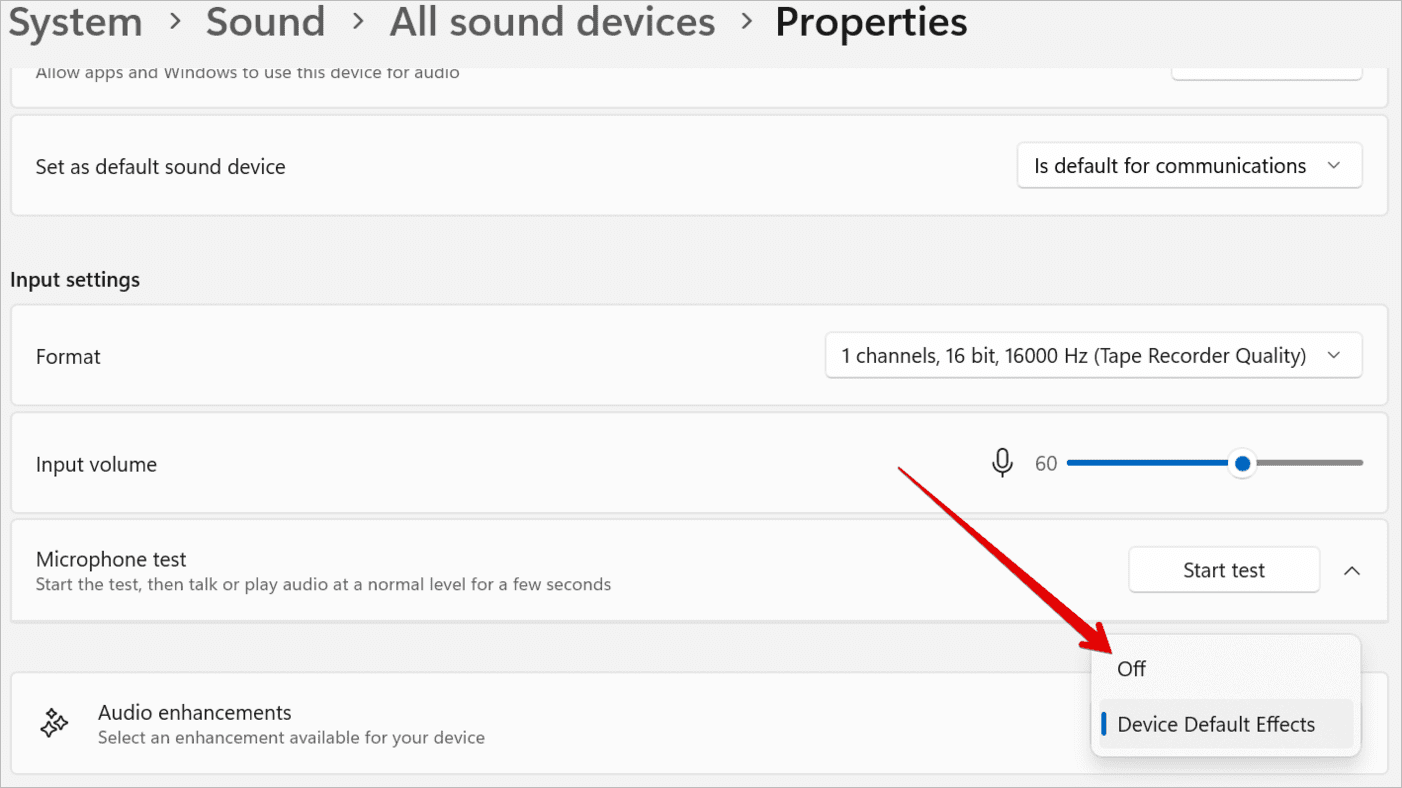
- On the Audio Enhancements Properties section. Click the drop-down and select OFF. This will disable the Audio Enhancement for the device.
#2) Using Control Panel (HeadPhone)
- Open the Control Panel and navigate to Hardware and Sound > Sound.
- Click on the Playback tab and select the sound device you want to disable the audio enhancement.
- Click the Properties button.
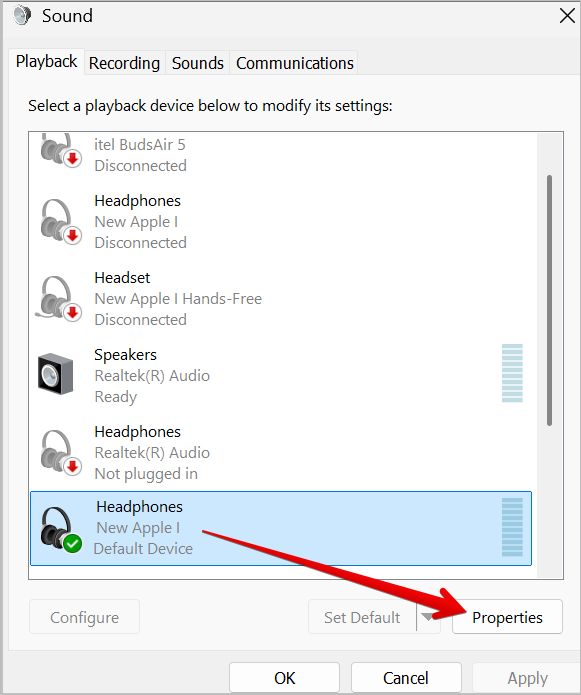
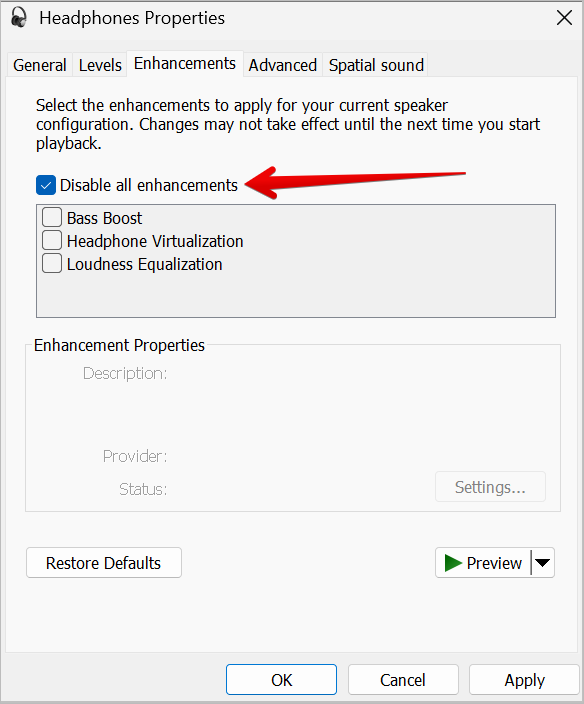
- Click on the Enhancements tab, check the “Disable all enhancements” box, and then click OK.
#3) Using Control Panel (Headset)
- Open the Control Panel and navigate to Hardware and Sound > Sound.
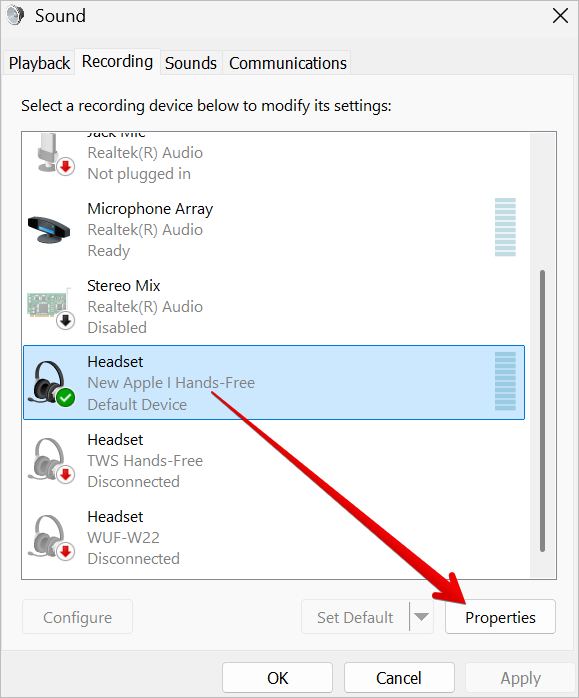
- Click on the Recording tab and select the sound device you want to disable audio enhancement for.
- Click the Properties button.
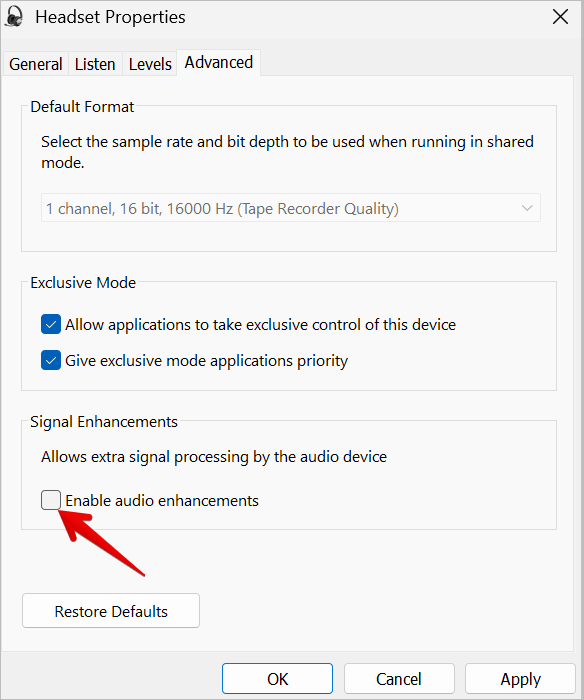
- Click on the Advanced tab, uncheck the “Enable audio enhancements” box, and then click OK.
Different LED Indicators For Various Models of AirPods
There can be three different lights that have different meanings. This light can be Green, Amber, or White, which can mean different things depending on whether the AirPods are inside or out of the case or are currently charging.
Green: When your earbuds are inside the case, the green light shows that the AirPods are fully charged, and if your earbuds are outside the case, the green light means the case is fully charged.
Amber Light: When you see a static amber light on AirPods means that your AirPods or the case is charging, but if your earbuds are outside the case, it means the battery level is low and you should connect to power for charging.
But when the case is plugged with the earbuds inside, and the amber light is flashing means that AirPods and the case are charging simultaneously.
White Light: Whenever you see a flashing white light, it means that your AirPods are pairing with another device. You can switch to pairing mode by holding the button at the back of the case for a few seconds.
How to Disable Hands-free Telephony
Sometimes the Bluetooth issue is usually caused by the Hands-free Telephony feature on Windows and can be fixed by disabling the Hands-free Telephony feature.
Follow the steps below on how to disable hands-free telephony:
- Open the Computer Settings.
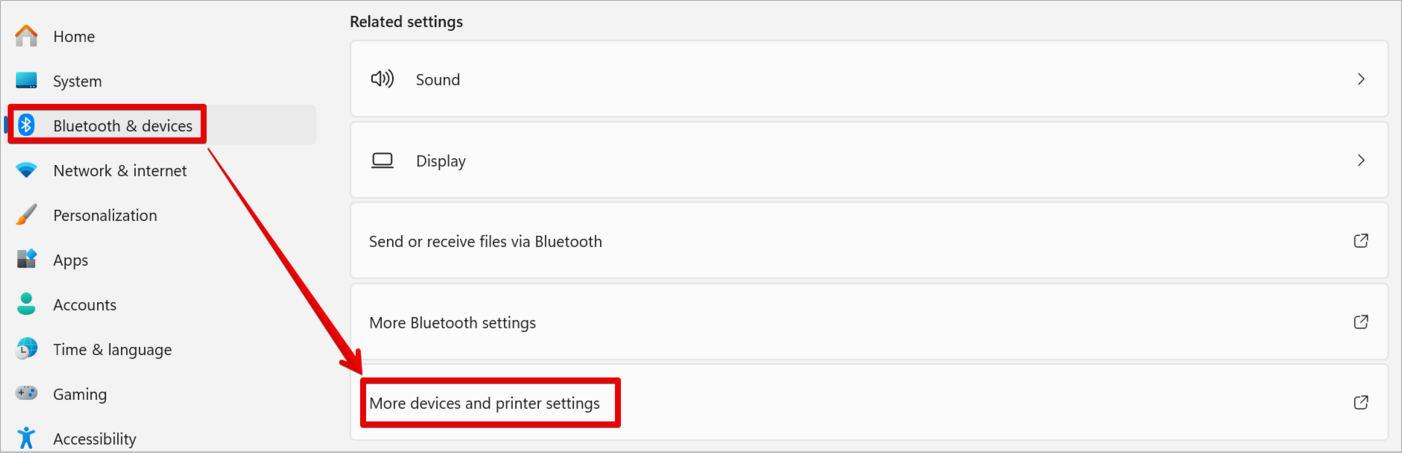
- Click Bluetooth & devices. Scroll down and click More devices and printer settings.
- Right-click your headset and select Properties.
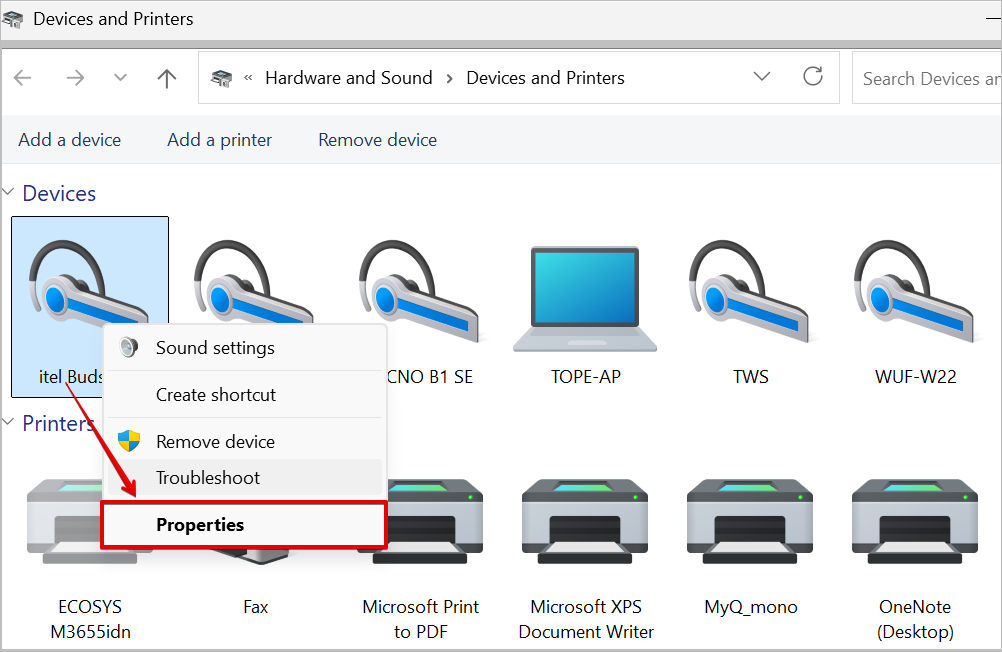
- Click on the Services tab and uncheck the box for Handsfree Telephony.
- Click Apply and OK to save settings.
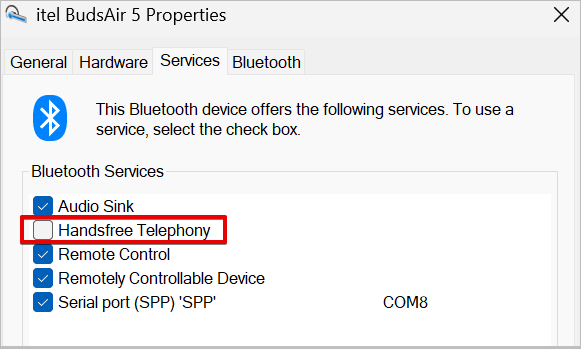
You can confirm whether the issue persists.
AirPods on iOS/macOS VS Windows (Functionality)
| Feature | iOS/macOS | Windows | Alternative Solution |
|---|---|---|---|
| Audio Playback – Stereo | Yes | Yes | Both work well through Bluetooth |
| Microphone – Hands-free | Yes | Partial | Switching between Headphones – Stereo and Headset – Hands-Free in the Sound settings. |
| Auto Play/Pause for Ear Detection | Yes | No | Since AirPods cannot detect ear removal on Windows, the solution will be to pause the playback |
| AI Voice Assistant | Yes | No | Windows does not support Siri, but you can use Cortana |
| Sharing Audio with another AirPod | Yes | No | This only exists within the Apple environment and not Windows |
Frequently Asked Questions
1. Can I connect my AirPods to a Windows PC?
Yes. While Apple has designed and developed many devices with wireless capacity, the AirPods work perfectly and seamlessly with all Apple devices, but it is also compatible with Windows 10 and 11 operating systems.
2. How do you put AirPods in pairing mode?
Make sure any AirPods model is placed in their case for charging, open the case lid, and press down the setup button on the back of the AirPods case for about 5 – 10 seconds until the light becomes white.
3. Why are my AirPods not working on my Windows Laptop?
It is possible your system Bluetooth is not active, so you will need to confirm your system Bluetooth is ON. If there are issues with the Bluetooth drivers, then you will need to update the driver and confirm your system has Bluetooth capability to connect with Bluetooth devices.
4. Will AirPods automatically connect to my PC?
If you have already paired or connected your AirPods before, it is very likely that the AirPods can automatically connect to your computer. Both Bluetooth features have to be ON before the two devices can connect.
5. Why won’t my AirPods connect?
If you are having issues connecting your AirPods to any of your devices, whether it’s an Apple product or a Microsoft product, some of the quickest solutions approaches will be to try pairing your AirPods to your device again, or check if the Bluetooth is ON, the device is fully charged, and update your device operating system to the latest version.
6. Why is there no pairing on my AirPods?
It is expected that your AirPods should connect automatically after initially connecting both devices, but if that is not happening, then you will need to place your AirPods in their case for charging and open the lid. Wait briefly to see if your computer detects the connection.
7. How to pair AirPods to a non-Apple device?
Follow these steps if you consider connecting your AirPods to a non-Apple device like Windows:
• On your Windows system, go to the settings for Bluetooth and ensure Bluetooth is ON.
• Place your AirPods in the charging case and open the lid.
• Press the setup button on the AirPods for a few seconds and confirm that there is a white light.
• Confirm you can see the AirPods in the list of Bluetooth devices that can connect to your computer.
• Click on the AirPods to connect.
8. Do AirPods work on Windows 11?
Yes, you can connect your AirPods to a Windows 11 computer through the Bluetooth settings. Please note that even when you pair your AirPods with many devices, they can only work with one at a time. When your AirPods keep disconnecting, check the power and the Bluetooth feature on your computer.
9. What does an orange light on AirPods mean?
When you have the light on your AirPods showing orange, it means the AirPods need to be immediately charged. Connect it for charging and to confirm if it is charging, hold it close to your Apple device and open the lid, you will notice a message showing the level of battery left.
10. Can AirPods connect to pc?
Yes, you can successfully connect any AirPods type to your Windows 10 or Windows 11 computer and enjoy a seamless wireless audio connection on your PC.
11. How do I reset my AirPods?
If you want to reset your AirPods, place them in their charging case and open the lid, press and hold down the button on the back of the case until the light flashes amber, then white, and then release it. This process will reset the AirPods and make them ready for pairing and connection.
12. Can I use AirPods with Android?
Yes, AirPods can connect to any Android device using the Bluetooth feature.
Place your AirPods in the charging case and open the lid. Hold the setup light until the light flashes white. Then, in your Android Bluetooth settings, you can select your AirPods from the list of Bluetooth devices listed.
13. Why do my AirPods sound bad on Windows?
Apple AirPods are built with an H2 chip and an Apple silicon chip that help the AirPods to have a very high-quality audio sound, which is better when used on an Apple device than on a Windows device.
14. Can I use AirPods Pro noise cancellation on Windows?
Activating the noise cancellation on a Windows system for the Apple AirPods Pro is similar to how it’s done on an Android device. The Force sensor can be used for noise cancellation.
15. How to fix the AirPods microphone quality on PC?
Right-click on the speaker icon on the taskbar and click Sound settings. Then scroll down to the Input section and select your AirPods as the default device. Then you can adjust the microphone volume to a very good level.
Conclusion
We have been able to see how to pair AirPods Pro or AirPods to a laptop. Just as it is very easy to connect these AirPods to other Apple devices, Microsoft has also ensured that AirPods can easily connect to their Windows operating system by simply following the steps above.
Whether you want to know how to pair AirPods Pro to a laptop or how to pair AirPods to a laptop, when you use Windows 10 or 11 on your laptop, they are two very popular Windows operating systems that have Bluetooth feature capacity that can connect to any Bluetooth-enabled device, no matter the manufacturer.
Research Process: The total time involved to complete and publish this article is approximately 42 hours. This content was created through a structured research approach to ensure accuracy and reliability.
For more AirPod-related guides, check our range of tutorials below:
- How to Tell If AirPods Are Fake or Real
- Top Wireless Earbuds (Best Sellers List)
- Can You Connect AirPods to PS5? Ways to Use AirPods on PS5
- Best Noise-Cancelling Earbuds (Top sellers)
- Top Over Ear Headphones (Best Cheap Headsets)
- Best Gaming Earbuds (Gaming Earphones Review)
Was this helpful?
Recommended Reading
-

Get to understand How do Apple AirTags Work along with its advanced technology, activation process, cost, security features, etc in simple terms with examples: AirTags are the latest smart device from Apple. These are little trackers shaped like pucks that you can use to locate something stolen or misplaced in…
-
Is your Apple Watch not counting steps accurately? Unveil the expert solutions from our step-by-step guide to fix Apple Watch not tracking steps and restore accuracy to achieve your fitness goals: Apple launched the first Apple Watch in 2015, which had fitness monitoring, wireless communication, and many other useful features.…
-
Do AirTags work with Android? Explore this exclusive setup guide to discover the step-by-step ways to effectively use Apple AirTag for Android devices: AirTags are a phenomenal piece of tech. I would even consider them a godsend, especially for folks who forget where they keep their belongings. Attach these tags…
-
This tutorial reviews and compares top Apple Watch Apps to help you select the best apps for Apple Watch that suits your requirements: The Apple Watch has been around for a good number of years now. Long enough to find itself on the wrists of several people across the world.…