Is your Apple AirPlay not Working? Try the proven fixes from our quick guide on “Why Isn’t My AirPlay Working” to resolve AirPlay connection issues and restore streaming again in minutes:
Well, perhaps AirPlay is disabled on your iPhone or Mac. A glitch, an outdated OS, or a network issue may also be to blame.
AirPlay is one of the most useful features on modern smartphones. So I understand just how frustrating it can be if AirPlay isn’t working as it should. Fortunately, this issue is nothing a few clever troubleshooting tricks can’t fix.
In this article, we’ll discuss all the reasons why AirPlay may not work and the things you can do to fix it.
AirPlay Not Working: Proven Tricks From Experts
How to Fix When AirPlay Isn’t Working
So, why isn’t my Apple AirPlay working? I want to be as comprehensive as possible in answering this question. I want to cover every possible symptom, reason, and solution.
I suggest you start by employing the following quick fixes:
- Check your Network: Both your broadcasting device and your receiving device should be on the same network. This is just one condition that must be met for AirPlay to work properly. So just make sure that both devices are connected to the same SSID.
- Turn Off Wi-Fi and Bluetooth: Go to the Bluetooth and Wi-Fi settings on your iPhone, iPad, or Mac and just turn them off. Wait 10 seconds before you switch them on again. Try AirPlay casting again. This may just work.
- Device Reboot: I’ve always believed that there’s nothing a quick reboot can’t fix. So, restart your Mac, iPhone, or iPad. If you are going to broadcast AirPlay on a Smart TV, unplug it before plugging it back in after waiting for around 30 seconds. This will give the devices enough time to clear background cache that interferes with AirPlay’s functioning.
- Get Rid of Obstacles: You want to lay out a clear path between the device broadcasting AirPlay signals and the device receiving it. Bring them as close to each other as possible. Make sure there aren’t any objects interfering with the signal between them.
- Shut Down All Other Apps: Several third-party apps can come into direct conflict with AirPlay. Applications like Virtual Display Drivers (GlideX, Spacedesk), Screen Mirroring Software (DuetDisplay, AirParrot), and Remote Desktop Clients (TeamViewer) will compete with AirPlay for system resources, thus causing the latter to fail. So, make sure all background apps are closed before you enable AirPlay.
Here is the video guide on how to fix AirPlay not working on iPhone:
Why Isn’t My AirPlay Working? Common Causes
You’ll be better equipped to solve this issue, or any problem for that matter, once its underlying cause becomes apparent.
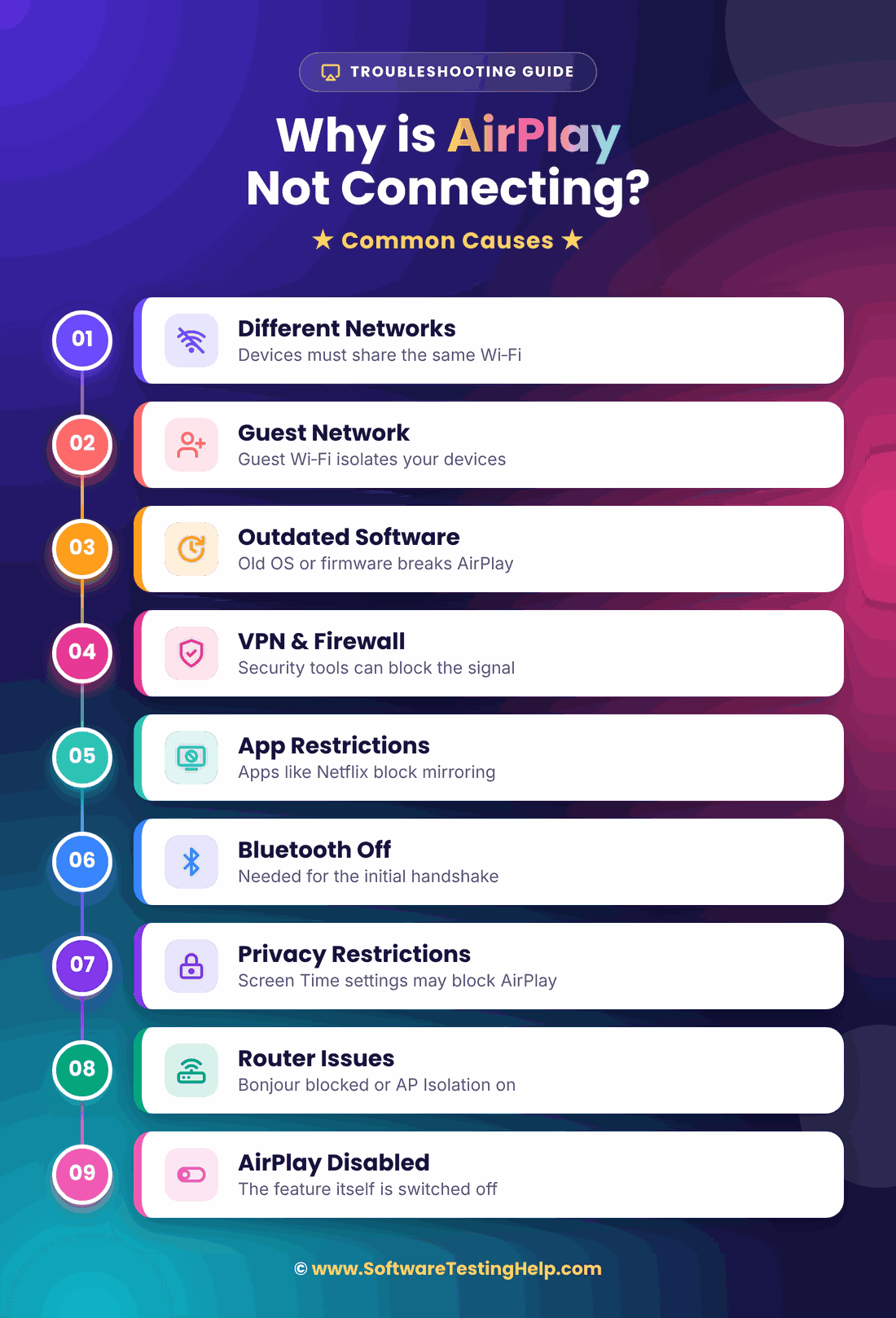
Here are some common reasons why AirPlay may not work:
- Different Connections: The device broadcasting AirPlay signals and the device receiving it are connected to different networks. You want these devices connected to the same Wi-Fi network for AirPlay to work.
- Guest Network: When it comes to AirPlay, guest network connections can also become a problem. Guest networks are known to isolate connected devices. So AirPlay may not work if your devices are connected to a guest network.
- Outdated Software: Your iPhone, iPad, and Smart TV must operate on an up-to-date or current operating system. There have been many examples and cases in the past of AirPlay not working on Mac, iPhone, and TV because these devices were running on outdated firmware.
- Active VPN and Firewall: An Active VPN and Firewall are imperative security measures that can also prove detrimental to how AirPlay functions. They might interfere and even block AirPlay signals.
- App-Side Restrictions: Certain streaming services and apps like Netflix block screen mirroring attempts to protect licensed copyright content in their library.
- Disabled Bluetooth: AirPlay relies on your device’s Bluetooth to establish an initial “Handshake” with the other device. Naturally, AirPlay won’t work if your phone or Mac’s Bluetooth is turned off.
- Privacy Restrictions: Some devices have privacy and content settings that explicitly restrict AirPlay. You can check for these restrictions on your iOS device by navigating to Settings > Screen Time > Content and Privacy Restrictions and checking whether AirPlay is restricted.
- Router Problem: Certain temporary bugs can cause your router to block Bonjour, which is one of Apple’s main network discovery protocols. AirPlay will also not work if options like Client Isolation and AP Isolation are enabled on your router.
- AirPlay is Disabled: Finally, it is also possible that the AirPlay feature on your iPhone or Mac is turned off.
Possible Solutions for AirPlay Connectivity Symptoms
Different symptoms require different solutions. Here are the possible symptoms you may encounter alongside their appropriate solutions.
#1) AirPlay Icon Missing
This is a device discovery issue, which means that your host device is struggling to detect broadcasting signals (Bonjour and mDNS) from nearby devices.
If you see this symptom, you can start by checking your device’s Bluetooth settings. Go to your Mac’s Control Center or swipe down on your iPhone to turn on Bluetooth.
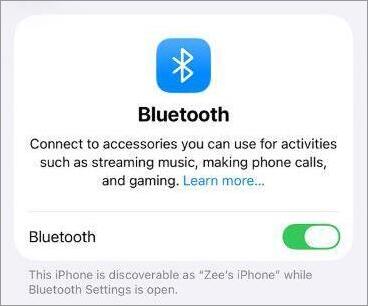
[via Apple Support]
Second, go to the receiving device’s settings (Smart TV) and check whether AirPlay is enabled.
On your Smart TV, you’ll need to:
- Open Settings
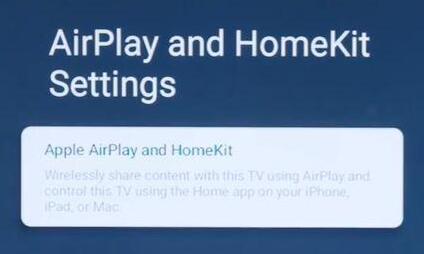
- Select AirPlay and HomeKit.
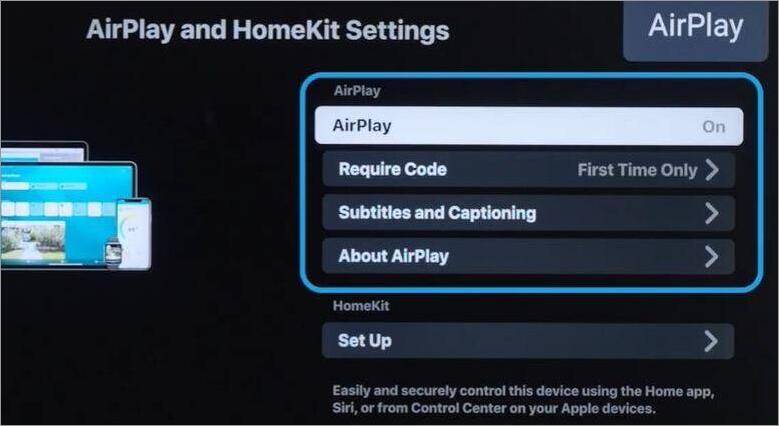
- Toggle On AirPlay.
Also, make sure your devices aren’t connected to a guest network. Alternatively, you could also try to force-quit the app you are trying to broadcast to another device and open it again to refresh device discovery.
#2) Device Discovered But AirPlay Not Connecting
When a device is discovered, but AirPlay fails to connect, the culprit is always a firewall or an active VPN blocking a communication handshake.
The very first thing I need you to do is check whether there is an active VPN connection on your Mac or iPhone currently.
On an iPhone:
- Go to Settings
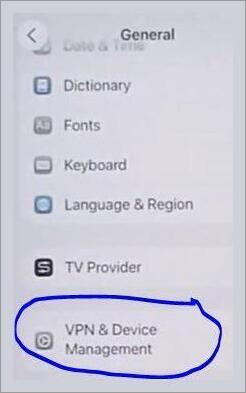
- Go to General
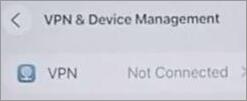
- Select VPN and Device Management.
On a Mac:
- Go to System Settings
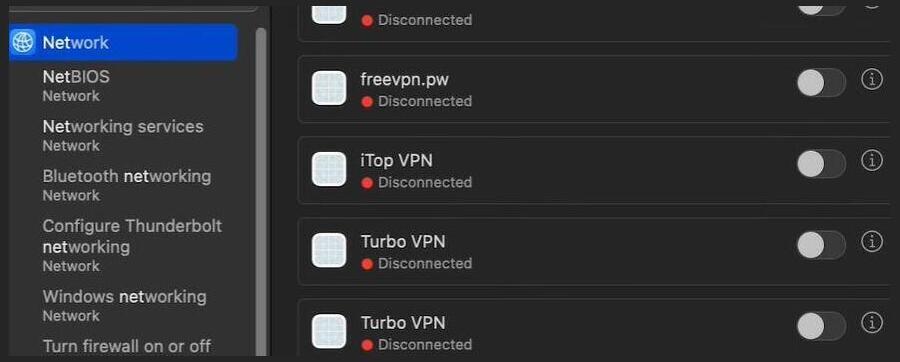
- Select Network > VPN.
If you find an active VPN connection, disable it. Another thing you can do is unplug your Smart TV, wait for 30 seconds, and plug it back in.
You can also turn off the Firewall on your macOS:
- Go to System Settings > Network > Firewall
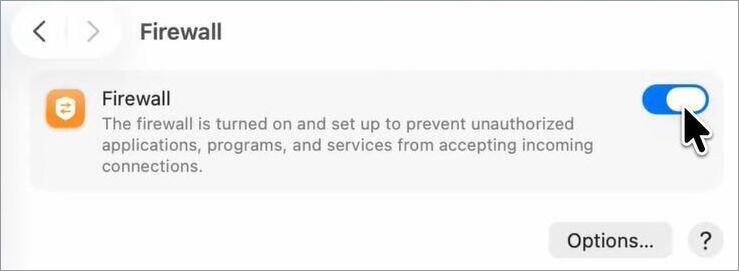
- Turn it off.
Warning: Disabling the firewall will render your system helpless against network threats. So turn it back on once you are done using AirPlay.
Alternatively, in the Firewall options, do the following:
- Uncheck “Block all incoming connections”.
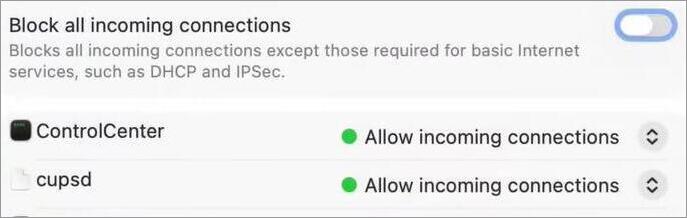
- Enable “Automatically allow all built-in software to receive incoming connections.

#3) AirPlay Black Screen But Audio Works
You’ll encounter this problem when attempting to AirPlay content from particular streaming services or apps. Apps like Netflix or Hulu feature a massive library of licensed, copyrighted content that they don’t want recorded or mirrored.
Hence, they have security measures in place to block features like AirPlay and Screen Mirroring.
Here’s a step-by-step fix I suggest you try to fix this issue:
- Try to play the video from another app or streaming service to find out whether the issue is app-specific. If you are facing the same black screen on other apps as well, move on to the next step.
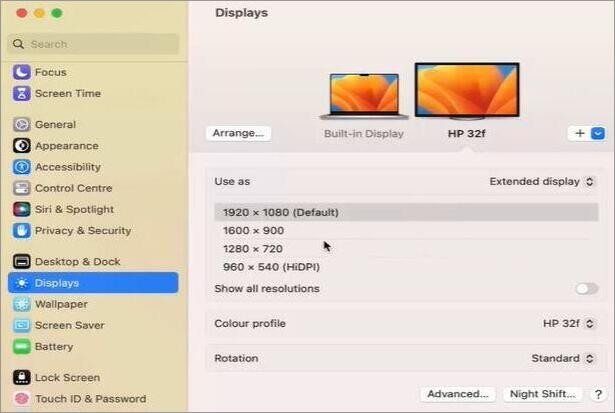
- If you are attempting to AirPlay from a Mac, go to your desktop Display settings and lower the resolution to 1080p. This may do the trick.
- If there are multiple tabs open on your web browser, with some running DRM-protected streaming services or web apps, close them and try again.
- If you must cast the screen of a protected streaming service or video player, I suggest using an HDMI cable to connect your Mac to a Smart TV instead of using AirPlay or Screen Mirroring.
#4) AirPlay Lagging, AirPlay No Sound, and Out-of-Sync Audio Issues
All the above symptoms indicate serious network congestion, heavy latency problems, and network packet loss.
This is a network connection issue, which you can fix by adopting any of the following troubleshooting tips:
- Ensure that both your broadcasting and receiving devices connect to the 5 GHz band rather than the relatively slow 2 GHz band.
- Use an Ethernet cable to connect your Smart TV or any AirPlay receiving device to the router instead of having them connected wirelessly.
- You can control network congestion considerably by stopping or pausing heavy file downloads or by not opening too many resource-intensive web apps. Try to stream content in 720p or 1080p instead of 4K.
Another fix is enabling Match Frame Rate on your Apple TV.
Here’s how you do it:
- Open Settings
- Go to Video and Audio
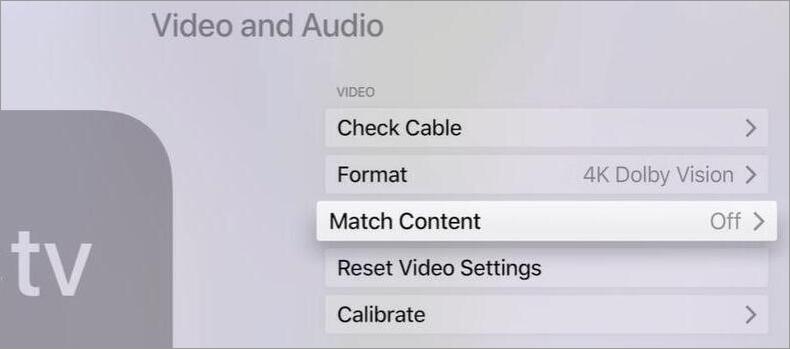
- Select Match Content
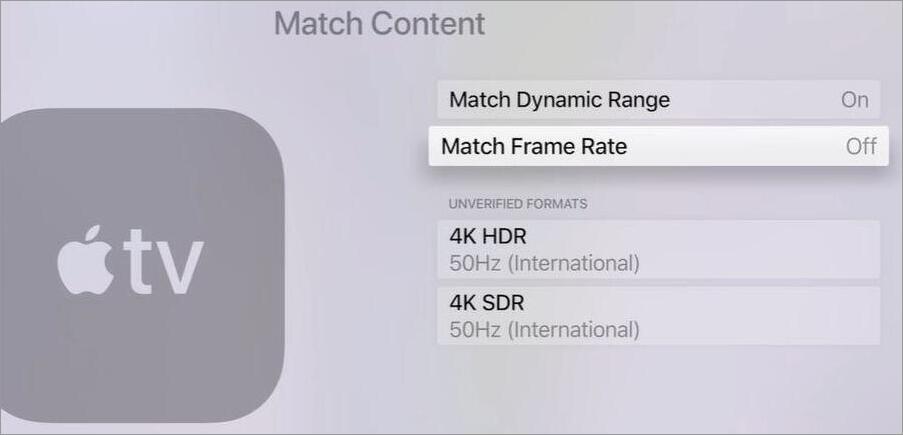
- Toggle on “Match Frame Rate”.
This will hopefully resolve any out-of-sync audio issues or stuttering video.
#5) Volume Mismatch Between Devices
Remember that devices that send AirPlay signals and the devices that receive them manage audio channels independently. So, if there appears to be a video with no sound, perhaps the cause lies in either the source device or the receiving device being muted.
I suggest manually raising the volume slider on both the receiving and source devices. Check whether the volume is muted on both devices. If so, unmute them.
#6) Music Stops Unexpectedly
This will happen if you are using the Home app. The Home app can sometimes take it upon itself to designate a nearby HomePod or Apple TV as the primary source of audio.
If you use the Home app to perform another task or action, the music playback may stop unexpectedly. An easy fix to this solution is to restart the music playback from your source device or use Siri to control the playback.
#7) AirPlay Content and Password Restrictions
Misconfigured Apple TV content restrictions or AirPlay Password settings can block AirPlay connections. I suggest you review these settings. Ensure your AirPlay and HomeKit settings are always configured to “Everyone”.
#8) AirPlay Disconnects Immediately After Selecting TV or When the Phone Locks
An easy solution to this problem involves disabling the “Automatic AirPlay to TVs” option on your iPhone.
- Go to Settings
- Select General > AirPlay & Continuity.
- Set “Automatic AirPlay to TVs” to “Never”
Another thing you can do is play the video for at least 20-30 seconds before triggering AirPlay to cast it to another device.
#9) Video Format Not Supported
If you are using software like VLC to play a video, I suggest navigating to that app’s settings and either disabling Hardware Decoding or turning “Force Direct Play” off. This configuration will force the app to transcode the video in a format that is native to the receiving device.
Screen mirroring can also trigger this error message, especially if you are trying to cast a DRM-protected video. I suggest only using the basic AirPlay media controls of your device without the screen mirroring feature to cast a video.
#10) Apple TV on Sleep Mode
Apple TV, when idle, will automatically enter sleep mode. An Apple TV device will stop receiving signals in this mode. I suggest increasing your Apple TV’s idle time or completely disabling the sleep mode from within its general settings.
#11) Black Screen or Audio-Only Mirroring
AirPlay demands certain network ports to stream video. Sometimes, a network firewall or VPN may end up blocking those ports.
If you notice a black screen with only audio playing, I suggest disabling your system’s firewall or any active VPN connection first. You can also try rebooting your router. Disabling AP Isolation and Client Isolation from your router’s settings can also help.
How to Fix AirPlay Issues By Device
We just discussed how to fix AirPlay issues by system. Let’s get even more specific and understand how you can fix this problem by device.
#1) iPhone or iPad
i) Check Screen Time Settings
On your iPhone, the first thing I want you to do is check your Screen Time settings.
- Open Settings
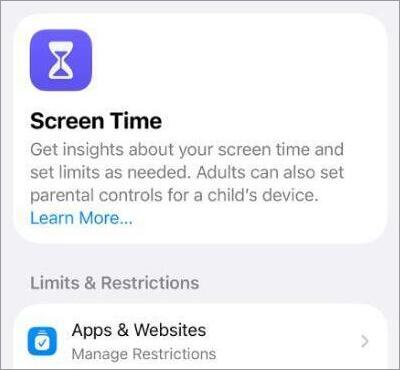
- Select Screen Time > Content and Privacy Restrictions
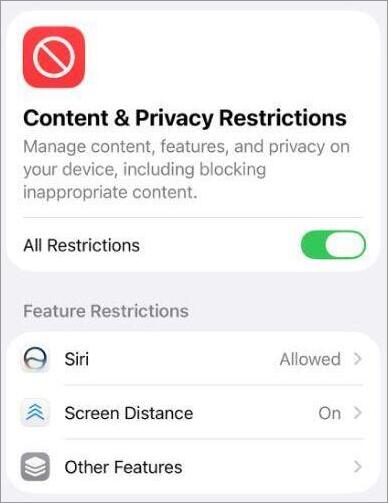
- Select Allowed Apps and Features
Check whether AirPlay or Screen Mirroring settings are restricted. If yes, disable these restrictions. If not, move on.
ii) Allow AirPlay Receiving
- Open Settings
- Select General > AirPlay & Continuity
- Tap on Automatically AirPlay.
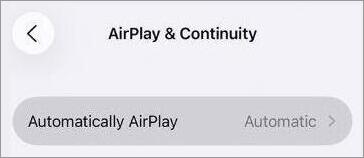
- Switch the setting from Never to Ask or Automatic.
iii) Reset Network Permissions
- Open Settings
- Select Privacy & Security > Local Network.

- Find the app (Netflix, YouTube) you are trying to AirPlay and toggle it off.
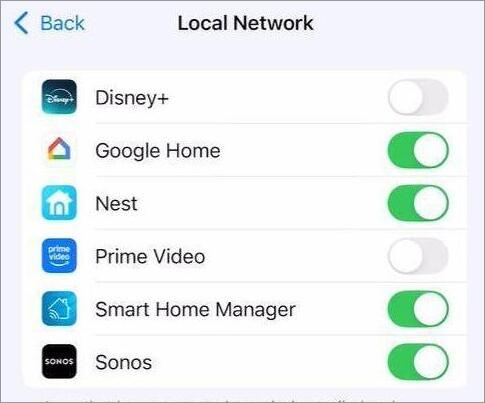
- Wait for a few seconds and toggle it on again. This will reset network permissions and hopefully fix the issue.
#2) Mac
AirPlay not working on Mac? Here’s what you can do.
i) Allow AirPlay Receiving
- Open System Settings
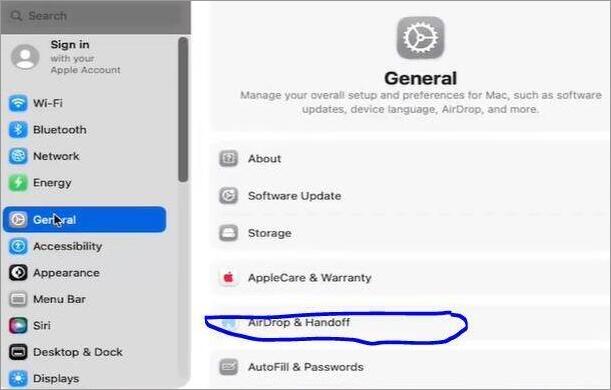
- Select General > AirDrop & Handoff
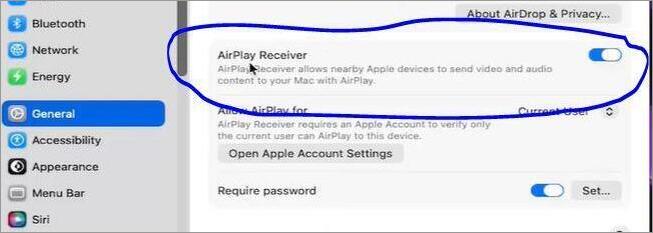
- Enable AirPlay Receiver.
ii) Check System Permissions
- Open System Settings
- Select Privacy & Security > Screen and System Audio Recording.
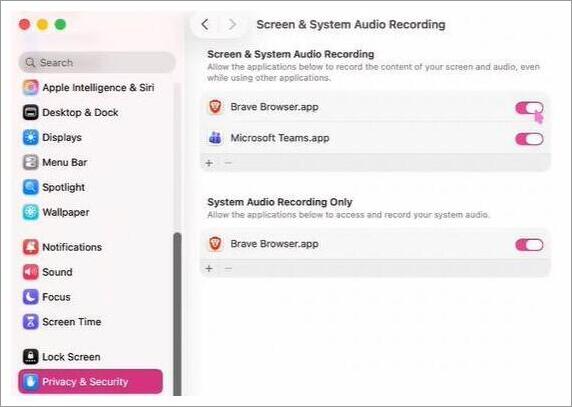
- Check whether AirPlay or Screen Mirroring is enabled.
- If not, simply click on the “+” button.
iii) Configure Firewall Options
We’ve discussed this before.
Simply do the following:
- Open System Settings
- Go to Network > Firewall
- Click on Options and do the following:
- Uncheck “Block all incoming connections”.
- Check “Automatically allow built-in software to receive incoming connections”.
#3) Apple TV
AirPlay not working on Apple TV?
Here’s what you can do:
i) Enable AirPlay Receiving
- Go to Settings
- Select AirPlay and HomeKit.
- Toggle on AirPlay
- Click on Allow Access. Make sure to set it to “Everyone”.
ii) Reboot TV
You can trigger a quick reboot by doing the following:
- Open Settings
- Click on System > Restart.
- Wait until the status light on your Apple TV is off. Turn it back on again and test AirPlay.
#4) Other Smart TVs and Devices
Why isn’t AirPlay working on my TV? Well, AirPlay not working on non-Apple devices is a very common compatibility issue. Not all TVs and smartphones out there are compatible with this feature. So, the first thing I want you to do is check your TV’s manual to verify its compatibility with AirPlay.
If the device is compatible, then you’ll need to check whether its AirPlay feature is enabled. The process to do so will, of course, differ from one brand to another.
i) AirPlay is Not Working on Samsung TV
- On an AirPlay-compatible Samsung TV, navigate to Settings.
- Select Connection or Network.
- Find a subsection for Apple AirPlay.
Just make sure AirPlay is turned on.
ii) For LG TVs
On LG TVs, the path to accessing AirPlay is as follows:
- On your Remote, press the Home button.
- On the Dashboard that opens, select AirPlay.
- Turn it on
Other things you can do are perform a hard reset on these TVs by unplugging them for a few seconds. This will clear any corrupted background caches that were plaguing AirPlay.
You could also try to clear past AirPlay pairings by navigating to your TV’s AirPlay settings and selecting Reset Paired Devices. This can clear corrupted cache files and thus restore AirPlay’s functionality.
Router and Network-Related AirPlay Issues
In many cases, it is a misconfigured router that ends up causing AirPlay to malfunction. You can do the following things to take care of this issue once and for all.
#1) Disable AP and Client Isolation
Both AP and Client Isolation are features that can prevent devices on the same network from connecting. You can disable both AP Isolation and Client Isolation by logging into your Router’s Admin Portal.
#2) Keep Devices on the Same Band
Besides keeping both devices on the same network, you also need to keep them both on the same band. Most routers tend to split the network into 2 GHz (SSID: Name_2G) and 5 GHz (SSID: Name_5G) bands. My advice would be to make sure your devices are connected to the same SSID.
#3) Enable Multicast
When logged into your Router’s admin portal, don’t just stop at disabling AP and Client Isolation. Locate Multicast and IGMP Snooping and make sure they are enabled.
#4) Reset Router
Every time your router is switched off and turned on, it reboots. I suggest turning off your router for at least a few seconds before turning it back on. This will clear IP address issues and flush out any corrupt routing tables.
#5) Update Router Firmware
An outdated router can be vulnerable to bugs that drop the Bonjour or mDNS discovery packets AirPlay needs to establish a connection. Keeping your router’s firmware up to date will solve this issue.
Why AirPlay Won’t Work With Some Apps or Videos
You’ll notice pretty soon that AirPlay does not work on certain apps, video platforms, and web applications. Sure, it works just fine on YouTube, but what about Netflix and Disney+?
You see, streaming services like Netflix contain a library of movies and TV shows protected by DRM restrictions. All of their content is copyright-protected, and the DRM restrictions essentially stop users or viewers from recording the content, mirroring it, or broadcasting it to another device.
Other platforms like ESPN+ are locked into very strict TV distribution deals; hence, they are obliged to protect their library from AirPlay or Screen Mirroring attempts. You can try to AirPlay content from these platforms. However, you’ll be met with a pitch-black screen.
I personally believe that the best way to enjoy these platforms is by streaming their content directly on the Smart TV by downloading their apps on that device. Most Smart TVs today come with Netflix and Amazon Prime already built-in.
Alternatively, you can try connecting your Mac to a Smart TV via an HDMI cable instead of AirPlay. This also means zero latency and no lag, which are common issues when streaming via Wi-Fi.
Does Your Device Support AirPlay?
Perhaps AirPlay isn’t working because your receiving device is just not compatible with it. Remember, iPhones, Macs, and iPads serve as devices that send AirPlay signals, whereas Smart TVs, HomePods, and Apple TV boxes serve as devices that receive these signals.
Almost all modern Apple devices support AirPlay. The issue lies with older Apple hardware. If you own an iPhone or iPad running on iOS 4.2 or later, then rest assured that it supports AirPlay.
On the other hand, all Modern Mac systems that I know of support AirPlay. That said, screen mirroring via AirPlay is only possible on Macs with 2nd gen Intel Core processors.
To know whether your Smart TV supports AirPlay, I suggest checking its settings menu for an “Apple AirPlay” option.
Advanced Fixes When AirPlay is Not Connecting
If you’ve exhausted the options I have mentioned above, I suggest immediately moving on to the following advanced measures.
#1) Forget Wi-Fi Network
- Go to the Wi-Fi settings on your iPhone or Mac.
- Select the network you are connected to.
- Tap on “Forget this Network”.
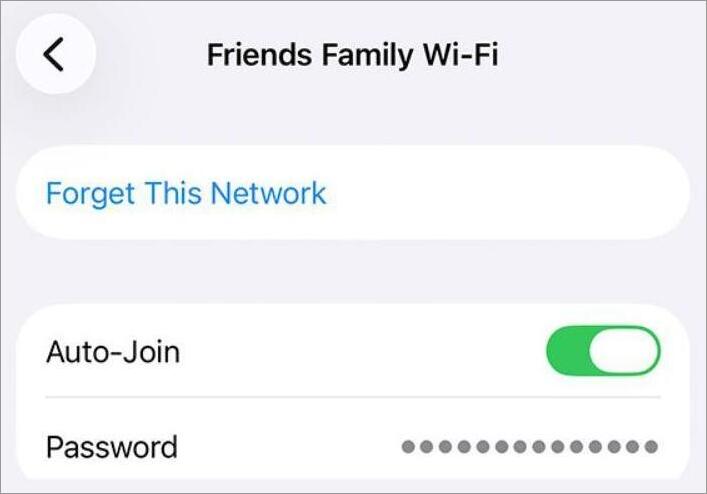
- Reconnect by entering the password.
#2) Reset Network
- On your iPhone, go to Settings.
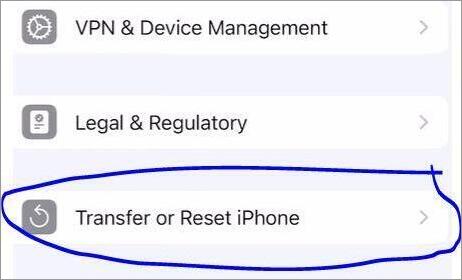
- Tap on General > Transfer or Reset iPhone.
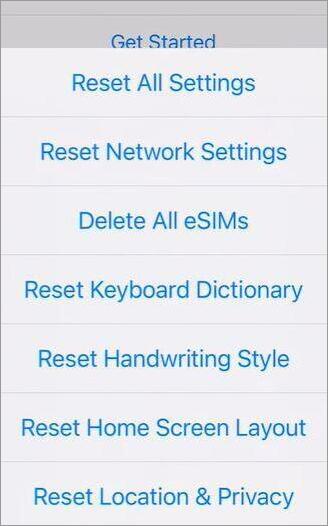
- Select Reset > Reset Network.
#3) Update Software
- On a Mac or iPhone, Open Settings > General > Software Updates.
The path to updates is simple on an Apple TV, as well.
#4) Configure Home App Settings
Think of the Home App as Apple’s Command Center. It is a platform from which you can control all the Apple-smart devices you own. If you are trying to stream content to a device set up via the Home App, then you’ll need to make sure that its settings aren’t restricting AirPlay.
- Open the Home App.
- Click on the three dots to open the menu.
- Select Settings > Speakers and TV.
Now adjust settings to ensure AirPlay isn’t restricted to the device you wish to stream content on.
When to Contact Support or Try an Alternative
If you’ve exhausted all the methods and troubleshooting tips listed in this article and still haven’t found a solution, your best bet would be to contact support.
At least try to pinpoint where the issue is. Contact Apple Support if the problem is with your Apple TV, iPhone, or Mac. Contact your TV manufacturer if you are using a non-Apple device and suspect the issue is with the TV.
You don’t have to use AirPlay. You can try connecting your devices via an HDMI cable or use the apps already downloaded on your Smart TV (Netflix, YouTube) to stream videos.
You could also give Chromecast or Google Cast a shot. You’ll find many apps and video players that do support these services.
Frequently Asked Questions
1. Why is my AirPlay suddenly not working?
Your AirPlay may not be working because of any of the following reasons:
• Devices connected to different networks.
• AirPlay receiving is disabled.
• Bluetooth is disabled.
• Outdated device firmware.
• Device connected to a guest network
• Router issues
• Temporary network issues.
• Active VPN or firewall.
2. Why can’t I cast from my iPhone to Apple TV?
This is a very common issue that a network mismatch, a software glitch, or restricted permissions between devices can cause.
3. How do I reset AirPlay on my TV?
You can reset AirPlay settings by navigating to your Smart TV’s AirPlay settings and selecting “Reset Paired Devices” or Reset AirPlay on some Smart TVs. It is strongly advised to restart your devices once you’ve reset the AirPlay settings for this action to take effect.
4. Does AirPlay use Wi-Fi or Bluetooth?
AirPlay is known to primarily use Wi-Fi to establish a connection with nearby devices. However, it also needs Bluetooth to discover devices that are nearby. As such, I would advise you to keep your Bluetooth on when attempting an AirPlay connection between devices.
5. Is screen mirroring the same as AirPlay?
No, although they perform the same function, they differ from each other in more ways than one. For starters, AirPlay can both stream media from your phone and mirror its display. Screen Mirroring duplicates your phone’s entire screen, casting it onto another monitor.
You can turn off your phone screen while using AirPlay, whereas your phone screen must stay on for Screen Mirroring to work. AirPlay is also better for battery consumption and screen lag. Screen Mirroring can drain your phone’s battery considerably.
Conclusion
AirPlay is an interesting feature but also one that can cause you frustration when it simply refuses to work as it should. Instead of getting annoyed, I suggest you put this guide to work. Find out the root cause of your problem and employ the appropriate troubleshooting trick to get AirPlay functioning again.
If the feature refuses to work, despite throwing the kitchen sink at it, contact professional help or just use an alternative instead. HDMI cables and built-in apps work just fine, and it’s something I recommend over AirPlay, especially if you are trying to stream a video. You’ll get better latency and a video output that is lag-free.
Research Process: The total time involved to complete and publish this article is approximately 41 hours. This content was created through a structured research approach to ensure accuracy and reliability.
For more-related guides, you can explore our range of tutorials below:
- Why Is My Phone So Slow? 5 Easy Ways to Speed Up Your Phone
- Why is My Phone Screen Green and Ways to Fix it Quickly
- How to Use Your Phone as Webcam (iPhone or Android)
- How To Factory Reset MacBook Pro: Step-by-Step Guide
- How To Fix Slow Mac: 9 Quick Ways To Speed It Up
- How To Clean Charging Port on iPhone & Android Safely
Was this helpful?
Recommended Reading
-

Is your Apple Watch screen frozen or unresponsive? Our step-by-step troubleshooting guide will help you fix the Apple Watch screen not working issue and get your display back to normal instantly: “Jack of all trades” is perhaps how I would describe an Apple Watch. You have one intelligent piece of…
-
Is your Apple Watch not charging? Stop worrying on "Why Wont My Apple Watch Charge" and try our tested troubleshooting steps that actually work to resolve the issue instantly: Ever wondered why your Apple Watch cannot respond to charging action, charges slowly, or detaches from the charging activity once plugged…
-
Is your iPhone flashlight not working? Use these quick fixes to get your iPhone flashlight glowing back instantly with our detailed step-by-step guide. Don’t be surprised if the flashlight feature on your iPhone stops functioning all of a sudden, since you’re definitely not the only one who’s experiencing this issue.…
-
Try these quick fixes to end your Alexa Green Light flashing issue. Our step-by-step guide will help you understand why your Alexa is blinking green and fix it in minutes. Are you wondering, why your Alexa show a green light ring? This could possibly be due to calls, Drop In,…