Quickly check Apple Gift Card Balance in seconds without redeeming it. Here are the easy and hassle-free ways to check your balance online and save smartly today.
Need to check the Apple gift card balance without redeeming using it up? If you’ve got an Apple gift card, an App Store gift card, or an Apple Account balance, this guide explains every official method to check your balance on iPhone, Mac, Windows, and online.
Apple’s official guidance states that you can check your balance within your Apple Account post-redemption, but it also outlines ways to ascertain the value of unredeemed Apple Gift Cards before they are added to your account.
How to Check an Apple Gift Card Balance Without Redeeming It
To check the value of unredeemed Apple Gift Card requires that you visit the
- Official Apple Gift Card Balance Check website ([secure.store.apple.com/shop/giftcard/balance](https://secure.store.apple.com/shop/giftcard/balance)).
- Sign in with any active Apple ID, type in your security PIN code, and click “Check Balance.”
If you do not have an Apple ID and wish to check the gift card balance without using an account, simply call the Apple Support Hotline at 1-800-MY-APPLE and give them the card serial number.
Apple Gift Card Balance: How to check it instantly
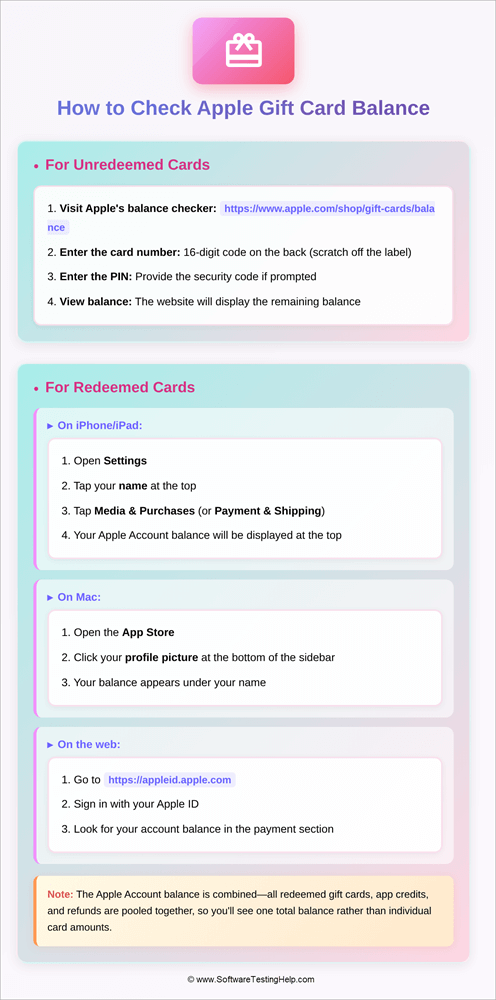
The following are the quick steps mentioned in the image to check the Apple Gift Card Balance instantly online.
Also, the following video will explain the step-by-step process to check Apple Gift Card Balance
What is an Apple Gift Card?
Apple has consolidated its gift cards into one card, the Apple Gift Card, which adds money directly to your Apple account balance and can be used to purchase hardware, accessories, applications, media, and subscriptions.
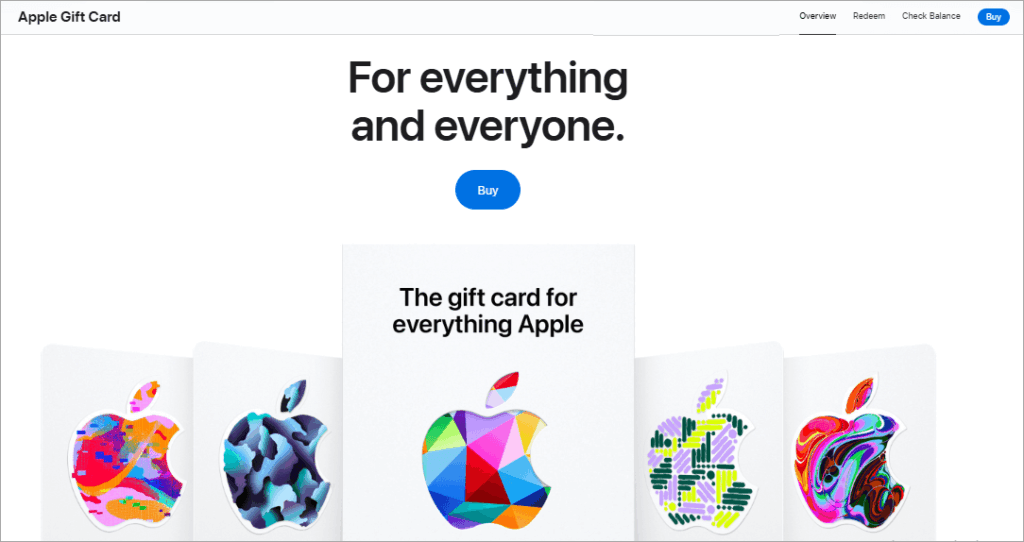
[Via apple.com]
This unified card will replace the previous division between iTunes/App Store cards and retail store cards, making it easier to purchase with a single loaded balance.
Since the system transformed the unified card into Apple Account funds, you can see the balance after redemption, and your Apple ID serves as a focal point for all the devices.
Before redemption, Apple provides a secure online check of Apple Gift Cards, whereas older App Store and iTunes cards normally display face value as opposed to an online remaining balance.
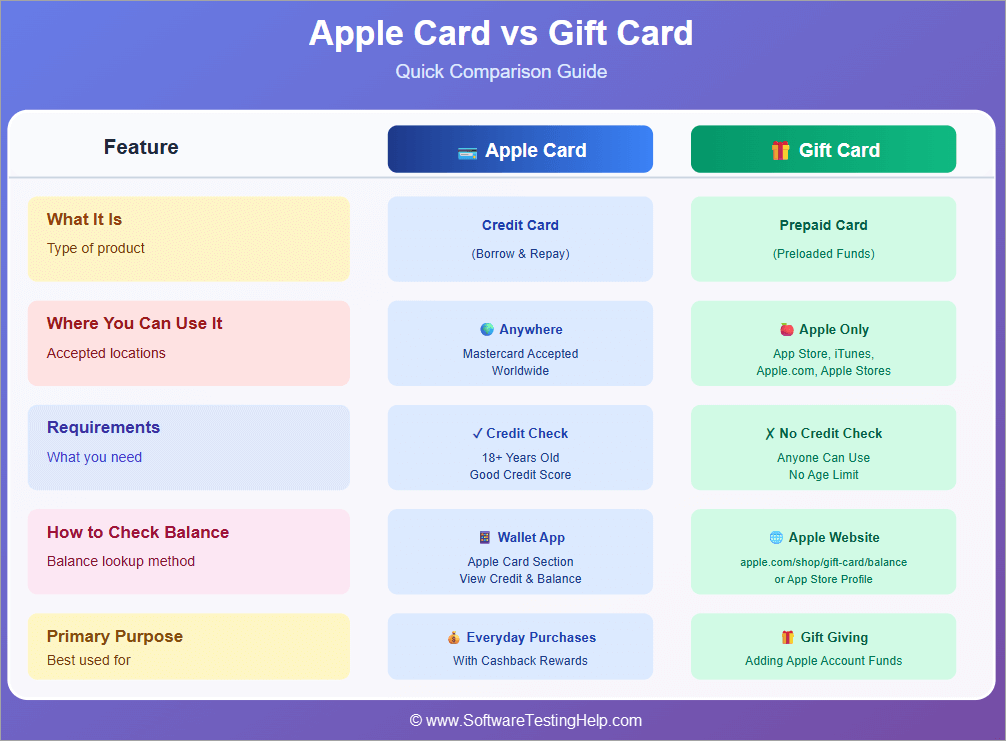
How to Check Apple Gift Card Balance on Any Device
Enlisted below are some of the quick steps to check the Apple Gift Card balance.
#1) iOS (iPhone/iPad)
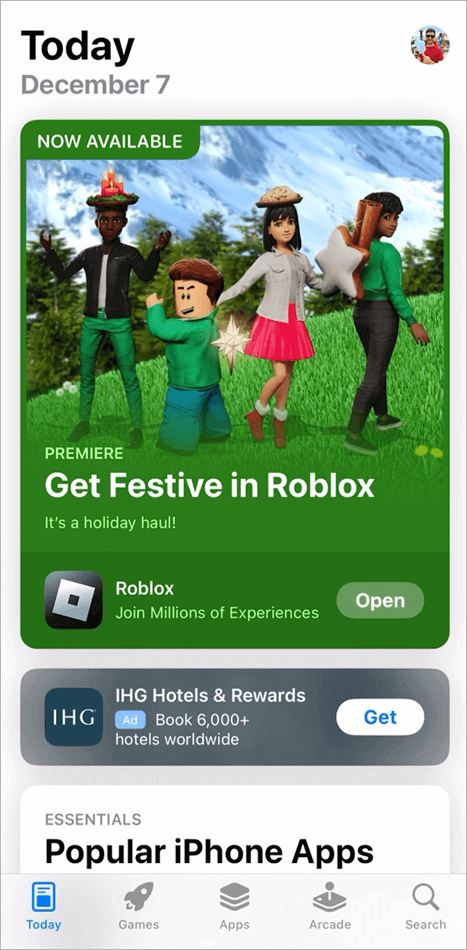
Step 1: Open the App Store app: Select and tap the blue App Store logo on the Home Screen or in the Search. This is where Apple directs the gift card activities, and by starting here, you have guaranteed that you are in the right account setting before you can make any balance inquiries.
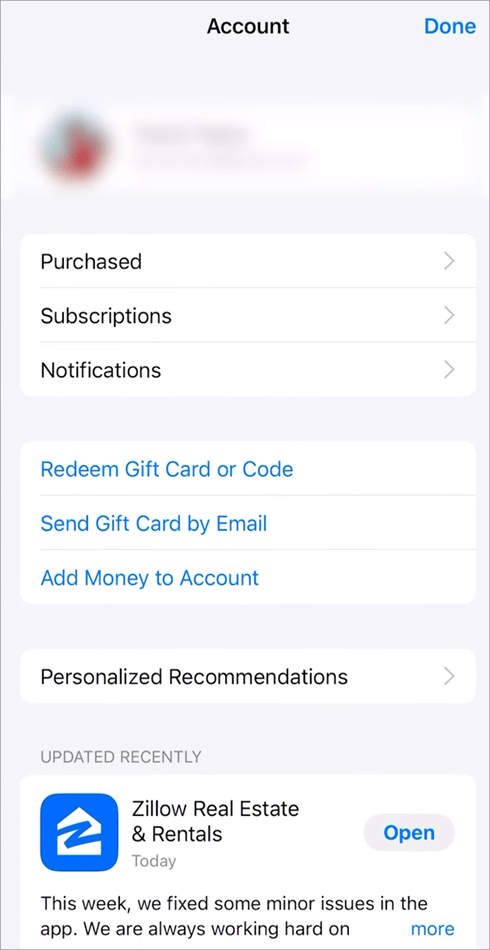
Step 2: Go to your profile: Tap the circle with your photo and initials in the upper-right-hand corner. This will open your account pane, which brings together all settings, purchases, subscriptions, and the tools you will need to use in the gift card.
Make sure that you are signed in with the Apple ID that you want to use; otherwise, embarrassing prompts may occur in the future.
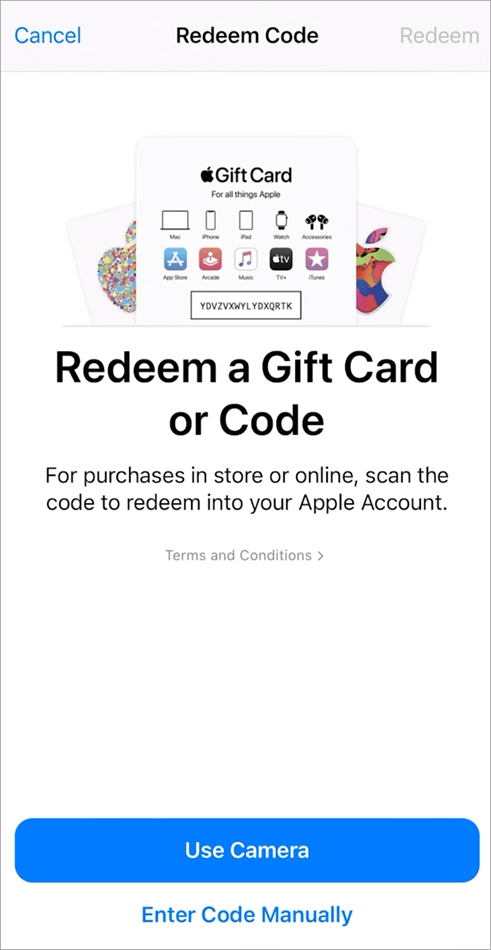
Step 3: Choose Redeem Gift Cards or Code: This is an option in your account menu where you can tap to open the redemption flow of Apple.
It is the sole in-app route through which Apple occasionally emerges with the capability to confirm the value of a card over the air before redeeming, as well as one that validates the device itself and not a third-party webpage.
Step 4: Select Use Camera or Enter Code Manually: When you have a scanned card, a quicker selection is to use the camera, but with an incompatible card, you can select the manual mode.
You should look for a small prompt, such as a little reminder. You can also check the balance, which sometimes shows up, and if it does, it will allow you to check the value without loading a dollar, etc.
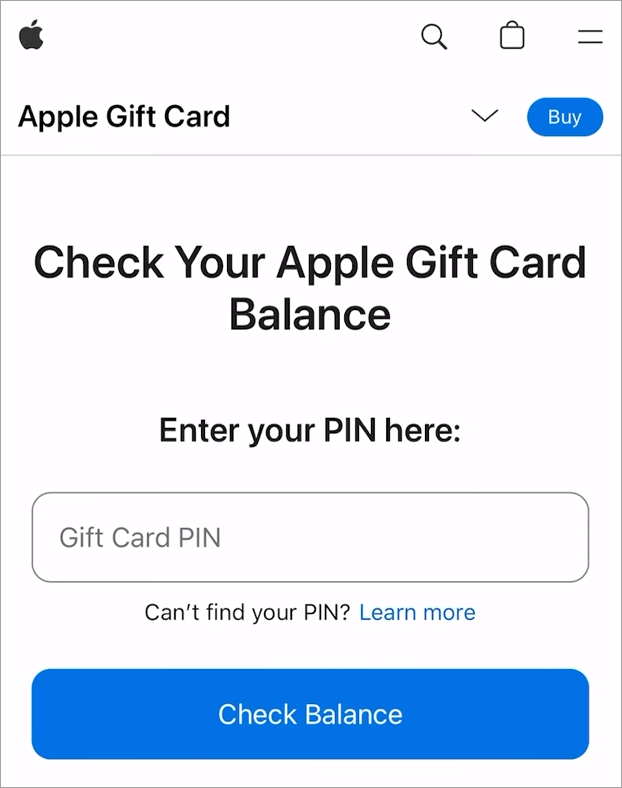
Step 5: Input PIN: Scratch or peel the protective label at the back and then type in those numbers, as displayed. Be mindful of character case and spacing, as they are present; incorrect entries are the most frequent cause of check failures, and multiple mistakes can place a temporary hold on the check process.
Step 6: Check the balance at a glance: If the balance check is supported by your card and location, the app shows the current balance in a neat format, so you can choose to redeem the balance immediately or later.
Make sure that the denomination is what is expected, and in any case, if the appearance is odd, then pause and call Apple Support before going any further.
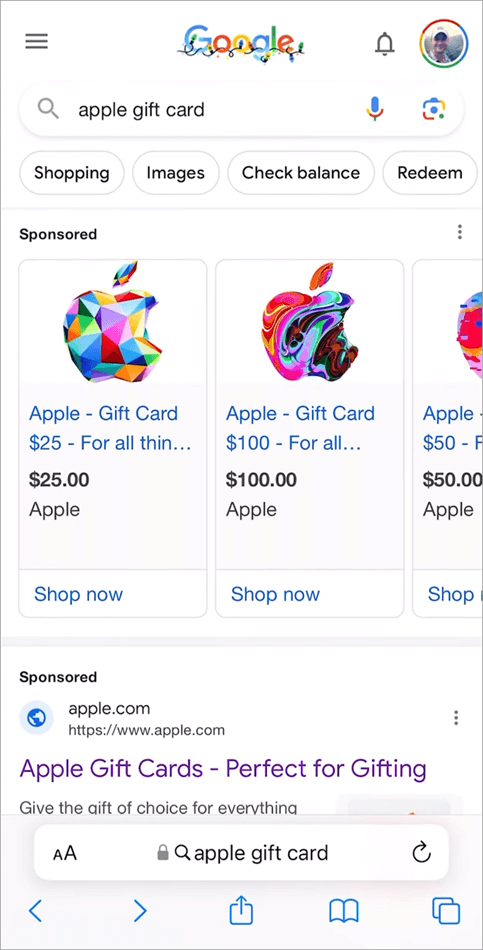
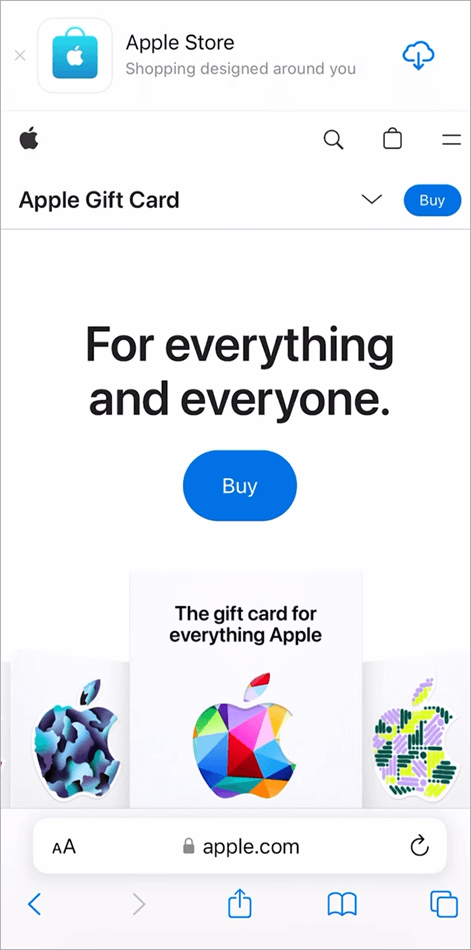
Mozilla and similar mobile web browsers are another way to check it.
#2) Apple iPhone Through the Wallet App
The Wallet functionality does not work in all countries or regions, and the Wallet app shows your Apple Account balance (which holds gift cards), not the balance of a physical or emailed card that remains unredeemed.
You can add the Apple Account card to the Wallet, redeem your gift cards, and you can see the remaining balance and transactions there.
Step 1: Open Wallet: Introducing the wallet app on your iPhone, open the wallet app.
Step 2: Add Apple Account card: Tap the Add button +, and then in Wallet, choose Add Apple Account to add your Apple Account card.
Step 3: Check balance: You can see the current balance on your Apple Account and the most recent transactions displayed below the card.
Step 4: Know your restrictions: Wallet does not show an independent balance of an unredeemed Apple Gift Card; it shows your Apple Account balance when the funds are redeemed into the wallet.
In case of a card balance check before redemption, Apple redirects the user to redeem the card into his or her Apple Account (or redeem balance before Wallet outside of Apple). It may be subject to geographical variations.
#3) macOS (Mac)
Step 1: Open Mac App Store: Click on the dock icon or on the Applications folder to open the official Apple desktop environment for handling cards. This pathway connects to your Apple ID and does not make use of third-party web checkers, confusing you.
Step 2: Tap your name in the bottom left: Entering your account area will make any balance checking related to the right Apple ID and region. Otherwise, when not already signed in, you will be made to sign in with the account that will redeem the card, although you are not yet actually spending the card.
Step 3: Redeem Gift Cards: Select the card entry window in quick links or the account pane by clicking on the redemption option and entering the card text manually in the card entry window (macOS does not always accept camera scanning, so it is best that you can read and write the card text manually, and that you need to maintain strict control).
Step 4: Manually enter the card details: Enter the PIN, being very specific (e.g., 0/O or 1/I, or hyphens or formatting instructions). Precision, in this case, is all; one small error can lead to an unsuccessful check or an informative mistake that can be mistakenly regarded as an invalid card.
Step 5: Seek non-redeem verification: Depending on the type and area of the card, Apple might have a small link or button displayed that verifies the balance before applying funds. Unless absent, click it to request live validation with the Apple servers, and this sends back the balance without changing your account.
Step 6: Check the balance in a Special Prompt: A dialog or an inline message will reveal the available amount, thus authenticating the value of the card.
If the balance isn’t displayed and redemption is the only choice on the interface, cancel it. Redemptions can be made by accident; therefore, verify with Apple’s web checker or support team.
#4) Windows (PC)
Step 1: Open a modern browser: Open Edge, Chrome, or Firefox, and go to the official page of Apple Balance Check for gift cards. Checking with the Apple site will help guard against spoofed checkers and is guaranteed to show the live systems at Apple and not the stashed or third-party cached information.
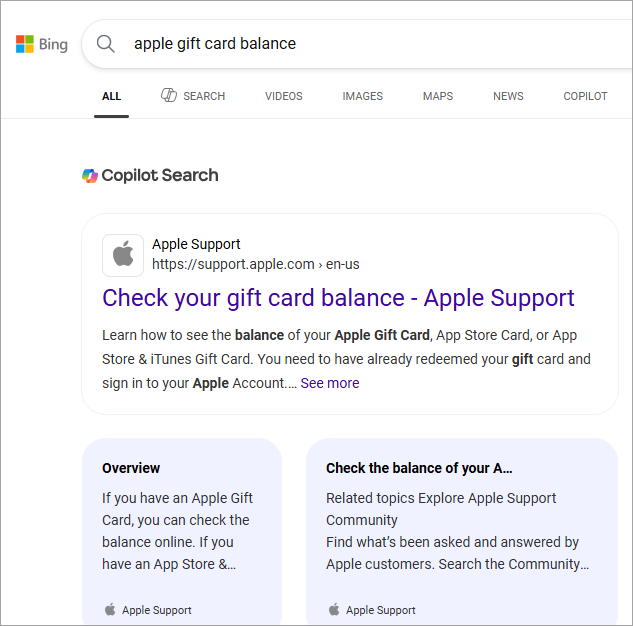
Step 2: Enter your Apple ID (where required) to enter your account. In some cases, you can be prompted to verify your account as well to make sure that you are actually making the request. Log in to the Apple ID, which will later redeem the card; this is to ensure uniform region processes and minimize the errors associated with cross-border cards.
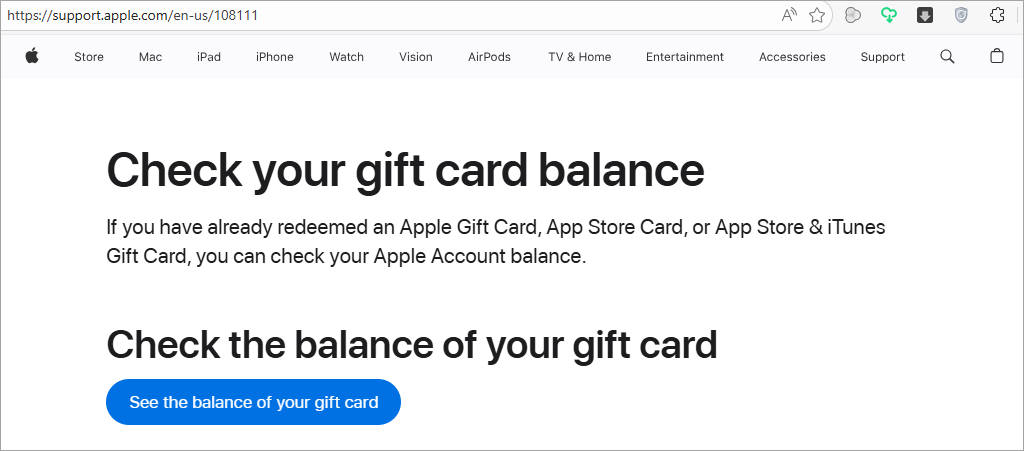
Step 3: Insert the gift card’s PIN: Use a sharp object (e.g., a scratcher) to scratch the back label of the gift card and type the PIN in the form as indicated on it. If your keyboard setup differs or auto-correct interferes, paste the content from a basic text editor to avoid spacing and formatting issues.
Step 4: Send a check request: This is where you will be querying the Apple servers to get the balance in the card. A delay of a few seconds is expected, particularly during peak hours or when Apple is checking card status with fraud detection systems or geo-fencing.
Step 5: Check the balance that has been displayed: The page must give a definite numerical value of the money attached to the card without redemption. When an error occurs, make sure that you correct the card type (unified Apple Gift Cards vs. legacy App Store and iTunes) and region compatibility, and then try again with special care.
Step 6: Optional cross-verification of iTunes in Windows: Open iTunes, start, but do not buy a small digital download to make sure the card will work once redemption occurs. Un-enroll; This is just a confidence test to make sure that your ecosystem correctly recognizes Apple Account balances.
#5) Android (Phone/Tablet)
Step 1: Open Chrome or your browser of choice. Go straight to the secure balance checker at Apple that is cross-platform and does not need an Apple app. This is the best route to take on Android because there are no native balance applications provided by Apple in the Play Store.
Step 2: Enter the PIN carefully: Peel or scratch off the protective strip on the card and carefully insert the code into the form. In case your keyboard has auto-correct (suggestions), turn it off in the meantime to avoid the possibility of making an unintended replacement that will automatically invalidate the check.
Step 3: Tap the balance check button: Post your request to the servers of Apple and wait to be responded. Ensure you have a good mobile data connection. The system will interpret periods of network loss as timeouts, similar to card failures.
Step 4: Check the outcome on the browser: Apple will display the amount of the balance in case the card allows pre-redeem verification in your area. In the event the reply indicates redemption rather than balance viewing, then just wait—this should act as an indication to confirm card type or region before proceeding any further.
Step 5: Optional validation with appleid.apple.com: Log-in using the Apple ID on a webpage and ensure that both your region and account are in good health. This does not indicate any unredeemed balances, but it helps make sure that your account can take money in once you check the value of the card.
Step 6: Take a screenshot of your files: In case the balance has appeared, then take a screenshot and store it in a secure notes application. This provides you with evidence of value and a reassuring point of reference, particularly should you redeem in the future or even give out the card as a gift and wish to assure the recipient.
How to Check Apple Gift Card Balance After Redemption
Here are some of the detailed steps for checking the Apple Gift Card balance upon redemption on various devices:
#1) iOS and iPadOS (iPhone/iPad)
These have steps that are similar to those mentioned above.
Step 1: Open App Store: Throw your card into the Open App Store, tap your profile icon, and use the same Apple ID that redeemed the card to view your account balance in the account view.
Step 2: Check balance in Apple ID: In the account pane, you will find your Apple Account balance displayed prominently, which will show the amount of money in your redeemed Apple Gift Cards.
Step 3: Purchase flow: make a small purchase (without finalizing) to ensure that your balance is considered the default payment of digital goods.
#2) On iPhone, Using the Wallet App
Here are the steps to check an Apple Gift card balance on an iPhone using the Wallet App.
Step 1: Open Wallet: Tap your wallet by tapping an Apple Account card.
Step 2: Redeem gift cards: Tap the redeem Apple Gift Card option, and then redeem the card by scanning a code or typing in the code.
Step 3: Full redemption: Check the redemption; the money is credited to your Apple Account balance.
Step 4: Check updated balance: Look at the new balance and transactions in Wallet directly under the Apple Account card.
Step 5: Use your balance: You are able to spend your balance on apps, subscriptions such as iCloud + or Apple Music, and purchasing items on the Apple Store; features may not be available in all regions.
#3) macOS (Mac)
Here are the steps to check your Apple Gift Card balance after redeeming on macOS.
Step 1: Use the App Store on the Mac: Use the Apple Store, tap your name or sign in, and find your Apple Account balance under account information.
Step 2: Check in Music or TV applications: Apple Account balance can be seen during the digital purchase, and this confirms to you that there is available money in the music and TV apps of Apple.
#4) Windows and Android (web)
Check the steps below to find your Apple Gift Card balance after redeeming on Windows and Android.
Step 1: Browse the web and Sign in: Go to appleid.apple.com or an Apple account portal, sign in, and find your Apple Account balance on the account or payment pages.
Step 2: Cross-check with browser buy: Start a flow to purchase items in App Store/iTunes through web prompts, where it is available to view the balance being recognized, and cancel the purchase.
Security Warnings and Scams Related to Apple Gift Card
Apple Gift Card balances are also another common victim of scams, and they have to be careful not to be swindled by a scam: scammers will often force victims to pay with Apple Gift Cards, e.g., taxes, utility bills, or debts, but there is no such thing as a payment that can be paid by Apple Gift Cards.
Businesses and government agencies that are legitimate will never demand payment with the use of gift cards, and providing redemption codes to strangers will instantly empty your wallet with no means of restoration.
Always use your card and receipt. Make sure you only use gift cards to shop at Apple and report any suspicious activity as early as possible to Apple Support or the FTC to protect your money.
Apple’s official support page and contacts
The official support hub of Apple is support.apple.com, where you can get troubleshooting instructions, product support, and live support.
You can reach Apple directly through their contact page at apple.com/contact or by calling 1-800-MY-APPLE (1-800-692-7753) in the U.S.
Frequently Asked Questions
1. What is the balance check of an Apple Gift card when not redeemed?
The surest way is the secure balance page of the unified Apple Gift Cards, which is the Apple Secure balance page, where you can enter the PIN to see the remaining balance without transferring the balance to your account.
The online remaining balance of older App Store and iTunes cards rarely shows a check balance and has either a printed denomination or has been redeemed. Only the official Apple tools should be used so as not to get the wrong results, and it is advisable to call Apple Support in case the site does not accept a genuine card.
Tutorials and community threads always validate this route as being fast and reliable, with pre-Colombia checks that have not been redeemed.
2. What happens to my Apple Account balance upon redemption of a card?
iPhone or iPad On iPhone or iPad, tap App Store, then tap your profile, and check your balance in the Apple Account linked to your signed-in Apple ID.
In Mac, it is located in the account page of the App Store or in the process of purchasing media in the Music and TV apps, ensuring that the balance is shown as a payment source.
Locate your account balance under the payment or account sections on Windows or Android by using Apple web portals to sign in. This flow can be traced with the help of visual tutorials, which is why it is easy to identify the balance between devices.
3. What is the distinction between Apple Gift Cards and App Store and iTunes cards in checking balance?
The gift cards with Apple are integrated and add funds directly to your Apple Account, which is easily visible once redeemed in the stores and services of Apple.
Legacy products are App Store and iTunes cards, which rarely indicate a remaining balance online; they can be either not used at face value or redeemed into an account and not visible on the card.
The communities are focused on ensuring that the type of card is checked to select the most appropriate approach, and the existing guides are keen on highlighting the expanded purchasing power of the unified card.
4. Is it possible to check the balance of my Apple Gift Cards on Android or Windows?
With any current browser, one can visit Apple’s secure balance checker and check the balance of unredeemed Apple Gift Cards. Once you have been redeemed, log in to your Apple ID through Apple online portals and see your Apple Account balance and ensure it is workable and capable of making purchases.
How-to tutorials and walk-throughs of device-agnostic prove that you are not required to have an Apple device to check balances. You can use video tutorials to show you how to find your way regardless of the fact that you are not in the Apple world at all.
5. What do I do when my card balance is not showing or does not look fine?
To begin with, insert the PIN again and ensure that you are filling in a unified Apple Gift Card and not an older App Store and iTunes card. In case the secure page fails again, just re-try it later.
Make sure that the region settings are as you would like them to be, and use the Apple Support page to make sure the card is not dead.
The responses to the community show some confusion regarding the card type at times, and the guides warn against third-party checkers that can falsely report values. Reliable instructions support the use of the official routes of Apple to have correct, up-to-date balances.
6. Do Apple Gift Cards Expire?
Apple Gift Cards have no expiration date, so you can redeem them whenever you choose. Once redeemed, the funds are stored in your Apple Account balance and remain available until used. This makes them a flexible option for purchases across Apple’s ecosystem, without time pressure.
7. Can you get a refund on the unused balance?
Apple does not provide refunds for unused balances or redeemed gift cards. They cannot be exchanged for cash, returned, or resold, except where local law requires. Once redeemed, the balance stays in your Apple Account until spent on eligible Apple products, services, or subscriptions.
Conclusion
To get a quick sense of what you have in your wallet, use the secure balance page of Apple to view unredeemed Apple Gift Cards without loading them, and use App Store account pages to view balances after redemption.
Community solutions and other assistance help highlight the fact that determining your type of card is the first step, and that older App Store and iTunes cards do not reveal any online remaining balance. Step-by-step, video walk-throughs render both platforms pleasurably easy on the iOS, macOS, Windows, and Android platforms.
The most effective solutions are the secure online checker on the Apple website, which is used to check the Apple Gift Cards that have not been redeemed, and the App Store account view that can be used to check the post-redemption balances.
Research Process: The total time involved to complete and publish this article is approximately 36 hours. This content was created through a structured research approach to ensure accuracy and reliability.
For more Apple-related guides, you can explore our range of tutorials below:
- How to Ping iPhone from Apple Watch and Vice Versa
- How to Use Apple AirTag for Android Devices
- How to Fix If Your Apple CarPlay Not Working
- How to Request Desktop Site on iPhone
- How to Create and Send a Poll in iMessage on iPhone and iPad
- Is AppleCare Worth Buying It: Explore Now
- How to Set Timer on Your iPhone Camera (Easy Ways)
Was this helpful?
Recommended Reading
-

Get to understand How do Apple AirTags Work along with its advanced technology, activation process, cost, security features, etc in simple terms with examples: AirTags are the latest smart device from Apple. These are little trackers shaped like pucks that you can use to locate something stolen or misplaced in…
-
Are you an Apple CarPlay user who often asks "Why is my Apple Carplay not working". Here is a guide that revolves around the carplay not working issue along with the possible solutions to fix it: Before CarPlay, Apple had developed its smaller version, ‘iOS in car’, in June 2013.…
-

Deeply explore how to ping iPhone from Apple Watch and locate your misplaced device quickly. This feature of how to ping Apple watch makes your phone emit a sound even when it is in silent mode: iPhone users can locate their iPhones by pinging them from an Apple Watch. When…
-
Do AirTags work with Android? Explore this exclusive setup guide to discover the step-by-step ways to effectively use Apple AirTag for Android devices: AirTags are a phenomenal piece of tech. I would even consider them a godsend, especially for folks who forget where they keep their belongings. Attach these tags…