Is your Apple Watch not charging? Stop worrying on “Why Wont My Apple Watch Charge” and try our tested troubleshooting steps that actually work to resolve the issue instantly:
Ever wondered why your Apple Watch cannot respond to charging action, charges slowly, or detaches from the charging activity once plugged in? There are a myriad of reasons for this. This tutorial delves into how these problems affect charging capabilities and offers solutions to eliminate them, so keep reading.
The reasons range from software glitches, bugs, or outdated software within the watch; overheating of the watch; dirty contacts as a reason of the accumulation of sweat, lotion, or other types of dirt; and misalignment between the charger and the watch itself.
Why Won’t My Apple Watch Charge: Troubleshooting Guide
Additionally, external issues, including power source issues such as power surges, the charger itself being spoilt either partially or completely, and overheating of the charger itself, may contribute to these unfortunate circumstances.
Read on because this tutorial discusses in-depth how exactly these issues affect the capability of charging and what you can or must do to eliminate these issues.
We discuss step-by-step instructions for solving these issues to restore the normal charging of the device and have the lightning bolt appear on the screen almost immediately to signal the normal charging event.
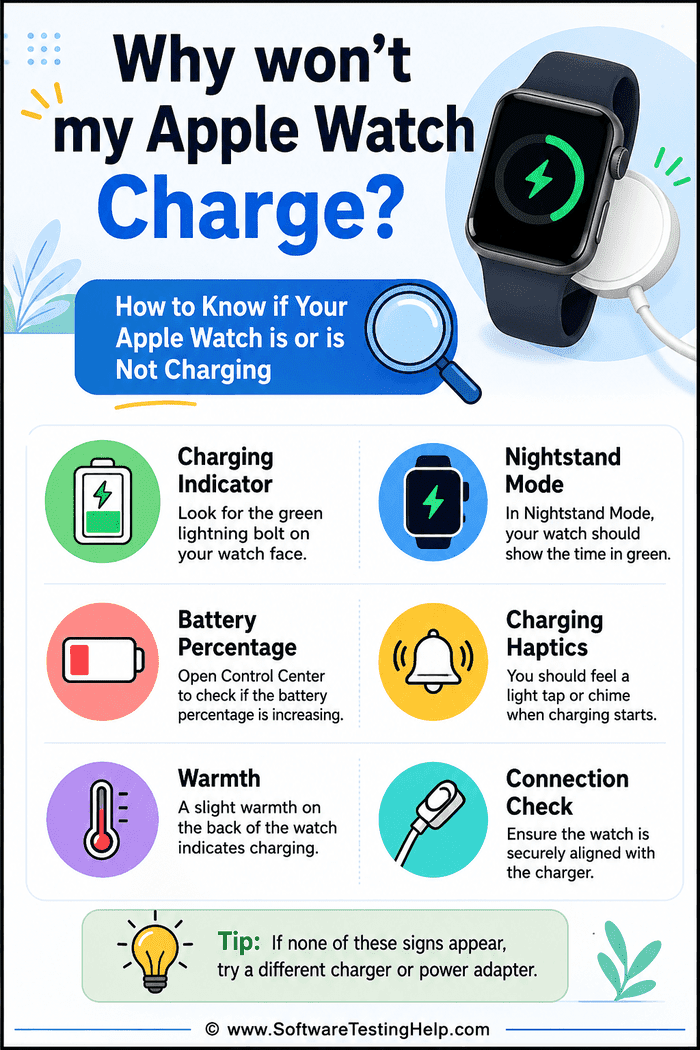
How to Know if Your Apple Watch is Charging or Not
[via Apple]
- You will find the green lightning bolt icon on the watch screen if the watch is in normal mode. You also feel that there is a small magnetic charge on the watch when it fits perfectly over the charger.
- You will also notice the screen blinking, and then the charging icon will appear. This comes after you have left the watch on the puck and waited a few minutes.
- In Nightstand mode, the screen will also reveal the charging icon.
- Press the side button of the watch to navigate to the Control Center (it can also be accessed by swiping up on the watch face). Check that the battery shows an increase in charge percentage after a stay.
- Many people can also detect a heating outcome on the watch once it starts charging. This is the case if the battery was flat or you have removed it and are boosting the charge. In some cases, this may work to successfully identify a charging exercise if you are restoring a flat battery and also suffering from a damaged screen. When and if this is not the case, you need to make adjustments to a variety of things we will suggest in this tutorial because your device is not charging.
Apple Watch Not Charging? Tips to Fix
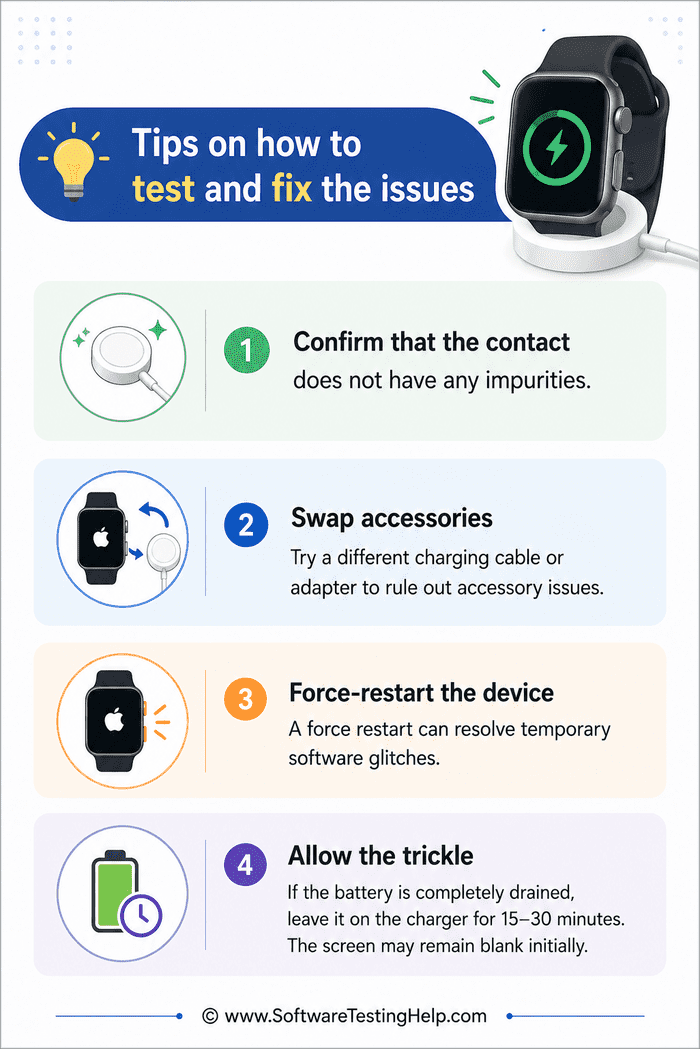
Here are simple tests to carry out and determine what is wrong in case it is not charging:
- Confirm that the contact does not have any impurities: After confirming, you can reinsert the watch. You might also try changing the outlets and taking off any bulky cases/metal bands that may prevent the charging exercise.
- Swap Accessories: Sometimes the issue is with the accessories that may not be picking up power to charge the device. Confirm that this is not so using a different magnetic charging cable and a known-good power adapter that provides a reliable supply of power. You might as well confirm using another device that is known to be working normally.
- Force-restart the Device: This is done using the side button and the Digital Crown, which you press both at the same time until you see the Apple logo. After a complete restart, put the watch back at the puck.
- Allow the Trickle: If and when you suspect that the battery is critically drained, one way of solving it is to leave it on charge for at least 30 minutes without touching it.
Here is the video on how to charge the Apple Watch Series 9:
Possible Solutions to Apple Watch Won’t Turn On or Charge Issues
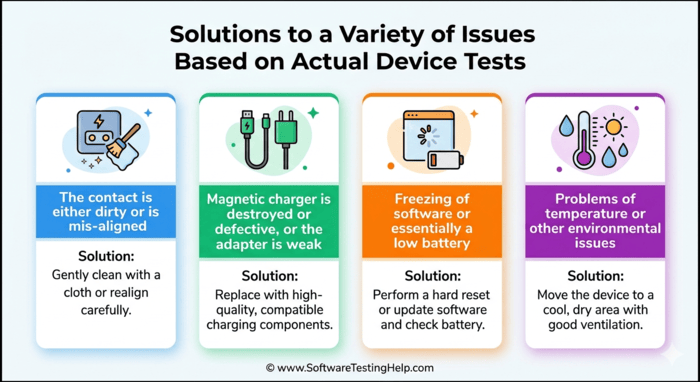
Listed below are some of the possible solutions to a couple of Apple Watch charging issues:
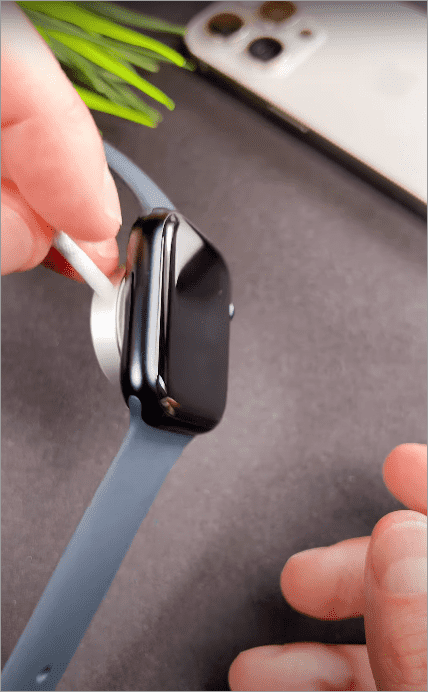
[via YouTube]
#1) Contact is Either Dirty or Misaligned
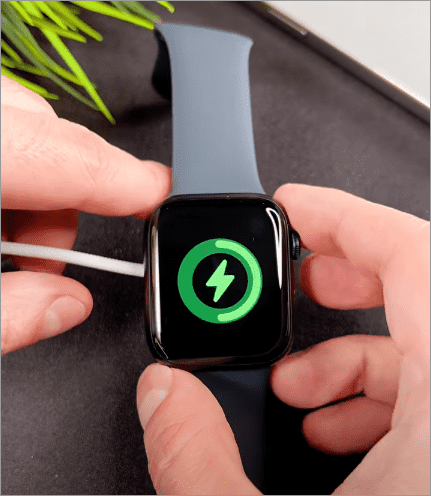
Issue: There is an accumulation of dust, lotion, sweat, or pocket lint on the back of the watch or charging puck. These impurities will disrupt any inductive coupling required to kick off the charging exercise, as well as initiate even the slightest mispositioning of the coil, which will not allow the charging icon to appear, even when power is on.
- The issue above causes a problem with sensitivity at the contact point and regulation at the same point
How to solve this problem and restore normal Apple Watch charging activity:
Step 1: Remove the charger from its spot. Wipe the puck using a dry and non-lint-like cloth. Make sure all the dust, oils, and residues are wiped off to restore normal charging.
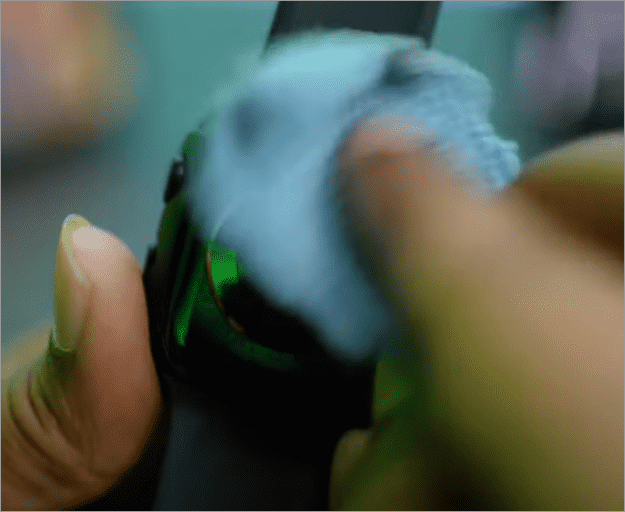
Step 2: Wipe the watch backwards with the sensor ring. Here, make sure that the Apple Watch back is completely dry.
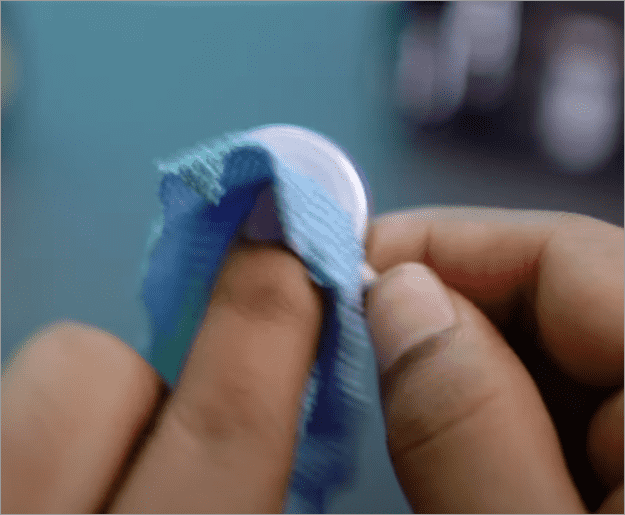
Step 3: Re-insert the power into the charger. Ensure that the watch is now seated in the middle to restore normal charging.
Step 4: Wait and touch the magnetic snap. Here, check if you can see the lightning icon in a few seconds to ensure that the charging is restored.
Step 5: Keep lifting and reseating the Apple Watch. Do this two to three times until you can see the icon show up in a different position each time you do the reseating.
Step 6: Allow a few minutes. This ensures that the watch can charge without dropping out.
Another related problem to the issue above is that of the connection between the metal and the band getting cut.
How to solve this problem and restore normal charging of the Apple Watch:
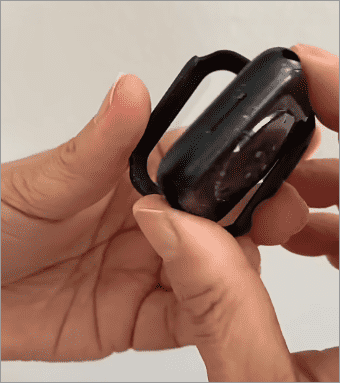
Step 1: Take off the entire case from the watch, and also detach all the metal or bulky bands from the watch.
Step 2: Wipe off lightly. This can be done using a dry cloth, which removes any grit that is stuck on the surface.
Step 3: You now place the bare watch flat, but also in the centre of the puck.
Step 4: On completing the above steps, ensure that the lightning icon returns on the watch screen. Ensure it is persistently present and remains stable for not less than one minute.
Step 5: Proceed by installing all the accessories one by one. Ensure you can retest each of the accessories each time you install them until you can find the culprit.
Step 6: If the problem is the casing accessories, replace them with a slim case or a non-metallic band.
#2) Magnetic Charger is Destroyed or Defective, or Adapter is Weak
Issue: An Apple Watch may also fail to charge because of several issues related to the charger and adapter. These include broken cables, fake pucks, or power-starved adapters because these may fail to communicate with the latest Apple Watch.
Once these cannot handshake or sustain the power level necessary to allow the icon to appear, the problem of charging appears. Charging may not be normal if the handshake drops halfway through the charge, which also usually happens without any easily noticeable damage to the item.
The above issue may arise from a cable being damaged or spoiled.
How to solve this problem:
Step 1: Rent or purchase an original Apple Watch charging cable. Ensuring you source it from a reliable provider goes a long way in ensuring it is in the best condition.
Step 2: Insert or plug into a good socket. Avoid plugging into USB hubs or using them for low-power purposes.
Step 3: For this step, place the watch on the new puck. Ensure to subsequently check the magnetic snap.
Step 4: Monitor the green lightning icon. Additionally, allow for 5-10 minutes to ensure that the charging, as indicated by the lightning icon, stabilizes.
Step 5: Recall how the watch was behaving and compare it now with the new behavior that shows up once the steps above are completed.
Step 6: Once you test and confirm that the charger is working normally, the problem may be with the cable, which may be faulty. In this case, replace this cable.
The above issue may also be arising from a poor-quality adapter that then starts to cause power instability
How to solve this problem:
Step 1: Find a good wall adapter. Either get an Apple one, or alternatively, a brand that is not fake, and one with good output.
Step 2: Do not use USB hubs. Another alternative to avoid is low-power ports, which may change with a load.
Step 3: Plug a stand charger into a wall outlet to start the charging process.
Step 4: Place the watch in its position. Ensure that the lightning icon is shown on the screen.
Step 5: Allow the watch to charge for at least 10 minutes. This will confirm that the charging is stable and fast.
Step 6: Replace poor adapters. This is the case when the dropouts or slow onset are eliminated with the superior unit.
#3) Freezing of Software, or Essentially a Low Battery
Issue: In this case, the watch will either hang or enter an ultra-low-power state and conceal the UI indicators. This may happen until you do either a reboot or a small amount of charge to replenish.
In this state, the Apple Watch appears to be dead, and the charging icon may or may not appear on the blank screen.
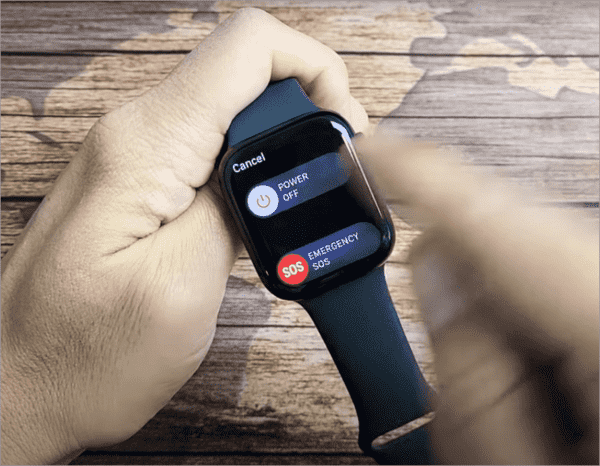
The issue above may be a temporary glitch that requires a simple force-restart for a fast recovery
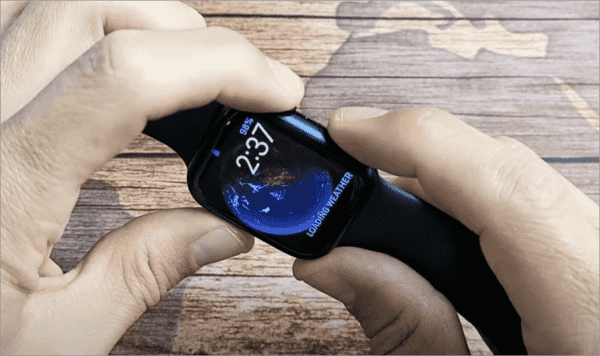
How to solve this problem and restore the charging of the Apple Watch:
Step 1: Place this watch in the charger. Guarantee the availability of the power.
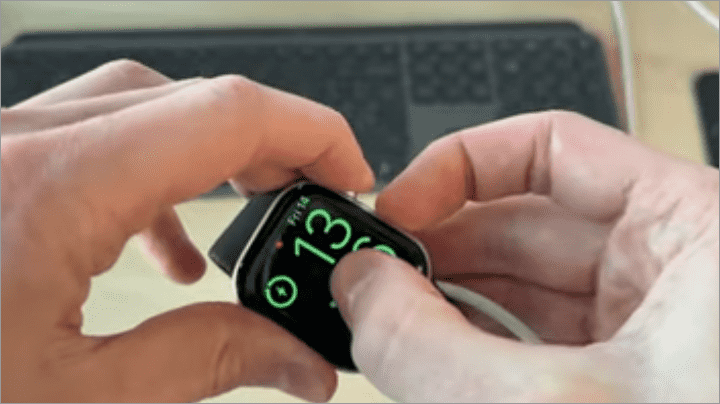
Step 2: At this point, press the side button and the Digital Crown at the same time.
Step 3: Do this until an Apple logo appears on the screen, and then let both buttons go.
Step 4: Ensure that the watch boot is allowed to slowly rotate on the puck.
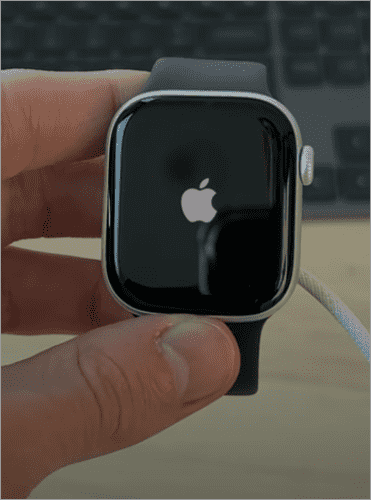
Step 5: After the interface is reloaded, check to ensure there is a lightning icon that signifies the charging exercise.
Step 6: Repeat the process if necessary. If the procedures above are unsuccessful, check for hardware issues.
The problem may also be a temporary glitch that requires putting the watch in charging mode to revive it gently
How to solve this problem and restore normal charging exercise
Step 1: Ensure you have a watch charger and adapter, both of which you already have. After this, place the watch in the established watch charger and adaptor.
Step 2: Do not stir it up. Additionally, avoid reseating the watch for a period of 30 to 60 minutes.
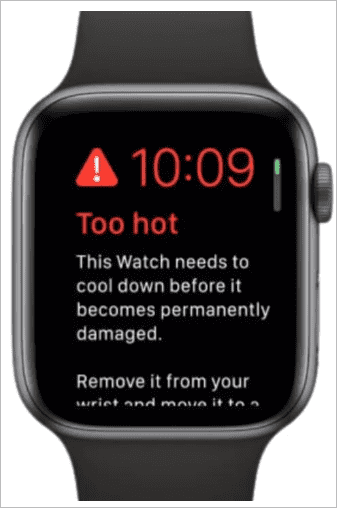
Step 3: Test that the watch feels a bit hot by touching the back of the watch. The alternative is to place the watch on the hand. Slight heat means that there is a flow of power.
If there is no heat and you are interested in replacing the battery for one reason or another, first heat the back of the watch gently using hot air. Do this for two minutes to ply the back cover of the watch open. Once this is done, remove the battery and insert a new one.
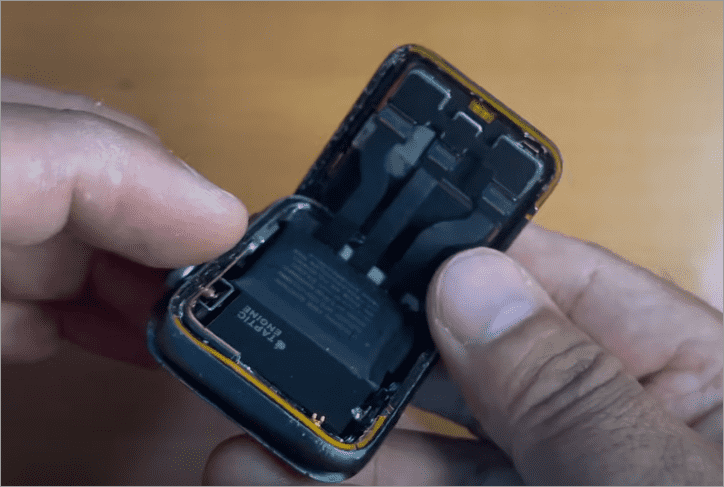
Step 4: Search for the lightning icon, and the Apple logo will appear at some point.
Step 5: Restart the watch using the procedure we prescribed. Do this in case the UI is still blank after one hour.
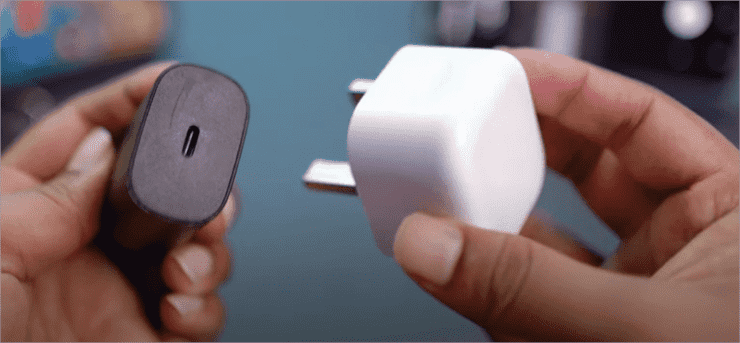
Step 6: Attempt to charge the device with another charger that you have established to be stable and working normally. Using this, it is easy to know whether there are any recoveries or isolated hardware failures.
Here is the video guide on how to check battery health on an Apple Watch:
#4) Temperature or Environmental Issues
Issue: For this issue, the Apple Watch will not charge when the temperature of the watch itself or the surrounding environment is excessively high. Thus, the charge will stop, as it is necessary to keep the battery safe.
After this, the normal charging operation is restored because the stoppage allows the device to cool down and air to pass through it. This will avoid the effect of protective throttling.
The above problem may occur if there are cooling issues with the device
The Apple Watch is normally programmed to reduce temperature automatically, for instance, by shutting down charging when the temperature is too high.
This means high temperatures will not wear out the battery quickly. Additionally, there is another advantage: allowing the watch to cool will prevent such automatic breaks and allow the watch usage sessions to always be smooth.
You would realize that charging the Apple Watch in a well-ventilated room with a cooler will lessen the heat accumulation. This is because the coil and the battery generate the heat, which is now cooled. For this reason, the watch will perform fast without triggering the protective mechanisms or displaying unpredictable outputs.
This process, advantageously, requires no accessories. Plus, you need not take off the watch after a workout, but just wait a few minutes and put it on the charger somewhere airy. It is also sometimes suggested to restore the usual charging without going too far.
How to solve this problem and restore charging of the Apple Watch:
Step 1: Begin by taking off the Apple Watch once you notice it getting hot. The same may occur if you have finished a workout. Allow the watch to rest.
Step 2: Leave the watch in a cool place. Such a place is one with ample air circulation. Leave the watch in this location for about 10 to 15 minutes.
Step 3: Clean the back side. Clean the bandage. This is done using a soft cloth. Then dry it.
Step 4: Charge the device in a well-ventilated place. Do not leave blankets and clutter in the place to avoid fire emergencies.
Step 5: Be patient. Watch for the lightning icon signifying the start of the charging process to appear. Ensure the charging exercise is continuous by watching the watch for at least five minutes.
Step 6: Cool again. This can be repeated in case there is a stop or the watch is excessively hot.
When to Contact Apple Support
Sometimes it’s necessary to call Apple Support to clear up a doubt or eventuality. For instance, it can be frustrating and require support staff help after you have cleaned, changed the cables/adapters, tried to force restart your watch, and even spent a long charging window, and still, the lightning icon is not displayed.
If the watch continues to disconnect after the charging process begins, you might need to contact support as well. Besides, it may be time to have the battery, charging coil, or internal power management diagnosed and replaced. These are some things that may necessitate you calling Apple.
Frequently Asked Questions
1. My Apple Watch has not charged at all. Why?
There are several eventualities that you need to check here. In most cases, it is usually some debris on the contacts, a faulty cable or adapter, or a glitch or freeze in the software.
Therefore, you may need to clean it, change accessories, force a restart, and give it time on the puck before assuming that it is a hardware issue causing the failure in charging.
2. Why do you not see the lightning bolt icon on my Apple Watch?
Wayward bases and grimy ones are the two most guilty parties in this issue. To solve this problem, revert the watch to the charging position. After this, test for charging again with a known good cable and connector when the watch has been force-rebooted.
3. Is it possible that the Apple Watch charging can be carried out by a third-party charger?
Knockoff or incompatible pucks and cheap adapters may tend to become non-cooperative at load. You can normally resolve the problem easily by trying it with a real magnetic puck.
4. Is the Apple Watch battery dead if it takes time to charge on the charger?
Sometimes drained cells can require 30-60 minutes of continuous charging before the power on the battery is boosted to the point where the green lightning icon appears on the screen. Sometimes, when this problem appears immediately, it is advisable to restart.
5. Is it better to take off my case or band when I am charging my Apple Watch?
To prevent an Apple Watch from freezing up during the charging process, the Apple case must not be lifted. If there is any magnetic noise caused by a band, take off the watch and wipe it with a bare crystal on the puck to remove guesswork during alignment.
Conclusion
This tutorial discussed how you can easily and quickly solve a number of issues causing your Apple Watch to not charge. Among the commonest reasons are dirty contacts, weak adapters/cables, misalignment, and software freezes.
Of course, these can be dealt with by cleaning the charging contacts, replacing any damaged accessories, force-restarting the Apple Watch, cooling down, and patiently trickle-recharging. These tricks have, again and again, proved dependable, and they are usually drama-free, bringing most watches back to life.
We recommend beginning with a cleaning and reseating, and then advancing to testing with known good accessories. Some will also try a hard reboot before they conclude that it requires service, since such practical and hands-on steps can resolve most difficult cases in just a few steps. Otherwise, it is necessary to take it to the mechanic to check and repair it.
Research Process: Approximately 48 hours were spent on comprehensive research, evaluation, verification, and final preparation to ensure accurate and reliable information.
For more Apple-related guides, you can explore our range of tutorials below:
- The Top 20+ Apple Watch Apps (Latest Top Sellers)
- Why Is My Apple Watch Screen Not Working: Quick Fixes
- How to Clean Charging Port on iPhone
- How to Ping iPhone from Apple Watch and Vice Versa
- Is AppleCare Worth Buying For Your Apple Gadgets?
- How Do Apple AirTags Work: Pricing, Range & Setup Process
Was this helpful?
Recommended Reading
-

Is your Apple Watch not counting steps accurately? Unveil the expert solutions from our step-by-step guide to fix Apple Watch not tracking steps and restore accuracy to achieve your fitness goals: Apple launched the first Apple Watch in 2015, which had fitness monitoring, wireless communication, and many other useful features.…
-
Failing to keep track of your health and physical condition daily? Read this review to compare and select the Best Fitbit for Men: Are you thinking about a device that will do the health and activity tracking job easily for you? It's time to switch over to the best Fitbit…
-
This is an in-depth review and comparison of the top Smartwatches. Take a closer look and choose the best smartwatch to track your fitness: Do you want to keep a constant update on your health and fitness? If you have a smartwatch, you can do it by just staying at…
-
Here you will find a list of Android Smartwatches reviewed and compared for you with features and technical specifications to select wisely: Want to use the next stage of hand wearable that will keep track of your fitness regime? Having a good smartwatch will help you achieve it. The Android…