Is your iPhone running slow? Quickly learn how to clear Cache and Cookies on iPhone in just a few taps to fix loading errors and speed up performance on any browser:
Cache and cookies refer to the temporary storage of your recent activities on the device. This includes websites you visited, images you opened, words you wrote using your keypad, etc.
The device stores the information (or files) so that if you want to do that action again in the near future, it will happen instantly. For example, you must have noticed that when you open a picture online that you had recently opened, it opens instantly, without taking any time to load.
Clear iPhone Cache and Cookies: Easy Methods

Or if you are writing a word that you write very often, the keypad will suggest that word when you write the first letter of it. You can press it to write the full word instantly. This eventually saves the user’s time and enhances their experience.
If you are here, I must say, you would face one of the following issues with your iPhone:
- Your iPhone’s storage may have finished, and you would have tried deleting the unnecessary stuff, but the issue persists. So now you want to delete the cache and cookies.
- Your iPhone may freeze frequently.
- You may be concerned about your privacy, so you would like to delete all cookies from your iPhone so that no website can track your activity.
Let me tell you, clearing the cache and cookies does not delete any of your data. It just deletes the temporary history of your activities, like browsing history, login information, etc.
In this article, you will find step-by-step guidance for deleting the Safari cache, app cache, Chrome cache, and cookies.
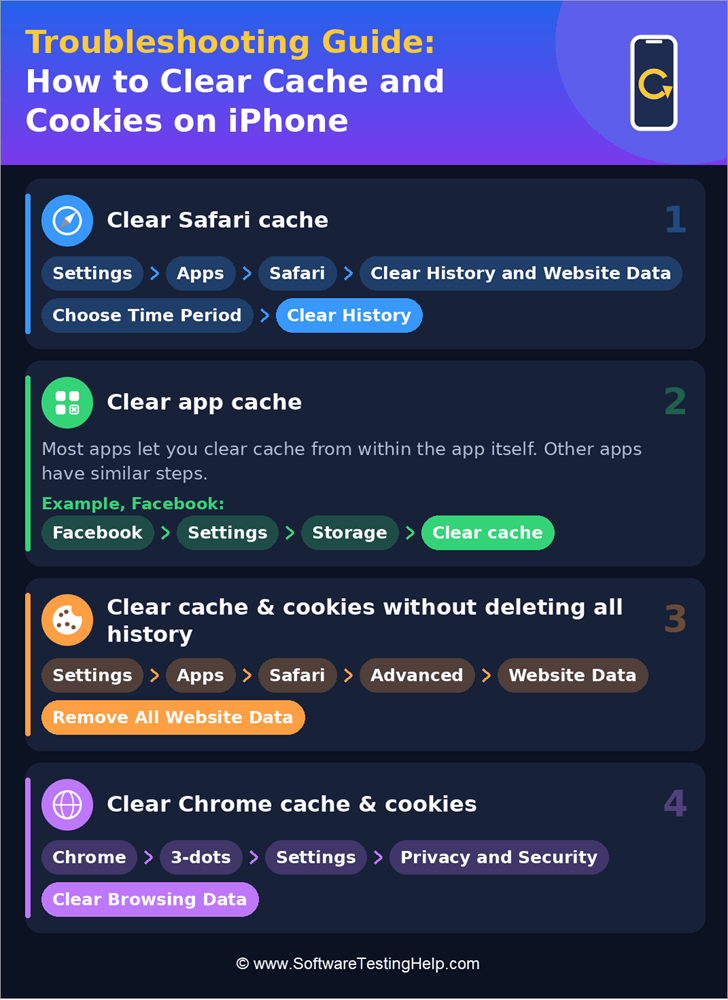
Quick Summary of Steps to Clear Cache and Cookies on iPhone
- For clearing cache on iPhone: Settings ➡️ Apps ➡️ Safari ➡️ Clear History and Website Data ➡️ Choose Time Period ➡️ Clear History.
- How to clear app cache on iPhone: The cache of most apps can be cleared from within the app itself. For example, to clear Facebook cache, open Facebook ➡️ Settings ➡️ Storage ➡️ Clear cache.
Other apps have similar steps for clearing cache.
- For clearing cache and cookies without deleting all history: Settings ➡️ Apps ➡️ Safari ➡️ Advanced ➡️ Website Data ➡️ Remove All Website Data.
- For clearing Chrome cache and cookies: Chrome ➡️ 3-dots ➡️ Settings ➡️ Privacy and Security ➡️ Clear Browsing Data.
iPhone users can offload an app in case of a shortage of space. Offloading an app will remove the app, but will keep its documentation and data. This means that whenever you reinstall the app, it will have all the data you had stored in that specific app.
To offload an app, go to Settings ➡️ General ➡️ iPhone Storage ➡️ Choose an app ➡️ Offload app.
Here is the video guide on how to clear cookies and cache on iPhone:
Delete Cookies Without Erasing Your Whole History
Most iPhone users are unaware that they can delete the cache and cookies without erasing the whole history and website data.
Here is the step-by-step guide to do so:
- On your iPhone, go to Settings.
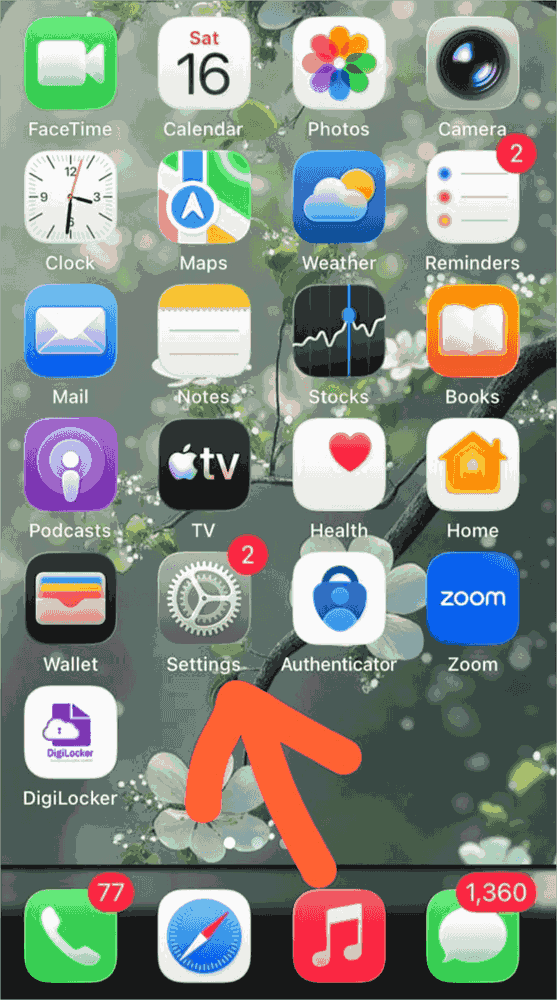
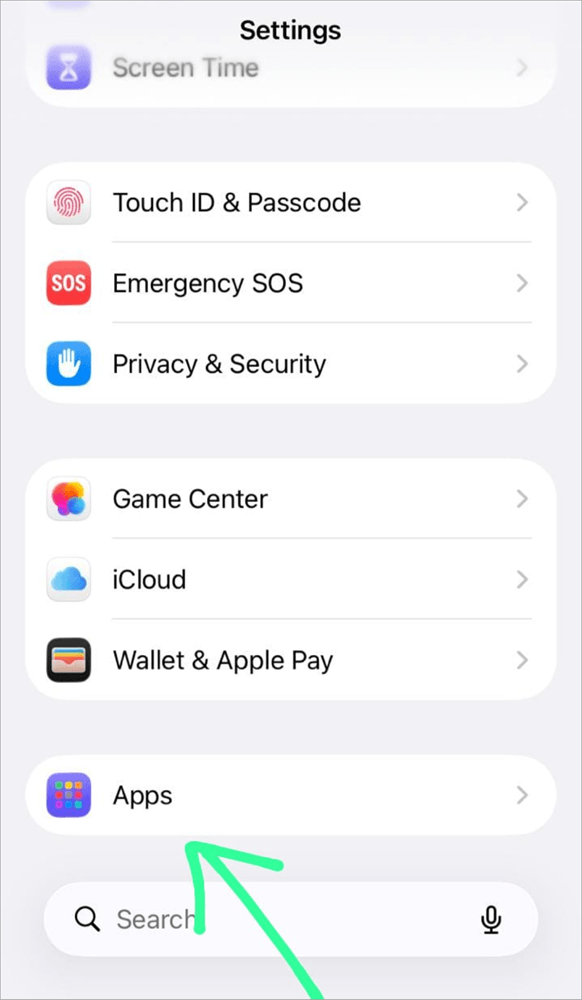
- Now select Apps
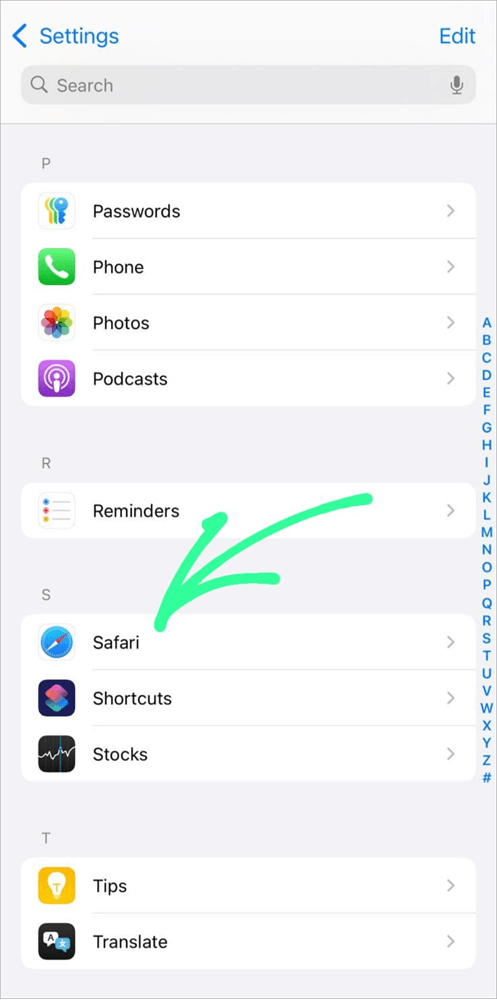
- Tap on Safari
- Go to Advanced
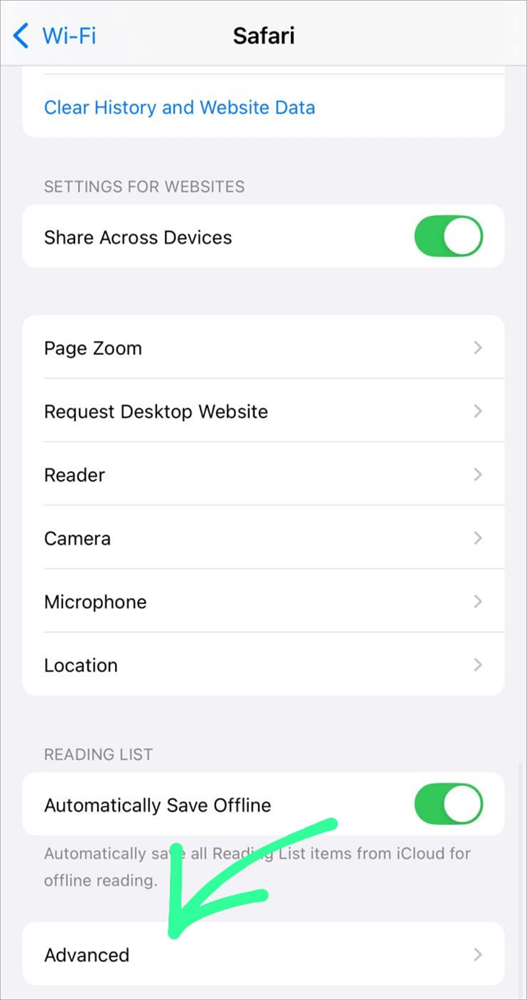
- Now select Website Data
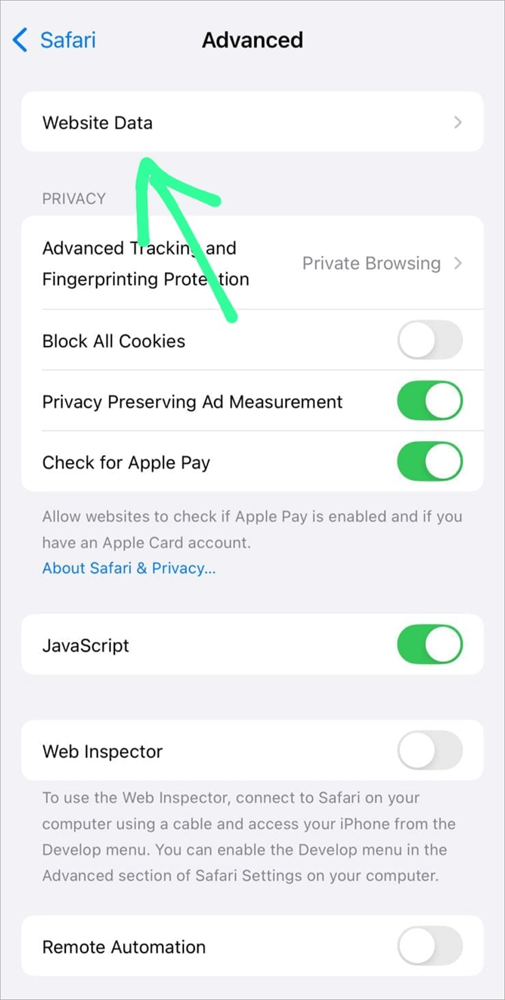
- Choose Remove All Website Data
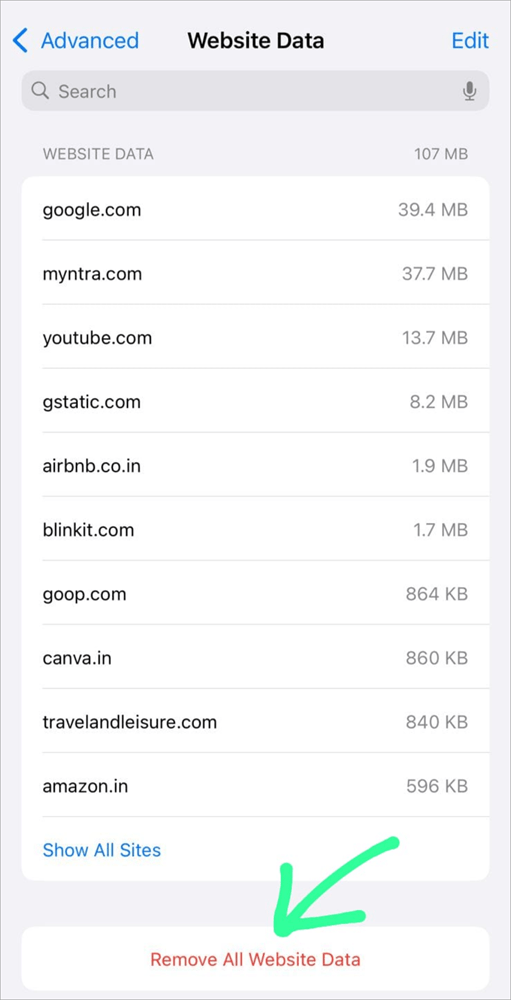
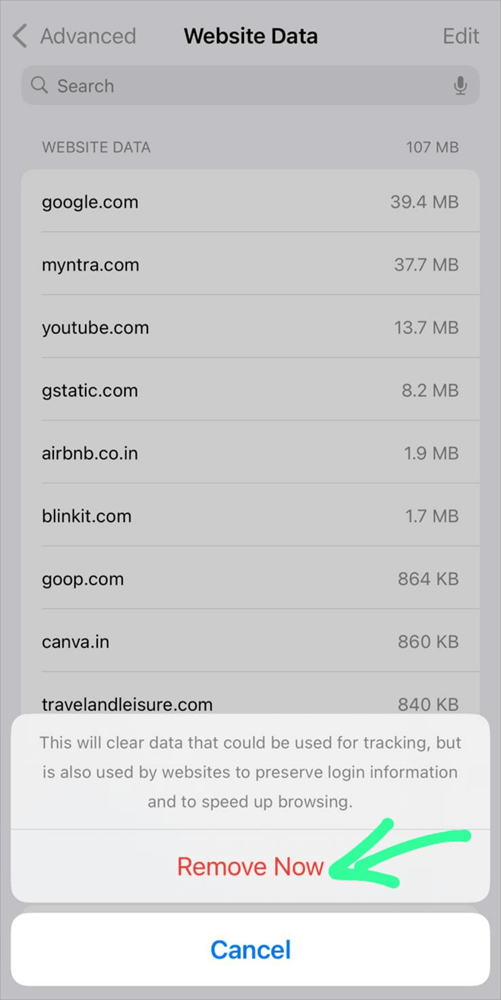
- Now, select Remove Now.
You can also Clear Cookies for one Specific Website using these steps:
- Go to Settings on your iPhone
- Now, select the option: Apps
- Select Safari
- Tap on Advanced
- Go to Website Data
- Now, find the name of the website whose cookies you want to delete. Swipe left on it.
- Select Delete.
How to Clear Cookies on iPhone (Chrome)
If you are using Chrome on your iPhone, you can use the following steps to clear cookies on Chrome:
- Open Chrome on your iPhone.

- Tap on the 3-dot menu icon located in the upper (or bottom) right corner of your screen.

- Choose Settings
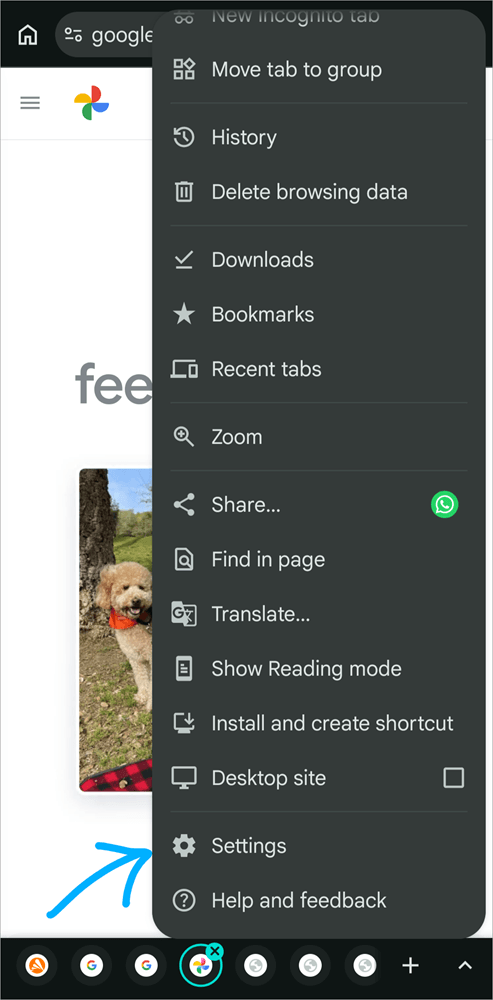
- Go to Privacy and Security
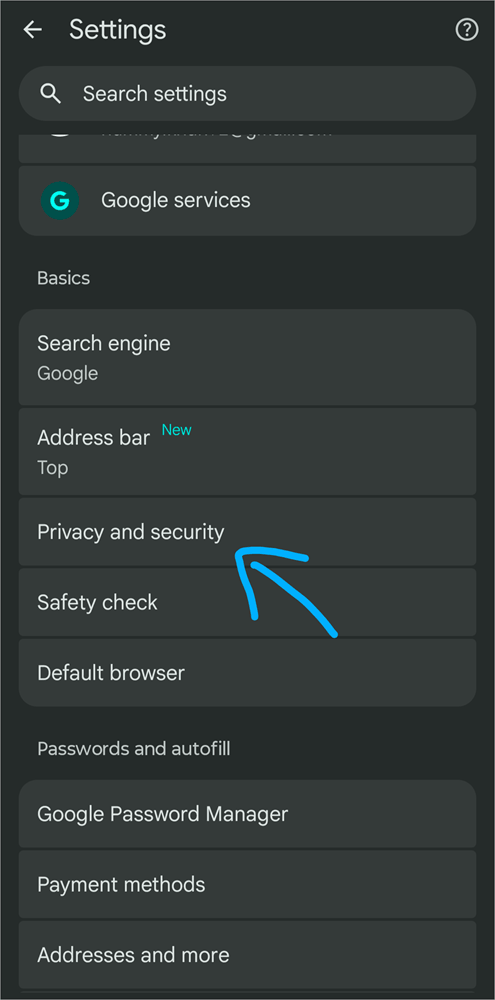
- Select Delete Browsing Data
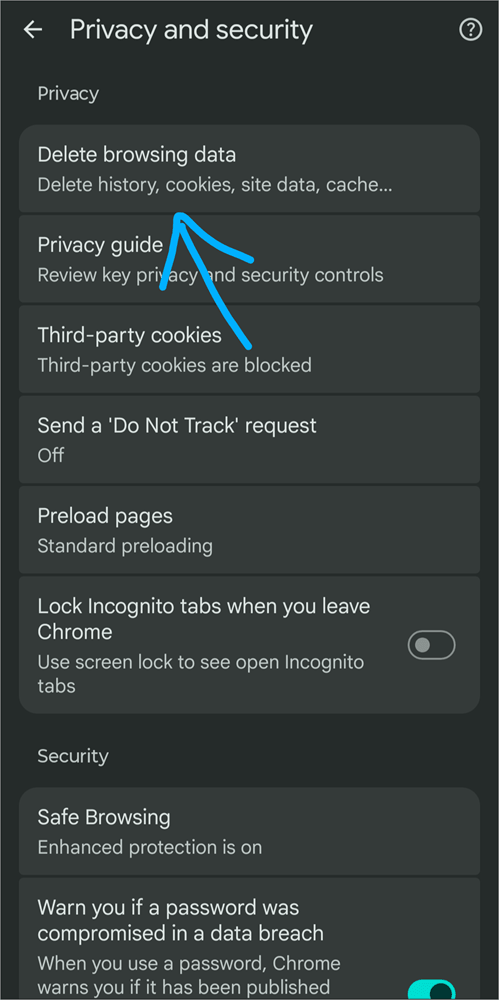
- Now, Tap on the box next to Time Range, and choose All Time.
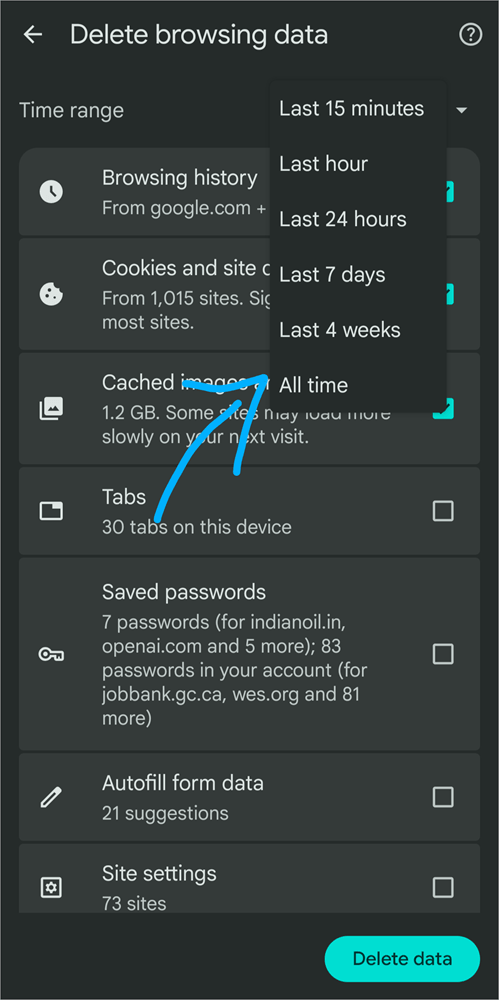
- Make sure only the Cookies and site data option is ticked. (You can tick cached images and files also, if you want to delete Chrome cache).
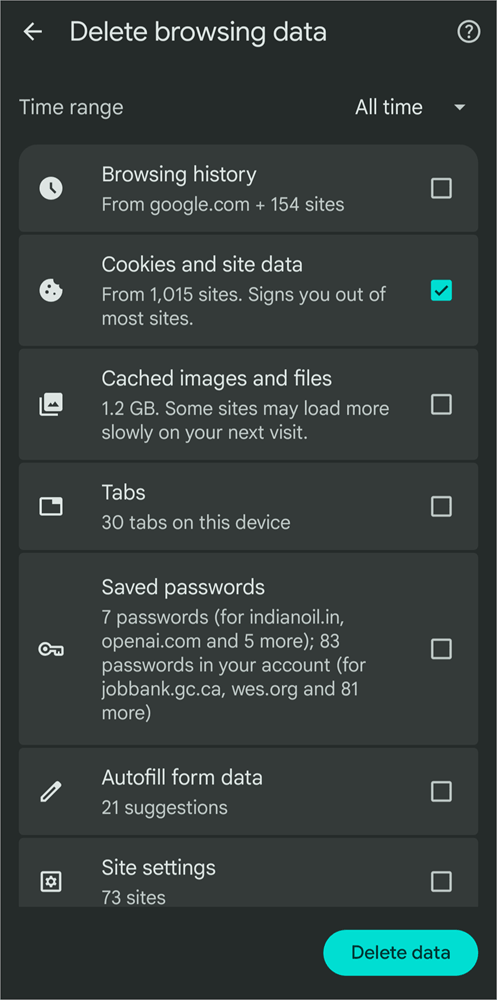
- Select Delete data and confirm.
To clear the cookies of a specific website on Chrome, do as stated below:
- Open Chrome
- Now open the site whose cookies you want to delete.
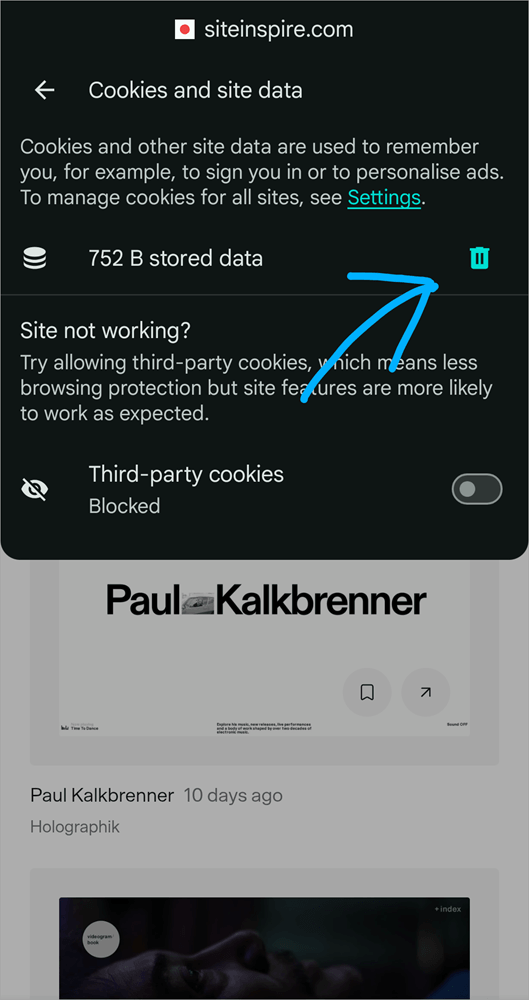
- Tap on the info icon located next to the site URL.

- Select Cookies and site data
- Tap on the Delete icon.
How to Clear Cookies in Safari on iPhone (Firefox)
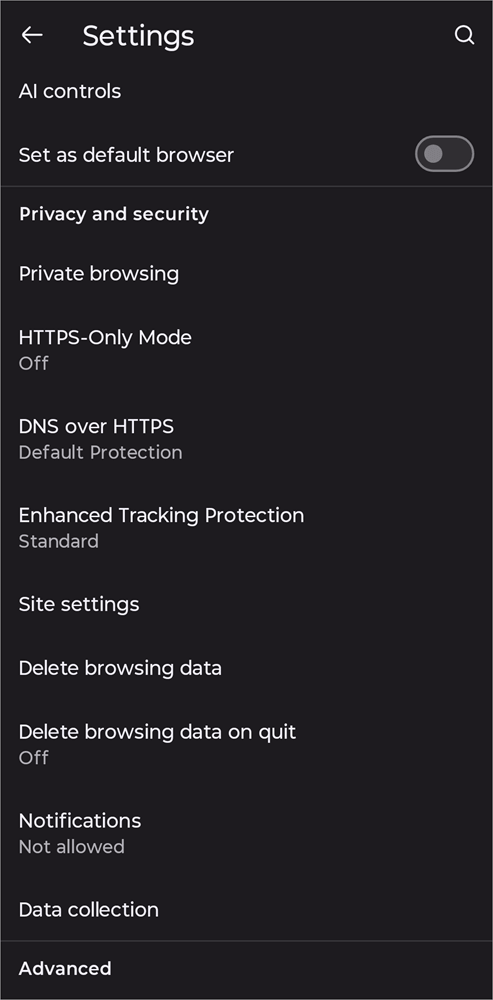
- First, open the Firefox application on your iPhone.

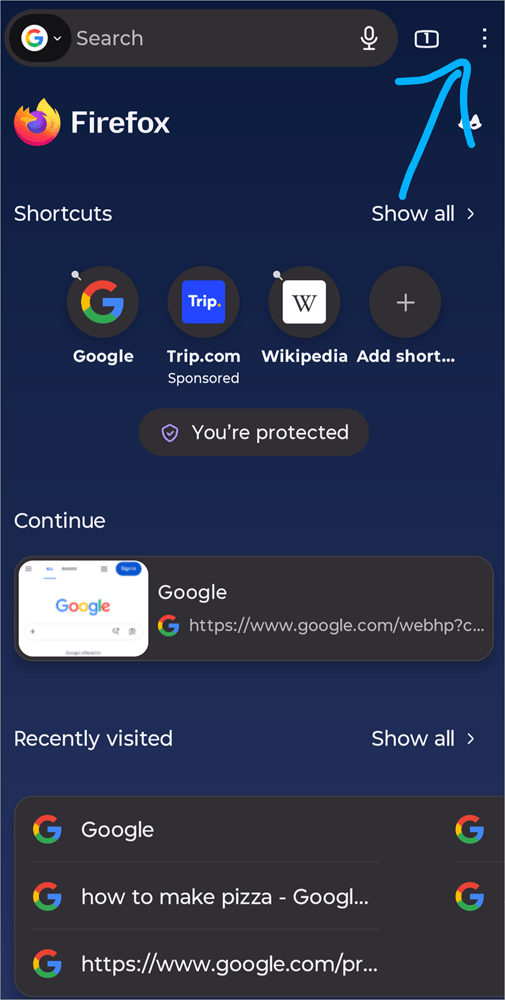
- Tap on the 3-dot menu icon.
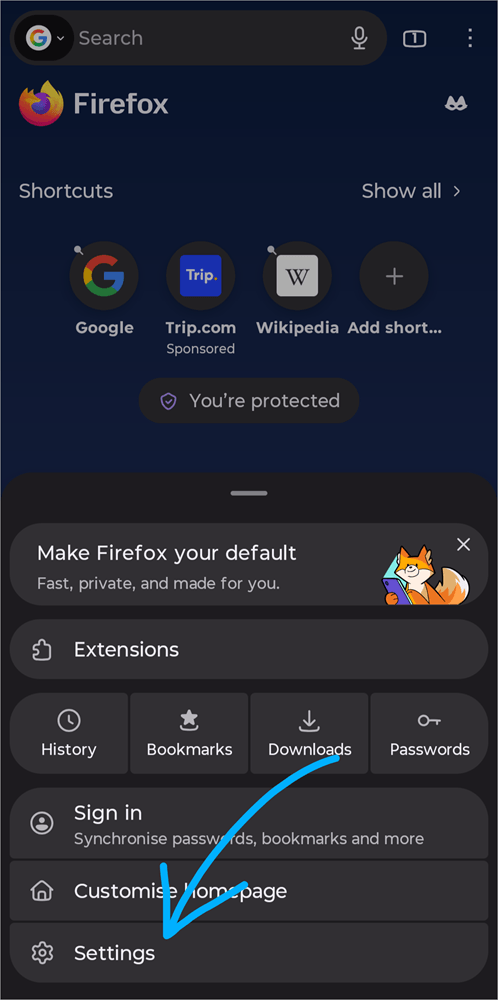
- Select Settings
- Under the Privacy and Security section, there will be an option: Delete browsing data. Tap on it.
- Tick Cookies and site data; make sure all other options are unchecked. (You can tick the Cached images and files option also if you want to delete the cache)
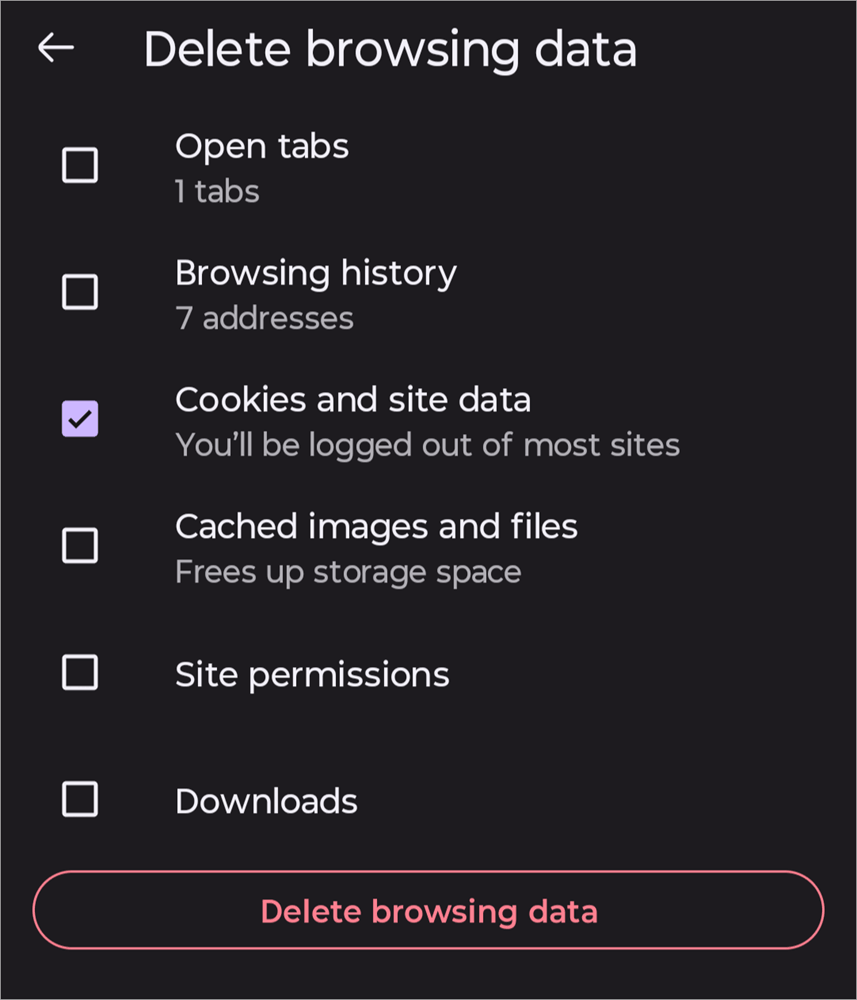
- Now select Delete browsing data
- Confirm by selecting Delete.
This clears Firefox cookies while keeping your history.
You can delete cookies for one specific website on Firefox using these steps:
- Open Firefox on your iPhone
- Open that specific website
- Now, tap on the Shield icon
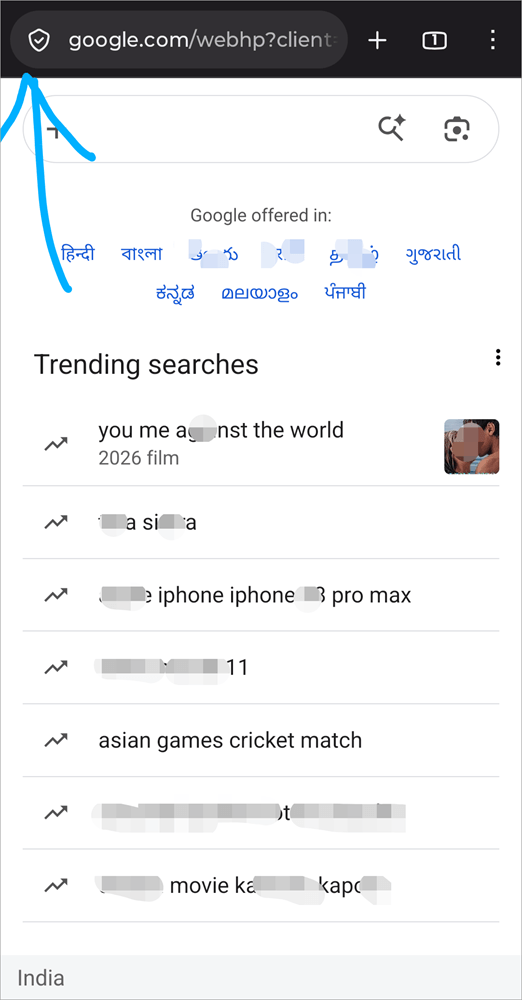
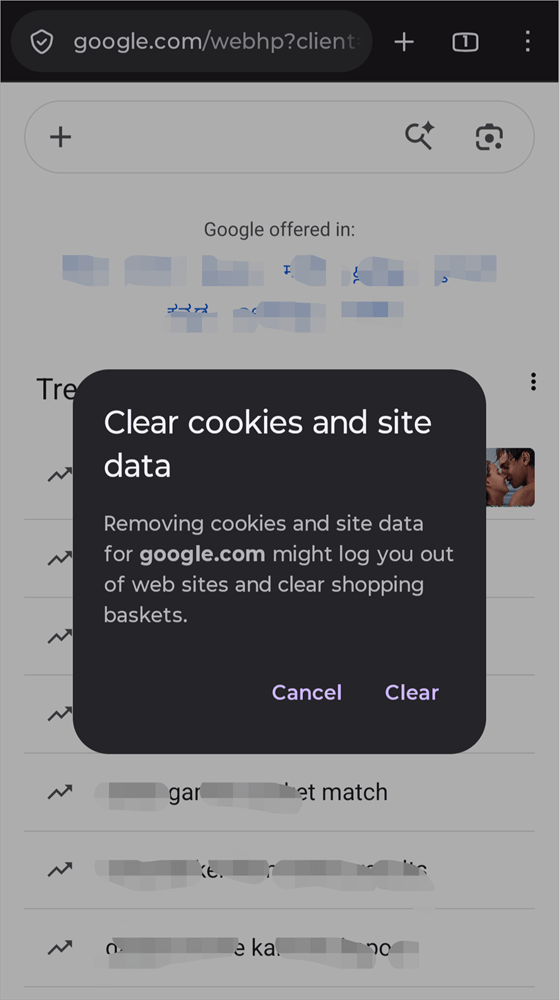
- Select Clear Cookies and site data.
- Tap on Clear.
What Happens When You Delete Cookies on iPhone
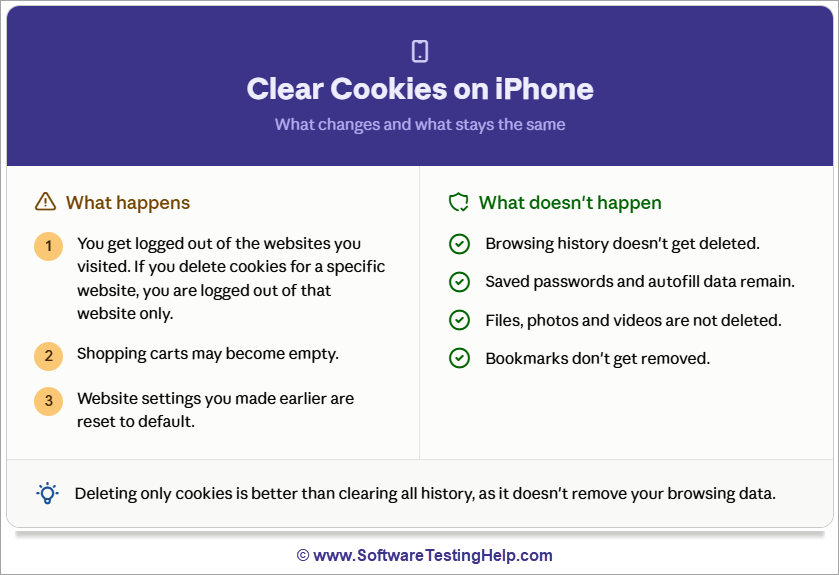
When you clear just the cookies on your iPhone, here’s what happens:
- You get logged out of the websites you visited. If you have deleted cookies for a specific website, then you will get logged out of that specific website only.
- The shopping carts may become empty.
- If you had done some website settings earlier, then they will be reset to default.
What Doesn’t Happen When You Clear the Cookies
- The browsing history doesn’t get deleted.
- The passwords and the autofill data you saved remain there.
- The files (including photos, videos, etc.) do not get deleted.
- Bookmarks don’t get removed.
Hence, it is quite clear that deleting only Cookies is better than clearing all history, as it doesn’t remove your browsing data.
How to Block Cookies Automatically
On Safari
You can automatically block cookies using Settings on your iPhone, using these steps:
- Go to Settings
- Choose Apps
- Select Safari
- Go to Advanced
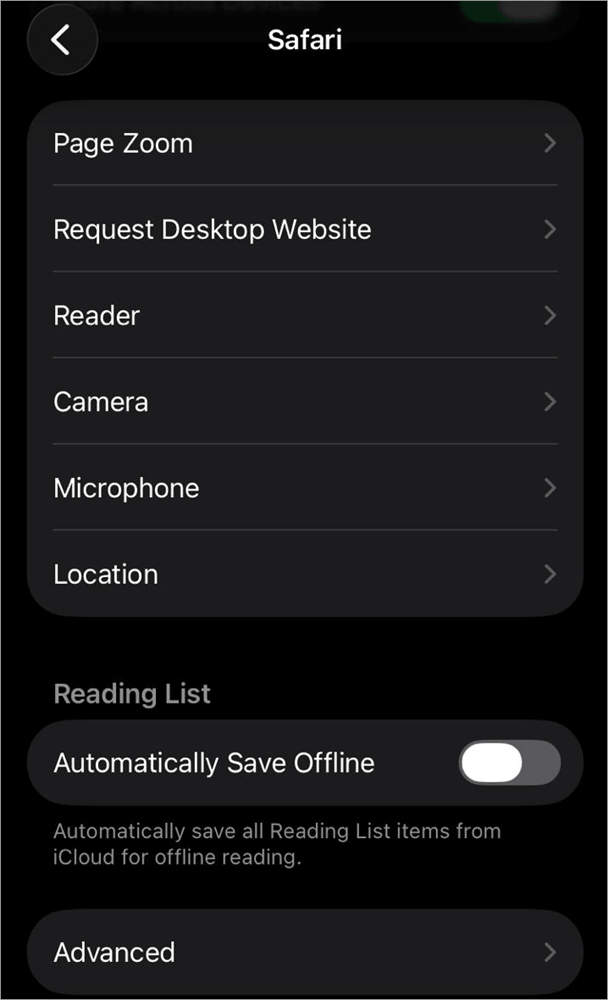
- Enable the option: Block All Cookies
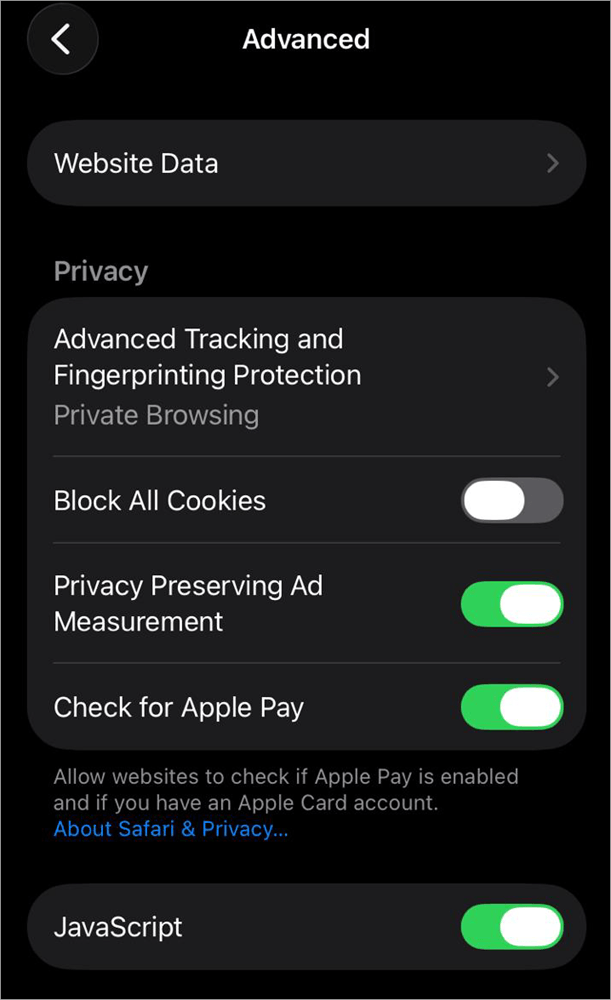
Here is a more advanced setting for automatically blocking Cookies:
- Open Settings, then select Apps
- Now go to Safari
- Go to Advanced
- Tap on Advanced Tracking and Fingerprinting Protection
- Select All Browsing
This setting will allow only the useful cookies and block the bad ones. This means that only the cookies from the websites you visited will stay, and no third party will track you with cookies. Another plus point of this setting is that the websites you visit won’t be able to track your screen size, fonts, iPhone version, GPU, etc.
On Chrome
How to block cookies automatically on Chrome
Chrome does not have the option to block cookies automatically. But if you are concerned about your activities being tracked by the websites, you can block cookies by following these steps:
- Open the Chrome app on your iPhone
- Tap on the 3-dots icon
- Now select Settings
- Go to Privacy and Security
- Enable Do Not Track
- From here you can also block cookies from third parties.
- Select Third-Party cookies
- Now, choose Block Third-Party cookies.
Warning:
Smartphone users must be aware that if you block cookies on Safari or Chrome (or any other browser), then:
- Some websites won’t work.
- You may not be able to even sign in on some websites.
- While browsing, you may see a notification that you have blocked cookies, that’s why the website won’t open (on some websites).
- Some websites would work, but some of their features won’t work.
Steps to Prevent Cross-site Cookies
When you visit a site, it saves cookies to give you a personalized experience, which is a good feature. But, along with the website you are visiting, third-party apps that would be showing ads on the website you visited also save cookies on your phone.
For example, if you search for handbags on Louis Vuitton’s site, the site will save cookies on your phone. But at the same time, some third parties like Facebook and other handbag sites will also save cookies on your phone to show you similar products. These are called Cross-site cookies.
You can prevent cross-site cookies on your iPhone using these steps:
- Go to Settings
- Select Apps
- Now choose Safari
- Go to Privacy & Security
- Enable the option: Prevent Cross-Site Tracking.
How to Switch to Private Browsing to Avoid Cookies
When iPhone users switch to Private mode, the phone does not save any cookies or history.
You can follow these steps to quickly go into Private mode for browsing:
- Open Safari browser
- Now tap on the Tabs icon
- Select Private (or New Private Tabs Group)
- Tap on the + icon to open a new Private tab.
Clearing App Cache vs. Cookies
There’s a good difference between clearing cache vs clearing cookies of a specific app. Have a look at this table to learn about the main differences between the two.
| Deleting App Cache | Deleting Cookies |
| Deleting cache deletes the saved photos/files that you recently opened | Deleting cookies logs you out of a website, empties your card, and deletes website settings. |
| Clears significant storage space on your phone | Clears the minimal amount of space on the phone. |
| If you have deleted the cache of a specific app, the files will now have to reload and thus will take some time. | If you have deleted the cookies, you will have to log in again. |
| Clearing the cache improves speed. It is done when your phone freezes frequently, or when there’s a shortage of storage space. | Deleting cookies is done for privacy concerns, or when an app or website is not functioning well. |
Frequently Asked Questions
1. Is it safe to clear the cache on an iPhone?
Yes, it is absolutely safe to clear the cache on your iPhone, because:
• Clearing cache does not delete any files from your device.
• Neither does it log you out of the websites you logged into.
• Clearing cache deletes the photos or files saved by the device automatically for quick loading of apps or websites.
2. What happens if I clear cookies on my iPhone?
When you clear the cookies on your iPhone:
• You will be logged out of the websites you visited
• The site preferences will be reset
• Custom settings will be reset
• You won’t see ads based on your preferences
• A minimal amount of storage space will be cleared.
• It protects your privacy by removing the files from your device that are there to track your activities.
3. What are the disadvantages of deleting cookies?
Deleting cookies has the following disadvantages:
• You will be logged out of the websites you were using. You will have to log in again. This can be quite troublesome if you don’t remember your login details.
• Your website settings will be reset. Like if you were using a dark mode, or if there were some location settings, they would be reset to default.
• Your shopping carts will go empty. If you had saved some items in your cart to buy later, they would be lost. You’ll have to find and add them to the cart again.
• You won’t see content based on your past preferences.
4. Is it better to clear cookies or cache?
Clearing cookies and clearing cache are two different things; they are used for different purposes.
While clearing the cache deletes the files saved on the device for quick loading in the future, clearing cookies clears the website settings and logs you out of the websites and applications, so that the cookies that were there to track your browsing activities (for showing you content based on your preferences) are removed.
So, we can say that clearing the cache is good for storage, and clearing cookies is good for privacy concerns.
5. Will I lose anything if I clear the cache?
No. Clearing cache does not delete any of your photos, videos, or other files. It just deletes the files that are automatically saved on your device for the purpose of quick reloading when the user chooses to open the file again after a short while.
6. How often should you clear cookies and cache?
By default, the cache and cookies get automatically deleted after a certain time. So, there is no need to keep on deleting them. But if your phone is low on storage, then you can delete the cache frequently, as it clears a significant amount of storage space and saves your phone from freezing.
Plus, if you are seeing too many ads on your browser, or if you have some privacy concerns, you can clear cookies every 2-3 days (or even after each browsing)
7. Is it better to have cookies on or off?
Enabling cookies gives you a personalized browsing experience. If you have saved shopping carts, wishlists, etc., you can access them later at any time if the cookies are enabled.
But if you have turned the cookies off, you will have to log in again every time.
8. Will clearing cookies delete my saved passwords?
No, clearing the cookies won’t delete your saved passwords. It will log you out of the websites you visited, and all of your carts will go empty.
Your passwords are saved in the Passwords app. You can go to Settings, then choose the Passwords option to see all the websites and apps for which you have your passwords saved.
9. Can websites still track me after clearing cookies?
Clearing your cookies does help you protect your privacy. But let me tell you, the websites you visit can still track a lot of information about you whenever you visit them. For example, they can track your IP address, iPhone model and version, and much more.
If you have privacy concerns, try these:
• Use a VPN while browsing to hide your IP address
• Browse in Private mode
• Enable the Prevent Cross-site tracking option
• You can even enable the Hide IP address option in Safari settings
10. Do I need to clear cookies in each browser separately?
Yes. Each browser saves a different set of cookies. You will need to clear cookies from each one of them separately.
Conclusion
Cache and cookies are designed to enhance your browsing experience. But due to storage or privacy concerns, users often look for ways to delete cache and cookies.
Depending on your specific needs, you would need to clear cache or cookies. Each of them serves a different purpose, and thus deleting each one of them solves a different problem.
In this article, we talked about different ways to clear cache and cookies for a device or for a single app, with and without having to delete the whole history.
I would suggest that users disable cookies for third parties instead of disabling them for all apps, for the best experience.
Research Process: The total time involved to complete and publish this article is approximately 40 hours. This content was created through a structured research approach to ensure accuracy and reliability.
For more-related guides, you can explore our range of tutorials below:
- How to Clear Cache for Chrome, Firefox and Other Browsers
- How to Clear Instagram Cache on iPhone and Android Phones
- How To Delete Incognito History On Any Browser (Quick Steps)
- How to Completely Uninstall or Delete Apps on Mac [5 Ways]
- How To Clear Discord Cache Files on PC and Mobile
- How To Flush DNS Cache In Windows 10 And macOS
Was this helpful?
Recommended Reading
-

This tutorial explains why do we need to clear browser cache and different methods to Clear Cache in browsers like Chrome, Firefox, etc.: A few decades back no one would have ever imagined that a connection of numerous computers can lead to an evolution of the world's largest network, which…
-
Is your Discord application experiencing some slowdowns? Follow these simple steps and get your Discord Cache Cleared on PC, Mac, iPhone, or Android device in minutes. The Discord application stores certain files, like images, emojis, GIFs, and many others to increase the speed of loading and ensure fast access to…
-

Quickly learn how to clear Instagram cache on iPhone and Android to free up storage. Understand the simple steps on how to clear cache on Instagram to fix the app issues for both operating systems: Instagram is a social networking service platform where users can share their pictures with loved…
-
This tutorial explains what is DNS Cache and step-by-step instructions with screenshots to flush DNS cache for Windows 10 and macOS: In this tutorial, we will explore the significance and method of clearing DNS (domain name server) cache memory from the Windows OS. We have also briefed the steps involved…