Is your App Store icon missing on your iOS devices? Learn how to fix the iPhone App Store icon missing issue with the proven tips from our experts and restore vanished icons instantly:
App Store is the marketplace for installing free as well as paid applications on iOS devices. It gives users access to over 4 million applications, including apps for gaming, education, and more.
The App Store is quite easy to use and seldom causes any issues. You can find its icon on your iPhone’s Home screen. You can tap on it and start searching for apps for different purposes.
Can You Really Fix iPhone App Store Icon Missing?
Yes, it is possible to locate a missing iPhone App Store icon. While this can be a little irritating, it can almost always be fixed. You may have deleted it accidentally, or the app may be restricted because of a Screen Time setting, or you may be experiencing an iOS glitch.
The first place to look is by searching for “App Store” in Spotlight Search by swiping down on your iPhone’s home screen. If the App Store pops up, long-press and tap Add to Home Screen.
If the App Store icon is hidden, make sure that it is enabled in Screen Time by going to Settings → Screen Time → Content & Privacy Restrictions. If you are still unable to see the App Store Icon, try restarting your iPhone or Resetting Home Screen Layout in Settings → General → Transfer or Reset iPhone.
So don’t worry about no longer having an App Store; it’s there, just not visible!
App Store Missing on iPhone: How to Fix Now
App Store comes built-in on all iOS devices and can not be permanently deleted. It can only be hidden from the Home Screen, or its access can be restricted. Only users from the EU region and Japan can delete the App Store after they have downloaded another app marketplace.

We caught some iOS users asking, “Where is my App Store icon?” So in this article, we have come up with the reasons and solutions for the issue – ‘iPhone App Store icon missing’.
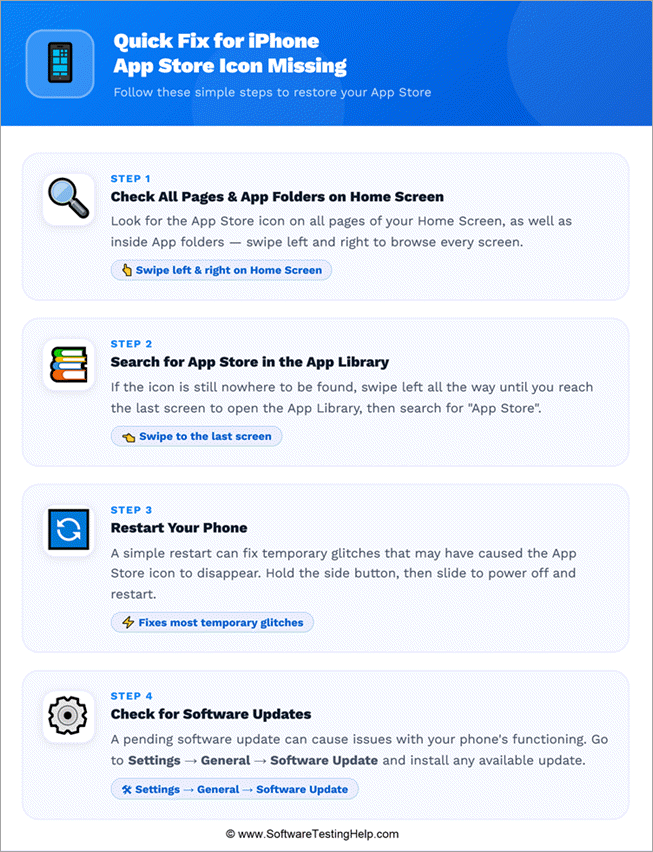
Quick Fix! Here is the video guide on how to get the App Store back on iPhone.
Why is the App Store Icon Missing?
If the App Store icon is missing from your Home Screen, it’s likely because:
- The icon would have accidentally moved into an app’s folder.
- Due to the presence of several apps on the Home Screen, you would be unable to spot the App Store icon.
- You would have removed the App Store from the Home Screen.
- Your parents would have restricted access to the App Store through Parental Control features.
- There can be an issue with the Restrictions settings on your iPhone.
- A technical glitch can also cause this issue.
- Your phone may need a software update.
- You may be using a device provided by the organization where you work (or study, etc.), and the organization’s technical team would have restricted the users from using the App Store.
How to Fix iPhone App Store Icon Missing
Try these quick fixes to solve the issue immediately:
1. Check all Pages and Apps Folders on your Home Screen: Users must look for the App Store icon on all pages of their Home Screen, as well as inside the Apps folders by swiping left and right.
2. Search for App Store in the App Library: If you still cannot find the App Store icon, just swipe left until you reach the last screen. It will look as shown in the image below:
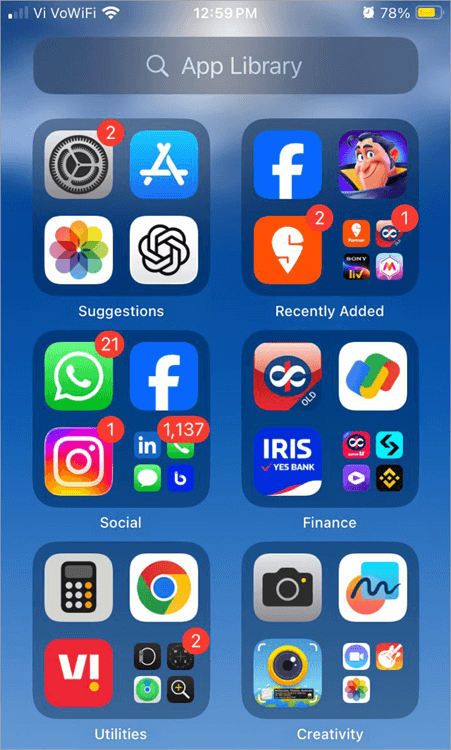
Now tap on the search bar and type in the name of the app you are looking for. That app’s icon will then appear on your screen (if it is installed on your phone).
Since the App Store can not be deleted, you can always search for it in the App Library.
3. Restart your Phone: This will fix temporary glitches that are causing the issue.
4. Check for Software Updates: A pending software update also causes issues with the phone’s functioning. So go to Settings, select Software Update, and if an update is available, follow the instructions on screen to install it.
How to Get Your App Store Back: Advanced Troubleshooting Methods
If you still cannot find the App Store icon, then you can take these steps to troubleshoot the issue.
#1) Try Resetting the Home Screen
If you can’t find the icon, try resetting the Home Screen. Resetting the Home Screen will bring the apps to their default place, and it will be easy for you to find the App Store.
You can reset the Home Screen by following these steps:
- Go to Settings
- Select General
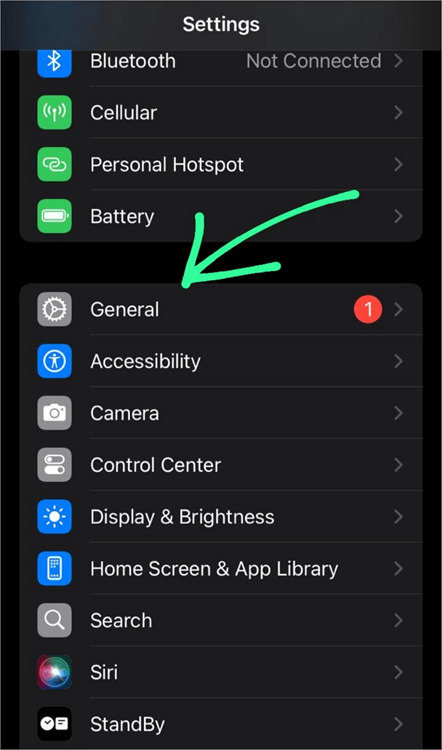
- Choose Reset
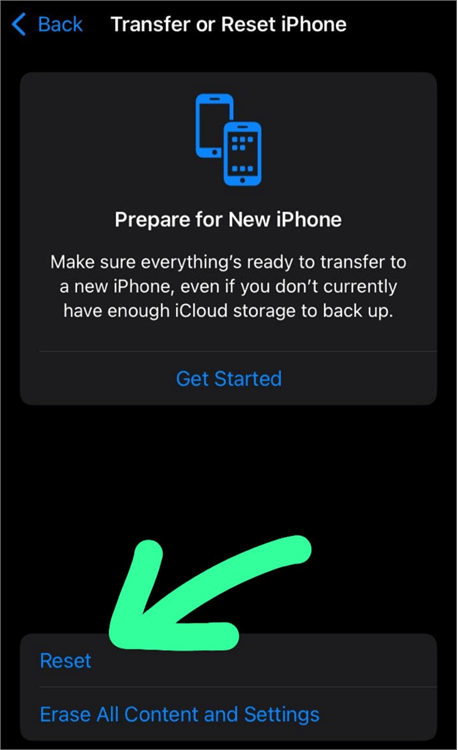
- Select Reset Home Screen Layout
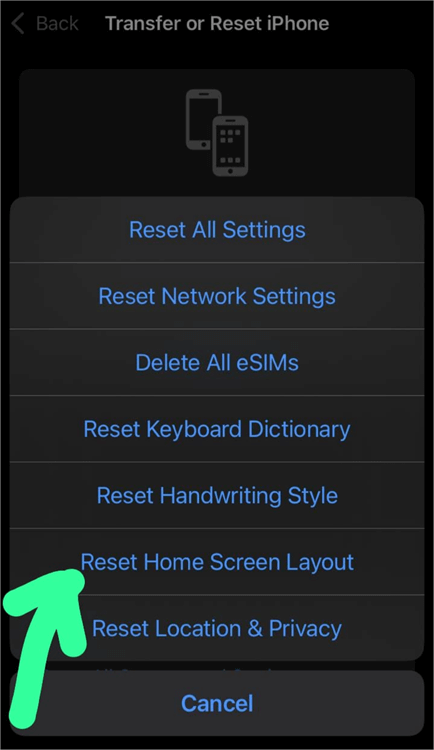
#2) You Would Have Removed App Store Icon
If you have removed the App Store icon from the Home Screen and you want to know how to get the App Store back on your iPhone, then follow these steps:
- Find the App Store in the App Library by swiping left on your Home Screen until you see the App Library.
- Once you find the App Store, press on its icon for 2-3 seconds to get these options.
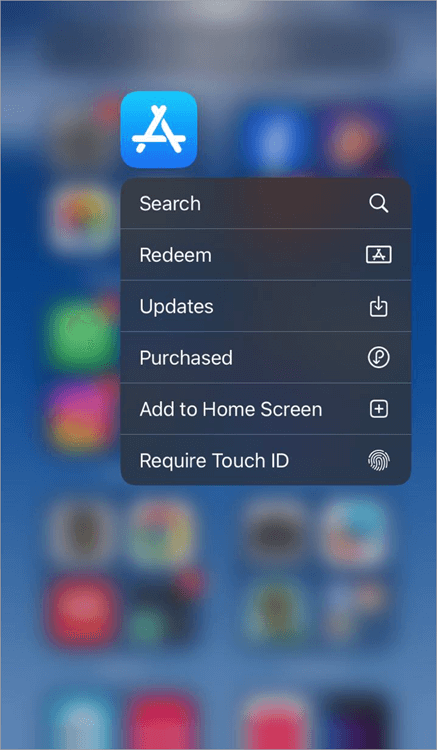
- Now tap on Add to Home Screen to get the icon back.
#3) Check Content & Privacy Restriction Settings
Check the Content & Privacy Restrictions setting on your iPhone. If you haven’t enabled iTunes Store & In-App Purchases on your iPhone, you won’t see the App Store icon on your screen.
If you are using an iOS 12 or higher version, then check this setting in your iPhone by following these steps:
- Go to Settings
- Select Screen Time
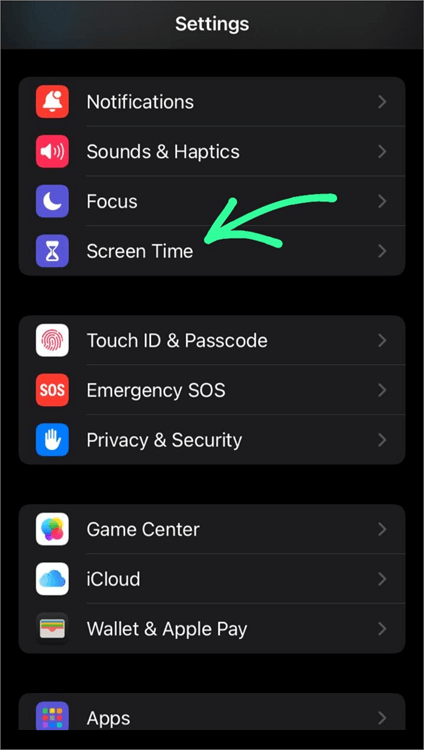
- Choose Content & Privacy Restrictions
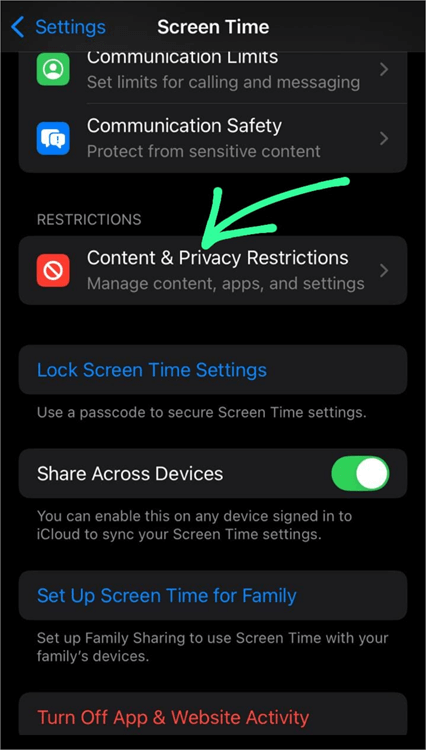
- Now tap on iTunes & App Store Purchases.
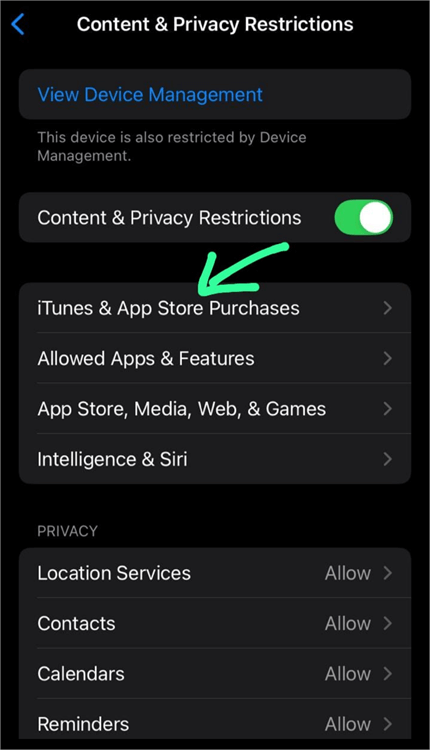
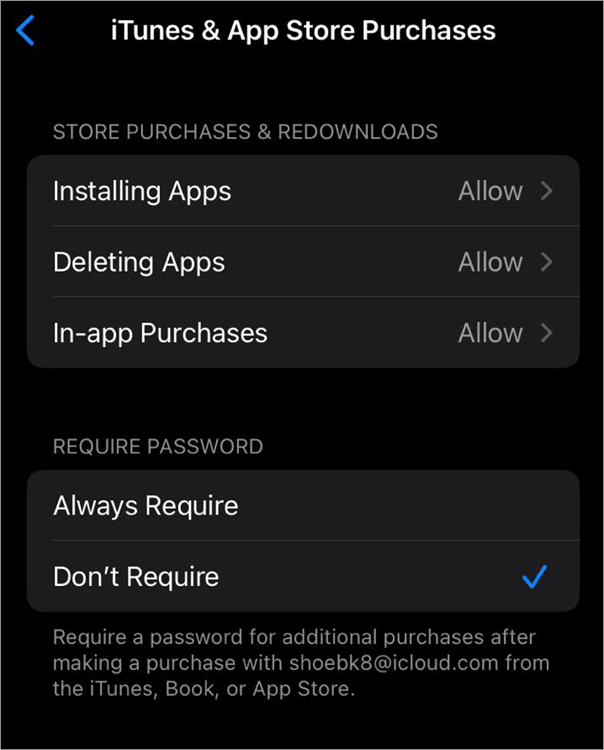
- Now allow installing apps, deleting apps, and In-App Purchases.
If you are using an iOS 11 or earlier version, then the steps will be a little bit different:
- Go to Settings
- Select General
- Choose Restrictions
- Now tap on iTunes & App Store Purchases
- Now, Allow Installing Apps.
#4) Parents Could Have Restricted Access
If your parents have restricted access to the App Store on their phone, then the setting can only be changed using their iPhone.
Here are the steps to do so:
- In your parents’ iPhone, go to Settings
- Select Screen Time
- Under the heading Family, find the name of the child and tap on it.
- Now go to Content & Privacy Restrictions
- Now you would be prompted to enter the device’s passcode
- Then select iTunes & App Store Purchases
- Allow installing apps on App Store.
5. If your device is provided by your organization, then you would have to contact the organization’s technical team to get access to the App Store.
How to Remove App Store Icon From Home Screen?
Please note that the App Store icon can be removed from the Home Screen by following these steps:
- Long-press the App Store icon
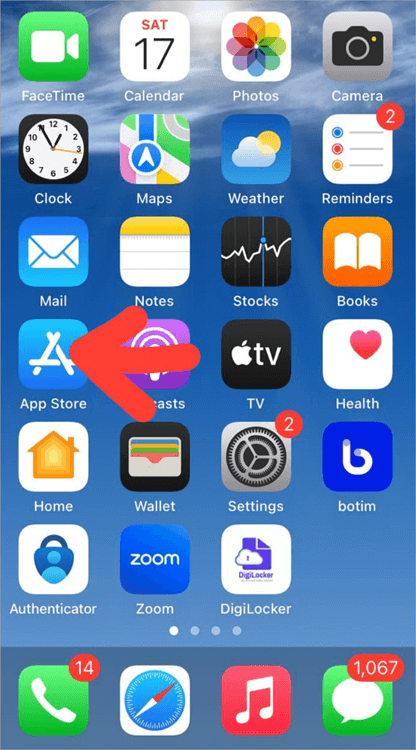
- You will see these options.
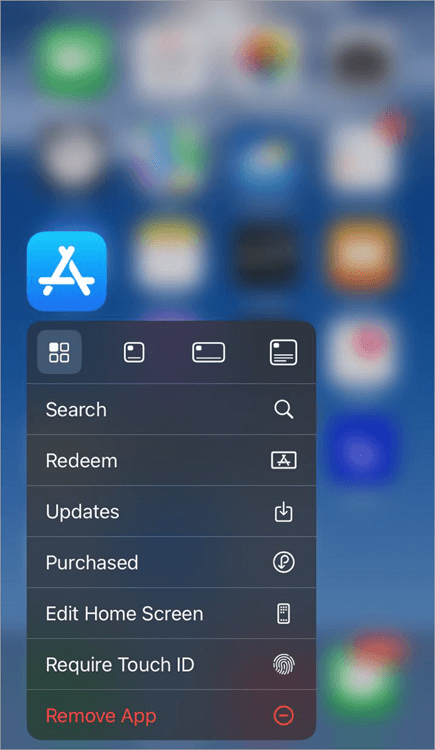
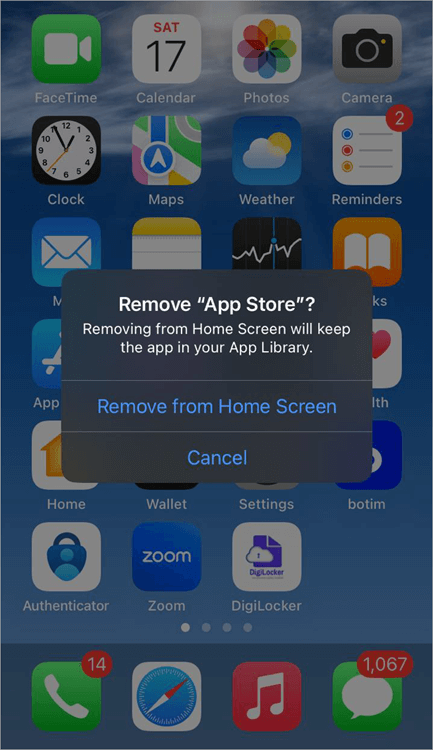
- Now select Remove App
- Then tap on Remove from Home Screen
Frequently Asked Questions
1. How to get the App Store back on iPad?
If you have accidentally removed the App Store from your iPad’s Home Screen, then follow these steps to get it back on your iPad:
• Swipe left on the Home Screen until you find the App Library.
• Now look for the App Store in the App Library.
• Once you find the App Store’s icon, press it for 2-3 seconds.
• A small box will pop up.
• Now select Add to Home Screen.
2. How do I install the App Store on my iPhone?
iPhone users do not need to install the App Store. It comes built-in in all iOS devices and can not be deleted. But if you belong to the EU region or Japan, then you can download another marketplace and then delete the App Store. If that’s the case, and you are looking for answers to ‘How to download App Store on iPad or iPhone’, then do as stated under:
• Go to Settings
• Select Apps
• Go to App Installation
• Select Restore App Store.
3. Why does my iPhone have no App Store?
If the App Store is missing on your iPhone or iPad, then it would most probably be because:
• There can be a technical glitch. Restart your iPhone to fix it.
• It would have moved into an apps folder, that’s why you can’t find it. You can reset the Home Screen to get it back to its default place by following these steps: Go to Settings, then select General, then tap on Reset, and then choose Reset Home Screen Layout.
• You may have removed it from the Home Screen. To get it back, go to the App Library, search for the App Store. Once you find the App Store, long-press its icon, and then select “Add to Home Screen.”
• You may not have allowed installing apps in the Content & Privacy Restrictions Settings. To change this setting, go to Settings, select Screen Time, then go to Content & Privacy Restrictions, then select iTunes & App Store Purchases, and allow Installing apps.
• If you are using Parental Control features on your phone, ask your parents to change App Store restrictions on their iPhone.
• If your device is provided to you by the organization where you work or study, then ask the technical team of your organization to make changes to the device so that you can use the App Store.
4. What happens if you accidentally delete the App Store?
App Store can not be deleted. It can only be removed from the Home Screen, or the installation of apps can be restricted through the Content & Privacy restrictions setting in the iPhone, or its access can be restricted through Parental Control features.
• If you have removed it from the Home Screen, go to the App Library, search for the App Store. Once you find the App Store, long-press its icon, and then select Add to Home Screen.
• If you have not allowed installing apps in the Content & Privacy Restrictions Settings, then go to Settings, select Screen Time, then go to Content & Privacy Restrictions, then select iTunes & App Store Purchases, and allow installing apps.
• If the app’s access is restricted through Parental control features, then in the Parent’s iPhone, go to Settings, select Screen Time, tap on the child’s name, select Content & Privacy Restrictions, enter the device’s passcode, select iTunes & App Store Purchases, and then allow installing apps on App Store.
5. What happens if you remove the App Store?
If you have removed the App Store, you can still access it easily through the App Library. Just swipe left until you find the App Library, and then type App Store in the search bar. Now you can long-press the App Store icon to get the option to add it back to the Home Screen.
6. How do I enable my App Store?
If the App Store on your iOS device is disabled, it would be because of the Content & Privacy Restrictions setting. If you are using an iOS 12 or higher version, then check this setting in your iPhone by following these steps:
• Go to Settings
• Select Screen Time
• Go to Content & Privacy Restrictions
• Now tap on iTunes & App Store Purchases
• Allow installing apps, deleting apps, and In-App Purchases.
Conclusion
We can now conclude that the ‘Where is my App Store icon’ issue can be quickly and very easily solved. New iPhone users are generally less aware of the iPhone’s features. But with the step-by-step guide provided in this article, they can easily troubleshoot the issue.
There are 99% chance that the issue will get resolved with the above stated methods. But if, by chance, the problem persists, then you would need to contact Apple Support.
Research Process: The total time involved to complete and publish this article is approximately 42 hours. This content was created through a structured research approach to ensure accuracy and reliability.
For more iPhone-related guides, you can explore our range of tutorials below:
- How to Remove or Delete Apps on iPhone Permanently
- Top Trending iPhone Home Screen Layout Ideas
- How to Ping iPhone from Apple Watch and Vice Versa
- How To Remove Malware From iPhone – 9 Effective Methods
- How to Set a Timer on Your iPhone Camera (Easy Ways)
- How to Use Apple AirTag for Android Devices
- How to Fix If Your Apple CarPlay Not Working
- How to Request Desktop Site on iPhone
- How to Create and Send a Poll in iMessage on iPhone and iPad
Was this helpful?
Recommended Reading
-

Here we will explore multiple ways to understand how to Share Your Location on iPhone with others: Sharing live locations is a useful thing today. It is especially useful when you don’t know the exact address and you would like to tell someone where you are. Be it an Android…
-
Deeply understand how to pin a location on Apple Maps instantly. Acquire knowledge on how to drop Pin on iPhone to save your favorite spot & share the exact location with friends and family: I must say, Apple Maps is a great deal that users get with an iPhone while…
-
Delve deep into the quick ways to fix find my iPhone not updating location error. This guide will help you to identify the causes behind this issue and suggest all possible solutions to get rid of the problem: Why is Find My Location not updating? If you’ve asked this question…
-
Explore all possible solutions to fix the iPhone not charging issue. Discover the typical reasons for iPhone charging port issues along with some expert tips to maintain it in good condition: Smartphones are a part of almost everyone's life today. They are not just used for calling and texting but…