Are you confused why is my phone not charging when plugged in? Read our step-by-step guide to learn how to fix phone not charging issue on iPhone or Android in minutes:
Why is my phone not charging? I’ve had to wrestle with this conundrum once. If you are anything like me, then your phone is probably just as important to you as oxygen is to sane people.
I can’t remember a day in my life when I’ve been away from my phone for even a minute until one day, all of a sudden, it just stopped charging. It was devastating to see my phone’s charge not rise an inch, even though it remained plugged in for hours.
Why Won’t My Phone Charge: Easy Fixes to Follow
If you have a phone that’s not charging, I understand the pain. However, I want to do a lot more than empathize with your plight.
So, consider this article my comprehensive guide on how to fix a phone not charging.
Here is the video guide on how to fix Phone not charging:
Quick Answer: How to Fix Phone Not Charging
An Android or iPhone may refuse to charge as usual for a variety of reasons. The common causes for this problem entail a dying battery, water or moisture exposure, a faulty cable or power adapter, a software bug, a clogged charging port, or hardware-related issues.
Know what caused the issue, and you’ll know exactly how to resolve the problem by either updating your phone’s OS, cleaning its charging port, air-drying it, replacing the battery, or contacting support.
Phone Isn’t Charging: Common Causes
The obvious first step to solve any problem is finding its cause. A phone not charging when plugged in could indicate an issue with your device’s software or hardware. Find the root cause, and the solution will reveal itself to you.
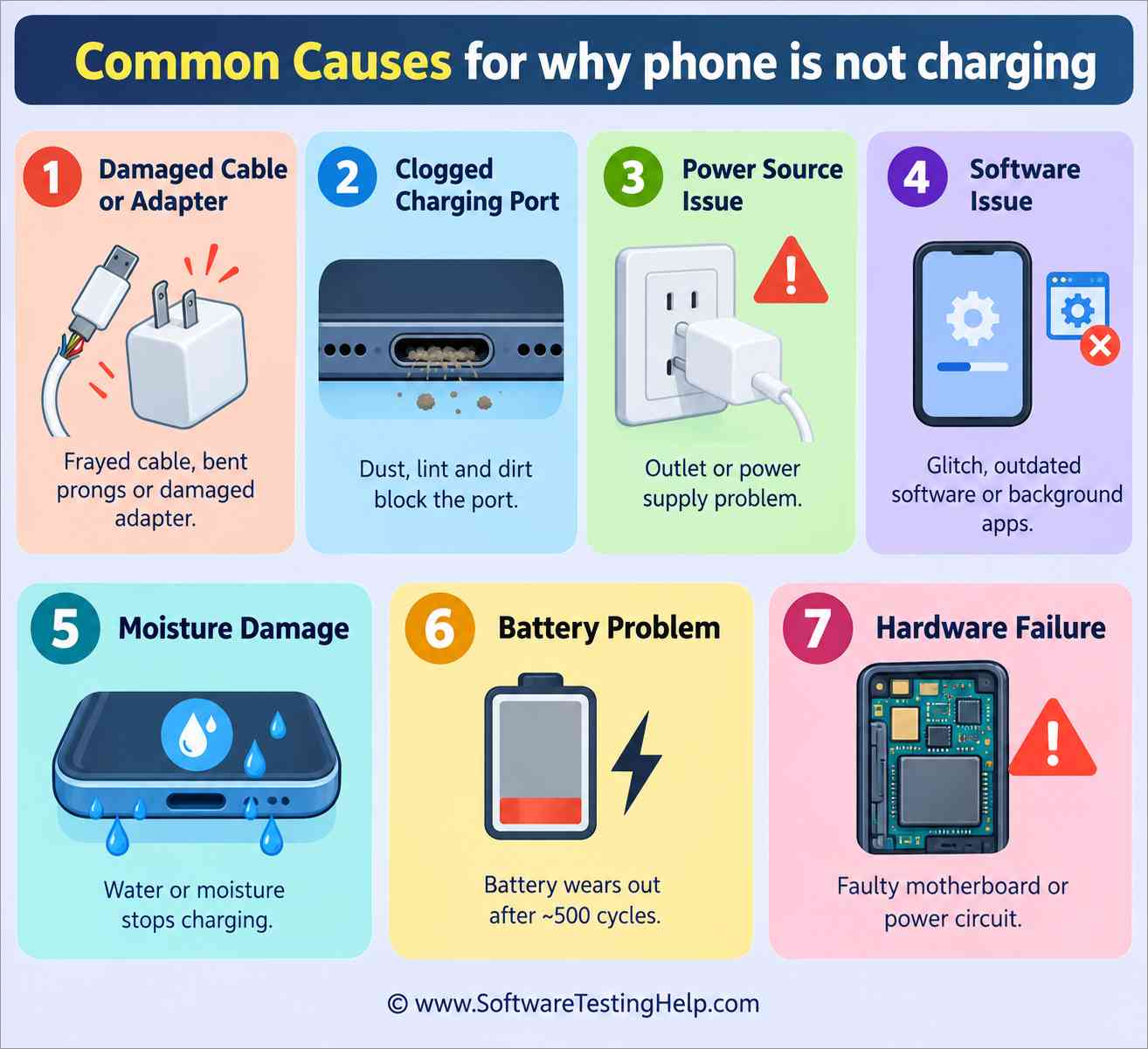
So, to answer why won’t my phone charge, well, it could be because of the following reasons:
- Damaged Cable or Power Adapter: A frayed cable, prongs that appear bent, or a damaged power adapter can all hinder a phone’s ability to charge up.
- Clogged Charging Port: This is a very common issue in both iOS and Android phone models. Over time, charging ports may end up accumulating dust, lint, and dirt, thus blocking the port.
- Issue with the Power Source: It is possible that the issue isn’t with the phone itself but with the power outlet it is plugged into.
- Software Issue: A glitch or bug can affect a device’s battery management and interfere with its charging. Outdated software or apps open in the background are all issues that can either drain your phone’s battery or affect its charging.
- Moisture Damage: Charging ports damaged by water or moisture will misbehave. Many modern phones today detect moisture interference and stop charging to prevent further damage to the device.
- Battery Problem: It is estimated that a smartphone’s battery can tolerate up to 500 charge cycles. It will start showing its age beyond this point. If the phone isn’t charging, then perhaps the issue is with the battery reaching its limit.
- Hardware Failure: A phone not charging could also hint toward a serious issue with your phone’s hardware. Perhaps its motherboard is failing, or its power management circuit is damaged.
Step-By-Step Fixes When Phone Not Charging
The first step to solving this issue is to ferret out its cause. Once you’ve identified the cause, we’ll know exactly what our response should be.
So, allow me to show you how to fix a phone that’s not charging, depending on what caused the issue.
#1) A Damaged Cable or Power Adapter
If the problem has nothing to do with the phone itself but with the cable or a power outlet, then you don’t have to do much. Replace the damaged cable or power adapter. Make sure the replacement is compatible with your phone’s model.
To isolate the problem, I would first suggest connecting your cable or power adapter to a different phone for at least 2-3 minutes. If that device charges just fine (gaining%), the problem isn’t with the adapter or cable but with your phone instead.
Another thing you can do to isolate the issue is to test your phone using a wireless charger. If wireless charging works, then the problem is indeed with your power adapter or charging cable. If wireless charging also fails, then the issue might be a software glitch, a failing battery, or serious hardware damage.
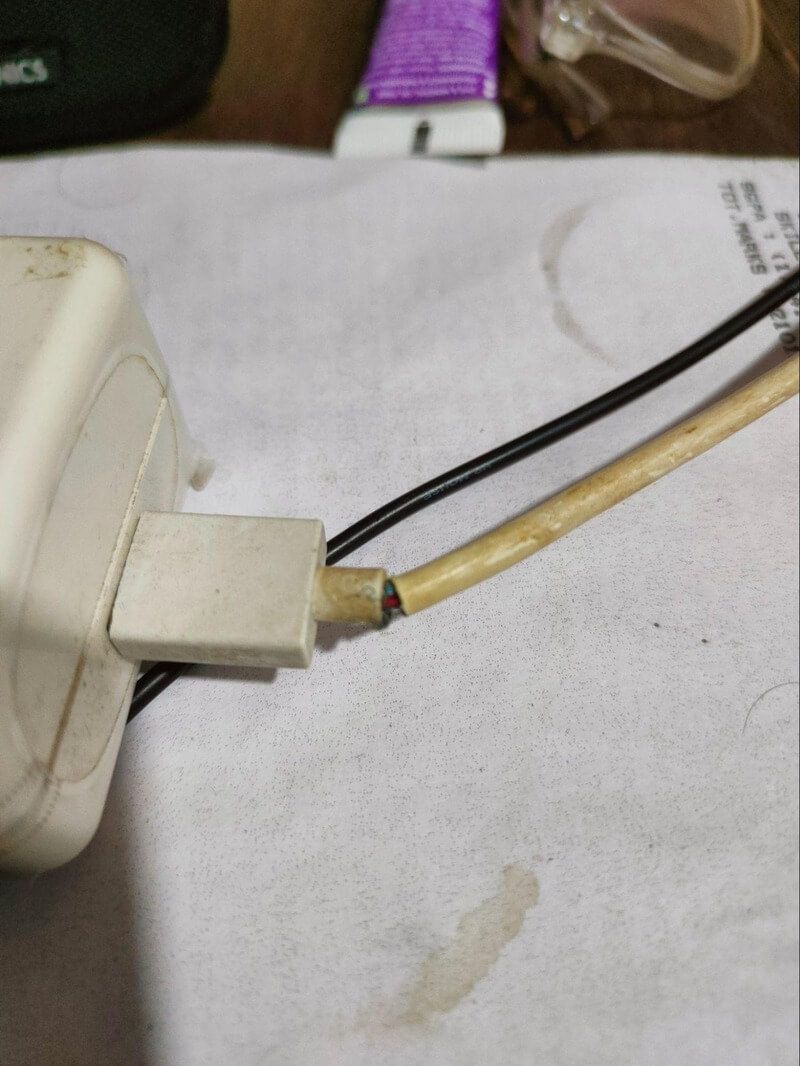
If the problem is with the outlet, then simply plug the phone into another outlet and see if it starts charging. Power adapters and cables are affordable phone accessories that you can order online.
However, I would recommend picking them out from a physical brick-and-mortar store instead, as this will allow you the chance to test the accessories before paying for them.
#2) Fixing a Clogged Charging Port
Although a common problem, fixing it requires a steady hand and vigilance on your part. After all, you’ll be digging into one of your phone’s most sensitive areas.
- You start by completely switching your phone off.
- Use a flashlight to peek into the charging port. Find out where the clogging is.
- Take a can of compressed air and blow air into the charging port. Very brief 2-3 bursts of air should suffice.
- Take a wooden or plastic toothpick and gently scrape against the sides and bottom of the port.
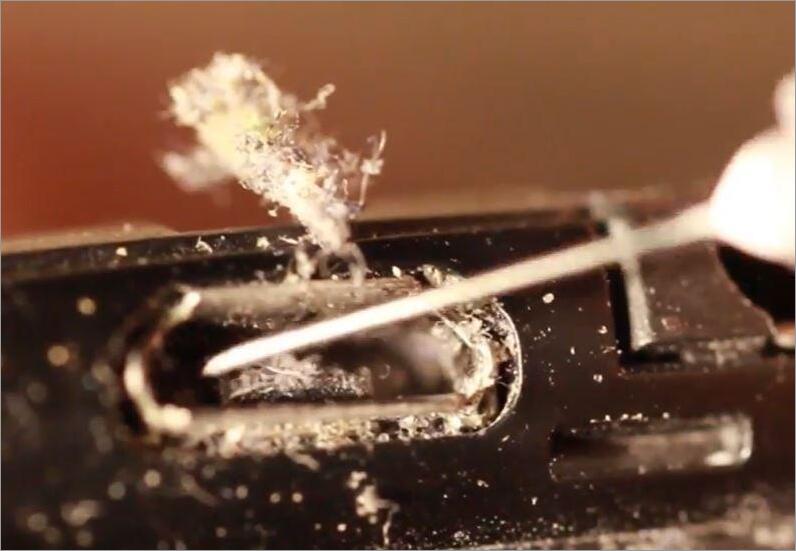
- If your port’s plagued with stubborn grime, you can use a soft swab dipped in 90% isopropyl alcohol.
- With the port cleared up, plug the phone into its charger and see if that does the trick.
#3) Software Issues
Most hardware-related issues indicate a very serious problem with the phone, where the damage might be irreversible. So, hope that the problem with your phone probably has something to do with a temporary software bug or glitch.
You can resolve these bugs or glitches by doing the following:
i) Restart the Phone: Restarting a phone basically refreshes your phone’s OS, fixing any glitches or bugs in the process.
If you are using an Android device:
- Press and hold the power button until you see the option to power off or restart on the screen.
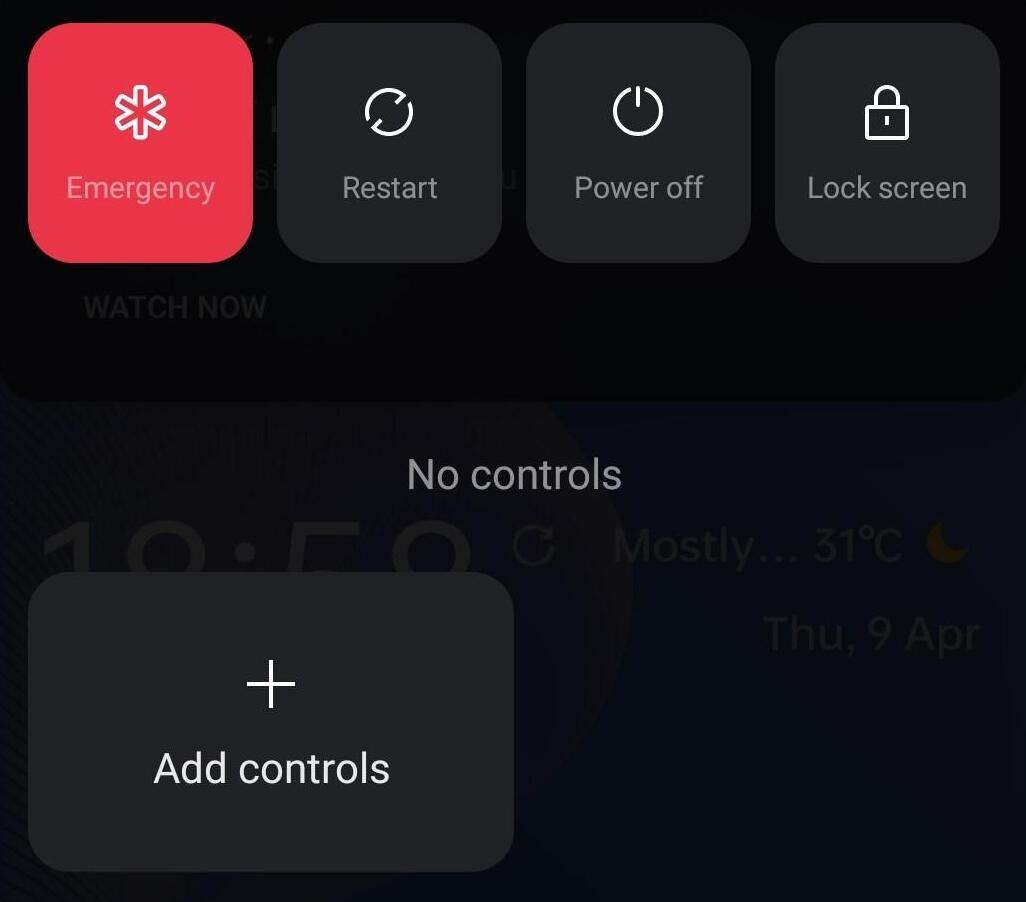
- Tap on the Restart button to reboot the device.
If you are using an iPhone:
- Depending on the model you are using, either hold the volume up and down buttons or the side power button until a slider appears.
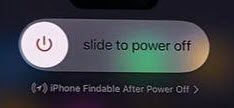
- Drag the slider until your screen turns black.
- Press and hold the side power button again until you see the Apple logo appear.
ii) Close All Unwanted Apps
It is possible that your phone has multiple apps open in the background, and they are slowly draining the device’s battery. It is very simple to know which apps are open so you can close them in an instant.
The process is the same on both Android and iPhones:
- Tap the Home button or anywhere on your phone’s screen to open the app switcher.
- You’ll now see a preview of all apps currently open on your phone. You can swipe right and left to see what apps are open.
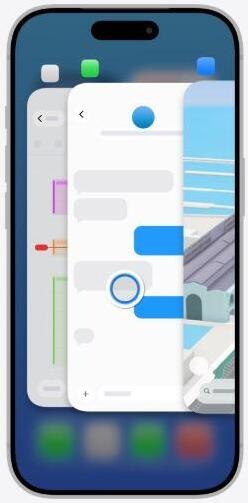
[via Apple Support]
- Simply tap on the app window you want to close and swipe up.
iii) Factory Reset
A factory reset will erase all data on your phone, returning it to its default state in the process. This erasure will cleanse any malware, bugs, or glitches affecting the phone’s ability to charge.
On an Android Phone:
- Open Settings
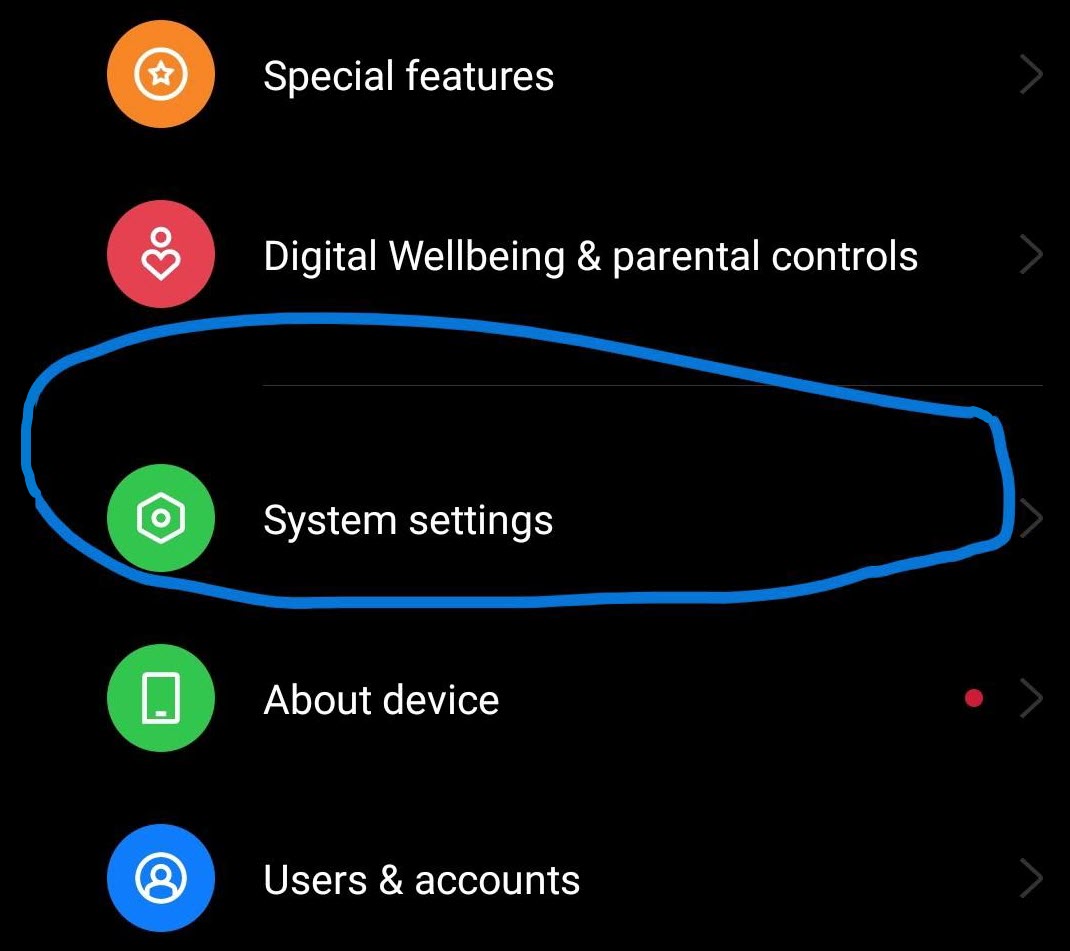
- Tap on System Settings
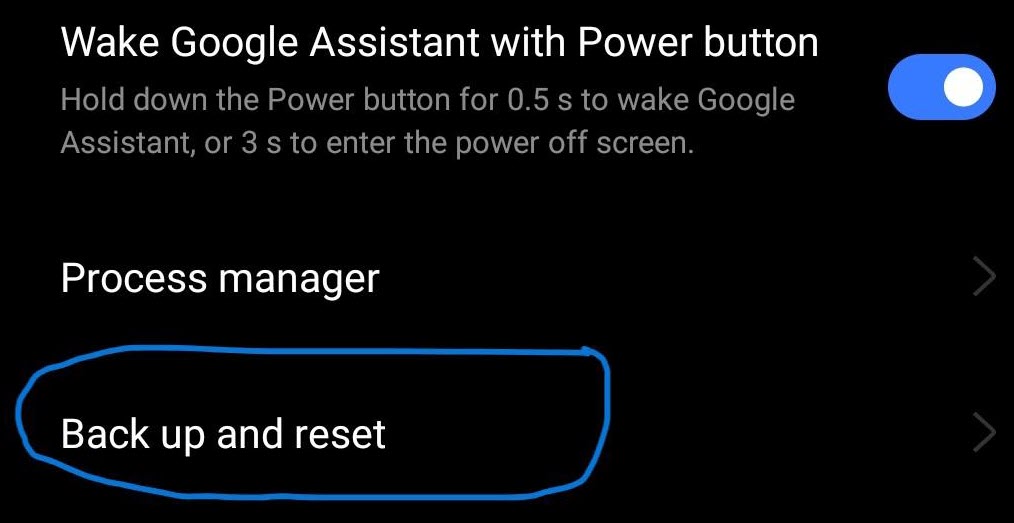
- Scroll down until you see the option to Back Up and Reset.
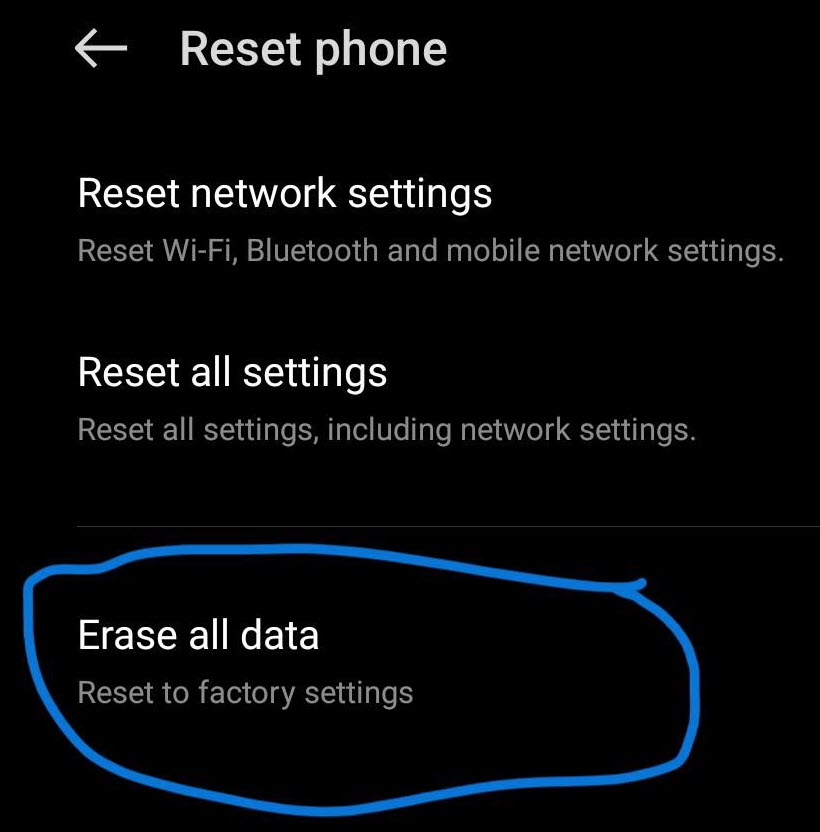
- Tap on Reset Phone > Erase all data
On an iPhone:
- Open Settings
- Tap on General > Transfer or Reset iPhone
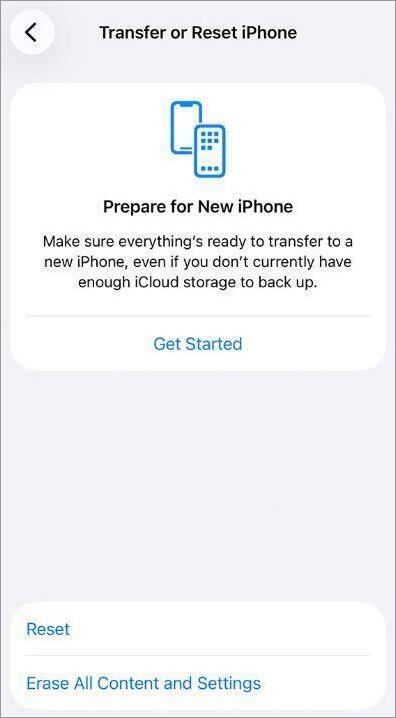
- Tap on Erase all content and Settings.
- Enter your device’s password.
- Tap on Erase to confirm.
iv) Update OS
An update is the quickest way to fix any bug or glitch affecting your phone’s performance. I suggest checking your iPhone or Android to see if there are any new updates available and downloading them if available.
#4) Moisture or Water Damage
Depending on how serious the damage is, your approach to solving this issue will vary.
If you notice water damage, I suggest letting your phone air-dry for at least 24 hours. Most modern phones can detect moisture. If the air-drying clears up moisture from your phone, the moisture warning should disappear.
If the phone does not charge even after air-drying it, then the moisture has already damaged sensitive components inside the device. You’ll need professional help to resolve the matter.
For phones that don’t have built-in moisture detection tech, I suggest doing the following:
On an iPhone, remove the SIM and look inside for the LCI. A pink or red dot indicates moisture damage.
On an Android, look for signs of corrosion, fog, or residue within the charging port.
#5) Battery Damage
Phone batteries are fragile. Over time, they’ll lose their functioning capacity, swell, and eventually die. It is important to replace a phone’s battery if you notice any of the signs below:
- The phone’s charge remains below 80% no matter how long it is charged.
- The phone’s battery drains much faster, even when it is not used heavily.
- Sudden Phone shutdowns.
Besides replacing the old battery, you could also take some precautionary measures to give it a longer lifespan.
- Always charge the device in a cool, ventilated space.
- Keep the phone on a flat surface when charging.
- Refrain from overnight charging.
- Turn on “Advanced” or “Optimized” charging if you are going to keep your phone plugged into a charger overnight.
- Lower your phone’s brightness.
- Don’t keep unwanted apps running in the background.
Ways to Fix When it’s a Hardware Problem
If all else fails, you’ll have to take the phone to the nearest repair center. A professional there may find the problem connected to the device’s hardware. It could be a failing motherboard, a damaged port, or a damaged power circuit.
Unless you are an engineer who knows the inner workings of a smartphone, these aren’t issues you can resolve on your own, nor should you try.
If you believe the issue is hardware-related, I suggest no longer plugging the device into any power outlet. Inspect the phone for any signs of damage, corrosion, or loose parts.
Take the phone to an authorized repair center and let the professionals handle the rest. Chances are they’ll fix the issue for a hefty fee, or you may have to buy yourself a new device.
Why Isn’t My Phone Charging When Plugged In
If your phone’s plugged in but not charging, it could be because of several reasons. This problem could hint at bloatware in your phone. Bloatware, or if there are way too many apps running in the background, can cause undue pressure on your phone’s battery.
If apps aren’t the issue, then perhaps the problem pertains to your charging cable or power adapter. Most low-wattage chargers often fail to pull in the power necessary to charge a phone. Overheating could be another reason that your phone’s battery is failing to charge.
You could resolve this issue by closing all unnecessary apps. I’ve shown you how to do that in the guide above. Also, keep your phone’s brightness low; this will stop the battery from overheating.
Finally, I would suggest buying a high-wattage charger. Do some research or contact your phone’s manufacturer to know which high-wattage chargers would be compatible with your device and then buy them.
Simple Fix Table: Possible Solutions For Charging Issues
| Problem | Sign | Solution |
|---|---|---|
| Clogged Charging Port | Accumulation of dirt, dust, or lint. | Clean with compressed air, a non-metal pick, and a negligible amount of alcohol. |
| Frayed Cable or Damaged Power Adapter | Intermittent charging. Charging suddenly stops or no charging at all. | Replace the cable and power adapter. Use a high-wattage adapter. |
| Software Issues | Battery percentage does not rise. | Factory Reset, Update OS, close all unwanted apps, restart phone. |
| Water Damage | Signs of corrosion and fog. Phone gives a moisture warning. | Air-dry the phone for 24 hours. |
| Failing Battery | Swollen back panel, sudden shutdowns, or sluggish charging. | Inspect the battery health and replace it with a new one. |
| Hardware Failure | Signs of visible damage and loose components. | Contact an authorized service center or local repair store. |
Running Battery Health Diagnostics on Android and iPhone
iPhones today come with built-in battery health diagnostics features. This feature will display your battery’s performance in terms of its max-capacity in percentage. I suggest you check this metric now and then to ensure your battery’s maximum capacity percentage is at an optimal level.
On iPhone:
- Go to Settings
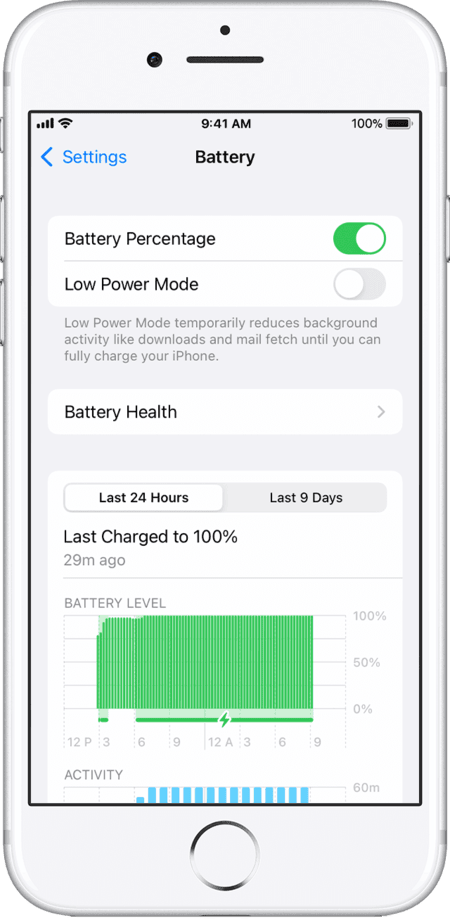
- Select Battery > Battery Health
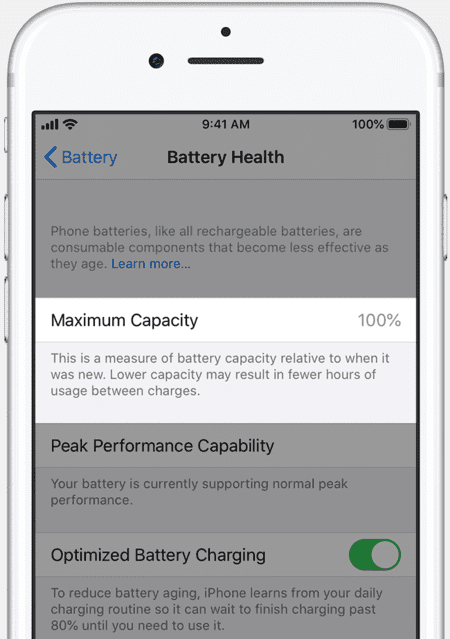
- Check Maximum Capacity.
On Android
Unlike iPhone, most Android devices don’t feature a built-in battery health diagnostics setting. You can use third-party apps or use the phone’s hidden diagnostics menu (meant for service technicians) to check voltage, charge cycles, and temperature.
To access this hidden diagnostic menu:
- Open the Phone or Dialer app on your device.
- Dial *#*#4636*#*#*
- Tap on Battery Information to know your battery’s health status.
Samsung users can use the “Members” app to run charging and battery diagnostics.

- Open the Members app
- Tap on Support
- Tap on Get Started to initiate phone diagnostics.
- You’ll now see options to check your phone’s battery, cable charging, and wireless charging status.
Simply review the results to see if there is an issue. If an issue is detected, follow the instructions given to you by the app.
How to Prevent Future Charging Issues
You know what the wise men say: precaution is always better than the ultimate cure. I suggest you adhere to the following precautionary measures to ensure you never have to resort to any of the solutions I’ve shared above:
- Be gentle when handling your phone’s charger. Plug the charger in and out of your phone’s charging port gently.
- Always keep the charging port clean. Use the method I’ve shared above to ensure there isn’t an accumulation of dust, dirt, and lint clogging the port.
- Always switch on Advanced or Optimized charging when charging the phone, especially overnight.
- Don’t let the phone’s battery go below 20%. Plug it in before the battery falls below 20% and unplug it before it goes past 80-90%.
- Refrain from using resource-intensive apps for prolonged periods. I am talking about playing games on your phone or using a powerful editing app. These apps can put a strain on your device’s battery.
- Always charge in a cool and well-ventilated space. Make sure your phone is lying flat when being charged. Make sure the space surrounding that phone is clean and not crowded.
Frequently Asked Questions
1. How to know if a charging port is damaged?
You’ll notice some signs that indicate your charging port is indeed damaged.
Look for signs like:
• A cable that feels loose when plugged in.
• Charging stops at the slightest movement.
• The device shows charging, but the battery percentage doesn’t rise.
• You’ve cleaned the port, but the charging still doesn’t work.
• The area around the port feels unusually hot.
• You see signs of visible corrosion.
2. What are signs of a failing phone battery?
If a phone’s battery is dying, see the following signs:
• Erratic jumps in battery percentage when charging.
• Your phone overheats, even when not in heavy use
• Sudden shutdowns
• Very sluggish charging
• The phone’s back panel appears to bulge, indicating a swollen battery.
3. What is the lifespan of a charging port?
Well, it depends on the charging port type. A USB-C charging port can withstand 10,000 insert and removal cycles. A micro USB port can handle 5000-10000 cycles. The lifespan will also depend on how well you’ve taken care of your device.
4. When should I contact support when the phone is not charging?
You should immediately contact support and take the phone to a nearby repair center if you see visible signs of corrosion or burns. Other signs include a phone that overheats quickly, charging ports that feel wobbly or loose, and accessories that don’t work when connected to the phone.
5. How much will it cost to replace my phone battery?
The cost will ultimately depend on the smartphone model and brand you are using. Replacing batteries at an authorized service provider for an Apple or Samsung device can set you back $70 to $120.
You can save some money by going to a local repair center. Such shops provide battery replacement services at around $40 -$80.
Conclusion
So, there you have it, my answer to the often-asked question: how to fix my phone not charging. You first get to the bottom of the issue, find out what caused the problem, and apply the appropriate solution.
If you are lucky, the issue isn’t serious, and you could end up troubleshooting the problem. If the issue is serious, I suggest you immediately seek professional help without further delays.
You could also avoid this problem altogether by taking better care of your phone and its battery. I suggest you use the methods I’ve shared above or share them with anyone who is facing a similar dilemma.
Research Process: The total time involved to complete and publish this article is approximately 36 hours. This content was created through a structured research approach to ensure accuracy and reliability.
For more related guides, feel free to browse our selection of tutorials below:
- How to Fix iPhone Not Charging or Charging Port Not Working
- How to Fix Liquid Detected in Lightning Connector iPhone Error
- How to Fix Find My iPhone Not Updating Location
- Why is my Face ID not Working on iPhone or iPad
- Best Portable Charger | Power Bank Battery
- Best iPhone Chargers (TOP SELECTIVE ONLY)
- The Top 10 Power Banks – Best Power Bank Review
Was this helpful?
Recommended Reading
-

Explore all possible solutions to fix the iPhone not charging issue. Discover the typical reasons for iPhone charging port issues along with some expert tips to maintain it in good condition: Smartphones are a part of almost everyone's life today. They are not just used for calling and texting but…
-
A simple guide to help you understand the multiple effective ways to answer the question - How to Transfer Apps from Android to Android phone quickly: Switching to a new Android phone can be very enticing. However, transferring all your apps and data from the old to the new Android…
-
Are you experiencing a slow charge, disconnection issues, or your phone is not charging at all? Try our tested and safe methods that will help to clear Pocket lint, dust, and debris from iPhone and android phones. In the following detailed guide, you will learn how to clean a charging…
-
Read this review to explore different effective methods to understand how to Record Phone Calls on iPhone: In a majority of states across the United States, the law mandates it to get consent from a single or all parties to the conversation to legally record a phone call. It is…