Are you looking for an impressive home screen layout for your iPhone? Here are some of the best iPhone Home Screen ideas to customize and transform your device as per your creativity:
In the hustle and bustle of life, most people don’t get the time to customize their iPhone’s Home Screen. In fact, most people don’t get time to take care of themselves, let alone the phone’s home screen!
Trust me, a colorful, lively home screen on your smartphone can make a lot of difference. Many research studies done in the past have revealed that surrounding colors can greatly affect your emotions, mood, behavior, and even your heart rate and blood pressure.
Classy Home Screen Ideas for iPhone: Expert Advice
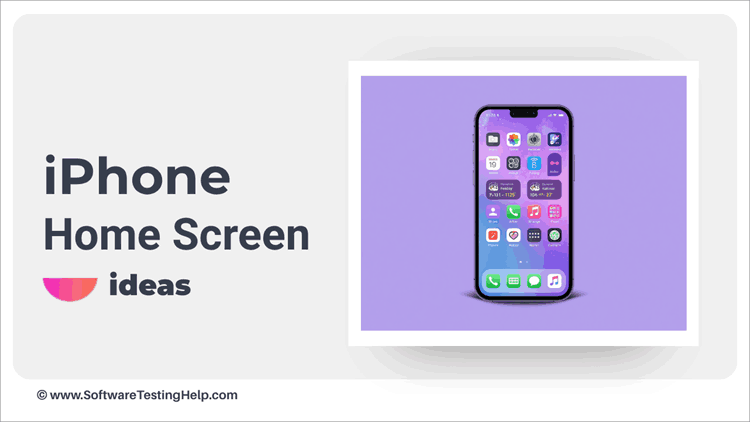
In this article, we will talk about different ways to literally design your iPhone Home Screen. And if you don’t have time to try different backgrounds, icon styles, and colors, you can just pick a style from the ideas we have provided and quickly apply it using the steps we have provided.
Why Your iPhone Home Screen Matters
Don’t you design your home? Don’t you look for aesthetic cafes to spend time on your weekends? Doesn’t it make you forget all your worries when your surroundings are aesthetically designed, that too, with your favorite colors?
Trust me, I literally get addicted to aesthetic cafes and even to a stylish home screen too.
When you spend a good amount of time on your phone, and when you can very easily design your iPhone Home Screen in a way that just looking at it would make your mood fresh, then why not?
Some interesting research and statistics about how changing the home screen of a phone changes your mood:
- A recent study by Inner Planet reveals that a minimalist wallpaper, a clear home screen (without app icons), and a black-and-white home screen can reduce your urge to use the phone significantly.
- A report by ScienceDirect says that looking at images with nature-based themes will reduce the level of stress and anxiety.
- According to NvelUp, looking at a personalized, aesthetic wallpaper with your loved one’s photo releases positive dopamine.
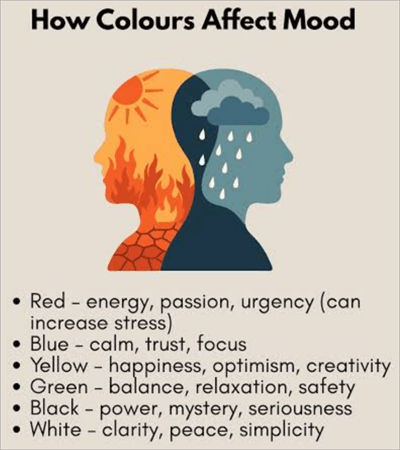
How to Customize Your iPhone Home Screen
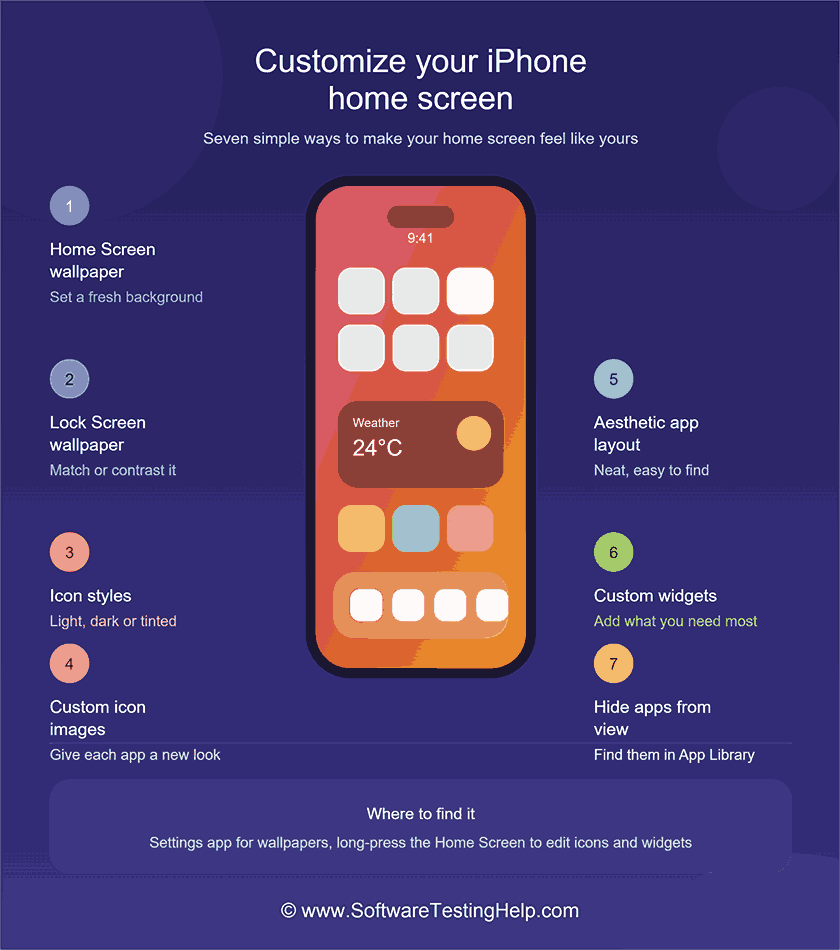
To customize your iPhone Home Screen, you can:
- Change your home screen wallpaper.
- Change the lock screen wallpaper.
- Customize the icons on your Home Screen.
- Change the image of each app icon.
- Arrange the apps in a way that they look aesthetic, plus are easy to find.
- Add custom widgets as per your needs.
- You can also hide all apps to make the screen look clean. The App Library allows you to find the apps.
How to Change Your Home Screen Wallpaper
To change the Home Screen wallpaper, follow these steps:
1. Press anywhere on your Home Screen for 2 seconds (make sure you don’t press on any app’s icon).
2. The apps will start jiggling, and you will see the Edit option in the upper-right corner of your screen.
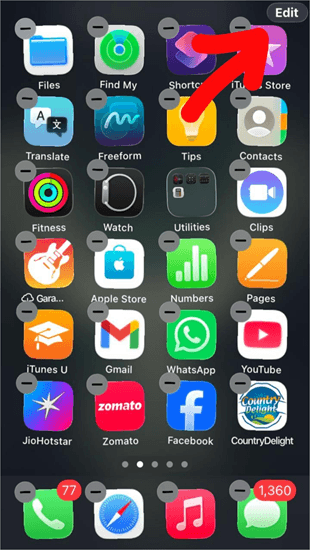
3. Tap on the Edit option, and a menu box will pop up. Tap on Edit Wallpaper.
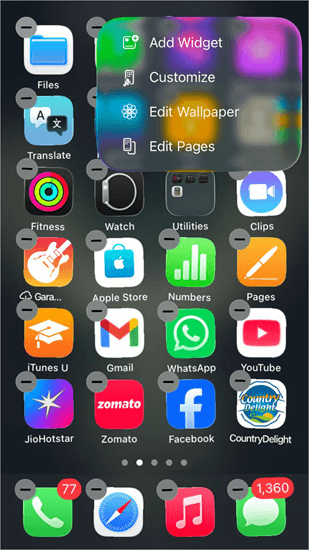
4. Now you will see various options at the bottom of your screen. You can choose Color, Gradient, or Photo.
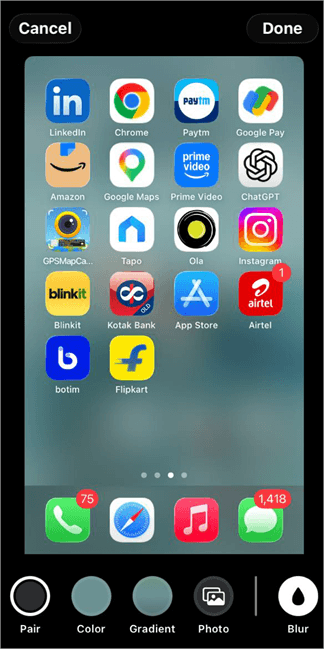
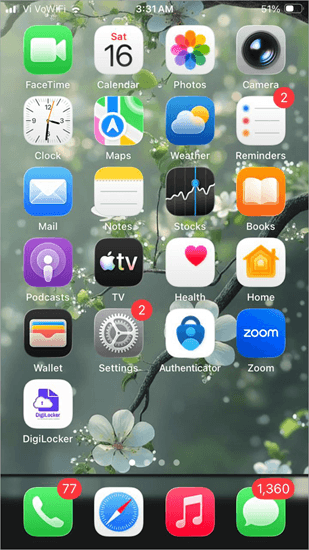
5. If you choose Photo, you can pick any photo from your Gallery to make your Home Screen wallpaper. For example, look at what I chose as my phone’s wallpaper.
Change the Lock Screen Wallpaper
You can choose a wallpaper for your Lock screen by following these steps:
1. Go to Settings
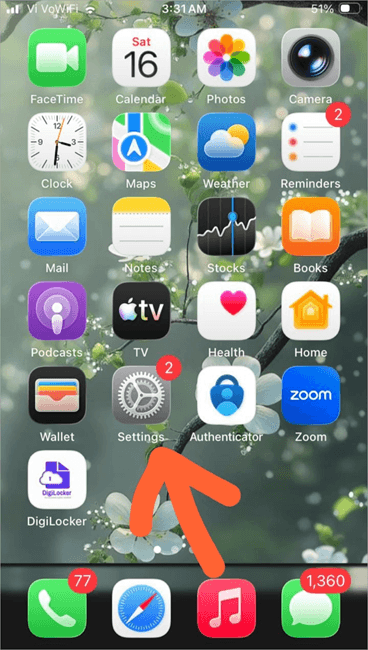
2. Scroll down to find the option: Wallpaper
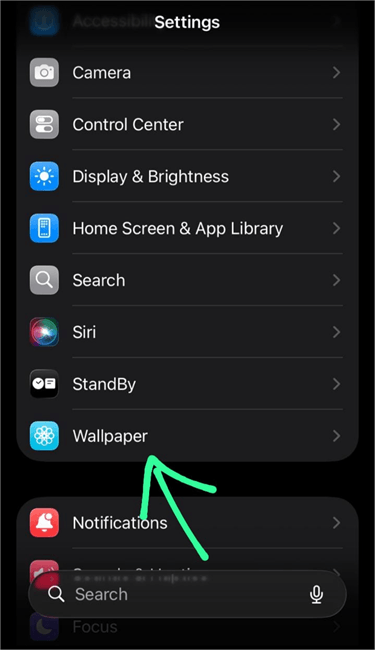
3. Now choose the option: Add New Wallpaper
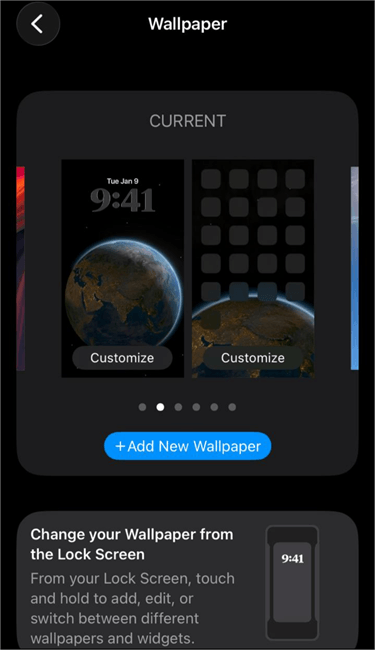
4. Scroll down to find several wallpaper options for your iPhone.
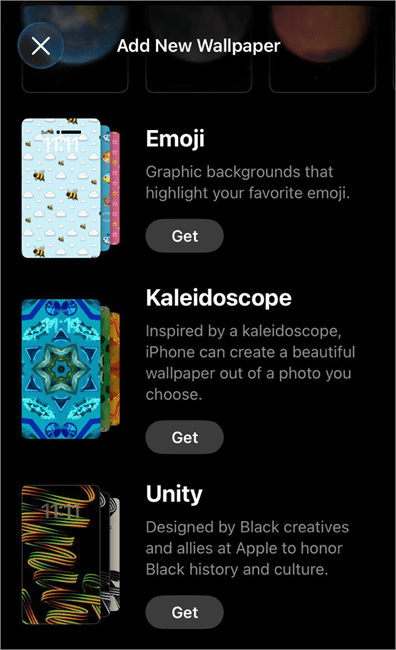
5. Or you can tap on the Photos option to choose a photo from your iPhone to use for your Lock screen.
6. The iPhone will then suggest a Home Screen background similar to the Lock Screen wallpaper. You can either choose it or customize the Home Screen with another wallpaper of your choice.
Steps to Customise the Icons on Your Home Screen
One of the best iPhone home screen customization ideas is designing the app icons. It can transform the whole look of your iPhone Home Screen.
See how I changed the look of my home screen with simple steps.
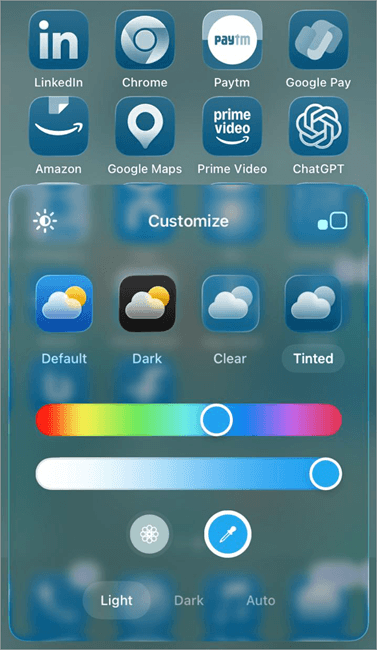
1. Long-press anywhere on your iPhone Home Screen, and the apps will jiggle. Then tap on the Edit option located in the upper right corner of your screen.
2. Now choose Customize from the options that appear in a box.
3. Choose either Default, Dark, Clear, or Tilted. Plus, you can even customize each one of them as per your preference.
How to Change the Image of Each App Icon
Most iPhone users do not know about this feature: they can change the image of each app’s icon through the Shortcuts app.
This can be done by following these steps:
1. On your iPhone, open the Shortcuts app.
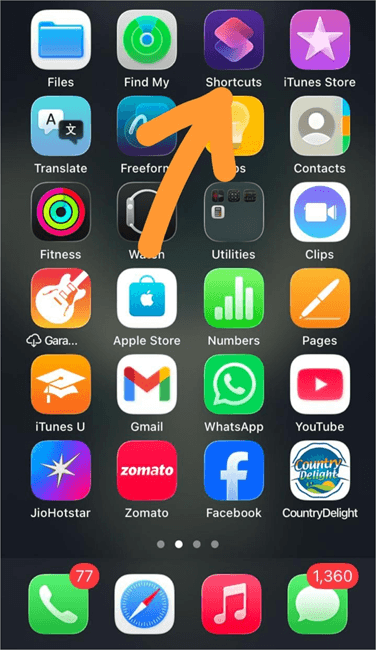
2. Now tap on the + icon located in the upper right corner of your screen to add a new shortcut.
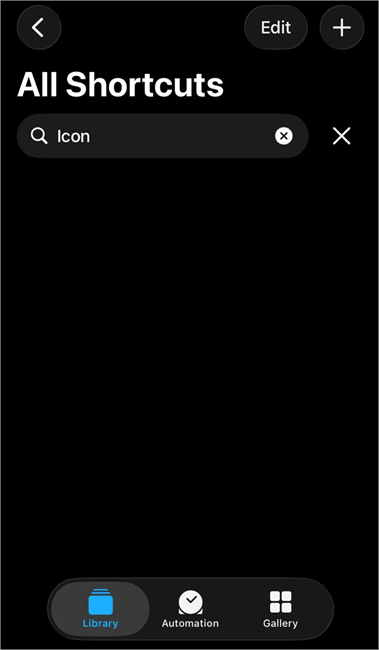
3. Tap on the Search Actions bar and type in Open App.
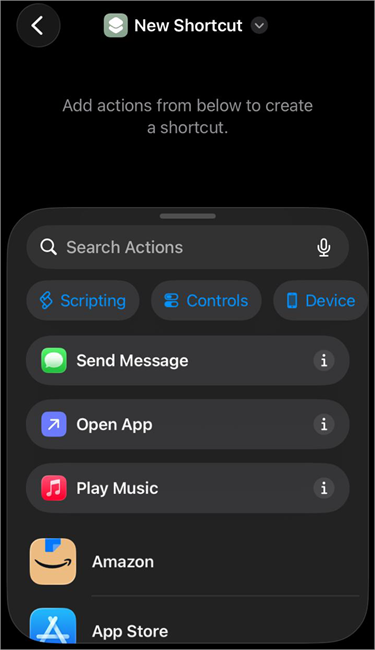
4. Select Open App
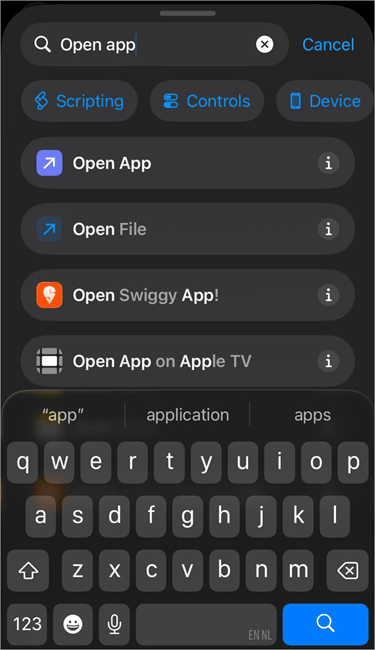
5. Now you will see the list of apps available on your device. Tap on any app to change its icon.
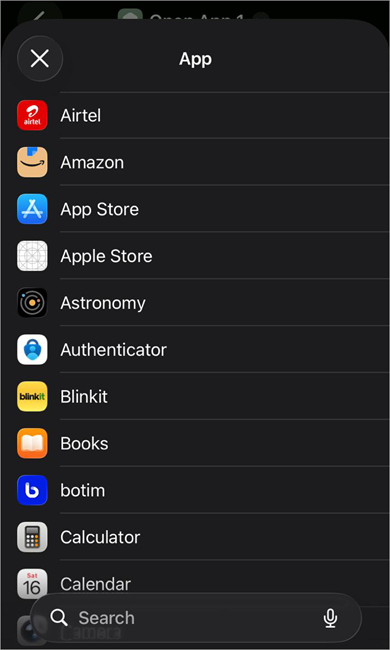
6. I wanted to change the icon for the App Store, so I tapped on it.
7. Again, tap on App Store, and you will see the following options
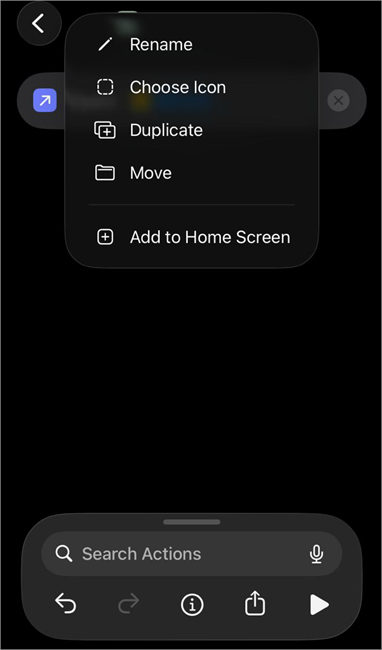
8. Tap on the Choose Icon.
9. Now you will see several colors and icons to choose from for the App Store application. You can scroll down to view the icons.
10. This way, you can change the icon for any app.
Themed icon packs: Watch this informative YouTube video illustrating how to customize the iPhone Home Screen with different icon packs.
iOS icons and WidgetClub are websites that provide free and paid themed icon packs for iOS users. You can find iPhone icons for a wide variety of themes on these websites – like Simple icons, Korean icon packs, Pastel icon packs, Dark icons, and more.
Organize iPhone Apps to Look Aesthetic
Organize the apps in a way that they look aesthetic, plus are easy to find.
Here are some more iPhone Home Screen design ideas:
- Put the apps in folders: This makes your Home Screen look cleaner and more aesthetic as well. You can make different folders like Shopping apps, Banking and Payments apps, Online Cab booking apps, Social Media, etc.
- Remove excessive apps from the Home Screen: If you rarely use an app, you can remove it from the Home Screen. This will make your Home Screen look cleaner. Plus, the apps you use more often will be visible to you more easily. To remove an app from the Home Screen, follow these steps:
- (Apps will not be deleted if removed from the Home Screen. You can access them from the App Library).
- You can organize the Home Screen by putting different types of apps on different Home Pages.
Add Custom Widgets to Your Home and Lock Screen
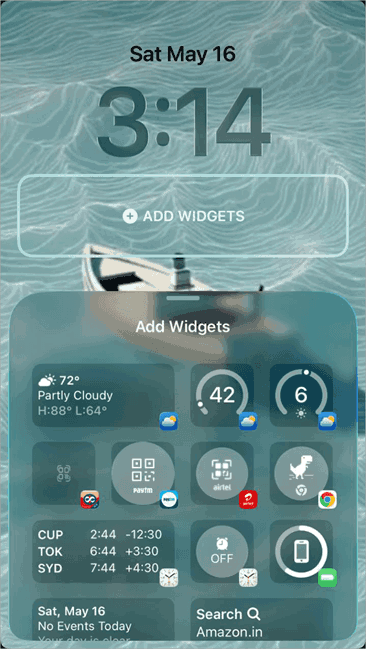
When you change the wallpaper of the Lock screen through the Settings app, you get the option to add custom widgets. Just tap on Add Widgets and then choose from different options to add to your Lock screen.
iPhone Home Screen Layout Ideas
Here are some aesthetic iPhone Home Screen ideas you can consider using:
#1) For Nature Lovers
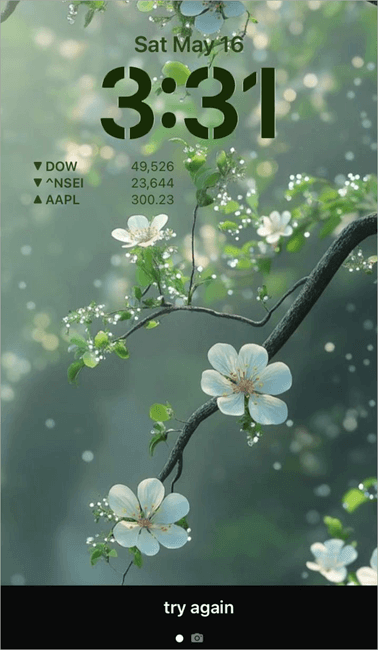
In this wallpaper, I used a picture from Pinterest, changed the font for the clock, and added a widget for the stock market app.
All of this can be done by following these steps:
1. Go to Settings
2. Tap on Wallpaper
3. Select the option: Photos
4. Choose a photo from your Gallery to be used as your phone’s wallpaper.
5. Tap on the Clock
6. Now you can customize the clock’s font and color.
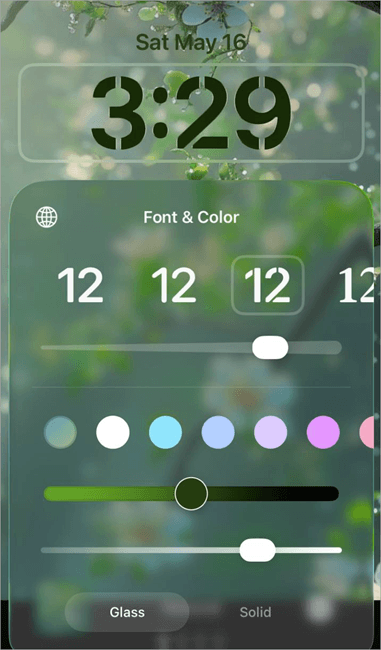
7. Once done, tap on Add Widgets to get the perfect Lock Screen.
8. After finishing, tap on Done.
9. Now the screen will look like this:
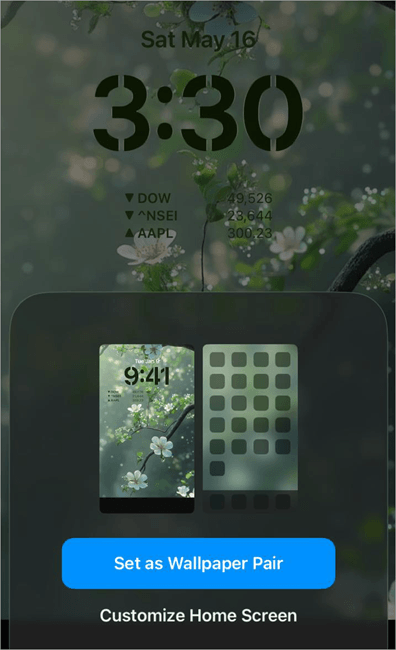
10. You can set the Wallpaper pair as shown in the picture or choose to customize the home screen.
11. If you tap on Customise Home Screen, then you can choose another background for the Home Screen. This can be a specific colour or a photo from your Gallery. Once you choose a specific photo for the Home Screen, tap on Done.
#2) Calm in Chaos
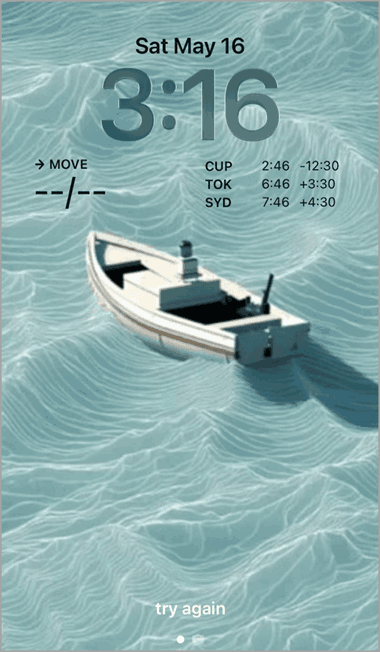
In this wallpaper, I used the picture from Pinterest and added 2 widgets:
- The Health app (for counting steps)
- And the Clock (showing different time zones).
Let me tell you, the iPhone offers several cool widgets. You can choose any of them for your iPhone Lock Screen or Home Screen.
#3) The Lovers Wallpaper
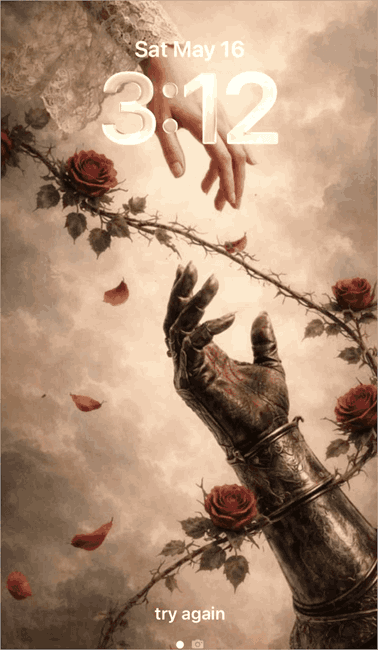
I’m telling you, a simple thing like your phone’s wallpaper can change your whole mood instantly. Like, look at the one above! So heavenly and so full of love.
In this wallpaper, I used a picture from Pinterest again and kept my screen simple and clean. I didn’t add any widgets to it; I just couldn’t stop gushing over this piece. I just adjusted the font and color of the clock, and I got this.
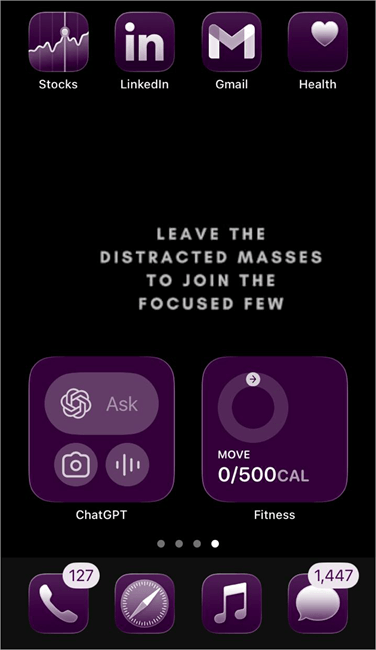
#4) Productivity-Focused Home Screen
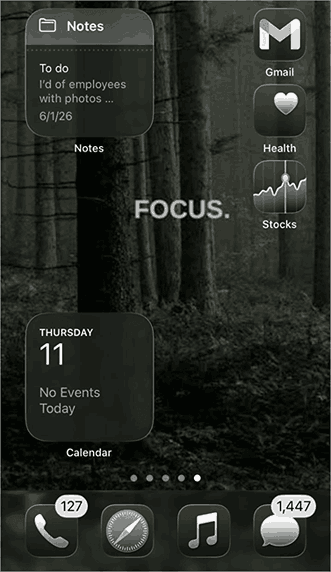
Users can use a motivational wallpaper, remove distracting apps (like social media apps), and add useful widgets (like a to-do list, calendar, Health widget, etc. ) to the Home Screen. This will help you become more productive.
Like, have a look at these, for example.
Some Cute iPhone Home Screen Layout Ideas
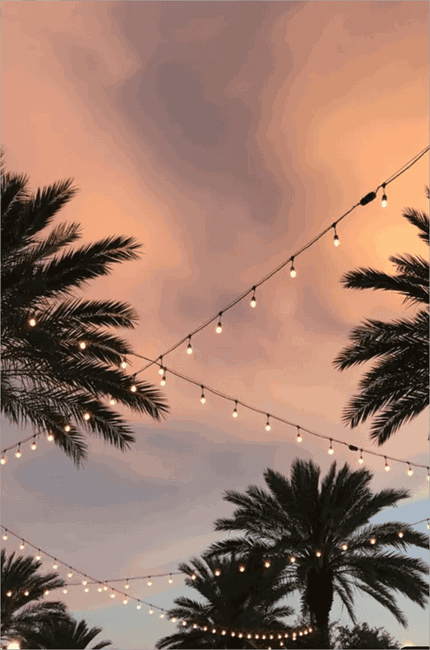
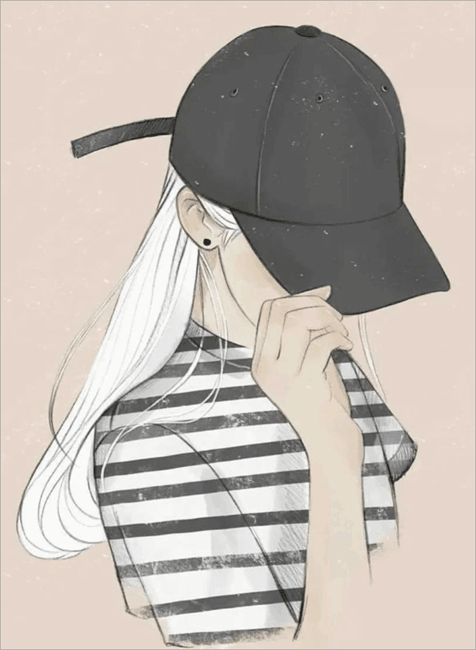
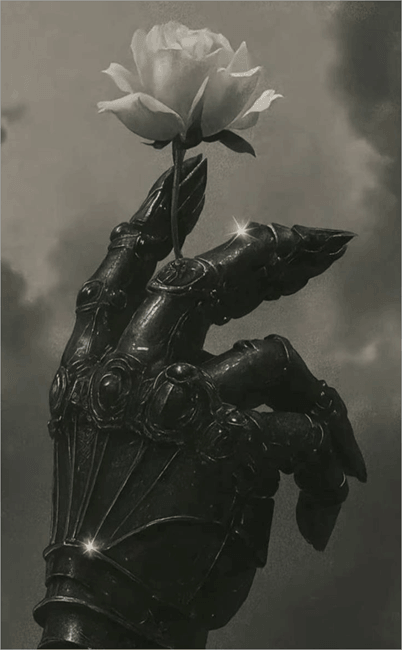
You can use cute wallpapers and combine them with your favorite widgets to get the best results. Have a look at these pictures I collected from Pinterest, which you can use to customise your iPhone’s Home Screen.
#1) Aesthetic sunset
#2) The Girl Boss
#3) The King is here

#4) Diva vibes

#5) For the Thinker Spirits
#6) The Cute Fashionista

Motivational Home Screen Ideas For iPhone
Here are some wallpapers that can be used for daily motivation:
#1) Because it all starts with a mindset

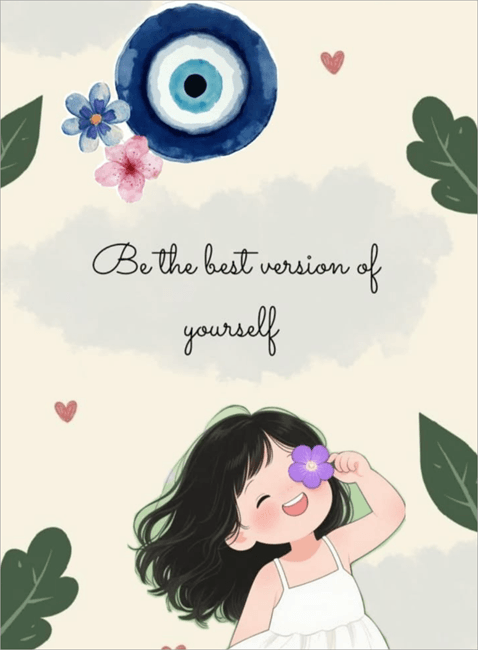
#2) Love yourself!
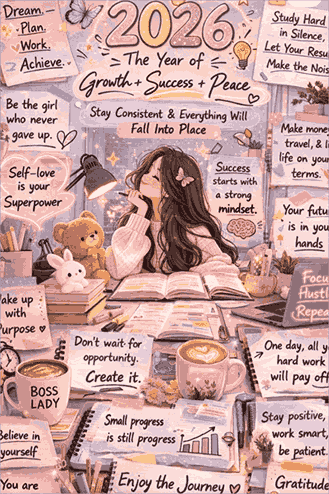
#3) Because you deserve that success!
Aesthetic Home Screen Ideas For iPhone
You can use these wallpapers to make your Home Screen look the most stylish among your friends
#1) Doesn’t it look amazing? I’m telling you, I once used it as my phone’s wallpaper, and I didn’t want to change it for months! Because just look at it!

#2) For Peaceful Beach Vibes

#3) Here is another one from my own personal favorites.

#4) Another Classy Piece

In order to get the best results, combine your favorite wallpaper with some cool widgets and customize the Home Screen icons using the steps provided above.
How to Add Widgets to Your iPhone Home Screen
Widgets can be used to view information from any app, like daily steps from the Health app, or Emails, or Battery usage, or Notes, etc. Another plus point about widgets is that they can be customized to look the way you want them to.
Here are the quick steps to add a widget to your Home Screen:
- Long-press on any space on your Home Screen. The apps will start to jiggle
- You will see the Edit option at the upper right corner of your screen. Tap on it.
- Now choose Add Widget.
- You can choose any widget you want. After choosing, you can customize its size and style.
- Then tap on Add Widget.
- You can move the widget wherever you want on your Home Screen and then tap on Done.
Have a look at the YouTube reels below for more iPhone Home Screen widget ideas.
- https://youtube.com/shorts/H8MsbEHQ2IM?si=I53_amlzjPZln_9_
- https://youtube.com/shorts/QcaN4b8_STY?si=qdSc0HvGnxCL3tsJb
- https://youtube.com/shorts/EX679nCYBHg?si=9Rf680Knd10kW4hN
Widget Apps For iPhone Users
iOS users can download these widget apps from the App Store to access more widgets and customize their Home Screen.
- Widgetsmith: For customisable widgets, themes and wallpapers
- Widgy Widgets: Offers several cool, customizable widgets
- Color Widgets: For aesthetic themes, widgets, icon packs, and more for your iPhone Home Screen.
How to Hide All Apps From The Home Screen
Too many app icons can make the Home Screen look congested. Plus, if you are using a Live wallpaper, then the app icons would definitely not look good on it.
Removing all the apps from the Home Screen can make it look a lot better. Afterwards, the apps can be accessed through the App Library.
You can follow the below steps to remove an app from the Home Screen:
- Long-press the app’s icon
- Tap on Remove App
- Select Remove from Home Screen
You’ll have to remove each app this way if you want a clean home screen.
If you want to reset your Home Screen, then follow these steps:
- Go to Settings
- Choose General
- Tap on Transfer or Reset iPhone
- Select Reset
- Now select Reset Home Screen
iPhone Themes
iPhone users can change the theme of their Home Screen by changing their wallpaper and customising the icons.
Watch this YouTube video to learn how to download custom themes on an iPhone.
iOS even allows users to set a Live (or video) wallpaper on their Lock Screen or Home Screen.
Free Wallpaper sources
If you are looking for sources that can provide aesthetic, free wallpapers for your iPhone, then consider using these apps:
- Wallpapers Central: This iOS app offers traditional wallpapers, animated ones, Live wallpapers, 3D wallpapers, ringtones, and much more.
- Backdrops: With a 4.7/5 star rating, Backdrops is a popular app for original, free, beautiful wallpapers.
- AppleWalls: This website has several wallpapers for iPhone, iPad, and MacOS devices.
- Another famous and popular source of wallpapers is Pinterest. You can just search for iPhone wallpaper and get breathtaking results for free.
Dock Customization Strategy
You can customise your phone’s dock in different ways, for example:
1. Add the four most important apps to the Dock area. For example, Phone, Messages, WhatsApp, Google Chrome.
2. You can also make a folder of apps in your Dock if you wish. To create a folder, long-press on any app’s icon and move it on top of another app’s icon. This way, both of the apps will move into a folder. Now this folder can be moved to the dock.
3. You can change the color of your Dock. Watch this YouTube video to learn how to do it.
4. You can use Focus to get a dynamic Dock that changes with what you are doing. For this, you will have to link Focus mode to the Home Screen.
Read further to find steps on how to do it.
Linking Focus Mode to Home Screen
By linking the Focus mode to the Home Screen, you can view only the apps you want to see on your Home Screen. You can even set a specific time for that focus.
This can be done by following these steps:
- First of all, create a home screen that you want to link to the Focus. This can be done in the following way:
- Swipe right on your Home Screen until you see a blank Home Screen.
- Now add the apps and widgets you want to see in Focus mode. You can also customize the Dock for this Focus.
- Now create a Focus and link it to the Home Screen you created by following these steps:
- Go to Settings
- Tap on Focus
- Now choose a Focus – Work/Personal, etc.
- Now scroll down to find the Choose (or Home Screen icons) option under Customize Screens
- Now choose the Home Screen you created for Focus and uncheck the other pages (which will be hidden in Focus mode).
- You can also set a timer for this Focus from here.
StandBy Mode
iPhones have this unique feature – you can use your iPhone while it’s charging, use it as a bedside clock or a photo frame, and much more.
You can turn on the StandBy mode on your iPhone by following these steps:
- Go to Settings
- Select StandBy
- Turn on StandBy
- Now connect your iPhone to the charger and put your phone somewhere so that it stays still.
- Press the side button
- Now, if you swipe left or right on your screen, you can switch between widgets, photos, and clocks. If you want to choose options for any of them, then swipe up or down.
iOS Version-Specific Customization Features
|
iOS 14 & 15 |
iOS 16 & 17 |
iOS 18 |
iOS 26 |
iOS 27 |
|
Allows the users to pin Widgets with other apps. | Allows users to set different customisations for the Lock screen as well as the Home Screen. |
The native icon-colour shifting tool |
You can set the glass-like appearance of the app icons. | Undo and Redo options were introduced in the Home Screen edit menu. |
Frequently Asked Questions
1. Is there a way to customize an iPhone Home Screen?
Yes, there are multiple methods to customise an iPhone’s Home Screen:
• Add New Wallpaper: You can add new wallpaper to your Lock Screen and Home Screen. There are many wallpaper options offered by iPhones. Plus, you can choose from several aesthetic and stylish wallpapers available on Pinterest and other sites. Or you can even add the photo of one of your loved ones to be used as a wallpaper and then customize it with widgets and custom icons.
• Customize the Icons: Once you have added the wallpaper, you can customise the icons of apps available on your Home Screen. You can even change the image of each icon by following these steps:
1. Go to the Shortcuts app
2. Tap on the + sign to add new Shortcut
3. Now search for Open App
4. Tap on the App
5. Now look for the app whose icon you want to change. Tap on it
6. Now select the Choose icon
7. You can select any icon.
• Add Custom Widgets: Widgets can also transform your Home Screen. They are quite useful and look stylish because of the customization options they have. To add a custom widget to your Home Screen, do as stated under:
a. Long-press on any space on your Home Screen. The apps will start to jiggle
b. You will see the Edit option at the upper-right corner of your screen. Tap on it.
c. Now choose Add Widget.
d. You can choose any widget you want. After choosing, you can customize its size and style.
e. Tap on Add Widget.
f. You can move the widget wherever you want on your Home Screen, and then tap on Done.
2. What is a good way to set up my iPhone Home Screen?
I would suggest keeping the Home Screen clean, it looks aesthetic. Plus, you will find the apps more easily.
To achieve this, you can:
• Make folders for similar apps: for example, online shopping apps, Banking apps, Social media apps, Extras, etc.
• Add Widgets: Several cool widgets can make your life easier. For example, if you add an Email widget, it will quickly give you the information about the recent email at a glance. Plus, you can customize the look of each widget to make the Home Screen look more stylish.
• Use a clean background wallpaper, so that you can find the app icons easily.
3. What are the best iPhone Home Screen widgets?
Here are some commonly used iPhone Home Screen widgets:
• LookUp: This widget shows you the word of the day to help you level up your vocabulary
• Photos: This widget will show you random memories from your Photo Gallery
• Fitness: You can look for your daily step count at a glance whenever you look at your phone.
4. How to get more widgets on the home screen iPhone?
To add widgets to your iPhone Home Screen, follow these steps:
• Long-press on any empty space on your Home Screen. The apps will start to jiggle.
• You will see the Edit option at the upper-right corner of your screen. Tap on it.
• Now choose Add Widget.
• Now you can choose any widget you want. After choosing, you can customize its size and style.
• Then tap on Add Widget.
• You can move the widget wherever you want on your Home Screen, and then tap on Done.
5. Do iOS widgets drain battery life?
Yes, the ones that constantly use the internet – like the Weather widget and news widget – they drain the iPhone’s battery very rapidly. So, if not very necessary, try to avoid these ones.
6. How to change iPhone display format?
iPhone users can change the display format by changing text size, making text bold, or magnifying text.
1. For adjusting text size on your iPhone:
• Go to Settings
• Choose Display & Brightness
• Tap on Text Size
• Drag the slider to select preferred text size.
2. For making the display text bold:
• Go to Settings
• Tap on Display & Brightness
• Enable (Turn on) Bold Text.
3. For Magnifying the iPhone Screen:
• Go to Settings
• Select Display & Brightness
• Go to Display Zoom
• Now tap on Larger Text
• Tap on  the icon
• Now tap on Use Zoomed.
7. How do I get my original Home Screen back on my phone?
You can reset the Home Screen to get everything to its default place.
This can be done using these steps:
• Go to Settings
• Choose General
• Tap on Transfer or Reset iPhone
• Select Reset
• Now select Reset Home Screen.
8. How to easily organize a Home Screen?
To organize your Home Screen:
• Just tap anywhere on your Home Screen until all apps start to jiggle.
• Now you can move the apps anywhere.
• Tap Done when you have organized the apps.
Conclusion
Undoubtedly, smartphones are an important part of our lives today. People often look for their favorite colors while buying a smartphone. Plus, the demand for stylish phone covers is also at an all-time high. Similarly, people also look for iPhone Home Screen design ideas.
For best results, you would need a perfect combination of:
- One cool background wallpaper for your Lock screen and one for your Home Screen
- Widgets: They not only look cool but are quite useful too. Like you can get useful info from an app, in an instant.
- Customised icons: Customizing the icons makes a lot of difference. The whole look of your Home Screen can change in an instant.
- Organize the Home Screen: Users can move the apps into folders, or can keep the useful apps on one Home Screen and the less useful ones on another Home Screen, or just remove some apps from the Home Screen to make it look cleaner and more organized.
Research Process: The total time involved to complete and publish this article is approximately 34 hours. This content was created through a structured research approach to ensure accuracy and reliability.
For more iPhone-related guides, you can explore our range of tutorials below:
- How to Fix iPhone App Store Icon Missing
- How to Request Desktop Site on iPhone
- How to Find Downloads on iPhone or iPad Quickly
- The Top 10 Apps to Mirror iPhone to iPad
- 3 Best Ways on How to Unlock a Disabled iPhone [iOS 16 Beta]
Was this helpful?
Recommended Reading
-

Read this review to explore different effective methods to understand how to Record Phone Calls on iPhone: In a majority of states across the United States, the law mandates it to get consent from a single or all parties to the conversation to legally record a phone call. It is…
-
Get educated on how to create a Poll in iMessage on iPhone or iPad on group chats. Quickly gather opinions from friends & family through the iMessage poll and view the results directly: It's an undeniable fact that we all love to chat with our friends through text messages. Almost…
-
Deeply understand how to pin a location on Apple Maps instantly. Acquire knowledge on how to drop Pin on iPhone to save your favorite spot & share the exact location with friends and family: I must say, Apple Maps is a great deal that users get with an iPhone while…
-
Understand how to find and access your downloads on iPhone. Learn where to find Downloads on your iPhone through simple methods based on their file type & downloading app from this step-by-step guide: Files downloaded on iPhone all go to the Downloads folder whose parent folder is Files. You can…