Analyze how to disable OneDrive with this comprehensive guide. Get simple instructions on how to fully and effectively stop OneDrive and turn off it from syncing your files to the cloud:
Multiple applications come as freebies when you download one of the products – to use some of these applications for free and get a review of its user interface, and ease of use, and after the trial period pay the subscriptions for its full utilization.
When you decide to download Google Workspace to communicate with your business partners, associates, and co-workers, share your confidential information like strategies, client contacts, product pricing, and plans for presenting to your prospects.
Table of Contents:
How to Uninstall OneDrive: Step-By-Step Guide

Google Workspace offers you various applications like Gmail, Google Drive, Google Meet, Docs, Sheets, Slides, Forms, Chat, Calendar, and AI-powered Chat box – Gemini facilitates your need/search by accessing search results from other products from Google.
What is OneDrive
OneDrive is a secured file storage and sharing application over the cloud that is offered with Microsoft 365 Basic, Personal, and Family variants of the Home subscription plan in monthly or annual payment plans.
All-time file access: You can access files from your devices, for example, you can edit MS Excel files on your desktop, view the file content from your mobile while commuting and share the content, and collaborate through MS Team with co-workers after reaching home using a MacBook.
Restricted file access: You can manage the collaboration of files with your co-workers, such as select devices, and allow or restrict access to your file over selected devices. You have control over how your co-workers share files (allow internal share and only official emails, restrict sharing via other than official emails)
Easy to share files: You can simply right-click on the file you want to share and enter the email address you want it to share without worrying about the file size limit.
Limit bandwidth: OneDrive has a unique feature of restricting bandwidth to OneDrive for uploading and downloading files using the throughput percentage.
Manage file storage: You can manage storage space over OneDrive cloud and decide which file should be kept on the local device and which of the files should be kept on OneDrive cloud storage space.
Suggested Read => Best Free Cloud Storage Providers
Why Should You Disable OneDrive
Applications that Drive – a secured, cloud-based file storage application with 5 GB storage capacity free with Microsoft 365 for desktop, laptop, iOS, and Android mobile and Xbox gaming for secure storage and automatic backup of your important data files, applications, photos, and videos.
Once installed, it backs up your data. Some users may want to stop syncing pictures, documents, etc, and gain back control of their files. To back your data, One Drive uses your internet, and that impacts your network’s performance.
Another reason for which you might want to disable OneDrive is that it keeps running in the background. OneDrive automatically starts and keeps running in the background. This impacts the low-resource PC more.
With a global market share of 0.44 percent, Microsoft OneDrive stands at 12th position compared with Google Drive at 31.19 percent and Drop Box at 18.61 percent are at 1st and 2nd position, respectively. With 186.75 billion USD in 2023, the market size for file storage globally is expected to reach 774 billion USD by 2032.
How to Disable OneDrive
How to Temporarily Pause File Syncing?
Here are the steps to temporarily pause the file syncing on OneDrive:
- Go to the Navigation area of your device monitor
- Click on OneDrive cloud application icon
- Click on the More option from the OneDrive menus
- Click on the Pause Syncing option
- You will still have the option to select the interval to allow you to decide how long you want to disable file syncing – (2 hours, 8 hours, or 24 hours)
Note: After the initial 24-hour period, you might need to repeat the steps.
How to Stop OneDrive File Syncing?
Further Reading => How to Fix OneDrive Not Syncing Issue
Here are the steps to disable OneDrive:
- Select OneDrive icon from the notification area of your monitor
- Click on More option
- Go to the Help option and select Settings
- Select Account tab
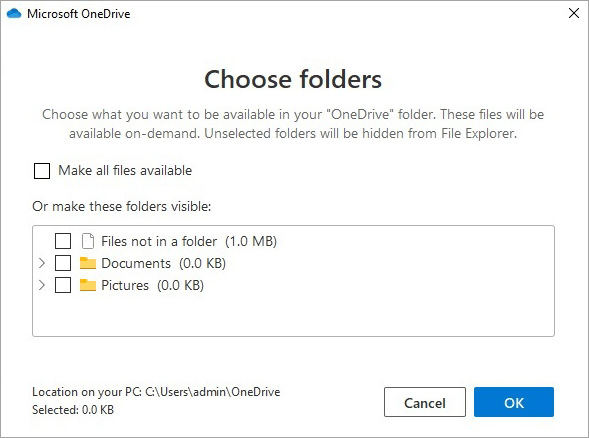
- Click on the Choose Folders button
- You will see a list of folders visible or available under the Choose folders window with Checkboxes selected, you can deselect checkboxes
- You can deselect check boxes near Make all files available
- Click the OK button to accept the changes done.
How to Disable OneDrive Automatic Start-up
You can disable or stop the OneDrive application pop-up automatically on signing in to Windows of your device
- Select the OneDrive icon from the notification area of your monitor
- Click on More option
- Go to the Help option and select Settings
- Deselect check box – Start One Drive automatically when I sign in to the Windows option
- Click the OK button to accept the changes done.
How to Turn Off OneDrive by Unlinking Your Device?
You can easily disable OneDrive application from your device in a few steps given below:
- Go to the Navigation area
- Click on the OneDrive cloud application icon
- Click on More option
- Go to the Help option and select Settings
- Check option – Unlink this PC
- Click the OK button to accept the changes done.
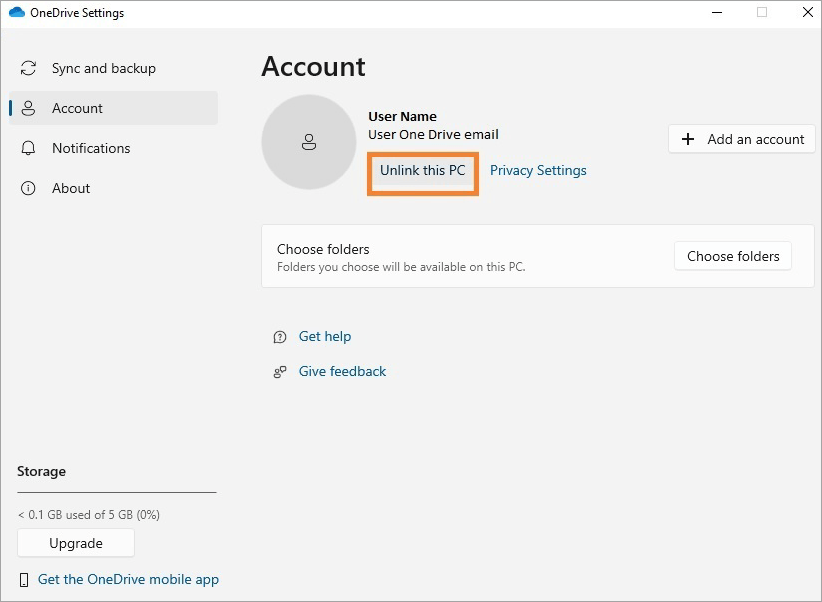
Note: You still can sign in the OneDrive.com to access the files stored on the cloud.
Uninstall OneDrive in Windows 10/11
You can completely remove OneDrive from your device by following the steps
- Go to the Navigation area
- Click on the OneDrive cloud application icon
- Click on More option
- Go to the Help option and select Settings
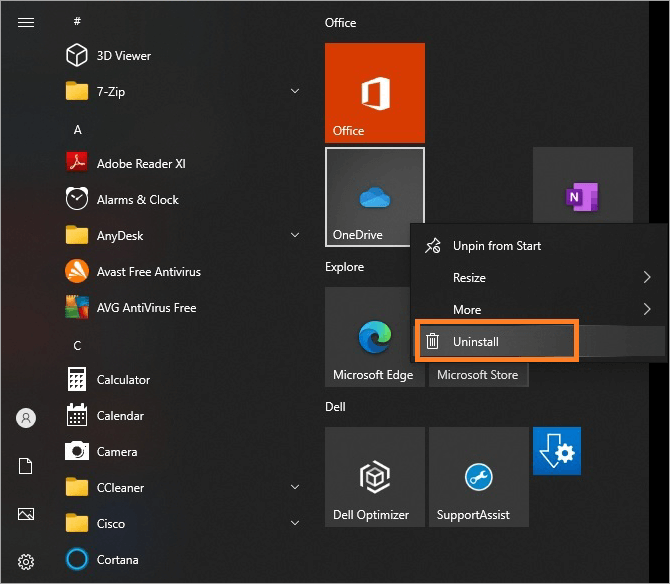
- Find Microsoft OneDrive from the list
- Right-click and select the uninstall option
How to Disable OneDrive in Windows 10
You can disable OneDrive on computers that have Windows 10 as their operating system
- Press the Windows icon + R
- The run window will open with the text field
- Enter GPedit.msc in the text field and press the OK button
- The Group Policy editor will open
- Click on the local computer policy
- Under the policy, click on Configuration
- Under Configuration, click on Administrative Templates
- Look for Windows Components,
- Click on OneDrive under Windows Components
- Look for Prevent the usage of OneDrive for the file storage policy
- Double-click on this policy and select the radio button that says Enabled
- Click on the OK button.
Turn Off OneDrive in macOS
- Select by clicking on Microsoft OneDrive from the menu
- Click on three dots from the top right corner
- Click on More option
- Click on the Preferences option
- Select Account tab
- Check option – Unlink this PC
- Click the OK button to accept the change.
How to Disconnect OneDrive for All Users
OneDrive home account will have a single user, whereas a work account can have a maximum of nine user accounts allowing nine persons to collaborate, access, store, and share files over the cloud.
Note – You should have admin privileges and permission for the following activity
- Visit the Microsoft 365 Admin Center online
- Click on Share Point Admin Center on the left pane
- Click on More features and select User profiles
- You will find People and My Site Settings
- Under the People section, click on Manage User Permissions
- Click on Add Account
- Click further on Browse to go to Select people and groups
- Click on All Users (per Tenant) option
- Select Everyone accepts external users on the right pane
- & click on the Add button to add the selected option
- You will see Everyone accepts external users selected
- There are list of permissions for the selected option
- You will uncheck options for disabling OneDrive for all the users
- Save all the changes you made by clicking on the Save button
Disable OneDrive for Business for All Users
OneDrive for Business will have a storage capacity of 1 TB per user and, with a business standard plan, can have up to 300 users. Below are the steps to restrict all the users from using OneDrive Business.
Note – You should have admin privileges and permission for the following activity
- Visit the Microsoft 365 Admin Center online
- Click on Share Point Admin Center on the left pane
- Click on More features and select User profiles
- You will find People and My Site Settings
- Under the People section click on Manage User Permissions
- You will find permission to create a Personal Site for all users
- Under manage user permissions
- Select User profile properties to disable OneDrive access for all the users for OneDrive business
- Save all the changes by clicking on the Save button
Turn Off OneDrive for Business for Some Users
Note – You should have admin privileges and permission for the following activity
- Navigate the Microsoft 365 website and log into your account
- Visit Share Point Admin Center
- Go to the Access Control section
- Look for the Restrict OneDrive Access option
- Select specific security groups for excluding (prevent users) from using OneDrive
- Save all the changes you made by clicking on the Save button
Uninstall OneDrive from Mobile Devices
OneDrive file storage application can be installed on multiple devices such as desktops, laptops, and mobiles and you can access your files, and share your files from multiple devices. You can uninstall OneDrive from your mobile by simply clicking the Uninstall option.
Android
- Click on the Settings icon on your mobile screen
- Look for Apps on the list
- Click on Apps to open the Apps window
- Click on Manage apps
- It will display a list of installed applications
- Search for OneDrive
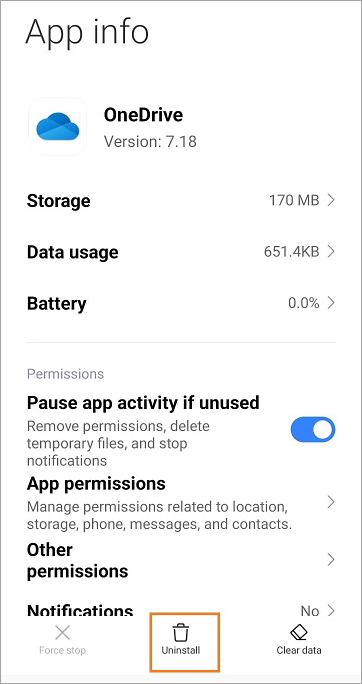
- The app info page for OneDrive will appear
- Click on the Uninstall icon present in the center
- This will remove the OneDrive mobile application from your Android mobile
iOS
You can hide, or unlink your files from OneDrive storage, or uninstall OneDrive completely from your mobile if you decide not to use OneDrive mobile file storage from your mobile.
- Click on the OneDrive icon on your mobile screen
- Click on the Uninstall option displayed when you tap on the OneDrive icon
- This will remove the One Drive file storage mobile application from your iOS mobile
- You can recover the space occupied by OneDrive mobile file storage by clicking on Clean up space on your device under Settings of your mobile
Suggested Read => Mobile Device Testing
Additional Considerations
When we disable OneDrive Cloud file storage for all the users, stored files on OneDrive remain on the One Drive Cloud but no one can access these files. You need to enable the OneDrive cloud, and review the security implications on confidential data before disabling OneDrive file storage.
Alternative file storage utilities should be compared for pricing and other features with OneDrive, Training on file sharing, and how to utilize new features of alternative file sharing applications should be considered, Grant or restrict access permission to users and protection of information should be restricted on sharing and other policies and monitoring reporting should be considered while going for the change.
There are many advantages of Google Drive as a file-sharing utility. Below is a list of some advantages, compared with Microsoft’s OneDrive.
- Microsoft OneDrive comes with 5 GB of free storage. Google Drive has 15 GB of free storage
- Google Drive has an easy, simple, and user-friendly interface, whereas OneDrive has a file explorer interface for file storage.
- Google Drive has a single form, whereas One Drive has two forms for file sharing
- Seamless integration with the Google suite of products is excellent for Google Drive, similar to the integration of OneDrive with Microsoft products.
- Google Drive offers more storage space compared to OneDrive from Microsoft giving better value for money.
You can either disable OneDrive or uninstall it completely from the applications list available with Microsoft 365 in multiple ways
FAQs on How to Stop OneDrive
1. What happens if I disable OneDrive?
When you disable OneDrive on your computer:
• You can still able to retrieve your stored data or files on OneDrive from onedrive.com by login with your credentials
• After uninstalling or disabling OneDrive from your computer, you can access files stored on OneDrive from your mobile devices by logging into your Microsoft account.
• In case you have not unlinked your computer from OneDrive, you still can able to fetch the latest synced OneDrive files.
2. How do I stop OneDrive from turning on?
You can stop running OneDrive on starting of your computer by disabling auto start-up for the OneDrive application in your computer by deselecting a checkbox near – Start OneDrive automatically when you sign in to Windows in OneDrive Settings.
3. How do I stop my computer from syncing with OneDrive?
You can stop syncing your local files from syncing with OneDrive by
• Selecting Unlink this PC option from the Account tab of your OneDrive Settings in your computer
• Applying temporary pause to file syncing by selecting the Pause Syncing option and interval of pause (maximum up to 24 hours)
• Stopping file syncing by deselecting the checkbox near – Make all files available in Choose folders windows from the Account tab of OneDrive Settings
4. What are the ways to stop using OneDrive file storage without uninstalling it from the device?
You can stop using OneDrive cloud storage in various ways listed below
• Pause file syncing temporarily
• Stop OneDrive file syncing by making all files unavailable
• Deselecting the option to Start OneDrive automatically when I sign in to Windows
5. How to disable OneDrive for All users?
You can prevent all your users from using OneDrive by following the configuration steps listed
• Prerequisite – you are an administrator or have administrator privileges.
• Visit and login to the Microsoft SharePoint website
• Click on the Admin Center link next to your login icon
• Look for More Features & go to the User Profiles section
• Select option – Manage user permissions
• You find that everyone except the external user’s option selected
• Select this option.
6. How to disable OneDrive for Business for All users?
For the OneDrive Business version, you can disable OneDrive for all the users in the steps given below
• Prerequisite – you are an administrator or have administrator privileges.
• Go to Microsoft 365 SharePoint Admin center
• Look for More features and go to the User Profiles section
• Go to the Manage User Permissions section
• Remove Everyone except external users option that was previously selected
7. How to disable OneDrive for Business for some users?
You can disable OneDrive for business for some users in the steps given below
Prerequisite – you are an administrator or have administrator privileges.
• Go to Microsoft 365 SharePoint Admin center
• Visit and login to the Microsoft SharePoint website
• Click on the Admin Center link next to your login icon
• Click on Restrict OneDrive Access
• You can restrict some particular user(s) from using OneDrive by removing their permission by selecting a security group that has users for whom you wish to prevent OneDrive business for specific users.
8. What is file syncing and its application?
File syncing or synchronization is a feature to keep the latest version of files across multiple devices. Used in backup and recovery, collaboration file sharing, and messaging applications.
9. List the Advantages of using OneDrive file storage.
There are multiple benefits of the OneDrive file storage tool, such as accessing files from anywhere, files encrypted, and having security policies, due to file syncing you are sure of the latest file across the devices, and you can work on these files using Microsoft 365 like word, excel, and PowerPoint.
10. How long deleted files are retained in OneDrive?
OneDrive recycle bin keeps a file for 30 days.
11. What characters are not allowed in files for OneDrive file storage?
The file should not contain special characters such as ” * : < >? / \ | to be eligible for storage in OneDrive.
12. What is the meaning of * and \ in macOS, Windows, SharePoint, and OneDrive?
In SharePoint, One Drive, macOS, and Windows – “*” stands for wildcard, and “\” stands for file path
13. What is the maximum file size allowed on OneDrive?
OneDrive file storage allows file sizes up to 250 GB.
14. What is OneDrive restriction for file path length?
The file or folder path length on OneDrive is 4000 characters.
15. How many files you can copy on OneDrive online in one time?
You can upload 2500 files on OneDrive at a time.
Recommended Reading => Learn About How You Can Send Large Files
Conclusion
OneDrive is a cloud-based file storage and sharing utility with 5 GB of storage capacity that comes with the Microsoft 365 free version.
Various file storage and sharing applications are available that are more popular and have more storage capacity. In this article, you will find various techniques to disable and uninstall OneDrive completely from your device.
Was this helpful?
Recommended Reading
-

Review this step-by-step guide to transfer files from Dropbox to Google drive. Also, explore the top tools to save and transfer data: The need for storage services has grown by leaps and bounds in the last few years. With the growing demand for storage services, services like Dropbox, Google Drive,…
-
Overview of Unix File System: In this tutorial, we will dive deep into Unix File System. The file system is central to how Unix organizes information, and all the information that needs to be stored and retrieved uses the file system. In this tutorial, we cover Unix file structure, types…
-
This tutorial explains what is a 7z file extension. Also learn how to create and open .7z file in Windows, Mac, and online: In this tutorial, we will provide you with an understanding of this file format in detail. We will also learn to create and open files in 7z…
-
This Tutorial Explains Hadoop HDFS - Hadoop Distributed File System, Components and Cluster Architecture. You will also learn about Rack Awareness Algorithm: As we learned in the previous tutorial, the biggest issue with Big Data is to store it into an existing system. And even if we somehow stored part…
-

Are you concerned about adding a file uploader plugin to your WordPress website? Read this review to decide from the list of the best WordPress File Uploader Plugins: File upload plugins are the software that enables the visitors of your WordPress site to easily upload files like documents, images, and…
-
Here, you will understand the features, pros, cons, pricing, and other necessary details about the top File Upload API Solutions to compare and select the best File Uploader of your choice: A file upload API or plugin is a utility or tool that can be integrated into your application to…
-
Simplify your file transfer process with these top Cleo MFT Solutions. Pick the best Cleo File Transfer Alternatives for secure and scalable file transfers in compliance with industry regulations: Organizations across the globe have stringent policies and standard operating procedures when it comes to transferring sensitive information to the process…