


Are you frustrated with the Error 0x80070570? Deeply explore the reasons & causes for the error code 0x80070570 along with a range of solutions to help you fix them easily:
System administrator in the IT department of any organization handles updates and installation of operating systems for new laptops or computers procured for their newly employed resources.
While installing or updating the older Windows versions ranging from 7, 8, 8.1, and 10, OR when files are transferred from one drive to another drive, system administrators often come across 0x80070570 error codes.
Troubleshooting Steps for 0x80070570 Error

Have you encountered the Windows error code 0x80070570? This error message typically signifies a problem accessing files or folders.
Causes for Error Code 0x80070570
There are some scenarios observed for the reason for the 0x80070570 error.
- Sudden power failure or shutdown without proper steps can cause damage or corrupted system files in your drive.
- Infection of the drive with malware or viruses may damage system files.
- Defective external storage devices like pen drives, external hard drives, or flash drives can cause this error while we save or transfer files from these devices to a computer.
- Failure during Windows installation due to corrupted or missing system files.
- Failed random access memory (RAM) error while deploying system files or system overlooked state.

Common Errors During Windows Installation
A system administrator or infrastructure team responsible for installation, updates, and resolution of issues related to an operating system of computers and laptops new or used come across various errors related to hardware, damaged or corrupted system files, disk/drive partitions, or software conflict-related errors.
The screen would highlight errors such as missing or corrupted system files, corrupted or missing system files, insufficient space in the disk, boot sector, or system registry errors. We are going to discuss a corrupted file-related error – 0x80070570 and how to resolve this error.
You may experience 0x80070070 – with any of the combinations (0x50011, 0x50012, or 0x60000) when your computer lacks space for installing an upgrade, you need to delete unnecessary files from your temporary folder, trash folder, or from one of your drives.
When one of the installed software or drivers of your computer is not compatible with the Windows 10 upgrade, the system will flash a 0x800F0923 error,
When the process of upgrade is interrupted, because of either signing out from your computer or suddenly restarting your computer, the system will display a 0x80200056 error
When your computer fails to connect Windows update servers via VPN or disconnects from the network or the VPN is stopped or disconnected, the system will flash a 0x800F0922 error
Errors displayed in Windows 10 computers, along with reasons, are listed below:
- 0x80070005 error: Access denied
- 0x80070002 error: File not found
- 0x80070003 error: Invalid path
- 0x800f0922 error: Windows update failed
- 0x800f081f error: Failed installation of .NET framework
- 0x80070070 error: Not enough space
How to Fix Error 0x80070570
#1) Restart your computer
You can restart your computer in any of the ways listed below:
- Click the Windows icon + X key together OR Click on the Windows icon on the left bottom corner of your screen OR Click on ctrl + alt + ESC all three keys together
- Click on the Power icon from the list
- Click on Restart option
Your Computer will restart. You will observe error 0x80070570 will not appear.
Tip: Save and close all the files and stop running programs before restarting your computer, preventing the loss of any data file or corrupt content.
#2) Update Windows
You can update your Windows as the next step in case you still face error
- You can click on the Windows (Start) icon -> Click on the Settings icon -> Windows Settings -> Update & Security icon -> Windows Update
- Click Check for Update to find if there is any recent update from Windows
If you find one, you click on it to begin Windows Update.
Tip: Use Wi-Fi or network cable for a fast and strong internet connection, and use programs for updating Windows applications.
#3) Re-download the Windows Update
In the process of Windows update, you may find a failure, or error while updating Windows. You may verify by checking for the update button under Windows update, in case new updates are found you can download and install Windows update files.
#4) Retry the installation of the Windows Application
While updating Windows with the latest update, you may find an error or failure preventing the installation of Windows you may try again installing of Windows application.
#5) Check if the disk is damaged
If the error persists, check your disks for damage or bad sectors using the CHKDSK command.
Corrupt or damaged disk is a result of incomplete shutdown or start-up, failure of hardware, physical damage like heat or NFS write error due to insufficient space on the disk
- Click on the Windows icon on the left corner of your screen
- Search for the command prompt in the list displayed
- You can either right-click to see the options available
- Click on run as administrator option
Tip: You can use this method to scan storage devices like USB ports, and external or local drives of your computer.
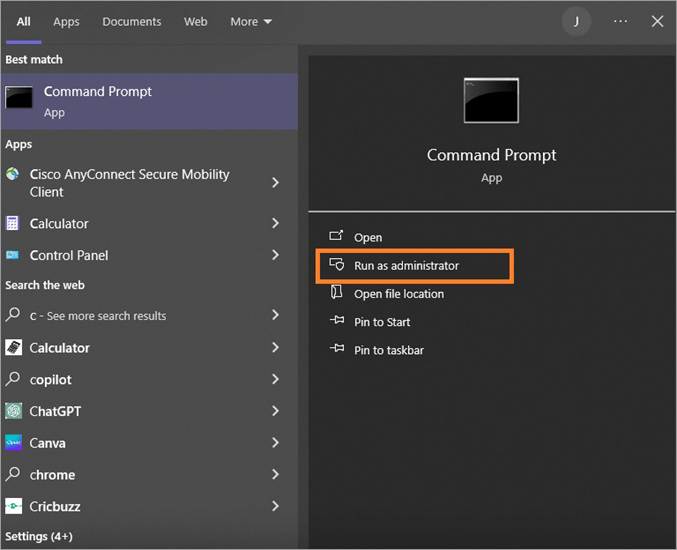
Note: You will need administrator privilege to run the CHKDSK command.
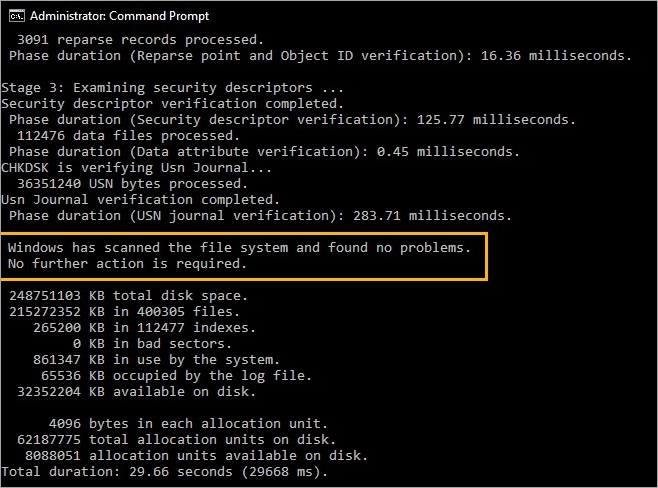
CHKDSK command will give information like total disk space, number of files, indexes, bad sector, space used by the system, available space on disk, and space occupied by log file (all in KBs) as shown below
#6) Check Disk for Errors
You can also open Windows Explorer by pressing Windows icon + E key together
- Click on This PC, you will see Devices and Drives on the right panel
- You will find Drives under Devices and Drives along with used space in GB and total space in GB.
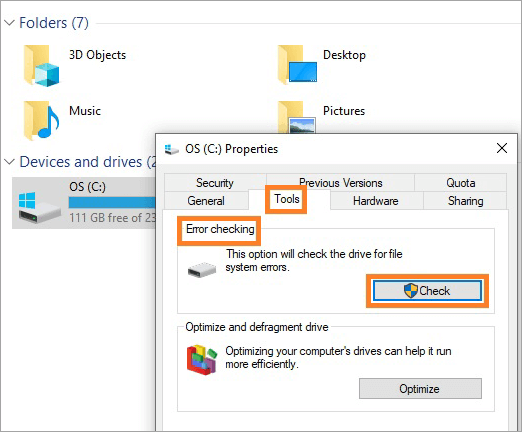
- Right Click on one of the disks & select Properties from the menu options
- Properties Window will appear with multiple tabs like General, Security, Tools, Hardware, Sharing, Quota, etc.
- Click the Tools tab & click on the Check button under the Error Checking section.
#7) Check Hardware for errors
You can check if any of your computer hardware like a mouse, motherboard, CPU, RAM, GPU, or Hard drive has any issues by following the steps:
- You can click on the Windows (Start) icon on the left bottom corner of your screen
- You will see a list of options displayed
- Click on the Settings icon
- Windows Settings dashboard will appear
- Click on the Update & Security icon
- Select Troubleshoot from the left panel
- Click on the Additional Troubleshoot link on the right panel
- Select Memory Diagnostic
- You can search Windows Memory Diagnostic under the Search option in the list of options in the left bottom corner of your screen
- You can click the Windows icon +R keys together
- Run windows will appear
- Type mdsched.exe and press Enter
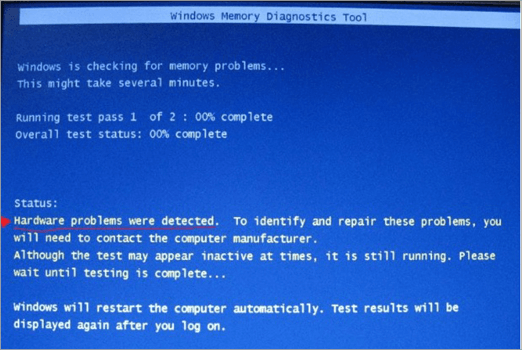
- Windows Memory Diagnostic window will appear
- Select any one of the options available
- Windows memory diagnostic tool will start to scan and run the test to detect any memory-related issues
#8) Change BIOS Setting
Also Read => Stepwise guide to Open BIOS In Windows 7, 10, and Mac
Click on the Windows icon -> Settings -> Update & Security -> Recovery
Under Advanced start-up on the right pane, click the Restart now button, Keep the Shift key pressed while the computer restarts in safe mode,
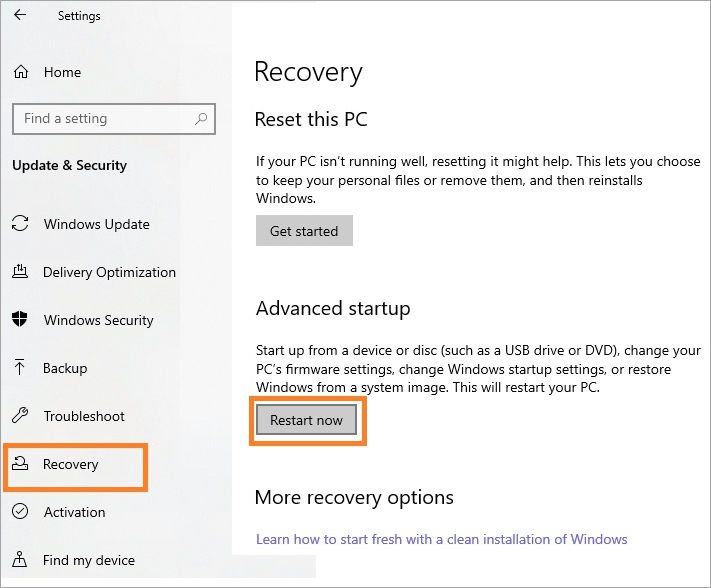
Select Troubleshoot then click on advanced options, Select UEFI firmware settings then select the Restart option by pressing F2, F10, or Esc keys to access BIOS setup.
Tips: You will need technical knowledge to understand what should be changed in the BIOS setup.
#9) Run the DISM command
DISM is used to resolve missing or corrupted system files of Windows. This also prepares and services Windows images.
- Type cmd in the search text field
- Command prompt will be seen in the list
- Click on Run as administrator,
- type DISM
#10) Run the SFC command
You can check the integrity of your System files using system file scanning as per the steps below
- Press the Windows icon + X keys together
- You will see a list of menu options in the left bottom corner of your screen
- Look for Windows PowerShell (Admin) & Click on it
- You will need administrator privilege to open and run the PowerShell (Admin) command prompt
- Type SFC/scannow on the PowerShell command prompt & Press Enter
- SFC – System File Checker will begin to scan system files of Windows for any defect,
- In case any defect is observed, there will be an automatic system repair process.
- You can restart your computer once the system file scan process completes.
Tip: Try to run the DISM command before the SFC command
#11) Clean boot
You will need administrator privileges to perform a clean boot of your computer.
- Type in msconfig command in the search text field beside the Windows icon at the left corner of a computer screen
- You will see a list of menu options, look for System Configuration & click on it
- System configuration window will open with the General tab opened by default
- Click on the Services tab, Check – Hide all Microsoft services on the left bottom corner
- Select by clicking the checkbox for All the services running and click on the Disable all button
- You can select the Startup tab and click on the Open Task Manager link
- Click on Enabled status & then select Disabled for each startup item listed in the Startup tab
- Click OK button to begin Clean Boot for your computer.
- You can restart your computer once the clean boot process is completed.
#12) Disable Antivirus Software
You can search for antivirus software installed on your computer by clicking on the Windows icon on the left bottom corner of your screen
- Click on the antivirus software icon to move it to the system tray at the right bottom corner of your screen.
- You can right-click on the antivirus software icon
- You will find various options like Shut Down Protection, Disable Protection
- This will disable the protection feature temporarily
- Check if the 0x80070570 error is resolved
- Once the error is resolved you can turn on the protection by enabling the protection feature.
Tip: Do not forget to enable protection of antivirus software to protect your computer, once the error is found resolved
#13) Check Disk Space
There are multiple ways to verify disk space:
- Press the Windows icon + X key together OR Click on Windows icon at left bottom corner of your screen
- Click on Settings from the option list displayed on left bottom corner of your screen
- Windows Settings dashboard will be displayed
- Click on System icon
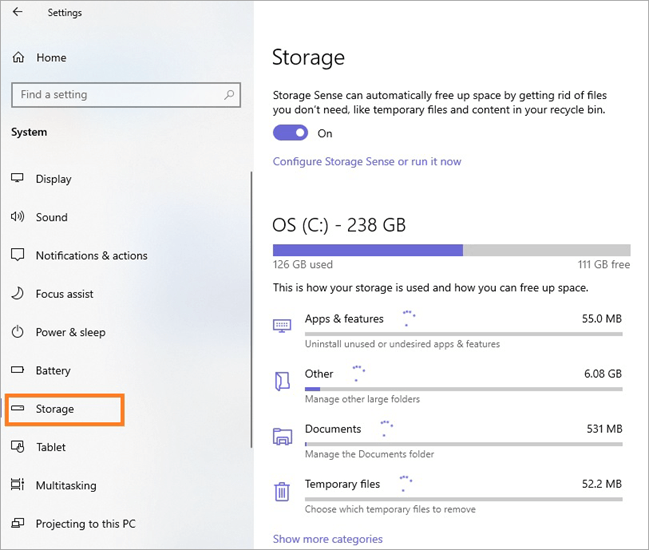
- Click on Storage from the left panel
- You will see total space used in GBs and free space remaining for C drive
- There will be various categories and spaces used such as Apps & features, Other, Documents and Temporary files, as shown below
You can also open Windows Explorer by pressing Windows icon + E key together
- Click on This PC, you will see Devices and Drives on right panel
- You will find Drives under Devices and Drives along with used space in GB and total space in GB
#14) Update Third party drivers
Suggested Read =>> How to update graphics drivers in Windows
Third party drivers update for Windows can be done in multiple ways
- Click on Windows icon & search for Device Manager
OR
- Press Windows icon + R key together,
- Run window will appear
- Type devmgmt.msc and press OK button.
Note: You will need administrator privileges to open Device Manager and update driver
- Device Manager interface will open
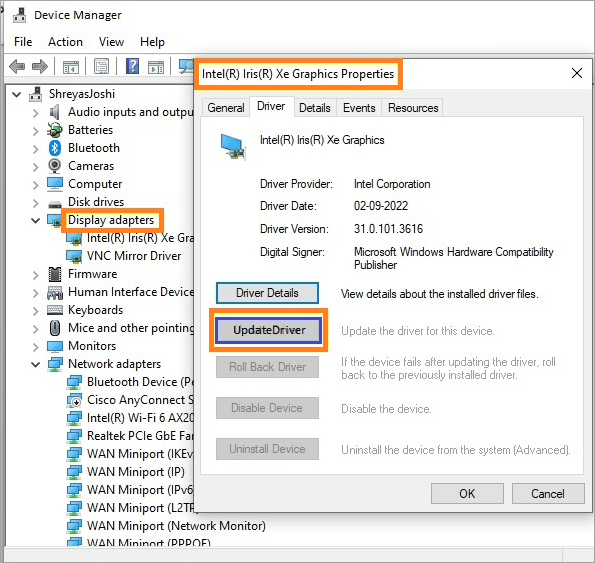
- Click on Display adaptor to expand it
- You will see drivers listed under it
- Right click particular driver, you will see the properties tab
- Click on Update Driver button
#15) Using Different ISO/Installation File
Using Different ISO/Installation File – it is an image file containing a configuration set up for the operating system for installing on your device. You can mount or burn ISO files or images from the disc to copy on a USB drive and install it on your computer.
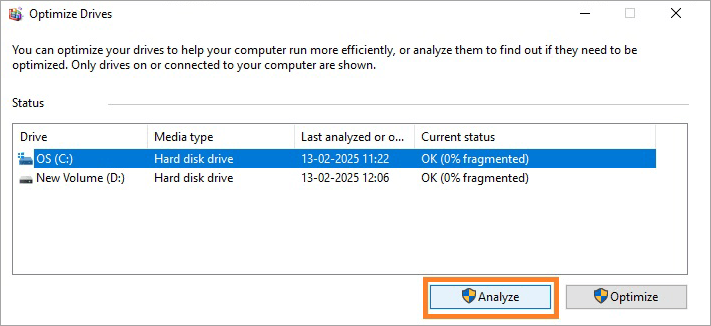
#16) Defragment Hard Drive
Defragment Hard Drive can improve the speed and performance of your hard drive without erasing or moving any data on a hard drive.
Click on Windows (Start) –> Control Panel –> System and Security –> Go to the Administrative Tools section & click on Defragment and optimize your drive link
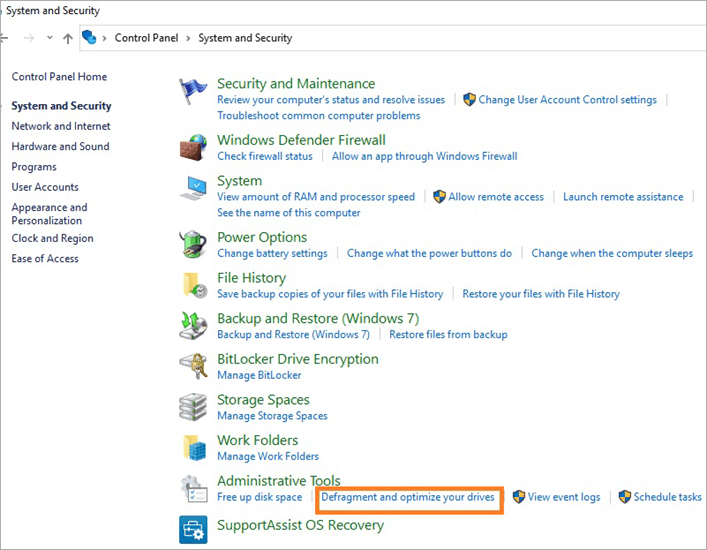
Select one of the Drives from the list and click on Analyze button.
#17) Run Windows Update Troubleshooter
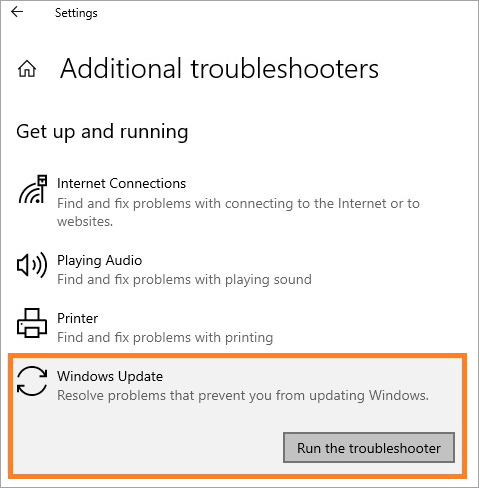
Click on Windows (Start) -> Settings -> Update & Security -> Troubleshoot -> Click on Additional troubleshooters,
Additional troubleshooters interface opens, under the Get up and running section,
Click on Windows Update -> Run the troubleshooter button
#18) Clear Software Distribution Folder
Removing all the Cache files from the Software Distribution folder will free up disk space and resolve Windows update and resolve 0x80070570 error.
Go to your C drive from File Explorer, and click on the Windows folder. Look for the Software Distribution folder
Select all the files in the Software Distribution folder, and delete all the files.

#19) Perform a Start-up repair
Restart your computer and keep the shift key pressed until it starts. You will find Windows Recovery Environment (WinRE), Click the Troubleshoot option -> Advanced options
Under Advanced options click Startup Repair, you will find your computer to restart, this will resolve error 0x80070570 error.
#20) Format an External Drive
Open Windows file explorer, Check external drive & right click on external drive and select Format, then select NTFS file system in Windows computer, and click Start button for starting process of formatting.
FAQ’s on 0x80070570
1. What causes error 0x80070570?
You may experience a 0x80070570 error due to multiple reasons such as:
• Corrupted or damaged disk
• Bad sectors in your drive
• Sudden removal of USB drive from your computer without disconnecting
• Corrupted or missing system files
• Infection due to virus or malware
• Moving or copying files from external storage devices to your computer
• Insufficient storage in your drive
2. List errors beginning with 0x800 and the reasons for these errors.
Errors beginning with 0x800 along with reasons for these errors are listed below
• 0x80070005 error – Access denied
• 0x80070002 error – File not found
• 0x80070003 error – Invalid path
• 0x800f0922 error – Windows update failed
• 0x800f081f error – Failed installation of .NET framework
• 0x80070070 error – Not enough space
3. What are the errors for Windows update failure observed in Windows 10 computer?
Windows update failed errors in Windows 10 computer are
• 0x800f0922
• 0x80240034
• 0x800240017
4. How to fix the 0x80070570 error for Windows 10 computers?
There are many ways you can fix 0x80070570 error that occurs in Windows 10 computers such as
• Restarting your computer
• Update Windows
• Damaged or corrupted disk
• Bad patch or corrupted drive
• Defected system file
• Disabling antivirus software or
• Updating third-party drivers
Conclusion
There are various errors related to hardware, damaged or corrupted system files, disk/drive partitions, or software conflict-related errors observed during the installation of system files, moving from a USB flash drive to your Windows-based computers.
We have discussed here the reasons and fixes for the 0x80070570 error resulting due to missing or corrupted system files, corrupted or missing system files, insufficient space in the disk, boot sector or system registry errors.
Was this helpful?
Recommended Reading
-

Here are the proven tips to efficiently fix the system-critical Windows error 0x0 0x0. Read through these top solutions to permanently fix error 0x0 0x0 on Windows PC: While working on PCs and laptops with Windows as their operating system, users may come across various types of errors. Some of…
-

How to Test and Fix Memory Leak for Android Applications: Memory optimization is a bigger challenge for any developer before pushing an app to the play store. Performance of an app is equally important as its functionality. This article is based on the Heap analysis of an application through DDMS…
-

Through this article you will understand System Service Exception Windows 10 Enterprise error and multiple effective methods to fix it: Programmers and developers work hard every day to make perfect software or applications that do not malfunction or display an error when used on a system under any possible configuration.…
-
Here you will understand the causes and stepwise effective methods explained to Fix Windows 10 Update Stuck issue: Windows get to know about various bugs and errors in the OS with the help of the feedback of its users. Therefore, they work on developing updates that can fix these errors.…
-
Frustrated with Windows Update failures? Discover expert solutions to fix Windows Update not installing to get back on track. Learn simple troubleshooting steps to ensure your PC stays up-to-date and secure: In an agile development environment, requirements frequently change from the day we begin with the prototype and show feature…
-
How to Fix "Default Gateway Is Not Available" Error Message: In this Hands-on Networking Training Series, we learned all about Network Address Translation in detail along with examples in our previous tutorial. In this tutorial, we will discuss the concept of the default gateway and its role in the computer…
-
Explore the top effective methods to Fix Your Connection is Not Private error with simple tips. Quickly learn to bypass your connection is not private error with this easy guide: You have probably seen your browser flashing a message that your connection is not private. It typically appears on web…
-
This step-by-step guide with screenshots will explain the top 5 methods to fix the 'DNS Server Not Responding' Error in Windows 10: The Internet has turned vital for us, as all our daily chores and work depend on it. But have you ever given it a thought that how frustrating…


