Do you want to know how to disable Incognito mode on your device or browser? This step-by-step guide will help you to turn off Incognito mode or private browsing across all major browsers and devices.
Incognito Mode is designed to offer private browsing, but there are situations where you may want to turn it off, such as parental control, workplace restrictions, or better browsing oversight, like saving history, cookies, and form data, etc.
In this tutorial, I’ll walk you through simple, step-by-step methods to turn off or disable Incognito Mode on Chrome, Safari, Firefox, and Edge for Windows, Mac, Android, iPhone, and Chromebook, using simple settings and tools.
Table of Contents:
- Simple Steps to Disable Incognito Mode
- Incognito Mode: Advantages and Disadvantages
- How to Turn Off Incognito Mode across all devices and browsers
- Best Apps to Disable Incognito Mode
- Comparing the Top Apps to Turn Off Incognito Mode
- Things You Need to Consider Before Turning Incognito Mode Off
- Troubleshooting Issues With the Disabling of Incognito Mode
- Frequently Asked Questions
- Conclusion
Simple Steps to Disable Incognito Mode
Disabling Incognito Mode often comes down to convenience. When you browse normally, your browser stays signed in to the sites you use most, remembers details you’ve already entered, and saves your browsing history so you can easily return to pages you visited earlier. This can be helpful for keeping track of activity, remembering preferences, and avoiding repeated sign-ins.
Check the video tutorial below to know what exactly happens when you use Incognito Mode:
It’s also useful in situations like schools or homes, where educators and parents may want better visibility into online activity. I’ve faced this myself as well, especially when I wanted my browsing history, saved logins, or site activity to remain available for reference.
Recently, I noticed several discussions about disabling Incognito Mode on a forum I follow, which prompted me to put together this detailed and practical guide.
So, without much further ado, let’s dive in.
Incognito Mode: Advantages and Disadvantages
Incognito mode is a feature that one can enable or disable on their computer or mobile browsers for a private web browsing session. There are advantages and disadvantages to Incognito mode, as listed below:
The image below depicts the incognito mode window:
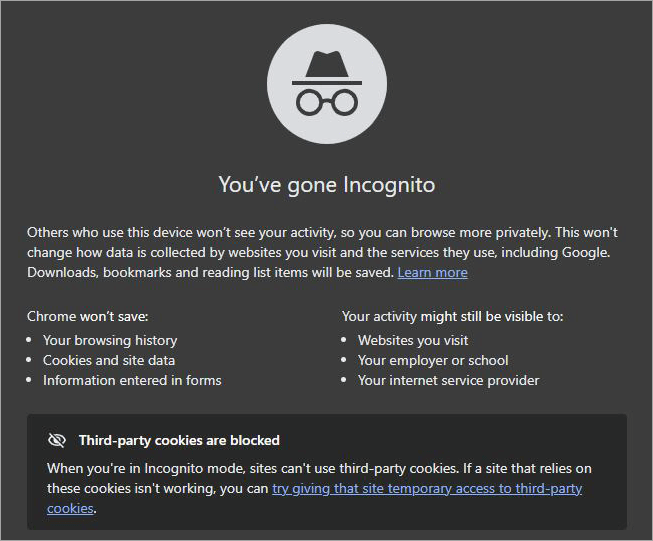
Advantages of Incognito mode
- Prevents local browsing history : It doesn’t keep a record of the websites you visit once you close the window.
- No stored cookies or site data: Any cookies or temporary data created during the session disappear automatically.
- Useful on shared or public computers: Incognito mode helps protect your privacy when using a computer that others can access.
- Sign in to multiple accounts at once: Let’s you log into a second account (email, social media, etc.) without logging out of the main one.
- Avoids personalized search results: Searches are less influenced by your past browsing, which is helpful for unbiased research or SEO checks.
- Prevents auto-fill and password saving: Login details and form entries are not stored accidentally.
- Good for quick troubleshooting: Great for quick testing or troubleshooting when a website isn’t behaving normally, like issues caused by cached data, extensions, or cookies.
Disadvantages of Incognito mode
Incognito Mode does not provide complete anonymity or privacy. Here are a few limitations:
- Incognito mode does not hide your IP address: Internet Server Provider (ISP), school, or employer can still track your visited websites or other traffic on the internet.
- Downloads Still Remain on Your Device: Downloads and bookmarks are saved, so it’s not completely “invisible.”
- Passwords and Logins are not Saved: You’ll have to log in again since passwords and site preferences aren’t saved.
- Limited Extension Support: Extensions are usually disabled, which can limit functionality unless you turn them on manually.
- No Protection From Online Threats: It won’t protect you from malware, phishing sites, or unsafe downloads.
- Not Ideal on Work or School Networks: Any activity can still be monitored on managed networks like offices or schools.
How to Turn Off Incognito Mode across all devices and browsers
I’ve included for you below the simple and quick steps to be followed to turn off incognito mode on any browser and device.
1. In Chrome
Disabling incognito mode on Chrome is easy, provided you follow the guide I am about to show you step-by-step. It involves the use of your computer’s command-line utility. The process of turning off incognito mode on Chrome will differ a bit between Windows and Mac.
Here’s how you do it on Windows:
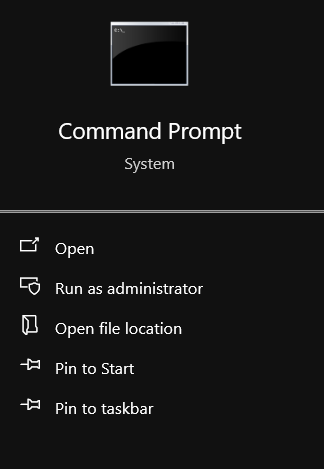
1. First, open your system’s Command Prompt as an administrator, as depicted in the image below.
2. Paste the following in the opened Command Prompt Window:
[REG ADD HKLM\SOFTWARE\Policies\Google\Chrome /v IncognitoModeAvailability /t REG_DWORD /d 1] .
3. Hit Enter to run the command.
This should disable incognito mode completely on your computer.
These are the instructions for Mac users:
1. Open Finder > Go > Utilities
2. Then, open Terminal as in the image below – this is Mac’s alternative to Windows’ Command Prompt.
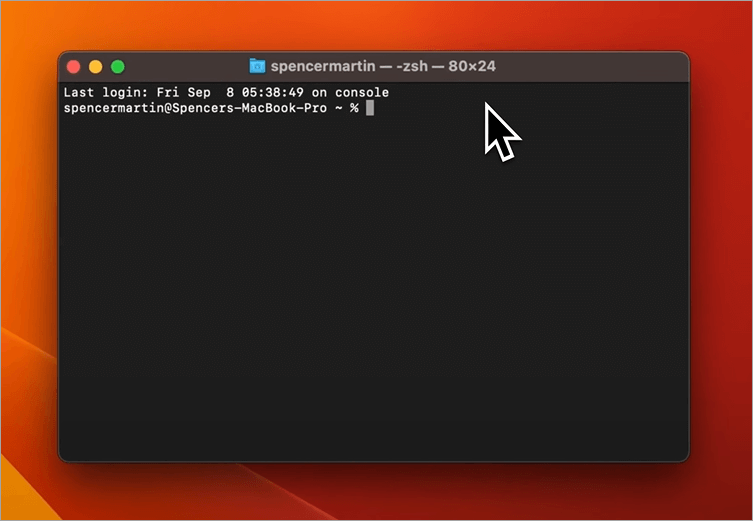
[Via Pixel and Bracket]
3. Paste the following:
[defaults write com.google.chrome IncognitoModeAvailability -integer 1z]
4. Type the following – [killall cfprefsd]
5. Hit enter to run the command.
This should disable incognito mode on your Mac system.
Besides the desktop or laptops, Chrome is also available on iOS and Android phones. You’ll also have the privilege of enabling and disabling incognito mode on your smartphone.
2. iPhone and Android (In Chrome)
The Chrome app on smartphones offers the option of locking incognito mode behind a password. With the mode locked, anyone who wants to switch this mode on will have to enter the correct password.
Here’s how to turn off incognito mode on Android and iOS phones:
1. Open your Chrome app.
2. Go to settings by tapping on the three dots displayed in the top-right corner of your screen.
3. Now, select “Privacy and Security”.
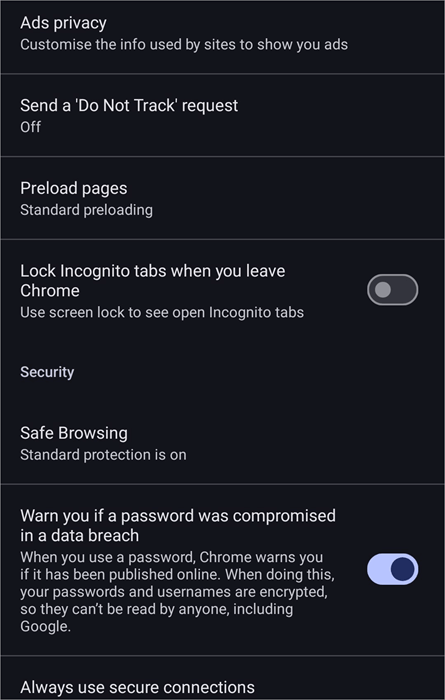
4. You should see an option to “Lock incognito tabs when you leave Chrome”. Switch the toggle right next to this option.
Depending on your phone’s model, you’ll be asked to enter the right PIN or have your fingerprint scanned to unlock incognito mode.
3. On Firefox
Firefox also features an incognito mode, which goes by a different name. It is called Private Browsing. If you are looking for the right Private Browser, then feel free to check our detailed guide on Top Private Browsers for iOS and Android.
A simple way of disabling it completely would be:
- Open Settings on your Firefox browser.
- Go to Privacy and Security.
- Navigate to the History section and select “Remember History”.
The best and most effective way to disable it on Firefox is via an Add-On called “Private Begone”.
1. First, get the extension by going to the following link – https://addons.mozilla.org/en-US/firefox/addon/private-begone/
2. Install the add-on, and then navigate to Preferences in your Firefox browser.
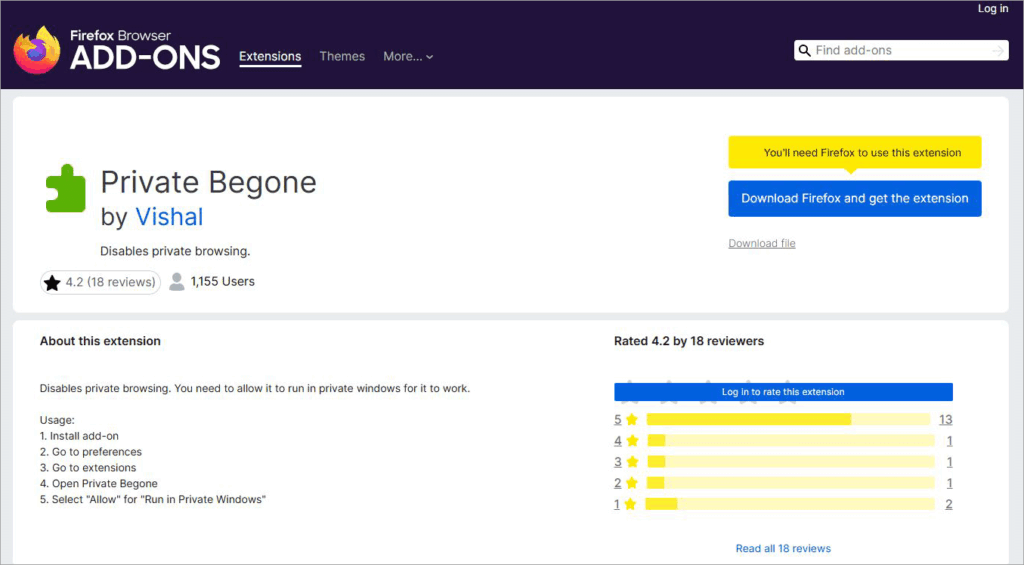
3. Go to extensions and select Private Begone.
4. In the opened window, select “Allow” right next to the option “Run in Private Windows”.
This is how you can permanently disable Private Browsing from activating on Firefox.
4. In Microsoft Edge
To completely shut down incognito mode, known as InPrivate in Microsoft Edge, you’ll need to tweak your system’s registry a little.
Here’s how you do it:
1. First, make sure Microsoft Edge is closed on your PC.
2. Select Start and open Registry Editor as shown below.
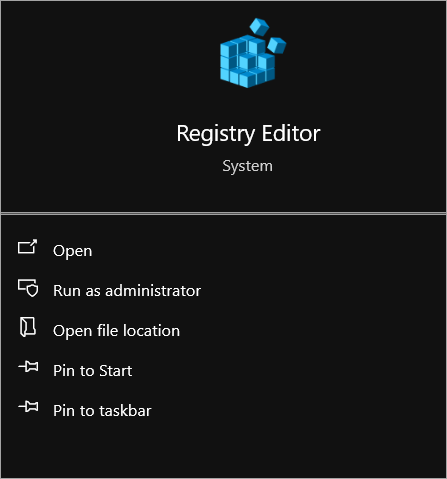
3. In the opening window, replace the top path of the program with this command – HKEY_LOCAL_MACHINE\SOFTWARE\Policies\Microsoft. Press Enter to immediately get there.
4. Now, right-click on Microsoft from the options presented to you on the left.
5. From the drop-down menu – select “New” > Key
6. Give the Key a name. It can be Microsoft Edge.
7. Right-click on this key and from the drop-down menu, select New > DWORD (32-bit) value.
8. You can christen this value as “InPrivateModeAvailability”
9. Double-click on this newly created value and set it to 1.
10. End the process by clicking on OK.
Close Registry Editor and reboot your system. This will effectively disable Edge’s InPrivate mode.
5. On iPhone and Mac (Safari Browser)
Turning off Incognito mode on Safari will be different from what we’ve done so far with other browsers. This is because there isn’t an explicit way to turn private browsing off on it. However, you can still achieve the same result via the browser’s Screen Time feature.
Screen Time is a feature in Safari that lets you restrict adult content online. Here’s how you can use it to disable Private Browsing on the browser:
6. On iOS (Mac and iPhone)
1. Open Safari and immediately go to Settings.
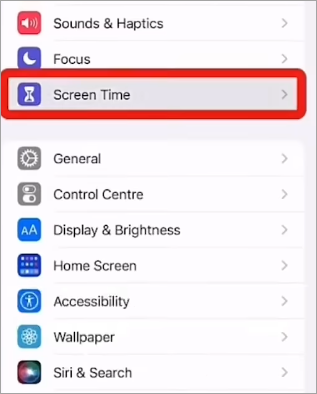
2. In Settings, select Screen Time as shown below.
[Via For Tech]
3. Switch the toggle against “Content and Privacy Restrictions” option as shown below.
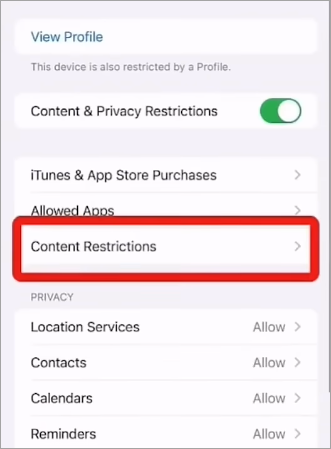
4. Select Store, Web, Siri & Game Center Content > Web Content.
5. Here, simply select “Limit Adult Website”
This setting will result in Safari’s private browsing being completely disabled.
7. Using the Group Policy Editor on Windows
For disabling incognito mode, the Group Policy Editor is perhaps less recommended, yet a very effective method. This process may sound challenging. However, it is quite simple to follow.
Here’s how to do it:
- First, open the Run dialog box and enter – gpedit.msc. This will launch the Group Policy Editor.
- Within the Group Policy Editor, you’ll need to navigate to Computer Configuration > Administrative Templates > Google > Google Chrome.
- Search for the policy titled – Incognito Mode Availability. Click on it to open a drop-down menu. Select Incognito Mode Disabled from the options.
This should disable incognito mode effectively.
8. On Chromebook
If you are using a Chromebook, know that you can disable incognito mode on it completely. Of course, to make this work, you’ll need to sign in to your Google Admin account.
Here’s how you do it:
- First, log in to your Google Admin account
- Navigate to Devices > Chrome > Settings
- In the settings section, scroll down until you find “Security”
- Here, find the Incognito Mode option. Select “Disallow Incognito Mode” from the options presented to you.
This will effectively disable incognito mode on your Chromebook and all other devices linked to your Google account.
Just like that, Incognito mode will stop functioning on your Chromebook.
9. Using Google Family Link to Disable Incognito Mode
Google offers an app called Family Link, which can help parents control and keep tabs on their child’s online activity.
This app works with the Chrome browser on all smartphones and PCs, regardless of their OS. If you want to learn how to turn incognito mode on iPad’s Chrome or any other OS, for that matter, simply follow the guide below:
1. First, download the app from the official store.

2. Before you install it, make sure you and your child’s devices are signed into a Google account.
3. Install the software and log in to it to link the app to you and your child’s Google account.
4. Make sure your child’s phone or computer is logged into their Google account.
5. With the link established, you’ll see your child’s account on the app’s dashboard.
6. On the Family Link’s home page, tap on your child’s account name.
7. Tap on “Content Restrictions” and make the necessary changes.
Note: The family app only works with the Chrome browser. You cannot use it to disable the incognito mode of other browsers.
Best Apps to Disable Incognito Mode
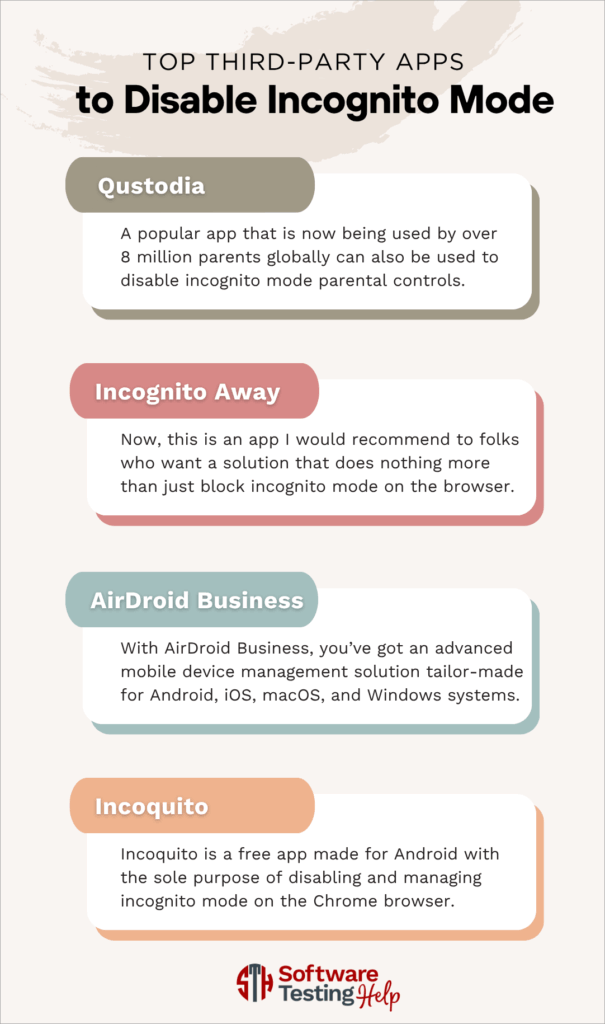
Besides the above solutions, there are third-party apps out there that’ll help you disable incognito mode on a device.
Comparing the Top Apps to Turn Off Incognito Mode
The following are some of the best apps for this job:
| Name | Device Compatibility | Browsers | Price |
|---|---|---|---|
| Qustodia | Windows, Android, iOS, Chromebook, Mac | Chrome, Firefox, Edge, Safari | Starts at $54.95/year. |
| Incognito Away | Android | Chrome, Edge, Brave Browser | Starts at $0.99 |
| AirDroid | Windows, Android, iOS, and Mac | Chrome, Microsoft Edge, Firefox, Safari | Starts at $1 per device per month |
| Incoquito | Android | Chrome | Free |
#1) Qustodia
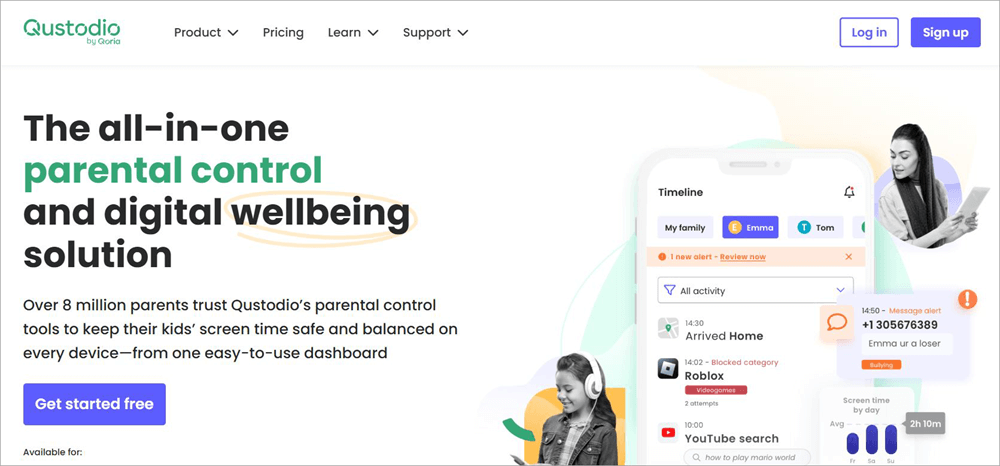
A popular app that is now being used by over 8 million parents globally can also disable incognito mode parental controls. It works on almost all devices, whether they are powered by Windows, Android, or iOS.
The app lets you make configurations that effectively block private browsing. You can use the app to monitor your child’s browsing history 24/7 in real-time.
Price: Starts at $54.95/year.
Website: https://www.qustodio.com/en/
#2) Incognito Away
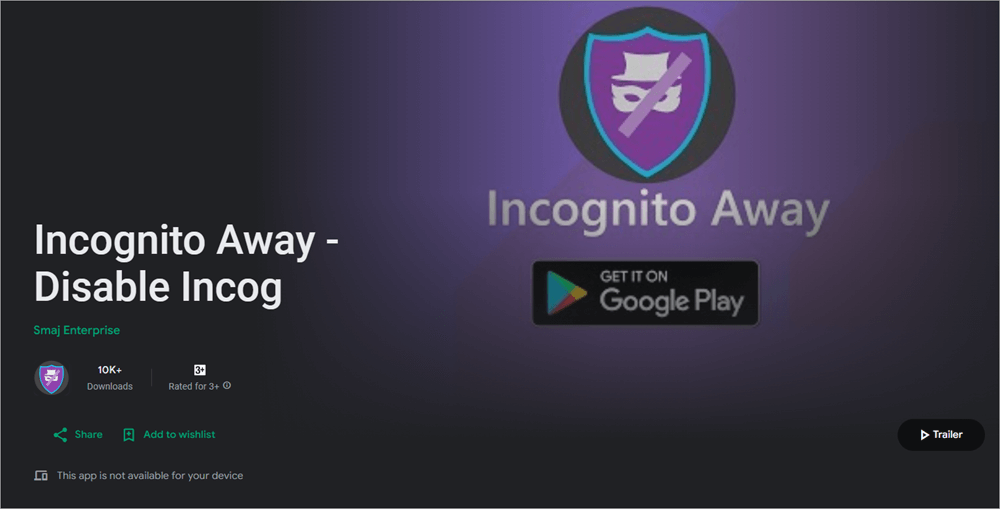
Now, this is an app I would recommend to folks who want a solution that does nothing more than just block incognito mode on the browser. This app is laser-focused on this purpose and was designed by an independent developer. You can use it to completely disable incognito mode on Chrome and Microsoft Edge.
Price: Starts at $0.99
Website: https://play.google.com/store/apps/details?id=com.smajenterprise.incognitoaway&hl=en_US
#3) AirDroid Business
With AirDroid Business, you’ve got an advanced mobile device management solution tailor-made for Android, iOS, macOS, and Windows systems. The app lets you control various privacy and security-related aspects of a PC or computer remotely.
You can use it to disable incognito mode permanently on not one but multiple devices at once. It is an app I would recommend to system and IT administrators in large organizations and institutions.
Price: Starts at $1/device/month
Website: https://www.airdroid.com/business/
#4) Incoquito

Incoquito is a free app made for Android with the sole purpose of disabling and managing incognito mode on the Chrome browser. It has two modes. The Auto-Close mode automatically shuts down incognito mode when the screen is turned off. The Prevent mode, on the other hand, keeps incognito mode from being activated on a browser.
Price: Free
Website: https://apkpure.com/incoquito-free/com.leminolabs.incoquito
Things You Need to Consider Before Turning Incognito Mode Off
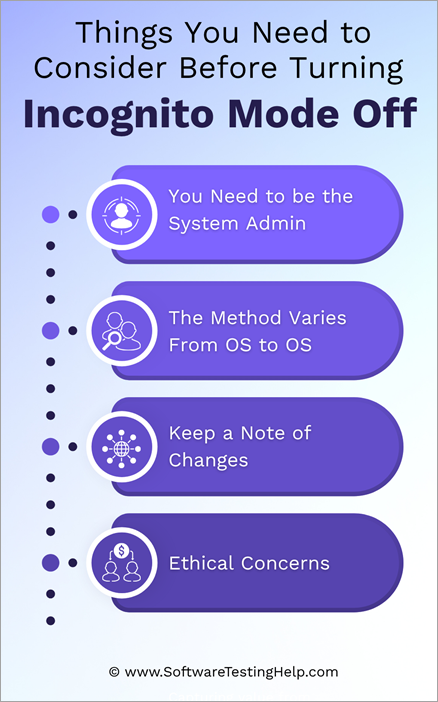
While turning incognito mode off isn’t difficult, it is still important that you understand the implications of doing so. Here are a few things to consider before you decide to deactivate this mode:
1. You Need to be the System Admin
Not everyone can disable incognito mode completely. On some systems, disabling this mode involves the tweaking of registry keys and running commands. You’ll need to have special administrative privileges on that system to get the job done.
2. Method Varies from OS to OS
You also need to understand that disabling incognito mode will be different across operating systems. The method you follow to disable incognito mode on Chrome will differ from the method you’ll need to follow when disabling the feature on Safari.
3. Keep a Note of Changes
Disabling Incognito mode completely can cause permanent policy changes on your browser. I suggest noticing these changes and making a note of them just in case you want to revert to the older browser policy.
4. Ethical Concerns
If you are disabling incognito mode on a private computer or smartphone, then do so without hesitation. However, the implications of doing so on a publicly shared network are different and raise some important ethical concerns.
Make sure you have the permission of higher authorities when making these changes. Also, make sure you comply with your institution or organization’s policies when disabling incognito mode on a shared network.
Troubleshooting Issues With the Disabling of Incognito Mode
Many things can go wrong while you try to disable incognito mode on your mobile and PC. It is possible that the changes you’ve made simply do not take effect immediately. You might also see your browser opening in incognito mode despite having disabled it completely.
Perhaps some savvy users on your shared network have bypassed the restrictions on incognito mode.
Whatever the problem, I suggest following the tips below to solve the issue:
- If the changes haven’t taken effect yet, I suggest rebooting your browser or entire system.
- Make sure your browser is running on the latest update. Outdated browsers will always cause an issue.
- Also, make sure you are making the registry tweaks as an administrator. Non-administrators don’t get the privilege to disable incognito mode on shared networks.
- Some users may try to bypass incognito mode via VPNs or portable browsers. You can avoid these by using a reputable MDM or third-party privacy management solution. A stronger firewall or applying DNS filters can also help prevent such a breach.
Frequently Asked Questions
1. Can Incognito be deleted?
Yes, one can permanently disable Incognito mode on different browsers and operating systems with the help of various configurations, which I’ve discussed above. You can also use add-ons and third-party apps like Google Family Link or Incognito Away to disable incognito mode completely.
2. How does Incognito mode work?
When a browser is in Incognito mode, it will stop saving your local browsing history and cookies. By enabling this mode, you are basically telling the browser to forget your recent online session.
3. Can Incognito mode hide your IP address?
No, Incognito mode does not hide your IP address. This means that your system administrator, websites online, and internet service provider can still track your online activity.
All it does is make sure your browsing history remains hidden from other people using the same system as yours.
4. Can you tell if someone uses Incognito mode?
While there isn’t a definitive way to find out if someone uses incognito mode, you can still pick up some clues using visual cues. For instance, a Chrome browser’s look and theme change when it is in Incognito mode. Some browsers also alert their users to an activated Incognito mode via certain symbols, like a mask.
Checking your browser DNS cache or your system’s screen time might also give you a hint on whether the user was in incognito mode.
5. What are the disadvantages of incognito mode?
Incognito mode isn’t the most effective way of ensuring online privacy. Reason being:
• It does not hide your IP address
• Your search engine, ISP, and website administrators can still track you.
• It does not protect you against malware or viruses.
• If you seek complete online anonymity, I suggest using a good VPN service.
6. Can you disable incognito mode without admin rights?
To completely disable incognito mode on an OS or browser, you’ll need to make some registry tweaks or run commands. This is only possible if you have admin rights. However, if you wish to disable incognito mode without admin rights, you can employ a third-party app.
That said, I would still suggest having admin rights or requesting permission from an admin to disable incognito mode.
7. Does disabling incognito mode affect VPN usage?
No, VPN and incognito mode are different from each other. Both have their own purpose to serve. While VPN helps one mask their internet activity, Incognito mode is used to stop a browser from saving cookies and maintaining records of your online history.
So disabling incognito mode will in no way affect VPN usage. If you are looking for a safe VPN, please check our detailed guide on Top Safe VPNs.
8. How to temporarily disable incognito mode?
All of the measures I’ve suggested above let you completely disable incognito mode. However, you still have the option of reactivating the mode. On the Chrome browser, you can simply choose to “unlock” incognito mode.
If you’ve made tweaks to your system’s registry, as instructed above, you can simply delete the entered key to enable incognito mode again.
Conclusion
Disabling incognito mode completely will help system administrators keep tabs on the computers they are in charge of. It can also help parents keep tabs on their child’s online activity, and educators monitor the use of computers within their premises by students, thus making sure they aren’t being used to visit questionable and NSFW websites online.
At first glance, the process, at least when it comes to tweaking a system’s registry, may seem daunting.
However, if you follow the process as I’ve laid it out in the article, you are bound to have an easier time completely disabling incognito mode for good. Just make sure you are an admin and have the permission necessary to apply such a restriction.
Research Process:
The total time involved to complete and publish this article is approximately 35 hours. This content was created through a structured research approach to ensure accuracy and reliability.
For more quick Windows-related guides, you can explore our range of tutorials below:
- How to Open Incognito Tab On Different Browsers
- How to Turn Off Windows Defender
- How to Turn Off Trending Searches on Google
- FIX for “Your Connection is Not Private” Error
- How to Clear Cache for Chrome, Firefox And Other Browsers
- How To Fix ‘DNS Server Not Responding’ Error On Windows 10
Was this helpful?
Recommended Reading
-

Review this tutorial to learn all about Incognito mode. Learn to Open Incognito Tab on various browsers and different operating systems: Private browsing, or going Incognito, as we know it today, is not a new concept. It has been around since 2005. But it took some time for every browser…
-
Discover the latest Mobile Browsers that combine innovative features, speed & security. Explore the best Browsers for Android and pick the perfect one to enhance your mobile browsing experience with privacy controls: Android’s browser is a web application used for accessing online content on Android-supported devices, including mobile phones and…
-
This tutorial compares the top 10 Browsers for PC. You can select the fastest and best web browser most suitable for you: The word ‘browse’ can be used in many contexts and can have different meanings in different scenarios. For instance, ‘to browse’ means to scan, skim, or read and…
-
Cloudification and digital transformation have disrupted traditional network security products. Thanks to the cloud and the web, users can communicate globally, access SaaS applications all over the world, and access knowledge resources that can help them with their core business efforts. A wide range of new capabilities is now available…