Is your Discord application experiencing some slowdowns? Follow these simple steps and get your Discord Cache Cleared on PC, Mac, iPhone, or Android device in minutes.
The Discord application stores certain files, like images, emojis, GIFs, and many others to increase the speed of loading and ensure fast access to these files. Over time, the cache may take lots of your storage space and cause glitches and slow-downs Discord application.
Here you will find out how to delete Discord cache from your computer or smartphone running different operating systems. Also, you will know what will happen after its deletion and when it is better to do that.
What’s the Fastest Way to Clear Discord Cache?
To clear the cache in Discord quickly, you need to first close the application and then For Windows users, you will need to press Win + R on your keyboard, write “%AppData%\Discord” and delete Cache, Code Cache, and GPUCache folders. For mac OS, you will need to open Finder > Go to Folder > ~/Library/Application Support/discord and delete the same folders. For Android, you will need to open Settings > Apps > Discord > Storage & Cache > Clear Cache.
Clear Discord Cache Files: Step-by-Step Guide

By storing such files on your local drive, the service can restart on your computer and get those files reloaded immediately without necessarily re-downloading every time you open a chat or a server.
The files stored in the cache may be corrupted, causing Discord to crash or fail to display the media accordingly. This tutorial shows you how to clear the cache and get the app up and running fast and efficiently without placing a heavy burden on the P.C. or other devices.
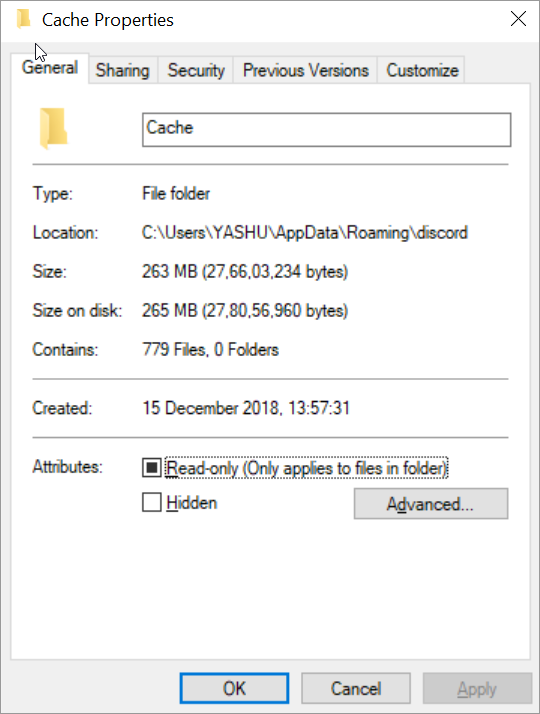
[via Discord]
Here is the step-by-step video guide on how to clear Discord cache files
What is Discord Cache?
Cache in Discord is the name of temporary files created by the program in order to increase the speed and performance of loading the information. Temporary files may include any images, videos, gifs, emojis and any other media file that you have seen in your chats and servers.
Though cache in Discord makes your usage of the program quicker and easier, sometimes it becomes too big and starts to take your storage or causes some problems like outdated media files, performance issues and displaying problems. Though clearing your cache in Discord does not influence any other things than the temporary files.
What Files Are Stored in Cache by Discord?
The Discord saves various kinds of temporary files in cache in order to increase the speed of page loading and to decrease its data usage. The temporary files are created by Discord automatically and can be deleted without any risks.
Mainly, those are the following cache files of Discord:
- Media that was shared in private messages and on servers
- Videos and GIFs you have watched
- Avatars of users and icons of servers
- Custom emojis and stickers
- Web content and JavaScript files (Code Cache)
- Graphics rendering files (GPU Cache)
The temporary files do not contain any personal information of yours like messages, account information, server membership, etc. In case you delete the cache, then Discord will create new temporary files while you continue using it.
Where Is the Discord Cache Folder Located?
The Discord cache folder location depends on your operating system as stated below:
| Operating System | Discord Cache Location |
| Windows | %AppData%\Discord\Cache (also Code Cache and GPUCache) |
| macOS | ~/Library/Application Support/discord/Cache (also Code Cache and GPUCache) |
| Linux | ~/.config/discord/Cache |
| Android | Managed through Settings > Apps > Discord > Storage & Cache (no direct folder access required) |
Note: Before deleting cache files manually on desktop, completely close Discord to prevent the files from being recreated or locked during the process.
Why Should You Clear Discord Cache?
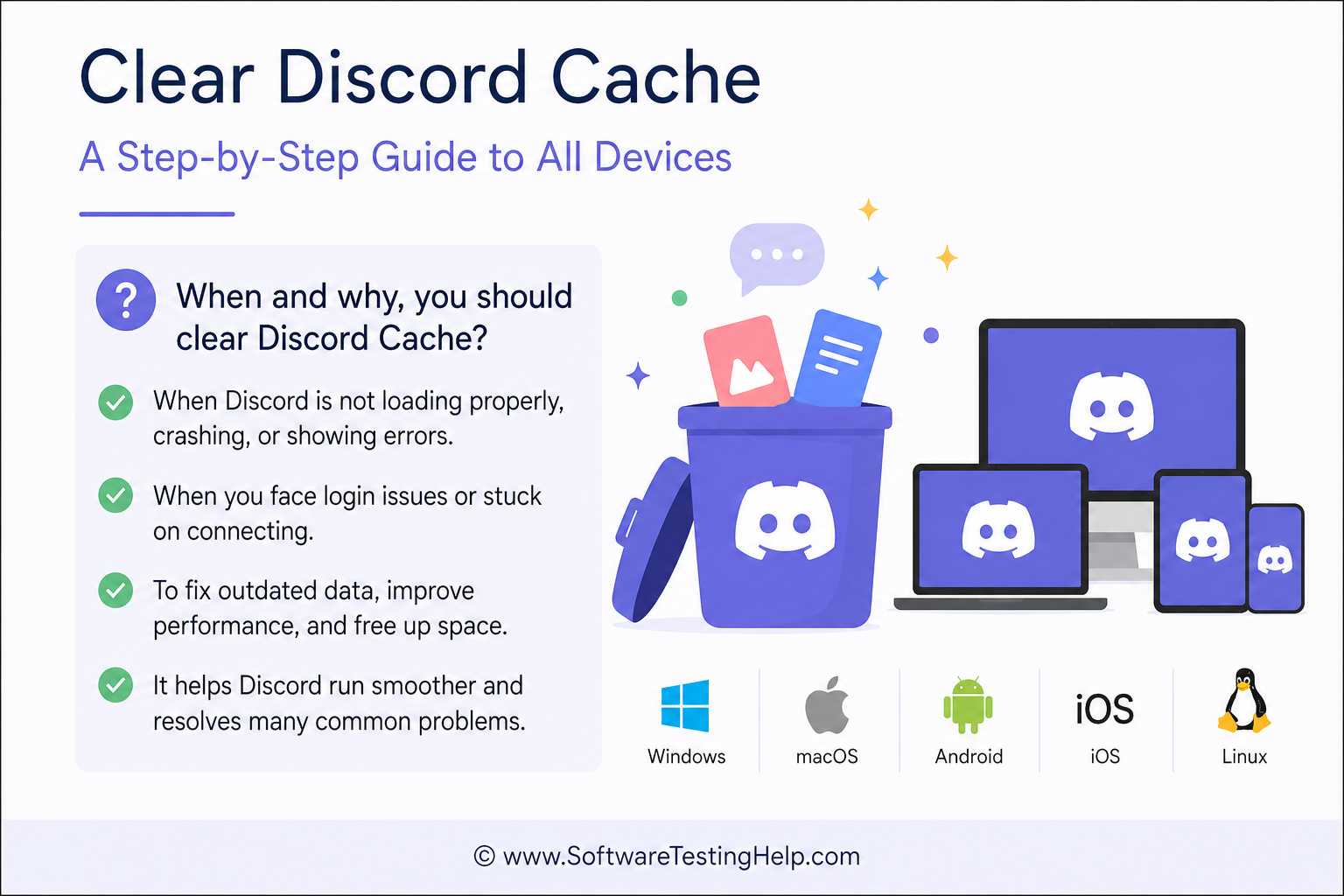
The moment you install the Discord app on the computer and it starts running, it is not just saving your messages but also thumbnails, banners, icons, emojis, sound data, and temporary logs: data of all natures.
Whenever you switch channels or open attachments, new information will be stored in invisible system folders. The storage of data and information on Windows and macOS will incrementally deplete silently.
This is the reason for the data build-up as cache, which implies that you may be about to need to add a lot of storage to your device soon unless you delete caches.
In addition to the cache-lagging issues already explained, you may experience an increase in the boot time of Discord, the cache consuming more CPU resources, the app crashing, or the media refusing to load.
Another reason that is mostly not applicable in clearing the cache is privacy. When a person shares a device with someone or loses it, files that have been extracted to filesystems might not be displayed in the Discord application.

How to Clear Discord Cache on Windows
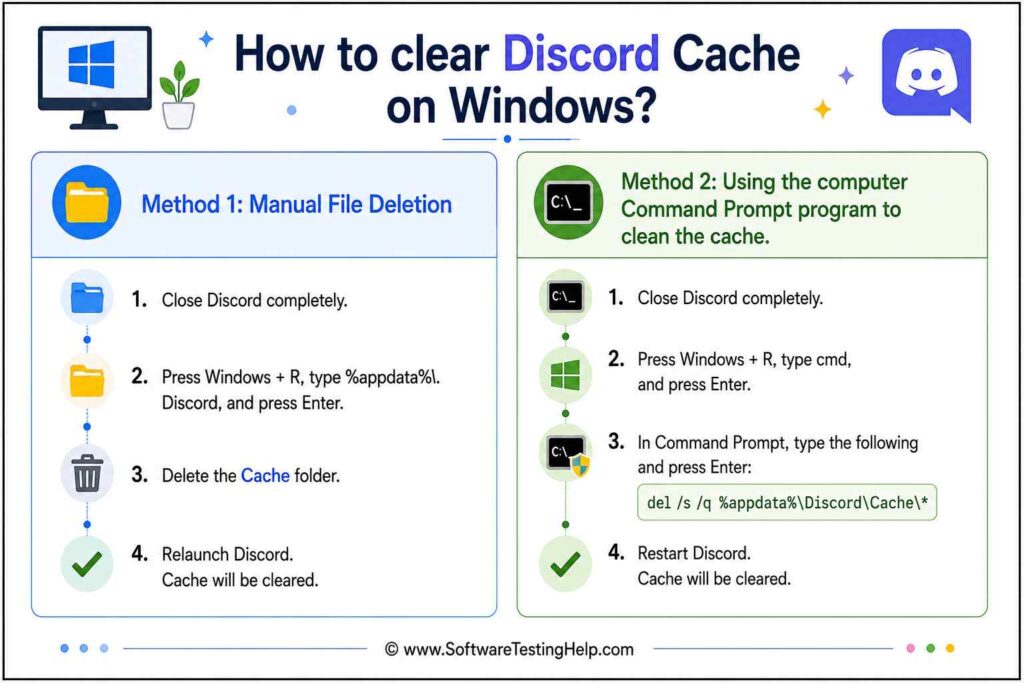
Method 1: Delete Cache via AppData Folder
Step 1: Click the taskbar and right-click the Discord icon, and then choose Quit Discord to completely halt the running of the app.
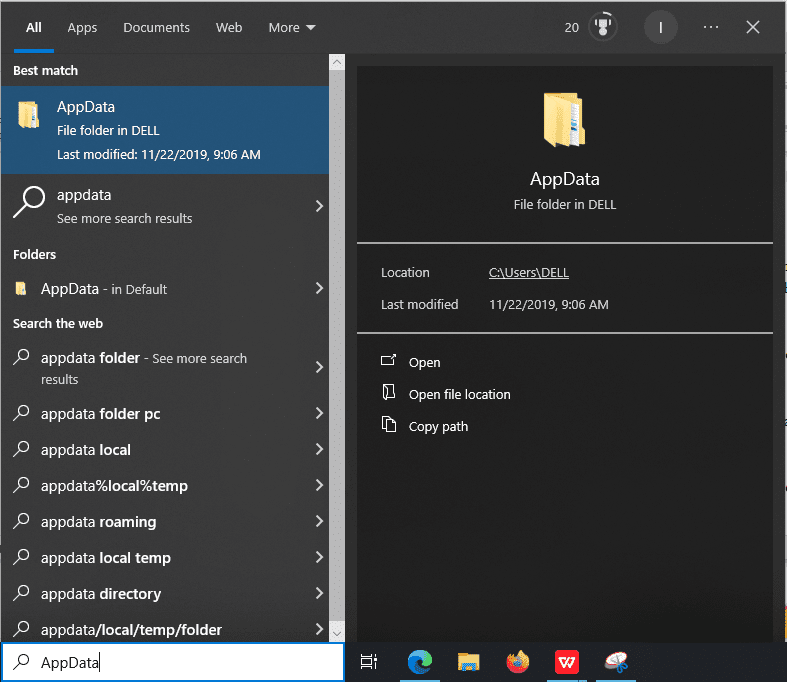
[via David]
Step 2: Access AppData. You can do so by searching for AppData in the Windows Search tool. Then tap or click on the AppData default folder on your PC. You can see the Roaming folder once it is opened.
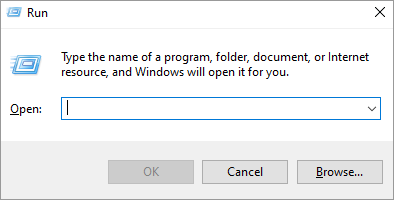
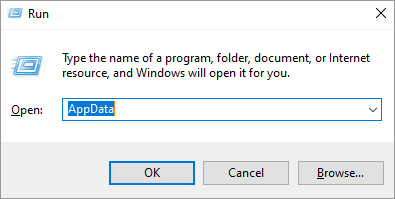
Step 3: Another route: Click Windows + R and type: AppData. By doing so, you will find yourself in your hidden Roaming storage.
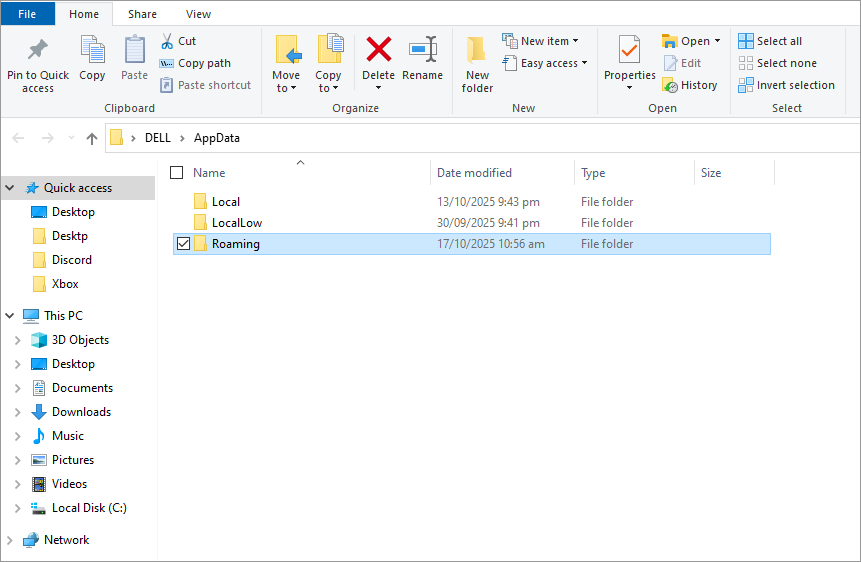
Step 4: Locate Discord’s folders in the Roaming folder.
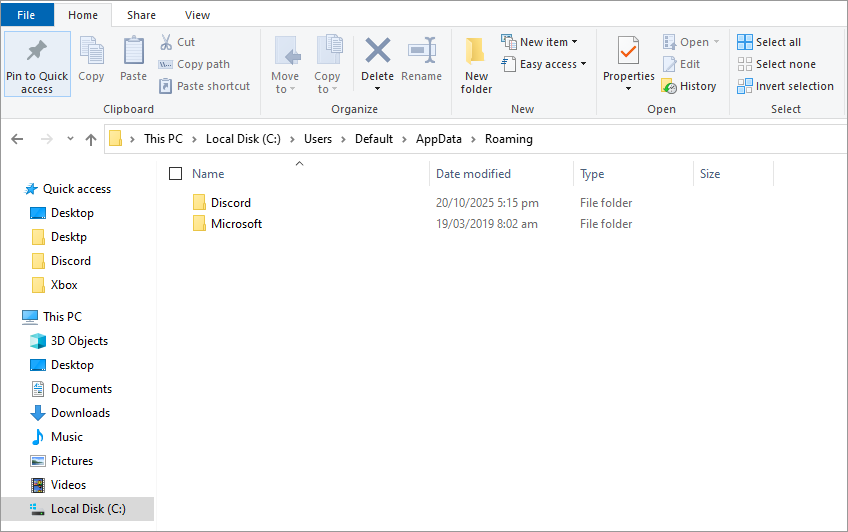
Step 5: Click on the Discord folder – there are subfolders whose names are Cache, Code Cache, and GPUCache. They carry temporary information.
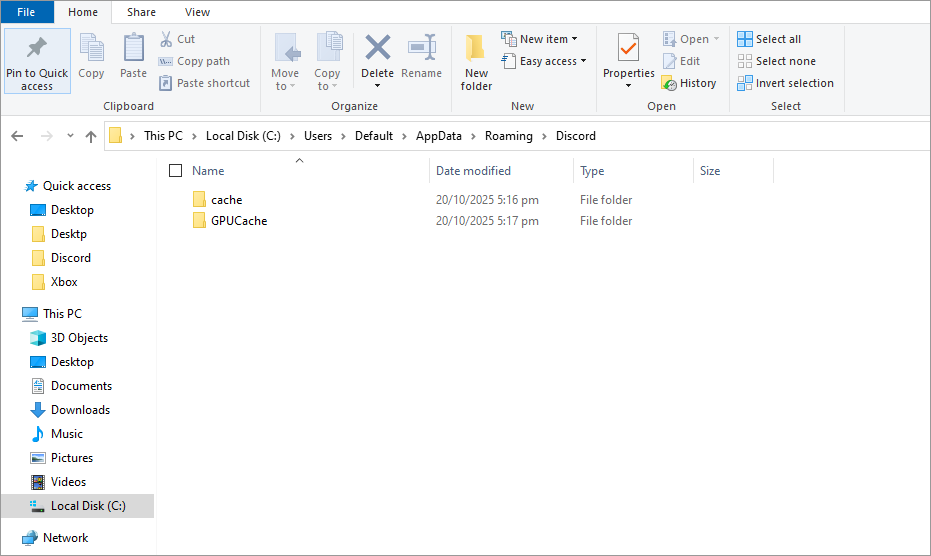
Step 6: Delete all the contents in that folder to purge the cache.
Step 7: Export all the files in these folders and delete them. One does not need to erase the folders but just the contents.
Step 8: Empty your Recycle Bin.
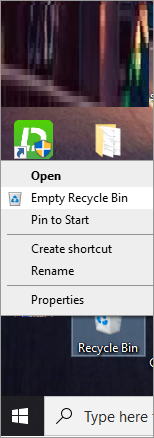
The latter will be a permanent removal of the deleted cache files and a regaining of disk space.
Discord will rebuild its cache with only the essential new files upon reopening.
Another close to this option is to uninstall and reinstall the app:
Navigate to Control Panel > Programs and Features and search for the Discord app. Alternatively, search for Discord in the Windows search option.
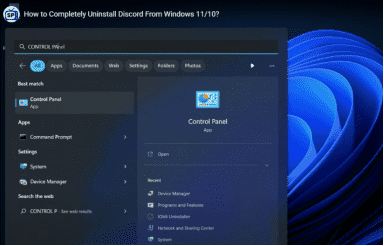
[via YouTube]
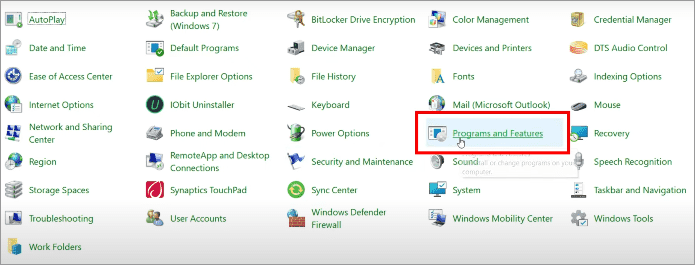
Click on the app and click the Uninstall pop-up option.
Method 2: Clear Cache Using Windows Command Prompt
The cache folders can be deleted in haste using Windows by deleting their respective folders:
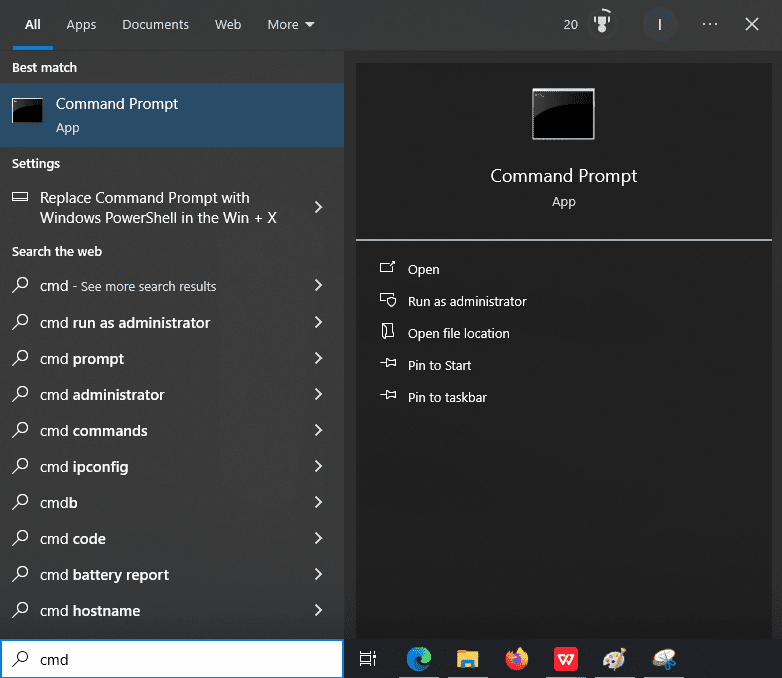
Step 1: Press Windows + S and type the word or letters cmd. Alternatively, search for the word cmd from the Windows Search tool. Proceed to click on Run to run the cmd app.
Step 2: Click on the right-hand side Command Prompt and run as Administrator.
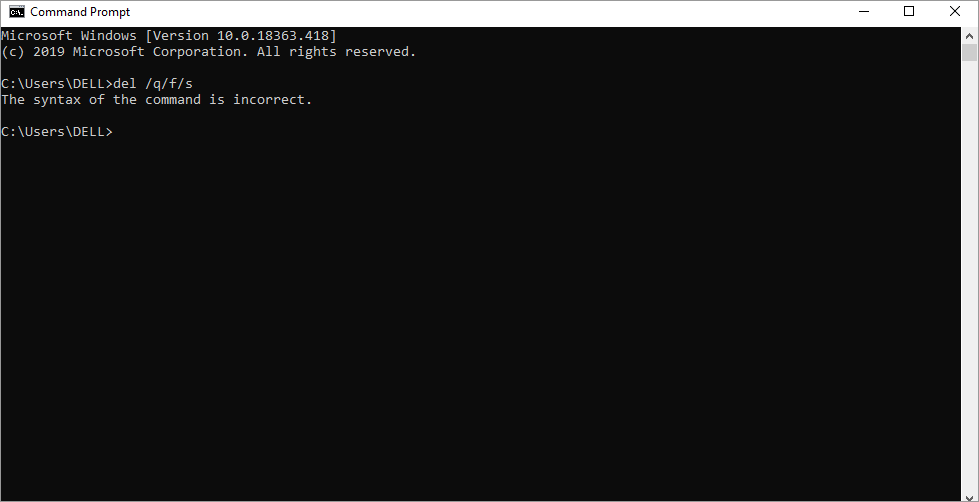
Step 3: Paste the following command:del /q /f /s “%AppData%\Discord\Cache\*”. The command will then navigate to the following file: del /q/f/s AppData/Discord/Cache/
Step 4: Then press Enter. This erases the cache automatically.
This is most appropriate when you are always making systems healthy or making a script to clear the caches.
How to Clear Discord Cache on Mac
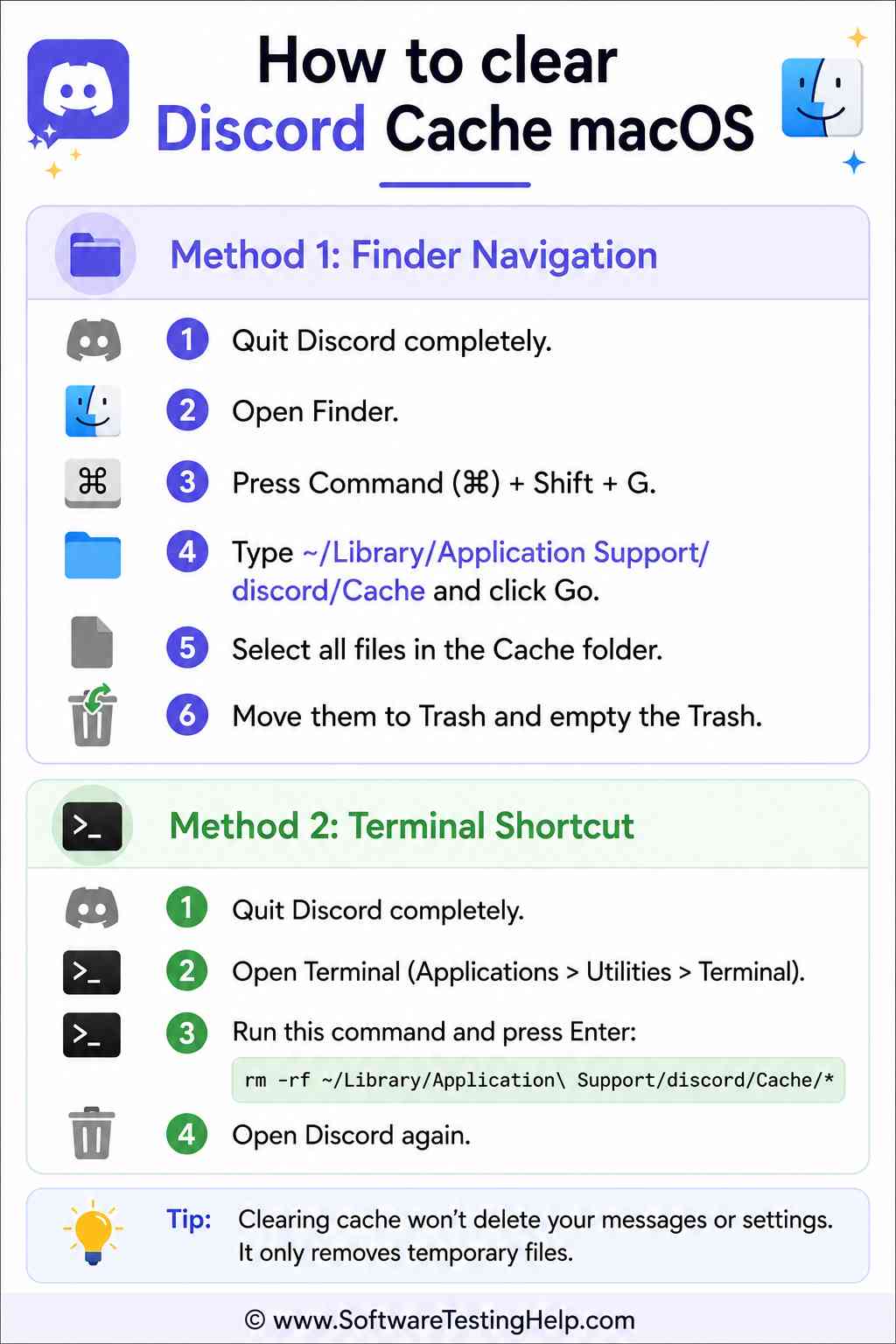
Here, the Library folder is not visible in the macOS system, and you will need to uncover it on your own and then clear the Discord cache.
Step 1: Quit or stop the Discord app completely so as not to interfere with the deletion of cache files.
Step 2: Click on its Dock icon and then, from the right-hand menu, choose the Quit option to stop the app. Recheck Activity Monitor again to ensure that no background process still remains.
Step 3: Open the Library folder to access its contents.
Step 4: When you are still on the Finder, select the menu bar at the top – Go to Folder, and from here type the following:
~/Library/Application Support/discord
Step 5: Press Enter to initiate the deletion of the contents.
Step 6: Delete cache folders.
Step 7: In the folder Discord, we have Cache, Code Cache, and GPUCache occurrences. Drag all the contents there into the Trash so the folders will be emptied.
Step 8: Empty the Trash folder to permanently delete the contents. Do this by right-clicking the Trash option and then proceed to click the Empty Trash option.
Method 2: Terminal Shortcut
Step 1: Terminal may, in the case of high-level Mac users or those very knowledgeable with these things, offer a cleanup in a quick process, all done by typing in a single line:
~rm -rf Library/Application Support/discord/ Cache/*.
Step 2: Press Enter and log in with your password if required.
How to Clear Discord Cache on Android
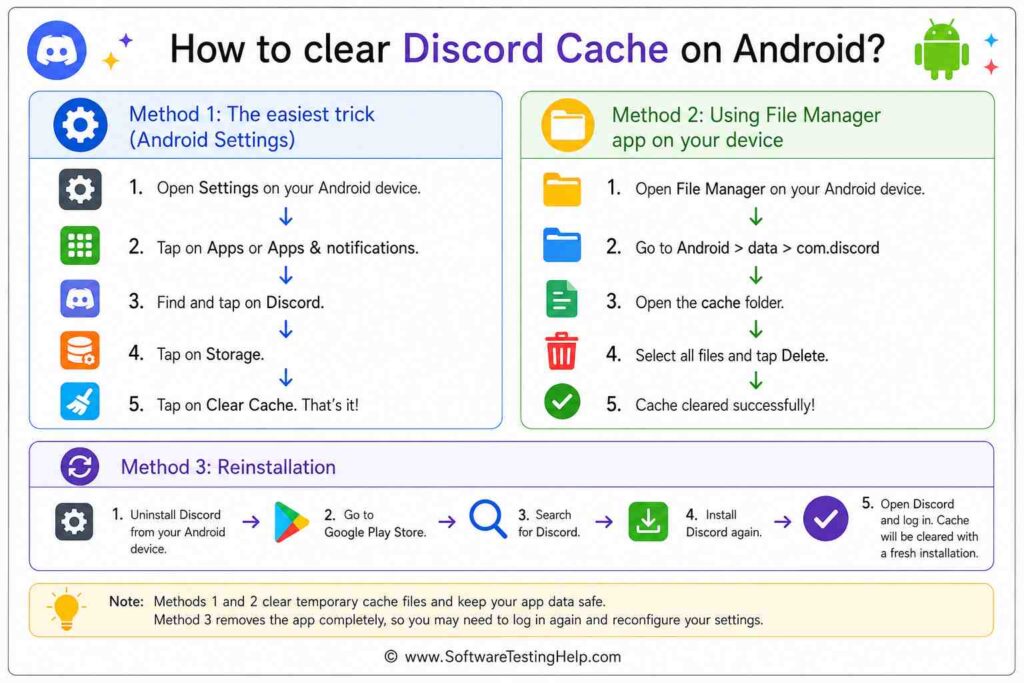
Discord usually bloats the fastest on Android. Luckily, the method of clearing a Discord cache on Android devices is not complicated even for the unskilled.
Method 1: Clear Cache from Android Settings
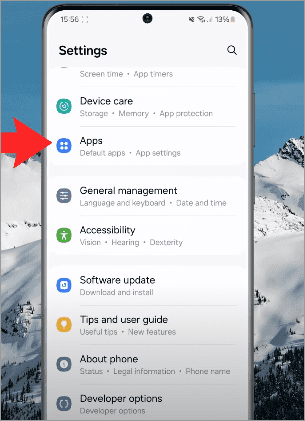
Step 1: Click on Settings, then Apps or Apps and Notifications, then Discord to open the specific settings that control the appearance/nature of the Discord app contents.
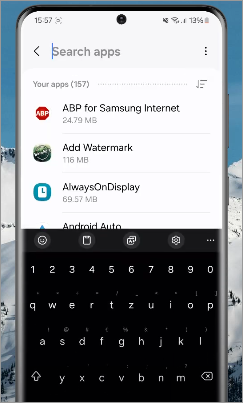
From this screen, you have many options to eliminate only the cache or the cache and the app. But first things first.
Step 2: Tap Storage & cache.
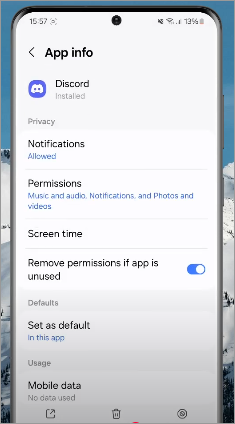
Step 3: Proceed by tapping the Clear Cache option, which should now erase temporary files immediately.
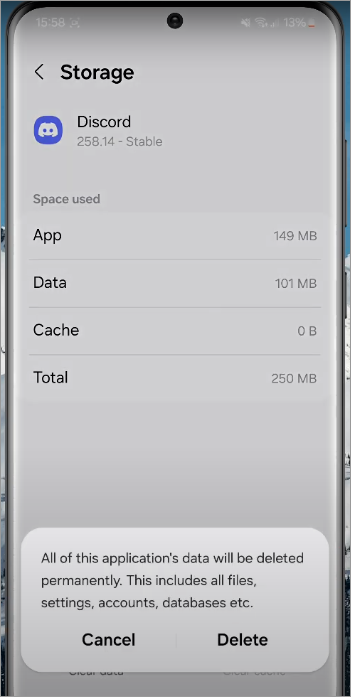
You can clear the storage optionally, or you can log out.
Method 2: Using File Manager App on Your Device
Step 1: Open any File Manager application that can display hidden files if your device is not rooted.
Step 2: Find your way to the Internal Storage section and find the Android data folder named com.discord.cache. Erase the files within the cache folder.
Step 3: A Discord restart will then recreate a new cache folder without the old files.
This is a strong technique, but it can only work when built-in clearing does not work, and Android 11 and above do not allow direct access to folders, or you may need to root the device.
Method 3: Reinstallation
If the cache data is not cleared, completely uninstall Discord and install it through the Play Store once more. This obliterates any leftover data and guarantees maximum performance.
How to Clear Discord Cache on iPhone or iPad
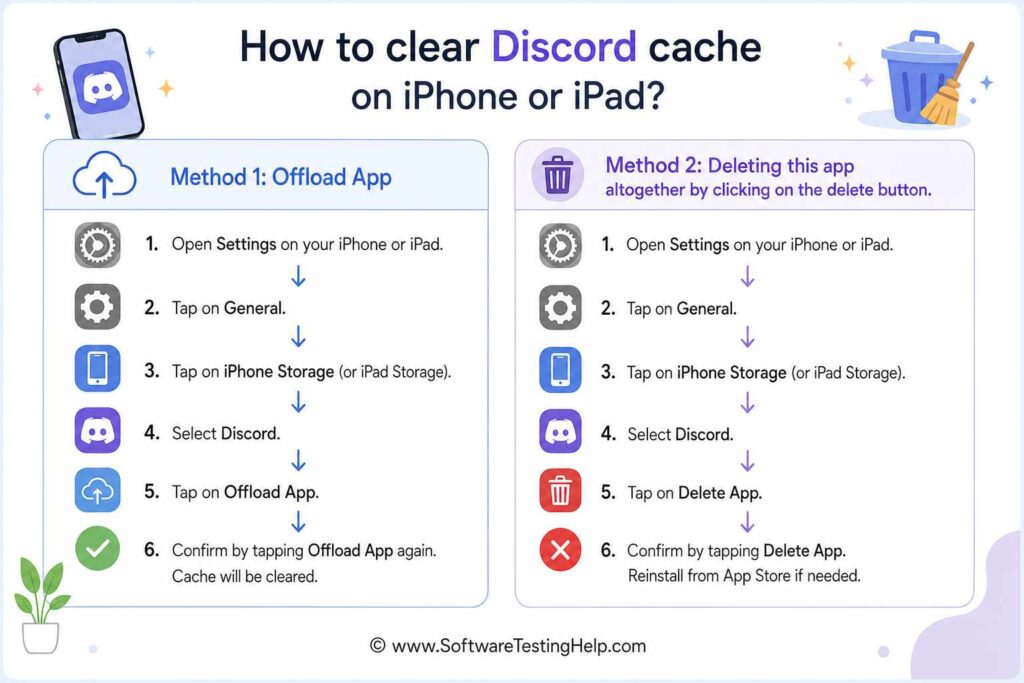
iPhones do not support direct cleaning up of app caches, including the Discord cache, due to the sandbox design of iOS unless you have some other workarounds such as device rooting. Nevertheless, the app can be updated by offloading or deleting. These are the surest ways to clear the Discord cache on an iPhone.
Method 1: Offload App
Step 1: Navigate to the iPhone settings and open the app from General > iPhone storage of apps > Discord. Tap the app.
Step 2: Tap Offload App. This clears all the cache files; however, your app data and login is retained.
Uninstall Discord on the App Store and reinstall, which sets a new Discord cache.
Method 2: Delete and Reinstall Discord
Deleting this App Altogether by Clicking on the Delete Button.
Step 1: Tap ‘Delete App’ on the same screen as the storage.
The alternative is to long-press the Discord app while on the device’s Home page.
Step 2: Reinstall Discord on the device. This will ensure all the cache files and concealed images are deleted.
Is It Safe to Delete Discord Cache?
Absolutely, it is totally safe to remove the cache in Discord. Cache files consist solely of temporary data including images, videos, emojis, server icons, and all other media which are stored by the Discord platform for faster loading of information.
Actually, deleting the cache can be useful in solving the most frequent problems related to Discord such as:
- Poor performance of the application
- Large space used for storage
- Obsolete media files or even corrupting of the files
- Various errors while loading media files
After removal of the cache files, Discord will create new files automatically in the process of further using of the application. The only change that you will notice is slightly slower loading of images and other media the first time when you open them again.
Cons of Clearing Discord Cache
Users with limited plans need to empty the cache when using Wi-Fi.
Once done, Discord has to re-download emojis, server icons, and pictures.
The initial minutes of the browsing process might be slower.
Clearing App Data (and not cache) (this is a special case on Android) may also mean that you lose login information and preferences.
There are also additional bandwidth needs because Discord reloads media, using mobile data.
Discord Still Slow After Clearing Cache? (Troubleshooting)
Here are some of the prime problems that arise while clearing the Discord Cache.
1. Files Cannot be Deleted (Windows): This occurs when Discord is in operation. Shut the application down fully in Task Manager, End Task, and retry. In case it is still blocked, restart in Safe Mode.
2. Cache Reappears Instantly: The folders of Discord are automatically regenerated. It is not surprising that you will see new files once the app is reopened; it is simply new caches.
3. Android Won’t Clear Cache: Android 13 has a new permission restriction that does not allow one to delete files manually. Go to Settings -> Apps -> Discord – > Storage -> Clear Cache, or remove the application.
4. iPhone Shows Discord Still Taking Space: All temporary files may not be removed during offloading. The only sure remedy is the deletion of the app and the subsequent re- installation.
5. Linux Cache Folder Not Found: The Flatpak installation process works quite differently: it makes a different cache path:
~/.var/app/com.discordapp.Discord/config/discord/Cache
Delete files inside it.
Steps to Clear Discord Cache From Hosted Servers
Discord places its cache under the user data directory. Safe to delete these cache files, and they will be automatically recreated. The following instructions are helpful to skilled users; otherwise, you may be on your way to destroying the server setup.
In the case of Linux servers (no GUI or with GUI):
Step 1: Stop the Discord app if it’s running on the server by using the following code typed into your control panel interface:
~pkill Discord
Step 2: Remove cached data using the following combination of commands:
~rm -rf ~/.config/discord/Cache
~rm -rf Code\ Cache/ .config/discord
~rm -rf -/.config/discord/Code Cache
~rm -rf Discord/GPUCache/ ~/.config
Step 3: (This step is optional) Cleaning up local storage: destroying the local storage in case you desire a complete reset is done by issuing the following command:
~rm -rf LocalStorage in the Discord file within the home directory.
Step 4: This step is applicable in case the server uses a Discord bot instead of the app (e.g., Node.js, Python, and so on). Discord bots may store data (messages, users, guilds, etc.) in memory or on local files/databases; however, this cache is not controlled directly by Discord itself but by your code or library.
Example by library:
~discord.js (Node.js):
Cached data lives in memory, and in such a case, when you require clearing the cache, restart your bot first; otherwise, you will have to use the manual process of clearing the cache.
~client.guilds.cache.clear();
~client.users.cache.clear();
~client.channels.cache.clear();
In case you have persistent caching (i.e., with Quick.db, Redis, or your own file cache), then you will have to clear these out as well.
~discord.py (Python):
Also, memory-based. Restarting the bot clears it.
Or manually clear:
~bot.guilds.clear()
~bot.users.clear()
l Note that this is hardly necessary, as it is sufficient to clear the cache on the server by just restarting the server.
l If you are working with a reverse proxy or CDN server (e.g. Nginx, Cloudflare) for Discord Assets Caching, then the CDN of Discord (cdn.discordapp.com) is not self-hosted – there is no way to do something with that cache directly.
l In case you are proxying Discord content (e.g. have a bot dashboard), you may clear your own reverse proxy cache:
~sudo rm -rf /var/cache/nginx/*
~sudo systemctl reload nginx
Using Third-Party Apps to Clear Discord Cache
You can also use apps such as Files by Google app, SD Maid (SD Maid – System Cleaning Tool), which needs root permissions, and CCleaner (Android) to clear the cache on Android.
On macOS, third-party apps to use include CleanMyMac X (MacPaw), OnyX (Titanium Software), and the CCleaner for Mac version. On Windows, third-party apps to use include CCleaner (Piriform/Avast) and BleachBit. On the iOS platform, third-party applications on the device cannot clear out the caches of other applications across the entire device.
Apple support suggests performing Safari cleanup in Settings and using app-specific in-app settings or offloading/reinstalling apps to clear the caches of apps. Most of these work by scanning for files that need to be deleted, only at the press of a button.
Example: How to empty the cache using BleachBit:
Step 1: Open BleachBit (as the administrator of system items) on Windows.
Step 2: Check the boxes of the caches to be cleared (browsers, system temp, logs).
Step 3: Click Preview to have a preview of what is to be deleted, and then click Clean to delete cache and junk.
How Discord Manages Data Privacy Issues
In addition to allowing the clearing of Discord cache files in the methods prescribed above, Discord has privacy policies that explain precisely what information the company collects and what it does not.
Discord makes any data transmissions via TLS and HTTPS encryption, which means that the information pulled as images or audio is not interceptable by other servers.
Troubleshooting the issues related to the Discord Cache not clearing:
- Windows/macOS: Discord should be closed. In case the files are locked, boot up your PC and have another go. Users have reported success with the automation of removing apps such as CCleaner.
- Android: Google has changed the word clear to Clear Storage. Unless space has already been taken over by Discord, remove it.
- iOS: Not all of the cached thumbnails can be offloaded. In such a scenario, uninstall the app.
Frequently Asked Questions
1. What happens when you clear the Discord cache on your device?
Clearing the cache in Discord removes the temporary files stored locally, i.e., images, GIFs, thumbnails, and other media that the app has already downloaded.
These files are stored on your machine in such a manner that Discord can show you content faster without the need to re-download all content every time.
2. Does Discord cache delete messages?
Clearing the cache does not destroy your message history, as your messages are saved on Discord’s servers, not only on your computer.
The local copies of the media and temporary files that have been downloaded to your device are just what you are deleting; it does not delete the actual communication of the message stored in the cloud.
3. Which frequency should I have to empty my Discord cache?
It is not obligatory, and many sources recommend doing it irregularly, like once a month or once in every two months, and in particular when you have numerous servers and share vast amounts of media.
With users who use their media-rich servers (high GIFs, videos, and large files) very frequently, it can be rationalized to clear more often so that the cache does not grow and bloat the client.
4. Does clearing the cache eliminate Discord lag or connection errors?
Clearing the cache may resolve the issue of performance on Discord in most cases. When the cache has become massive or has corrupt files, it can also be a cause of lag, freezing, slow image loading, or other glitches.
Clearing those accrued files basically restarts the local working environment of Discord and makes it re-download the assets, which can unfreeze any frozen or old files that may be causing pain.
5. Does Discord automatically empty itself?
Discord does not have a type of automatic process to clean up all the cache regularly. Although old files stored as cache can be updated over time or auto-deleted by the system, it is not always certain that the app will auto-delete all the optional redundant cache in a good time. Thus, to actually empty the space, or even just clear the cache, you will more often than not have to clear the cache manually (or uninstall/install the application) instead of just clicking the Cleanup button.
Conclusion
The ability to clear Discord cache is not just about liberating gigabytes but also about reclaiming the ability to control your privacy, speed, and storage.
All contemporary Discord users should know how to clear the cache on all platforms: Windows, macOS, Linux, Android, and iPhone. The procedure could be slightly different, yet the outcome remains unchanged, i.e., a faster, leaner, and safer application.
In today’s world of constantly growing data footprints, simple actions like clearing the cache and knowing how to clear the cache on Discord mobile save storage and provide peace of mind.
What will define the digital experience is how aware or attentive you are to the Discord cache or the device cache, and not the cache itself. This is the reason as to why cache clearing must be a part of the maintenance ritual among all Discord lovers, all gamers, and all professional gamers and web designers.
Research Process: The total time involved to complete and publish this article is approximately 45 hours. This content was created through a structured research approach to ensure accuracy and reliability.
For more Discord-related guides, you can explore our range of tutorials below:
- How to Italicize Text in Discord
- Discord Servers to Make Friends
- How to Bold in Discord Quickly – Text Formatting in Discord
- Why Is Discord Not Opening on Windows PC? Quick Fixes
- [FIXED] Discord Fatal Javascript Error – 7 Possible Methods
- The Top 10 Discord Voice Changer Software (Latest Ranking)
Was this helpful?
Recommended Reading
-

This tutorial explains why do we need to clear browser cache and different methods to Clear Cache in browsers like Chrome, Firefox, etc.: A few decades back no one would have ever imagined that a connection of numerous computers can lead to an evolution of the world's largest network, which…
-
Is your Facebook running slowly or freezing up often on your iPhone? Learn how to clear Facebook Cache on iPhone in just a few taps and fix Facebook glitches instantly to boost performance effortlessly: Launched in 2004, Facebook is a well-known name today, with over 3 billion monthly active users.…
-

Quickly learn how to clear Instagram cache on iPhone and Android to free up storage. Understand the simple steps on how to clear cache on Instagram to fix the app issues for both operating systems: Instagram is a social networking service platform where users can share their pictures with loved…
-
This tutorial explains what is DNS Cache and step-by-step instructions with screenshots to flush DNS cache for Windows 10 and macOS: In this tutorial, we will explore the significance and method of clearing DNS (domain name server) cache memory from the Windows OS. We have also briefed the steps involved…