An in-depth guide on how to turn off Mouse Acceleration in Windows 11. Enhance your gaming experience with these simple steps and quickly disable mouse acceleration in minutes:
It is a lightweight, tiny mouse that fits your palm and has almost replaced the keyboard except for login or entering required characters in the text field provided. This has introduced a mouse user experience and ease of use to broader user groups.
User interfaces have been developed keeping in mind the use of mouse-like click mouse for the web elements like check box, radio button, drop-down, slider, buttons, double click of mouse for opening files, and running executable files, right click of mouse to view and select properties and other activities like open, delete and share.
Table of Contents:
- How to Enable or Disable Mouse Acceleration
- What is Mouse Acceleration
- What is Pointer Precision
- How to Turn off Mouse Acceleration: Quick Steps
- How to Disable Mouse Acceleration in Windows
- How to Stop Mouse Acceleration in Macintosh
- How to Deactivate Mouse Acceleration in Ubuntu
- Why Should You Turn Off Mouse Acceleration
- FAQ’s on Windows Mouse Acceleration
- Conclusion
How to Enable or Disable Mouse Acceleration
Think about the drag-and-drop feature of the mouse to move files or icons from one location or folder to another using the keyboard.
It is projected that the global market share of mice in 2023 will be $2.61 billion and will grow to $3.39 billion by the end of 2027, with a compound annual growth rate (CAGR) of 6.7%. The same research says that in the USA, 67% of the population uses the mouse for gaming purposes.
When we purchase a mouse for our computer we assume that it will be comfortable to use, it has right and left clickable buttons, and it is easy to configure with your computer operating system once you connect or add a device. You may select wired or wireless based on what you want to connect with and how distant your CPU is from your desk.
In the case of a wireless mouse, what technology does it use – Bluetooth or radiofrequency for connection, finally how sensitive your mouse is or how many dots per inch (DPI) cursor move when you move it over a mouse pad at a certain speed?
What is Mouse Acceleration
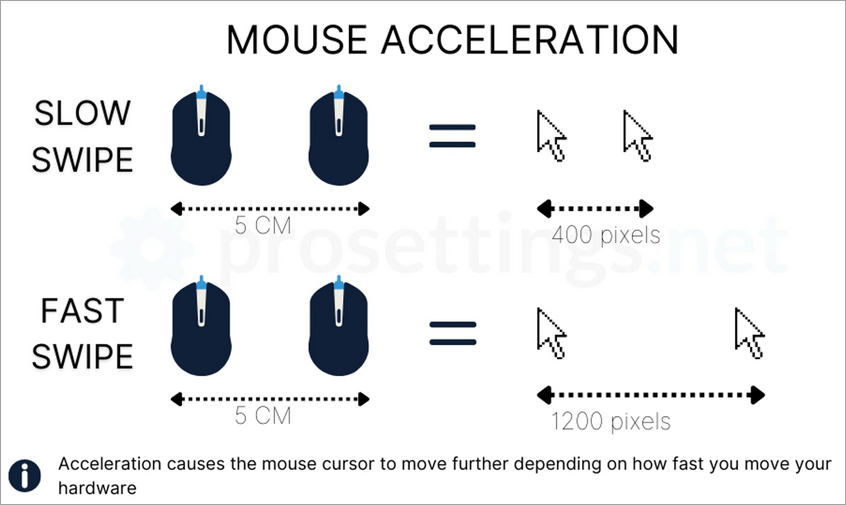
You will realize that the mouse sensor responsible for the acceleration of the mouse will move based on the speed at which the mouse is moved. Based on the speed the mouse is moved, it covers more distance. This has an advantage as you need not move your mouse multiple times back and forth to move the cursor from one point to another on the screen.
Mouse acceleration is the sensitivity of the mouse sensor on your action of moving your mouse at particular speed. A higher sensitive mouse sensor makes the cursor accelerate more. This is required when you use office-related tasks like writing emails, creating presentations, or using a computer for either surfing the web or writing documents.
[image source]
What is Pointer Precision
It is a property dependent upon the speed at which you move your mouse on the screen. Increasing or enhancing pointer precision will improve mouse sensitivity while you move your mouse at a certain speed. It is essential to focus on your target in case you play games like Call of Duty or Fortnite where you need to be aggressive and shoot the enemy before they hit you.
You need to disable pointer precision while playing such combat games. You should enhance the pointer precision when you are searching on the web or during office tasks like working on spreadsheets, documents, or drawing.
Suggested Reading =>> Resolve and fix the mouse freezing issue
How to Turn off Mouse Acceleration: Quick Steps
| Platform | Steps |
| Windows | Windows Settings>Devices icon>Mouse (left panel)>Additional Mouse Options>Mouse Properties>Pointer Options>Motion section> Uncheck the checkbox “Enhance Pointer Precision” Click Apply> OK. |
| Mac | Apple icon> System Preferences> Mouse Options> Tracking Speed> Slow don the Mouse Acceleration using Slider |
How to Disable Mouse Acceleration in Windows
Steps to disable enhance pointer precision for Windows:
- Click on the Windows icon on the left bottom corner of your screen
- Click on Settings from the menu list
- Windows Settings will display
- Double Click on the Devices icon
- Click on the Mouse label on the left pane
- There will be primary settings for Mouse on the right pane
- Click on the Additional mouse options link under related settings on the right
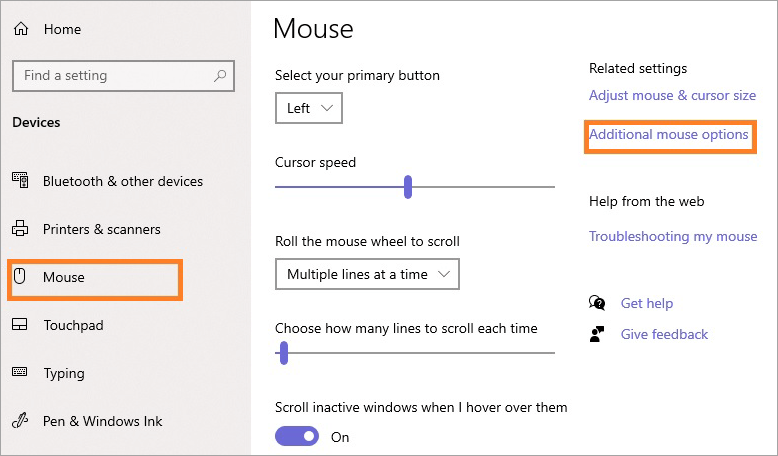
- Mouse Properties window will appear with tabs like Buttons, Pointers, Pointer Options, and Hardware.
- Click on the Pointer Options tab.
- You will find the Selected Checkbox for Enhance pointer precision under the Motion section.
- Uncheck by removing the checkbox selection for Enhance pointer precision pointer precision.
- Click on the Apply button and Okay button.

In case you have limited space such as a laptop touchpad or mouse pad to move a wired or wireless mouse, the movement of the mouse and cursor of mouse acceleration is important. When working in offices or online search, it is essential that you keep pointer precision enabled.
You will notice while moving your mouse from one location to another, your cursor does not move under your move, at this stage you will realize that your mouse acceleration is off. If you are a high-speed gamer, you will realize the effect of how your cursor moves.
How to Stop Mouse Acceleration in Macintosh
When you have an Apple Macbook or laptop and if you want to work on test or play gaming software, you are required to disable mouse acceleration. Mac OS-based laptops or computers have two options to make changes – System Preferences or Terminal
Using Terminal
- Press cmd + spacebar together to open the search box
- Type terminal in the search field
- The terminal will open (similar to the command prompt in Windows)
- You can disable mouse acceleration by entering the following command in the terminal
- “defaults write.GlobalPreferences com.apple.mouse.scaling -1“
- You need to log out and log in again to complete the change.
Using System Configuration
- Click on the Apple icon on the screen
- Look for System Preferences
- Select the Mouse option under System Preference settings
- You will find various settings under mouse settings like scroll direction, tracking speed, and secondary click
- Select tracking speed
- You have the option of the slider to slow down the mouse acceleration
How to Deactivate Mouse Acceleration in Ubuntu
Installation of dconf-editor
- Open terminal
- Type command
- sudo apt install dconf-editor
OR
- Search for Dconf Editor
Open dconf-editor
- Navigate to org gnome desktop peripherals mouse
- To configure/select the type of mouse acceleration,
- You have accel-profile, for setting mouse speed, you have speed.
- You have three options in accel-profile
- default,
- flat and
- adaptive
Disable mouse acceleration,
You need to do the following settings
- set Use default value as off
- Custom value to flat
gsettings set org.gnome.desktop.peripherals.mouse accel-profile ‘flat’
Press Ctrl + Q to exit dconf editor
How to verify if mouse acceleration is disabled?
You need to verify a few settings as described below:
- Right Click on Windows icon and look for Mouse settings
- Click on Mouse settings
- Click on Additional mouse options
- This will display the Mouse Properties window
- Go to the Pointer Options tab,
- Verify checkbox – Enhance pointer precision is unchecked
- Click on the Apply and Okay button to save the changes
Why Should You Turn Off Mouse Acceleration
Here is the video on Mouse Acceleration. Weather to enable it or disable it?
If you are not sure and thinking “Should I disable mouse acceleration” then here are the reasons for the same. Disabling the “Enhance pointer precision” feature will
- Enhance precision and consistency while moving the mouse cursor,
- Reduce fluctuations or sensitivity of mouse pointer on moving
- It will prevent mouse acceleration – cursor moving faster or slower compared with mouse movement.
- Enhance focus and control of your mouse cursor
- It makes it suitable for gaming
When should you keep mouse acceleration enabled?
You can keep the mouse acceleration feature enabled
- When you have limited space to move your mouse
- You need quick response to your mouse movement
- You want to switch over frequently and rapidly to different areas of your screen or navigate quickly
- You are playing games that require the use of a mouse at low and high speeds
Suggested Reading => Most Popular Wireless Keyboard and Mouse To Look For
FAQ’s on Windows Mouse Acceleration
1. What is Mouse acceleration?
Mouse acceleration is the sensitivity of the mouse sensor on your action of moving your mouse at a particular speed.
2. What is pointer precision?
It is a property dependent upon the speed at which you move your mouse on the screen.
3. What is the effect of enhancing pointer precision?
Increasing or enhancing pointer precision will improve mouse sensitivity while you move your mouse at a certain speed.
4. What are a few combat games that require disabling pointer precision?
Combat games like Fortnite, Call of Duty, Marvel Rivals, Golden Dynasty, Assassin’s Creed III, Doom, Seriko, and Devil May Cry 5 are some of the famous combat games that require disabling pointer precision of your computer’s mouse property.
5. My mouse cursor moves faster than the speed at which I move the mouse, how can I fix it?
To resolve mouse acceleration, follow the steps given below:
• Search for Mouse Settings
• Click on Additional mouse options
• Select the Pointer options tab
• Uncheck the Enhance pointer precision under Motion
• Click the Apply and Okay button
6. How do I turn off touchpad acceleration in Windows 11?
You can turn off touchpad acceleration in your Windows 11 laptop by clicking On
Mouse settings -> Advanced mouse options -> Click on the pointer options tab of the mouse settings window
Uncheck – Enhance the pointer precision feature under the Motion section and then click on the “Apply” and Okay buttons.
Also read => How To Change Mouse DPI In Windows 10: Solution
Conclusion
Pointer precision for your mouse based on the speed at which you move your mouse is a property essential to facilitate mouse acceleration while you use your laptop for office work where you require a mouse cursor to move based on your mouse movement.
We discussed steps to disable mouse acceleration to help use the mouse for playing games such as Marvel Rivals, Fortnite, Minecraft, etc.
Was this helpful?
Recommended Reading
-

Do you feel pain in your thumb and other fingers after working for 10 hours a day? Read this review and compare the top Ergonomic Mouse for your requirements: Continuous movements and clicking of mouse buttons may lead to a growing pain in your thumb. The best option is to…
-
In this tutorial, we will understand what is Mouse DPI and learn methods to check and change Mouse DPI in Windows 10: A computer is a collection of various devices that are bind together to perform specific tasks. These devices include a keyboard for providing textual commands, a monitor to…
-

Is your regular mouse not being able to cope with the high fps required for gameplay? A gaming mouse could aid this. If your expenses exceed your budget, it's time to opt for the Best Budget Gaming Mouse available: The Best Budget Gaming Mouse will benefit you to get the…
-
Review and Comparison of the Best Gaming Mouse Pad to select the right gaming mouse pad of your choice for an excellent gaming experience: Are you planning to make your aim better while playing games? Apart from a good mouse, you'll also require a good mouse pad. With the best…
-
Is it getting too difficult for you to play multiplayer games with your regular optical mouse? Compare and identify the best MMO Mouse based on your requirements: The lack of fast optical tracking from your regular mouse is the main reason behind this. It's time to switch over to the…
-
Get to understand the prime reasons that cause mouse freezing in Windows 10. Here is a set of potential remedies to easily resolve and fix the mouse keeps freezing issue: Imagine a situation where you want to send an important assignment to your boss that is expected for review before…
-
Here we review and compare the top Wireless Keyboard and Mouse combos. Sect the best wireless mouse and keyboard combo per your requirements: Are you dealing with discomfort while sitting right in front of the computer and working all day? Being close to the screen could damage your eyes as…
-
A Gaming Mouse is an Important Accessory to Consider when Buying a Gaming PC. This Article Offers a list of the BEST Gaming Mice along with Comparison & Pricing: In this digital era, gaming has grown by leaps and bounds both as a hobby and a profession. People worldwide are…