


Are your Desktop icons missing? Explore the multiple methods and proven shortcuts to open a Program when there are no icons on the desktop on Windows 10 or 11:
Microsoft Windows-based operating system has been designed with consideration that each one in the family, from children to stay-at-home parents, retired grandpa and grandma, can use computers.
The graphical user interface allows for easy menu navigation, online shopping via browser, and application installation. Once installed, one can double-click on the shortcut icon on the monitor screen, which brings executable of the application that opens the application user interface.
Table of Contents:
- Run Programs Without Desktop Shortcuts: Expert Tips
- What is Shortcut Icon
- Icons Disappeared from Desktop: Causes & Solutions
- How to Open a Program When There Are No Icons on the Desktop
- Managing and Customizing Desktop Icons
- Using Keyboard Shortcuts & Run Commands
- Creating & Accessing Custom Shortcuts Without Desktop Icons
- Advanced Troubleshooting Methods
- FAQs on Desktop Icons Missing
- Conclusion
Run Programs Without Desktop Shortcuts: Expert Tips
We will discuss ways to open a Program When there are No Icons on the desktop screen.
What is Shortcut Icon
Watch the below youtube video explaining: How to bring the disappeared desktop icons back
Shortcut icons are a location of the executable file of an installed application on a computer, which, for ease of access to the user, is displayed on the screen as an icon. Clicking on the shortcut icon will open the program, folder, or file.
Shortcuts have location details of the target program, file, or folder and not the actual file, folder, or program; they, however, act as quick access to the program, file, or folder from the desktop itself rather than exploring various locations or folders searching for it.
The main intention of shortcut icons on the desktop is quick and easy access to frequently used programs, folders, or files.
Shortcut icons give quick access to open a program, folder, or file by double-clicking on it using the mouse or open a website with a single click.
Displaying an icon on the desktop monitor provides access to frequently needed files, folders, or programs without searching for the file in multiple folders. Shortcut icons store the actual location of a file, folder, or program. Selecting the Create shortcut option will create a shortcut icon that can be easily visible.
Icons Disappeared from Desktop: Causes & Solutions
Let’s discuss possible causes of the missing shortcut icon & their resolution.
| Problem | Resolution |
| Show desktop icons – disabled | Restart your computer, clear the icon cache |
| Corrupted icon cache | Scan and repair corrupted files using (SFC) System File Checker |
| System file corrupted | Run a system scan using antivirus software |
| You are in tablet mode, making icons hidden | Try using a different cable or connecting the monitor to another computer |
| Try using a different cable or connect the monitor to another computer | Try using a different cable or connect the monitor with another computer |
| Fault in cable connection, graphics card, or monitor | Run troubleshooting for power-related issue |
| Recent update or installed program | Try using a different cable or connecting the monitor to another computer |
| Taskbar not functioning | System restore to the previous state. |
| Power issues after waking from sleep mode | Restart explorer.exe or scan the task manager |
| Issue while system restore | Run troubleshooting for power-related issues |
How to Open a Program When There Are No Icons on the Desktop
Let’s discuss how we can open a program when there are no icons on the desktop. There are multiple ways to retrieve desktop/shortcut icons in case they are missing.
Key Points or Quick Solutions (Summary of Main Steps):
| Key Points | Quick Steps |
| Enable Show Desktop Icons | Go to the screen that does not display any shortcut icon Right click-> Select “View” -> Show Desktop Icons |
| Look for Program in the Start Menu | Select Windows Start Button -> Click Run-> Type the name of program -> Type Location -> Enter |
| Using Run dialog box | Select Windows Start Button -> Click Run-> Type the name of program -> Type the Location -> Enter |
| Select Windows Start Button -> Click Run -> Type the name of program -> Type the Location -> Enter | Open File Explorer >> Search for an executable file of a program >> Double click & open the program |
There are changes in settings that hide shortcut icons, causing them to disappear from the screen. You can enable Show desktop icon, a feature that appears on the right click of the mouse.
#1) Enable Show desktop icon
- Close all the applications & go to the screen that does not display any shortcut icon.
- Right-click your mouse.
- Select the View option from the list.
- Further, select the Show desktop icons option.
- You will see the checkmark against Show desktop icons.
- You will find the desktop displays all previously created shortcut icons.
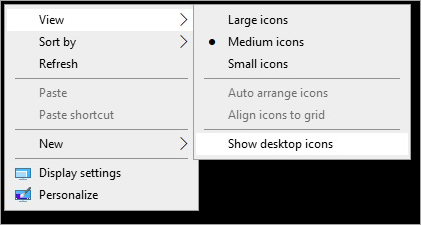
There are many alternative ways to open a program in the absence of a start-up icon
#2) Look for the program in the Start Menu
- Select the Windows (Start) icon.
- Type name of program in the search text field.
- If name appears, you can click to open the program.
#3) Using Run dialog box
- Select the Windows (Start) icon.
- Click on Run from the list.
- Run dialog box will appear.
- You can type the location path of the executable file (e.g. C:\ProgramData\Microsoft\Windows\Start Menu\Programs\YourProgram.exe) and
- Press the Enter button
#4) Look for an executable file
- Open File Explorer.
- Search or navigate for the executable file of program.
- You can double-click on an executable file to open the program.
#5) Using the Windows key
- Click on Windows icon on the bottom left corner on the screen of your desktop.
- Type the name of the application you wish to open, e.g., Adobe for Adobe Reader XI, Word for Microsoft Word, etc.
- You will find the program in the list.
- Click on the program label to open.
#6) Using File Explorer
- Select the Windows (Start) icon.
- Click on Run from the list.
- Run dialog box will appear.
- Type shell:startup
- Press Enter
- The window on the right pane will display the list of programs that will run on sign-in.
- Type shell:common startup
- Press Enter
- The window on the right pane will display common programs that will start on sign-in.
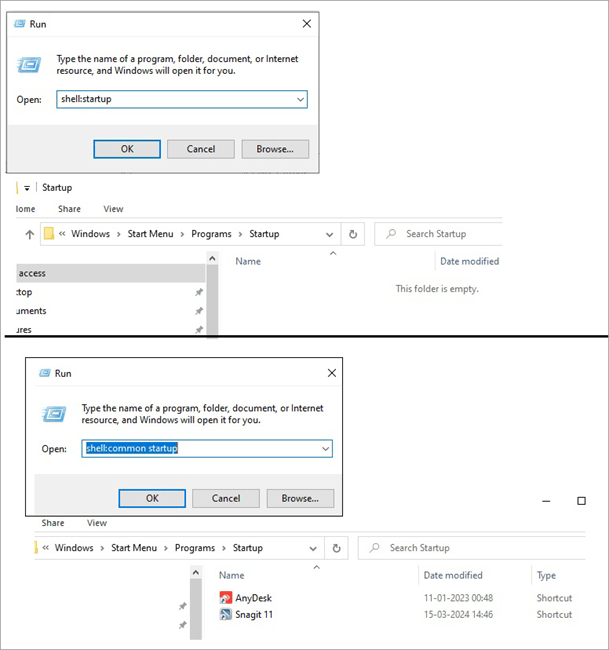
Note: The applications that run at startup for the current user has the registry path as below HKCU\Software\Microsoft\Windows\CurrentVersion\Run
Also Read => Best Virtual Desktop Solutions
Managing and Customizing Desktop Icons
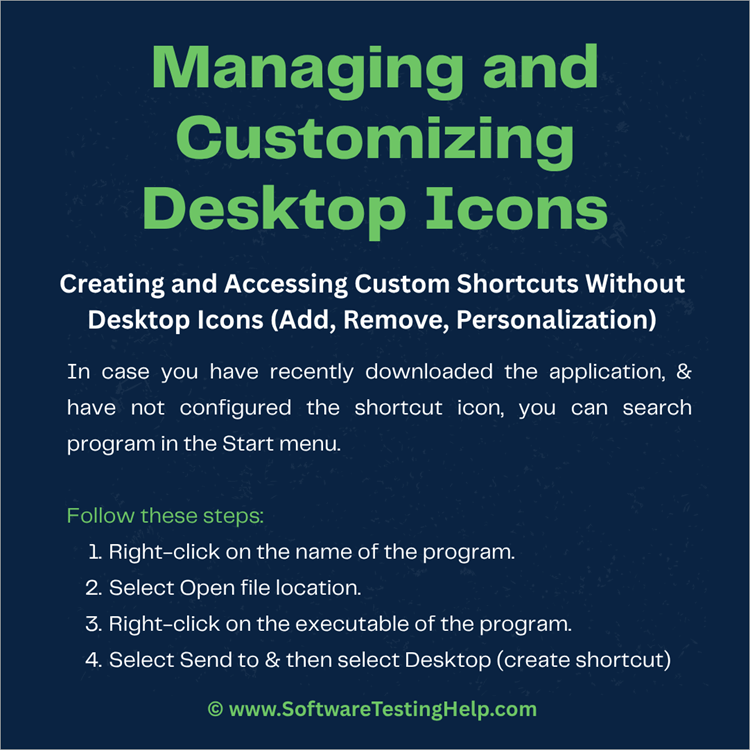
Creating and Accessing Custom Shortcuts Without Desktop Icons (Add, Remove, Personalization)
In case you have recently downloaded the application, & have not configured the shortcut icon, you can search program in the Start menu.
Follow these steps:
- Right-click on the name of the program.
- Select Open file location.
- Right-click on the executable of the program.
- Select Send to & then select Desktop (create shortcut)
Using Keyboard Shortcuts & Run Commands
#1) Using Run command
- Press Windows + R simultaneously.
- Run window with an Open text field will appear.
- Type the name of the executable file in the text field, e.g., winword.exe for Microsoft Word, explorer.exe for file explorer, MSpaint for paint.
- Press Enter to open the program.
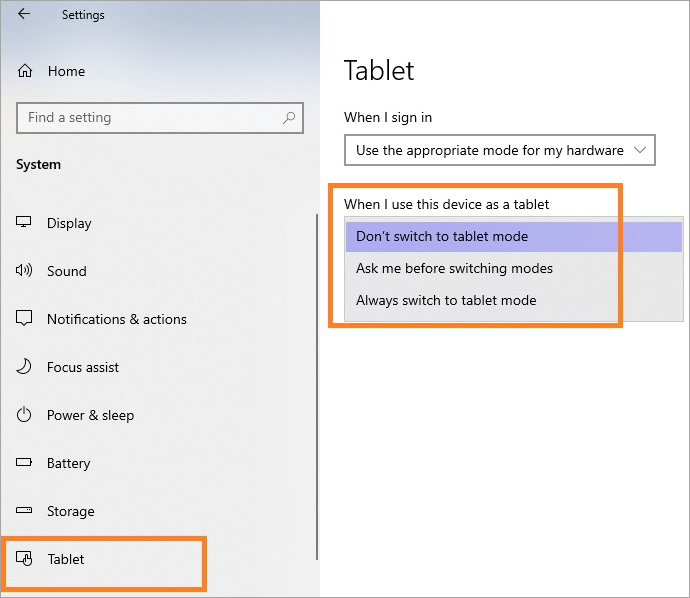
#2) Disable Tablet Mode
The screen resolution and size configuration may change by the mode–normal, tablet mode. You can disable Tablet mode to display hidden startup icons on the screen.
Suggested Read => Quick Steps to Access Windows Startup Folder
- Press Windows + I simultaneously.
- Windows Settings dashboard will appear.
- Select the System icon.
- Click Tablet on the left pane
- On the right pane, verify the dropdown under – When I use this device as a tablet.
- The option selected should be – Don’t switch to tablet mode.
#3) Using PowerShell
You can use the Windows PowerShell application to start/open a program when shortcut icons are missing.
- Press Windows + X simultaneously.
- You will find a list of programs displayed in the list.
- Look for Windows PowerShell.
- Click on Windows PowerShell, command line will appear.
- Type Start explorer.exe to open File Explorer.
- You can open the Windows Word program by typing Start Winword.exe
#4) Configure start-up applications
You can open/run a program when Windows boots up / starts in various ways explained below:
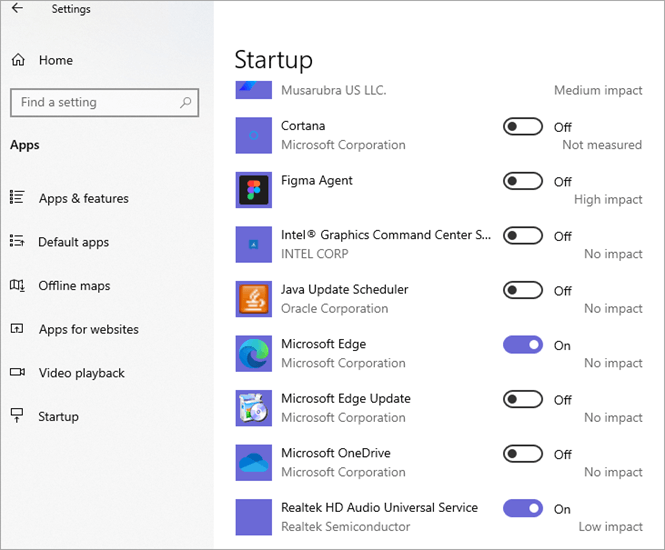
From Settings
- Press Windows + X simultaneously.
- Click on Settings from the list.
- Click on the Apps icon from the Settings dashboard.
- Select Startup on the left pane.
- You will find the Startup application list.
- Using a toggle button, you can click on or off for a particular program.
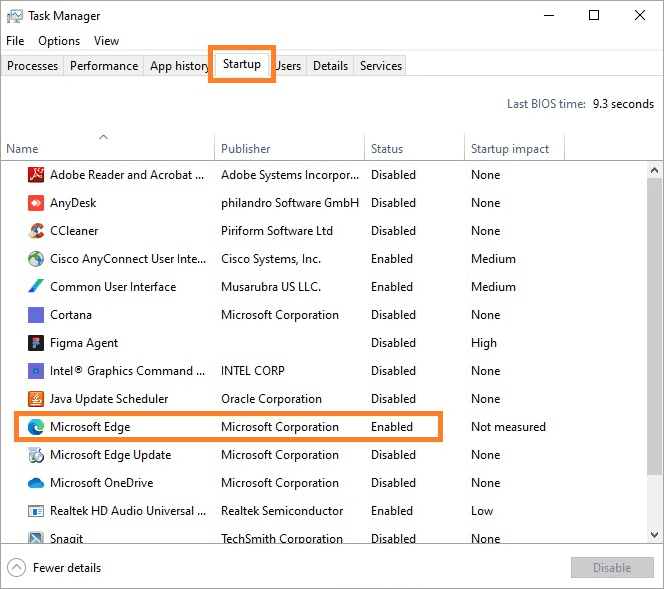
- Press Windows + R simultaneously.
- Run the window with an Open text field that will appear.
- Type taskmgr & press Enter.
- Task Manager will open.
- Click on the Startup tab, and the startup application will appear with status disabled or enabled.
- You can select a particular application and enable it.
Note:
- Enable will start the program when you sign in to your machine.
- Disable will prevent the program from starting on its own.
Creating & Accessing Custom Shortcuts Without Desktop Icons
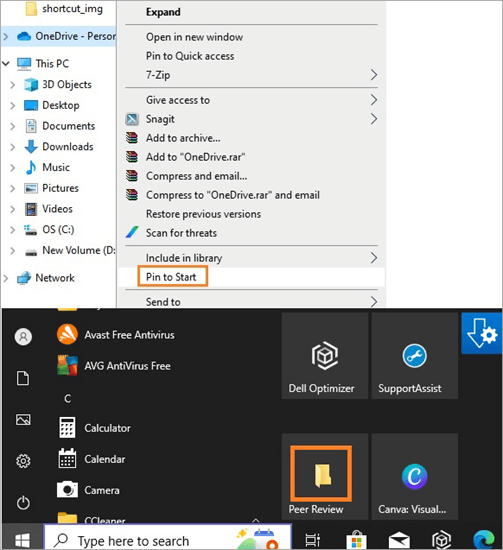
Pinning an application, folder, or website:
- To open the application
- Enter the name of the application you wish to open in the search text field at the bottom left corner of the screen.
- Right-click on Program from the list.
- Click on the Pin to Start option.
- To open a folder
- From the file explorer, right-click on the folder.
- Select the Pin to Start option.
- On clicking Windows (Start)
- You will find the folder (pin to start) separately, as seen
- To open the website
- Open Edge, go to the website you wish to open
- Click on the three dots in the top right corner of the webpage
- Select More tools & select the Pin to Start option
- It will display a confirmation window
- Click the OK button
- You will find the quick access icon by clicking the Windows (Start) icon
Further Reading => How to Fix Windows Stuck
Advanced Troubleshooting Methods
Delete iconcache files
- Press Windows icon + R simultaneously OR Right click on Windows (Start) icon on the bottom left corner of your screen & select Run
- Run Window will appear
- Enter the following in the Open text field
- C:\Users\%username%\AppData\Local\Microsoft\Windows\Explorer
- * %username% is the name of the default user for your computer
- An explorer window will open
- Press Ctrl + F simultaneously
- You will see files beginning with the name iconcache_ as shown below
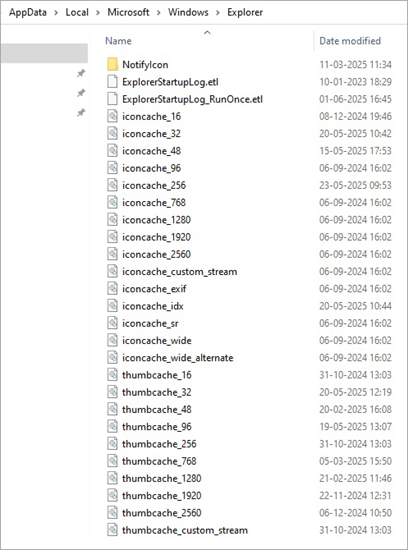
- Delete all these icon cache files
- Restart your PC after all the icon cache files are deleted.
- You find that Windows will automatically create icon cache files again.
- This will restore desktop icons that were missing.
Restore System
- Click on the Windows (Start) icon in the bottom left corner of your screen.
- Select Settings from the list.
- Windows Settings dashboard will appear.
- Click on Update & Security.
- Select Recovery from the left pane.
- Click the Restart now button under Advanced Startup on the right pane.
- Select Troubleshoot & click on Advanced options.
- Select System Restore & click on Choose a different restore point & click Next.
- You will find a list of restore points.
- Look for a restore point from the date since the icon was shown correctly.
- Continue clicking on Next till the Finish button.
- The restoration process will begin.
Note: System restore will not affect your personal emails, documents, or pictures, but will remove system updates, drivers, and software(s) installed after the selection of the restore point.
Display of shortcut icons depends on the graphics drivers installed on your device. In case it has become obsolete, it may stop displaying icons.
You can update your graphics drivers for Windows 10 as follows:
- Right-click on Windows (Start)
- Select Device Manager from the list of options.
- Click on => at Display adaptors to expand it.
- You will find the Drivers installed
- Right-click on one of the drivers
- Select the Update Driver option
- Select -> Search automatically for drivers & follow the steps to install the updates for the driver
Note: Driver updates can be verified by double-clicking the display adapter to open the Properties window. You may need administrator privileges to update drivers.
FAQs on Desktop Icons Missing
1. What is an alternative to opening a program if you don’t find the shortcut icon on the screen?
In the absence of shortcut icons on screen, you can still open a program by clicking on the Windows (Start) icon & scrolling through the list of programs & then clicking on the program you wish to open.
2. How can you resolve the absence of start-up icons using the task manager?
You can press Windows + R simultaneously, & type taskmgr in the Run window & press Enter, the Task Manager will appear. You will find Windows Explorer, right-click on it & click on the Restart option.
3. How can you open the file when shortcut icons are missing?
You can open a file from file explorer using the file’s actual path, OR by searching the program in the start menu and accessing its original shortcut using the Open file Location option.
4. How can you unhide hidden desktop icons from desktop?
You can right-click on the screen & select the “View” option & verify “Show Desktop icons” is checked, to display hidden desktop icons.
5. How to find if shortcut icons have been accidentally deleted?
Check the Recycle bin folder to find if the shortcut icon has been accidentally deleted.
6. List possible ways you can resolve the missing shortcut icons issue.
There are multiple ways to resolve the missing shortcut icon issue:
• Check hidden files
• Look in the Recycle Bin
• File Search
• Scan for viruses or malware
• System restore
• Data recovery
7. How do you open Microsoft Word when there are no icons on the desktop?
There are many ways to open Microsoft Word in the absence of an icon on the desktop:
• Click on the Windows (Start) icon in the bottom left corner of the screen
• Type Word in the search text field, Microsoft Word program will be seen
• Click on Microsoft Word to open
Alternatively
• Press Windows + R simultaneously
• Window with text field will appear
• Type winword.exe & press Enter
• Microsoft Word will appear
Conclusion
Shortcuts have location details of the target program, file, or folder and not the actual file, folder, or program; they, however, act as quick access to the program, file, or folder from the desktop itself rather than exploring various locations or folders searching for it.
We discussed various ways to open an application, folder, file, or website when shortcut icons are not displayed on the desktop.
Was this helpful?
Recommended Reading
-

This tutorial explains what is a 7z file extension. Also learn how to create and open .7z file in Windows, Mac, and online: In this tutorial, we will provide you with an understanding of this file format in detail. We will also learn to create and open files in 7z…
-

Maximize your Windows 11 experience instantly with full-screen mode. Quickly learn the simple shortcut for full-screen mode to toggle full screen both in your personal and professional work: Windows (or Microsoft Windows or Win) operating system allows users to view and store documents, browse the internet, play games, watch movies,…
-
Task Manager Shortcut is the fastest way to open Task Manager. Explore the various ways to know how to open task manager quickly: Since NT 4 and Windows 2000, the Task Manager has been a part of all Microsoft Windows operating systems. It enables you to see every task (process)…
-
Learn how to open the Windows Startup folder in Windows 10. This guide shows the exact location and how to add startup shortcuts easily. The Windows Startup is a folder that allows programs and shortcuts to be executed automatically when a computer is started. The Windows 10 operating system has…


