Is Siri reading your text messages on AirPods? Our step-by-step guide will teach you how to stop or turn off Siri reading messages on AirPods to disable announce notifications for any app:
iPhones have this prominent feature: You can get all of your notifications and messages read by Siri. And you can even ask Siri to reply to the messages without having to physically type the message.
This feature is quite useful in situations like when you are driving or cooking, and you can’t miss any of your important messages.
But it may trouble you when you are listening to music or using your AirPods to hear an important lecture, and then Siri reads your upcoming messages (that too when they are promotional messages you don’t even want to hear!).
How to Stop Siri From Reading Your Messages?
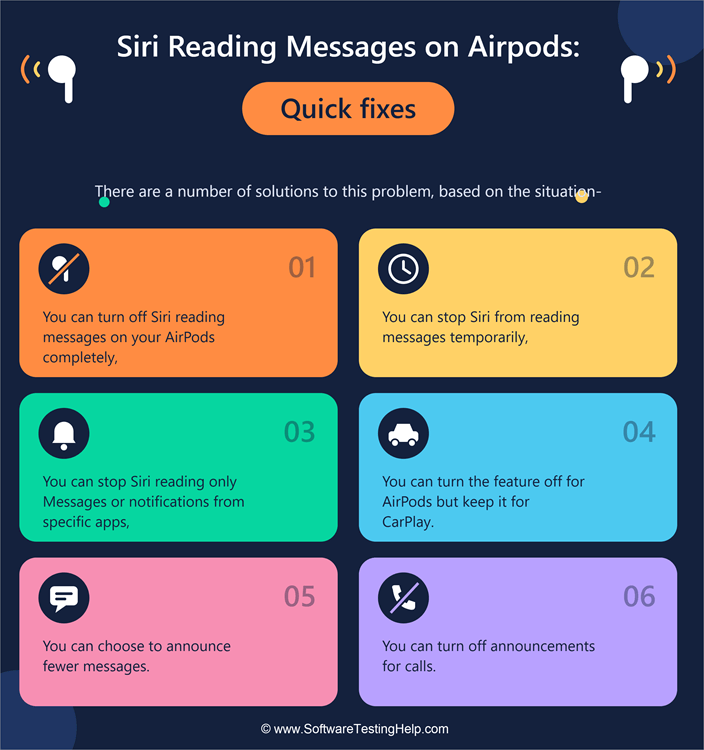
There are several solutions to this problem, based on the situation.
- You can turn off Siri reading messages on your AirPods completely.
- You can stop Siri from reading messages temporarily.
- You can stop Siri from reading only Messages or notifications from specific apps.
- You can turn the feature off for AirPods but keep it for CarPlay.
- You can choose to announce fewer messages.
- You can turn off announcements for calls.
Why Siri Reads Your Messages on AirPods
Siri reads your messages on AirPods only when the feature ‘Announce Notifications’ is enabled, your iPhone is locked, and you have your AirPods on. For this feature to work, your AirPods must be 2nd gen or newer, Pro, or Max.
If all the above-stated conditions are fulfilled, whenever you get a message (or if there is a notification from any other app), you will hear on your AirPods ” New Message from XYZ. ” and then you will hear the whole message.
And this can be quite annoying at times!
So let’s find out how to turn off AirPods from reading notifications.
Steps to Turn Off Siri Reading Messages on AirPods Completely
iPhone users have 2 options to turn off Siri:
- You can turn the Announce Notifications feature OFF completely, which is the master toggle for stopping announcements on the AirPods and on CarPlay.
- You can keep the announcement notifications feature off for AirPods and keep it on for CarPlay.
How to stop Siri from reading messages on AirPods and CarPlay completely:
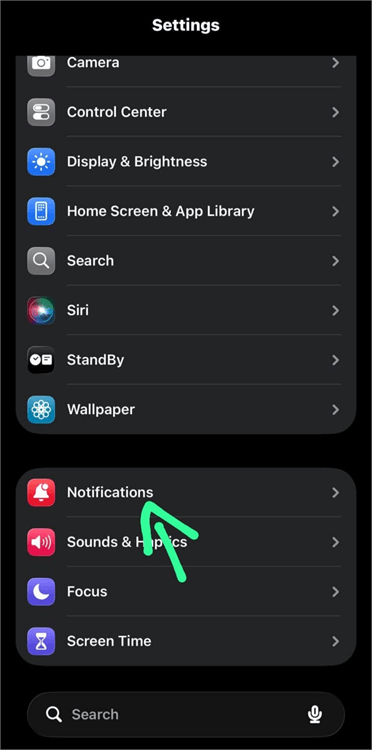
- On your iPhone, go to Settings
- Now, choose Notifications
- Select Announce Notifications
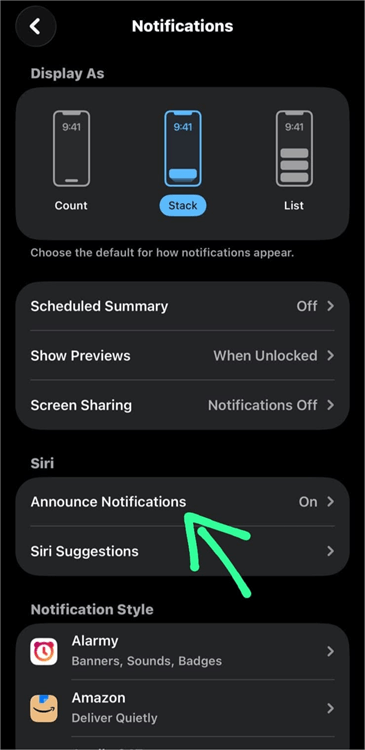
- Turn off Announce Notifications
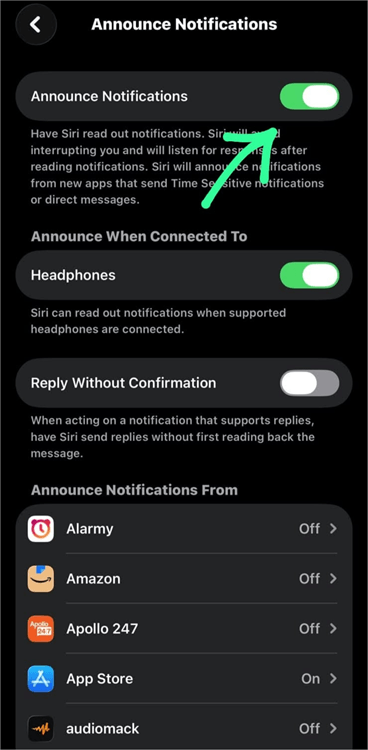
- The next option is (Announce when connected to) Headphones. Turn it off too.
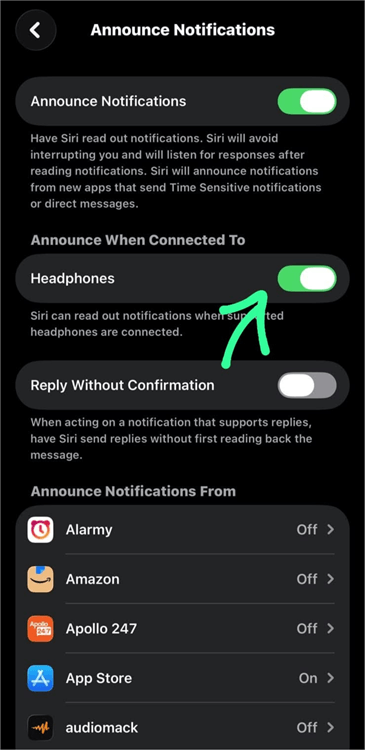
This way, the Siri reading messages feature will be completely turned off.
How to Turn it Off For AirPods But Keep it for CarPlay
To stop AirPods from announcing notifications but keep the feature turned on for CarPlay, first, stop AirPods from reading texts by using one of these methods:
- Using Bluetooth settings:
- While wearing your AirPods, go to Settings on your iPhone
- Find your AirPods’ name and tap on it
- You will see the Announce Notifications option. Turn it OFF.
This will turn off the Announce Notifications feature for your AirPods only.
- Using iPhone Settings:
- Go to Settings on your iPhone
- Select Notifications
- Tap on Announce Notifications
- Turn Announce when connected to Headphones OFF.
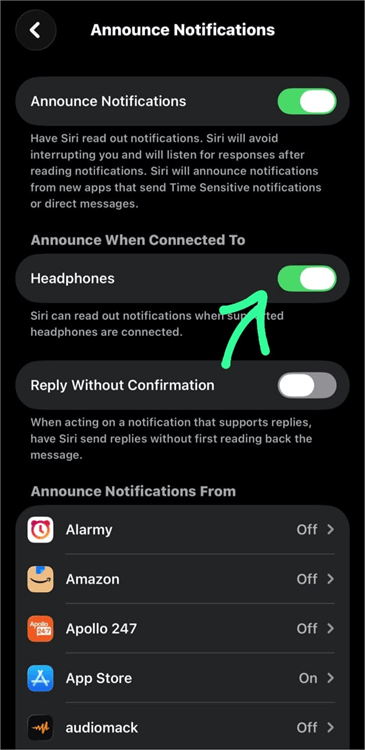
This will turn off the Announce Notifications feature for all headphones.
To keep the Announce Messages with Siri feature enabled for CarPlay, do as stated below.
- On your iPhone, go to Settings
- Select Notifications
- Go to Announce Notifications
- Now, make sure that the Announce Notifications feature is enabled.
- Find the option CarPlay under the heading Announce when connected to, and turn it ON. (You will only see the CarPlay option here if your car regularly connects to CarPlay.
Or else, you can follow these steps to enable the feature for CarPlay:
- Go to Settings
- Select General
- Choose CarPlay
- Select your car
- Tap on Announce Messages
- Turn it ON.
You may also want to know how to stop AirPods from reading notifications and messages temporarily. Let me tell you, there are several ways to do so.
Steps to Stop Siri Reading Messages Temporarily
Listed below are some of the steps to follow to stop Siri from reading messages temporarily:
1. You can just remove one of the AirPods from your ear, and the AirPods will stop working. You won’t listen to any of the notifications while one earpiece is removed. (But the music you were listening to will also stop in this case).
2. Just say, Hey Siri, stop announcing messages. And once you want to resume the setting, then say, Hey Siri, Turn on Announce Notifications.
3. Switch to DND or Focus mode for an hour.
This can be done using these steps:
a. Go to Control Centre by swiping down on your screen.
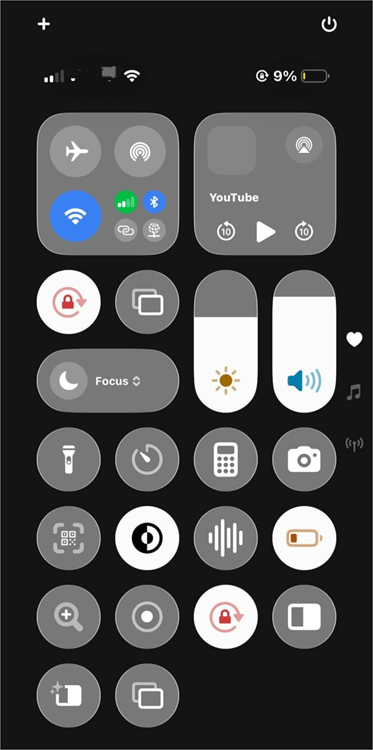
b. Press the Focus icon for 2-3 seconds.
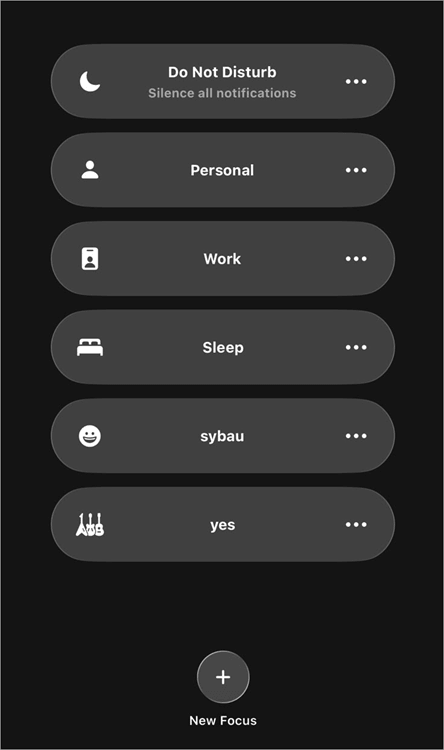
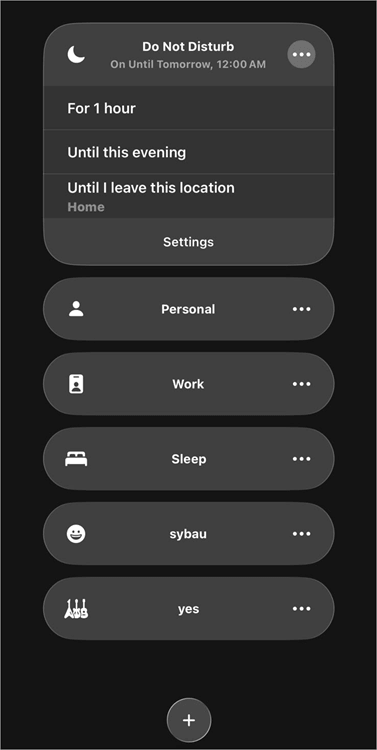
c. Tap on the 3-dot icon next to Do Not Disturb
d. Choose For 1 Hour (or any other option, according to your preference).
4. If you just want to skip hearing a single message and don’t want to turn off the feature, then you can just press the side button on your iPhone when it reads the message. This way, it won’t read this specific message any further, and the feature will keep on working for the upcoming messages.
5. Through the Control Centre:
a. Open the Control Centre on your iPhone by swiping down on your screen
b. Long-press the Volume Slider for AirPods
c. Now tap on the Announce/ Bell icon so that it turns grey.
This way, Siri won’t announce messages for some time and will resume the feature sometime later automatically.
If you want to use the Announce Notifications feature but don’t want it to read notifications for certain apps, then let me tell you, it’s possible, with a simple change of settings.
How to Stop Siri Reading Only Messages or Notifications From Specific Apps
Here are the steps to follow to stop Siri reading messages from specific apps.
1. On your iPhone, go to Settings
2. Select Notifications
3. Go to Announce Notifications
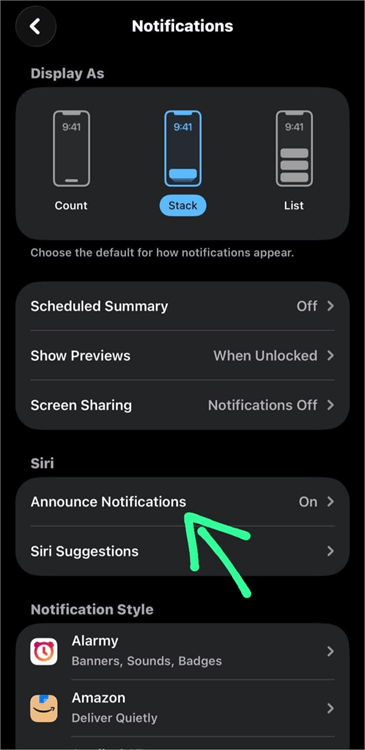
4. Enable the Announce Notifications option
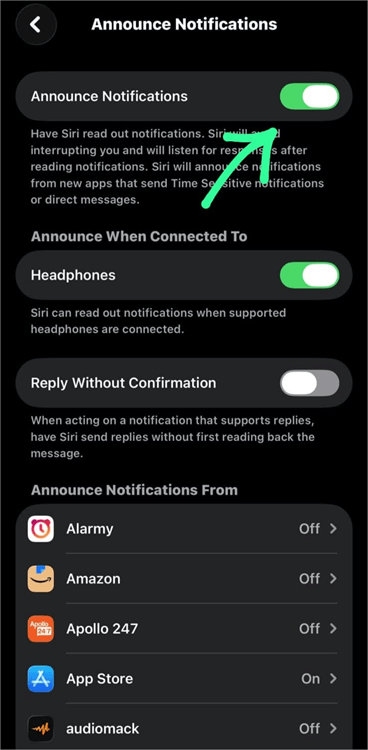
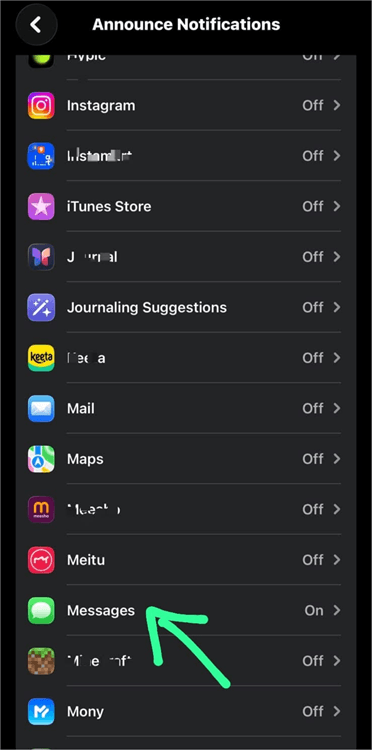
5. Scroll down, and you will see a list of apps. Find the app that you want to turn off for this feature.
6. You can disable any app from using this feature here.
7. To stop Siri reading Messages, tap on the Messages app and turn it off.
Siri Reads Messages Even After Turning Off: Troubleshooting Steps
If Siri is still reading your messages, it may be because of one of the following reasons:
#1) You would have turned the feature off for your AirPods only, or for a specific app, which is why it’s still announcing notifications for other apps.
To turn the feature off completely, use this method:
- Go to Settings
- Select Notifications
- Go to Announce Notifications
- Turn it off.
Another method to turn it off is stated below:
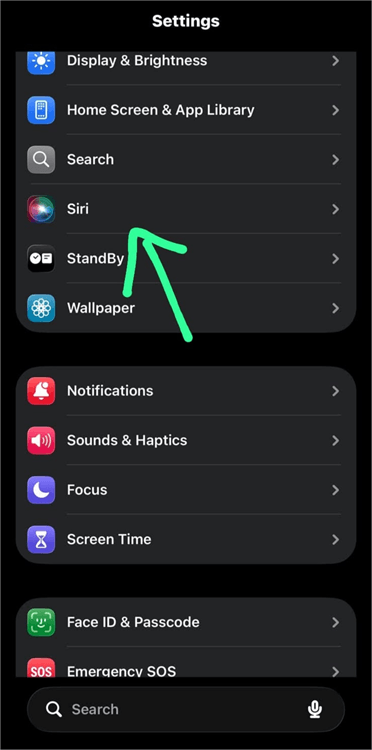
- Go to Settings
- Now, select Siri
- Choose Announce Notifications
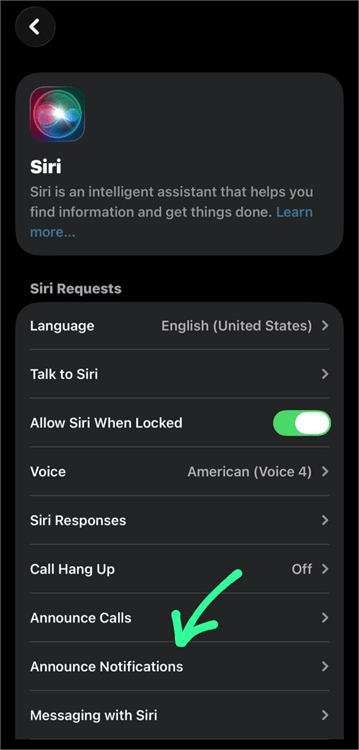
- Turn it off.
When you turn the feature off using these methods, Siri will stop reading your messages.
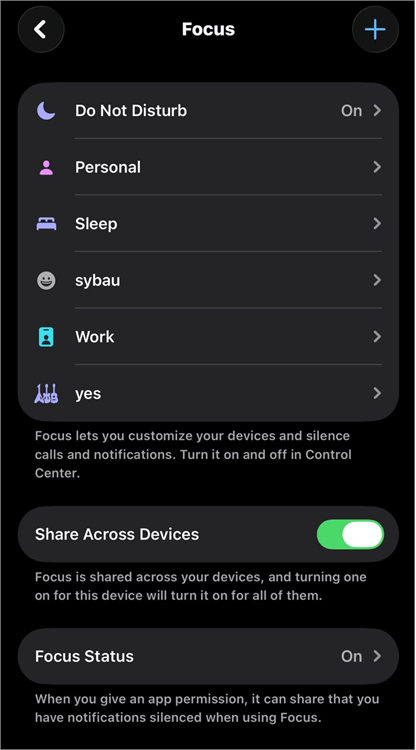
#2) You must check the Focus settings. If you have switched to Focus mode and Siri is still reading messages, then check the Focus settings because each Focus has a different setting.
Follow these steps to turn the Notification Announcement setting off in the Focus you are using:
- Go to Settings
- Select Focus
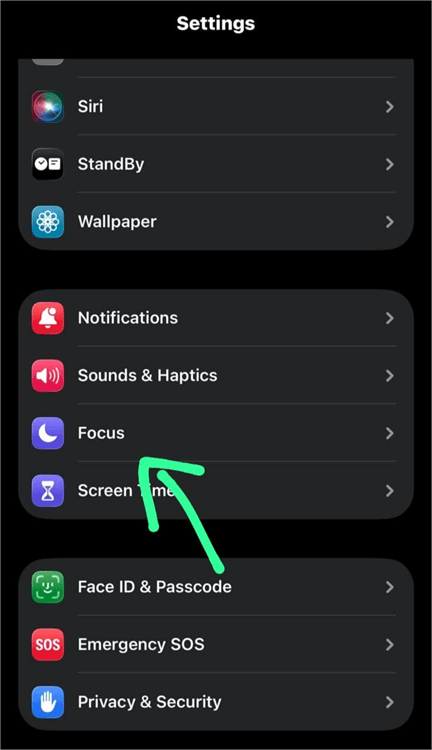
- Tap on the Focus mode you are using.
- Tap on Options
- Go to Silence Notifications
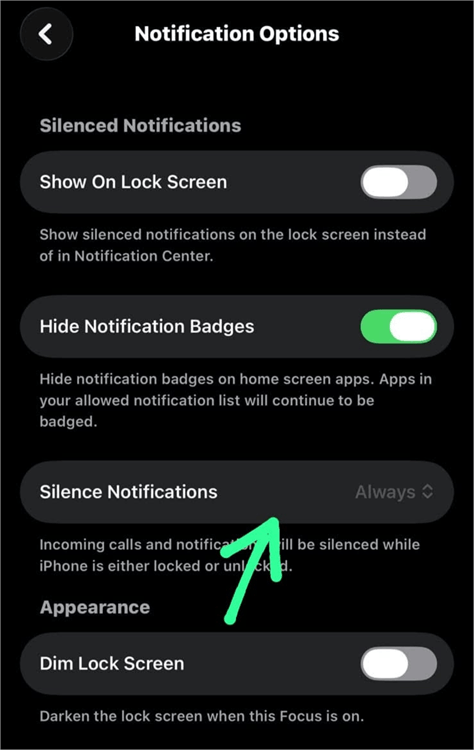
- Set it to Always.
#3) Make sure your AirPods are not connected to another device. It’s possible that they would be announcing messages from another of your devices they are paired with.
#4) If you have tried all the troubleshooting methods stated above and the problem still persists, then you can try re-pairing the iPhone with your AirPods, and then restarting the iPhone. The issue will be resolved.
- Go to Settings
- Select Focus
- Choose Do Not Disturb
- Go to Allowed Apps
- Disable Time-sensitive notifications.
Direct-message Notifications: Notifications for direct messages, including messages received on the Messages app, WhatsApp, Instagram, etc., are announced automatically if the Announce Notifications feature is enabled. You can turn off the Announce Notifications feature either for all apps or for some specific apps.
Many of the iPhone users are spotted asking how to turn the Announce Notifications feature back on.
How to Turn on Announce Notifications?
Here is the guide to turn on Announce Notifications, in 4 simple steps:
- Go to Settings on your iPhone
- Select Notifications
- Tap on Announce Notifications
- Turn it ON.
New on iOS 26: With newer versions of the AirPods, users can accept calls, reply to Siri ready messages, or decline calls using head gestures.
- To accept a call or reply to a notification or message, you can just nod your head up and down.
- To decline a call or dismiss a notification or message, just shake your head side to side.
For this feature to work, the Announce Calls and Announce Notifications features must be turned on. You must have AirPods Max 2 or AirPods Pro 2 and later or AirPods 4 and later, or Powerbeats Pro 2, and the latest version of iOS or iPadOS.
Plus, you need to turn this feature ON, using these steps:
- While wearing your AirPods or Beats, go to Settings on your iPhone
- Tap on the name of your AirPods or Beats
- Select Head Gestures
- Enable Head Gestures.
So if you want the Gestures tool to work, the Announce Notifications feature must be turned on first, which is the master toggle. If it’s turned off, then the Head Gestures switch is redundant.
If you are a parent, you may fear that your child would get distracted from his/her studies due to constant Notification Announcements from Siri. Here is what you can do in such a situation.
How to Stop Siri Reading Messages on My Child’s AirPods
You can use any of the following methods to stop Siri from reading messages on your child’s AirPods:
- You can allow Siri to announce notifications only from the contacts you choose as Favourites. This is a bit of a lengthy process, but it’s worth it.
- To make it happen, first of all, Add important contacts to the Favourite list, using these steps: Go to Phone app ➡️ Favourites ➡️ + ➡️ Add Contacts
- Create a Focus so that Siri will notify only when there is a notification from a contact on the Favourites list. This can be done with these steps: Go to Settings ➡️ Focus ➡️ + ➡️ Custom ➡️ Name it (Parents)
- Inside Focus: Tap on People ➡️ Allow Notifications from ➡️ Add People ➡️ Favourites
- Now you can turn on the Allow Notifications feature. It will work only for the contacts added in the Favourites list, whenever the ‘Parents’ Focus is ON.
- If your phone is linked with your child’s phone through Family sharing, then you can use the Family Sharing feature to stop Siri from reading messages.
- On your iPhone, go to Settings
- Tap on your name
- Choose Family
- Tap on your child’s name
- Now, you would need to enter your passcode
- Tap on Screen Time
- Choose Content & Privacy Restrictions
- Turn it on
- Enter the Screen Time passcode
- Now set restrictions for your child’s iPhone
- You can turn off Siri completely on your child’s iPhone. This can be done with these steps:
- Go to Settings
- Select Screen Time
- Turn it ON and set a Screen Time passcode.
- Go to Content & Privacy Restrictions and turn it ON.
- Go to Allowed Apps
- Disable Siri & Dictation.
If you are busy and want to hear only important message announcements, then you can do that as well.
How to Make Siri Announce Fewer Messages
If you mute message announcements for certain people or groups, you will hear fewer announcements.
Here is the guide for muting alerts for specific people or groups’ messages:
- On your iPhone, open the Messages app
- Find the chat (of a person or group) whose announcements you don’t want to hear.
- Swipe left on it
- Choose Hide Alerts.
Turn off the Announce Calls Feature
This will stop the notification announcement of calls only. iPhone users can turn off the Announce Calls feature while keeping Announce Notifications tool on.
This can be done using these steps:
- Go to Settings
- Select Apps
- Choose Phone
- Go to Announce Calls
- Choose Never.
Frequently Asked Questions
1. How do I stop Siri from reading WhatsApp messages on my Apple AirPods?
There are 3 ways to do this:
• You can stop Siri from reading only WhatsApp messages using these steps:
a. On your iPhone, go to Settings
b. Choose Notifications
c. Now go to Announce Notifications
d. Keep the Announce Notifications option enabled.
e. Scroll down and find WhatsApp. Tap on it and disable the Announce Notifications feature.
• You can disable your AirPods from announcing all notifications using these steps:
a. While wearing your AirPods, go to Settings on your iPhone
b. Find your AirPods’ name and tap on it
c. You will see the Announce Notifications option. Turn it OFF.
• You can turn the Siri reading notifications feature completely using these steps:
a. Go to Settings
b. Select Notifications
c. Go to Announce Notifications
d. Turn it off.
2. My AirPods are not reading messages. How can I fix this?
If your AirPods are not reading messages, it is because of one of the following reasons:
• The Announce Notifications feature works only with AirPods 2nd gen or newer versions, Pro (all gens), and Max. So if you have AirPods 1st generation, then the feature won’t work on them.
• Many iPhone users think that the AirPods will automatically announce notifications while they are using them. They are not aware about the Announce Notifications setting.
Make sure you enable the Announce Notifications feature on your iPhone. Only then, the feature will work.
a. Go to Settings on your iPhone
b. Select Notifications
c. Now go to Announce Notifications
d. Turn it ON.
• You may have enabled the Announce Notifications feature, but you may have disabled the feature for a specific app (like Messages) that’s why it would not be reading your messages. You can check this setting with these steps:
a. Go to Settings
b. Select Notifications
c. Tap on Announce Notifications
d. Scroll down to find the Messages app and make sure it is allowed to use the feature.
• You may have taken one earpiece out of your ears – In this condition, the AirPods do not work.
• You may have enabled Focus mode on your device
• Make sure your AirPods are charged.
3. Why are my AirPods announcing notifications so quietly?
This can be because of several reasons, such as:
• Smartphones automatically reduce the maximum headphone volume to protect your ears from getting damaged.
If you want to increase the maximum volume, do as stated below:
a. Go to Settings
b. Select Sounds & Haptics
c. Go to Headphone Safety
d. Now adjust the settings according to your preferences.
• The Alert volume may be set too low. You can increase the alert volume using these steps:
a. Go to Settings
b. Select Sounds & Haptics
c. Drag the Ringtone and Alert Volume slider upwards to increase the Alert Volume.
• Check the AirPods settings:
a. While having your AirPods connected, go to Settings on your iPhone
b. You will see your AirPods’ name at the top. Tap on it.
c. Select Accessibility
d. Drag the Tone Volume slider to increase volume.
e. Plus, while Siri speaks, press the Volume Up button to increase its volume.
• Clean your AirPods with a soft cloth and a brush if some dirt has built up on them.
4. Why is my iPhone announcing everything I do?
If your iPhone is announcing your every action like Home Screen, Message, etc., then you would have accidentally enabled the VoiceOver feature. It can be turned on or off just by pressing the side button quickly for 3 times.
You can disable this feature either by pressing the side button thrice, or using these steps:
• Go to Settings on your iPhone
• Tap on Accessibility
• Select VoiceOver
• Turn it off.
5. How do I stop Siri from listening to my conversations?
For this purpose, turn off Siri completely.
This can be done using these simple steps:
• On your iPhone, go to Settings
• Now, select Apple Intelligence & Siri
• Go to Talk & Type to Siri and turn it OFF
• Tap on the Back icon
• Disable Press Side Button for Siri
• Also, turn off Type to Siri
• Choose Turn off Siri / Stop Using Siri.
Please note that in order to stop Siri from announcing messages, it is not required to stop Siri. Plus, the Announce Notifications feature is not Siri. So, turning it off doesn’t disable Siri.
Conclusion
iPhones are genuinely loved by people around the world, and one reason for their popularity is the cool features that they offer, and the Announce Notifications feature is one of them.
The feature saves you from missing important notifications in situations where you can’t keep your phone in your hands; for example, when you are driving, exercising, eating, etc.
But when you are in a meeting, or reading, etc., frequent announcements of notifications can make you quite annoyed.
So in this article, we provided users with guidance on how to turn off AirPods reading messages. Users can pause the feature, turn it off completely, or mute it for specific apps, based on their preferences.
Research Process: The total time involved to complete and publish this article is approximately 41 hours. This content was created through a structured research approach to ensure accuracy and reliability.
For more-related guides, you can explore our range of tutorials below:
- How to Tell If AirPods Are Fake or Real (4 Easy Checks)
- How to Connect AirPods to a Laptop
- How to Connect AirPods to PS5 (Guide)
- Why Are My AirPods So Quiet on Full Volume
- How Do Apple AirTags Work: Pricing, Range & Setup Process
- How to Turn Off SOS Mode on an iPhone Quickly
- How to Schedule a Text Message on iPhone Step by Step
Was this helpful?
Recommended Reading
-

Are you worried about blocking spam messages on your Android phone? This tutorial explains methods for How to Block Text Messages: SMS is hardly ever used anymore for communication. Traditional text messages have been surpassed by instant messaging apps. SMS is still useful for receiving alerts and information, though. When…
-
Get educated on how to create a Poll in iMessage on iPhone or iPad on group chats. Quickly gather opinions from friends & family through the iMessage poll and view the results directly: It's an undeniable fact that we all love to chat with our friends through text messages. Almost…
-
Are your AirPods so quiet even at 100% volume? Try these proven fixes from our experts along with advanced troubleshooting tips to restore your AirPods volume instantly in minutes: Apple's first-ever AirPods were launched in 2016. The AirPods allow their users to listen to audio files in high sound quality.…
-
Learn how to identify fake AirPods and prevent yourself from scams through the use of tips on how to distinguish real from fake AirPods. Counterfeit AirPods have gotten very hard to distinguish. Counterfeiters have resorted to replicating serial numbers, pairing animations, and even making fakes look like the real deal.…