


Learn how to change Siri voice on iPhone or iPad with our step-by-step guide in just a few clicks and personalize your Siri experience instantly.
Siri is a virtual assistant available on Apple devices, which is capable of doing tasks through voice commands like answering your questions, searching the internet, playing music, making calls, and much more.
Most users don’t realize that changing the Siri voice on an iPhone is more than just switching between male and female options. You can customize accents, languages, and even download high-quality voices, but the settings are slightly hidden.
In this guide, you’ll learn:
- How to change Siri voice in seconds
- What each voice option actually means
- How to fix Siri voice not changing issues
How to change Siri voice on iPhone Quickly
You can change Siri’s voice on your iPhone in less than a minute:
- Open Settings
- Tap Siri or Apple Intelligence & Siri
- Tap Voice or Siri Voice
- Choose:
- Variety/Accent (American, British, Indian, Australian, etc.)
- Voice (different male/female-style voices depending on language)
- Wait a few seconds while the new voice downloads automatically.
Modify Siri’s Voice in Minutes: Step-by-Step Guide
Once you have activated Siri on your iPhone, you can make use of it by just saying ‘Hey Siri’, and it will be instantly available for your assistance. You can command Siri to make calls, play music, etc. You can also ask questions, and Siri will answer in a specific language and voice that you have chosen.
Siri allows its users to change its language, voice, and responding style (like with captions or without captions, with voice or silent response, etc.), so that the users can get the most out of the software. The users of iOS 18 and later versions can even interact with Siri in multiple languages (this feature is not available in all regions of the world).
Here is the video guide on how to change Siri’s voice on iPhone:
Why Change Siri’s Voice?
Users may want to change Siri’s voice for different purposes, like:
- They got a software update that changed Siri’s voice, which they don’t like, and now they want to change the voice.
- They want a different accent.
- They may want a male (or female) voice to talk to.
- They may want a voice that sounds clearer.
Siri Voice – Language Options Available in Various iOS Versions
| iOS 26 | iOS 18 | iOS 17 | |
| Languages available | 35 languages, including Chinese (Simplified), Danish, Dutch, English (Australia), English (Canada), and more. | English, Danish, Dutch, French, German, Italian, Norwegian, Portuguese, Spanish, Swedish, Turkish, Chinese (Simplified), and Japanese. | English, French, German, Spanish, Chinese, Italian, Japanese, Portuguese, and more. |
| Accents Variety | Australian, American, British, Indian, Irish, South African | Australian, American, British, Indian, Irish, South African | Australian, American, British, Indian, Irish, South African |
| Voice options available | American: 5 voices Australian: 4 voices British: 4 voices Indian: 2 voices Irish: 2 voices South African: 2 voices | Australian: 2 voices American: 5 voices British: 4 voices Indian: 2 voices Irish: 2 voices South African: 2 voices | Australian: 2 voices American: 5 voices British: 4 voices Indian: 2 voices Irish: 2 voices South African: 2 voices |
How to Change Siri Voice on iPhone (Step-by-Step)
If you want to change the voice of Siri on your iPhone, iPod touch, or iPad, then follow these quick and simple steps:
1. On your iOS device, go to Settings
2. Select Siri or Siri & Search as shown in the image below.
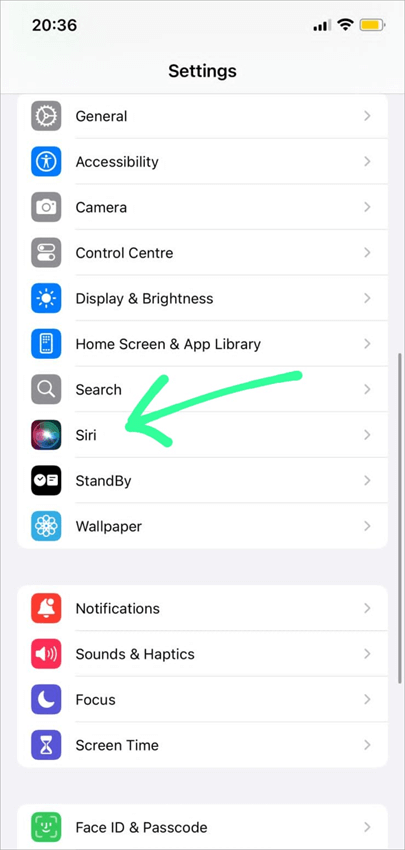
3. Choose the Voice option as in the image below.
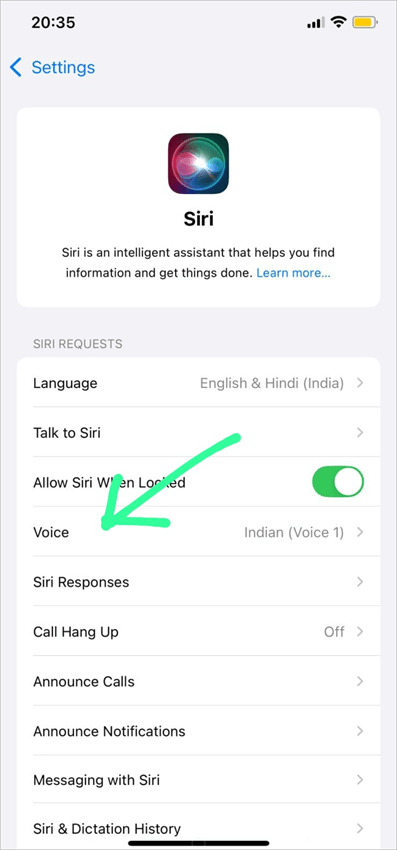
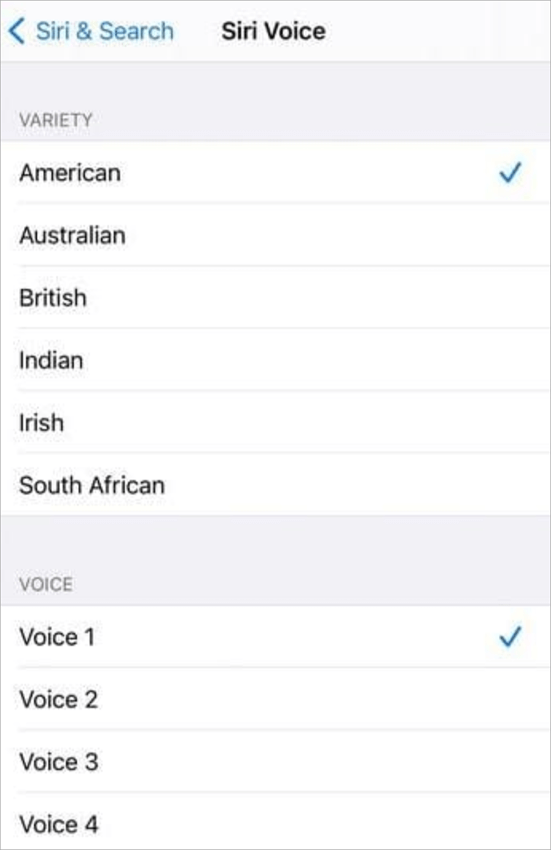
4. Now first select a Variety (of Accent) from American, Australian, British, Indian, Irish, and South African; and then choose a voice for the selected variety.
List of Accents and available voices in Siri & Search is shown below:
Siri Voice Options Explained
The Apple company has ceased to identify Siri voice characters using gender-based terms such as “Male” or “Female,” and adopted a numbered format under Regional Varieties instead.
Knowing how all these options is key when customizing your device since otherwise you will not end up with the desired voice tone.
What Do Voice 1, 2, 3, 4 Mean in Siri on iphone?
If you choose a variant of your accent (say, American), you’ll be presented with four choices that read Voice 1, Voice 2, Voice 3, and Voice 4. As the company continues developing its artificial intelligence-based text-to-speech technology, these numbers indicate a new voice, pitch, and frequency.
Of course, the exact combination may differ depending on the version of your iOS and the particular region of the country you reside in, but here is a standard distribution:
Voice 1: A rich, bassy masculine tone that utilizes clear and contemporary enunciation.
Voice 2: An easygoing, melodic feminine tone that includes natural cadence and expressiveness.
Voice 3: A pleasant, mid-range masculine tone that has proven popular due to its even tone when speaking through iPhone speakers.
Voice 4: The unmistakable feminine tone that matches the classic, well-known character of Siri.
Voice 5 (Available with certain versions of iOS) : An expressive, gender neutral tone that allows for increased diversity among natural voice processing technology.
Understanding the Settings Hierarchy: Language vs. Accent vs. Voice
A common point of confusion for users is trying to change a voice without realizing how it affects system comprehension. To set up your assistant correctly, you must treat these three options as a hierarchy:
- Language (Input & Output System): This defines the exact language that Siri will comprehend and use (English, Spanish, French, for instance). Modification of this option affects the processing model that forms the basis of the entire assistant.
- Variety / Accent (Regional Dialect): This determines the specific pronunciations and accent used in that particular language. In case your Language is set to English, you may be able to choose accents such as American, British, Indian, Australian, Irish, or South African.
Voice (Vocal Tone Profile): After choosing your language and accent, the numbered voice options (Voice 1, 2, 3, etc.) give you a chance to select your preferred vocal qualities.
Steps to Change Siri’s Language
The Siri software can be used in many languages from around the world. You can choose any of the available languages, as per your preferences. Users can even choose to interact with Siri in multiple languages, if that option is available in their region.
To change Siri’s language on your iPhone, iPad, or iPod touch, follow these steps:
1. Go to Settings
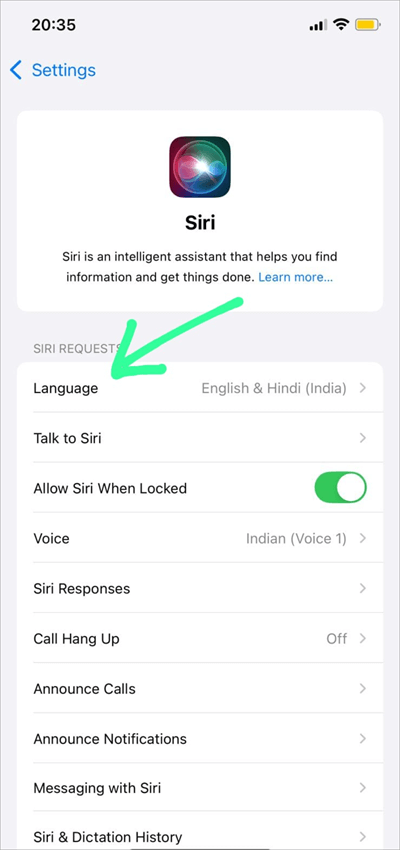
2. Select Siri or Siri & Search as shown below.
3. Now tap on the Language option as shown below.
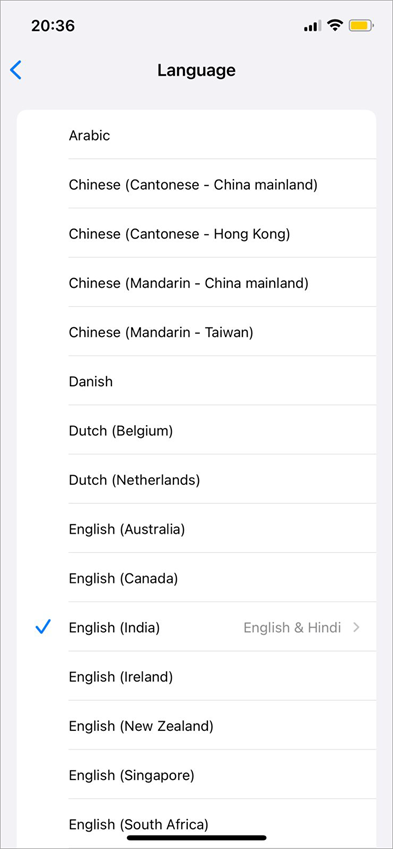
4. Select one from the available languages in your region as depicted in the image below.
Retrain ‘Hey Siri’ After Language Change
After you change Siri’s language, you will need to address Siri in that particular language. For example, you’ll say “Dis Siri” in French.
You would need to retrain Siri for ‘Hey Siri’ in the new language you have chosen.
This can be done in the following manner:
- Go to Settings
- Select Siri (or Apple Intelligence & Siri)
- Choose Talk to Siri and select Off
- Now turn on ‘Siri’ or ‘Hey Siri’ again and follow the steps to train Siri.
Here is the video guide on how to change ‘Hey Siri’ to anything you want. Explore the new feature of iOS 18:
Quick Ways to Change Siri Response Settings
Users can also change how Siri responds by doing as stated under:
1. Go to Settings
2. Select Siri as shown below.
3. Now select Siri Responses as shown in the image below.
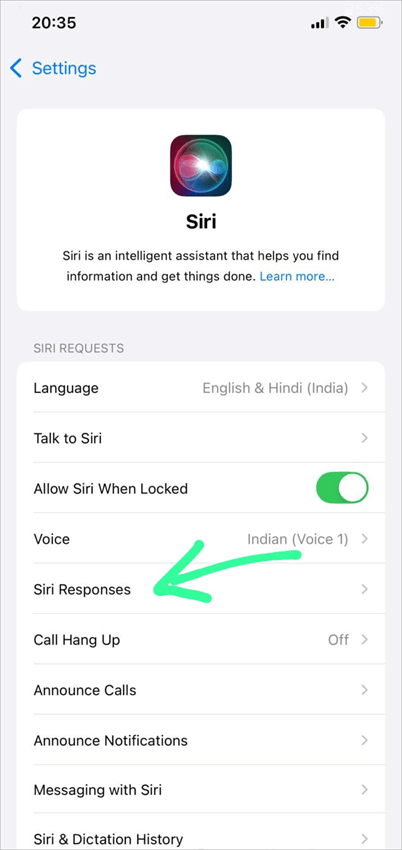
4. Choose how you want Siri to respond.
Spoken Responses option of Siri is shown below.
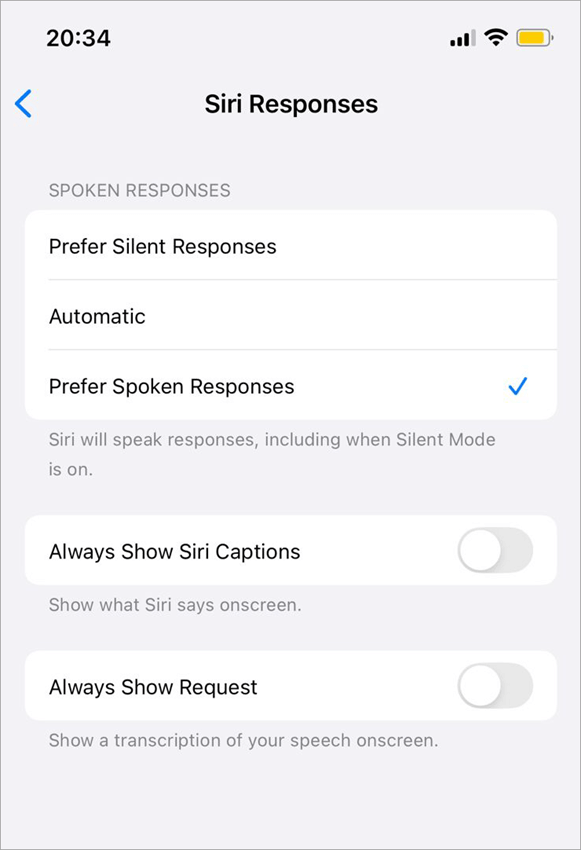
From here, you can choose whether you want to see the transcript on the screen of your speech or what Siri says. Plus, you can choose whether you want spoken responses from Siri, or Silent (transcribed responses), or Automatic Responses (silence response while you are using the iPhone in silent mode).
How to Change Siri’s Voice on Other Apple Devices
In this section, we will discover how to change Siri’s voice on other Apple devices like Apple Watch, Mac, Apple TV, and HomePod.
Change Siri Voice on Mac
You can change Siri’s voice on your Mac by:
1. Selecting the Apple menu
2. Then choosing System Preferences
3. Then selecting Siri
If you want to change Siri’s voice on your Apple Watch, then you’ll have to change Siri’s voice on your iPhone. Please note that in Apple Watch Series 3 and later versions, Siri gives audio responses. But in the earlier versions, it used to display texts or images.
Change Siri Voice on Apple TV 4K and Apple TV HD
Siri does not talk on Apple TV. But it can listen to your commands and process the requests. You can change the language in which you can give commands to Siri.
Follow these steps to do so:
1. Go to Settings
2. Select General
3. Go to Siri
4. Tap on Language
5. Now choose the language you want.
Siri Voice Not Changing? Fix It Fast
If you are having problems changing Siri’s voice on your iPhone, you probably don’t have any serious problems, as it is usually a case of downloading issues or iOS bugs.
Below are the quickest ways to fix the problem:
Internet Connection (Voice Download Issue)
The majority of Siri voices, especially the high-quality ones, have to be downloaded after choosing.
If your voice doesn’t change:
• Ensure that you are using Wi-Fi, not mobile internet
• Go to: Settings > Siri & Search > Siri Voice
• Choose another voice
Restart your iPhone
The issue may arise due to a minor glitch.
Fix:
- Press and hold Power + Volume button
- Slide to power off
- Turn your iPhone back on
Reset Siri settings
In case the problem persists, try resetting Siri settings.
Steps:
- Go to Settings -> Siri & Search
- Turn OFF:
o Listen for “Hey Siri”
o Press Side Button for Siri - Restart your phone
- Turn the settings ON
Update iOS version
Incompatibility with the outdated software is another reason for Siri issues.
To update:
- Go to Settings -> General -> Software Update
- Install the latest iOS version
Simple Steps to Alter Siri’s Volume
You can increase or decrease Siri’s volume on your Apple devices instantly by following these steps:
- On iPhone or iPad- On your iPhone or iPad, increase or decrease volume from the side buttons while Siri is speaking.
- On Apple Watch- Ask Siri to speak louder (or quieter).
- On Mac- While Siri is speaking, click on the Control Center icon, then adjust the volume by dragging the Sound slider. Other volume charging methods will also work in this case.
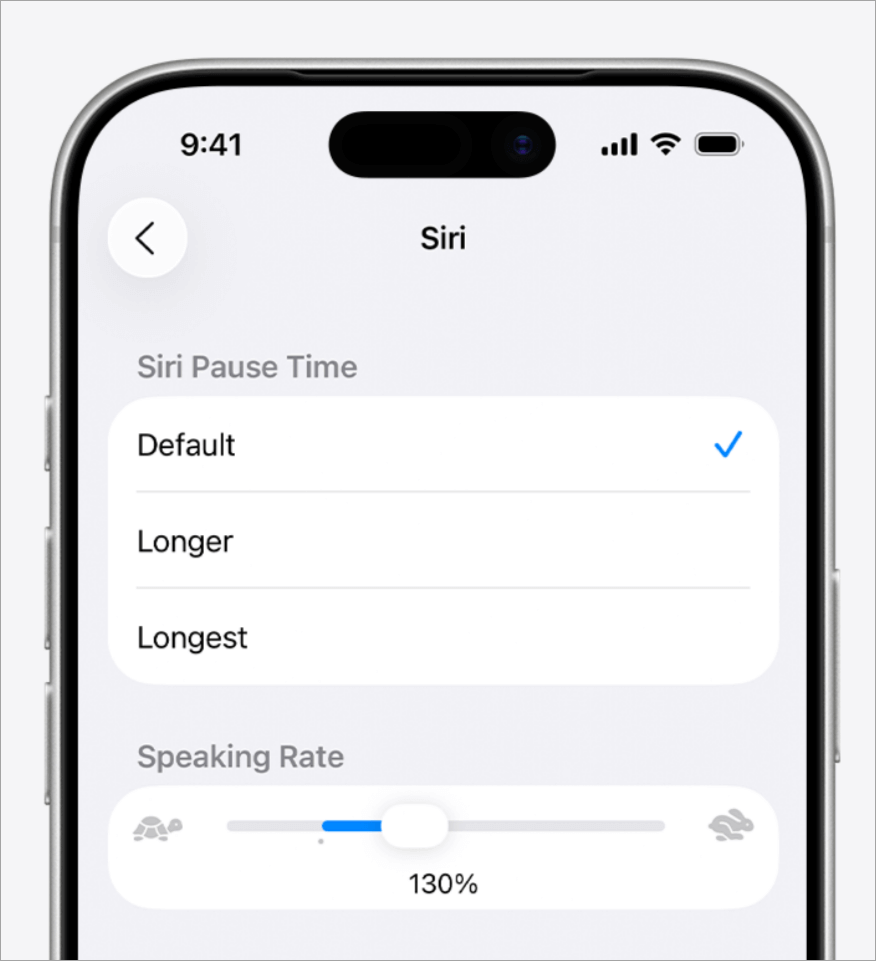
How to Modify Siri’s Speaking Rate
You can change the speed at which Siri speaks in iOS 17, iPadOS 17, and later versions by following these steps:
1. Go to Settings
2. Select Accessibility
3. Tap on Siri
4. Now adjust Siri’s speaking rate on the slider as depicted in the image below.
Frequently Asked Questions
1. How do I activate Siri by voice command?
Siri responds instantly when you say ‘Hey Siri’. You can turn on and activate this feature this way:
1. First of all, turn on Siri on your iPhone by following these steps:
a. Go to Settings
b. Select Siri (or Apple Intelligence & Siri)
c. Tap on Talk to Siri
d. Now choose one of the following options:
1. “Siri” or “Hey Siri”.
2. “Hey Siri”.
e. You can also choose to turn on Siri with your iPhone’s side button, by turning on Press Side Button for Siri.
f. Siri is now turned on.
2. Now you can activate Siri by different methods, like:
a. Just say “Siri” or “Hey Siri”, and Siri will respond to you
b. If you are using an iPhone with Face ID, then long-press the side button
c. If you see the Home Button on your iPhone’s lock screen, then long-press the Home button to activate Siri.
d. If you are using EarPods, then long-press the center or call button, and Siri will respond to you
e. While using Apple CarPlay, look for the voice command button on the steering wheel. Press and hold that button, or long-press the Home button on the CarPlay Home Screen, to activate Siri.
After activating Siri, you can ask a question or command Siri to do a task for you, like set an alarm for 5 a.m., play music, etc.
2. Why is my voice not activating Siri?
If Siri is not activating with your voice, there would be a problem with the settings, microphone, or the internet.
You can fix this issue with these measures:
• Check Siri settings. Make sure Siri is turned on.
• Check your internet
• Update your software
• Restart your device
• Some physical damage to the microphone can also be the reason.
• If none of the above-stated solutions work, you can contact Apple Support.
3. How do I change the language of Siri on my iPhone?
You can change the language in which Siri interacts with you by following these steps on your iPhone:
• Go to Settings
• Select Siri
• Now tap on Language
• Select one from the available languages, according to your preference, and Siri will then interact with you in that language.
4. How to put Siri in two languages?
First of all, please note that this feature is available in some regions only. For example, if you use Siri in English (India), then Siri will understand voice commands in multiple Indian languages like English, Hindi, Punjabi, and more. This feature is not available in the USA.
5. What accents can Siri have?
Siri can respond in many different voices, languages, and accents.
You can change Siri’s voice by doing as stated under:
• Go to Settings
• Select Siri & Search or Siri
• Now select Voice
• Now you will see a list of accents under the heading Variety. Choose an accent, then download a voice of your choice in that accent.
6. Can I change Siri’s voice to a celebrity?
Siri can be used in different voices available to download in iPhone Settings. Some of the voices available there resemble the voices of celebrities. So you can choose the one you like.
7. Can I preview Siri voices before selecting?
Yes, whenever you tap on a Siri voice provided on your Apple device, you will hear its preview. You can preview all the available voices before selecting the one you like.
8. Why does Siri sound different after iOS 18 update?
If Siri sounds different after an update, it would most probably be because either:
• Apple modified the voice you have selected (to make it clearer and more understandable), or
• The voice you had previously selected has been entirely removed. In this case, another Siri’s voice will be selected automatically.
9. Can I use my own voice as Siri?
No. You can neither use your own voice nor any other voice of your choice as Siri. Currently, you can only choose from the available languages and voices offered by your Apple device.
Conclusion
Changing Siri’s voice to get the most out of it is not a bad idea. You can make Siri talk in a male’s voice or in a female’s voice; there are various voice options available.
You can change Siri’s voice by going to Settings, then Siri & Search, then Voice, then under the heading Variety, choose a variety (like American, Australian, British, Indian, etc.), and then choose a Voice for that specific Variety of Language. This way, you can choose the accent that best suits you.
In the past, Siri has faced several criticisms. Apple manufacturers were accused of continuously recording Apple users’ speech to evaluate Siri’s response times.
Due to the controversy, Apple had apologised and stated that the speech recording was done merely to evaluate the software’s performance. Then they added a new feature to disable Siri, so that, if users wish, they can stop Siri from recording audio from its surroundings.
For more related guides, you can explore our range of tutorials below:
- Top 10 Voice Recognition Software (Speech Recognition)
- How to Turn Off SOS Mode on an iPhone Quickly
- How to Unhide Hidden Apps on iPhone
- How to Use Apple AirTag for Android Devices
- How to Request Desktop Site on iPhone
- How to Create and Send a Poll in iMessage on iPhone and iPad
- How to Set Timer on Your iPhone Camera (Easy Ways)
- How to Fix Find My iPhone Not Updating Location
- How to Share Your Location on iPhone with Others
- How Do Apple AirTags Work: Pricing, Range & Setup Process
Was this helpful?
Recommended Reading
-

Dominate the animation world with Adobe Express audio animation. Discover how to use Adobe Express to animate your voice and create animated voice videos of your favourite character for free Imagine creating a character and then animating it with your voice-over. The best part is, you don’t need to be…
-
This tutorial compares the top Dictation Software with features and pricing. Select the best voice to text software for your requirements: Dictation software allows you to speak instead of typing. The application has a text-to-speech recognition feature and converts spoken words to text. The technology has come a long way,…
-
Select the best AI Voice Generator from the list of many computer voice generators available in the market today for amazing results: Voice cloning technology has been around for a while now and has undergone several impressive changes since its initial years. It was once a tool used vehemently for…
-

List and detailed comparison of the best free Voice and Speech Recognition Software for Mac and Windows in 2026: What is Voice recognition software? Voice recognition software is an application that makes use of speech recognition algorithms to identify the spoken languages and act accordingly. This software analyzes the sound and…

![10 + Top Dictation Software [2020]](https://www.softwaretestinghelp.com/wp-content/qa/uploads/2020/09/10-Top-Dictation-Software-2020.png)

