Is your iPhone flashlight not working? Use these quick fixes to get your iPhone flashlight glowing back instantly with our detailed step-by-step guide.
Don’t be surprised if the flashlight feature on your iPhone stops functioning all of a sudden, since you’re definitely not the only one who’s experiencing this issue.
If your iPhone flashlight is grayed out, won’t turn on, or simply quit working following an iOS update, then read below for a detailed solution.
This guide walks you through quick fixes, real causes, and advanced solutions to get your iPhone flashlight working again in minutes.
Why is My iPhone Flashlight Not Working
If your iPhone flashlight is not working, it is because of Low Power Mode, camera interference, overheating, or a software problem. You can start by restarting your iPhone and turning off the Low Power Mode.
iPhone Flashlight Won’t Turn On: How to Fix Right Away
The first built-in flashlight in phones was introduced by the Nokia 1100, launched in the year 2003, and today every smartphone comes with the flashlight feature.
The first iPhone to have a built-in flashlight was iOS 7, launched in the year 2013. Earlier versions had a flashlight for clicking pictures only, but not as a separate, built-in feature.
Watch this video guide for instructions on fixing a non-functioning iPhone flashlight.
iPhone flashlight is a quite easy-to-use feature, and it seldom causes issues.
What are the different ways to find the flashlight on iPhone?
- From Control Center: Swipe down from the upper right corner of your iPhone screen, then tap on the torch icon
- From the Lock screen: Tap and hold the Flashlight icon
 available on your iPhone’s Lock screen.
 - Ask Siri: You can ask Siri to turn on your torch. Check our detailed guide to know how to change Siri voice on iPhone
- iPhone 15 Pro Flashlight Action Button: If you are using iPhone 15 Pro or iPhone 15 Pro Max, you can turn on the Flashlight by going to Settings, then selecting Action Button, then swiping left/right to find the Torch icon, then pressing the Action Button to turn the Flashlight ON/OFF.
 available on your iPhone’s Lock screen.
An iPhone may, at times, behave abruptly in conditions like when it is not updated, when its storage is full, etc. We caught some iPhone users searching for reasons and solutions for the flashlight not working on their iPhones.
So we did some quick research and came up with simple steps to get the flashlight working again.
Why Is My iPhone Flashlight Not Working? (Top reasons)
The causes of the iPhone flashlight being greyed out and failing to turn on can be summarized:
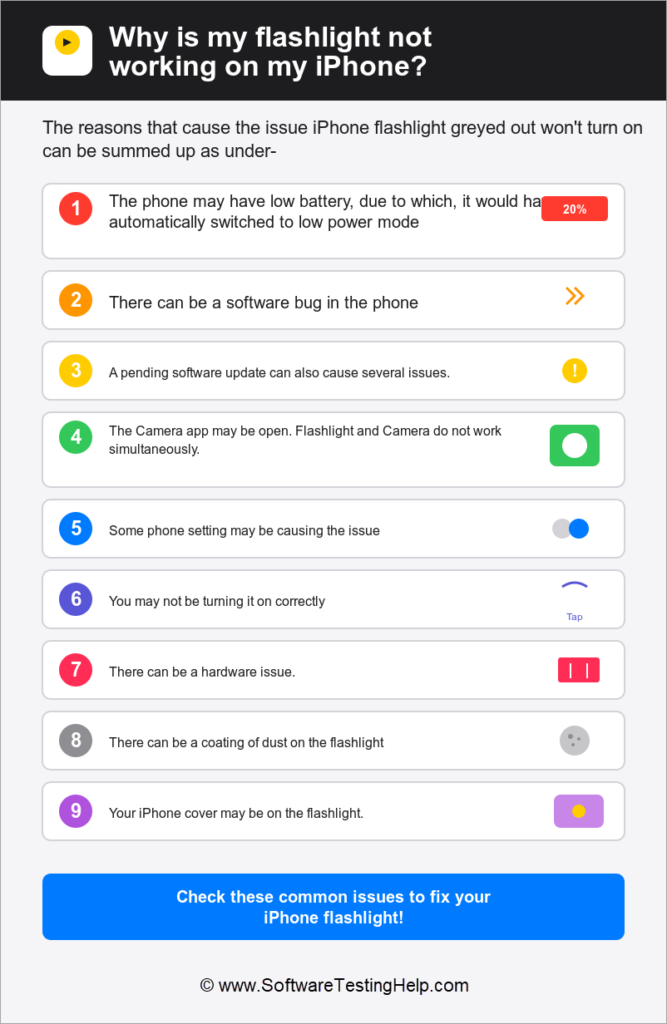
- The phone may have a low battery, due to which it would have automatically switched to low-power mode.
- There can be a software bug in the phone.
- A pending software update can also cause several issues.
- The Camera app may be open. Flashlight and cameras do not work simultaneously.
- Some phone settings may cause the issue.
- You may not be turning it on correctly.
- There can be a hardware issue.
- There can be a coating of dust on the flashlight
- Your iPhone cover may be on the flashlight.
Quick Fixes for Why is My iPhone Flashlight Not Working
Before going into the troubleshooting section, try these simple tricks to solve the issue.
1. Make sure the Camera app is not open.
2. Make sure you tap on the correct icon to turn the flashlight ON on your iPhone, as shown in the image below.
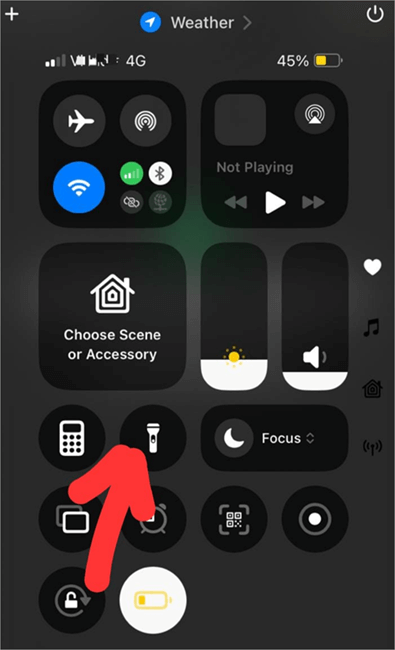
3. You may have set the flashlight brightness to very low, which may cause the issue. Adjust flashlight brightness by swiping down on your iPhone screen (or swiping up from the Home icon, if your iPhone screen has a Home icon), then pressing the Flashlight icon for 2-3 seconds, and then dragging the brightness slider up.
Flashlight Brightness Slider is shown in the image below:
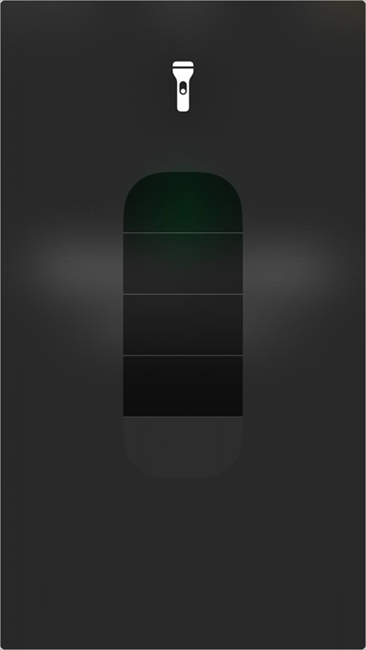
4. You can also try adjusting the size of your torch beam.
5. Restart your iPhone to fix small glitches.
6. Update your iPhone to the latest version.
7. Make sure your iPhone is not overheated. If that is the case, leave the phone to cool down for 15-20 minutes, then use it.
8. Make sure your phone cover does not cover your Flashlight. You must use a phone cover designed specifically for your iPhone model.
9. Try accessing the flashlight through different methods.
- From Control Center: Swipe down from the upper right corner of your iPhone screen, then tap on the torch icon
- From the Lock screen: Tap and hold the Flashlight icon available on your iPhone’s Lock screen.
Try asking Siri to open the flashlight.
Why is Flashlight Not Working on my iPhone? (Intermediate level Fixes)
If you have tried the quick fixes and the problem persists, then you can use the following methods to fix the issue:
1. Disable Low Power mode on your iPhone: If the iPhone’s battery is low, it will automatically switch to Low Power mode. Due to this, many features stop functioning. You can turn Low Power mode off on your iPhone by following these simple steps:
- Go to Settings
- Select the Battery option as depicted in the image below.
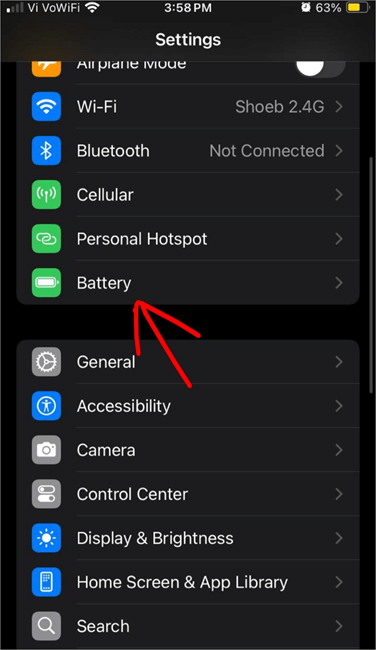
- Now turn Low Power Mode off.
The Low Power Mode option is shown in the image below.
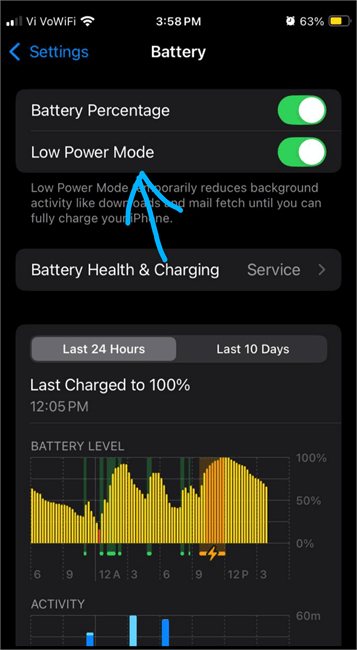
Low Power mode can be turned off by another method as well:
- Swipe down on your iPhone screen to open Control Center.
- Tap on the battery icon to turn Low Power mode off.
Another method to turn off Low Power Mode is shown below.
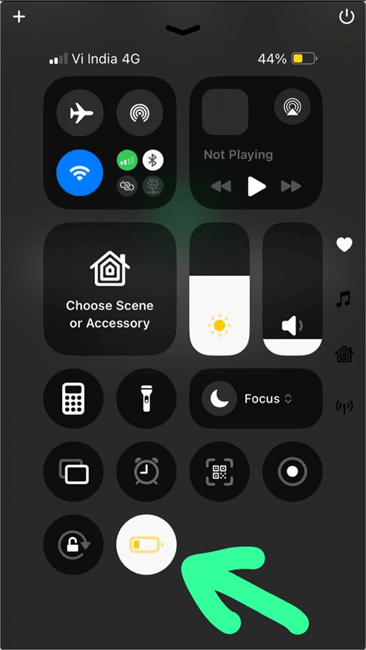
If the Low Power mode option is not available on the screen when you swipe down, you can add it to the Control Center by following these steps:
- Swipe down from the upper right corner of your iPhone screen (or swipe up from the Home button if the Home icon is available on your iPhone screen).
- The Control Center will open.
- Now long-press anywhere on the screen (don’t press on any icon).
- At this point, your screen should display something similar to what is shown in the image below.
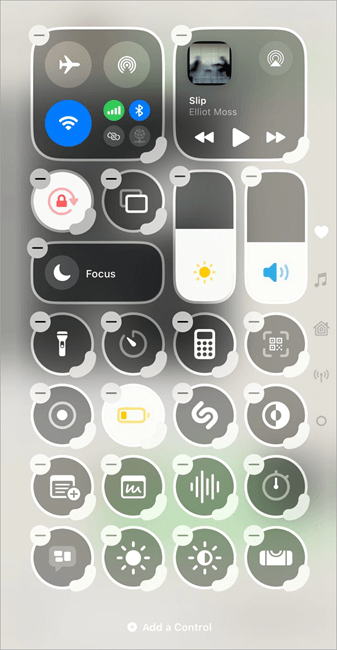
- Now tap on Add a Control and then add Low Power Mode to the included Controls.
Plus, make sure you keep your iPhone charged, so that it doesn’t automatically go into Low Power mode.
2. Close the Camera app as well as the apps using Camera: You can close apps on the iPhone X and later versions by following these steps.
- Swipe up on your iPhone screen
- Now you will see previews of the apps that are currently running in the background on your iPhone.
Reset Control Center option is shown in the image below:
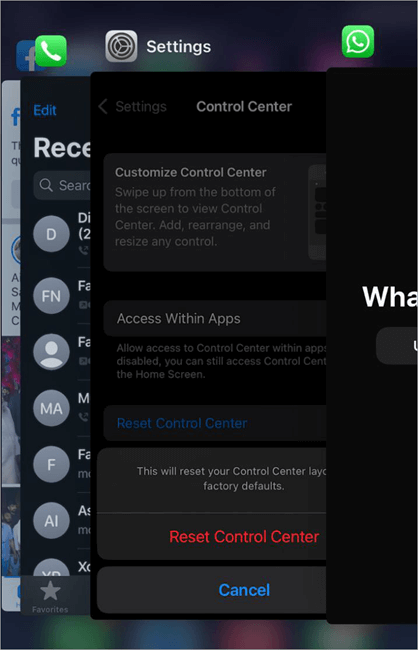
- You can swipe left or right to view the preview of all apps.
- Then swipe up on any app that you want to close.
3. Try removing and re-adding the Flashlight option to the Control Center:
You can do this by following these steps:
- Open Control Center.
- Long-press anywhere on your screen (don’t press on any icon)
- Now Remove Flashlight from the Control Center by tapping on the Minus (-) icon on the Flashlight.
(-) icon on Flashlight is shown below:
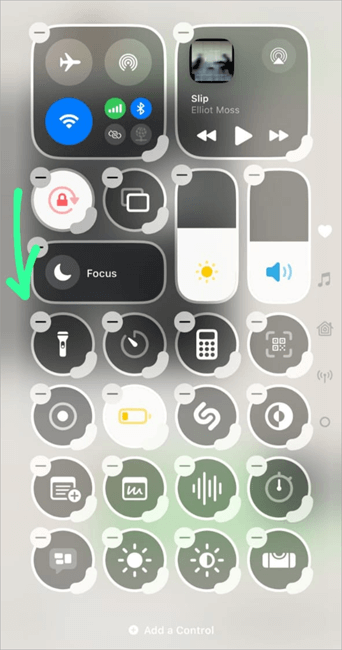
- Flashlight will be removed from the Control Center.
- Now go back to the homepage.
- Open Control Center.
- Long-press on the screen (don’t press on any icon).
- Now tap on Add a Control.
- Add Flashlight to the apps added to the Control Center.
4. The Content & Privacy Restrictions feature may be causing the issue: You can turn off this setting this way:
- Go to Settings
- Select the Screen Time option as shown below.
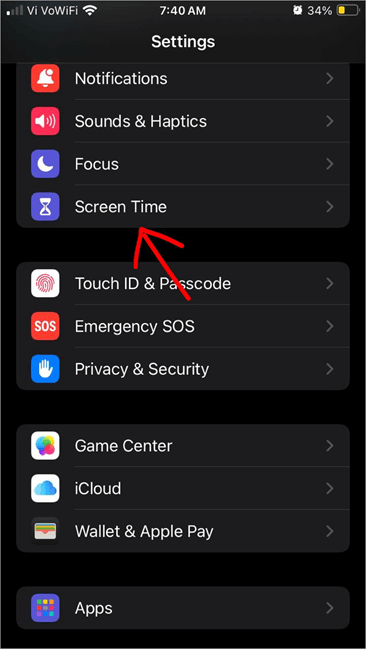
- Go to the Content & Privacy Restrictions option as depicted in the image below.
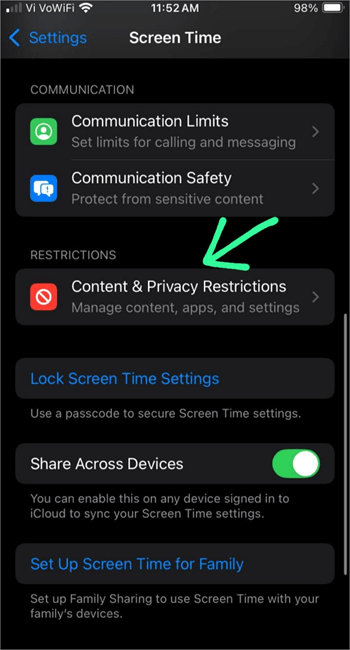
- Turn it off.
There are good chances that the issue will be fixed with the above-stated methods. But if the flashlight still does not work on your iPhone, then try some advanced-level methods.
Still Not Working? Try These Advanced Fixes for iPhone Flashlight Not Working
1. Reset iPhone Settings: This method will most probably fix the issue, and none of your data will get lost.
You can reset the iPhone settings by doing as stated under:
- Go to Settings
- Select General
- Select the Transfer or Reset iPhone option as shown in the image below.
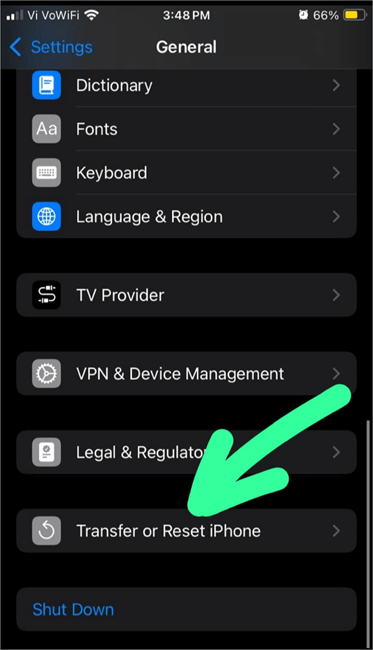
- Tap on the Reset option as shown below.
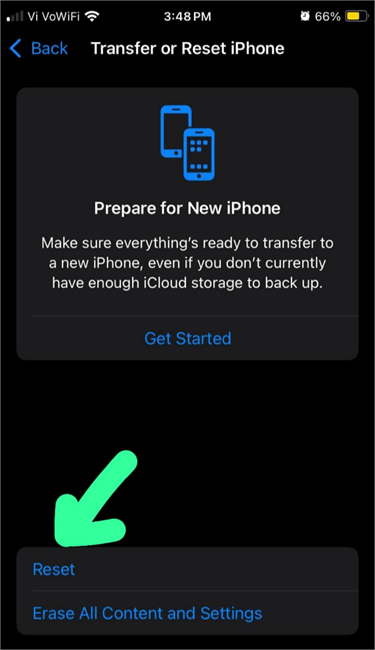
- Now select the Reset All Settings option as in the image below.
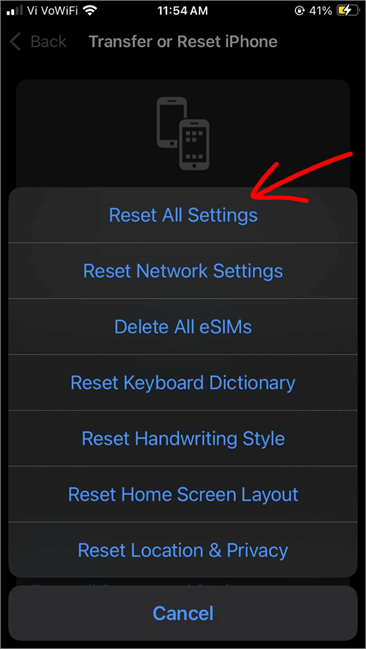
- You may be asked to enter your passcode. Follow the instructions on your screen.
2. Restore your iPhone to the Previous Backup: Restoring the lost data can also fix the issue. You can restore the iPhone to the previous backup by following these steps:
- Go to Settings
- Select iCloud
- Go to Manage Storage
- Tap on Backups
- Tap on iPhone
- Now select Last Backup and follow the instructions on your screen.
3. Do a Factory Reset: This would be your last resort to fix the issue if there’s no hardware problem. But make sure you back up your data before doing a factory reset, otherwise you’ll lose all of your data.
Here’s how to factory reset your iPhone:
- Go to Settings
- Select General
- Select Transfer or Reset iPhone
- Tap on Erase All Content and Settings
- Enter your passcode and confirm it.
Then you can restore your content from the backup.
4. Contact Apple Support: If none of the above options has really worked for you, then there must be some hardware issue, and you must refrain from trying to fix it on your own. So contact Apple support for the solution in such a case.
Fix iPhone Flashlight Not Working After iOS Update
If this is the case with you, then there would most probably be a minor glitch, which can be fixed by a simple restart.
You can try these troubleshooting steps in such a case:
- Try turning the Flashlight on, another way. For example, you can use Control Center, the Action Button, or Siri.
- Restart your iPhone
- Make sure the camera is not open
- Reset phone Settings
- Make sure the iPhone is not in Low Power mode.
iPhone Flashlight Not Working – When It’s a Hardware Problem
You can try opening the Camera app and taking a photo using the flashlight. If the flashlight works this time, then there is no hardware issue.
You may see some cracks or physical damage on the flashlight in this case. Plus, if you have tried all the above-stated methods to solve the issue, and the issue has not been resolved even after that, then it’s also a good sign that there would be a hardware issue (like moisture in the flashlight, etc.).
Please note that a hardware issue with the Camera would also cause issues with the functioning of the iPhone’s flashlight. If that’s the case, visit an authorized Apple Support center and refrain from getting local parts installed in your iPhone to get the best results.
When to Contact Apple Support?
iPhone users would need to contact Apple Support if:
- All solutions to fix the issue have been tried- including the factory reset, but nothing helps.
- There is hardware damage to the Flashlight or the Camera, or any other part of the iPhone.
- There is moisture inside the Flashlight or Camera.
- Your iPhone does not switch on.
- The iPhone does not charge.
Pro Tips to Prevent Flashlight Not working Issues
iPhone users can avoid these problems by performing these actions:
- Keep your iPhone charged
- Keep your iPhone updated
- Keep your flashlight clean.
- Always use a phone cover specially designed for your phone’s model (so that it doesn’t cover the Flashlight or the Camera)
- Contact Apple Support if there is moisture inside the flashlight or the camera, or if there is some physical damage to the iPhone.
- If there is physical damage to any part of your iPhone, try to get it repaired from authorized Apple Support only. Installing local parts in the iPhone may lead to further issues.
Flashlight Accidentally Turns ON on its Own
If the Flashlight on your iPhone turns ON on its own, it would most probably be because of the Back Tap feature. If this feature is enabled for Flashlight, then the iPhone may sense even the minor, accidental taps and open the Flashlight.
You can follow these steps to turn the Back Tap feature off:
- Go to Settings
- Select Accessibility
- Tap on Touch
- Scroll down to find the option Back Tap
- Now you can either turn this feature OFF entirely, or tap on it to use Double Tap or Triple Tap for another feature (other than Flashlight).
- After tapping on Back Tap, select Double Tap (or Triple Tap)
- Select a feature – like Screenshot, Camera, etc.
If you choose Screenshot on Double Tap, the iPhone will take a screenshot whenever it senses a Double Tap on its back. If you choose Camera for Triple Tap, the iPhone will automatically open the Camera whenever it senses a triple tap on its back.
How do I Turn Off the Flashlight for Notifications
If the Flashlight in your iPhone is turning ON whenever a notification pops up, then you can follow these steps to toggle off the LED Flash for Alerts:
- Go to Settings
- Select Accessibility
- Tap on Audio/Visual
- Turn OFF LED Flash for Alerts
Frequently Asked Questions
1. Why did my iPhone flashlight stop working?
If your iPhone flashlight stopped working on its own, it may be because:
• The iPhone may have gotten heated up. If that’s the case, leave the phone for about 15 minutes so that it can cool down, then use it afterwards.
• The iPhone’s battery may be low, due to which, the phone may have automatically shifted to Low Power mode, which would be causing the issue.
• The iPhone may need a software update
• There can be a bug, which can be fixed by a simple restart
• If the Camera app is open, then Flashlight won’t work.
• Your phone’s cover may be blocking the flashlight.
• The Flashlight or Camera may have some hardware issues.
2. How to fix the flashlight on iPhone iOS 18?
To fix iPhone Flashlight not working on iOS 18, take the following measures:
• Charge your iPhone
• Leave it to rest if it’s overheated
• Check for software updates
• Restart the iPhone
• Fix flashlight brightness
• Turn off Content & Privacy Restrictions
• Reset all settings
• Contact Apple Support.
3. How to use the flashlight on an iPhone iOS 18?
For using flashlight on your iPhone iOS 18, just swipe down on your iPhone screen from the top right-hand corner. The Control Center will open. (If your iPhone has the Home button on the screen, then you’ll have to swipe up from the Home icon, instead of swiping down.
Now you will see many options in the Control Center. Press the Torch icon to open Flashlight.
If you want to adjust the brightness of your Flashlight, then tap and hold the Flashlight icon for 2-3 seconds, and then slide up or down to adjust the Flashlight brightness.
There are 2 other ways to access the Flashlight on your iPhone:
• You can ask Siri to turn on your Torch
• If you are using iPhone 15 Pro or iPhone 15 Pro Max, you can turn on the Flashlight by going to Settings, then selecting Action Button, then swiping left/right to find the Torch icon, then pressing the Action Button to turn the Flashlight ON/OFF.
4. Why is the Flashlight not in the Control Center?
If you can’t find the Flashlight in the Control Center of your iPhone, then you will have to add it by following a few simple steps, which are stated as follows:
• Swipe down from the upper right corner of your iPhone screen (or Swipe up from the Home button if the Home icon is available on your iPhone screen).
• The Control Center will open
• Long-press anywhere on the screen (do not press on any icon)
• Now tap on Add a Control, then select Flashlight.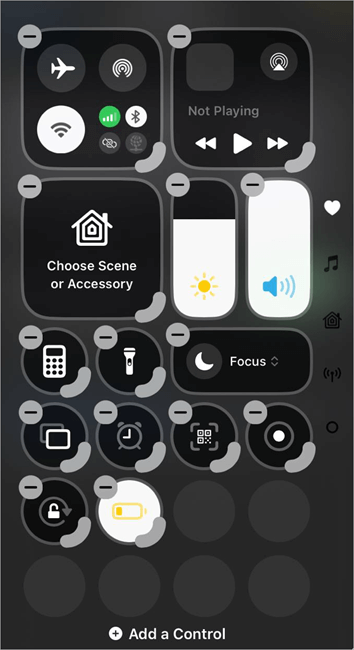
5. How do I turn my iPhone flashlight on without swiping?
If you want to turn the Flashlight on without swiping, then just ask Siri to turn on the Torch, and it will be done for you instantly.
Conclusion
One of the many benefits delivered by smartphones is a Flashlight. It can be used for a wide range of purposes, and users can access it using simple steps.
iPhone users rarely face any issues with the Flashlight feature. But if, in case, the Flashlight stops working, then the most probable reason would be that your Camera app is open while you are trying to turn the Flashlight on.
If that’s not the case, then overheating, Low Power mode, Low Flashlight brightness, an unfit phone cover, and hardware issues are the common causes of issues with the Flashlight.
If there’s no Hardware issue, then you would most probably be able to fix the Flashlight using the simple steps we have stated in the article.
For more iPhone-related guides, you can explore our range of tutorials below:
- How to Set Timer on Your iPhone Camera (Easy Ways)
- Is AppleCare Really Worth It
- How to Unhide Hidden Apps on iPhone
- The 19 Best iPhone Chargers (TOP SELECTIVE ONLY)
- Best Action Camera Flashlight (TOP 7 Bestsellers)
- How to Ping iPhone from Apple Watch and Vice Versa
- How to Use Apple AirTag for Android Devices
- How to Fix If Your Apple CarPlay Not Working
- How to Request Desktop Site on iPhone
- How to Create and Send a Poll in iMessage on iPhone and iPad
- How to Fix Find My iPhone Not Updating Location
- How to Share Your Location on iPhone with Others
- How Do Apple AirTags Work: Pricing, Range & Setup Process
Was this helpful?
Recommended Reading
-

This tutorial is a complete step-by-step guide that explains the top 3 useful methods to find ways on how to Unlock a Disabled iPhone: Security is the best part of having an iPhone. No one can unlock your phone and access your data unless they know the password. As much…
-
Deeply understand how to pin a location on Apple Maps instantly. Acquire knowledge on how to drop Pin on iPhone to save your favorite spot & share the exact location with friends and family: I must say, Apple Maps is a great deal that users get with an iPhone while…
-
Explore all possible solutions to fix the iPhone not charging issue. Discover the typical reasons for iPhone charging port issues along with some expert tips to maintain it in good condition: Smartphones are a part of almost everyone's life today. They are not just used for calling and texting but…
-

Explore this quick guide to know how to set timer on iPhone camera and take stunning photos easily. Customize the duration and receive alerts with the clock app's timer function in easy steps: All iPhone cameras have a timer feature that makes it easier to take photos without leaving yourself…