


Discover the quick steps to locate your BitLocker Recovery Key ID in Windows. Dive deep to learn how and where to find BitLocker Recovery Key to regain access to your device securely:
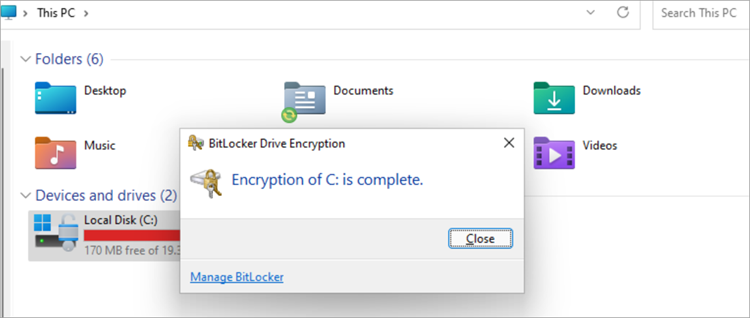
BitLocker is a built-in Windows security feature that encrypts your entire drive to protect data from unauthorized access. It helps safeguard sensitive information during an event of device loss or theft.
What BitLocker will do is generate a BitLocker key that can be used to lock and secure data; this same key would be needed to unlock your drive so you can have access to your files.
Get BitLocker Recovery Key in Minutes: Know-How

Decrypting the data on your drive is impossible without the BitLocker key. You can further secure the key by protecting it with a strong password. Even if your computer or internal drive is stolen, BitLocker ensures that unauthorized users cannot access your sensitive data.
What is a BitLocker Recovery Key?
After setting up a decryption password for your encrypted drive, it is possible you may not remember the password; the BitLocker recovery key will be all that you will need to bring back your files.
You can use a BitLocker recovery key in a situation where you forget your encryption password. The Password and the Recovery key need to be saved securely if you have access to both.
How to get past BitLocker recovery?
Here is the Video to Bypass BitLocker:
[UPDATE] How to Bypass BitLocker to Reset Windows 10/11 Password
Why & Where is the BitLocker Recovery Key Stored?
This recovery key is stored in case you forgot or cannot remember your password, The System Admin can fall back on it to hasten drive recovery after system issues.
BitLocker can secure your drive by encrypting it and making sure that even when a third party has access to your device, it will be useless to them, as no confidential files will be accessed without a recovery key.
Where is the BitLocker Recovery Key Stored?
Always set up a good and proper backup plan, which should include the recovery key. This recovery key can be stored in any secure location, and when you know the exact location of the stored key will save you from the frustration of trying to access and restore your files. The following are places you can securely save the recovery key:
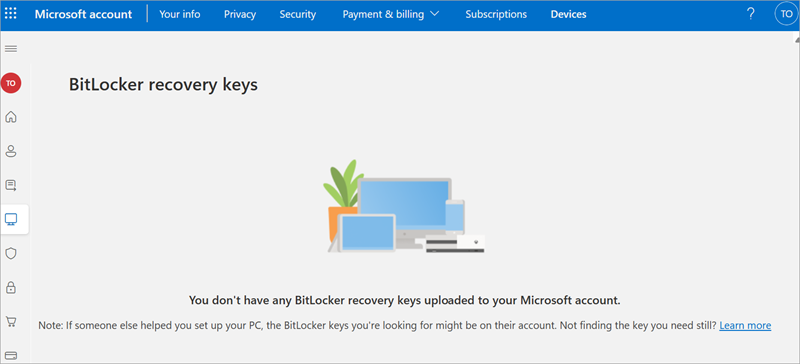
1. Microsoft Account: When you set up your BitLocker recovery keys through a Microsoft account, you can get the recovery key by navigating to http://account.microsoft.com/devices/recoverykey/
2. Active Directory: Another location you can keep your Recovery keys is the Active Directory in an Active Directory environment, which can give IT admins quick access to the key.
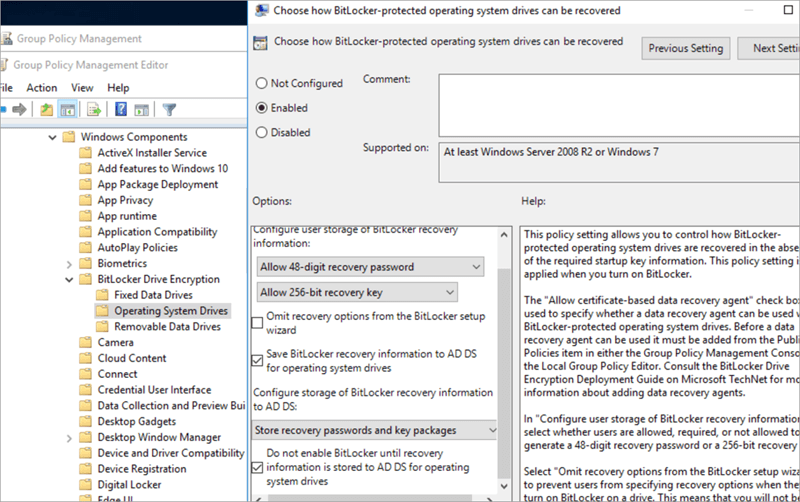
As IT admins, you can use BitLocker to lock all your workstations’ drives, and when it’s time for recovery, it will be very easy. If you want to set up BitLocker on an AD, you will first create a GPO and edit it to open the Group Policy Management Editor.

Navigate to Computer Configuration => Administrative Templates => Windows Components => BitLocker Drive Encryption. Click on Store BitLocker recovery information in Active Directory Domain Services.
To store the recovery key for operating system drives in Active Directory, check “Enabled” and ensure the option “Save BitLocker recovery information to AD DS for operating system drives” is selected. Then, click OK to apply the settings.
3. Azure Active Directory: If you have cloud-managed resources like workstations and servers, then you can store the Recovery keys in the Azure AD.
4. USB Drive: A USB drive is an external storage device that can be used to store the recovery key. Anytime you need to perform a recovery, you just need to insert the USB into your system and check for a recovery key saved as a text file.
5. Printed copy: You can physically save a recovery key on a printed hard copy, but this is not very secure, as you will need to provide extra security to secure the recovery key from being compromised.
What Can Trigger the BitLocker Recovery Process?
There are so many reasons for the BitLocker Recovery Process to be triggered. Once there is a trigger, your device gets locked out, and you will need to enter the recovery key to have access to the encrypted drive. Below are some triggers for the BitLocker Recovery Process:
- From Hardware Changes: A hardware change, like swapping the system motherboard or hard drive, could trigger the BitLocker Recovery Process.
- From BIOS/UEFI updates: When there is a change or update to a system’s firmware, the system could think it’s been compromised, and this can trigger the BitLocker Recovery Process.
- From Incorrect login attempts: When inputting the wrong password multiple times can trigger the BitLocker Recovery Process.
- From Operating system updates: If you conduct a major Windows Update or patch, this can tamper with or even reset the system security settings, which could lead to triggers.
- From Security Attacks: During a security attack on encrypted data, it can trigger the BitLocker Recovery Process.
Also Read => What is a DDoS Attack
How to Find BitLocker Recovery Key
You can use the methods below to locate your BitLocker recovery key.
1. Using a Microsoft account
When setting up a Windows user account and you use your Microsoft account, if you later set up BitLocker on the computer, the BitLocker recovery key will be in your Microsoft account. Navigate to https://account.microsoft.com/devices/recoverykey. You will find the BitLocker recovery key on this webpage.
Please note that if another person configures your computer using their Microsoft account and also activates BitLocker on it, the BitLocker recovery key would be in their Microsoft account.
2. Using PowerShell
You can use the Microsoft PowerShell feature to quickly find the BitLocker recovery key that belongs to your drive by following these few steps:
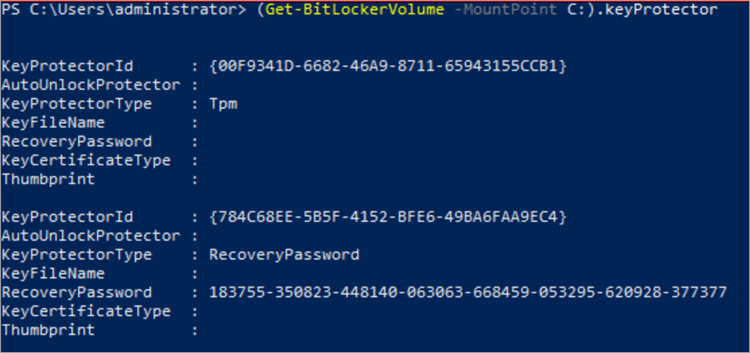
1. Open a PowerShell window and type this command Get-BitLockerVolume and press Enter.

2. Check for the drive that needs the recovery key and pick out the VolumeType and MountPoint values for the drive.
3. Enter this command: Get-BitLockerVolume -MountPoint <MountPoint>.keyProtector. on the PowerShell. Then <MountPoint> should be replaced with the mount point of the drive.
4. Hit the Enter key to see the response that will include the recovery key ID for the drive.
3. Using Offline Method
After trying all the above steps and you still cannot find your BitLocker recovery key, then you can try the following methods to help locate your BitLocker recovery key ID:
- If you printed out or saved the file when setting up BitLocker, you will need to check where you keep your file physically and check your email for attachments with the heading recovery. You may be able to locate it on time for the recovery process.
- While setting up BitLocker, you may have used a USB drive to save the recovery key. What you need to do is to insert it into your computer and confirm all the files inside one after another; you will see a document with the recovery key details.
- The system administrator always has a backup of recovery keys, so you can check with them in order to make the recovery process faster.
Suggested Read => Most Popular File Recovery Software
It is possible to recover your key if you try these offline methods, and you can try a different approach if you still cannot find your BitLocker recovery key using these offline methods; you can try the approach below.
- Check for other Microsoft accounts you may have that are linked to your devices: there is a possibility that other accounts you have not confirmed may have the recovery key.
- After trying other methods and approaches, you still cannot locate the recovery key. It is recommended that you try data recovery services provided by data recovery experts. These data recovery experts are experienced in the retrieval of any lost or locked data, like the one encrypted by BitLocker. This expert can be your last hope in recovering your lost BitLocker recovery key ID.
4. Checking Active Directory
To access the recovery key, you will need to install these features on the Active Directory: BitLocker Recovery Password Viewer and BitLocker Drive Encryption Tools.
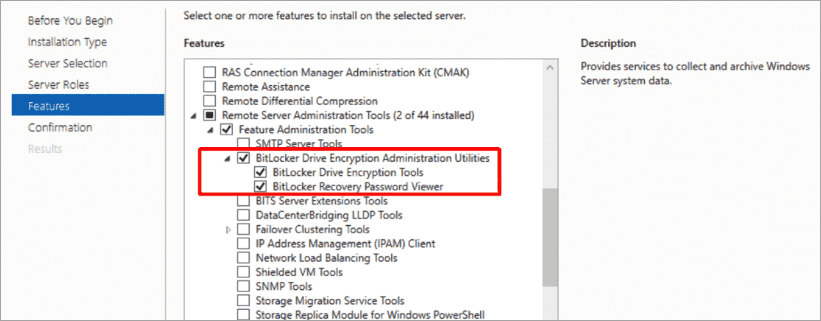
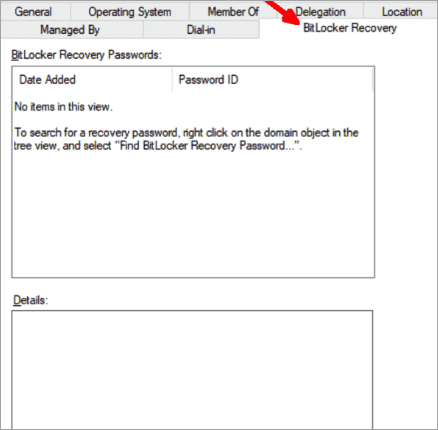
If you install the BitLocker Drive Encryption features on a Server, it will give Active Directory users and computers a tab for the recovery key called BitLocker Recovery. When you right-click a computer with encrypted drives in the Active Directory, the Recovery key can be found here:
BitLocker: Encryption Key vs. Recovery Key vs. Key ID
There are some terms that you need to understand, like the Encryption Key, Recovery Key, and Key ID:
| BitLocker Encryption Key | BitLocker Recovery Key | BitLocker Key ID |
| This is a real-time cryptographic key that can be used to encrypt or decrypt a drive. | This is a 48-digit key that can be used to recover your drive in the event the normal unlock process fails. | This is a Globally Unique Identifier. It helps to differentiate and identify a matching recovery key. |
| It’s inform of a Secret key and internal facing. Not visible to users. | It can be stored by users or IT Admins for future recovery. It is visible to users. | It can be stored or saved for future use. It is visible to users. |
| Usually stored within a Trusted Platform Module, which is secure. | It can be saved as a file, it can be printed, or saved inside AD or a Microsoft Account. | It can be saved as a file, it can be printed. |
What Happens if You Can’t Find Your Recovery Key?
- Blocked Data Access: Losing your BitLocker recovery key will prevent authorized access to the encrypted data.
- System Lockout: When this occurs, you will not be able to access your device until the recovery key is supplied.
- Data Loss: Once you encrypt the drive containing confidential data, and you lose the recovery key, this could automatically result in data loss.
Further Reading => Top Data Loss Prevention Software

Best Practices to Save & Back Up Your Recovery Key
The following are different methods considered best practices you can use to save and back up your BitLocker Recovery Key:
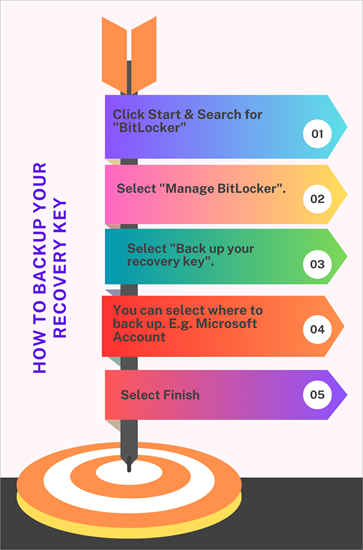
- Back-up as Printed Copy: BitLocker allows users to print a physical copy of their recovery key Identifier. The hard copy can further be stored securely in any location.
- Back-up inside a Password Vault: You can save your recovery ID inside your password manager. We have different password managers online with backup and encryption features that you can use to store your recovery key.
- Back-up in a Remote Storage: You can subscribe to a secure and reliable cloud storage service where you can provide a digital version of your recovery key identifier, but make use of a strong login credential on this remote storage platform.
- Back-up to Microsoft Cloud Account: When you backup your recovery key on your personal Microsoft Account, it makes accessibility easier because you will be able to have access to it on any device you can log in to your Microsoft Account.
- Back-up to a USB Device: When setting up BitLocker, you have the option to back up or store the recovery key to a USB drive. Be sure to protect this USB drive as carefully as you would a printed backup
What to do if You Lose Your Recovery Key
- Search for all possible locations: Go through the locations where your recovery key may be stored. These locations may include your Microsoft account, USB drives, printed documents, and more.
- Contact SysAdmins: The Sys Admin may have a copy of the recovery key and can easily provide it for recovery purposes. This always happens when the computer is part of an organization’s IT resources.
- Contact Data Recovery Expert: When it looks like there is no hope of recovering your data, then contacting professionals who engage in data recovery services may be your last option. They are expert in retrieving encrypted data at a very high cost.
How to Solve Common Issues with BitLocker Recovery Keys
Below are some common issues related to BitLocker recovery key and a quick way to resolve them:
1. After retrieving your lost Recovery key, it may not work; you will need to confirm that you are entering the right key for the specific drive. This is where the key ID will be useful because you will be able to match the key ID with the recovery key.
Break Free from the BitLocker Loop: Recover Your PC Now! – YouTube
2. After saving the Recovery key somewhere, the location may no longer be accessible. It is recommended that you contact the IT Team if they have the backup with them, or you can try other means to resolve the issue.
Where do I Find the BitLocker Recovery Key as an Admin?
As an Admin, you have different locations you can check for a BitLocker recovery key:
- Whether on-premises or Cloud, you can check for the BitLocker recovery key on the Azure AD or Active Directory, respectively. In the Azure environment, just navigate to the device and click BitLocker Keys. On-Premise AD, just right-click the computer object and navigate to Properties => BitLocker Recovery tab.
- As an Admin, you have a backup System, and you can also check if the BitLocker recovery was saved on any of the Backup systems.
- Though it is not usually recommended, an Admin can check the recovery key on a hard copy, printable material.
- An Admin can request the user to log in to their Microsoft Account, as the BitLocker recovery key may be saved there.
Frequently Asked Questions
1. How do I find my BitLocker recovery key?
It depends on how BitLocker was set up initially. If you always sign in to your system using a Microsoft account, by the time you configure BitLocker on it, you will need to access your Microsoft account to locate the recovery key.
2. Why is my computer asking for a BitLocker recovery key?
When there is a major change that is detected on the system and the password is not available, then it is important to supply the BitLocker recovery key. If it continues to prompt it at every startup, then the BitLocker setting can be adjusted.
3. What if I forgot the BitLocker password and recovery key?
Right-click on the encrypted drive and navigate to Manage BitLocker, where you can suspend protection, backup your recovery key, or turn off BitLocker.
4. How do I generate a BitLocker recovery key?
There is no BitLocker recovery key generator. The BitLocker recovery key is always unique and can be generated when you are setting up BitLocker Encryption on your drive. There is no third-party tool or software that can generate a BitLocker recovery key.
5. What is the Windows Command to unlock the BitLocker drive?
You can unlock a BitLocker drive by using any of these commands: Open Command Prompt as an administrator and type manage-bde -unlock X: -Password or manage-bde -unlock X: -RecoveryPassword. Follow the prompt, and BitLocker will be unlocked.
6. How do I disable BitLocker?
Right-click the encrypted drive and click “Manage BitLocker”. On the BitLocker Encryption page, click on suspend protection or turn off BitLocker.
7. How to find a BitLocker recovery key?
If you have a Microsoft account, navigate to the following URL: https://account.microsoft.com/devices/recoverykey. Check this account, and you may find your BitLocker recovery key there.
8. How do I back up the BitLocker recovery key?
Navigate to Manage BitLocker, on the BitLocker Encryption page. Click the Back up your recovery key next to the drive you want to back up. Select where you want the key to be backed up. Click Finish.
9. Is a BitLocker recovery key just numbers?
A BitLocker recovery key is not just numbers but a unique 48 numerical password that is generated when you configure the BitLocker Drive Encryption for the first time.
10. How do I get my BitLocker recovery key without logging in?
If the recovery key was saved manually, then you will be able to retrieve it without logging in.
11. Where is the BitLocker recovery key stored by default?
It depends on how BitLocker was initially set up. If you log in to a Microsoft account while setting BitLocker, then by default, it will be stored inside the Microsoft account. The same also applies to an Active Directory environment.
12. How do I reset my BitLocker PIN if I forgot it?
There is no way you can reset the PIN without knowing the recovery key. So it is recommended that you keep the recovery key securely.
13. Where is the BitLocker recovery key backup?
It can be backed up on a hard-copy printout, it can be stored inside a Microsoft Account, or on a backup location on the network.
Conclusion
Every organization needs to implement device security on its IT resources. BitLocker is a very good security feature on Windows systems that can be configured on all Workstations and Servers. This will help protect third parties from accessing confidential data when the device drive is tampered with.
Whether organization or individual, BitLocker recovery key needs to be stored safely or backed up properly; without it, the drive data cannot be able to be recovered successfully.
Was this helpful?
Recommended Reading
-

List and Comparison of the Top Best Data Recovery Software Download for Windows and Mac users to quickly recover lost data, deleted files, and photos or formatted partition data: Data recovery software is an application that recovers lost files from any storage medium. It can recover files that have been…
-
Comprehensive List & Comparison of Top File Recovery Software. Read This Detailed Review To Select The Best File Recovery Tool & Recover Your Files Easily: Are you having trouble in selecting a File Recovery Tool? You can make the right decision after reading this review of the Top 10 File…
-
List and comparison of the top-rated data recovery service provider companies: In today’s digital world, data storage devices play a very important role in our professional as well as personal lives. Whether it is an important professional document on a hard disk drive medical data on a USB flash drive…
-
Here we review and compare the top iPhone Data Recovery Software to help you select the best iPhone recovery software as per your requirement: You’re always vulnerable to data loss whether you’re using a computer, smartphone, or another device that can store data. Similarly, it does not matter if you…


