


Are you looking for easy ways to fix Taskbar won’t hide issue in Windows 10 or 11? Then this guide provides you with easy and quick ways to fix the Taskbar not hiding problem to reclaim full-screen space.
When the taskbar refuses to hide in Windows 10 or Windows 11, it can disrupt your workflow, especially during full-screen apps, gaming, or presentations. This issue is usually caused by system notifications, app glitches, incorrect auto-hide settings, or background processes demanding attention.
In this guide, I’ll explain why the taskbar is not hiding and walk you through 7 proven fixes to restore the auto-hide feature quickly.
Table of Contents:
Windows 10 & 11 Taskbar Not Hiding: Quick Solutions

When the taskbar won’t hide in Windows 10 or Windows 11, it’s usually caused by background apps, system notifications, or auto-hide settings not working as expected. In some cases, fullscreen apps, browser alerts, or a frozen Windows Explorer process can prevent the taskbar from disappearing.
Below, you’ll find quick and effective solutions to fix the taskbar not hiding issue, restore the auto-hide feature, and get back to a distraction-free fullscreen experience.
What is Taskbar

The Windows taskbar acts as a central control hub for everyday use. It includes the Start button, which provides quick access to installed apps and system settings, and the search bar, used to find applications, files, or perform web searches.
Users can add pinned applications for one-click access, while active applications appear on the taskbar to show what’s currently running. On the right side, the taskbar displays network and system notifications, such as connectivity status, updates, or battery alerts, along with the clock, helping users keep track of time while working.
How to Hide the Taskbar in Windows 10 and 11
Windows provides its users with the feature to hide the taskbar in both 10 and 11 during an active window, and this makes it easier to utilize the entire screen.
Here are step-by-step screenshots on how to hide the taskbar.
Hide the Taskbar in Windows 10
This feature by Windows can be enabled by following the steps mentioned below.
#1) Right-click on the taskbar and click on the “Taskbar settings”, as shown below.

#2) Toggle on “Automatically hide the taskbar in desktop mode”, as shown in the below image.

Recommended OS Repair Tool – Outbyte PC Repair
Sometimes a timely system update is all you need to fix issues pertaining to your taskbar. By far, the most efficient way to perform system updates without causing further harm to your system is by using software like Outbyte PC Repair Tool.
This software checks your PC for crucial updates and offers to perform them at your behest so you can troubleshoot the issue in no time.
Features:
- Full System PC Scan
- One-click PC Repair
- Identify and remove problematic programs from the PC.
Hide the Taskbar in Windows 11
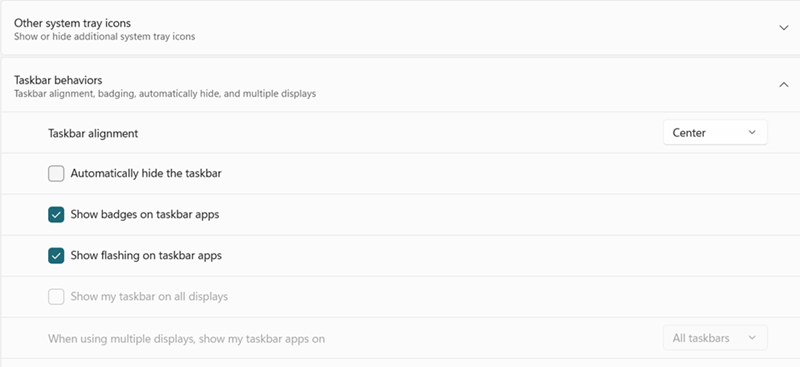
To hide the taskbar in Windows 11, right-click an empty area on the taskbar, select Taskbar settings, click Taskbar behaviors, and check the box for “Automatically hide the taskbar” as shown in below.
Taskbar Won’t Hide in Fullscreen? Here Are the Quick Fixes
Hiding the taskbar provides the user with the opportunity to utilize the entire screen. Many gamers complain that their taskbar won’t go away in fullscreen during games and it creates a distraction while playing games. There are various ways mentioned below, using which a user can fix the error – taskbar showing in fullscreen in his/her system.
Further Reading => Solutions for Mouse Freezing in Windows 10
#1) Using Task Manager to Fix Windows Taskbar Won’t Hide
The Windows Explorer may look like standard software in the system, but the taskbar won’t hide an error that occurs due to the abnormal functioning of Windows Explorer. Windows Explorer manages all the tasks and notifications in the system. Thus it controls the taskbar to provide the user with updates and notifications.
Recommended reading =>> How to open Task Manager
Sometimes the Windows Explorer freezes, and this results in the bug that causes the taskbar won’t hide the error. Restarting Windows Explorer is one of the quick fixes that help in the easy fixing of the bug.
The steps to restart Windows Explorer are as follows.
- Right-click on the taskbar, from the list of options, click on “Task Manager”, as shown below.

- The task manager window will be visible. Scroll down and look for the Windows Explorer icon, Right-click on the “Windows Explorer” icon and then click on “Restart” as shown in the image below.

This is the easiest and the quick fix, that allows the user to fix the error the taskbar doesn’t hide. We can say that this method is the hidden taskbar Windows 10 shortcut, and if the fix doesn’t work out and still the taskbar won’t hide, then refer to the upcoming techniques.
Suggested reading =>> How To Disable Iphlpsvc on Windows 10
#2) Using Taskbar Settings to Fix Windows Taskbar Not Hiding
Windows allows the user to customize the taskbar and make respective changes in the settings. If the system shows the error – taskbar won’t hide, then the user must first verify that the taskbar isn’t locked at the taskbar settings. Also, the taskbar has an automatically hidden taskbar feature enabled in the settings.
To check the mentioned settings in the taskbar settings option, follow the steps below.
- Right-click on the taskbar and a dialog box will appear. From the drop-down list, select the “Taskbar Settings” option as shown in the below image.

- Make sure that Lock the and taskbar setting are turned off. Now, turn on the setting “Automatically hide the taskbar in desktop mode”, as shown in the image below.

By following the steps mentioned above, the user can easily enable the taskbar auto-hide feature in Windows, and it won’t show an error.
#3) Fixing Taskbar Won’t Hide in Fullscreen from Notification Settings
Another big reason the taskbar won’t hide errors is notifications. Various apps show different notifications, like if you are downloading a file from Chrome, then its icon will show the progress in the taskbar – this keeps the taskbar active and doesn’t allow it to hide.
Taskbar showing in the fullscreen game is the biggest issue that creates a distraction for the gamers. To fix this error, notifications must be disabled and this will allow the taskbar to hide.
Follow the steps mentioned below to fix the error – taskbar that won’t hide in the fullscreen game.
- Click on the “Start” button and click on the “Settings” icon, as shown below.

- A settings window will open. Search for “Notification & Action Settings” in the search bar as shown in the image below.

- Notification & Action settings will open, as shown below.

- Scroll down and look for “Get notification from these senders”, as shown in the below image.

- Now, toggle off all the options under this heading, as shown in the image below.

By following the steps mentioned above and turning off all the apps notification, the taskbar won’t hide errors that can be fixed.
#4) Customizing Group Policy to Fix Windows 10 Taskbar Won’t Hide
To facilitate and manage the easy functioning of Windows, there is a feature termed group policy. It is a feature that provides users centralized access to make changes in various settings. There are different group policies linked to multiple settings in the system.
By following the steps mentioned below, the user will learn about various group settings and make changes accordingly in the system.
- Click on the “Start” button and search for “gpedit. msc” in the search bar, and press “Enter”, as shown in the image below.

- The group policy window will open and now click on the “User Configuration” option as shown in the image below.

- A window will appear as shown in the image below. Click on the “Administrative Templates”.

- A window will open, as shown in the image below. Click on the “Start Menu and Taskbar” option.

- A list of group policies will be visible, as shown in the image below. Now double click on the group policies and make the respective changes to enable or disable the policies.

- When you click on any policy, the description of the policy and its features will be visible in the left-hand column. User can look for the changes that he/she wishes to make and can make the changes in the respective settings.

#5) Update System
Another possible way of fixing the taskbar that won’t hide errors is by updating your system. Updating the system to the latest version may contain the fixes to the error – the taskbar won’t hide.
Follow the steps mentioned below to update your system.
- Press the “Windows” button and click on “Settings”, as shown in the image below.

- The settings window will open. Click on the “Update & Security” option as shown in the image below.

- A window will open, as shown in the image below.

If updates are available, then update the system as it might contain the fix to the error – the taskbar won’t hide.
#6) Hiding Taskbar in Chrome Full Screen
Sometimes, when a user uses a chrome player and switches to full screen, then the taskbar doesn’t hide, and it does not allow the user to utilize the screen. Therefore, by following the steps mentioned below, the user can fix this problem.
- Right-click on the Chrome icon on the desktop and click on the “Properties” option from the list of options. A window will open as shown in the image below. Now, click on the “Compatibility” option.

- Check the “Override high DPI scaling behavior Scaling Performed by” option if it is unchecked and click on the “Apply” and “OK” buttons as shown in the image below.

#7) Restoring Chrome to Default
The change in settings or some extension may be a reason for the error – the taskbar won’t hide in Chrome, so restoring Chrome to default settings is a way of fixing this error.
Follow the steps mentioned below to restore Chrome to default settings.
- Open your chrome browser, click on the “Menu” option and a drop-down list will be visible, as shown in the image below. Now, click on the “Settings” option.

- The settings dialog box will open, as shown in the image below.

- From the list of settings, click “On Startup”, as shown in the image below.

- A screen will be visible, as shown in the image below. Click on the “Advanced” button.

- Please scroll down to the bottom of the screen, and click on restore settings to their original default settings, as shown in the image below.

- A dialog box will prompt. Then click on “Reset settings”, as shown in the image below.

Frequently Asked Questions
Why is my Windows taskbar not hiding in fullscreen?
Make sure that the option – “Automatically hide the taskbar in desktop mode” in the Settings is enabled.
Even after that, if the taskbar is not hiding in fullscreen, then it’s probably because of some app that is providing notifications that do not allow the taskbar to hide during the full screen. Malfunctioning Windows Explorer, latest updates not installed in the system, etc., can be the other reasons.
How do I fix my taskbar that won’t hide?
Follow the steps mentioned below to fix the error – the taskbar won’t hide.
1. Right-click on the taskbar.
2. From the list of the drop-down menu, click on the taskbar settings.
3. A window will open; now look for the option – Automatically hide the taskbar in desktop mode.
4. Enable the option.
Why can’t I see system icons on the taskbar?
It might be possible that icons would be disabled in the settings, so you cannot see them. The system icons can be enabled easily using the steps mentioned below.
1. Click on the “Start” button and navigate to settings.
2. Look for the taskbar settings and open taskbar settings.
3. Scroll down the screen further and click on the option “Turn system icons on or off”.
4. Enable the options that you wish to view.
How to restore the taskbar to the bottom of the screen?
Answer: By default, the taskbar is located at the bottom of the screen, but if the taskbar isn’t located at the bottom and if you wish to place the taskbar at the bottom of the screen, then follow the steps mentioned below.
1. Right-click on the “Taskbar”.
2. Click on “Taskbar settings”.
3. Click on the “Taskbar location on screen” option.
4. Click on the option, and a drop-down list will be visible with the options Left, Top, Right & Bottom.
5. Click on the “Bottom” option, and the taskbar will be visible at the bottom.
Conclusion
The error taskbar won’t go away in fullscreen may seem like a simple and small issue, but it is a grave problem as it does not allow the users to utilize the entire screen.
Also, read =>> How to fix the Activate Windows Watermark
It also becomes the reason for distraction on the screen. Gamers do not prefer the taskbar shown in the full-screen game Windows 10, as it becomes a distraction for them while focusing on the gameplay.
In this tutorial, we discussed various methods to fix this problem and we also talked about multiple adjustments that can be made in the settings to fix this problem in Windows 10.
Suggested reading =>> Methods to fix Windows 10 start button not working error
By using the above methods, the user can fix the taskbar that won’t go away in full-screen error and he/she will certainly find the taskbar showing in fullscreen.
Research Process:
- To create this guide, we studied common user reports about taskbar problems in Windows 10 and 11, as well as official information from Microsoft, with real-life testing in full-screen applications such as web browsers, games, and media players.
- Each solution was tested for effectiveness, usability, and consistency with system updates to provide the best solution with regard to practicality and dependability.
- Total time taken to research and publish this guide: 30 Hours (Approx)
Was this helpful?
Recommended Reading
-

This tutorial explains different methods to take a screenshot on Windows 10 and other versions. Select a suitable method to screenshot on Windows: Screenshot means taking an image of the content on the screen. It could be a part of the screen or the entire screen, and some additional tools…
-
This tutorial explains how to download and run classic Windows 7 Games for Windows 10: In this world filled with Xbox and PlayStation enthusiasts, finding a person who pines over the old classics such as Chess Titans, Spider Solitaire, Solitaire, and Mahjong Titans is admittedly not an easy task. But if you are…
-
Learn the step-by-step methods with screenshots and some tools to Shutdown or Restart a Remote Computer / Windows 10 PC: In this tutorial, we will explore various methods to remotely shut down or restart the Windows PC and servers. This is useful when you are connected to a home network…
-
The list and comparison of the top free Registry Cleaner for Windows Systems: Best Windows 10 Registry Cleaner tools to clean, repair and optimize your PC Registry. Several myths we have heard about, why a computer slows down. One common myth is that the hardware slows down itself, which affects…
-
This tutorial explains what is BIOS, why and how to update the BIOS (Basic Input Output System) on Windows 10 with the help of screenshots: BIOS is the in-built flash memory that comes with the motherboard and is responsible for the hardware initialization at the time of system boot. In…
-
Are you looking for the BEST Video Player? This tutorial reviews and compares the most popular Media Players for Windows 10 and Mac: Every laptop or computer system today comes with an already installed and decently functioning video player in it. So why would one bother installing an additional video…
-
Explore the top free DVD Player Software tools with their pricing and comparison and select the best DVD Player for Windows 10: This may be a hard pill to swallow. However, the physical media of entertainment like DVDs and Blu-rays are still very much popular, and make a substantial amount…
-
Read this insightful featurewise comparison - Ubuntu Vs Windows - a comparison of the two popular operating systems of the modern era to decide which is better for your computer: In this vast ever-expanding world of computers, users are spoilt for choices. These choices can be for the hardware of…



It took me hours to find this fix.
Restarting Windows Explorer in Task Manager did the trick !
Thanks.
it does for me but the fix is temporary. The thing pops back up at some point after that and refuses to hide again. I have to restart windows explorer like five times a workday.
“restarting explorer did the trick”
My taskbar would not go away for games in windowed mode suddenly and this fixed it for me. Thanks.
Restarting Explorer did nothing I ended up hitting ALT+Enter to make it full screen the changing in game setting to windowed
restarting explorer did the trick