Are you ready to build an effective and informative slideshow for your needs? This tutorial describes the incredible application iMyFone Filme editor and explains how to make an attractive slideshow using the tool:
There is an increasing demand for slideshows in personal and professional settings. The slideshows enable the individuals to convey meaning through images running one after the other.
Professional coordination of the pictures in the slideshows ends with a perfect finish. You can also use it to enlighten the gathering and excite the crowds. When you insert memorable clippings in the slideshows, it provides a nostalgic experience for the viewers.
The foremost aim is to entertain the viewers with insightful ideas.
Table of Contents:

The iMyFone Filme editor helps in processing the slideshows in a professional tone. It works exclusively to build a creative and informative slideshow for your needs. The built-in controls help frame the images perfectly without compromising on any factors.
In this article, you will find the introduction of this incredible tool to build a mind-blowing slideshow for your needs.
In this section, you will discover the built-in features of the iMyFone Filme editor and its proficiency in handling the images to create an informative slideshow.
You will learn about the three different methods to create a slideshow for your requirement. Make use of the addon facilities to fasten the slideshow-making process at the iMyFone Filme editor tool.
The iMyFone Filme editor offers jaw-dropping functionalities to refine the slideshow-making process. There are abundant resources available on this platform to enhance the quality of the slideshows. The mind-blowing features of this program help even a newbie user to excel in building the slideshows for your needs.
The simple interface assists the non-technical person to handle this tool with no hesitation. You do not require any special skills to use this application optimally. If you are aware of its controls and built-in elements, then a simple click action facilitates the desired operations in the slideshow-making process.
Functionalities of iMyFone Filme Editor include:
- Customized templates are available to enhance the personalization of the slideshows.
- Auto-create option serves as a cool setting for the newbies to quickly drop their images to build the slideshows in no time.
- The basic editing option works on the image files to remove the flaws professionally.
- Voice changer feature helps the users to change their voice in the videos to insert in their slideshows
- The awesome transition effects embed the live movement of the elements to engage the viewers.
This is a short synopsis of the features of the iMyFone Filme Editor application. It exhibits extraordinary performance by assisting the editors with fabulous sources to create attractive slideshows.
Create A Creative Slideshow: Three Ways
You can categorize the making of slideshow in three levels based on the excellence in using the iMyFone Filme editor tool. Depending on your editing skills, you can choose the perfect category in the below-discussed ways:
For the beginner: If you are a newbie editor and stepped into the iMyFone Filme app for the first time, then use the Auto Create option. It is an automatic setup to enhance the editors to build the slideshow quickly using fewer clicks.
It is enough if you drop the desired images or videos on the working ambiance and follow the guiding wizard by tapping the ‘Next’ button to build informative or fun-filled slideshows in no time.
It is a quick process to build extraordinary slideshows for your needs in a short span. You can add image files by hitting the ‘+’ icon and continue with the wizard to complete the slideshow-making process.
For pro editor: Being a professional editor, you would like to look for advanced functionalities to work on multimedia files. The iMyFone Filme app satisfies your needs without any compromises. You can work on the timeline images to add value to it. There are options to add filter effects and transitions to your multimedia files before including them in the slideshow.
You can use your pro skills and access the perfect features of the iMyFone Filme editor tool to enhance the creation of slideshow making. You can upgrade the images to a newer version and then add them to the presentation to achieve impressive outcomes.
For all users: Users from multiple categories and working streams can use iMyFone Filme editor to enhance their professional tasks optimally. Using this awesome editor, you can design beyond limitations by pushing your imagination’s boundaries.
Add text, include customized templates, fasten the slides, edit the inserted images, embed the cool filter effects to add value to your slideshows. Remove the flaws from the captured images using the abundant resources at iMyFone Filme Editor and then create a slideshow using the edited multimedia files to entertain the viewers beyond limits.
You can use the iMyFone Filme Editor app to build slideshows and customize them with templates according to your requirements and business categories. This app enhances the vloggers to create their videos engaging and meaningful.
Adding Built-in Features
In the following discussion, you will learn how to include the built-in features of this application on your videos to add interactions with the users.
Step 1: Download the application
Go to the official website of the iMyFone Filme editor app and download the tool according to your system OS. Then, tap the ‘Buy Now’ option to purchase the desired subscription to overcome the watermarks on the edited videos.
You will receive a code at the time of purchase and you must log in using those credentials to become a premium user of this tool. This allows you to access all the built-in functionalities at the iMyFone File editer app.

Step 2: Basic edits on the videos
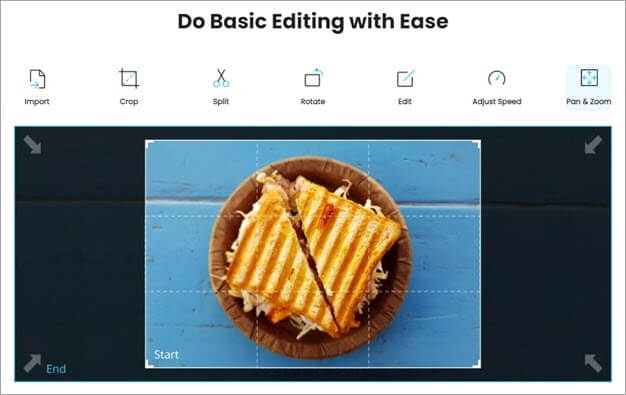
You can make basic edits like trim, crop, split, and resize the media files using the toolbar. To carry out all these processes, you must select the media files on the timeline and tap the appropriate icons to establish the desired tasks.
Step 3: Add Filters
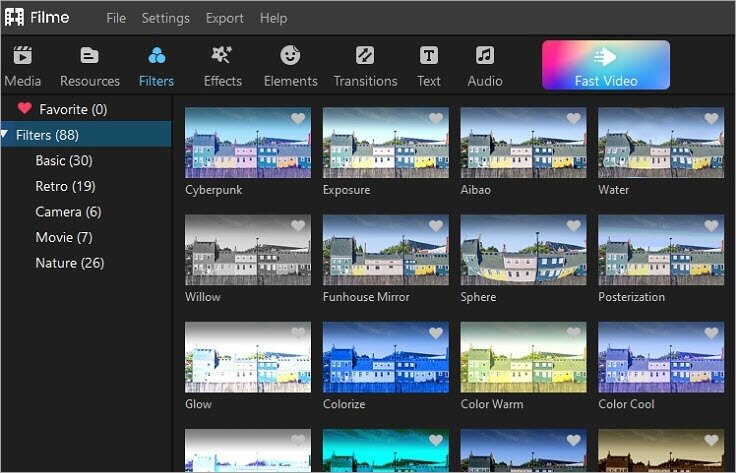
If you want to include filter effects on the media files, first upload the file on the timeline. Then, press the ‘Filters’ option on the toolbar at the top of the screen. From the displayed content, choose your favorite filter effect to apply on the media files loaded in the timeline.
You can also select the ‘Effects’ or ‘Elements’ option on the toolbar to view abundant resources of filter effect modules.
Step 3: Try the Transitions
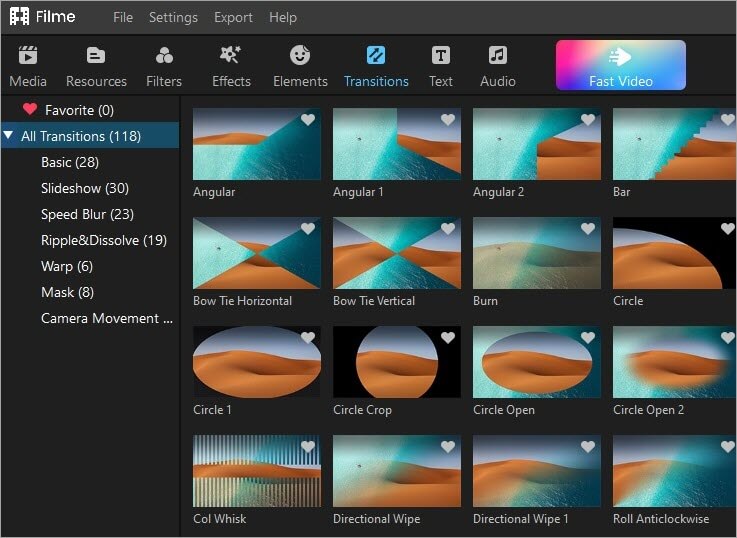
You can apply transition effects between the two media files. The default transition time is two seconds. You can modify them based on your needs. First, import the media files into the iMyFone Filme timeline. Choose the ‘Transition’ option from the Media Library on the left panel of the screen.
In the displayed transition list on the right side, right-click your cursor and choose the ‘Apply’ option to include this effect on the timeline media files. You can also drag and drop the transition effects individually over the timeline videos to add multiple transition effects to the slideshows.
Step 4: Add text
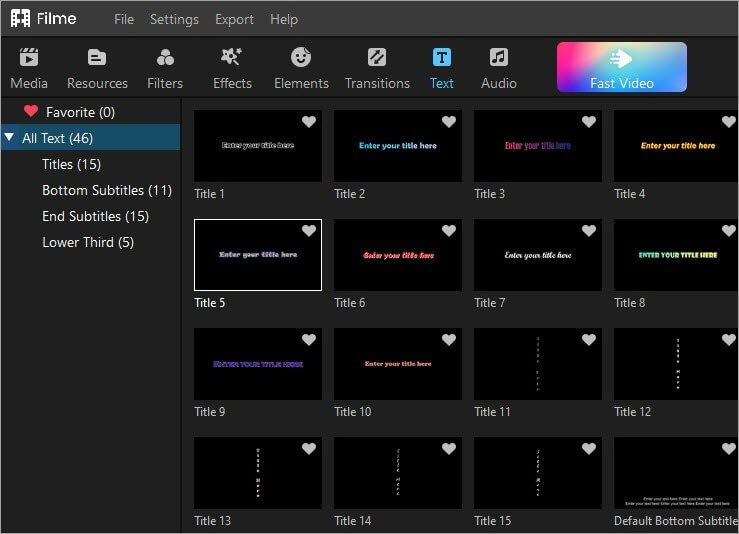
You can now drop a few words on the media slideshow using the iMyFone Filme app. Click the ‘T’ icon on the toolbar and in the Media Library section expand the ‘All Texts’ option to witness the different word formats on the right side of the screen.
Choose the desired word format and right-click to select ‘Apply’ from the expanded list. Drop it on the timeline to edit the text as per your needs. You can customize the texts and add flavors to your videos.
These are some of the built-in functionalities of the iMyFone Filme editor that enhance the overall appearance of media files. You can use the edited files in your slideshow to acquire a professional look.
The iMyFone Filme editor encourages the users with exciting offers like 3 months license give away and 70% discounts in the subscription scheme. You can find seasonal offers with fabulous price tags to trigger the editors for quick purchases.
Do not forget to step into the official website of iMyFone Filme editor to make a discount purchase.
Don’t miss out on this opportunity and check out for these mind-blowing announcements at regular intervals. Enjoy the benefits of this editor by timely enrollment using the offers and discounts.
Conclusion
Thus, this article gave you insights about the iMyFone Filme Editor application to assist in the media edits and to make an attractive slideshow. It is a professional program that gives out assured results.
The user-friendly ambiance encourages the users to opt for it with no second thought. The working environment meets the needs of both novice and professional editors. Surplus options to edit the media files attract the editors. Comfortable tools and easy reach controls drive the editors to fasten their tasks.
Discover the hidden functionalities of the iMyFone Filme app by trying a quick download from its official webpage. Use the iMyFone Filme app to fulfill your media editing needs beyond limitations. You can unleash your imagination with this application.
Was this helpful?
Recommended Reading
-

Looking for a Professional Slideshow Software that will become a reliable asset for your business? Discover 7 expert programs that can help you take your trade up a step: Whether you want to turn your photography clients’ photos into engaging videos or you are looking to present your own works…
-
Explore the top online Slideshow Maker software with pricing and comparison and select the best Photo or Video Slideshow Maker: Slideshow Maker software is an application for creating presentations or videos of the multimedia formats for the audience. It presents the multimedia format in a sequence decided by you. It…
-
Comprehensive Review, Comparison & Features of Online Presentation Software To Help You Select The Best Free Presentation Tool or PowerPoint Alternative: If you’ve been given the task of putting together a presentation, then you want to knock it out of the park and impress both your superiors and subordinates. You…
-

If you have doubts about how to prepare and deliver an effective QA testing presentation to your team, make sure to read this article till the end. Presenting your knowledge, experience or simply sharing useful information is neither an art nor magic. In fact, it is a skill developed through…
-
Review and comparison of popular Photo Viewer Software with features. Select the best, free Photo Viewer for Windows 10, Mac or Android: What are the qualities you look for in a Photo Viewer? Or to put it precisely, what features in an Image Viewer satisfy you the most? An image…
-
This tutorial reviews and compares the top Free Photo Editing Software to help you select the best photo editor as per your requirements: Thinking about uploading a new image for your social media account? Quick image editing can do wonders for your new post. If you just want to post…
-
This tutorial is a hands-on review of the Wondershare Repairit tool including its features, specifications, etc. for repairing broken or corrupt media files: It's beyond crushing to find out that a video file important to you is no longer functioning. Corrupted media files are more common than expected. There can…
-
Detailed Review & Comparison of The Top Photoshop Alternatives. Select The Best Alternative To Photoshop From This List Based on Your Requirements & Budget: Image editing, graphic designing, and digital arts are modern time skills to engage the audience with tempting artistic content. Many people love portrait and landscape designs,…