Looking for safe ways to Hard Reset or Factory Reset your MacBook Pro? Quickly learn how to Factory Reset MacBook Pro with or without password along with troubleshooting tips from our step-by-step guide:
Do you want to know how to reset a MacBook Pro? I presume you have good reasons to do so. Perhaps you inherited this MacBook or bought a second-hand one and want to clean it up before use.
Maybe you wish to sell your old MacBook instead and only wish to wipe the system clean before it becomes somebody else’s property.
Whatever your reason, resetting or factory resetting your MacBook Pro is no rocket science. If all you need is a simple step-by-step guide on this topic, then consider me your ally.
MacBook Pro Factory Reset: Quick And Easy Guide
In this article, I’ll show you how to factory reset a MacBook Pro and share tips to help you avoid problems along the way.
Factory Reset: Backup and Prep Checklist
A factory reset will essentially remove everything stored on your Mac. I would suggest ticking the following checklist to ensure that you don’t end up regretting this hard system reset.
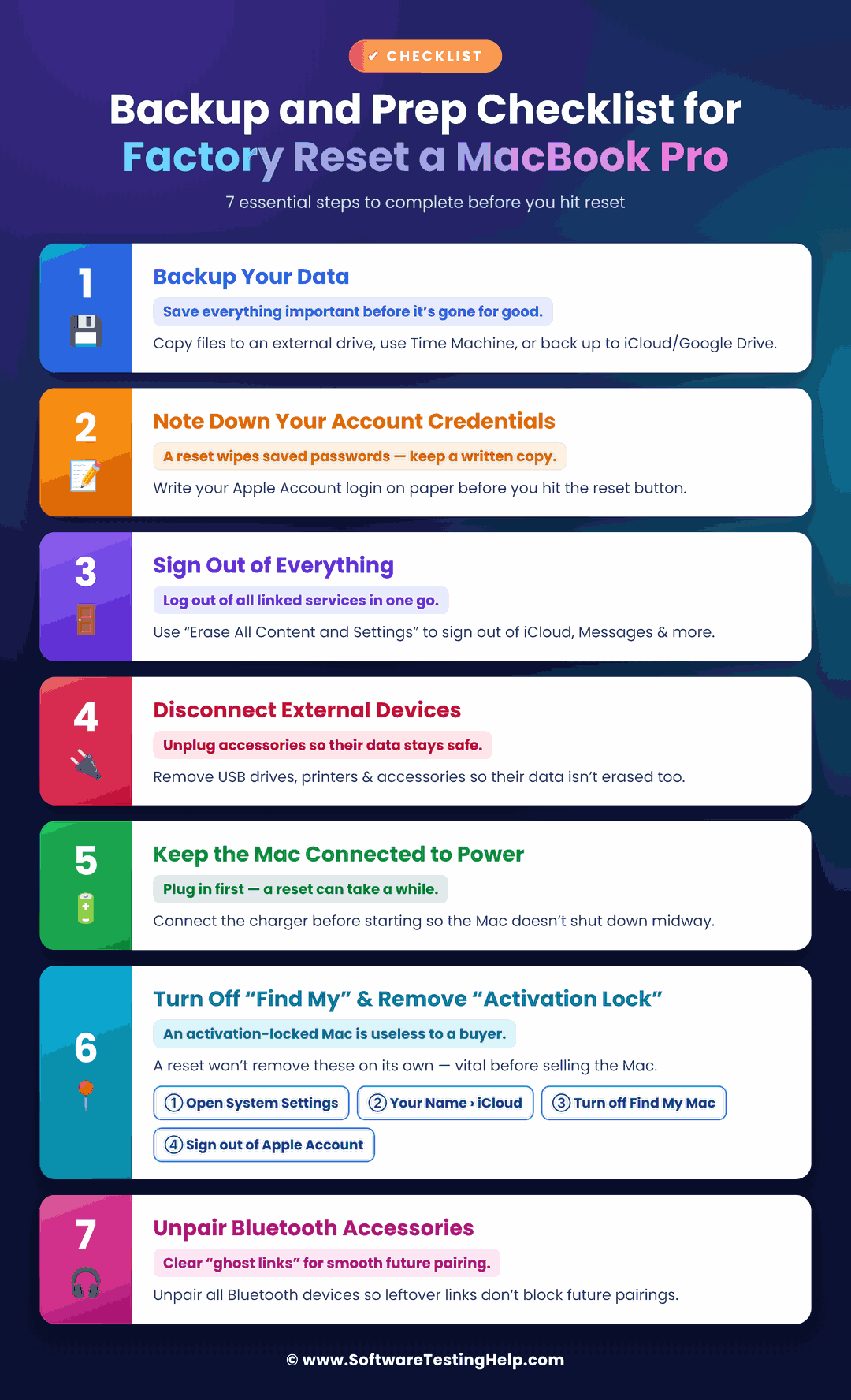
#1) Backup
You’d obviously want to back up any important data stored on your Mac. Make sure you create a backup of all your media files, videos, images, documents, and apps. You could do what I do and create a backup by manually copying these files to an external storage drive (HDD, SSD, USB drive).
Alternatively, you could use your system’s built-in Time Machine feature to back up files automatically to an external drive or use Google Drive or iCloud to create a cloud backup.
#2) Note Down Your Account Credentials
A factory reset won’t just wipe out your stored data; it will also erase any saved account passwords and credentials. I would suggest writing down your Apple Account credentials on a piece of paper before you hit the factory reset button, especially if you don’t trust your memory.
#3) Sign Out of Everything
Sign out of all services that are associated with your MacBook Pro. These services could include Messages, iCloud, FaceTime, Apple Music, Password Manager, etc. Instead of tediously signing out of each service one by one, you can use your Mac’s “Erase All Content and Services” feature to sign out of all services at once.
#4) Disconnect External Devices
Performing a factory reset while your Mac remains connected to an external device like a USB drive or printer is a terrible idea. You could end up erasing data from these external devices as well. So, ensure you aren’t connected to any devices or accessories before you decide to hard reset a MacBook Pro.
#5) Have the Mac Connected to a Power Source
Factory resets can take their sweet time. So I would recommend keeping your device connected to a power source to ensure it doesn’t shut down while the reset is underway. Make sure the device is connected to its charger before the factory reset even begins.
#6) Turn Off “Find My” and Remove “Activation Lock”
A factory reset will not automatically sign you out of “Find My” or remove an “Activation Lock” if you are still signed into your Apple account. Reselling a Mac with the Activation Lock still on is like selling a useless piece of junk. There’s no point, as the buyer won’t be able to access the Mac.
It is important that you properly turn off “Find My” and remove “Activation Lock”, especially if you intend to sell the device after a factory reset.
To remove “Find My”, just do the following:
- Open System Settings
- Your Name > iCloud
- Access Find My Mac and turn it off.
Sign out of your Apple Account once you’ve taken care of those features.
#7) Unpairing Bluetooth Accessories
Here’s another thing you should do if you intend to resell your MacBook Pro. The device may still contain what some call “ghost links” if you didn’t unpair Bluetooth accessories before a factory reset. These “ghost links” may prevent or interfere with future device pairings.
How to Check if Your MacBook Pro Has Apple Silicon or T2/Intel
One more thing you need to do before hitting a hard reset is check your Mac type. Apple’s got two types of Mac systems in circulation worldwide. You’ve got Intel-based systems and M1 Macs. Depending on the Mac type you are using, the steps you’ll need to take for a factory reset will differ.
Finding out which Mac type you are using is quite simple.
- Look at the top-left corner of your screen to find the Apple logo. Click on it.
- Now, click About this Mac.
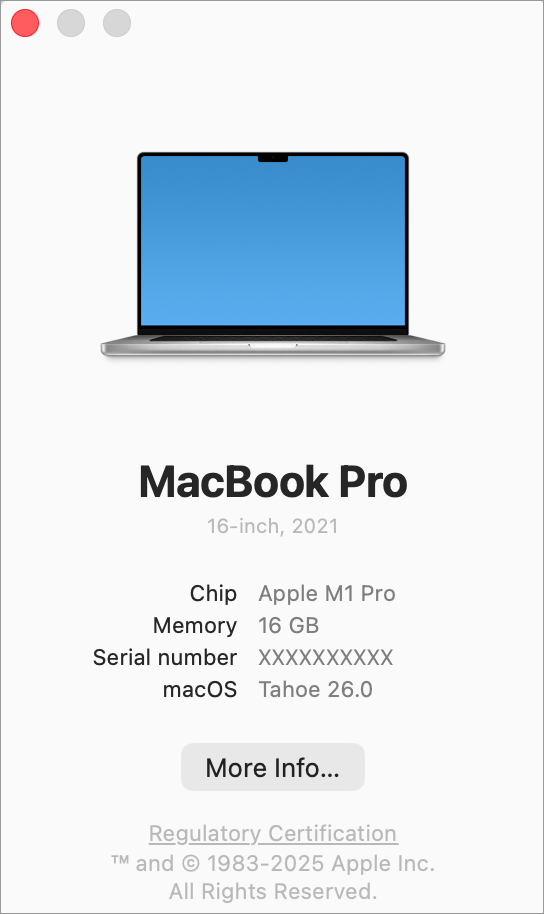
- If you see a detail named Chip, followed by the chip’s name (M1, M2, M3), then you know that you’ve got an Apple Silicon-based Mac.
- If you see Processor instead of Chip, then you own an Intel-based Mac.
As for how the reset or recovery differs between the two Mac types, I’ll be discussing that as we delve into the actual process later.
Methods to Hard Reset MacBook Pro
Here are the step-by-step procedures to hard reset MacBook Pro through Erase all content and Recovery
#1) Erase All Content and Settings
Apple provides its users with a very convenient way to hard reset their systems if you are aware of your administrator credentials.
Follow the steps below to erase content and settings on your MacBook Pro:
On macOS Monterey 12
- Move your cursor to the top-left corner of your screen and click on the Apple Logo.
- From the drop-down menu, select System Preferences.
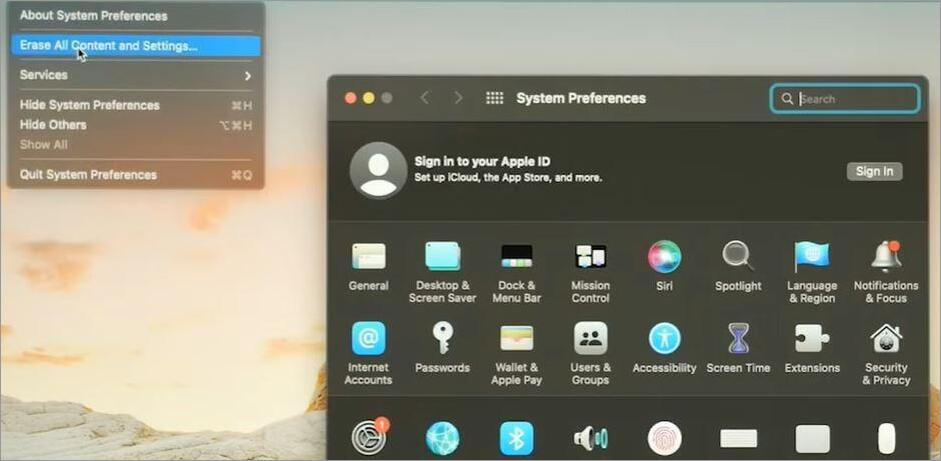
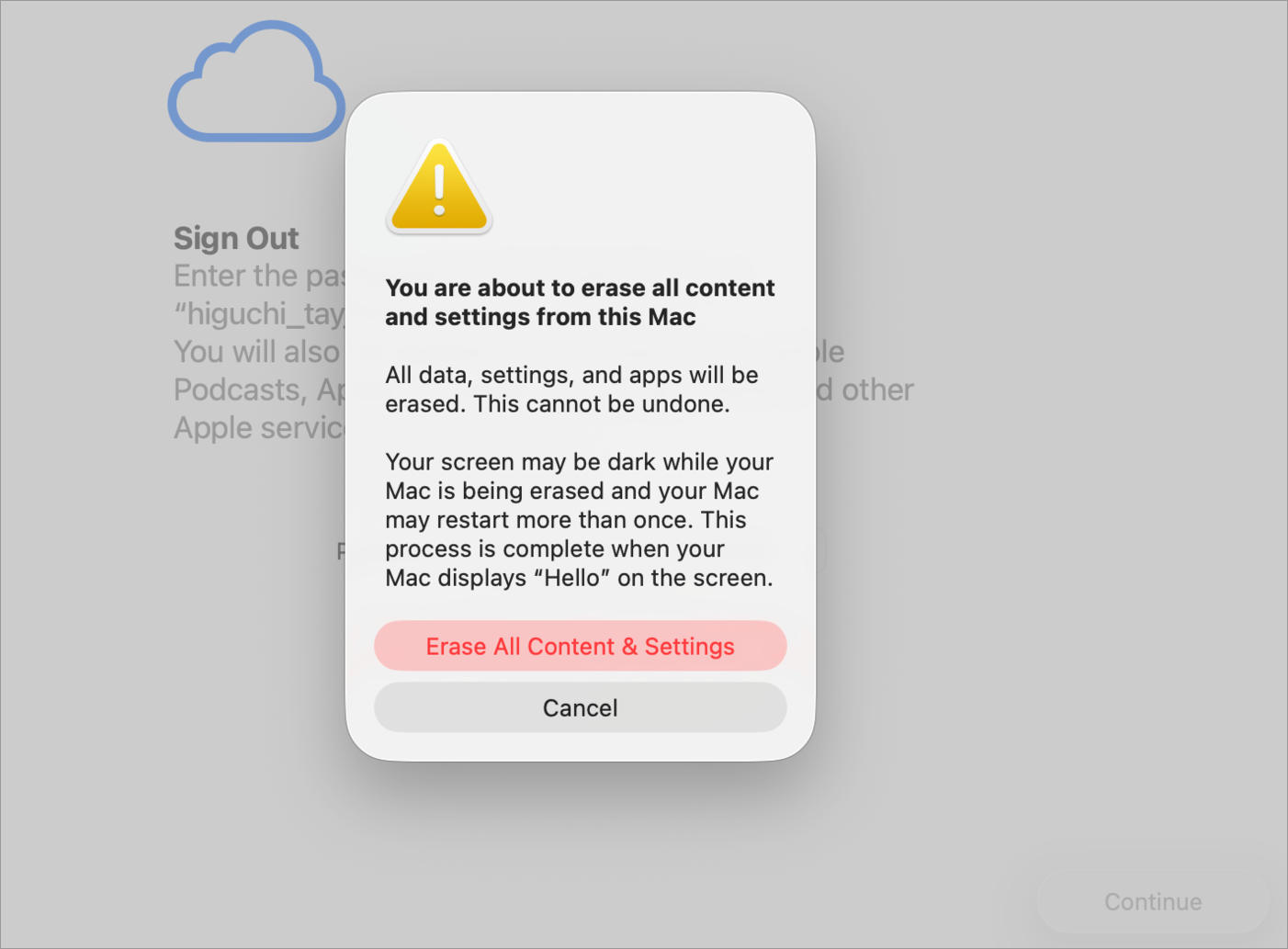
- Select Erase All Content and Settings.
On macOS Ventura 13 or later
- Click on the Apple logo you’ll see in the top-left corner of your screen.
- Click on System Settings.
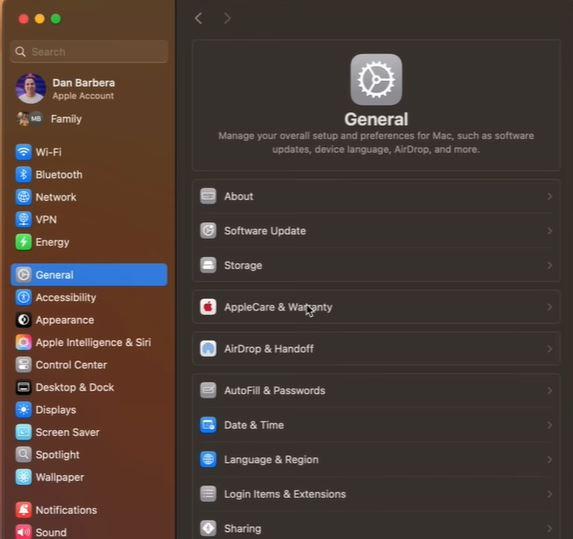
- Choose General => Transfer or Reset.
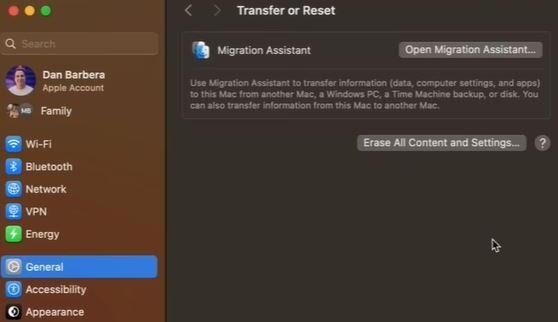
- Click on Erase all content and settings.
Once you hit the “Erase All Content and Settings” option, you’ll see everything that’ll be removed in the imminent reset. I suggest you check this information carefully to ensure everything important to you was backed up.
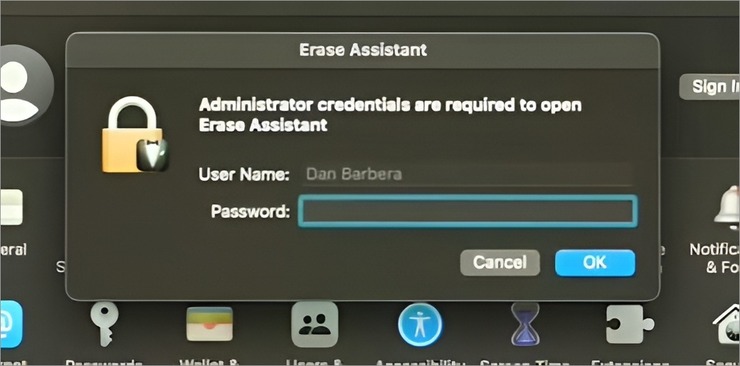
You’ll then be asked to enter your administrator credentials (username and password). Hit the Confirm button to initiate the reset process. You’ll see the Apple Logo while the process is underway. Be patient and do not turn off your Mac while the process is still ongoing.
You’ll see the Mac’s initial setup screen as soon as the reset is concluded. Note that this process only works if you remember your account credentials.
If you don’t remember your admin username and password, you’ll have to take a more complicated route to resetting the system.
#2) Recovery Mode Reset
The recovery mode reset is your answer to how to factory reset a MacBook Pro without a password. Remember, I said that the recovery process will differ based on the Mac type you are using.
So, if you are using an Apple Silicon Mac:
- Shut Down your Mac
- Press and hold the power button or the Touch ID button until you see the message “Loading startup options” appear on the screen.
- Click on Options > Continue.
- You’ll now be asked for a password. Simply click on “Forgot All Passwords?”. Alternatively, you can select Recovery Assistant from the menu bar above.
If you are using an Intel-based Mac:
- Shut Down your Mac
- Hold the Command + R keys while restarting your Mac
- Release the keys as soon as you see the Apple logo on your screen.
You’ll now find yourself in the recovery menu.
Erasing Data
- Select Disk Utility.
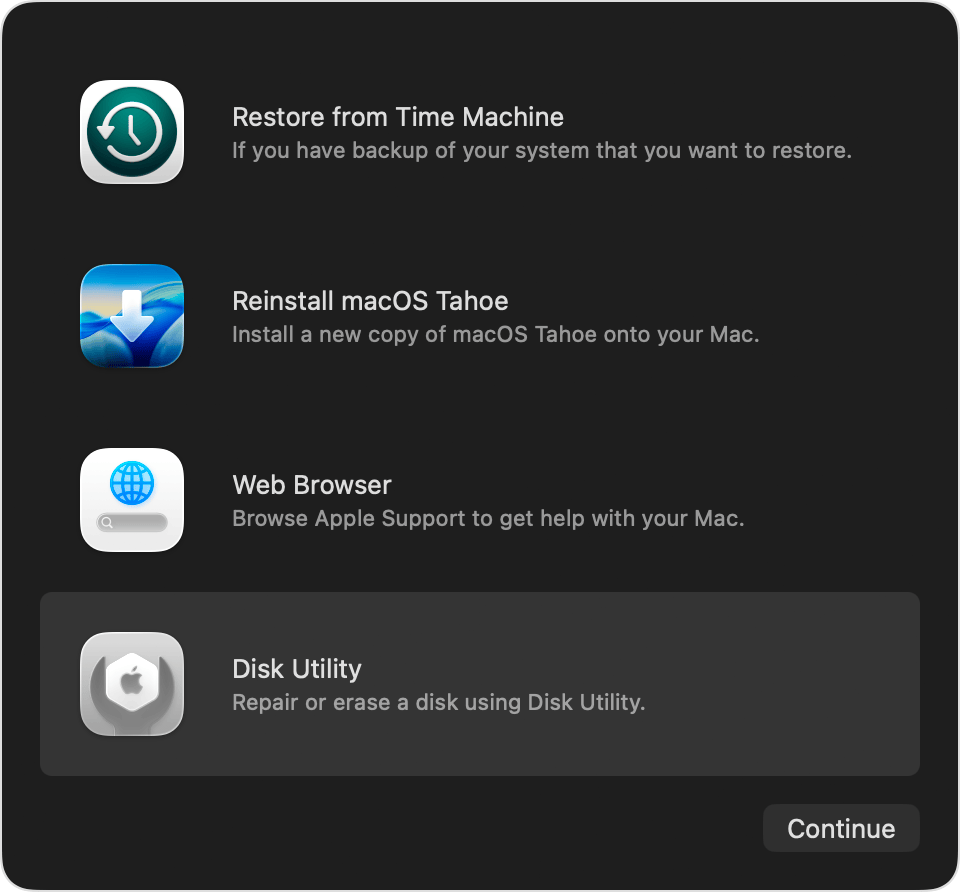
- In the Disk Utility window, select the boot disk. Make sure you are clicking on the disk and not the volume mentioned beneath it.
- Click Erase and name the disk.
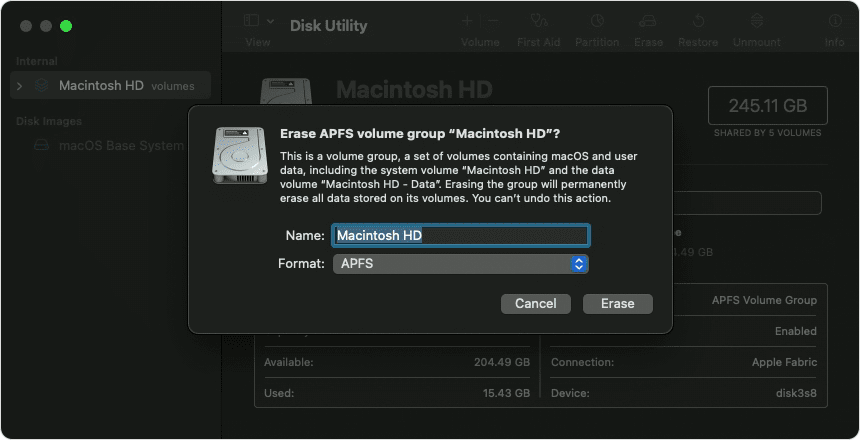
- Choose APFS as the format and confirm your action.
- Now close Disk Utility to return to the Recovery menu.
Reinstalling macOS
- Choose Reinstall macOS from the utility window.
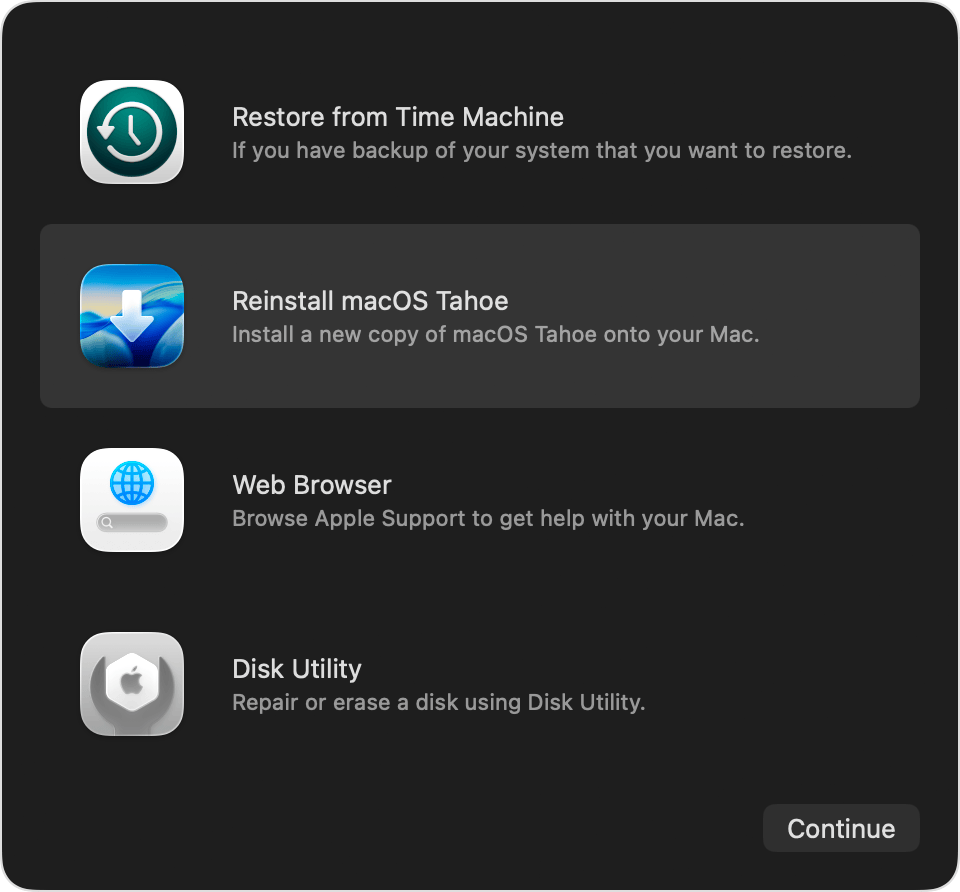
- Click Continue and simply follow the instructions as they appear on your screen until a fresh copy of the OS is installed on your system.
How to Reset MacBook Pro to Factory Settings Without Password (Not Using Recovery Mode)
I understand that Recovery Mode is indeed a tedious process. So you may wonder if there is another way to factory reset your MacBook Pro without a password. Well, you could just try Apple’s built-in password recovery options to reset your password and later use the “Erase All Content and Settings” option instead.
When entering a password on Mac, you will see a question mark icon right next to the text box. Click on it, and you may see an option to “Restart and show password reset options”, “Reset password using Apple ID” or “Reset password using recovery key”.
If you don’t see a question mark, simply enter the wrong password and the option to reset will pop up.
Just select any of the above options and follow the instructions appearing on your screen to first reset the password. Once you’ve reset or recovered the password, you can choose to hard-reset your system via the “Erase All Content and Settings” option.
What Happens After a Factory Reset
Here’s everything you can expect after a factory reset of your MacBook Pro:
- All of your personal files, videos, photos, documents, and apps will be removed completely.
- All accounts, as well as the settings associated with them, will be erased.
- Your current OS version will be removed if you use the recovery reset method. You’ll need to reinstall macOS for the computer to function as usual.
- You’ll be greeted with a setup assistant, similar to the one that appeared when you first booted the MacBook Pro. You’ll now have the option to select your connections, language, region, Apple Account, and configure other key settings.
- Although a hard reset will erase most of your system’s data, it won’t necessarily change the macOS version.
Restoring Your Mac via Time Machine Backup
After a factory reset, the next logical step would be to restart your MacBook Pro afresh. The very first thing you’ll want to do is restore your Mac backup. If you had previously made a Time Machine backup of your Mac, your system’s Migration Assistant will use that backup to restore certain files.
- You’ll start by reinstalling macOS. That’s something you’ll have to do if the first thing that pops up on your screen after rebooting it is a question mark.
- Once macOS has been reinstalled, you’ll want to have your Time Machine backup disk connected to the computer.
- Open Migration Assistant. You’ll find it in the Utilities folder.
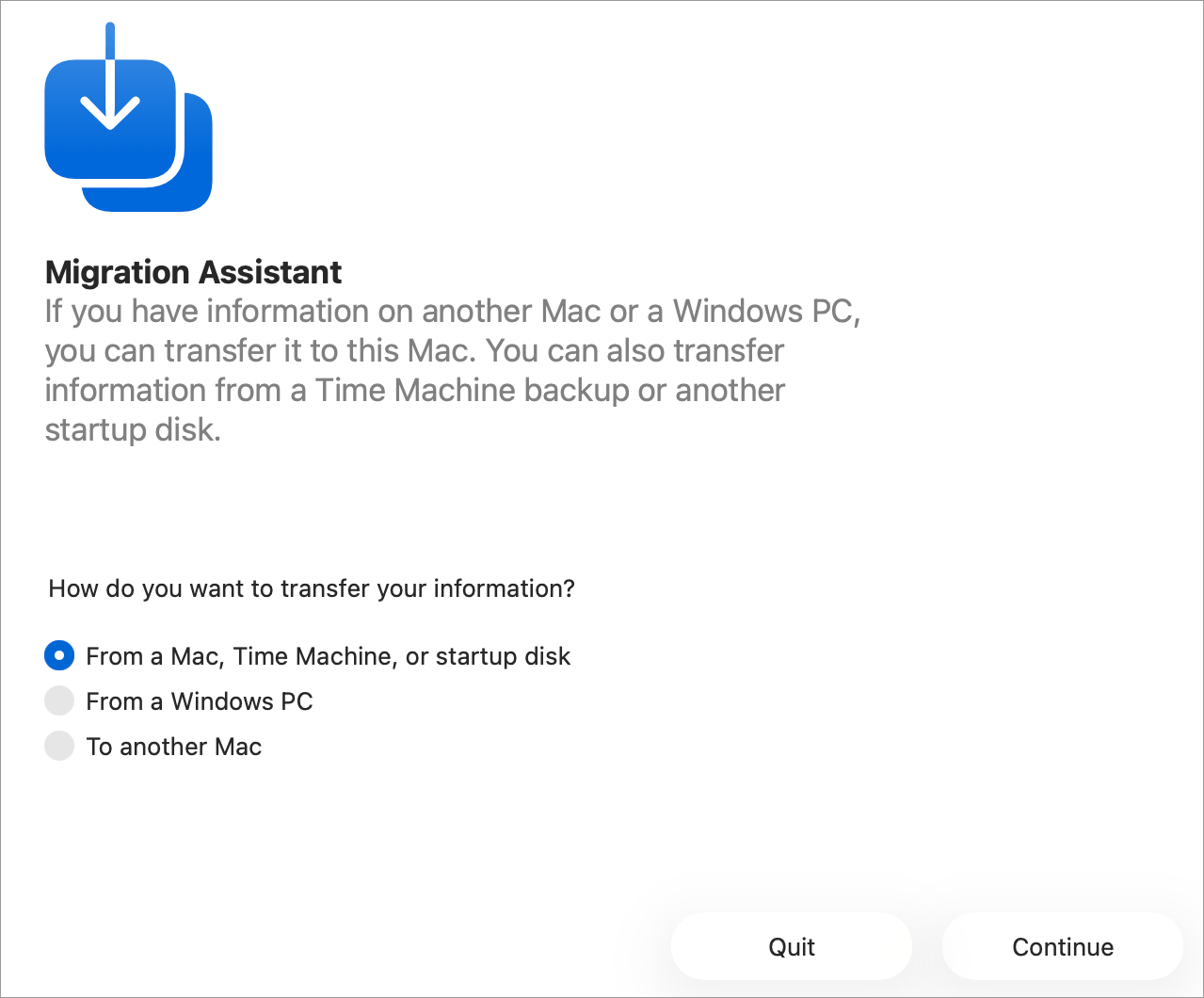
- You’ll be asked, “How do you want to transfer information?” Select “From Mac, Time Machine, or Startup Disk”.
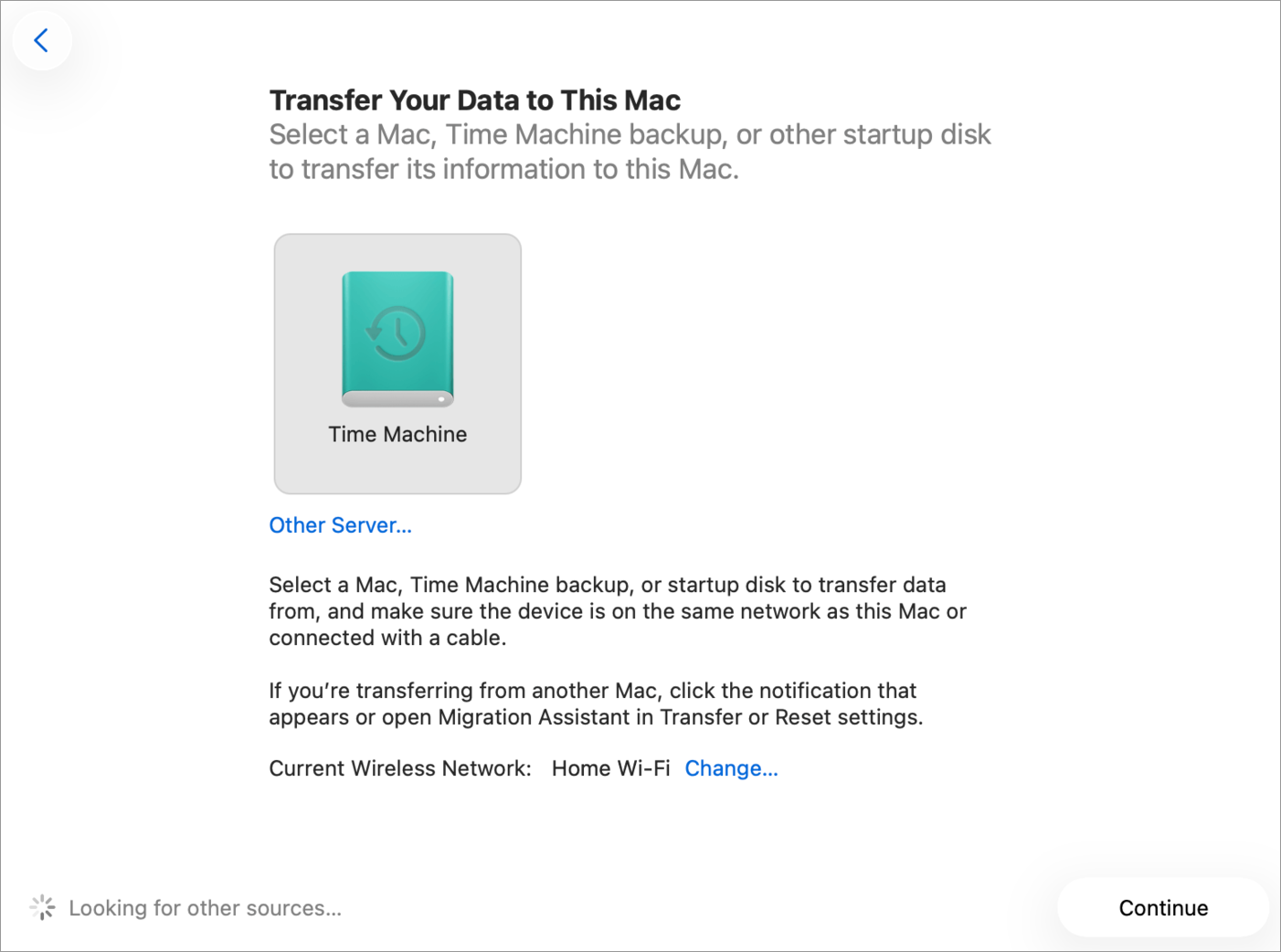
- Select the Time Machine backup disk and click Continue.
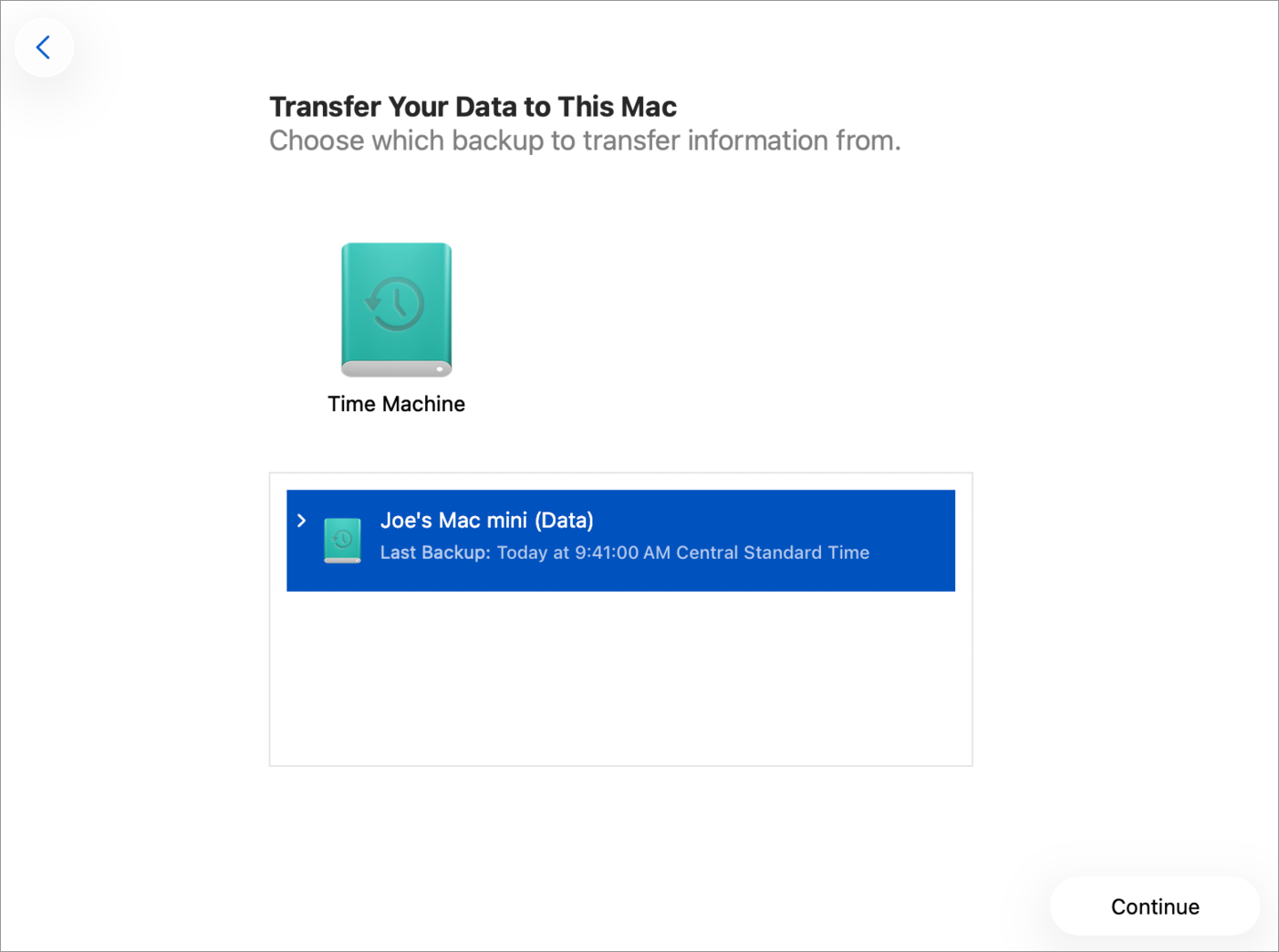
- Select a backup and click Continue again.
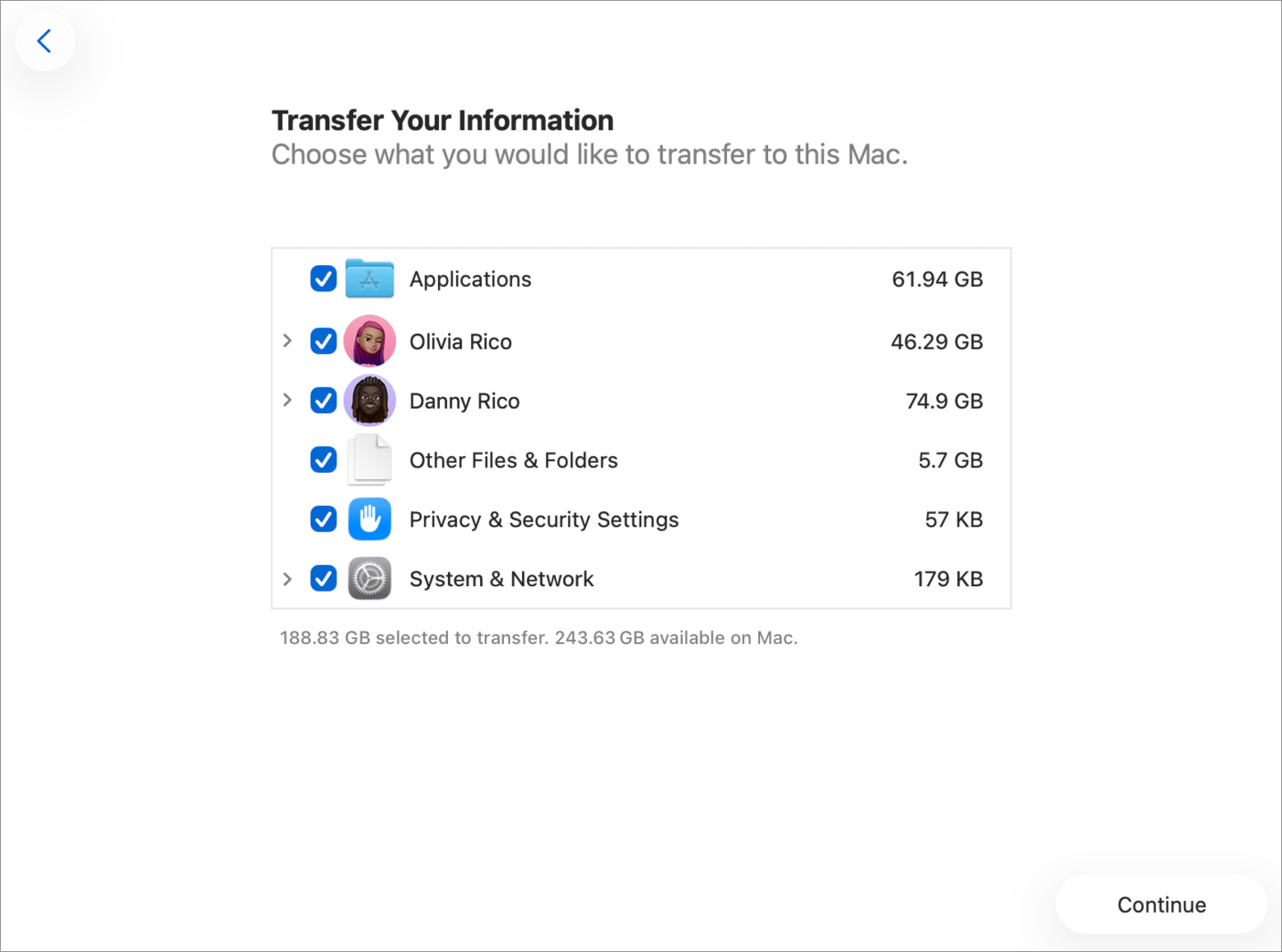
- Check all the boxes against the data you wish to transfer.
- If you are transferring to a standard account, you’ll be assigned a password. Note it down.
- If two accounts with the same name exist on your Mac, you’ll be asked to choose.
- Choose the account, enter the password assigned to you, and click Continue.
Now, wait for the transfer to be complete. This may take several hours.
Troubleshooting Common Issues During a MacBook Pro Factory Reset
You may encounter several problems during a factory reset. Here are some of the common ones and how you can fix them.
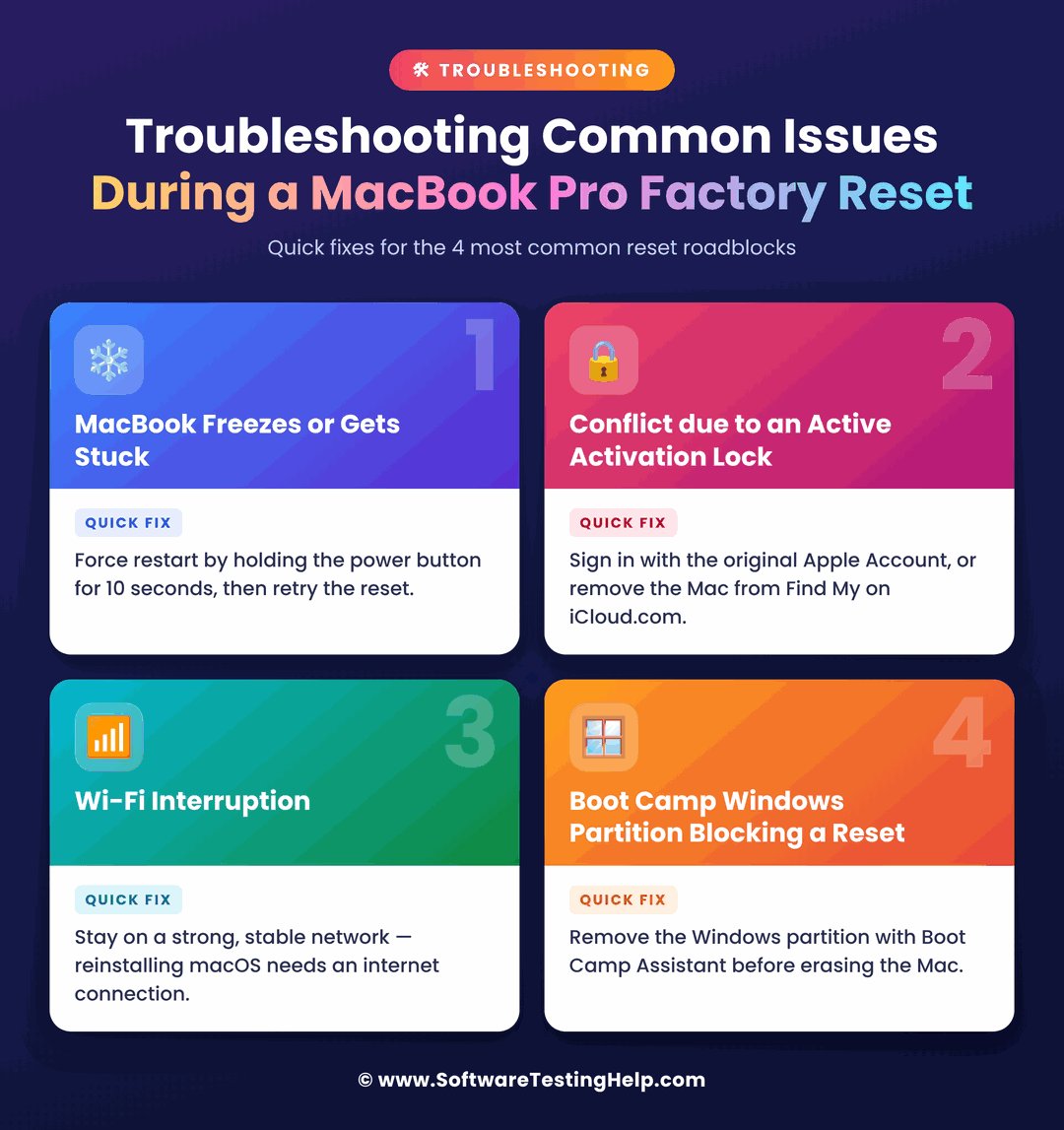
#1) MacBook Freezes or Gets Stuck
This is probably the most common issue you’ll encounter.
An easy fix to this problem is rebooting your device into recovery mode:
- Intel-based Macs can be booted into recovery mode by immediately pressing the Command + R keys as soon as the Mac is turned on.
- Silicon-based Macs can be booted into recovery mode by pressing the power button until you see the loading startup options prompt. Select Options and click Continue.
In recovery mode, select Disk Utility > select your Disk and then choose First Aid to fix this issue.
#2) Conflict Due to an Active Activation Lock
An Activation Lock will be triggered automatically if the Mac detects there has been an attempt to steal the device. That is why you must remove Activation Lock before doing a factory reset.
If you didn’t remove this lock, you can still do so remotely via another device. Log into Find My from another Mac device > Select your MacBook Pro from the list of Registered Devices > Select Remove from Account.
Alternatively, I suggest using the Recovery Assistant if your Mac boots to an “Activate Mac” screen.
Just navigate to the top-left corner of your screen and select Recovery Assistant > Erase Mac.
#3) Wi-Fi Interruption
If your reset depends on the internet, a weaker connection will halt the process. The very first thing you can do is ensure your Wi-Fi connection is stable and strong.
If you are using an Intel-based Mac, press Option + Command + R to boot recovery tools directly from Apple’s servers.
Alternatively, look in the top-right corner of your recovery screen and click on the Wi-Fi icon. Now, reselect the network and enter your credentials.
#4) Boot Camp Windows Partition Blocking a Reset
A Boot Camp Windows partition can indeed block a reset attempt or any attempt to reinstall macOS onto your system. So, logically, you’ll need to remove this partition.
I suggest referring to the video below for the best guide on how to remove a Windows Boot Camp partition.
Frequently Asked Questions
1. How to factory reset a factory reset on a MacBook Pro?
A factory reset is very simple, especially if you are using a MacBook Pro running on the latest macOS. You could simply use the built-in Erase Assistant to hard reset your system within minutes.
If you are using a system with an older macOS, then you’ll have to resort to the recovery reset mode, the process for which will differ based on the Mac type (Intel or Apple Silicon) you are using. You’ll find a detailed guide for both of these processes in the article above.
2. How to factory reset a MacBook with just buttons?
Well, you’ll have to use the recovery reset method if you only intend to use the buttons on your computer to force your system into a factory reset. For Apple Silicon systems, you’ll need to shut down the system and then hold the power or Touch ID buttons until you see a message appear on your screen.
For Intel-based systems, you’ll need to hold the Command + R keys until you see the Apple logo appear on your screen.
3. How do I reset if Command + R isn’t working?
If the usual recovery mode keys aren’t working, I suggest using the Option + Command + R combination to start your system in Internet Recovery.
If you are using a new system and know your admin credentials, then you don’t have to use the keys. Simply use the built-in Erase Assistant.
4. Will a factory reset remove my Apple ID?
No, a factory reset won’t remove your Apple ID. It will only sign you out of your Apple ID. I suggest you remember or note down your Apple ID to avoid any hassles after a hard reset is initiated.
5. Why can’t I factory reset my Mac?
Issues during a factory reset may stem from an unstable internet connection or iCloud Activation Lock. Reboot your Wi-Fi or router and ensure your internet connection is stable. Sign out of your iCloud and other Apple accounts. A Mac will block any attempts at a factory reset if you are signed into iCloud via an older Mac system.
If all else fails, I suggest contacting Apple Support.
Conclusion
So, there you have it: how to reset a MacBook Pro to factory settings with or without passwords. I hope you learned that the process is simple and something a discerning individual will be able to accomplish without hassle.
If you are using a new macOS version, then most of us today simply rely on the Erase Assistant. If you are using an older macOS version or don’t remember your admin credentials, then recovery mode is your best option for a hard reset.
Whatever method you go with, remember to back up your data, note down account credentials, sign out of all your accounts, and keep the computer charged to avoid any trouble as the reset is underway.
Research Process: The total time involved to complete and publish this article is approximately 38 hours. This content was created through a structured research approach to ensure accuracy and reliability.
For more related guides, you can explore our range of tutorials below:
- How to Factory Reset a Windows 10 PC Step by Step
- Does A Factory Reset Delete Everything? Step-by-step Guide
- How To Factory Reset Fire TV Stick Without Remote
- How to Factory Reset MacBook Air
- How To Reformat Windows 10 To Factory Settings – 3 Methods
- How to Completely Uninstall or Delete Apps on Mac [5 Ways]
- How to Check PC Specs on Windows 10/11 (6 Easy Ways)
Was this helpful?
Recommended Reading
-

In this tutorial, you will understand the myths & facts to get the answers to your most common query: Does a Factory Reset Delete Everything on a phone: Most people factory reset their device to make the software work as well as make the device new. Or, you will need…
-
Go through some impressive methods, explained stepwise in this tutorial to recognize the best way: How to Reset Instagram Password: It takes diligence to maintain security online, especially on social media accounts like Instagram, Facebook, etc. And with having to remember so many passwords, from bank accounts to emails, social…
-
This guide lists quick and easy ways to factory reset your Firestick in just minutes, regardless of whether you have a remote control or not. Factory reset Firestick works as the most efficient way out when there is lagging, unresponsiveness at boot logo screen, or in cases where there is…
-
Reset MacBook Air to Factory settings in minutes with this step-by-step guide. Learn how to Factory Reset MacBook Air to erase and restore your Mac even without a password: Struggling with a slow-running MacBook Air, or perhaps you are thinking of selling it? These are both situations that warrant a…