This guide lists quick and easy ways to factory reset your Firestick in just minutes, regardless of whether you have a remote control or not.
Factory reset Firestick works as the most efficient way out when there is lagging, unresponsiveness at boot logo screen, or in cases where there is a need to clear personal information before transferring ownership of the Fire TV Stick.
The simplest method involves going into Settings>My Fire TV>Reset to factory defaults. In case your Fire TV Stick is unresponsive and does not allow accessing the menu, the reset can also be done by pressing Back and Right buttons on the remote control.
The guide explains all possible ways to reset your Firestick, including those that can be used without a working remote control or Wi-Fi connection..
Firestick Factory Reset: What You Need to Know
Thus, you may consider a thorough solution: a factory reset, which is considered the last resort in case of any failure of all the other troubleshooting solutions.
This tutorial is for you. It contains detailed guidelines, including circumstances under which your device is likely to freeze and become unresponsive, and a step-by-step guide to solving the problem by factory reset.
How to Factory Reset a Firestick Quickly?
To factory reset an Amazon Fire TV Stick, navigate through the settings menu on your screen or use the remote shortcut.
- Option 1: Reset via Settings
- Select Settings (the gear icon) on the home screen.
- Go to My Fire TV (or Device & Software on older models).
- Scroll down and select Reset to Factory Defaults.
- Enter your PIN (if prompted) and click Reset to confirm.
Important: A factory reset erases device data and settings and requires you to set up the Firestick again.
Here is the quickest and easiest method to factory reset a Fire TV Stick:
Factory Reset Fire TV Stick: What Gets Deleted & What Stays
After Factory Reset, what gets deleted and what stays on once:
| What Gets Deleted | What Stays (Not Deleted) |
|---|---|
| Installed apps | Amazon purchases (movies, books, apps) |
| App data (logins, preferences, watch history) | Active subscriptions (Netflix, Disney+, etc.) |
| Downloaded content (offline shows/movies) | Amazon account content in the cloud |
| Wi-Fi networks and passwords | Other devices linked to your Amazon account. |
| Device settings (display, parental controls, menus) | Cloud-synced settings and PINs tied to your account. |
| Amazon account login on the Firestick | Ability to re-download apps from Amazon Appstore. |
| Expandable storage content (if not ejected) | Prime Video library and Kindle library. |
In other words, resetting a Fire TV Stick removes all apps, setup, and personal customization. This will erase the bugs under the carpet, restore default settings, and give you a clean slate. It is like pressing the reset button on a dirty computer, and then it feels all new and clean. It is not a quick thing to jump into, though.
Points to Note Before You Factory Reset Fire TV Stick
Enlisted below are some of the key factors that you need to know before you Factory Reset your Fire TV Stick:
- You should ensure that you have saved whatever is important before you reset Firestick. Otherwise, all data will be lost on the Fire TV Stick, as a factory reset removes all files. So, your streaming applications’ login passwords are to be written down, as you will be required to input these credentials again.
- In case you have updated settings such as parental controls or display preferences, make a note of them. You can also consider synchronizing your Amazon account to make the purchases and subscriptions easy to restore.
- Lastly, once again, verify that you have tried all other troubleshooting methods, as once the machine has been reset, it is permanent.
How to Factory Reset Firestick: Step-by-Step
Let’s explore the different methods to factory reset a Fire TV Stick.
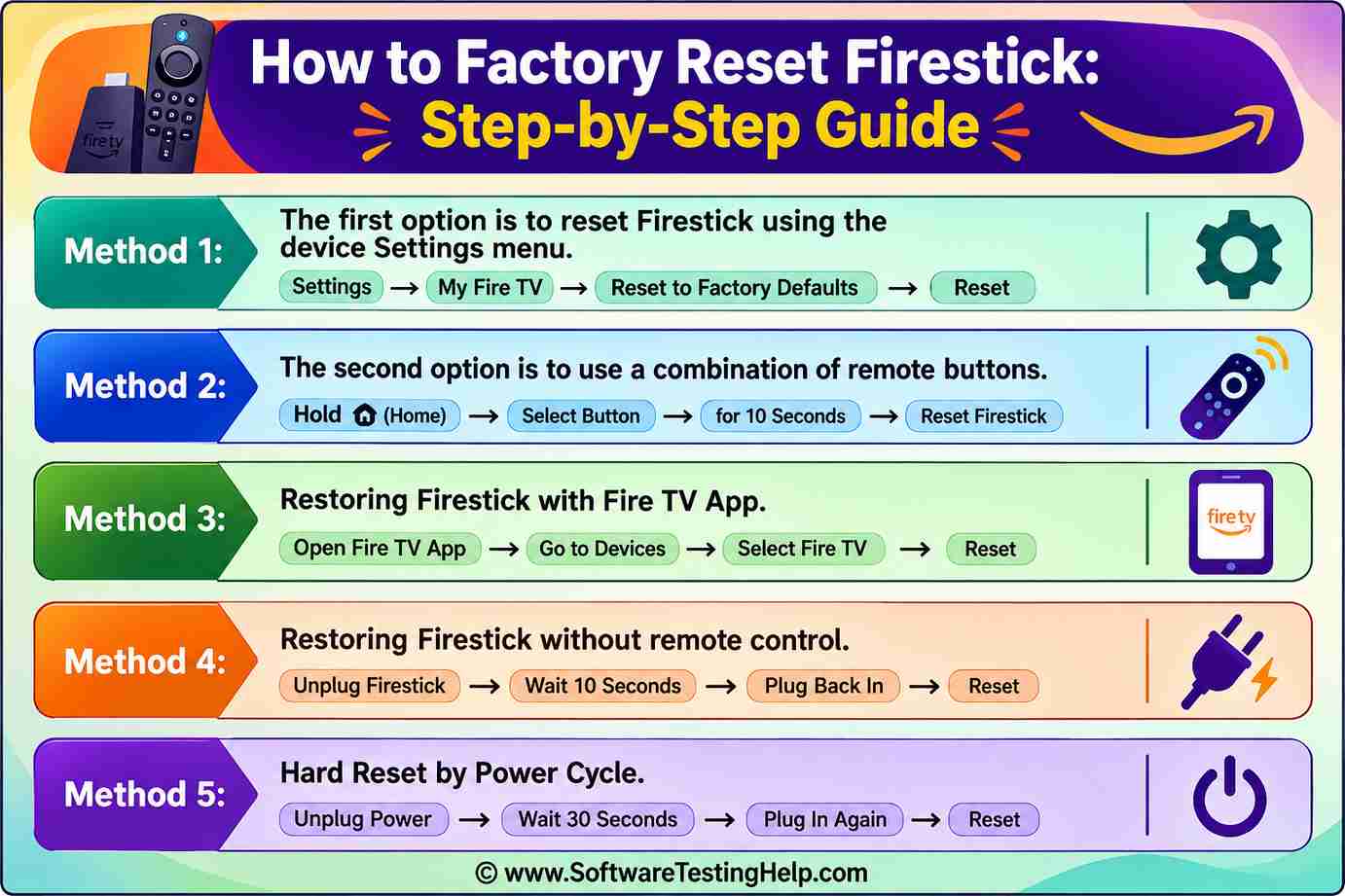
Method 1: Reset Fire TV Stick Using Device Settings Menu
Here are the step-by-step ways to achieve it:
#1) Find the Settings: On the home page of the Firestick, look for the gear icon and press it.
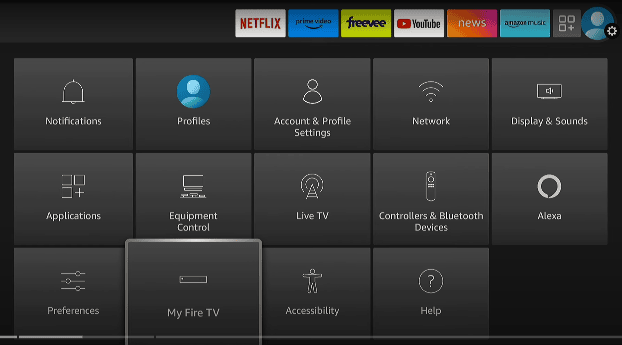
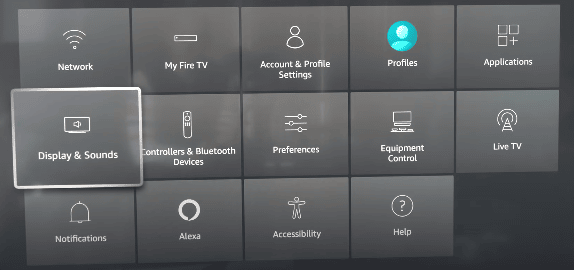
#2) Select My Fire TV: Go to Settings for Fire TV, move down the Settings menu until you can find My Fire TV or the exact device, which depends on the version of your Fire TV.
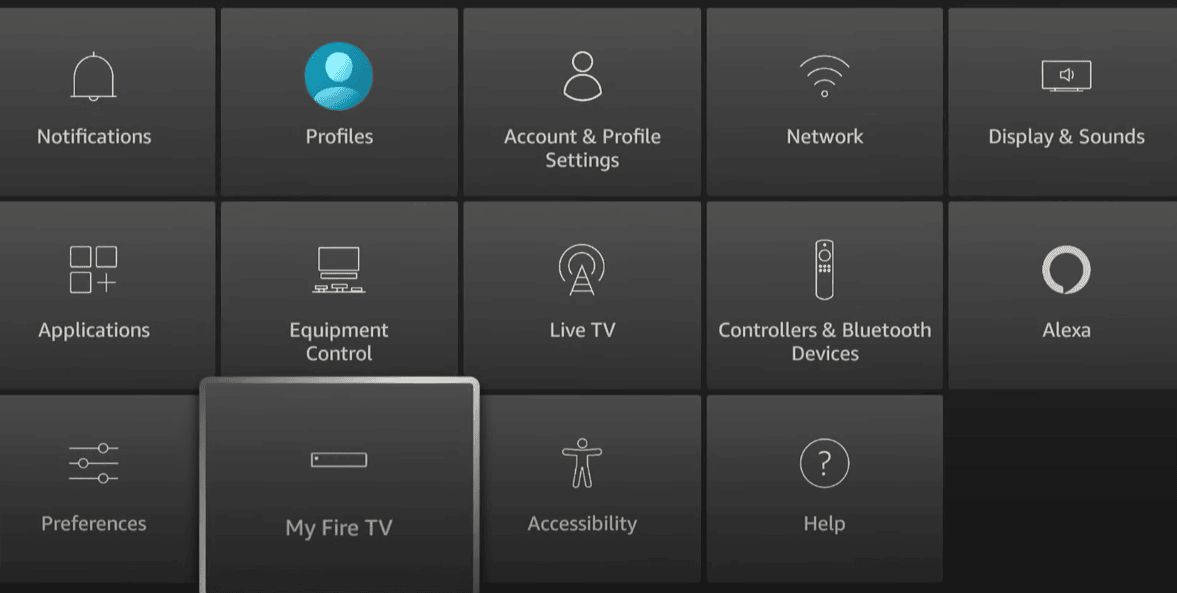
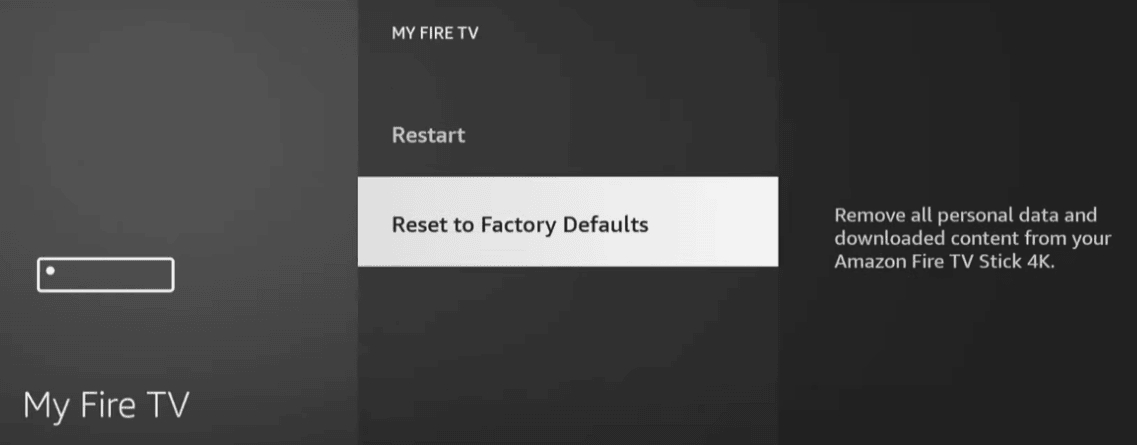
#3) Proceed to Reset: Go to More and press the button to restore the device to defaults.
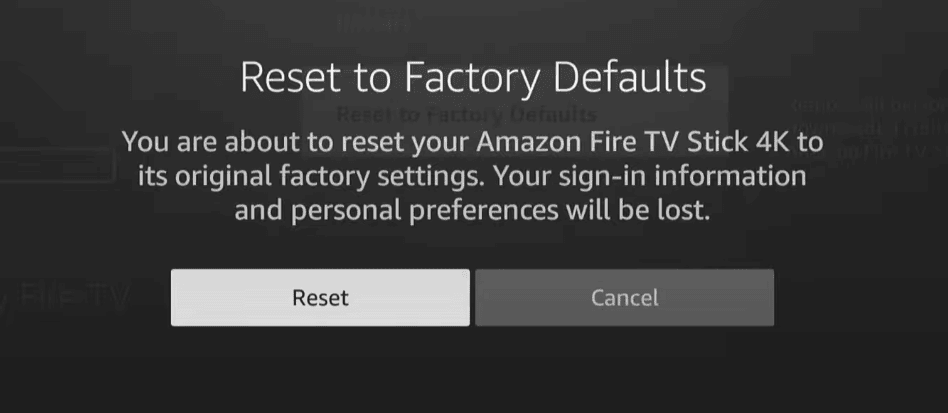
#4) Confirm Reset: A warning will appear and will remind you that all data will be deleted. Select “Reset” to confirm.
#5) Wait Until Restart: The Firestick will restart automatically, and it can take up to several minutes.
#6) Reconfigure Device: On restarting, you will be asked to reconnect to the Wi-Fi network and re-enter your Amazon account.
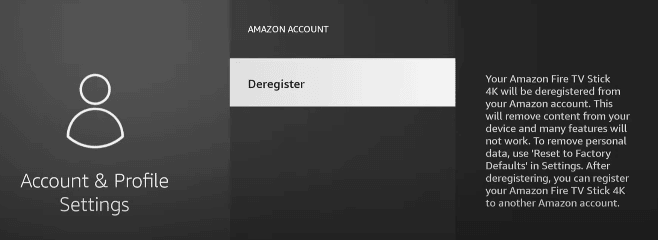
The Firestick will restart, and the first thing that will appear is the option to choose a Wi-Fi network. Select your home network and enter the password. This step is important since, in the absence of the internet, the Fire Stick cannot download updates or stream apps.
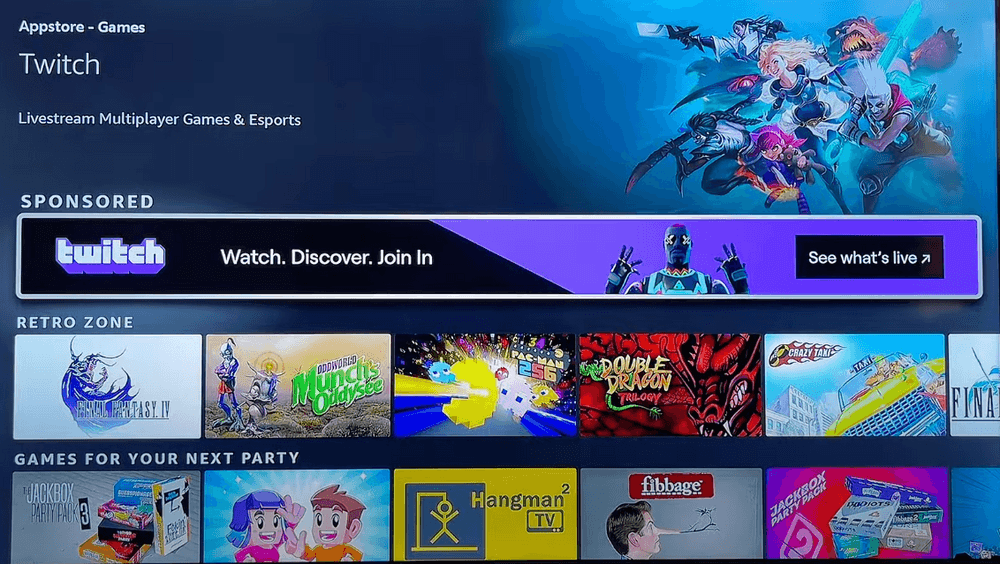
#7) Reinstall Apps: You will have to download your favorite applications from the Amazon App Store again. Access the store by scrolling to the magnifying glass or “Find” tab on the Firestick home menu.
The App Store is provided in combination with Movies, TV Shows, and Free. Because a reset will remove every single app, you will have to re-download your favorite apps such as Netflix, Hulu, or Disney+. Go to the Amazon Appstore and reinstall them separately.
#8) Restore Device Preferences You Used Before Resetting: You can do so here with the help of the manual approach, as well as restoring any parental controls, settings that influence your device display, or accessibility features. Parental controls, display options, or accessibility options will have to be reconfigured.
#9) Update Software: Once reconfigured, verify the system update in the settings: My Fire TV > About > Check for Updates. Updates are regularly made with fixes to bugs and better performance to run your Firestick smooth.
#10) Have a Clean Slate: All of your gadgets are cleaner, faster, and more trustworthy.
Method 2: Use a Combination of Remote Buttons
Here is a detailed guideline on how to use a combination of remote buttons to reset your Firestick device:
#1) Find Your Remote: Have the Firestick remote and make sure that the batteries are working. The reset shortcut cannot be registered when the batteries are weak.
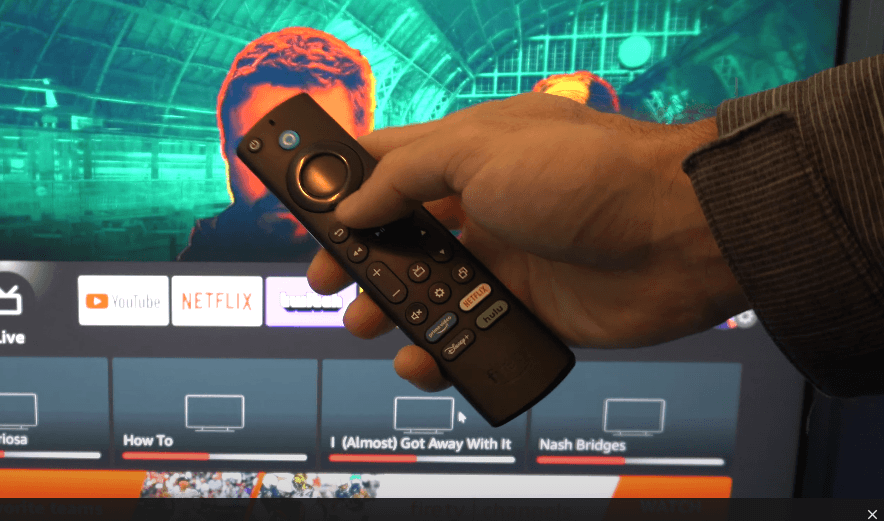
#2) Press the Back Button: Press the back button and the right side of the navigation circle simultaneously. Hold them firmly in place for some 10 seconds. It is the secret shortcut that initiates the reset option.
#3) Wait for Onscreen Prompt: After pressing the buttons, a message will appear on the Firestick asking whether to reset it to factory settings. This can take several seconds, and therefore, do not release prematurely.
#4) Confirm Reset: Press the remote to select Reset. The device will tell you that all apps, data, and settings will be gone. Once confirmed, the reset process begins.
#5) Allow Reboot: The Firestick will automatically restart. This may require a few minutes, depending on the model of the device and the update needs.
#6) Reformat Device: Post-reboot, you will have to rejoin Wi-Fi, re-enter your Amazon account, and reinstall your preferred applications from the Amazon Appstore.
Method 3: Restoring Firestick With Fire TV App
Here is a detailed guide on how to restore Firestick with the Fire TV App:
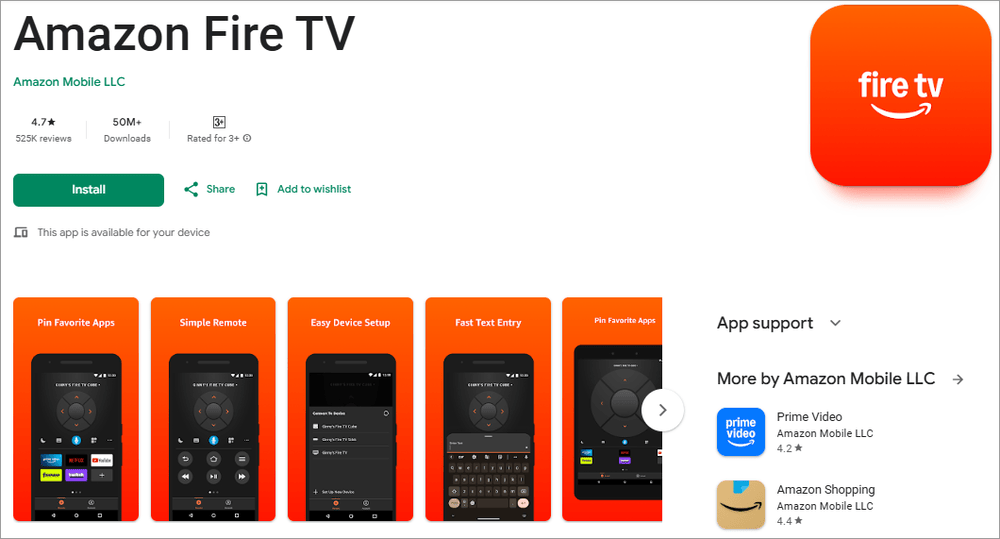
Step 1: Install Fire TV App on Tablet or Smartphone: Visit your App Store (iOS) or the Google Play Store (Android) and download the official Amazon Fire TV app. This application is used as a virtual remote.
Step 2: Install the App on Firestick: Choose the app, and ensure that your phone is connected to the same Wi-Fi network as your Firestick. The app will also identify devices within Fire TV in the immediate vicinity. Choose a Firestick on the list.
The code to pair the App with Firestick A will be shown on the TV. Pairing is done by entering this code into the app. After being paired, your phone is now a remote control.
Step 3: Open Navigation Controls: Use the navigation controls of the app and navigate to the Firestick home screen. Tap the gear icon and select Settings.
Step 4: Go to Select My Fire TV Inside Settings: Scroll down and select My Fire TV (in some versions, it is labeled as Device).
Step 4: Select Reset Option: Scroll again and select Reset to Factory Defaults. There will be a warning that everything will be deleted, including data, applications, and settings.
Step 5: Last Process of Completing Reset to Confirm Completion: The Firestick will initiate the reset operation, which will destroy all data and reset to factory settings.
Step 6: Restart: The system will automatically restart. It can take several minutes based on the model and update requirements.
Once you have reconfigured your device after restarting, reconnect to Wi-Fi, sign in to your own Amazon account, and reinstall your preferred applications on the Amazon Appstore.
Method 4: Restoring Firestick Without Remote Control
Step 1: Check HDMI Compatibility: To do so, go to the settings menu of your television and find the HDMI settings.
These brands have different names (Anynet+ is the name used by Samsung, Simplink is the name used by LG, Bravia Sync is the name used by Sony). Make sure it’s enabled.
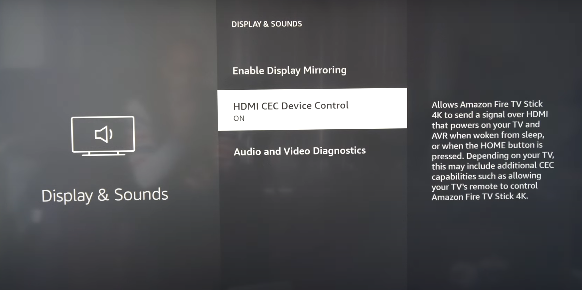
Step 2: Connect Firestick to HDMI Port Growth plug your Firestick into a TV HDMI port that is CEC-enabled. Not every port will work; thus, consult the manual of your TV.
Step 3: Red Control Firestick with TV Remote: When HDMI is turned on, your TV remote control must be capable of navigating the Firestick interface. You can use the arrow keys and the OK/Enter button to check whether the remote control is navigating the interface as desired.
Step 4: Turn on the TV: Bring up the TV remote control and press the gear icon when browsing the Firestick home screen, and choose Settings. Go to Select My Fire TV inside Settings, scroll down, and select My Fire TV (in some versions, it is labeled as Device).
Select Reset Option Scroll, and put reset to Factory Defaults. A message will be displayed that everything in the app, data, and settings will be lost.
Step 5: Confirm Reset: Use the TV remote to confirm. Firestick will start resetting all the contents, deleting all the data, and restoring factory settings.
Step 6: Wait until Reboot: Automatic rebooting of the device. This can take several minutes based on the model and update requirements.
Step 7: Restart: Set up your device. Once again, reconnect to Wi-Fi, log in to your Amazon account, and reinstall your favorite apps in the Amazon Appstore.
Method 5: Hard Reset by Power Cycle
Sometimes a complete one-minute disconnection of the Firestick by unplugging it and reconnecting may induce a reset cycle. Although it is not as comprehensive as a factory reset, it usually removes any glitches that are temporary.
Tip: Format Before Gifting or Selling: When you are handing over your Firestick to another person, it is advisable to format the device to get all the personal data, applications, and accounts cleared. The latter option is not related to troubleshooting and is rather about privacy protection.
Other Methods to Repair Your Fire TV Stick Before Factory Reset
Some of the quick attempts to follow before you factory reset your Fire TV Stick are given below.
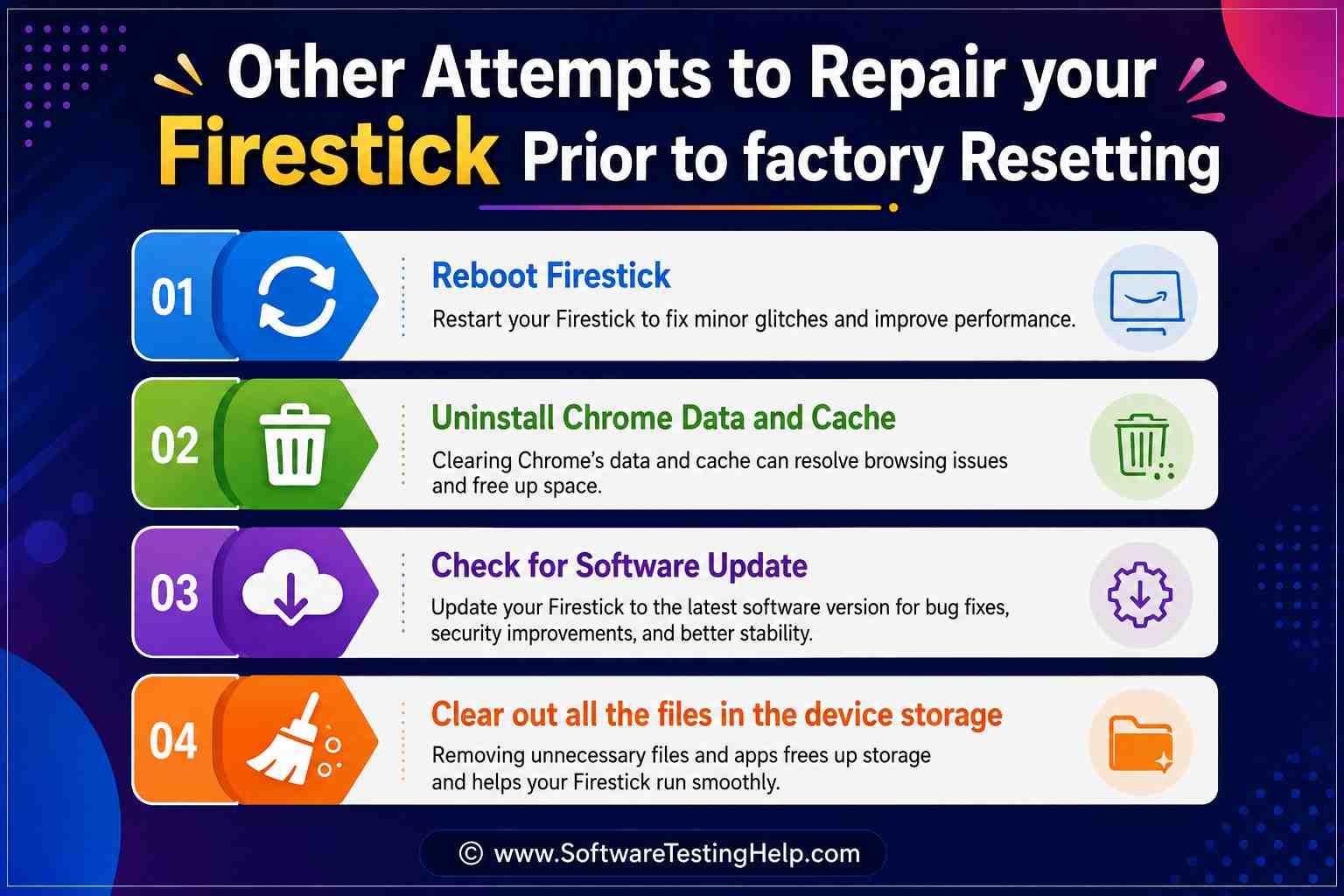
#1) Reboot Firestick
It is always best to perform a simple restart to get rid of temporary glitches. These may happen because of issues such as power interruptions, file and setting misconfiguration, and caches getting filled or becoming clogged.
Disconnect the Fire Stick, wait for 30-60 seconds, and reconnect it. This usually solves stagnation or delays.
#2) Uninstall Chrome Data and Cache
To clear Chrome data and cache, go to Settings and applications, manage installed applications, select the problem app, and clear data and cache. This will come in handy when applications fail or buffers overflow.
#3) Software Update
Learn to open the settings menu and then move to My Fire TV > About and Check for Updates. Bugs can be fixed and performance enhanced by installing the latest firmware.
#4) Clear Out All Files in Device Storage
Delete all the files and programs that you do not use. Firesticks with junk on them become extremely slow, and thus cleaning them can bring back the speed.
Firestick Won’t Reset? Try These Fixes
Even following the reset, something may still be left behind. Here are some common problems that may arise regarding resetting the Firestick device and how to deal with them:
- Fire TV Stick Not Starting: When your Firestick is not starting well, unplug it and leave it without power altogether for one minute, and reconnect it.
- Remote isn’t Responding: When the remote is not responding, it is possible that you need to re-pair it by pressing the Home button for 10 seconds.
- Wi-Fi Connectivity: In case of Wi-Fi connection failure, make sure that your router settings are correct and that the Fire TV Stick is in range.
- App Failure: Otherwise, it is the failure of apps to install again after the reset. This may occur when your Amazon account has not been updated properly; hence, ensure that you verify the login details.
- Update Not Downloaded: In case updates cannot be downloaded, delete cache or restart the Fire TV Stick once again. Switch the HDMI out on the TV or check whether the television has HDMI compatibility. When/if the problem is persistent, try changing HDMI compatibility or switch to another port on the TV.
- Fire TV Stick Gets Stuck: The Fire TV stick gets stuck on the loading screen after reset on rare occasions. This is normally solved by a hard reboot, but otherwise, this can require reaching Amazon support. Also, be patient; it takes time with some resets depending on the size of the storage and the need to update.
When Should You Factory Reset a Firestick?
There are many reasons why people will reset their Firestick: slow performance that makes it impossible to stream, apps crashing/freezing, software bugs after an unsuccessful update, storage being full of downloads. In some cases, the user will wipe their device by formatting and selling or presenting the device to someone.
If you enable parental controls for Firestick, here are the steps to take:
#1) Resetting Firestick When You Forgot the PIN
- Step 1: On your Firestick, navigate to Settings > Preferences > Parental Controls
- Step 2: Enter the PIN if you can remember it.
- Step 3: Proceed to disable the parental controls with a factory reset.
#2) Use the Amazon Account to Reset PIN
- Step 1: Open the web browser and log into your account.
- Step 2: Open Prime Video Parental Controls.
- Step 3: Choose Change PIN and set a new 5-digit PIN. This PIN will now synchronize with parental controls.
#3) Change the Child PIN on Amazon Kids Profiles
If you want to change the Child PIN on Amazon Kids Profiles:
- Step 1: Enter the PIN when prompted.
- Step 2: You will be presented with a reset code in case the PIN entered is incorrect. The reset code is shown on your Fire TV Stick screen.
- Step 3: On your browser, visit amazon.ca/code or the Amazon code page in your region. Sign in with the credentials and follow the instructions to set a new PIN.
#4) Factory Reset Your Fire TV Stick Device
Follow the steps we outlined to reset the Fire TV Stick. Basically, navigate to Settings > My Fire TV > Reset to Factory Defaults.
Frequently Asked Questions
1. How do you reset a fire stick without a PIN?
Trace the back and right buttons and press the back buttons on the device. It will ask for a PIN. When it does, hold the two buttons down again, and repeat this 2 to 3 times until you can initiate a factory reset while holding down the two buttons.
2. Can I undo a factory reset on Firestick?
No, when it is finished, it is impossible to undo it.
3. Am I losing my Amazon Acquisitions when I reset the Firestick?
No, the purchases that are associated with your account are available.
4. How long does a reset of Firestick device take?
Typically, five to ten minutes depending on the speed of the device.
5. How do I factory reset a locked Firestick device?
While the device is connected to the TV, navigate to the menu and on it and select Settings. Select My Fire TV and choose the option to Reset to Factory Defaults. Choose to proceed with the reset or cancel altogether. Note that the device will reset automatically if left for several seconds on this screen and you do not choose any option.
Conclusion
Sometimes a factory reset on a Fire TV Stick can seem like a drastic measure, but it can be the only answer to getting back to a pleasant and happy streaming experience. By wiping the surface off the clutter, glitches, and frozen applications, you will bring the device back to its original glory.
Please keep in mind to take good notes, save credentials, and use reset as a last resort. With time and proper installation once you have it, your Firestick will feel new and will be ready to provide you with unlimited entertainment.
- Replace or Re-pair Remote: When the navigation is not responding, press the Home button and keep pressing it until the remote is re-paired. In other cases, the solution can be to change batteries or the Fire TV app remote to resolve the problem.
- Check Wi-Fi Stability: Poor internet could cause problems in streaming. You can reboot your router, reposition the Fire TV Stick, or change to a 5GHz band to play smoothly.
- Turn off Background Applications: It has too many applications that are running in the background, which can drain resources. Stop idle applications in the Applications menu.
- Insert HDMI Port or Cable Change: In case the video output is glitchy, insert the Fire TV Stick into another HDMI port or replace the cable. Freezing can be brought about by hardware connections.
Research Process: The total time involved to complete and publish this article is approximately 40 hours. This content was created through a structured research approach to ensure accuracy and reliability.
For more related guides, you can explore our range of tutorials below:
- Ways to Fix When Fire Stick Won’t Load Home Screen
- How To Reformat Windows 10 To Factory Settings – 3 Methods
- How to Fix Fire Stick Keeps Restarting Issue
- How to Factory Reset Windows 10 PC Step by Step
- How to Pair Firestick Remote to TV
- Does A Factory Reset Delete Everything? Step-by-step Guide
- Why is my Firestick So Slow? Here is how to fix it quickly
Was this helpful?
Recommended Reading
-

In this tutorial, you will understand the myths & facts to get the answers to your most common query: Does a Factory Reset Delete Everything on a phone: Most people factory reset their device to make the software work as well as make the device new. Or, you will need…
-
Reset MacBook Air to Factory settings in minutes with this step-by-step guide. Learn how to Factory Reset MacBook Air to erase and restore your Mac even without a password: Struggling with a slow-running MacBook Air, or perhaps you are thinking of selling it? These are both situations that warrant a…
-
In this guide, you will come across step-by-step solutions to factory reset Windows 10 when your PC won’t start. If your Windows 10 PC is running slowly, experiencing errors, or won’t boot properly, performing a factory reset can help restore it to its original state. A reset removes system issues,…
-
To keep you entertained in your comfort, here we have listed the Best Firestick Apps with comparisons, features, installation steps, etc: Firestick has taken entertainment up by a few levels. All your favorite channels, movies, sports, series, everything at one place at your fingertips. It comes with a massive library…