Learn how to check Safari history on iPhone, iPad, and Mac, search for visited websites, view recently closed tabs, and troubleshoot missing history.
To check history on safari on an iPhone, open Safari → 3-dot menu → Bookmarks → History (clock icon). You can then scroll through visited pages or use the Search History field to find a specific website. On a Mac, open Safari → History → Show All History.
How to Check History on Safari on iPhone Quickly

To check browsing history On iPhone, iPad and Mac following below steps:
- Check Safari history on iPhone: Open Safari > 3-dot menu > Bookmarks > Clock icon (History). You’ll see a list of websites and pages you’ve recently visited.
- Check Safari history on iPad: Open Safari > 3-dot menu > Bookmarks > Clock icon (History). The steps are the same as on iPhone.
- Check Safari history on Mac: Open Safari > History > Show All History. You can then browse your Safari history by date and find previously visited websites.
Safari history helps people to find a website a user visited in the past, to understand how to sync multiple Apple devices and for parental control.
With the launch of each new iOS version, Apple’s settings usually change a bit. And due to iOS 26’s new design, Apple moved Safari history one step deeper. Due to this, users often find it difficult to find Safari history. Some users even think that they can no longer access Safari history. Let me make it very clear here: Safari history can be accessed very easily.
Here is the video guide on how to access history on Safari on iOS 26:
How to Check Browsing History on Safari on iPhone, iPad & Mac (Step by Step)
Here are the step-by-step procedures to check search history in the Safari browser on iPhone, iPad or Mac.
#1) On an iPhone
Here’s a step-by-step guide to view Safari history on an iPhone:
- Open the Safari app on your iPhone.
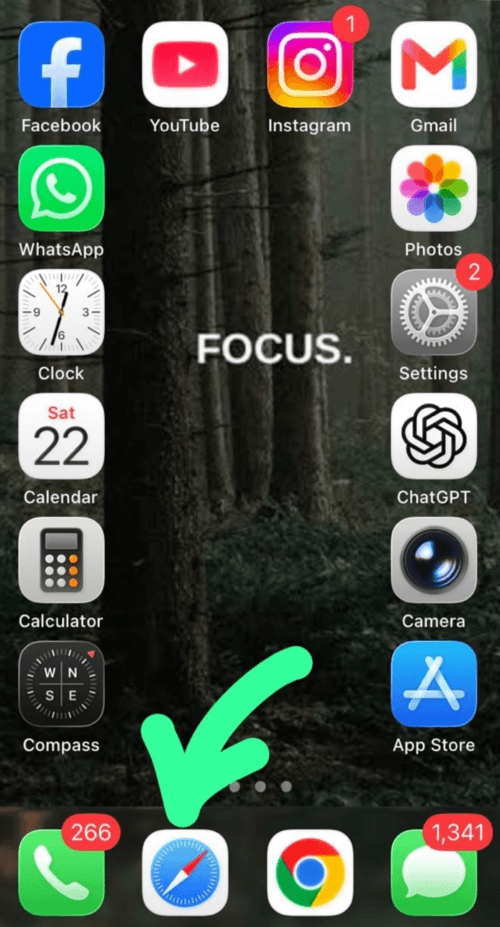
- Now tap on the 3-dot menu icon.
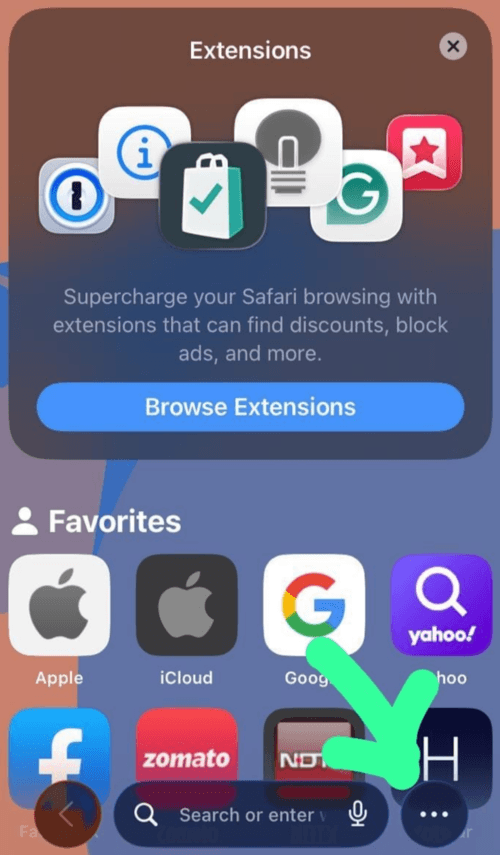
- Choose the option: Bookmarks
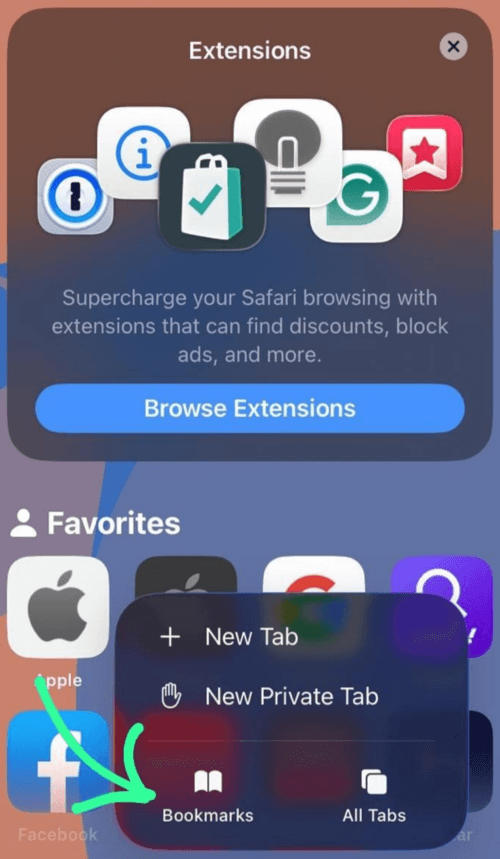
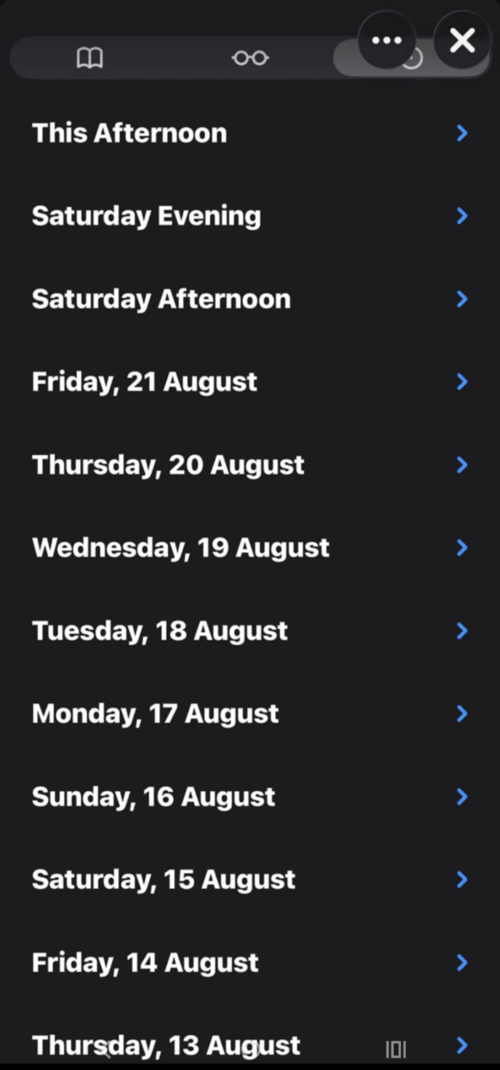
- Now select the History tab, denoted by the Clock icon.
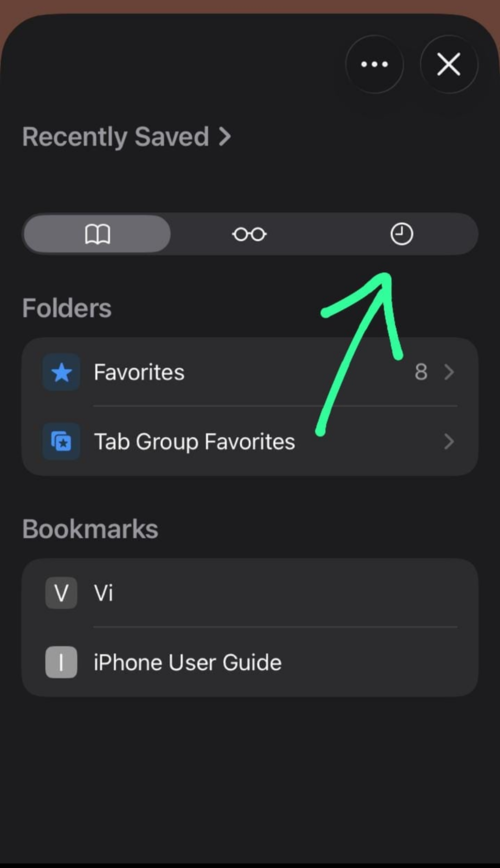
- Now you will see your browsing history, which includes the page titles and URLs of each website visited, along with the date of the visit.
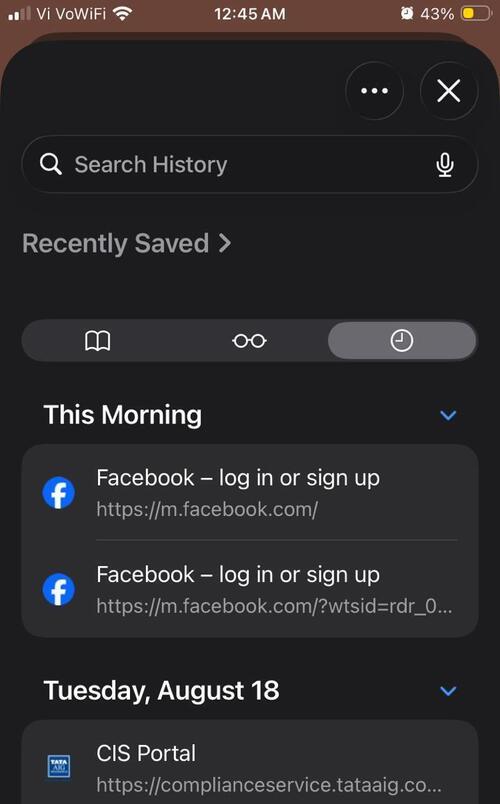
- You can also search for a specific page using the search bar at the top of the page.
#2) On an iPad
The steps for checking Safari History on an iPad are exactly the same as those for an iPhone.
- Open the Safari browser.
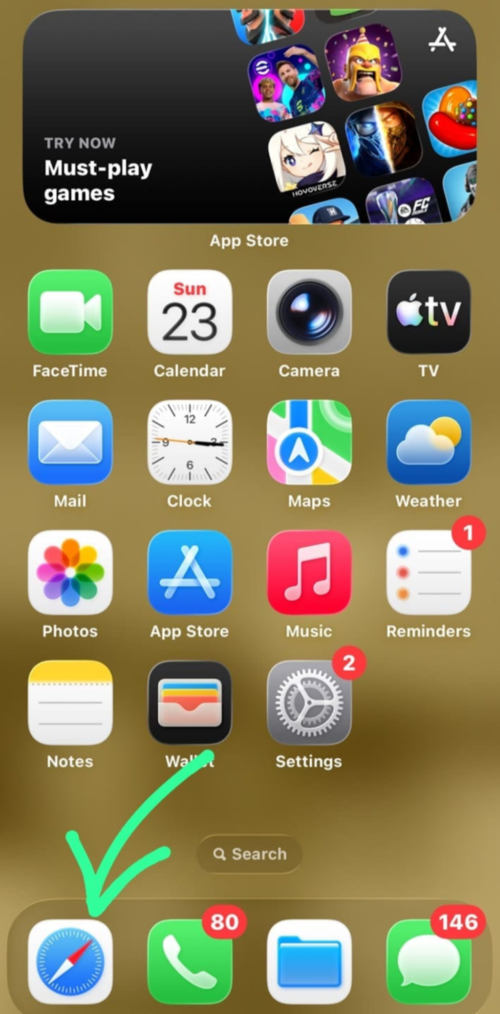
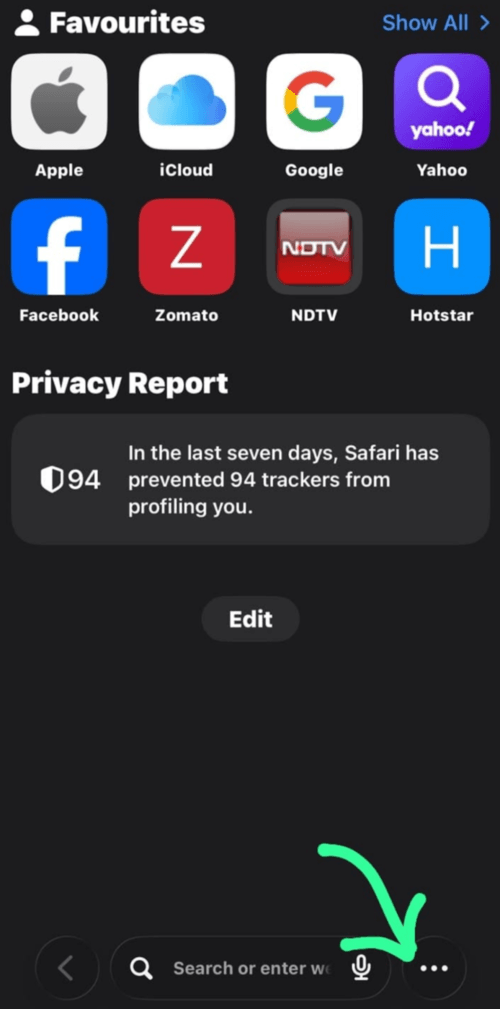
- Tap on the 3-dot menu icon located in the bottom right corner of your screen
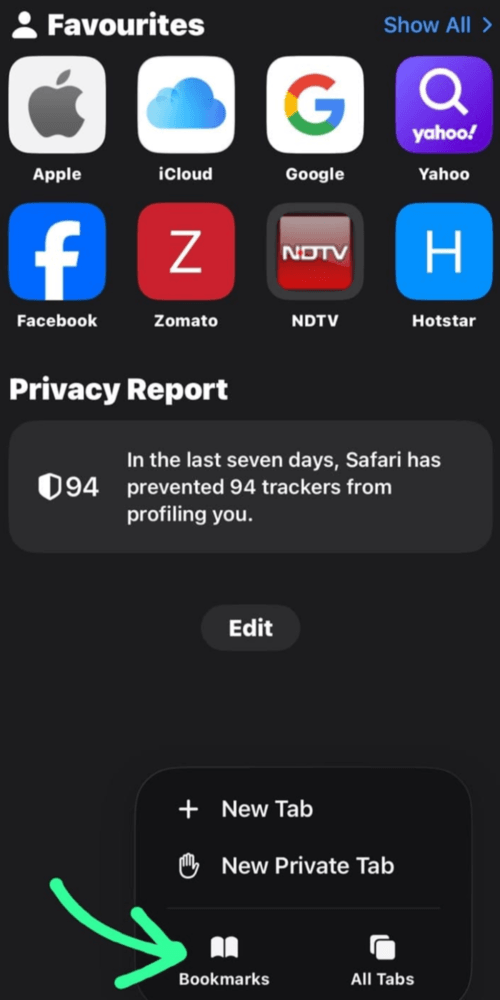
- Choose Bookmarks
- Now tap on the Clock icon. (In some iPad models, tap on the < icon located at the top of your screen first, and then you will see the Clock icon).
- Now you will be able to see the browser history.
#3) On Mac
Follow these steps for accessing Safari history on your Mac device:
- Open the Safari app.
- Click on the History icon located in the Menu bar.
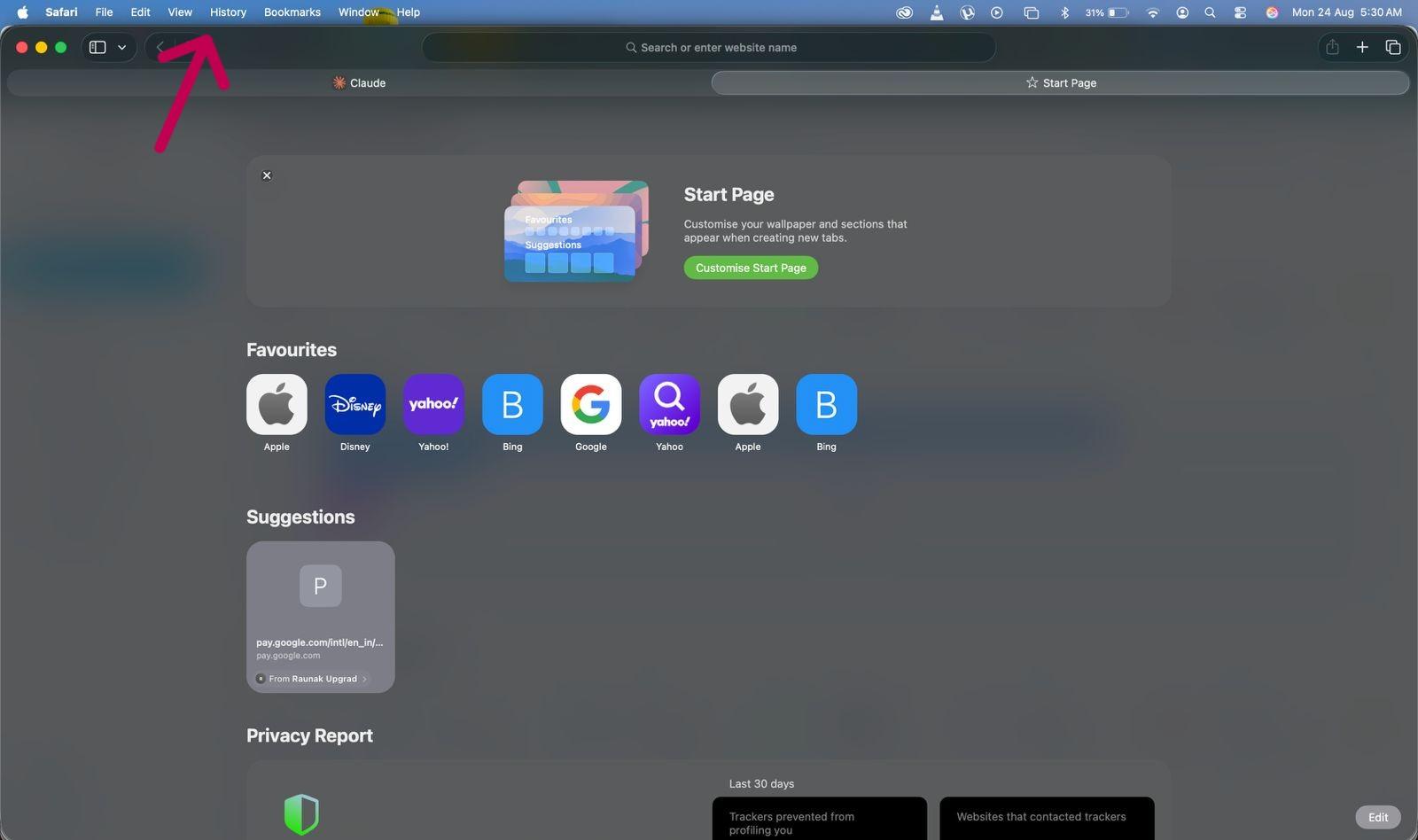
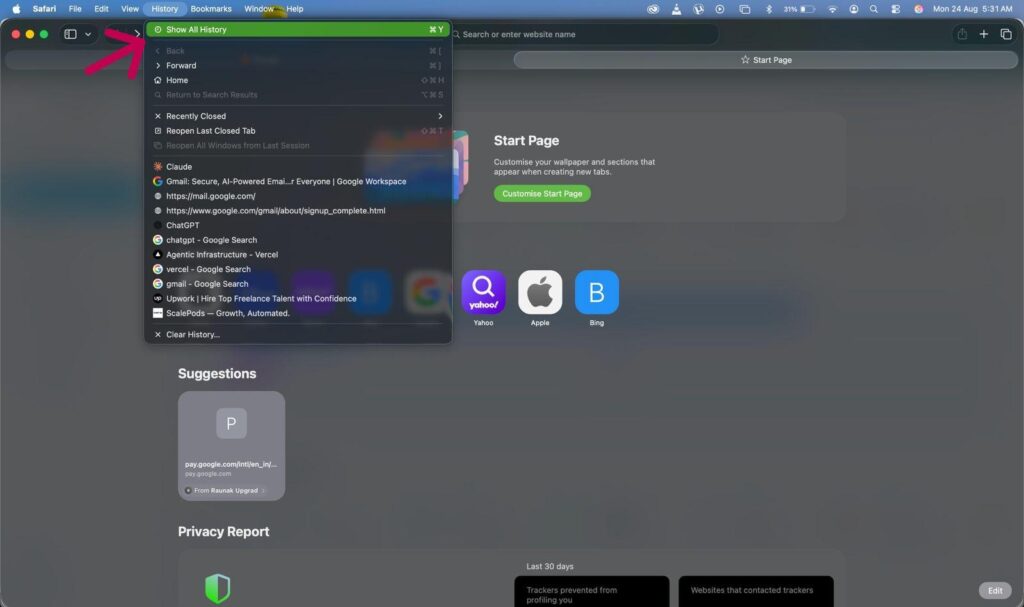
- Select Show all History from the drop-down menu (or press Command + Y).
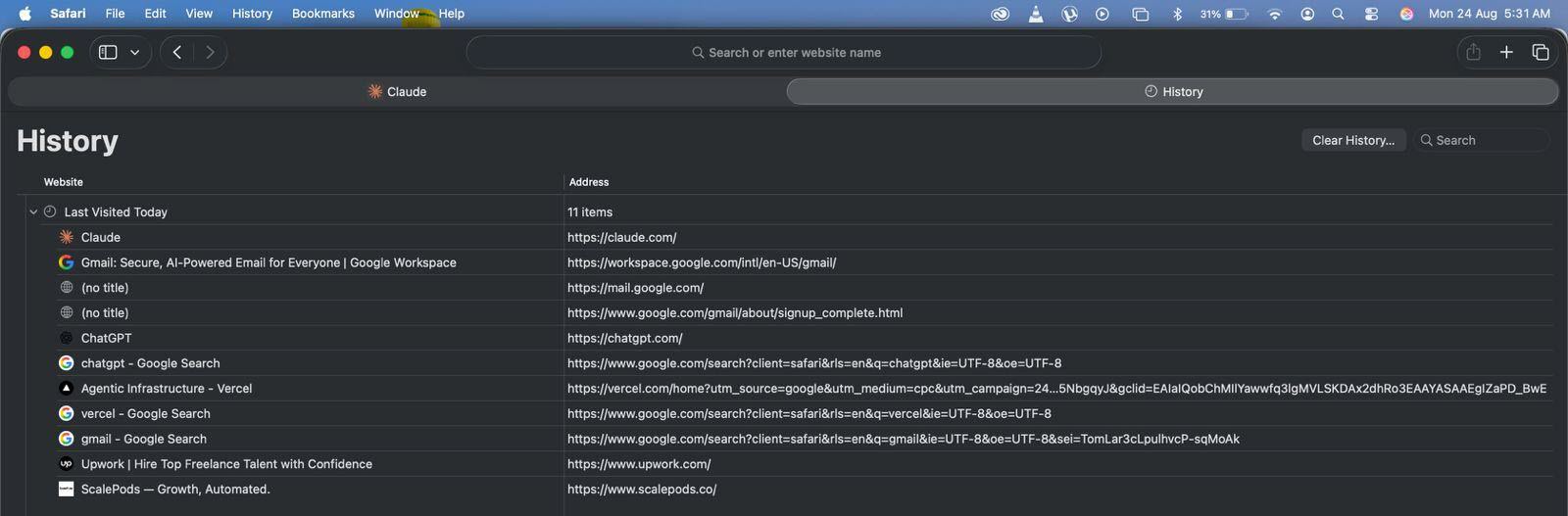
- You will see all History
Where Did Safari History Go in iOS 26
Safari History is still there in iOS 26. It’s just that one more step is added to access Safari history now. To be very clear, let me tell you the difference in steps between iOS 26 and the older versions of Safari.
In the earlier versions, you could access Safari history with these steps:
Safari > Book icon > History
But in iOS 26, you’ll have to follow these steps:
Safari > 3-dot menu icon > Bookmarks > History
How to Search a Specific Site in Safari History
There are 2 ways to quickly search Safari history to find a specific site:
#1) Address Bar Autocomplete Method
This method is the fastest way to find a specific site.
It works this way:
- Open Safari browser (on your iPhone/ iPad/ Mac).
- Now suppose you want to open YouTube.
- Go to the search field (located at the bottom of your screen).
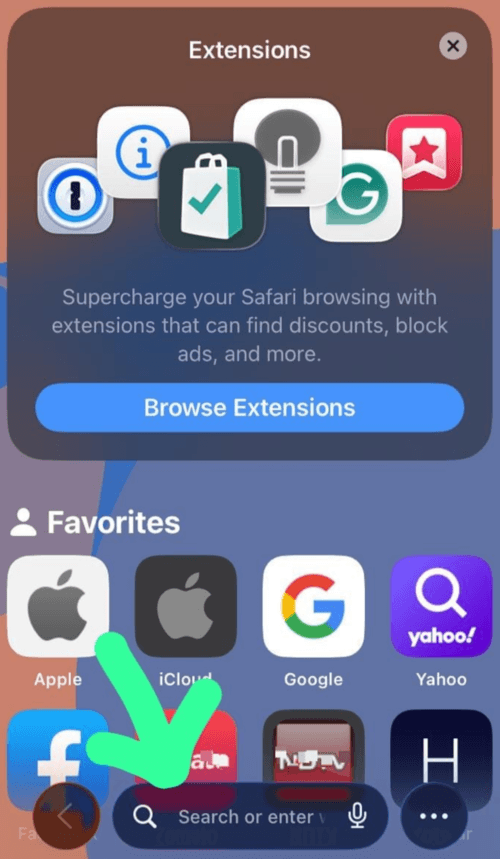
- When you type Y, it will quickly suggest 4-5 sites that start with Y (YouTube will most probably be at the top).
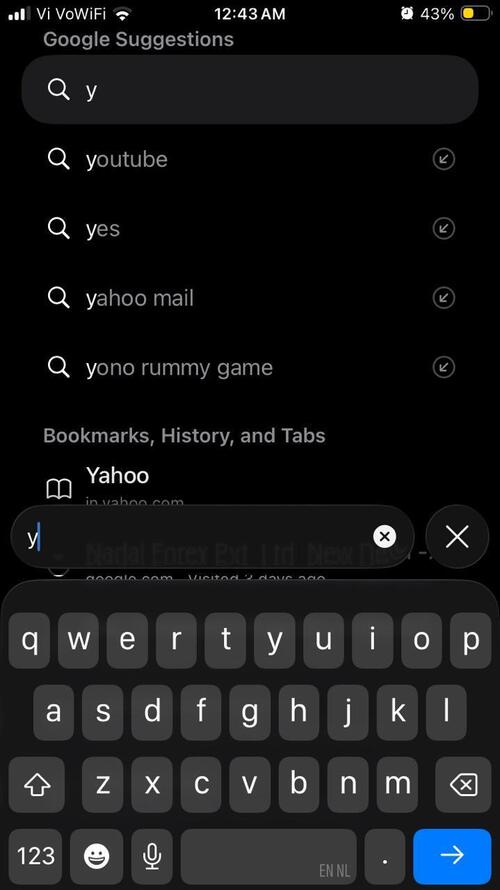
- If you have frequently visited another site in the past whose name starts with YO, then that site may also show up at the top.
- Now click on YouTube and open it.
#2) In-app Search Field Method
Another method to find a specific site that you visited through your browser is as follows:
- Open the Safari browser on your iPhone/ iPad.
- Tap on the 3-dot Menu icon
- Select Bookmarks
- Now tap on the Clock icon
- Now you will see your search history. At the top of the history, you will see a ‘Search History’ bar.
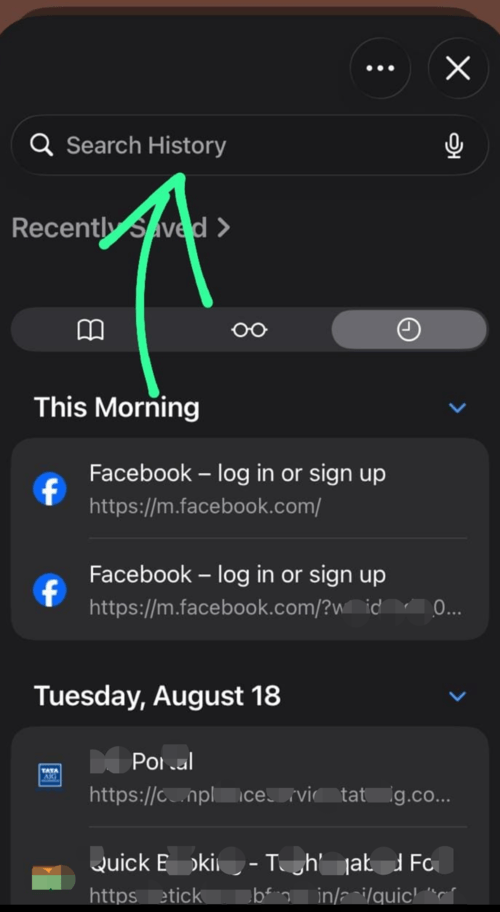
- Type the name of the site you are looking for in the bar.
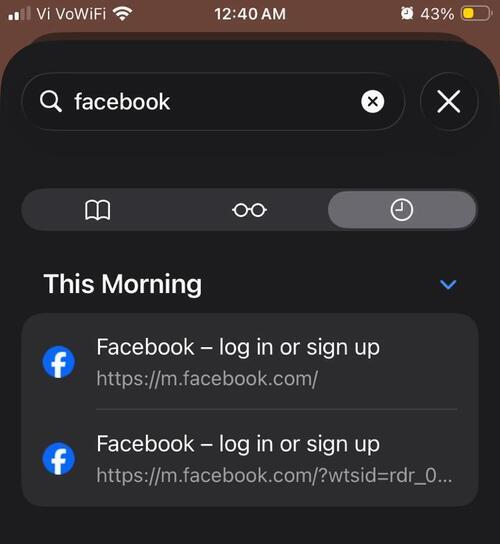
- This will show you the date of visiting that specific page, along with the frequency of the visits.
Why Can’t I Find a Website in My Safari History?
If you are unable to find a specific site in your Safari history, it would be because of one of the following reasons:
- You may have visited that site in private mode.
- There can be a spelling error in the site name you typed.
- You may have cleared Safari History in the past.
- Safari stores the history of the last day/ week/ month, and keeps on clearing the earlier history automatically. You can select whether you want the browser to keep the history for the past 1 day, 1 week or 1 month. Or you can choose to clear history manually; this way, the history won’t be deleted automatically. iOS devices can keep the browser history FOR a maximum of one month, the limit for Mac devices is 1 year.
- You may be unaware of the new feature introduced in iOS 26 – the Safari browser can be used in different profiles, like Personal or Work. So when you open Safari history, you will see the option to switch to a Personal (or Work) profile at the bottom. Switch to a different profile to check whether you visited that specific site from that profile.
- You may have browsed the site on your iPhone, and now you may be looking for it on your iPad, and the automatic sync feature would be turned off. In this case, you won’t be able to view history on another device.
- There’s another new feature on iOS 26 – you can lock the Private tabs. This feature makes the private tabs even more invisible than before.
How to Stop Safari History From Syncing Across Devices
If 2 or more of your Apple devices are running on the same iCloud account, then the browsing history of both devices gets saved on that one particular account. Deleting history on one device automatically deletes it from the other devices (with the same account) also.
This means Safari does not merge history among the devices with the same iCloud account, it overwrites it. So, if you delete the history accidentally (or intentionally) from one device, it will get deleted from the other device also, as soon as the other device is connected to the internet.
But, for the user rescue, there is a feature in iPhones that allows them to safeguard the history from syncing to the deleted version on the other device.
Here is what you need to do so that your iPhone’s Safari history does not get deleted due to syncing and overwriting:
- Go to Settings
- Tap on your Name
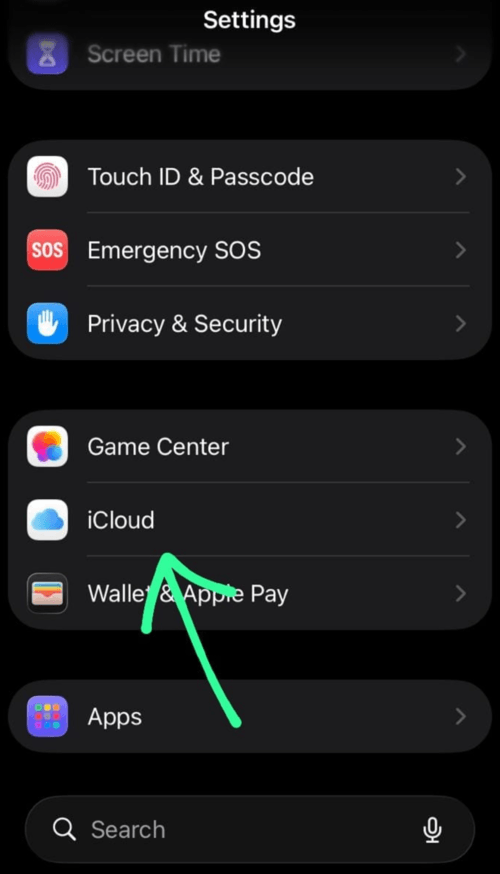
- Select iCloud
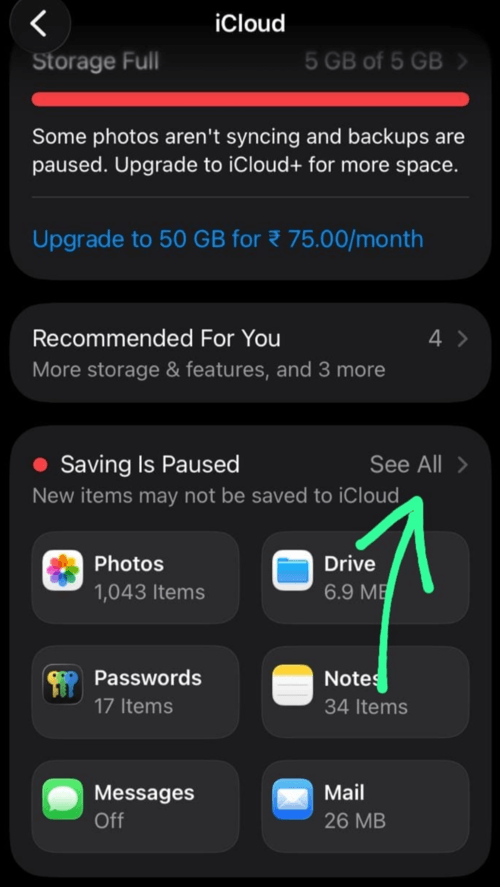
- Choose See All (or Show All)
- Find Safari and turn it off.
- Choose Keep on My iPhone.
This way, your browser history won’t be deleted even if it’s deleted from another device with the same iCloud account.
How Long Does Safari Keep History?
Safari keeps a record of your browsing data for 1 month by default on iPhones and iPads.
You can change this setting with these steps:
- Go to Settings
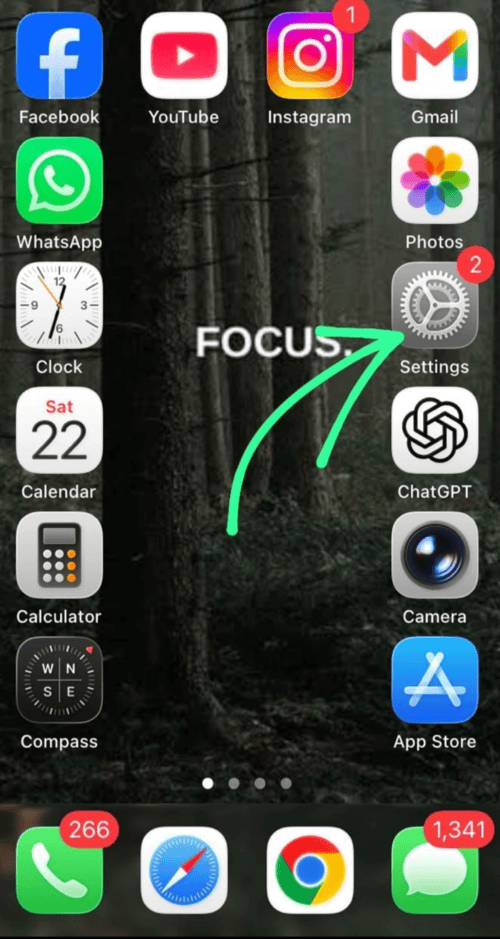
- Select Apps
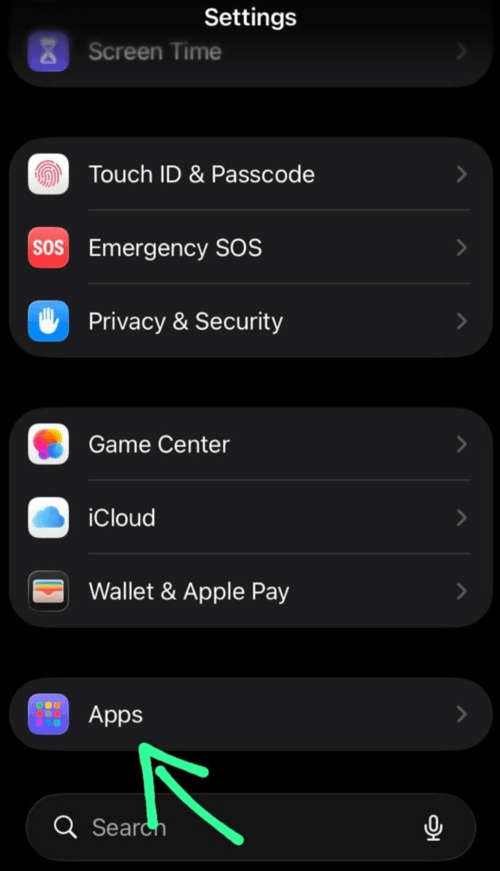
- Choose Safari
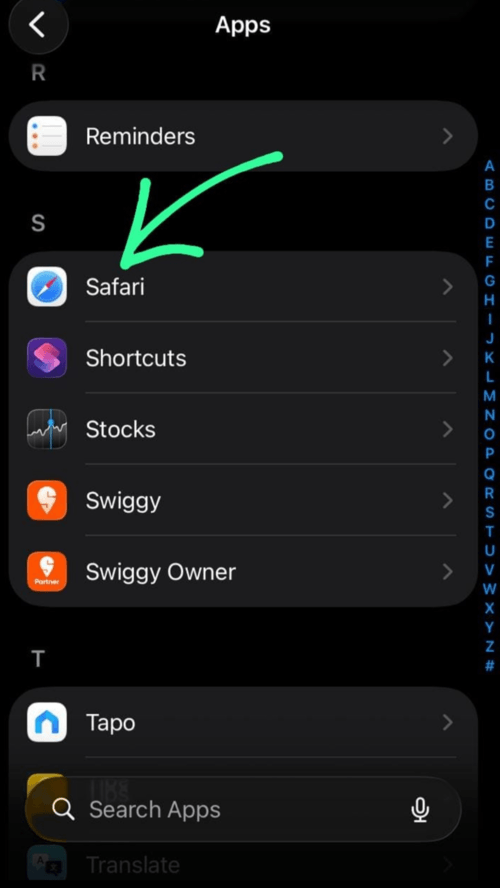
- Go to Clear History and Website Data.
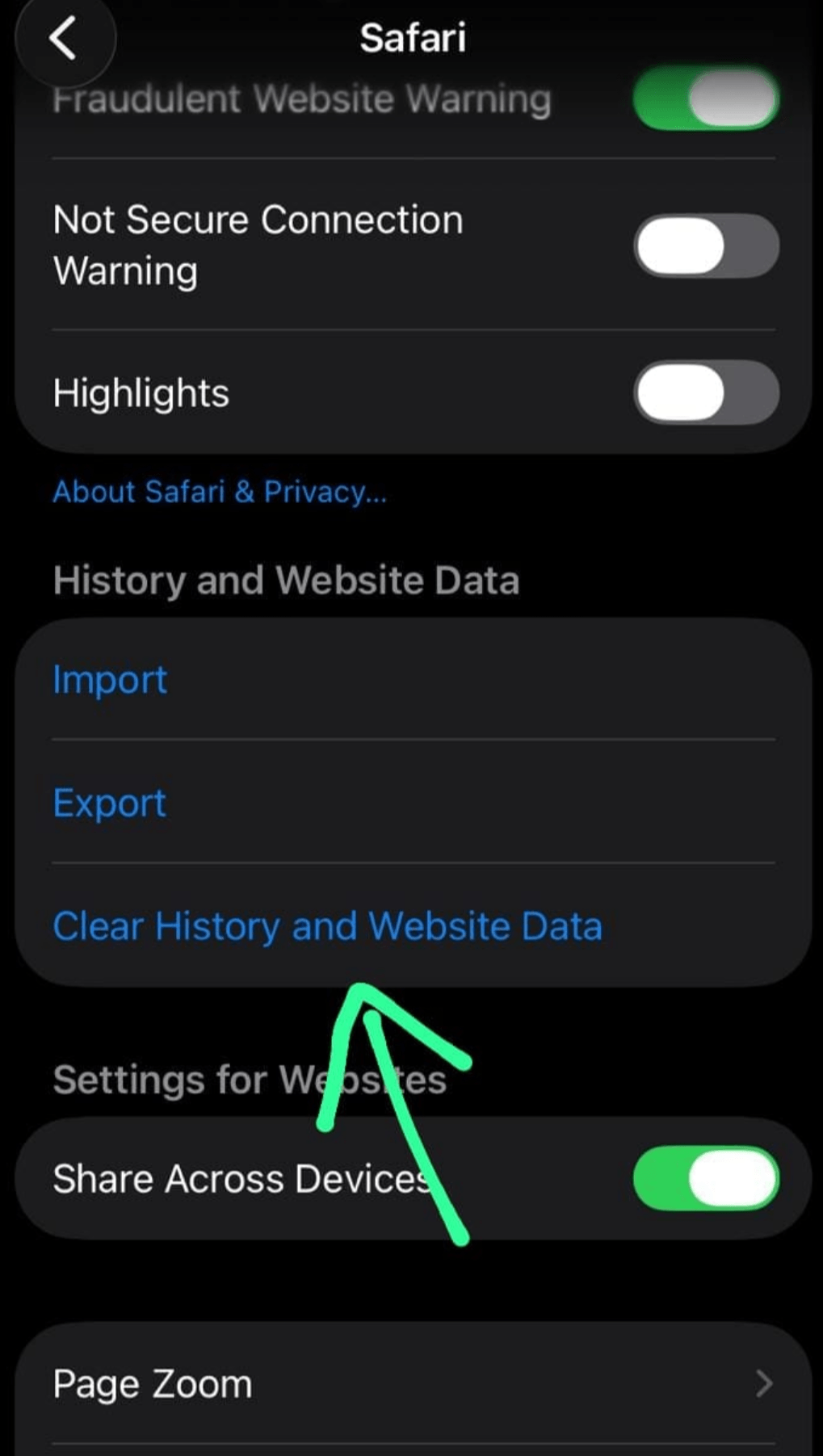
Now you can choose any option from the following:
- Last Hour, or
- Today, or
- Today and Yesterday, or
- All History.
On Mac devices, Safari can retain history for up to a year; while on iPhones and iPads, it can keep a record of the past month’s history only.
Does Safari History Sync Across Devices?
Yes, Safari history will sync across devices with the same Apple ID, by default. You can choose to stop syncing browsing history across devices.
This can be done using these steps on the iPhone/ iPad:
- Go to Settings
- Tap on your Name.
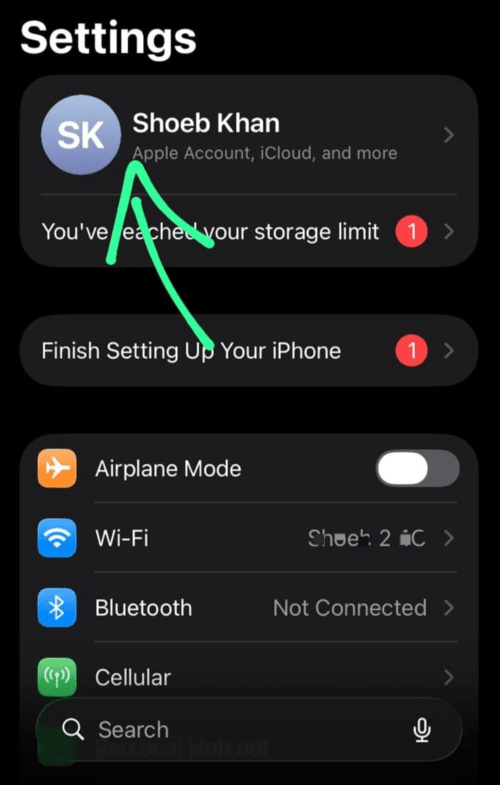
- Tap on iCloud.
- Tap on See All located next to Saved to iCloud (or Saving is paused).
- Find Safari in the list.
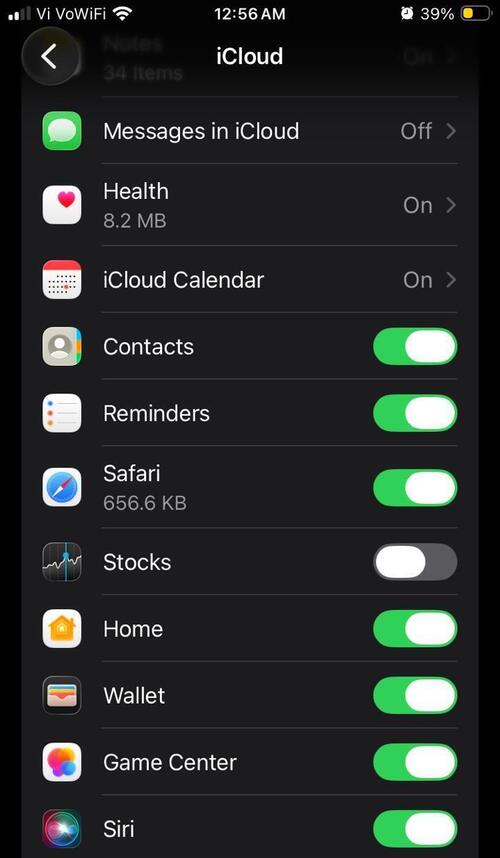
- Turn it OFF (or ON)
If you want to turn off Safari history syncing on your Mac, then do as stated below:
- Go to System Settings
- Click on Your Name
- Choose iCloud
- Select Show More
- Click on Safari
- Toggle OFF.
How to Clear Safari History
Safari History can be cleared using simple steps.
The steps would differ for different purposes like:
- For clearing history of a specific site.
- For clearing history of a time period (like for today/ last hour).
- For clearing all history.
#1) On a Specific Site
To clear the browsing history of a specific site, follow these steps:
- Go to Safari
- Tap on the 3-dot Menu icon
- Select Bookmarks
- Go to History
- Scroll down to find the site that you want to delete (or search for it from the Search bar, located at the top of Search History)
- Once you find that specific site, swipe left on it.
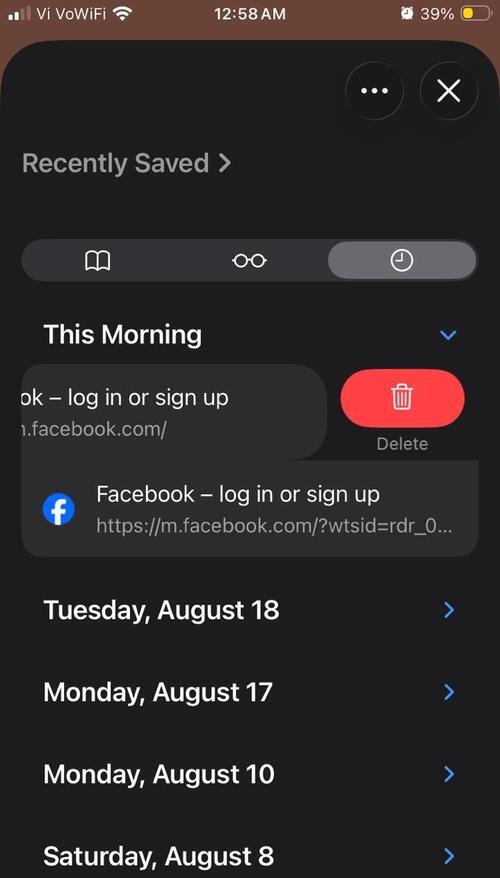
- Then tap on Delete.
#2) Of a Specific Time Period
To clear the Safari history of a specific time period, do as stated under:
- Open Safari history
- Tap on the 3-dot menu icon.
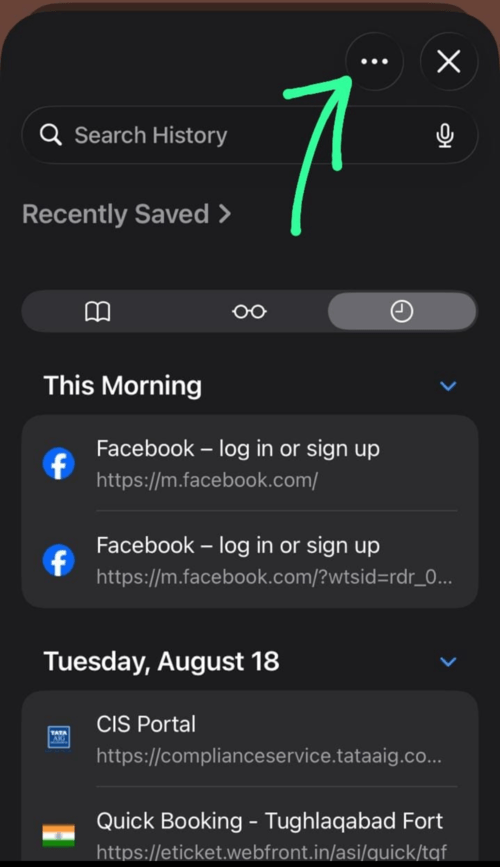
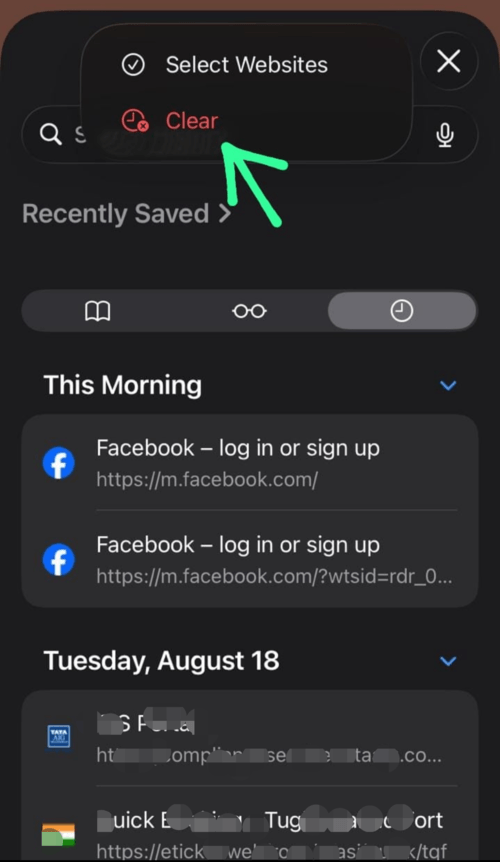
- Now tap on the Clear option.
- Now you can choose any option – Last Hour/ Today/ Today and Yesterday/ All history.
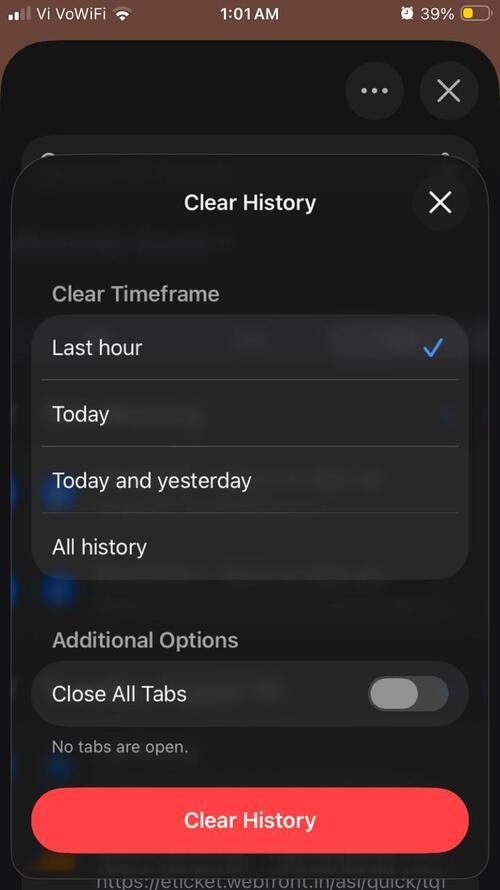
#3) Clear All History
To clear all Safari history, follow these steps:
- Open Safari history
- Tap on the 3-dot menu icon.
- Now tap on the Clear option.
- Tap on Clear History.
Please note that closing tabs does not clear the history. If you are giving your iOS or Mac device to someone and you don’t want them to see your browsing history, then, in addition to closing tabs, you will need to clear the history too.
How to Recover Deleted Safari History
There are different ways that can be used to recover the deleted Safari history.
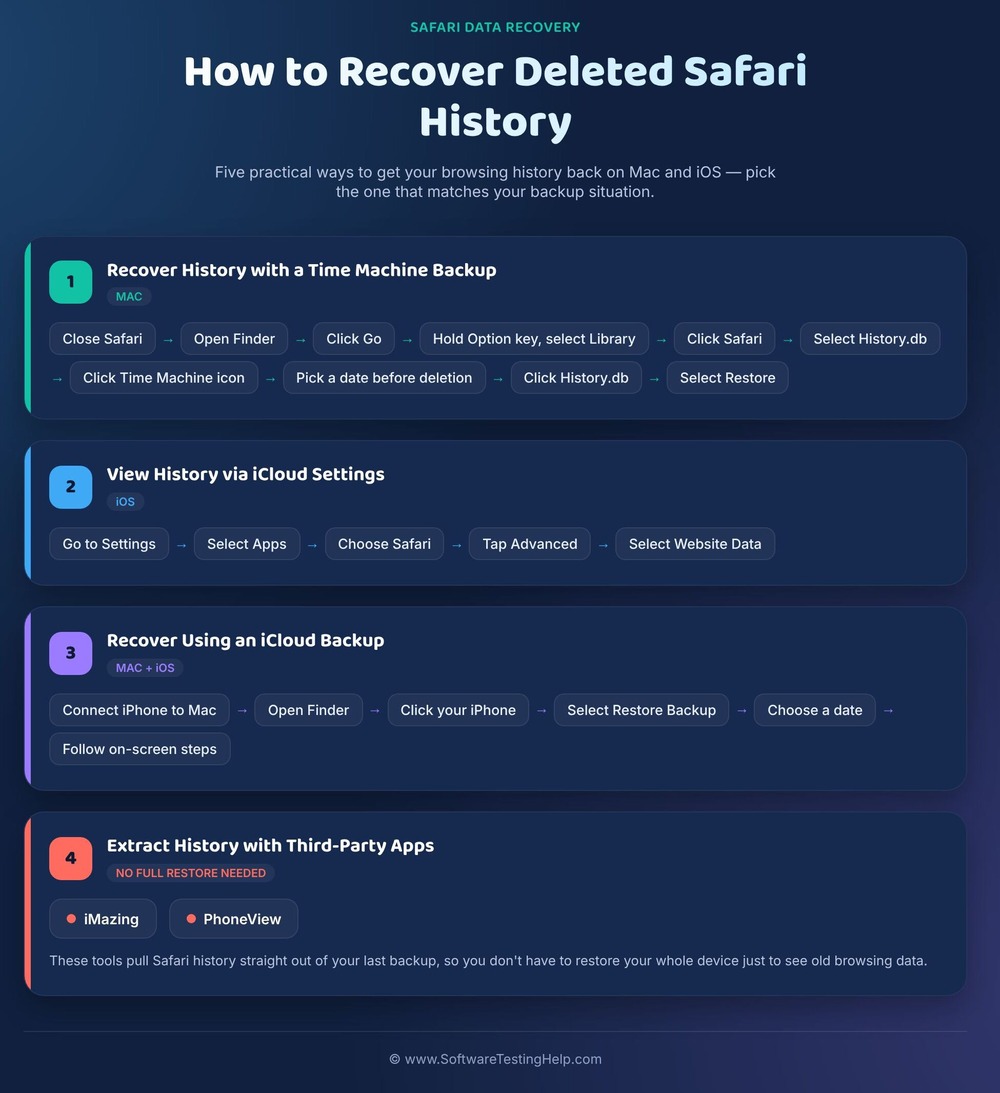
- Recover history on Mac with Time Machine backup by using these steps:
- Close the Safari browser
- Open the Finder application
- Click on Go
- Now go to Option key and then select Library.
- Click on Safari
- Now select History.db
- Select the Time Machine icon located in the upper Menu bar.
- Select a date (earlier than when you deleted the history)
- Click on History.db
- Select Restore.
- On your iOS device, you can view history using iCloud settings with these steps:
- Go to Settings
- Select Apps
- Choose Safari
- Tap on Advanced
- Select Website Data
- Recover history using an iCloud backup done on the date before you deleted history:
- Connect your iPhone to a Mac.
- On the Mac, open the Finder app.
- Click on your iPhone.
- Select Restore Backup, choose a date, and follow the instructions on your screen.
- You can also use third-party apps that allow you to extract Safari history from your last backup, without having to restore the full device. Some of the apps used for this purpose are:
Safari Browser – Reading List Feature
The Reading list feature lets you save an online page to read offline, even if the page gets taken down by the website.
Here is how you can save a specific page for offline reading on Mac:
- Open the Safari browser
- Now open the page you want to save.
- Click on Bookmarks (located in the top Menu bar).
- Now select Add to Reading List.
To open the saved pages later:
- Open Safari
- Click on View
- Select Show Reading List Sidebar.
For saving a page in the Reading List on an iOS device, follow these steps:
- Open the Safari browser.
- Now open the specific page you want to save.
- Tap on the Share icon.
- Now select Add to Reading List.
To open the saved pages later, do as follows:
Tap on Reading List
Open Safari
Tap on the 3-dot menu icon
Now select Bookmarks
Frequently Asked Questions
1. Why can’t I see my history on Safari anymore?
There are many reasons that can cause this issue.
For example:
• You may be looking for Safari History in its earlier place. In iOS 26, there is a slight change in Safari for accessing history.
Follow these steps to see Safari history on iOS 26:
• Open Safari browser
• Tap on the 3-dot menu icon
• Choose the option: Bookmarks
• Now tap on the Clock icon.
• Now you will see your browsing history.
• You may have used the Safari browser in private mode, due to which your Safari history is not saved.
• You may have cleared history recently.
• Your device may be in sync with another device, and someone else would have cleared Safari history on the other device, due to which it got cleared on your device also.
• In the settings, you may have chosen to keep the Safari history of the last hour only. Due to which, you can’t see earlier history.
• Sometimes the iOS and Mac devices do not keep a record of the browsing history if the device is running out of storage.
2. Where has Safari history gone?
With the launch of iOS 26, Safari has changed its settings a bit. Now you have to tap on the 3-dot menu icon in order to find the Bookmarks option. Then you will have to go to the Clock (History) tab to access your browsing history. The earlier versions do not have the 3-dot menu icon step.
3. Can others see my browsing history?
Others can only see your browsing history in some specific conditions like:
• Someone who gets access to your phone can see your browsing history.
• If another device is in sync with your device, they will be able to see your browsing history.
• Your WiFi service provider would be able to see your browsing data.
• If you are using a device provided to you by your organisation, then they would be able to see your browsing history.
• If the parental control features are enabled, then also, your browsing history can be accessed from another device.
4. Can police track my incognito history?
Yes. The police, hackers or even an individual with advanced technical skills can access your incognito history. Incognito or Private mode doesn’t keep a record of your browsing history. But your internet provider still gets access to it. Plus, you will be visible to the websites you are visiting, even if you are using the device in Private mode.
The browser history can also be recovered through DNS cache or router logs, even if you have browsed in Private mode.
5. How do I see my full history on Safari?
For an iPhone, launch Safari, click on the three-dot menu, go to Bookmarks, and click on History (clock icon). You will see your browsing history or use the search box to locate a particular web site/page. For a Mac, click on Safari > History > Show All History.
6. Where is Safari history stored on iPhone?
Safari history can be viewed directly within Safari browser application itself. Click on Safari > three-dot menu > Bookmarks > History (clock icon) to access your Safari browsing history. In case Safari has been set up for iCloud syncing, your Safari history can also be viewed on all your Apple devices using the same iCloud account.
7. Does Safari history sync across iPhone, iPad, and Mac?
Safari history will sync on your Apple devices when Safari sync is enabled in iCloud and uses the same Apple account. Safari data can be synced, which includes browsing history. Disabling Safari Sync means that history from a particular device might not show up on other devices.
8. Does Safari save history when using Private Browsing?
No. Sites browsed while using Private Browsing will not be saved on your regular Safari browser history. Hence, if you are unable to locate a site in History, it could have been opened in Private Browsing.
Conclusion
iPhone users often need to access Safari history in order to open a previously used site – like a website they used for filling out an exam form or to place an online order, etc.
If you remember the date of using the site, you can easily find that site in the Safari history, if it’s not automatically (or manually) removed from the history yet.
iPhone users can even save a site in Bookmarks to access it later, if they fear the site will be lost. This can be done either by copying and pasting the site’s URL somewhere in your notes, or by adding the site to Bookmarks.
You can bookmark a site using these simple steps:
- Open the site that you want to save.
- Now tap on the Share icon
- Choose the option – Add Bookmark
- Now you will have to select where you want to save it. And then tap on Save.
- It’s done.
Research Process: The total time involved to complete and publish this article is approximately 40 hours. This content was created through a structured research approach to ensure accuracy and reliability.
For more related guides, you can explore our range of tutorials below:
- How To Delete Incognito History On Any Browser (Quick Steps)
- How to Turn Off Incognito Mode on iPhone, Chrome, Android
- Why Does Yahoo Keep Opening In Chrome
- What Is Shift Browser: Is It Safe or Malware?
- What Is Tor Browser and How to Download & Use it Safely
- What Is Leaf Browser Alpha? Review and Alternatives
- How to Clear Cache for Chrome, Firefox And Other Browsers
- Top 10 Private Browsers for iOS & Android [SECURE]
Was this helpful?
Recommended Reading
-

Steps to check the call history of any mobile number online easily and the top 7 apps to check and retrieve mobile call history free. A lot of people look for ways to check a call history online, either because they wish to restore lost call history data, view previous…
-
Is your Incognito history still showing up? Quickly learn how to delete Incognito history permanently from any browser or device with our complete step-by-step guide: If you want to know how to delete Incognito History, well, you’ve come to the right place. As someone who values his privacy whenever online,…
-
Can't find the Facebook video that you watched? Find your recently watched Facebook Videos History on any device. Retrieve Facebook video watch history and revisit any lost video instantly: Let’s say you came across a hilarious video on Facebook yesterday. You can’t wait to watch it again right away. Alas!…
-
Learn how to find, view or see TikTok watch history from our step-by-step guide and recover or revisit videos anytime on iOS and Android devices. Ever watched a TikTok video and forgot to like, save, or follow the creator—then spent hours trying to find it again? You’re not alone. Many…