


Learn how to use the GPResult command to view Group Policy settings, learn its variations for different purposes, along with syntax examples and screenshots.
Need to see if your Group Policy was successful? Use the GPResult tool to troubleshoot your active group policies, determine reasons for policy failures, and create comprehensive HTML reports. Whether you require an overview by using “gpresult /r” or a full report by using “gpresult /h gpreport.html,”
This article provides the correct commands, examples, and solutions to your Group Policy problems. Learn how GPResult differs from GPUpdate, create your HTML reports, and troubleshoot problems like “Access Denied” and lack of RSOP information.
How to run GPResult:
- Open Command Prompt as Administrator.
- For Summary: Type gpresult /r and press Enter.
- For HTML Report: Type gpresult /h C:\gpreport.html and press Enter.
- Quick Tip: If you get “Access Denied,” you need to run this command as Administrator.
What Is Group Policy
Group policy is an inbuilt feature in all versions of Microsoft operating systems that supervises the functionality of user accounts and computer accounts. It provisions the centralized management and configuration of various features of OS and accounts in the Active Directory environment.
A collection of Group Policy is known as Group Policy Objects (GPO). The group policy can be considered the primary security tool of the OS user account that is used to provide security to the user account and the computer account associated with it.
Uses Of Group Policies
- It can enforce the password policy that restricts the user to access/alter defined services only.
- The group policy can prevent an unknown user from accessing the network from remote computers.
- It can block or allow access to certain folders or files by remote end devices on the network.
- It is used to manage the profiles of roaming users, which includes folder redirection, offline file access, etc.
ManageEngine ADManager Plus (Recommended)

ManageEngine ADManager Plus is a widely recognized web-based AD management and reporting solution. ADManager Plus stands out for its impressive GPO management and reporting capabilities. You can rely on the solution to completely streamline the management of GPOs. It does so by helping you configure GPOs in bulk.
You also get an audit trail of all GPO changes made via comprehensive reports, thus making it easier to monitor compliance. ADManager Plus will help you enable, disable, or delete GPOs, modify enforcement options for GPO links, block or unblock inheritance of GPO links, and much more.
Features:
- AD Bulk User Management
- Active Directory Password Management
- AD Group Management
- File Server Permissions Management
- 360-degree user provisioning.
Price: Contact the ManageEngine team to get a quote. The license fee starts at $596/year. A free demo is also offered upon request.
What Is the GPResult Command in Windows?
The gpresult is a command line tool that helps validate the Resultant Set of Policy (RSOP) of any user or computer. While Group Policy Management Console (GPMC) tells you what should be done, gpresult tells you what really happens on your system.
gpresult works with all Windows versions, from Windows 10 through to Windows 11, and Windows Servers like 2022, 2019, 2016, 2012 R2, and 2012.
What GPResult Actually Does
gpresult queries the local system and the Domain Controller to identify:
- Applied GPOs: The list of policies that have been successfully applied to the system.
- Denied GPOs: The list of policies that are denied and why (Security Filtering, WMI Filters, Empty GPOs, etc).
- Security Groups: The list of AD groups that the computer/user is currently a member of.
- OS information: Specific versions/build of the OS which may influence policy processing.
The admins will be able to see if the computer policy and user policies are already set in action by using various GPResult commands including gpresult /r, gpresult /scope computer, and gpresult /u. If the admin needs more information for his reports, he will utilize the command gpresult /h gpreport.html.
What Is RSOP Data?
The RSOP (Resultant Set of Policy) drives the gpresult command. This is the last “result” obtained after processing Group Policy Objects within the hierarchy:
- Local Policies
- Site Policies
- Domain Policies
- OU Policies
It uses this information in resolving issues when two GPOs conflict over the same policy. For instance, when a domain-based GPO overrides a local GPO.
In the following section, I have explained in detail about the GPResult command with examples, including how to generate reports, analyze Group Policy results, and troubleshoot policy-related issues effectively.
Let’s start:
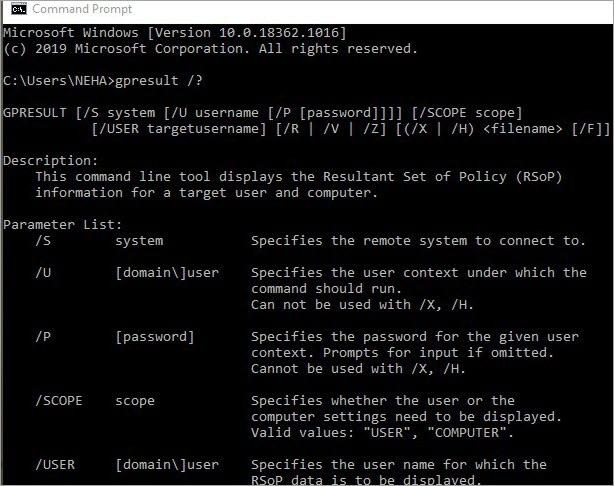
gpresult Command: To see the Gpresult commands syntax, go to the command prompt and type the command: “gpresult /?”
The output shown below displays the description and parameter list of the resultant set of policies (RSoP) for a target user and the computer.
Now let’s see how the GPResult command and its syntax are used in the following sections
How to Use GPResult /R (Step by Step)
- gpresult /r
The gpresult /r command (The /r switch stands for Report (or Summary) displays the Resultant Set of Policy (RSOP) data, which shows the Group Policy settings currently applied to a Windows computer and logged-in user.
It is one of the quickest ways to verify whether a policy has been applied successfully or troubleshoot why a GPO is not working.
The following example is the output of the command gpresult /r shows
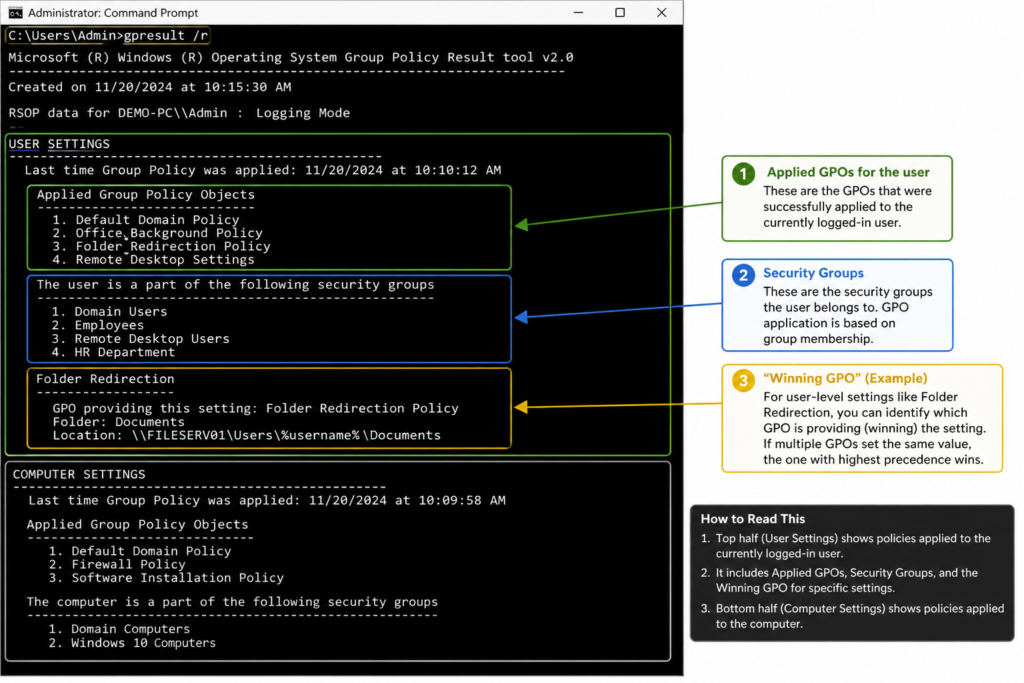
When you run gpresult /r without additional flags, the top half of the output focuses on the User Settings. It shows the following information about the User:
- Which GPOs are applied to the currently logged-in user?
- Which Security Groups the user is a member of?
- The “Winning GPO” for specific user-level settings like Folder Redirection or Desktop Wallpaper.
Bottom half of the /r output
The second part of the /r output displays the Computer Settings as shown in the above example, which is very important when trying to troubleshoot Machine Policies such as Software installation, Startup Scripts, or Windows Update settings.
The above-mentioned information will be visible only if the Command Prompt is started under administrative privileges. Otherwise, one will receive a prompt saying “Access Denied” or “Information not found”.
Filter Results with Scope Options
However, when operating in an complex system, the results generated by /r may be too many. The /scope parameter will assist in focusing on what needs attention. It is incredibly useful for IT professionals.
Examples of Syntax:
- To display USER GPO only: gpresult /r /scope user
- To display COMPUTER GPO only: gpresult /r /scope computer
Why Scope Matters: When trying to diagnose a login script (USER), but are always being distracted by firewall rules (COMPUTER), using the scope parameter cuts your search in half.
Common Uses for GPResult /R
Administrators commonly use it to:
- Determine if a GPO was applied
- Diagnose failures in policy application
- Solve problems with security filtering
- Test gpupdate updates
- Review policy settings for users/computers
How to Use GPResult /H to Export HTML Reports
the /h switch is considered by many to be the most useful option of gpresult commands because it presents the raw data from RSOP in easy-to-read, searchable, and interactive HTML format. This is the best way to troubleshoot because it enables viewing the Winning GPO and the Reason denied.
Generate GPResult HTML Reports: In order to produce the HTML file, it is necessary to give not only a filename but also a file path, if possible. Otherwise, the report will be saved in the system directory, which can be difficult to locate.
The most effective syntax is:
gpresult /h C:\Reports\GPOReport.html
Note: If the file already exists, the command will fail. To overwrite an existing report without being prompted, add the /f (force) switch:
gpresult /h C:\Reports\GPOReport.html /f
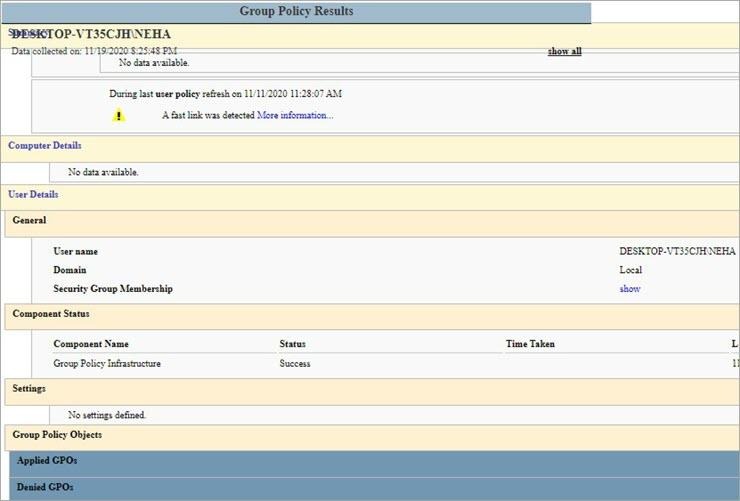
The output that is saved in the. HTML format can be viewed through a web browser by going to the location where it is saved and clicking Open with the browser. This is also shown with the help of the screenshot below.
Export Reports for Audits
gpresult /h is a crucial tool for IT personnel when it comes to audit and compliance.
- Evidence of Security: Use it to confirm the presence of BitLocker, Screen Lock, or Firewall settings, among others, that are in use in the domain.
- Documenting Changes: Before implementing any change in the infrastructure, document the current state and compare it after implementing the changes.
- Remote Access: Unlike the command-line report, you do not need to access the computer remotely to share the report with the consultant or senior administrator.
How to Use GPResult /S – For Remote Computer
- To display the settings and group policy information on a remote computer the /S command is used.
Syntax:
‘gpresult /S COMPUTERNAME’
This command can also be used to display the user and computer settings of the remote computer or server.
- We can also see the verbose settings and parameters of the remote system. We just need to have the credentials of the remote end system and the system should be in the same domain as the host system.
Syntax:
‘gpresult /S system /U username /P password /SCOPE USER /V’
An example of Syntax is shown in the screenshot below:

As the system is not connected to the remote user, it shows the error message.
The syntax to display the settings of the remote computer is:
‘gpresult /S system /USER targetusername /SCOPE COMPUTER /V’
Thus the system command with the SCOPE command can be used to derive all the required information from the remote end computer and the user in the network.
The example is shown with the help of the screenshot below:

[Via itechguides]
Group Policy For Specific User
This command displays the group policies for a specific user or system within the network domain. To display the specific user policy summary, you must know the user’s credentials.
The command is as follows:
‘gpresult /R /USER targetusername /P password’
For example, if you have to see the policy information and other data for the user “NEHA” then the command and the result shown in the screenshot below will display all the user settings and OS information.

GPResult Scope Command
The /SCOPE command specifies whether the user settings and the computer settings of the network need to be displayed or not. The syntax used with this command is “USER” or “COMPUTER”.
The scope command can also be used to display the settings of the r111emote computer, target user, and target computer. You just need to have the far-end user credentials to access the information.
Now the command to display the remote computer settings is:
‘gpresult /R / SCOPE COMPUTER’
The output is shown in the screenshot below:

GPResult Force Command
This command is used to force the gpresult to overwrite the existing filenames that are specified by the /H or /X command.
The syntax is ‘gpresult /F /H targetlocation\gpresultoutput.Html’

As shown in the above screenshot, the command will forcefully overwrite the content of the target location filename that is saved at the mentioned location. The modified file location is displayed below, and it can be opened with a web browser like Google Chrome, etc.

GPResult Verbose Command
This command is used to display the verbose information in the system. It includes the additional detailed settings like security privileges granted to the user, public key policies, logon and logoff script settings, administrative templates and internet connection-related settings, etc.
The syntax is ‘gpresult /V’
The command output is shown in the screenshots below:


GPUpdate vs GPResult: What’s the Difference?
While GPUpdate and GPResult work together, they do not perform the same function. While one updates Group Policy, the latter confirms whether the group policies have been applied successfully.
An easy way of remembering this:
- GPUpdate ensures that policy modifications are made effective
- GPResult confirms how effective the application of policies was
What is GPUpdate?
gpupdate is used to make the computer refresh its Group Policy information from the domain controller.
When to use GPUpdate:
- If there has been any modification of the GPO
- If immediate action is required
- When the automatic cycle of updating policy should not wait
Basic command:
gpupdate /force
This reapplies both Computer Configuration and User Configuration policies.
Important: GPUpdate pushes a refresh, but it does not show whether the policy was successfully applied.
What Does GPResult Do?
The gpresult command displays Resultant Set of Policy (RSOP) data and shows which Group Policies were actually applied. How to use it and its examples are seen in the above section.
Rule of thumb:
Use GPUpdate to apply policies, then GPResult to verify them.
GPUpdate vs GPResult Comparison Table
| Feature | GPUpdate | GPResult |
|---|---|---|
| Refreshes Group Policy | Yes | No |
| Shows Applied Policies | No | Yes |
| Verifies GPO Success | No | Yes |
| Troubleshoots Policy Issues | Limited | Yes |
| Exports HTML Reports | No | Yes (/h) |
How to Fix GPResult Errors
The gpresult command may sometimes display errors or no output even for experienced administrators. These are mostly problems of permission and connectivity. Below are solutions to the most frequent “gpresult not showing policies” hurdles.
Fix: GPResult Access Denied
Access Denied is by far the most prevalent problem encountered. It is usually due to the Command Prompt having been started without administrator privileges.
- The Problem: User Settings are visible while Computer Settings display “Access Denied.”
- The Solution:
- Open the Start Menu.
- Enter cmd in the search box.
- Right-click Command Prompt and click Run as Administrator.
- Re-enter your gpresult /r or gpresult /h command.
Fix: GPResult Does Not Show RSOP Information (Empty Results)
In some cases, even if gpresult runs without any problem, it reports: “INFO: The user does not have RSOP data.”
- The Problem: In such cases, typically a user will be signing into a computer for the first time, or the Group Policy service would not yet have completed its first synchronization.
- The Solution:
- Restart the policy by issuing the command: gpupdate /force.
- Log off and then sign in again to make sure the user profile is fully loaded with policy headers.
- Makes sure that the Remote Registry and WMI services are working on your local computer.
In case you use the “/s” flag to query a remote computer and encounter an error message indicating that the RPC Server is Unavailable, chances are high that the problem results from the firewall setting.
The Solution:
- Remote Management Enabled: Run the command winrm quickconfig on the target computer via admin CMD.
- Firewall: Remote Event Log Management and Remote Administration must be enabled in the firewall.
- DNS Check: Verify whether you are able to ping the target PC via its hostname; in case the DNS fails, then the GPResult query will also fail.
GPResult Command Examples for Real Admin Tasks
To truly master the gpresult command, you need to know how to apply it during common IT scenarios. Use these examples as your “Cheat Sheet” for daily administration.
1. Check Why a GPO Didn’t Apply: It is the most frequent cause that forces you to execute gpresult. In case you have configured your policy (Desktop Wallpaper or Drive Mapping), but it does not appear, then try the command below to detect the culprit.
The Action: Run gpresult /h C:\temp\verify.html
Scroll to the “Summary” section under “Applied GPOs” or “Denied GPOs.”
What to Look For:
- Security Filtering: In case the user/computer does not belong to the appropriate Security Group, you see “Denied” for your GPO.
- WMI Filter: If the GPO has a WMI filter (e.g., “Only apply to Windows 11”) and the machine is Windows 10, the result will show “False.”
- Empty GPO: If the GPO is linked but contains no settings, it will show as “Empty.”
2. Verify User Login Policies: When users claim that their scripts did not execute or that their drives have not been mapped, you must check their particular logon session.
The Action: Run gpresult /r /scope user
Why this works: This is effective because by limiting results to “User,” we filter out all other GPOs (such as those relating to Firewall, Updates, and Registry Tweaks) that only apply to computers. With this command, we can view all Logon Scripts and Preferences that executed for the latest logon.
3. Audit Security Policies: Whether before the audit or in the wake of a security violation, you need to confirm that your Hardening security policies, such as the “Password Complexity” or “Account Lockout” are enabled.
The Action: Run gpresult /v (Verbose Mode)
Power of Verbose Mode: While the standard output will only inform you about the name of the GPO, the verbose mode takes you beyond the surface and tells you the actual security settings modified by the GPO.
Example: You can check whether “Minimum Password Length” is enabled for 14 characters from the security setting under Account Policies in verbose output.
Common Error Code Table
| Result Code | Meaning | Fix |
|---|---|---|
| Access Denied | No Admin Rights | Right-click CMD > Run as Admin |
| Inapplicable | OS Version Mismatch | Check WMI Filters |
| Filtered Out | Security Permissions | Add the User/Computer to the GPO Delegation tab |
| Empty | No Settings Configured | Check the GPO in GPMC to ensure settings are defined |
Real-World HTML Report Audit Examples
The gpresult /h report provides valuable data to help auditors perform their job easily since it clearly indicates where to look when verifying compliance or security.
Example 1: Verifying Password Policy Compliance
When performing security audits, there will be instances wherein you have to ensure that either “Account Lockout” or “Password Complexity” policies are implemented at the Domain level and not the Local level.
- Where to find it: Simply open your HTML report and go to Computer Details > Windows Settings > Security Settings > Account Policies.
- The Audit Check: The “Winning GPO” column can provide useful information regarding whether or not your domain-wide security settings have been compromised due to a local setting.
Example 2: Tracking “Ghost” GPOs (Why a Policy Still Exists)
In some cases, you may have deleted a GPO but the policy setting remains enabled on the computer (“tattooing”). In that case, the HTML report would be your only recourse for identifying which GPO is enforcing itself.
- The Situation: You removed the link to the “Restricted Access” GPO, yet the users continue to have restricted access to their Control Panel.
- The Audit Check: Look through the HTML report for “Prohibit access to Control Panel.” * The Clue: Go to the “Precedence” tab and it will show you a list of GPOs that tried to enforce this policy setting. You may discover that there is a forgotten GPO linked at the Site level.
Example 3: Remote Audit for Software Deployment
Deploying software, such as Chrome and/or an MSI package, via Group Policy is easy to audit remotely.
- Command Used: gpresult /s RemotePC-01 /h C:\Audits\RemotePC-01.html
- What to Check During the Audit: Computer Details > Software Installations.
- Result of the Audit: In the generated report, you will see the “Deployment State.” If the Deployment State is “Failed,” the HTML file will indicate what went wrong by giving you an exact “Event ID” and Error (e.g., “The network path was not found”).
GPResult Access Denied Fix
In case of getting an “Access Denied” message while using gpresult command, it is not because of the wrong password but rather due to insufficient privileges. The reason is that the gpresult command requires administrative rights to read the information from the RSoP database located at Windows\System32.
Run as Administrator (The 90% Fix)
- The major cause is the use of CMD or PowerShell without administrator rights. Even when logged in as Admin, Windows 10/11 will launch Command Prompt in medium integrity level by default.
- The Solution:
- Hit the Windows key, type CMD.
- Click the right button on the Command Prompt icon, and choose Run as Administrator.
- Click Yes in the UAC window. Execute the gpresult /r command again.
Use the /Scope Switch
You will not be able to see “Computer” policy settings if you lack local administrative privileges on the computer. Nevertheless, you can still view your “User” policy settings.
- The Solution: Make use of the scope switch to avoid the computer check altogether:
- gpresult /r /scope user
- That is because this command will return just the policies relevant to you without resulting in an “Access Denied” message from the computer-specific restricted folders.
GPResult Syntax Parameters and Usage
| Parameter | Description | Example |
|---|---|---|
| /s Computer | Specifies a remote computer to connect to. Use the name or IP address of another computer to check its policies. If you don’t enter one, it checks your current computer. | gpresult /s PC01 /r |
| /u Domain\User | Runs the command under a specified user. Use this when you need to connect to a remote computer using a different username. | gpresult /s PC01 /u domain\admin /r |
| /p Password | Password for the specified user. Enter the password for the username used with /u. If you skip it, you’ll be asked to type it. | gpresult /s PC01 /u domain\admin /p P@ssw0rd /r |
| /user TargetUser | Displays data for a specific user. Shows policy results for a chosen user account instead of the currently logged-in user. | gpresult /user domain\jsmith /r |
| /scope user | Shows only user policies. Displays only settings applied to users, not computer-level settings. | gpresult /r /scope user |
| /scope computer | Shows only computer policies. Displays only settings applied to the computer, not user-level settings. | gpresult /r /scope computer |
| /r | Displays a summary of applied GPOs. Shows a quick summary of all Group Policies applied to both the user and computer. | gpresult /r |
| /v | Verbose output. Shows more details like security settings, logon scripts, and administrative templates. | gpresult /v |
| /z | Super-verbose output. Shows everything in verbose mode plus lower-priority settings. Best saved to a file because the output is very long. | gpresult /z > c:\gp.txt |
| /h FileName | Saves results as an HTML report. Exports the policy results into an HTML report. If no location is given, it saves in your user profile folder. | gpresult /h c:\reports\gp.html |
| /x FileName | Saves results in XML format. Exports the policy results as an XML file. | gpresult /x c:\reports\gp.xml |
| /f | Overwrites an existing file. Allows the command to replace an old report file when using /h or /x. | gpresult /h c:\gp.html /f |
Group Policy Settings Using Microsoft PowerShell Tool
The windows PowerShell tool with remote server administration tools (RSAT) installed in the client or server can be used to set the group policies in the Windows Server and Windows client.
There are different cmdlet commands through which we can derive various parameters of the OS and can analyze the resultant set of policy (RSoP) for the remote server and computer. This tool can be used to set and analyze the system settings of various systems in the network at the same time.
Described below are some of the basic Syntaxes of the commands along with their purpose of use.
| Command | Description |
|---|---|
| GET -GPO | Gets group policy objects in the network domain for one and all computers or users. |
| GET-GPOREPORT | Generate report in XML or HTML report for the specified user or all the users in the domain. |
| GET-GPPERMISSION | It gets permission for objects in the domain based on the security principles. |
| Backup-GPO | Backup the Group policy objects for all the systems in the network. |
| Copy-GPO | It makes the replica of the objects. |
| Import-GPO | It imports the group policy objects from the backup folder into the destined GPO. |
| New-GPO | Creates a new group policy object. |
| Remove-GPO | It removes the group policy object. |
| Restore-GPO | This command is used to restore the group policy objects in the domain from the backup files of the GP objects for the specific objects or all objects. |
| Set-GPLink | It is used to set the parameters of the group policy link of the specified user or computer. |
| Set-GPPermission | It allows the level of permissions to the group policy objects in the domain based on the granted security principles. |
Enlisted below are some of the examples in context to the above-mentioned syntax and commands.
Example 1: To create a group policy object in the domain of the user.
The steps are defined in the screenshot below.

Example 2: Remove a Group Policy object by name.
Syntax:

By using this command, we can eliminate the group policy object from the network domain of the system.
Example 3: To set the permissions for the security groups that belong to all the group policy objects.
This command is used by the group administrators of the network to set the level of access permissions and security levels to the users.
Syntax:

Also Check PowerShell UIAutomation Tutorial with Example
Frequently Asked Questions
1. What is the resultant set of policy commands?
It is a report that is inclusive of all the settings in the active directory, which reflects all the significant values that can affect a network and consists of various users and computers.
2. How to check if the group policy is applied or not?
Follow the steps below to check if Group Policy is applied:
1. Press Windows key + R from your keyboard of the computer. The run prompt will appear. Later, type rsop.msc and then enter.
2. The resultant set of policy tools starts to scan the system for the applied policies.
3. After the scanning, it will display the result through the management console that lists out all the policies applied to your computer since you logged on to the account.
3. Where is the gpresult.html file saved?
It is by default saved to the System 32 folder if you don’t specify the path to save the file.
4. How do I run the gpresult for another user?
If you want to see settings for both the computer and the user then press the Windows key + cmd and then right-click on the command prompt and select run as administrator.
5. What is the difference between the RSoP command and gpresult?
The RSoP command will display only a limited set of group policies that are applied to the computer and is not possible to all. But on the other hand, the GPRESULT command-line tool with the various switches can display all the possible sets of applied policies to the users and the computer.
Conclusion
We have explained the concept of Group Policy Commands (GPResult) and their use with examples and screenshots. There are various kinds of syntax used for deriving the applied group set of policies, and each has its significance as explained above.
When we need to derive and analyze the group policies for various computers and users in the network, we use the Microsoft PowerShell tool for this purpose. The tool has a very vast scope, and it is explained shortly here.
We have also discussed some FAQ’s that arise in our mind when we explore the above concept and commands.
Research Process:
The overall research, testing, writing, and review process took 48 hours approx. to complete to ensure technical accuracy, clarity, and relevance.
This article was created through detailed research and hands-on testing of the GPResult command across multiple Windows environments, including Windows 10, Windows 11, and Windows Server editions.
The process involved reviewing official documentation, validating command syntax and outputs, generating GPResult reports, and verifying real-world use cases.
For more GPResult Command-related guides, you can explore our range of tutorials below:
- Complete List of Basic CMD Commands Prompt: Windows 10/11
- How to Install Active Directory Users and Computers on Windows 11
- Active Directory Tutorial – Learn What Is Active Directory
Was this helpful?
Recommended Reading
-

Learn 11 possible ways with screenshots to Open Command Prompt in Windows10. Also explore ways to access it in Windows 8, Vista, XP, etc: The Command Prompt has been one of the greatest resources at your disposal forever. With it, you can perform many administrative tasks easily. You get access…
-

In this tutorial, you will learn all the basic CMD Commands for Windows 10 and 11 and CMD Network Commands with their syntax and examples Windows Basic Command Prompt (CMD) or Command Prompt codes is an incredibly handy tool that lets you execute commands directly to accomplish system-related tasks, troubleshoot…
-
This tutorial explains what is DNS Cache and step-by-step instructions with screenshots to flush DNS cache for Windows 10 and macOS: In this tutorial, we will explore the significance and method of clearing DNS (domain name server) cache memory from the Windows OS. We have also briefed the steps involved…
-
Learn the step-by-step methods with screenshots and some tools to Shutdown or Restart a Remote Computer / Windows 10 PC: In this tutorial, we will explore various methods to remotely shut down or restart the Windows PC and servers. This is useful when you are connected to a home network…


