Here is the comparison of the most popular Online Video Downloader Apps for iPhone and iPad, and we selected the best for iPhone, iPad, and YouTube Video Downloader Apps.
Finding a reliable video downloader for iPhone isn’t as straightforward as it seems. Unlike Android, Apple’s iOS ecosystem has strict policies that limit how apps can download and store videos, especially from platforms like YouTube.
In this guide, we’ve tested and shortlisted the best video downloader apps for iPhone and iPad, along with practical methods that actually work in 2026. Whether you’re looking for a free iOS video downloader or safe alternatives, this article covers a step-by-step method, with the best video downloader App recommendations by experts.
Table of Contents:
- Best Video Downloader for iPhone (Top Picks)
- Best Video Downloader Apps for iPhone and iPad
- List of Top YouTube Video Downloader Apps for iPhone
- Comparison of Best Video Downloader Apps for iPhone & iPad 2026
- Best iPhone (iOS) Video Downloader Apps (Detailed Review Section)
- How to Download Videos on iPhone (Step-by-Step)
- YouTube Video Download on iPhone (What Works & What Doesn’t)
- Free Video Downloader for iPhone (No App Methods)
- Why Video Downloading is Restricted on iPhone and iPad
- Fix Video Downloader Not Working on iPhone
- Is It Legal to Download Videos on iPhone? (US Focus)
- Frequently Asked Questions
- Conclusion
Best Video Downloader for iPhone (Top Picks)

What is the best video downloader for iPhone?
The best video downloaders for iPhone in 2026 include specialized apps like All Video Saver, Video Lite, and the All Media Downloader Shortcut for Safari. These tools enable users to save videos, manage downloads, and often support high-definition content from social media platforms directly to their camera roll or file storage.
Best Video Downloader Apps for iPhone and iPad
Whether you want to save videos for offline viewing or share clips with friends, these video downloader apps for iPhone and iPad make it easy to download content directly to your device.
Below is a shortlist of the best free tools available in 2026, with features like fast downloads, multiple format support, and user-friendly interfaces to suit different needs. Compare their capabilities to find the best fit for your workflow.

[Via GlobalStats]
List of Top YouTube Video Downloader Apps for iPhone
To help you find the most suitable solution, I’ve compared the top downloader apps for iPhone and iPad across important criteria like download speed, format options and overall reliability. This review highlights each app’s strengths and limitations so you can quickly determine which one meets your needs.
- 4K Video Downloader
- Winxvideo AI
- EaseUS Video Downloader
- Foxfm
- YouTube
- Documents – Downloader, Media Player, Reader
- Total files
- Video Saver PRO+ Cloud Drive
- iDownloader
- Cloud Video Player Pro
- Easy Downloader
Comparison of Best Video Downloader Apps for iPhone & iPad 2026
| Name of App | Best for | Compatibility | Price | App Store Rating |
|---|---|---|---|---|
| 4K Video Downloader | Downloading Entire Playlists from YouTube. | Android, Mac, Windows, Linux | Personal plan: $15 Personal Android Plan: $5 Pro: $ 45 Forever free plan available | 4.8 |
| Winxvideo AI | 4K Video Downloader | Windows 11 (64 bit), Windows 10, Windows 8/8.1, Windows 7 | The price starts at $19.95 per year | 4.5 |
| EaseUS Video Downloader | fast and easy video downloading | Windows and Mac | Mac starts at $19.99/month, Windows plan starts at $12.99/month. Free trial also available | 4.5 |
| Foxfm | easily converting videos to audios and ringtones | iOS 12.0 or later and iPadOS 12.0 or later | Free | 4.5 |
| YouTube | playing and downloading YouTube videos directly to an iOS device. | iOS 12.0 or later and iPadOS 12.0 or later | Free, YouTube Premium $15.99 | 4.7 |
| Documents- Downloader, Media Player, Reader | downloading YouTube videos to iPhone and iPad | iOS 14.0 or later and iPadOS 14.0 or later | Free, Documents Plus $12.49 (offers in-app purchases) | 4.8 |
| Total Files | downloading and casting videos on iPhone and iPad | iOS10.0 or later, and iPadOS10.0 or later | Free (offers in-app purchases) | 4.7 |
Best iPhone (iOS) Video Downloader Apps (Detailed Review Section)
#1) 4K Video Downloader
Best for downloading entire playlists from YouTube.
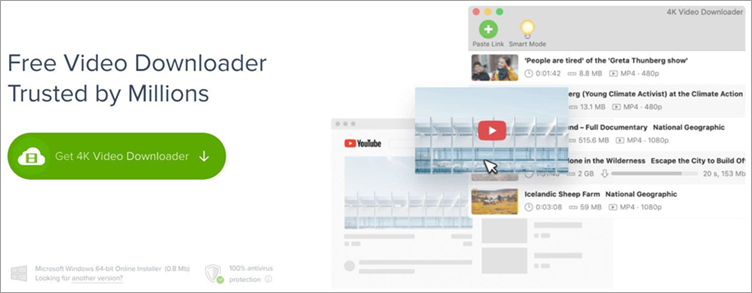
This app didn’t make our list solely because it lacks an iOS-exclusive version, but its quality is undeniable.
This cross-platform video downloading application will help you download videos in resolutions as high as 4K from almost all major video content platforms online. It works particularly well with YouTube, allowing you to access and download private videos from there.
In addition, the software also allows you to download entire playlists from your YouTube account with just a single click. If you want to extract subtitles or audio from a video, then the 4K Video Downloader can perform that as well.
Features:
- Download YouTube playlists and channels.
- Subtitles can be downloaded using just one click.
- Extract audio from the video
- The capability to acquire 3D videos is available for your use.
- Activate Smart Mode to apply a uniform setting to all future downloads.
Pros:
- High-quality downloads: It supports HD, 4K, and even 8K video downloads. The output quality is also satisfactory.
- Easy to use: It has a simple copy-paste interface.
- Bulk downloads: It also supports the download of entire playlists, channels, and subtitles.
- Compatibility: It is compatible with the most popular platforms like YouTube, Vimeo, and TikTok.
Cons:
- Limited in the free version: It has restricted features in its free version.
- Difficulty in downloading: It does not always support downloads. Its performance can be inconsistent due to changes in platforms.
- Installation required: It is not web-based.
- Limited features: It does not have editing features.
Verdict: You won’t get an exclusive iOS version of the app. However, the 4K Video Downloader’s future-ready functionality demands that its presence be felt in every single list, counting down the best free video downloading apps available today.
You don’t have to pay a dime to use its basic video downloading feature. Its advanced features can be enjoyed with a small one-time fee.
Price:
- Starter: Forever Free
- Personal: $15
- Pro: $45
- Android App personal plan: $5
#2) Winxvideo AI
Best for 4K Video Downloader.
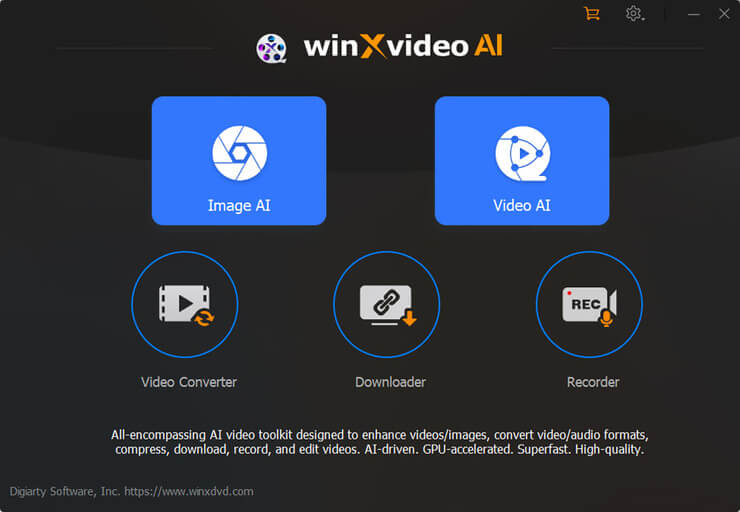
Winxvideo AI helps you convert, compress, and download videos from multiple online content platforms. For a reasonable fee, you’ll be able to download videos in 4K resolution from over 1000 sites online. The downloading process alone is very intuitive and quick.
Besides downloading videos, it also helps you convert video files. In just a few easy steps, Winxvideo AI can transform MP4, MOV, and AVI formats. You can also use the tool to extract MP3 audio from the video you wish to convert.
Features:
- It offers 3 AI modes to enhance the video. It includes AI upscaling, AI stabilization, and AI frame interpolation.
- It offers the feature to reduce the file size by 90%.
- It lets you convert 4K and 8K videos to various formats like MP3, MP4, HEVC, MOV, etc.
- It supports over 1000 sites to download videos.
Pros:
- Fast processing: It uses GPU acceleration to enable fast DVD ripping and conversion.
- Easy to use for beginners: It has a simple interface, making it easy for a beginner to use.
- Multiple formats and backup options: It can rip DVDs to MP4, ISO, etc.
- Good customer service (most of the time): People have reported good customer service from the company.
Cons:
- Limited free version: The trial version is limited to partial video conversion only.
- Limitations of the program: It lacks some advanced features, including the ability to customize the conversion.
- Compatibility problems: Some DVDs or formats might not work properly.
- Pricing and licensing concerns: Some users have complained about the pricing and the lack of refunds.
Verdict: Quick and easy to use, WinX Video Converter allows you to download FHD and 4K videos from over 1000 sites online. Besides downloading videos, you can also count on this software to compress, convert, or edit videos.
Price: You can use the tool for free with limited capabilities. The Full version will cost you $19.95 per year. There is a lifetime plan as well. Please check the other plans mentioned below.
Winxvideo AI Official Price:
- Lifetime License / 1 PC $69.95
- 1 Year License / 3 PCs $39.95
- Family License / 5 PCs $109.90
Exclusive Discounts for Software Testing Help
1. Winxvideo AI Lifetime License
- Discounted Price: $29.95
- Coupon Code: WXVLF40
2. Winxvideo AI 1 Year License
- Discounted Price: $19.95
- Coupon Code: WXV1Y20
#3) EaseUS Video Downloader
Best for fast and easy video downloading.

EaseUS Video Downloader features one of the best tools available on Windows and Mac to download videos online. In just a few steps, you’ll be able to download videos from a content platform of your choice online. The tool blew us away with how fast its download speed was.
Besides the fast downloading speed, EaseUS also makes the downloading process simple. All you have to do is copy-paste the URL of the video you wish to download onto the EaseUS dashboard, choose the output format, and hit the download button.
To make the process even easier, you can search for the video you wish to download directly from within the EaseUS interface itself.
Features:
- Users can download video content at either 4K or FHD quality, depending on their preference and available bandwidth.
- The ability to perform searches within video content.
- Downloading multiple video files simultaneously.
- You can preview the content while the download is still in progress.
Pros:
- Wide platform support: Downloads videos from 1000+ sites, including YouTube, Facebook, and Instagram.
- High-quality downloads: Supports HD, 4K, and even 8K video formats with fast speeds.
- Batch downloading: Allows downloading playlists, channels, and multiple videos at once.
- Built-in converter: Can extract audio and convert videos to MP3 directly.
Cons:
- Limited free version: Many key features are locked behind paid plans.
- Requires installation: Desktop-only tool, not suitable for quick browser-based use.
- Inconsistent reliability: Downloads may fail due to platform updates or restrictions.
- Potential legal issues: Downloading copyrighted content may be against platform policies.
Verdict: EaseUS Video Downloader is considerably faster when compared with other video downloaders out there. It is also very easy to use. In just a few steps, you’ll be able to download a video of your choice from an online platform of your choice in any format you desire.
Price: EaseUS offers different subscription plans for Mac and Windows systems.
The Mac Plans are:
- 1 Month: $19.99
- 1 Year: $29.99
- Lifetime Upgrade: $49.99
The Windows Plans are:
- 1 Month: $12.99
- 1 Year: $23.99
- Lifetime Upgrade: $39.99
#4) FoxFm
Best for easily converting videos to audio and ringtones.

FoxFm gives you the freedom to easily download videos and files from various online services like YouTube, Dailymotion, OneDrive, GoogleDrive, etc. You can play the media files in the background and use this app for converting videos to audio and even ringtones.
You can also share the files between various apps, social media apps, or send them as email attachments. And you can password-protect your files as well.
Features:
- Allows you to download videos and files from various online services.
- You can manage and extract files.
- Allows you to convert videos to audios and ringtones.
- Supports multiple file types like MP3, MP4, PPT, JPG, PNG, DOC, DOCX, Pages, etc.
- Allows you to share files and send them via email as well.
- You can password-protect files.
- Compatible with iOS 12.0 or later and iPadOS 12.0 or later.
Pros:
- Cloud integration: The software can import and download files from cloud services like Dropbox, Google Drive, and OneDrive.
- All-in-one media player: The software supports multiple formats, including MP4, MP3, docs, and ZIP, and can play them offline.
- File management features: The software has features like playlist creation, sharing, and conversion.
- User-friendly interface: The software has a user-friendly interface with high ratings (~4.4★) and a smooth user experience.
Cons:
- Not a direct downloader: The software does not allow users to download videos directly from websites.
- Bugs: Some users have faced download issues and crashes with this software.
- Advertisements and tracking: Some users have experienced advertisements and tracking features.
- Premium features: The premium features are not clearly differentiated from the free version.
Verdict: It is an app that can help you do a lot more than just download videos on your iPhone and iPad. FoxFm is a wonderful app to explore.
Price: Free
Website: https://foxfm.app/
Download Link: Foxfm
#5) YouTube
Best for playing and downloading YouTube videos directly to an iOS device.

Watching videos on YouTube is fun, downloading them, not so much. YouTube makes it hard for users to download videos. But that doesn’t mean you can’t download videos from YouTube.
However, to do that, you will have to opt for its premium account. Once you are a premium account holder, all you have to do is click on the Download button to download that video on any device.
Features:
- The user interface has been designed for simplicity and ease of use.
- Allows you to watch your favorite videos.
- It is possible to download videos for viewing on your devices.
- Save videos on YouTube to watch them offline.
- Comes only with a premium YouTube account.
Pros:
- Massive library of content: Millions of videos available within one app, including entertainment, education, music, and live streams.
- Personalization: The app provides personalization through smart recommendations and subscriptions based on individual interests.
- Content creation and interaction: Users can share videos and interact through comments and other features.
- Offline and background playback (Premium): Premium users can access videos without ads and perform offline and background playback.
Cons:
- Limited features for free users: Users cannot access offline and background features without Premium.
- Ad presence for free users: The app has many ads for free users, affecting the user experience (commonly reported).
- Data tracking for ads and personalization: The app tracks extensive user data for ads and personalization.
- Bugs and user experience: Users have reported bugs and user experience issues, including glitches and feed and recommendation problems.
Verdict: It is one of the most reliable and easy ways of downloading videos on an iOS device.
Price: Free, Premium(Web)-$11.99/mo, Premium(App)- $15.99, in-app purchases.
Website: https://www.youtube.com/
Download: YouTube
#6) Documents- Downloader, Media Player, Reader
Best for downloading YouTube videos on iPhone and iPad.

Although Documents by Readdle doesn’t sound like a video downloading app, it is, and one of the best ones. This app is a file hub, where you can keep all your digital content and media in one place. It has a built-in web browser that allows you to save media.
Features:
- World’s fastest VPN that works well across all your apps.
- Allows you to download videos from the web.
- Users can engage in private browsing activities with this functionality.
- Allows you to share files with nearby devices.
- Accessing and watching videos is readily available through online platforms.
Pros:
- All-in-one package: It can act as a file manager, browser, media player, and PDF editor.
- Has a built-in downloader: This means you can download videos and files using its internal browser.
- Has cloud connectivity: It can work with iCloud, Google Drive, Dropbox, and more.
- Has great ratings and is reliable: Its App Store rating is great, averaging around 4.6 to 4.8 out of 5.
Cons:
- Not a dedicated downloader: This means that you will have to depend on browser workarounds for video download.
- Too complicated for newbies: This app has a lot of features and can be overwhelming to new users.
- iOS limitations: It still has limitations in terms of file sharing and access due to the Apple Sandbox.
- Paid upgrade for advanced features: This means that you will have to pay for some features.
Verdict: Document by Readdle is one of the best video downloaders available for any device.
Price: Free, Documents Plus- $12.49, in-app purchases
Website: https://readdle.com/documents
Download Link: Documents
#7) Total Files
Best for viewing and managing files efficiently on iOS devices.

Although Total Files is an app best used for viewing and managing files, you can also use it for downloading videos on your mobile device. It comes with an integrated web browser that allows you to download videos easily. It has a menu icon from where you can access the navigator.
All you have to do is open the site from where you want to download the video. When you launch the video, click on the green download arrow icon to download it. Easy, right?
Features:
- Supports cloud services like GDrive, OneDrive, Dropbox, iCloud, remotely.
- Integrated browser for searching and downloading videos.
- Allows you to secure and hide files using a PIN.
- User-friendly interface.
- Allows you to view and manage files easily.
Pros:
- All-in-one file manager: Offers file storage, browser, PDF reader, and media player in one app.
- Strong cloud integration: Supports Dropbox, Google Drive, OneDrive, and iCloud with full sync support.
- Browser downloader included: Offers file and video downloads via built-in browser.
- Advanced features: Offers ZIP file support, file search, and secure folder features.
Cons:
- Not a video downloader: Uses browser workarounds instead of official platform support.
- BG download problems: Background downloads may stop or fail when switching apps or locking screen.
- Bugs and pop-ups: Some users have reported app crashes and upgrade pop-ups.
- Privacy concerns: May track user data and display ads.
Verdict: It might not be one of the best apps for downloading videos on your iOS devices, but it is a handy one that is easy to use.
Price: Free, Upgrade- $4.99
Website: https://www.totalfiles-app.com/
Download Link: Total Files
#8) Video Saver PRO+ Cloud Drive
Best for downloading videos using direct links.

Video Saver Pro offers a wide range of features for saving and organizing files. Its simple user interface is integrated with Google Drive and Dropbox, thus facilitating simultaneous downloading and uploading of files. You can also export files using its various exporting options.
Features:
- It has an intuitive interface.
- Allows you to download videos and files using direct links.
- It supports cloud services.
- Allows you to transfer videos via Wi-Fi.
- Some of its features are premium.
Pros:
- Offline and background playback: It allows for screen lock playback and viewing videos offline.
- Privacy features: It also provides features for locking videos using Face ID and password for secure storage.
- Other utilities: It also provides features like Chromecast support and batch image downloads for additional utility.
Cons:
- Not a true downloader: It is more focused on playback and imports rather than actual video downloads.
- Ads and monetization problems: Users have complained about ads and monetization problems.
- Reliability problems: Users have also complained that downloads are not being saved properly.
- Privacy and data problems: It also collects usage and diagnostic data.
Verdict: This app is a combination of the best YouTube downloader for iPhone and media file manager for your device. Its user interface is simple and easy to use.
Price: Free, Upgrade- $2.99
#9) iDownloader
Best for downloading videos, audio, and documents directly from the website.

iDownloader is one of the best YouTube downloader apps for iPhone. Not just YouTube, you can download videos directly from pretty much all websites. This app runs in the background, offering you the facility to download videos, audio, and documents directly from the site. You can download multiple files at a time using this app.
Features:
- You can download files directly from the site to your iPhone or iPad.
- Allows you to download multiple files at a time.
- You can download over 50 videos at one time.
- It has an inbuilt file manager and viewer.
- You can download files with just one tap.
- It supports videos in a wide range of formats.
- Downloaded videos usually have excellent video quality.
- You can share videos over WhatsApp and other sharing apps.
Pros:
- Fast download speed: Utilizes multi-part download to achieve maximum bandwidth and speed.
- Resume & reliability: Allows for pausing, resuming, and recovery of downloads even on unstable connections.
- Feature-rich downloader: Includes features like scheduling, filtering, and automated link detection.
- Free to use: Includes core features without any need for payment.
Cons:
- Outdated & rarely updated: Has not had a major update in several years, which may cause compatibility issues.
- Limited support & transparency: Details about developer support and privacy are unclear.
- Inconsistent performance: Some features, like speed estimation and scheduling, may not work properly.
- Limited ecosystem relevance: More of a general-purpose downloader, not suited for modern iOS video download requirements.
Verdict: It is an efficient and easy-to-use free video downloader app for iPhones and iPads that allows you to download videos, audio, and files directly from the website.
Price: Free
#10) Cloud Video Player Pro
Best for playing and downloading videos from the cloud.

This is one of the top YouTube video downloaders for iPhone and iPad. Cloud Video Player Pro has Cloud support that allows you to watch and download videos from Cloud services. It has a simple user interface through which you can download and stream videos from almost all websites safely with just one click.
Features:
- It supports various formats like MP3, MP4, WMV, FLV, MKV, AVI, m3u8, and many more.
- You can password-protect the files.
- It allows you to download videos with subtitles.
- It supports external USB storage.
- You can share downloaded videos through this app.
- It is easy to use.
Pros:
- Cloud integration: It provides support for importing videos from Dropbox, Google Drive, and Camera Roll.
- Basic media playback: It provides support for basic media playback for common media formats like MP4, MOV, and M4V.
- Offline & background play: It provides support for background playback.
- Security features: It provides support for passcode and Touch ID lock.
Cons:
- Outdated App: It was last updated in 2016. This is a cause for concern regarding its compatibility and reliability.
- Limited App Functionality: It only supports playback and importing. It is not a real video downloader.
- Low Trust Indicators: The developer has not mentioned anything about its privacy. This could be a point of concern for some users.
- Average Ratings: It has an average rating of around 3.9★ out of 5★, including mixed user experience.
Verdict: It is a reliable app for downloading videos to iPhone and iPad from various sources in many different formats.
Price: Free
Website: https://apps.apple.com/us/app/cloud-player-pro-play-videos-from-cloud/id732618507
#11) Easy Downloader
Best for easily downloading and managing files to your iPhone and iPad.

This one is an all-in-one download manager app. It can download files and videos very quickly and manage them efficiently. It comes with an integrated browser and a video player. You can download and view the video without ever leaving the app. You can also compress the file in ZIP and RAR formats to send it across various apps.
Features:
- Download manager to manage downloaded files.
- The software includes a web browser that is seamlessly integrated within its interface.
- This system functions as a player for both audio and video content.
- The practice of employing ad blockers.
- Access to GDrive, Dropbox, OneDrive, and much more.
- ZIP and RAR decompress.
Verdict: If you want a website that allows you to download videos easily, this is the site for you.
Price: Free
Website: https://www.jrmobileapps.com/easydownloader/
How to Download Videos on iPhone (Step-by-Step)
Downloading videos on an iPhone can be tricky because of Apple’s limitations and restrictions on video downloading. However, there are many ways to use a video downloader for iPhone safely and successfully. Here are some methods that can download videos on an iPhone.
Method #1: Using Browser Downloader Sites
The easiest method to download any video without having to install any software on your iPhone is to use a video downloader that can be accessed on the web for iPhone users:
- Find your video on any video-sharing site like YouTube, Instagram, and TikTok. Copy the link to that video.
- Open Safari and go to any video downloader site mentioned above.
- Paste the link to your video in the search box and click on Download.
- 4. When prompted to download on your iPhone, click on Download. The file will be saved in your Files App under the “Downloads” folder.
Method #2: Using Documents App
Since Safari might block video streaming in some instances, Documents by Readdle is an effective file manager that also includes an internal browser to circumvent all mobile restrictions.
- Download and open the Documents app from the App Store.
- Tap the Compass icon in the bottom right corner of the screen to open the internal browser.
- Go to your favorite video download site (e.g., SaveFrom.net).
- Paste your video link and press download.
- Once you’re done, go to My Files in the app to move your video to your Camera Roll.
Method #3: Using Apple Shortcuts (High Value)
For power users, there is the “one-tap” option with Apple Shortcuts, which integrates seamlessly with your share sheet. This is the fastest way available as of 2026.
- You’ll want to add a media-centric shortcut like All Media Downloader (AMD) or R⤓Download.
- Next, navigate to the video you want to download in any app, like X or YouTube.
- Tap the share button and then scroll down to select the shortcut.
- You’ll then be prompted to give the shortcut the necessary permissions, and it will automatically fetch the video and save it to your Photos app.
Method #4: Using Screen Recording
If a video is protected by heavy encryption or is on a private account where downloaders fail, the built-in iOS Screen Recorder is your “failsafe” backup.
- Swipe down to open Control Center.
- Tap the Record icon (a solid circle inside a ring).
- Play your video in full-screen mode.
- Once done recording video, tap on red status bar located at top to Stop Recording video.
- Go to your Photos app to Trim the beginning and end of the clip.
YouTube Video Download on iPhone (What Works & What Doesn’t)
Downloading videos from YouTube using an iPhone is notoriously tricky, and this is due to strict policies enforced by Google and Apple. However, in 2026, many “classic” methods have been patched, and only a few methods remain.
Why YouTube Downloads Are Restricted
- The first and foremost reason for this is related to Digital Rights Management (DRM) and terms and conditions.
- Revenue Protection: YouTube doesn’t allow videos to be downloaded because this will prevent ads from being displayed.
- App Store Policy: Apple will not allow apps to be installed if they permit video downloads.
- Encrypted Streams: YouTube often changes its encryption, and this breaks all video download tools.
Legal Way – YouTube Premium
The only way to download videos on your iPhone is to subscribe to YouTube Premium. Once you subscribe to this service, you will see a “Download” button at the bottom of each video, and you will be able to download videos for offline viewing.
However, these videos will be encrypted and will only stay within the YouTube app. You will not be able to transfer them to your Photos app or edit them using iMovie. If you do not connect to the internet for 30 days or your subscription is about to expire, you will lose access to your videos.
Workarounds to download YouTube videos
However, if you need the actual video file on your device (for example, if you are creating a presentation or if you are working on an iPhone video downloader project), then you have to use external workarounds, and this has specific challenges:
- Apple Shortcuts (The “Pro” Choice): Advanced iOS shortcuts like R⤓Download or All Media Downloader (AMD) can still fetch videos.
- Documents by Readdle: The app’s built-in browser can access “YouTube to MP4” websites that Safari blocks.
- Other apps and websites listed above would help you download the YouTube video
- Screen Recording: The most “bulletproof” way. If you can play it, you can record it.
Free Video Downloader for iPhone (No App Methods)
You can download videos on iPhone for free without installing any third-party apps by using Safari’s native download manager or cloud syncing
Online Downloaders via Safari: The most direct video downloader available for free to iPhone users is a web-based online downloader.
- Copy Link: Copy the video URL that you want to download.
- Visit Downloader: Open Safari and navigate to a website like SnapInsta, SaveFrom.net, or VidsSave.
- Download: Paste the URL, click Download, and accept the iOS popup.
- Save to Photos: Tap the Downloads button on Safari, open the file, tap Share, and then tap Save Video.
Cloud-Based Downloading Methods: Cloud services like Google Drive, DropBox, and iCloud are great workarounds if you want to download the video on your computer and “sync” it to your iPhone without using a cable.
If you have a video on your computer, you can “download” it to your iPhone using the cloud services.
- iCloud Drive: Upload the video to iCloud.com on your computer. This will automatically sync the video to your iPhone’s Files app.
- Google Drive/DropBox: The web version can be used through Safari to “Send a Copy” or “Open In” to save the file directly to your Camera Roll.
Why Video Downloading is Restricted on iPhone and iPad
In comparison to Android, which offers greater freedom in file management, the iPhone is a “walled garden.” Apple’s sole motive behind this is to protect user data and prevent unauthorized reproduction of content.
Apple App Store Policies: The first step for video downloader apps is to comply with Apple’s policies and guidelines. Apple’s policies and guidelines for developers are the biggest challenge for video downloader apps. Apple’s latest iOS 26 SDK requirements, which took effect in April 2026, require all apps to comply with “business model” and “safety” requirements.
No Unauthorized Downloads: Apple does not allow apps to download content from sites such as YouTube or Instagram without authorization.
Sandbox Restrictions: Apple apps cannot save or transfer videos to the Photo Library without user intervention.
DRM & Copyright Restrictions: Digital Rights Management (DRM) is the technology used by content creators to “lock” their content. In 2026, most popular streaming services (Netflix, Disney+, Hulu) utilize advanced encryption like Apple FairPlay DRM.
Encrypted Streams: Videos are sent in encrypted pieces that can only be fully decoded by official apps.
Copyright Compliance: To prevent legal issues like DMCA infringement, Apple blocks apps that facilitate downloads.
Fix Video Downloader Not Working on iPhone
If your video downloader for iPhone has stopped working, it is likely due to recent iOS 26 security updates or website-specific restrictions. Here is how to troubleshoot the most common issues.
Download Failed Errors: If “Task Failed” or “Download Failed” displays on Safari, background restrictions or network issues may be the cause.
- Keep the App Active: iOS may not download content in the background. Ensure Safari is open and your screen unlocked.
- Disable VPN/Private Relay: These services may be interfering with downloads. Disable them temporarily.
- Clear Safari Cache: Clear stuck downloads by clearing Safari’s cache.
Unsupported Format Issues: Even if you successfully download a file, you may encounter a “File format not supported” error in the “Files” app.
- Format is important. iPhones only support MP4/MOV files encoded with H.264 or HEVC video, so MKV or AVI files may not play.
- VLC to the Rescue: Try playing unsupported files in “VLC for Mobile.” It supports almost all file types.
- Check File Size: If you find that a file is not complete, it may be corrupted and needs to be re-downloaded.
Safari Download Issues: Safari has some unique settings that may prevent files from being saved correctly.
- Check Download Location: Make sure that Safari is set to “On My iPhone.”
- Allow Pop-Ups: Make sure pop-ups are allowed to enable downloads.
- Disable Low Power Mode: Low Power Mode may prevent large files from being downloaded. Try plugging in your phone.
Is It Legal to Download Videos on iPhone? (US Focus)
The legality of video downloading on an iPhone in the United States is a complex “gray area” depending on the manner in which the content is downloaded and the subsequent use of the content. In the United States, as of 2026, the law tends to favor the copyright owner over the user.
1. Contract vs. Copyright
- Terms of Service (ToS): YouTube explicitly prohibits the download of content. While not illegal, this constitutes a violation of the contract and can result in the termination of the user’s account.
- The Copyright Act: In theory, the downloading of any copyrighted content without a license constitutes copyright infringement. The law does not prosecute individuals viewing content for personal viewing.
2. The DMCA and Bypassing DRM
It is illegal to bypass “technical measures” (like encryption or a rolling cipher) that protect a video under Section 1201 of the DMCA. When you “rip” a video using a tool, you are technically violating the DMCA.
3. When is it “Safe”?
- 100% Legal: Using official “Download” buttons (YouTube Premium, Netflix Offline), and downloading Public Domain and Creative Commons media.
- High Risk: Downloading full-length movies or commercial media to avoid paying for a subscription or to avoid watching ads.
Frequently Asked Questions
1. What is the best free video downloader app for iPhone?
The best free video downloader apps for iPhone are Foxfm and YouTube for easy and quick video downloading.
2. How do I download a video from Safari to my iPhone?
Use the apps like Foxfm, iDownloader, Video downloader & videocast, etc to download a video from Safari 2021
3. How can I download YouTube videos on my iPhone without using the app?
With the premium account of YouTube, you can download videos without any apps. Click on the download icon to download the videos. You can even use web based tool to download YouTube videos on your iPhone.
4. What is the best video downloader app for iOS?
Documents by Readdle (Top Pick): Not exactly a downloader app, but the built-in browser works around mobile restrictions that Safari can’t handle.
FoxFm: Regularly updated to work with different cloud services and social media links.
All Media Downloader (Shortcuts App): A ‘Shortcut’ rather than an app, which integrates with your share sheet.
5. Can I download YouTube videos on iPhone for free?
Yes, there are three ways to download YouTube videos on an iPhone for free:
Official Way: YouTube has recently launched YouTube Premium, which allows users to download content for offline viewing. However, the content remains encrypted in the app.
Free Way: You can use the Safari + Web Downloader method explained above. Y2Mate through mirror domains and VidiCable are currently active in 2026.
Screen Recording: If nothing else works, you can use the Screen Recorder app on your iPhone. This is the only way that is 100% “patch-proof.”
6. What is the best free video downloader app for iPhone?
There are many free video downloader apps for iPhone to be considered. You can try Foxfm, YouTube for easy and quick video download.
Conclusion
You can now use any of the mentioned tools to download your favorite video on your iPhone and iPad to enjoy them even when you don’t have a network. All these apps are tried and tested and they are different in their own way. Look through their features to determine if they suit your needs.
For example, if you want to download the video and cast it, you can use Video Downloader & Video Cast. For watching the videos while surfing the internet, you can use Snaptube, and if you want an app with cloud support, install Video Saver PRO+ Cloud Drive. You will find something to suit your needs along with downloading videos you like.
Research Process:
- Time taken to research this article: Approximately 45 hours were spent on comprehensive research, evaluation, verification, and final preparation to ensure accurate and reliable information.
- Total Video Downloader Apps for iPhone researched: 17
- Top Video Downloader Apps for iPhone shortlisted: 10
For more Video Downloader-related guides, you can explore our range of tutorials below:
- 10 Top Video Downloader for Chrome (2026 Rankings)
- The Top 10 Video Grabber Tools To Download Videos In 2026
- 14+ BEST Free YouTube Video Downloader Apps (2026 SELECTIVE)
- Top 10 Best Free Instagram Video Downloader For 2026
- 15 Best Dailymotion Video Downloader (2026 Review)
- 11 Best Pinterest Video Downloader Online Apps and Tools
Was this helpful?
Recommended Reading
-

This tutorial explains how to Download YouTube Videos using various YouTube Downloaders and how to save them locally: Downloading YouTube videos using YouTube Downloaders has become a common need for students, professionals and everyday users who want to save their favourite content for offline viewing. Having offline access to YouTube…
-
Review and Comparison of the Best Video Converter Software with Features and Pricing. Select the from this list of top paid and free online video converter tools to convert any videos quickly and easily: What is a Video Converter? Video conversion tools allow you to convert a video from one…
-
Explore our list of top Video Streaming Services with pricing and comparison to select the best TV streaming service for your requirements: If the recent global health crisis has taught us anything, then it is that no matter what travesty befalls humanity, our thirst for good entertainment will remain firm.…
-
List of Top FREE Video Editing Software with Features and Comparison. Select the BEST Video Editing Software Based on Your Requirements: Video editing software can be used to create professional-quality videos. With this software tool, you can edit wedding movies, birthday party videos, travel clips, game videos, and much more.…