Not getting emails on iPhone? Discover the expert fixes and proven ways that actually work to resolve “Why am I not receiving emails on my iPhone” issue and get back to your inbox instantly:
Not receiving emails on your iPhone can be quite irritating, especially when you have to do regular professional communication through email.
Businesses usually prefer email as a method of communication today, even with other instant communication methods available. Mobile users are often spotted reporting that their iPhone Mail is not updating.
Why Am I Not Getting Emails on iPhone: Explore Now
Trust me, all of us have been there. The main problem with email is that it works only when you have an active internet connection. A slow internet connection can prevent emails from updating on your iPhone, Android device, etc.
So here we are, providing our readers with the reasons and solutions for fixing this issue within seconds! Look at the article to discover some helpful tips and lesser-known iPhone settings that can assist you in resolving various issues.
Why Won’t My Email Update on my iPhone
The potential causes of this problem are:
- You may not have an internet connection, or the internet may be slow. You need a good internet connection to use this feature on your iPhone without any trouble because you cannot send or receive emails without it.
- Your iPhone’s Airplane mode might be on, preventing mobile data use.
- You may need to do a software update.
- Your phone’s network settings may have some problems.
- You may use the phone in power-saver mode.
- You may use your iPhone in Low Data mode.
- There can be a bug
- You might have run out of email storage.
- You may have restricted the Mail app from using mobile data.
- You may have set Fetch New Data to ‘Manual’ in your iPhone Settings
- The Background App Refresh feature may be turned off in your iPhone
- There can be a service outage on the side of your email service provider.
Here is the video guide on how to fix an iPhone not receiving emails:
How to Fix the Issue – Not Receiving Emails on My iPhone
Here’s how to fix this issue easily:
1. Check your Internet: Check whether your mobile data or WiFi is in working condition. If there are network issues, try moving to a different place with strong network signals.
2. Refresh your mail Manually: If your internet is slow, sometimes the mail does not refresh on its own. You can refresh the emails by swiping down on your mail page.
Alternatively, refresh your iPhone Mail app emails using these steps:
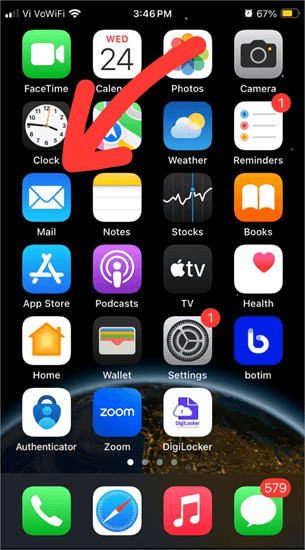
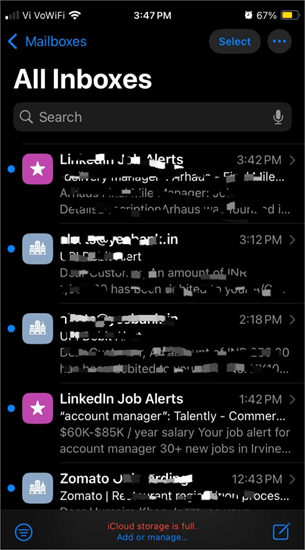
- Open the Mail app on your iPhone as depicted below.
- Now tap on All Inboxes as shown in the image below.
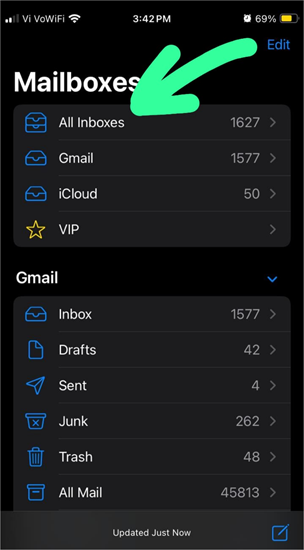
- Now you will see the updated list of all emails you have received, as shown below.
3. Try Switching Airplane mode on, then turn it off: You can turn on the Airplane mode on your phone for a second, then turn it back off. This fixes network issues many times.
4. Restart your iPhone: If you are not receiving emails on your iPhone, you can try restarting the phone so that if there is a glitch in your iPhone, it will most probably get fixed.
5. Contact the Customer Support: You can contact your email service provider’s support team to get information about service outages. If you had changed some privacy settings (or other Mail settings on your phone) and the issue started after that, you must get help from the email service provider or from iPhone customer service.
6. Check Sync Settings: You may have limited the automatic email sync feature for a small number of days, due to which you are unable to see older emails.
Please follow these steps to check Sync settings and fix this issue:
- Open the Gmail app
- Tap the menu icon located in the upper-left corner of your screen
- Go to Settings
- Choose your account
- You’ll find ‘Sync Gmail’ under the ‘Data usage’ heading. Ensure it’s activated, and below that, you’ll see a ‘Days of emails to sync’ setting. Adjust the day count from this point.
7. Email filters or rules might be automatically moving emails away from the inbox: Outlook allows its users to set rules according to which the emails will be automatically organized in different folders.
So if you cannot see emails from a specific person, chances are that the emails may be moving to a certain folder automatically, because of a rule set by you.
Yahoo Mail also has a similar feature. It allows its users to filter emails to organize them the way they like.
8. Check for System Updates:
To check for software updates, follow these steps:
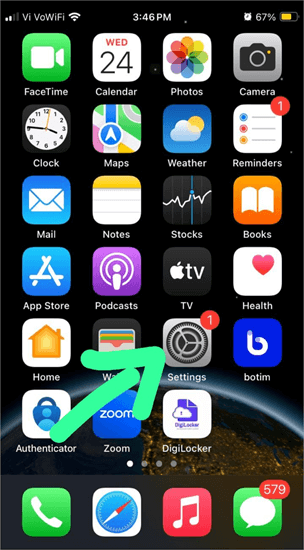
- Go to Settings as shown in the image below.
- An update will be indicated as Software Update Available, as shown in the image below.
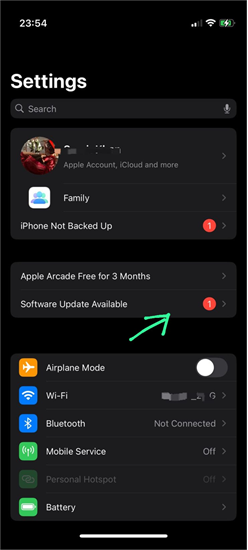
- Tap on it and install the updates.
9. Reset Network Settings: There can be some network settings issues behind this problem.
Here’s how to easily reset your iPhone’s network settings:
- Go to Settings as shown below.
- Choose the General option as depicted in the image below.
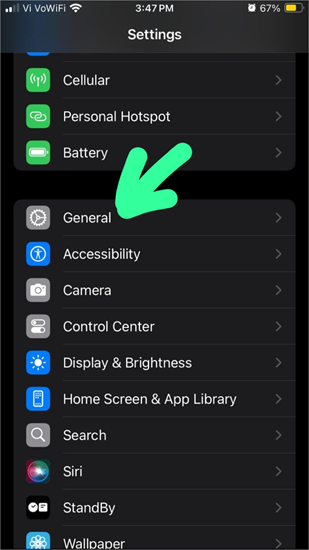
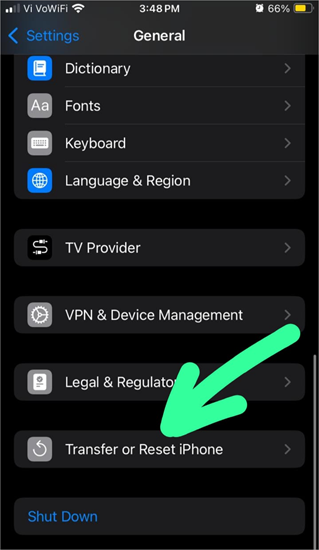
- Now tap on the Transfer or Reset iPhone option as shown below.
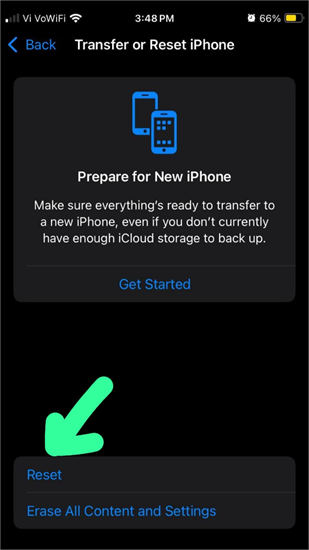
- Select Reset as shown below.
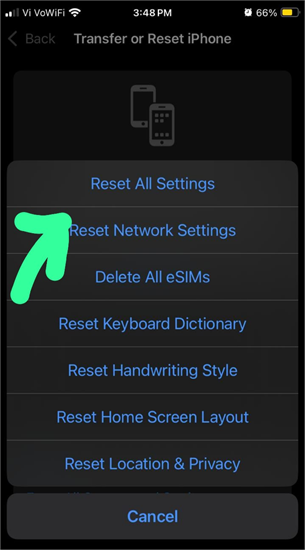
- Select Reset Network Settings as depicted below.
10. Turn on the Push Mail Setting: There can be an issue with the Mail settings on your iPhone. For example, the Fetch New Data setting may be turned to ‘manual’, due to which the emails are not getting updated on their own.
Here’s how to troubleshoot this setting:
- Go to Settings as shown in the image below.
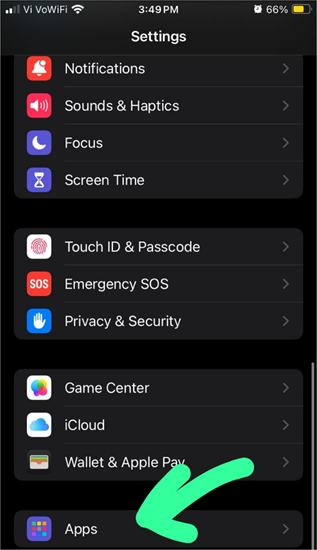
- Select Apps as in the image below.
- Choose Mail as depicted in the image below.
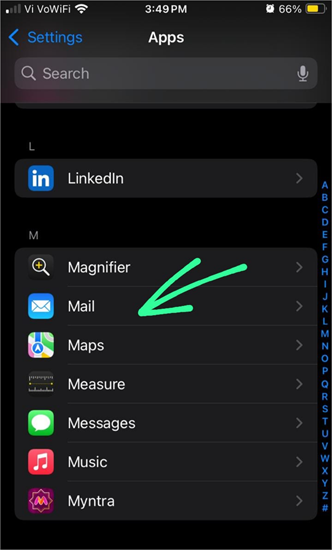
- Tap on Mail Accounts as shown below.
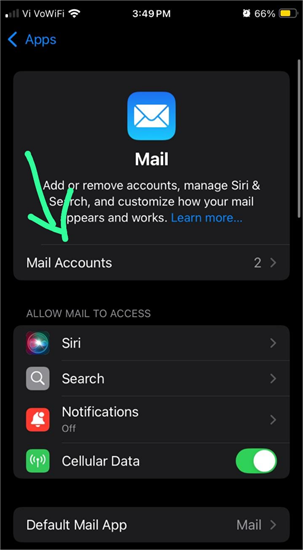
- Tap on Fetch New Data as shown in the below image.
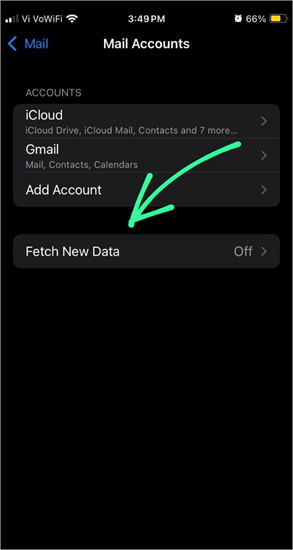
- Turn on the Push button. You can set it to automated updating of data or manual.
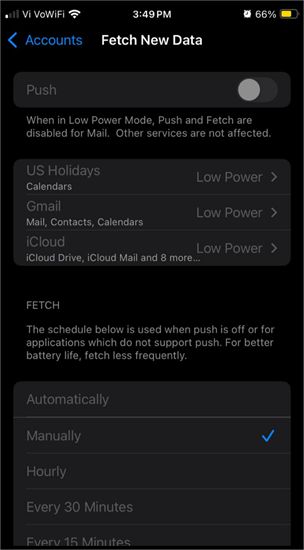
- From here, you can even choose the time duration for automatically updating data on your iPhone.
The Push emails feature provides automated, instant delivery of emails and requires server support.
The Fetch emails feature is a preferred one, as it saves data and the phone’s battery, and updates emails at regular intervals, as per your needs.
Since the manual update feature doesn’t update emails automatically, I do not recommend it. You’ll have to manually open the app every time to check for new emails. Thus, you can miss important mail with this setting.
11. Turn on Background App Refresh on your iPhone: You can turn this feature on (or off) on your iPhone for any app you want. This ensures that your app and its data get updated automatically.
Here’s how to enable Background App Refresh on your iPhone:
- Go to the Settings option as shown below.
- Select the General option as in the image below.
- Choose the Background App Refresh option as depicted below.
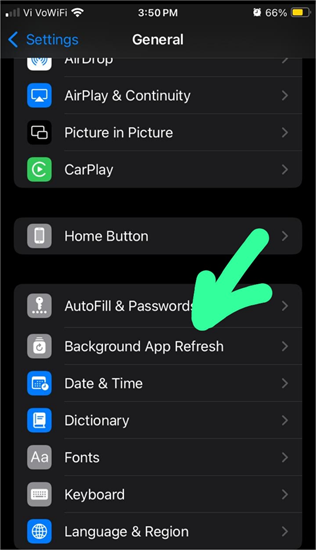
- Again, tap on Background App Refresh. (From here, you can choose whether you want to refresh your data only while you use WiFi, or when you are using either WiFi or mobile data.)
If the Background App Refresh option is there but you cannot select it, then you have restricted Background App Refresh in your Settings.
Here’s how to alter this setting:
- Go to Settings
- Select General
- Tap on Restrictions
- Now, you would need to enter your passcode.
- Allow changes to Background App Refresh.
12. Turn OFF the Low Data Mode in your iPhone: iPhones allow their users to turn on the Low Data mode to save their mobile data from excessive drainage. This way, only the allowed apps will get internet access. iPhone users can turn the Low Data mode on for Wi-Fi, as well as for Mobile Data.
To turn off Low Data mode for WiFi, follow these steps:
- Go to Settings
- Select WiFi
- Tap on the info icon
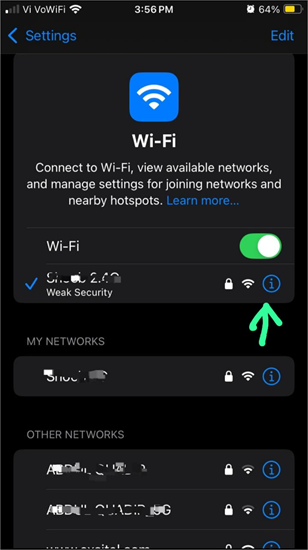
- Turn off Low Data mode as shown below.
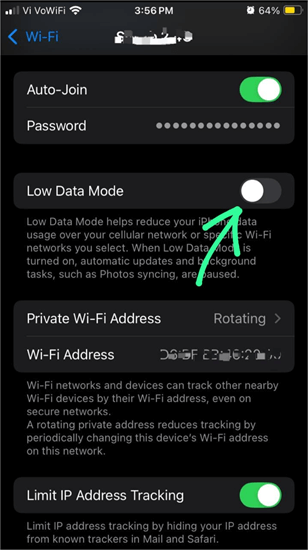
These steps will guide you in turning off Low Data mode for Mobile Data:
- Go to Settings
- Select Mobile Data
- Tap on Mobile Data options
- Turn off Low Data Mode.
13. Turn Cellular Data on for Mail:
You can turn Cellular Data on by following these steps:
- Go to Settings as shown below.
- Tap on the Cellular option as shown below.
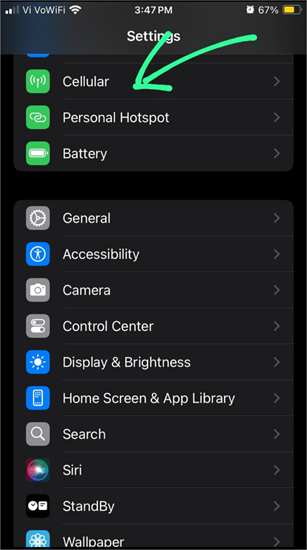
- Under the heading Cellular Data for Primary, tap on Show All as depicted in the image below.
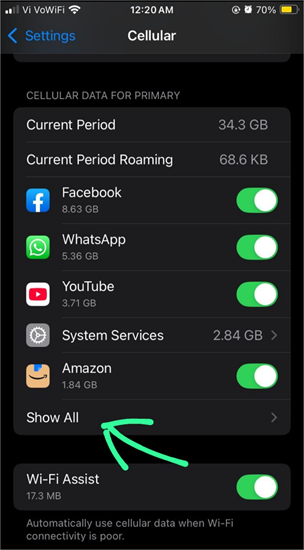
- In the list of apps, find Mail as shown in the image below.
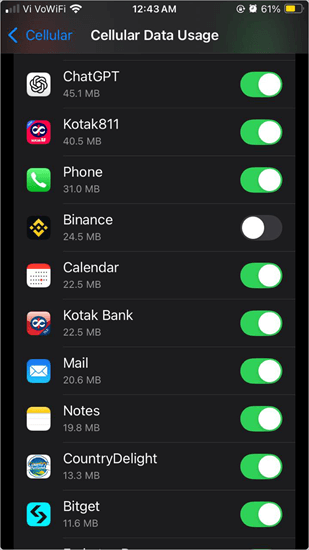
- Turn Cellular Data on for Mail.
14. Turn off the Low Power mode: You may have turned on the Low Power mode to save battery drainage. This stops certain apps from working in the background.
To turn off the Low Power mode, follow these steps:
- Go to Settings
- Select Battery
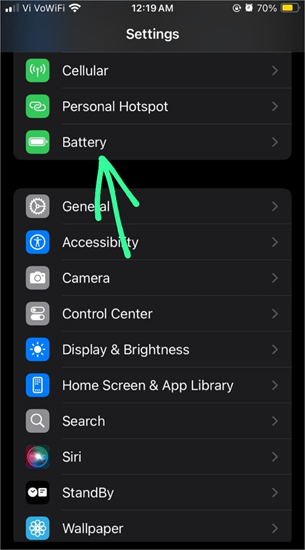
- Make sure the Low Power mode is turned OFF.
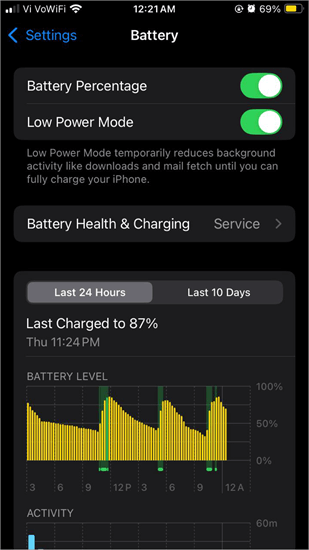
15. You can Remove your Account & Re-add it to fix the Issue:
Here’s how to delete your account from Mails:
- Go to Settings
- Select Apps
- Choose Mail
- Now tap on Mail Accounts
- Tap on the account that you want to delete.
- Select Delete account
- Tap on Delete from my iPhone
You can re-add your account by doing the following:
- Go to Settings
- Select Apps
- Choose Mail
- Now tap on Mail Accounts
- Tap on Add Account and enter your account details to log in.
16. You can try Deleting and Reinstalling the Mail App: This method fixes bugs and sets the app to default settings.
To delete the Mail app on your iPhone, follow these steps:
- Go to Settings
- Select General
- Choose iPhone Storage
- Tap on Mail
- Select Delete App
- Confirm delete app.
After this, you can reinstall the Mail app from the App Store and add your account.
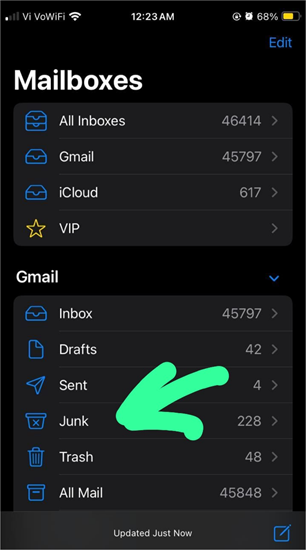
17. Your emails may be going to spam: There is a chance the emails you are getting may be going to the spam folder. If you aren’t receiving mail from a specific sender, check the junk folder.
To check your junk folder:
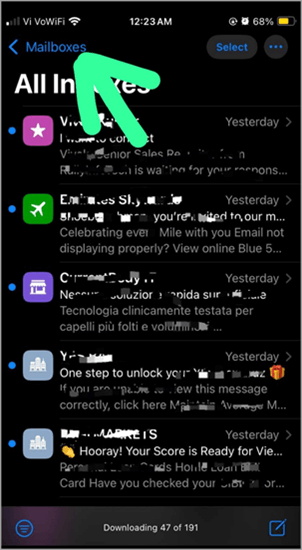
- Open the Mails app
- Tap on Mailboxes as shown in the image below.
- Now select the Junk option as shown below.
Check the steps below:
- Marking an email sender as junk
- Indicating that an email is not junk.
18. Empty Storage: After a certain storage limit, you can not send or receive emails. If your storage is full (or about to get full), your iPhone or your Mail app will notify you. If that is the case, you must delete some emails with large attachments or other media files on iCloud to free up space.
You can delete emails just by swiping left on each email in the Mail app on iPhone.
How to Handle Emails Without Notifications?
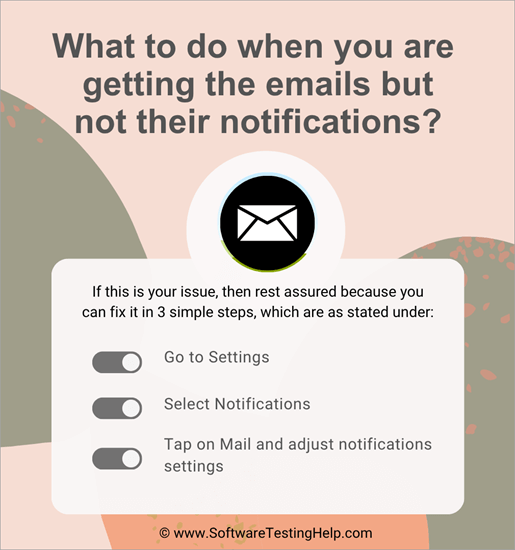
If you’re dealing with this issue, it’s easily solved in three steps:
- Go to Settings
- Select Notifications
- Tap on Mail and adjust notifications settings.
Server Connection Errors – iPhone Mail says no Connection to the Server
If you are getting notifications like Page fetch:Failed: Server error (5xx), Failed: Server connection error, etc., then do as stated below.
- Check your internet connection. Try moving to a different place with better signal strength.
- Restarting the device fixes bugs
- You can try turning the Airplane on for a while, then turning it off.
- Update your phone’s software
- Reset network settings
- Check your router and cables.
If these steps don’t fix the issue, you can contact your server provider’s customer support for help.
Why can’t I send emails on my iPhone, but I can receive them?
It can be because of the following reasons:
- Your internet may be slow
- You may enter an invalid email address (of the recipient).
- Try turning the VPN/ firewall/ security app off and then send your email.
- You may not have updated your Mail app.
- Your phone may need a software update
- There can be a bug. You can try removing, then re-adding your account.
- There can be a network settings issue; try resetting network settings.
Emails Appear on the Computer But Not on iPhone
If this is your issue, then:
- Try fixing your internet connection. A slow or no internet can be a reason.
- You may have set Mail to update manually in your iPhone Settings. You must change the setting to ‘Push’ to see regularly updated emails.
- To do so, follow these steps:
- Go to Settings
- Select Apps
- Select Mail
- Tap on Mail Accounts
- Select Fetch New Data
- Tap on your iCloud account
- Now select the Push option for automated email updates.
- Update your iPhone
- Restart your iPhone
- Reset network settings
iOS Version-Specific Information
Here are some issues users faced with specific iOS versions:
- Some users reported facing mail issues after updating their iOS devices. This can be due to a bug. You can try removing and then re-adding your email account to resolve this issue.
- Some iOS 18.1.1 users reported that emails were not being synced across devices. If this happens, you must check the Email Sync settings in your Mail app.
- Several iPhone users reported facing issues with the Apple Mail app and some other technical issues after the iOS 18.5 update. They further reported that the problem was fixed after a restart, but happened again. This happens because of a bug and gets fixed with a restart.
Email Provider-Specific Issues
In this section, we will explore some of the major issues that are specific to email providers.
#1) Gmail Specific Issues
If you are facing issues with the Gmail app, chances are:
- You may have exhausted the maximum storage limit, which is 15 GB, provided to a free Google account. This storage limit is for Google Drive, Gmail, and Google Photos. After you reach this limit, or when you are about to exhaust your storage space, your account will notify you to either clear up some space or buy more storage; otherwise, you won’t be able to send and receive messages. So, in order to keep using Gmail smoothly, you must have enough storage space.
- Not many people know Gmail has an email-receiving limit of 86,400 emails per day. And if that limit is reached, they can’t receive more emails. This limit is enough for personal and professional use, but if you become a target of email bombing or a spam attack, this limit can be crossed easily, which is why you won’t be able to receive more emails in your account that day.
- Gmail allows you to set the number of days for which you want to sync the emails. There can be an issue with the sync setting in your Gmail app.
Follow these steps to fix this issue:
- Open Gmail
- Tap on the Menu icon
- Select Settings
- Now choose Data usage
- Now go to Sync Settings
- Now adjust the settings (like the number of days of email to sync) according to your needs.
#2) Outlook Specific Issues
What are the possible causes of issues with the Outlook app?
If you cannot send or receive messages on your Outlook app, there can be several reasons, like:
- You may have created some rules in the desktop or web app for automatically sending the emails to a specific folder, which is why you cannot see your emails unless you open that specific folder.
To learn how to set up or edit rules in Outlook for Windows, watch this YouTube video.
- You may have exhausted the maximum storage limit provided to a free Outlook account, which is 15 GB of Outlook storage and 5 GB of storage for the Microsoft cloud. You can check the storage space in your Outlook account by following these steps:
- Open the Menu in your Outlook app
- Go to Settings
- Tap on Accounts
- Choose your account
- Now select Storage.
- There can be an issue with the sync setting. Follow these steps to fix the issue:
- Open the Menu in your Outlook app
- Go to Settings
- Tap on Accounts
- Choose your Account
- Go to Sync Settings
- Now you can adjust the number of days of emails to sync.
#3) Yahoo Mail Issues
Are there problems with the Yahoo Mail app? Here are some reasons and solutions for fixing the issue:
- You may have set Filters to move emails to a specific folder in your Yahoo Mail app.
- Yahoo Mail automatically sends certain emails to spam. So, you must check your Spam folder if you are unable to find certain emails. If you find the email there, you can mark it as not spam by pressing on the message for 3-4 seconds and then selecting Not Spam.
#4) iCloud Mail Issues
Common causes of issues with iCloud Mail are explained below.
Issues with iCloud Mail can arise due to reasons like:
- There can be an issue with iCloud Mail settings. Do as stated below to fix the settings:
- Go to Settings
- Tap on your name
- Select iCloud
- Select Mail
- Make sure Use on this iPhone option is turned on.
- You may have enabled Low Data mode on your phone, due to which emails would not update automatically in the background. You can check this setting on your phone this way:
- Go to Settings
- Tap on Cellular (or Mobile Data)
- Select Cellular Data Options
- Tap on Data mode
- Turn off Low Data Mode (if you want to keep on receiving and sending messages in Low Data or Low Battery).
- iPhones allow their users to change their settings to either automatically push emails to the inbox, or fetch them at regular intervals, or manually update the emails (where emails update only when you open the email app).
To change this setting according to your preference, do as stated under:
- Go to Settings
- Select Apps
- Select Mail
- Tap on Mail Accounts
- Select Fetch New Data
- Tap on your iCloud account
- Now, change the setting according to your needs.
Why my iPhone Not Receiving Emails from One Person
If you are facing this issue, chances are:
- If you are using the Yahoo Mail app, check Filters. Your emails may be getting filtered and organized into different folders.
- Check the spam folder. Most of the mail apps automatically send certain emails to spam. If you find the email that you are looking for in the spam folder, then long-press the email and then tap on Not Spam. This way, the email will then move to the Inbox.
- If you are using Outlook and have set some rules for managing emails, then the messages may be automatically moved to a specific folder (as per the rule set by you).
Other Factors That Cause Issues With the Mailing App
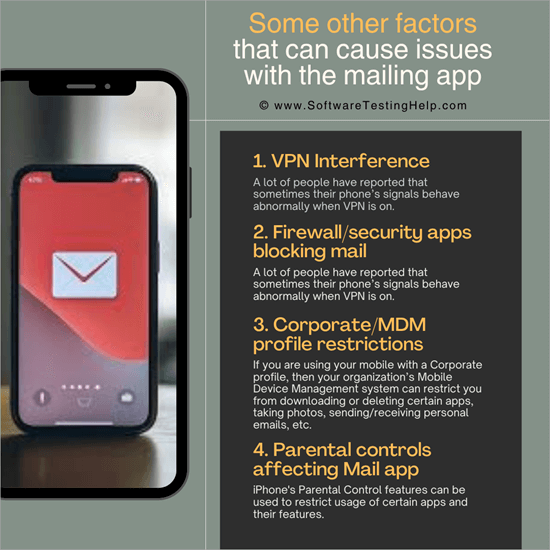
- VPN Interference: A lot of people have reported that sometimes their phone’s signals behave abnormally when a VPN is on. So if you are facing issues with emails, calls, messages, etc., try turning the VPN off and see if it fixes the issue.
- Firewalls/Security Apps Blocking Mail: The firewall or security apps can also interfere with the incoming or outgoing emails if they mistake them as threats. Try turning the Firewall/Security app off and see if it fixes the issue.
- Corporate/MDM Profile Restrictions: If you are using your mobile with a Corporate profile, then your organization’s Mobile Device Management system can restrict you from downloading or deleting certain apps, taking photos, sending/receiving personal emails, etc.
- Parental Controls Affecting Mail App: iPhone’s Parental Control features can restrict usage of certain apps and their features.
Tips to Prevent Such Issues
One must regularly take these measures to avoid issues with the email:
- Keep deleting unwanted emails regularly so that you don’t go out of storage.
- If you can’t have deletable emails, then buy a subscription plan for more storage to fix the issue.
- Update your phone’s software regularly.
- If you live in a place with low signal strength, then get a Wi-Fi connection for strong servers.
Frequently Asked Questions
1. Why is my iPhone slow to update emails?
If your iPhone is taking a lot of time to update emails, then let me tell you, this issue can arise because of several reasons, which include:
• A week of internet connection.
• There can be a bug
• Your phone may need a software update
• There can be an issue with the network settings
• Your phone may be too much loaded with apps and media files.
Here, you can take the following steps to fix the issue:
• Fix the internet issue (you can try moving to another place with better signals)
• You can try restarting the phone to fix bugs/glitches
• You can try turning the Airplane mode on for a second and then turning it off. This fixes network issues many times.
• Check for software updates
• Reset network settings
• Delete unused apps, large media files, and emails with large attachments.
2. How do I enable background app refresh?
To turn on Background App Refresh on your iPhone, follow these steps:
• Go to Settings
• Select General
• Choose Background App Refresh
• Again, tap on Background App Refresh.
3. Why can’t I change background app refresh on iPhone?
If the Background App Refresh option is there but you are unable to select it, then you have a restricted Background App Refresh feature in your Settings.
To change this setting, follow these steps:
• Go to Settings
• Select General
• Tap on Restrictions
• Now you would need to enter your Passcode.
• Now, allow changes to Background App Refresh.
4. How can I get my email to work on my iPhone?
If you have a new iPhone, you can get started with emails by following these steps:
• Go to Settings
• Select Apps
• Go to Mail
• Tap on Mail Accounts
• Now select Add Account
• Now, you will have to select the name of your email service provider.
• Then enter your login credentials
• Tap on Next
You will now be able to get your email to work on your iPhone.
5. Does updating iOS affect email settings?
Updating your iOS can affect Mail features, and a change in features also affects the settings sometimes. But the changes in Settings (if they occur due to an update) will most probably be small.
If you face issues with Mail due to an iOS update, you can always get help from Apple Support.
6. How do I reset my iPhone email settings?
In order to reset the iPhone email settings, you can remove your account, then delete the Mail app, then reinstall the app, and then add your account.
Follow these steps to complete this process:
• Go to Settings
• Select Apps
• Choose Mail
• Now tap on Mail Accounts
• Tap on the account that you want to delete
• Select Delete account
• Tap on Delete from my iPhone
Delete the Mail app by following these steps:
• Go to Settings
• Select General
• Choose iPhone Storage
• Tap on Mail
• Select Delete App
• Confirm delete app
Now re-install the Mail app from the App Store, then re-add your account by following these steps:
• Go to Settings
• Select Apps
• Choose Mail
• Now tap on Mail Accounts
• Tap on Add Account and enter your account details to log in.
7. Why am I suddenly not receiving emails on my iPhone?
If you are not receiving emails on your iPhone, it’s due to:
• Slow/no internet
• Airplane mode
• A network glitch – You can try turning the Airplane mode on, then switch it off.
• You may have turned the Fetch New Data setting to Manual in your iPhone Settings
• There can be an issue with the network settings in your phone
• You may have turned Low Data mode on
• Low Power mode may be turned on in your phone
• The background app refresh feature may be turned off on your phone
Conclusion
iPhone mail not updating is not a big issue. It can usually be fixed on your own by fixing the internet and some phone settings. In this article, we talked about the different settings in your iPhone that can cause iPhone mail not updating.
If none of the above-stated methods work for you, plus if you are unable to contact the email service provider for help, you can try creating a new email account (email account creation is usually free) and use it for sending and receiving emails.
If the organization where you work provides your email, then you would need to contact the technical department of your organization to fix the issue.
Research Process: The total time involved to complete and publish this article is approximately 35 hours. This content was created through a structured research approach to ensure accuracy and reliability.
For more quick iPhone & email-related guides, you can explore our range of tutorials below:
- How to Create and Send a Poll in iMessage on iPhone and iPad
- How to Set Timer on Your iPhone Camera (Easy Ways)
- How to Fix Find My iPhone Not Updating Location
- 15+ Best Free Email Service Providers (New 2026 Rankings)
- Top 11 Most Popular Transactional Email Service Providers
- How To Write A Cold Email – With Examples And Templates
- How to Create an Email Group in Gmail – Software Testing Help
- What Is Email Marketing And How To Do Guide With Strategy
Was this helpful?
Recommended Reading
-

Here we will provide you the list of the top Email Validation API to verify emails for accuracy and quality before sending: If you wish to drive traffic to your website, boost customer engagement, or simply enhance your brand’s visibility, email marketing is arguably the greatest tool you have at…
-

List and Comparison of the Best Free Email Service Providers of 2026: In today's technological world, email is the most common way of communication, whether it is for business or personal use. There are several email service providers in the market with their own unique capabilities. This article will, in…
-
Get educated on how to create a Poll in iMessage on iPhone or iPad on group chats. Quickly gather opinions from friends & family through the iMessage poll and view the results directly: It's an undeniable fact that we all love to chat with our friends through text messages. Almost…
-
Here you will find the top effective step-by-step methods with screenshots to remove malware from the iPhone: This article tells you about the methods that can help you remove malware from the iPhone, the precautionary measures that you should adopt to avoid any threat to your device, and ways to…