


Learn what is checksum error, causes of it, where it may appear, and how to fix it for downloads, ZIP archives, drives, and CMOS.
Checksum error happens when the checksum generated based on a file or data doesn’t match the actual checksum value. It is a sign that your data may be corrupted, modified, or partially downloaded.
In this article, you will learn about what a checksum is, the cause of checksum errors, the usual scenarios in which they appear, and how to resolve them. CMOS/BIOS checksum errors, along with the steps to verify a file’s checksum on Windows and macOS will be discussed.
What is a Checksum Error?
A checksum error refers to an inconsistency between the expected checksum and the one produced by the data you either received or stored, which suggests that something is wrong with the data.
A checksum is basically a digital fingerprint that helps detect if there is anything wrong with data. Checksums can be generated for data that is either downloaded, transmitted, stored, or extracted.
Mismatching occurs due to corruption, incompleteness, modification, or incorrect transmission of data. This will depend on the exact place where the problem lies; for instance, it may be necessary to re-download the file, re-archive a corrupt archive, troubleshoot the hard disk drive, or fix the CMOS/BIOS checksum problem.
What Is a Checksum Error? Causes & How to Fix It Step by Step
Checksum errors are not something to be taken lightly, as they could be a sign of serious software failure or archive corruption. As such, you must understand what these errors mean to be in a better position to fix them.
Here is the video on What is Checksum Error Detection?
How Does a Checksum Work?
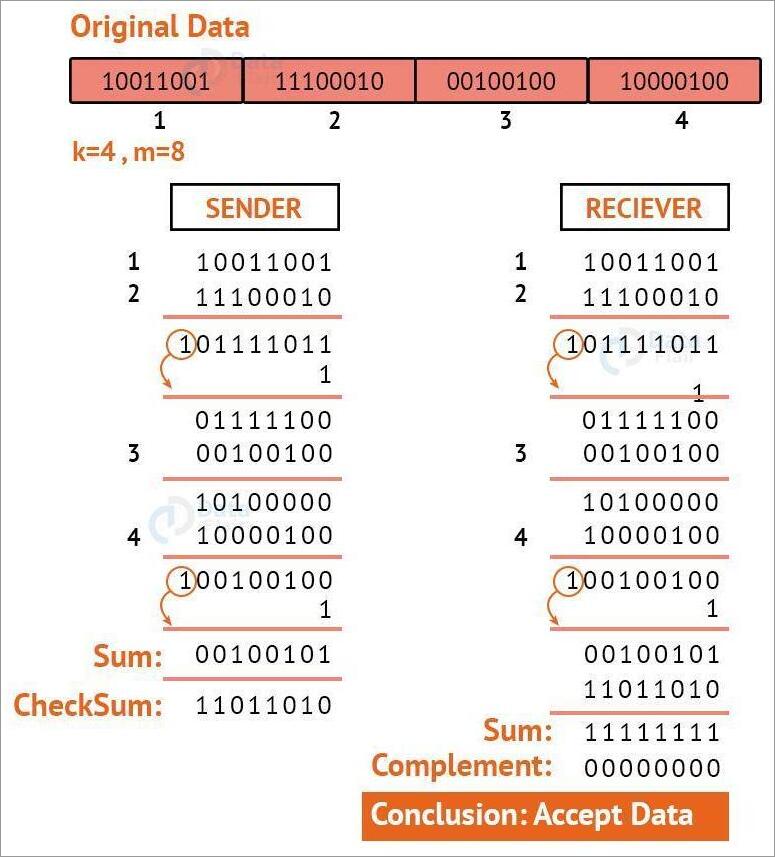
So, what is a checksum error? To truly understand this concept, we must get the gist of how checksums work. As I’ve already said, a Checksum is a unique code, number, or value to verify the integrity of a particular block of data or file. It is calculated using a checksum algorithm. People also call the unique code or number the hash value.
Allow me to explain how it works with an example.
Let’s say you wish to download a 2 GB file. The publisher of this file would’ve already calculated the checksum value of that file. This value represents the file’s exact state and composition before it was sent or downloaded.
[via Data Flair]
The recipient downloading this file can use the same checksum algorithm to calculate the value again. Now, if the calculated value matches the value at the origin, everything is fine.
If the opposite happens, then something is wrong with the downloaded file, indicating data corruption or compromised data integrity.
If the checksum generated by the file is 10011001 and the checksum produced by the recipient’s computer is 10012001, there’s a checksum error, as these codes differ.
Where Do Checksum Errors Occur?
Checksum errors commonly show up in several situations.
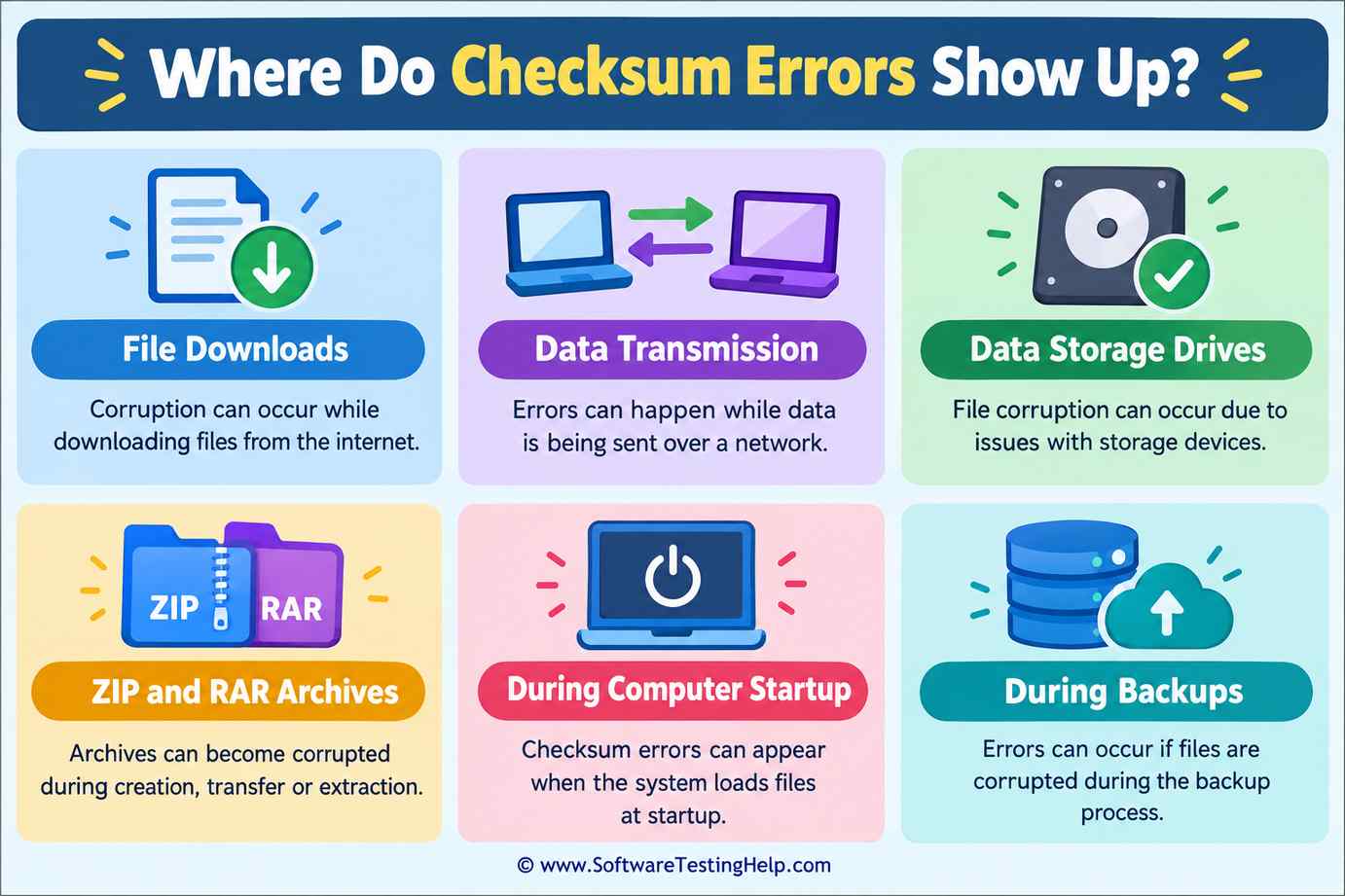
Some of the most common situations are explained below.
#1) Checksum Errors in Downloaded Files
This is the most common scenario for a checksum error, especially when you are attempting to download a huge file. An unstable internet connection or a problem on the server-side could result in an ongoing download being interrupted.
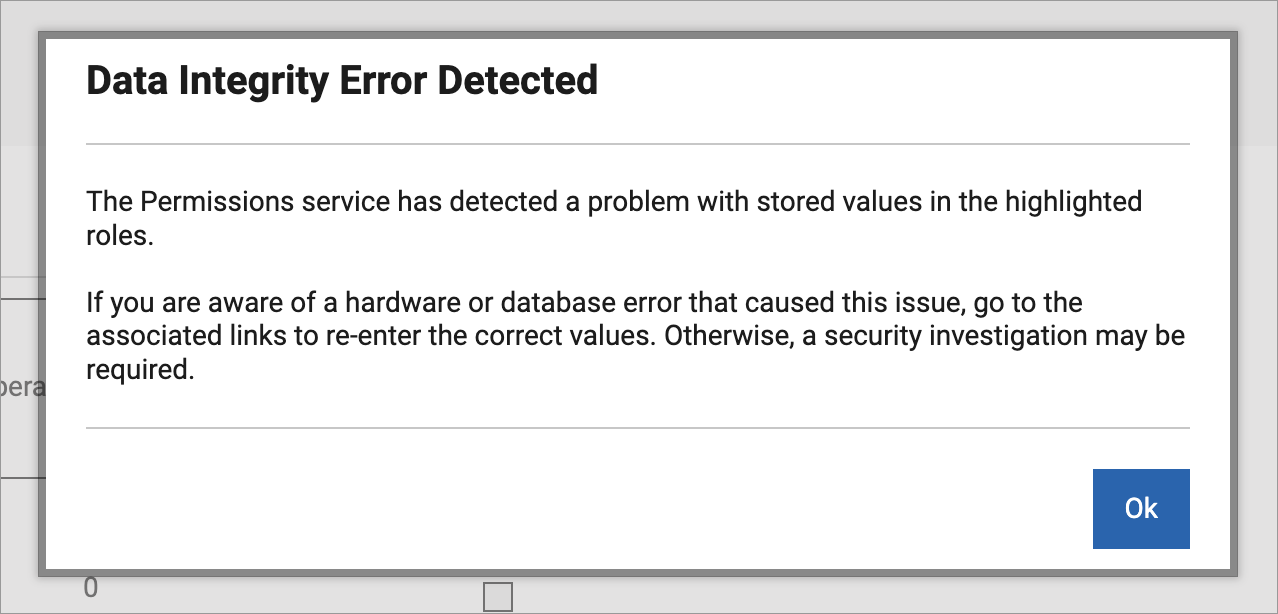
This interruption could result in the file’s checksum value differing from the original, thus triggering the following types of error messages:

[via Insanely Mac Forum]
- File verification failed
- Checksum Error
- Volume hash mismatch
- File Corrupted (indicating a corrupted download)
- Data Integrity Error
[via BigFix]
As I said, this kind of mismatch is more common when you are downloading large files, like a huge software package, ISO image, or firmware.
#2) Checksum Errors During Data Transmission
Data being transmitted over a network also faces the risk of becoming corrupted. Network protocols are known to verify each packet of data by using checksums.
Any packet received with a checksum mismatch is immediately flagged. Besides flagging, network protocols can also choose to discard this corrupted data or simply retransmit it.
#3) Checksum Errors on Storage Drives
Data integrity issues are also very common with files stored on HDDs and SDDs that are gradually failing. There is always a risk of data being degraded or altered as it is stored over time due to disk/storage corruption, which can produce checksum errors.
#4) Checksum Errors in ZIP/RAR Archives
Checksum errors are also quite common when extracting compressed files.
Software like WinRAR is known to produce error messages like the following when extracting a file that’s already damaged:
- Corrupted Archive
- Checksum Error
#5) CMOS (BIOS) Checksum Errors
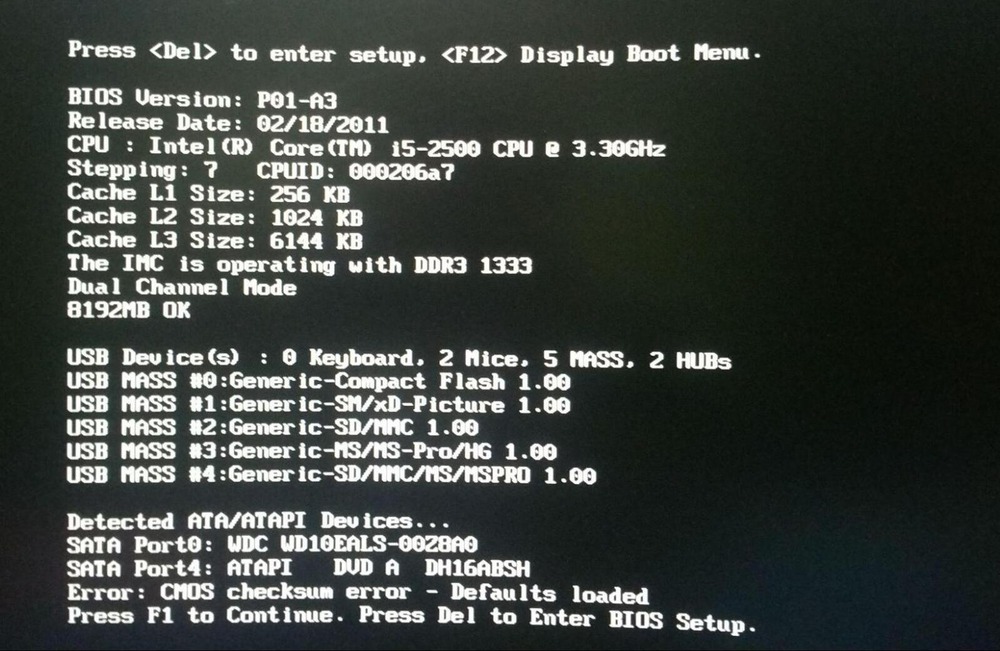
Checksum errors will be displayed on a black screen whenever you try to reboot a computer whose battery or motherboard is failing.
[via Microsoft]
You’ll see the following error message: BIOS Checksum Error / CMOS Checksum Error.
#6) Checksum Errors During Backups
Most backup systems that we have today use checksums to ensure the integrity of the data being backed up is intact. You’ll see a checksum error message pop up when your backup system realizes that the data’s current hash value does not match its original value.
What Causes a Checksum Error?
Now, you already have an idea of where checksum errors commonly show up and what triggers them in the first place.
#1) Most Common Causes
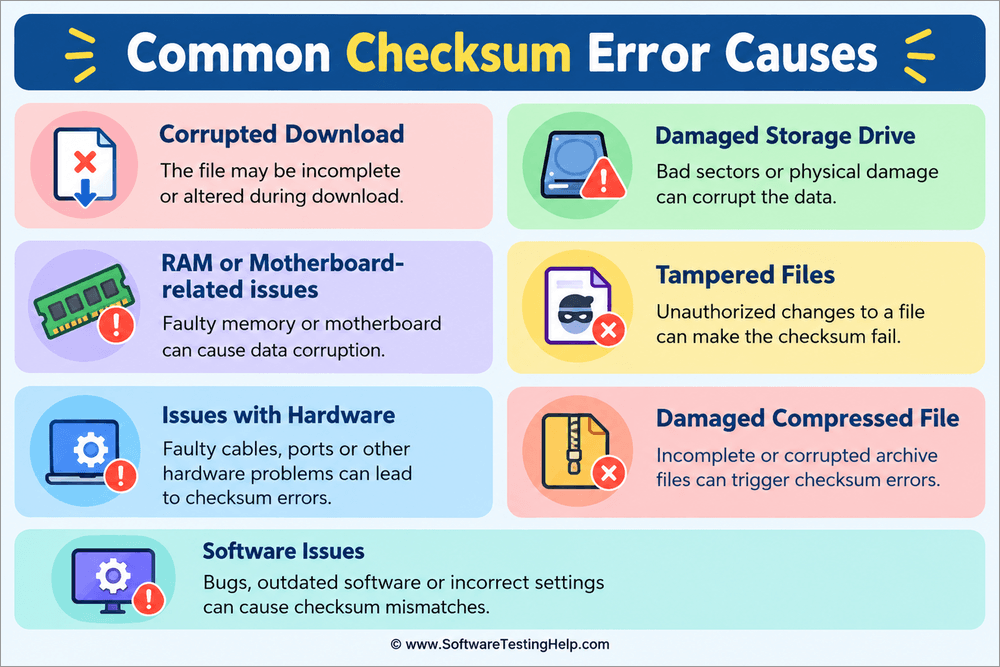
Here are the most common causes of Checksum Error:
- Corrupted Download: If your download is interrupted midway, whether it is due to an unstable connection or a server-side issue, you’ll see a checksum error.
- Damaged Storage Drive: If your HDD or SSD is failing or already damaged, it will either create bad sectors or result in memory errors.
- RAM or Motherboard-related issues: Bad RAM or a faulty motherboard will affect the integrity of data being processed, downloaded, compressed, or stored.
- Tampered Files: If a file was altered in any way during transmission or storage, you will see a checksum error.
- Issues with Hardware: Computers or laptops with hardware issues, like a failing battery or motherboard, will result in CMOS or BIOS checksum errors.
- Damaged Compressed File: If a RAR or ZIP archive has been corrupted, any attempts at extracting files from these archives will result in a checksum error.
- Software Issues: Similar to hardware issues, software plagued with bugs or malware can also trigger error messages.
#2) Developer and Software-Related Causes
Checksum Error Causes in Developer Contexts
- During Pip Install/Conda Install: A checksum mismatch may occur during A pip or Conda install, triggering messages like “THESE PACKAGES DO NOT MATCH THE HASHES FROM REQUIREMENTS FILE”. You could see this error message pop up right after a remote package update, especially when a stale local cache ends up retaining old cryptographic hashes.
- Docker Image Pull Failures: It is common for registry clients to throw out a checksum mismatch message during docker pull. You can attribute the issue here to corrupted daemon storage layers, interrupted connections, and any kind of modification to firewall or proxy payload.
- CI/CD Pipeline Build Failures: Sometimes, automated builds can crash during dependency resolution stages, thus triggering a checksum mismatch. The issue here can largely be attributed to the lock file being enforced by robust security configurations.
#3) Gaming-Related Causes
Some Common Causes for Checksum Errors on Gaming Platforms.
A gaming app or file you just downloaded can trigger checksum errors when you attempt to launch it. Here are some possible causes for the problem you are facing:
1. Scrambled Data Cache: It can be quite frustrating when you are trying to install a game only to be met with checksum error messages. A huge culprit for this problem could be scrambled data. Possible solutions to your problem here would entail clearing the data cache on platforms like Steam or extracting the files forcibly via tools like WinRAR.
2. Anti-Virus Interference: Your anti-virus program may mistakenly suspect and flag a game-related file as malware or spyware. I would suggest navigating to your antivirus software’s exclusion section and adding the game file to its safe list.
3. Disk Write Errors: Disk write errors are common during an app install if your system’s architecture cannot modify data paths because it lacks the permission to do so. This is a problem you can solve by unchecking the Read-Only attributes of your master game folder or launching the app as an administrator.
4. RAM Issues: Unstable RAM is the biggest culprit behind file verification failures during a game install. As such, it is important to periodically run memory diagnostics to ensure your RAM is functional at optimal health.
5. Failing Hard-Drive: A failing hard drive, whether it is because of physical damage or bad sectors, will trigger Disk Write errors. Therefore, I would recommend regularly checking your hard drive’s health. Keep an eye on rattling sounds, vanishing partitions, and slow performance. All of these issues could indicate an HDD or SSD that could die at any moment.
Is a Checksum Error Dangerous?
Whether this error is dangerous will entirely depend on its nature and where the error shows up. It is very common to see a checksum error when downloading/extracting files. This doesn’t necessarily mean that the downloaded file is unsafe. Perhaps the issue was caused by an unstable connection, and you can just download the file again.
I would suggest paying attention to how frequent the issue is. You should be concerned if you see the error message repeatedly. Recurring installation failures, corrupted downloads, and damaged archives are when you should take action.
Repeated occurrences of checksum errors could indicate a serious problem with your system’s hardware or OS.
How To Fix a Checksum Error?
Again, identify what caused the checksum error in the first place, and you’ll know how to solve it.
#1) If the Error Occurs During a Download
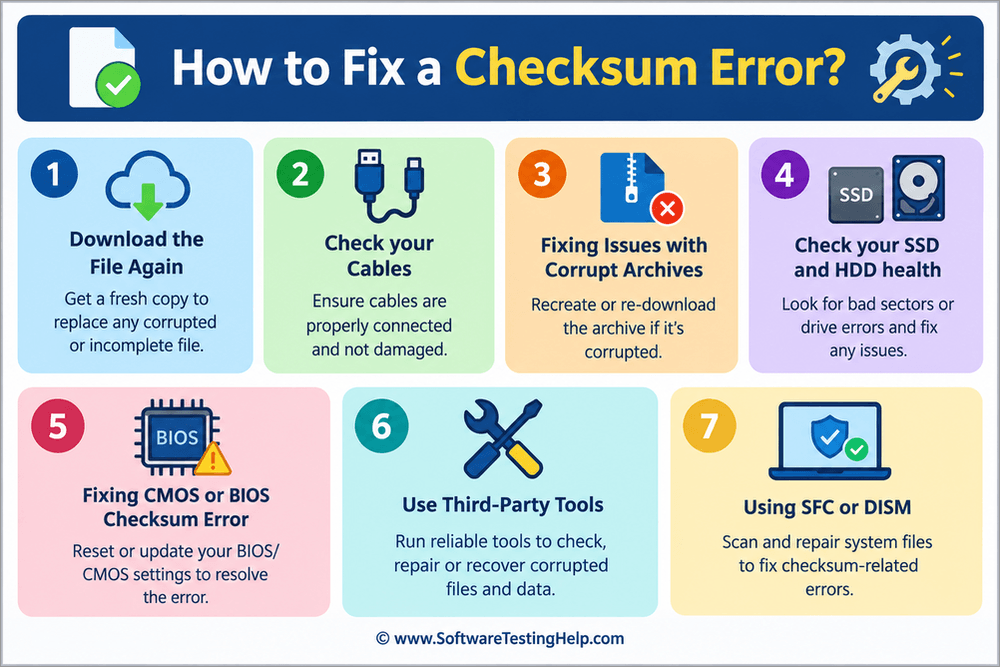
Remember what I said: a checksum error caused by a downloaded file doesn’t necessarily mean a serious issue. Try to download the file again and then verify the checksum code. If the file you re-downloaded yields a matching value, then you can rest easy knowing that this was perhaps a minor transfer-related issue.
You can also try switching to a different network, especially if you think the problem has something to do with your internet or Wi-Fi connection.
#2) Check Your Network or Connection
A loose or defective cable, USB, or SATA can hinder a smooth data transfer process, thus causing the error message to show up. So, I would suggest checking the cables and connections.
#3) If a ZIP/RAR Archive Is Corrupt
If an archive produces the checksum error message, attempt to re-download it and check whether the problem persists. You could also try using 7-Zip, as it does a good job of forcing extraction of partial data even if there is a warning.
#4) If the Error Involves a Storage Drive like SSD and HDD
Failing storage drives can trigger a checksum error message. So, I suggest monitoring your HDD or SSD’s health via various built-in or third-party utility tools.
You can run CHKDSK or fsck to fix issues on bad sectors or corrupted files. If you see repeated checksum errors due to a failing storage drive, it would be wise to back up your data and replace the drive.
#5) If You See a CMOS/BIOS Checksum Error
CMOS checksum errors can be fixed by replacing the CMOS batteries on your motherboard. To fix BIOS checksum errors, you can try to reset BIOS settings.
To do this, you’ll first need to access the BIOS setup utility by pressing keys like F10, F2, or Delete right after booting your system. Once you’re in, look for the option for “Reset BIOS Settings” or “Load Setup Defaults”.
#6) Use Third-Party Tools
There are many third-party tools you can use for checksum verification. HashCheck is a great software that can help you verify a file’s integrity by using algorithms like SHA-256, MD5, and SHA – 512.
QuickSFV is another great lightweight Windows tool that you can use for checksum verification against standards like .CRC, .CSV, .SFV.
When dealing with corrupt or damaged archives, you could rely on tools like WinRAR or 7-Zip, as both come with built-in checksum verification capabilities.
#7) Repair Corrupted Windows System Files
SFC (System File Checker) and DISM (Disk Image Servicing and Management) are both command-line tools that can repair a corrupted system file or image in Windows.
When you run the command sfc /scannow in Command Prompt, SFC will hunt down bad files and replace them with healthy copies.
When you run the command DISM /Online /Cleanup-Image /RestoreHealth. DISM can repair a Windows system image.
Using this command in sequence, i.e., DISM followed by SFC, can help you resolve some stubborn checksum errors. However, these command-line tools won’t do much if the local repair source itself is damaged.
Checksum vs. CRC vs. Hash: What’s the Difference?
Make no mistake. Both of these terms refer to the same system failure. However, they differ slightly with respect to how these messages are detected and where they occur. For instance, a checksum error means that a system has failed its integrity check, whereas a checksum mismatch refers to the difference between a calculated value and the reference value.
Checksum error messages are typically triggered by network issues, bad drive sectors, and physical corruption. Checksum mismatches are triggered by wrong algorithms, outdated caches, and failed version updates.
How to Verify a File’s Checksum on Windows, MacOS & Linux?
Depending on the device OS you are using, a file’s checksum can be verified by doing the following:
#1) On Windows
i) Via Command Prompt
- Open Command Prompt and click Run as administrator.
- Enter the cd command to navigate to the directory where your file is saved.
- Type the command: certUtil -hashfile (filename) SHA256

- Verify the value produced against the file’s original value to see if there is a match.
ii) Via PowerShell
- Open PowerShell and click Run as administrator.
- Enter the cd command to navigate to the directory where your file is saved.
- Type the command: Get-FileHash- (Path filename.ext) – Algorithm SHA256
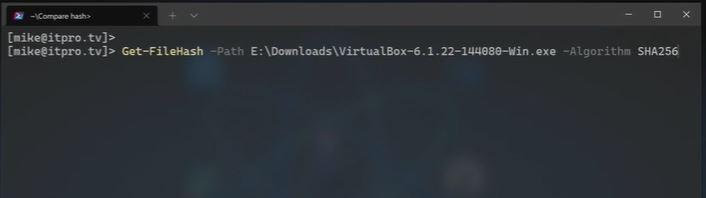
Now verify the value produced against the file’s original value.
#2) On Mac
- Open Terminal
- Use the cd command to find the directory where your file is saved.
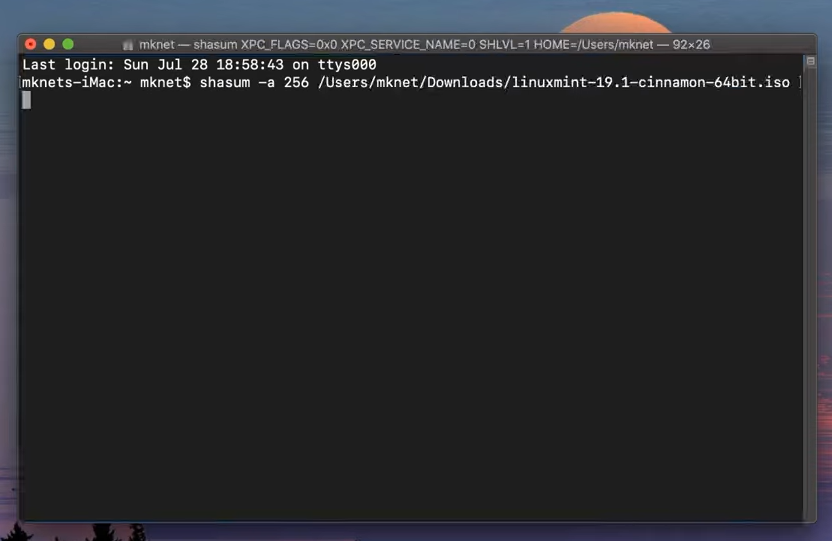
- Type the command: shasum -a 256 filename.ext
#3) On Linux
- Open Terminal
- Use the CD command to find the directory where your file is saved.

- Type the command: sha256sum filename.ext
Checksum Vs. CRC Vs. Hash Errors: Key Differences
Checksum, CRC, and Hash are all methods you can use to verify a data or file’s integrity. Although their primary goal is the same, they differ in some prominent aspects. The table below can clarify the distinction between them.
| Checksum Error | CRC Error | Hash Mismatch | |
|---|---|---|---|
| Function | Produces a unique code or value by combining chunks of data | Produces a remainder attached to the data packet by using polynomial division on a stream of bits | Produces a unique fixed-size string by running data through an algorithm. |
| Detects | Basic or accidental errors | Sensitive or burst errors | Data corruption or loss of integrity. |
| Demerits | Low precision. | Can’t help you with malicious alteration, as it is computationally heavy. | Very slow |
| Use Cases | Network protocols like UDP and IPv4. | Networking and hardware standards like disk storage, Ethernet, and USB. | Password security, digital signatures |
How to Prevent Checksum Errors
Here’s everything I’d suggest you do to prevent checksum errors:
- Only download files from a trusted source.
- Use reliable tools like 7-Zip or WinRAR to extract compressed files.
- Perform memory diagnostics regularly to detect faulty RAM right away before it is too late.
- Inspect your SSD and HDD. Keep an eye out for signs of a failing storage drive, like corrupted files, missing partitions, a grinding sound from your system, system crashes, and the blue screen of death.
- Replace your motherboard’s CMOS battery, especially if it is too old.
- When you do disconnect an external drive, use the “Safely Eject External Drives” option.
- Keep your OS and firmware up-to-date.
- Keep an eye out for a pattern of checksum errors, such as repeated system crashes, corrupted downloads, etc.
- Ensure your cables or any other connections aren’t loose or defective.
Frequently Asked Questions
1. What are checksum errors?
A checksum is a unique code made up of numbers and letters that’s created by running data through a mathematical algorithm. It basically serves as a file’s or data’s digital fingerprint. If the digital fingerprint of the file you received doesn’t match its original value, it could indicate a serious error.
2. How to fix checksum errors?
The way you fix a checksum error will depend on what caused it in the first place.
• If the problem is with a downloaded file, re-download it or download it after switching your internet connection.
• If the problem is with CMOS or BIOS, then replacing your motherboard’s CMOS battery or undertaking a BIOS reset may fix the issue.
• If the problem is with a compressed file, using 7-Zip or WinRAR to extract it may help.
3. Is a checksum error bad?
A checksum error may range in severity. It could hint at a minor problem like a software glitch or serve as a warning sign for imminent system failure. For instance, issues pertaining to a failed download are minor issues that can be solved by re-downloading the file.
On the other hand, checksum errors could also be a sign of a failing hard drive that warrants drastic measures. Whether or not a checksum error is bad will depend on where this error is showing up.
4. Which is better, CRC or checksum?
CRC is considered objectively better if your goal is quick error detection. Checksum is only best for detecting basic or accidental errors.
5. What are the different types of checksum algorithms?
You have several options at your disposal when it comes to checksum algorithms. As for the one you choose, it will depend on the purpose you want to serve.
• CRC is ideal for detecting accidental data corruption.
• SHA algorithms are ideal for detecting issues with system applications.
• MD5 is ideal for file integrity checks.
• CRC32 is ideal for detecting errors in network packets, storage devices, and ZIP archives.
• Fletcher and Adler-32 are great for applications where speed is the priority.
6. How long does checksum verification take?
Well, that would depend on your algorithm being used, your storage drive’s speed, and CPU performance.
For instance, checksum verification of a file no larger than 10 GB shouldn’t take over 30-40 seconds. On the other hand, you’d have to wait for around 30-40 minutes for a file that’s larger than 1TB.
Checksum verification will also be much faster on an SSD than an HDD. The algorithm you choose will also determine the speed you can expect. Using hashes like CRC32 will result in faster processing as opposed to verifications done via algorithms like SHA-256.
7. What is a checksum example?
Suppose a file has an expected checksum of ABC123. After downloading the file, your computer calculates its checksum as XYZ789.
Because the two values are different, the file has a checksum mismatch, which can result in a checksum error.
Expected checksum: ABC123
Calculated checksum: XYZ789
↓
Values don’t match
↓
Checksum error
The actual checksum value depends on the checksum algorithm being used.
8. How can I fix a BIOS checksum error?
The most common cause for such an error is where the BIOS finds out that the stored CMOS/BIOS setting data is different from the checksum value. Start off by entering the BIOS/UEFI and changing the setting to default. Save the settings and reboot the machine. In case this does not fix the error, then you should try to change the CMOS battery, because it could have gone bad and this could result in loss of BIOS settings.
9. Is a checksum used for error correction and detection?
A checksum can essentially be used to detect errors, but not fix them. The transmitter computes a checksum on the original data and sends it along with the data. The receiver then computes the same checksum on the received data. In case there is any mismatch between these two values, it is obvious that the data is corrupt. A checksum does not usually indicate what kind of corruption is there in the data.
10. What is a checksum error in WinRAR?
Checksum error in WinRAR indicates the situation when data contained in a RAR or ZIP file does not correspond to the checksum of the file. It occurs when there is some corruption of the file or one of its parts, or incompleteness of the file.
It is recommended to download the file once more, especially if it was taken from the Internet. It is necessary to ensure that all parts of the file have been downloaded, if it is a multipart file. If the problem still appears with the known good file, then the file is corrupted.
Conclusion
So, there you have it. I hope this article serves you well when it comes to knowing what a checksum error is and how you can use this knowledge to your advantage. Think of this error as a warning message that isn’t always a sign of something severe.
While some checksum errors can be resolved with something as simple as re-downloading, others may require drastic measures like replacing your storage drive or CMOS battery. Isolated checksum error messages aren’t a cause for concern, but recurring error messages should ring an alarm bell.
That said, prevention is better than cure. So, I suggest checking your storage drive’s health regularly, downloading only from trusted sources, replacing old CMOS batteries, using reliable tools like 7-Zip to extract archives, and running memory diagnostics frequently to prevent checksum errors from occurring.
Research Process: The total time involved to complete and publish this article is approximately 42 hours. This content was created through a structured research approach to ensure accuracy and reliability.
For more-related guides, you can explore our range of tutorials below:
- 7 Layers of The OSI Model (A Complete Guide)
- TCP/IP Model With Different Layers
- TCP Vs UDP – What Is The Difference Between TCP And UDP
- IPv4 vs IPv6: What’s the Exact Difference
- Network Address Translation (NAT) Tutorial with Examples
Was this helpful?
Recommended Reading
-

Learn what Code Review is and why it's so important along with a comprehensive list of the best Code Review Tools available in the market. What is code review? Code Review is nothing but testing the Source Code. Generally, it is used to find bugs in the early stages of…
-

Best Version Control Software Tools and Systems: In this article, we are going to discuss the best version control/revision control tools that are available in the market. Version Control Software VCS is also referred as SCM (Source Code Management) tools or RCS (Revision Control System). Version control is a way…
-
Review and compare the Best Code Quality Tools available and select the most suitable tool to produce the best quality and error-free code: With the widespread adoption of digital infrastructure & programming, coding has become one of the most innovative industries on the planet. There are a growing number of…
-
This is a comprehensive review of the ACCELQ test automation and test management platform that includes the installation process, functionalities, etc. ACCELQ is fast growing to be leader in the cloud-based no-code test automation space, with an approach that uniquely focusses on the design and maintenance aspects of testing in…


