Did you ever wonder why your WiFi networks have their names? These names are known as SSIDs (service set identifier). An SSID is used to identify different WiFi networks from each other. For instance, HomeWiFi, OfficeNetwork, and MyWiFi_5G can all be names of SSIDs.
In this article, we’ll provide you with detailed information on what is an SSID, the meaning of SSID, how an SSID works and how to find your SSID in Android, iPhone, Windows, Mac and on your router.
You’ll also learn the difference between an SSID, BSSID and how to change your SSID name and following best practices to secure your Wi-Fi network, and troubleshooting steps if an SSID isn’t showing up.
Meaning of an SSID (service set identifier)
SSID stands for service set identifier and this refers to a unique name for your Wi-Fi network. SSID appears in Wi-Fi network whenever you try to connect to a wireless network using your phone or computer. SSID is just the Wi-Fi name.
Here is a short video guide on what an SSID is:
Key Takeaways:
- SSID, aka Service Set Identifier, is a name assigned to your Wi-Fi network.
- It appears whenever you try to connect your computer or mobile to a nearby network.
- It is composed of numbers, special characters, and case-sensitive letters.
- All routers feature a default, widely used SSID, assigned to them by manufacturers.
- Changing the SSID is advised, as it can help users avoid network confusion and strengthen their network’s security.
What is an SSID and What does it Mean?
What does SSID mean? I mean, beyond the fact that it is a name used to identify a Wi-Fi network, what does it truly mean? You’ll know the answer to this question as soon as you delve deeper to find out how SSID works.
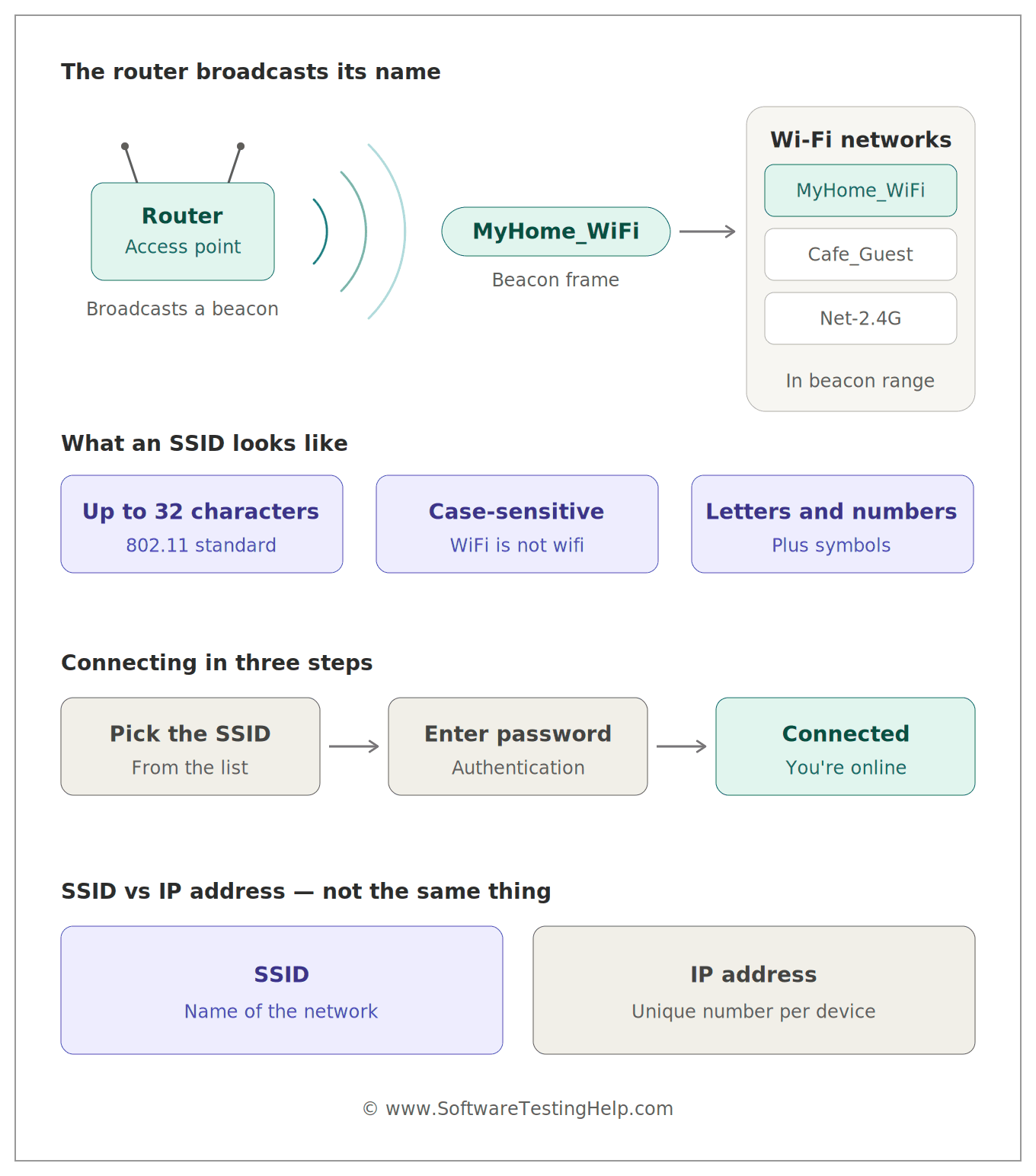
Every time your devices search for a Wi-Fi connection, they will end up displaying a list of SSIDs available in your vicinity. These SSIDs are being broadcast by an access point or router. They are a mixture of case-sensitive letters, characters, and numbers. As per 802.11 standards, an SSID can feature up to 32 characters max.
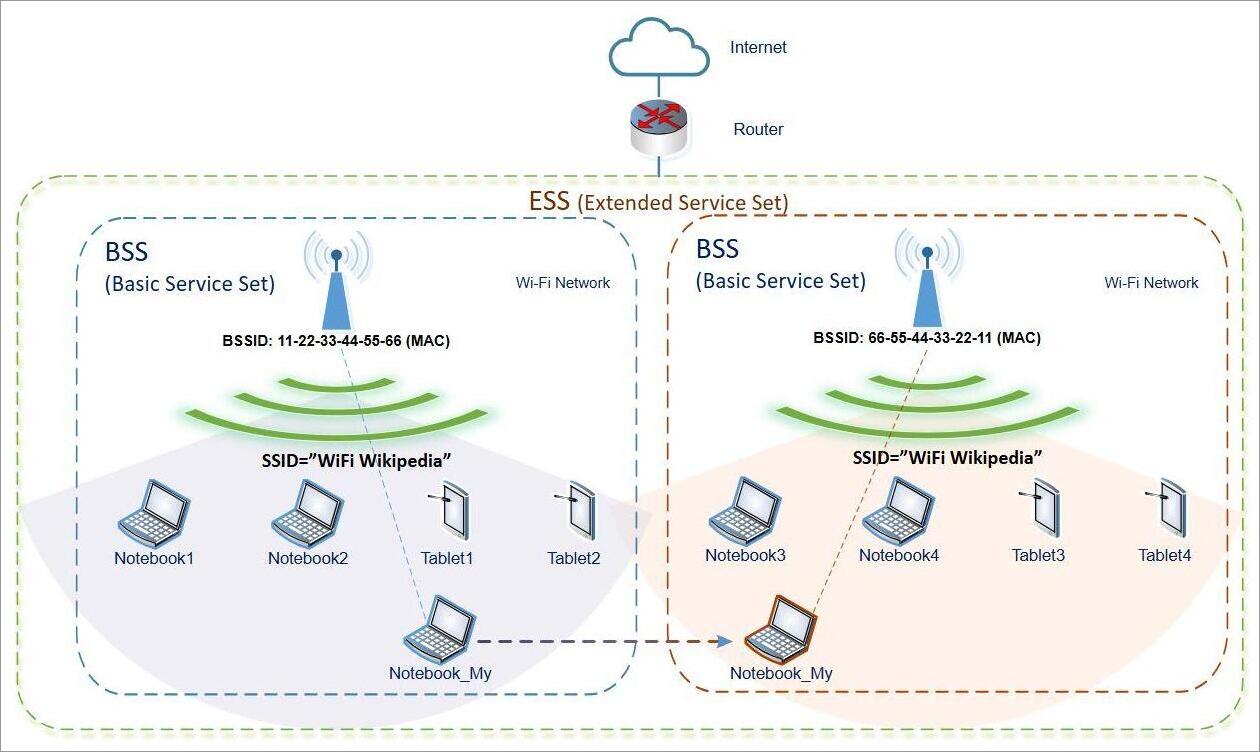
[via Wikipedia]
Needless to say, you’ll know what an SSID is at first glance.
You choose your preferred network’s SSID from the displayed list, enter your password for authentication, and connect to the network. An SSID is broadcast in what’s known as a “beacon” (a unique management frame in IEEE 802.11-based WLANs). Any computer or smartphone within range of this beacon will detect the SSID.
How does an SSID (Service Set Identifier) Work?
SSID (Service Set Identifier) is the name that is used to identify a Wi-Fi network. When an SSID is broadcast by a router or wireless access point, then the network can be detected by the nearby devices in the Wi-Fi list and using the SSID, one can know which wireless network to connect.
1. The router creates a wireless network: Wireless router/access point is set up with an SSID name like HomeWiFi or Office_5G.
2. The SSID is broadcast/advertised: The access point constantly broadcasts Wi-Fi management information using which the nearby devices can discover the specific wi-fi name (SSID). In the absence of broadcast SSID, the network would not be discovered through the Wi-Fi list.
3. Your device scans for available networks: The device like a phone, laptop, etc. scans for nearby Wi-Fi networks and lists down the SSIDs (wi-fi names).
4. You select SSID to connect to the WiFi network: If you select HomeWiFi, then your device indicates which WiFi network it wants to connect to.
5. The device authenticates the network: If it is a secure WiFi network, then the user gives the WiFi password and the process of security/authentication will be performed by the device/router like WPA2 or WPA3.
6. Connection to the access point: After a successful authentication process, the connection between the device and the access point will be made.
How to Find SSID?
Look at a home router’s label, and you’ll notice its SSID mentioned. Corporate networks are more complex because third-party applications or on-premises wireless controllers centrally manage their SSIDs.
If you aren’t able to identify your network’s SSID, I suggest you do the following:
Where to Find SSID on Computer
How to Find SSID on macOS
1. Navigate to the menu bar displayed at the top of your screen.
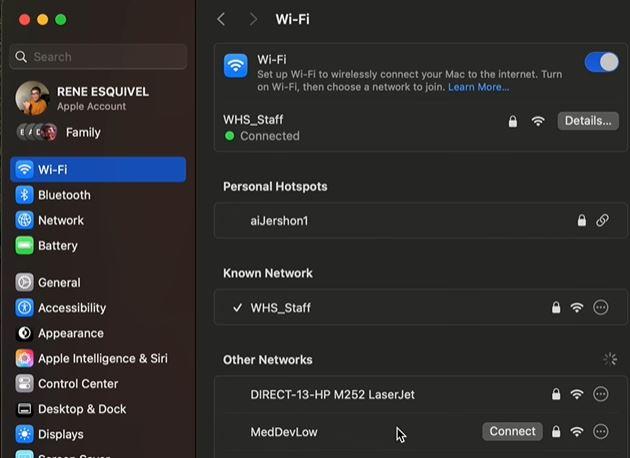
2. Select Wi-Fi to see a list of SSIDs you are connected to or can connect to.
How to Find SSID on Windows
1. Navigate to the taskbar at the bottom of your screen.
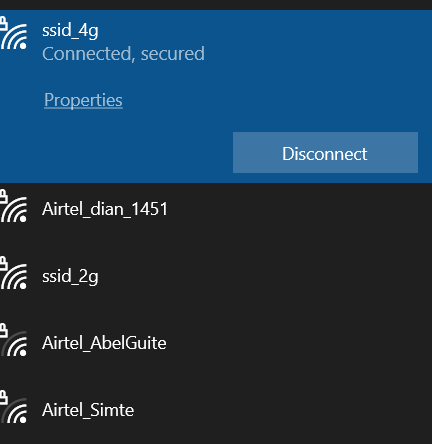
2. Select the Wi-Fi icon to see a list of available SSIDs.
How to Find SSID on Phone
How to Find SSID on iPhone
1. Go to Settings
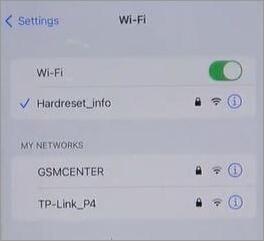
2. Select Wi-Fi to see the SSID of the network you are currently connected to.
How to Find SSID on Android
1. Go to Settings
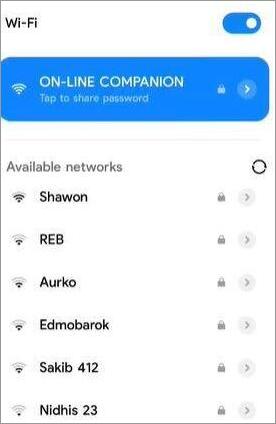
2. Select Wi-Fi to see the SSID of the network you are currently connected to at the top. You’ll also see a list of all available SSIDs in your vicinity.
How to Change Your SSID?
Changing or customizing your SSID is quite simple, even though it might appear a bit technical.
The best approach is to follow my example directly.
- First, connect to your local Wi-Fi network. You can connect via a phone or a computer. I suggest using a computer for greater convenience.
- Note down your router’s IP address and enter it in your browser’s address bar.
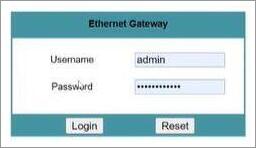
- Log in using the admin username and password. The username and password of a router can be found on its back label if you haven’t changed them already.
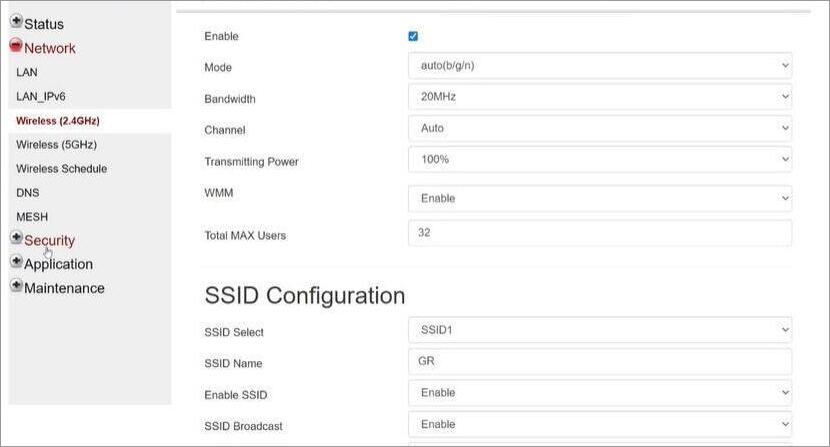
- Once logged in, navigate to your Wi-Fi or WLAN settings.
- Locate the SSID box and edit the existing text. Just make sure the new name isn’t over 32 characters long. Also, do not use your real name, phone number, or home address.
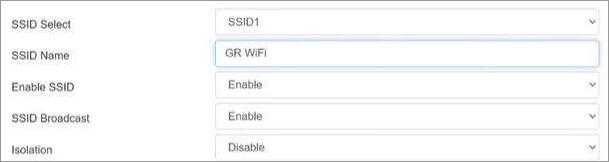
- Save and apply the changes.
- Now, reconnect to the network via the new SSID.
Should You Change Your Default SSID?
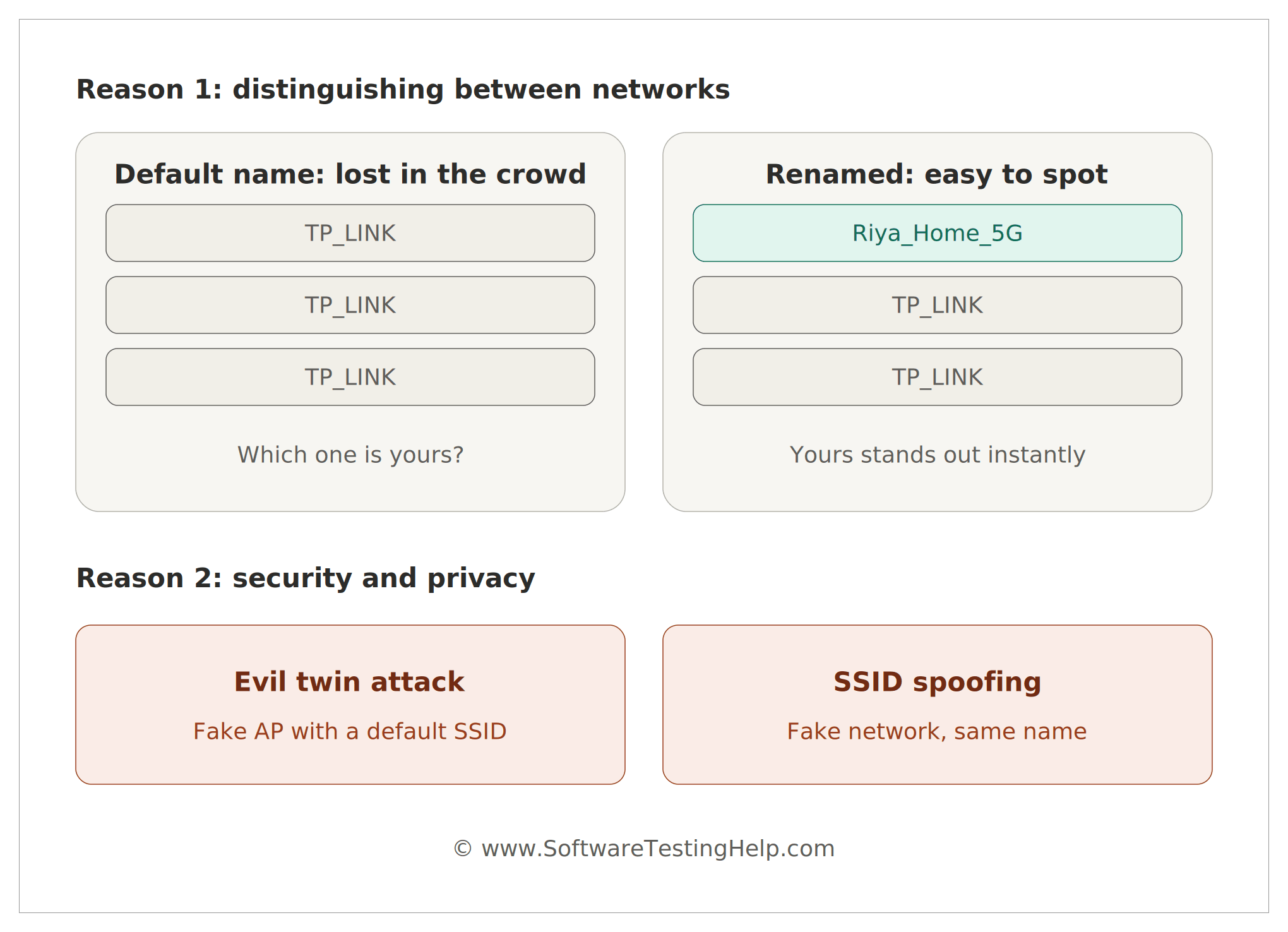
I would highlight two critical reasons that make a good case for changing the default SSID.
#1) Distinguishing Between Networks
If I enable Wi-Fi on my phone, I am bombarded with at least ten networks with the name “TP_LINK”. If I choose not to change my default SSID, I am pretty sure that my home network would also be listed as “TP_LINK”.
By changing the SSID to something that can be identified easily, you’ll be able to distinguish your network from all the others available for connection in your surroundings.
#2) Security and Privacy
Changing your SSID can prevent you from falling victim to common cybersecurity traps like:
- Evil Twin Attacks: Entails a fake access point created by hackers using the same default SSID as other popular routers.
- SSID Spoofing: Entails a fake network that has the same name as a legitimate network. Users connecting to this network can fall victim to a man-in-the-middle attack, where information is intercepted by a cybercriminal as it moves back and forth between the user and the actual network.
How to Secure Your Wi-Fi Network (SSID Best Practices)
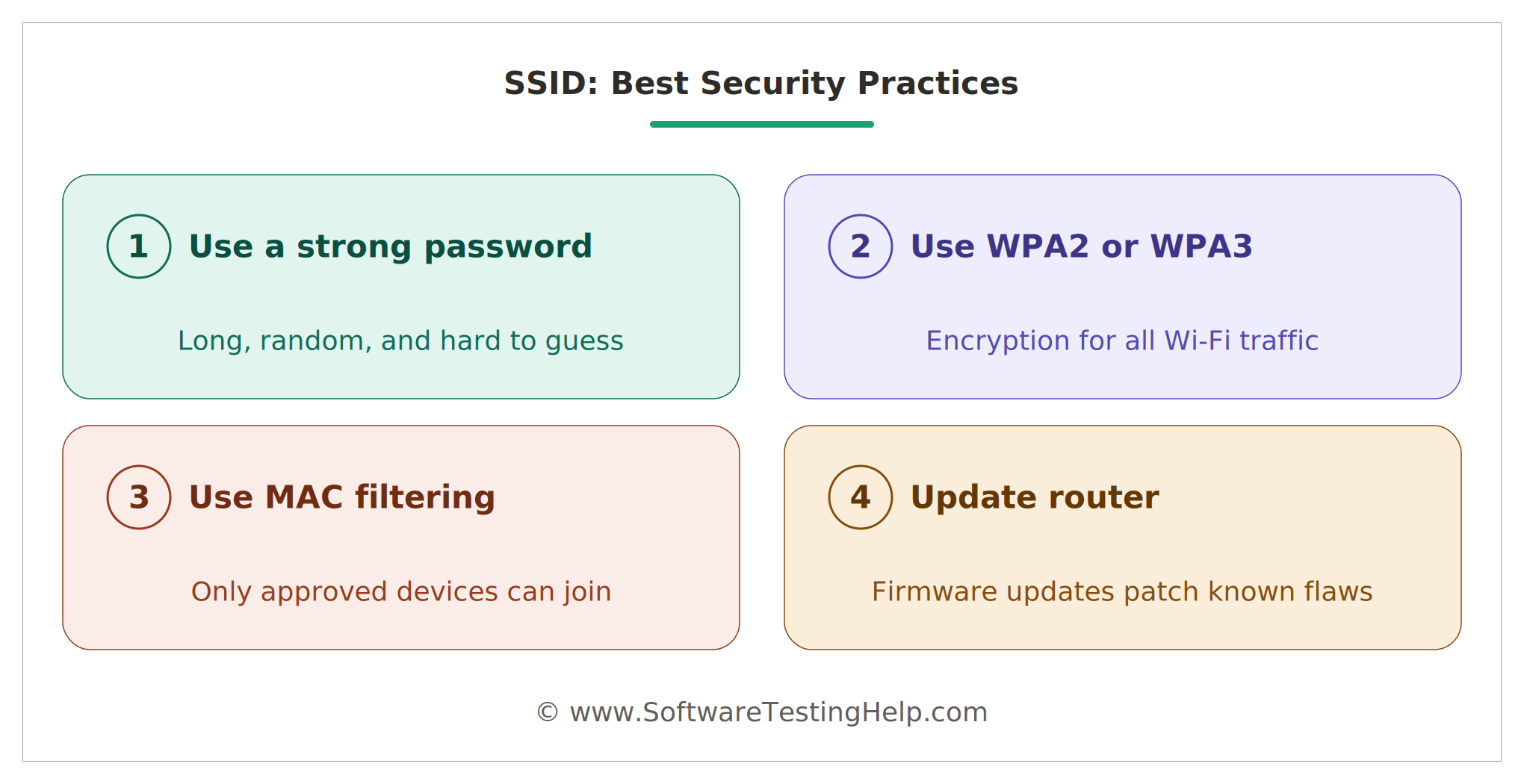
Now that you know what SSID is, you are actually in a better position to protect it from hackers and all sorts of online threats.
Here’s what I suggest you do:
#1) Use a Strong Password
Encrypt your connections with a very strong password. A strong password would be at least 8 to 9 characters long. The password should also include a mix of letters, special characters, and numbers.
#2) Use WPA2 or WPA3 Encryption
WPA2 and WPA3 encryption facilitate relatively stronger security, as opposed to older forms of encryption like WEP. WPA3, in particular, is a protocol I would recommend for maximum protection. It can protect you against offline dictionary attacks. It also employs a far more advanced handshake process to thwart offline attacks.
#3) Use MAC Filtering
Media Access Control filtering basically defines which devices can connect to a wireless network. You can use this filtering tactic to only grant access to known devices, thus keeping unknown devices at bay.
#4) Update Router
Router manufacturers release new updates frequently to patch up any vulnerabilities plaguing it. I suggest you keep your router up-to-date with the latest firmware to give it a fighting chance against a barrage of online threats.
Visible vs. Hidden SSID: What’s the Difference?
Depending on your router settings, you can choose to keep the SSID visible or hidden. The main idea behind hiding an SSID is to add an extra layer of security. Instead of simply clicking on a visible SSID to connect, you’ll also need to enter the hidden SSID to establish a connection.
Here’s how a visible SSID differs from a hidden SSID:
| Hidden SSID | Visible SSID | |
|---|---|---|
| Visibility | It isn’t displayed in the available Wi-Fi list | Automatically displayed in the available Wi-Fi list. |
| Connection | Need to enter SSID details manually | Click on the displayed SSID and enter the password to connect. |
| Beacon Packets | Not broadcast in beacon packets. | Broadcast in beacon packets |
| Security | There are tools that attackers can use to reveal a hidden SSID very easily. | Security depends on encryption. |
What is Guest Network SSID?
A guest network SSID is a distinct name assigned to a Wi-Fi network meant to grant visitors Internet access. Guest network SSIDs essentially provide you with a way to give visitors or “Guests” access to your internet while keeping them isolated from your private network.
With a separate SSID being broadcast by your router, you can have friends or colleagues visiting your place connect to your Wi-Fi without providing them with your main password.
Simply put, a Guest Network SSID isolates certain connected phones and computers from accessing your private network and the information it contains while offering internet access to these devices nonetheless.
SSID vs. BSSID vs. ESSID: What’s the Difference?
I understand if you get confused with these terms and use them interchangeably. Allow me to clear up your confusion once and for all.
SSID, aka Service Set Identifier, refers to the unique name assigned to your Wi-Fi network. It is broadcast by a router and basically helps one identify and distinguish their network from others in the area.
BSSID, aka Basic Service Set Identifier, refers to a unique identifier for a specific access point in a Wi-Fi network. It is a technical identifier represented as a 48-bit MAC address. A device uses BSSID to distinguish between different access points broadcasting the same SSID. E.g. 00:14:22:33:44.
ESSID, aka Extended Service Set Identifier, refers to the entire Wi-Fi network instead of an individual access point. An ESSID is used to facilitate seamless roaming, as it remains the same across multiple access points. E.g. LibraryNetwork. This ESSID will remain the same, offering connection across all floors of the building where it is being broadcast.
Recommended SSID Naming Rules and Restrictions
Below is a list of mandatory rules and recommended tips I would advise you to follow to ensure you don’t face any issues down the line.
- According to 802.11 standards, your SSID name cannot be over 32 characters long.
- SSID is case-sensitive. This means lowercase characters are different from uppercase characters. E.g., JOHN_007 is not the same as john_007.
- One must refrain from using emojis and special characters like punctuation, as some devices may have trouble recognizing or connecting to such SSID networks.
- Avoid putting personal details (name, address, phone number) into an SSID, as it will be visible to anyone in the vicinity.
- You should change your default SSID name right away. Names like TPLINK can confuse, especially when there are multiple SSIDs with the same name in the area.
A great SSID, in my opinion, would use a mixture of letters and numbers.
Some good examples are as follows:
- Malcom007Reynolds
- Smooth 69 Loading
- MalcolmsNo12WiFi
Why is my SSID Not Showing?
The reason for not seeing your SSID (the name of the Wi-Fi network) in the available networks list may due to following
Possible causes:
- Hidden SSID: The router might be set up to hide the network name.
- Turned off Wi-Fi: Make sure your Wi-Fi is enabled on the phone or computer.
- You are too far away: Get closer to the router and scan available networks.
- Rebooting router: Rebooting the router will help in sorting out the temporary issues with broadcasting Wi-Fi signal.
- 2.4 GHz/5 GHz Network turned off: Ensure that your Wi-Fi band is turned on in your router.
- Configured/updated/router/network issues: Configuration settings, router or network issues due to recent configuration or firmware updates can be the reason.
- Network adapter issue: In Windows/Mac, old/outdated and disabled wireless network adapter will make your computer to detect the SSID.
Quick Solution: Reboot your router and computer/device; move nearer to the router; ensure that your Wi-Fi is turned on; also ensure that your router is broadcasting its SSID.
Frequently Asked Questions
1. How do I find my SSID?
To find your SSID, you’ll need to click or tap on the Wi-Fi feature or icon displayed on your computer or mobile phone. The path to your device’s Wi-Fi section will differ based on the OS being used. You can refer to my guide above for hassle-free navigation.
2. What happens when there are multiple networks with the same SSIDs?
So, what happens if two Wi-Fi networks have the same name?
If there are two or more networks with the same SSID, your device will connect to the network broadcasting the strongest signal.
It may also connect to the SSID that shows up first. To avoid confusion between multiple different networks with the same SSID, I suggest you change your default SSID and assign it a unique identifier.
3. Is my Wi-Fi password the same as my SSID?
No, in the conversation between SSID vs. Password, know that these are two very different concepts. SSID is the name given to your Wi-Fi network. A password is a secure code you’ll need to enter when trying to connect to a network.
4. Is the SSID just the Wi-Fi name?
Yes, that’s what SSID’s meaning is. It is a unique name assigned to a network that is broadcast by a router or access point.
5. What does SSID stand for?
SSID’s full form is Service Set Identifier.
6. Why is my SSID not showing up?
This can be an issue that you can easily fix by restarting your router or devices. If a reboot doesn’t solve the issue, you’ll need to log into your router’s admin panel and check whether the SSID broadcast option is disabled or whether the “Hide SSID” option is checked.
This might very well be a driver-related or settings issue on your device. Resetting network settings on a phone can resolve this issue. On a computer, you’ll need to navigate to Wi-Fi settings and try to manually add the network connection.
7. What is an example of an SSID?
Click on your computer’s Wi-Fi settings or icon to see a list of all available networks displayed. The names you see for the displayed networks are SSIDs. One example of a default SSID would be “SSID_5G”.
8. Is it safe to share SSID?
SSID is meant to be broadcast publicly by the router or access point. As such, it is safe to share your SSID. I would suggest taking precautions like using a strong password, WPA2 encryption, and MAC filtering before you share your SSID.
9. How to Find SSID on Phone?
The way of finding an SSID on the phone includes going to Wi-Fi settings and checking the name of your current network connection. Android users have to navigate to Settings → Wi-Fi or Settings → Network & Internet → Internet. iPhone users need to open Settings → Wi-Fi. The network name listed in the section will be the SSID. Menu items can differ based on the device and the OS version.
9. What Is SSID in Hotspot?
An SSID in a hotspot is a name of the wireless network established via the hotspot. When you activate your hotspot and devices try to connect to the available Wi-Fi networks, they will see an SSID. If your phone hotspot name is MyPhone, it will be the SSID of your hotspot. It is possible to view or modify this name in your phone Hotspot/Personal Hotspot settings.
10. How Do I Find My SSID?
The SSID is the name of your Wi-Fi network. To find it on the phone or computer, open Wi-Fi settings and check the current network name. Also, the SSID can be found on the router label or via the wireless settings of the router.
11. What Is an Example of an SSID?
An SSID is just the name of your Wi-Fi network. Some examples of SSIDs include HomeWiFi, OfficeNetwork, MyWiFi_5G, and CoffeeShop_Guest.
Conclusion
What is an SSID number? Or better yet, what is an SSID for Wi-Fi? I’ve come across many such questions on online forums in the past. Well, all of these questions have the same answer. SSID is a unique name to identify your Wi-Fi network. With that knowledge, you’ll now know how to distinguish your SSID from others in the vicinity.
My goal with this article was not to simply define SSID but also leave you with the tips necessary to change and better protect it. Hopefully this article answers any queries or burning questions you may have had about SSID.
If you are still using a default SSID, change it immediately. You’ll find the guide to that without hassle in this article.
Research Process: The total time involved to complete and publish this article is approximately 38 hours. This content was created through a structured research approach to ensure accuracy and reliability.
For more-related guides, you can explore our range of tutorials below:
- What is Network Security Key and How to Find It
- Default Router Password List for All Top Brands
- Basic Network Troubleshooting Steps and Tools
- Top 10 WiFi Analyzers: WiFi Monitoring Software
- The Top 10 WiFi Routers In India (Best Sellers)
Was this helpful?
Recommended Reading
-

Role and Significance of Routers in Computer Networking System: Our previous tutorial in this Full Networking Training Series explained us about Layer 2 and Layer 3 switches in detail. In this tutorial, we will see about Routers in detail. Routers are widely used everywhere in our daily life as these…
-
Selecting a good travel router from the market can be a challenging task. Choose the ideal portable WiFi router from our top-rated options for premium services: Finding a safe and reliable WiFi network when traveling is undoubtedly quite challenging. Apart from other travel-related problems, some areas might even be out…
-
Have you subscribed to Spectrum Internet's high-speed plan but not experienced high-speed internet browsing? The top-rated list of routers for Spectrum gives you the option to select the one that fits your needs: Constant lags during the internet keep on getting a lot frustrating at times. It's time to switch…
-

Looking for your default router IP address? Learn how to find your router IP address on Windows in simple steps to access your router settings quickly. The term default Router IP address refers to a particular Router IP address to which you are connected and are trying to log in…