Read our in-depth Freepik AI Image Generator review to explore its functions, features, pricing, pros and cons in detail. Give a try to this one-stop AI-powered tool to create stunning images and videos with basic text prompts:
On April 28th, 2026, I woke up to the news of Freepik AI officially rebranding itself as Magnific.
Before this merger, Magnific AI was simply known as an image upscaler, whereas Freepik offered a more extensive AI ecosystem. This rebrand essentially brings both of their capabilities under a single pane of glass.
Freepik AI Image Generator: Complete Hands-on Review
What you’ve got right now is an end-to-end AI-creative platform that caters to various interests. This includes designers, artists, filmmakers, creators, marketers, advertisers, e-commerce entrepreneurs, photographers, and more.
I had the privilege of using the Freepik AI Image Generator (Now Magnific) recently and would like to share my honest thoughts on the same.
What is Freepik AI? (Now Magnific)
I would call Freepik AI an all-in-one suite for AI-powered creation. One can leverage Freepik’s AI-generative capabilities to create videos, images, 3D art, mockups, and more with simple text-based prompts.
Freepik first came into the picture back in 2010, when it was merely a platform famous for harboring a massive stock asset library. It was only a decade later that Freepik began its shift toward generative AI, thus becoming what it is today.
As for the rebranding, we should’ve seen this coming when Freepik acquired Magnific in 2024.
What AI Models Does Freepik AI Use?
Freepik AI lets users choose from more than 40 of the top AI models on the market today. This remains the platform’s strongest USP.
Here’s a table showing some of the AI models found in Freepik AI and the purposes they’re best suited for.
| Illustration | Nano Banana Pro, Nano Banana 2, Seedream 5, GPT Image 1.5, Krea 2, Recraft V4, Ideogram 4 |
| Cinematic | Sora 2, Google VEO 3.1, Kling 3.0, Kling 2.6, Runway Gen 4.5, WAN 2.6, MiniMax H3, Seedance 1.5 Pro, Kling 01, PixVerse 5.5, Grok Imagine, Happy Horse 1, MiniMax Hailuo 2.3. |
| Photorealism | Flux 2 Pro, Nano Banana Pro, Nano Banana 2, Seedream 5, Seedream 4.5, GPT Image 2 and 1.5, Krea 2, Recraft V4 |
| 3D Render | Trellis, Tripo P1, and Tripo v3.1. |
| Voice | Gemini 2.5 Pro, ElevenLabs v3, ElevenLabs v2 Turbo. |
Is There a Freepik AI App?
Yes, there is a Freepik AI app, now known as Magnific: AI Video and Image generators, available on both the Google Play Store and the Apple App Store.
This app is as user-friendly and feature-rich as its web-based counterpart. The app works as a great companion piece to the original browser-based version. Think of the app as a convenient tool that you can leverage to keep production on your creatives moving even when you are not in front of your desktop.
Is Freepik Good For Commercial Use?
The assets you create with Freepik or Magnific (as it is now known) can be used for commercial use if you’ve purchased its premium subscription. The platform offers a free tier, which you can use to generate images for personal use only.
How to Use the Freepik AI Suite
Now that you have a gist of what Freepik is all about, let’s understand how you can put it to good use. Getting started with Freepik AI is super simple.
Here’s everything you need to do:
1. Visit the official Magnific website and Sign Up to create your account.

2. You don’t have to immediately select a plan. You can start using the tool with free access to its vast stock asset library and AI-generative tools.
That said, I would strongly advise buying the base subscription to test the platform at its maximum potential. Go with the Premium or Premium + plan for full AI access and commercial use benefits.
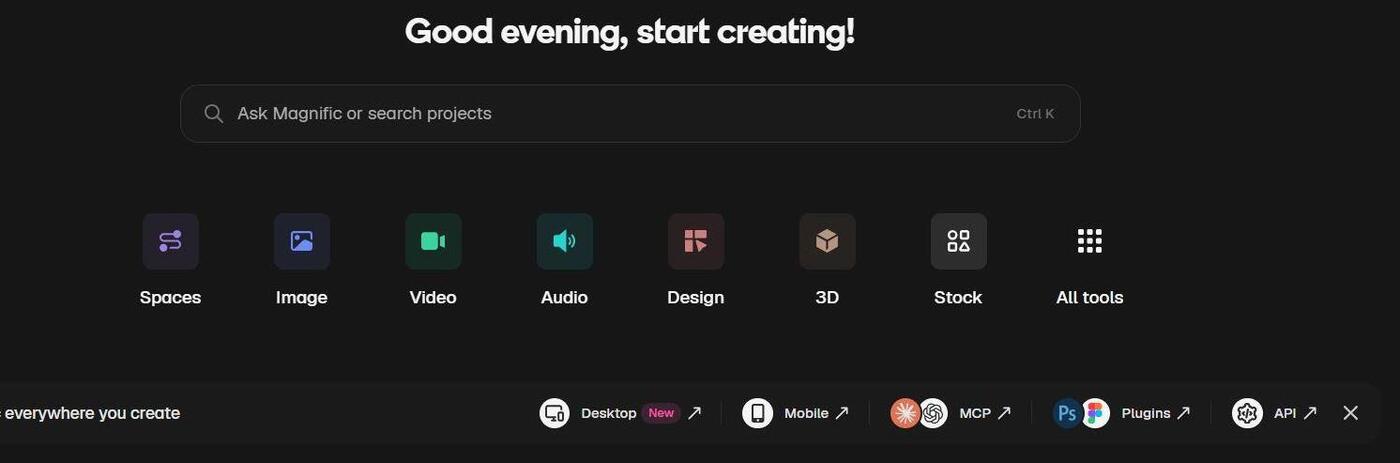
3. You’ll now find yourself within the main AI suite. Select the tool from the top menu (Image, Video, 3D Generator, etc.) and start creating. By creating, I mean everything from writing a prompt to uploading reference material and hitting the “Generate” button.
4. The projects you create will be saved automatically in the Personal Project section. Of course, you can create more folders as you please.
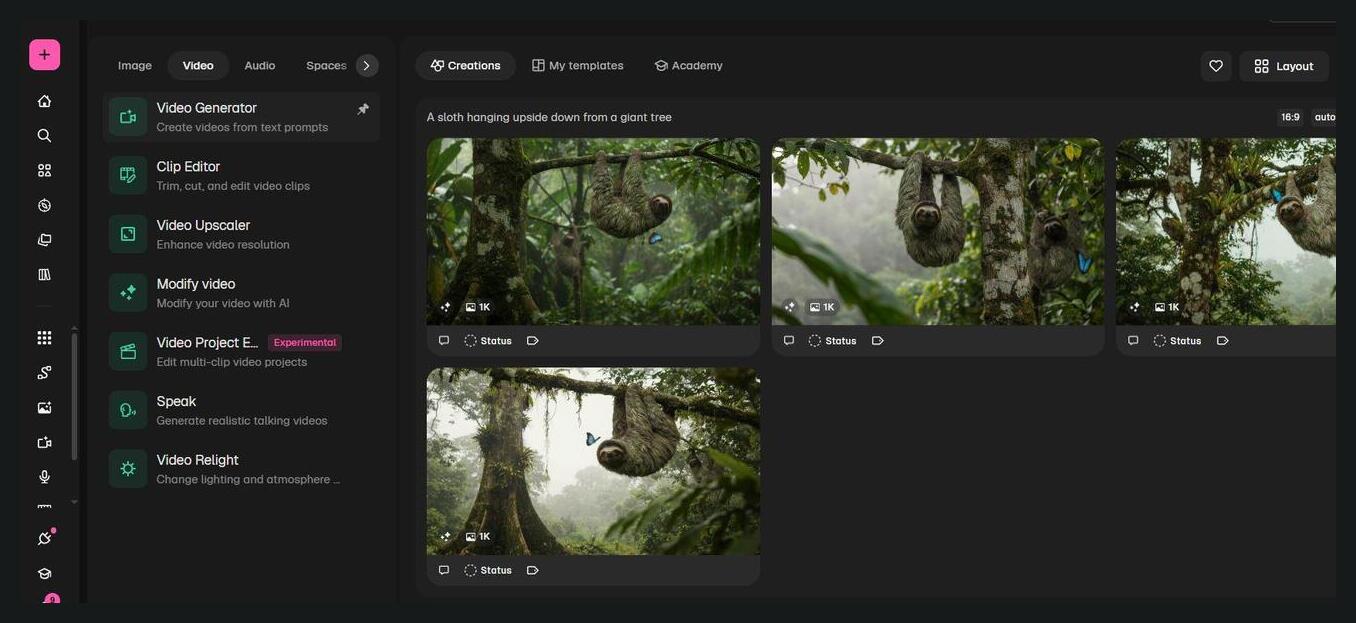
Freepik AI’s Key Functions
You now know how to get started with Freepik AI. So, I feel comfortable discussing some of this platform’s core functionalities with you. You know… the functions that actually make this platform tick.
#1) Image Production
As is the case with tools like these, the Freepik AI Image generator can help you create still visuals from text prompts and reference images. Moreover, you get complete control over the image’s composition and style, thanks to the custom-trained elements and built-in reference tools at your disposal.
Here’s how you generate an image via Freepik AI:
- From the top or side menu, select “Create” and click on Image.
- With the Image Generator window open, select the AI model or let Freepik choose one for you by selecting “Auto”.
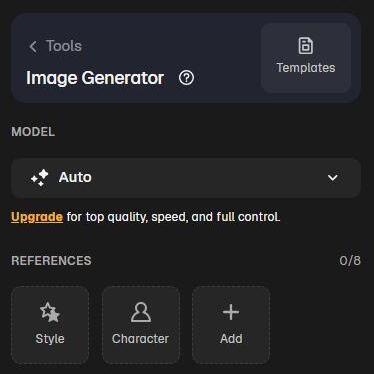
- Upload a reference image or skip this part entirely. Your call.
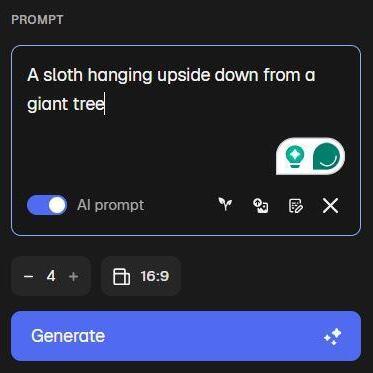
- Describe your image in the prompt box. Here’s the prompt I entered: “A sloth hanging upside down from a giant tree”. You can let the AI refine your prompt by switching the AI Prompt toggle on (optional).
- Set the aspect ratio and number of image variations to generate.
- Hit the “Generate” button and wait.
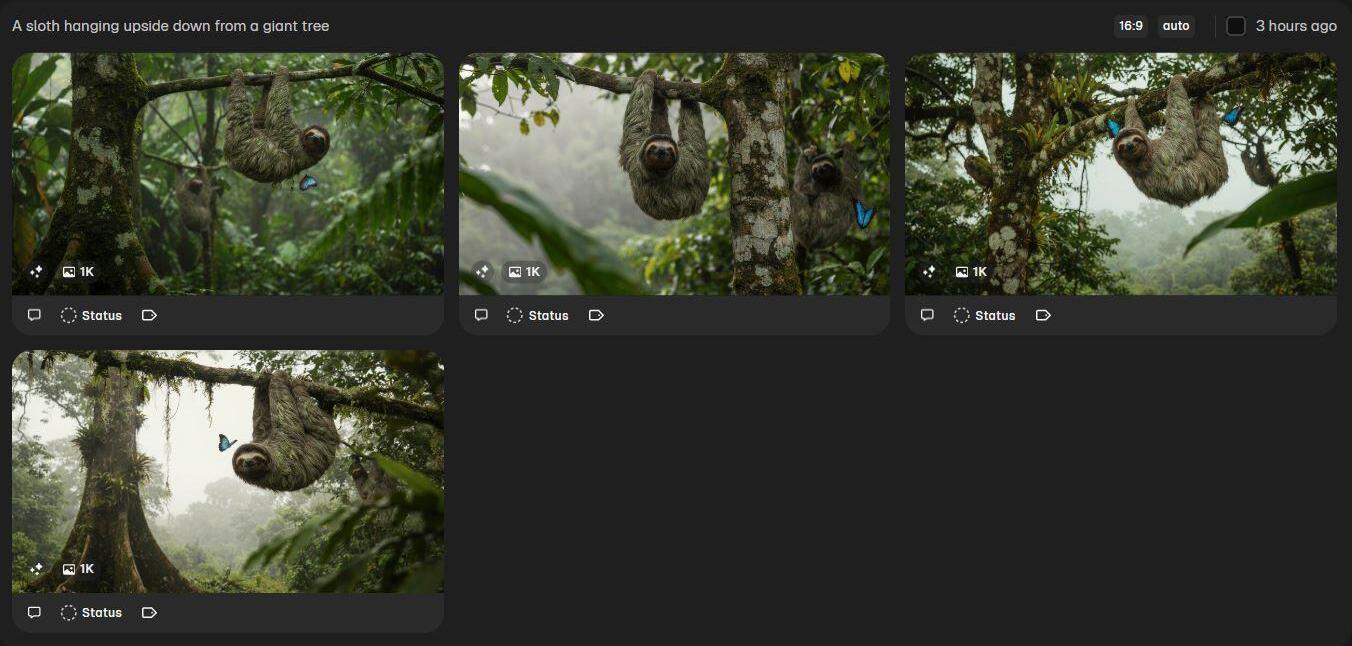
You can see the result for yourself. You can click on the “Recreate” button to create another version of the image. You’ll also see the option to export the image, edit it, or create a video out of it.
Editing an image is quite simple on Freepik AI. You can just describe the changes you wa+-/9[nt in the image and hit “Enter”. You can retouch or erase certain elements from the image by simply moving your cursor over it after you’ve selected those editing options.
Besides those, you can also resize, relight, and switch the image’s background in an instant.
Remember, the Magnific rebrand isn’t in name only. You get to use the famous Magnific Image Upscaler to enhance the quality of any low-res image.
Using the Image Upscaler is quite simple:
- You upload a new image to the AI suite or use the one you just generated.
- Click on Edit Image and select Upscale.
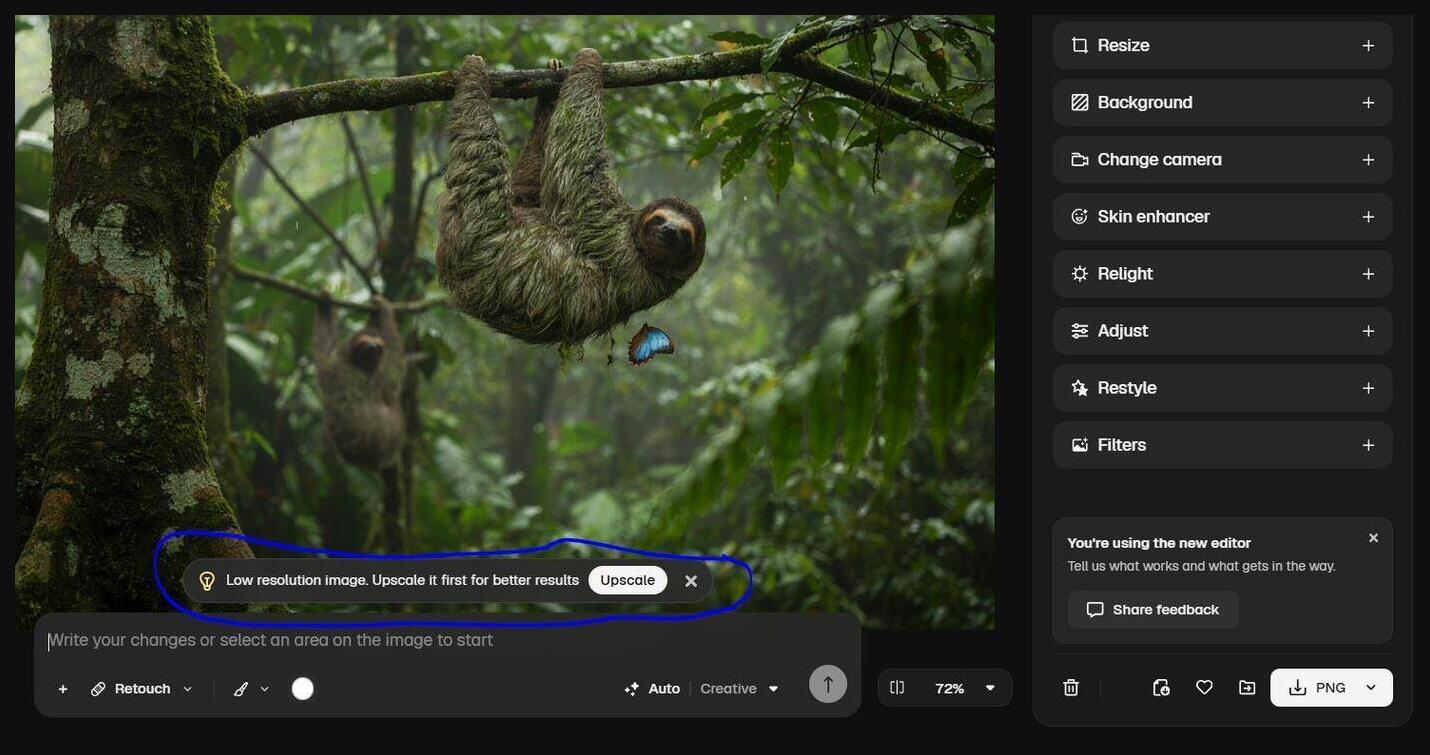
- Choose between “Creative” and “Precision” mode.
- Set the scale. 16x for Precision mode and 2x to 4x for Creative mode.
- Adjust other configurations, if you must, and hit the Generate button.
Expert Advice When Using the Freepik AI Image Generator
- If English isn’t your first language, I would suggest taking advantage of the AI-Prompt toggle to either refine or expand your prompt.
- Mention visual details like lighting, camera angle, and art style to set your generated image apart.
- If you are going to upload a reference image, make sure it is high-res with very few distortions or defects that can distract the AI.
- Have the AI generate at least 4 variations from your prompt.
#2) Video Production
Generating a video is also as simple as creating an image with this platform. You can create videos from a basic text prompt or another image or video as the reference.
Here’s how to use the Freepik AI Video Generator step-by-step:
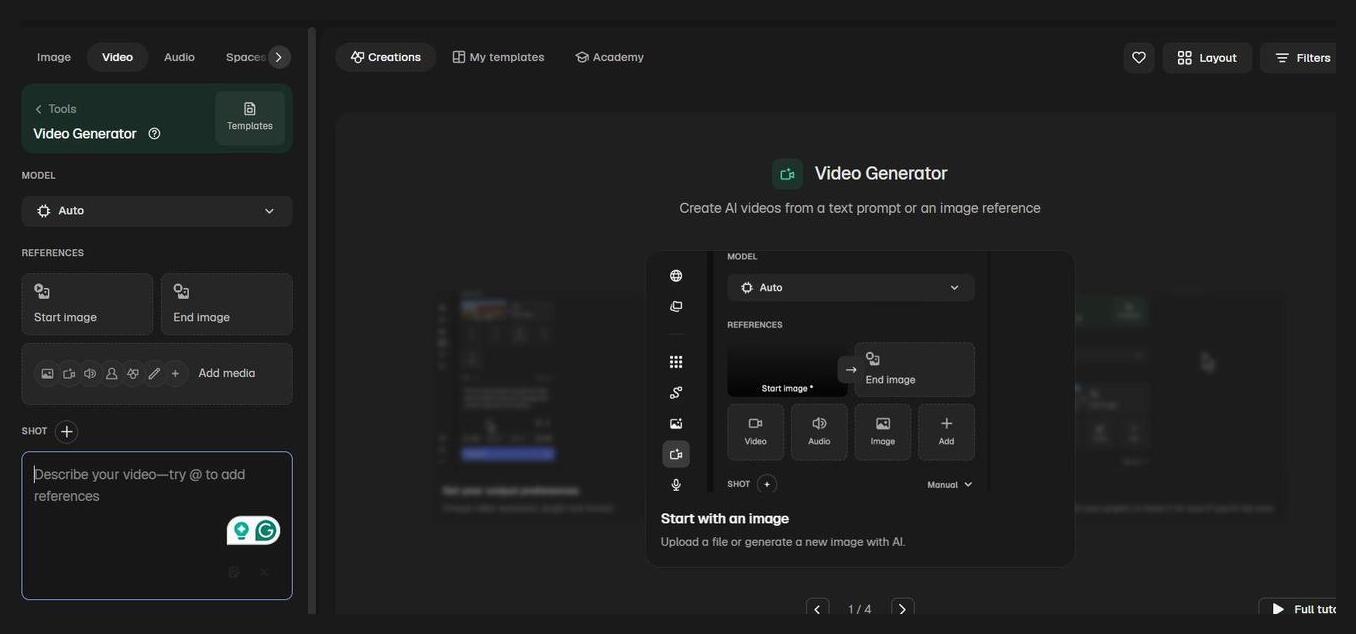
- From the top menu, select Create > Video
- In the opening interface, pick an AI Model or let the platform pick one for you by selecting “Auto”.

- You can add media files (illustrations, images, voiceover, etc.). You can even add images as a start and end point reference for your video (optional).
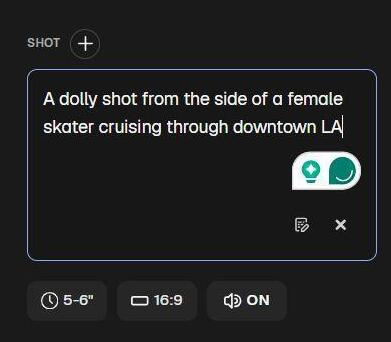
- Now, write your prompt. Here’s what my prompt looks like: “A dolly shot from the side of a female skater cruising through downtown LA”.
- Adjust the video’s aspect ratio and duration before hitting the “Generate” button.
Besides using Text prompts, Freepik also lets you leverage visual prompts to control certain aspects of your video. For instance, you can select certain points in your video with the cursor and then highlight or annotate to control motion or the composition of objects and subjects in the frame.
You also have the “Multi-Shot” feature that lets you write a separate prompt for each scene in the video, thus giving you even more control over its direction.
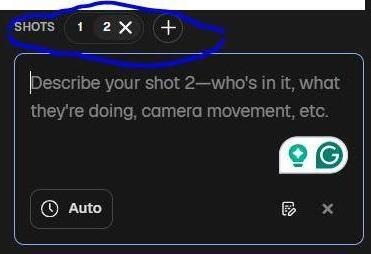
You can edit the videos generated on this platform. It is possible to upscale a video’s quality to 4K at 60 fps. You can perform AI-powered modifications on the generated video. For example, you can extend, trim, color grade, and add visual effects to your clips.
I must also mention the Video Project Editor, which is excellent if you are trying to make longer, more cinematic videos. This editor provides you with an editing workspace that can help stitch multiple clips together. You can rearrange clips across a timeline to create a cohesive video with this editor.
Expert Advice When Using the Freepik AI Video Generator
- Filmmakers and photographers use certain terminology to describe different types of shots and camera angles. When describing a prompt, it is imperative to mention what kind of shot or camera angle you want. That is only possible with the lingo often adopted by filmmakers. Mentioning “The Dutch Angle” or “A Dolly Shot” will help you get the desired result.
- When upscaling, go with “Creative” if you want to add more details to the video. Go with “Precision” if you want to preserve the video’s original state.
- If you don’t want to type a prompt, then check the template library and just select a pre-made option as the base for your video.
- Use words like fast-paced or cinematic to set the mood of your video.
- Describe visual details properly, like the lighting or environment.
#3) Voice Production
This has to be one of my personal favorite Freepik AI tools, considering just how much you can do with it. For starters, you can generate and then modify voice from text prompts.
Here’s how you do it:
- Click on Create > Audio
- Choose an AI model
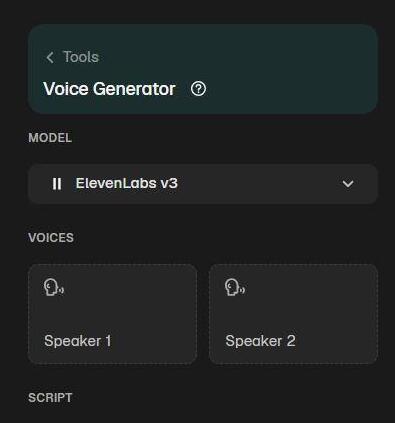
- Pick a Voice model
- Write the script you want a voiceover for.
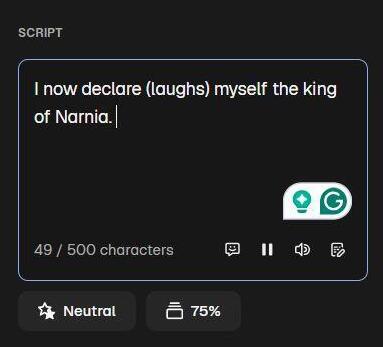
- Specify the tone, audio format, pronunciation, and volume before hitting the “Generate” button.
There are hundreds of AI voices for you to pick from. Besides monologues, you can also generate dialogue spoken between two characters.
You can also feed this platform a real audio clip and create a custom voice that clones the original clip. You can even change how the voice in your clip sounds with Freepik’s Voice Changer tool.
Besides creating voiceovers, you can also use the platform to generate music in a variety of genres. Freepik’s Voice Generator supports over 35 languages, which is another plus point from my side.
Expert Advice when Using the Freepik AI Voice Generator
- Choose the ElevenLabs v2 model if you want to generate an audio clip quickly. Go with ElevenLabs v3 for better pacing and an emotional tone that just sounds more human.
- When generating music, you’ll need to be very specific with your prompts. Clearly specify the tempo (slow, fast), mood (tense, melancholic), instruments (acoustic guitar, piano), and genre (Hip Hop, country).
- If the resulting audio sounds robotic, try again, but this time with a different AI model.
#4) 3D Generator
Now, here’s a feature that most e-commerce businesses, interior designers, and real estate professionals will like. The platform can help you convert any image into a 3D model.
Here’s how it works:
- Click on Create > 3D
- Choose an AI model
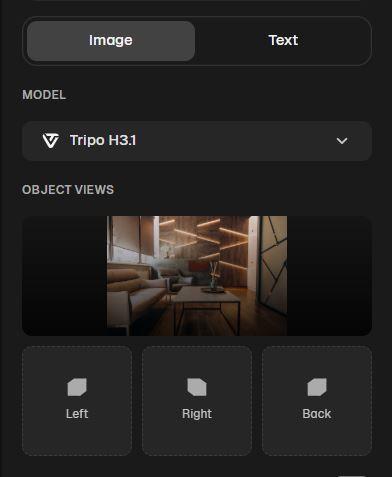
- Upload your reference image.
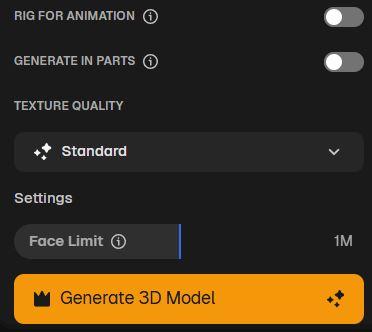
- Define texture quality and face limit.
- Click “Generate”
The 3D model will be ready within 45 to 90 seconds. Once the model is ready, use the cursor to rotate, zoom, and inspect the model as you wish.
You can provide the tool with up to 4 reference views. The generated model can be exported in GLB format. I believe the 3D Generator is perfect, especially when you are trying to create a product mockup or create a 3D model of an interior space, which real estate professionals and interior designers can use to court clients.
Expert Advice when using the 3D Generator
- As I said, you can use up to 4 references, which I highly recommend you do. The more information you give the AI, the better the result will be.
- Choose the Tripo v3.1 model for high-quality results. Use Tripo P1 if you want a lightweight but cleaner result.
- Make sure the image you feed the AI is well-lit and high-res. Avoid images that look cluttered.
- Use textureless mode, especially if you plan to add your own textures to the model later on.
#5) Spaces/Flow
I really appreciate these features, probably more than anything else we’ve discussed so far. Besides helping you generate creatives, the Space/Flow feature lets you build AI workspaces.
You basically get a canvas that lets you chain multiple generative AI models (text, image, and video) together for convenience. The platform lets you connect outputs from one AI model as an input for another, thus creating a chained automated workspace.
This is how it works:
- Select Create > Spaces.
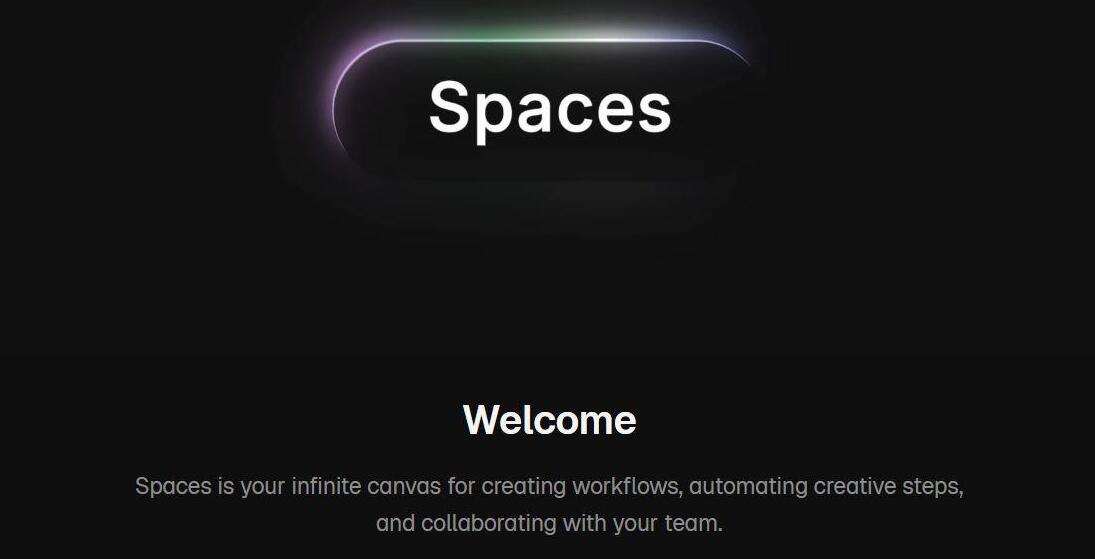
- Click on Add Node > Text.
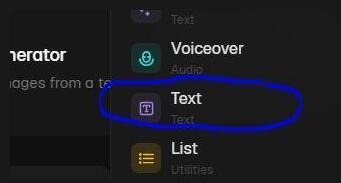
- Describe what you wish to create. For example: An image of a sleeping cat.
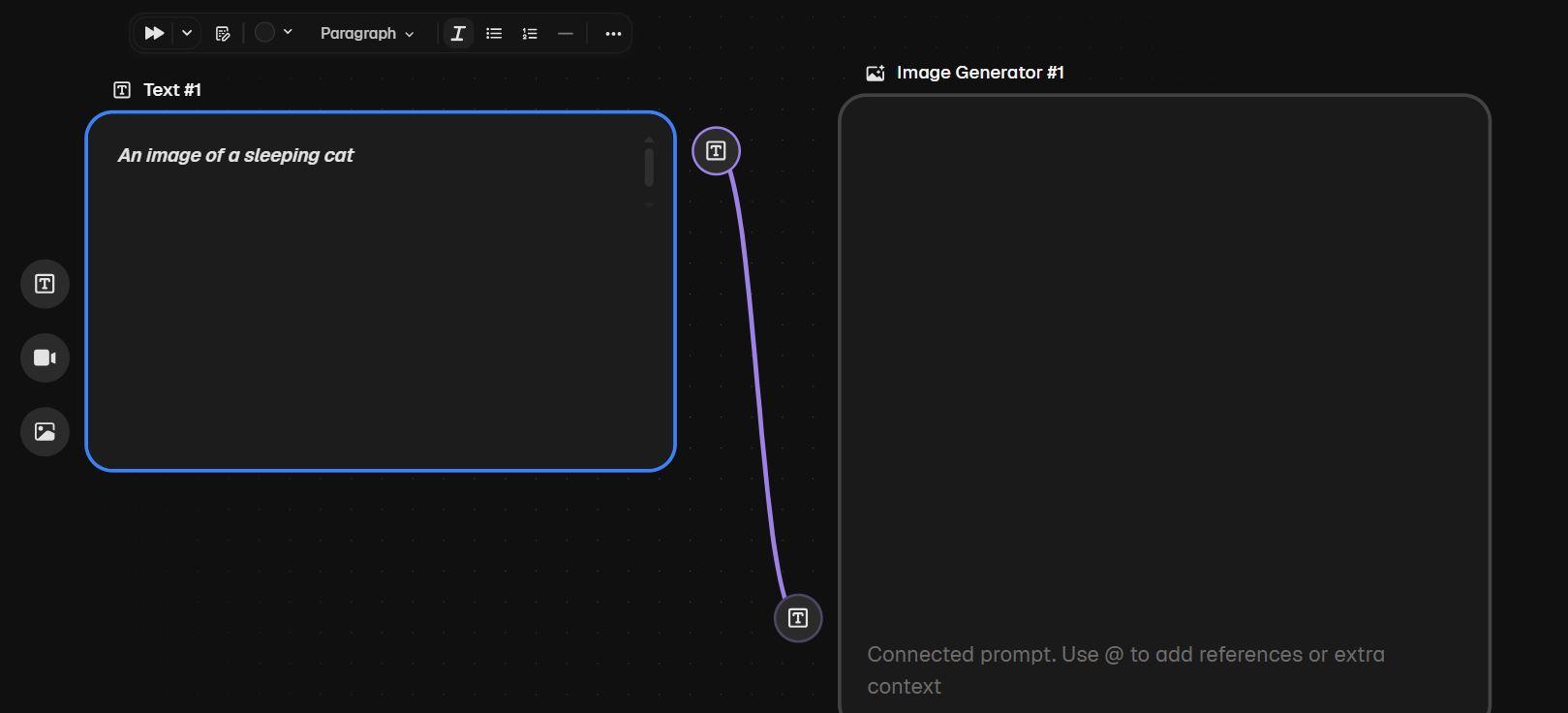
- Click on Add Node again, and this time select Image Generator. Drag the image generator next to the text node.
- Now, drag and drop the text node into the text port of the image generator.
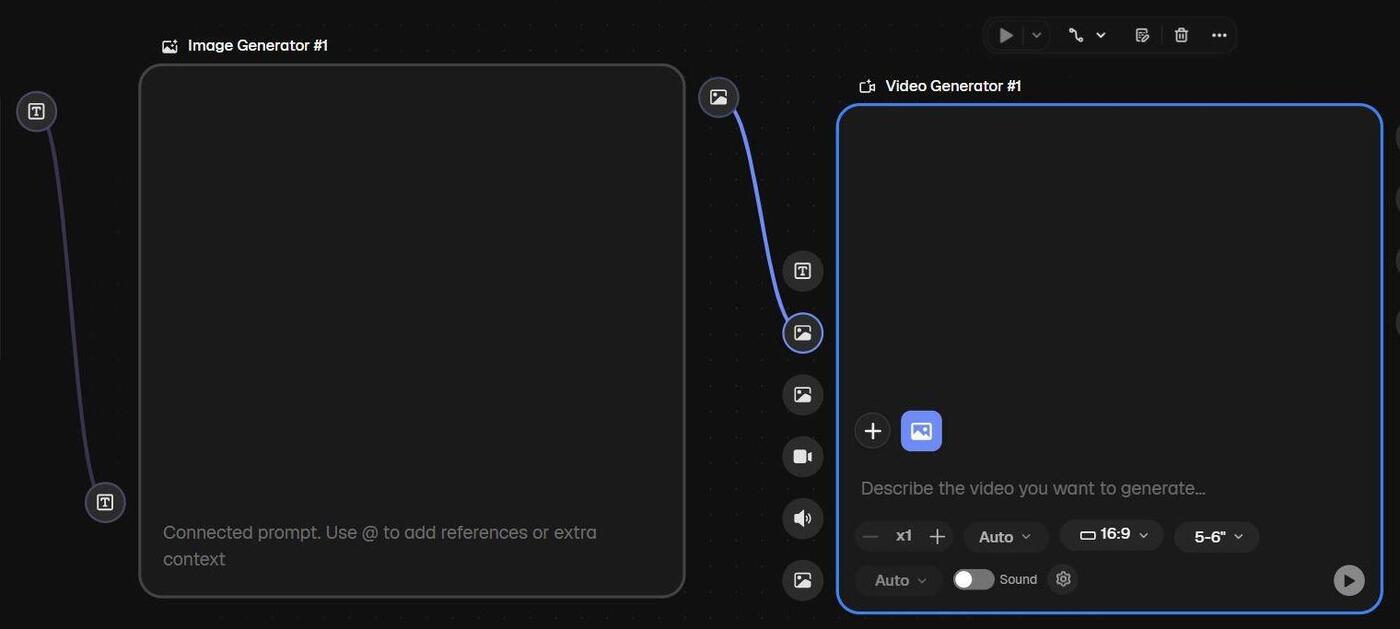
- Click on Add Node again, and this time select Video Generator. Drag it next to the image generator.
- Drag and drop the image generator node into the image port of the video generator.
This way, you can repeatedly create an image and a video from a single text with one click instead of repeating the process repeatedly from scratch. You can create your own space from scratch or use a pre-made template from the library.
Expert Advice when Using Spaces
- Building a workspace can get tricky. If you feel overwhelmed, I suggest studying the templates that are already available. Choose a template and play with it a bit. The templates will make you comfortable enough to start building your own workspace from scratch.
Special Features of Freepik AI
Listed below are some of the prominent features of Freepik AI.
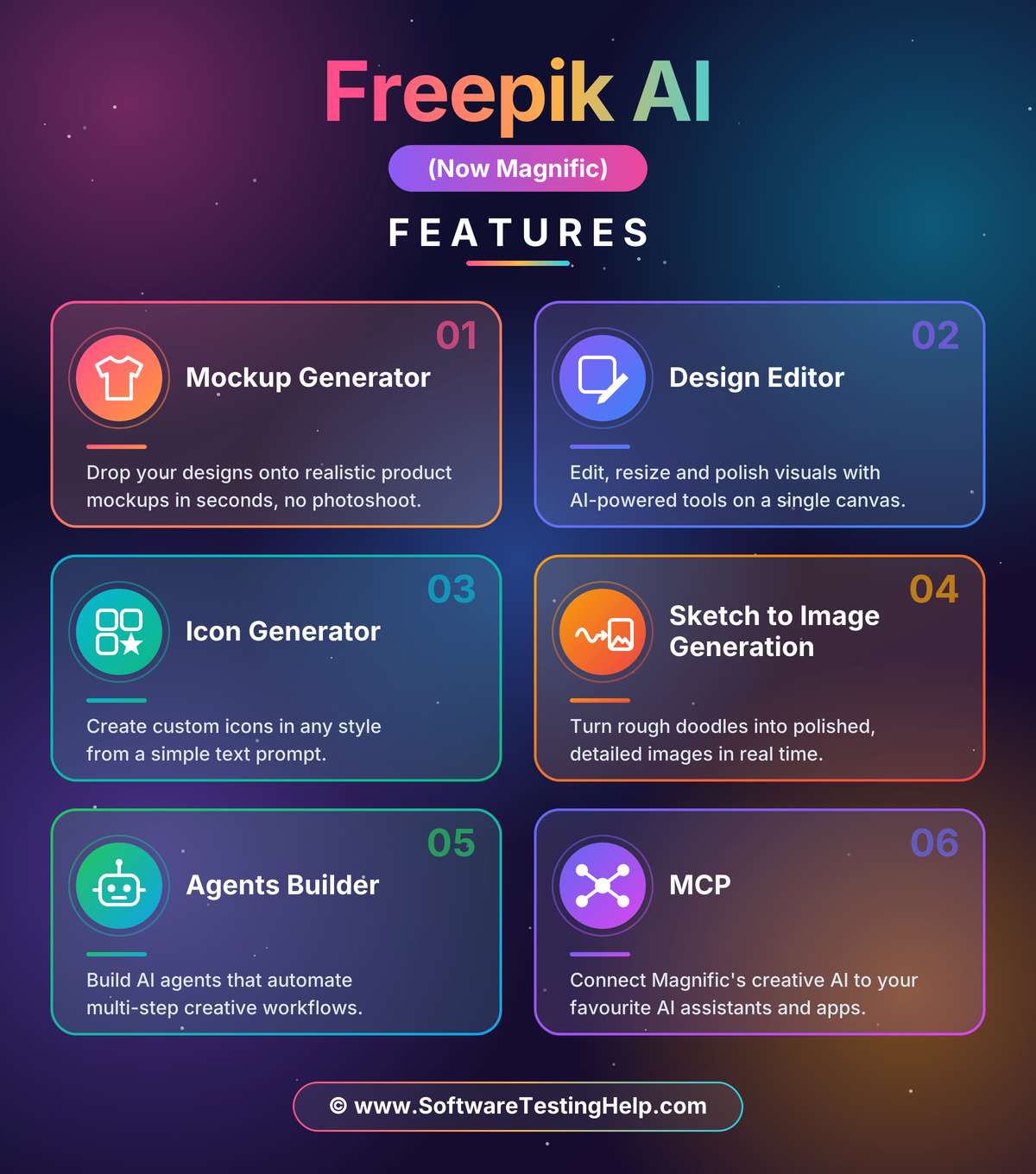
#1) Mockup Generator
Here’s a great feature for e-commerce entrepreneurs. The platform lets you create mockups, basically placing your designs into realistic scenes. You can create mockups for a variety of products, from T-shirts to smartphone cases. Mockups can be generated via basic prompts or ready-made templates.
#2) Design Editor
Magnific comes with a built-in design editor that lets you create and then customize designs within your browser. You can create designs for social media posts, presentations, logos, business cards, posters, etc.
#3) Icon Generator
The tool can also help you generate custom stickers and icons. Each time you hit the generate button, you’ll get four variations of the icon or sticker you described via a text prompt. The result can be exported as a PNG or SVG file.
#4) Sketch to Image Generation
The platform also does a good job of converting your doodles into realistic-looking AI images. You can either upload a sketch or draw the sketch within the tools using the drawing tools you are provided.
#5) Agents Builder
You want AI agents handling your creative projects? Well, Freepik’s got you covered here as well. The platform lets you build, configure, and launch your AI agents. Once launched, these AI agents will run the entire creative project at your behest from start to finish. You don’t have to lift a finger.
#6) MCP
Magnific can be connected to various AI agents via Model Context Protocol. This allows you to run Magnific on other popular AI platforms. Currently, the platform supports Claude, ChatGPT, Cursor, Codex, Hermes, and Gemini.
Freepik AI Pricing
Freepik offers flexible subscription plans with the core pricing being credit-based. The credit you get will vary depending on the plan chosen.
You can choose to sign up and use the tool for free. However, besides basic image generation, you won’t be doing much.
Its subscription plans are as follows:
| Plan Name | Price | Credit |
| Premium Monthly | $20 | 20K |
| Premium + Monthly | $45 | 45K |
| Pro | $110 | 112.5K to 300K |
| Premium Annual | $14.50/month | 240K per year |
| Premium + Annual | $33.75/month | 600k per year |
| Pro Annual | $82.50/month | 1.5 M to 4 M per year |
| Team Monthly | $69/seat | 90K per month |
| Team Annual | $55/seat/month | 1.08 million per year |
You are provided with a restricted credits per month, or per year, depending on the plan you picked. Those credits don’t roll over to the next month if you didn’t exhaust them within the current subscription phase.
You can buy credit packs separately if you do end up finishing all of your credits for the given subscription period. However, this privilege is not available for Premium plan users.
A custom plan is also available depending on the number of seats you wish to accommodate and the number of credits you want.
Commercial Use and Licensing of Freepik AI
Freepik is very straightforward with its policy on licensing and commercial use. You can put a generated asset to commercial use only if you’ve purchased a premium subscription.
Even though you enjoy commercial use privileges, Freepik retains the asset’s copyright license. This means you can use the generated video or image in monetized content. However, you cannot resell, sublet, or rent the asset to others for profit.
This policy on licensing did leave a bad taste in my mouth. Any asset (image or video) created with the prompt I conceived should logically belong to me, especially if I’ve paid the full price to use Freepik’s AI generative tools. That this isn’t the case doesn’t sit right with me. It feels very exploitative.
Who Should Use Freepik AI
| Content Creators | Video and image creation, text-to-speech conversion. |
| Marketers | Marketing graphics, social media creatives |
| Entrepreneurs | Create product mockups, social media creatives, logos |
| Real-Estate Professionals and Interior Designs | To create 3D renderings of interior residential and commercial spaces. |
| Artists | Illustrations, Upscaling, Visual editing, generating music |
| Casual Users | Basic video and image creation. Voice cloning and changing. |
Pros and Cons
| Pros | Cons |
| Access to multiple AI models for image and video generation | The subscription plans may feel expensive to some because of the credit limit attached. |
| Neat and user-friendly UI | You don’t own the copyright license of assets generated via Magnific |
| Super-fast generation, irrespective of the model you pick | The visuals generated may vary in quality and lack consistency across frames for longer videos. |
| Drag-and-drop workspace builder | |
| Connect Magnific to other AI agents with MCP | . |
| Flexible subscription plan | |
| Ready-made template library. | |
| 250 million + stock assets | |
| Plugin for Photoshop, Figma, etc. | |
| Great native mobile app for iPhone and Android |
Freepik AI Alternatives
The table below shows how Freepik AI fares when pitted against some of its contemporaries in the market.
| Name | Best for | AI Models | Price |
| Freepik AI (Magnific) | Image and video generation, 3D Rendering | 40+ AI Models to pick from | Free to use. Plans start at $20/month |
| Adobe Firefly | Illustrations that are commercially safe to use | 30+ alongside its own proprietary model. | Starts at $9.99/month |
| Leonardo AI | Generating Character Designs | 80 + | Starts at $12/month |
| Ideogram | Image generation | 8 models for image generation | Starts at $20/month |
| Midjourney | Realistic-looking images | 8 primary models for image generation | Starts at $10/month |
Frequently Asked Questions
Conclusion
Ultimately, I would say that I have a lot to rave about and very few gripes with Freepik AI (Magnific). The tool won me over the moment I stepped into the main AI suite. The sleek, easy-to-navigate interface makes the entire experience quite seamless.
The actual generative functions are also quite simple. There are guides and tutorials available for those who would like the tool to hold their hands throughout the process of creating something from scratch.
As for my gripes, I don’t appreciate not owning the copyright to the content I conceived. You may also notice visual inconsistency when rendering a long-form video. However, that is something you can fix with more experience along the way.
Overall, I like the Freepik AI generator, and it is something I would recommend to businesses, marketers, artists, and casual users.
Research Process: The total time involved to complete and publish this article is approximately 41 hours. This content was created through a structured research approach to ensure accuracy and reliability.
For more-related guides, you can explore our range of tutorials below:
- Getimg.ai Review and Alternatives: AI Image Generation & Editing
- Akool AI Image to Video Generator Review and Alternatives
- Vheer AI Image to Video Generator Review
- Pippit AI Free AI Video Generator Review and Alternatives
- Vozo AI Review: Pricing, Talking Photo & Test Results
- Krikey AI 3D Animation Maker Review and Alternatives
- Tested Clipfly AI Review: Is This Video Generator Worth
- MagicLight AI Review: Is It Worth? Tested by Experts
- Gamma AI Best AI Presentation Maker Review and Alternatives
Was this helpful?
Recommended Reading
-

Convert any image into an excellent AI-Powered video with talking avatars, face swaps, and perfect voiceovers with Akool AI. Read our honest Akool AI review to quickly unveil its powerful features: The AI video generation market has come a long way since making its presence felt just a few years…
-
I have tested Clipfly AI's video generator for quality, speed, editing tools and value along with its alternatives. Below review will help you to decide whether it is the right AI-powered video tool to fulfil your content needs. I started using Clipfly AI when the AI video creation software had…
-

Unveil the exclusive features of Viggle.ai and generate powerful AI-driven videos to animate your characters. Discover how Viggle.ai's innovative platform can be a game-changer for your business needs: Animation isn’t child’s play. For a long time, it was a job exclusively meant for professional animators and artists. This is no…
-
Generate stunning AI-powered Images and Videos through Vheer AI without any watermark. Read our hands-on review of Vheer AI to discover its features and pricing, along with its alternatives to make the right choice: Vheer is one of those AI-powered creative tools that I’ve been dying to get my hands…