Stop searching for the best AI 3D Model Generator for games, 3D printing or education. Create stunning models in minutes with the right 3D Model Maker from our in-depth guide:
Creating a 3D model includes learning specialized software, understanding topology, and spending hours shaping, texturing, and refining an object. But with an AI 3D model maker, you can create a 3D model in no time with much less manual work by just giving a text description or a reference image.
These 3D models or images can be used anywhere from game assets and 3D printing to product visualization, concept development and rapid prototyping.
AI-Powered 3D Model Generator: Text and Images

In this guide, we compared three 3D model AI generators: Meshy, Canva, and Tripo. We tested them by carrying out certain tasks, including text-to-3D generation, image-based creation, customization, exporting, and beginner-friendly workflows.
What is a 3D AI Model Generator?
AI 3D model generator is a tool that uses Artificial Intelligence to help you create 3D models. It uses simple inputs such as text prompts, reference images, or sketches to generate amazing 3D results.
For example, if you need to create a fantasy sword, you don’t have to manually draw it, but you can give text input like, “A medieval fantasy sword with a silver handle, blue gemstone in the pommel, and a slightly worn steel blade with ornaments.”
For this text prompt, the tool will interpret and create a related image. You can also share a reference image of a fantasy sword to make a 3D model of it in any free AI 3D model generator from an image.
The exactness or quality of the model depends on the input quality, prompt specificity and the complexity of the object.
It works simply as:
Prompt or image – AI interpretation – AI generation – 3D geometry – textures – refinement – export.
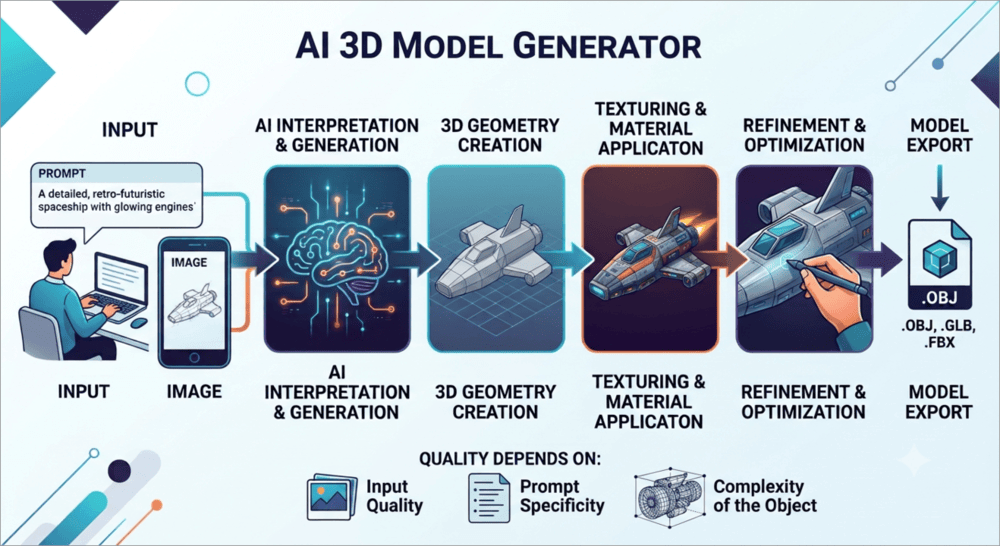
There is a difference between a 3D model and a 3D image. A 3D model can be viewed from different angles, edited in 3D software, and can be exported into formats such as GLB, OBJ, FBX or STL, while the 3D image only looks three-dimensional; it can not be opened as a conventional 3D mesh.
Some tools can only generate a 3D image, while others can create a 3D model. Here, Canva can create only 3D images, which can then be customized later, while Meshy and Tripo create actual 3D models.
Key Uses of AI 3D Model Generator (Top Use Cases)
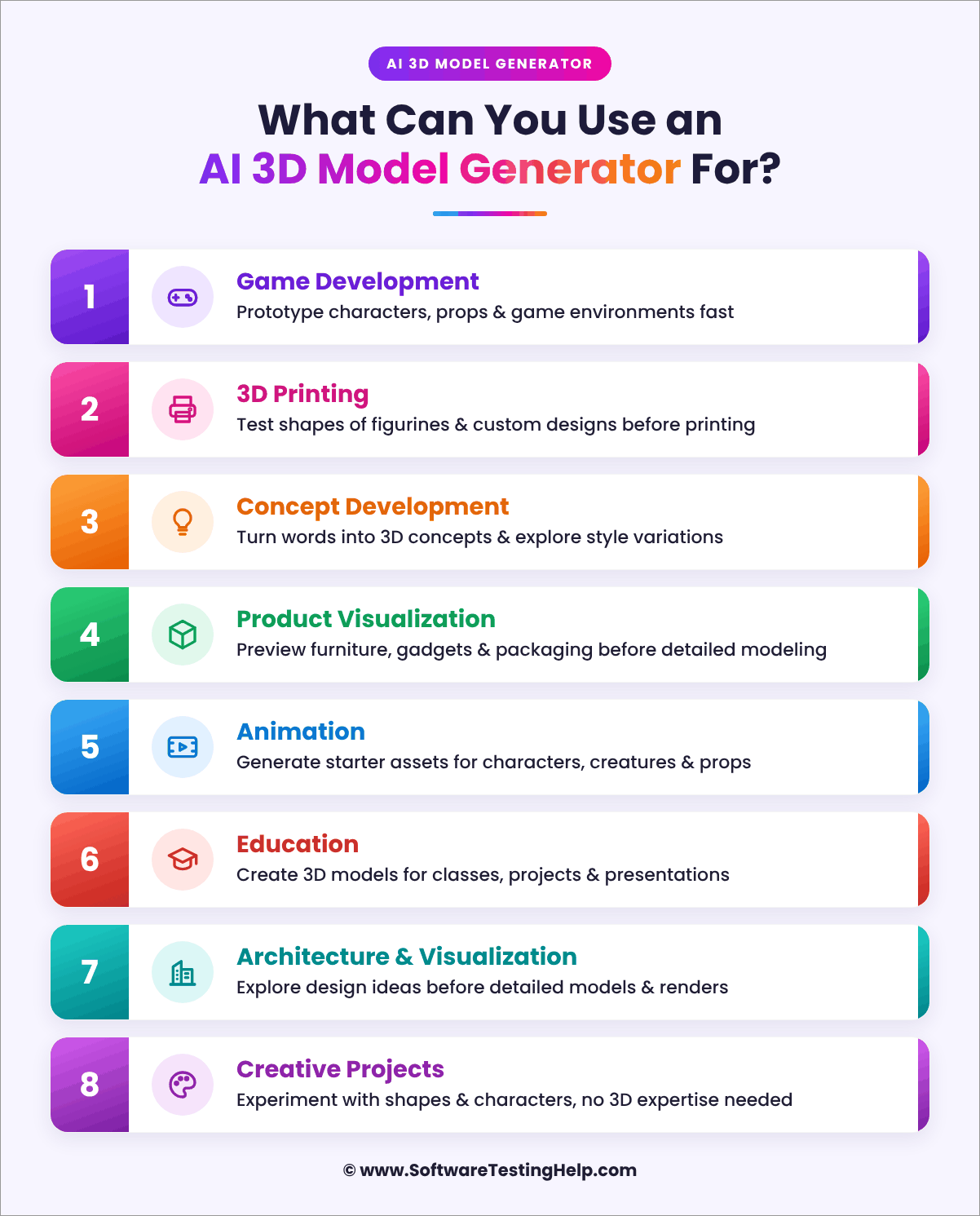
An AI 3D model generator can be used quickly when you are required to create a 3D model without manually modelling it.
It can be used for:
- Game Development: It helps game developers to visualize game ideas, prototype characters, props and environment assets.
- 3D Printing: It helps to test the basic shape of prototypes, decorative objects, figurines, or custom designs before generating the model.
- Concept Development: You can turn an idea into a visual 3D asset by just describing it in words. You can explore different shapes, styles, proportions, and variations for the required concept development.
- Product Visualization: It helps in visualizing product concepts such as furniture, accessories, gadgets, packaging, or other objects before investing in detailed modeling.
- Animation: It helps in generating the starting assets for characters, creatures, props, and other objects that can be further used in animated projects.
- Education: Teachers and students use it to create visual objects or 3D models for classroom demonstrations, presentations, projects, or learning materials.
- Architecture and Visualization: Architects and designers use it to explore ideas before creating detailed architectural models or final renders.
- Creative Projects: Artists use it to experiment with different shapes, characters, and objects without getting into extensive 3D modeling experience.
List of the Best AI 3D Model Generators
We have reviewed some of the top AI 3D Model Makers for you to choose from.
- Meshy
- Canva
- Tripo
Comparing the Top 3D Model Makers
| Feature | Meshy | Canva | Tripo |
|---|---|---|---|
| Text to 3D | Yes | 3D image | Yes |
| Image to 3D | Yes | No true mesh workflow | Yes |
| Multiple reference images | Yes | No | Yes |
| Downloadable 3D models | Yes | No conventional 3D mesh export from this tool | Yes |
| 3D printing workflow | Yes | No | Yes |
| AI texturing | Yes | Image/design editing | Yes |
| Rigging/animation | Yes | No | Yes |
| Beginner friendly | Yes | Very easy | Yes |
| Free plan | Yes | Yes | Yes |
| Commercial-use restrictions | Depends on plan | Subject to Canva terms | Free tier has restrictions |
| Best use | Actual 3D assets | 3D-images | Full 3D creation workflow |
Detailed Review of 3D Model AI Generators
#1) Meshy
Best for game developers, 3D printing hobbyists, concept artists, designers, beginners learning 3D, and creators who need actual downloadable 3D models.
Price:
The pricing plans of Meshy are as follows:
- Free: $0 and 100 credits
- Starter: $10 per month and 250 credits
- Pro: $20 per month and 1000 credits
- Premium: $40 per month and 3000 credits
- Studio: $70 per month and 5,500 credits
- Enterprise: Custom pricing
How to use Meshy to generate a 3D model?
Meshy generates 3D models with AI assistance and supports both text-to-3D and image-to-3D.
It works simply as explained below:
Step 1: Open the Meshy app and create your account.

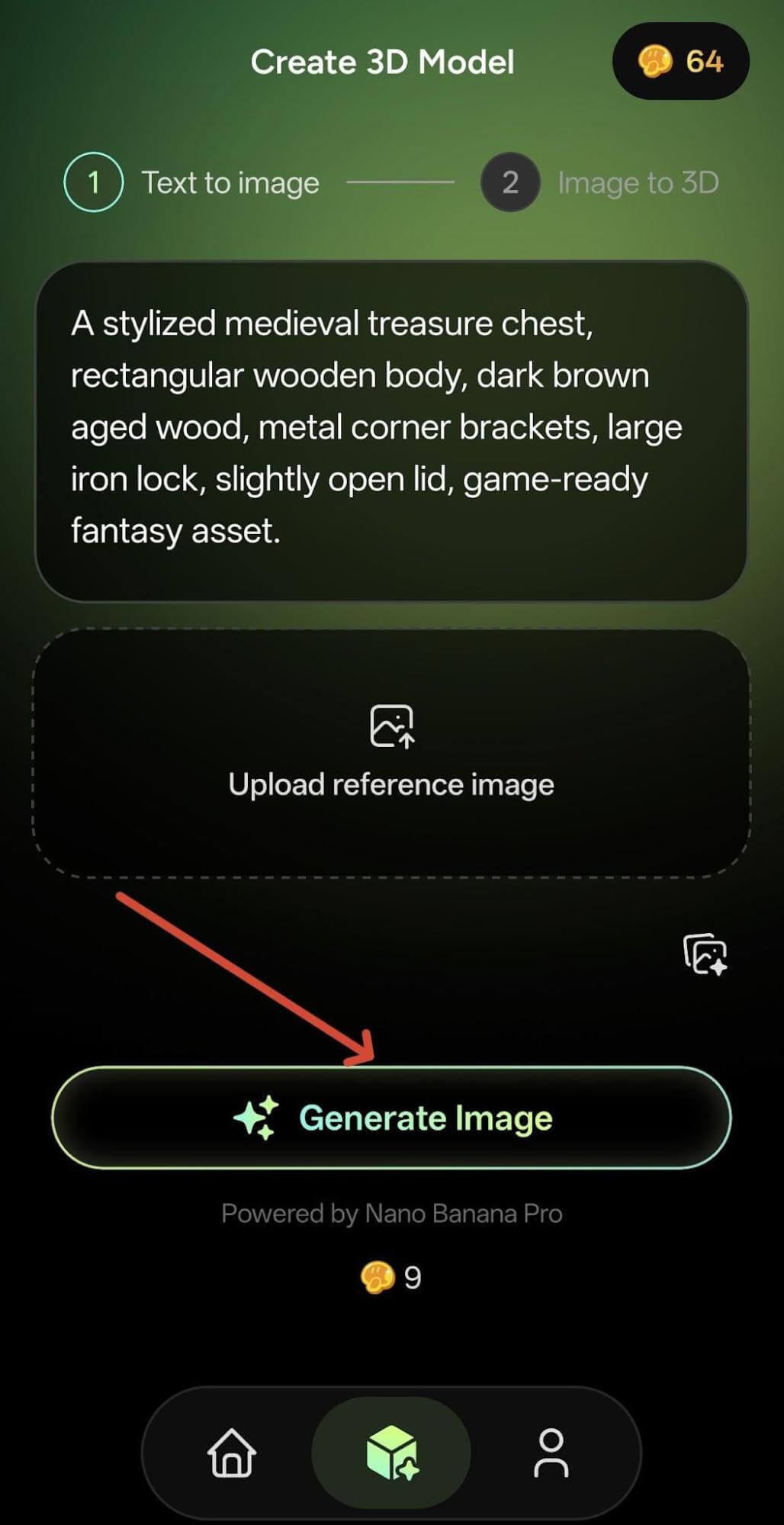
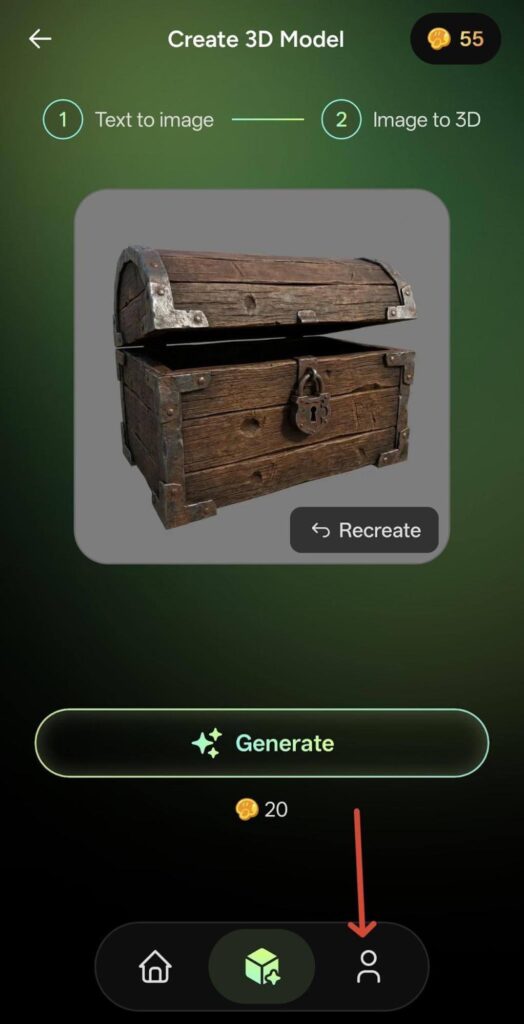
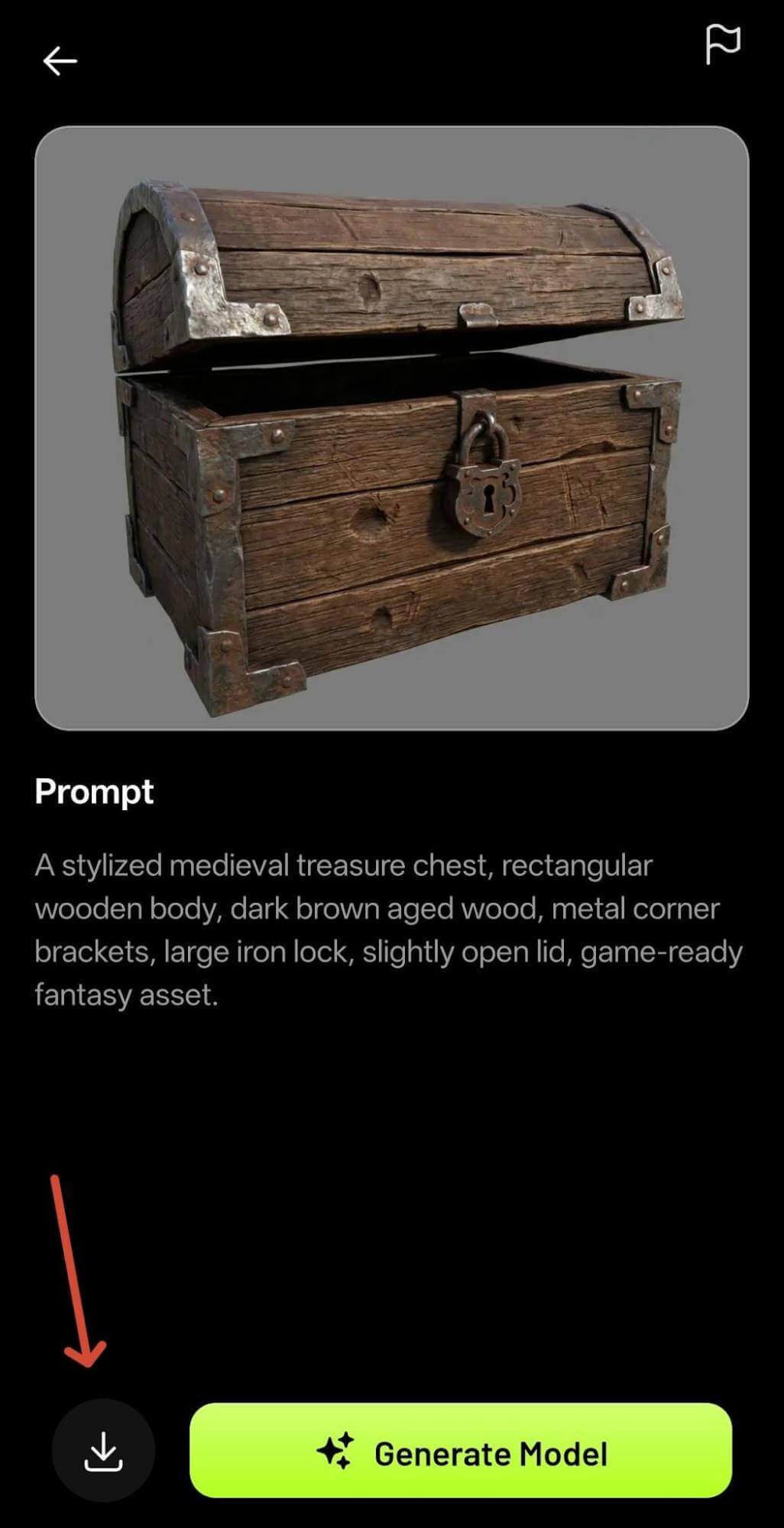
Step 2: Select Text to 3D and describe your requirements. Here, give a detailed prompt describing the specifications. For example: A stylized medieval treasure chest, rectangular wooden body, dark brown aged wood, metal corner brackets, large iron lock, slightly open lid, game-ready fantasy asset.
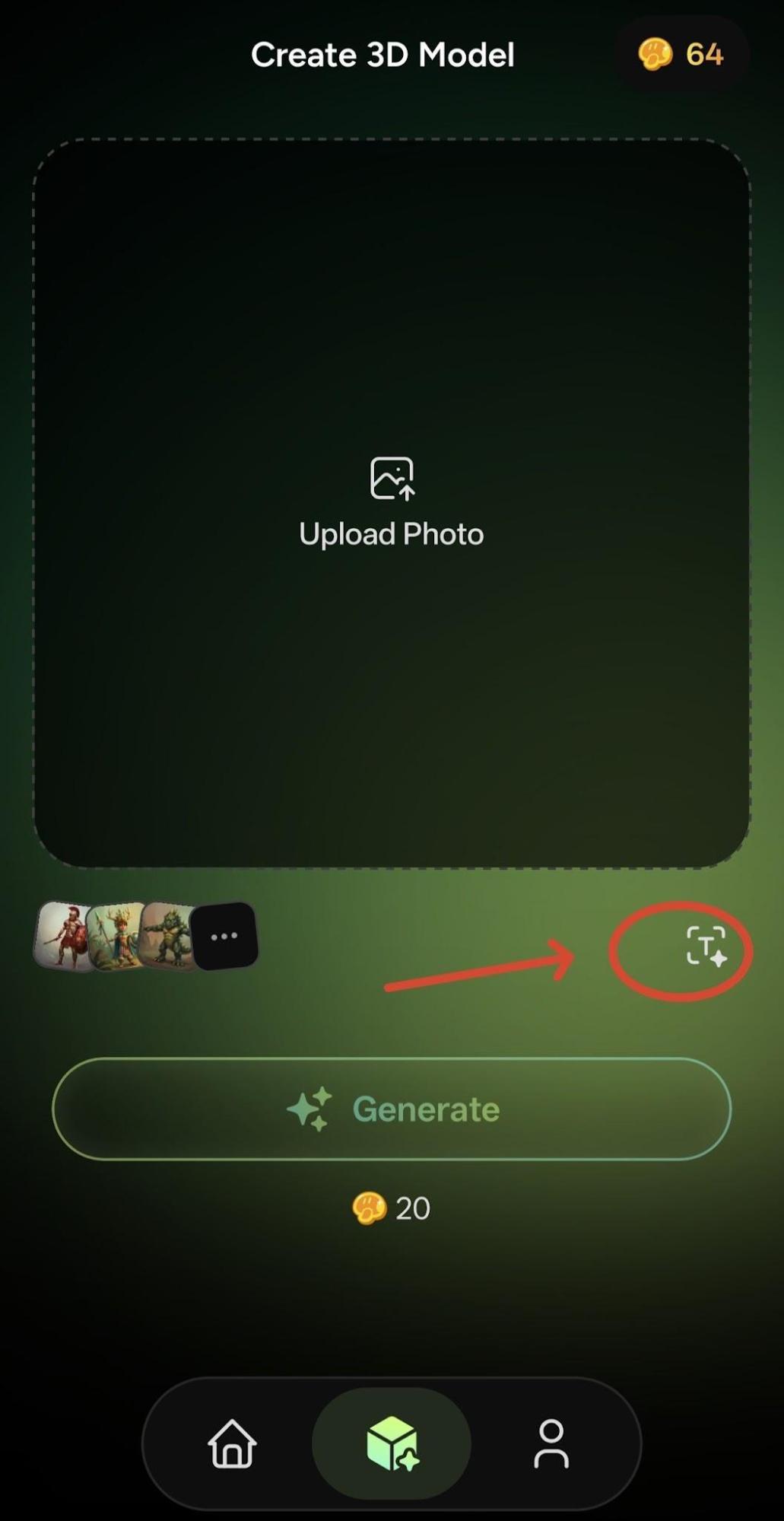
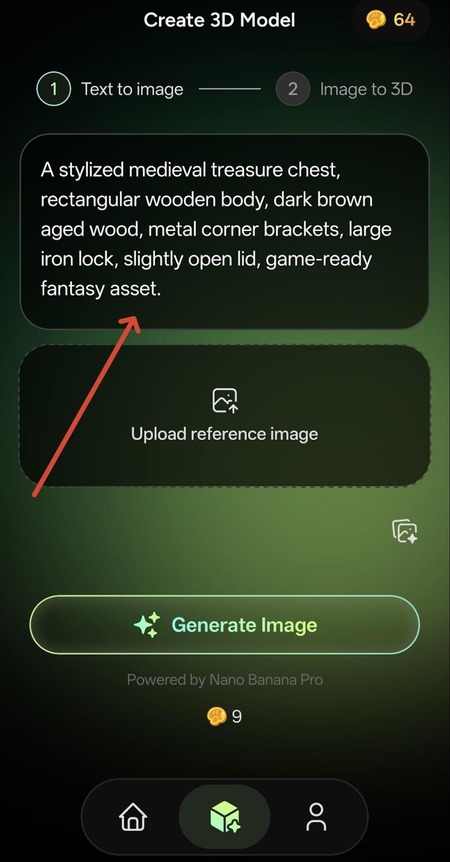
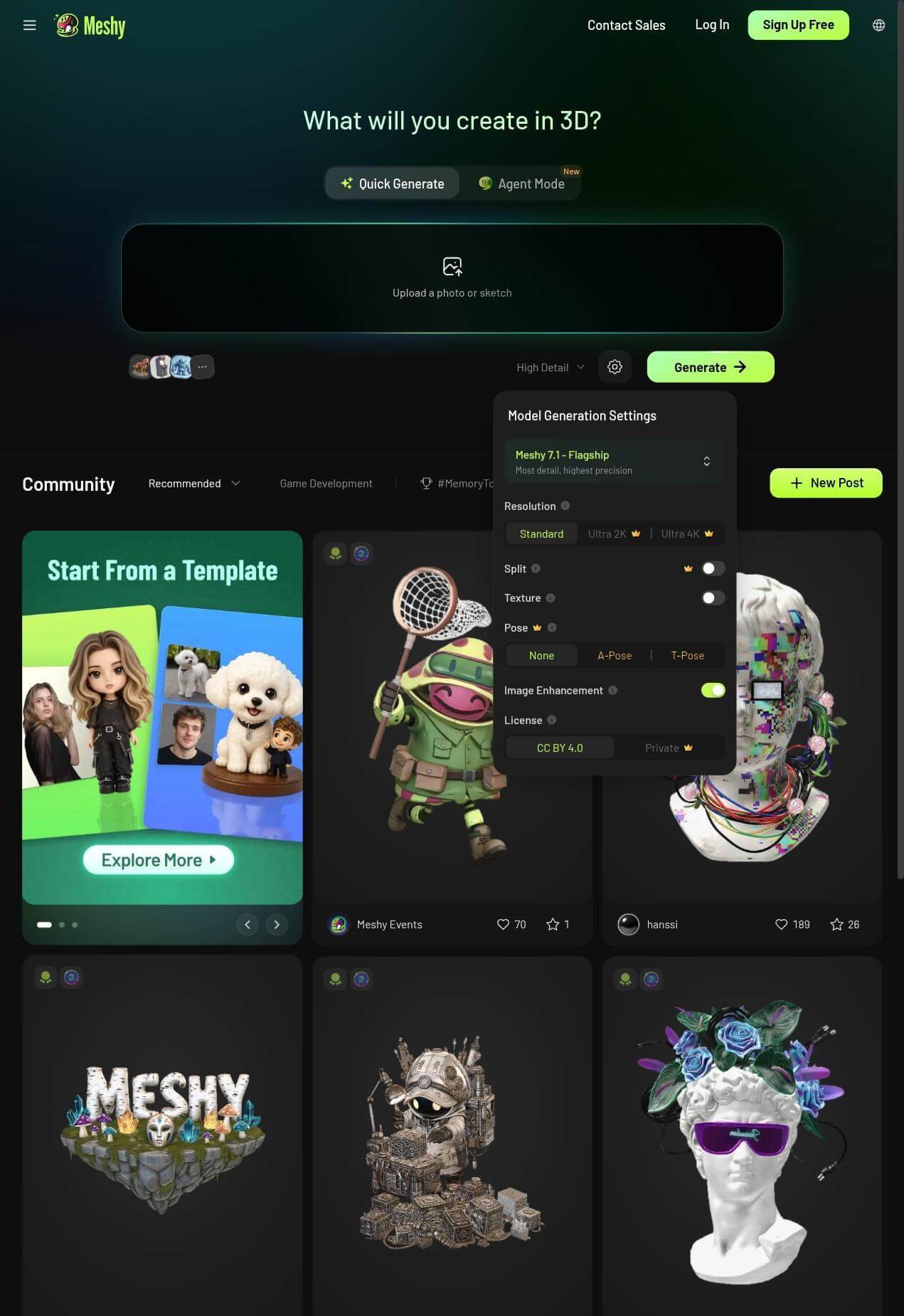
Step 3: Press the “Generate” option and wait for processing. It also includes model generation settings that can be used to customize the result.
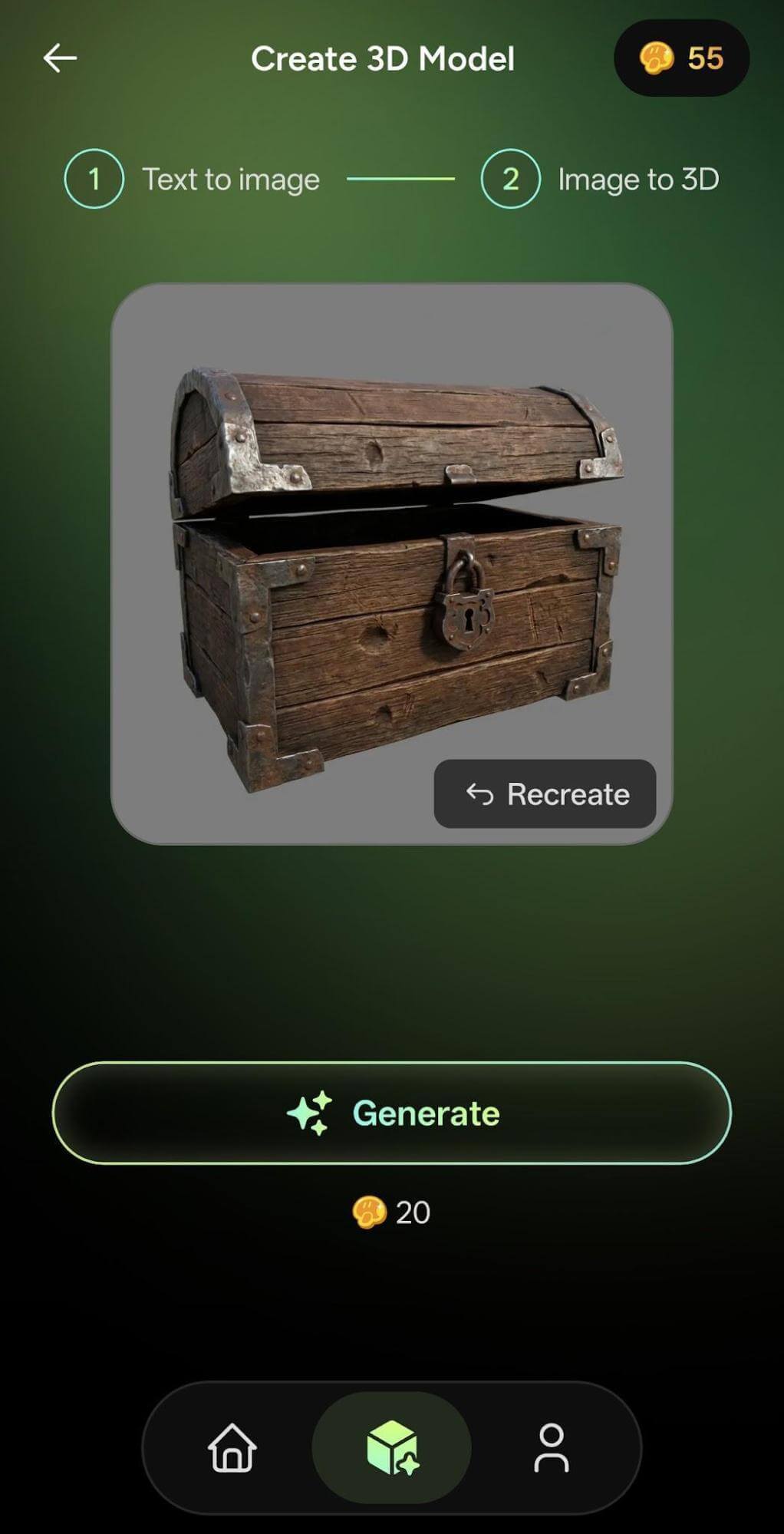
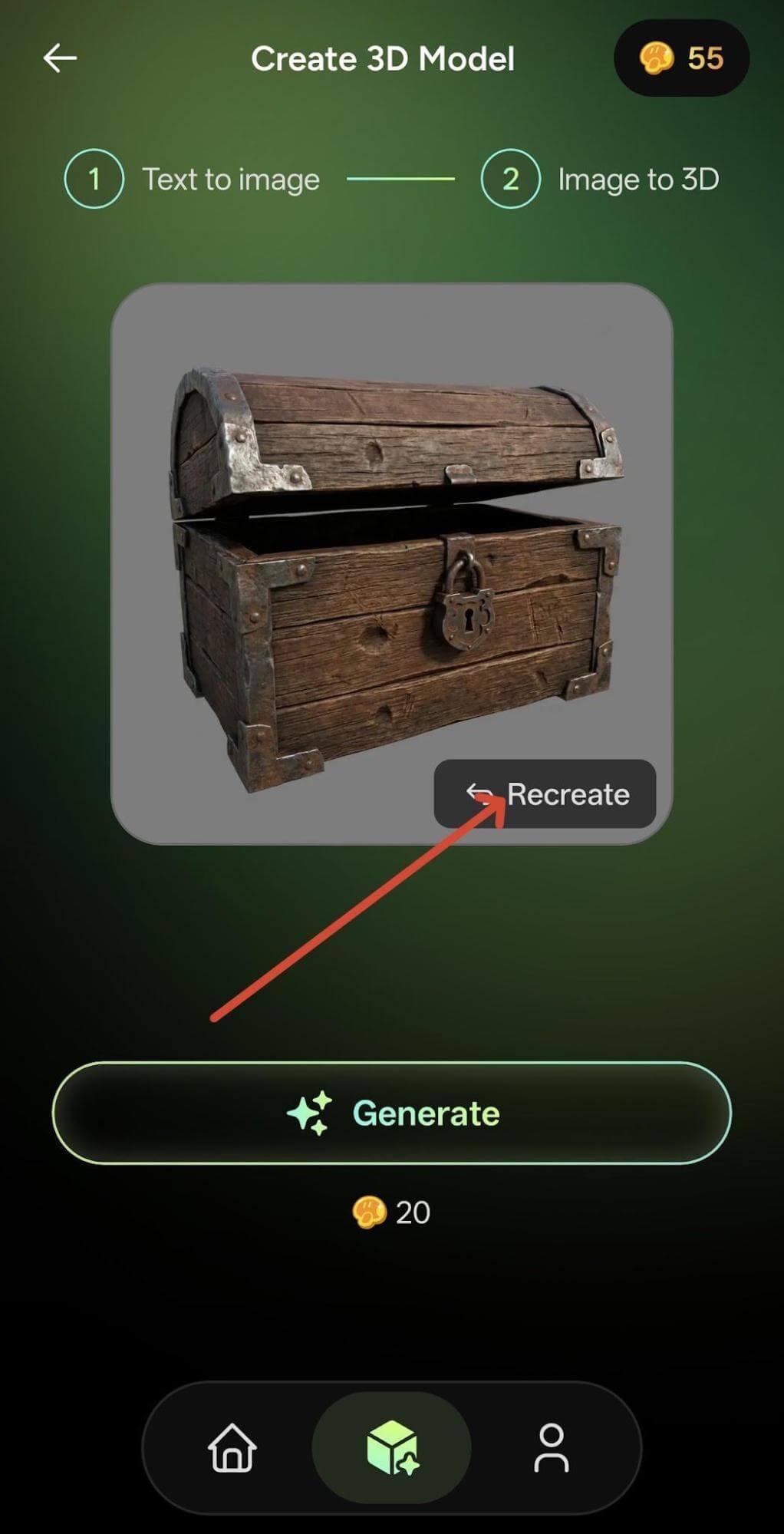
Step 4: Now, inspect the model and make changes if required by altering the text prompt.
Step 5: Now go to your profile and save the model.
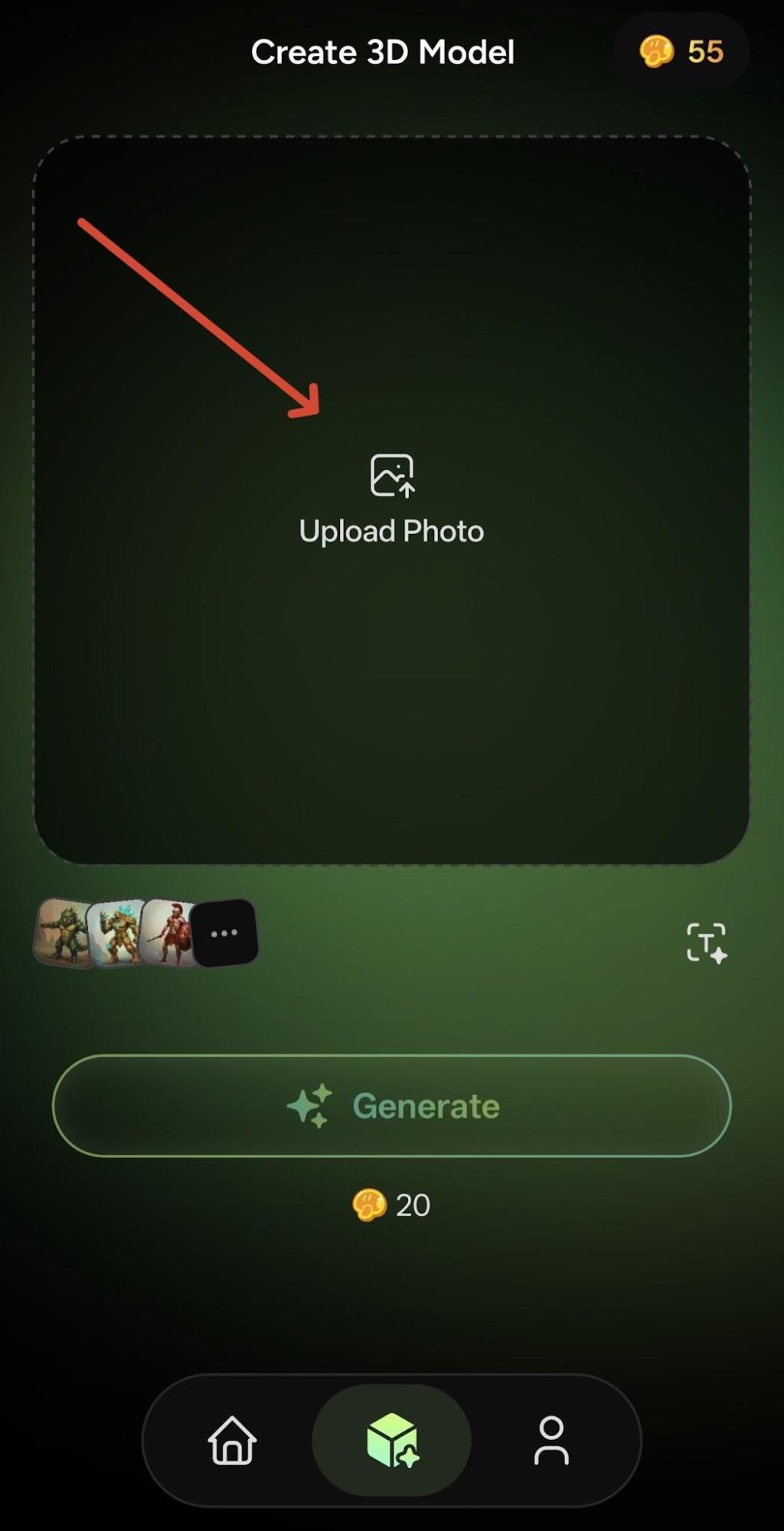
Step 6: For an image to 3D, you need to insert the image into the AI 3D model generation.
What we liked:
- 3D Workflow: It creates actual 3D workflows or mesh rather than just 3D images.
- Text and Image Input: You can give text and image prompts to generate the desired image.
- Support Multi-image to 3D: For a complicated object, you can use front, side, rear or other views of the same object to generate an accurate result.
- Multi-format Support: It supports multiple 3D formats including FBX, OBJ, USDZ, GLB, STL, BLEND, 3MF, and DXF.
- Generation Settings: It includes tools for texturing, remeshing, rigging, animation, and more.
- 3D Printing Support: It is designed to support 3D printing workflows with features that help prepare AI-generated models for printing.
Limitations:
- Inspection Required: The geometry that has been generated needs to be inspected carefully before final production.
- Manual Correction: For unusual shapes and objects requiring precise engineering dimensions, you need to do a little manual work.
URL: https://www.meshy.ai/
#2) Canva
Best for Marketers, Social media creators, presentation designers, beginners who need 3D-looking visuals, product concept images, or advertising and promotional designs who need 3D images for visual and design applications.
Price:
The pricing plans are:
- Free: $0
- Pro: $144 per year
- Business: $250 per year per person
- Enterprise: Custom pricing
How to use Canva to generate a 3D model?
Canva generates customizable 3D images via text prompts as described in the following steps:
Step 1: Open Canva, create an account, and go to Canva AI.
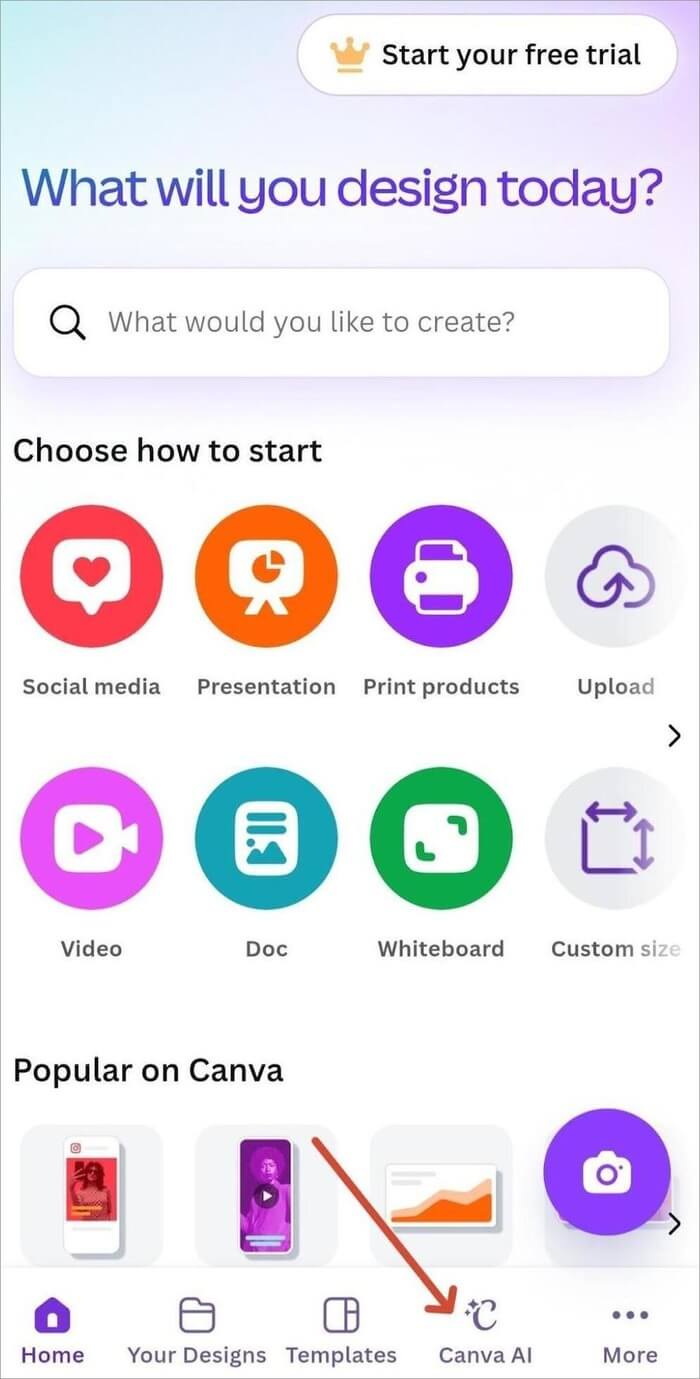
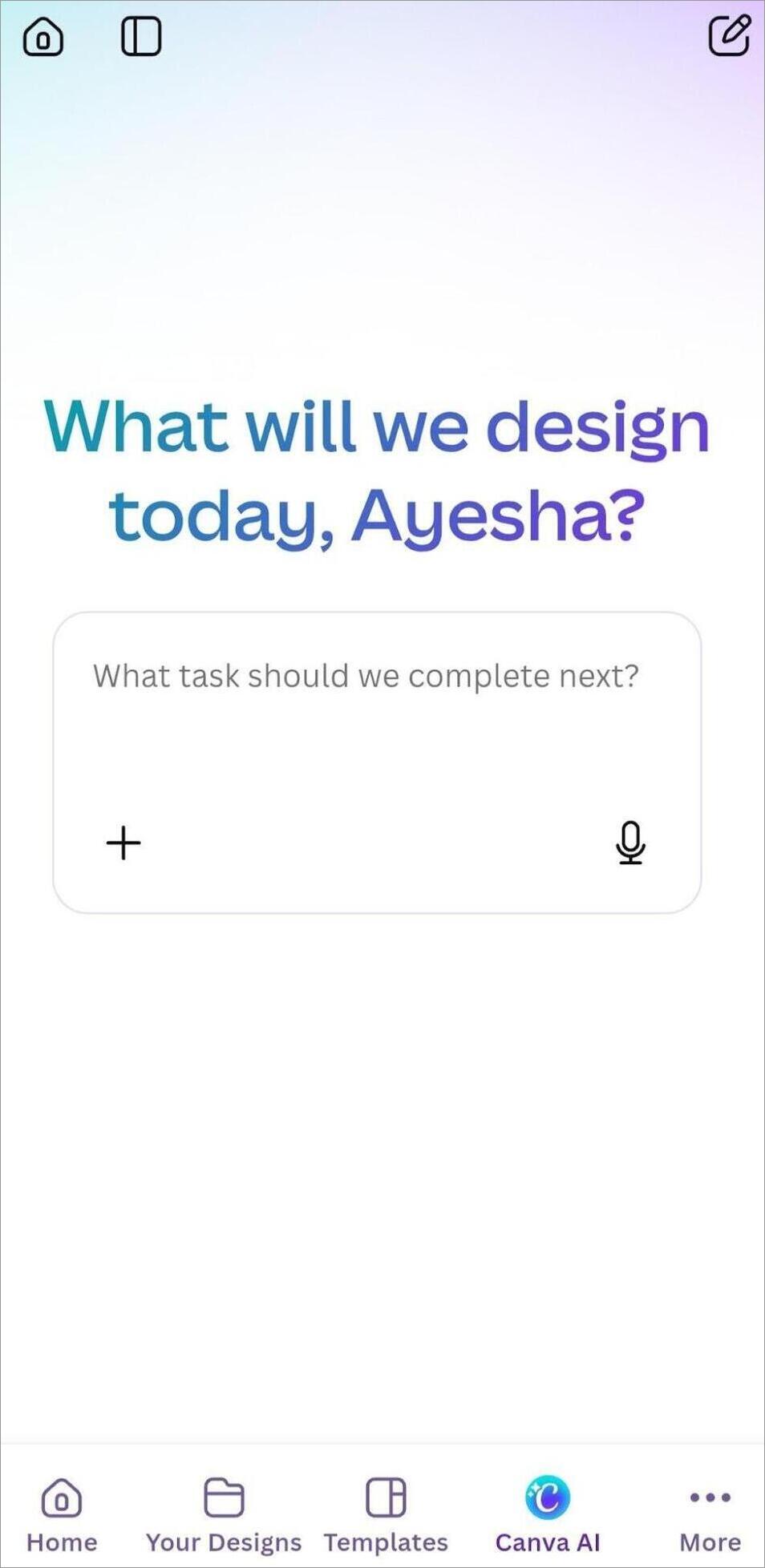
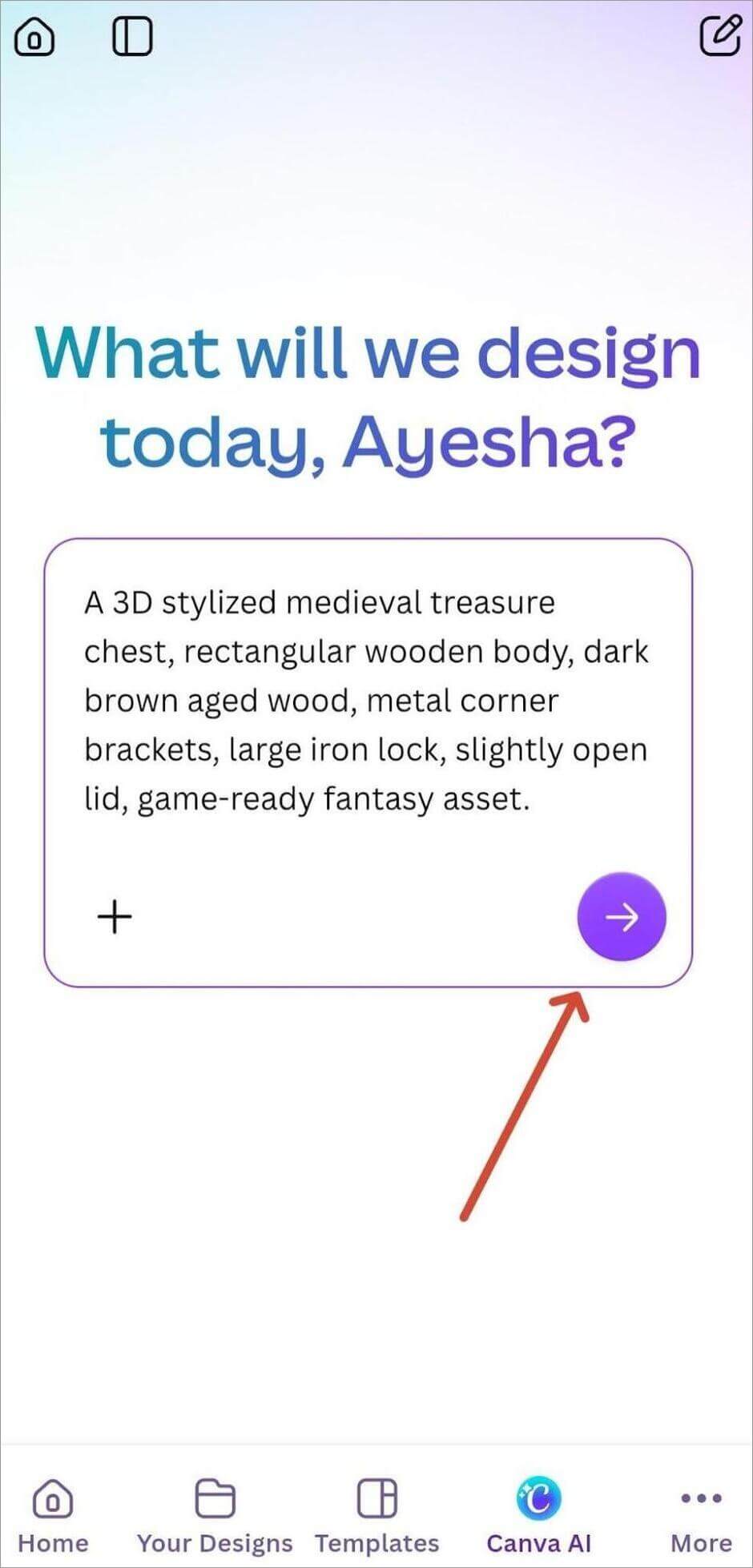
Step 2: Here, enter the specific text prompt and proceed. For example: A 3D stylized medieval treasure chest, rectangular wooden body, dark brown aged wood, metal corner brackets, large iron lock, slightly open lid, game-ready fantasy asset.
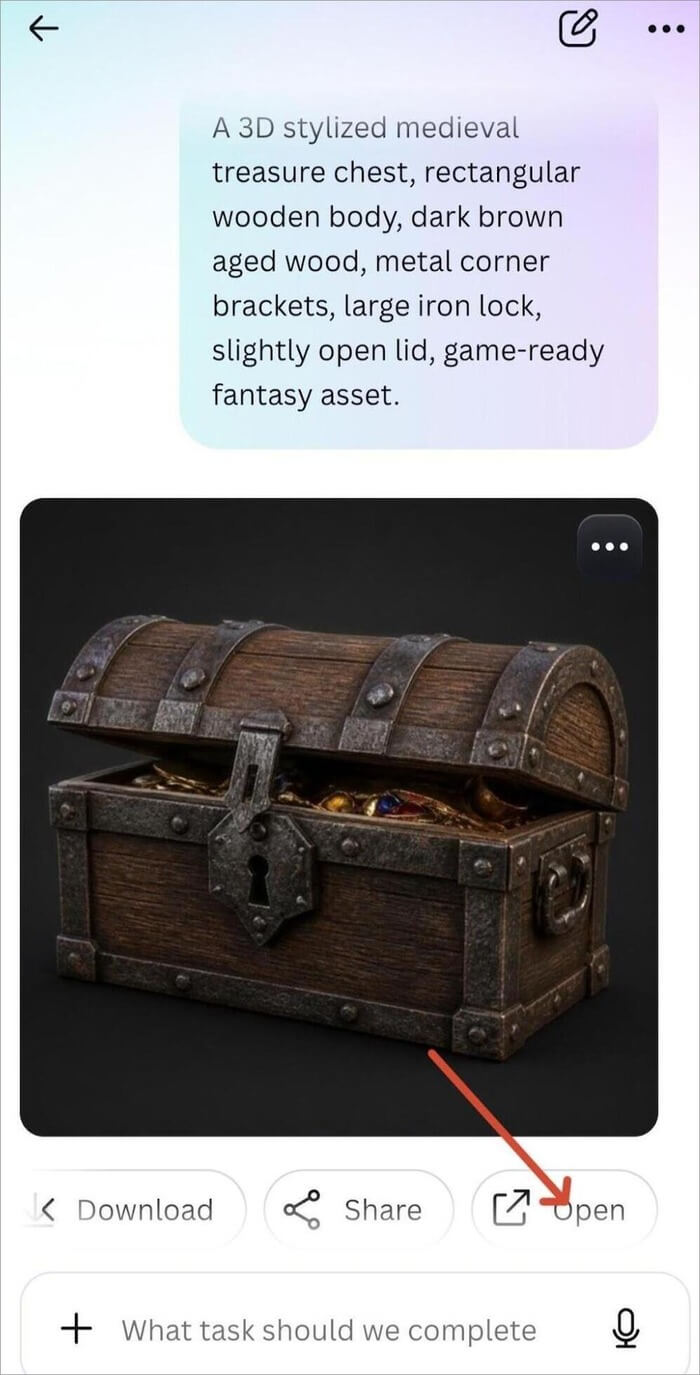
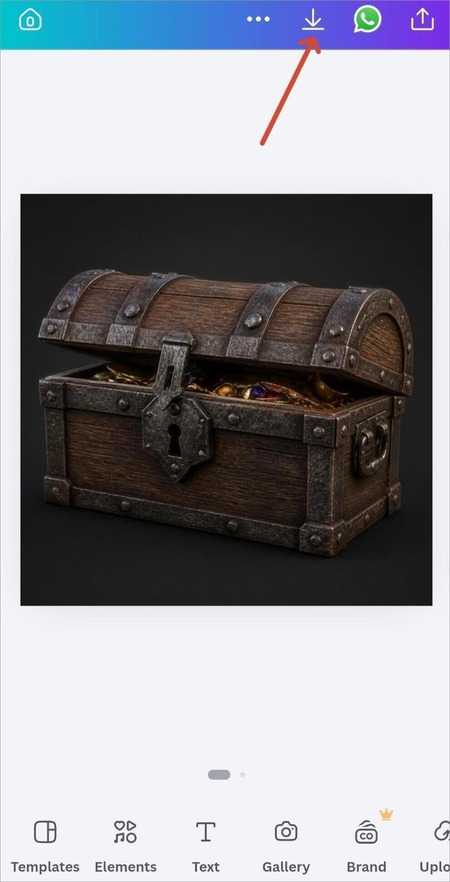
Step 3: A 3D image would be generated as per the text prompt. Here you can customize the image by pressing the Open option given below the image.
Step 4: Here you would get various options to edit and customize the image, like:
- Text
- Logos
- Graphics
- Backgrounds
- Photos
- Marketing elements
- Presentations
- We can also add the 3D visual to a Canva design
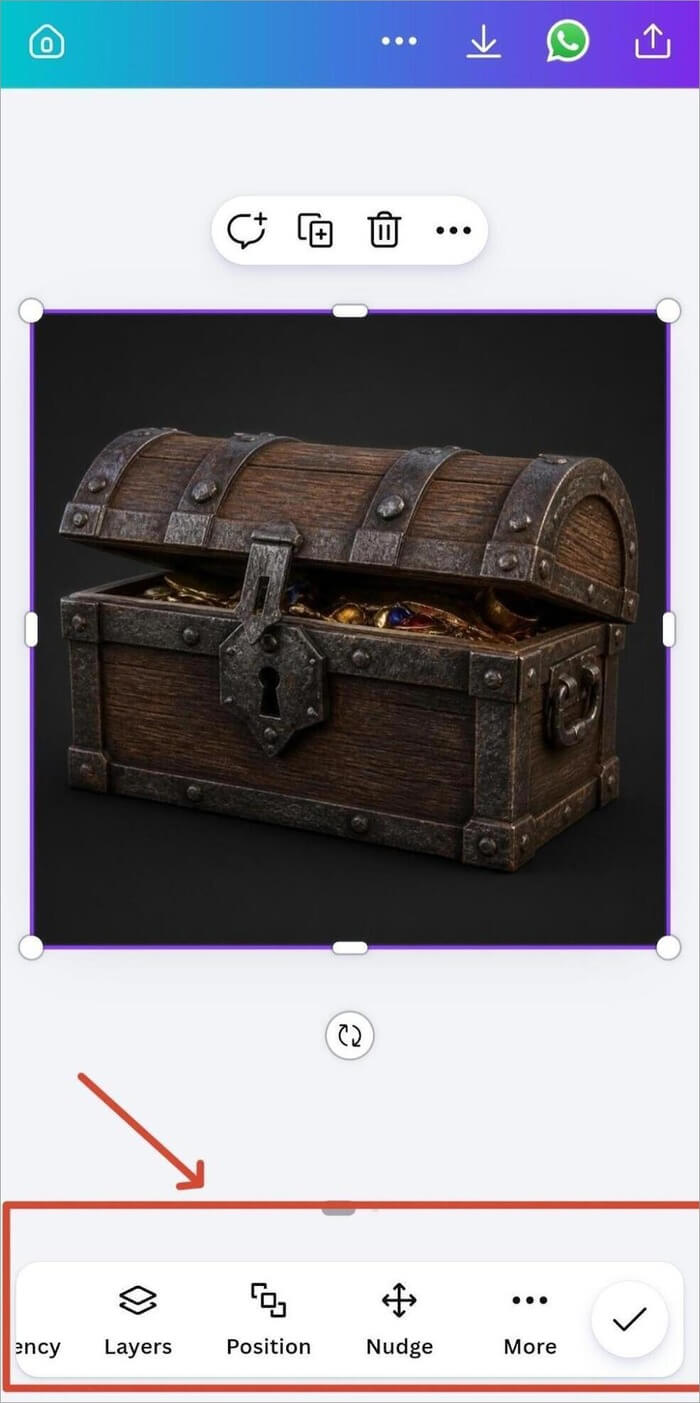
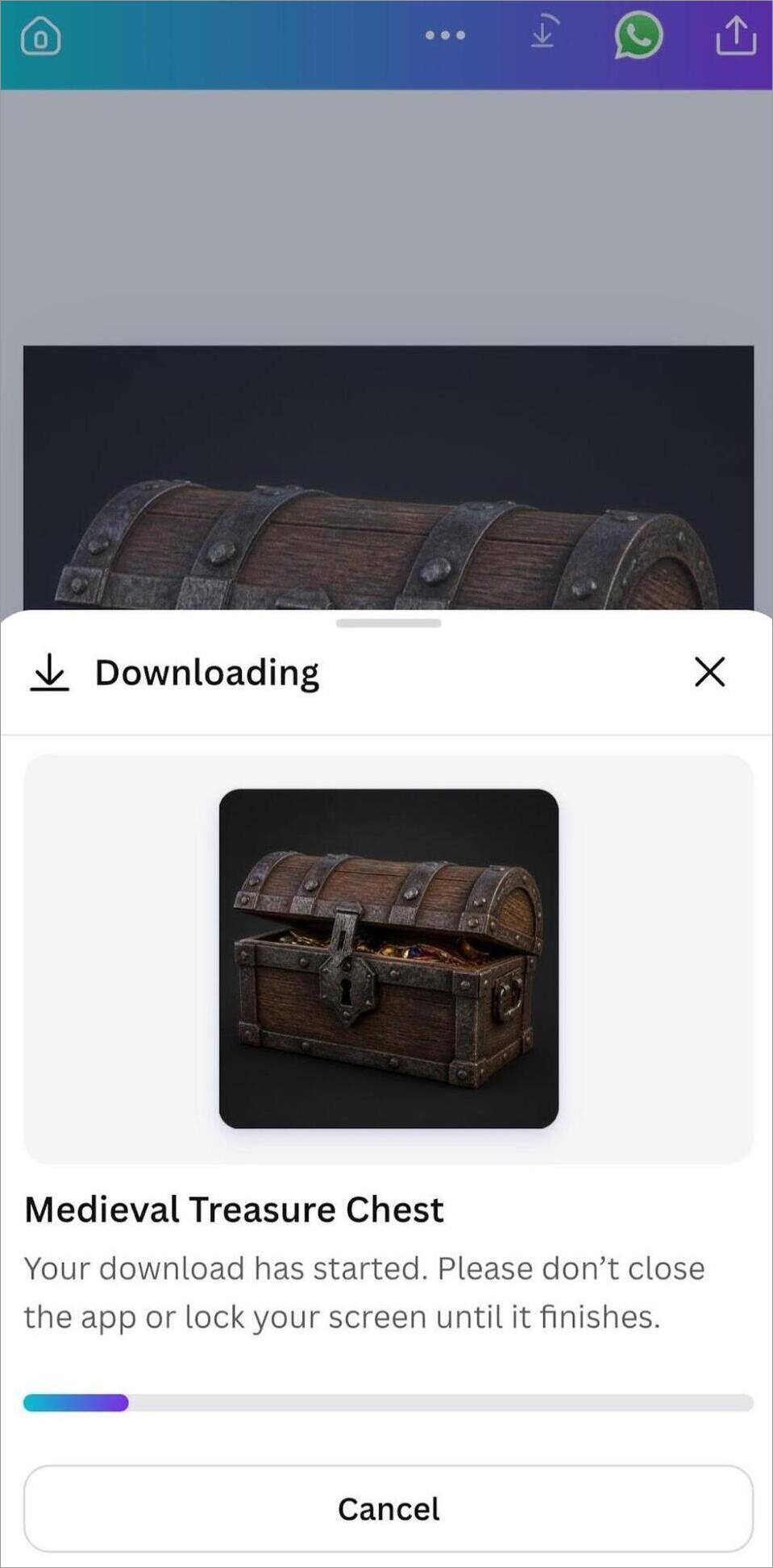
Step 5: After editing, you can save or share the image as per the requirement.
What we liked:
- Easy Workflow: It can create 3D images easily with just text prompts, rather than traditional 3D modeling tools.
- Design Integration Within the Tool: The generated image can be used further within the Canva ecosystem, like adding it to social media posts, presentations, advertisements, marketing graphics, educational materials, mockups, and other designs.
- Prompt-based Editing: You don’t even need to manually edit the generated image using the tools; instead, you can modify the description and regenerate the result.
- Useful for Visual Concepts: It is useful for visual concepts, as the 3D-looking representation of an object or idea can be used for the same.
Limitations:
- Does Not Generate 3D Mesh: It creates only 3D images, not the actual 3D mesh intended for visual and design applications only.
- Not Intended for 3D Printing Workflows: It generates 3D images that are intended for visual and design applications only, but not for 3D printing workflows.
URL: https://www.canva.com/ai-3d-model-generator/
#3) Tripo
Best for Game developers, 3D artists, product designers, 3D printing users, character creators, or users who want generation plus post-processing tools.
Price:
The pricing plans are as:
- Free: $0/month with 200 monthly credits.
- Pro: $20/month with 3000 credits.
- Max: $90/month with 25000 credits.
- Team: $110/month with 90,000 credits.
How to use Tripo to generate a 3d model?
Tripo supports both text-to-3D and image-to-3D workflows and includes editing features like smart mesh processing, texturing, segmentation, and rigging.
Generating a 3D model in Tripo is as simple as described in the given steps:
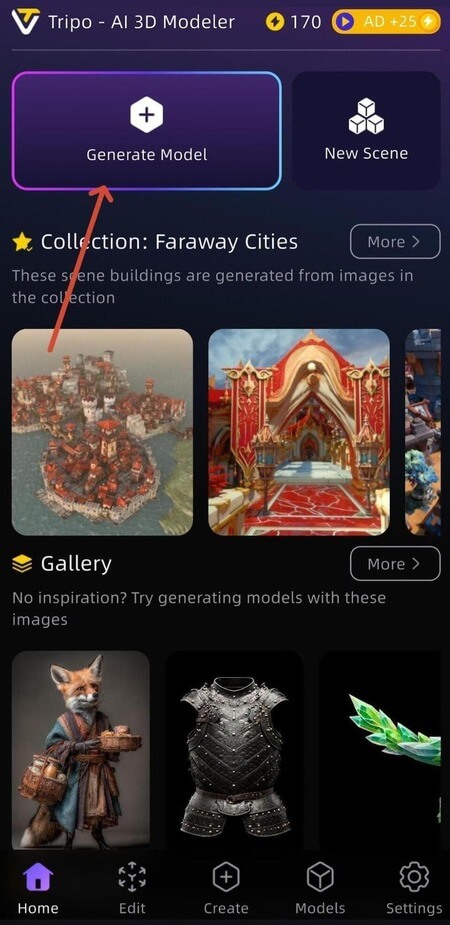
Step 1: Open the Tripo app and go to “Generate model”.
Step 2: Here you can use text as well as an image prompt. To give a text prompt, press on “Generate image”.
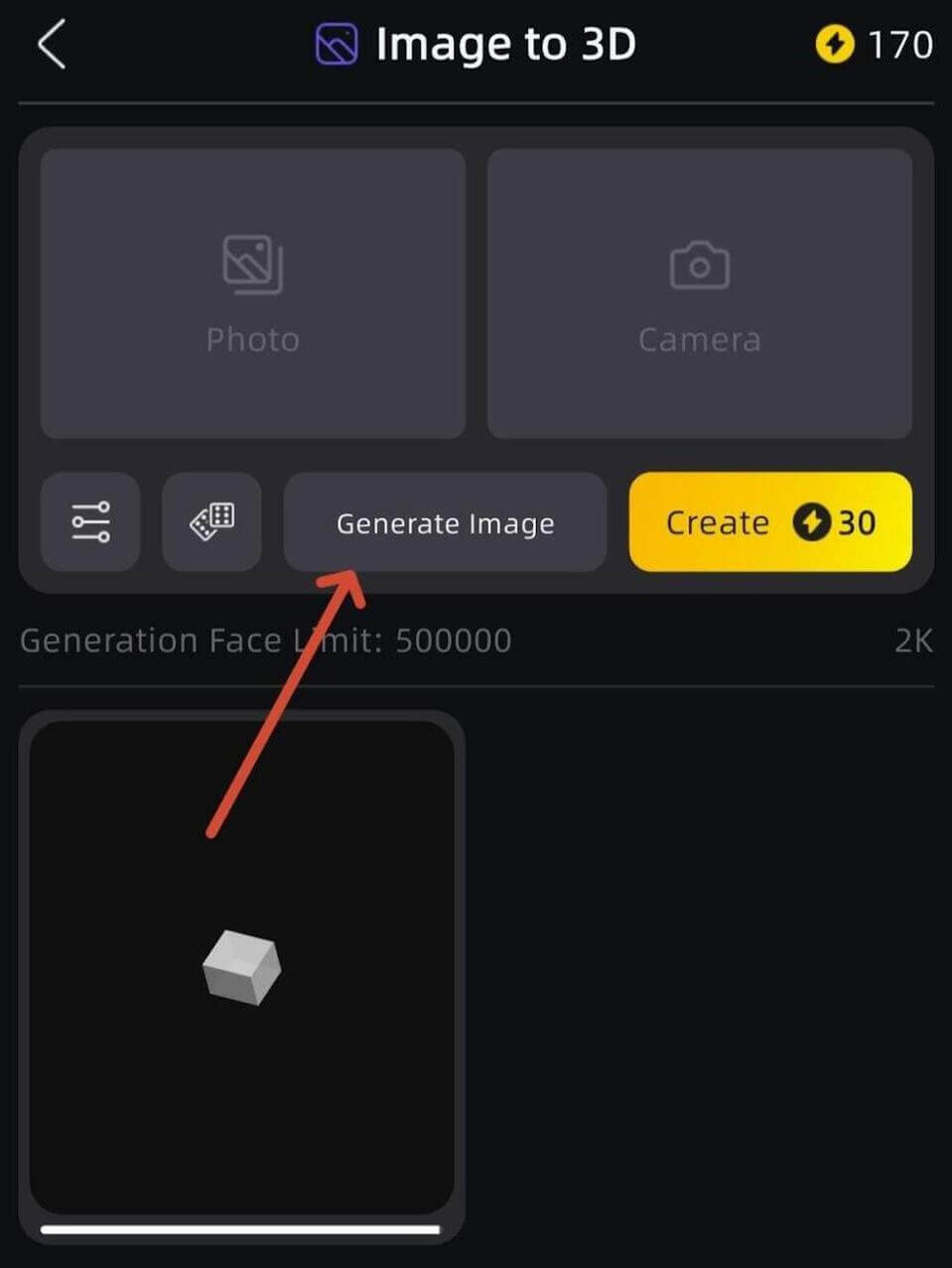
Step 3: Here, describe specifically the 3D product you want to generate. For example: A stylized medieval treasure chest, rectangular wooden body, dark brown aged wood, metal corner brackets, large iron lock, slightly open lid, game-ready fantasy asset.
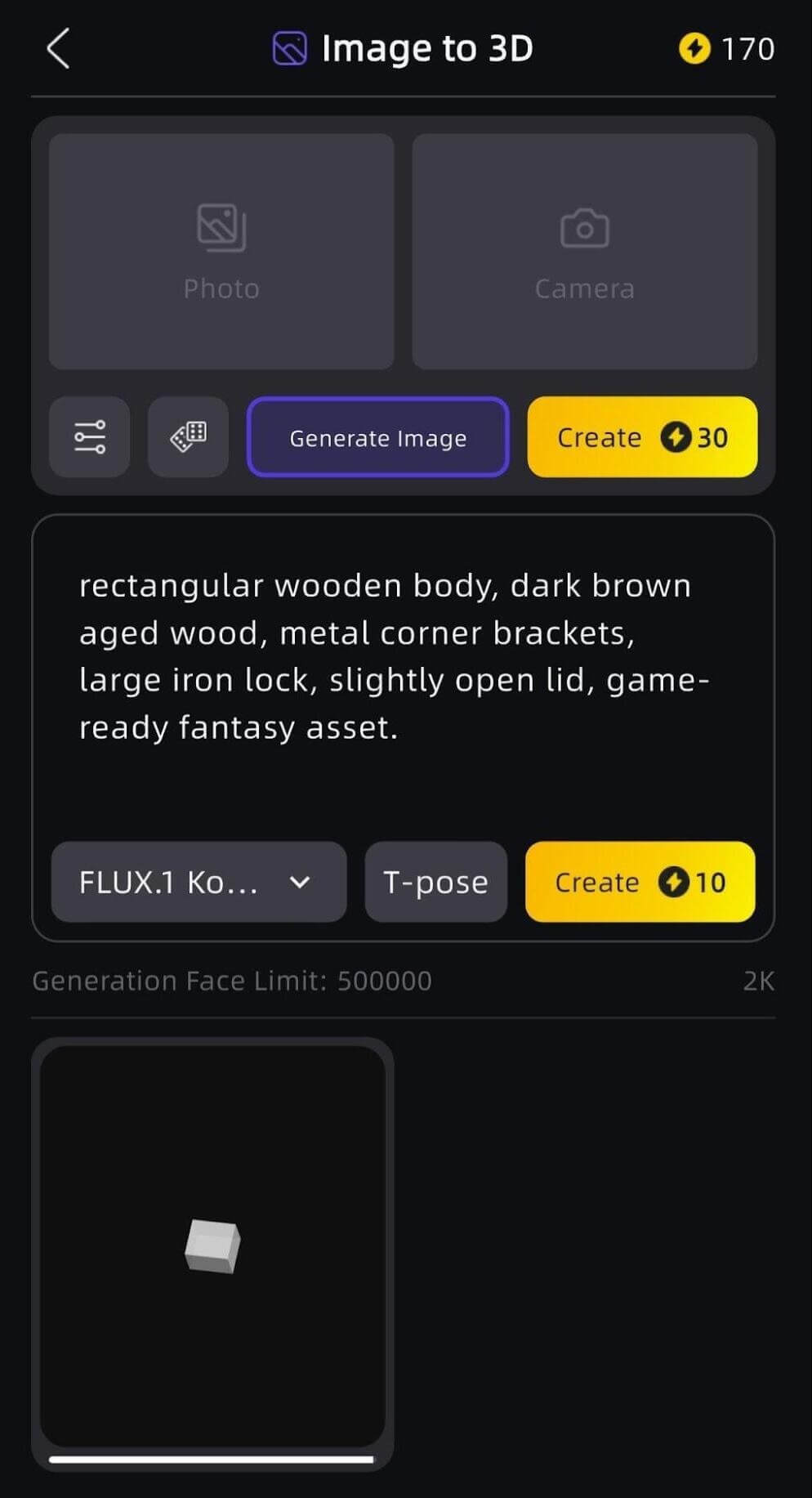
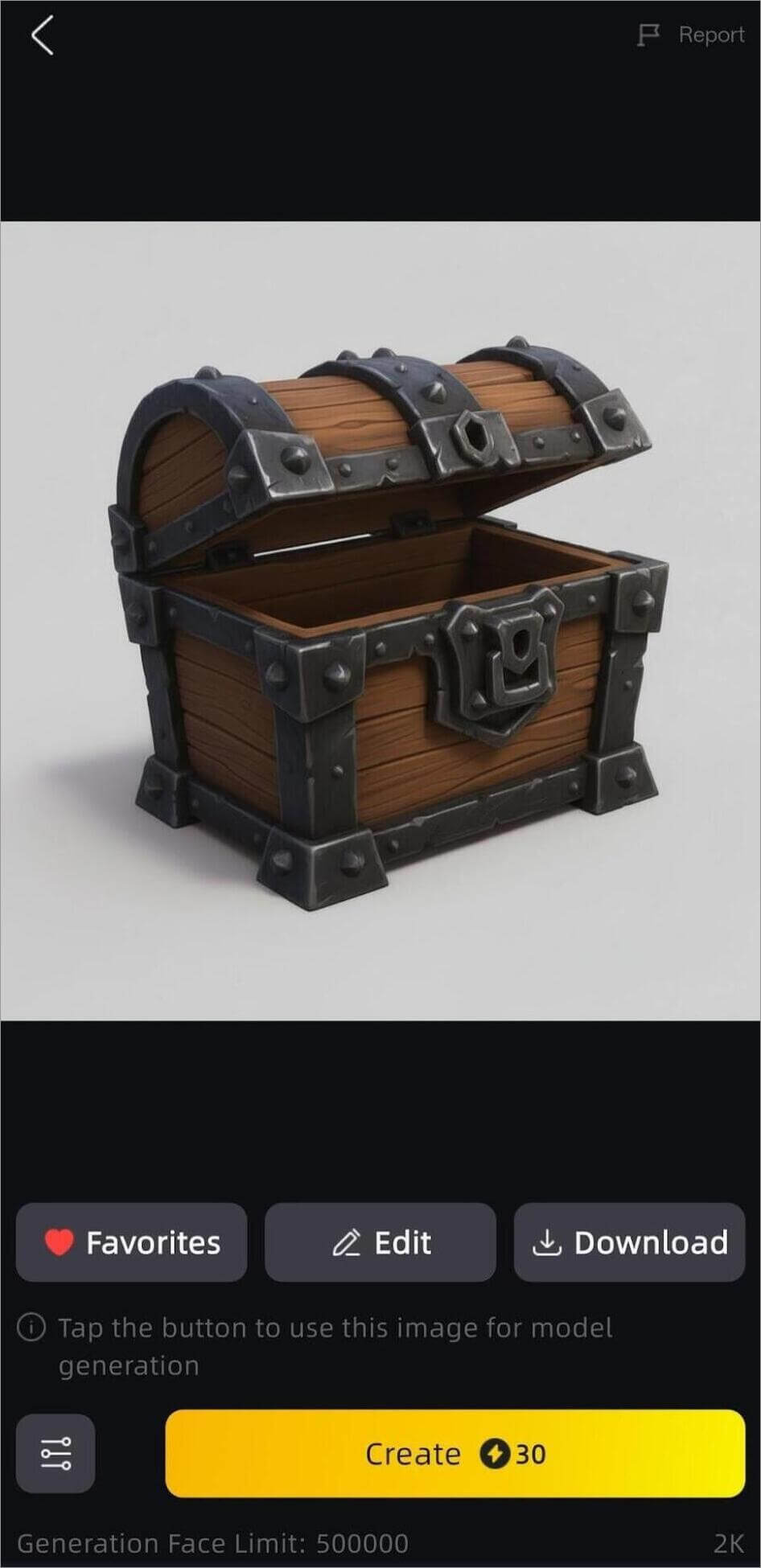
Step 4: A 3D model would be generated. You can edit the model by pressing the given P for suggested editing or simply alter the description.
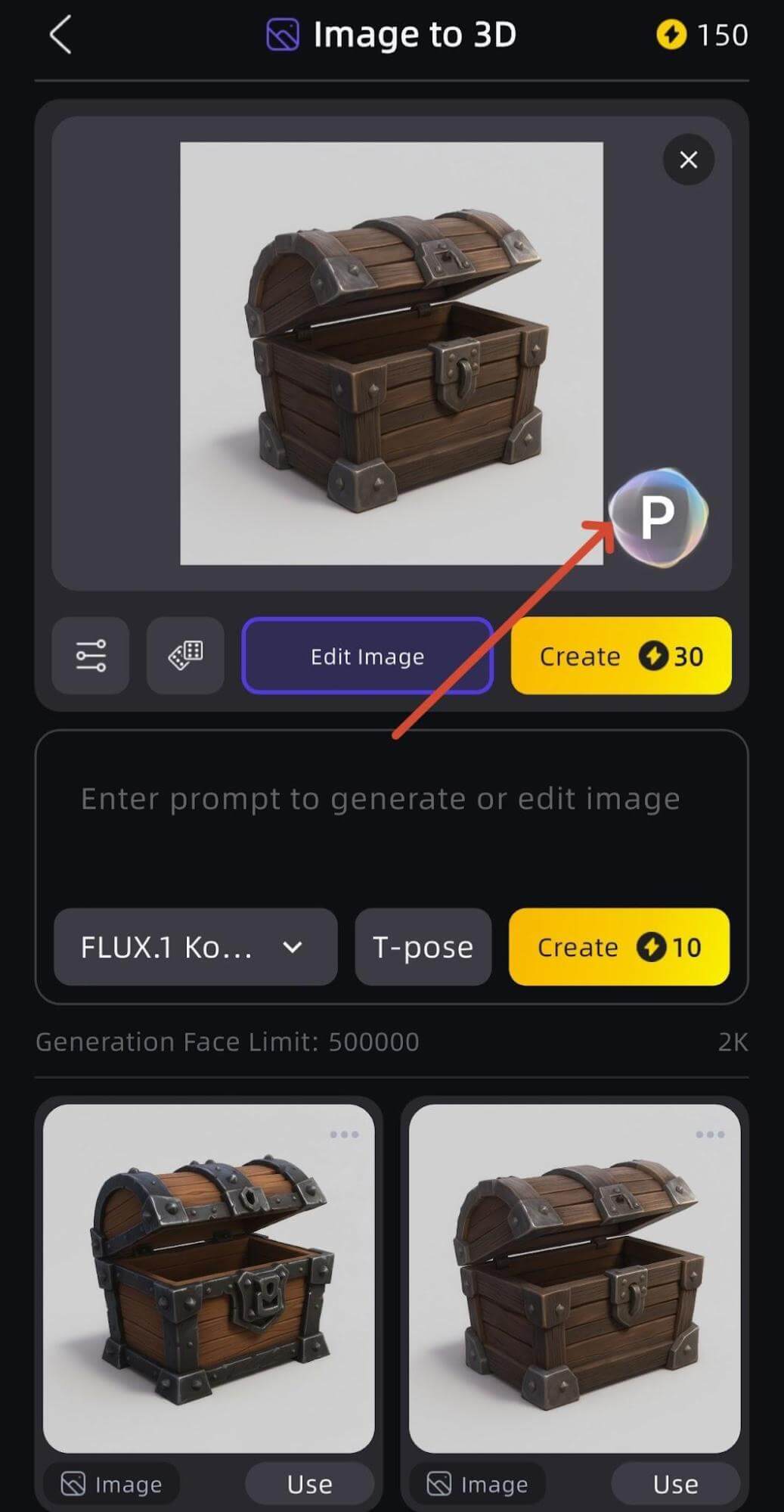
Step 5: Now download or export the generated model.
What we liked:
- Broad 3D Toolset: Apart from generating 3D models, it provides various editing options like mesh processing, texturing, rigging, animation, and more.
- Support Text and Image Prompts: You can easily generate a 3D model either by describing it in text or by sharing a reference image.
- Multi-view Workflows: It supports multiple views of an object. You can provide additional angles of the image to generate an accurate one.
- 3D Printing Support: It supports multiple formats, including STL and 3MF, which is useful for users who want to move from digital generation to physical models.
Limitations:
- Credit-based Generation Limit: You can generate models as per the limit of the credits. Beyond that, you can only use the app if you buy a plan or more credits. Frequent experimentation can consume credits quickly.
- Free plan does not include commercial-use rights.
URL: https://www.tripo3d.ai/
Licensing and Ownership of AI-generated 3D Models
Before generating models or images, you need to check the tool’s licensing terms. Some do not permit commercial use rights.
As Tripo specifically mentions, its free plans do not include commercial use rights and private ownership. If you need it for commercial use, then you have to subscribe to its paid plans such as Pro, Max, or Team. Then after you would have full private ownership that allows you to keep your generated 3D models private.
Likewise, Meshy allows commercial use even on its Free plan, but Free-plan outputs are provided under a CC BY 4.0 license, which means you would not have private ownership of the generated assets, you must credit Meshy when using them commercially. To have private ownership, you have to subscribe to its paid plans.
On the other hand, Canva provides full ownership of the asset and allows you to own the AI output, and you can use it for lawful commercial projects.
Advanced Tips or Techniques
Here are some of the advanced tips or techniques to be implemented.
- Describe the Specific Geometric Details: Instead of prompting just the appearance, describe its full specific details. Like, to generate a cool chair, you should type in its specific details “A modern lounge chair with a curved upholstered backrest, four cylindrical wooden legs, a thick seat cushion, and rounded armrests”. This way, you would get the best results.
- Specific Materials and Style: Along with its specific geometric details, also mention the type of material (Wood, Metal, Plastic, Glass, Leather, Fabric, Ceramic or Stone) and the style (Realistic, Stylized, Low-poly, Cartoon, Fantasy, Sci-fi, Game-ready, or Product visualization) for better results. For the earlier example, it could be “A modern wooden lounge chair with a curved upholstered backrest, four cylindrical wooden legs, a thick seat cushion, and rounded armrests”.
- Use Multiple Views of the Object: For any complicated object, use multiple images for reference. You can share front, side, rear or other views of the same object.
How We Tested the AI 3D Model Generator Tools
We shortlisted the best three AI 3D model generator tools: Meshy, Canva and Tripo.
| Tools | Why we included it | What we tested |
|---|---|---|
| Meshy | We included Meshy for its amazing post generation capabilities. Its ability to move from generation to inspecting the mesh, changing textures and preparing the model for different uses makes it practical for testing the complete 3D workflow. It generates actual 3D mesh models rather than just 3D looking images. | We tested different aspects including: • Text-to-3D model generation • Image-to-3D generation • Prompt control and model variations • 3D viewer and mesh inspection • Texture generation/refinement • Model export • Printability options • Different model-generation settings. |
| Canva | We included Canva for its beginner friendly interface that can be used by anyone to generate 3D images without any previous 3D-modeling experience. It generates customizable 3D images that can be further integrated within the Canva ecosystem. | We tested different features including: • Text prompt to 3D visual generation • Prompt refinement • Different visual styles/aspect ratios • Editing the generated result • Adding the 3D visual to a Canva design • Background removal/enhancement • Overall ease of use. |
| Tripo | We selected Tripo because of its capabilities of broader AI-assisted 3D workflow. Along with generating 3D models, it enables you to do additional refinements including mesh processing, texturing and preparation for further 3D work. Its multi-view to 3D workflows is a promising feature. | We tested various features including: • Text-to-3D generation • Image-to-3D generation • Reference-image handling • Model preview and inspection • Mesh/retopology options • AI texturing • Segmentation • Rigging/animation options where applicable • Export workflow |
For the testing, we worked as a new user through their mobile applications and used the same prompt for all three platforms: “ A stylized medieval treasure chest, rectangular wooden body, dark brown aged wood, metal corner brackets, large iron lock, slightly open lid, game-ready fantasy asset.”
For tools that support image-to-3D, we used reference images also to check how well it can produce a 3D image from them.
This gave us 2 practical tests:
- Text to 3D: All three of them fall under this category of text to 3d model AI generators. It enables you to describe the object in text and generate the best possible result in 3D.
- Image to 3D: Meshy and Tripo support this feature, where you can share any image and the tool generates a 3D model.
We did not just look for the tool that generates the prettiest result but also looked for these factors:
- How accurately do they understand the prompt?
- How good are the generated models when viewed from different angles?
- How much would I be able to edit the image after its generation?
- Can the model be exported to somewhere and in which formats?
- How easy would it be for users without prior 3D model generation skills, and so on?
What we Evaluated:
We evaluated the full workflow rather than just the final products.
| Test | Meshy | Canva | Tripo |
|---|---|---|---|
| Time to first result | 26 seconds. | 27 seconds. | 24 seconds. |
| Prompt followed accurately | Follows the main subject, shape and descriptive details, although complex instructions may be simplified. | Followed the prompt and generated the image with good appearance but lacks precise 3D geometry. | Captured the main subject and major prompt details, with some fine details potentially missed. |
| Model/visual quality | Generated a detailed 3D model with useful geometry and textures. | Created a strong visually appealing design but not good as production-ready 3D asset | Produced a good overall geometry and texture quality. Can be used for further 3D work. |
| Image-to-3D result | Produced 3D model well with the reference image. Could be better if more images with different angles would be shared. | It does not have the option for Image to 3D. | Converted reference images into 3D models well. But it depends heavily on the clarity and angle of the reference image |
| Refinement options | Yes it offered various refinement options. You can also simply write another text for the editing. | Various editing options are available but dedicated 3D refinement is more limited. | Includes several post generation tools like refining, texturing, remeshing and preparing the model for additional work. |
| Export options | Supports common 3D formats. | The image can be exported but not the full 3D production workflow. | Offers 3D-focused export formats, including formats suitable for further editing and 3D printing. |
| Ease of use | It was easy to operate the tool as a new user although it took time to understand the 3D options. | It was easy as a beginner to operate. | Comparatively it was easier to start. |
| Biggest issue encountered | Did not encounter any issue as such but it misses small details that need cleanup. | We were not able to create a fully editable 3D model. | For complex details we were required to do additional refinements |
Which AI 3D Generator Tool Should You Choose?
The best tool would not be the one with maximum features or with reasonable pricing, but depends on the requirements you have.
- If you want actual 3D models with broad export support, then choose Meshy. It is particularly relevant for downloadable 3D files, image-to-3D, text-to-3D, multiple reference images, texturing, 3D printing, game assets and Blender or game-engine workflows.
- If you need 3D image generation for visual and design applications, choose Canva. You can use it for product concept images, presentation visuals, marketing artwork, social media content, a 3D-style illustration, or a quick result without learning 3D software.
- If you need a broader 3D production workflow, then go with Tripo. It includes extended features beyond basic 3D mesh generation. Including 3D printing, Image-to-3D, Text-to-3D, texturing, mesh optimization, rigging and animation, and more.
Frequently Asked Questions
1. What is an AI 3D Model Generator?
AI 3D model generator is a tool that simplifies the 3D model generation process with the help of Artificial intelligence. It uses simple text prompts, reference images or sketches to generate amazing 3D results in no time which saves you a lot of time.
2. What is the best AI 3D Model Generator?
The best AI 3D model generator depends on the purpose you need it. If you need it for actual 3D mesh generation, then you can choose from Meshy and Tripo. For customizable 3D images, choose Canva. Likewise, you can choose the best-fit tool as per your requirements.
3. Which AI 3D Model Generator is best for beginners?
Beginners who need simple 3D-looking images can find Canva’s workflow easier. For those who want proper conventional 3D models, they could choose from Meshy and Tripo.
4. Is there a free AI 3D Model Generator?
Yes, most of the AI 3D model generators offer free plans, and you can enjoy 3D model generation. Here, all three of them offer a free plan, but the free plan comes with limited credits, features, exports, or commercial use.
1. Meshy: Offers 100 credits per month.
2. Canva: Access to up to 20 AI uses per month.
3. Tripo: Offers 200 monthly credits under a free plan.
5. Can AI create a 3D model from an image?
Yes, you can create a 3D model from an image using Meshy and Tripo. You can also share multiple images of different angles of a complex object in Meshy to generate an accurate 3D model.
Conclusion
AI 3D model generators are helpful in quickly creating 3D models or images out of an idea. It saves a lot of time as it can be created in no time without much manual work, with just text or image reference prompts. There are various amazing tools available, so to choose one, the best way is to match the platform to the task.
If you need to generate an actual 3D model then you can choose from Meshy and Tripo as it supports 3D mesh and 3D printing. If you need 3D image generation for visual and design applications, for a presentation, advertisement, or social post then choose Canva.
For better post generation tools go with Tripo. If you need to create a complex model then go with Meshy as it supports multi-view images.
This way, you can have the best tool as per the requirements of the task.
Research Process: The total time involved to complete and publish this article is approximately 39 hours. This content was created through a structured research approach to ensure accuracy and reliability.
For more-related guides, you can explore our range of tutorials below:
- Krikey AI 3D Animation Maker Review and Alternatives
- Getimg.ai Review and Alternatives: AI Image Generation & Editing
- Pippit AI Free AI Video Generator Review and Alternatives
- Beautiful.AI Best AI Presentation Maker Review and Alternatives
- Akool AI Image to Video Generator Review and Alternatives
- Gamma AI Best AI Presentation Maker Review and Alternatives
- Vheer AI Image to Video Generator Review And Alternatives
- MagicLight AI Review: Is It Really Worth
Was this helpful?
Recommended Reading
-

Review and List of the Top CAD Software with Features, Comparison, and Pricing. Select the Best CAD Tool From This List Based on Your Requirements: If traditional drafting methods are not producing the accurate drawings you need, then you need to switch to quick and modern CAD software. If you…
-
Generate stunning AI-powered 3D animations in minutes with Krikey AI. Read our in-depth Krikey AI review to create high-quality animated videos with perfect lip sync and AI voiceovers: As far as AI animation makers go, we now have a long list of tools and solutions that just keep growing with…
-
Here you will find the detailed review and comparison of top 3D Printers to guide you in selecting the best as per your requirement: Thinking about having a new printer for additive manufacturing? 3D Printing is an art that is undergoing a big demand all over the market today. Creating…
-
A Comprehensive Review of the Top Animation Software with Features, Comparison, & Pricing. Select the Best Free or Commercial Animation Software Based on Your Requirements: Animation software is a class of computer software programs that are able to create 2D (two-dimensional) and 3D (three-dimensional) moving images. Although the industry has…