Looking for ways to stop spam calls from unknown numbers? Our step-by-step guide educates you on how to silence unknown callers on iPhone in just a few taps to stop unwanted disturbances:
The majority of iPhone owners do not know that unknown caller blocking takes mere seconds and is done via a built-in option in every iPhone model. If you often receive unknown calls, “No Caller ID” calls, then there is an extremely useful filter installed on your iPhone that you just need to turn it on.
In the following step by step guide, you will find simple ways to silence unknown callers on iPhone, why the feature sometimes doesn’t work, and the best ways to completely stop unwanted calls.
Turn Off Unknown Callers on iPhone Instantly
How to Silence Unknown Callers on iPhone
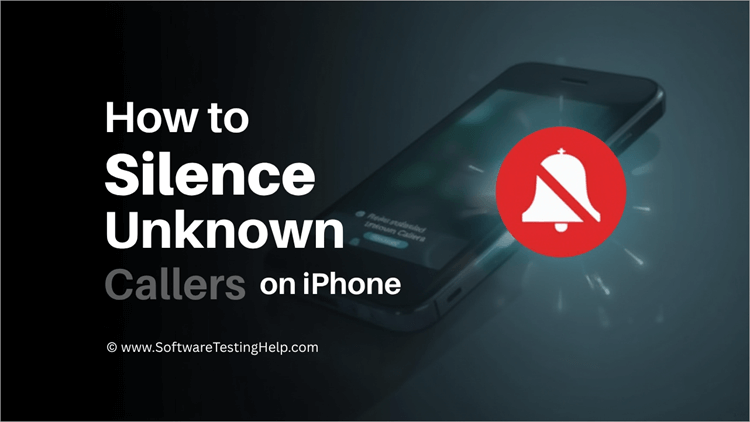
Quick Answer: To silence unknown callers on iPhone (for all models and iOS versions), go to Settings → Phone → toggle ON “Silence Unknown Callers.” Calls from unknown numbers will be muted and sent to voicemail.
According to a report by the Federal Trade Commission, losses to common Americans due to government imposter scams increased from $171 million in 2023 to $789 million in 2024. And according to the reports, emails, phone calls, and messages are the common ways used by scammers to contact their targets.
So, the question is: How do you protect yourself from such scammers?
One simple way to avoid scammers is to not answer any unknown calls that seem suspicious. iPhone users can choose to screen unknown callers and message senders, or block suspicious numbers, so that they don’t get calls from those specific numbers.
Here is a video tutorial on “How to Silence Unknown Callers on iPhone” for your reference:
How to Silence Unknown Callers on iPhone: 2026 Guide
To screen or silence unknown calls on Phone or FaceTime, use the following steps:
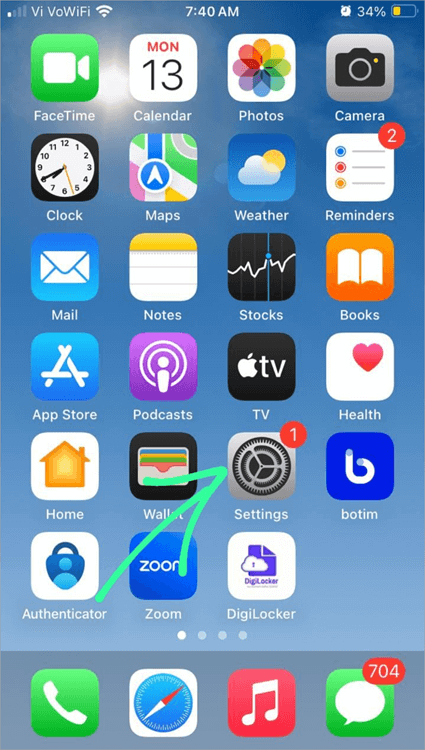
1. Go to Settings as shown in the image below.
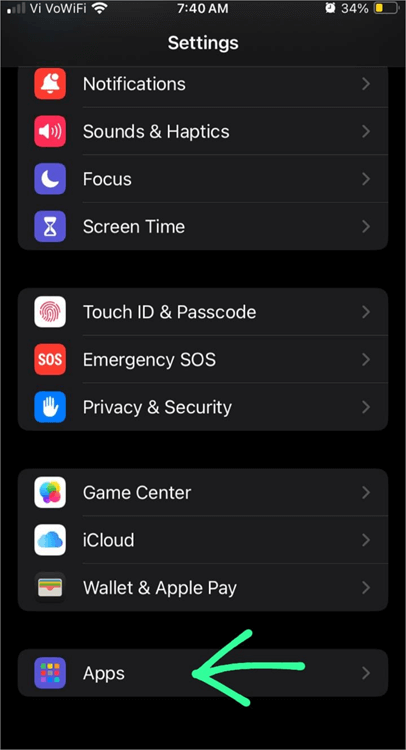
2. Select Apps as depicted in the image below.
3. Now choose Phone or FaceTime.
If you have chosen the Phone app, then:
- Find the option: Screen Unknown Callers. Tap on that.
- Now you will see 3 options: Never, Ask Reason for Calling, and Silence.
- If you choose Never, the phone will ring for unknown numbers, the way it rings when a saved contact calls you. If you choose Ask Reason for Calling, the phone will first ask the caller the reason for making the call before it rings. If you choose the Silence option, then the phone will go silent when an unknown number calls you.
If you have chosen FaceTime, then:
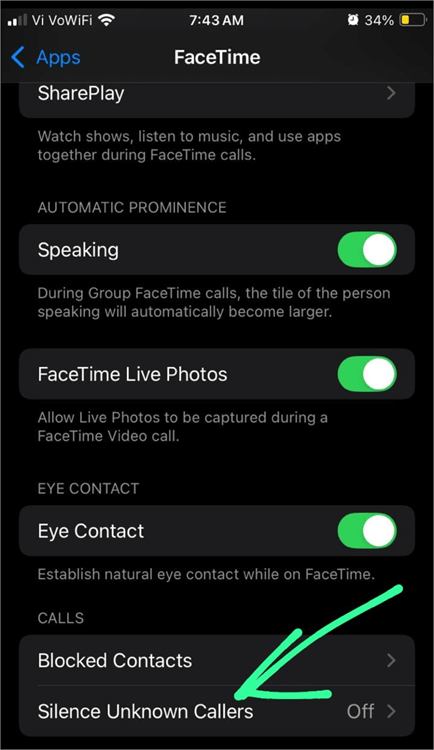
- There will be an option to Silence Unknown Callers as shown below. You can turn it on to silence calls from unknown numbers. The system will move these calls to voicemail.
How to Manage Silence Unknown Callers on iPhone (Step-by-Step)
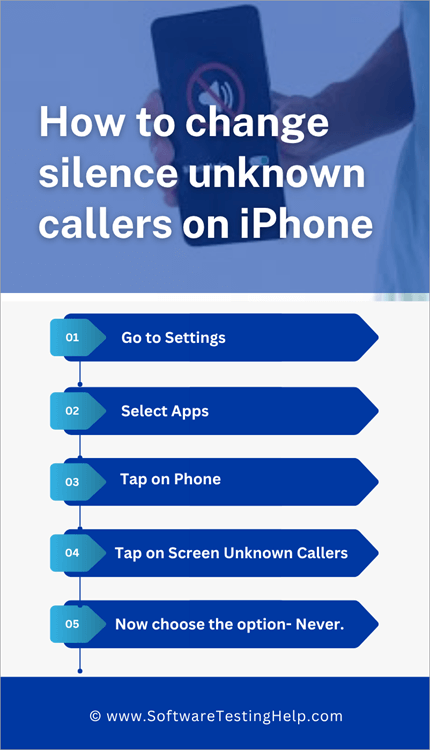
For instructions on disabling the Silence Unknown Callers feature on your iPhone, please follow the steps that are detailed below.
- Go to Settings
- Select Apps
- Tap on Phone (or FaceTime if you want to change the setting for FaceTime callers)
- Tap on Screen Unknown Callers
- Now choose the option Never.
You can filter unknown callers by following the steps below:
- Open the Settings app
- Select Apps
- Now choose Phone or FaceTime
- There will be an option – Call Filtering. Tap on it.
- Now turn on Unknown Callers.
- This way, no unknown number will call you. You can access their missed calls and voicemails on the Unknown Callers list.
To see the list of your unknown callers, do as stated under:
- Open the Phone app (or FaceTime app)
- Tap on Filter (you will find this in the Recents folder in Classic View, and if you are using the app on Unified view, the option will be available in the Calls tab)
- Select Unknown Callers
How to Silence Spam Callers
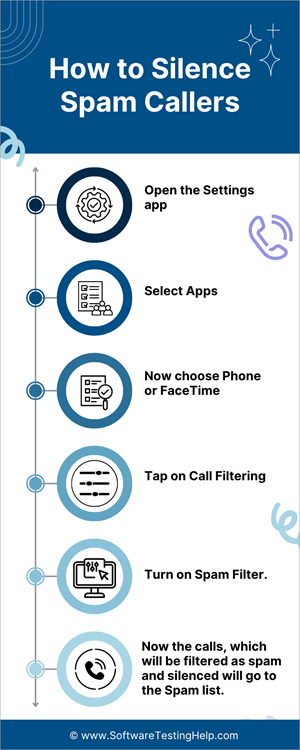
Follow these steps for silencing spam calls:
- Open the Settings app
- Select Apps
- Now choose Phone or FaceTime
- Tap on Call Filtering
- Turn on Spam Filter
- Now the system filters the calls as spam and silences them before sending them to the Spam list.
To access the Spam list on your iPhone, please follow these steps:
- Go to Phone (or FaceTime app)
- Select Filter (you will find the Filter option in the Recents folder in Classic View, and if you are using the app on Unified view, the option will be available in the Calls tab.)
- Now select Spam.
Using Focus Features to Silent Calls from Some Contacts Only
Follow these steps to silence incoming calls from specific contacts:
1. Go to Settings
2. Select Focus (In some iPhone models, the Focus option can be accessed by swiping up on the iPhone screen).
3. Now tap on the + icon
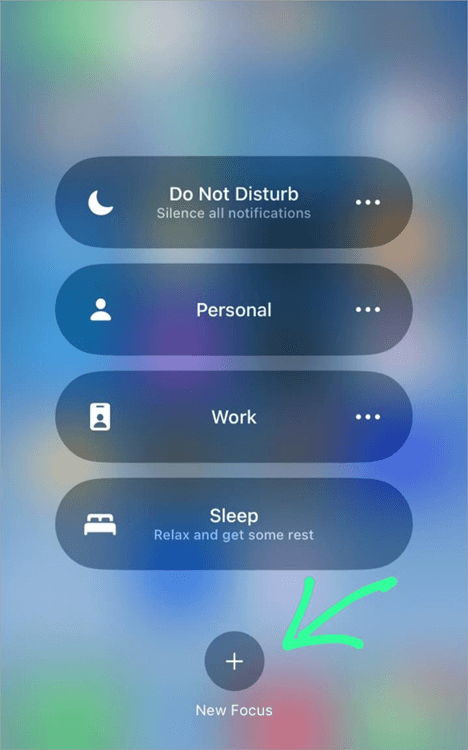
4. Select the Custom option as shown below.
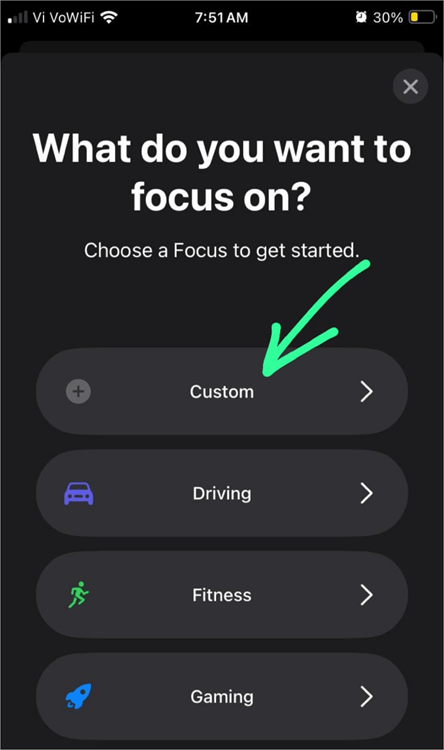
5. Now name your Focus (For example, Silence Calls) as depicted in the image below.
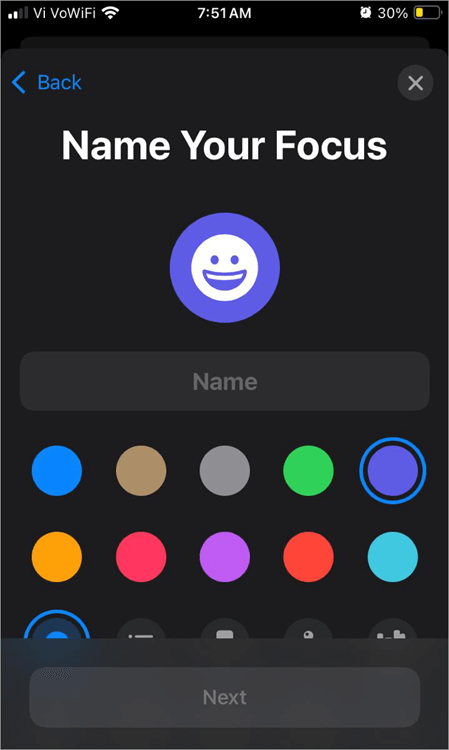
6. Tap on the Next button as shown below.
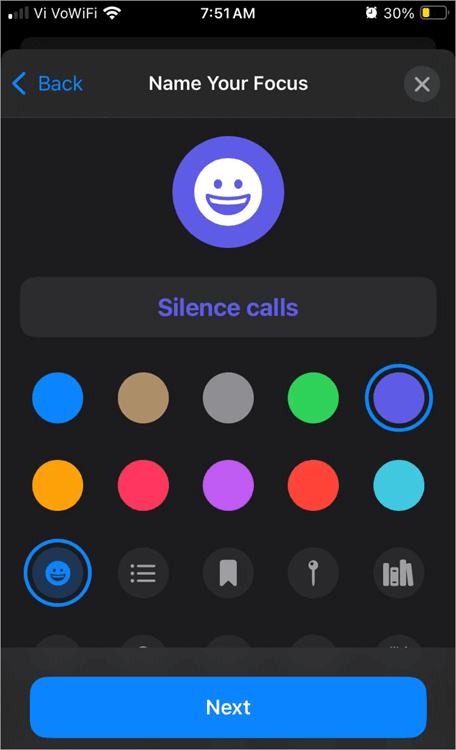
7. Now tap on the Customize Focus button as depicted in the image below.
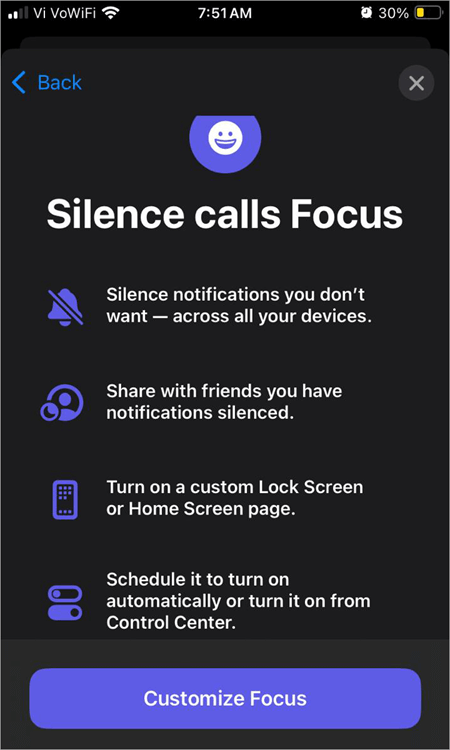
8. Now you can choose contacts whose calls you want to be silenced (or contacts whose notifications are allowed), by tapping on the + icon located near the option People, as shown below.
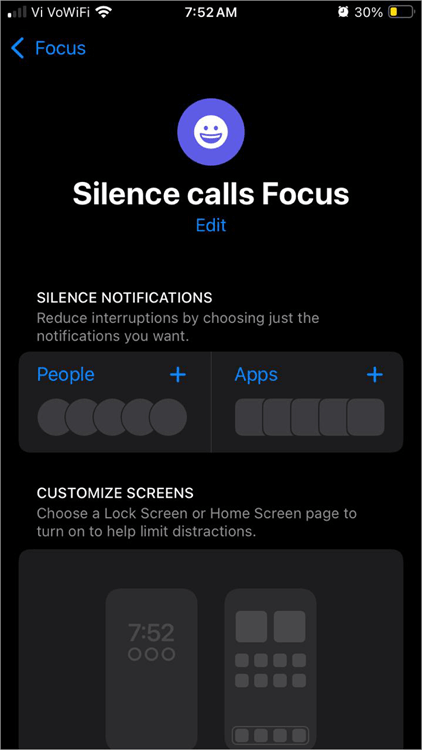
9. Add contacts here for silencing their calls and then tap on Done.
10. Now, whenever you swipe down on your iPhone screen, tap on Focus and then turn on the Silence Calls mode, the phone will then silence the calls from the contacts you have selected to be silent.
How to Allow Specific Unknown Calls on iPhone
There is no way an unknown caller will be able to bypass the silent unknown callers setting on your iPhone. If you want to urgently contact a person who has this setting on their phone, you can send them a text message to inform them you cannot make the call, so that they can either change the setting or call you back.
This feature is available in some models, and the steps below explain the procedure:
1. Go to Contacts as shown below.
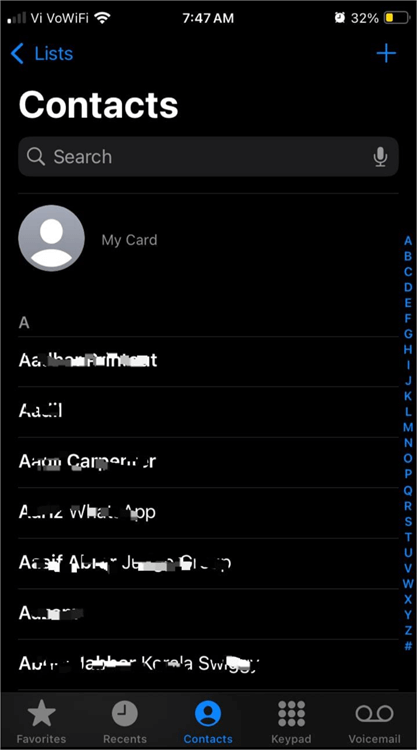
2. Open a contact
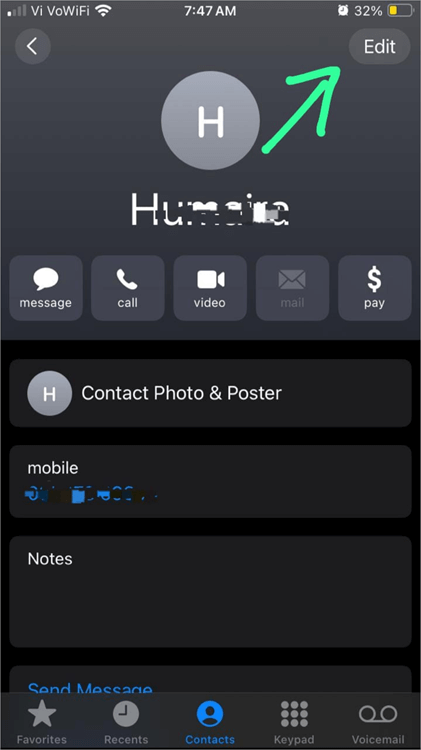
3. Tap on the Edit button as in the image below.
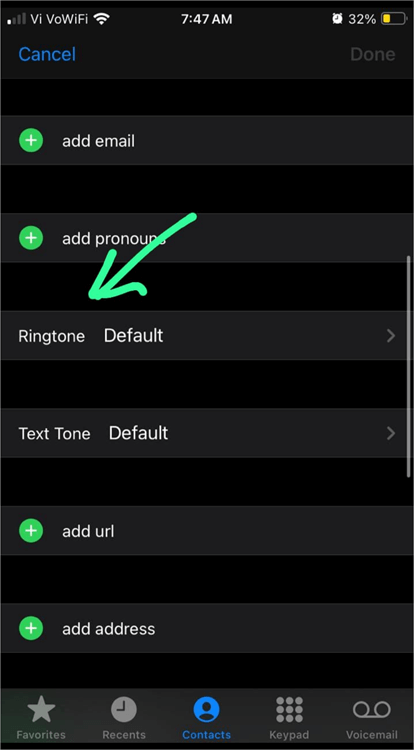
4. Select Ringtone as shown below.
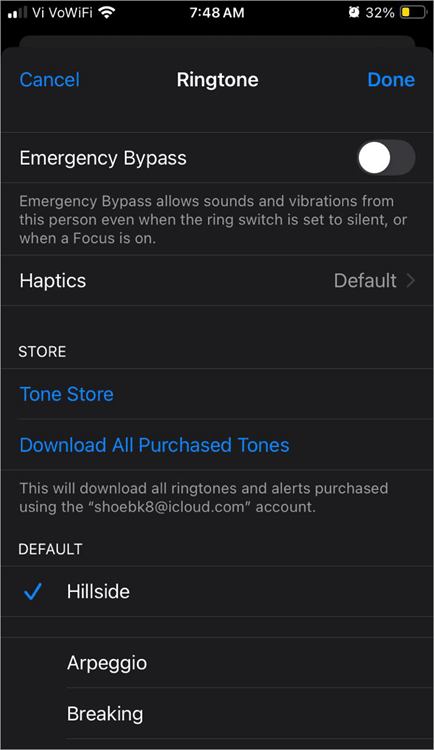
5. Turn on the Emergency Bypass button as in the image below.
How to enable or disable Do Not Disturb to Silence Calls
iPhone users can also try the Do Not Disturb feature for silencing all calls, alerts, and notifications when needed.
Here’s how to enable or disable Do Not Disturb:
1. Swipe up on your iPhone screen.
2. Tap on the Do Not Disturb option. In some devices, you’ll have to tap on Focus, then you’ll get the option Do Not Disturb, as in the image below.
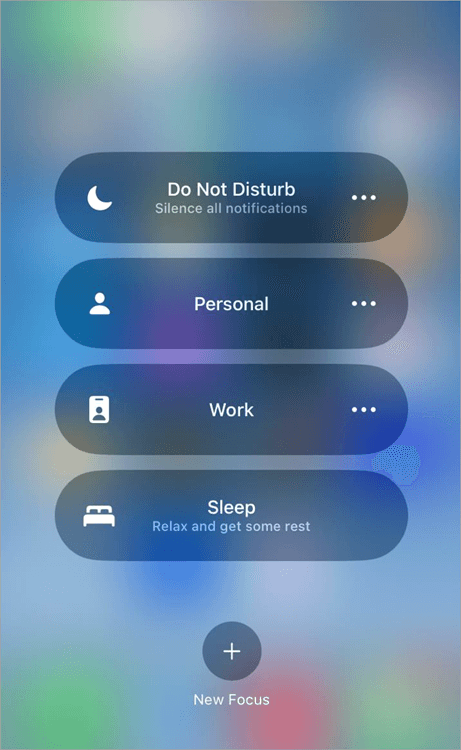
3. If the option gets highlighted like this, DND is turned on as shown below.
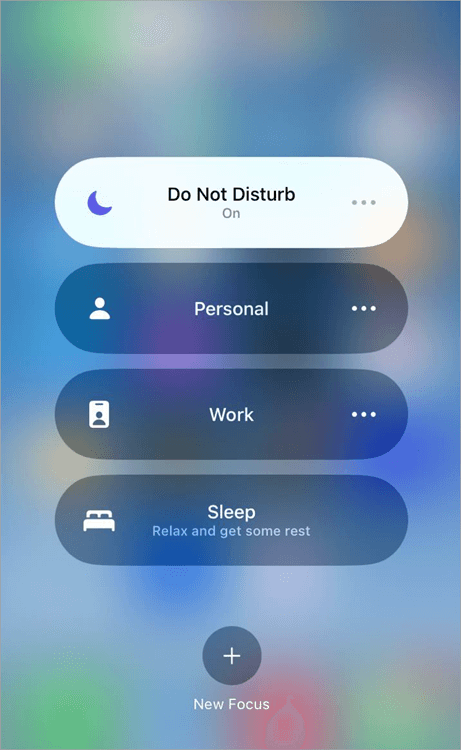
4. If the option is not highlighted, then DND is off as instructed in the image below.
5. Users can also turn DND on or off through Siri.
If you want to allow some contacts to bypass DND, do as stated under:
1. Go to Settings
2. Select Focus (in some models, the Focus option is not there in Settings. You can find it after swiping up on your iPhone’s home screen.)
3. Tap on the 3-dot menu near Do Not Disturb as depicted in the image below.
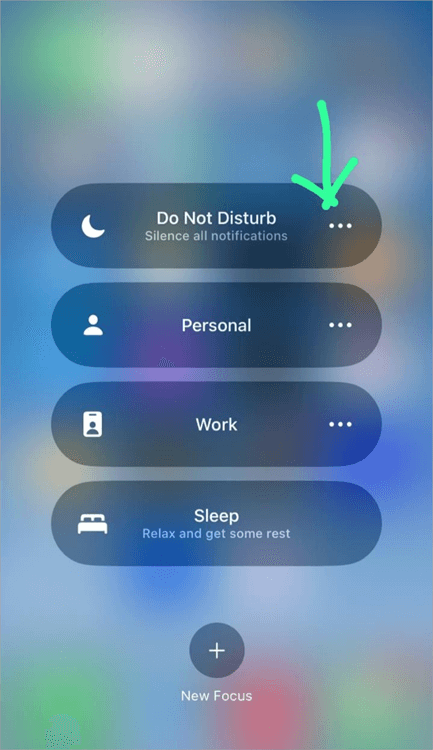
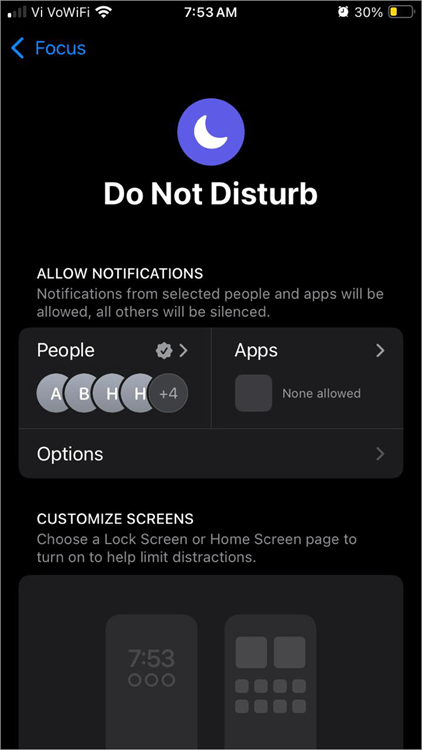
4. Now tap on People as shown below and add people to allow calls and notifications from them in DND mode.
Frequently Asked Questions
1. How to silence all calls on iPhone without blocking?
To silence all calls and notifications on your iPhone without blocking a contact, you can just put the phone on DND mode by swiping down on your iPhone screen and tapping on the Do Not Disturb option.
2. How do I silence a caller on my iPhone?
To silence calls from a specific contact on your iPhone, do as stated under:
• Go to Settings
• Tap on Focus
• Tap on the + icon to create a new Focus
• Name it – For example, DND
• Now select Silence Notifications From
• Choose a contact and tap on Done
3. How to remove silent mode in iPhone?
To turn off Silent mode on your iPhone:
• Go to Settings
• Tap on Sounds & Haptics
• Turn off Silent mode
4. How to override silent mode on iPhone?
Some models have this feature:
• Go to Contacts
• Open a contact
• Tap on Edit
• Select Ringtone
• Turn on Emergency Bypass
6. What’s the difference between iOS 18 and iOS 26 call blocking?
iOS 26 offers more advanced call screening features than iOS 18. The iOS 26, firstly collects information about the caller, then rings the phone, where users can choose to accept or decline the call, or even ask for more information. Plus, it has a Hold Assist feature that alerts the user when the caller on the other side is ready.
7. Do third-party call blocking apps work with iPhone?
Yes, you can use third-party apps on your iPhone for advanced call-blocking features. For this app to work, you would need to give it permission in the settings for accessing the Phone app and blocking calls. You can do this by following these steps:
• Go to Settings
• Select Phone
• Tap on Call Blocking & Identification
• Allow your app to identify and block calls based on your preferences.
8. What are the best free spam call blocker apps for iPhone?
One of the most popular Caller identification and spam caller apps is Truecaller. Other trusted apps include Hiya and Robokiller, which are free, highly useful apps with good customer ratings.
9. How do I enable carrier spam protection on iPhone?
Carrier spam protection can be enabled on an iPhone by following these steps:
• Go to Settings
• Select Phone
• Tap on Silence Unknown Callers
This will silence all carrier spam calls. Users can also install their carrier’s specific apps for spam protection features.
10. Why is call screening not working on my iPhone?
The call screening function may not function properly if:
1. Your iPhone is not updated
2. The feature may not be supported in the region you are in
3. There can be a bug, which can be fixed by restarting the phone
4. Make sure you have enabled call screening by following these steps:
• Go to Settings
• Select Apps
• Select Phone
• Tap on Screen Unknown Callers
• Now select Ask Reason for Calling
How to block unknown calls on iPhone (for all models and iOS versions)?
To block unknown calls on your iPhone, regardless of whether you have an iPhone 11, 13, 14, 15, 16, 17, or the most recent version of the operating system, head to Settings → Phone and activate “Silence Unknown Callers.” It will block calls from unknown numbers automatically.
How to stop unknown calls on iPhone completely?
There is an additional option if you want to prevent unknown calls fully – use the “Silence Unknown Callers” function and set your phone to “Focus mode,” allowing only calls from your contacts list.
Can I allow only contacts to call my iPhone?
Yes, it is possible by opting for Focus mode on your device and then allowing calls from only your contacts.
Why am I still getting unknown calls on iPhone?
This is possible if the contact is registered using Siri recommendations, email address, or even past interactions on your phone. Furthermore, there is also the possibility that calls from apps or carrier-level services are making it past your iPhone restrictions.
Conclusion
Smartphones today offer several features for easing the day-to-day tasks. Plus, you can easily change any feature as per your needs instantly, at any time. But sometimes people may not find it easy to look for a simple feature, due to the phones being loaded with a huge number of features.
So in this article, we provided the viewers with steps for:
- How to silence unknown callers on iPhone
- How to remove silent unknown callers on iPhone
- How to filter unknown callers on iPhone
- How to filter spam callers
- How to silence calls from specific contacts
- How to use the DND feature on an iPhone
Research Process: The total time involved to complete and publish this article is approximately 33 hours. This content was created through a structured research approach to ensure accuracy and reliability.
For more iPhone-related guides, you can explore our range of tutorials below:
- Trendy iPhone Home Screen Layout Ideas
- How to Turn Off Location on iPhone Without Notifying
- 3 Best Ways on How to Unlock a Disabled iPhone [iOS 16 Beta]
- How to Remove Background From a Picture on iPhone
- How to Turn Off SOS Mode on an iPhone Quickly
- Find My iPhone Not Updating Location
- How to Ping iPhone from Apple Watch and Vice Versa
- How to Use Apple AirTag for Android Devices
- How to Fix If Your Apple CarPlay Not Working
- How to Request Desktop Site on iPhone
Was this helpful?
Recommended Reading
-

Here we will explore multiple ways to understand how to Share Your Location on iPhone with others: Sharing live locations is a useful thing today. It is especially useful when you don’t know the exact address and you would like to tell someone where you are. Be it an Android…
-
This tutorial is a complete step-by-step guide that explains the top 3 useful methods to find ways on how to Unlock a Disabled iPhone: Security is the best part of having an iPhone. No one can unlock your phone and access your data unless they know the password. As much…
-
Deeply understand how to pin a location on Apple Maps instantly. Acquire knowledge on how to drop Pin on iPhone to save your favorite spot & share the exact location with friends and family: I must say, Apple Maps is a great deal that users get with an iPhone while…
-
Delve deep into the quick ways to fix find my iPhone not updating location error. This guide will help you to identify the causes behind this issue and suggest all possible solutions to get rid of the problem: Why is Find My Location not updating? If you’ve asked this question…