Did you accidentally trigger the iPhone’s SOS Mode? Discover how to turn off SOS mode on your iPhone in seconds. Get to know the main reasons to remove SOS from iPhone and how to overcome when SOS is stuck:
Your iPhone can make emergency or SOS calls when in and out of network coverage, and the mode is enabled by default on all iPhones.
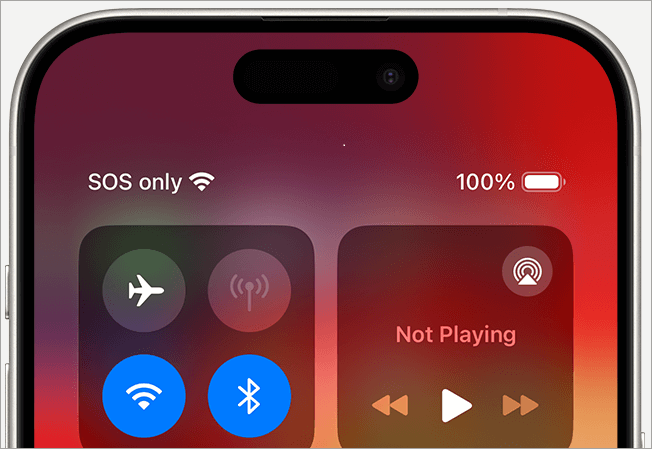
SOS status appearing on the status bar on the device screen means it is connected to the cellular network but can still make emergency calls. In contrast, a SOS Only status means the device is not connected to a cellular network and can only make emergency calls.
How to Disable SOS on iPhone: Simple Steps
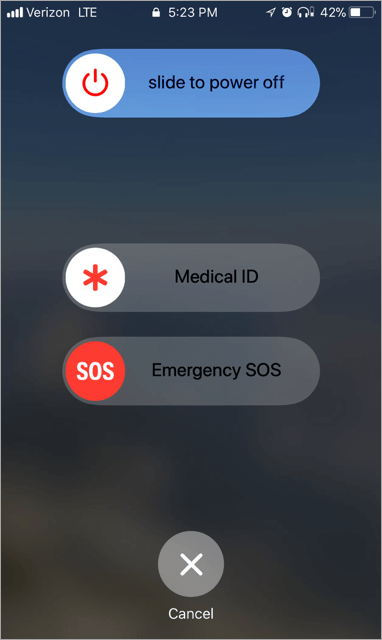
Emergency SOS calling is a free iPhone call service through which the iPhone automatically activates to call emergency contacts (which either comes stored or stored by the user) when the iPhone’s side button is pressed five times to alert emergency service of trouble they can attend or respond to immediately. Pressing one of the volume buttons five times may also activate SOS calling if Auto Call is on.
While still a useful feature, SOS can be frustrating especially if or when you are unaware of how it is activated and set up to call emergency numbers. Nevertheless, deactivating SOS on iPhone is easy.
Deactivating SOS does not mean you can no longer dial SOS emergency contacts on your iPhone: Turning it off simply deactivates the automation functionality of the SOS feature. Therefore, deactivating it eliminates the possibility of erroneously dialing emergency contacts.
This tutorial explains SOS mode and how to deactivate it step by step.
What is SOS Feature For?
The SOS feature on your iPhone is used for calling emergency services to alert them you are in trouble. It can be helpful to normally have it on, except if and when it is likely to be activated erroneously.
This SOS automation will be very helpful just in case you are in an emergency. Some iPhones will have sensors to automatically detect weird handling/displacements/positioning and automatically dial the emergency contacts, which means you will need to do nothing to activate the call.
Additionally, the emergency may not allow you the adequate time needed to manually dial or find emergency contacts on your iPhone before letting the emergency service aware of the situation.
[image source]
Why is Your iPhone in SOS Mode
Your iPhone may enter into SOS mode for several reasons. One, you may travel through dead spots in which even the most expansive networks have no coverage.
The SOS status icon may also appear when your cellular network provider is experiencing service outages. The icon may also appear on the screen if cellular data is off.
Quick ways to Turn off SOS on iPhone:
- Go to Settings -> Emergency SOS -> Toggle off the options (Read the details below)
- Ask Siri to turn it off by saying ‘Hey Siri, turn off Emergency SOS’
Further Reading => How to Change Siri Voice on iPhone
When is the iPhone on SOS Mode
- If the phone dials an emergency contact (e.g. 911) when the side button or one of the volume buttons is pressed five times, you are on SOS active status.
- The SOS status icon also appears on the screen when you are out of Wi-Fi connectivity and thus depending on cellular connectivity, but there is no cellular network coverage.
- The emergency calls function through satellites. SOS mode works on iPhone 15, iPhone 15, iPhone 16, or iPhone OS 18.2 and later.
Tip: Check with SIM registration services and check that your SIM is allowed to access the network. Sometimes, you might need to update your iPhone or iPad if other methods listed below do not work.
Reasons to Turn Off SOS
- Disabling the SOS mode can be better and safer sometimes. For instance, accidentally activating your iPhone to call the SOS service might slow a genuine call.
- Children who love to use your iPhone may cause a false alarm by accidentally activating the SOS calls. Deactivating the SOS before you give the children your iPhone can be a good idea.
- Putting the phone in tight pockets can accidentally activate the Emergency SOS mode when the phone buttons are accidentally pressed when walking, working out, or sitting down.
- Sometimes the iPhone can self-activate the emergency SOS calling when you are doing something risky, such as driving bumper cars and riding roller coasters. This way, the sensors needed to activate the SOS calling when something terrible happens may erroneously be activated. Thus, you may need to first turn off the SOS mode before enjoying these activities.
How to Turn Off SOS Mode on iPhone: Step-by-Step Guide
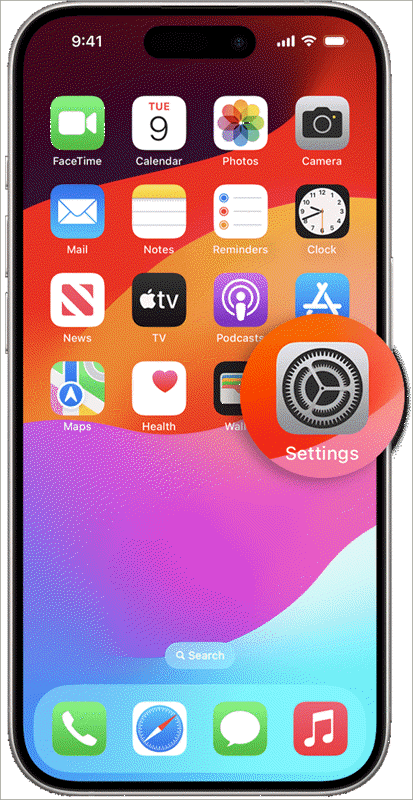
Step #1: Tap or go to Settings, scroll down the list of Settings menus, search for Emergency SOS, and select by tapping it.
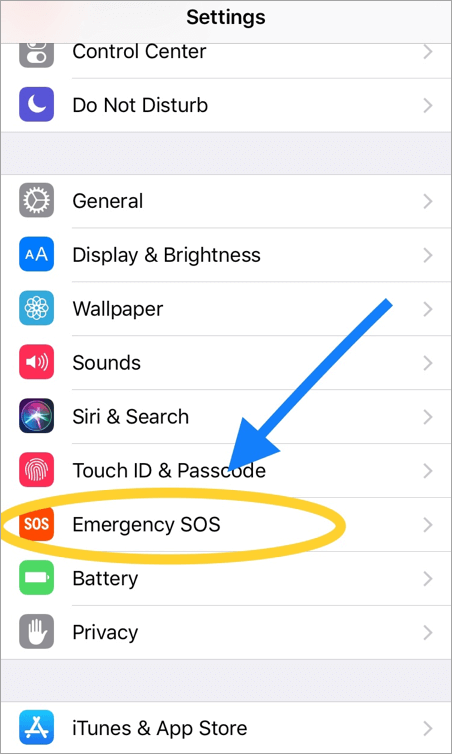
[image source]
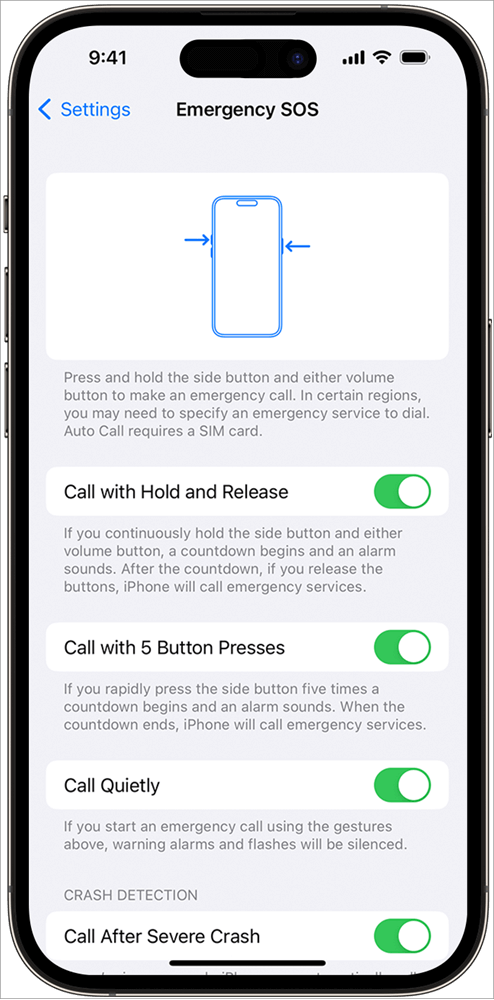
Step #2: On the Call with Hold and Release option, tap to slide the small white icon to toggle off the status. Also, toggle off the Call with 5 Button Presses option.
[image source]
Also, toggle off the Call After Severe Crash option.
Toggling off the three options will completely turn off the SOS on the iPhone.
If the iPhone has Auto Call under the Emergency SOS menu, toggle it off to turn off the SOS Emergency service. This will prevent the iPhone from automatically dialing emergency service. Toggle off the option, confirm that you intend to toggle off, and a confirmation may pop up to ensure you do not want to turn off the feature accidentally.
How to Take off SOS When the Phone is Stuck
It’s hard to turn off SOS using the method I prescribed above if/when your iPhone is stuck. For instance, signal issues with your cellular network or bugs can render the iPhone responsive.
Phones sometimes also become irresponsive due to Wi-Fi issues, delays that arise when the phone is updating, and when an app crashes. Here is how to get out of such a challenge.
Try this Fast Fix:
#1) Turning on and off the Airplane Mode: Turning on the Airplane mode on any iPhone will disable cellular, Wi-Fi, Bluetooth, and other connectivity. Turning on the Airplane mode temporarily will solve issues of the phone getting stuck as a result of connectivity issues. It will also reset the SOS.
On your iPhone, swipe down from the top of the Control Center and double-tap the Airplane icon. You may also need to disconnect and reconnect your cellular network as a troubleshooting method.
#2) Toggle off Cellular Data: This also resets the SOS mode. Swipe down from the top of your Control Center and double-tap the antenna icon.
#3) Switch your Phone off and Back on: Turning off your phone and re-switching it on will reset all the applications and solve multiple temporary issues on your iPhone. It can solve many of the temporary issues affecting SOS, such as app crashes and connectivity delays.
#4) Check with your cell phone provider: Sites such as the Downdetector will show if and when networks of many network providers are down. You can call customer care or other departments to confirm and ask for a fix or simply wait for them to resolve the problem. Type in the name of your service provider to see if their network is online and working normally.
Tip: In addition to trying Airplane mode and re-connecting to the cellular network, make sure you are in an area with the cellular network, ensure your device is not blocked or barred from receiving cellular services and is set up with the right data plan.
Few more fixes to try:
To rid off No Service, SOS, or searching for your iPhone or iPad statuses, check out these fixes:
If you have inserted a new sim card to your device: You can try also installing carrier settings update by going to Settings -> General -> About and seeing if an update is available. If so, download and install. To see the version of carrier settings, go to Settings -> General -> About and look next to carrier. Downloading the carrier settings may be needed if you insert a new SIM card into your iPhone and iPad.
If you have a Dual SIM: If you have an iPhone with dual SIM, go to Settings->Cellular and tap the cellular line you want to review. See that it is turned on. If it is off, turn it on and check if you have a service connection. If you do not see a cellular line, contact the carrier to set up an eSIM or insert a physical SIM. Remove and re-insert the sim if it is a physical. If it is damaged or doesn’t fit well on the tray, you may have to replace it.
For those traveling internationally: Ensure that your device is set up for data roaming. Go to Settings tap Cellular or Cellular Data and then turn on Cellular Data. If the device has a single SIM, then tap Cellular Data options. If it uses Dual Sim or Dual eSim, turn on Cellular Data, tap the number you want to modify, and then tap Cellular Data options. Turn on Data Roaming.
If the device uses 3G contact, your carrier to discuss your options. If it uses 5G, update the iPhone or iPad to the latest version of iOS or iPadOS (for cases of iPhone 6 or 3rd generation iPad or later devices). Go to Settings -> Cellular, tap Cellular Options for iPhone, and turn on Enable LTE.
If it is an iPad navigate to Settings -> Cellular and turn on LTE. If the SOS, SOS Only, No Service, or searching your iPhone or iPad problems persists, contact Apple, device manufacturer, or service provider.
Using Siri to Deactivate the SOS Service
Step #2: Ask to turn it off by saying ‘Hey Siri, turn off Emergency SOS’ and it will turn off the service.
Step #1: Open the Siri app on your iPhone.
Recommended reading => How to track a phone without them knowing
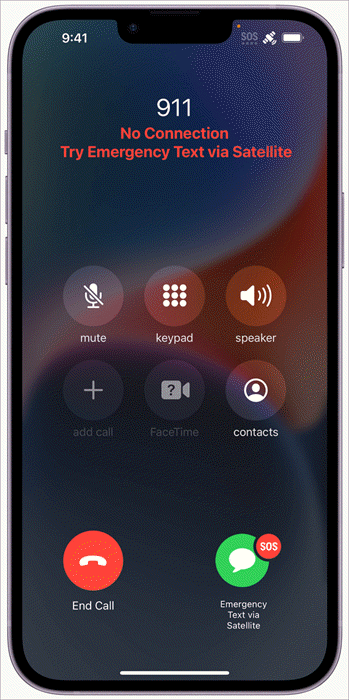
What is Apple’s Emergency SOS via Satellite
iPhone 14 users can also text emergency service contacts via Emergency Service through satellite when they are off cellular and Wi-Fi coverage. With iOS 18 and later, users can leverage the iMessage to send text messages via satellite when they are off cellular network coverage.
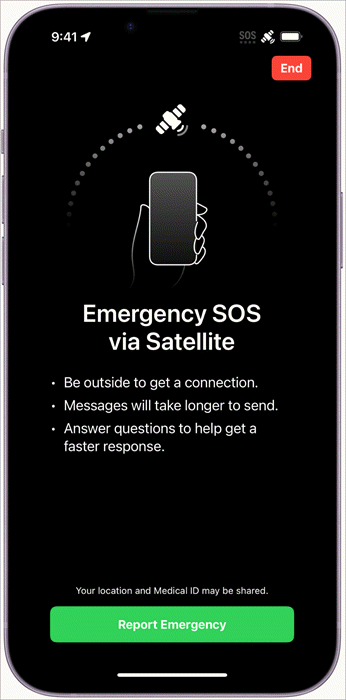
[image source]
The below video shows how To Use Emergency SOS Via Satellite on iPhone 14 & iPhone 14 Pro!
Tips to Manage SOS on iPhone
Turning off SOS may mean that you fail to reach emergency services quickly in case you want to alert them of a crisis around you.
- Customize emergency contacts so that you will have the right people alerted whenever you utilize SOS.
- Learn and practice triggering SOS to become familiar with how it works, just in case you may need it.
- Confirm that your local emergency services support the SOS feature.
- You can still manually dial emergency contacts even when SOS is turned off. The only thing you lose by deactivating the SOS feature is the automation of the SOS calling and management.
Suggested Reading => Top free Cell Phone Tracker Apps
Frequently Asked Questions
1. How do I turn off emergency SOS on my iPhone?
Emergency SOS can be turned off in two ways: using the device Settings menu and the Siri app. Navigate to Settings by tapping the set of gear icon from the Control Center (go to Control Setting by swiping up). Search for Emergency SOS.
Deactivate or toggle off all the options under the Emergency SOS setting menu e.g. Auto Call, Call with Hold and Release, Call with 5 Button Presses, and Call After Serious Crash.
2. What is emergency SOS on iPhone?
Emergency SOS is a service on Android and iPhone used to make quick dial to emergency services e.g. 911 to inform them of situations that may need their attention.
It is automatically activated on an iPhone by pressing the side or one of the volume buttons five times.
Further Reading => How to Fix When Volume Keeps Going Up Itself
It can also be activated automatically without the user’s action if the emergency is very serious, as iPhone sensors would estimate. It can also be deactivated or turned off to avoid situations where it would likely be activated erroneously.
3. What if my iPhone is stuck on SOS emergency mode?
Try restarting the iPhone. If unable, try forcing a restart. Press and release the Volume Up button, press and release the Volume Down button, press and hold the side button, and release the side button when the Apple logo appears.
Also, try putting it into Airplane mode.
Swipe from the top of the Control Panel and tap the antenna icon twice. Also, try to toggle off and back on your cellular data, and also check if your cellular service provider is operational or down. While setting to recovery mode is an advanced option, it should be tried when all the other techniques fail.
4. How to turn off emergency calls on iPhone?
Once the emergency call starts, press the red button to end the call. To turn off the emergency SOS service and avoid cases where the emergency calls can erroneously be called up, navigate to Settings -> Emergency SOS and toggle off Auto Call on your iPhone.
If there are other options under these settings, such as Call with Hold and Release, Call with 5 Button Presses, and Call After Serious Crash. Also, use Siri to deactivate the SOS mode.
5. What does SOS mean on iPhone?
There is no special significance in the three letters, but SOS is used in Morse code as a distress signal – a way to call for help during an emergency. When marked as SOS, it cannot be confused with other signals.
SOS emergency calls on iPhones and Android are made by phone owners/users to alert emergency contacts such as 911– as assigned in phone registries – of emergencies such as accidents, earthquakes, storms, etc. where the dedicated emergency service attends to the situation and provides the needed help.
Conclusion
Turning off the SOS on an iPhone is a straightforward process and can be completed in just a few steps.
While it can help alert emergency services, it can be of a bother when triggered erroneously or when the emergency contacts are wrong: examples include when the phone is being used by children or when you wear tight clothes and have the iPhone inside the pocket.
Time taken to review: 24 hours
Was this helpful?
Recommended Reading
-

Here we review and compare the top iPhone Data Recovery Software to help you select the best iPhone recovery software as per your requirement: You’re always vulnerable to data loss whether you’re using a computer, smartphone, or another device that can store data. Similarly, it does not matter if you…
-

Read this comprehensive review to compare and select the right spyware for iPhone. Analyze the technical specifications & features to select the best iPhone spy apps of your choice: Spy apps refer to smartphone surveillance applications that are helpful for parental control and employee monitoring. There are many apps that…
-
Easily mirror your screen to a TV or any smart device with these top Mirroring Apps. Pick the best Screen Mirroring apps of your choice to enable fast, and seamless mirroring with great quality: Screen Mirroring is a modern-day technique that allows you to easily and quickly share a screen…
-
Explore our list and comparison of the most popular Call Recorder Apps for Android and iPhone to select the best Phone Call Recording app: A call recording app is basically a mobile application that allows its users to record their outgoing and incoming calls. There are several valid reasons one…
-
Compare the top Parental Control Apps to discover the Best Parental Control apps for iPhone and Android most suited for your children: The rapid advancement of technology poses a risk to children. Various studies have shown negative physical and mental effects of smartphone usage at earlier ages. Parental control apps…
-
Explore the top and best iPhone Chargers with pricing, technical specifications, and comparisons to select the fastest iPhone charger as per your needs: The compatible iPhone Charger that you are using might just not be good enough. It's time to pick out an iPhone charger that does the job faster…
-
We did a comprehensive review of Best Phone Spying Apps with features, comparisons and pricing. Select the best Spy Phone App from the list below. Phone tracking spying applications have developed at a rapid pace, so it is not an easy task to make the right selection in the year…