


Wondering how come my volume increases automatically? Here is the list of precise reasons and fixes for your problem with volume levels on iPhone, Android, AirPods, and PC.
Did you notice that your phone, AirPods, iPad, or PC started raising the volume by itself? This occurs due to factors like software problems, Bluetooth settings, accessibility options, broken accessories, or even hardware problems.
In this step by step guide, you will learn why does my volume keep increasing on its own and how to solve the problem on iPhone, Android, AirPods, iPad, and PC using precise steps.
Why Does My Volume Keep Going Up By Itself?
When your volume is keeps increasing automatically on its own, the most likely reasons for this are jammed volume keys, controls from Bluetooth devices, accessibility options, audio improvements, software glitches, or broken headphones. Fixing the problem would involve rebooting the device, disabling Bluetooth accessories, upgrading the software, and adjusting volume options.
iPhone & Android Volume Going Up By Itself: Troubleshooting Steps
The following troubleshooting techniques will help you to locate the cause behind the rising volume levels of your phone automatically, whether you use iPhone, Samsung Galaxy, Google Pixel, or any other Android phone and with step-by-step solutions you can fix it instantly.
So, without much further ado, let’s dive in.
Here is the video guide on how to fix volume automatically going up/down on Android:
Common Causes: Why Volume Keeps Going Up By Itself?
You can’t really solve a problem if you don’t know what caused it. So, ask yourself, why does my volume keep going up by itself?
#1) Software Issue
This is probably the most common cause of this problem. A software issue, bug, or glitch can affect your device’s performance in numerous ways. It could cause your computer’s or phone’s volume to fluctuate automatically.
#2) Hardware Issues
Dirt or dust can impact the volume button on your device, resulting in the volume jumping up. Sometimes these buttons can get stuck after repeated use. Dropping your phone or computer from a significant height can also trigger this problem.
#3) Connected Headphones
A headphone or speaker, whether connected through a wire or Bluetooth, will affect your device’s volume. Some of these auxiliary devices come with their default volume settings, overriding the built-in settings of your phone or computer.
You may see a sudden increase in volume the moment you connect your device to an external speaker or headphones. Of course, you can adjust the volume here manually after these devices are plugged in.
#4) Third-Party Software
Some media or call-centric applications also have their own volume controls. Their installation into your system can interfere with its default volume settings, causing the sound to fluctuate automatically. You may notice your volume jumping up or down when using software like Discord, VPN, or a VoIP tool.
Volume Going Up by Itself: Quick Fix Table
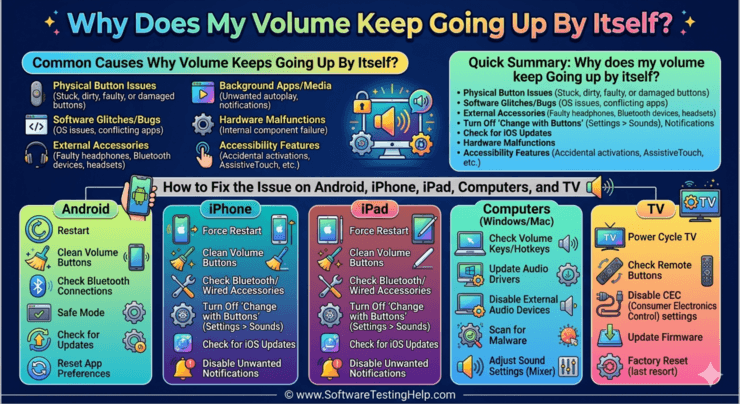
| Devices | Most Common Cause | Quickest Fix |
|---|---|---|
| iPhone | • Outdated OS • Software Glitch • Damaged Volume Button • Dirt and Dust • Connected Bluetooth Devices | • Update OS • Restart Phone • Disable Audio Ducking and Attention Aware Features • Clean the phone’s crevice • Impose a volume limit |
| Android | • Outdated OS • Software Glitch • Damaged Volume Button • Dirt and Dust • Connected Bluetooth Devices | • Update OS • Restart phone • Repair or replace volume button • Clean phone • Enable Media Volume Sync via Bluetooth settings |
| Computers | • Damaged port • Improperly connected wired headphones or speakers • Misconfigured audio settings • Outdated or missing driver | • Replace or use another port • Disconnect and reconnect the devices • Reconfigure or restart Windows audio services • Update the latest driver |
| Smart TV | • Damaged Port • Wired device not connected properly • Outdated Software • Damaged remote • Dust and dirt on TV | • Change or replace the port • Disconnect and reconnect the device • Update OS • Replace or repair remote • Clean your TV |
How to Fix Volume Going Up By Itself (Android, iPhone, PC, Smart TV)
Now that we know what can trigger this problem, we are in a better position to solve it.
Let’s find out how to fix this issue on different devices:
#1) On iPhone and iPad
Below are some effective tips for folks who are wondering – Why does my volume keep going up by itself on iPhone or iPad?
i) A Soft Reboot
You can easily fix a glitch or software issue with your phone using a quick, soft reboot. Just press and release the volume up key, followed by the volume down key. Finally, press and hold the side key. Release the key when you see the slider on your iPhone’s screen.
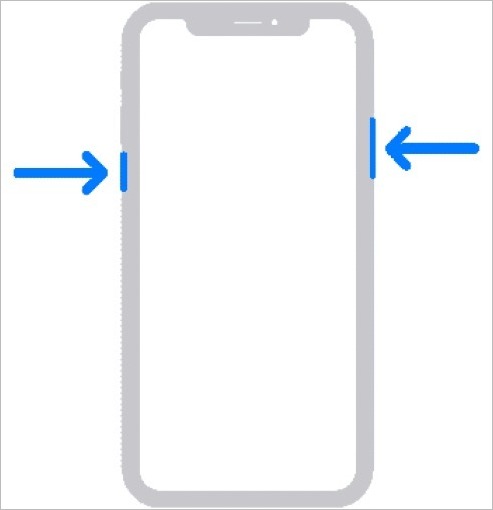
[via Apple Support]
Drag the slider across your screen to switch off the iPhone. After 30 seconds, press the side key again to restart the phone. Check the volume to confirm whether the problem has been solved.
Restarting an iPad is also this simple. Press and hold the Home button alongside the top button until you see the Apple logo. Release to restart.
ii) Update your Device
An outdated OS is bound to suffer from several problems, including volume jumping up on its own. It is always recommended to keep your device up to date. Updating your iPhone or iPad is quite simple.
Here’s what you need to do:
- Tap on Settings
- Navigate to General
- Tap on Software Update
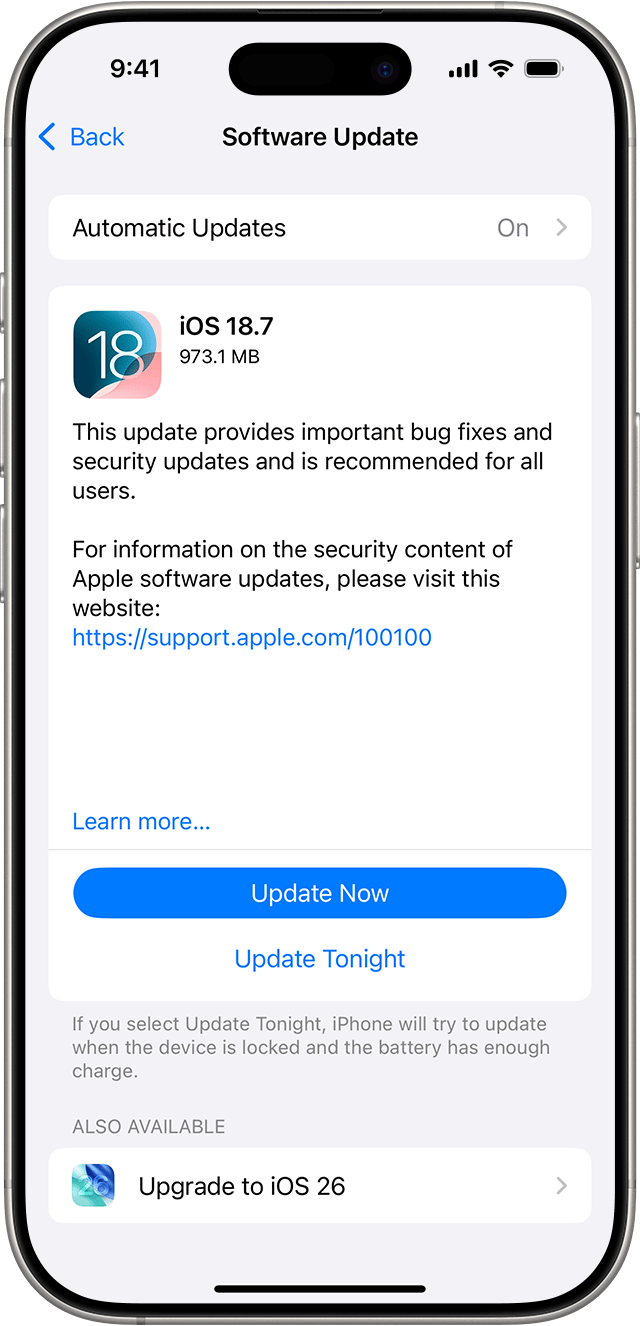
- If an update is available, tap on Download and Install.
Reboot the device after the update is complete and see if this stops the volume from fluctuating on its own.
iii) Use your Touch Gesture Carefully
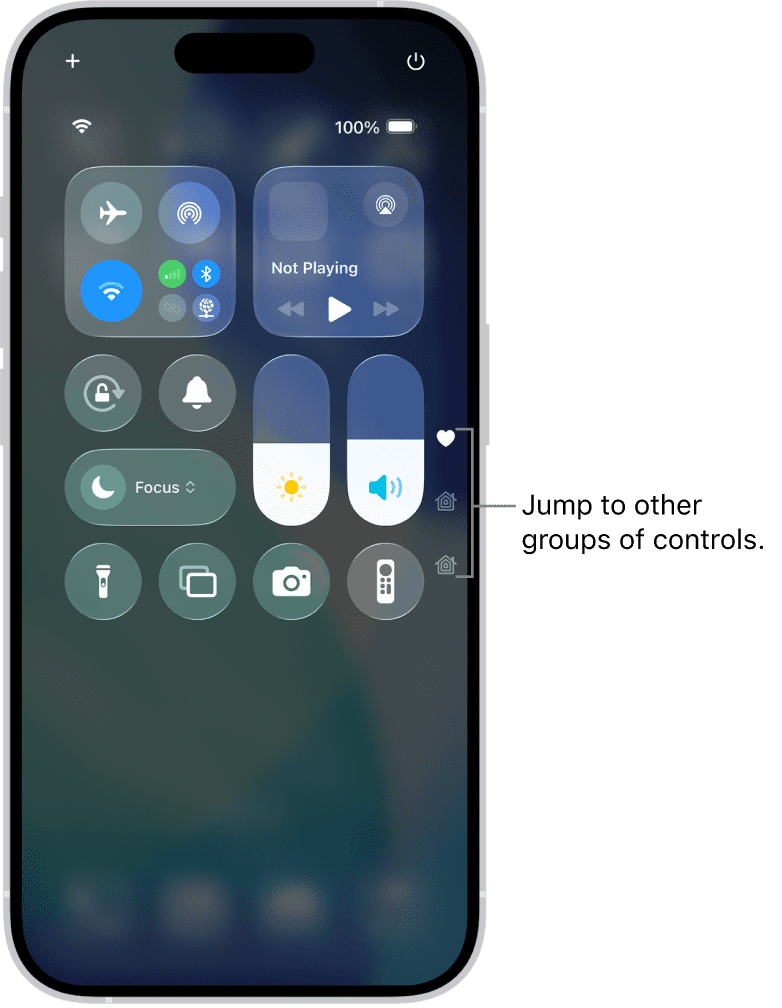
People who control their iPhone’s volume through the control center may face this issue more than those who use the side buttons. My advice to you is to be gentle when you lower the volume on your phone or iPad in the control center to avoid a flicking motion.
[via Apple]
You want the touch gesture to register completely with your device. So, tap on the volume bar and gently drag it down. Alternatively, tap and hold the volume tile for a while to open it in full-view, thus affording you better control.
iv) Impose a Volume Limit
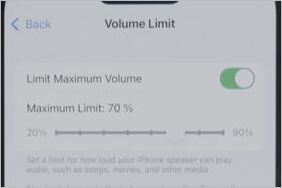
There is a great feature available on devices with iOS 18.2 or later, which basically allows you to impose a volume limit. You can set your volume at 80% max via this feature, and the device will respond by making sure the volume never jumps beyond the set percentage.
Simply follow these steps:
- Go to Settings
- Tap on Sound and Haptics > Volume Limit
[via Foxtecc]
- Drag the slider to set a desired volume limit.
Consider an action of last resort. If everything you’ve tried has failed, this extreme measure could prove effective in fixing the volume fluctuations on your iPhone.
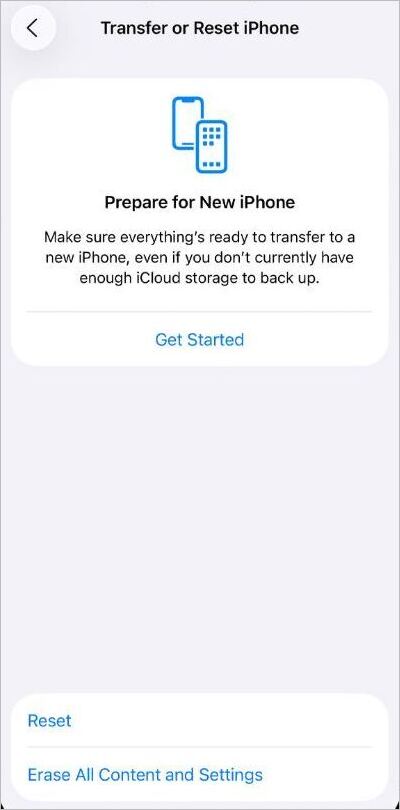
Here’s how you factory reset your iPhone and iPad:
- Go to settings
- Tap on General > Transfer or Reset iPhone
- Tap on Erase all Content and Settings
- Enter your Apple ID and Password
- Confirm to erase all data.
vi) Disable Attention Aware
Attention Aware is a feature that lowers your phone’s volume when you stare at its screen directly. This is also a feature that can make your phone’s volume go up when you aren’t paying attention to it. Naturally, you’ll need to disable this feature to see if your phone’s volume gets back to normal.
- Go to Settings > Face ID and Passcode
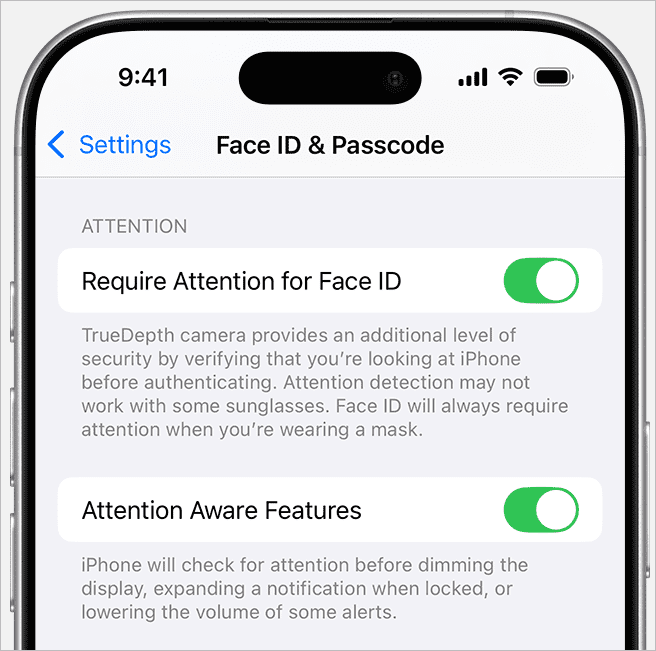
- Toggle the switch off against “Attention Aware Features”.
vii) Disable Audio Ducking
With Audio Ducking enabled, your phone will automatically lower the volume of one audio source when another is also active at the same time.
To disable Audio Ducking, do the following:
- Go to Settings > Accessibility
- Select “Voice Over” > Audio
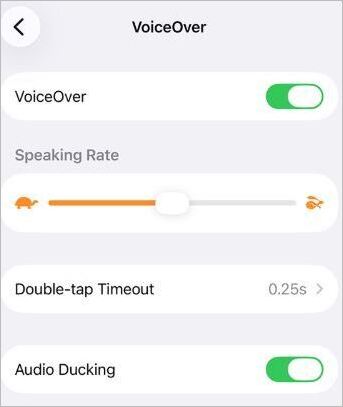
- Toggle the switch off against “Audio Ducking”.
#2) On Android
Here are a few tips for folks who are wondering: why does my volume keep going up by itself on Android?
i) Soft Reboot
If it worked on an iPhone, it will work for your Android device as well. Soft rebooting an Android smartphone is very simple. All you have to do is press and hold the side key until your screen darkens and a reset button appears on it.
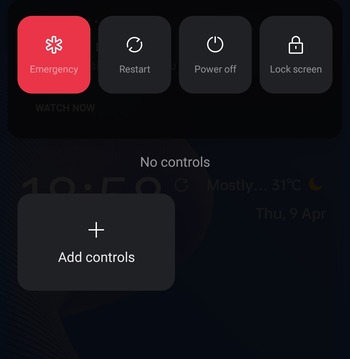
Tap on this reset button to reboot your phone. Check how your volume is acting now. Hopefully, this did the trick. If not, we still have a lot up our sleeves.
ii) Update Your Phone
Android devices are even more susceptible to bugs and malware than iPhone devices. You can avoid these software issues by keeping your phone up-to-date.
Here’s how you update your Android phone:
On Samsung Galaxy phones, you’ll need to do the following:
- Go to Settings
- If a software update is available, you’ll see a prompt alerting you to a new version.
- Tap it, then tap Install to get the update.
On a general Android device, the navigation would be something like this:
- Go to Settings
- Tap on System > Tap on System Update.
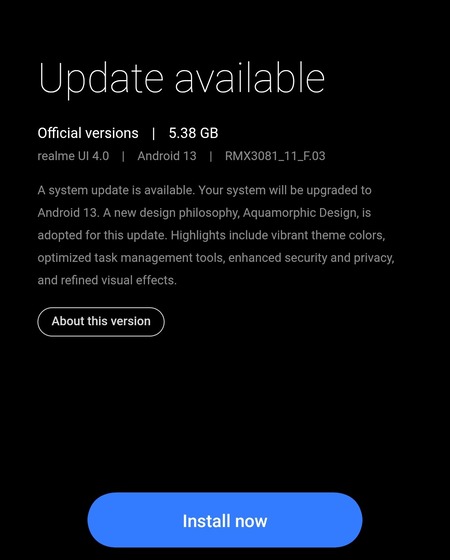
- If an update is available, click on Download and Install.
iii) Factory Reset Your Phone
Again, if all else fails, I would suggest factory resetting your Android.
Here’s how you do it:
- Go to Settings
- Tap on System
- Tap on Back Up and Reset
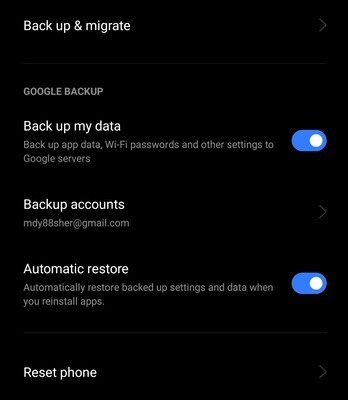
- Select Reset Phone.
The reset should fix this problem if it was software-related.
iv) Boot in Safe Mode
Troubleshooting is easier when your Android is in safe mode.
Here’s how you can boot your device in safe mode:
- Switch your phone off
- Press and hold the power button until your phone’s manufacturer logo appears.
- Immediately hold the volume down button.
- Keep holding until your phone restarts and the “Safe Mode” option appears on the screen.
v) Media Volume Sync
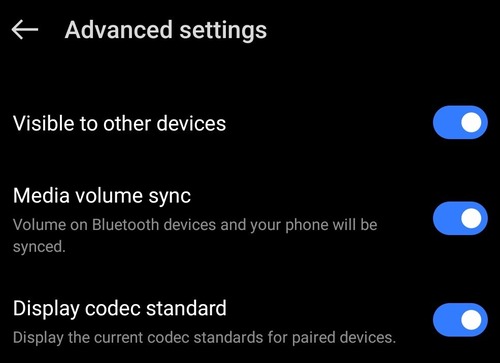
Media volume sync issues arrive when your phone and connected Bluetooth devices operate independently, thus causing erratic volume fluctuations. The best way to resolve this issue is to go to your phone’s Bluetooth settings and ensure the option “Media Volume Sync” is enabled.
vi) App Specific Issue
Certain apps like Spotify have built-in volume normalization features, which keep the volume to a consistent level at all times, preventing any fluctuations.
If you are experiencing erratic volume changes when using an app like Spotify, simply go to that app’s audio settings and make sure volume normalization features are enabled.
#3) On Computers (Windows and Mac)
Those who are wondering, why does my PC volume keep going up by itself, allow me to demonstrate what you can do.
i) Check Plugged Devices
We start by performing a physical check of your computer. Check whether any connected speaker or earphones were plugged properly into your computer. Remove and plug it back in for good measure.
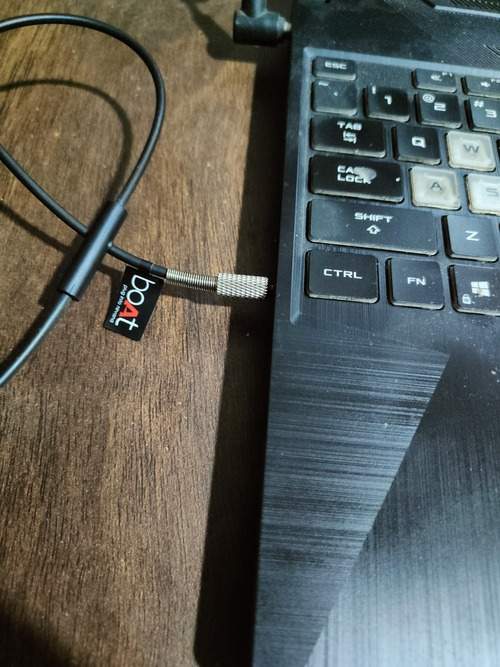
Also, remove any other connected device, like a USB drive or mouse, to ensure they aren’t interfering with the computer’s volume operations. Monitor the volume now to see if that has resolved the problem.
ii) Check Bluetooth Connection
Similar to smartphones, Bluetooth-connected speakers and headphones can interfere with your computer’s built-in volume settings. So, disconnect these devices or disable Bluetooth entirely and monitor the computer’s volume.
Adjust the volume manually once a Bluetooth-enabled device is connected to your computer to get the desired audio and sound quality.
iii) Update Drivers
Both Mac and Windows PC receive updates automatically if you haven’t manually disabled this feature. These updates also result in the device’s audio drivers being upgraded occasionally as well.
If you find the volume fluctuating, it could be because of an outdated audio driver.
Here’s how you update a driver on Windows:
- Go to Start
- Select Device Manager
- Click on Sound, Video, and Game Controllers
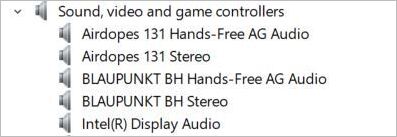
- Right-click your audio device and from the drop-down menu, select Update Driver.
- Select “Search Automatically for drivers”.
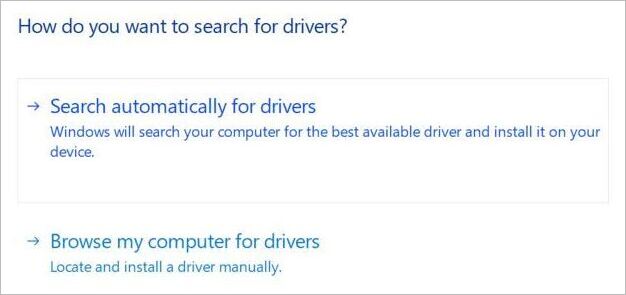
- Select the update and click on Download and Install.
Alternatively, you can choose to update your Windows OS. That can also result in your audio driver being updated and the issue plaguing it being fixed.
Here’s how you do it:
- Open Windows Settings
- Select Update & Security

- Select “Check for Updates”.
- If an update is available, you’ll see an option to install it.
- Click on “Install Now” to get the update.
On Mac, the drivers automatically update if your OS is up-to-date. So, make sure your Mac is running the latest OS version.
- Click on the Apple icon on your Mac screen.
- Select System Settings
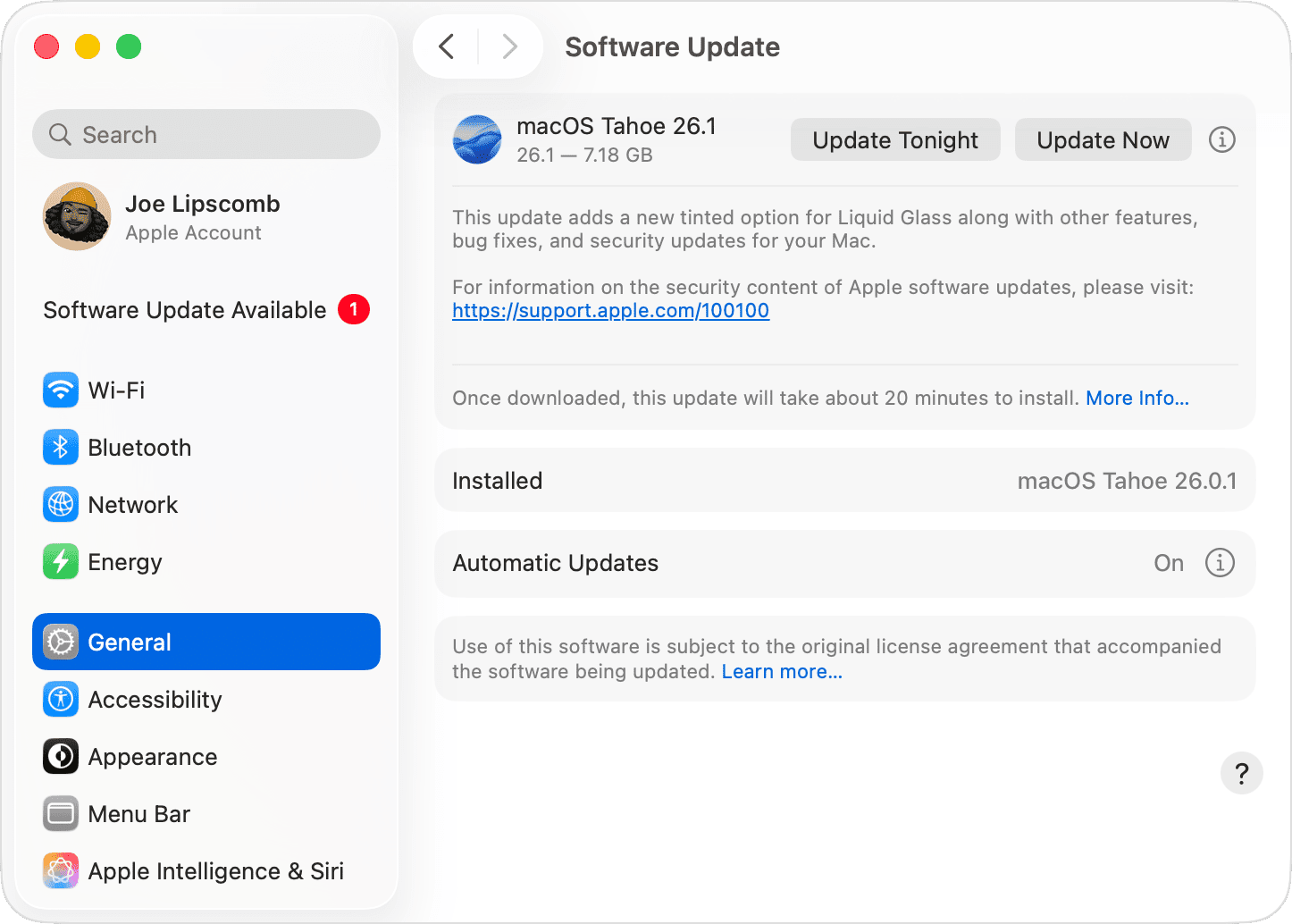
- Select Generate > Software update.
This should do the trick.
iv) Give Executive Control Over Audio to Apps
If there are two or more apps on your Windows PC, they’ll try to use your computer’s audio output at the same time, thus causing volume fluctuations. You can easily resolve this problem by granting the app you are currently using executive control over audio output.
This is how you do it:
- Right-click on the Speaker icon.
- Open Sound Settings > Click on Sound Control Panel.
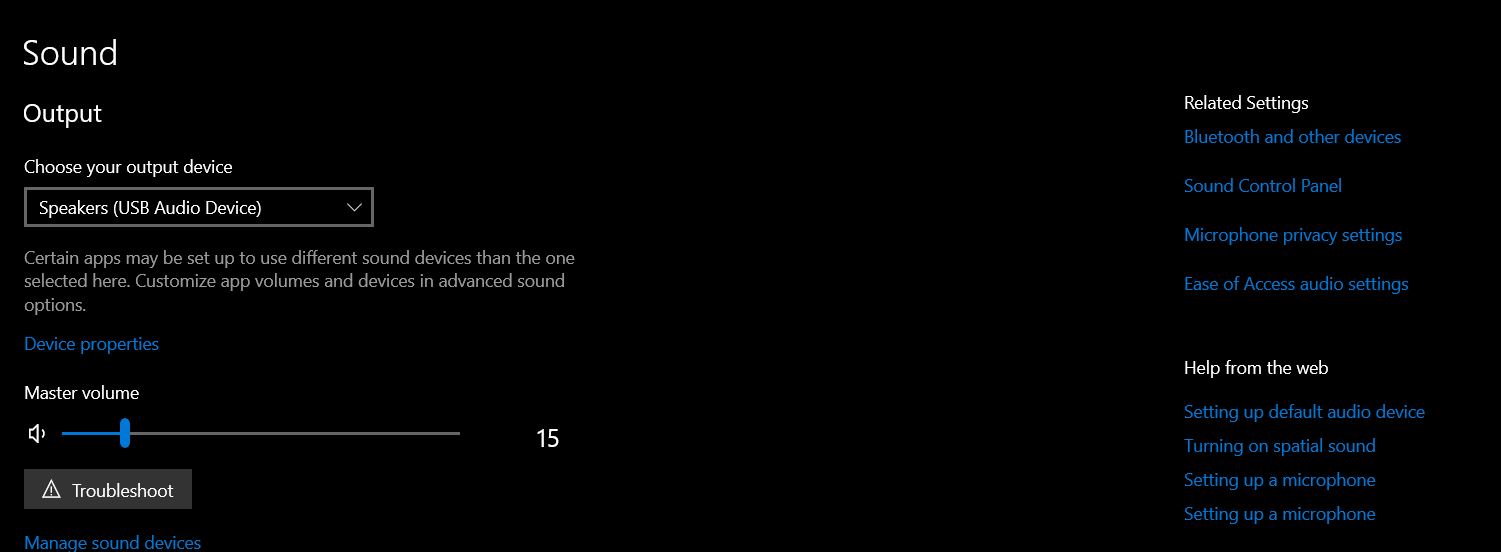
- Select a Playback device > Properties > Advanced.
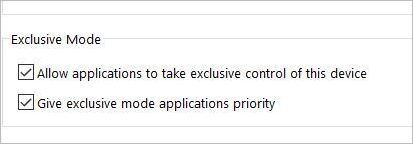
- Here, tick the boxes under the exclusive mode section.
v) Enable “Do Nothing”
This is yet another simple method to stop your PC from experiencing fluctuating volumes.
All you have to do is the following:
- Open Control Panel > Sounds
- Select the Communications Tab
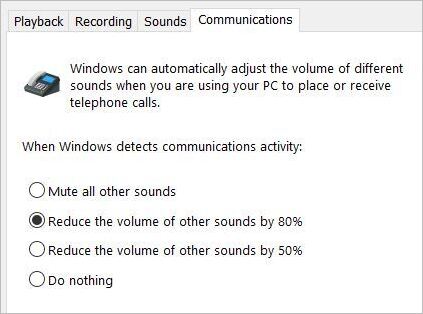
- Check the circle that says “Do Nothing”.
vi) Perform a Clean Boot
A clean boot will make your computer restart with essential drivers and programs, thus effectively fixing many of its problems.
Here’s how you do it:
- Click Search, type “System Configuration” and open it.

- Select Services, check the box that says “Hide all Microsoft Services” and click on disable all.
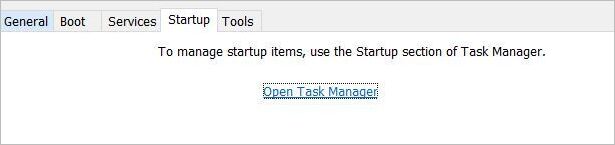
- Switch to the Startup tab and select Open Task Manager.
- Select each enabled Startup item and disable it.
- Close Task Manager.
- When you restart the computer now, it will open in a boot environment, making it easier for you to troubleshoot sound-related problems.
vii) Disable Audio Enhancements
Disabling audio enhancements on a Windows PC can also help.
Here’s how you do it:
- Open Control Panel > Sounds
- Select your playback device and click on Properties.
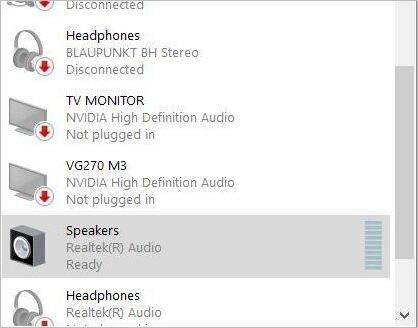
- Select the Advanced tab and make sure the “Enable Audio Enhancements” box is not checked.

viii) Restart Audio Services
Restarting audio services is another effective way to solve any volume-related issues with your computer.
Here’s how you do it:
- Open Services
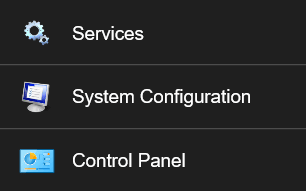
- On the opening window, find Windows Audio, right-click on it, and select “Restart”.
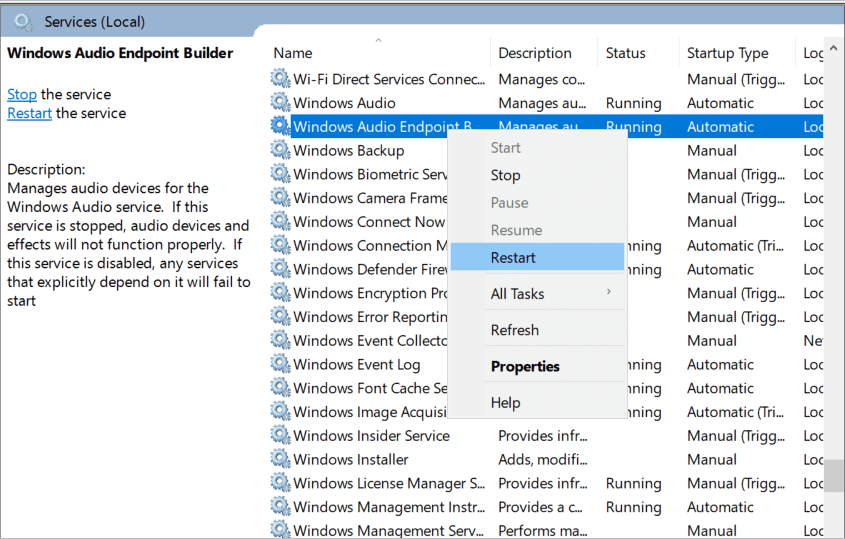
- Then find Windows Audio Endpoint Builder, right-click on it, and select “Restart”.
#4) On Smart TV
Here are the steps to follow to fix volume issues on Smart TV:
i) Perform Physical Inspection
If you see your TV’s volume going up by itself, start by inspecting the volume button of its remote and the button on the TV itself.
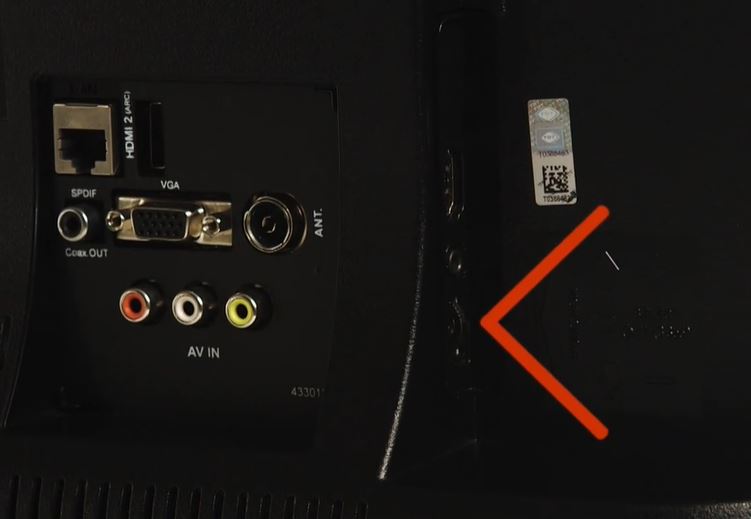
[via Argos Support]
The TV volume buttons could be stuck. If that’s the case, then you’ll need to take it to the service center. I advise against doing anything by yourself, especially if you lack technical expertise.
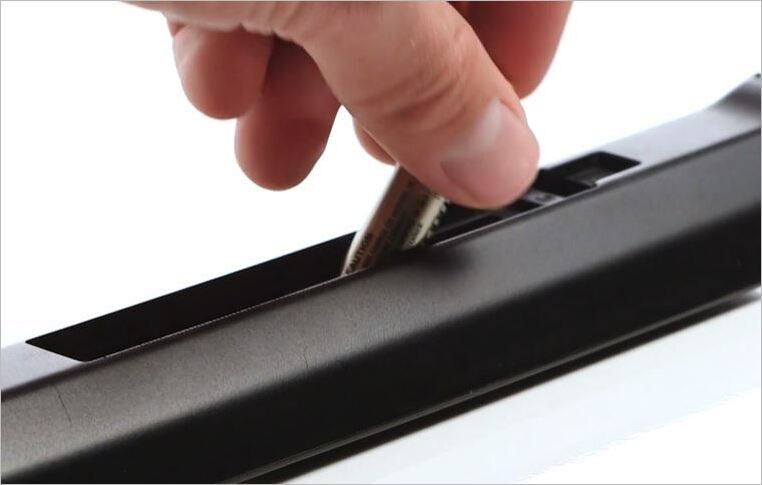
The problem could also be with your remote. Remove the batteries from your device and see if that stops the volume from fluctuating.
Finally, use a low-power vacuum cleaner to suck off any dust or dirt that may have seeped into the crevices of the TV’s volume button.
ii) Disable Auto-Volume
Smart TVs come with auto-volume settings. Enabling them can sometimes result in your volume settings misbehaving. The obvious solution here would be to disable this setting.
Here’s how you do it:
- Open Settings
- Go to Sound > Advanced Settings
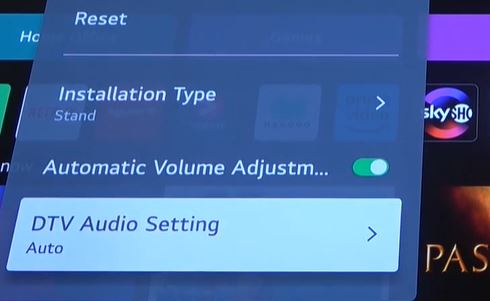
[via HardReset]
- Find the Auto Volume option and disable it.
Some Samsung smart TVs have a feature called Adaptive Sound, which can also cause the same issue. You can disable this feature from your Audio or Sound settings to get the volume fixed.
iii) Reboot TV
Rebooting your TV can also fix the problem. I would suggest unplugging your TV, waiting a few seconds before plugging it back in. When you restart the TV, it will be rebooted. Monitor the volume once the TV is back on to see if this solved the problem.
iv) Update Software
Finally, if all else fails, it is time to update your TV’s software. You want to keep it running on the latest firmware.
Open Settings > Support > Software Update. If an update is available, click on Install. With the software updated, check if your volume is back to normal.
Expert Tips To Fix Volume Fluctuations on iPhone & Android Devices
Here are some of the tips to follow to fix volume fluctuations on iPhone & Android devices:
#1) Hardware Issues
A major hardware-related issue that can impact your phone’s volume button is dirt and dust. Dirt and dust can accumulate within the cracks of our phone’s volume button over time, causing it to respond automatically. I would suggest cleaning the button and seeing if that does the trick. Use a toothpick to really get into the crevices and get the dirt off.
It is also possible that your phone’s case is impacting its volume buttons. Try to remove the case from the phone to see if that solves the problem. If you find the button stuck, the best course of action would be to take the phone to the nearest service center.
#2) Disable Bluetooth Connection
For those wondering why my AirPod volume keeps going up by itself, I have an answer for you. Any Bluetooth device that connects with a phone, whether it is an AirPod or an external speaker, will interfere with your system’s built-in volume settings.
As such, you may see the volume fluctuate a bit. To check whether that’s happening, disconnect your phone from all Bluetooth devices and monitor the volume levels. If you find the volume acting normally, know that the issue isn’t with your phone.
Adjust the volume up and down manually once you’ve connected to a Bluetooth headphone or speaker.
#3) Disable Third-Party Apps
As I mentioned before, third-party apps like a VPN or VoIP tools can interfere with your system’s built-in settings. They can influence your phone’s volume settings, causing it to jump up and down by itself.
In my testing, I’ve found that disabling certain tools on your phone, like a VPN connection, can actually fix the volume issue. Perhaps it can have the same effect for you, as well.
Disable any active VPN connection or VoIP tool and monitor your device’s volume levels.
Frequently Asked Questions
1. Why is my phone volume increasing by itself?
A phone volume can increase by itself because of a software issue, a bug affecting its performance, or a hardware-related issue. Perhaps there is dirt impacting your device’s volume button, or it is because the volume button is stuck. I have recommended tips and tricks that’ll help you resolve this problem, regardless of the cause.
2. Is a software bug causing volume issues?
Yes, a software bug can affect your device’s function, causing some of its features to misbehave. A bug is best resolved via a software update or a quick factory reset. I would advise the latter as a last resort.
3. Why is my computer volume going up by itself?
A computer volume may go up by itself because of a software issue, Bluetooth-connected headphones or speakers, or an outdated audio driver. Try to keep your computer’s software and audio drivers up-to-date to make sure you don’t encounter this problem in the future.
4. How to stop my iPhone from automatically adjusting volume?
You can opt for any of the following measures to stop your iPhone from automatically adjusting its volume:
• Clean the volume button
• Restart your phone
• Update its software
• Remove phone case
• Disconnect AirPods or other connected headphones.
• Factory reset the phone if all else fails.
5. Can I tell if my iPhone is hacked?
There are certain things you can keep an eye on to determine whether your phone has been hacked. Although rare, it could be a valid reason why your phone’s volume keeps jumping up.
To know whether a phone has been hacked, monitor your battery levels. A phone with spyware installed in it will exhaust batteries more quickly. If you hear interference or static noise during a call, that could also be an indicator that your phone is hacked. The best way to get rid of spyware is to factory reset a device.
How do I stop Bluetooth devices from changing my volume?
Disconnect your Bluetooth accessories and ensure that volume synchronizing features are disabled.
Is automatic volume increase a hardware or software issue?
It can be either. Software settings and Bluetooth controls are common, but faulty buttons and accessories can also be responsible.
Conclusion
Why does my volume keep going up by itself? I came across this question a lot in the past few months while frequenting online forums. So much so that I finally felt compelled to write down this little guide.
Your phone or computer’s volume could jump up and down for various reasons. While software issues are a primary cause, dirt within your volume buttons, an impacted phone case, or connected headphones could also trigger this problem.
Fortunately, this isn’t a serious concern, and the tricks I’ve suggested above will probably help you resolve the problem with ease.
That said, if the problem persists even after exhausting all the aforementioned measures, I suggest taking your device to a repair or service center.
Go to the service center if you see any of the following signs:
- Buttons that appear damaged or loose.
- Erratic volume shifts even after cleaning dirt and dust.
- If you notice a loose or damaged port.
- If you notice crackling or distorted sound.
- If your phone has been exposed to water recently.
- If safe mode testing failed.
Research Process: The total time involved to complete and publish this article is approximately 42 hours. This content was created through a structured research approach to ensure accuracy and reliability.
For more-related guides, you can explore our range of tutorials below:
- How to Fix the Can’t Connect to this Network Error in Windows
- How to Fix Memory Leak in Android Apps Using DDMS Tool
- How to Fix When Windows PC Won’t Shut Down
- How to Fix Android No Command Error with 4 Quick Ways
- How to Fix YouTube Audio Renderee Error
Was this helpful?
Recommended Reading
-

Review and comparison of the Best Music Visualization Software with pricing and features to help you select the right music visualizer tool: The music industry has grown by leaps and bounds in recent years. Recent advancements in technology have helped many artists realize their dreams of becoming popular musicians with…
-
Get to know the possible reasons Why Is There no Sound on Computer. Also, explore the tips to fix each one of them on both Windows and Mac: Windows and Mac are excellent for laptops. But with all their plus points, most of us have come across a few issues…
-
Here we have reviewed and compared the top Vocal Remover Software to help you select a vocal extractor for isolating vocals from a song easily: Do you have a singing performance but don't know how to get the instruments in the background to make it look phenomenal? Here you can…
-

Read this comprehensive review to compare and select the top Audiophile Headphones. Analyze the technical specifications & features to select the best budget audiophile headphones: Are you missing out on the pure bass from your favorite music? If you are an audiophile, then it's time to get rid of the…


