Deeply explore how to ping iPhone from Apple Watch and locate your misplaced device quickly. This feature of how to ping Apple watch makes your phone emit a sound even when it is in silent mode:
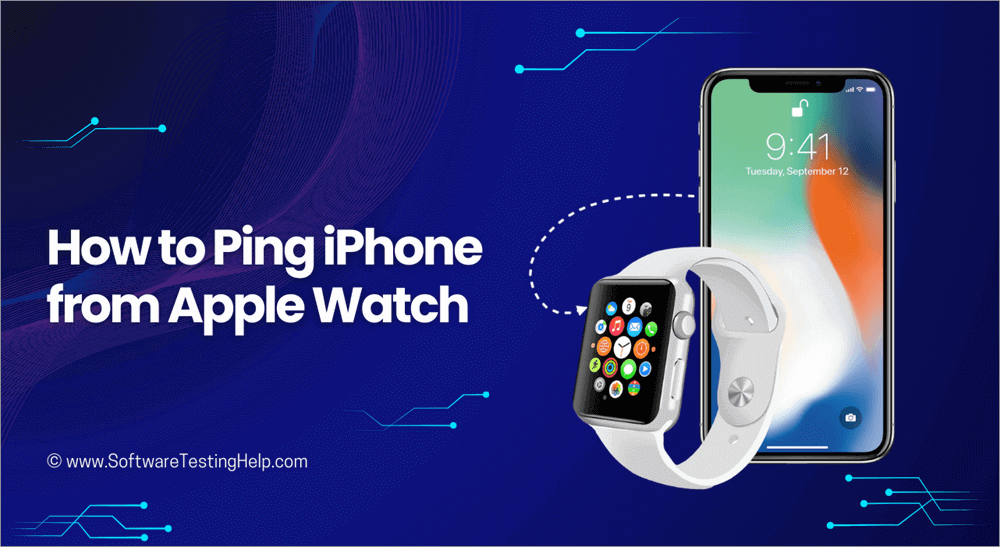
iPhone users can locate their iPhones by pinging them from an Apple Watch. When the Apple Watch pings the iPhone, it will play a sound, making it possible for the user to track it, for instance, when it is misplaced in the dark or when/if it is lost within the environment.
The iPhone being pinged will make a sound even if in silent mode or the volume is muted. You can also ping an Apple Watch using an iPhone.
Can You Ping Your Apple Watch? Know How
The first prerequisite is Apple devices that support pinging, which not all iPhones and watches do. The second is ensuring the two devices are connected via Bluetooth or Wi-Fi. The devices must be within range of your Bluetooth and Wi-Fi.
For those without the Apple Watch, if the iPhone is not within Wi-Fi and/or Bluetooth range, or if Precision Finding for Apple Watches is not supported in your region/country, iCloud.com has an app known as Find My that can ping iPhones when logged into the cloud regardless of their location.
[image source]
Here is a video tutorial for your reference:
Which Apple Watches Can Ping iPhones
Apple watches that support iPhone pinging are the Apple Watch Series 9, Apple Watch Series 10, and Apple Watch Ultra, or later versions. These devices have the Precision Finding technology which can ping iPhone 15 and get directions to it.
For those who are worried about how to ping my apple watch, here is a complete guide
Which iPhones Can be Pinged Using the Apple Watch
The Ultra Wideband tech which allows iPhones to be tracked is built for several iPhone models: iPhone 11, iPhone 11 Pro, iPhone 11 Pro Max, iPhone 12 Mini, iPhone 12, iPhone 12 Pro, iPhone 12 Pro Max, iPhone 13, iPhone 13 Mini, iPhone 13 Pro, and iPhone 13 Pro Max. The technology enables iPhones to be found on a map and wiped remotely in case they are lost.
Further Reading => Spoof iPhone Location Quickly Using Dr.Fone
How to Pair/Sync/Connect Apple Watch to iPhone
Step #1: With both devices turned on and connected to Wi-Fi or cellular network and Bluetooth, hold the iPhone near the Apple Watch.
Step #2: Wait for the Apple Watch pairing screen to appear on your iPhone and tap Continue.
Alternatively, go to Apple Watch -> Pair New Watch -> Set Up for Myself. When prompted, position the iPhone so that your watch appears in the viewfinder on the Apple Watch. The two thus will get paired. To set up the Apple Watch, tap Set Up Apple Watch which follows the above steps. Follow the instructions on both devices to finish the setting up.
Find more information on pairing and setting up the devices. Hold your iPhone near your watch, then tap Pair New Watch or open the Apple Watch app on your iPhone, then tap Pair New Watch. Tap Set Up for Myself. When prompted, position the phone so that the watch appears in the viewfinder in the app and this should pair the two.
How to Ping iPhone From Apple Watch
To ping a device, it must be connected to the Apple Watch using Bluetooth or Wi-Fi and paired during setup either as your device or registered as a device for a family member. You can also ping someone else’s iPhone using your Apple Watch by sharing the location with them or by using the iCloud Find My iPhone feature.
Further Reading => Why is Location Not Updating on iPhone: Possible Fixes
Step #1: Press the side button to open the Control Center on the Apple Watch.
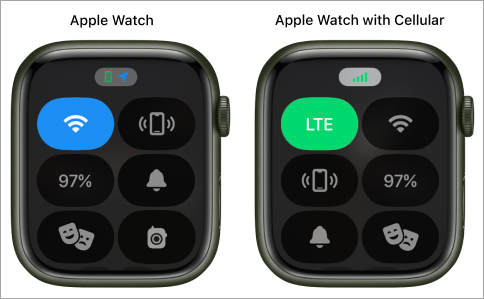
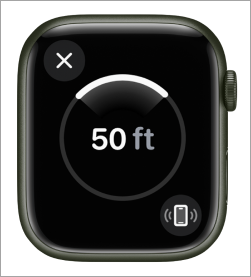
Step #2: Tap the iPhone icon  The iPhone will ring and the Apple Watch will display a general heading and distance to your iPhone. The distance to the phone will change as you move around. The screen of the Apple watch will turn green and the iPhone rings twice when you are close to your iPhone.
You also can make the iPhone play a sound as you track it down, by pressing the iPhone icon in the bottom-right corner. Touch and hold the phone icon to make the phone flash while ringing at the same time. To do so, Touch and hold
Note: If you cannot press the gray icon, your phone is either switched off or out of Bluetooth range with the watch. In such a case, you can turn to iCloud.com to ping the phone more effectively.
Remember, you can also use the Apple Watch app on your iPhone or someone else’s phone to pair your Apple Watch. Tap All Watches->Add Watch->Set Up for a Family Member->Continue. The Apple Watch can ping the iPhones to which it is added.
Recommended Reading => Top iPhone Data Recovery Software
How to Ping Apple Watch From iPhone
Apple added the functionality to ping an Apple Watch on the iOS 17 under the Control Center tile. it is tuned off by default.
Step #1: Go to Settings -> Control Center, then swipe down and tap the +button next to Ping My Watch. Open the Control Center by swiping down from the top right corner or the bottom on the Home button phones.
Step #2: Tap the new Ping My Watch button. Or Tap  . The sound will play on the watch that is selected from the All Watches in the Apple Watch app on your iPhone if there are more watches added to your iPhone.
The Watch can be set to make an audio beep by double-tapping the Ping My Watch button.
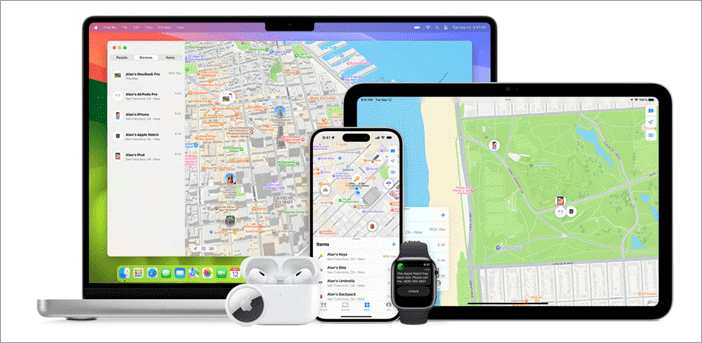
The Find My functionality on the iPhone also can be used for locating devices such as iPads and Apple Watch. To use this feature, one is required to turn on the Find My feature on the Apple Watch and add the Apple Watch or other devices to the Find My feature.
To turn on Find My on your iPhone, open Settings, tap your name, and then Find My. Turn on Share My Location. Also, tap Find My and turn it on.
Further Reading => How to Turn Off Location on iPhone
To turn on Find My on Apple Watch, go to Settings, tap your name, scroll till you see Apple Watch, tap on the name of the watch, then tap Find My Watch. Turn on the Find My iPhone feature.
Once you turn on the Find My on the Apple Watch, it will automatically be set if it is paired with the iPhone. The devices can find each other even when switched off as long as the Find My is turned on. You will need to be logged into your Apple account on both devices.
Each of the devices will show the current or recent location of the other when the two are/were connected with Wi-Fi or Bluetooth.
Also read =>> How to fix iPhone iOS 15 update problem
[image source]
iCloud+ – Find My – Apple
The Find My on iCloud also works similarly to ping your Apple Watch from your iPhone or computer. You require logging into (using your Apple ID) the iCloud and the iPhone or Apple device to be located. For this to work, then use the Find Devices link option.
You can also use your family member’s devices to find your iPhone Apple Watch or other Apple devices, as long as you previously added the devices to Family Sharing. In that case, the devices will then appear on your added family member Find My feature and iCloud account.
Further Reading => How to Fix Apple Watch Not Tracking Steps
You can also mark the devices found as lost, which means it is put into lost mode and locked with a passcode, hence protecting your information.
Frequently Asked Questions
1. How can I locate my iPhone with my Apple Watch?
The method is known as pinging, where you use the watch to direct the iPhone to vibrate, flash, and produce a sound until you can find it. To do so, tap the side button on your iPhone to launch the Control Center, or if using an older watch OS, swipe up from the bottom of your watch face.
Choose the button that features an iPhone with sound waves and this will ping the iPhone, enabling you to find it. It will show the device distance which changes as you move.
You can also locate your iPhone by visiting and logging into iCloud.com using your Apple ID and using the Find My feature to ping the iPhone. You can also use the Find My app on iPad and other Apple devices to locate your iPhone.
Siri is also helpful if you can launch it on an Apple device. Ask it to ping your iPhone.
2. Why can’t I ping my phone from my watch?
Assuming you are pinging an iPhone on an Apple Watch, there are many reasons this feature won’t work, but most of the problems are solvable.
First is running an outdated iPhone and Apple Watch OS. Try updating both OSes and retry pinging. Second, and the most common problem, is your phone and Apple Watch being far apart such that Bluetooth and/or Wi-Fi do not connect them. This is the first issue to solve.
Many iPhone owners also complain that it is no longer possible to ping the iPhone with an Apple Watch after updating the watch or phone.
This problem can be solved in several ways depending on the issue: updating the iPhone OS as well, restarting both devices, resetting the iPhone or the Apple Watch or both to factory settings, unpairing and repairing the iPhone and the Apple Watch, just to mention a few of the solutions.
Further Reading => Step by Step Guide to Fix Apple Watch Screen Not Working
3. How can I ping an iPhone?
There are three options you have to ping an iPhone: directly using Apple Watch or other Apple devices and using iCloud.com where you need to sign in with your Apple ID.
For the first case, the iPhone will need to be in proximity to the Apple Watch for Bluetooth connectivity to work.
Tap the side button on your Apple Watch to launch the Control Center. If running an older Apple Watch OS, swipe up from the bottom of your watch face.
Tap the button that features an iPhone with sound waves, and this will ping the iPhone for a few seconds. This is the fastest option of pinging an iPhone although it rings for a shorter duration compared to when using other methods. Press and hold the button to have the phone flash LED light as well.
For the second case, visit and log into iCloud.com and choose Find My from there. Choose your iPhone from the list of your devices and tap Play Sound to ping it. It will vibrate first and then begin to play a high-pitched sound till your phone is found or you stop the sound through the Find My.
You can also search for the Find My app on Apple Watch, Mac, or iPad, select the iPhone from the list of devices, and tap Play Sound to ping it. The devices must be logged in, synched with, or set up using your Apple ID.
The third option is to use Siri. Launch Siri on an Apple device and ask it to ping your iPhone.
Further Reading => How to Change Siri Voice on iPhone: Step-by-Step Guide
4. Where did the Control Center go on the Apple Watch?
If you cannot locate the Control Center on your Apple Watch after the WatchOS 10 update, press the Digital Crown button and then press the side button to access it. Try this option if unable to access the Control Center using the side button. The other option is to swipe up from the face side.
Restarting the phone can also solve temporal problems/issues.
5. How to ping a phone from an Apple Watch?
Launch the Control Center by pressing the side button on your Apple Watch. Swipe up from the bottom of your watch face if using an older version of Apple Watch OS. Press the button that features an iPhone with sound waves.
This will ping the iPhone from the Apple Watch. Tap and hold the button to have the iPhone’s LED lights flashing as you find it. It will ring for a few seconds.
Further Reading => Simple Ways to Unlock a Disabled iPhone
Conclusion
Pinging an iPhone from an Apple Watch is one of the fastest methods of finding a misplaced or lost iPhone. An alternative is to use Find My (devices) on iClouds.com to ping the mobile devices.
These methods can also be used on other Apple devices, such as iPods. The iCloud.com method is useful if the iPhone is not within the Bluetooth or Wi-Fi connectivity range.
For more iPhone-related guides, you can explore our range of tutorials below:
- How to Ping iPhone from Apple Watch and Vice Versa
- How to Schedule a Text on iPhone
- How to Use Apple AirTag for Android Devices
- Why Won’t My Apple Watch Charge
- How to Fix If Your Apple CarPlay Not Working
- How to Request Desktop Site on iPhone
- How to Fix iPhone Flashlight Not Working
- How to Create and Send a Poll in iMessage on iPhone and iPad
Was this helpful?
Recommended Reading
-

Explore Apps To Mirror iPhone to iPad and compare their features, pros, and cons to select the best screen mirroring app available in the market: On average, iPhones come with a compact screen, unless you upgrade to the plus-size version. But when compared to an iPad screen, even the Plus…
-
Here is the comparison of the most popular Online Video Downloader Apps for iPhone and iPad, and we selected the best for iPhone, iPad, and YouTube Video Downloader Apps. Finding a reliable video downloader for iPhone isn’t as straightforward as it seems. Unlike Android, Apple’s iOS ecosystem has strict policies…
-

Read this comprehensive review to compare and select the right spyware for iPhone. Analyze the technical specifications & features to select the best iPhone spy apps of your choice: Spy apps refer to smartphone surveillance applications that are helpful for parental control and employee monitoring. There are many apps that…
-
Easily mirror your screen to a TV or any smart device with these top Mirroring Apps. Pick the best Screen Mirroring apps of your choice to enable fast, and seamless mirroring with great quality: Screen Mirroring is a modern-day technique that allows you to easily and quickly share a screen…
-
Explore the top and best iPhone Chargers with pricing, technical specifications, and comparisons to select the fastest iPhone charger as per your needs: The compatible iPhone Charger that you are using might just not be good enough. It's time to pick out an iPhone charger that does the job faster…
-
This tutorial is a complete step-by-step guide that explains the top 3 useful methods to find ways on how to Unlock a Disabled iPhone: Security is the best part of having an iPhone. No one can unlock your phone and access your data unless they know the password. As much…
-
We did a comprehensive review of Best Phone Spying Apps with features, comparisons and pricing. Select the best Spy Phone App from the list below. Phone tracking spying applications have developed at a rapid pace, so it is not an easy task to make the right selection in the year…
-
Quickly learn how to clear Instagram cache on iPhone and Android to free up storage. Understand the simple steps on how to clear cache on Instagram to fix the app issues for both operating systems: Instagram is a social networking service platform where users can share their pictures with loved…