Explore the quick ways to fix slow boot Mac from our step-by-step guide. Try these proven tricks to free up space, boost performance and speed up your Mac to get it running in minutes:
Is your Mac taking forever to boot? Believe me, I understand just how frustrating this problem can be. A good Mac shouldn’t take any longer than 10-20 seconds to start up. You should see the login screen within seconds of powering up a Mac.
I had a Mac once that suddenly became sluggish during boot-up. After much deliberation, I did end up solving this problem, but it did take me a lot of time to figure things out. My goal with this article is to ensure anyone else facing this issue can solve it without any unnecessary delays.
Practical Guide to Boost Slow Running Mac
So if you want to learn how to fix a Slow Mac, you’ve come to the right place.
Steps to Quickly Fix a Slow Mac
- Your Mac is probably slowing down during startup because of too many login items opening at once, a corrupted cache file, a system bug, automatic background services, a disk error, full internal storage, or a failing hardware component.
- I suggest reviewing login items, removing unnecessary apps and background services, force-stopping apps with high CPU usage, deleting cache files, updating macOS and apps, deleting unwanted apps and large files, or re-indexing Spotlight to fix the issue for good.
- Keep your Mac healthy and in optimal state by clearing system cache, updating apps and macOS, emptying the trash bin, deleting unwanted files, and monitoring system storage once a month.
Why is Your Mac Booting So Slow? Common Causes
I assume you are scratching your head in pure frustration, trying to understand “Why is my Mac so slow?” or “Why is my Mac stuck on the loading bar?” I say that because that is exactly what I did when faced with this grief.
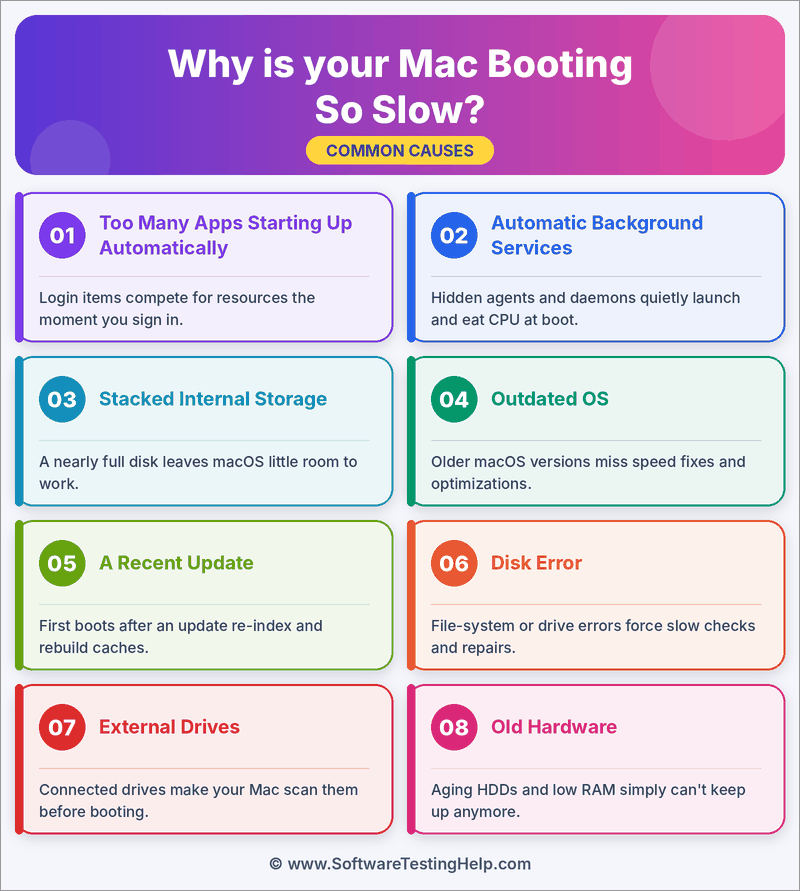
The very first step to solving any problem is understanding what caused it.
Here’s a list of everything that could’ve slowed your Mac’s boot.
- Too Many Apps Starting Up Automatically: Applications like VPNs, antivirus programs, or certain messaging apps often launch automatically when you log in to your Mac. This puts a lot of burden on your system’s CPU, thus causing a significant slowdown during boot.
- Automatic Background Services: Certain third-party apps leave behind services that automatically run in the background, even though you don’t see any open windows for those apps.
- Stacked Internal Storage: A Mac needs significant free space to start up without any pressure on its CPU or RAM. So if your system storage is inching towards its limit, you’ll notice your Mac’s performance suffer.
- Outdated OS: There’s a good reason why the wise among us choose to keep our system’s OS up-to-date. Outdated OS’s may harbor bugs that impact and slow down a computer’s startup.
- A Recent Update: Is your Mac slow after an update? You’ll notice your Mac demanding more CPU power after a recent update. This could be for several reasons. After a new update, your macOS will rebuild search indexes, reorganize files, and optimize storage. These actions will consume more CPU power, thus causing a slowdown during the initial boot.
- Disk Error: Corrupted files or cache stored on your disks can interfere with a system’s normal boot process.
- External Drives: An external hard drive or USB flash drive connected to a system during startup is bound to cause significant slowdown. These peripherals will interfere with your system’s startup. As such, it would be wise to disconnect your computer from all peripherals before firing it up.
- Old Hardware: Nothing lasts forever, and this is true for your macOS as well. If you are using an older system, chances are it is suffering from hardware degradation. Perhaps, its SSD is dying, or its motherboard is failing, thus causing a slowdown.
How to Check Your Mac Type
Before you attempt any of the troubleshooting methods, I’ll be sharing in this article, it is fundamental that you check your Mac type.
I say this because the startup process of your Mac will differ depending on what Mac type you own. For instance, the process to access Safe Mode on an Apple Silicon Mac is different from that on Intel Macs.
To check your Mac type, do the following:
- Click on the Apple logo you’ll see at the top-left corner of your screen.
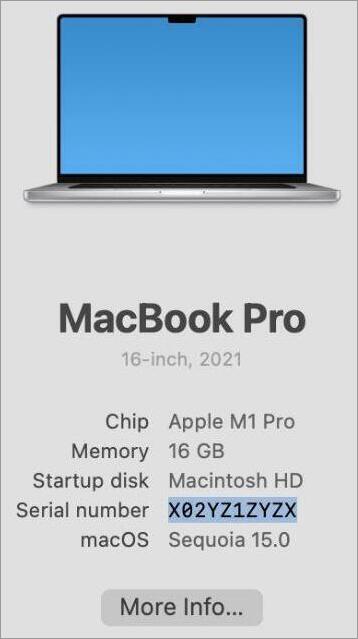
- Click on About This Mac
[Via Apple Support]
Now, check the information given. If you see “Chip” mentioned, followed by Apple M1, M2, or M3, then you are using an Apple Silicon Mac.
If you see the term “processor” mentioned, then you are using an Intel Mac.
How to Fix Slow Boot Mac: Step-by-Step Guide
Once you’ve figured out “Why is my MacBook so slow?” It is time to take appropriate action.
Here’s everything you can do to fix a slow-booting Mac, depending on what caused this problem in the first place, of course.
#1) Remove Unnecessary App Logins
Difficulty: Easy / Time: 5-10 minutes/ Success Rate: High
The first thing you’ll need to do is check just how many apps automatically launch during your Mac’s initial startup.
- Open the Apple Menu. Click the Apple icon.
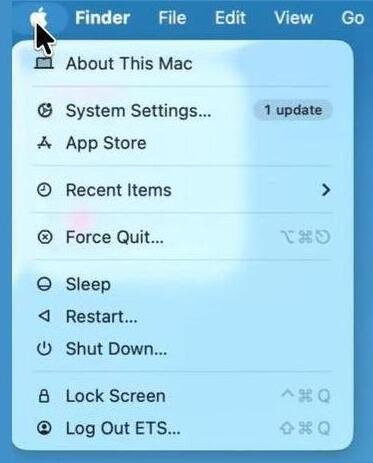
- Select System Settings > General
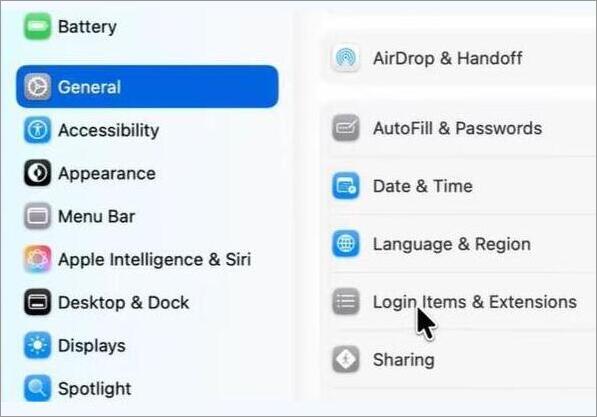
- Select Login Items & Extensions
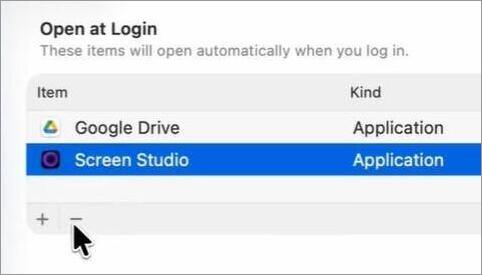
- Now, you’ll see all the apps that automatically open as soon as you log in.
- Select the apps you don’t want opening during login and click the “–” button.
Now, reboot your system and check whether this resolves the problem.
#2) Spotlight Reindexing
Difficulty: Medium / Time: 30 Minutes to days (depending on file size) / Success Rate: High
Remember, one issue I mentioned before entails Spotlight indexing. This basically means your Mac is rebuilding search indexes after an update. Sometimes, your system might get stuck on Spotlight indexing. You’ll need to give it a manual push.
Here’s how you do it:
- Click on the Apple icon
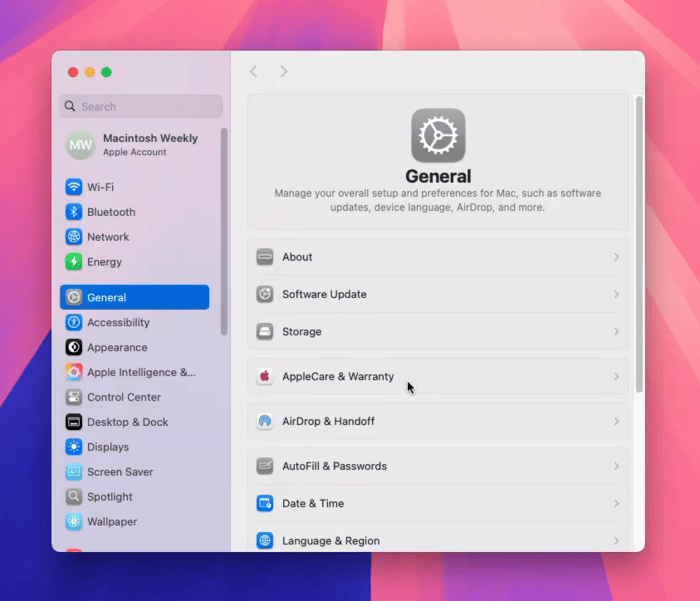
- System Settings > Scroll until you find Search Privacy, then click on it.
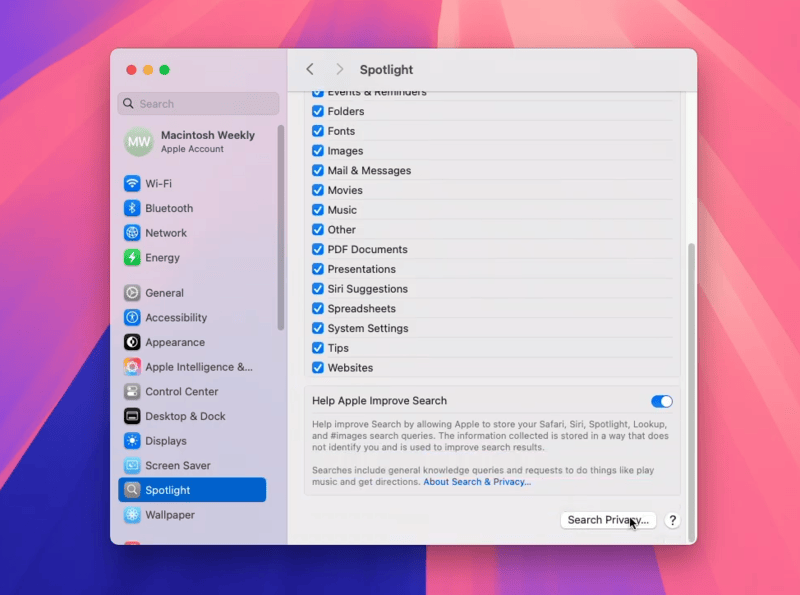
- Click on the + icon to add drives. Select Macintosh HD. This will stop Spotlight from indexing temporarily.
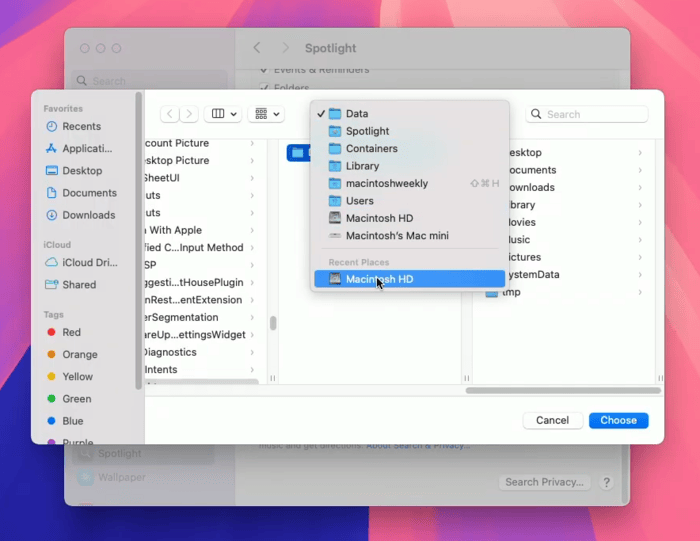
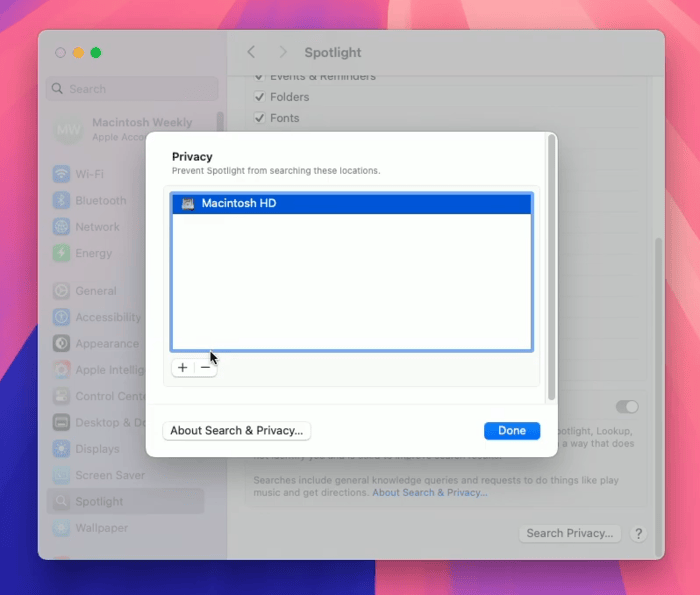
- Click on “Done”.
- Now, select “Search Privacy” again.
- Select the Drive you just added and click the – button.
- Click on “Done”.
Spotlight will begin re-indexing again. Although CPU usage will increase, this surge will be temporary. Your system will boot normally after the indexing is over.
#3) Clear System Cache
Difficulty: Easy / Time: 3-5 minutes/ Success Rate: High
System Cache can also be responsible for a Mac that’s booting slowly or simply lagging at every turn.
It is very simple to clear the system cache if that is what you choose to do.
Here’s how you can accomplish it:
- Open the Finder app on your Mac.
- Either select “Go” from the top menu bar or press the Shift + Command + G keys.

- In the search bar, enter the following command: ~/Library/Caches.
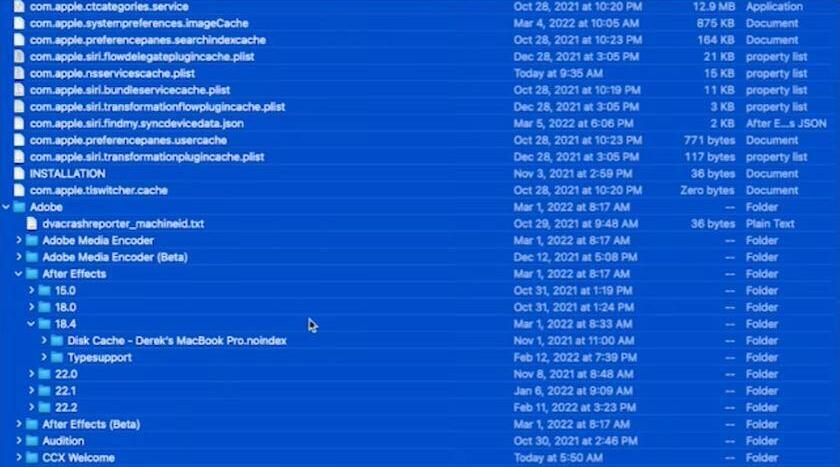
- Press the Command + A keys to select all cache files.

- Press the Command + Delete keys to remove all of these files.
Cache files gradually become corrupted, thus causing various performance issues. Clearing your system cache files periodically can help you prevent a slow-booting Mac.
#4) Update Your Apps
Difficulty: Medium / Time: 15 minutes to an hour/ Success Rate: Around 55%
Keeping your apps updated means keeping them free from bugs and all sorts of other issues that can affect your Mac’s performance.
Here’s how you can update apps on a Mac:
- Open the App Store.
- Click on Updates
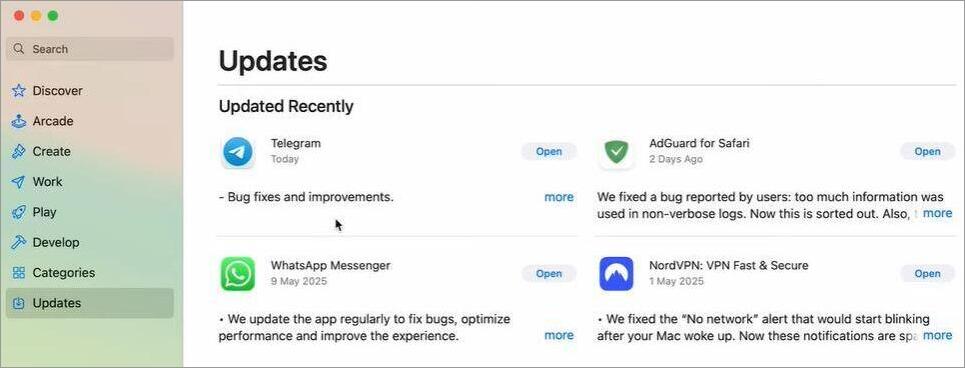
- Now, you’ll see all apps with an update available for them.
- Select the App and click on Update.
Alternatively, you can just click on the “Update All” button to update all apps in one go. Once the update is complete, I suggest rebooting your Mac. This restart will bring those new updates into effect.
#5) Clear Storage
Difficulty: Easy / Time: 3-5 minutes / Success Rate: Around 40%
As I mentioned, a full internal disk will affect your Mac’s startup speed. So, the most obvious solution to this problem is clearing up some much-needed storage space.
I suggest reviewing the files stored on your computer. Uninstall large files or apps that you no longer need. Clear up the Trash Bin. It is recommended that you keep 10-20% of your Storage space free.
For Example:
If your computer is using a 500 GB Drive, keep at least 50-100 GB of free space.
#6) Using macOS Recovery
Difficulty: Medium / Time: 3-10 Minutes / Success Rate: Around 55%
If all of the above troubleshooting tips aren’t working, I suggest reviewing macOS Recovery. macOS Recovery gives you access to Disk Utility. You can use Disk Utility to fix errors associated with formatting and directory structure.
Here’s how you can check macOS Recovery:
On Apple Silicon
- Shut down the Mac and then hold the power button until the Startup menu appears.
- Select Options and Continue.
On Intel Mac
- Shut down and restart your Mac.
- Immediately hold the Command + R keys as soon as hit the power up your Mac.
Now, you can access Disk Utility and click on “First Aid” to repair the startup disk. You can also reinstall macOS from macOS Recovery.
#7) Boot the Mac in Safe Mode
Difficulty: Medium / Time: Around 10 Minutes / Success Rate: Medium
Starting a Mac in Safe Mode won’t solve a Mac that’s slow. However, it will help you isolate the problem.
Here’s how you boot a Mac in Safe Mode:
On Apple Silicon
- Shut down your Mac and hold the power button until you see the startup options screen.
- Select your Startup Disk
- Hold the Shift button
- Select Continue in Safe Mode.
On Intel Mac
- Shut down your Mac.
- Power it on and immediately hold the Shift button.
- Release the button as soon as you see the login window appear.
Now, restart your Mac normally once your system is in Safe Mode. If you notice no issues during this startup, then the problem probably has to do with a corrupt cache, software, or extension in your system.
#8) Use the Activity Monitor
Difficulty: Easy / Time: A Matter of Seconds / Success Rate: Low
The Activity Monitor can direct you to programs and apps consuming too much CPU. As such, you can force-stop them and resolve the problem.
You can open Activity Monitor by pressing the Command (⌘) key + Space. This will open Spotlight. Here, type Activity Monitor and click on it.
Alternatively, you can do the following:
- Select Applications
- Go to Utilities and Click on Activity Monitor.
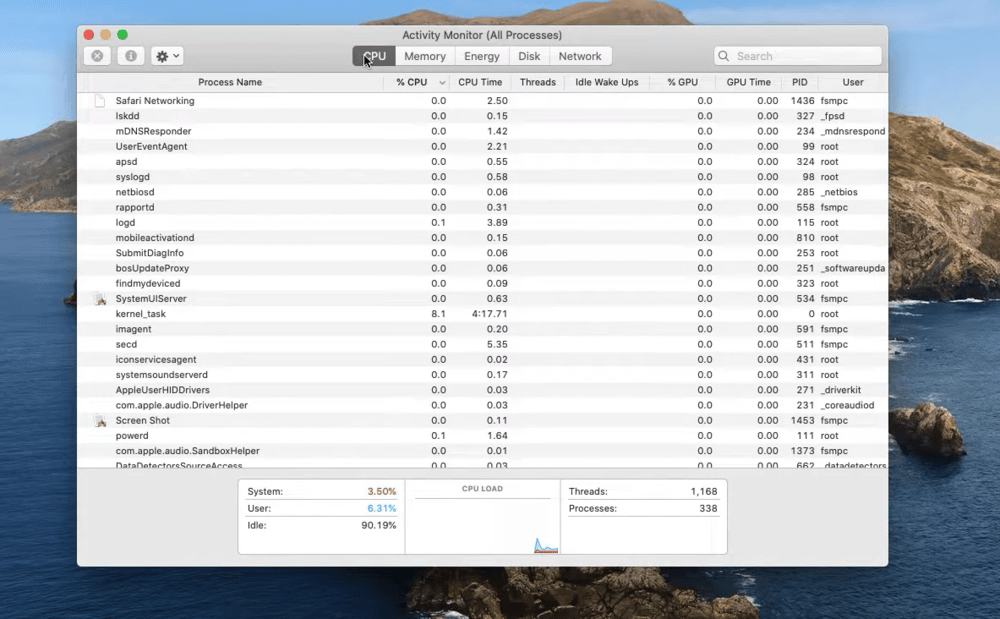
Once Activity Monitor opens, click on the CPU tab, and you’ll see all apps currently running.
Sort by CPU usage to filter the apps from those consuming the most CPU to those consuming the least.
If you see an unwanted app consuming 80-90% CPU on this list, select it and press the X button to force stop it.
Keep an eye out for apps with “mds” or mdworker” tags. Do not force-stop these programs, as these are important Spotlight indexing processes.
#9) Reset NVRAM
Difficulty: Easy / Time: 10-20 Seconds / Success Rate: Low
This is an Intel Mac-exclusive solution. You cannot reset NVRAM on an Apple Silicon Mac. NVRAM holds settings associated with your Mac’s display resolution, startup disk, and sound volume.
To reset NVRAM, all you have to do is:
- Shut Down your Mac.
- Turn it on and immediately press the Option + Command + P + R keys. Hold these keys for around 20 seconds.
- Release the keys once you see the Apple logo on your screen or hear the startup sound.
Once you’ve reset the NVRAM, restart your Mac and see if the boot has hastened.
What if the Problem is Hardware-Related?
So far, we’ve discussed how to fix a slow-booting Mac in the context of software-based issues. There is a good chance that the problem plaguing your Mac is due to a failing hardware component.
If you see signs like constant freezing, sudden system crashes, disk errors, rattling noises from the system, severely lagging performance, a flashing question mark, or sudden shutdowns, the problem could be hardware-related.
The best thing you can do in this situation is take your Mac to the nearest authorized service center.
Unless you are an expert at solving hardware issues, I strongly advise against opening up your Mac and performing repairs on your own.
Possible Solutions for Slow MacBook: Simple Tricks
Try these possible solutions to fix slow boot on Mac in minutes.
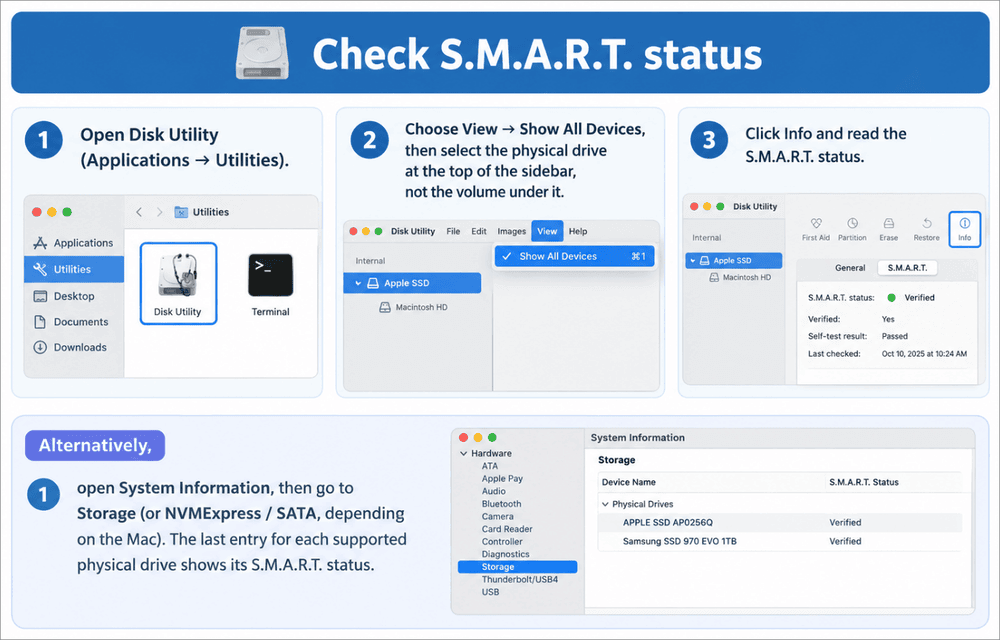
#1) Run Apple Diagnostics or Check S.M.A.R.T Status
Running Apple Diagnostics or checking your drive’s S.M.A.R.T status will help you either narrow down or dismiss hard-disk failure as a possible cause for your slow-booting Mac.
Performing Apple diagnostics periodically can help you identify corrupted sectors and signs of hardware failure before it is too late.
Here are the steps to check S.M.A.R.T. status:
#2) Disconnect Peripheral Devices
If your Mac is connected to an external SSD, flash drive, or other peripheral devices like a speaker or dongle, I suggest you disconnect them one by one. Restart your Mac without any peripheral devices attached and check whether there has been an improvement in its startup speed.
#3) Antivirus and Malware Scan
Although all modern macOS comes with built-in security systems, I would still advise installing a reliable third-party antivirus software.
Use it to scan your system twice a month for any signs of malware or viruses. Have the software remove files or programs suspected to be malicious.
#4) Remove Heavy Third-Party Extensions
VPNs and antivirus software are useful but also resource-intensive in their functioning. Having them run in the background can cause your Mac startup speed to slow down.
Remove these extensions and boot your system again. Assess your system’s boot time after those extensions were eliminated to know whether this solved the problem.
#5) Log in From a New Account
Sometimes, accounts get plagued by corrupt login items and user cache, thus slowing down your Mac. Try to log into your system via a different account to know for sure whether this issue is specific to your main account.
How to Measure Boot Time Performance on Mac
It is important to establish a baseline when you are attempting to test anything. You want to know just how slow or fast your Mac is at booting.
Your best friend during this assessment would be a stopwatch. Buy one or use your smartphone to keep track.
I suggest you use the table below as a benchmark when testing your Mac’s startup speed:
| Mac Type | Average Boot Time |
| Apple Silicon Mac | 15-25 seconds |
| Intel-Based Mac | 30-50 Seconds |
| Older, Pre-2015 Macs | 45-90 Seconds |
Now, just adhere to the following tips:
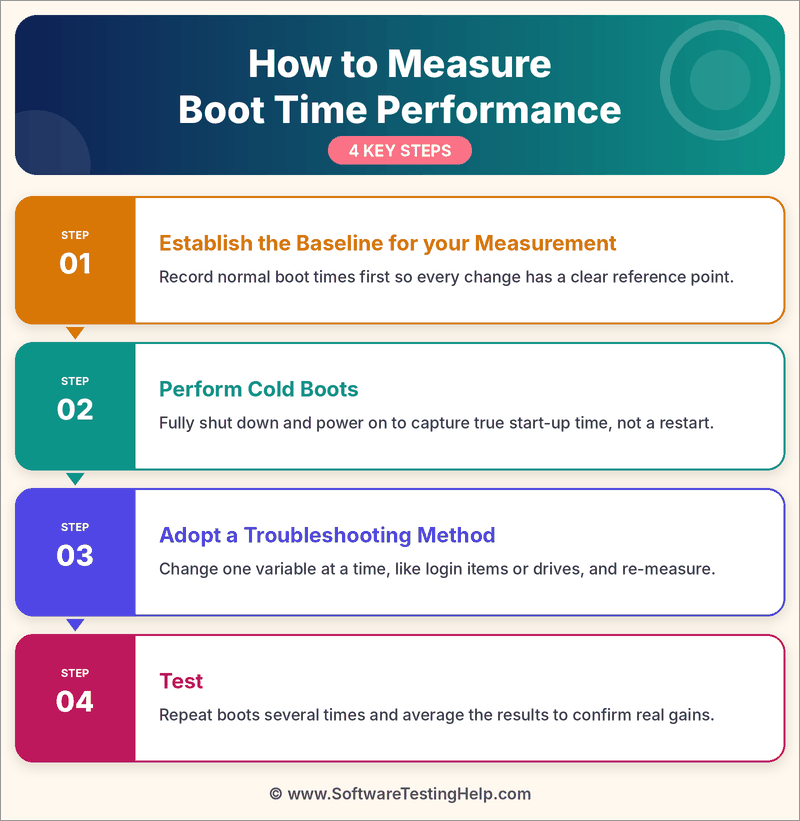
- Establish the Baseline for your Measurement: For example, it could be the time it takes from the moment you hit the power button until you see the login window appear on screen.
- Perform Cold Boots: I suggest doing three cold boots to arrive at an average. For instance: I) Boot 1 took 1 minute, II) Boot 2 took 1 minute 5 seconds, III) Boot 3 took 1 minute 3 seconds. So, the average boot time would be 1 minute 3 seconds.
- Adopt a Troubleshooting Method: Use any one troubleshooting method from the ones mentioned above. For example, try to remove unnecessary apps from launching automatically during startup.
- Test: Test again once you’ve employed a method and check whether the average boot time has reduced. If that’s the case, you’ve just found yourself a possible solution.
Preventative Maintenance Checklist To Speed Up Mac
You know how the old saying goes: prevention is better than the cure. Now, I am not saying you should clear system cache every day or review login items regularly.
Instead, try to do the following at least once a month:
- Monitor your system storage. Keep at least 10-20% of your storage space free.
- Empty your trash bin. If you haven’t restored any files still dwelling in that bin, you probably don’t need it. So, keep your trash bin empty.
- Review login items. Remove apps and programs you don’t want launching automatically during boot.
- Review your storage for large files and unwanted apps. Delete them.
- Review Activity Monitor for apps consuming way too much CPU power.
- Keep your apps and macOS up to date.
- Clear system cache
- Use antivirus software to scan your system for malware and viruses.
- Repair disk permissions via Disk Utility.
Here’s a table showing the impact these preventative measures can have on your Mac startup speed:
| Preventative Maintenance Task | Frequency | Impact (Low/Medium/High/Critical) |
| Keeping 10-20% storage space free | Continuous | Critical |
| Empty trash bin | Bi-Weekly | High |
| Review and restrict login items | Once a month | High |
| Delete unwanted large files and apps | Quarterly | Medium |
| Review Activity Monitor | Weekly | Low |
| Update OS | Whenever an update is available | High |
| Clear System Cache | Bi-Weekly | High |
| Scan System for Viruses and malware | Once a month | High |
| Repair Disk Permissions via Disk Utility | Quarterly | Medium |
Frequently Asked Questions
1. Why is my Mac running so slowly?
Your Mac’s probably running slowly because of one or a combination of the following reasons:
• Too many apps logging in at the same time during startup.
• Apps running in the background and consuming too much CPU power
• Corrupted cache file
• Bugs due to an outdated app or macOS
• Low storage space
2. Why does my computer take 20 minutes to boot up?
20 minutes to boot up hints at a serious issue with your computer. It is more than likely a hardware problem. Perhaps your motherboard is failing, or your HDD is dying.
You’ll probably need to take your computer to a nearby repair station. Corrupted files or too many apps running in the background could also trigger these issues.
However, given just how long your computer takes to boot up, I would bet the problem is connected to its hardware rather than software.
3. How to fix an extremely slow Mac?
You can do many things to fix an extremely slow Mac:
• Review login items and remove apps you don’t want launching automatically or running in the background.
• Update your macOS and apps.
• Clear system cache files.
• Delete large unwanted apps and files.
• Force-shut down apps using more CPU power.
• Reindex Spotlight
You’ll see a detailed guide for each of these solutions in the article above.
4. What does an SMC Reset do?
An SMC reset essentially restarts an Intel Mac’s System Management Controller. The SMC is a chip responsible for handling your computer’s fans, battery power, and various low-level hardware functions.
For those who want to learn how to perform an SMC reset, simply refer to the following guide: SMC Reset Instructions
5. Can I damage my Mac with an SMC and NVRAM reset?
No, an SMC and NVRAM reset won’t cause any harm to your Mac. All it’ll do is restore some low-level battery functions to their default settings.
Conclusion
Over time, a Mac will show its age by significantly slowing down during boot. If you’re facing a slow-booting Mac, even though it is new and supposed to be healthy, you’ve got yourself a problem that can hopefully be fixed easily.
You start by first identifying the root cause of this issue. The cause will guide you towards the most appropriate solution. I’ve shared every possible fix for a slow-booting Mac above. I suggest you give these troubleshooting tips a try and check whether they fix the issue.
If the methods aren’t helping or if you suspect the cause to be hardware-related, take your computer to an authorized service center immediately.
Research Process: The total time involved to complete and publish this article is approximately 42 hours. This content was created through a structured research approach to ensure accuracy and reliability.
For more-related guides, you can explore our range of tutorials below:
- How To Factory Reset MacBook Pro: Step-by-Step Guide
- How to Fix When Windows PC Won’t Shut Down
- How to Tell If Your Mac Needs an Anti-Virus? Mac Security Guide
- How to Open Task Manager On Windows, Mac and Chromebook
- How To Take Screenshot On Mac [4 Step-By-Step Methods]
- How To Open JNLP File On Windows 10, 11, Mac
- How To Force Quit an App On Mac – Easy Steps
- How to Enter BIOS (UEFI) in Mac, Windows 10 and 11
Was this helpful?
Recommended Reading
-

Here you can explore useful methods to Boot into Windows 10 Safe Mode to understand the various safe mode options for starting windows 10 in safe mode. The system faces numerous errors on a day-to-day basis, and there are times when users experience system crashing or a loop of application…
-
Learn how to Boot Windows 10 from USB by understanding the pre-requisites, method to create bootable USB, etc: Windows is one of the most used operating systems presently available in the market because of the user-friendly interface and the popular features it provides. Windows has a wide user base globally,…
-
Windows Boot Manager is a crucial component responsible for managing the startup process of various Windows operating systems. Follow these simple steps to know how to enable or disable it: The operating system is the life of every computer; without it, no system can function; it would be like a…
-
Get your Mac running smoothly with our step-by-step guide. Learn how to force quit an app on Mac instantly with just a few taps and bid goodbye to unresponsive or frozen apps: I don’t need to stress about just how frustrating it can be to deal with an unresponsive app…