You can secure your data through backup Android phone in just a few minutes via our exclusive guide. Learn how you can back up your Android smartphone to Google Drive, PC or Mac in minutes.
Are you concerned about losing any of your information such as photos, messages, contacts, applications, or any other Android data? Get to know how you can back up your Android phone via Google, PC, Samsung devices, internal storage, or any other method.
Our guide also helps you understand what Android does not back up for you automatically and how you can restore your backup to a new device or after a factory reset.
How to Back Up an Android Phone Quickly
In order to backup Android phone, you need to go to Settings > Google > All services > Backup and enable Backup by Google One. After this, you will be able to see what type of information would be backed up. Android backs up apps and app data, contacts, calls history, device settings, and SMS/MMS.
How to Back Up an Android Phone in 2026: Fast & Safe Methods
In this article, I’ll teach you how to back up an Android phone. So, without much further ado, let’s dive in.
What Data Does Android Backup?
Android backup is quite simple. Most phones today automatically back up your data to a linked Google account. Alternatively, you can opt to back up your Android phone to a Windows, Mac, or Chromebook computer either wirelessly or through a USB connection.
For more advanced backup and restore operations, you can seek the assistance of third-party applications like iReaShare, Syncios, SyncDroid, etc. It is also recommended that you back up your device locally to have one copy stored away on a hard drive or USB flash drive.
What Google Automatically Backs Up
An Android phone will automatically back up the following data to your linked Google account.
- Apps and app data
- Contacts
- Call history
- SMS/MMS
- Device settings
- RCS messages where supported.
How to Back Up an Android Phone: 5 Easy Methods
There are multiple ways such as Google Cloud Backup, backup through your computer or Mac, Samsung tools, media transfers locally, and third-party applications that you may use in case of creating a backup for your Android mobile phone. All these are discussed below in order to enable you to select the most convenient method.
#1) Back Up Android Phone to Google Cloud
All Android phones that exist today can be linked to one’s Google account. As such, you can basically configure your phone to automatically back up data to your Google Drive or Google Photos (for media files).
Here’s how you do it:
- Go to Settings on your phone.
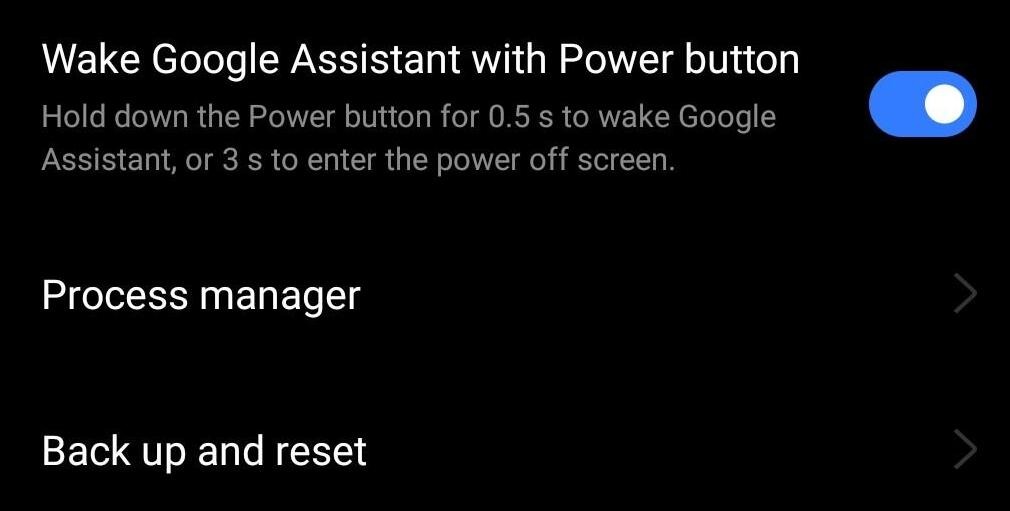
- Tap on System Settings > Backup and Reset
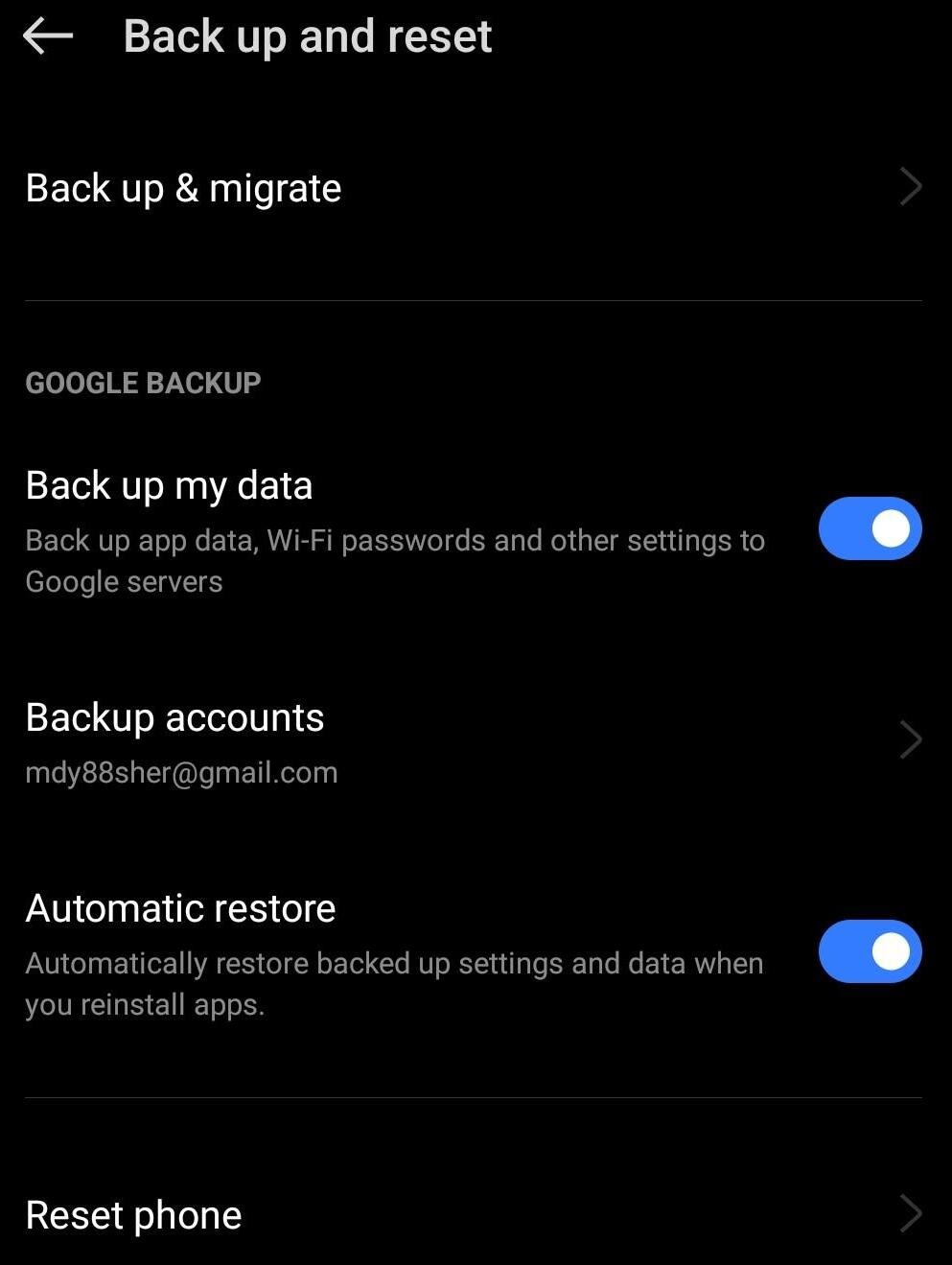
- In the Google Backup section, enable the option Back up my data.
To manage your Backup:
- Go to Settings
- Tap on Google
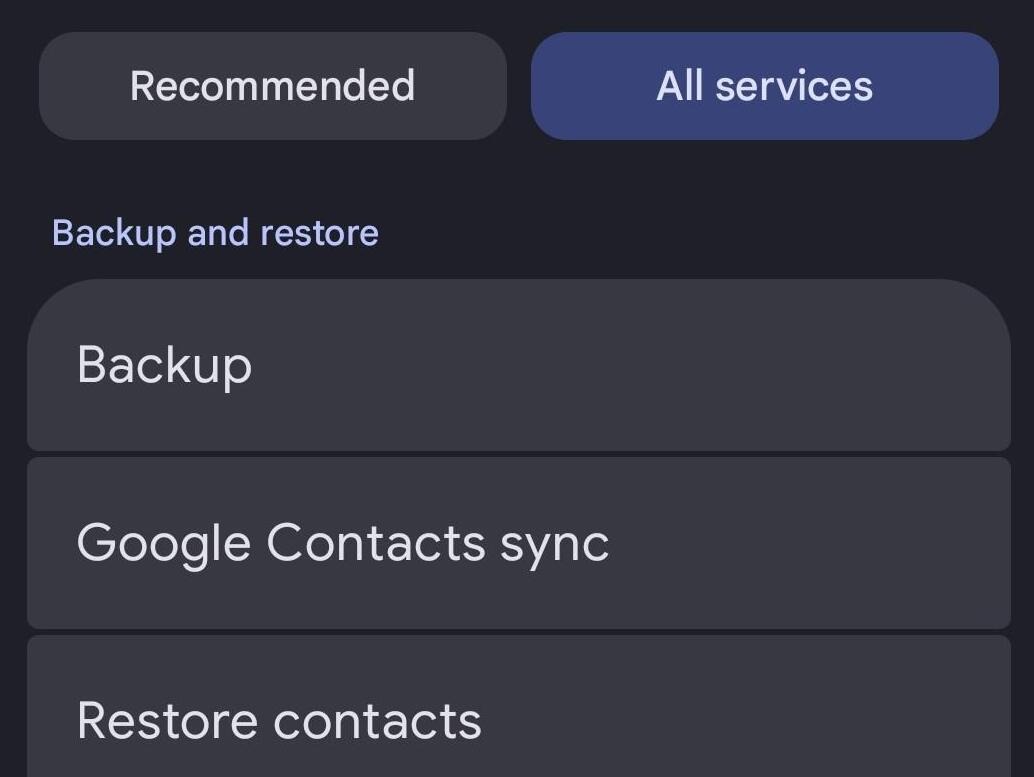
- Select Backup.
It is that simple.
To back up Android photos and videos, I suggest you do the following:
- Open Google Photos
- Make sure you’re logged in via your Google Account.
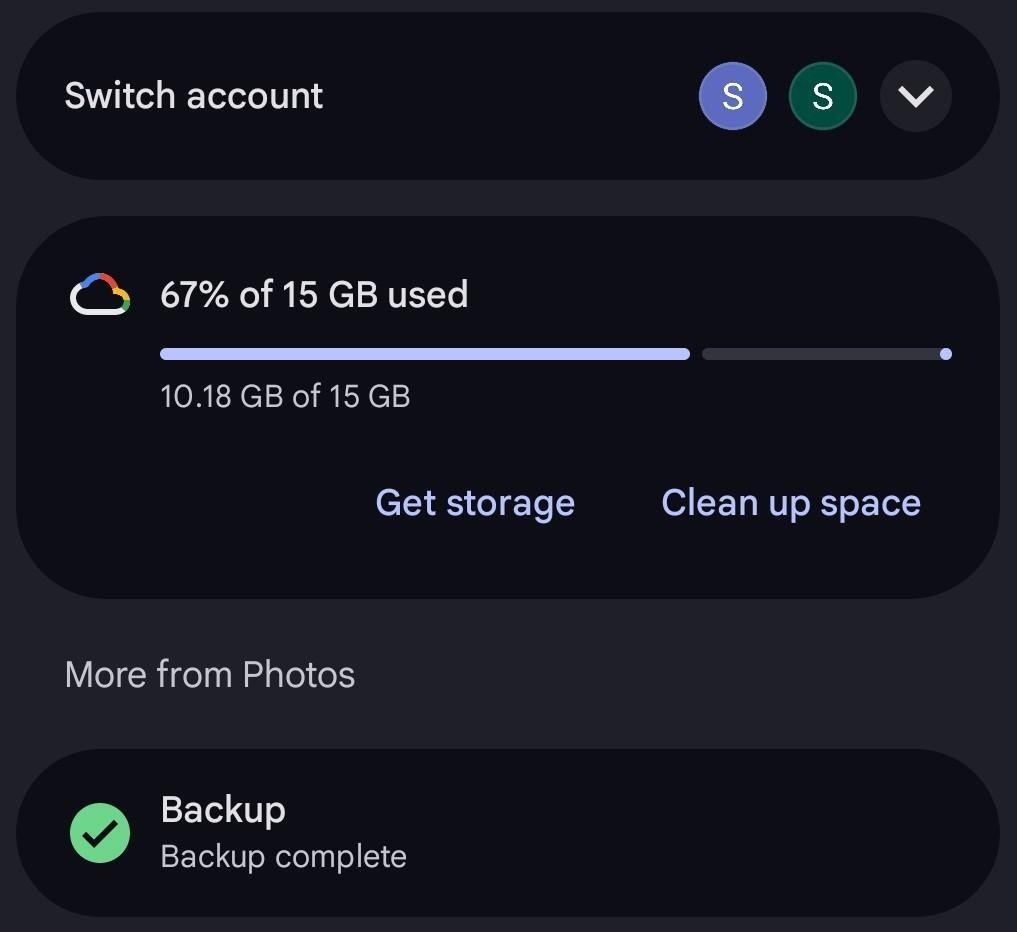
- Tap on your account profile pic, displayed at the top-right corner of your screen.
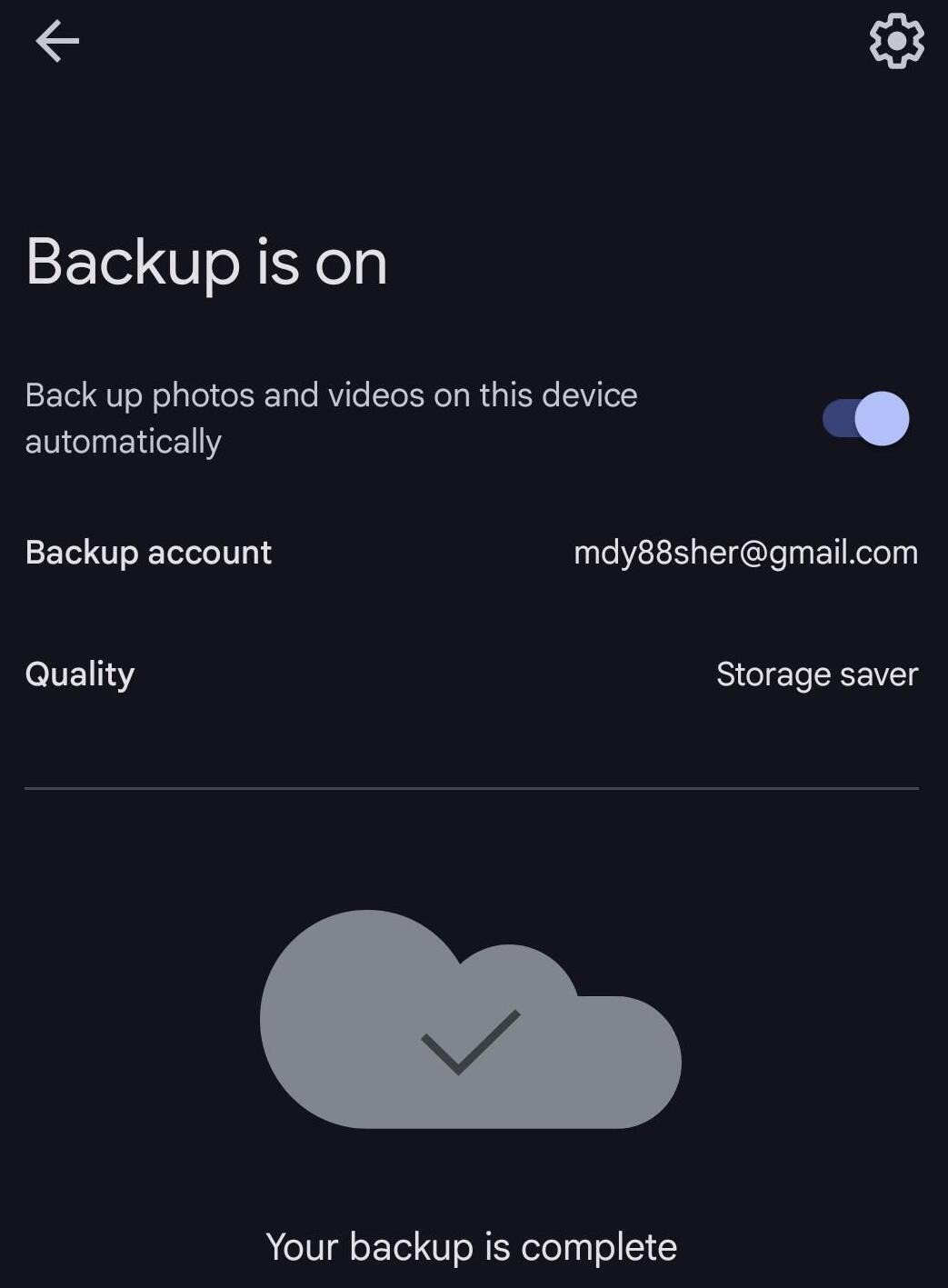
- Select “Turn On Backup”.
How to restore an Android Phone from Google Backup
You’ll be given the option to restore your previous backup during the initial setup of your new phone.
Follow the on-screen instructions until you come to the Google account sign-in page.
- Log in to your Google Account. The one that contains your backup.
- Choose the backup you want to restore and hit Next.
- Enter the password to decrypt the backup.
- Choose what you want to restore before hitting the “Restore” button.
Here is the video on how to restore Android Backup from Google Drive
Now Google isn’t the only cloud service that you can use to back up your Android phone. Your Google account or Drive may even prove insufficient if your data is large.
Both Dropbox and OneDrive are great options if you are looking for a cloud-storage service that’ll help you back up without charge. I suggest you consider those alternatives if your Google Drive is running short on storage space. These are all great options if you wish to back up Android without a Google account.
#2) Back Up Android Phone to a Computer
i) Backup Android Phone to PC/Computer
- Connect your phone to your Windows PC using a USB cable.
- Navigate to your phone’s notification panel and select “Charging this device via USB”.
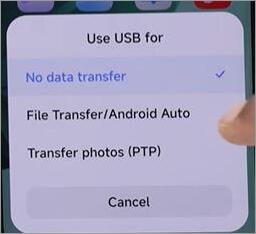
- A “Use USB For” pop-up message will appear. Select the “File Transfer” option.
- A pop-up message will now appear on your PC. Select “Open Device to View Files”.
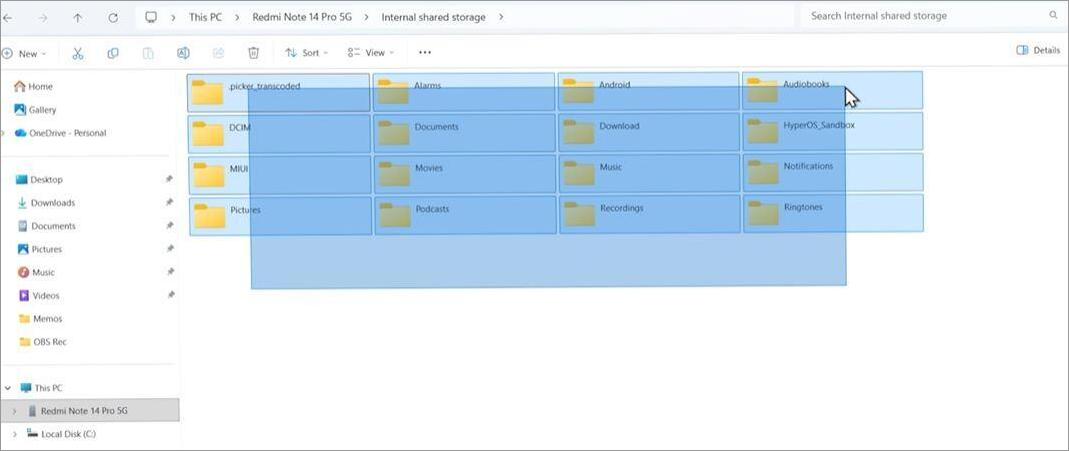
Now look for Android files here and copy-paste them onto your PC.
ii) Backup Android Phone to Mac
- The very first thing you need to do here is install the MacDroid app on your Mac.
- Connect your phone to the Mac via USB and launch the MacDroid app.
- When prompted on the Mac device, select “Allow” to enable your Android phone’s connection.
- Tap on the “Charging this device via USB” notification on your Android device.
- A “Use USB To” pop-up message will appear. Select the “File Transfer” option.
You’ll now see the Android phone listed as MacDroid in Finder. Click on it to start transferring files from your Android phone to Mac.
iii) Backup Android Phone to Chromebook
- Connect your phone to the Chromebook via USB.
- Tap on the “Charging this device via USB” notification on your Android device.
- Tap on More Options => File Transfer.
- This will result in the Files app opening on your Chromebook.
Simply drag the files over to create a backup.
iv) Backup Android Phone via Bluetooth
You don’t have to use a USB cable to connect your phone to a computer. The Bluetooth on your devices can also work.
Here’s how you do it:
- Turn on Bluetooth on your phone and computer.
- Pair both devices.
- Once paired, open File Manager on your phone.
- Select the files you wish to back up and tap on “Send”. Select the PC as the file’s destination.
Although a Bluetooth connection might be more convenient, transferring files is much slower compared to a USB. Keep that in mind when deciding on the proper approach.
#3) Back Up a Samsung Phone
If you are using a Samsung phone, then rejoice, as you have additional backup features to play with.
- On your Samsung phone, go to Settings > Select Accounts and Backup > Samsung Cloud
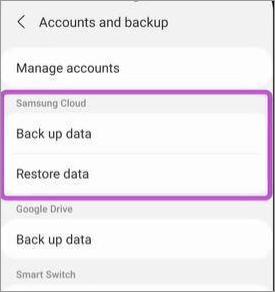
- Tap on Back up data
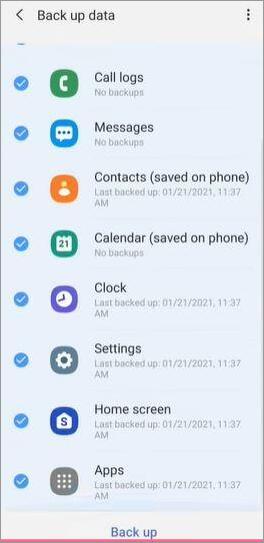
- Tick the data you wish to back up and hit the backup button below to confirm.
If you own a Galaxy Z or S phone running One UI 6 or later, then you can use the temporary cloud backup option. This temporary backup stores your data in the cloud for up to 30 days.
Here’s how you do it:
- Go to Settings
- Select General Management > Reset > Temporary Cloud Backup
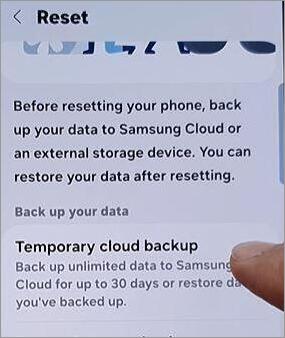
- Select Back up data and tick all the data you wish to create a backup of.
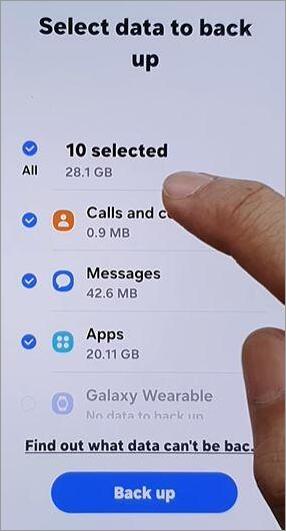
- Hit the Backup button below to confirm.
#4) Back Up Android Data Locally
Perhaps you don’t want to use Google or any other cloud services to back up your data, or you don’t think that’s enough. Well, I suggest copying your phone’s data to a local USB flash drive or your personal hard drive.
This way you basically have your Android’s backup stashed away somewhere in your closet or drawer. You can rely on it if you forgot your cloud account’s access credentials.
#5) Use Third-Party Android Backup Apps
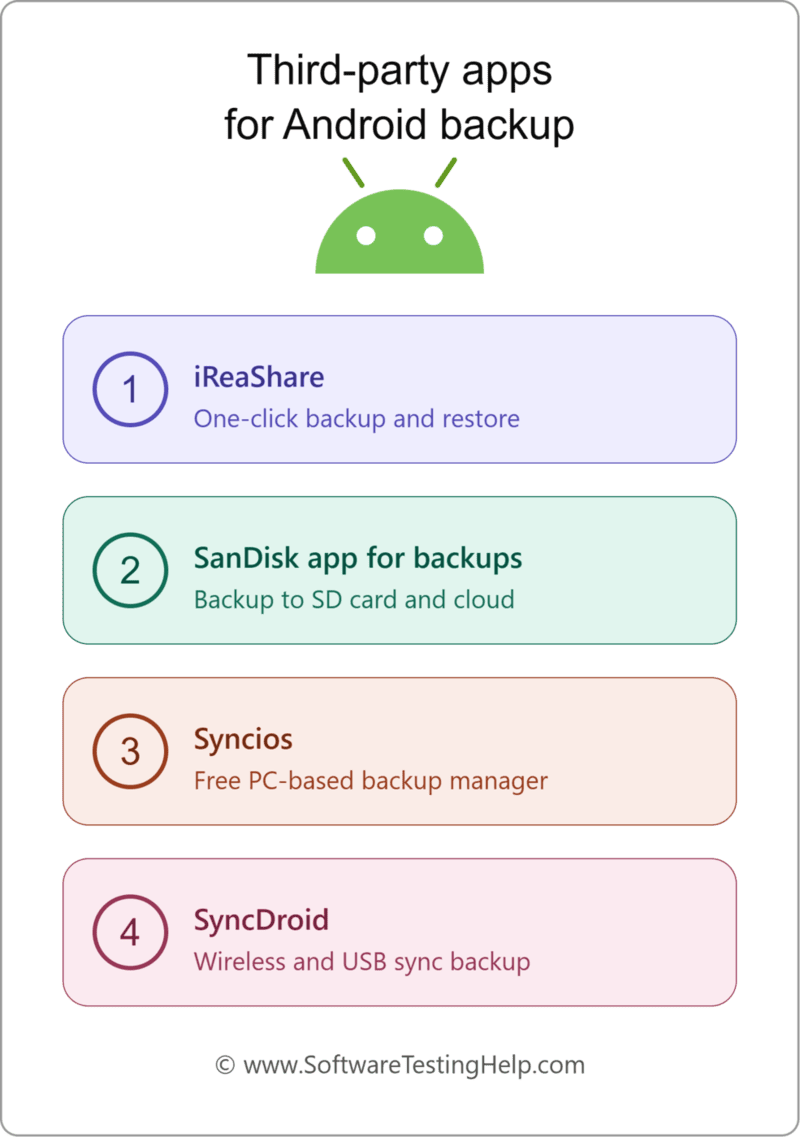
#1) iReaShare
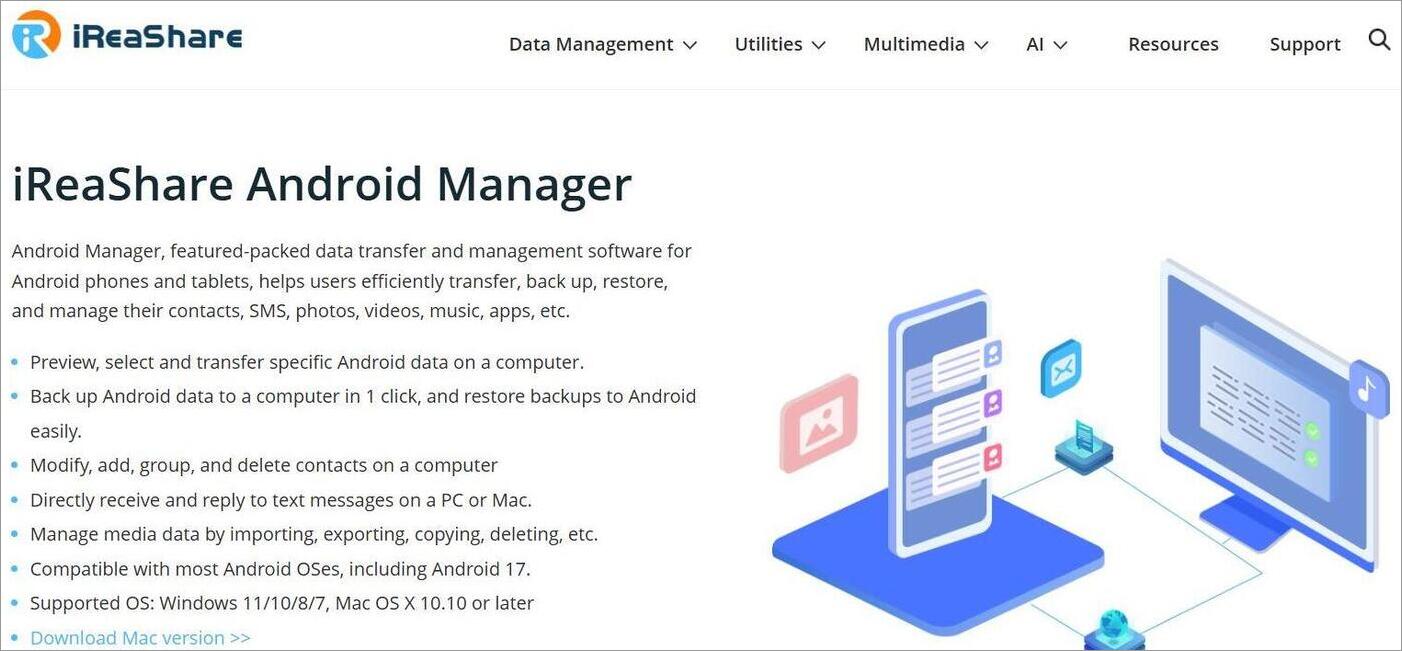
iReaShare is a user-friendly and feature-rich data transfer solution that works with almost all Android phones. It can help backup data and restore it in just a single click. Besides backup and restore, it can also help you manage your files with ease. You can preview each file before choosing to backup or restore it.
Price: $39.95
Website: https://www.ireashare.com/android-manager.html
#2) Sandisk App for Backups
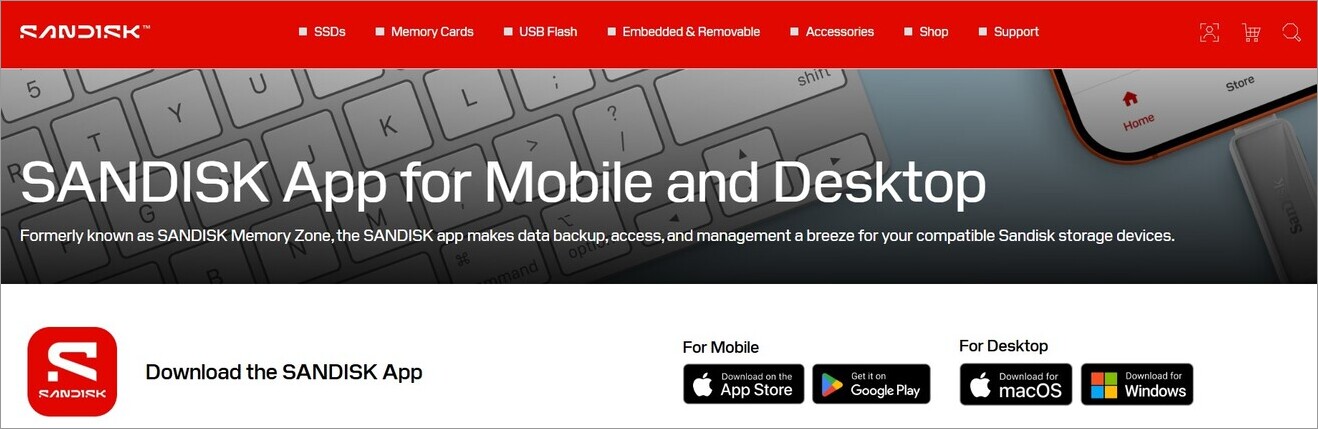
Sandisk is an app you can trust because of the prestige its name holds. Staying true to its solid legacy, you have an app that makes Android backup look seamless. You are provided with a sleek interface that’ll help you back up and manage content in seconds. You can also set intervals so that your data backup creates itself daily, weekly, or monthly.
Price: Free to use
Website: https://www.sandisk.com/topics/accessories/sandisk-app-for-backups
#3) Syncios
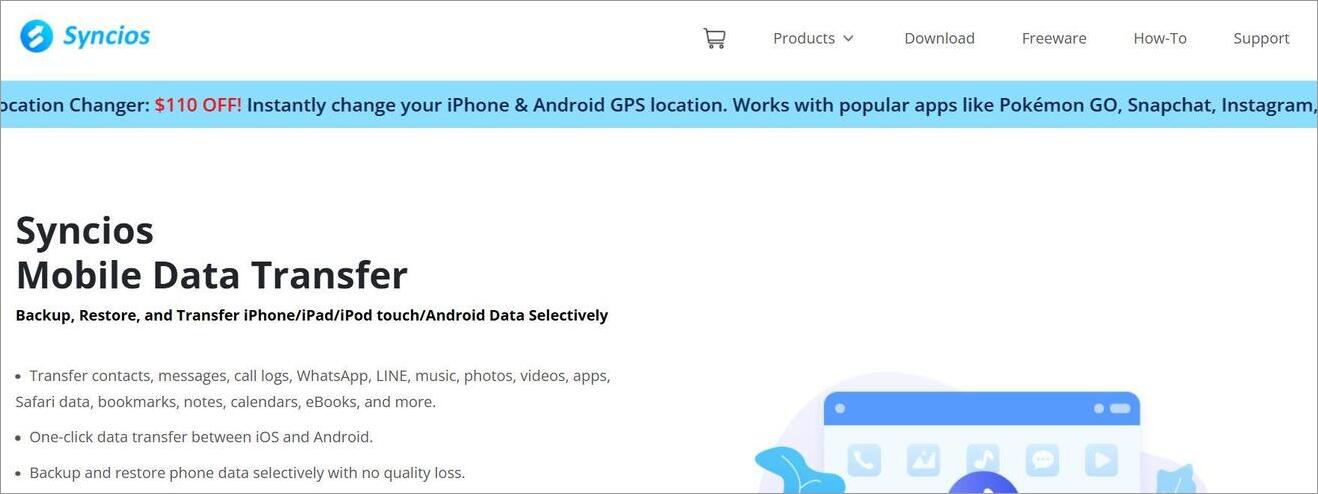
The Syncios data transfer app can create both Android and iOS back up. It can help you handle 12 different types of phone data. Like the apps mentioned above, Syncios also facilitates one-click data backup. You can also count on it to restore data without any loss in the file’s quality.
Price: $29.95
Website: https://www.syncios.com/data-transfer/
#4) SyncDroid
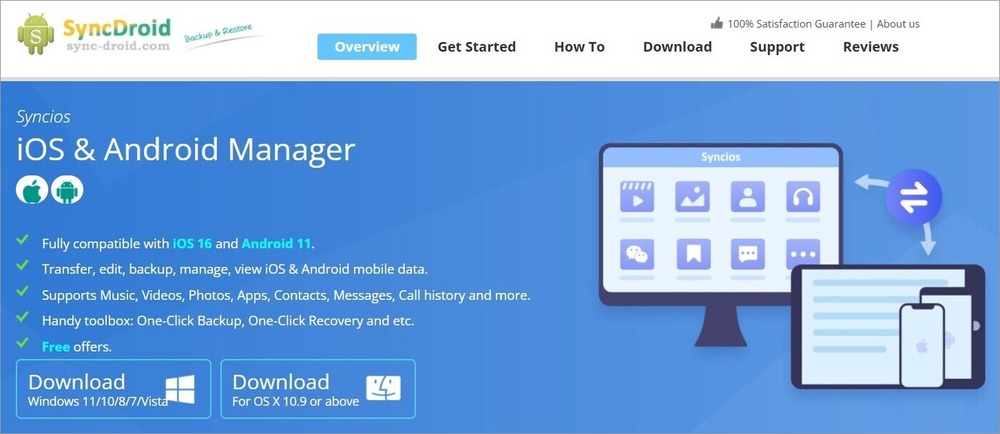
I consider SyncDroid a great Android phone backup app because of its simplicity. It facilitates one-click backup and restore of data through a bare-knuckle, easy-to-look-at dashboard. It is an app you can use to edit, transfer, manage, and preview Android files without charge.
Price: Free to use
Website: https://www.sync-droid.com/
Comparing the Third-Party Apps for Android Backup
| Name | Best Feature | Supports iOS Backup | Price |
|---|---|---|---|
| iReaShare | One-click backup and restore | Yes | $39.95 |
| Sandisk | View backup in multiple views | Yes | Free |
| Syncios | Media file syncing | Yes | $29.95 |
| SyncDroid | Content management | Yes | Free |
#6) Advanced Backup Options for Rooted Phones
If you are using a rooted phone or one that employs root access, I suggest you try the following solutions.
#1) Titanium Backup: This is a great backup utility app that leverages root access to both save and restore files on an Android device. Besides app backup, the app can also help you freeze bloatware and secure data.
#2) Nandroid Backup: Aka, Nandroid refers to the de facto standard directory structure on an Android device that can be used to back up a mirror image of your phone. This helps you back up almost everything from your apps and contact list to system settings.
How to Back Up Android Before Switching Phones
Transferring data from an old phone to a new one is fairly simple on Android phones. Both the built-in system on your Android phone and apps like Samsung’s Smart Switch can help you with this.
Through the built-in system, all you have to do is:
- Connect both your old and new phone wirelessly. You’ll see the instructions to transfer data from your old phone pop up on your new phone as soon as you switch it on.
- On the new phone, activate your SIM card, add your Google account, and set up biometrics.
- Now choose what data you wish to transfer from your old smartphone.
- Hit Next to start the data transfer. You’ll be alerted when this process is complete.
Samsung’s Smart Switch is another app that you can use to make this transfer process even simpler. Smart Switch lets you back up data from any smartphone to a Mac or Windows computer.
The only caveat with this app is its exclusivity to Samsung devices. Although you’ll be able to back up data from most smartphones, this data can be restored to a Samsung phone only.
How to Restore an Android Backup to a New Phone
A Google backup can be used to restore an Android phone either when setting up a new Android phone or after performing a factory reset. You simply need to sign in using the Google Account used for backing up the old Android phone.
You can manage you backup through Google One
Steps for Restoring Android Phone from Google Backup
1. Power on your new Android phone or reset it and connect it to a Wi-Fi network.
3. Follow the instructions for setting up your phone.
4. When asked about the way of setting up the phone, select the option for restoring or copying data from backup.
5. Sign in to your Google Account that was used for backing up your old Android phone.
6. Select the most recent backup.
7. Select the apps and data you wish to restore.
8. Tap “Restore” and follow further on screen instructions.
9. Keep your phone connected to the Wi-Fi network until the process finishes.
Depending on the type of device and version of Android, the following can be recovered by Google backup: supported apps and app data, contacts, call history, SMS and MMS messages, and device settings. But it is not true that all apps have a possibility to backup their data.
What about Photos and Videos?
Photos and videos that were backed up through Google Photos are restored independently from regular Android backup. After signing into your Google account, you will get access to your backed-up photos and videos via Google Photos.
What if Your Google Backup Is Not Found?
In case the backup is not found, verify if:
- Your Google Account is logged in.
- Your old device made a backup.
- Your new device supports the compatible Android version.
- You have a steady Wi-Fi connection.
- Your backup has not been lost or expired.
Note: Google backup does not contain all files stored in your phone. Some applications’ data, downloaded data, WhatsApp data, passwords, and 2FA data need to be backed up separately. The above information must be emphasized in your article as it avoids misunderstandings from users.
How to Backup Android Data that Doesn’t Auto-Backup
Even with the auto-backup on your phone enabled, Google will ignore some data. For example, your passwords or data from messaging apps like WhatsApp and Signal don’t back up automatically. That does not mean this data cannot be backed up.
WhatsApp and Signal, for example, come with their own built-in backup feature.
On WhatsApp, all you have to do:
- Go to Settings
- Select Chat > Chat Backup
- Select the frequency of automatic backups.
You can also enable end-to-end encrypted backups to protect your chats. To back up your passwords, you’ve got two options. You can export your saved passwords via Chrome’s password manager or use a third-party app like Bitwarden.
Like WhatsApp, there are many other applications; take most banking app password managers (PassVault, Bitwarden) or 2FA tools (Authy), for example, that do not automatically back up. These apps do have their own built-in backup systems. I suggest you enable this feature to ensure your information within these apps is backed up regularly.
Android Backup Not Working? Troubleshooting Tips
Your backup operations aren’t always going to be smooth. Sometimes things just go wrong. Your backup might stop abruptly or slow down. Do not worry when these issues arise.
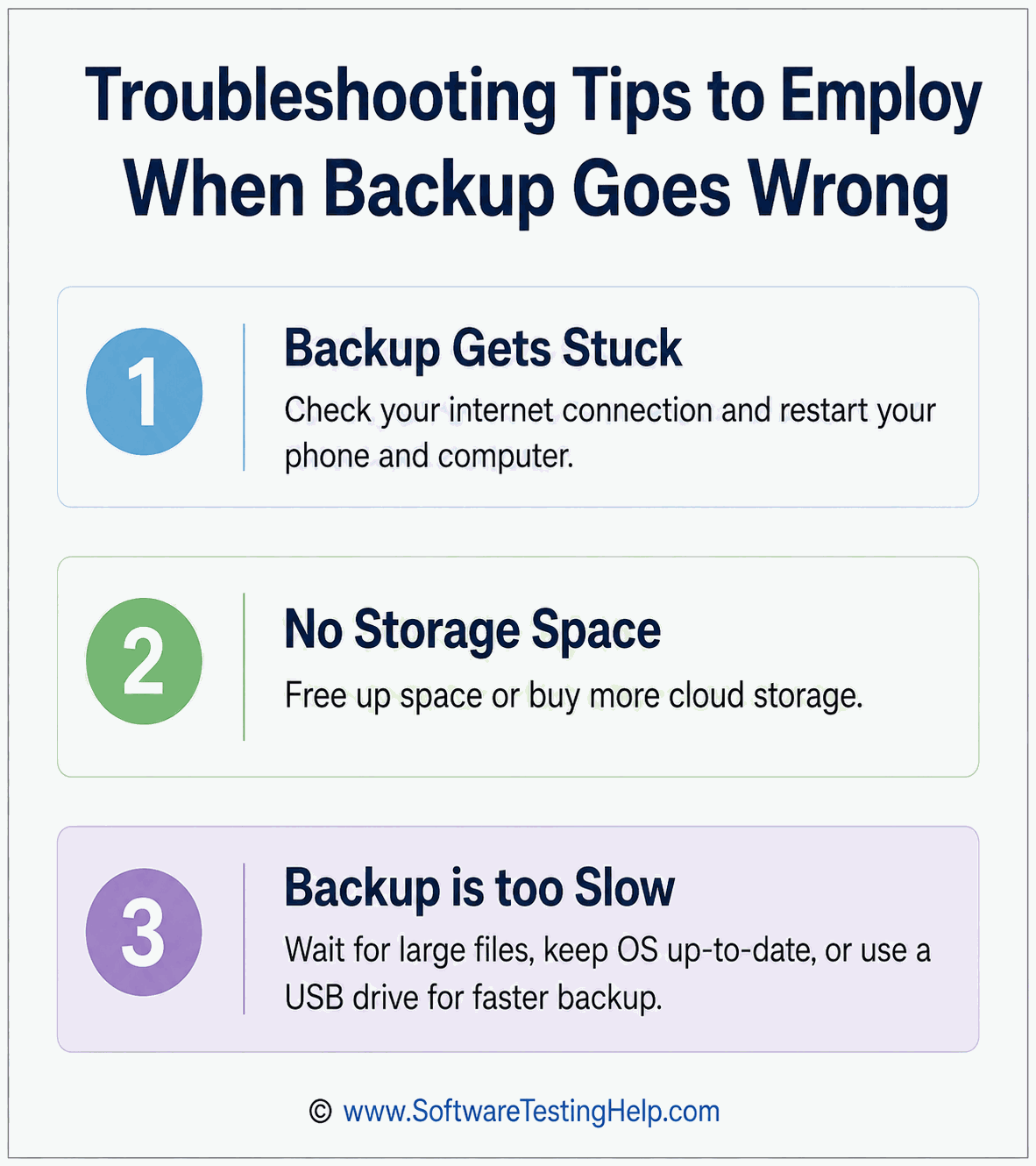
Simply follow the tips below.
#1) Backup Gets Stuck or Won’t Complete
If your backup gets stuck, the first thing you need to do is check your internet connection. Make sure your internet speed is decent and stable – disable VPNs or any other apps that may throttle your internet speed.
Stop the current backup operation and restart your phone and computer. Also, make sure no apps are running in the background while your backup is in progress.
#2) Google Storage Is Full
Cloud storage services like OneDrive or Google Drive do not offer you an unlimited amount of space. If you see a message stating “No storage space”, try to free up some space by deleting stuff you don’t need. Remember, Google’s free tier only offers 15 GB of storage space.
Alternatively, you can try to buy more cloud storage. You can buy 100 GB of storage space for Google Drive via Google One at $1.99/month.
#3) Android Backup Is Too Slow
Sometimes your backup might lag because the files being stored are large. I suggest you wait and be patient while the backup completes. Make sure your phone and computer OS are up-to-date. An outdated OS can result in a slower backup.
Finally, try to use a USB drive to back up Android to PC or Mac instead of a Bluetooth or Wi-Fi connection, as that would be faster.
What Data Does Android Not Back Up Automatically?
While a Google backup will store a number of Android settings and information, it won’t back up a full replica of your phone. There are instances where some information has to be backed up through other Google services or individual applications, and there are times when some information is stored locally and is thus not backed up.
Google itself informs us that not all applications back up all their information.
When changing phones, doing a factory reset, or even just disposing of your old phone, make sure you have backed up the following.
| Data | How to Back It Up Separately |
| Photos & videos | Turn on Google Photos backup and verify that all folders you need are included |
| WhatsApp chats | Use WhatsApp’s built-in Chat Backup option |
| Downloads & documents | Copy them to a PC, external drive, Google Drive, or another cloud service |
| Music & local media | Copy files to a computer or external storage |
| Some app data | Check the individual app’s backup/export or cloud-sync options |
| Passwords & passkeys | Verify that they are synced with your password manager or Google Password Manager |
| Authenticator/2FA accounts | Use the authenticator app’s transfer/backup feature and save recovery codes |
| Files stored only on the phone | Manually copy them to another storage location |
- Photos & Videos: Android device backup and Google Photos backup need to be considered separately. To secure your photos and videos, launch Google Photos and ensure that backup is on and that necessary folders from the device are included in it.
- WhatsApp Chats: Do not think that the normal Android backup process includes all your WhatsApp messages. You should use the WhatsApp backup facility specifically and see when was the last time you performed backups.
- Downloads & Docs: Your files in directories like Downloads may also need to be backed up separately. Save your PDFs, Word documents, ZIP archives, recordings and other personal documents to computer, external storage or online services.
- Passwords, Passkeys and 2FA: They become especially important when changing phones. Make sure your passwords and passkeys are synchronized, and that your authenticator accounts and 2FA recovery codes are accessible before wiping your old device.
- Some App Data An Android phone can restore backup of supported applications, but all apps do not support backup and restoration of all data stored within it. Make sure you backup important apps manually.
- Pro Tip: Do not just verify that there is a Google backup on your Android phone before a factory reset. Ensure photos, WhatsApp, files, passwords, and 2FA backups separately. This way, you won’t end up in the scenario where you restore the phone but not the important data
Best Practices to Follow for Android Backup
To make sure you don’t end up losing your backup, we have enlisted certain best practices to follow:
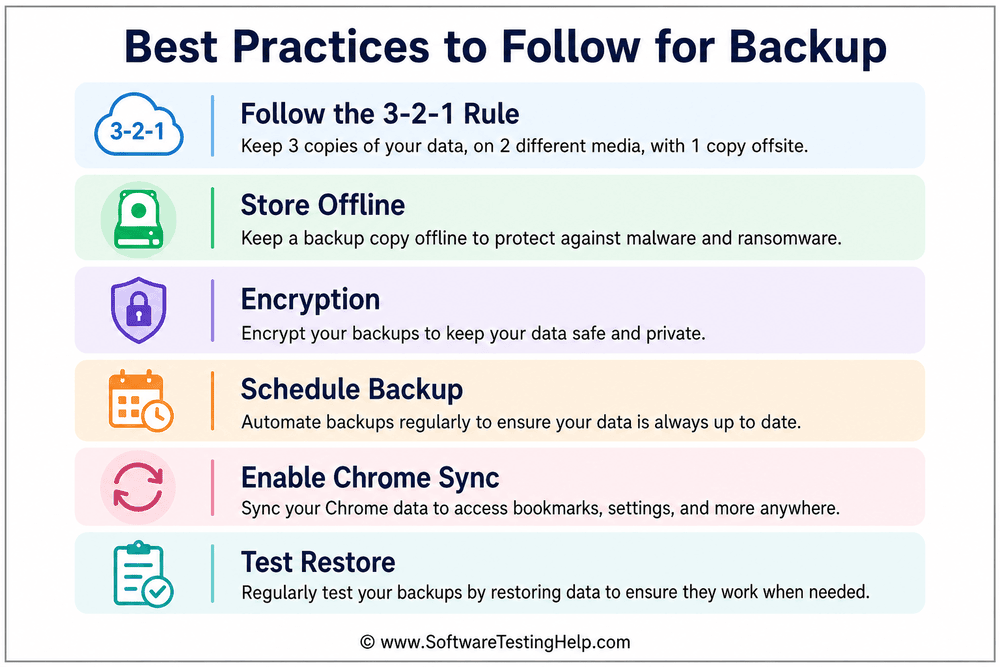
I suggest adhering to the following best practices:
- Follow the 3-2-1 Rule: Keep at least 3 copies of your data. They must be stored on 2 different media types. Store one copy off-site.
- Store Offline: Keep at least one of these copies stored offline. As such, you can get the data back if your cloud storage is compromised.
- Encryption: Lock away your files with strong passwords. Use a data transfer app that ensures encryption of files in transfer and at rest.
- Schedule Backup: Schedule your backup at specific intervals to ensure your files are automatically backed up every day, once a week, or once a month.
- Enable Chrome Sync: Beyond the system files, you can also save your browsing data (bookmarks, tabs, history) by enabling Chrome Sync on your phone’s Chrome browser. To enable Chrome Sync:
- Open Chrome > Settings
- Select You and Google
- Select Your Profile/Account
- Now select which items you wish to sync.
- Test Restore: I suggest regularly restoring your backup files just to check that your system is working as it should. Testing regularly will help you catch faults before it is too late. To check or verify your backups regularly, do the following:
- Open Settings on your Phone.
- Select Google > Other Services > Backup.
You’ll now see information about all the files that were backed up by your phone. You’ll even see information on when the last backup took place.
Frequently Asked Questions
1. How do I backup my entire Android phone?
There are multiple methods you can adopt to back up your entire Android phone. You can back up your Android phone via cloud storage like Google Drive, transfer the files to your PC via USB or Bluetooth, or use a third-party file transfer solution.
2. Are Android phones automatically backed up?
Yes, almost all Android phones today facilitate automatic backup of files to a linked Google Account. When this feature is enabled, your phone will typically back up data at least once a day without any manual intervention.
3. Can I backup my Android phone to my computer?
Yes, you can back up your Android phone to a Windows PC, Mac, or Chromebook via a USB cable, Wi-Fi, or Bluetooth connection. You can transfer and manage backups easily between the two devices via a third-party file transfer app.
4. Which backup is best for Android?
I honestly believe that Google’s cloud system is the best backup option for your phone. The automated backup ensures your files are backed up on schedule for easy restoration down the line whenever necessary through a few simple steps.
5. Does backing up a phone save everything?
Backing up a phone will save almost everything. This includes data related to some apps, call logs, SMS history, contact information, and media files. However, WhatsApp does not automatically back up all data related to the app. Your passwords also remain.
To back up WhatsApp data, you can use the app’s built-in backup system. For passwords, your best bet would be an external password management solution.
Conclusion
Your Android phone is a treasure trove of information. It contains photos, contacts of your loved ones, and files you don’t want to lose. Unfortunately, a phone theft or a single virus attack can result in you losing this precious data. That is why it is always important to back up your Android phone.
Hopefully, this article proves it is not as hard as you may have initially perceived. Just follow the steps I’ve shared above, and you’ll be able to back up your Android phone to a PC or cloud without hassle.
Research Process: The total time involved to complete and publish this article is approximately 35 hours. This content was created through a structured research approach to ensure accuracy and reliability.
For more-related guides, you can explore our range of tutorials below:
- How to Transfer Apps From Android to Android Phone
- Coolmuster Android Assistant For Android Data Recovery [Review]
- The Top 11 Online Cloud Backup Services and Solutions
- Do Your Phones Listen to You: Know How?
- What is Android System Key Identifier: Complete Guide
- Top 10 Android Data Recovery Software [App Rankings]
- 14+ Best Server Backup Software (Updated List)
Was this helpful?
Recommended Reading
-

Explore the top effective methods to Remove Malware From Android Phones. Here you will also learn about malware types and the top anti-malware tools: Malware is malicious software that can easily get into your phone while you are surfing the internet on your phone or downloading applications from malicious websites…
-
A simple guide to help you understand the multiple effective ways to answer the question - How to Transfer Apps from Android to Android phone quickly: Switching to a new Android phone can be very enticing. However, transferring all your apps and data from the old to the new Android…
-

Are you confused about choosing from the widest list of Android Phone Cleaner Apps available today? Compare and select the best Android Cleaner Apps: Phone cleaning or junk cleaning refers to removing unused or unnecessary files from the phone. These files can include photos, videos, cache files, cookies, residual files,…
-
Can't make calls on your Android phone? Try these proven fixes to resolve network errors or software issues when your Android phone is not allowing you to make calls: If your Android phone suddenly stops allowing you to make calls, it can be frustrating and confusing. This problem usually occurs…