Learn what Android System Key Identifier is, what it does and how it works along with troubleshooting tips from our experts to manage your Android device safely:
Saw something strange on your phone? Worried it might be spyware or malware? Well, if that something is named Android System Key Verifier, you can put your worries to bed.
It is only natural for you to be surprised and apprehensive at the sight of an application that you don’t remember installing. Rest assured that Android System Key Verifier is an official service by Google meant to standardize end-to-end encryption verification across messaging apps.
Android System Key Identifier Explained: A Complete Guide
You might have many questions regarding this seemingly suspicious application. The only reason I am writing this article is to clear any suspicions you may have.
So, without much further ado, let’s dive in.
Android System Key Verifier App: Brief Introduction
Also known as the Android System Key Identifier, this application is an official system service developed by Google to secure and standardize end-to-end encryption across messaging applications like Signal or WhatsApp.
Refer to the video tutorial below to know more about Android System Key Verifier App:
Google began quietly rolling out the software in late 2024, and it became part of its core system the following year.
The launch of this software is yet another attempt being made by Google to centralize its privacy infrastructure. Google intends to arm its users with a unified repository to store E2EE public keys, and this software seems like a logical step in that direction.

What Does the Android System Key Verifier Do?
Whenever you send a message via a messaging app, Android System Key Verifier will intercept these messages and verify their cryptographic keys to make sure they match the intended recipient. Simply put, Android System Key Verifier makes sure your message reaches the person you intended to chat with.
Android System Key Verifier’s primary role is to stop man-in-the-middle attacks. Instead of each messaging app having its own key verification system, this app basically acts as a centralized surface for key verification across supported applications.
App Specifications
| Package Name | com.google.android.contactkeys |
| Developer Signature | Google LLC |
| Category | System App |
| Min OS | Android 10+ |
| Size | 6 MB |
Why Did It Suddenly Appear on Your Phone?
Google deems this app a legitimate security component for your system. As such, it is possible that Google automatically installed it on your phone as it was undergoing a recent system update. Google tends to install system-level apps without prior warning or consent of the device user.
What you need to know is that the app is, in fact, safe and legitimate. It won’t harm your device in any way. Of course, there are many users who don’t appreciate the fact that Google installs applications on their devices without seeking consent.
You can, of course, choose to uninstall or delete the app entirely; I’ll show you how to do it later in the article. However, I would advise against it, as it is an important functional service that only strengthens your messaging app’s end-to-end encryption.
How Does Android System Key Verifier Work?
Here’s how Android System Key Verifier works:
#1) Your messaging app generates a public encryption key each time you start a chat.
#2) Android System Key Verifier will verify this key against the cryptographic fingerprint of your intended contact to check whether the message is being sent to the right person.
Following the scan, you’ll see the following status alerts:
- UNVERIFIED: The default state indicating that the user is yet to confirm a key’s authenticity.
- VERIFIED: The state that indicates the highest level of trust. It means that the key belongs to the intended contact.
- VERIFICATION_FAILED: This status indicates a warning and means that the key associated with the contact no longer matches the key previously verified. You should take this status as a sign of a security risk, even though it could also mean the contact is simply using a new device.
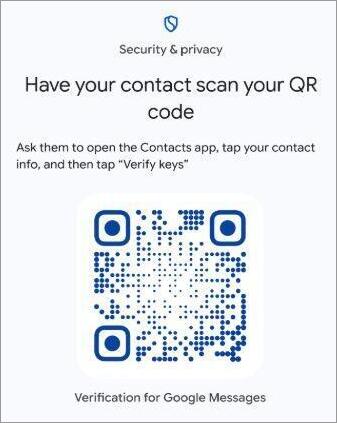
#3) Alternatively, you can manually verify these keys by scanning a QR code from the contact’s device or by comparing verification numbers.
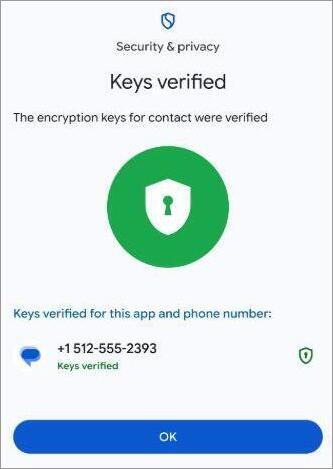
The app also serves as a unified hub to store, read, and manage the encryption keys generated by any supported contact or messaging app on your phone.
Steps to Verify a Contact’s Key on Messages/Contacts
It is very simple to verify a contact’s key via the Contacts or Messages app. Here’s how you do it:
#1) Open the Contacts or Messages app on your phone.
#2) Choose and tap on the Contact whose key you wish to verify.
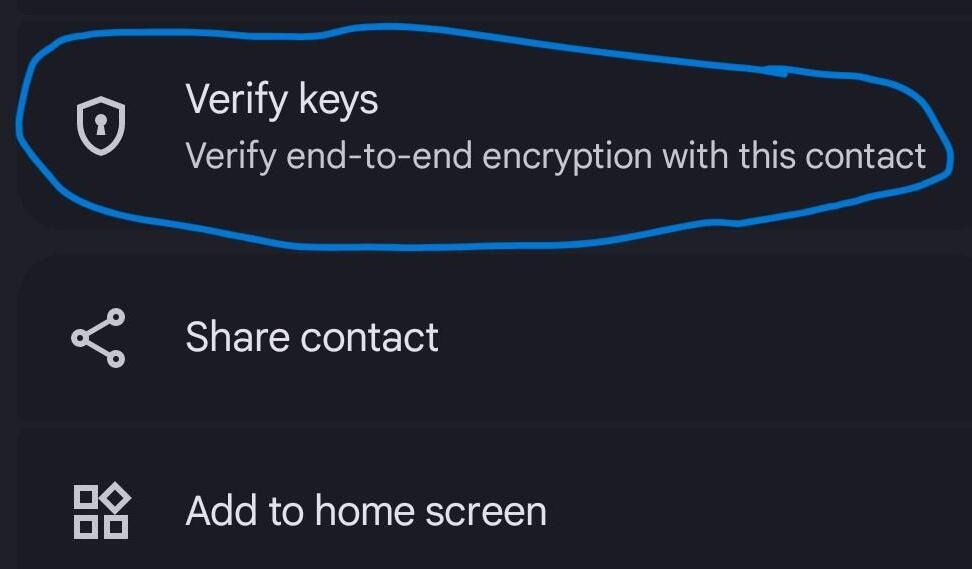
#3) Scroll down until you see the option to verify keys. (You’ll see a “Verified” message if the key has already been verified)
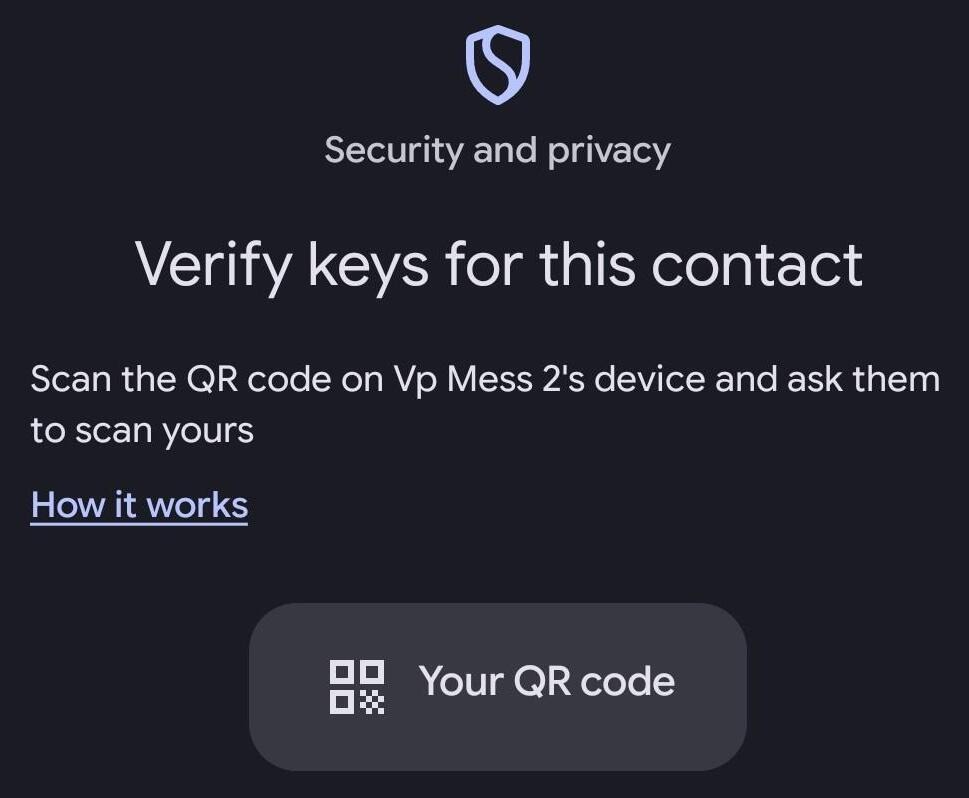
#4) Now, you’ll have the option to scan the QR code on your contact’s phone or have the contact verify your QR code to complete verification.
Is Android System Key Verifier Safe?
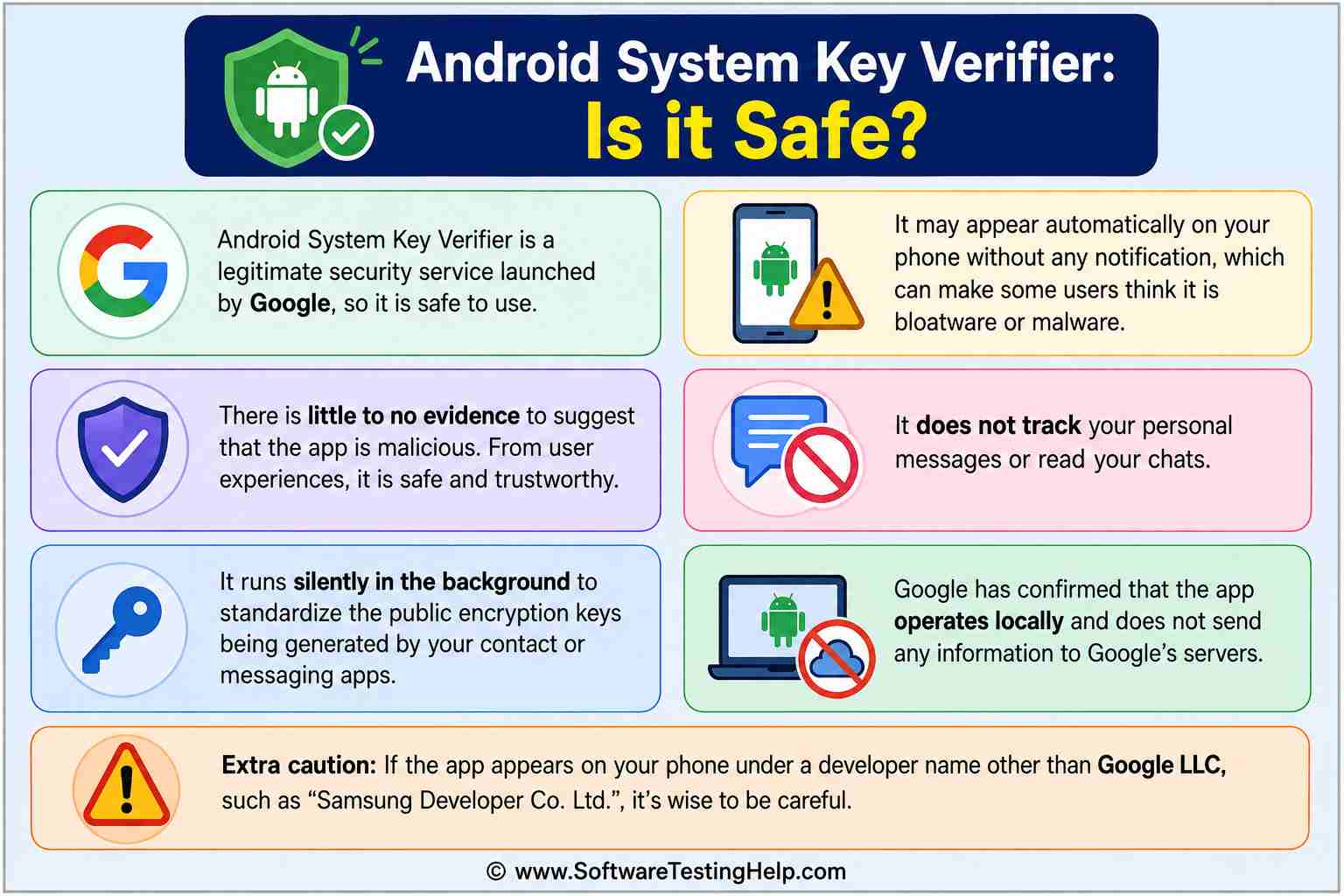
Android System Key Verifier is a legitimate security service launched by Google. The name and prestige of Google alone should be enough to label it as safe. That said, I understand why some people may not be pleased with this app.
The fact that it appears automatically on a phone without any notification has made some people obviously apprehensive. You wouldn’t be wrong to dismiss the app as bloatware or malware.
However, from my experience and the experiences of other Android users online, there is little to no evidence to support the claim that the app may be malicious. It doesn’t track personal messages or read your chats. It operates silently in the background to standardize the public encryption keys being generated by your contact or messaging apps.
Google has also stated that the app operates locally and does not send any information to Google’s servers. All the testimony and evidence gathered so far only suggest that you’ve got nothing to worry about with the Android System Key Verifier.
I would still advise practicing caution, especially if the app appears on your phone under a developer name other than Google LLC. Some users on Reddit have reported the app appearing on their phone under a completely different developer name, like “Samsung Developer Co. Ltd.” for instance.
Android System Key Verifier vs. SafetyCore: What’s the Difference?
System Key Verifier and SafetyCore are both official Google-launched system services. They are both installed silently on a device. Furthermore, they are both meant to bolster user privacy and safety. Yet, they aren’t the same.
The following table will hopefully help you distinguish between the two in the future:
| Factor | System Key Verifier | SafetyCore |
|---|---|---|
| Purpose | Verification of Public Key Encryptions | Detecting NSFW images |
| Function | Manual QR Code scanning or verification of unique safety numbers | ML-based On-device detection |
| AI | No | Yes |
| Data Handled | Public Encryption Keys and Cryptographic Fingerprints | Incoming and outgoing images. |
| OS Version | Android 10 or higher. | Android 9 or higher |
Can You Uninstall or Disable Android System Key Identifier?
Yes, despite it being a system app, Google has afforded you the privilege of uninstalling or disabling it like any other app.
Here’s how you do it:
1. Open Settings on your phone.
2. Select Apps > App Management.
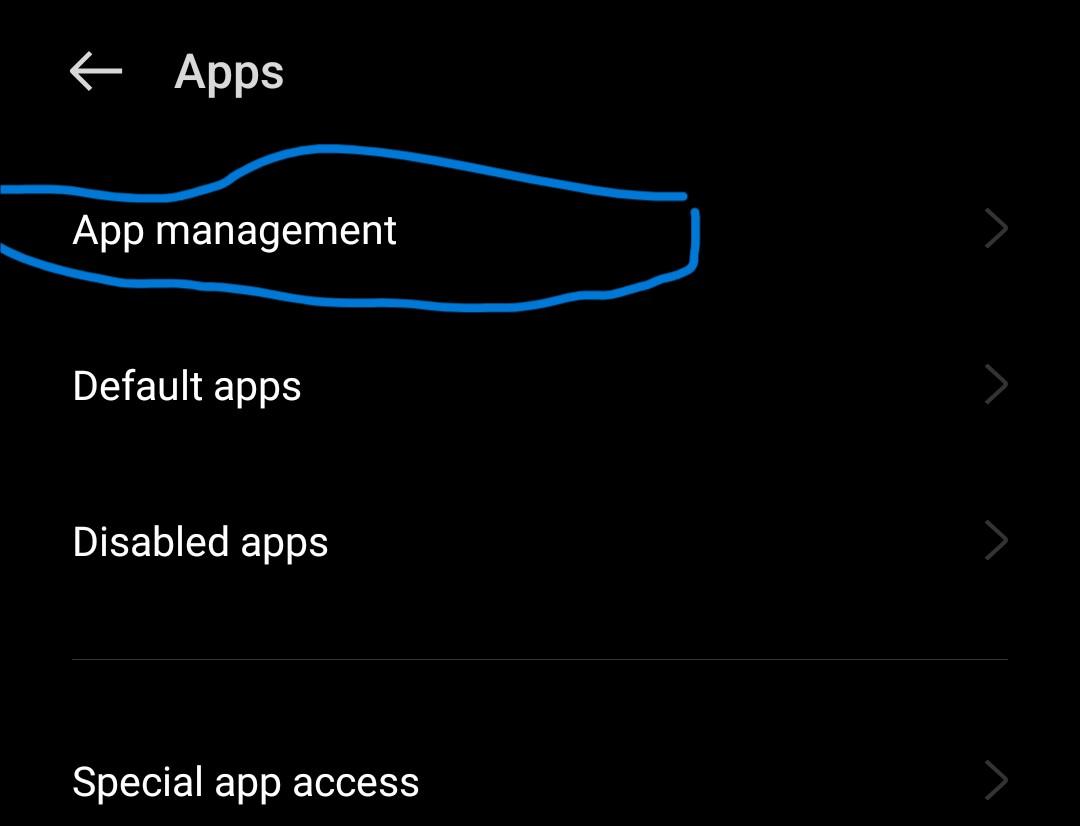
3. Tap on the three dots you see in the upper-right corner and select “Show System”.
4. Now scroll until you see Android System Key Verifier.
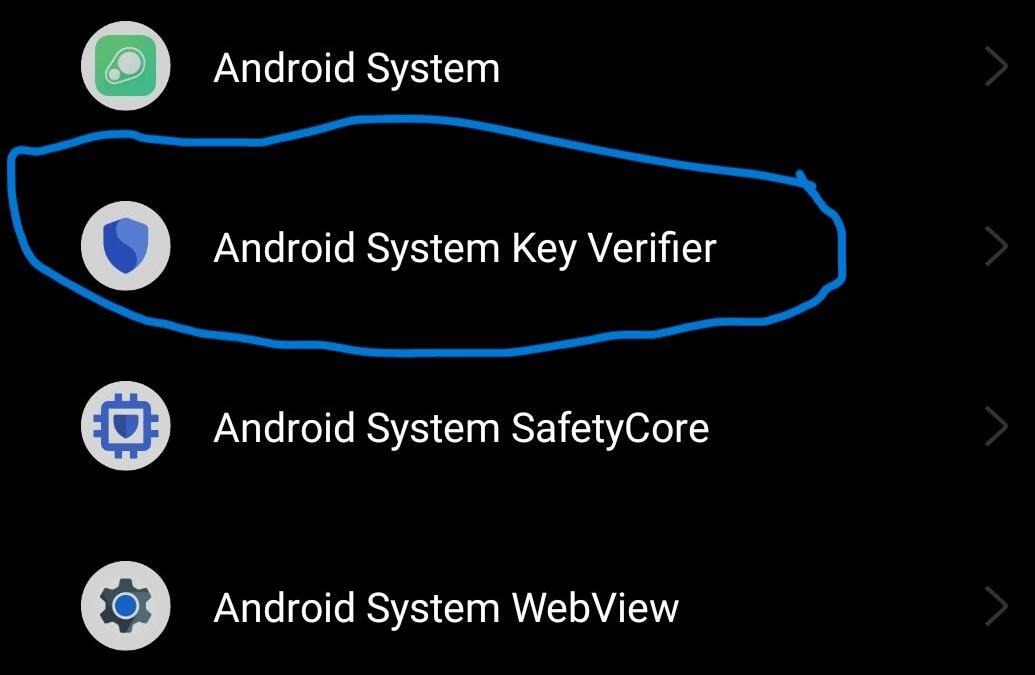
6. Tap on “Force Stop” to disable it, or tap on “Uninstall” to remove it.
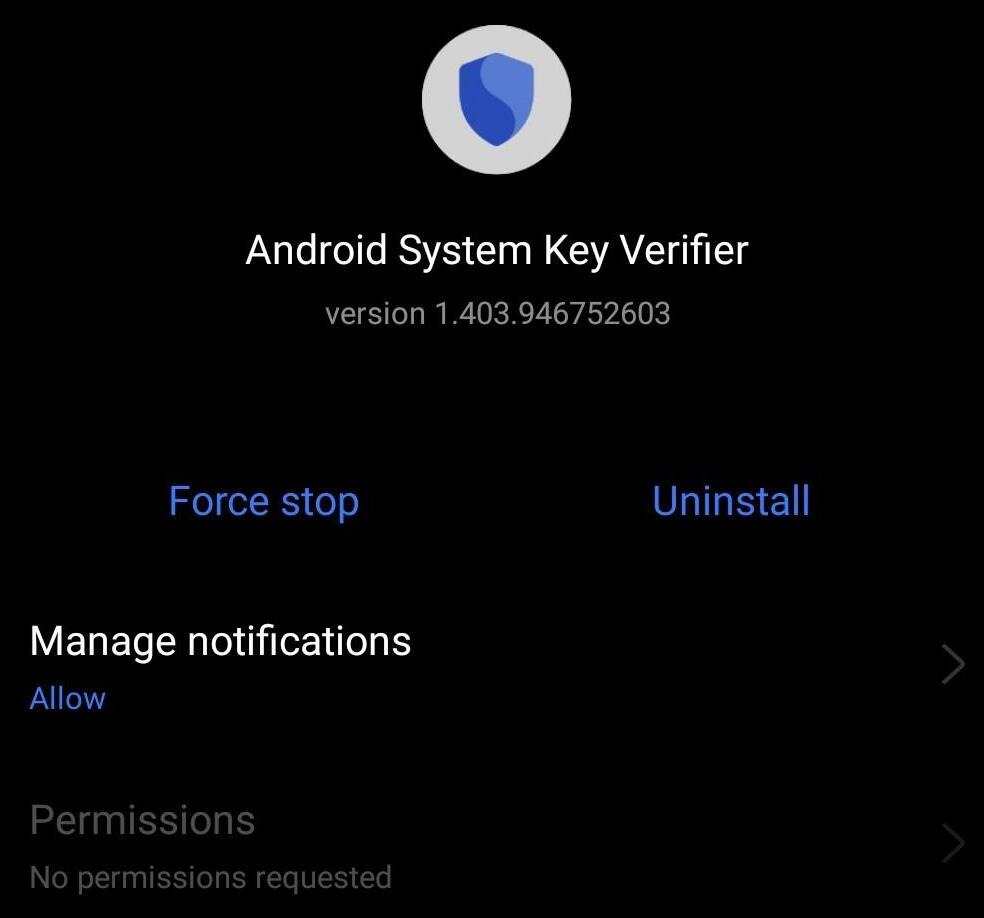
Although easy to remove, I would advise against uninstalling any system app from your phone, and that includes the System Key Verifier. Without it, you are basically opening yourself up to a potential man-in-the-middle attack.
There is also a good chance that Google might end up reinstalling the app again on your system with the next update.
Basic Requirements to Use Key Verification
The Android System Key Verifier will only work if both your device and your contact’s device meet the following requirements:
- Both phones run on Android 10 or higher.
- Both phones have the latest versions of the Google Messages and Contact apps installed.
- Both phones have Android System Key Verifier installed and enabled.
- Both phones have RCS chats turned on in Google Messages.
Also, note that this app does not work on Android Go, tablets, or wearable devices.
Common Issues Faced After Installing Android System Key Identifier
You may notice a few issues after installing the Android System Key Verifier on your device. These issues don’t necessarily indicate that the app is harmful. I’ve seen the query “Android system key verifier battery drain” being cited on forums.
Well, while smartphone users will experience temporary battery drain after an app is silently installed, this particular issue is very rare with the Android System Key Verifier. The app itself is lightweight and does not consume battery resources. If your phone’s battery is draining, the issue could be something else.
Another problem with Android System Key Verifier that you might notice is the app coming into conflict with antivirus programs. A third-party antivirus app installed on your phone might incorrectly flag the software as malware when it is not.
Frequently Asked Questions
1. Is it safe to delete Android System Key Verifier?
Although a legitimate Google Service, you can safely delete or uninstall the app from your phone. I’ve mentioned the step-by-step process to do so above. I would suggest only following the above built-in process and refraining from using external applications like ADB to force the removal.
Apps like ADB can end up messing with the end-to-end encryption features in your messaging or contact application.
2. Is Android System Key Verifier necessary?
Personally, I believe that Android System Key Verifier is a necessary app, given how frequent and bold cybersecurity threats have become in recent years. The app operates silently in the background and secures the public encryption keys generated by messaging apps, thus protecting you from man-in-the-middle attacks.
3. Do I need the Android System Key Verifier?
Well, your phone will operate just fine without the app. However, the absence of this app puts your messaging apps at grave security risk.
The risk of your messages being intercepted by hackers before they reach the intended contact increases tenfold. As such, I would suggest having Android System Key Verifier on your device, especially if you are someone who likes chatting on apps like Signal or WhatsApp.
4. Why is the Android System Key Verifier app automatically installed?
Android System Key Verifier is an official system app being silently rolled out by Google. The app was automatically installed on your phone (Android 10 or higher) via Google system play updates. Rest assured, it is a legitimate system component and not spyware.
5. What is the purpose of Android System Key Verifier?
The Android System Key Verifier has two purposes to serve. First, it serves as a central hub to store, read, and manage all public encryption keys generated by your phone’s messaging and contact apps. Second, it verifies a contact’s identity by either scanning a QR code or matching numbers, thus making sure your messages are reaching the intended person.
Conclusion
Android System Key Verifier shouldn’t be treated as a boogeyman that snooped into your phone without notice. It is a legitimate system component launched by Google to protect you from man-in-the-middle attacks.
Its purpose is simple: to make sure your messages reach the intended person instead of a hacker. The app works silently in the background and poses no threat to you. Of course, you can disable or uninstall it. I would advise against it, though, as you stand to gain nothing and only become more vulnerable in the absence of this imperative system component.
Research Process: The total time involved to complete and publish this article is approximately 41 hours. This content was created through a structured research approach to ensure accuracy and reliability.
For more related guides, you can explore our range of tutorials below:
- The 15 Best FREE Chat Apps for Android and iOS (SECURE)
- 11 Best Sites to Send Free SMS Online to Mobile
- Top 12 Affordable Bulk/Mass Text Messaging Services
- Top 11 SMS Marketing Software [Updated Review]
- How To Backup Android Phone on Cloud, PC Or Mac
- Top Android App Testing Tools
- BEST Android Emulators For PC And MAC
- How To Disable or Turn Off Safe Mode On Android or Windows Devices
Was this helpful?
Recommended Reading
-

Through this tutorial, understand the reasons behind and explore the top effective methods to fix Message+ Keeps Stopping issue: Nowadays, almost everybody uses social media to interact and share information with their near and dear ones. Also, social media has helped people to connect with different social media users worldwide…
-
Are you worried about blocking spam messages on your Android phone? This tutorial explains methods for How to Block Text Messages: SMS is hardly ever used anymore for communication. Traditional text messages have been surpassed by instant messaging apps. SMS is still useful for receiving alerts and information, though. When…
-
Get educated on how to create a Poll in iMessage on iPhone or iPad on group chats. Quickly gather opinions from friends & family through the iMessage poll and view the results directly: It's an undeniable fact that we all love to chat with our friends through text messages. Almost…
-
Do you think it is really possible to see deleted messages on WhatsApp? Discover the expert ways to see WhatsApp deleted messages without using any third-party apps on Android & iPhone: WhatsApp has come a long way since its inception way back in 2009. Today, it is a household name…