Find the best FRP Bypass solutions to bypass Factory reset from your Samsung, Huawei, Xiaomi, or other device with our detailed guide.
If you lose access to your Android phone or computer due to the FRP lock or forget your Google account details, don’t worry, as there are effective bypass tools for FRP available to get rid of the restriction.
In this guide, we have provided you with information about all the working FRP bypass solutions after testing across all Android devices. From no-root FRP removal tools, no-computer methods, and even Samsung-specific FRP bypassing solutions, our guide includes it all.
Top FRP Bypass Software: Unlock Any Device Instantly
What is the best FRP bypass tool?
The best tool for bypassing FRP on an Android device should be compatible with your operating system and should have a high success rate. Such tools include Tenorshare 4uKey for Android, iToolab UnlockGo (Android), and DroidKit, which removes Google account lock instantly with or without a computer.
Finding a worthy FRP bypassing tool can save a lot of time as well as reduce irritation, especially if one is denied access to their Android device after a factory reset. A good FRP software solution helps bypass Google Account Verification (FRP) lock quickly and securely without requiring any complex technical knowledge.
An FRP removal software supports brands such as Samsung, Xiaomi, Realme, Oppo, Vivo, Motorola, Nokia, and many more, which are compatible with Windows PC, thus ensuring a more stable unlock process.
Below, we list the best free FRP bypass software that you can use right now to unlock almost any Android device instantly—whether you’re a technician, a GSM professional, or just trying to access your own phone.
Further Reading => Does a Factory Reset Delete Everything
What is FRP Lock on Android?
FRP refers to Factory Reset Protection. This is a security protocol established by Google and used in all Android-based smartphones above Android 5.1 (Lollipop). The purpose of FRP is to render any lost or stolen Android device unusable except by its true owner.
How Google FRP Protection Works
FRP is referred to as a “silent” security measure. Once you activate a Google Account on your mobile phone, FRP is activated. In essence, your mobile hardware ID is connected to the Google account details. FRP is unlike a screen lock as it operates in a special partition of the device memory; therefore, it cannot be wiped out by a regular factory reset.
When FRP Lock is Triggered
Initiation of the lock occurs when one resets the device using unreliable techniques. They include:
- A Hard Reset using the hardware keys (Recovery Mode)
- A forced reset by Find My Device.
- Any type of factory reset without prior deletion of the associated Google account through the settings page.
Why You See Google Account Verification
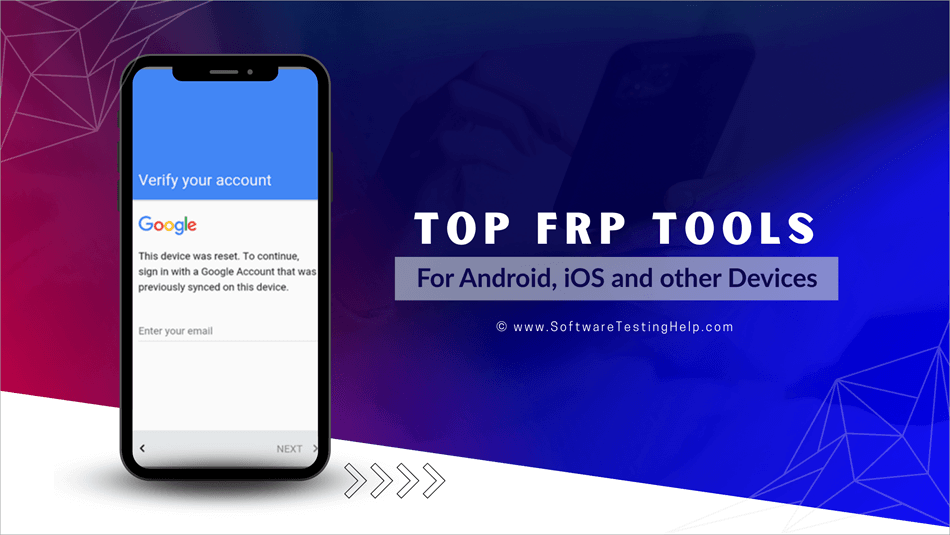
In case of an untrusted reset, the device restarts to the setup wizard. To ensure security, Android stops the setup wizard at the step where the user needs to verify their Google Account. You will get the following message: “This device has been reset. Please sign in with your Google account that was previously associated with this device.” If you fail to provide your email address and password, the device gets bricked and unusable.
How do FRP Bypass Tools Work?
FRP Bypass tools are used to bypass the Google account 2FA verification requirement after an Android device is factory reset.
The purpose of FRP protection is to ensure that the user’s data on the device is protected against access by another party in case the device is lost or stolen.
A current user will be forced to have the login credentials of a Google account previously logged in to the device as an administrator account for that device (and FRP lock enabled previously on the device), to access current user data.
Otherwise, the current user will be forced to wipe the user data on the device completely. The latter is what FRP reset tools are used.
Such tools are ideally used to exploit Android vulnerabilities to then access specific functions such as Admin, configuration, and security features of the Android OS, and then install the device management apps and Android app launcher apps on the smartphone to allow bypassing the FRP protection.

These tools can accomplish such an operation through the Android Debugging Bridge (ADB) mode. Putting the device in such a mode allows access to certain Android device security and management apps and specifically transfers and installs APK files (e.g., APK versions of the device management and launcher apps that allow bypassing of FRP) on the device.
An Android device can be put in this mode by using certain key/button combinations, depending on the make and model.
When using these tools, ensure to disable the antivirus, ensure that the battery is charged to at least 50% or more to not have the process interrupted, and have other Google account credentials ready to log in to a different Google account on the device.
Here is a video tutorial for your reference:
Suggested Read => How to Factory Reset Windows 10
How to Pick the Right FRP Bypass Tool (Top Tips)
Choosing the best FRP bypass tool can be confusing because dozens of apps claim to unlock devices instantly, but most of them fail, contain malware, or only work on older Android versions.
Below are the most important factors to consider before selecting an FRP unlocking tool.
1) Features and Reliability
Pick a tool that supports your device model and Android version. Prefer tools with multiple unlocking methods such as USB, APK install, Emergency Call, Bluetooth and SIM PIN
2) Safety and Malware Risk
Many FRP APKs contain harmful code, so choose tools from trusted developers or verified platforms like the Microsoft Store. It is better to avoid apps asking for unnecessary permissions.
3) Antivirus Compatibility
Some FRP tools get flagged as malware due to their functions. You may need to temporarily disable antivirus software or firewall applications, but only for tools you trust.
4) Risk of Data Loss
All FRP tools involve a chance of data wipe or system errors. Good tools provide built-in workarounds and clear guidance.
5) Device and System Compatibility
Ensure the FRP tool supports your Android brand and also check if it supports your desktop OS (Windows/Mac/Linux), if required.
6) Ease of Use
If you are not tech-savvy, then choose tools with a simple UI. It is better to avoid tools that require command-line knowledge.
List of the Best FRP Bypass Tools (Tested and Ranked 2026)
Here is a popular list to choose from:
- Dr.Fone
- iToolab UnlockGo
- iMyFone Lockwiper
- Tenorshare FRP Unlocker
- FRP Bypass Android
- WooTechy iDelock for Android
- DroidKit
FRP Unlock Tool Comparison Table (2026)
The following FRP unlock tools support a wide range of Android and Windows devices, work across different OS versions, and can be installed using simple desktop or mobile platforms.
These unlock tools also vary in pricing models and features, but all are designed to help you unlock your system quickly and without technical complexity.
| Tool Name | Free/Paid | Success Rate | PC Required | Best For |
|---|---|---|---|---|
| Dr. Fone | Paid (Free Trial) | ~99.5% | Yes | Users looking for an all-in-one phone toolkit with a high success rate on Samsung/LG. |
| iToolab UnlockGo | Paid | ~98% | Yes | Quick bypass for the latest Android versions (up to Android 15/16). |
| iMyFone LockWiper | Paid | ~98% | Yes | High-speed unlocking for Samsung devices with older OS versions. |
| Tenorshare 4uKey | Paid | ~98% | Yes | Beginners who need a simple, 3-step guided interface for over 6,000+ models. |
| FRP Bypass APK | Free | ~60-70% | No | Tech-savvy users who want to unlock without a PC (higher risk of failure/malware). |
| DroidKit | Paid | ~99% | Yes | Complex cases; supports a wide range of brands including Xiaomi, OPPO, and Vivo. |
Detailed reviews:
#1) Dr.Fone
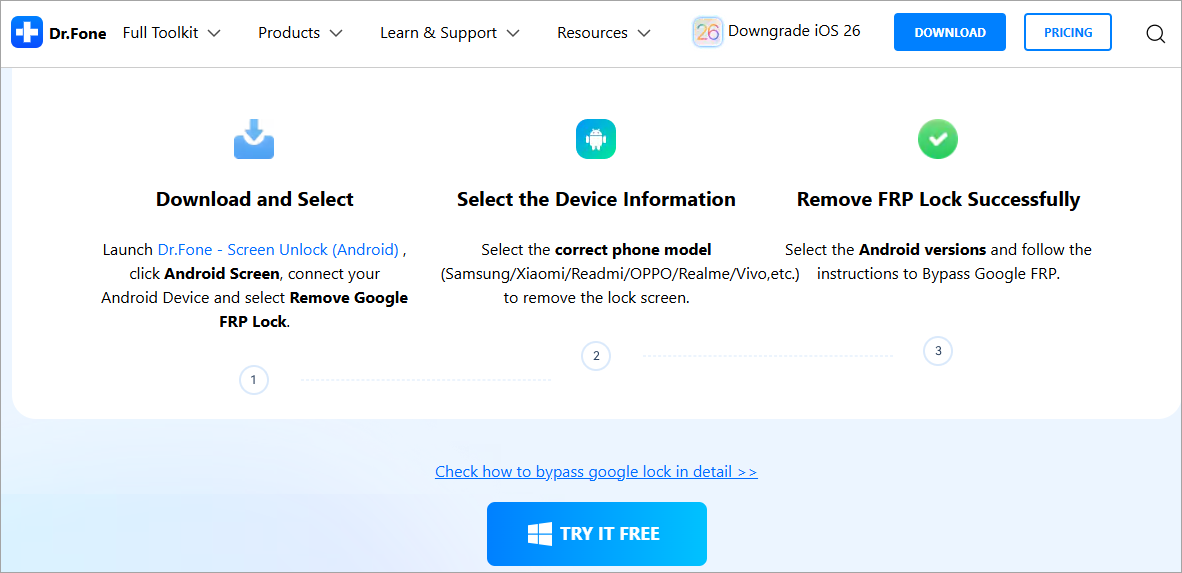
Dr. Fone is used to unlock and bypass 2FA FRP on 12 phone makes and models, including Samsung, Huawei, Oppo, Redmi, Realme, Vivo, and more. It is compatible with a variety of versions up to Android 15 currently (excluding Android 11 and 12), as well as iOS, and does not require the user to install any apps on their Android device to do the unlocking/FRP bypass.
Suggested Read => Bypass Samsung FRP Lock with Wondershare Dr. Fone
Features:
- Dr. Fone is also used to bypass other screen protections on Android, iPhone, Kindle Fire/Amazon devices, including pin, password, pattern locks, fingerprints, and face locks, and is a freeware.
- Compatible with Windows and Mac OSes.
- User is guided by prompts to use the software.
How to use Dr. Fone FRP tool:
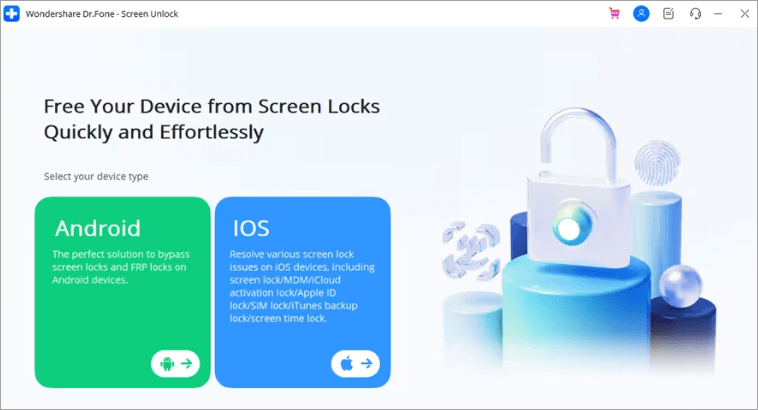
Step 1: Visit the Dr. Fone website and download and install Dr. Fone FRP tool on your PC or laptop. Launch the app and select your phone OS.

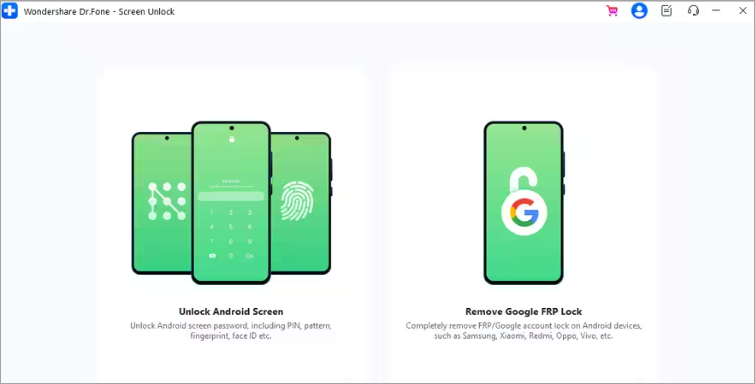
Step 2: On the next screen, select the Screen Unlock option from the various options shown on the app interface. Select the ‘Unlock Android Screen/FRP’ option on the next screen, then tap ‘Remove Google FRP Lock’.
Select your Android phone version on the next screen or choose the Don’t Know the Version option, after which you will be shown a series of instructions on rebooting your device. Tap the Start button after choosing the Android version.
Click OK to confirm and continue with the process. Follow the instructions shown on the screen to unlock your Android FRP protection.
You may need to choose the tablet series and then the Start button if it is a tablet. Also, depending on the device, you may need to follow instructions until you Open Emergency Call, type on it, and type *#0*# to open the secret menu and, once done, click Next on the computer screen to continue.
Then, allow USB debugging by clicking Authorize on the pop-up that appears on the device screen.
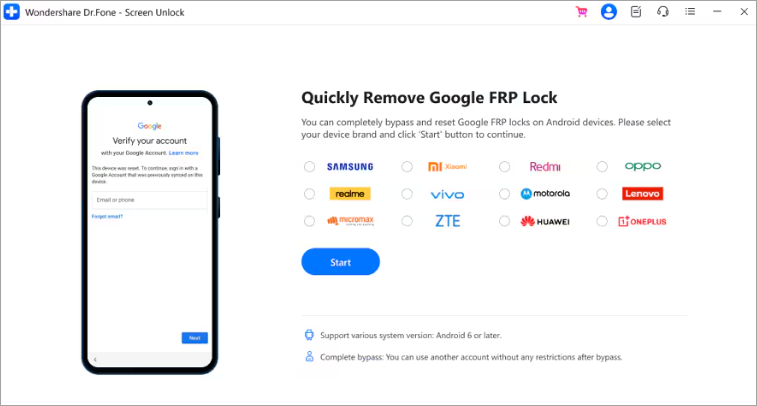
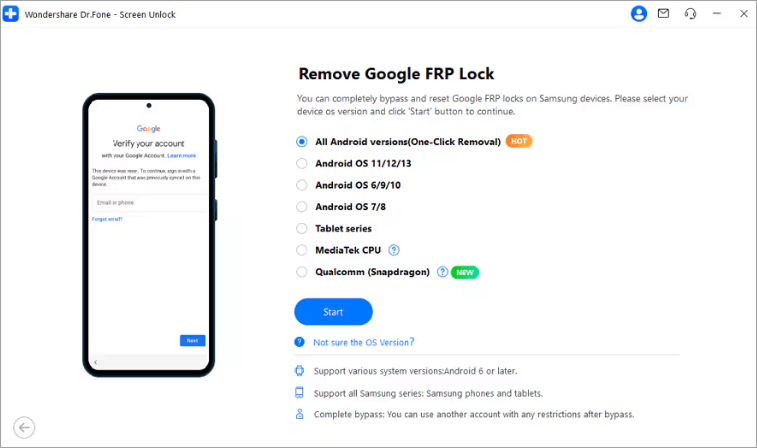
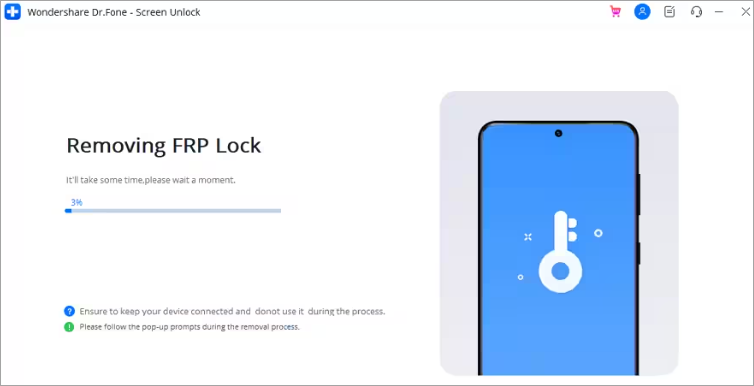
Step 3: Create a new Google account on the device or log in with the new credentials of an existing account after the FRP is reset.
Pricing: $24.95/month (1-5 devices with 1 PC), $39.95/year, or $49.95 on the Perpetual plan. Full toolkit costs $99.95 per year or $115.95 perpetual or one-time purchase.
Website: https://drfone.wondershare.com/solutions/frp-bypass-google-account.html
#2) iToolab UnlockGo
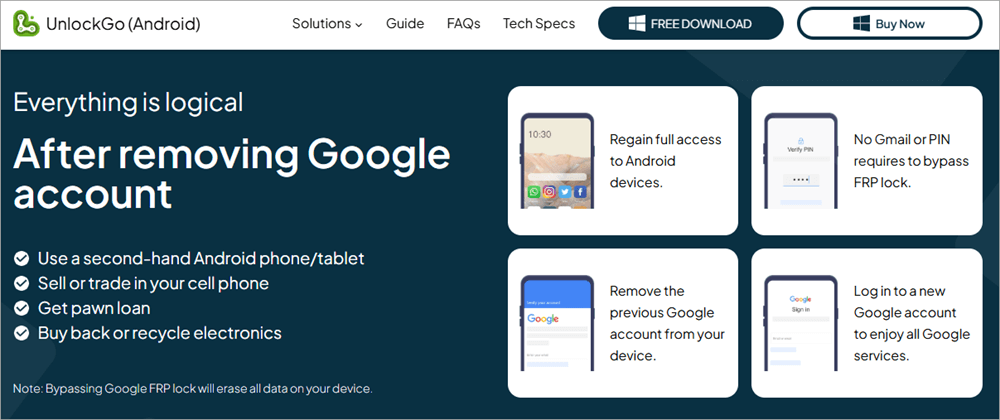
The iToolab Unlock FRP reset app can be used on 6000+ Android smartphones and tablet models, including popular ones such as Samsung, Huawei, Google, ZTE, Xiaomi, Realme, Motorola, Oppo, OnePlus, Redmi, Micromax, and Lenovo, among others.
The developers state on the website that if a customer purchases the app and it does not work for their device, they can get a refund of the purchase within 30 days if the team does not find a solution. The website also provides a host of articles on how to unlock a variety of models using this tool.
Features:
- The software also applies to unlocking all screen protections, including passwords, PINs, face ID, and fingerprints.
- The software is compatible with (or can be installed for use on) Windows (7, 8, 8.1, 10, 11, 12, 13) and Mac.
- The software is being updated regularly, including about device compatibility.
How to use iToolab UnlockGo FRP tool:
This tool is used to reset FRP on mainly all Samsung Android devices, but also works on other devices such as Xiaomi, Redmi, etc.

Step 1: Visit the website and download and install the UnlockGo (Android) – Top Samsung FRP Bypass Tool on your Windows or choose the one for a Mac device.
Step 2: Connect phone to computer: Use the USB cable to connect your Android device to the PC. Open the software on your PC and click or tap the Remove Google Lock (FRP) option. Click the Start button and choose the first option, which is “All Android versions” from the list.
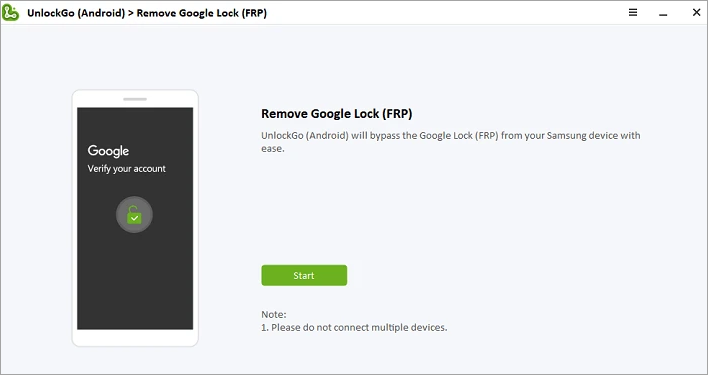
Step 3: Following the UnlockGo tool instructions, allow USB debugging with secret codes on the Android device. The device will restart automatically. It will have unlocked FRP when it restarts.
Pricing: $29.95 per month, $39.95 per year, while the business plan costs $399.95 per year (with customizability, e.g., depending on the number of devices), and the lifetime plan $49.95 per year.
Website: https://itoolab.com/android-phone-unlocker/
#3) iMyFone Lockwiper
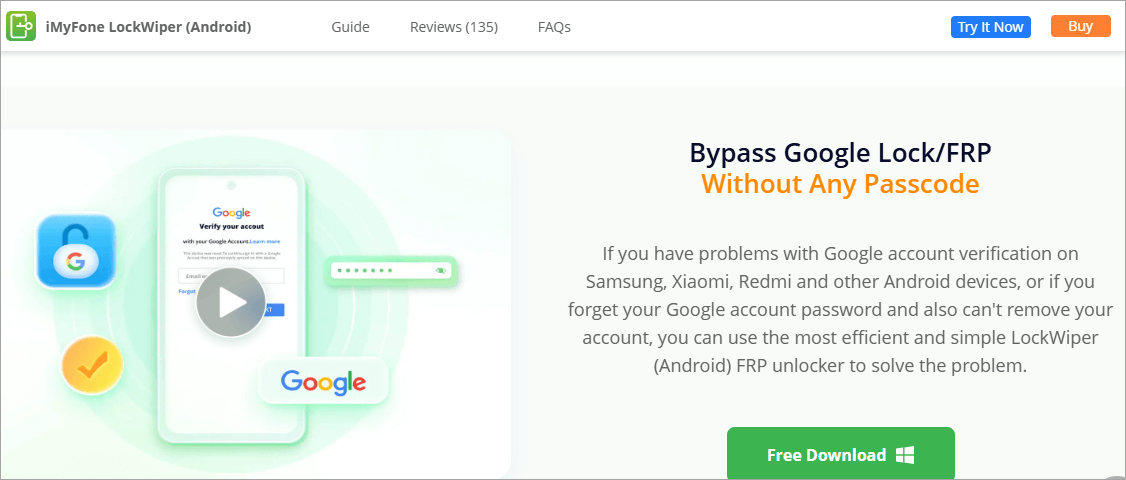
The iMyFone Lockwiper for Android unlocks all screen protections and FRP protections, supporting 6,000+ devices, but requiring users to pay to access all the features. There is, however, a free trial option, after which you must purchase to continue using the software.
Suggested Reading => How to Unlock PDF Files
Features:
- Works on Windows only.
- The FRP Unlock feature is mainly for Samsung devices.
- Used for all screen unlocks.
How to use iMyFone Lockwiper FRP tool:
Step 1: Register your account using an email on the official company website, purchase a license and download the software, and enter your redemption code and license to activate the software.
Step 2: Open the software and click on the Remove Google Lock (FRP) – Standard Mode option from the screen, then connect the phone to the computer. Confirm that the data indicated for the phone connected is correct.
Choose the mobile device brand and the system. Click the Start button to start the process. Follow the instructions on the screen and unlock the device after about 25 minutes.
Step 3: Click Done once to complete the process. Restart the device. Set it up without requiring the previous logins.
Pricing: $29.95 per month for 1 month for 1 device; $33.96 for 1 month for 1 device; $59.95 for a lifetime license and on 5 devices.
Website: https://www.imyfone.com/remove-phone-lock/
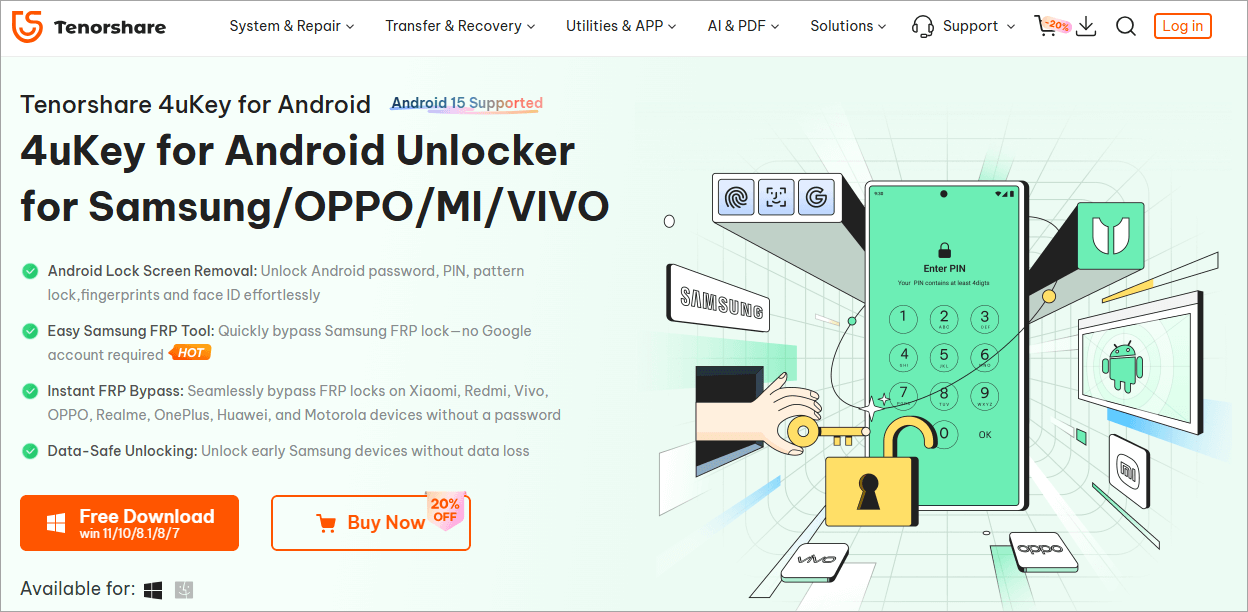
The Tenorshare Unlocker All-in-One Tool and other solutions from this company can be used for unlocking FRP on popular and unpopular phone brands, including Samsung, Huawei, Oppo, Xiaomi, Vivo, Sony, Honor, and Huawei.
It also supports unlocking iPhones using a separate version for the devices. Tenorshare, though it may not work on some Samsung versions, has an alternative for Samsung devices – the FRP Tool – 4uKey for Android, which unlocks Samsung devices that cannot be unlocked with the All-in-One tool.
It functions similarly to the Unlocker All-in-one. The two are also used for putting phones in recovery mode and download mode.
Features:
- The Unlocker All-In-One Tool applies to Windows (7/8/8.1/10/11) and Mac (15 Sequoia and below).
- There have been a few issues reported regarding the tool not working on Samsung S9, S10, and S10 Lite devices.
- It may not remove FRP lock on Android 9 OSes or higher, in which case you may need alternatives.
How to use Tenorshare FRP Unlocker FRP tool:
Step 1: Visit the website and look for the download link on the home page, and click on it. Connect the Android or iOS device to your computer.
Step 2: The computer should automatically detect the phone’s make and model once connected with a USB cable, although you can also do so using the drop-down menu on the screen that pops up.
Step 3: Choose the Remove FRP option by clicking to check the relevant radio button next to this option. Click Start. You will proceed to several on-screen instructions to install the right package and then remove the FRP lock.
Continue to set up the device. Log in with a different existing Google account or create a new one and proceed to finish setting up.
Pricing: $39.95/year with 7 days free trial (1 PC, and up to 5 devices); $24.95/month; $49.95 for a lifetime license (1 P.C., up to 5 devices); $399 for unlimited number of devices; $52.95 for up to 10 devices on 1 P.C.; $69.95 for 15 devices on 1 P.C.
Website: https://www.tenorshare.com/products/android-password-reset-tool.html
#5) FRP Bypass Android

FRP Bypass can also be used to unlock other screen protections, such as PINs and passwords. FRP unlocking with this tool works for devices with Android 5 and above. Unlike other tools used on a computer, this one is used without the need for P.C. but that means it may be a rather complicated process to carry out.
There is no single prescription for all phone models, and therefore, this method can be difficult to use if you are not familiar with what APKs are required to unlock FRP on your device make and model research.
As a matter of fact, you will need to exploit other vulnerabilities in the system to access the mobile phone browser and be able to download this tool on your device.
Also, unlocking FRP with this tool is dependent on phone models, and to do this, you might require additional tools and software as well, including Google Account Manager, vnROM, Apex Launcher, Alliance Shield, XShare, Notification Bar, Package Manager, Technocare, Quick Shortcut Maker, and Developer Settings apks to access development and other Android settings and apps.
Features:
- Works only for Android phones and is used or installed on Android.
- No user prompts to guide how to use it.
- Requires other skills to operate.
Also Read => How to Use AddROM FRP Bypass APK
How to use the FRP Bypass tool:
Step 1: Switch on the phone and, either using the Emergency Call contact features, set up the language feature and keyboard, or other features (all depending on your phone model).
Access Google Chrome to download and install the necessary APKs as per your device model. Please research what works for your device and what APKs are needed to be installed, and how to install them without a PC. Sometimes these can be installed using OTG devices.
Most important is that the target is to deactivate the existing Google account after accessing the device settings or create a new account using the installed apps.
Step 2: For instance, for some devices, you use Quick Shortcut Maker to access the second account creation feature and create a new Google account, after which you switch the device off and on to then re-log in with the new account.
Pricing: Free
Website: https://frp-bypass.en.malavida.com/android/
#6) WooTechy iDelock for Android

iDelock FRP remover from WooTechy is installed on the computer PC, and while being used, it will guide the user on how to remove FRP. It is used to unlock FRP and other screen protections on over 6,000 different models of Android devices, including PINs, passwords, fingerprints, passcodes, and other locks. This includes Samsung, Xiaomi, Redmi, etc.
Features:
- It is used on the Windows operating system.
- You can use it on iPhone/iPad/iPod Touch devices to unlock your Apple ID.
- Used for all screen lock unlocking.
How to use WooTechy iDelock FRP tool:
Step 1: Download and install iDelock on your PC, open it on your PC, and select Remove Google Lock (FRP). Connect the Android device to the PC, after which you will need to select your device brand, system version, and other details.
It will connect to the company’s database to download the necessary configuration package to unlock FRP on your device. Simply follow the on-screen instructions, and it will do the job.
Pricing: $0.99/day or $35.99/mo for the 1-month plan; $0.13/day or $49/month on the yearly plan; $0.01/day or $69.99/month for the lifetime plan, which supports 5 iOS devices (other plans each support 1 iOS device).
Website: https://www.wootechy.com/android-passcode-unlocker/
#7) DroidKit
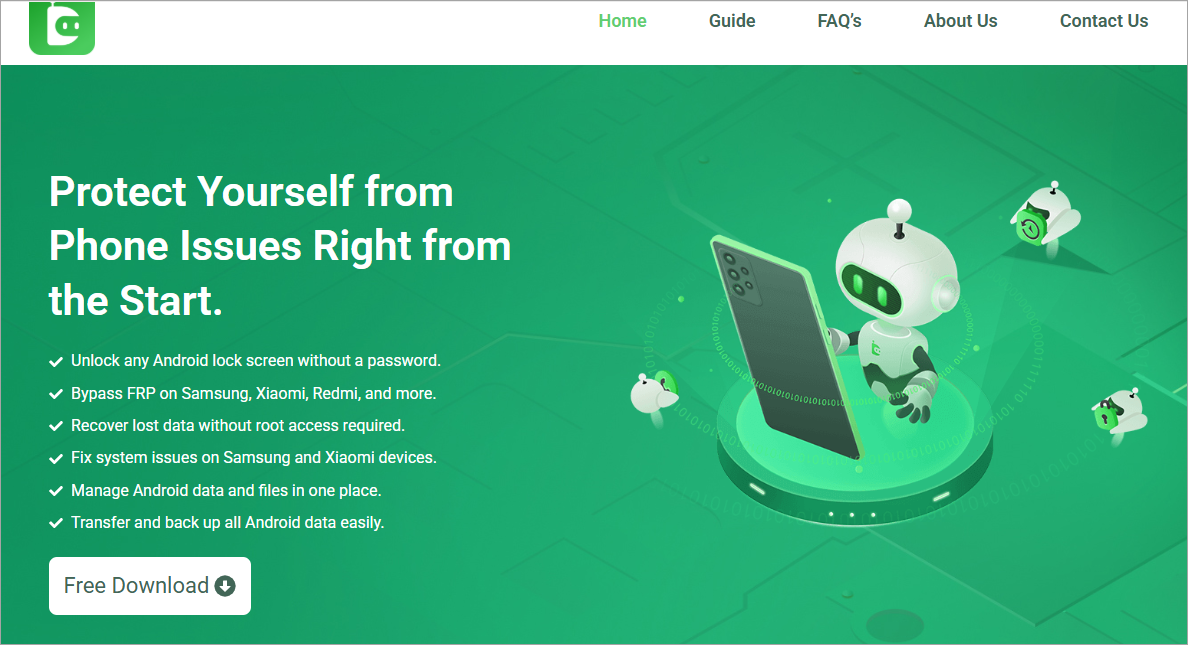
DroidKit is for unlocking Android FRP but also can carry out screen unlocks (after forgetting pins, passwords, fingerprints, etc), data recovery (requires root access), system repairs such as fixing boot loops, black screens, and app crashes, and phone app management.
DroidKit, though, unlike Dr. Fone, has no support for unlocking FRP protections on iOS devices. It is, however, more affordable than Dr. Fone.
Also Read => Top Android Data Recovery Software
Features:
- Works on Windows and Mac.
- DroidKit, like all other FRP unlock tools we reviewed here, does not require rooting the Android to unlock FRP. That may be necessary for those who still want to maintain their device warranties.
- Used for unlocking all screen locks and system repairs.
How to use DroidKit FRP tool:
Step 1: Download the software from this link: https://www.imobie.com/go/download.php?product=dk&id=1 and install it on the device.
Step 2: Open the software and click the FRP Bypass mode. Connect your device to the PC using a USB cable. Hit the Start button to proceed.
DroidKit now detects the connected device and prepares a configuration file to fix it.
Step 3: Click on Start to ByPass. Continue following the instructions to put the device in Recovery Mode.
Step 4: Follow the instructions until you wipe the cache partition.
The device will restart and have wiped the FRP lock to allow for a fresh start.
Pricing: $39.99 for the FRP unlocking feature. Other features each have the same or different costs. Full kit costs $69.99 for 5 devices/1 P.C.
Check our DroidKit Review Here
How to Bypass FRP Lock (Step-by-Step)
Users must make sure that their mobile device is fully charged by at least 50%, and they must have a Wi-Fi connection.
Method 1: Using a Professional FRP Bypass Tool (Recommended)
It is the most reliable option for all security updates released in 2026. Use any one of the tools listed above and follow the simple steps mentioned below
You just need to follow these simple instructions.
Download & Installation: First, download your preferred FRP bypass tool on either Windows or Mac computer.
Device Connection: Now connect your device using an official USB cable to the PC.
Selection of mode: Go to the Remove Google Lock (FRP) option on the Dashboard.
Select Your OS Version: Select your required Android version (Android 14/15).
Bypass Initiation: From the home screen, go to “Start,” then follow the onscreen instructions to enable “Download Mode” or “Emergency Call.”
Completion: The program will unlock the phone in 3-5 minutes. The device will restart itself.
Method 2: FRP Bypass Without PC
This method is ideal for users who don’t have access to a computer. It exploits a loophole in the Google Keyboard and Assistant settings.
- Access Setup: Turn the phone on and get to the “Verify your account” page.
- Keyboard Trigger: Tap the text box to enable the keyboard, then press and hold the “@” or “Comma” button to activate the Keyboard Settings.
- Help Access: Navigate to Help & Feedback > Search Google & send results from your keyboard.
- Browser Activation: Select any text from the help page and click “Web Search” to open the Chrome browser.
- Access Settings: Use the search bar to find “Settings App.”
- Reset/Disable: Navigate to System > Reset options or use the “Device Administrators” menu to disable “Find My Device” and clear the Google Play Services cache.
Method 3: Using an APK File (Manual Bypass)
This “Side-loading” process is commonly used for old devices (Android 10 and lower), which have relatively loose security internally.
Step 1: Connect to WiFi – You should be on the “Connect to WiFi” page.
Step 2: Download APK – Exploit a browser (like in Method 2) and download an APK file for bypassing FRP.
Step 3: Install Apk for Apex Launcher – The launcher APK allows access to the home interface of your smartphone.
Step 4: Install Bypass App – Install “FRP_Bypass.apk.” It will ask you to input a “Browser Sign-In.”
Step 5: Create New Account – Create a new account using any available Google email account.
Step 6: Restart Smartphone – The new account will get registered in your device.
Is FRP Bypass Safe and Legal?
Factory Reset Protection bypass is an extremely effective hack, but there are certain conditions that need to be fulfilled.
The list below includes all the information you need prior to performing Factory Reset Protection bypass.
Legal considerations
Personal Purpose: The process of Factory Reset Protection bypass for your personal device (if you forget your password) is considered legal.
Resale: It can be used for second-hand phones, but not for lost or stolen ones (the latter are trackable by IMEI number).
Warranty Risk: May violate manufacturer terms and void your warranty.
Malware risks
Dangerous Niche: Several FRP bypass software from untrusted websites could be infected with malware or ransomware.
Beware of Pirated Software: Free software from online forums can compromise data security and harm your device.
Use Reliable Software: Always use trusted software such as Dr.Fone or Tenorshare 4uKey.
Precaution: Be wary of untrustworthy websites with misleading download links and numerous pop-ups.
Data loss warnings
Total Data Erasure: All FRP bypass procedures involve a complete factory reset, which means data deletion.
Bricking Possibility: Any disruption during the procedure can lead to bricking the phone and render it unusable.
Suggestion: Ensure your device battery is above 50% before beginning.
Common FRP Errors & Fixes
Despite having the best tools, there is always the possibility of facing some technical hitches. You can apply the following tips to solve them effectively.
Stuck on Google Verification (Looping)
Occasionally, despite having bypassed your device, it might still end up going around in circles for “Verification.”
• The Fix: Immediately after bypassing, do a hard factory reset using the hardware buttons (Volume + + Power). This gets rid of the persistent cache, which tends to store the old flag of the Google account.
• Tip: Do not connect to any Wi-Fi while setting up your phone after bypassing; instead, “skip” the Wi-Fi setup step to avoid prematurely accessing Google servers.
Tool Not Detecting Device (USB Issues)
When your computer cannot recognize your device, it is normally an issue with drivers or hardware communication problems.
• The Solution: * Check Driver Updates: Make sure that the latest Samsung USB Drivers or MTK/QCOM USB Drivers are properly installed.
• Replace Cables: Utilize genuine OEM cables. Most “charge-only” cables lack the necessary data connections for FRP communication.
• Cable Port Replacement: Use a USB 2.0 port rather than a USB 3.0 (blue-colored) port since some bootloaders are unstable on fast-speed ports.
Android Version Compatibility
An application running on Android 13 might not be able to work on Android 15 or 16 due to recent security updates.
• How to Fix: Determine the date of the most recent security update.
• Software Update: Make sure your bypass app, for instance, iToolab UnlockGo or Tenorshare , is updated.
• Alternative Option: In case your one-click application fails, consider the manual APK option or using Google Assistant in a loop.
FAQs on FRP Bypass APK
1. What does FRP Unlock do?
Factory Reset Protection is a protocol enforced on Android and iOS and other devices to prevent unauthorized access to user data without their user account details, such as their Google account credentials.
The protection will make the device request for user’s login credentials when the device is being factory reset, and it cannot continue unless such credentials are supplied or else other mechanisms are used to enforce a complete wipe of user and account credentials data to force a fresh start with another account.
FRP Unlock does the latter job by removing the existing account on the device to allow a fresh start.
2. How to disable Google factory reset protection FRP?
To deactivate FRP protection on Android, with the device logged in and working normally, go to Settings and then Accounts on the device, and remove the email and other accounts signed in on the device.
3. Can the FRP lock be removed?
If an Android device is working normally, removing FRP protection is easy: Go to the Settings page and look for Accounts that are logged in to the device, and remove them from the settings.
Otherwise, if you are locked out of a device and FRP was previously activated, there are a host of software tools to use to remove the existing protection: Dr. Fone, iToolab UnlockGo, and iMyFone Lockwiper are some options to remove FRP protections on Android and iOS.
4. Is bypassing FRP illegal?
Unlocking a phone using FRP unlocking tools is completely legal as long as the phone is owned and/or has the authority to unlock; otherwise, unlocking stolen devices is not.
5. How to remove a previously synced Google account from Android after a reset?
Removing accounts such as Google accounts synced on the Android, iOS, Amazon Fire, and other devices will also remove FRP protection in case the device is factory reset.
If someone illegally lands on your device, they may try to reset it to render it useful to them with their credentials and FRP protection to prevent them from unauthorized access to your user data, which can be insecure and unsafe.
To remove a synced account, go to the device Settings, then look for Users & Accounts or Passwords & Accounts or similar sections, see the list of synced accounts, tap on them, and remove them.
FRP Unlock tools can also remove FRP from devices to which access you have been locked out. These can be installed on a PC or used on the device itself.
6. What is an FRP Lock?
FRP means Factory Reset Protection. This feature is inherent in all Android mobile phones starting from version 5.1 (Lollipop) onwards. The main function of this feature is to keep unauthorised people away from accessing your phone in case you lose it or it gets stolen and you perform a factory reset on it.
7. Can I bypass FRP without a PC?
Yes, it is possible to get rid of FRP without a computer through certain tricks like the use of the Google Assistant trick or downloading an FRP Bypass APK file on your phone. However, these techniques do not guarantee successful results.
8. Which is the best free FRP unlock tool?
Despite the presence of many free apps, most of them are not reliable and can pose a risk to the security of a device. FRP Bypass APK is one such widely used free application designed for technical people who want to unlock their phone. The success rate of using FRP Bypass is considerably lower than other paid applications like Dr. Fone and DroidKit. These applications receive frequent updates and are capable of unlocking the FRP of recent Android versions.
9. Does FRP bypass delete data?
The answer to this question is positive because unlocking FRP involves resetting the smartphone, and all its data gets wiped out in this process. Users should back up their information from cloud storage if available, although in many instances where there is FRP, it becomes impossible to access the phone.
Further Reading => Redmi FRP Bypass: Explore New Tricks
Conclusion
Most FRP unlocking tools, including Dr. Fone, iToolab UnlockGo, and iMyFone Lockwiper, are used to unlock FRP on PC and mostly support Android.
The cost of FRP resetting tools is between $25 and $40 per month for personal use to unlock a single device, but there are other use cases for advanced use, such as unlocking multiple devices.
Most FRP unlocking tools are easy to use, providing the user with an on-screen guide once installed on the operating system. The three will each cover most of the common phone makes and models.
Further Reading => GSMNeo FRP Bypass Tool : A Complete Hands-On Review
However, FRP Bypass does not require the user to have a PC and is great for many people who prefer that convenience. We recommend tools that do not pose a risk of malware and viruses on devices.
Research Process:
- Time taken to review and research this article: Approximately 40 hours were spent on comprehensive research, review, evaluation, verification, and final preparation to ensure accurate and reliable information.
- Total FRP unlock tools researched: 15
- Top FRP unlock tools shortlisted:7
Was this helpful?
Recommended Reading
-

Discover the versatile ways to safely Bypass FRP on Android devices with the GSMNeo FRP tool. Explore its efficient features & functionalities along with a list of GSM NEO Alternatives: GSMNeo is a free tool for bypassing Google FRP (Factory Reset Protection) on Android devices without using a P.C. Factory…
-
In this tutorial, you will understand the methods of Bypassing Samsung FRP Lock with Wondershare Dr. Fone Screen Unlock: Initially introduced to the Android 5.1 version, Factory Reset Protection (FRP) is an in-built security feature designed to prevent users from using devices after a factory data reset. This security feature…
-

Find out the latest methods for Xiaomi/Redmi FRP Bypass MIUI 10-14. Learn a step-by-step guide to unlock your Redmi device easily and regain full access. Factory Reset Protection (FRP) has become an important security feature in the Redmi series. FRP feature blocks anyone from accessing your phone after a factory…
-
Learn how to use AddROM FRP Bypass APK with this step-by-step guide, including installation steps, setup instructions, and safer AddROM alternatives to bypass FRP locks on Android. Factory Reset Protection (FRP) is one of the most effective security systems found on Android devices. Additionally, FRP can be one of the…