Still searching for a hidden App on your iPhone? Our step-by-step guide will educate you with all expert tips on how to unhide hidden apps on iPhone in seconds on any iOS version:
Don’t worry if you are unable to find an app on your iPhone screen. Well!! We’ve all been there! This article will cover all the reasons an app might be hidden and explains how to reveal hidden apps on an iPhone.
Most of the time, it would be there on the screen, but moved to a new place (or inside an apps folder), due to which you can’t find it.
IPhones come with over 30 built-in apps. In addition, users can download as many apps as they want (within their storage limit).
Unhide Any App on iPhone in Seconds: Complete Guide
Due to the presence of many apps on the screen, users struggle to find a specific app quickly. Some features in iOS devices can cause an app to be hidden. Sometimes, the users accidentally hide an app and then wonder where it has gone.
Here is the video guide on how to unhide apps on an iPhone:
Spotlight Search
If you can’t find an app, you can search for it using the Spotlight search feature. This feature can be used to search for an app or even the web. iPhone users can access the Spotlight search feature using these steps:
- Put your thumb in the middle of your Home Screen and swipe down
- Tap on the Search bar and type in the name of the app you are looking for.
In this article, we will discuss all the possible reasons that can hide an app and how to unhide apps on an iPhone.
How to Unhide Hidden Apps on iPhone
Quick Summary: How to unhide apps on iPhone:
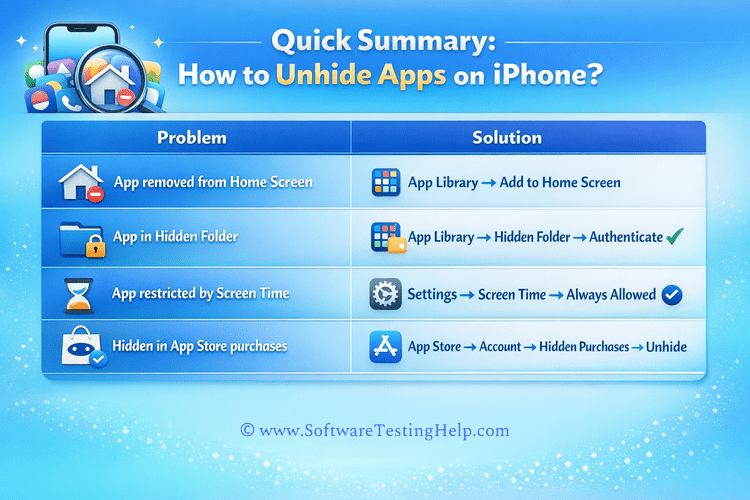
If you can’t find an app on your iPhone, it would be because of one of the following reasons:
- It would have moved to another place, due to which you can’t find it.
- You would have removed it from the Home Screen
- You would have hidden the App
- You would have applied the Content & Privacy Restrictions setting on the app
- You may have accidentally deleted it
- Your phone may need a software update
- Parental Control features may be restricting the app’s access
- You may have enabled the ‘Offload Unused Apps’ setting in your iPhone
- You may have turned off the ‘Show in Search’ setting.
Quick Ways to Unhide All Apps on iPhone
To unhide an app, you can take the following measures:
Ask Siri: If you cannot find an app, you can simply ask Siri to open the app for you. It will find the app and open it.
#1) How to Unhide Apps from Home Screen on iPhone
Look for the App in App Library. If you have accidentally (or intentionally) removed the app from the Home Screen, then you can always find it in the App Library (unless you have deleted the app from your phone).
Once you find the app in the App Library, you can long-press the app’s icon and then press Add to Home Screen to get it back on your iPhone’s Home Screen.
#2) Look for the App in the Hidden Apps Folder
iPhones allow their users to move any app to the Hidden Folder. After which, the app disappears from the Home Screen and from the App Library.
Follow these instructions to hide an app, such as Facebook, on your iPhone:
1. Find the app’s icon on your Home Screen and press it for 2-3 seconds. You will be presented with the choices shown in the image below.
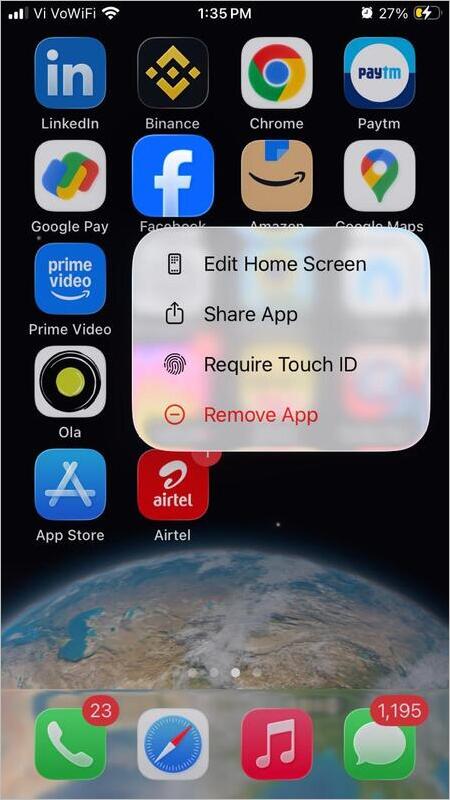
2. Now tap on Require Touch ID
3. You’ll then have the following options available.
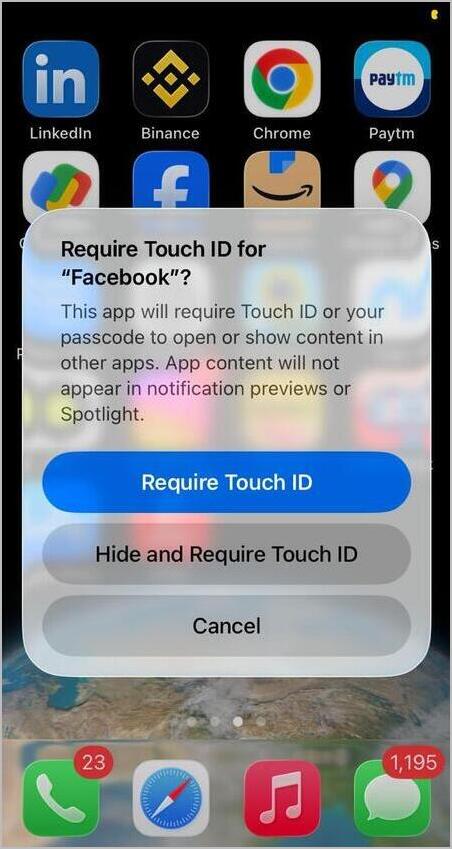
4. Now select Hide and Require Touch ID.
5. Enter your password
6. Then select Hide App
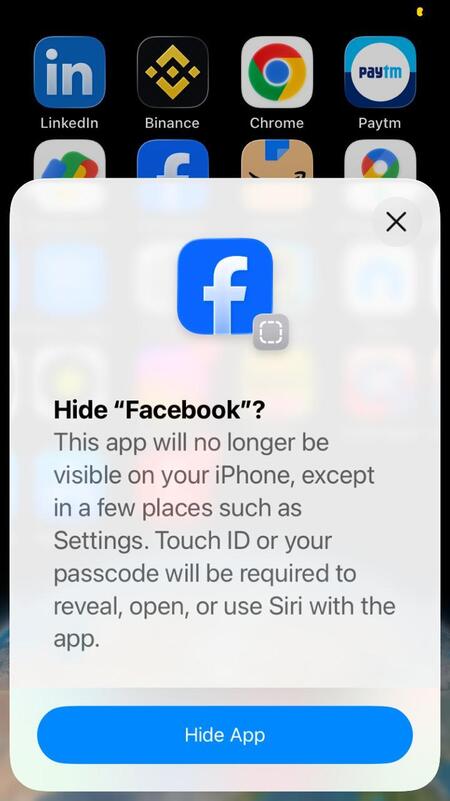
7. Facebook will then be moved to the Hidden Apps folder.
To access an app that you’ve moved to the Hidden Apps folder, follow these instructions:
1. Swipe left (or right) on your Home Screen until you find the App Library.
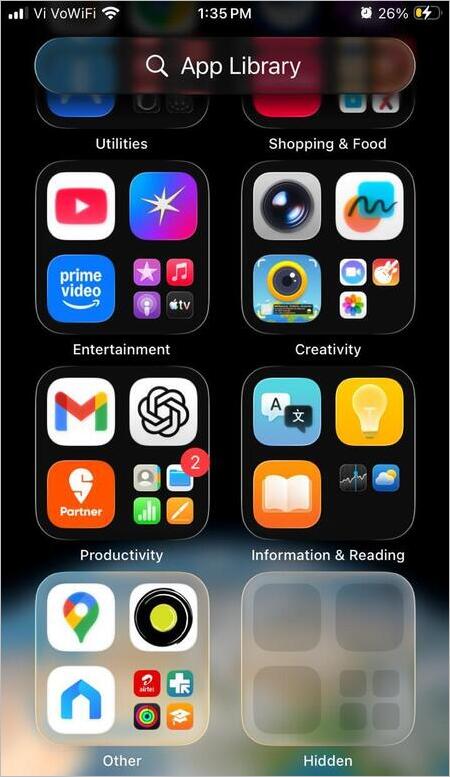
2. On this page, scroll down, and you will find the Hidden Apps folder at the end.
3. Tap on it.
4. Now you will have to enter your passcode.
5. Once you enter the passcode, the hidden apps will be revealed.
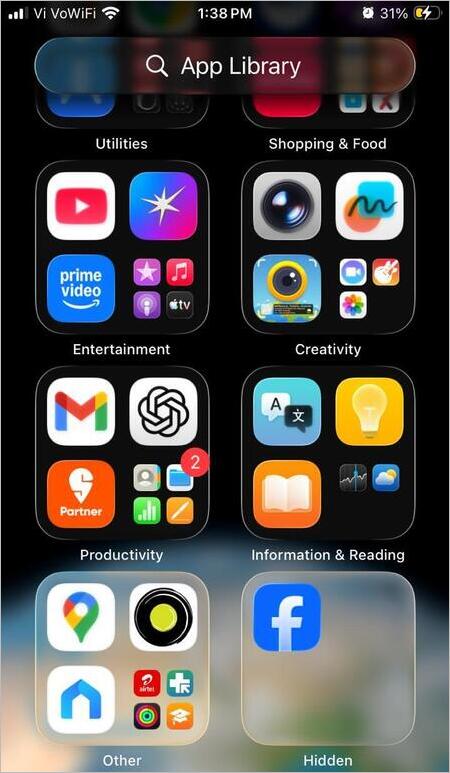
Steps to unhide hidden apps on iPhone:
1. Once the hidden app appears, long-press on the icon of the app you want to unhide.
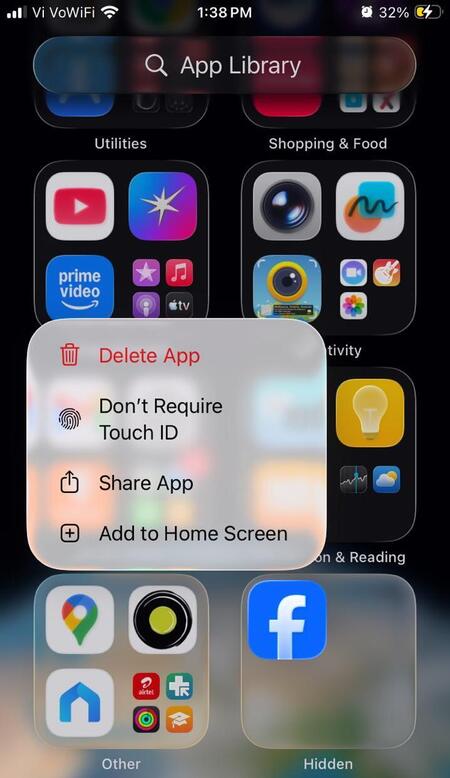
2. Now select Don’t Require Touch ID.
3. Enter your passcode.
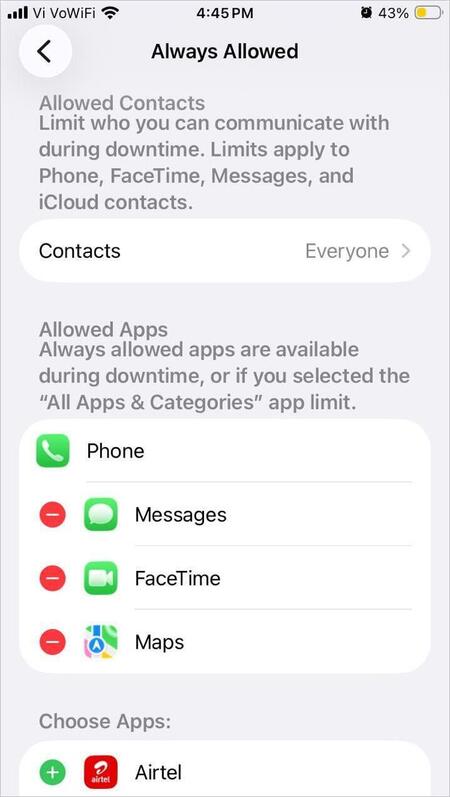
#3) App is Marked as ‘Allowed’ in Screen Time Settings
If this setting is turned off for an app, you may not be able to see the app on your Home Screen.
This setting can be changed by following these simple steps:
1. Go to Settings
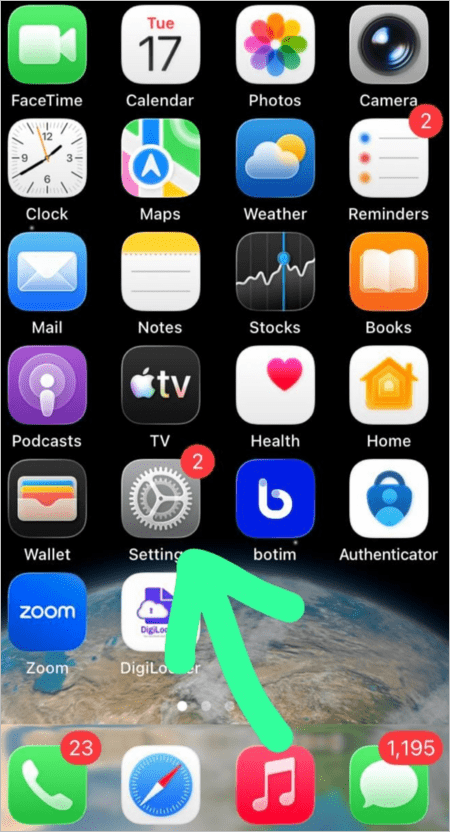
2. Select Screen Time
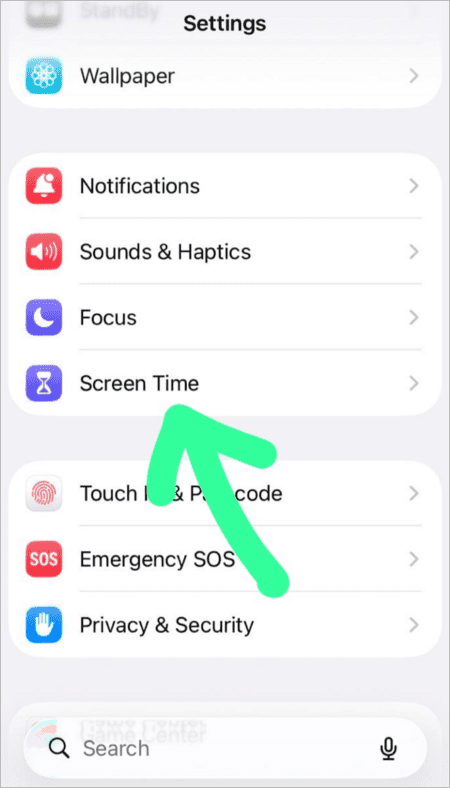
3. Now tap on Always Allowed
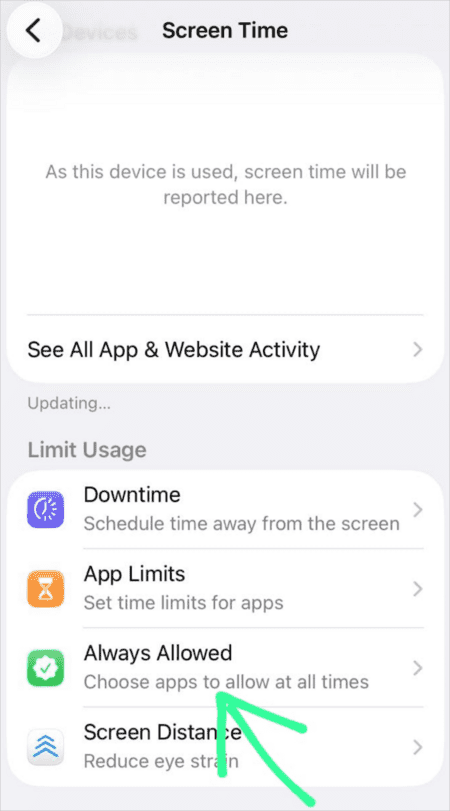
4. Now make sure the app you want to use is marked as Allowed.
#4) How to Unhide Apps on iPhone in Settings
Make sure the ‘Show App in Search’ setting is enabled for the app you’re interested in.
In iOS 18 and 26:
- Go to your iPhone’s Settings
- Now select Search (If you are using iOS 17 or earlier versions, then select Siri & Search)
- You will see a list of apps. Find the app you are looking for (for example, Facebook)
- Make sure the Show App in Search option is turned ON.
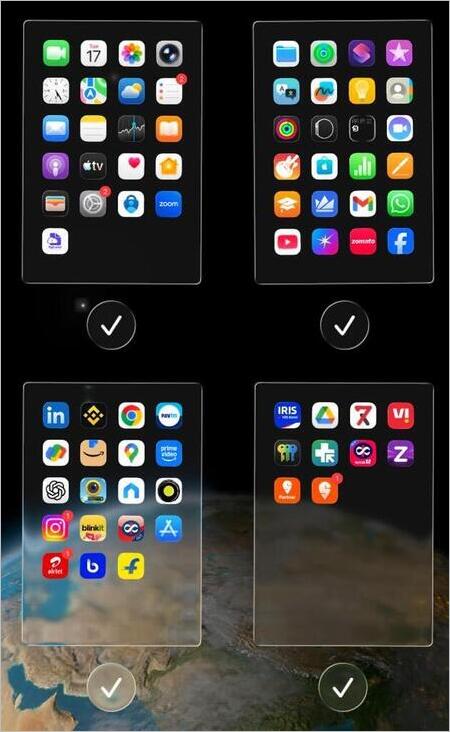
#5) Unhide Apps on the Home Page
Users can easily look for hidden apps on the phone’s Home Screen by doing as stated under:
1. Press and hold the Screen anywhere for 2-3 seconds (Make sure you don’t press on any app’s icon)
2. Now all apps will start jiggling.
3. Tap the dots at the bottom of your screen.
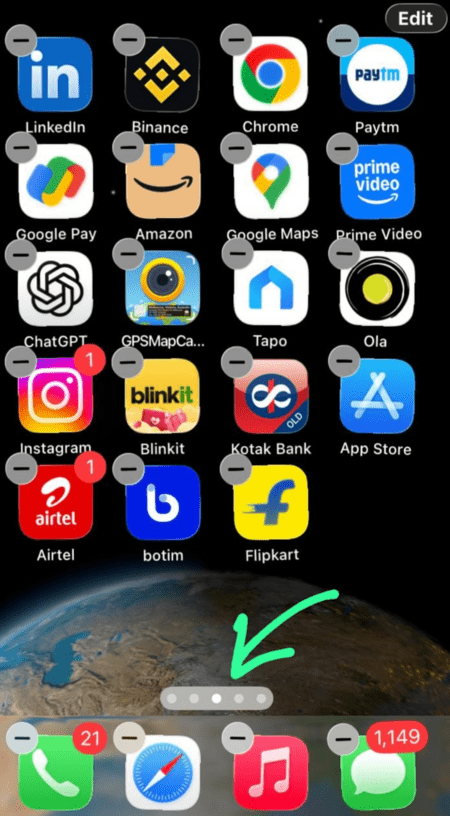
4. Make sure all pages are ticked.
#6) Reset Home Screen
Sometimes apps get moved to another place on the Home Screen accidentally, which is why users can’t find them quickly. Most iPhone users are unaware that they can reset the Home Screen at any time to move all the apps on their iPhone back to their default positions.
Follow these simple steps to achieve this.
1. Open the Settings app on your iPhone.
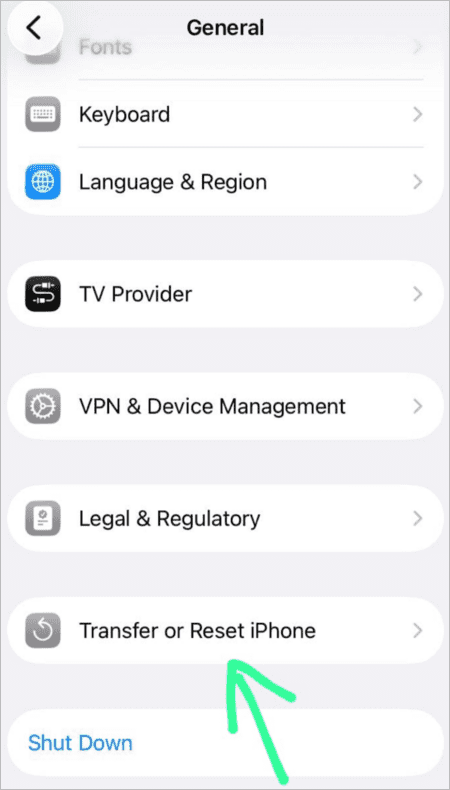
2. Select the option – General
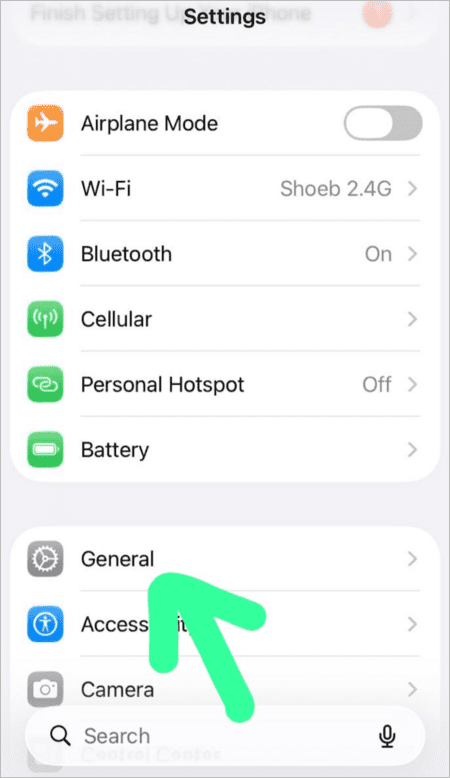
3. Then tap on Transfer or Reset iPhone
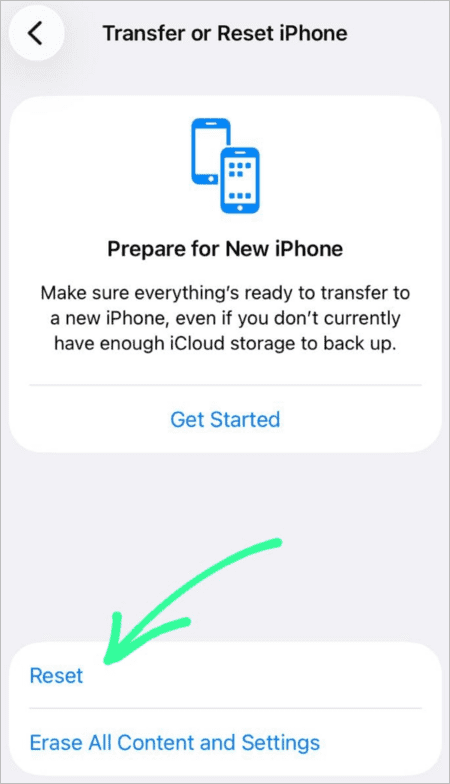
4. Now choose the Reset option.
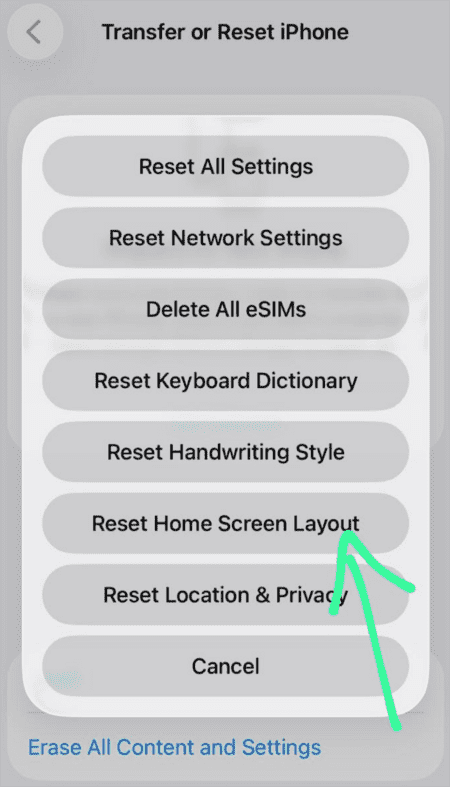
5. Select Reset Home Screen Layout.
#7) Search for the App in App Store
If you tried every way to find the specific App you are looking for, but you can’t find it, then go to the App Store and search for that app. If it says you need to install the app, then you accidentally deleted the app sometime. Now you can reinstall the app and start using it again.
It is also possible that the app may need an update to run. If that’s the case, you would be prompted to update the app when you search for the app on the App Store.
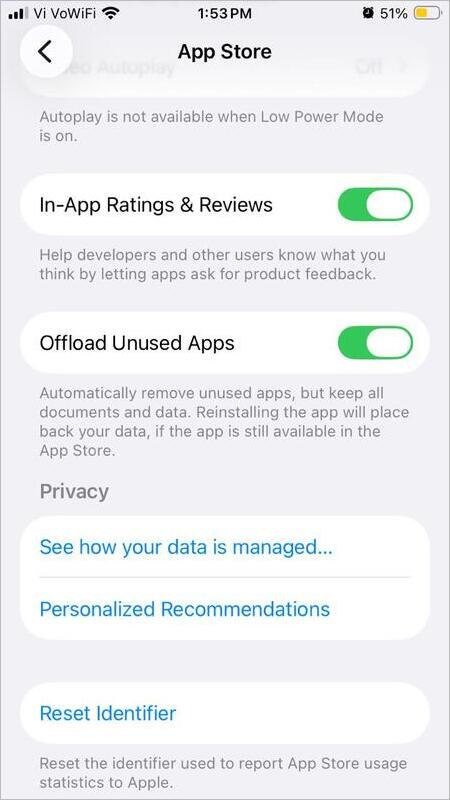
If the Offload Unused Apps setting is turned ON in your iPhone, then some apps will automatically get deleted from the iPhone.
To disable this setting, users should take these actions:
1. Go to Settings
2. Now go to Apps
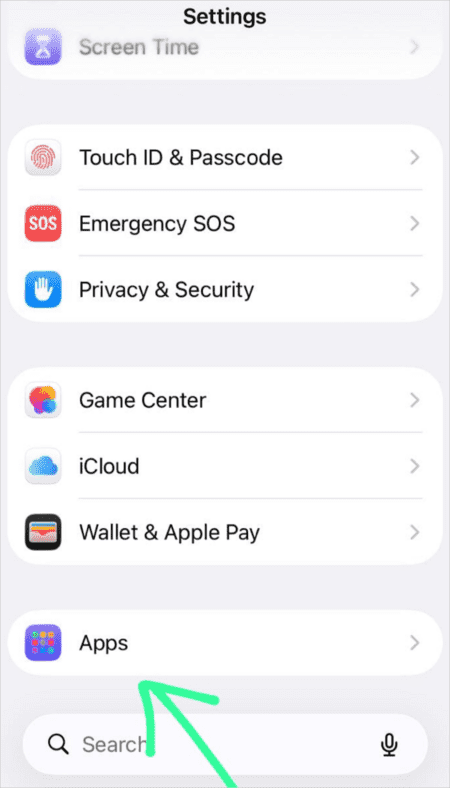
3. Select Apps Store
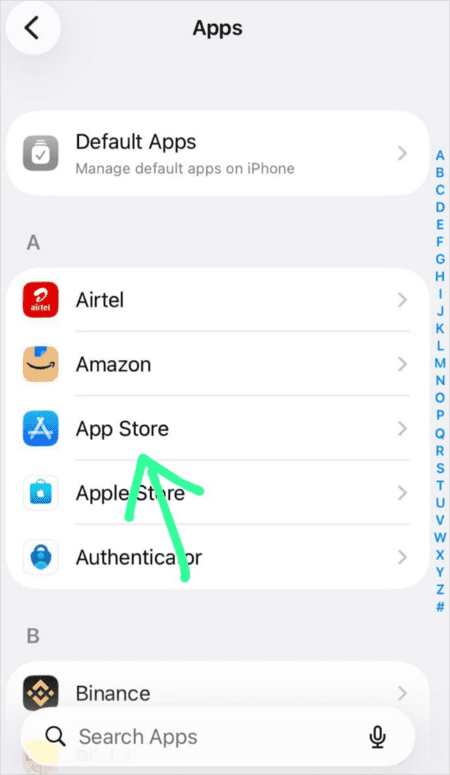
4. Turn off Offload Unused Apps.
#8) Check Your iCloud Purchase History
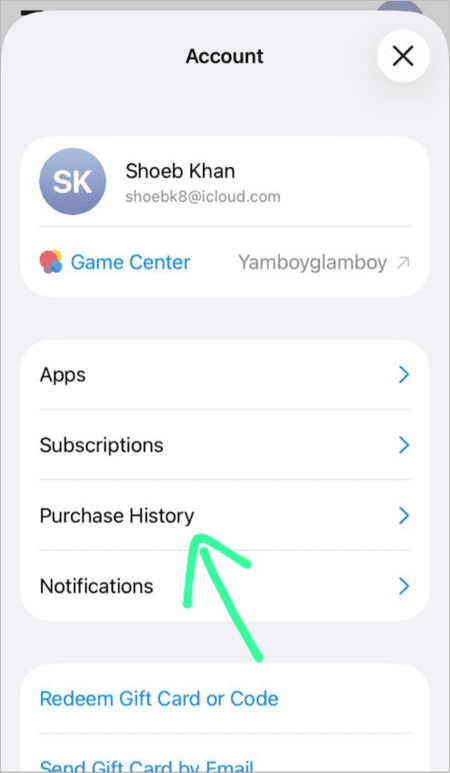
To find apps you’ve accidentally deleted, check your iCloud Purchase history using the steps below:
1. Go to App Store
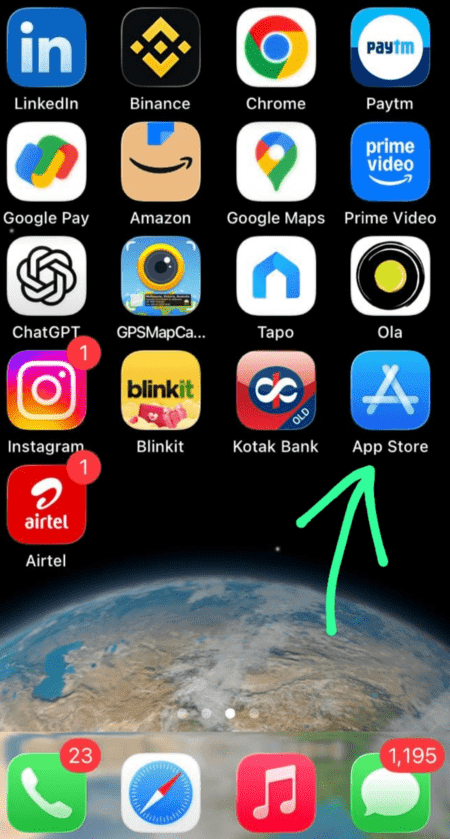
2. Tap on your Profile Picture
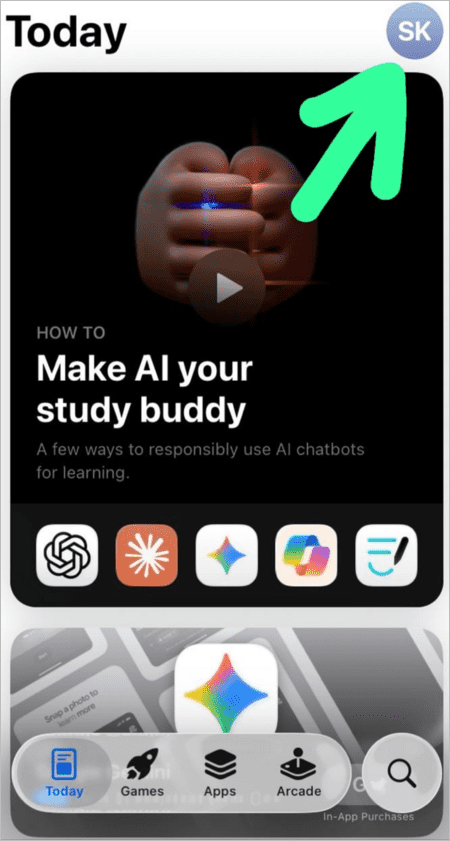
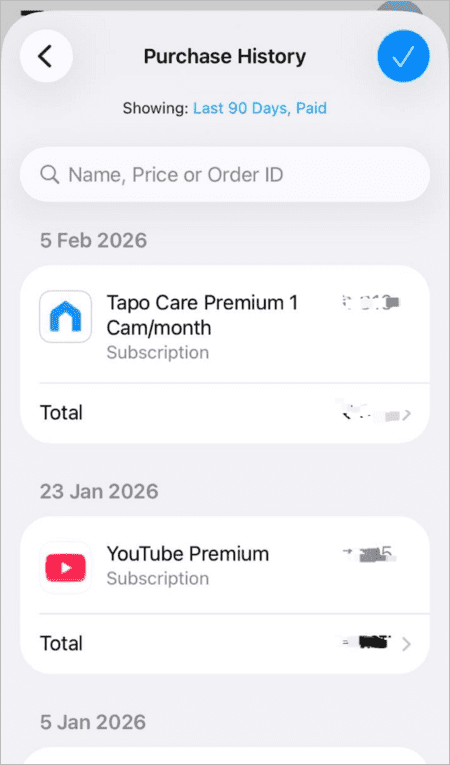
3. Select Purchase History as in the image below.
4. You may find one or two apps you downloaded earlier.
#9) How to Unhide Apps on iPhone App Store
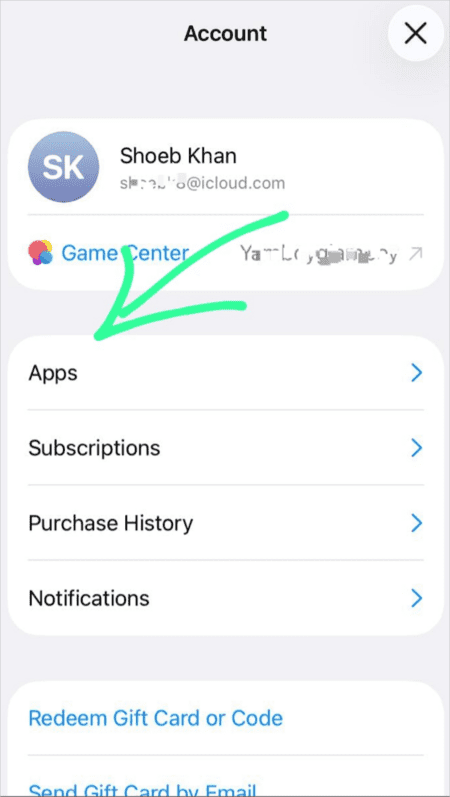
iPhone users can hide the apps in the App Store by following these steps:
1. Go to App Store
2. Tap on your Account Photo
3. Now select Apps (If you are using Family Sharing feature, then select My Apps after tapping on Apps).
4. Swipe left on the App you want to hide.
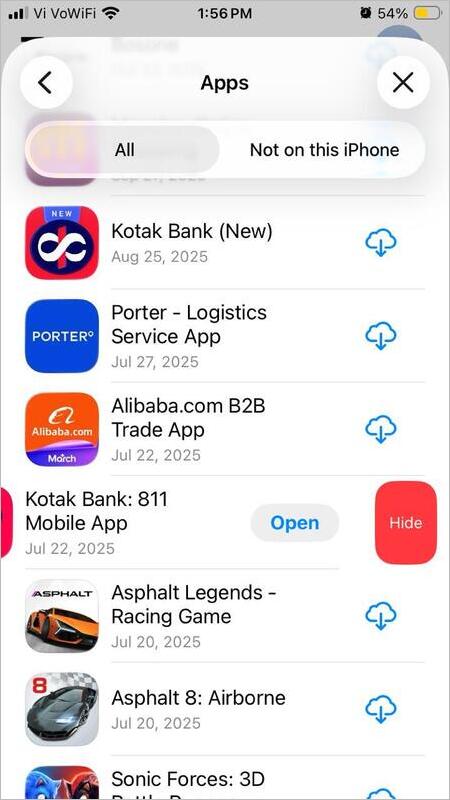
5. Tap on Hide and then select Done.
#10) How to Unhide Purchased Apps on iPhone
To unhide an app on your iPhone’s App Store, follow these steps:
1. Go to the App Store as shown below.
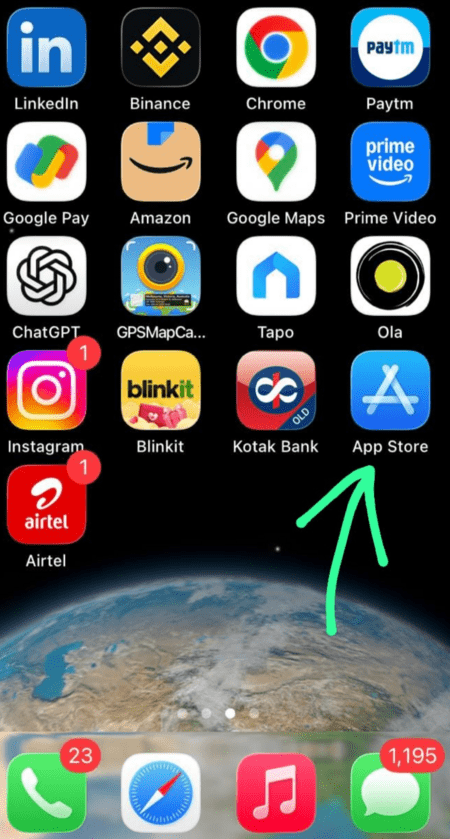
2. Tap on your Account Photo.
3. Tap on your Apple account
4. Now you may need to sign in to your Apple account.
5. Now select the option Hidden Purchases.
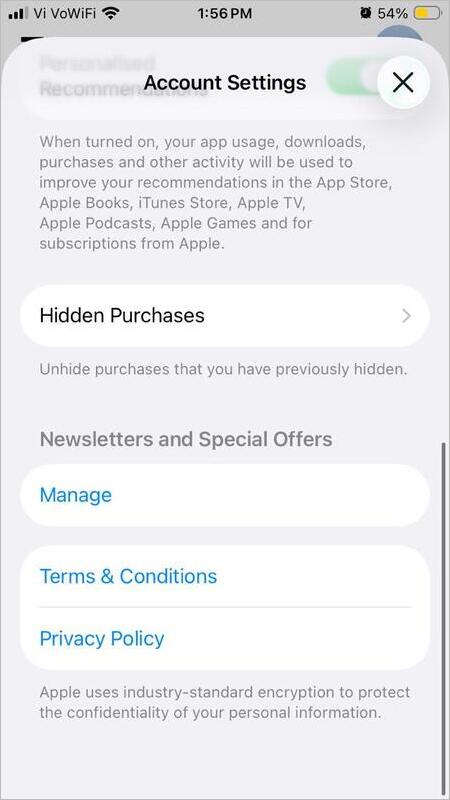
6. You will see the hidden app. Tap on it and then select Unhide.
7. Tap on Done.
#11) Turn on the Add to Home Screen Function
Turn on the ” Add to Home Screen function from Settings.
Make sure your apps are allowed to be added to the Home Screen. Check this setting by following these steps:
1. Go to Settings.
2. Select Siri as in the image below.
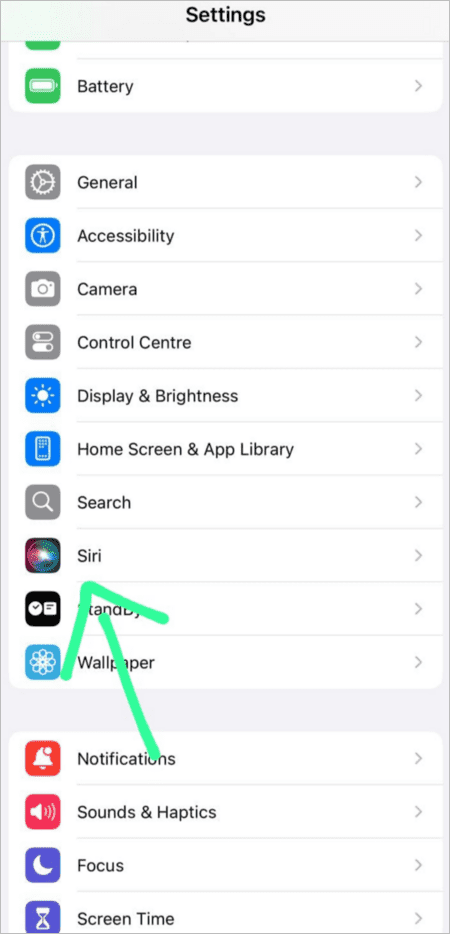
4. Now go to Apps as shown below.
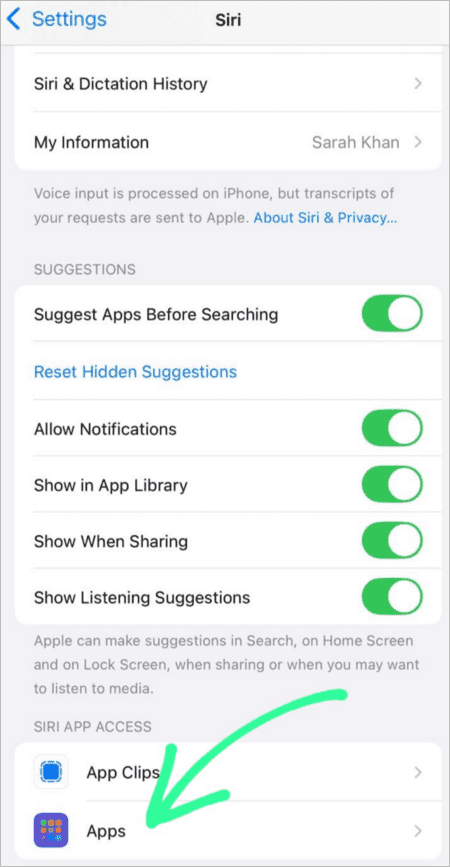
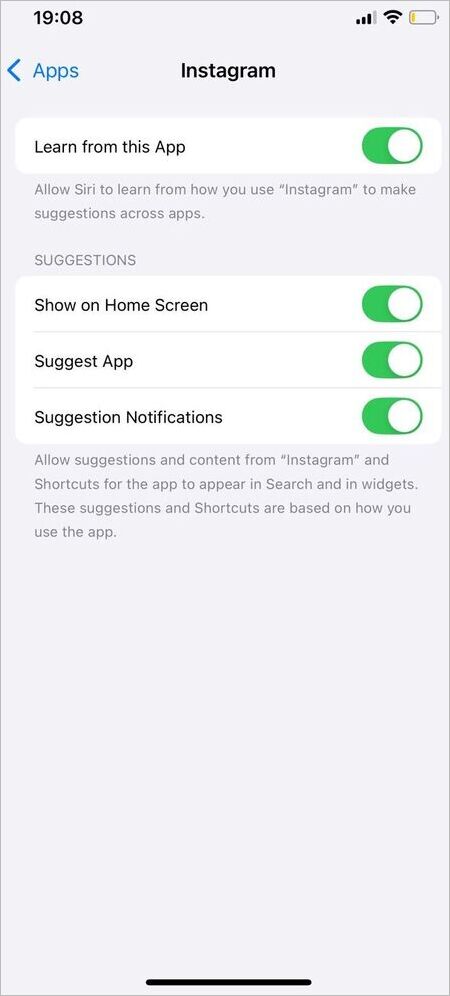
5. Select an app
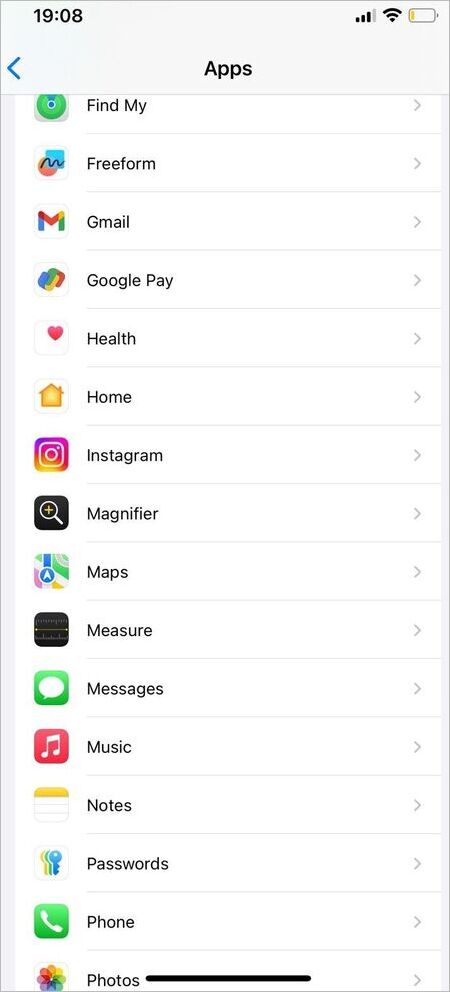
6. Turn on the Show on Home Screen option as depicted in the image below.
#12) Parental Control Features
Parental Control features may have restricted you from using the App.
iPhones allow parents to control their child’s phone usage (in order to limit screen time, exposure to inappropriate apps, etc.). If that’s the case with you and you have to use a restricted app urgently, then you would have to ask your parent to allow you to use that app by following these steps:
- In the parents’ iPhone, go to Settings
- Then tap on Screen Time
- Under the heading Family, there will be the name of the child. Tap on it.
- Choose Content & Privacy Restrictions
- Enter the device’s passcode
- Now tap on the name of the app you want to remove restrictions from.
- Select Allow.
#13) Update your iPhone
A smartphone may behave abruptly when there is a pending software update. So check for a software update if you are facing issues.
How to Unhide Hidden Apps on Apple Watch
First of all, let me tell you, the Apple Watch does not have a feature of hiding or unhiding an app. The apps on the Apple Watch can only be installed or deleted. If you can’t see an app on your Apple Watch, you can follow these methods to get it back.
- If an app was previously installed on your Watch and got removed. Follow these steps:
- In your iPhone, go to the Watch app
- Now select My Watch
- Now choose the option: Installed on Apple Watch
- Scroll down to find the section: Available Apps.
- This section will list the apps you wish to add to your Apple Watch, with an install option next to it.
- Tap on the Install option to get that app on your Watch.
- You can also use the App Store on the Apple Watch to get an app. Follow these steps:
- Press the Digital Crown on your Apple Watch
- Tap on the App Store icon
- Search for the app you want on your Watch
- Tap on Get to install the app on your Watch.
- If you remove an app from the iPhone, then that app gets removed from the Apple Watch as well. So get the app back to the iPhone to get it on your Watch.
- Check the Automatic App Install feature. Follow these steps:
- Open the Watch app on your iPhone
- Tap on General
- Make sure the Automatic App Install option is turned ON.
- If none of the above-stated methods work, then restart your Watch to remove bugs.
Steps to Prevent Apps From Being Hidden
To prevent your apps from being accidentally hidden on your iPhone, follow these steps:
- Make sure there is a lock screen passcode on your iPhone. It will minimize the chances of accidental movement of apps and changes to settings on your iPhone.
- You can also reduce the Haptic Touch Sensitivity in order to minimize accidental movement of apps. This can be done by following these steps:
- In your iPhone, open the Settings app
- Now go to Accessibility
- Then select the option – Touch
- Tap on Haptic Touch
- Set the speed to Slow.
- Reset the Home Screen if the apps get moved to another page.
Frequently Asked Questions
1. How to unhide free apps on iPhone?
If you have hidden an app, and now you wonder how to access it and add it back to the home screen, then don’t worry, because it can be done quite easily by following these steps:
a. On your iPhone Home Screen, swipe left (or right) until you find the App Library.
b. Scroll down to find the Hidden Apps folder.
c. Tap on it and enter the device passcode.
d. Now you will see the hidden app’s icon
e. Long-press the icon and then tap on Don’t Require Touch ID. Enter the passcode to confirm.
2. Why are my iPhone apps suddenly hidden?
If the apps in your iPhone automatically get hidden, it would be because of one of the following reasons:
a. You may have accidentally removed the App from the Home Screen
b. The ‘Offload Unused Apps’ setting may be turned on on your iPhone, due to which, the apps that are not used for some time would have been deleted automatically.
You can turn this setting off this way:
– Go to Settings
– Tap on Apps
– Now go to App Store
– Turn Offload Unused Apps option OFF
c. Your phone may need a software update.
d. It’s due to the Parental Control features.
3. Can I use hidden apps on my iPhone?
If you have hidden an app, you just need to go to the Hidden Apps folder (located below the App Library), enter the device’s passcode, and then use the app.
And if the app has been hidden due to the Show App in Search Setting, then go to Settings, select Search, then tap on the name of that app, then turn on ‘Show App in Search’.
But if the usage of a specific app is restricted through the Parental Control features, then you can only use it once the restriction is removed from the Parent’s iPhone.
4. Can you secretly hide apps on an iPhone?
To secretly hide an app on your iPhone, you can use different methods, for example:
a. Remove the app from your phone’s Home Screen: If you press an app’s icon for 2-3 seconds, then tap on the option Remove App and then select Remove from Home Screen, the app will be secretly hidden. It will then be accessible through the App Library.
b. Move it to the Hidden Apps folder: You can press an app’s icon for 2-3 seconds, then select Require Face ID, and then choose the option- Hide and Require Face ID and enter your passcode. The app will then disappear from the Home Screen and will be moved to the Hidden Apps folder.
c. Allow app in the Screen Time Settings: Go to Settings on your iPhone, then:
– Select Screen Time
– Tap on Always Allowed
– Make sure the app you want to use is allowed.
d. Hide an app from the App Store:
– Go to App Store
– Tap on your Account Photo
– Now select Apps (If you are using the Family Sharing feature, then select My Apps after tapping on Apps).
– Swipe left on the App you want to hide.
– Tap on Hide and then select Done.
e. Turn off the ‘Show in Search’ setting for the app: You can do it by following these steps:
– Go to your iPhone’s Settings
– Now select Search
– You will see a list of apps. Find the app you want to hide.
– Turn off Show App in Search.
5. How do I hide apps from the App Library on iPhone iOS 17?
Here’s how to hide an app from your iPhone’s iOS 17 App Library:
a. Find the app in the App Library
b. Long-press its icon
c. Select Require Face ID, and then choose the option- Hide and Require Face ID, and enter your passcode. Check our detailed guide on Why is my Face ID not working to fix all Face ID-related issues on iPhone.
6. How to unhide apps on the iPhone iOS 26?
To unhide apps on your iPhone iOS 26, do as stated under:
a. If you had removed the App from the home screen, you can unhide it by going to the App Library, then searching for that app, then pressing its icon for 2-3 seconds, then selecting Add to Home Screen.
b. If you had moved the app to the Hidden Apps folder, then you can unhide it using these steps:
– Go to the App Library,
– Then scroll down to find the Hidden Apps folder, and tap on it
– Enter the passcode
– Now you will see the app you had moved to the Hidden Apps folder. Long-press its icon and then select Don’t Require Face ID.
7. How to unhide an app on iOS 18?
You can unhide an app on iOS 18 using these methods:
a. The app may have moved to a hidden page. If that’s the case, unhide it using these steps:
– Press somewhere on your Home Screen (do not press on any app).
– Now tap on Edit, then select the option – Edit Pages (or tap on the dots located at the bottom of your screen).
– Now you will see the checked pages of your Home Screen.
– If a page is unchecked, tap on it to Unhide it.
b. If the app had moved to the Hidden Apps folder, then unhide it with the help of this method:
– Find the App Library by swiping left on your Home Screen
– Scroll down to find the Hidden Apps folder
– Tap on it and enter the passcode
– Tap on the app that you want to unhide
– Select Don’t Require Face ID.
c. Check the Screen Time Settings in your iPhone:
– Go to Settings
– Tap on Screen Time
– Go to Always Allowed
– Now check whether all apps are marked as Allowed or not. The apps not marked will be hidden from the Home Screen.
8. Why are my app icons invisible on iOS 26?
If your app icons are invisible on iOS 26, it would be because of one of the following reasons:
a. You may have removed the apps from your Home Screen
b. You may have accidentally (or intentionally) hidden an entire Home Page, due to which you can’t find some apps on your iOS 26 Home Screen.
c. There can be an issue with the Screen Time setting in your iPhone
d. The apps may have moved inside a folder
e. The issue can also be due to the Parental Control feature.
Conclusion
We are now in a position to conclude that there are a number of ways through which an app can be hidden on an iPhone. And, if an app accidentally gets hidden through any of the methods, then a user (especially when he is a new iPhone user) can find it difficult to unhide the app.
Some features like ‘Show App in Search’ setting, ‘Offload Unused Apps’, and ‘Hiding purchased apps in the App Store’ are less popular. And the user may get confused while unhiding the app, even when he would have intentionally hidden the app himself.
So in this article, we provided the users with all the possible ways to unhide an app on an iPhone.
Research Process: The total time involved to complete and publish this article is approximately 42 hours. This content was created through a structured research approach to ensure accuracy and reliability.
For more apps on iPhone-related guides, you can explore our range of tutorials below:
- Top 10 Free Video Downloader Apps For iPhone & iPad
- Top 10 iPhone Spy Apps (Free & Undetectable)
- How to Remove or Delete Apps on iPhone Permanently
- The Top 10 Apps to Mirror iPhone to iPad
- How to Completely Uninstall or Delete Apps on Mac
- How to Fix If Your Apple CarPlay Not Working
- How to Request Desktop Site on iPhone
- How to Set Timer on Your iPhone Camera (Easy Ways)
- How to Share Your Location on iPhone with Others
Was this helpful?
Recommended Reading
-

Read this review to explore different effective methods to understand how to Record Phone Calls on iPhone: In a majority of states across the United States, the law mandates it to get consent from a single or all parties to the conversation to legally record a phone call. It is…
-
Here we will explore multiple ways to understand how to Share Your Location on iPhone with others: Sharing live locations is a useful thing today. It is especially useful when you don’t know the exact address and you would like to tell someone where you are. Be it an Android…
-
Compare the top Parental Control Apps to discover the Best Parental Control apps for iPhone and Android most suited for your children: The rapid advancement of technology poses a risk to children. Various studies have shown negative physical and mental effects of smartphone usage at earlier ages. Parental control apps…
-
This tutorial is a complete step-by-step guide that explains the top 3 useful methods to find ways on how to Unlock a Disabled iPhone: Security is the best part of having an iPhone. No one can unlock your phone and access your data unless they know the password. As much…